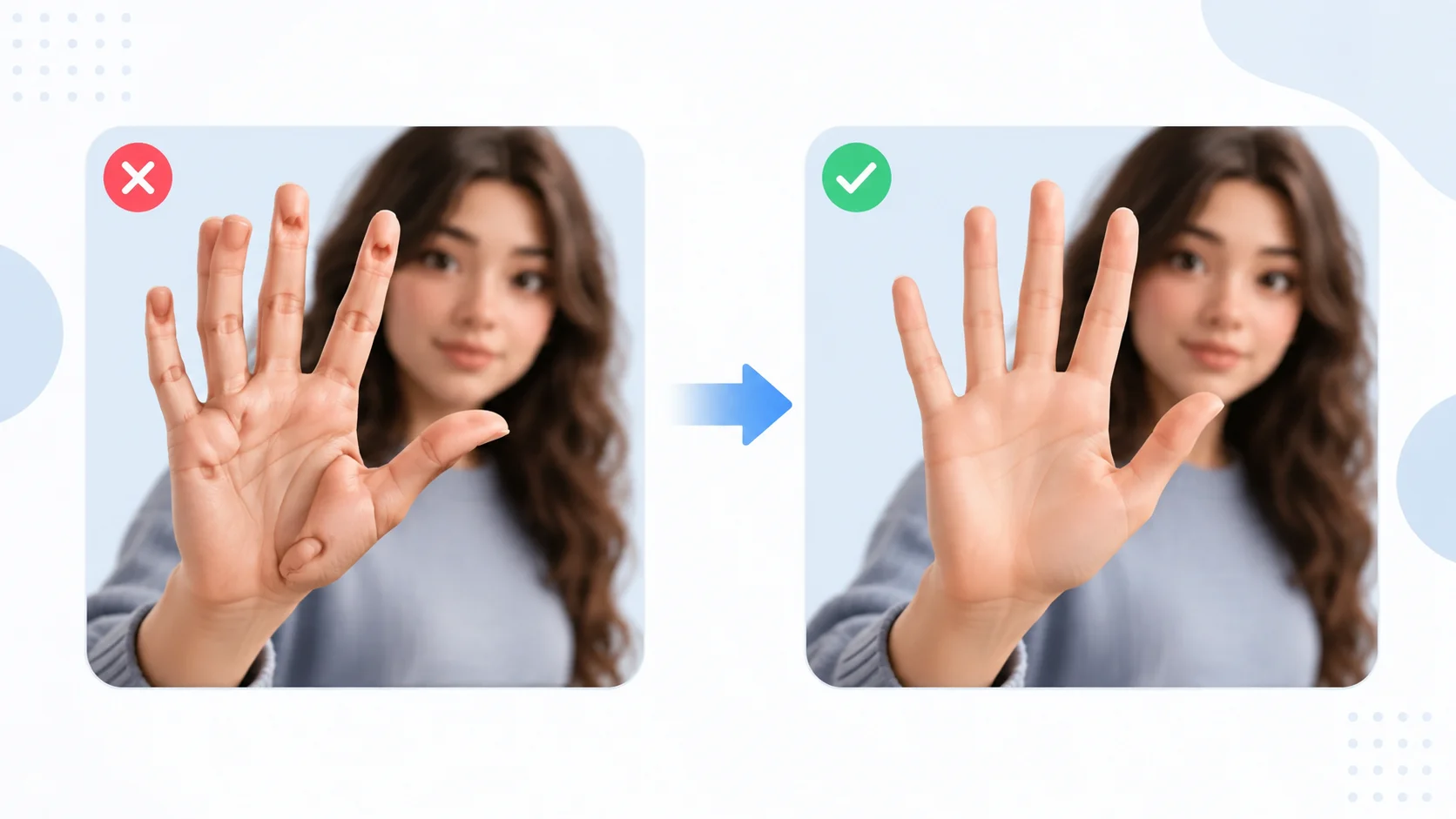
You generated a stunning AI image. The lighting is perfect, the composition is spot on, and then you notice the hands. Six fingers, fused knuckles, thumbs growing from wrists, or fingers that taper into nothing. It ruins an otherwise great image.
AI-generated hands are the most common artifact in AI art. The good news is that you can fix them without starting over. Here is how to do it using a mix of tools and techniques.
Why AI Image Generators Get Hands Wrong
Hands are one of the most complex structures in the human body. They have 27 bones, multiple joints that bend in different directions, and they constantly change shape depending on grip, gesture, and perspective. For AI image generators, this creates a problem.
These models learn by analyzing millions of images, but hands appear in wildly different configurations across those images. A hand holding a cup looks nothing like a hand waving or a hand resting on a table. The model struggles to learn consistent rules for something that has so many valid variations.
Understanding how these models work helps explain why hands are particularly hard. Diffusion models generate images by refining noise into detail, and the dense, overlapping structure of fingers creates ambiguity that the model often resolves incorrectly.
Method 1: Use Inpainting to Fix Hands
Inpainting is the most effective way to fix AI-generated hands without regenerating the entire image. You mask the hand area and let the AI regenerate just that section while keeping everything else intact.
How to Inpaint Hands in Midjourney
Midjourney offers a Vary Region feature. Upload your image, select the hand area, and regenerate it. You may need to run this several times to get a natural-looking result. Each attempt generates a new variation of just the masked area.
How to Inpaint Hands in DALL-E
DALL-E has a built-in editor that lets you erase part of an image and regenerate it with a new prompt. Select the problematic hand, erase it, and add a prompt like “natural human hand with five fingers, relaxed pose.” Be specific about finger count and position.
How to Inpaint in Stable Diffusion
Stable Diffusion gives you the most control over inpainting. Use the img2img tab with inpainting enabled, mask the hand, and set the denoising strength between 0.4 and 0.6. Lower values preserve more of the surrounding area while higher values give the model more freedom to redraw.
| Tool | Inpainting Method | Control Level |
|---|---|---|
| Midjourney | Vary Region | Low (automatic) |
| DALL-E | Built-in editor with erase and reprompt | Medium |
| Stable Diffusion | img2img inpainting with adjustable denoising | High |
| Adobe Firefly | Generative Fill in Photoshop | High |
Method 2: Write Better Prompts to Prevent Hand Issues
Prevention is easier than fixing. The way you write your prompt has a direct impact on how well the AI renders hands.
- Specify hand position explicitly. “Hands clasped behind the back” or “arms crossed” reduces the chance of visible finger errors.
- Avoid complex hand interactions. Prompts that require interlocking fingers, holding small objects, or detailed gestures produce more errors.
- Use negative prompts. In Stable Diffusion, add “extra fingers, deformed hands, fused fingers, mutated hands” to your negative prompt list.
- Hide hands when they are not essential. Poses with hands in pockets, behind the subject, or cropped out of frame eliminate the problem entirely.
- Request fewer visible hands. A profile shot showing one hand is easier for the model than a front-facing pose with both hands visible.
The easiest hand to fix is the one you never had to generate. Prompt around the problem when you can.
Method 3: Fix Hands Manually with Photo Editors
Sometimes the fastest fix is manual editing. If the hand is close to correct but has a small error like an extra finger or a bent thumb, a photo editor can clean it up in minutes.
Using Photoshop or Similar Tools
- Use the Clone Stamp tool to paint over extra fingers using nearby skin texture.
- Use the Liquify filter to reshape fingers that are slightly too long, too short, or bent at wrong angles.
- Use Content-Aware Fill to remove an extra digit and let the tool blend the area automatically.
- Use the Healing Brush to smooth out seams where you removed or repositioned fingers.
Using Free Alternatives
GIMP offers similar tools for free. The Clone tool, Heal tool, and Warp Transform handle most hand fixes. SnapEdit is another option that uses AI to remove unwanted elements from images with minimal effort.
Method 4: Use ControlNet for Accurate Hands
ControlNet is an extension for Stable Diffusion that lets you guide image generation using reference poses. For hands, this is a game changer.
You provide a reference image or skeleton pose that shows the exact hand position you want. The model then generates the image while following that structure. This produces dramatically better hands because the model has explicit guidance instead of guessing.
- Use OpenPose to create a skeleton reference that includes hand joint positions.
- Use a depth map from a real photograph as a guide for natural hand proportions.
- Combine ControlNet with a hand-specific LoRA model trained on well-rendered hands for the best results.
ControlNet does not guarantee perfect hands, but it shifts the odds heavily in your favor by giving the model a roadmap to follow.
Method 5: Upscale and Refine with Detail Enhancement
Sometimes hands look wrong because of low resolution rather than structural errors. Upscaling tools can add detail that makes hands look more natural.
Topaz Labs and similar AI upscalers add detail during the upscaling process. If the hand structure is correct but looks blurry or smeared, running the image through an upscaler at 2x or 4x can sharpen finger definition, nail detail, and skin texture enough to make it pass as realistic.
This works best when the hand has the right number of fingers and roughly correct proportions. Upscaling cannot fix a sixth finger or a thumb growing from the wrong spot.
Tips for Specific AI Art Styles
The approach to fixing hands depends partly on the art style you are working with.
| Art Style | Hand Fix Strategy |
|---|---|
| Photorealistic | Inpainting with reference photos, manual editing for fine details |
| Illustration or cartoon | Simplified hands are more forgiving, use 4 fingers if style allows |
| Anime | Anime LoRA models handle hands better, use style-specific negative prompts |
| Oil painting or impressionist | Loose brushwork hides minor hand errors, focus on overall gesture |
Will AI Ever Get Hands Right
It is already getting better. Each new model version shows improvement in hand rendering. Newer versions of Midjourney, DALL-E, and Stable Diffusion produce noticeably fewer hand errors than their predecessors from even a year ago.
The underlying models are learning better spatial relationships and finger counting through improved training techniques. ControlNet and similar guidance systems are also becoming standard features rather than add-ons. Within a generation or two of models, badly rendered hands will likely become an occasional edge case rather than a constant frustration.
Until then, knowing how to fix them is a practical skill that saves hours of regenerating entire images hoping for a lucky result.
Conclusion
Fixing AI-generated hands comes down to choosing the right method for the situation. Use inpainting when the hand structure is completely wrong, write better prompts to prevent issues upfront, edit manually for minor fixes, and use ControlNet when you need precise hand poses. The key is not to treat a bad hand as a reason to throw away an otherwise great image. With the right tools and a few minutes of work, almost any hand artifact can be corrected. As AI creative tools continue to improve, this problem is shrinking, but the fix skills you build now will serve you well in any design workflow.