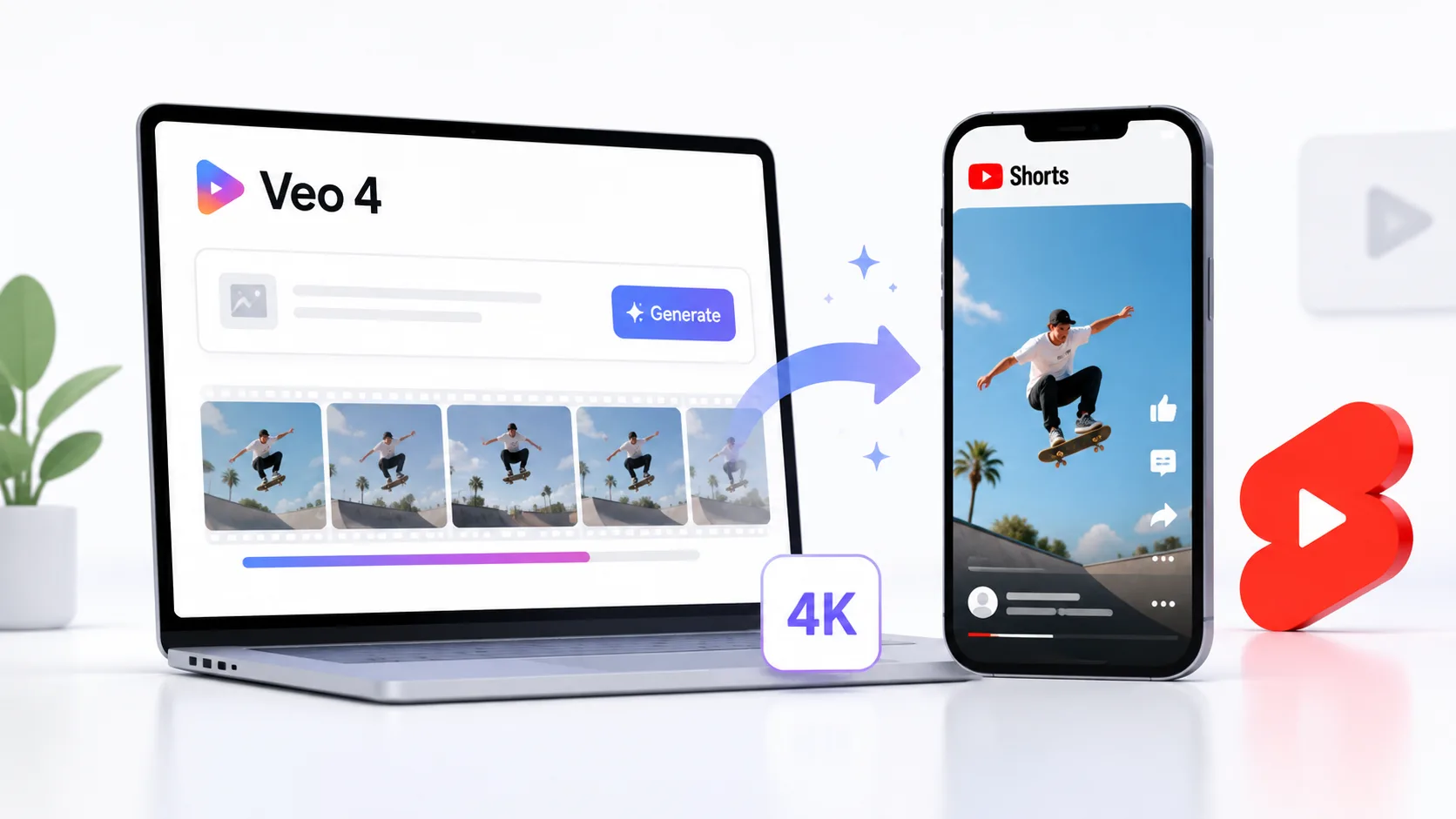
YouTube Shorts gets over 70 billion daily views. That is a massive audience sitting behind a format most creators still struggle to fill consistently. Veo 4, Google’s latest AI video generation model, can help you create short-form video content without a camera, a set, or hours of editing.
If you have been looking for a way to produce Shorts faster without sacrificing visual quality, Veo 4 is worth learning.
What Veo 4 Brings to Short-Form Video
Veo 4 generates high-quality video clips from text prompts. You describe what you want to see, and the model produces a realistic or stylized video that matches your description. It handles camera movement, lighting, physics, and human motion better than earlier models.
For YouTube Shorts, this means you can create eye-catching clips in vertical format without filming anything. Product demos, explainer visuals, storytelling sequences, and aesthetic loops are all possible from a single text prompt.
Setting Up Veo 4 for Shorts
Veo 4 is available through Google’s AI tools ecosystem. You can access it through Google AI Studio or through the Vertex AI platform if you need API-level control. Here is how to get started.
Step 1: Access the Platform
Sign into Google AI Studio with your Google account. Navigate to the video generation section and select Veo 4 as your model. If you are using Vertex AI, enable the Imagen and Veo APIs in your Google Cloud project.
Step 2: Set the Right Aspect Ratio
YouTube Shorts requires a 9:16 vertical format. When creating your prompt, specify vertical orientation or 9:16 aspect ratio in your generation settings. This ensures the output fits Shorts without cropping or letterboxing.
Step 3: Write an Effective Prompt
The quality of your Short depends entirely on your prompt. Be specific about the subject, camera angle, movement, lighting, and mood. Vague prompts produce generic results.
| Weak Prompt | Strong Prompt | Why It Works Better |
|---|---|---|
| A person walking | A woman in a yellow raincoat walking through a neon-lit Tokyo alley at night, slow motion, cinematic lighting, rain reflections on the ground | Specific subject, setting, mood, and camera style |
| A cool car | A matte black sports car drifting around a mountain curve, drone tracking shot, golden hour, dust trail behind the wheels | Defines action, camera movement, and atmosphere |
| Food on a table | Close-up of melted chocolate being poured over a stack of fresh strawberries, overhead shot, soft natural light, shallow depth of field | Specifies camera angle, lighting, and visual detail |
Creating Different Types of YouTube Shorts with Veo 4
Not every Short needs to be the same format. Veo 4 is flexible enough to handle several content styles that perform well on the platform.
Aesthetic and Mood Loops
These are short clips designed to capture attention through visual beauty. Think satisfying visuals, nature scenes, or abstract art in motion. They work well as background content for voiceover narration or music overlays.
Prompt example: “Aerial shot of turquoise ocean waves crashing on white sand beach, seamless loop, 4K, vibrant colors, slow motion.”
Explainer and Educational Clips
Use Veo 4 to generate visual sequences that illustrate a concept. If you run an educational channel, you can create scenes that show processes, comparisons, or transformations without needing stock footage.
Storytelling Sequences
Generate multiple clips from a narrative prompt and stitch them together in your editor. Each clip can represent a scene or a beat in a short story. This works especially well for fiction, motivational content, or mini-documentaries.
Editing Veo 4 Clips for YouTube Shorts
Raw Veo 4 output rarely goes straight to upload. You will want to polish it in an editor to make it feel like a finished Short.
- Trim the clip to under 60 seconds. Shorts that run 15 to 30 seconds tend to get higher completion rates.
- Add text overlays for hooks. The first two seconds need to grab attention, so add a bold text hook at the top of the frame.
- Layer music or voiceover. Veo 4 generates video without audio, so you will need to add sound separately.
- Use transitions between multiple generated clips if your Short tells a story across scenes.
- Export in 1080×1920 resolution at 30fps or higher for the best quality on mobile screens.
The video gets them to stop scrolling. The hook in the first two seconds gets them to stay. Never skip the hook.
Tips for Better Results with Veo 4
Getting consistently good output from any AI video model takes practice. These tips will help you avoid the most common mistakes.
- Always specify the camera movement in your prompt. Static shots feel lifeless in Shorts.
- Include lighting details. “Golden hour,” “neon,” “soft studio light,” and “overcast” produce very different moods.
- Avoid prompts with too many subjects or actions. One clear scene per clip works best.
- Generate multiple variations of the same prompt and pick the best one. AI output is not deterministic.
- Use reference terms from filmmaking like “tracking shot,” “close-up,” “dolly zoom,” or “bird’s eye view” for better camera control.
What Veo 4 Cannot Do Yet
Veo 4 is impressive, but it has limits you should know before building a workflow around it.
It does not generate audio. You need to source music, sound effects, or voiceover separately. Text rendering in generated video is still inconsistent, so avoid prompts that rely on readable text within the scene. Longer clips can sometimes lose coherence, with objects shifting or physics breaking down after several seconds.
For YouTube Shorts, these limits are manageable because the format is short by design. A 15-second clip with a voiceover and text overlay hides most of Veo 4’s rough edges.
AI-generated video is not a replacement for a camera. It is a replacement for the excuse that you do not have one.
Conclusion
Veo 4 gives you a practical way to create YouTube Shorts without filming, hiring talent, or buying stock footage. Write a detailed prompt, generate a vertical clip, edit it with a hook and audio, and publish. The creators who will win with this tool are the ones who learn to write better prompts and move fast while the format is still underused. Start with one Short, see how it performs, and build from there.