Your smart TV probably shows ads before you can open Netflix, runs apps you never asked for, and tracks what you watch. With Claude Code, an AI coding agent that runs on your computer, you can customize your smart TV over Wi-Fi: strip out the bloat, turn off tracking and swap in a clean home screen. This guide walks you through every step, from setup to undo, in plain English.
What Claude Code Can Do for Your Smart TV
Claude Code does not install anything on the TV by itself. It runs on your laptop and talks to the TV through Android’s standard developer tool, ADB (Android Debug Bridge). That means it works best on TVs that run Android software under the hood.
Here is what to expect for each type of TV:
| TV software | Common brands | What Claude Code can do |
|---|---|---|
| Google TV and Android TV | Sony, TCL, Hisense, Philips, Xiaomi, onn, Chromecast with Google TV | Remove ads and bloat, block tracking, install a new home screen |
| Fire TV (Fire OS) | Amazon Fire TV sets and sticks, Insignia and Toshiba Fire TV models | Remove ads and bloat, block tracking; home screen swaps are limited |
| Tizen, webOS, Roku, Vizio | Samsung, LG, Roku TVs, Vizio | No ADB access, but it can guide you through privacy settings and router-level ad blocking |
The method in this guide needs no root access, flashes nothing and deletes nothing. Apps are disabled, not uninstalled, so you can bring every one of them back.
Other AI agents can follow the same steps, but this guide uses Claude Code throughout. If you want to compare options first, browse our directory of AI coding assistants.
What You Need Before You Start
Set aside about an hour for your first try. Most of that time goes into setup, and the cleanup itself is often done in 15 to 30 minutes.
- A Mac, Windows or Linux computer on the same Wi-Fi network as your TV
- A Claude plan that includes Claude Code (Pro, Max, Team or Enterprise) or a Claude Console account
- Your TV’s exact model number, usually on a sticker on the back or under Settings, then About
- Your TV remote and a few minutes to approve prompts on the screen
- A list of the apps you actually use, so nothing important gets switched off
Step 1: Install Claude Code on Your Computer
Open the Terminal app on a Mac or Linux computer, or PowerShell on Windows. Then run the official install command from the Claude Code quickstart guide.
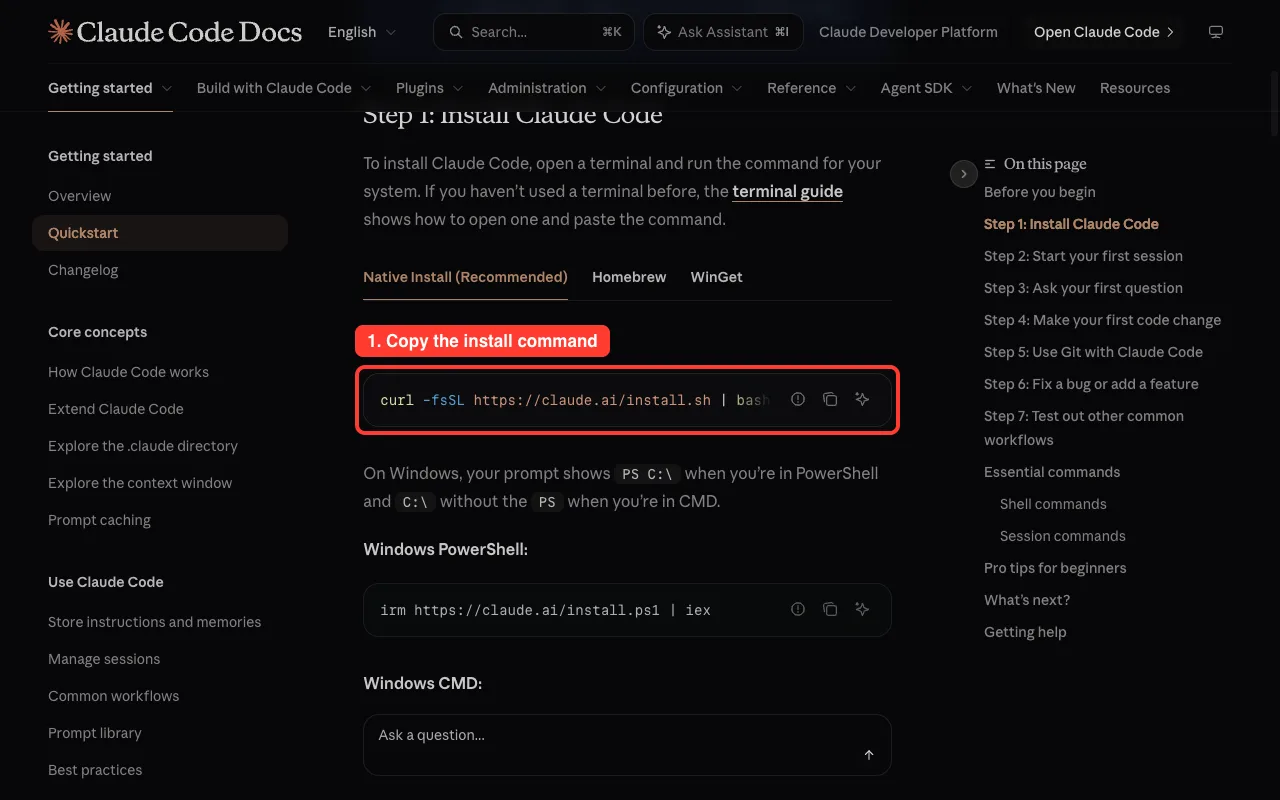
On a Mac or Linux computer, the command looks like this:
curl -fsSL https://claude.ai/install.sh | bashOn Windows PowerShell, use this one instead:
irm https://claude.ai/install.ps1 | iexWhen it finishes, type claude and sign in with your Claude account. If you are brand new to the tool, our Claude coding guide covers the basics.
Step 2: Install ADB, the Android Debug Bridge
ADB is the free tool that lets your computer send commands to an Android-based TV. Google publishes it as part of the Android SDK Platform-Tools download.
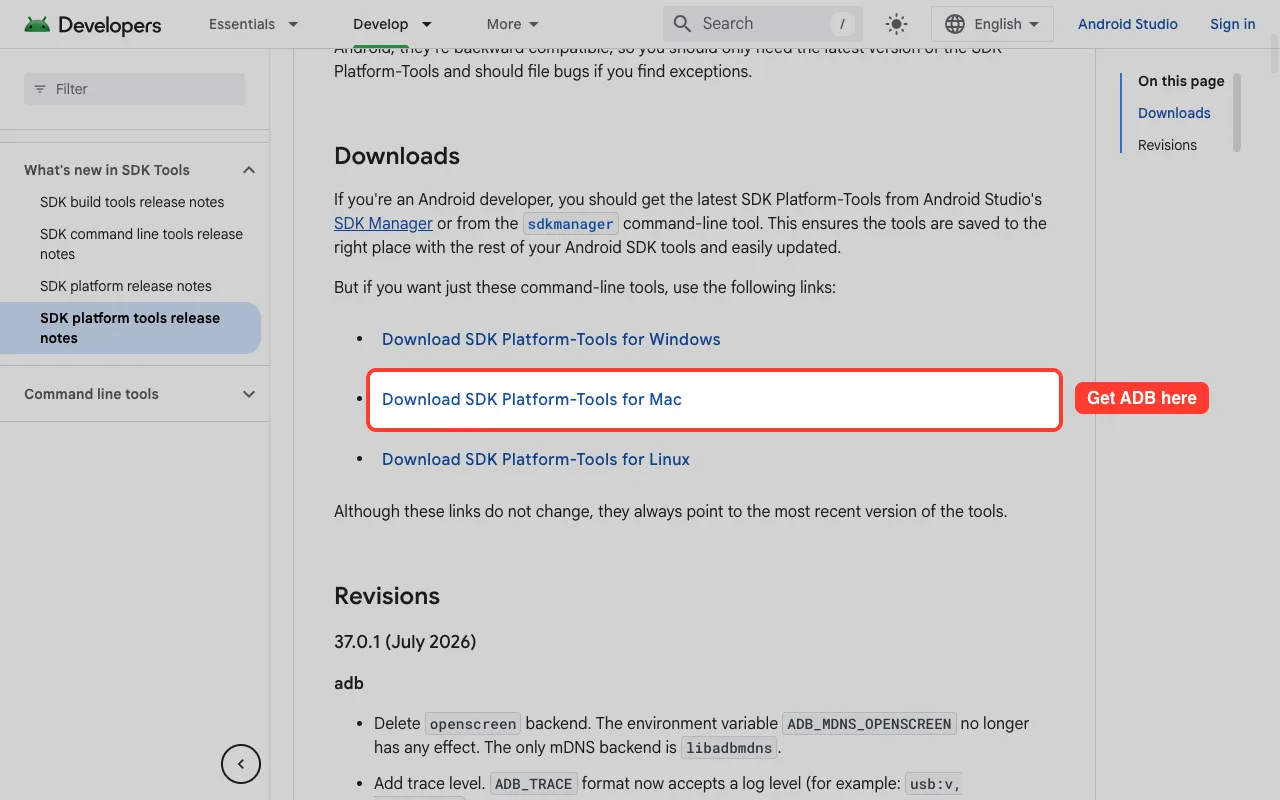
Mac users with Homebrew can skip the download and run one command:
brew install --cask android-platform-toolsTo check that it worked, run adb version in your terminal. You can also ask Claude Code to install and test ADB for you, and approve each step it suggests.
Step 3: Turn On Developer Options and Debugging on Your TV
TVs hide their developer settings until you unlock them. The trick is the same idea on every Android-based set: press a menu item seven times.
On Google TV and Android TV
- Open Settings, then System (or Device Preferences on older Android TV sets), then About.
- Scroll to Android TV OS build (or just Build) and press OK on it seven times.
- Go back one screen and open the new Developer options menu.
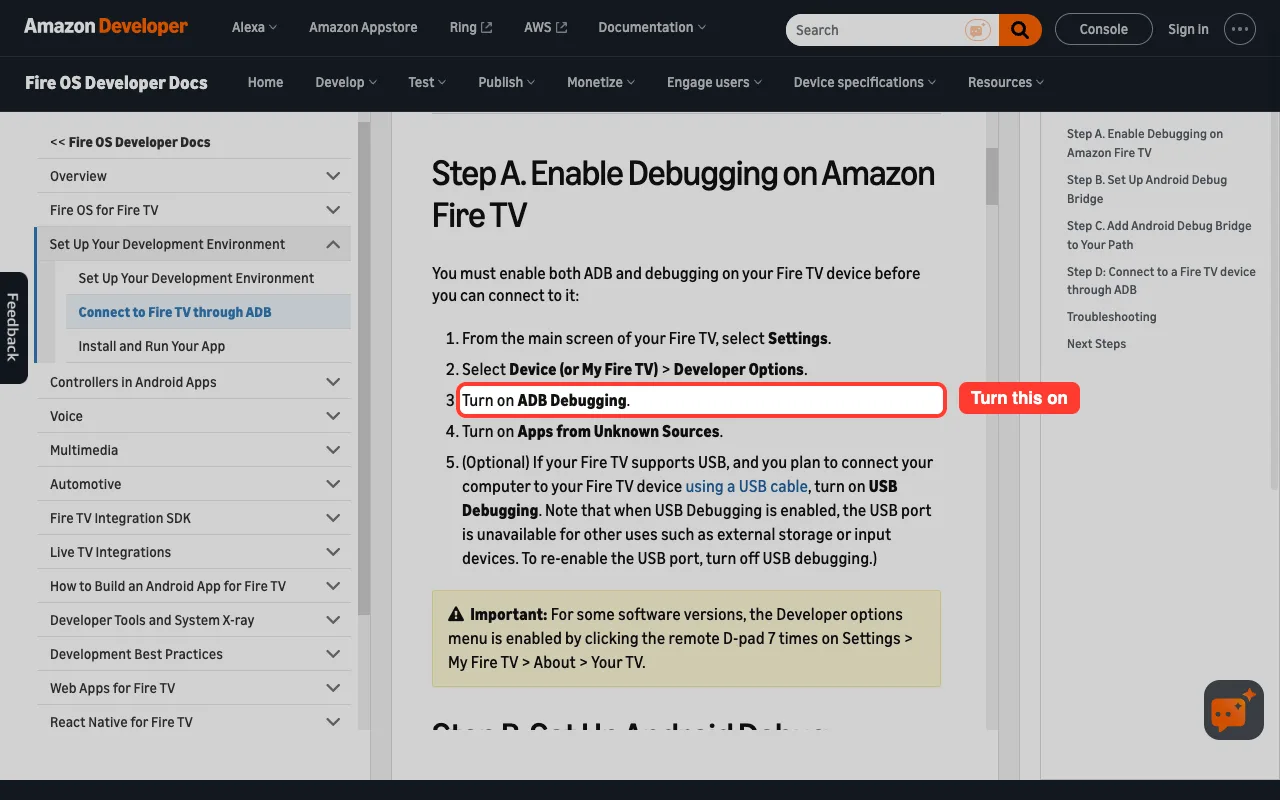
- Turn on USB debugging. If you also see Network debugging, ADB debugging or Wireless debugging, turn that on too.
On Amazon Fire TV
Open Settings, then My Fire TV (called Device on some models), then About. Press OK on your device name seven times to reveal Developer Options, then go back and turn on ADB Debugging.
Find Your TV’s IP Address
Claude Code needs your TV’s local IP address to reach it. Look under Settings, then Network and Internet (or My Fire TV, then About, then Network), and write down a number such as 192.168.1.50.
Step 4: Start Claude Code in Manual Mode
Newer versions of Claude Code start in auto mode, which lets the agent run many commands without asking. For a TV, you want the opposite: you should see and approve every command before it runs.
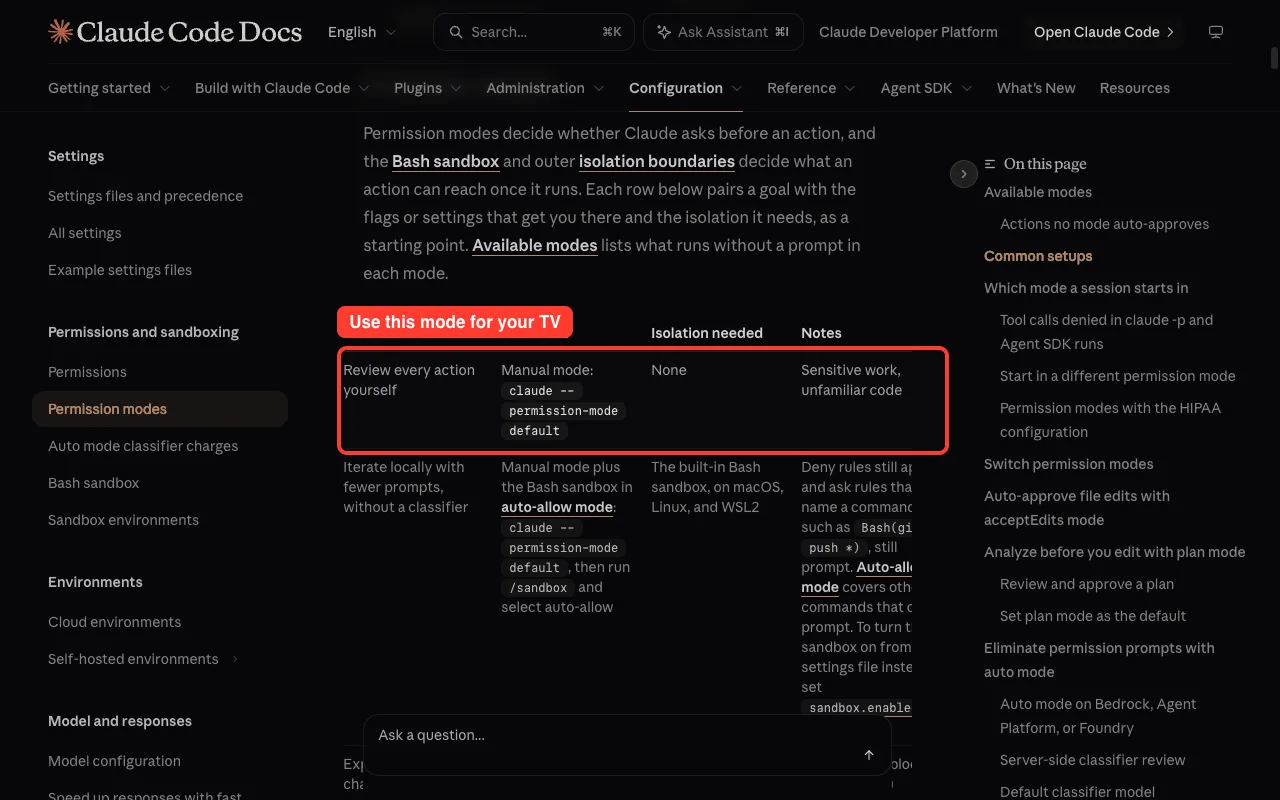
Create a fresh folder for the project and start Claude Code in Manual mode:
mkdir tv-cleanup
cd tv-cleanup
claude --permission-mode default
You can also switch modes during a session by pressing Shift+Tab. If you want to learn more about prompts and approvals, read our guide on Claude Code permissions, but keep the approvals on for this project.
Step 5: Connect Claude Code to Your Smart TV
Now give Claude Code the facts about your TV and a clear goal. A detailed prompt works much better than “hack my TV”, which some users found the agent would not act on.
My TV is a [brand and model number] running [Google TV / Android TV / Fire TV].
Its IP address is 192.168.1.50 and ADB debugging is turned on.
Connect to it with adb, confirm the model and Android version, and stop.
Explain every command before you run it. Do not change anything yet.
Claude Code will usually run commands like these:
adb connect 192.168.1.50:5555
adb devices
adb shell getprop ro.product.model
Your TV will then show an “Allow USB debugging?” message. Use the remote to check “Always allow from this computer” and choose OK, and the next adb devices check should list your TV as a device instead of “unauthorized”.
If the Connection Fails
On a Mac, a “No route to host” error often means macOS is blocking local network access. Open System Settings, then Privacy and Security, then Local Network, and allow your terminal app. Some newer TVs use Wireless debugging with a pairing code instead, so ask Claude Code to walk you through adb pair using the code shown on the TV.
Step 6: Back Up Your TV Before Any Change
This is the step people skip, and it is the one that saves you. Before Claude Code switches anything off, have it save a list of every installed package and the current home screen.
Before changing anything, save a backup in this folder:
1. the full list of installed packages and which ones are enabled
2. which app is the current home screen (launcher)
3. a screenshot of the current home screen
Name the files with today's date.
Behind the scenes, the agent runs commands like adb shell pm list packages and adb shell screencap. Keep these files: they are your map back to the factory setup.
Step 7: Remove Ads and Bloatware From Your Smart TV
Bloat differs by brand, so let Claude Code discover it on your own TV. Ask it to sort every package into groups and wait for your approval.
List the installed packages and sort them into four groups:
ads and sponsored content, tracking and analytics, preinstalled apps,
and system packages the TV needs. Do not disable anything yet.
I use these apps and want to keep them: Netflix, YouTube, Prime Video, Plex.
Read the list carefully, then approve changes in small batches. Ask Claude Code to use pm disable-user, which switches an app off without deleting it:
adb shell pm disable-user --user 0 [package.name]Never let the agent uninstall system packages. Disabling is reversible; deleting is not.
Some packages must stay on, or your TV can end up with a black screen and a dead remote. Tell Claude Code to leave these alone:
| Safe to consider disabling | Never disable |
|---|---|
| Sponsored content rows and promo screensavers | System UI and Settings |
| Ad ID and ad personalization services | TV inputs and HDMI switching |
| Viewing data collection (ACR) and analytics | Bluetooth and remote pairing |
| Preinstalled games and shopping apps | The package installer and Play Store |
| Brand app stores you never open | The current home screen, until a new one works |
After each batch, reboot the TV and check that your apps, inputs and remote still work before moving on.
Step 8: Swap In a Cleaner Home Screen
The home screen, or launcher, is where most TV ads live. Replacing it gives you a calm, ad-free start screen with just your apps.
| Launcher | Where to get it | Good to know |
|---|---|---|
| Projectivy Launcher | Google Play Store | Polished and popular, but closed source |
| FLauncher | Google Play Store | Open source, simple and lightweight |
| ATV Launcher | Google Play Store | Basic grid of apps with few extras |
| cleanyourtv launcher | Built by Claude Code from the project files | Apple TV style, about 405 KB |
| dumbtv home | The project’s GitHub release | Made for Fire TV, no internet permission |
Install the new launcher and make sure it opens before anything else happens. Only then should Claude Code disable the stock launcher, or your Home button may land on a blank or test screen.
On Google TV, there is one extra trap. The setup wizard can take over Home after the stock launcher is switched off, so ask Claude Code to check for it before that step.
Step 9: Block Tracking and In-App Ads With Private DNS
Android 9 and newer support Private DNS, which can stop ad and tracker addresses from loading in every app. Claude Code can set it for you with two commands:
adb shell settings put global private_dns_specifier dns.adguard-dns.com
adb shell settings put global private_dns_mode hostname
Keep two limits in mind. The DNS provider can see every address your TV looks up, and YouTube ads still play because they come from the same servers as the videos.
If an app stops working, switch back with private_dns_mode opportunistic in place of hostname.
The Shortcut: Point Claude Code at a Ready-Made Project
You do not have to start from scratch. Two community projects on GitHub already hold tested steps, and you can tell Claude Code to follow them.
Both grew out of the same do-it-yourself wave that is behind personal vibe-coded apps. People share what worked on their TV, and the next person with the same model saves an evening.
cleanyourtv for Android TV and Google TV
The cleanyourtv project started when its creator, Gathin T., cleaned up his parents’ TV. He described the moment simply:
“Gave Claude Code the model number, it found the TV on wifi.” – Gathin T., cleanyourtv creator
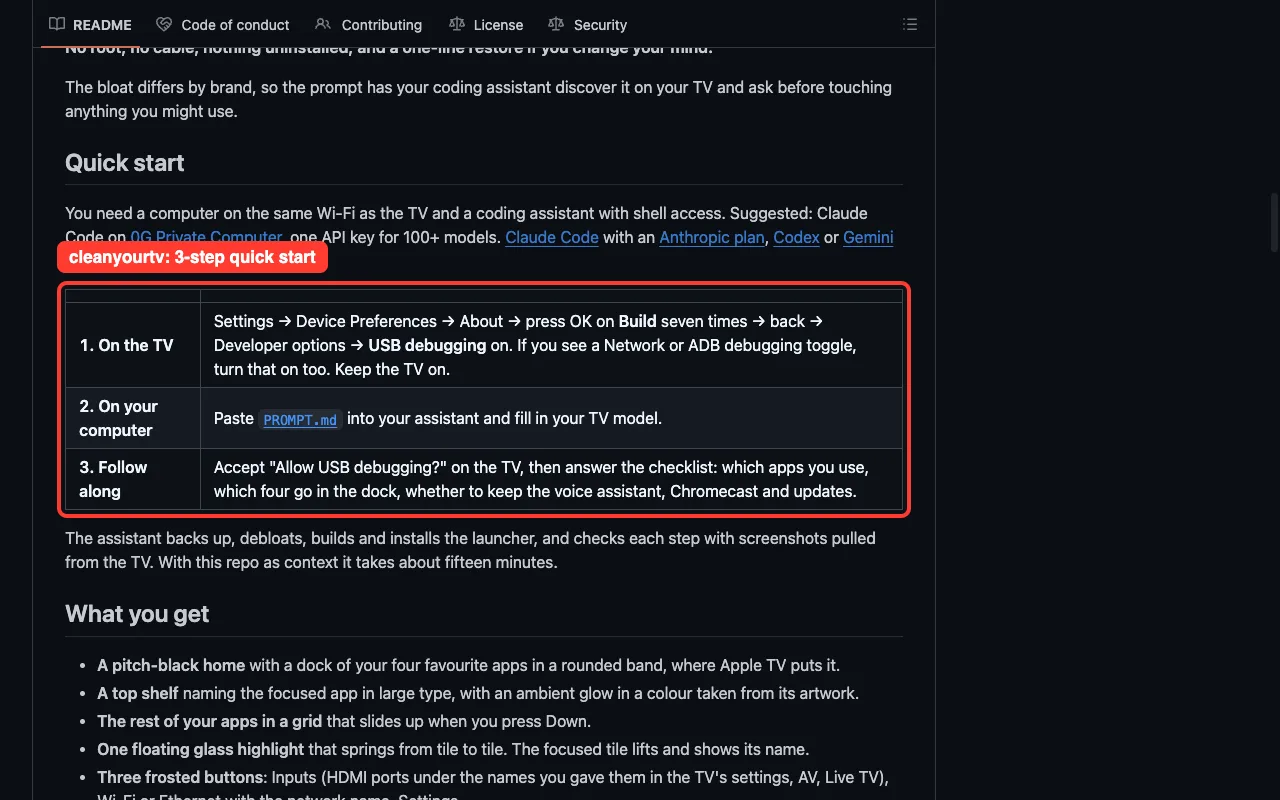
The project includes tested lists for well over 100 TV models, a backup and restore system, and a small Apple TV style launcher. Its quick start asks you to paste its prompt file into Claude Code, add your TV model and answer a short checklist about the apps you use.
dumbtv for Fire TV
The dumbtv project focuses on Fire TV and also supports Android and Google TV sets. Its README sums up the goal in one line:
“Your TV should do what you paid for: your apps, your HDMI inputs, and nothing else.” – dumbtv project README
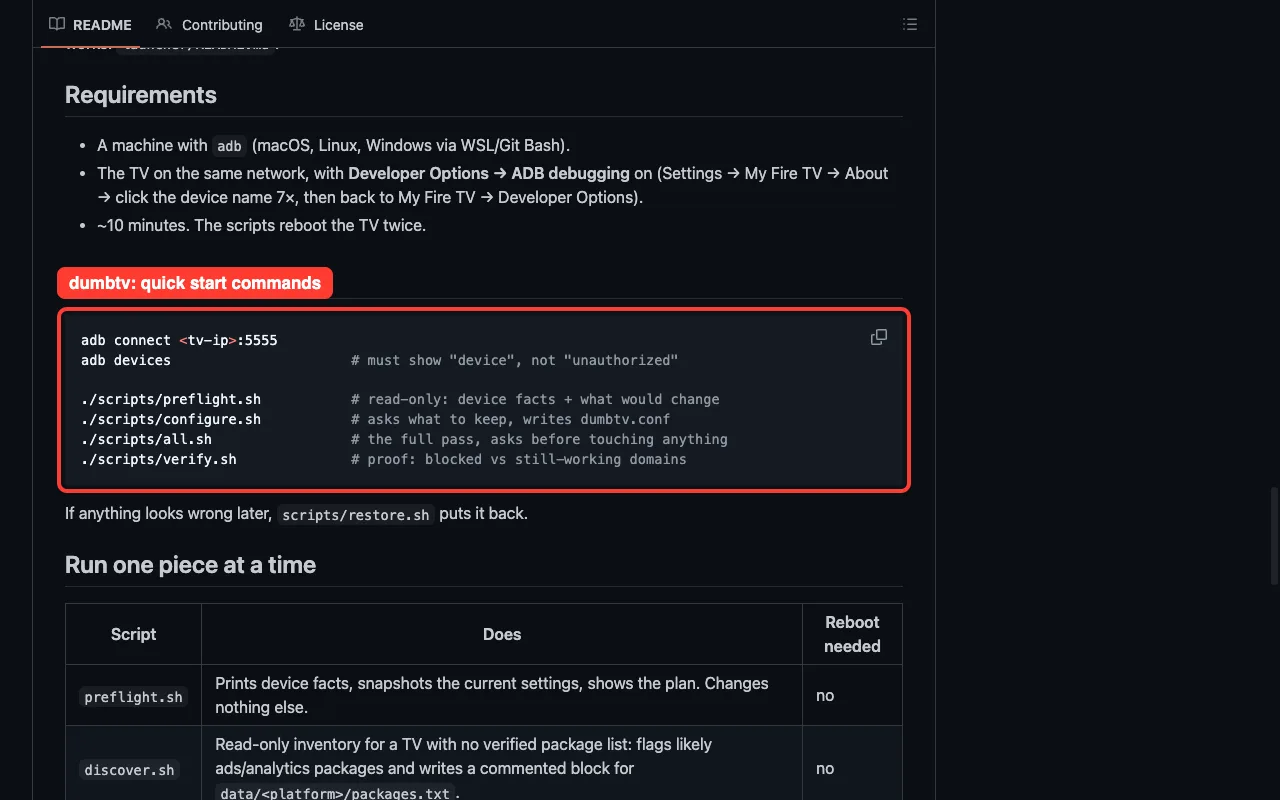
Each dumbtv script has a dry-run option that prints its commands without running them. Ask Claude Code to run the dry run first and explain the output before you approve the real pass.
A ready-made prompt can look like this:
Clone [project URL] and read its README and agent instructions fully.
My TV is a [brand and model] at 192.168.1.50.
Follow the project's steps one at a time, run any dry-run option first,
and ask me before every command that changes the TV.
How to Undo Everything
Every change in this guide is reversible. If something looks wrong, tell Claude Code to restore from the backup it made in Step 6.
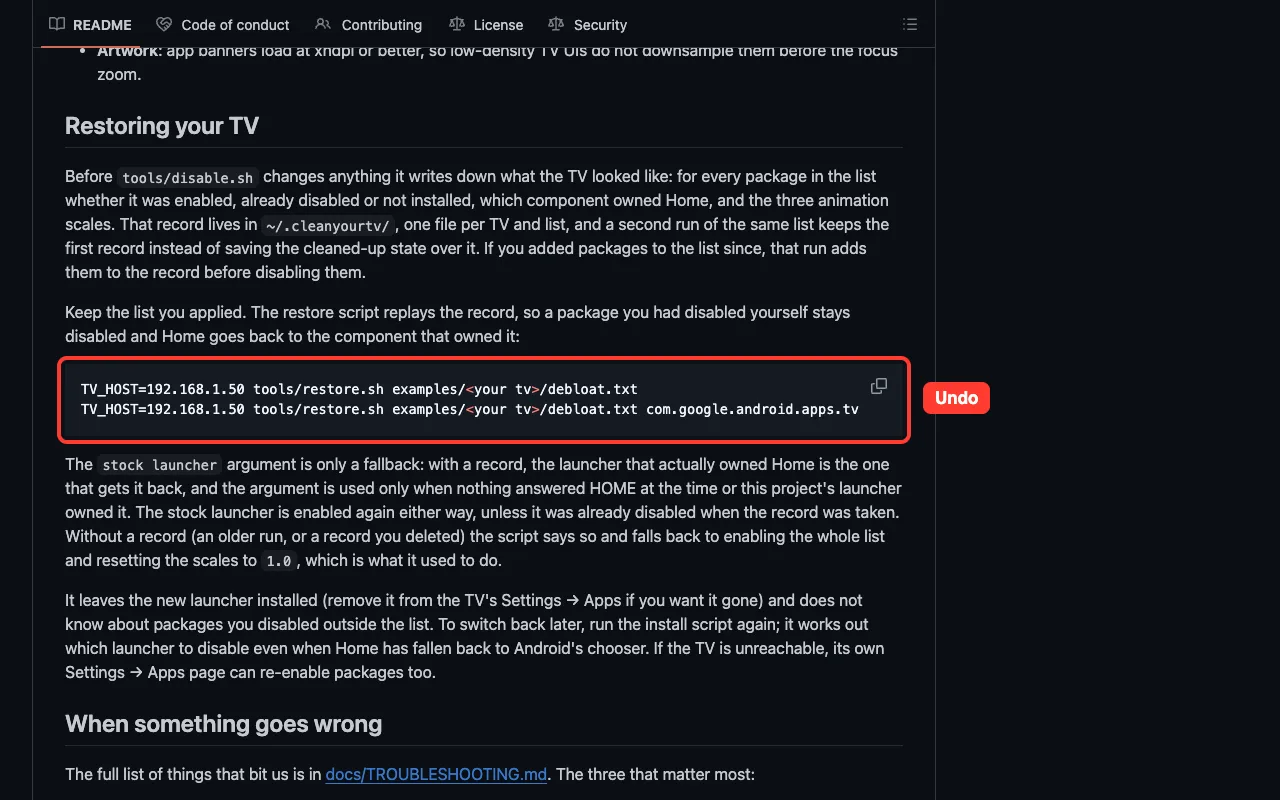
For a single app, the fix is one command:
adb shell pm enable [package.name]You can also re-enable apps from the TV itself under Settings, then Apps. A factory reset undoes everything as a last resort, though you will need to sign in to your apps again.
Lock Things Down When You Finish
Network debugging leaves a door open on your home network. When the TV looks the way you want, close it:
- Turn off USB debugging and Network or ADB debugging in Developer options.
- Choose Revoke USB debugging authorizations if your TV offers it.
- Restart the TV. Your new launcher and settings keep working without debugging.
Customizing Samsung, LG, Roku and Vizio TVs
These TVs do not run Android, so ADB tricks will not work on them. Claude Code can still help by researching your exact model and walking you through the right menus.
- Samsung: turn off Viewing Information Services and interest-based ads in the privacy settings.
- LG: turn off Live Plus and limit ad tracking.
- Vizio: turn off Viewing Data.
- Roku: turn off the setting that uses info from TV inputs, under Privacy.
Menu names change between model years, so ask Claude Code to confirm the path for your set. For network-wide ad blocking, it can also help you set up DNS filtering on your router, or you can plug in an Android-based streaming stick and follow this guide on that instead.
Troubleshooting Common Problems
| Problem | Likely cause | Fix |
|---|---|---|
| adb devices shows “unauthorized” | You missed the prompt on the TV | Reconnect and accept “Allow USB debugging?” |
| “No route to host” on a Mac | macOS Local Network privacy | Allow your terminal app under Local Network settings |
| Home button opens a blank screen | Stock launcher disabled too early | Re-enable it with pm enable, then install the new launcher first |
| Claude Code will not act on a vague request | The prompt is too short or unclear | Give your model, say it is your own TV and list exact goals |
| An app stopped streaming | A needed package or DNS block | Restore the last batch, or switch Private DNS back |
| Ads came back after an update | A system update re-enabled packages | Run the same disable list again |
Risks to Know Before You Customize
This is a hobby project, not an official feature, so go in with clear eyes. AI agents can misjudge what a package does, and at least one person has reported bricking an Android TV.
- Changes may affect warranty support or how future updates install.
- Disabling the update service means you miss security fixes until you turn it back on.
- Only do this on a TV you own, and never open the ADB port to the internet.
For background on the trend itself, see our report on how people strip TV ads with AI agents. You can learn more about the assistant behind it on our Claude AI page.
Conclusion
Claude Code turns a job that once needed command-line skills into a guided conversation. Install Claude Code and ADB, unlock your TV’s developer options, start in Manual mode, back up first, then disable ads and bloat in small batches and swap in a cleaner home screen. Projects like cleanyourtv and dumbtv can speed things up, and every step can be undone. Take it slowly, approve each command, and you can enjoy a TV that runs your apps and nothing else.