If you have ever stared at an error message and wished someone would just explain it in plain English, using Claude for coding can feel like a breath of fresh air. Claude can explain code, write small programs, fix bugs, and even work inside your real projects. This beginner’s guide walks you through the main ways to use it, how to ask good questions, and the habits that keep you in control.
You do not need to be an expert to get started. You only need a clear goal, a little patience, and the willingness to read what Claude gives you before you run it.
Why Beginners Like Claude for Coding
Learning to code usually means bouncing between tutorials, forums, and documentation. Claude puts a patient helper in one place. You can ask the same question three different ways, and it will not get tired of you.
Here is what makes it useful when you are new:
- It explains code line by line in simple words.
- It turns vague ideas into working starter code you can study.
- It reads error messages and suggests likely causes.
- It can suggest tests and point out edge cases you might miss.
- It can adjust its explanations to your skill level when you ask.
If you want a broader look at the assistant itself, our Claude AI overview covers its general features beyond programming.
Treat Claude like a smart study partner, not an answer machine. The learning happens when you ask why the code works.
Three Ways to Use Claude for Coding
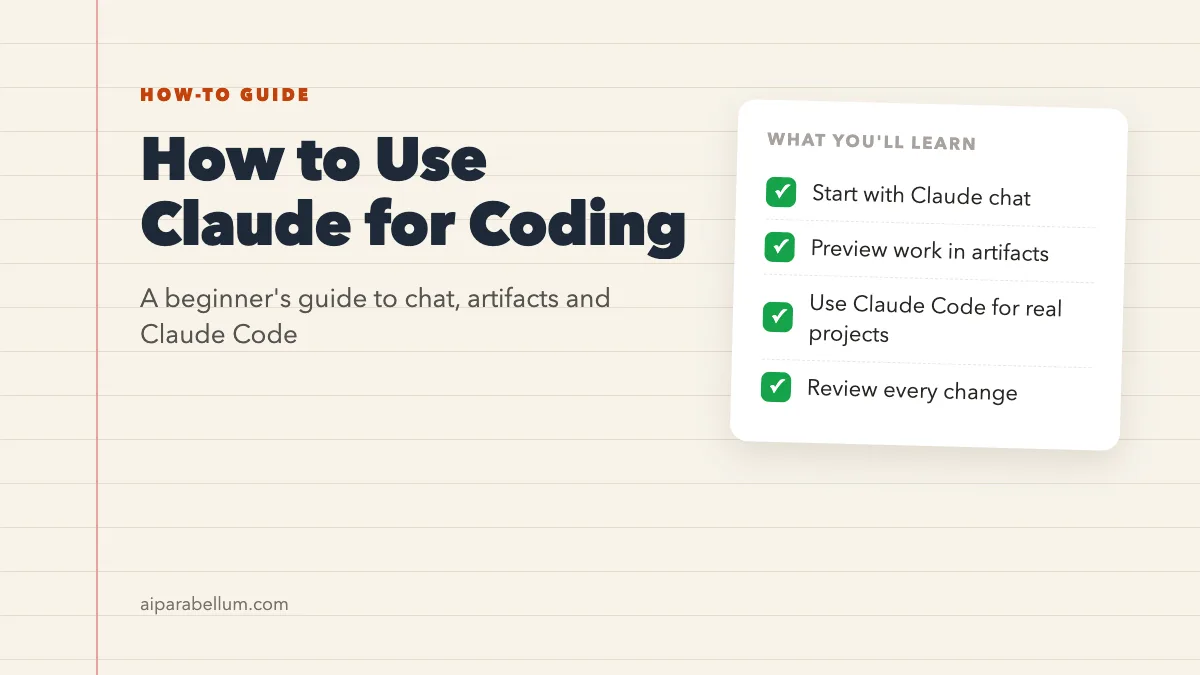
Anthropic gives you a few different places to work with Claude on code. Each one fits a different stage of your learning. The table below shows how they compare.
| Option | Where It Runs | Plans | Best For |
|---|---|---|---|
| Claude chat | Web, desktop, and mobile apps | Free and paid plans | Questions, explanations, and short code snippets |
| Artifacts | Beside your chat, plus Claude Code | Free and paid plans | Previewing small web pages, tools, and diagrams |
| Claude Code | Terminal, VS Code, JetBrains, desktop app, web | Pro, Max, Team, Enterprise, or a Console account | Working inside real projects with many files |
Claude Chat: The Easiest Starting Point
The regular Claude chat is where most beginners should begin. You paste in code or describe what you want, and Claude replies with an explanation or a working example. The free plan works for everyday questions, while paid plans give you more usage per session.
Chat is perfect for learning concepts like loops, functions, and APIs. It is also great when you just need a quick script to rename files or clean up a spreadsheet.
Artifacts: See Your Code Come to Life
Artifacts open beside your conversation and can hold things like a single-page website, a small interactive tool, or a diagram. When you ask Claude to build a simple calculator or a quiz page, you can often see it working right away. That instant feedback makes learning a lot more fun.
To use artifacts, the code execution and file creation option needs to be turned on in your Claude settings under Capabilities.
Claude Code: For Real Projects
Claude Code is Anthropic’s agentic coding tool. It can read your codebase, edit files, run commands, and connect with tools like Git, GitHub, and GitLab. It runs on macOS, Linux, and Windows, and you can use it in the terminal, in VS Code or JetBrains IDEs, in the desktop app, or in a browser.
Claude Code is included in every paid Claude plan, and it shares the same usage pool as your chats. It also asks for your permission before it changes files or runs commands, which is a helpful safety net when you are still learning.
Getting Started With Claude for Coding Step by Step
You can be up and running in a few minutes. Follow these steps in order, and do not worry about mastering everything on day one.
- Create a Claude account and start with the free plan to try chat.
- Pick one small project, such as a to-do list or a tip calculator.
- Ask Claude to explain the plan before it writes any code.
- Copy the code into your own editor and run it yourself.
- When something breaks, paste the full error message back into the chat.
- Upgrade to a paid plan later if you want to use Claude Code on bigger projects.
Setting Up Claude Code
When you are ready for Claude Code, follow the install steps in Anthropic’s official quickstart guide for your operating system. After installing, you sign in with your Claude subscription or a Claude Console account. If you use a Console account, it bills at standard API rates instead of your plan’s usage.
Once it is running inside a project folder, try a safe first request like this:
Explain how this project is organized. Do not change any files yet.
Then list three small improvements a beginner could make.
Inside Claude Code, typing /help shows you the available commands. You can also save instructions for your project in a CLAUDE.md file, so Claude remembers things like your preferred language or testing style. If the permission prompts start to feel slow, our guide on managing permission prompts explains your options.
How to Write Better Coding Prompts
The quality of Claude’s help depends a lot on how you ask. Vague requests get generic code. Specific requests get code that actually fits your project.
Give Context First
Tell Claude what language you are using, what you are trying to build, and your experience level. A single sentence of context can change the whole answer.
I'm a beginner learning Python. Write a function that checks whether
a word is a palindrome. Add comments that explain each line.
Ask for Small Pieces
Large requests can produce large mistakes. Break your project into steps, like building the input form first and the saving feature second. You will understand each piece better, too.
Ask Claude to Explain Its Choices
After Claude writes code, ask follow-up questions like these:
- Why did you use this approach instead of a simpler one?
- What would break if the input were empty?
- Can you write a quick test for this function?
- How would an experienced developer improve this?
A good prompt answers three questions: what you are building, what you already have, and what done looks like.
Smart Habits for Safe AI-Assisted Coding
Claude is helpful, but it can still make mistakes. Like any AI tool, it may produce code that looks right and still has a bug. Good habits protect your projects and help you learn faster.
Always Review Before You Run
Read every change before you accept it, even if you only understand part of it. Ask Claude to explain anything that looks unfamiliar. In Claude Code, take your time on each permission prompt instead of clicking through.
Use Version Control
Learn the basics of Git early. Committing your work before asking for big changes means you can always go back if something goes wrong. Claude can even explain Git commands as you use them.
Keep Secrets Out of Prompts
Never paste passwords, private keys, or real customer data into a prompt. Use fake sample data instead. It is a simple rule that saves you from serious trouble.
Common Beginner Mistakes to Avoid
- Copying code you do not understand into an important project.
- Asking for an entire app in one giant prompt.
- Ignoring error messages instead of sharing them with Claude.
- Skipping tests because the code seemed to work once.
Practical Projects to Try With Claude
The best way to learn is by building things you actually care about. Here are some beginner-friendly ideas that work well with Claude:
| Project | What You Learn | Good Tool to Use |
|---|---|---|
| Tip or budget calculator | Inputs, math, and basic layout | Claude chat with artifacts |
| Personal portfolio page | HTML, CSS, and page structure | Claude chat with artifacts |
| File renaming script | Loops, folders, and automation | Claude chat |
| Small to-do app with saving | Data storage and app logic | Claude Code |
| Fixing an open-source bug | Reading other people’s code | Claude Code |
Working with an older project someone else wrote? Our walkthrough on legacy codebase help shows how to get an AI assistant to map it out for you.
How Claude Compares to Other Coding Assistants
Claude is not the only option, and it is worth knowing the landscape. Some tools live inside a code editor, while others are general chat assistants that also write code. If you are deciding between editors, our comparison of Cursor and Replit is written with beginners in mind.
For a broader view of general assistants, see our AI assistant comparison of ChatGPT, Claude, and Gemini. You can also browse our full list of code assistant tools to find something that matches your workflow.
Want to keep up with what is new? Recent updates like Claude Code Review show how quickly these tools are adding features for developers.
Free Ways to Keep Learning
Anthropic offers free self-paced courses through Claude Academy, including Claude Code 101 and Claude Code in Action. These are a nice next step once you have tried a few small projects.
You can also learn a lot by simply asking Claude to quiz you. Try asking it to give you a short coding challenge, then check your answer together.
Conclusion
Using Claude for coding is one of the friendliest ways to learn programming today, as long as you stay curious and stay in charge. Start with Claude chat to ask questions and build tiny projects, use artifacts to see your work come to life, and move to Claude Code when you are ready for real codebases with many files. Give clear context, ask for small pieces, and always review what Claude produces before you run it. Pair those habits with version control and a few free courses, and you will be writing, fixing, and understanding code faster than you might expect.