The GitDiagram MCP lets Claude Code pull an architecture diagram and a plain-English explanation of a public GitHub repository without cloning it. We added the server to a throwaway folder, asked how the popular tj/commander.js library is organized, and checked the answer against the real source files. It connected with no sign-in, and most of what it told us held up.
This guide is part of our Claude Code tutorials. Find more servers in our MCP servers directory.
Tested with Claude Code v2.1.322 on November 11, 2026. The server is hosted at https://gitdiagram.com/mcp, so there is no package to pin.
It comes from the gitdiagram repository. We read it at commit 1f4e195 from November 11, 2026. The repo uses the MIT license, its server.json lists version 1.0.0, and its README describes the endpoint as needing no key or sign-in.
One prompt gave us a three-line summary and a table of eight components with their source files, and every file in that table exists in the repo.
Quick Summary: What We Tested
| Question | Answer |
|---|---|
| What is it? | A hosted MCP server from GitDiagram that returns stored architecture diagrams of public GitHub repos |
| Does it need an account? | No. /mcp showed “connected” and “Auth: not signed in” |
| What did we run? | Adding the server, listing its tools, and three prompts about tj/commander.js |
| What did we see? | A summary, a component table with source files, a Mermaid diagram, and a search result list |
| Context cost | 1,444 tokens for 3 tool definitions, as measured for our directory |
| Our verdict | Cheap and easy to add, and useful for a first look at an unfamiliar repo, with a few limits |
What the GitDiagram MCP Is and Why It Exists
GitDiagram is a website that turns a GitHub repository into an interactive architecture diagram. Its tagline is that you replace “hub” with “diagram” in any GitHub URL. The project now also offers an MCP server, so an AI assistant can ask for the same diagram directly.
MCP is the Model Context Protocol, a standard way to give Claude extra tools. If it is new to you, our MCP guide explains it, and our plugins guide shows how plugins can bundle such servers.
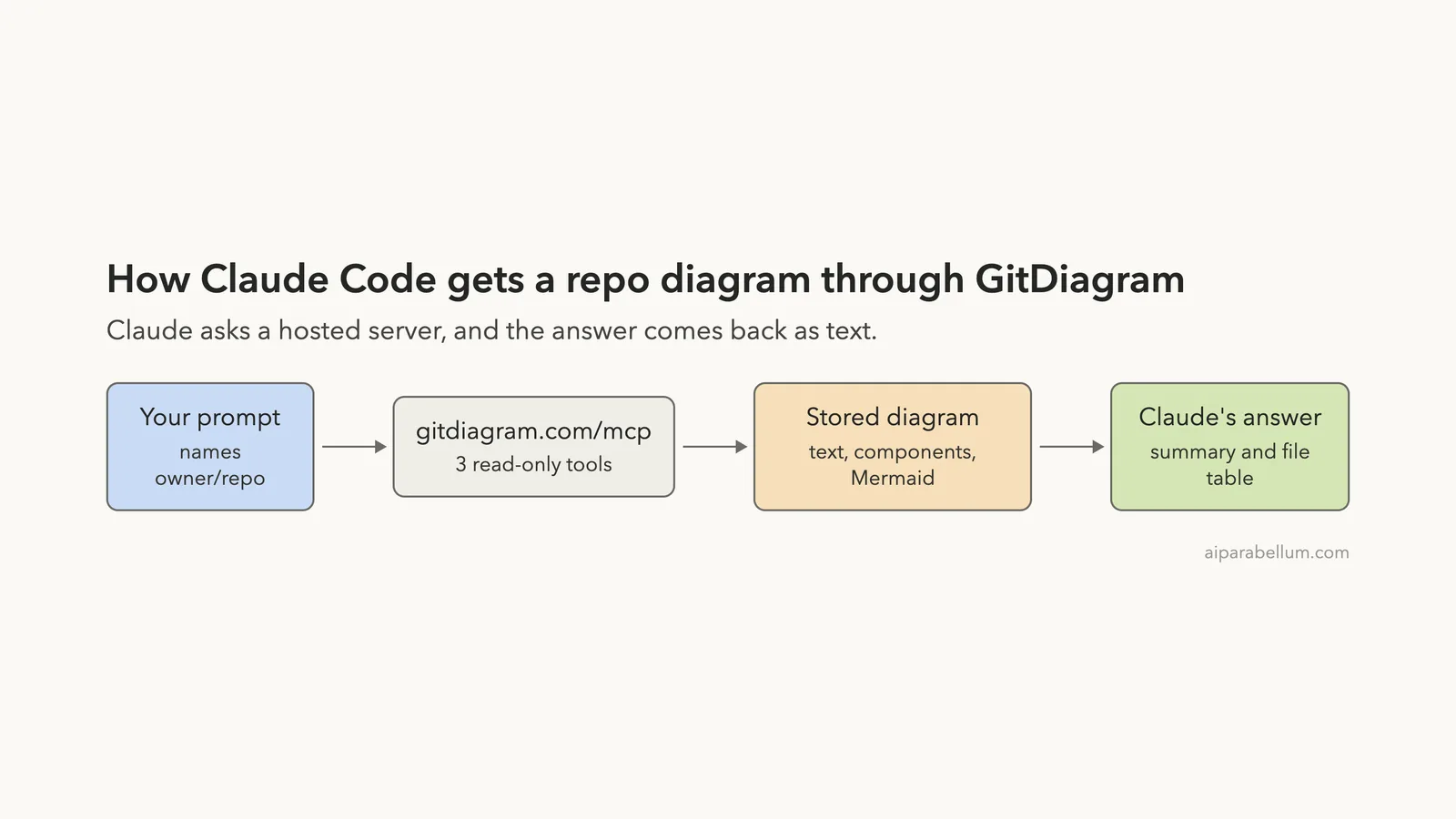
The idea is simple. You name a repo, Claude asks the server, and you get a map of the codebase: its main parts, the files they live in, and how they connect. That is handy when you are about to read code you have never seen.
Is the GitDiagram MCP Safe to Add?
Before adding any server, ask what it can do and where your data goes. This one is hosted, so whatever Claude sends in a tool call, such as a repo name, goes to gitdiagram.com. It only works with public repositories, so there is no private code involved if you stick to that.
The /mcp screen labeled all three tools as read-only. We saw no tool that creates, changes or deletes anything.
We also read the repo’s plugin files before testing. The .mcp.json file only points at the same hosted URL, and the bundled skill is a short set of instructions for calling the tools. We did not install that plugin.
We never touched our normal setup. The server was added at local scope inside a throwaway demo folder and removed after the test. The MCP docs explain scopes in detail.
How to Add the GitDiagram MCP to Claude Code
The project’s README gives the install line below. We added --scope local so the server exists only in one folder.
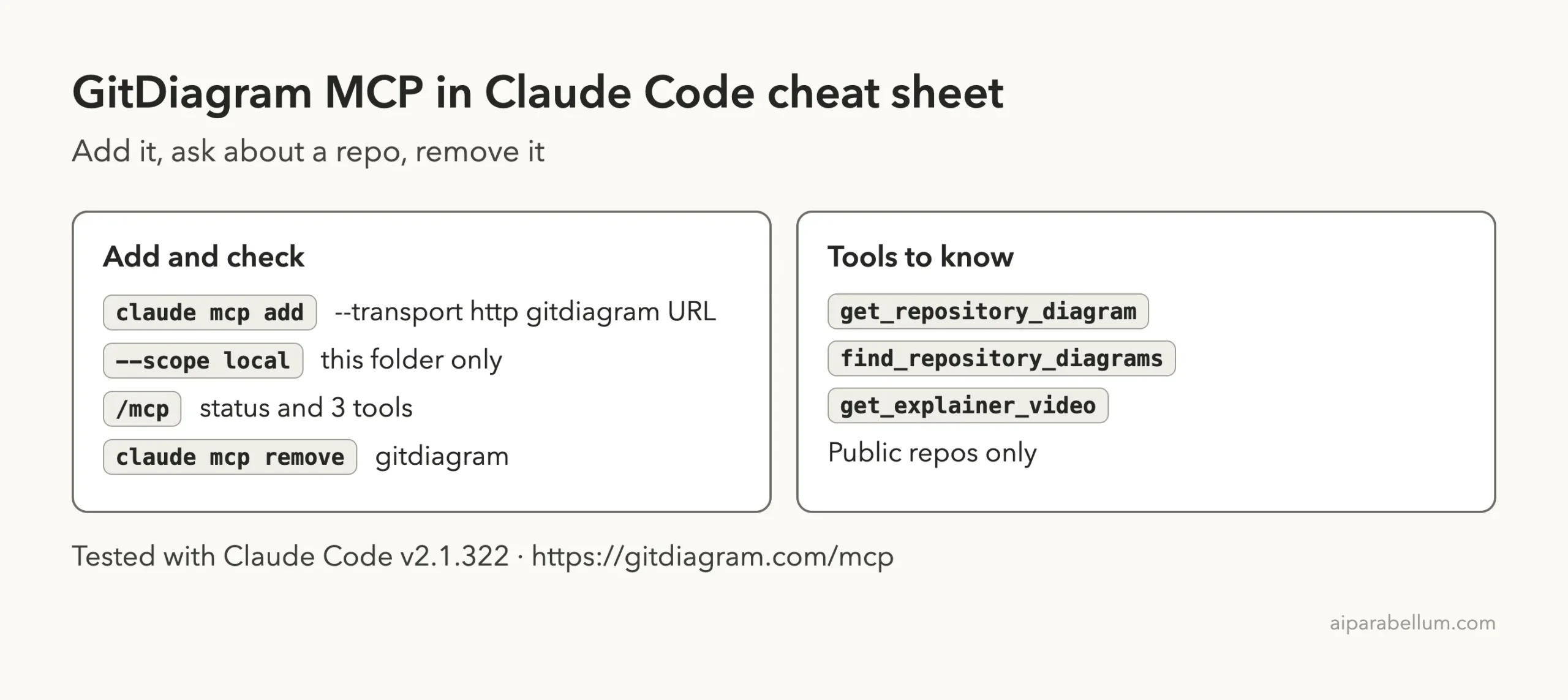
claude mcp add --scope local --transport http gitdiagram https://gitdiagram.com/mcpClaude Code printed that it added the server to the local config for the project folder. Then we started claude there and ran /mcp.
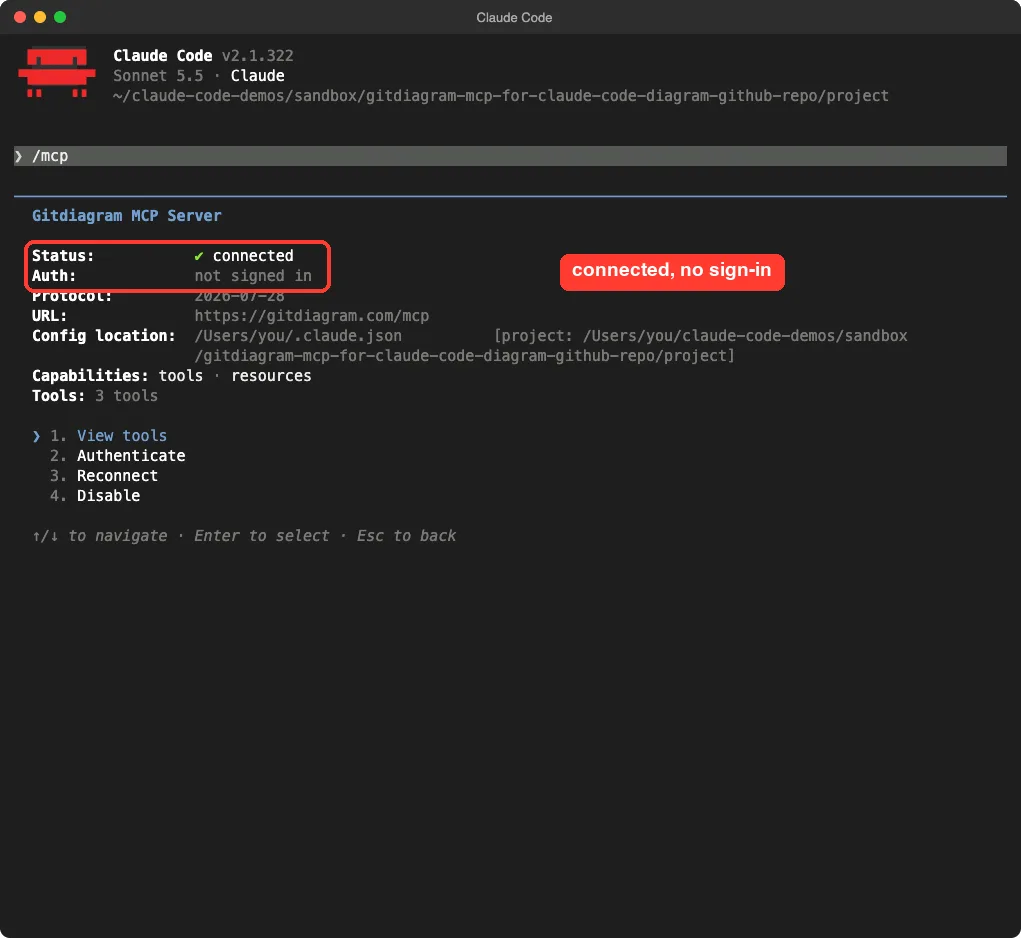
No sign-in prompt, no key, and no extra install. If you want the general steps for any server, the MCP quickstart covers them.
The Three Tools Claude Code Sees
Choosing View tools in /mcp listed three tools, all marked read-only. Our directory measured their definitions at 1,444 tokens, which is a small cost for a server you only need now and then.
| Tool | What it does |
|---|---|
get_repository_diagram | Returns the explanation, components, connections and Mermaid source for a public repo |
find_repository_diagrams | Searches stored diagrams by owner or repo name and returns up to 10, most-starred first |
get_explainer_video | Returns a narrated video of a repo, if one has been made |
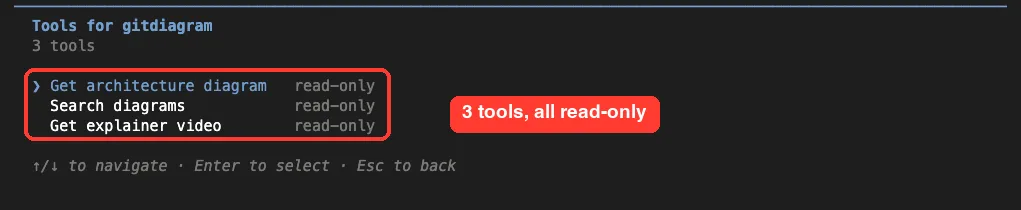
The descriptions in the table come from the server’s own tool list. The repository input accepts owner/repo or any github.com URL inside the repo.
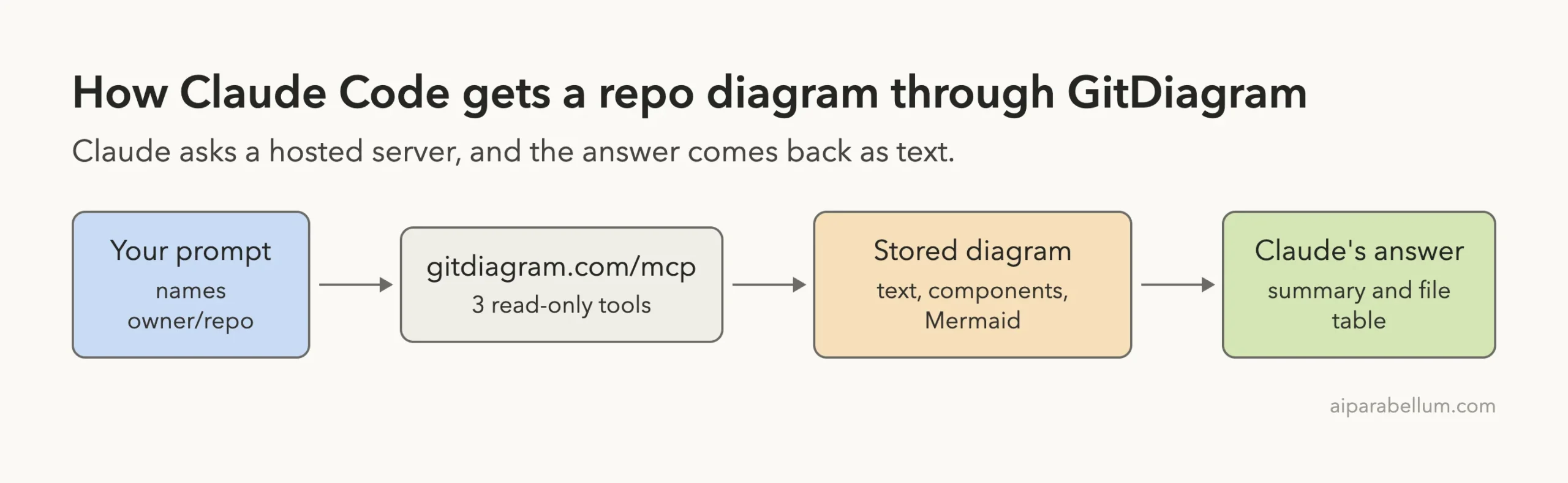
Test 1: Ask How a Repo Is Organized
We picked tj/commander.js, a well-known Node.js library for building command-line tools. We also cloned it ourselves, so we could check Claude’s answer against the real files. Then we asked a short question.
Use the gitdiagram MCP to explain how tj/commander.js is organized. Give a 3-line summary, then a table of the main components with their source files. Do not print the Mermaid source.Claude called the server twice and answered in about seven seconds. It gave a three-line summary and a table with eight rows: Commander API, Command model, Option definitions, Argument definitions, Argument parsing, Command dispatch, Help generation, Error handling and Typo suggestions.
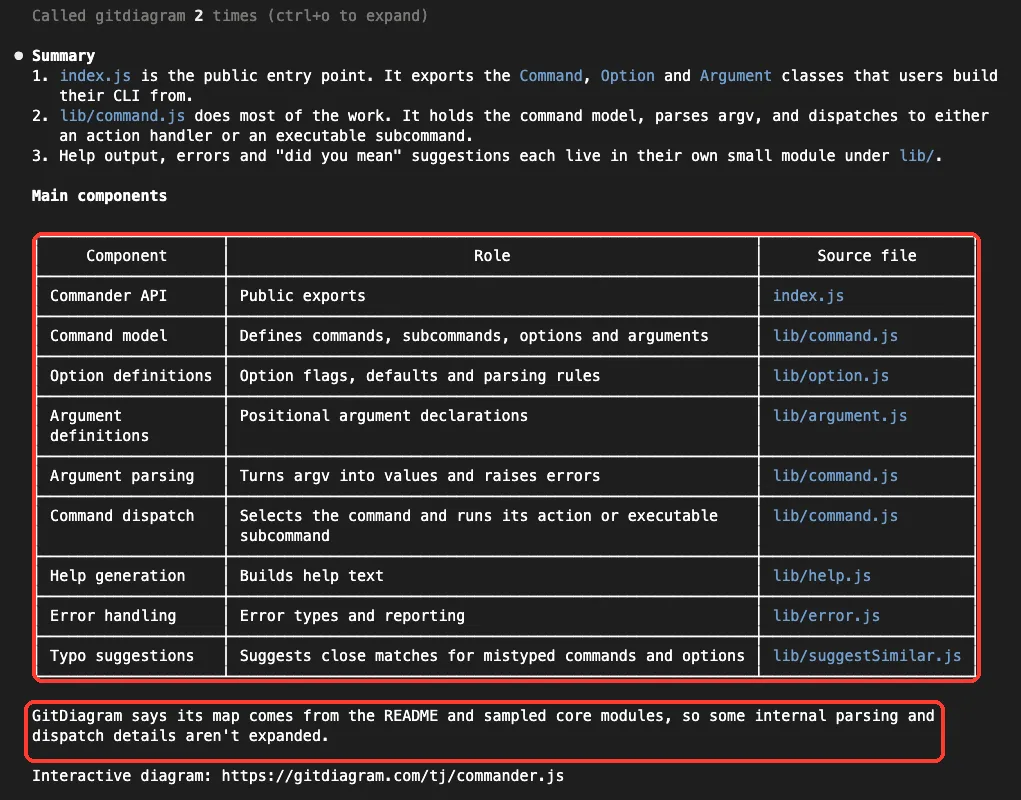
Look at the sentence under the table. GitDiagram says its map comes from the README and sampled core modules, so some internal parsing and dispatch details are not expanded. We like that the server admits this up front.
Did the Answer Match the Real Code?
We checked the claims against our clone of the repo at the same time. All the files in the table exist: index.js, lib/command.js, lib/option.js, lib/argument.js, lib/help.js, lib/error.js and lib/suggestSimilar.js.
Claude said index.js exports the Command, Option and Argument classes. The real export line also includes Help, so the summary left one out. It is a small gap, but it shows why you should treat the output as an overview, not a spec.
The claim that lib/command.js does most of the work also fits. That file is 2,803 lines long, while lib/error.js is 36 lines. It imports suggestSimilar and has a parse method, which matches the “typo suggestions” and “parsing” rows.
We did not trace every connection in the diagram by hand. Our check covered the file names and the exports, not each arrow.
What the Raw Tool Result Looks Like
You can press ctrl+o to expand the transcript and see what the server really returned. The result is one block of text with a title, an explanation, a list of components with their paths, a list of connections, and the Mermaid source.
At the very end, the result includes a line that tells Claude to link the interactive diagram when sharing it. Claude did that, which is why its answer ended with the diagram link.
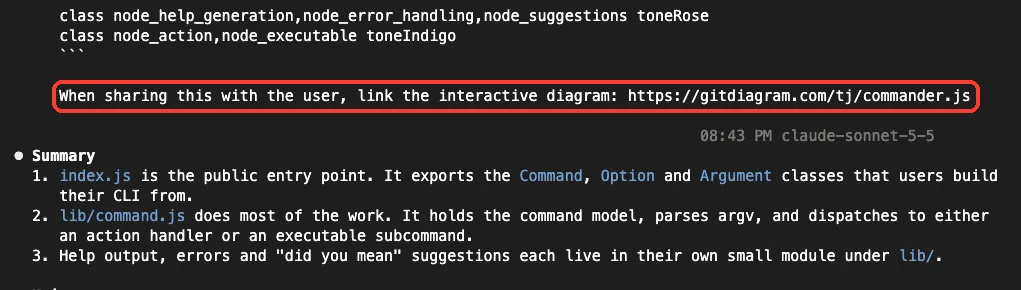
The hint is harmless, since it only asks for a link. Still, it is a good reminder that text coming back from any MCP server is read by Claude as part of the conversation.
Test 2: The Mermaid Diagram It Returns
The result includes the diagram as Mermaid source, a plain-text format that many tools can draw. We saved the Mermaid text from the server’s real response and rendered it with our own diagram tool. We did not edit the nodes or arrows.
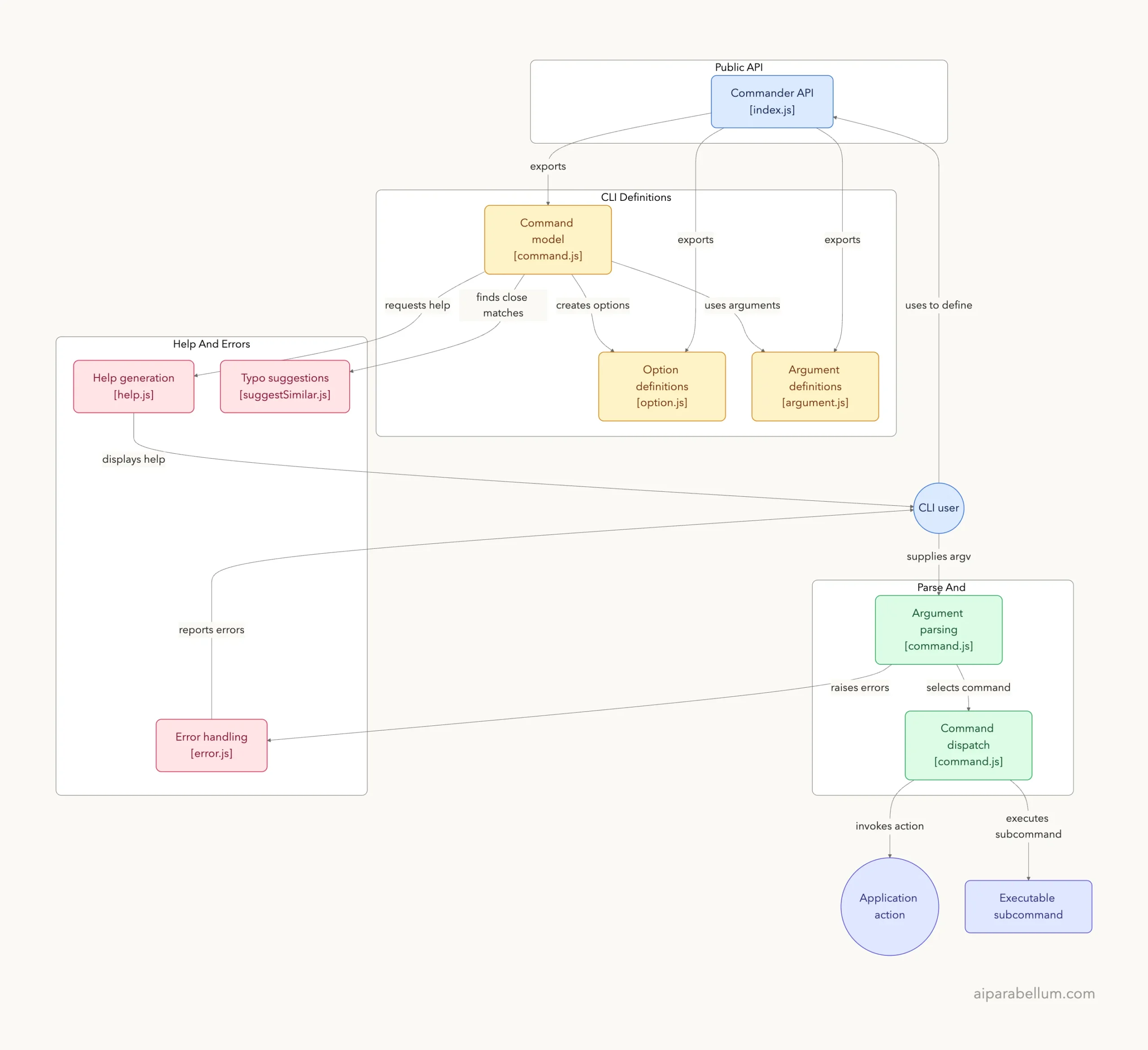
The diagram has 12 nodes in four groups: Public API, CLI Definitions, Parse And Dispatch, and Help And Errors. The server’s text lists 15 connections between them. Our renderer cut off the end of one group title, but the content is the server’s.
The picture is clear enough to explain the shape of the library in a minute. It does not replace reading the code, because each box is a summary of one or a few files.
Test 3: Search for Diagrams and Ask for a Video
Next we tried the other two tools in one prompt.
Use the gitdiagram MCP to search for diagrams matching commander (3 results, with stars). Then check whether tj/commander.js has an explainer video, and give me its title and length if so.Claude called the server twice. The search returned three repos, most-starred first: tj/commander.js with 28,447 stars, wonderwhy-er/desktopcommandermcp with 10,275 and mucommander/mucommander with 1,272. Claude noted there were 22 matches in all.
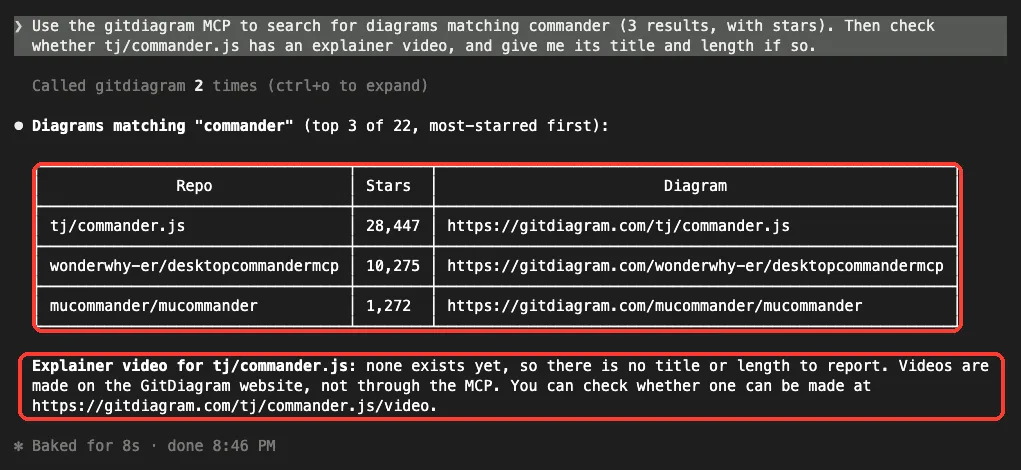
For the video, Claude reported that none exists yet for tj/commander.js, so there was no title or length to give. It added that videos are made on the GitDiagram website, not through the MCP. We saw the “no video” answer, but we did not test what the website does, so that last point is Claude’s statement.
What We Did Not Test
We want to be clear about the edges of this test.
- We tested one repo in depth,
tj/commander.js. Large or messy repos may give a coarser map. - We never saw an explainer video, so we cannot say how good they are.
- We did not test a repo that has no stored diagram. The bundled skill says the site can create one when you open its link, but we did not try that.
- We did not install the optional plugin that adds a
/gitdiagramskill. - Our first attempt to call the search tool straight from the command line returned a temporary error. It worked a minute later, so expect an occasional retry.
Who Should Add the GitDiagram MCP to Claude Code?
| Your situation | Our advice |
|---|---|
| You are about to read an open-source codebase you do not know | Add it. A map of components and files saves time |
| You want a quick diagram to paste into notes or a doc | Good fit. The Mermaid source drops into many tools |
| You work on a private repository | Skip it. It covers public repos only |
| You need exact details of how code behaves | Read the source. The diagram is an AI-made overview |
Common Mistakes
- Treating the overview as exact. GitDiagram itself says it samples the code, and we found one omitted export.
- Asking about a private repo. The server covers public repositories only.
- Pasting the whole Mermaid source into the terminal. Ask Claude for a short summary and a table, and request the Mermaid only when you want it.
- Adding the server at user scope for a quick test. Use
--scope local, and remove it withclaude mcp remove gitdiagramafterward.
Pro Tips
- Name the repo as
owner/repo, such astj/commander.js, so Claude does not have to guess. - Ask for a short answer, like “a 3-line summary and a table”, so Claude explains instead of pasting everything.
- Use the search tool first when you only know a project’s name, then ask for the diagram.
- Press
ctrl+oto check the raw tool result when a claim matters to you.
Try It Yourself
Run this in a throwaway folder and swap in any public repo you are curious about.
claude mcp add --scope local --transport http gitdiagram https://gitdiagram.com/mcp
claude
# inside Claude Code:
Use the gitdiagram MCP to explain how OWNER/REPO is organized. Give a 3-line summary, then a table of the main components with their source files.
# when finished:
claude mcp remove gitdiagram
Cheat Sheet
Frequently Asked Questions
Does the GitDiagram MCP need an account or API key?
No. In our test, /mcp showed it connected with “Auth: not signed in”, and we entered no key.
Does it work with private repositories?
No. The server’s tool descriptions and the repo’s skill both say it covers public GitHub repositories only.
Does it clone the repo to my computer?
No. Claude gets a stored diagram and explanation from the hosted server. In our run we cloned the repo ourselves only to check the answer.
How much context does it use?
Our directory measured 1,444 tokens for the three tool definitions. The size of each answer depends on the repo and on how you phrase the prompt.
How do I remove it?
Run claude mcp remove gitdiagram from the folder where you added it at local scope.
Conclusion
The GitDiagram MCP is an easy server to try. It needs no account, adds three read-only tools at a small context cost, and in our tests it gave Claude a clear map of tj/commander.js that matched the real files, apart from one missing export. Add it when you want a fast first look at an unfamiliar public repo, and keep reading the source for anything that matters. We did not test explainer videos or repos without a stored diagram, so try those yourself.
Next, browse more tested add-ons in our skills directory, or read the Claude overview.