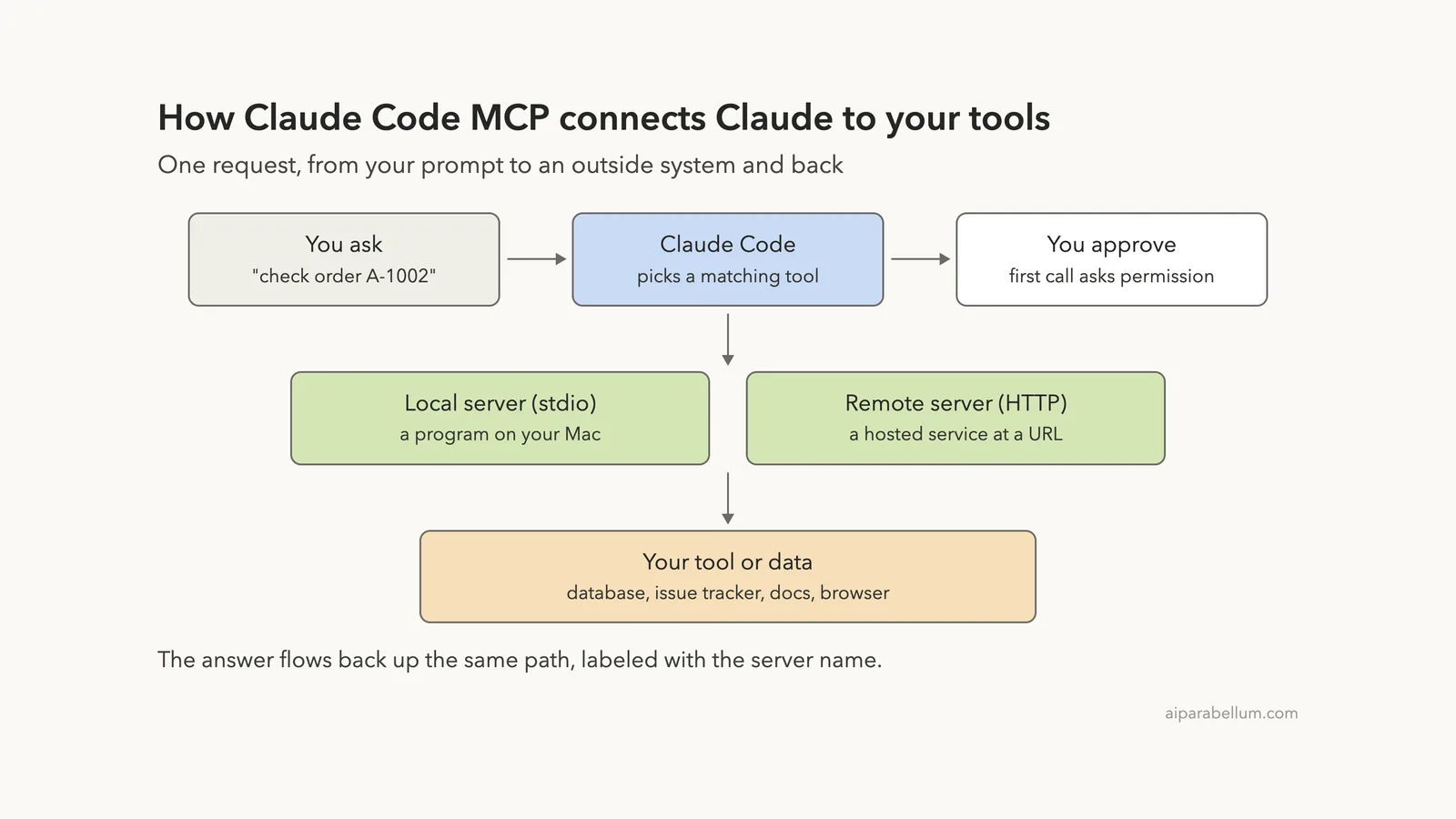
Claude Code MCP support lets Claude reach past your project folder and use outside tools, like a docs search, an issue tracker, a database or a browser. MCP stands for Model Context Protocol, an open standard for connecting AI tools to other systems. Once a server is connected, Claude can read and act on that system directly instead of working from text you paste into the chat.
In this guide we connect two real servers in a throwaway demo folder. One is a hosted server that searches the Claude Code docs, and the other is a tiny local server we wrote ourselves that looks up shop orders from a JSON file.
You will see how to add each one, check its status, approve it, use it in a prompt and remove it again. Every screenshot comes from a real session.
This is Part 31 of 53 in our Claude Code tutorials series. In the previous part we set up automatic hooks; today we plug Claude into tools that live outside your code.
Tested with Claude Code v2.1.310 on October 25, 2026, on macOS, in short sessions inside a demo folder.
Quick Summary: Claude Code MCP at a Glance
| Question | Short answer |
|---|---|
| What is an MCP server? | A program or hosted service that gives Claude extra tools |
| How do I add a hosted one? | claude mcp add –transport http NAME URL |
| How do I add a local one? | claude mcp add NAME — COMMAND ARGS |
| How do I check it works? | claude mcp list in your shell, or /mcp inside a session |
| Where is it saved? | ~/.claude.json for local and user scope, .mcp.json for project scope |
| Does Claude ask before using it? | Yes, you approve tool calls, and each new project server |
| How do I remove one? | claude mcp remove NAME |
| Does it cost context? | A little: tool names and server instructions load each session |
What MCP in Claude Code Is and Why It Exists
Out of the box, Claude Code can read files, edit code and run shell commands. That covers a lot, but much of your real work lives somewhere else, like a bug tracker, a monitoring dashboard or a team database.
The official MCP reference gives a simple rule of thumb: connect a server when you keep copying data into chat from another tool. After that, Claude can fetch the data itself.
If you keep pasting the same kind of data into Claude, that system probably wants an MCP server.
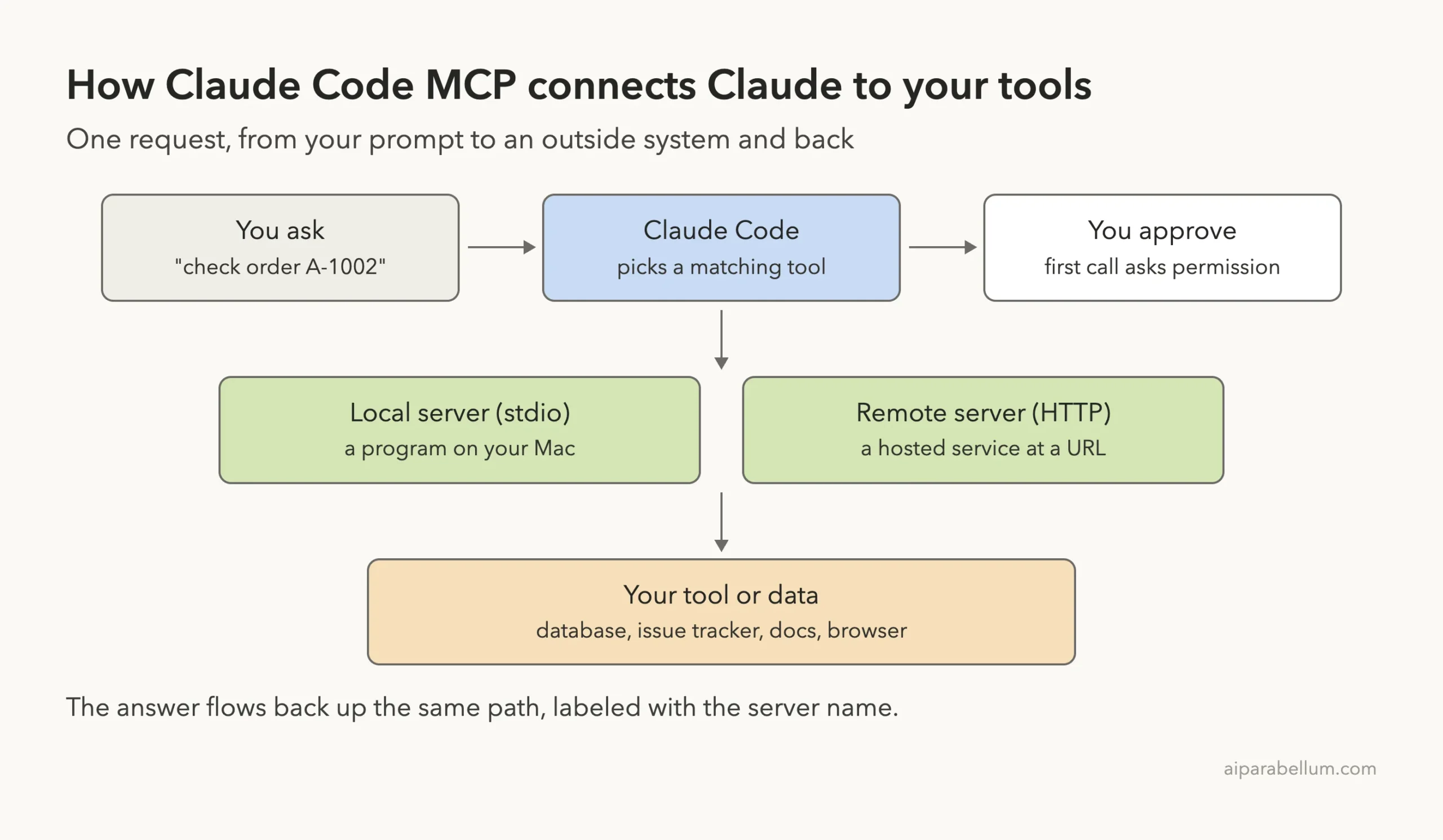
Servers come in two main shapes:
- Remote servers are hosted at a URL. Claude Code talks to them over HTTP, the recommended transport for cloud services.
- Local servers are programs Claude Code starts on your own machine. They talk over stdio, which simply means standard input and output.
The docs also cover an older SSE transport, which is deprecated, and WebSocket servers, which you set up with JSON instead of the –transport flag. Most people only need HTTP and stdio.
Step 1: Add a Remote MCP Server
The MCP quickstart suggests a perfect first server: Anthropic’s hosted Claude Code docs server. It needs no account and no sign-in, so it is a safe way to learn the flow.
Run this in your normal terminal, not inside a Claude Code session:
claude mcp add --transport http claude-code-docs https://code.claude.com/docs/mcpHere is what each part means:
- claude mcp add registers a server with Claude Code.
- –transport http says the server lives at a URL.
- claude-code-docs is a name you make up. Claude Code uses it to label the server’s tools.
- The last part is the server’s address.
Then run claude mcp list to check the connection. In our demo folder, the add command confirmed the server was saved “to local config,” and the list showed it as Connected.
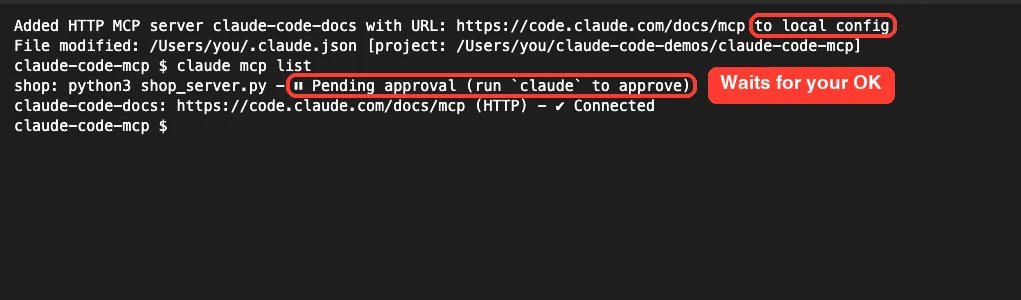
Notice the second line in that list. Our demo folder also had a project server called shop, and it shows as Pending approval. We will get to that in Step 3.
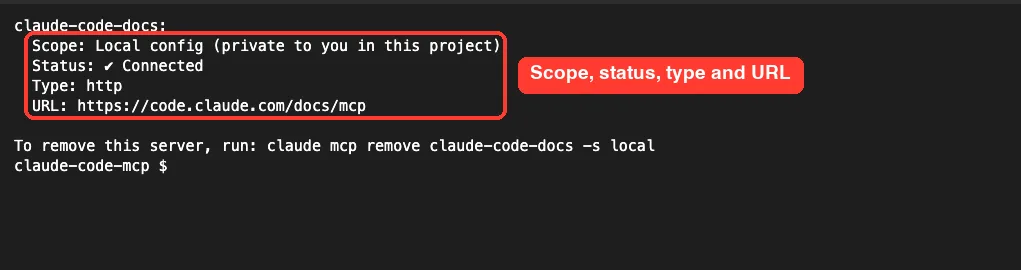
For more detail on a single server, run claude mcp get with its name. It shows the scope, status, type and URL, plus the exact command to remove it.
What the status labels mean
The quickstart lists the statuses you can see in claude mcp list. These are the common ones:
| Status | What it means |
|---|---|
| Connected | Ready to use |
| Needs authentication | Reachable, but you must sign in or pass a token |
| Failed to connect | The server did not respond or start |
| Connection error | The connection attempt threw an error |
| Pending approval | A project server you have not approved yet |
| Disabled for this project | Turned off, but still configured |
Step 2: Add a Local MCP Server
A local server is a program on your machine. Use one when the tool needs local resources, like your files, a browser or a database socket.
The basic command puts the program after a double dash:
claude mcp add my-server -- npx -y some-mcp-packageThat — separator matters. Everything after it is passed to the server untouched, so flags like -y go to npx instead of being read by Claude Code. The quickstart uses Microsoft’s Playwright server as its example, which gives Claude a browser it can drive.
For our demo we did not install anything. We wrote a tiny Python server of about 40 lines with one tool, get_order_status, that reads a small orders.json file. Then we registered it in a project file instead of with a command.
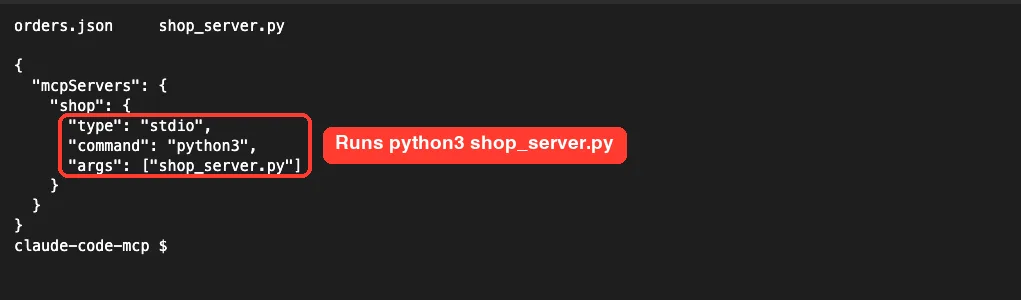
For a stdio server, the JSON entry needs a type, a command and its args. For an HTTP server, it needs a type and a url. The docs warn that an entry with a url but no type is treated as a broken stdio server and skipped.
Step 3: Approve a Project Server
A .mcp.json file in your project root is meant to be committed, so your whole team gets the same servers. That raises a safety question, because a repo you clone could try to start programs on your machine.
Claude Code handles this with an approval prompt. The first time it sees a project server, it asks before using it.
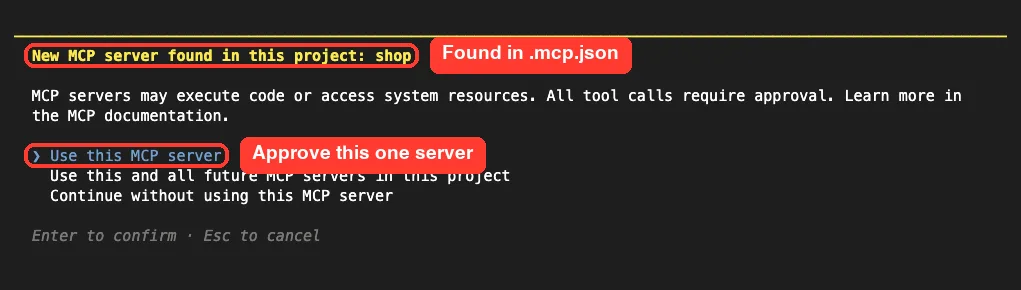
Notice the default choice is Continue without using this MCP server. In our first attempt we closed the prompt without picking, and the shop server stayed off.
The fix is a documented reset command:
claude mcp reset-project-choicesIt clears your stored approvals and rejections for the project, so the prompt appears again the next time you start Claude Code. On our second launch we picked Use this MCP server, and shop connected.
Step 4: Check Servers With the /mcp Panel
Inside a session, type /mcp. It is one of the built-in slash commands, and it opens a panel that lists every server, grouped by where it was defined.
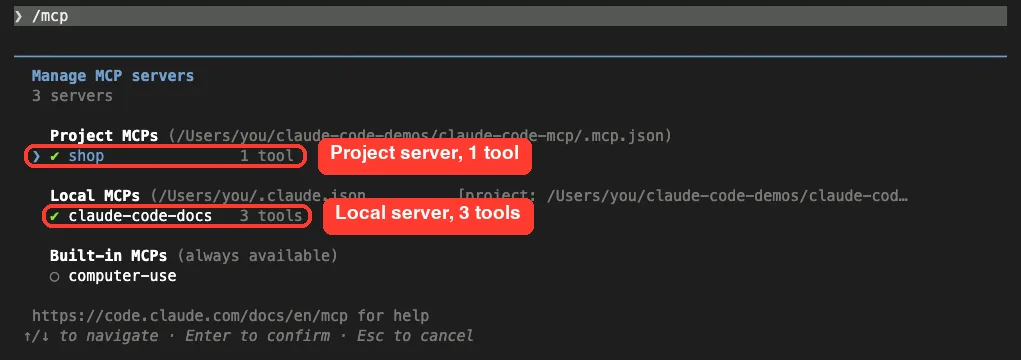
Select a server and press Enter to see its detail view. For the docs server, it showed connected status, the protocol version, the config location and a menu with View tools, Re-authenticate, Clear authentication, Reconnect and Disable.
Choose View tools to see exactly what Claude can call. The docs server offered three tools, and two were marked read-only.
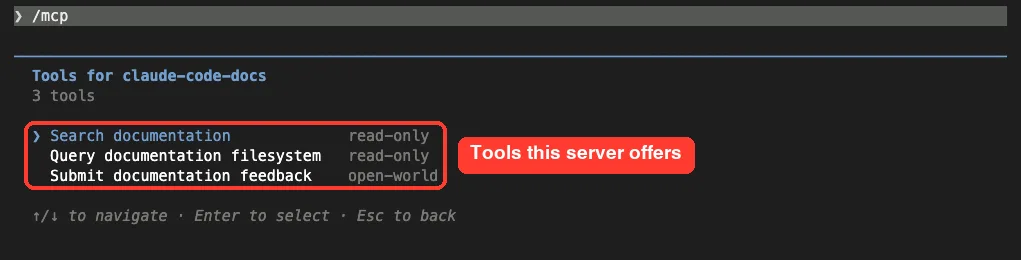
The Disable option is handy when you want a server off for a while. The docs explain that Claude Code keeps its configuration and records your choice per project.
Step 5: Use an MCP Server in a Prompt
Normally Claude picks the right tool on its own. For a first test, the quickstart suggests naming the server, so you know the answer really came from it. We sent this prompt:
Use the claude-code-docs server to look up what MCP_TIMEOUT does. Answer in two short sentences.Claude Code stopped and asked for permission. The prompt names the server and the tool, shows the exact query, and offers to remember your answer.
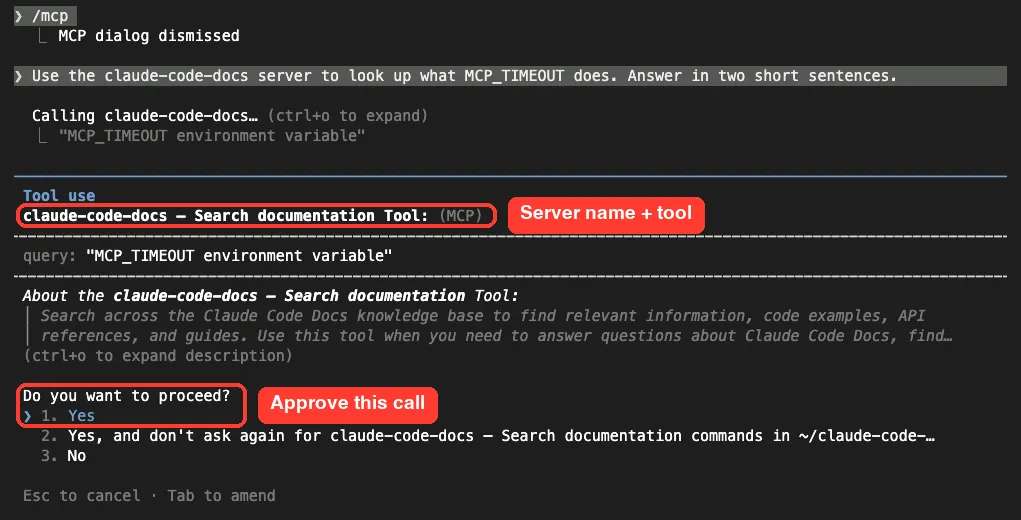
We chose Yes. A few seconds later Claude answered, and the “Called claude-code-docs” line shows where the answer came from.
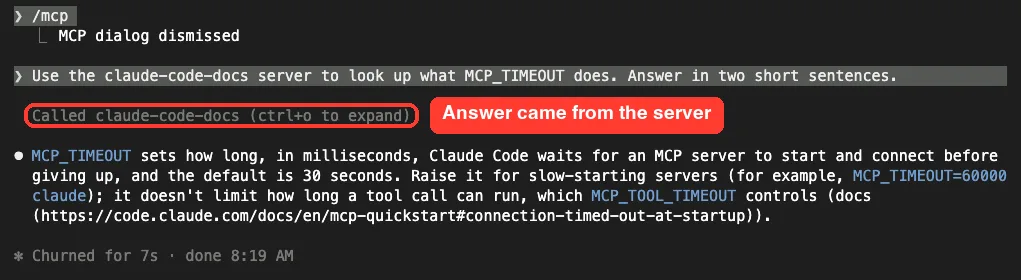
The answer matched the docs: MCP_TIMEOUT controls how long Claude Code waits for a server to start, in milliseconds, with a 30-second default. If you want to skip the prompt for a trusted tool, our guide to permission rules covers that.
Calling your own local tool
Next we tried the server we wrote ourselves:
Use the shop server to check the status of order A-1002.The permission prompt showed the tool name and the argument Claude chose, order_id “A-1002”. Our server’s own description appeared under it.
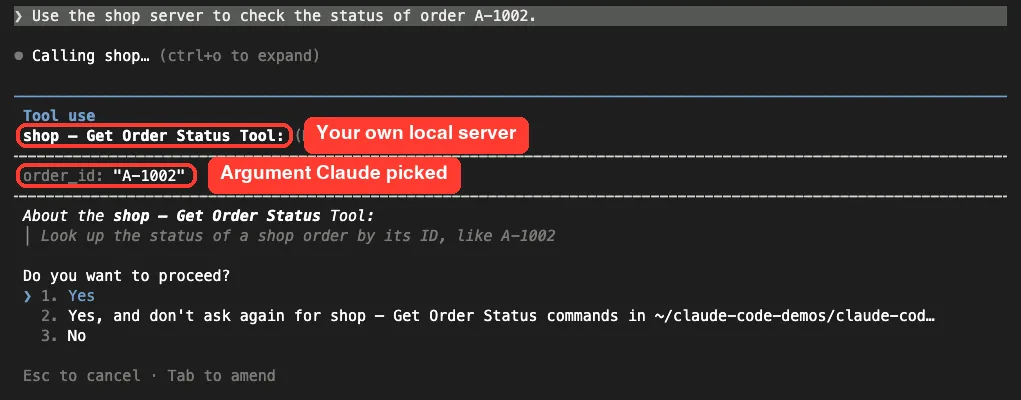
After we approved it, our script read orders.json and returned one line. Claude turned it into a plain sentence.
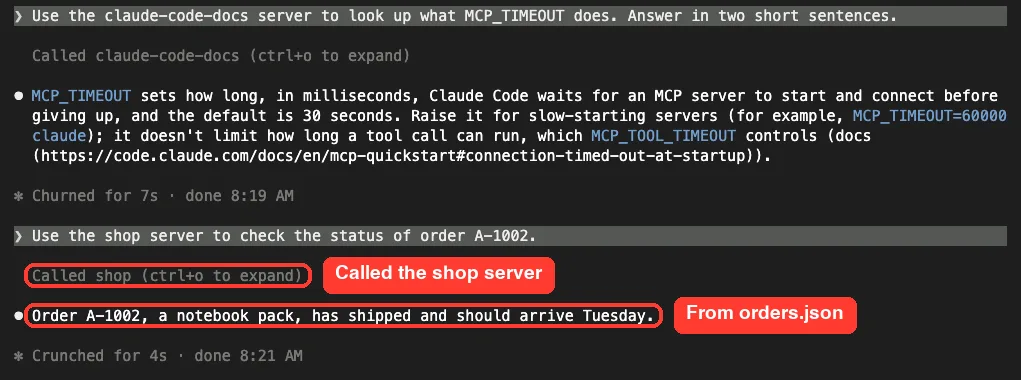
That is the whole idea in one small example. Swap the JSON file for a real order system, and Claude could answer support questions without you copying anything.
Claude Code MCP Scopes: Local, Project and User
Every server has a scope, and the scope decides where it loads and who gets it. You set it with –scope when you add the server.
| Scope | Loads in | Shared with team | Stored in |
|---|---|---|---|
| local (default) | This project only | No | ~/.claude.json, under this project |
| project | This project only | Yes, through version control | .mcp.json in the project root |
| user | All your projects | No | ~/.claude.json, top-level mcpServers |
Note that MCP “local scope” is not the same as the local settings file from our settings files guide. Local MCP servers live in ~/.claude.json in your home folder, not in .claude/settings.local.json.
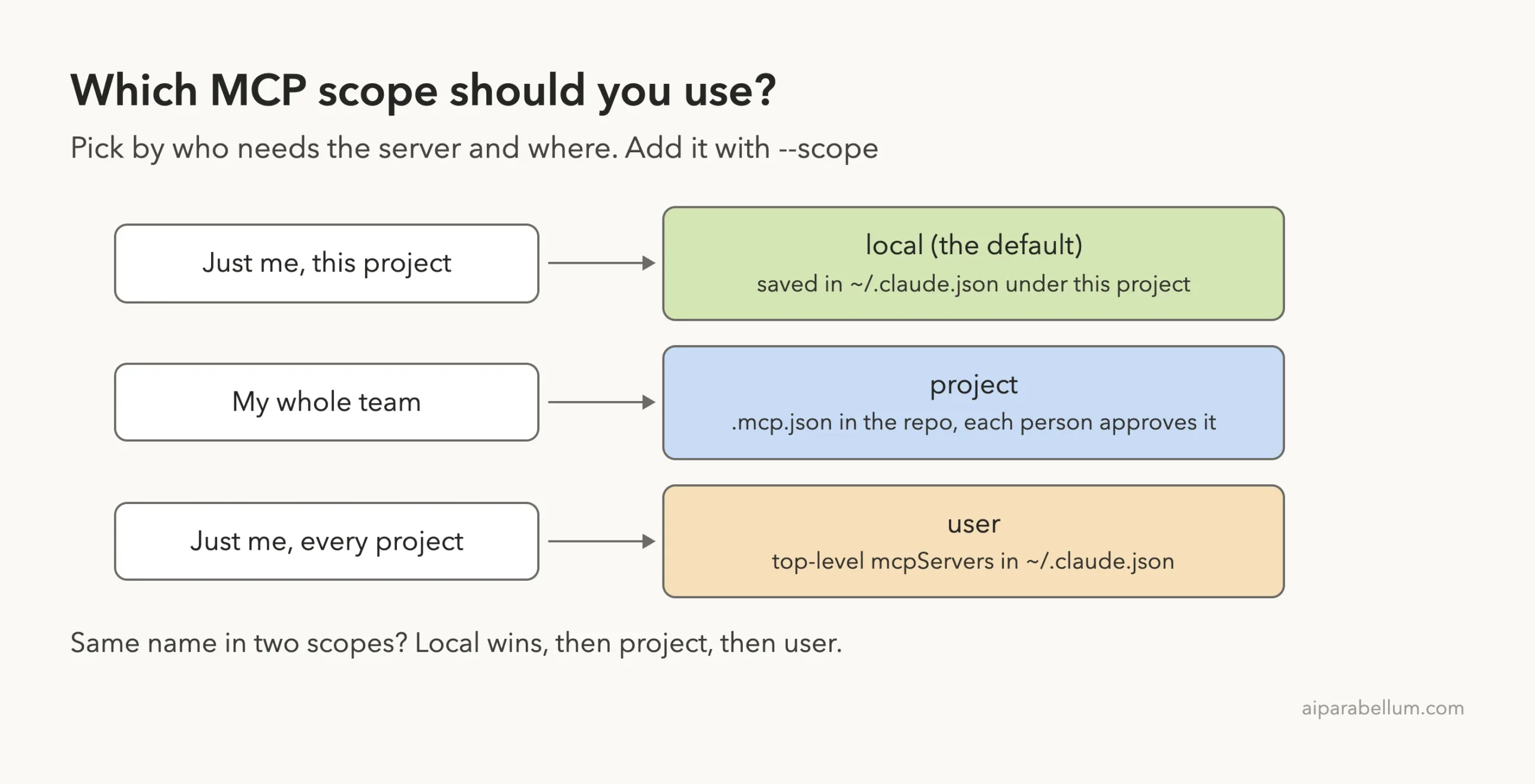
If the same server name exists in more than one scope, Claude Code connects once, using the highest one. Local wins over project, and project wins over user. Fields are not merged across scopes.
A scope is fixed when you add a server. To change it, remove the server and add it again with the new –scope value.
Real Examples of Claude Code MCP Servers
The docs list several practical setups. Here are the shapes worth knowing:
- A server that needs sign-in, like Sentry: add its URL, then open /mcp, select it and choose Authenticate. Your browser handles the login.
- A server that takes a token, like GitHub’s: pass it at add time with –header “Authorization: Bearer YOUR_TOKEN”.
- A database server, like DBHub for PostgreSQL: the docs advise a read-only database user so Claude’s queries cannot change data.
- A server from another app’s instructions: a URL means remote, a launch command means local, and a JSON block can go into claude mcp add-json.
If you sign in to Claude Code with a claude.ai account, connectors you added at claude.ai can also show up in /mcp automatically. The reference explains that these only load when your active login is a claude.ai subscription.
Servers can offer more than tools, too. Some expose resources you attach with an @ mention, like @github:issue://123, and some expose prompts that appear as slash commands such as /mcp__github__pr_review 456.
Step 6: Remove a Server You No Longer Need
Each connected server costs a little space in the context window, because its tool names and instructions load into every session. Our context window guide explains why that space matters.
Claude Code reduces this cost with tool search, which is on by default. Full tool definitions load only when Claude needs them. Still, removing servers you never use keeps things tidy:
claude mcp remove claude-code-docs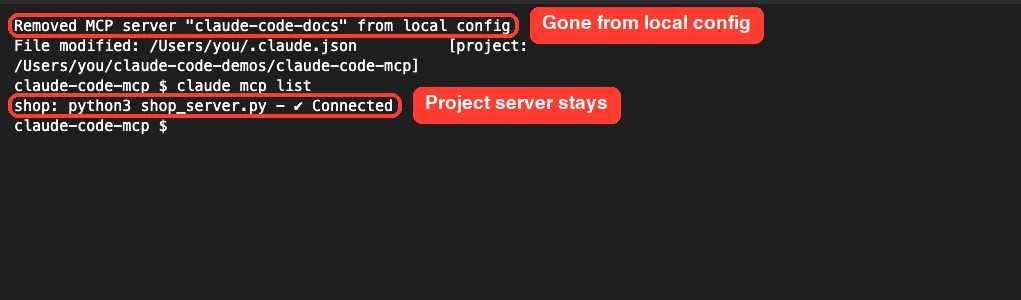
When you remove a remote server, the docs note that Claude Code also deletes the sign-in tokens it stored for that server.
Try It Yourself
Make an empty folder, open a terminal there, and add the docs server with the command from Step 1. Run claude mcp list until you see Connected, then start Claude Code and paste this prompt:
Use the claude-code-docs server to explain the difference between local, project and user MCP scopes. Keep it to three bullet points.Approve the tool call, and check that the reply shows a Called claude-code-docs line. Then open /mcp, view the server’s tools, and finish by removing it.
Common Mistakes With Claude Code MCP
- Adding a server in one folder and expecting it everywhere. Local scope is tied to the project where you ran the command, so use –scope user for a server you want in every project.
- Forgetting the — separator for a local server. Without it, Claude Code tries to read the server’s own flags as its options.
- Editing the wrong file. The docs say Claude Code reads ~/.claude.json and your project’s .mcp.json, not paths like ~/.claude/mcp.json.
- Expecting .mcp.json edits to apply mid-session. Claude Code reads the file at startup, so restart the session.
- Dismissing the approval prompt and wondering why a project server never loads. Run claude mcp reset-project-choices and start again.
- Connecting servers you do not trust. Servers that fetch outside content can expose you to prompt injection, so check each one first.
Pro Tips for Working With MCP Servers
- If a local server is slow to start the first time, raise the startup limit with MCP_TIMEOUT=60000 claude. Our environment variables guide covers more settings like this.
- When something fails, run claude mcp get NAME. Recent versions show the HTTP status or error text on an Issue line.
- For a stdio server that will not connect, run its command directly in your terminal. The error usually names what is missing.
- Use a placeholder like ${API_KEY} in .mcp.json so teammates can share the file without sharing secrets.
- If a server connects but shows no tools, it is often missing an environment variable. Pass it with –env KEY=value.
- Name your server in the prompt while testing, then stop naming it once you trust Claude to pick it.
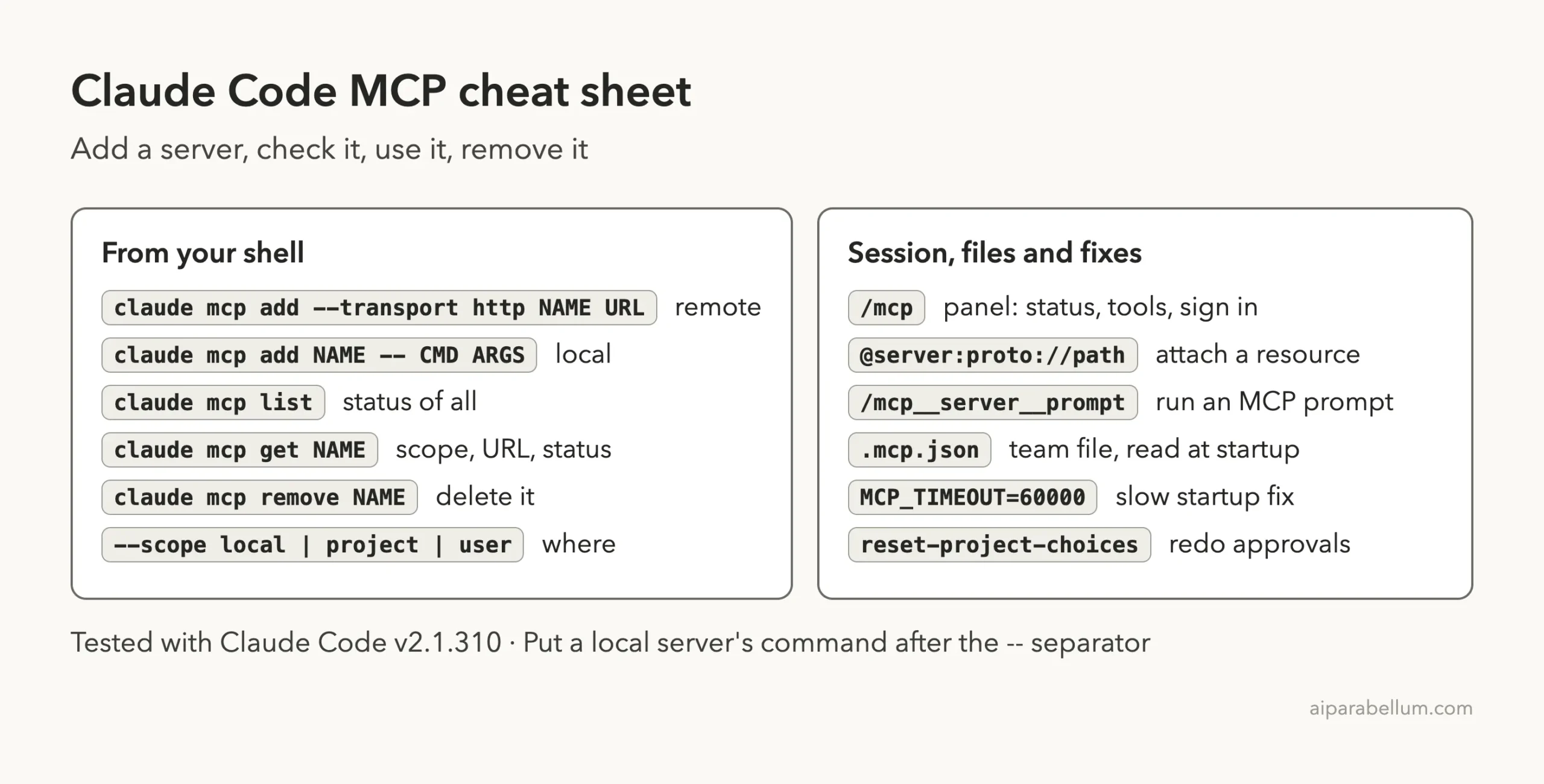
Claude Code MCP Cheat Sheet
Save this card for the commands you will use most often.
Frequently Asked Questions
Do I need to name the server in every prompt?
No. Claude chooses relevant tools on its own. Naming the server is just a good way to confirm a new setup works.
Is MCP only for remote cloud services?
No. Local stdio servers run as programs on your machine, which suits files, browsers and databases. Our demo shop server was a small Python script.
Will my teammates get my MCP servers automatically?
Only if you use project scope. That writes the server to .mcp.json, which you commit, and each teammate approves it on first launch.
Can I turn a server off without deleting it?
Yes. Open /mcp, select the server and choose Disable. Its configuration stays in place for later.
Why does my server say Needs authentication?
The server is reachable but wants you to sign in. Open /mcp, select it and choose Authenticate, or run claude mcp login NAME from your shell.
Conclusion
MCP turns Claude Code from a tool that only sees your project into one that can work with the rest of your stack. Add a server with claude mcp add, confirm it with claude mcp list or /mcp, approve its tool calls, and pick a scope that matches who needs it. Start with the hosted docs server to learn the flow, then connect the one system you copy data from most often, and see more Claude tips on our Claude AI hub.
Previous in the series: Part 30, Claude Code Hooks: Automate Actions Before and After Tools
Next in the series: Part 32: Claude Code Plugins: Find, Install and Manage Them.