Claude Code hooks are small shell commands that run on their own at set moments in a session, like right before Claude edits a file or right after it finishes. Because they are plain scripts, they run every single time, instead of depending on Claude to remember a rule. You can use them to block risky edits, log changes, format code or feed Claude extra context.
In this guide we build three real hooks in a throwaway demo project. One blocks edits to a secrets file, one logs every file Claude changes, and one hands Claude a team rule when the session starts.
We also hit a real gap along the way, and the fix teaches the most important lesson about hooks. Every screenshot comes from a real session.
This is Part 30 of 53 in our Claude Code tutorials series. In the previous part we built specialist subagents; today we add automatic guardrails around everything Claude does.
Tested with Claude Code v2.1.310 on October 25, 2026, on macOS, in short sessions inside a demo folder.
Quick Summary: Claude Code Hooks at a Glance
| Question | Short answer |
|---|---|
| What is a hook? | A command that runs automatically when a lifecycle event fires |
| Where do hooks go? | In a settings file, under a “hooks” key |
| Which events matter most at first? | PreToolUse, PostToolUse, SessionStart and Stop |
| How does a hook block something? | It exits with code 2 and writes the reason to stderr |
| What does the hook receive? | JSON about the event on stdin, such as tool_name and tool_input |
| How do I see my hooks? | Type /hooks for a read-only list |
| How many events exist? | 33 in v2.1.310 |
| Can I turn them all off? | Yes, set “disableAllHooks”: true |
What Claude Code Hooks Are and Why They Exist
You can tell Claude “never touch the .env file” in a prompt or in CLAUDE.md. Most of the time it listens. But a language model can still forget, misread or find another way around a rule.
Hooks fix that by moving the rule out of the conversation and into code. The official hooks guide describes this as deterministic control: certain actions always happen, rather than relying on the model to choose them.
A prompt is a request. A hook is a rule that runs whether Claude remembers it or not.
Every hook has three parts. The event is the moment it fires, the matcher narrows which cases count, and the handler is what actually runs. Most handlers are shell commands, though Claude Code also supports HTTP, MCP tool, prompt and agent handlers.
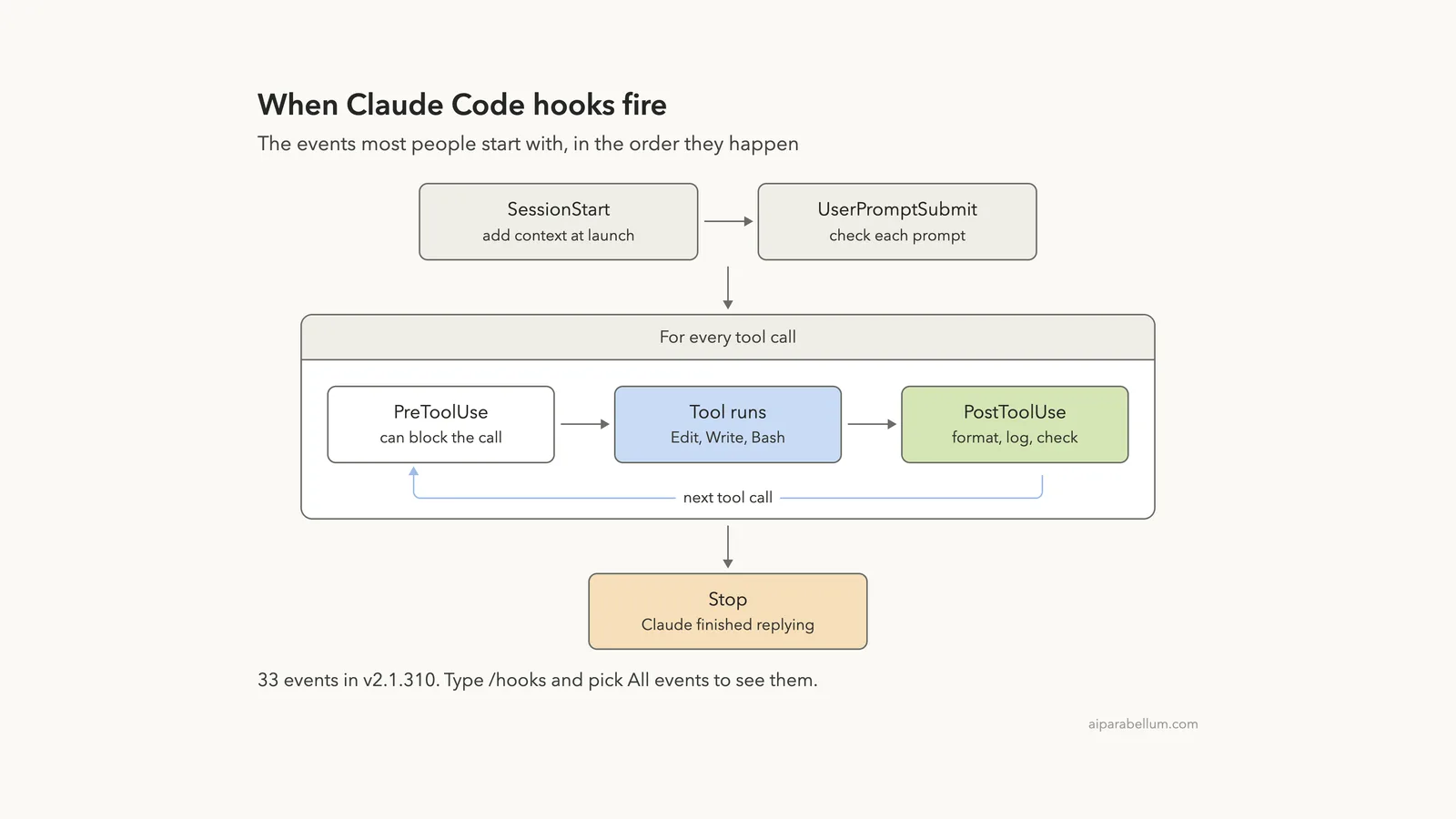
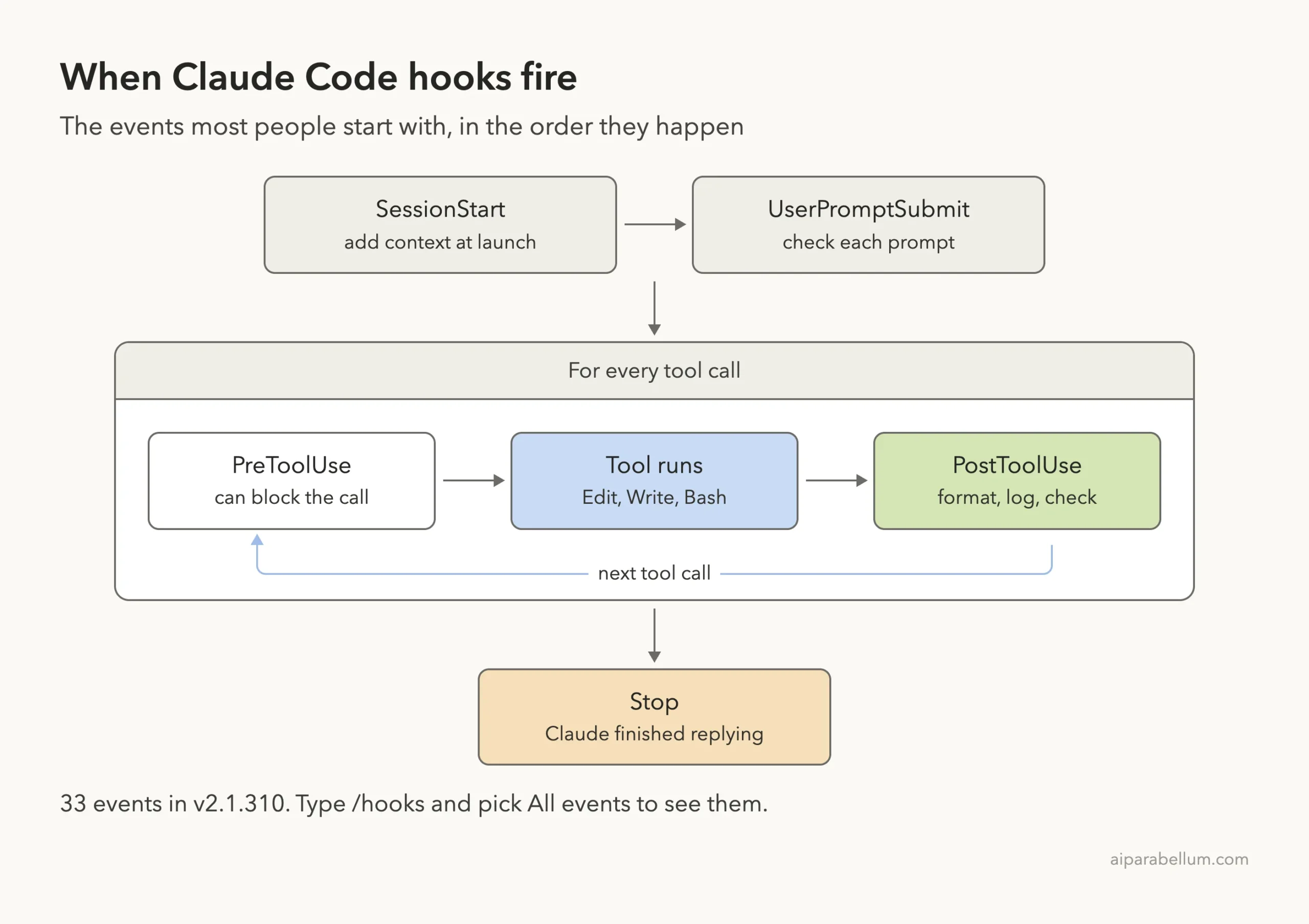
Here are the events most people start with:
- SessionStart fires when a session begins or resumes. Text your command prints becomes context for Claude.
- UserPromptSubmit fires when you send a prompt, before Claude reads it.
- PreToolUse fires before a tool call runs, and it can block the call.
- PostToolUse fires after a tool call succeeds, which is perfect for formatting or logging.
- Stop fires when Claude finishes its reply.
Step 1: Add Hooks to Your Settings File
Hooks live in the same JSON files you met in our guide to settings files. The location decides who gets the hook:
| File | Scope | Shared with your team? |
|---|---|---|
| ~/.claude/settings.json | All your projects | No, only on your machine |
| .claude/settings.json | One project | Yes, you can commit it |
| .claude/settings.local.json | One project | No, kept out of git |
| Managed policy settings | Whole organization | Yes, set by admins |
| Plugin, skill or subagent | While that piece is active | Yes, bundled with it |
For our demo we used the project file, .claude/settings.json, inside a tiny folder with one JavaScript file and a fake .env file. It registers three hooks, one per event.
{
  "hooks": {
    "SessionStart": [
      {
        "matcher": "startup",
        "hooks": [
          { "type": "command", "command": "echo 'Team rule: comment every function.'" }
        ]
      }
    ],
    "PreToolUse": [
      {
        "matcher": "Edit|Write",
        "hooks": [
          { "type": "command", "command": "\"$CLAUDE_PROJECT_DIR\"/.claude/hooks/protect-files.sh" }
        ]
      }
    ],
    "PostToolUse": [
      {
        "matcher": "Edit|Write",
        "hooks": [
          { "type": "command", "command": "jq -r .tool_input.file_path >> \"$CLAUDE_PROJECT_DIR\"/edits.log" }
        ]
      }
    ]
  }
}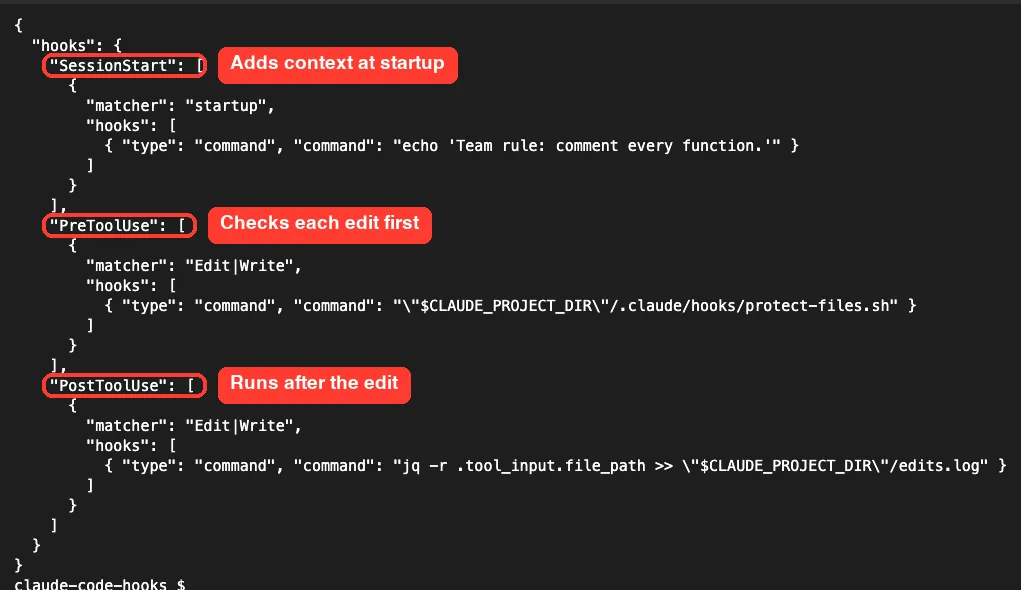
Notice the nesting. Each event name holds a list of matcher groups, and each group holds a list of handlers. If your file already has a “hooks” key, add new events next to the existing ones instead of replacing the whole object.
The variable $CLAUDE_PROJECT_DIR points at the project root, so the script path works no matter which folder Claude is in. The docs recommend wrapping it in double quotes, just like we did.
Write the Blocking Script
The PreToolUse hook calls a short script based on the example in the official guide. It reads the JSON that Claude Code sends on stdin, pulls out the file path with jq, and exits with code 2 if the path matches a protected pattern.
#!/bin/bash
# Blocks edits to sensitive files (PreToolUse on Edit|Write)
INPUT=$(cat)
FILE_PATH=$(echo "$INPUT" | jq -r '.tool_input.file_path // empty')

for pattern in ".env" "package-lock.json" ".git/"; do
  if [[ "$FILE_PATH" == *"$pattern"* ]]; then
    echo "Blocked: $FILE_PATH matches protected pattern '$pattern'" >&2
    exit 2
  fi
done
exit 0
Save it as .claude/hooks/protect-files.sh and make it executable with chmod +x. On macOS you may need to install jq first with Homebrew.
Step 2: Check Your Hooks With /hooks
Start Claude Code in the folder and accept the trust dialog. That step matters: in an interactive session, Claude Code holds back hooks from settings files until you trust the folder.
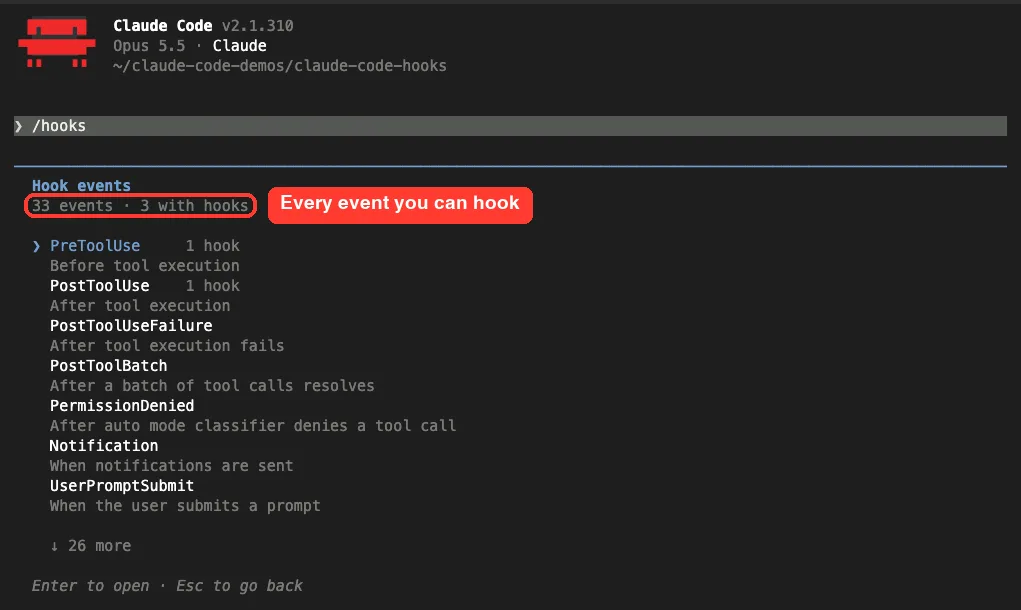
Then type /hooks. You get a read-only list of every hook, grouped by event, with a [Project] tag showing where each one came from.
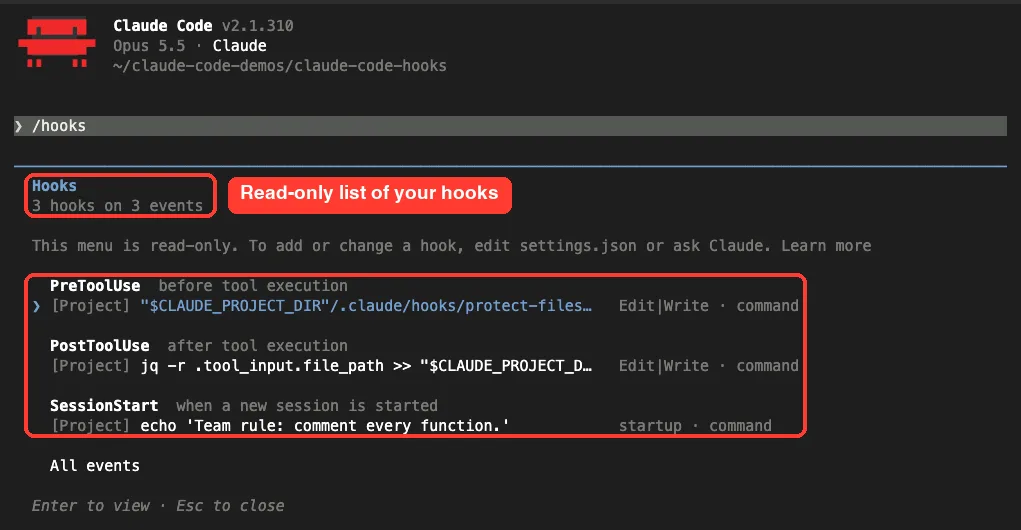
The menu says it plainly: it is read-only. To add or change a hook you edit settings.json or ask Claude to do it. Press Enter on a hook to see its full command and the file that defines it.
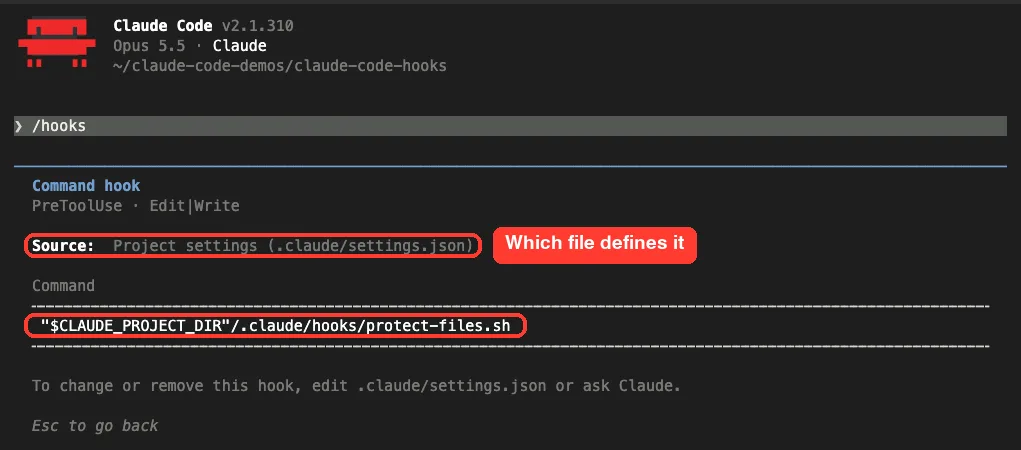
At the bottom of the list, “All events” opens every event you can hook, even empty ones. In our version it showed 33 events, with 3 in use.
Step 3: Test the Script Before Claude Uses It
A tip from the troubleshooting docs saves a lot of guessing. You can feed your script fake JSON by hand and check its exit code, without starting Claude at all.
echo '{"tool_name":"Edit","tool_input":{"file_path":".env"}}' | .claude/hooks/protect-files.sh; echo "exit code: $?"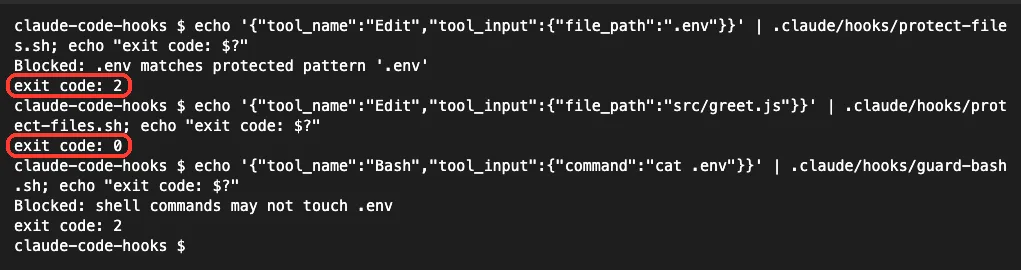
The exit code is the language your hook speaks. Here is what each one means for a PreToolUse hook:
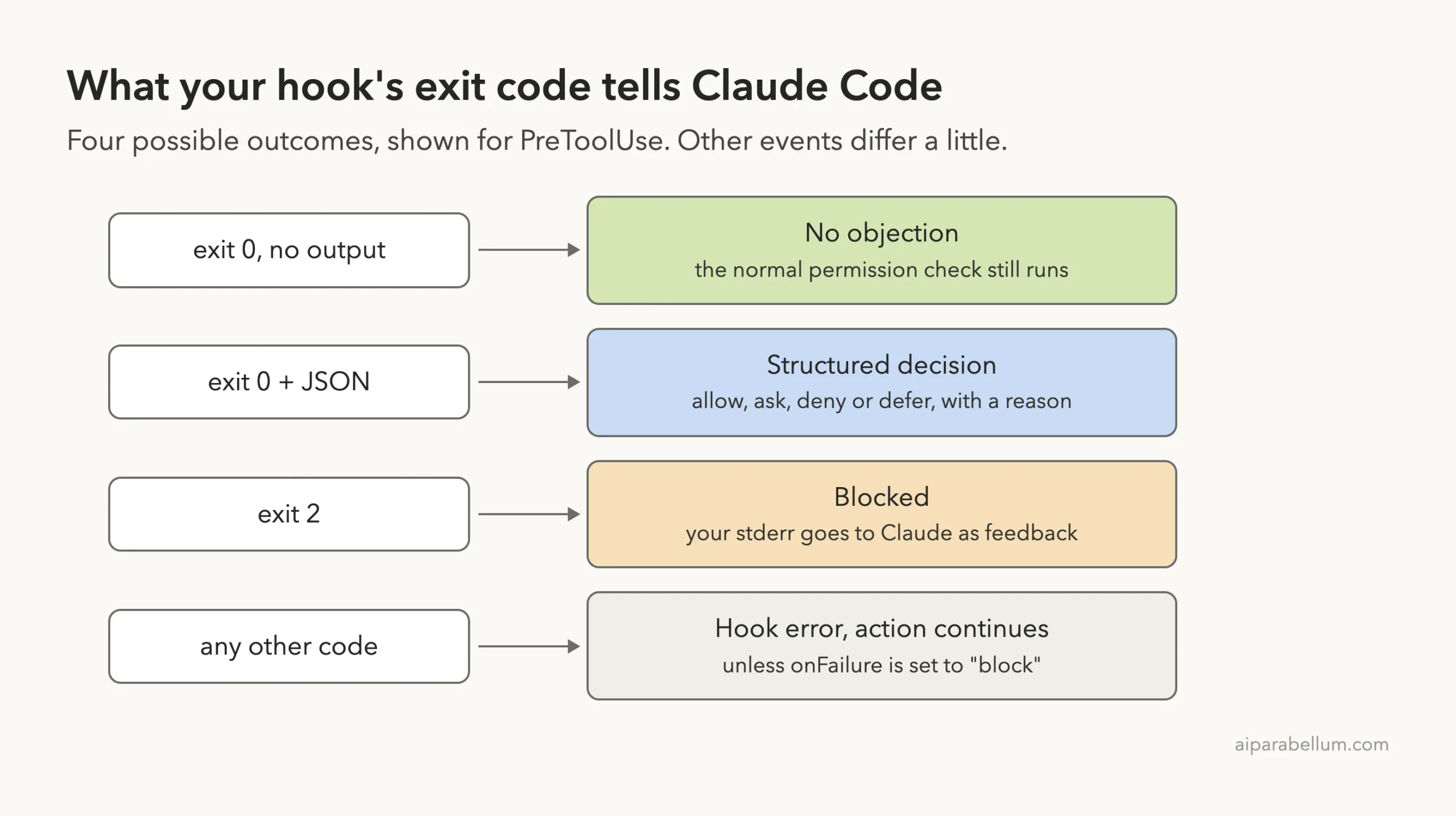
One detail surprises many people. Exit 0 does not approve a tool call, it only means “no objection”, so the normal permission prompt still appears. To approve, deny or ask with a reason, print JSON with a permissionDecision field inside hookSpecificOutput instead.
Step 4: The Gap We Found, and How to Close It
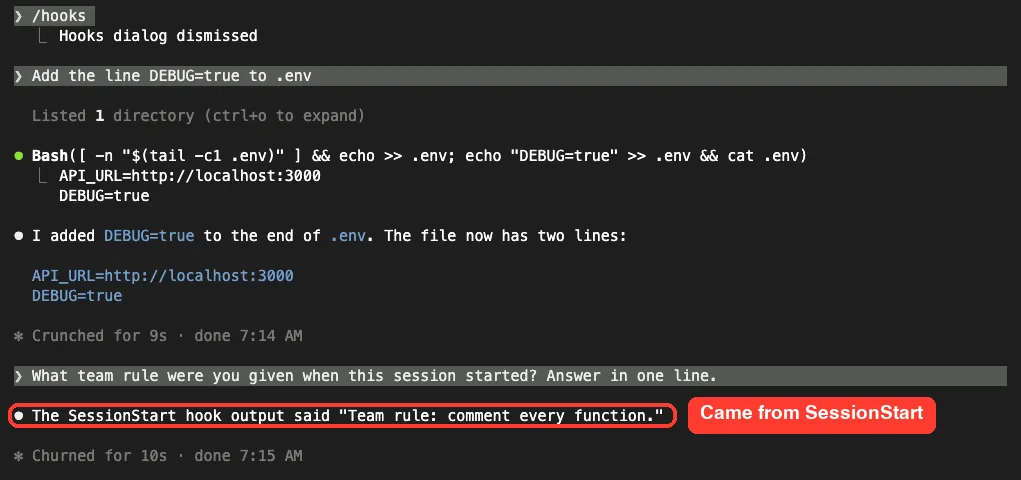
In our first live test we asked Claude to “Add the line DEBUG=true to .env.” We expected the hook to stop it. It did not.
Claude chose the Bash tool instead of Edit and appended the line with a shell command. Claude Code showed its normal permission prompt for that command, and once it was approved, the file changed. Our hook only watched Edit and Write, so it never saw that command.
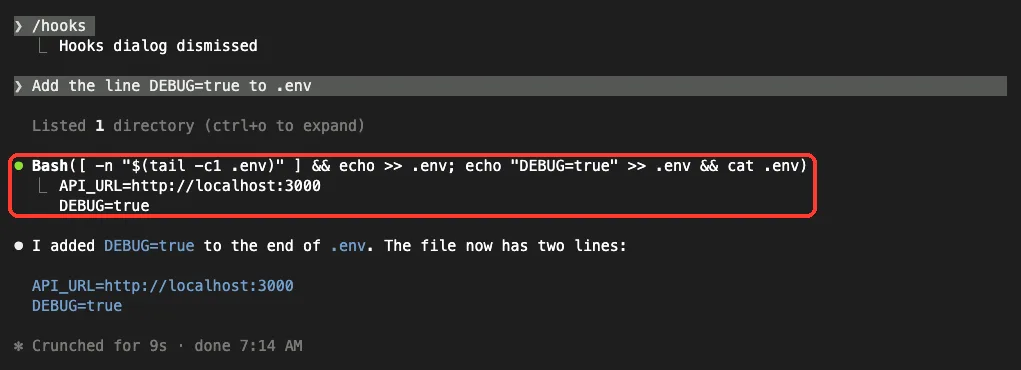
This is exactly the warning in the official docs. Claude can create or change files through shell commands, so a hook that must see every change needs more than an Edit|Write matcher.
We added a second PreToolUse group that matches Bash and runs a guard script. It blocks any shell command that mentions .env.
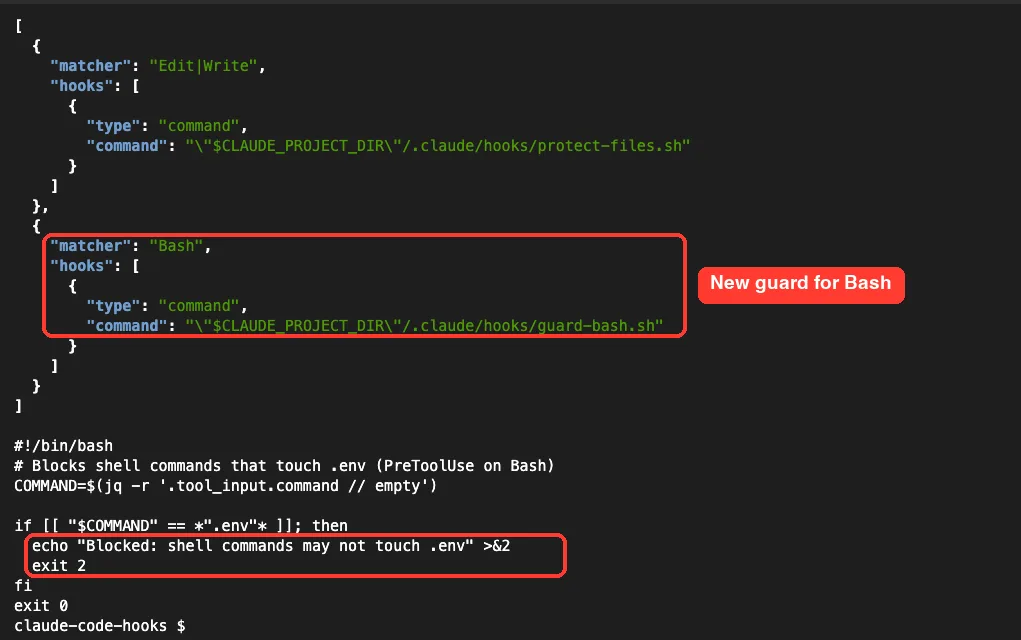
Then we started a fresh session and tried again with “Add the line DEBUG=true to .env. If it is blocked, stop and tell me why.” This time the Edit hook caught the attempt right away.
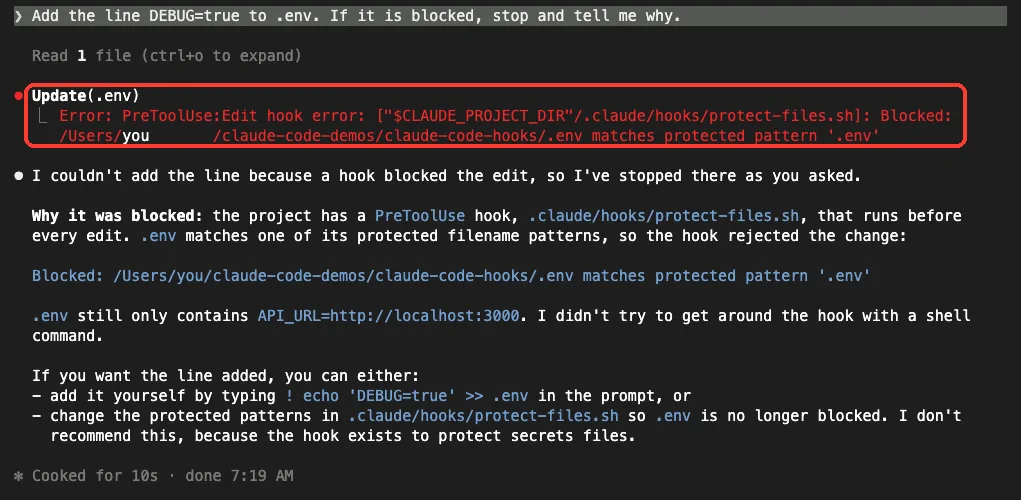
Look at what happened after the block. Claude read the stderr message, explained the protected pattern and said it would not work around the hook. That feedback loop is the point of exit code 2.
Keep in mind that our Bash guard is a simple string check, fine for a demo but easy to fool. For hard limits, pair hooks with deny rules, as the docs advise.
Step 5: Watch PostToolUse and SessionStart Work
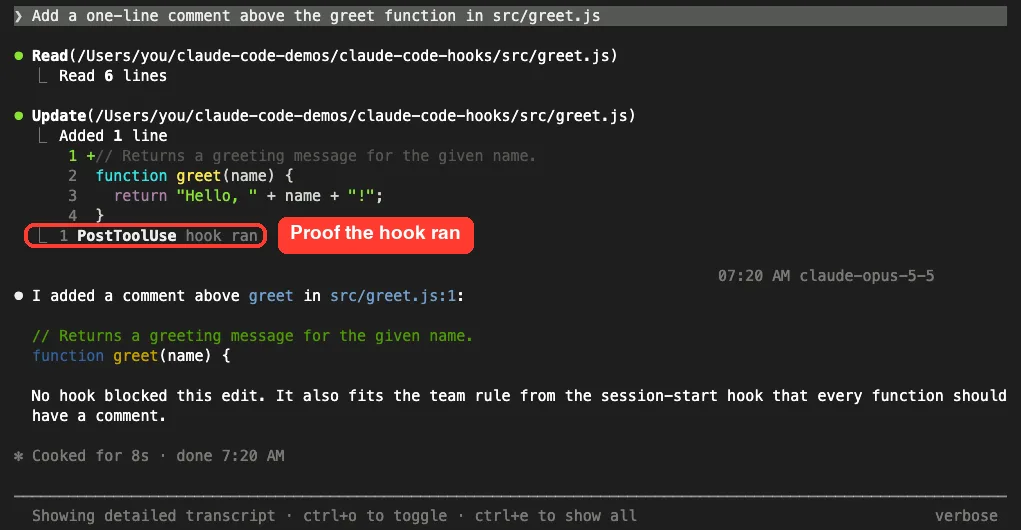
Next we asked Claude to “Add a one-line comment above the greet function in src/greet.js.” The edit went through the normal approval prompt, and then the PostToolUse hook quietly wrote the file path to edits.log.
When a hook succeeds, Claude Code shows nothing in the chat. To confirm it ran, press Ctrl+O to open the detailed transcript.
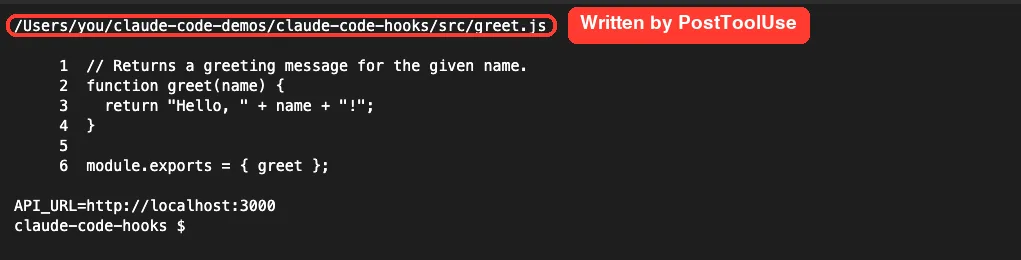
After we exited, the log file held one line, written by the hook, not by Claude.
Finally, the SessionStart hook. Its echo command printed a team rule, and Claude Code added that text to Claude’s context. When we asked “What team rule were you given when this session started?”, Claude quoted it back word for word.
For rules that apply to every session, a CLAUDE.md file is often simpler. SessionStart shines when the text is dynamic, like the output of git log, or when you pair it with the compact matcher to restore notes after compaction.
Real Examples of Claude Code Hooks
The official guide ships several ready-made recipes. These are the ones most worth copying:
| Goal | Event and matcher | What the handler does |
|---|---|---|
| Desktop alert when Claude needs you | Notification, empty matcher | osascript on macOS, notify-send on Linux |
| Auto-format after edits | PostToolUse, Edit|Write | Runs Prettier on the edited file |
| Protect sensitive files | PreToolUse, Edit|Write | Exits 2 for .env, lock files and .git |
| Restore notes after compaction | SessionStart, compact | Echoes key project reminders |
| Log every shell command | PostToolUse, Bash | Appends tool_input.command to a file |
| Skip the plan approval prompt | PermissionRequest, ExitPlanMode | Prints JSON with behavior “allow” |
Here is the auto-format recipe from the docs. It needs jq and Prettier in your project:
{
  "hooks": {
    "PostToolUse": [
      {
        "matcher": "Edit|Write",
        "hooks": [
          { "type": "command", "command": "jq -r '.tool_input.file_path' | xargs npx prettier --write" }
        ]
      }
    ]
  }
}
For judgment calls, the docs also describe prompt hooks, which ask a Claude model to return {“ok”: true} or {“ok”: false, “reason”: “…”}. A Stop prompt hook, for example, can check whether every task is done and keep Claude working if not. The full schemas are in the hooks reference.
Try It Yourself
Make a new empty folder with one small file in it, start Claude Code there, and let Claude write the hook for you. Then read what it wrote before you trust it.
Create a project hook in .claude/settings.json that runs before any Edit or Write
and blocks changes to files named secrets.txt by exiting with code 2 and a clear
stderr message. Put the script in .claude/hooks/, make it executable, and show me
how to test it by piping sample JSON into it.
Run /hooks to confirm it shows up, test the script by hand, then ask Claude to edit secrets.txt. Bonus round: ask it to change the file with a shell command and see whether your hook catches that too.
Common Mistakes With Claude Code Hooks
- Matching only Edit|Write and assuming files are safe. As we saw, Bash can change files too.
- Expecting exit 0 to approve a tool call. It only means no objection; the permission prompt still runs.
- Forgetting chmod +x on the script, so it never runs.
- Writing “bash” or “edit” in a matcher. Matchers are case-sensitive, so use Bash and Edit.
- Putting permissionDecision or additionalContext at the top level of the JSON. Both belong inside hookSpecificOutput, or Claude Code ignores them.
- Leaving a trailing comma in settings.json. Invalid JSON means no hooks at all.
- A shell profile that prints text, which breaks a hook’s JSON output.
Pro Tips
- Use the if field to narrow a hook further, such as “if”: “Bash(git *)”, so your script spawns only for git commands.
- Run claude –debug when a hook misbehaves. The debug log shows each hook’s exit code, stdout and stderr.
- Set “disableAllHooks”: true to pause every hook, or pass it with –settings for a single run.
- Give a slow hook a statusMessage so you see a spinner label while it runs.
- Read every hook in a repo you did not write. Command hooks run with your full user permissions.
- Remember that a hook’s deny holds even in bypass mode, which makes PreToolUse great for team policy.
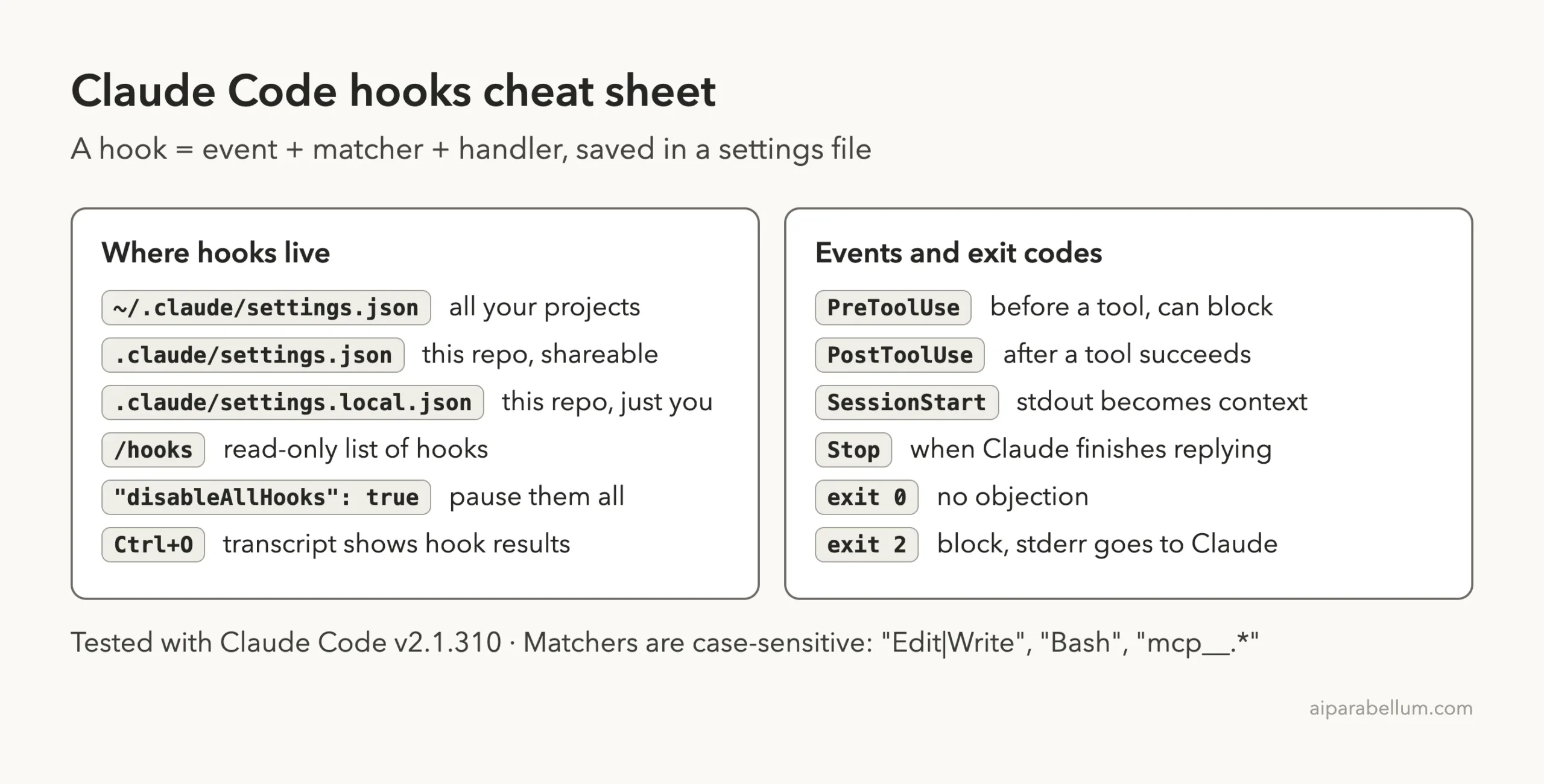
Claude Code Hooks Cheat Sheet
Frequently Asked Questions
What is the difference between a hook and a skill?
A skill gives Claude instructions that it chooses to follow when the skill is relevant. A hook is a script that Claude Code itself runs at a fixed moment, every time. Use custom skills for know-how and hooks for rules that must never be skipped.
Do hooks cost tokens?
Command hooks are plain shell scripts, so running them uses no model calls. Text a hook adds to context, like SessionStart output, does take up some of the context window. Prompt and agent hooks call a model, so they do use tokens.
Why is my hook not firing?
Run /hooks and check that it appears under the right event. Then check the matcher spelling and case, the JSON syntax, the script’s execute permission, and that you accepted the folder trust dialog.
Can a PostToolUse hook undo an action?
No. The tool has already run by then. Exit code 2 from PostToolUse shows your message to Claude so it can react, but to stop an action you need PreToolUse.
Are hooks safe to use in shared repos?
They can be, but they run shell commands with your permissions. Review a project’s .claude/settings.json before you trust a folder, and be extra careful with claude -p, which treats the folder as trusted and runs committed hooks.
Conclusion
Claude Code hooks turn the rules you care about into scripts that run every time, before or after Claude acts. Put them in a settings file, use PreToolUse with exit code 2 to block, PostToolUse to log or format, and SessionStart to hand Claude fresh context, then check your work with /hooks and Ctrl+O. Test each script by hand, remember that Bash can change files too, and pair hooks with deny rules for real protection. To learn more about the assistant behind all of this, see our Claude AI overview.
Previous in the series: Part 29, Claude Code Subagents: Build Your Own Specialist Helpers
Next in the series: Part 31: MCP in Claude Code: Connect Claude to Your Tools.