Claude Code skills let you save a set of instructions once and reuse it whenever you need it. You write a small SKILL.md file, and Claude either uses it on its own when your request matches, or you run it yourself with a slash command. If you keep pasting the same checklist or steps into chat, a skill is the fix.
In this guide we build two real skills in a throwaway demo project. One summarizes your uncommitted changes and pulls in the live git diff. The other adds a release entry to a changelog, and only runs when you ask for it.
You will see every step, including the permission prompts, in real screenshots.
This is Part 28 of 53 in our Claude Code tutorials series. In the previous part we set up custom keyboard shortcuts; today we teach Claude Code new tricks you can call by name.
Tested with Claude Code v2.1.310 on October 25, 2026, on macOS, in two short sessions inside a demo folder.
Quick Summary: Claude Code Skills at a Glance
| Question | Short answer |
|---|---|
| What is a skill? | A folder with a SKILL.md file of instructions Claude can follow |
| Where do project skills go? | .claude/skills/<name>/SKILL.md inside your repo |
| Where do personal skills go? | ~/.claude/skills/<name>/SKILL.md, for all your projects |
| How do I run one? | Type /name, or ask something that matches its description |
| What does Claude see before use? | Only the skill’s name and description |
| Can I stop Claude from running it? | Yes, with disable-model-invocation: true |
| Do I need to restart after edits? | No, changes in watched skill folders apply in the running session |
What Claude Code Skills Are and Why They Exist
A skill is a reusable prompt with a little structure around it. The top of the file holds a few settings, called frontmatter, between two — lines. The rest is plain Markdown that tells Claude what to do.
Skills fill the gap between a one-off prompt and your CLAUDE.md file. CLAUDE.md loads in every session, so every line costs context all the time. A skill’s full body loads only when it is used, so long procedures cost almost nothing until you need them.
If you have typed the same instructions three times, it is time to turn them into a skill.
Skills are also the new home of custom slash commands. A file at .claude/commands/deploy.md and a skill at .claude/skills/deploy/SKILL.md both create /deploy and work the same way. Your old command files keep working, but skills add extras like supporting files and control over who can run them.
The official skills documentation covers every option.
Here are good jobs for a skill:
- A review checklist you run before every commit
- Your team’s API or naming conventions
- A release, deploy or changelog routine
- A research task you want to hand to a subagent
- A script you want Claude to run the same way each time
Bundled skills you already have
Claude Code ships with bundled skills such as /code-review, /debug, /loop and /claude-api. You run them the same way as your own skills, by typing a slash and the name. They are listed alongside the built-in commands we covered in our slash commands guide.
How Claude Code Skills Work Behind the Scenes
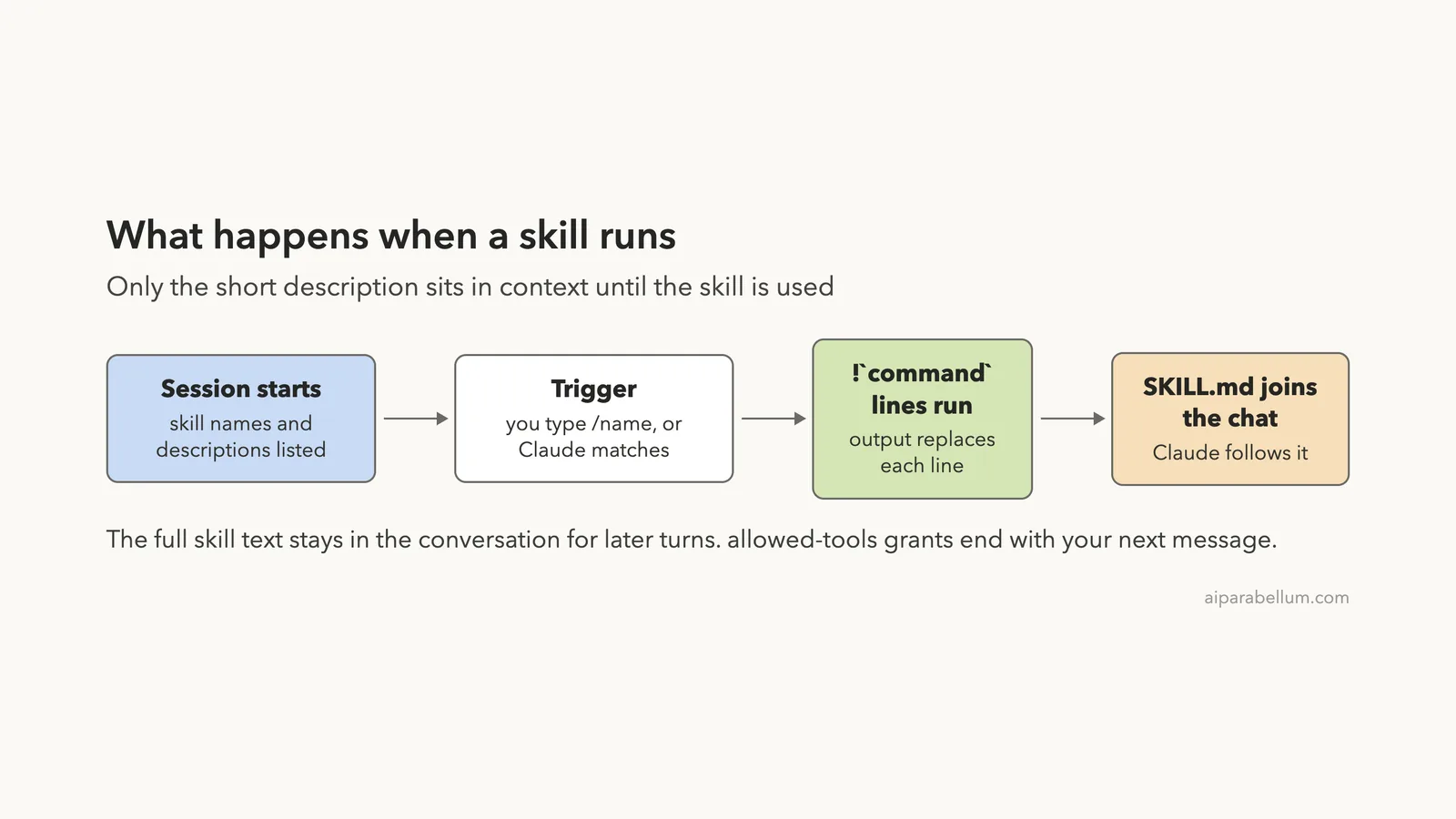
When a session starts, Claude Code puts a short listing of skill names and descriptions into context. That is how Claude knows what is available. The full instructions stay on disk until the skill is triggered.
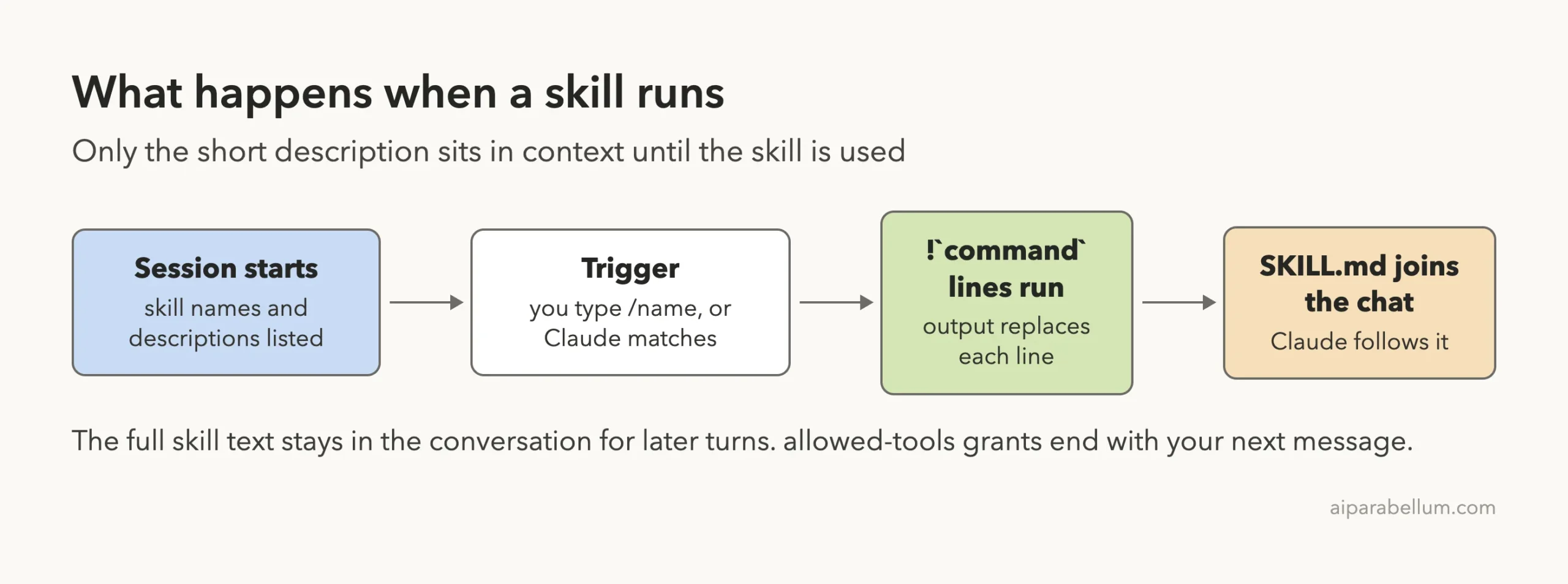
A skill can be triggered in two ways. You type /skill-name, or Claude decides your request matches the description and loads it itself. Before the text reaches Claude, any line written as !`command` runs on your machine, and its output replaces that line.
Once loaded, the skill’s text stays in the conversation for later turns. Claude Code does not re-read the file each turn, so write rules that should hold for the whole task as standing instructions.
Step 1: Create Your First Skill Folder
For our demo we made a tiny git project with an app.py file and a CHANGELOG.md. Then we created a project skill folder inside it. Each skill gets its own folder, and the folder name becomes the command name.
mkdir -p .claude/skills/summarize-changesUse ~/.claude/skills/summarize-changes instead if you want the skill in every project on your computer. A project skill lives with the repo, so your team gets it when you commit the folder.
Step 2: Write the SKILL.md File
Our first skill is based on the example in Anthropic’s docs. It pulls in your live changes and asks Claude for a short summary with risks. Here is the file we saved:
---
description: Summarizes uncommitted changes and flags anything risky. Use when the user asks what changed, wants a commit message, or asks to review their diff.
allowed-tools: Bash(git diff *)
---

## Current changes

!`git diff HEAD`

## Instructions

Summarize the changes above in two or three bullet points, then list any risks you notice such as missing error handling, hardcoded values, or tests that need updating. If the diff is empty, say there are no uncommitted changes.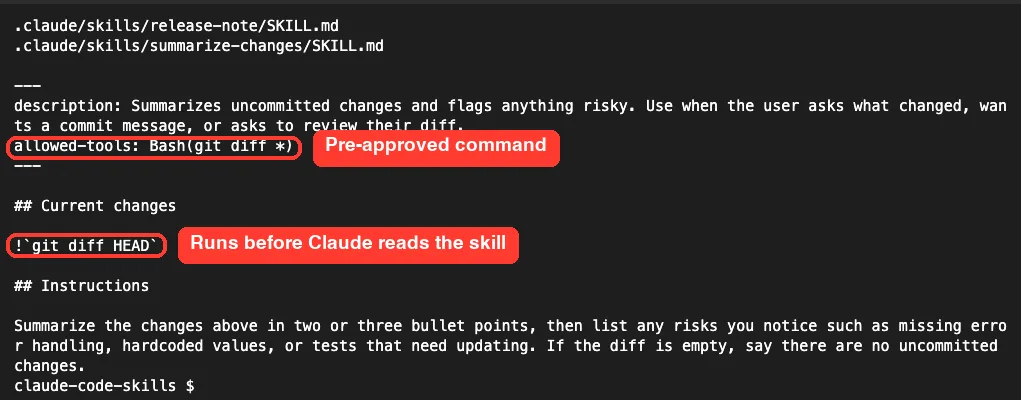
Three parts do the work here:
- description tells Claude when the skill is useful, so put the words people would naturally say
- !`git diff HEAD` runs before Claude reads the skill and drops the real diff into the text
- allowed-tools pre-approves git diff for the turn that runs the skill, so it does not stop to ask
We added allowed-tools on purpose. In the default permission mode, an injected command that is not allowed makes the whole skill fail instead of asking you. Pre-approving the exact command avoids that.
Step 3: Write a Task Skill You Control
Some skills should only run when you say so. Our second skill writes to CHANGELOG.md, so we did not want Claude deciding to run it on its own.
---
name: release-note
description: Add a release entry to CHANGELOG.md for a version number
argument-hint: [version]
disable-model-invocation: true
---

Add a new section for version $0 at the top of CHANGELOG.md, below the title.
Under it, write one short bullet per change in the current git diff.
Keep the existing entries exactly as they are.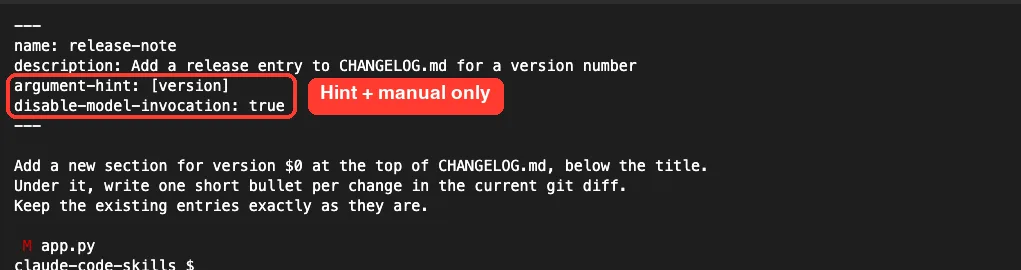
The argument-hint shows up while you type the command. The $0 placeholder gets replaced with the first word you type after /release-note. And disable-model-invocation: true keeps the skill out of Claude’s own reach.
Step 4: Check That Claude Code Found Your Skills
Start Claude Code in the project and run /skills. It opens a list of every skill in your session, with where each one came from and roughly how many tokens it adds to context. Ours showed 78 skills, because synced and plugin skills appear here too.
Press / inside the menu to search. Typing “summarize” narrowed the list to our new skill, marked as a project skill at about 60 tokens.
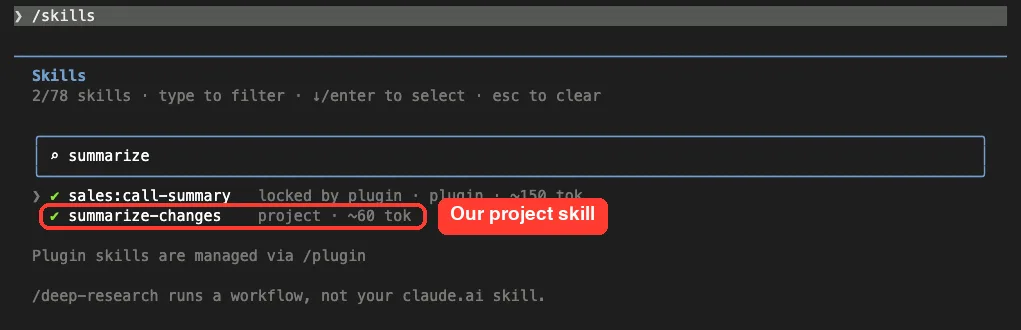
Searching for release-note showed something useful. Because we set disable-model-invocation: true, the menu labels it “user-only” and “locked by author”, and it costs only about 20 tokens. The docs explain that a manual-only skill’s description is not loaded into Claude’s context.
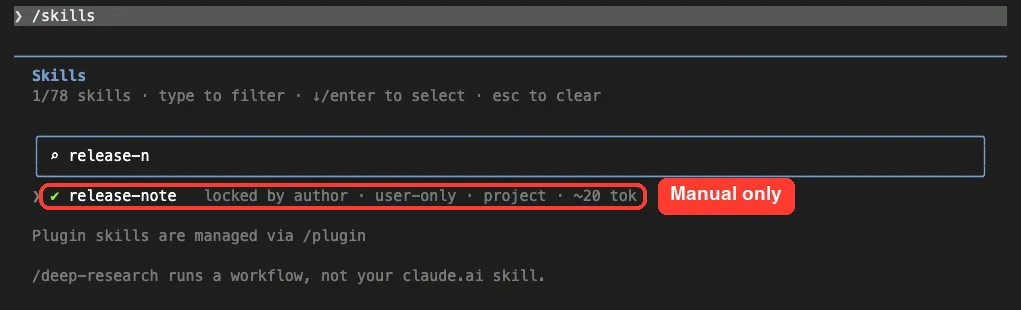
In the /skills menu you can also press Space on a skill to cycle its visibility, then Esc to save. The docs explain that this writes a skillOverrides entry to .claude/settings.local.json, which is handy for skills you do not want to edit.
Step 5: Let Claude Use a Skill Automatically
Next we tested the automatic path. We did not type the skill name at all. We simply asked “What did I change?”, which matches words in the skill’s description.
Claude chose the summarize-changes skill on its own. Because we were in the default permission mode, Claude Code first asked whether to use the skill and showed its description. You can approve it once, or allow it for this project so it will not ask again.
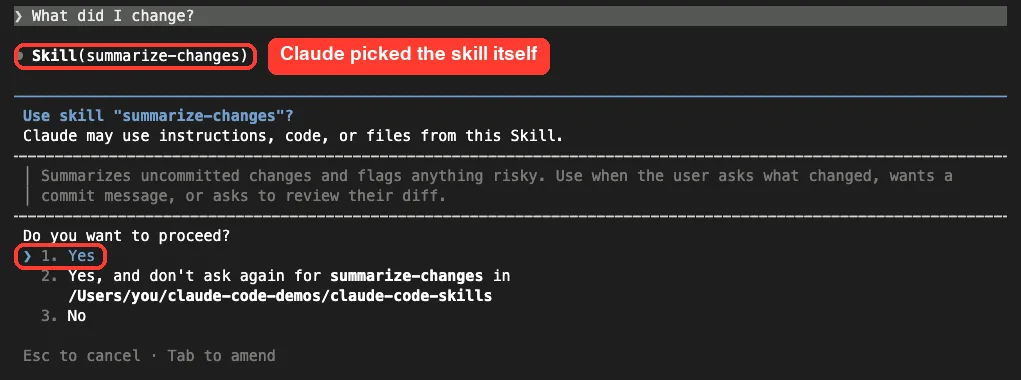
After we chose Yes, the status line read “Successfully loaded skill · 1 tool allowed”. That one tool is the git diff command we pre-approved. The diff was already inside the skill text, so Claude answered right away.
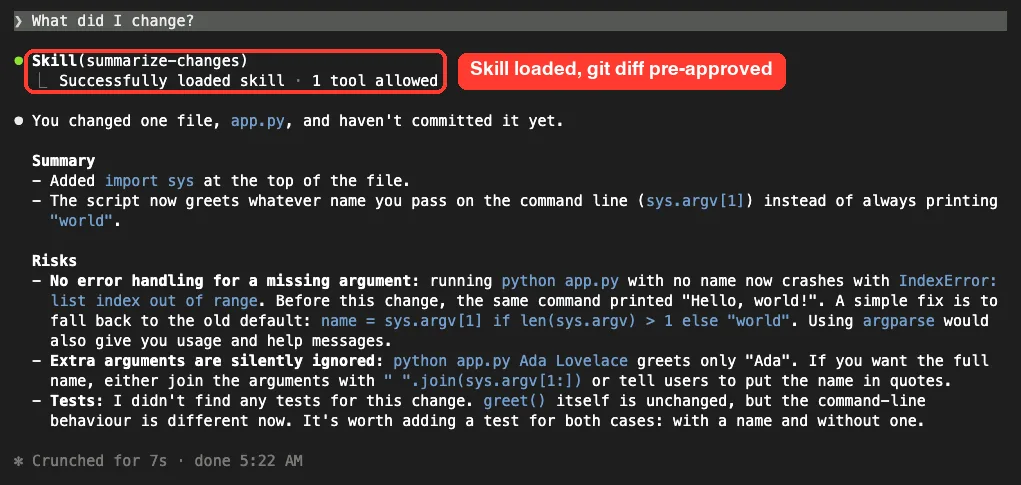
The answer followed our instructions closely. It gave a short summary, then flagged that app.py now crashes with an IndexError when you run it without a name. That risk was real: we had removed the default on purpose to see if the skill would catch it.
Step 6: Run a Skill Yourself With Arguments
Now the manual skill. When we typed /release-note followed by a space, Claude Code showed the word “version” in gray after the command. That hint comes straight from the argument-hint field.
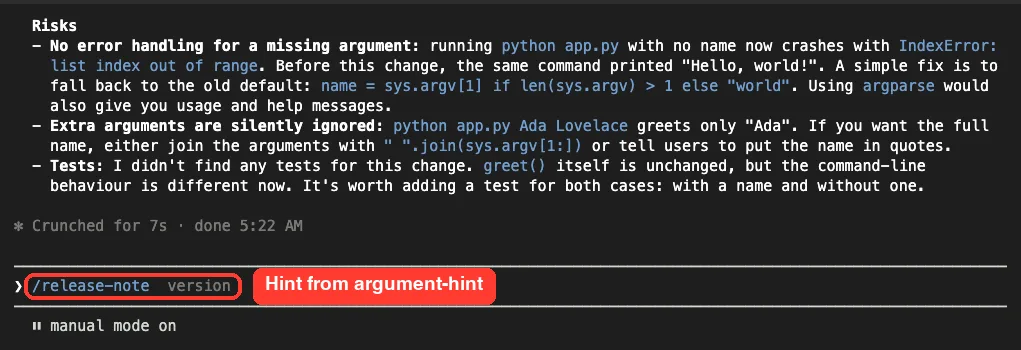
We ran /release-note 1.1.0. Claude read the changelog and proposed an edit that put a new 1.1.0 section above 1.0.0. Since a skill does not change your permission rules, the normal file edit prompt still appeared.
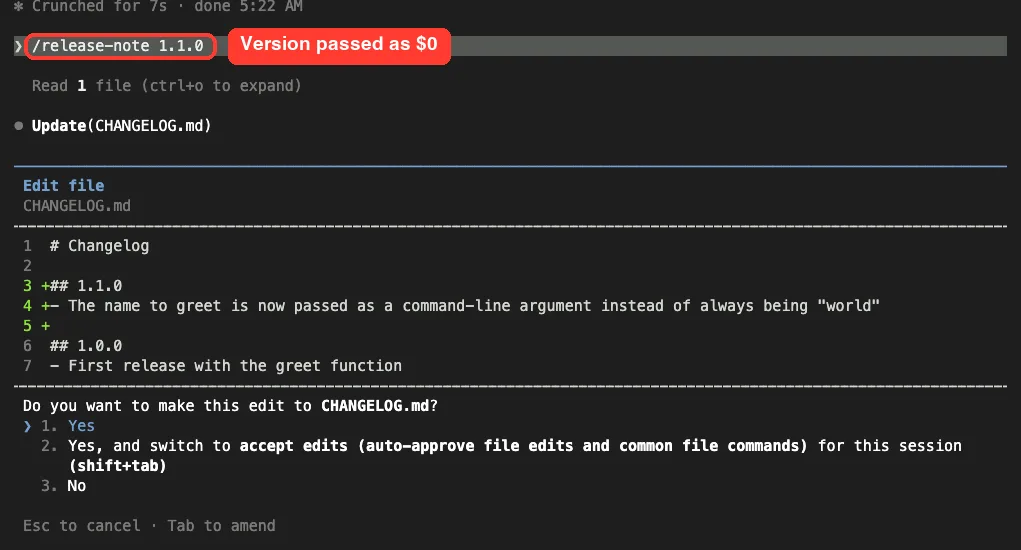
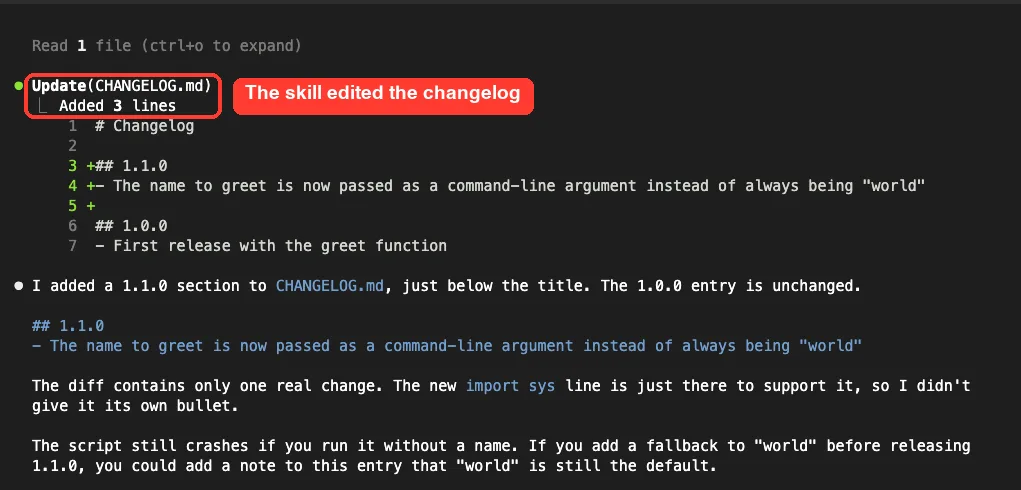
After we approved it, the changelog had a clean 1.1.0 entry and the old entry was untouched, just as the skill asked.
What happens when Claude tries a manual-only skill
Finally, we asked Claude in plain words to “Use the release-note skill to add version 1.2.0”. Claude Code blocked the call with an error naming disable-model-invocation. The message also told Claude not to copy the skill’s steps by other means.
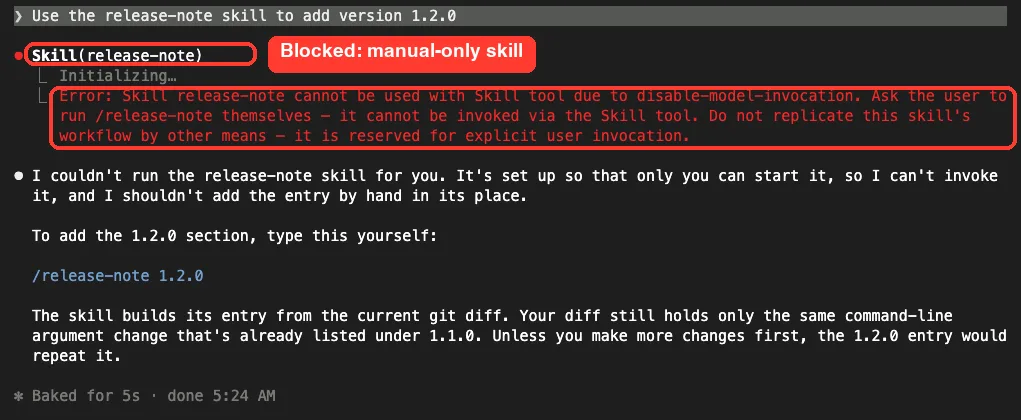
Claude then explained it could not run the skill and suggested we type /release-note 1.2.0 ourselves. This is exactly the safety net you want for deploys, commits or anything that sends messages.
Let Claude run skills that only read. Keep skills that change things behind your own slash command.
Where Claude Code Skills Live
Where you save a skill decides who gets it. Here is the layout, and which copy wins when two skills share a name.
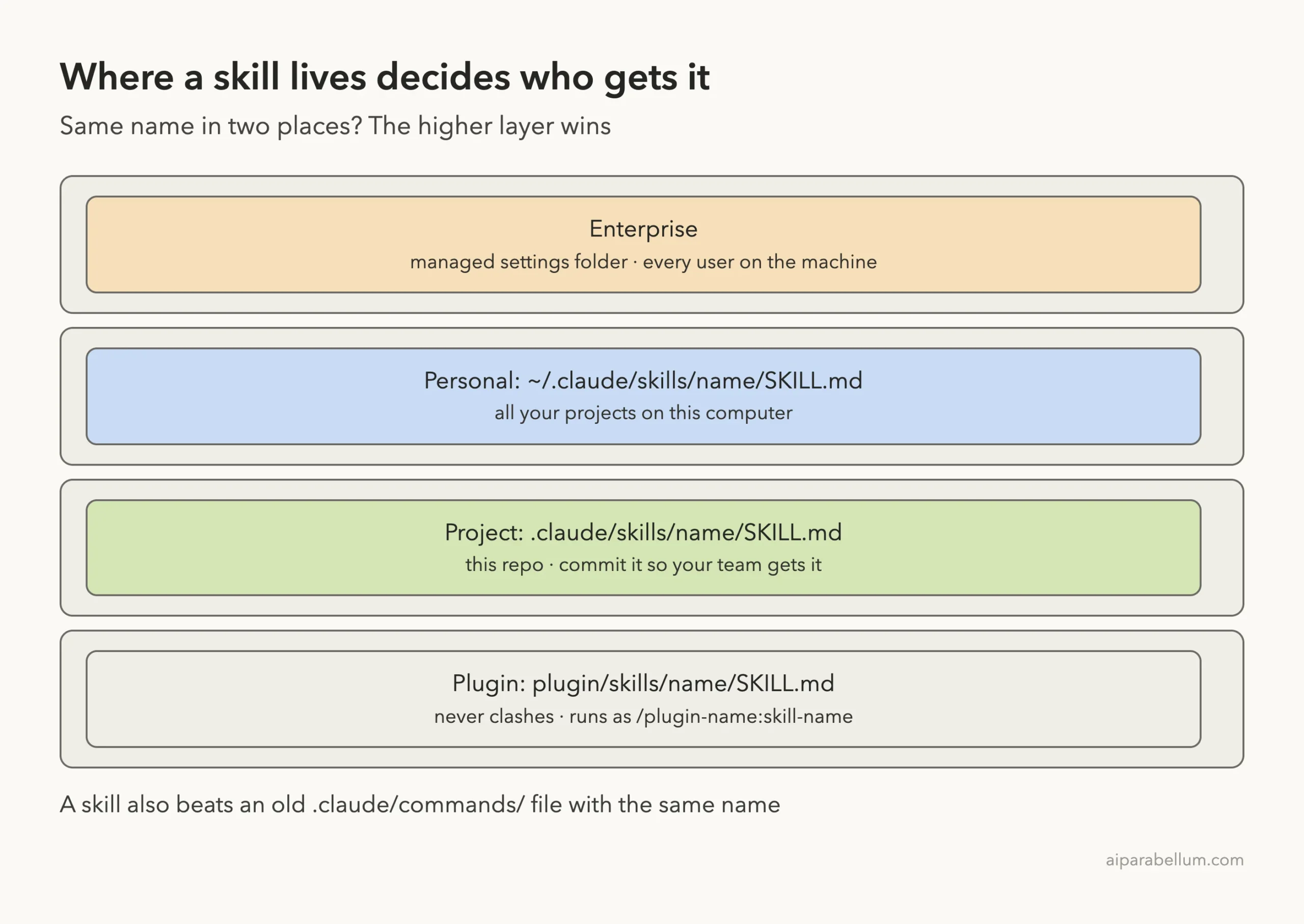
| Location | Path | Who gets it |
|---|---|---|
| Personal | ~/.claude/skills/<name>/SKILL.md | You, in all projects on this computer |
| Project | .claude/skills/<name>/SKILL.md | Everyone working in this repo |
| Plugin | <plugin>/skills/<name>/SKILL.md | Anyone with the plugin, as /plugin-name:skill-name |
| Enterprise | The managed settings folder | Every user where your company deploys it |
If you are not sure where these folders sit, our tour of the .claude folder shows the full layout. Personal skills do not reach cloud or Cowork sessions; for those, the docs say to enable the skill on your claude.ai account instead.
Frontmatter Fields Worth Knowing
All frontmatter fields are optional, but description is strongly recommended. Field names must match exactly, because Claude Code quietly ignores a field it does not recognize.
| Field | What it does |
|---|---|
| name | The command name; defaults to the folder name |
| description | What it does and when to use it; Claude matches against this |
| argument-hint | Hint shown in autocomplete, such as [version] |
| disable-model-invocation | true means only you can run it |
| user-invocable | false hides it from the / menu so only Claude uses it |
| allowed-tools | Tools Claude can use without asking during that turn |
| model and effort | Override the model or effort level while the skill runs |
| context: fork | Runs the skill in a separate subagent |
| paths | Only auto-load when working on matching files |
Who can invoke a skill
| Setting | You can run it | Claude can run it |
|---|---|---|
| Default | Yes | Yes |
| disable-model-invocation: true | Yes | No |
| user-invocable: false | No | Yes |
Passing arguments
$ARGUMENTS holds everything you typed after the command. $0, $1 and $2 pick single words by position, so /migrate-component SearchBar JavaScript TypeScript fills three slots. Wrap a multi-word value in quotes to keep it together.
Supporting files and subagents
A skill folder can hold more than SKILL.md. You can add a reference.md, examples, or a scripts folder, and link to them from SKILL.md so Claude reads them only when needed. Anthropic suggests keeping SKILL.md under 500 lines.
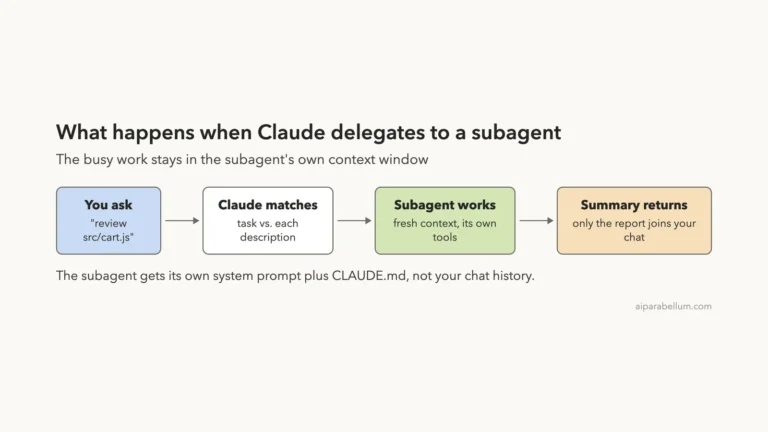
Add context: fork to run a skill in its own subagent, with agent: Explore or Plan to pick the type. The subagent does not see your chat history, so the skill must contain the whole task. We will dig into subagents in the next part.
Try It Yourself
Make a small practice project with git, edit one file, and create .claude/skills/summarize-changes/SKILL.md using the file from Step 2. Start claude in that folder and try this prompt:
What did I change? Use the summarize-changes skill if it fits.Then add a manual-only skill of your own, such as one that writes a commit message, with disable-model-invocation: true. Run it with a slash and notice that Claude will not trigger it by itself.
Common Mistakes With Claude Code Skills
- Writing a vague description, so Claude never matches it to your requests
- Putting the frontmatter anywhere but the very first line, which turns it into plain text
- Misspelling a field such as disable-model-invocation, which is silently ignored
- Using !`command` lines that are not allowed, which aborts the skill in default mode
- Letting Claude run skills with side effects, like deploys, instead of making them manual
- Stuffing huge reference text into SKILL.md instead of a supporting file
Pro Tips
- Put the key use case first in the description, since long descriptions get cut in the listing
- Place your most important rules near the top; after compaction only the start of a skill may be kept
- Word rules for the whole task, such as “run the tests after every edit”
- Use ${CLAUDE_SKILL_DIR} to point at scripts bundled in the skill folder
- If a rule must hold every single time, use a hook rather than a skill
- Run /skill-doctor to find skills you never use and turn them off
Skills also pair well with the habits in our best practices guide. And if a skill misbehaves, the Debug your configuration page in the official docs walks through why a skill is not showing up.
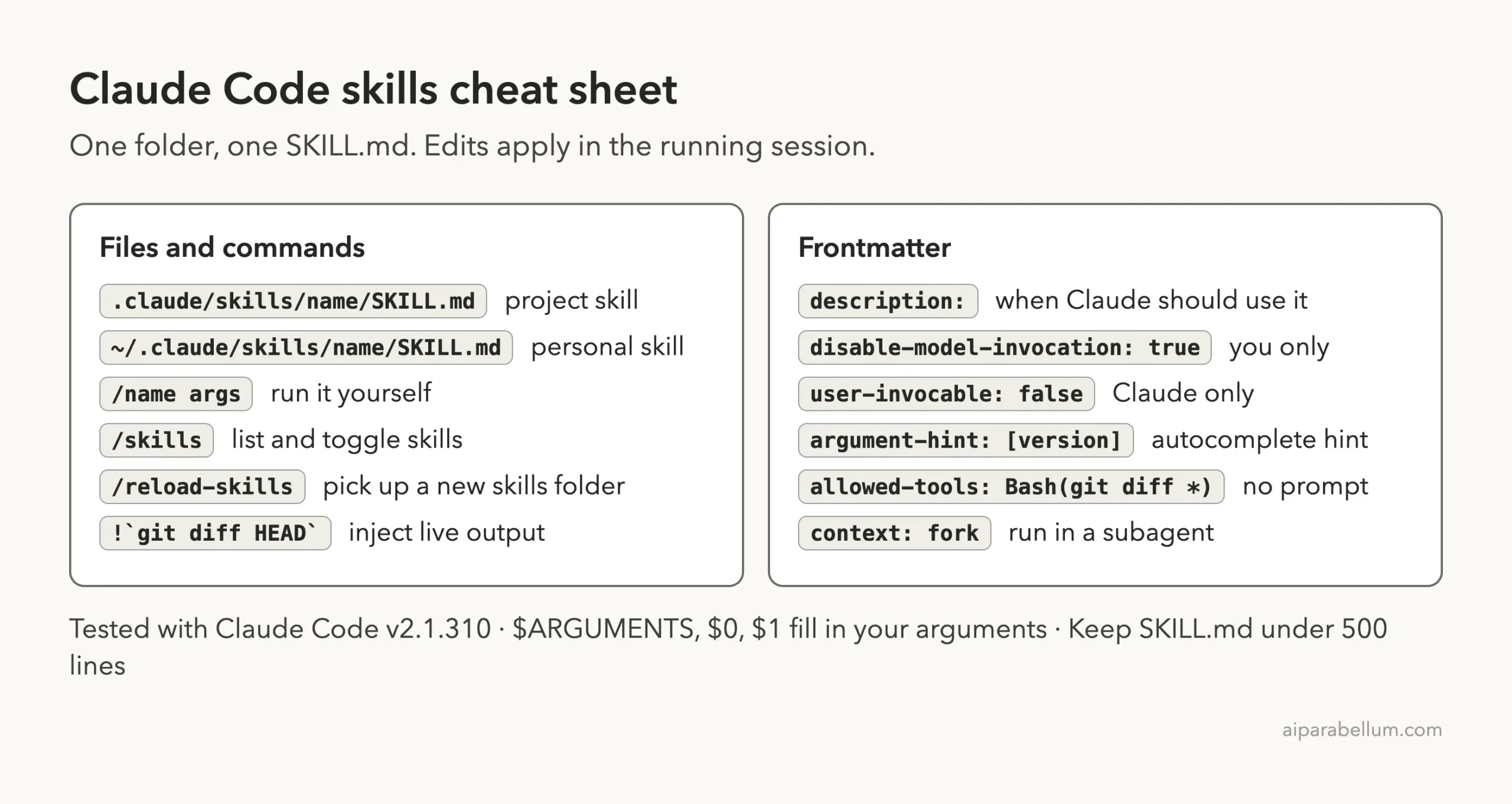
Claude Code Skills Cheat Sheet
Frequently Asked Questions
What is the difference between a skill and CLAUDE.md?
CLAUDE.md loads in every session and holds facts about your project. A skill holds a procedure, and its full text loads only when it is used.
Do my old .claude/commands files still work?
Yes. They create slash commands just like skills. If a skill and a command file share a name, the skill wins.
Do I need to restart Claude Code after editing a skill?
No. Claude Code watches the skills folders and picks up changes in the running session. If you create a brand new top-level skills folder mid-session, run /reload-skills.
Why does Claude not use my skill automatically?
Usually the description does not match how you asked. Add the words you naturally use, check the skill appears in /skills, and make sure disable-model-invocation is not set.
Can I share skills with my team?
Yes. Commit the .claude/skills folder to your repo, package skills in a plugin, or have an admin deploy them through managed settings.
Conclusion
Claude Code skills turn the instructions you repeat into commands you can reuse: create a folder, write a SKILL.md with a clear description, and either let Claude pick it up or run it with a slash. Add disable-model-invocation for anything with side effects, use !`command` lines to feed in live data, and keep the file short. Learn more about the assistant behind it all on our Claude AI overview.
Previous in the series: Part 27, How to Customize Claude Code Keyboard Shortcuts
Next in the series: Part 29: Claude Code Subagents: Build Your Own Specialist Helpers.