Claude Code keybindings let you change what almost every key does inside the app. You can give an action a new shortcut, make a key run a slash command, turn off a default you keep hitting by accident, or build two-step chords. Everything lives in one small JSON file, and Claude Code picks up your changes the moment you save.
In this guide we set up custom shortcuts for real in a throwaway demo folder. You will see the built-in shortcuts menu, the /keybindings command, the template file it creates, a custom chord that opens help, and a default shortcut switched off, with before and after screenshots.
This is Part 27 of 53 in our Claude Code tutorials series. In the previous part we built a custom status line; today we make the keyboard work the way you do.
Tested with Claude Code v2.1.310 on October 25, 2026, on macOS, in a few short sessions inside a demo folder.
Quick Summary: Claude Code Keybindings at a Glance
| Question | Short answer |
|---|---|
| Where are custom shortcuts stored? | In ~/.claude/keybindings.json |
| How do I open the file? | Run /keybindings, which creates it the first time |
| Do I need to restart? | No, changes are detected and applied automatically |
| How do I add a shortcut? | Add “key”: “namespace:action” inside a context block |
| How do I turn off a default? | Set that key to null |
| Can a key run a slash command? | Yes, with “command:name”, for example command:compact |
| What can’t be changed? | Ctrl+C, Ctrl+D, Ctrl+M and a few other reserved keys |
What Claude Code Keybindings Are and Why They Exist
Claude Code ships with a lot of keyboard shortcuts. Ctrl+R searches your prompt history, Shift+Tab cycles permission modes, Ctrl+G opens your prompt in an external editor, and Ctrl+S stashes a draft for later. We walked through many of these in our interactive mode guide.
The defaults are good, but they will not suit everyone. Maybe a key clashes with your terminal multiplexer, or you want one key to run /compact. The keybindings file fixes that without touching anything else.
Here is what you can do with it:
- Move an action to a key you like better
- Bind an unused action, such as a forced terminal redraw
- Run any slash command from a single shortcut
- Switch off a default shortcut completely
- Create chords, which are two keys pressed one after the other
One file, read live. Save it and your new shortcut works on the very next key press.
How Claude Code Picks a Shortcut
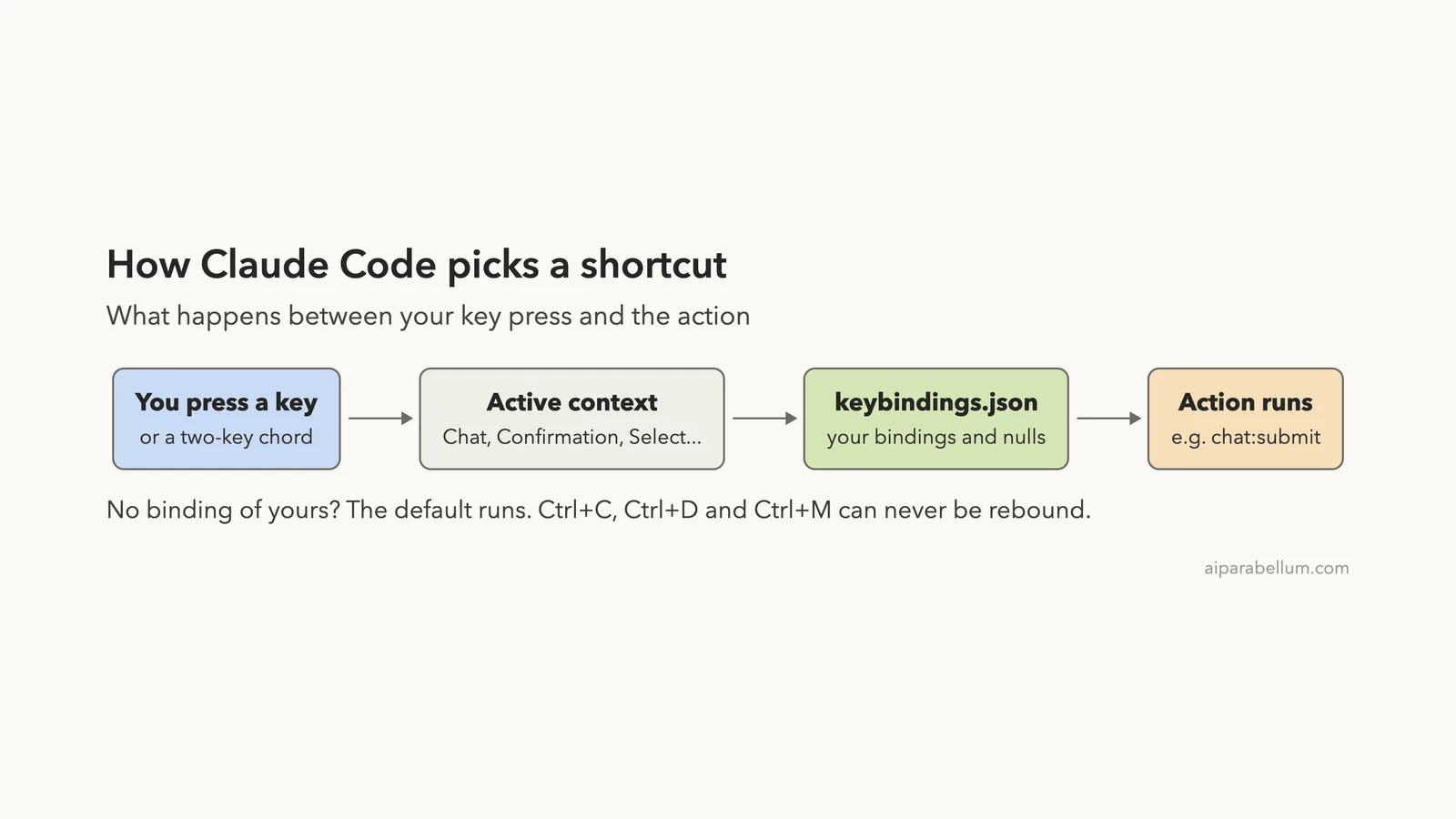
Every binding belongs to a context, which is the part of the app that has focus. The main prompt is the Chat context, permission dialogs are Confirmation, and lists such as the model picker use Select. When you press a key, Claude Code checks the contexts that are active right now and runs the matching action.
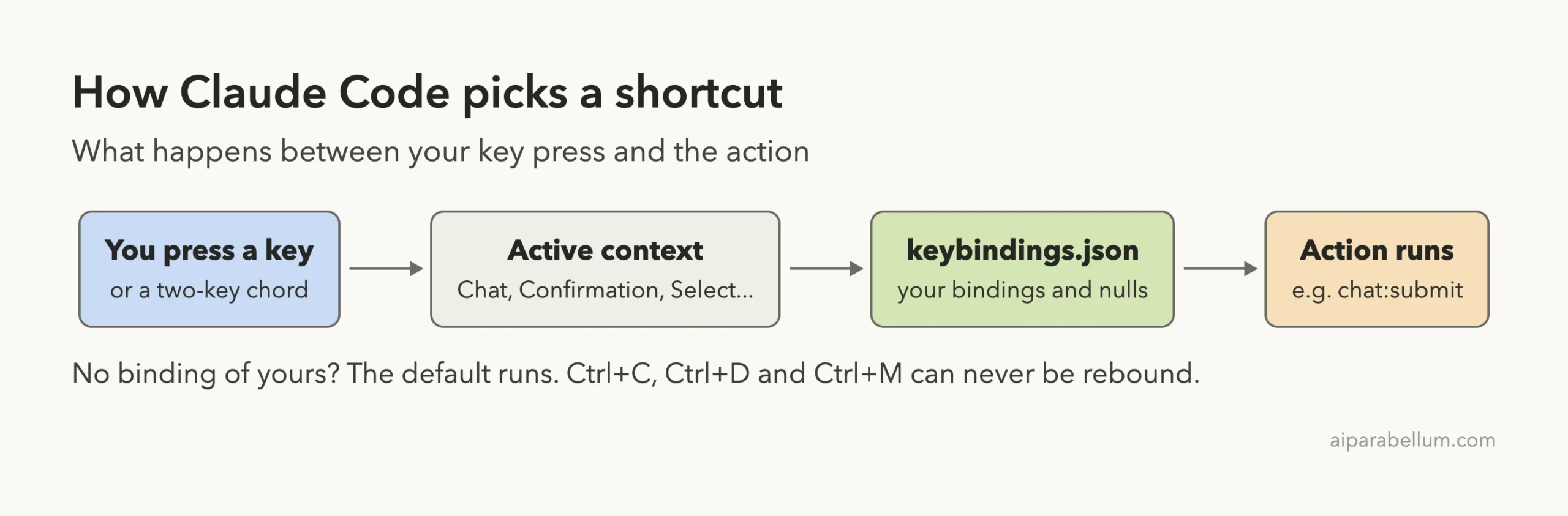
If your file does not bind the key, the default binding stays in effect. If your file sets the key to null, the default is switched off.
Step 1: See the Shortcuts You Already Have
Before you change anything, look at what is already there. Type a single question mark in an empty prompt and Claude Code shows its shortcuts menu.
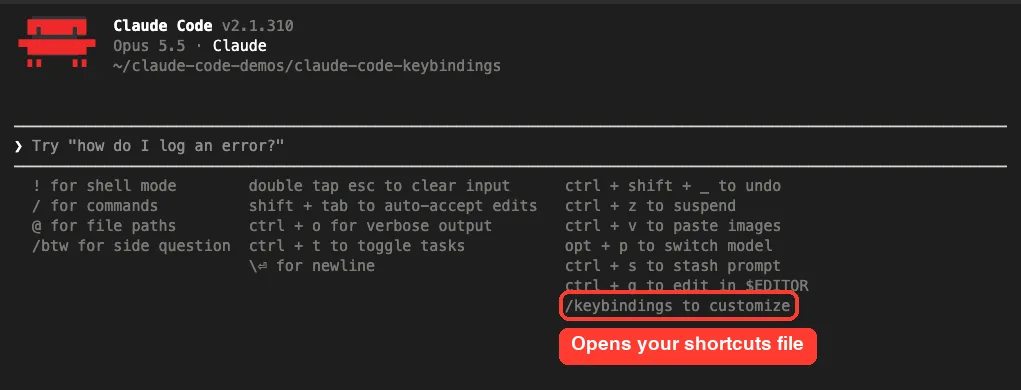
Notice the last line in the right column: /keybindings to customize. That is your way in. The menu only shows the most common keys, though, and the full list of actions is much longer.
Step 2: Run /keybindings to Create the File
Type /keybindings in the prompt. Autocomplete shows the command with the description “Open your keyboard shortcuts file.”
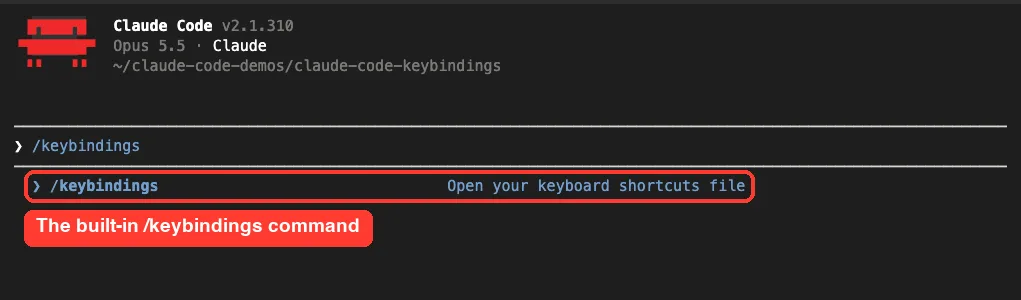
Press Enter. The first time you run it, Claude Code creates the file and opens it in your editor. In our session it printed a short confirmation.
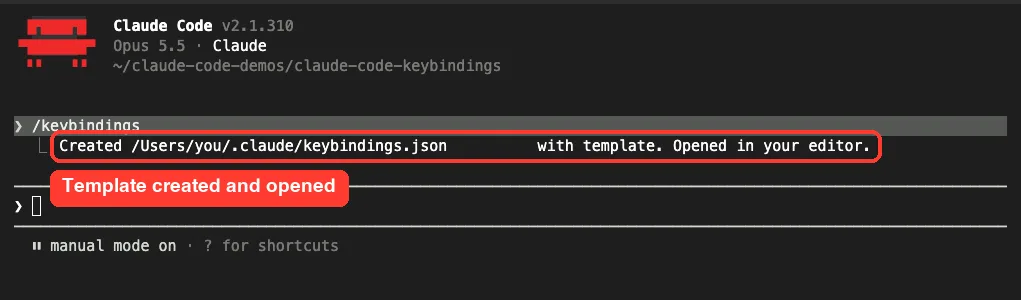
Claude Code opened the file with the program set in our EDITOR environment variable. If you have not set one yet, our environment variables guide explains how variables like this work.
The file sits in your user folder, next to your other personal settings. Our .claude folder guide shows what else lives there.
Step 3: Read the Keybindings File
The template is long because it lists the current default shortcuts for many contexts. That makes it a handy reference. Here is the top of the file Claude Code created for us.
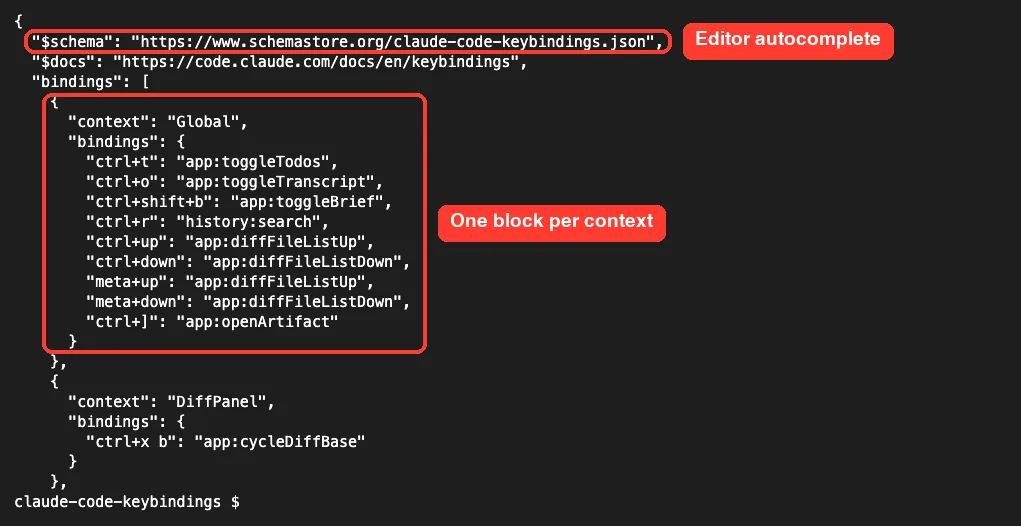
The file is an object with three fields, as described in Anthropic’s keybindings documentation:
| Field | What it does |
|---|---|
| $schema | Optional. Gives editors like VS Code autocompletion and error checks |
| $docs | Optional. A link back to the documentation |
| bindings | An array of blocks, each with a context and its key-to-action map |
Each block names a context and then lists keys and actions. Actions always follow a namespace:action pattern, such as chat:submit or app:toggleTodos.
The Contexts You Will Use Most
The docs list more than 25 contexts. Most people only need a handful:
| Context | When it is active |
|---|---|
| Global | Everywhere in the app |
| Chat | The main prompt input |
| Confirmation | Permission and confirmation dialogs |
| Select | Lists and pickers |
| HistorySearch | History search, opened with Ctrl+R |
| Task | While a task runs in the foreground |
| Scroll | Scrolling and text selection in fullscreen mode |
Step 4: Add Your Own Claude Code Shortcut
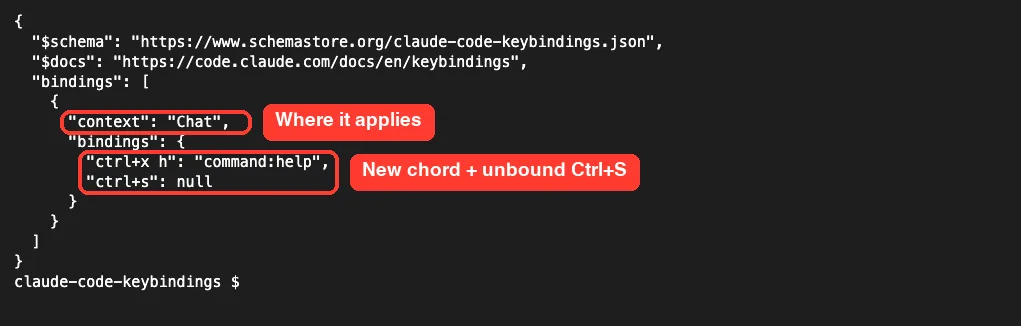
You do not have to keep the whole template. A small file with only your changes works, because any key you leave out keeps its default. For our demo we used this file:
{
  "$schema": "https://www.schemastore.org/claude-code-keybindings.json",
  "$docs": "https://code.claude.com/docs/en/keybindings",
  "bindings": [
    {
      "context": "Chat",
      "bindings": {
        "ctrl+x h": "command:help",
        "ctrl+s": null
      }
    }
  ]
}
It makes two changes in the Chat context. The chord Ctrl+X then H runs /help, and Ctrl+S is unbound.
Keystroke Syntax in Plain English
Keys are written in lowercase with a plus sign between modifiers. Claude Code reads key names without caring about case, so ctrl+K and ctrl+k are the same. To bind Shift plus a letter, write shift+k.
- ctrl or control is the Control key
- shift is the Shift key
- alt, opt, option or meta is Option on macOS and Alt elsewhere
- cmd, command, super or win only works in terminals that report it
- Special keys include escape, enter, tab, space, up, down, pageup, home, backspace and wheelup
The docs warn that most terminals do not send the Command key. So for shortcuts you want to work everywhere, stick with ctrl or meta.
Chords: Two Keys in a Row
A chord is two keystrokes separated by a space, like “ctrl+x h”. You press Ctrl+X, let go, then press H. Each keystroke has to come within 3 seconds of the one before it, or Claude Code cancels the chord.
Claude Code already uses Ctrl+X as a chord prefix for several defaults, such as Ctrl+X Ctrl+E for the external editor. That made it a natural home for our help chord.
Step 5: Watch the Change Apply Without a Restart
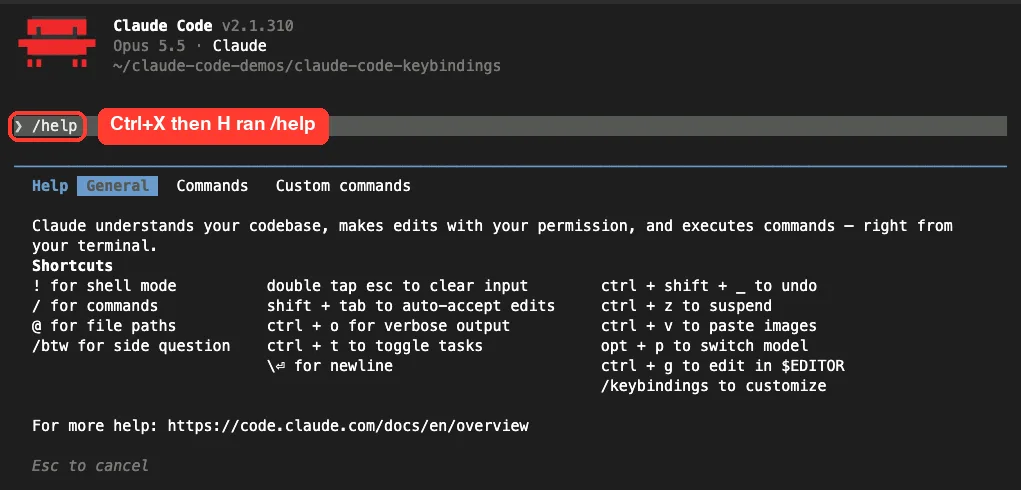
This is the part we liked most. We started Claude Code with an empty bindings list, then replaced the file from another process while the session kept running. We did not restart anything.
Then we pressed Ctrl+X followed by H. The help dialog opened right away.
The command:name action works with any slash command. The docs give “meta+g”: “command:compact” as an example, which turns Option+G into a one-key /compact. If you are not sure which commands exist, our slash commands guide covers the essentials.
Step 6: Turn Off a Default Shortcut
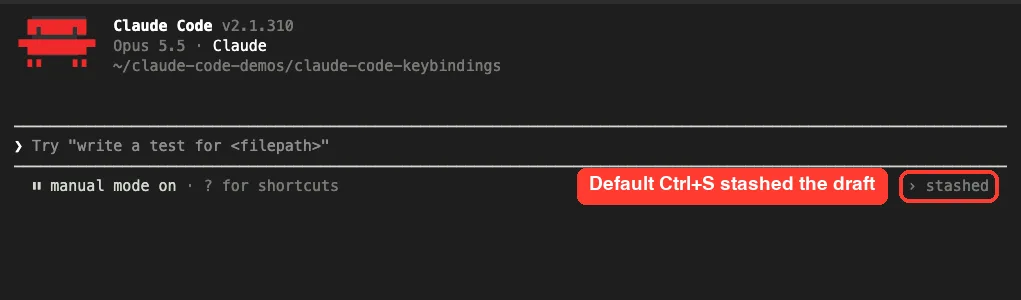
Setting a key to null removes its default action. To prove it, we compared Ctrl+S before and after.
First, with no custom file, we typed a draft and pressed Ctrl+S. The prompt cleared and a small “stashed” note appeared in the footer.
Then, with “ctrl+s”: null in our file, we typed the same draft and pressed Ctrl+S again. Nothing happened, and the draft stayed in the box.
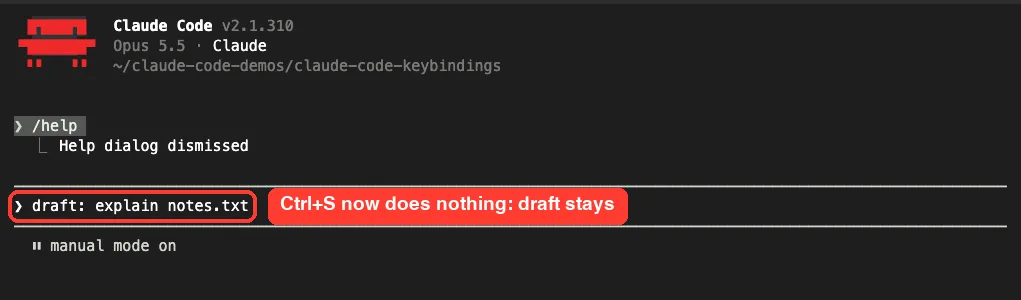
Unbinding works for chords too. The docs explain that if you unbind every default chord that starts with Ctrl+X, in every context that defines one, you can use Ctrl+X on its own as a single-key shortcut.
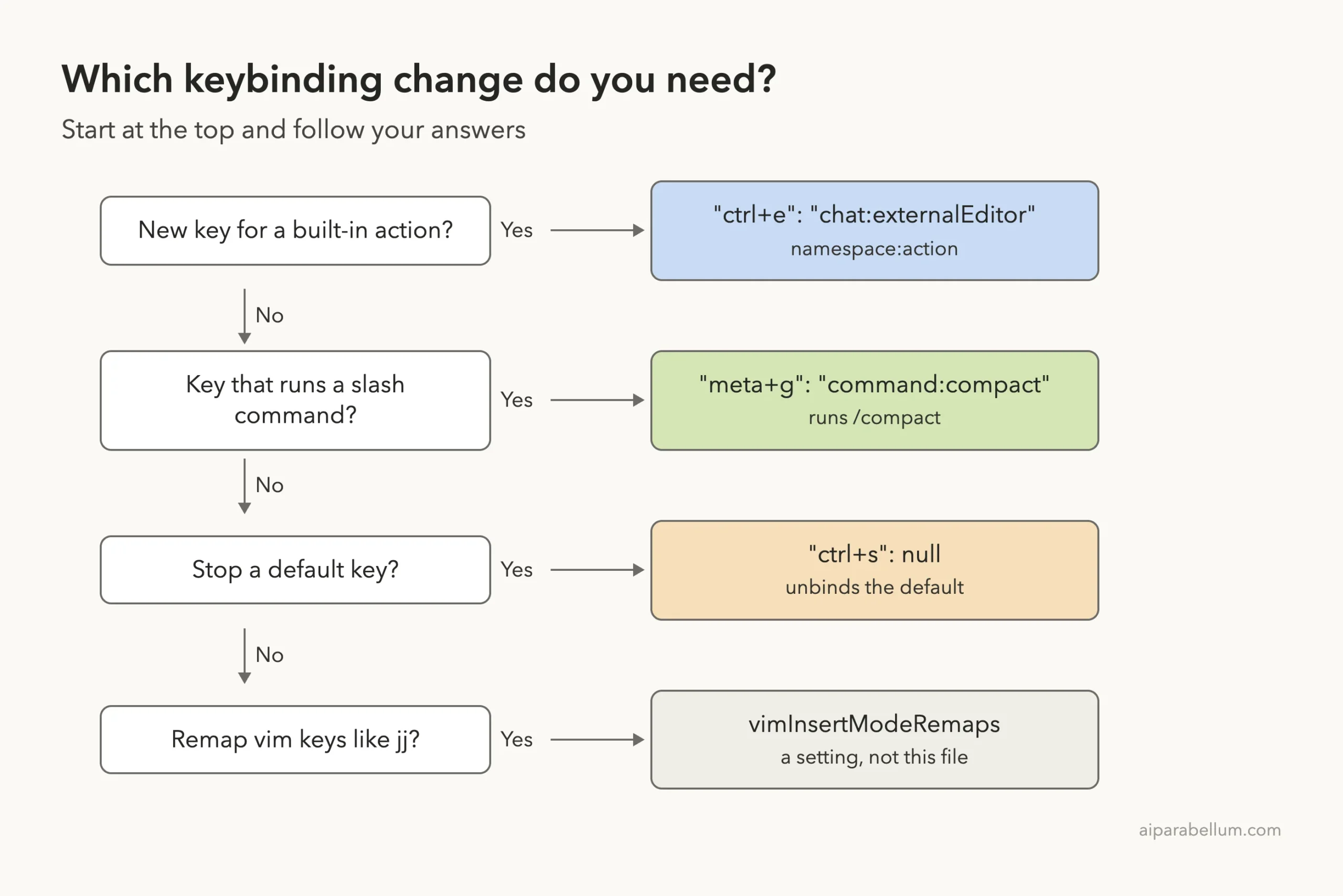
Which Keybinding Change Do You Need?
Most changes fall into a few simple patterns. Use this ladder to pick the right one.
Real Examples You Can Copy
These come straight from the patterns in the official docs. Paste the block you need into the bindings array.
Open the External Editor With Ctrl+E
{ "context": "Chat", "bindings": { "ctrl+e": "chat:externalEditor" } }Answer Permission Prompts With Y and N
{ "context": "Confirmation", "bindings": { "y": "confirm:yes", "n": "confirm:no" } }Before v2.1.280 these were defaults. The docs note that if you created your file before then, the template still lists them, and they stay active until you delete those two lines. This pairs well with the dialogs from our permission modes guide.
Cancel a Question in Vim Mode With One Key
{ "context": "Select", "bindings": { "ctrl+q": "select:cancel" } }Vim keys themselves are not remappable in this file. To map a sequence like jj to Escape, the docs point you to the vimInsertModeRemaps setting instead.
Try It Yourself
Make a small practice change, then confirm it works. Run /keybindings, keep a copy of the template if you want it as a reference, and add a block that binds Ctrl+X then H to command:help. Save, go back to Claude Code, and press the chord.
If you would rather have Claude explain your file, paste this prompt into a session:
Read ~/.claude/keybindings.json and explain, in a short table, every binding I have changed from the defaults: the key, the context, the action, and what it does. Do not edit the file.Common Mistakes
- Putting a binding in the wrong context. A Chat binding will not fire inside a permission dialog.
- Misspelling a modifier, like ctl+k. Claude Code drops the unknown part and binds plain k instead.
- Adding a space next to the plus sign, like “ctrl+ k”. That turns it into a chord that never fires.
- Typos in action names. Claude Code skips the binding and keeps the default.
- Trying to rebind Ctrl+C, Ctrl+D or Ctrl+M. These are reserved, along with Ctrl+[, Ctrl+I, Ctrl+H and Caps Lock.
- Forgetting your terminal. Ctrl+B is the tmux prefix, Ctrl+A is the GNU screen prefix, and Ctrl+Z suspends the process.
Pro Tips
- Keep the $schema line. Editors that support JSON Schema will autocomplete action names and flag mistakes as you type.
- Start Claude Code with claude –debug when a shortcut does nothing. Validation warnings go to the debug log.
- Bare letters still type normally in text fields inside dialogs, so a “y” binding will not block you from typing y in an answer box.
- Use chords for rare actions and single keys for frequent ones. You only have so many easy keys.
- If your terminal sends odd key codes, check our terminal setup guide before blaming your file.
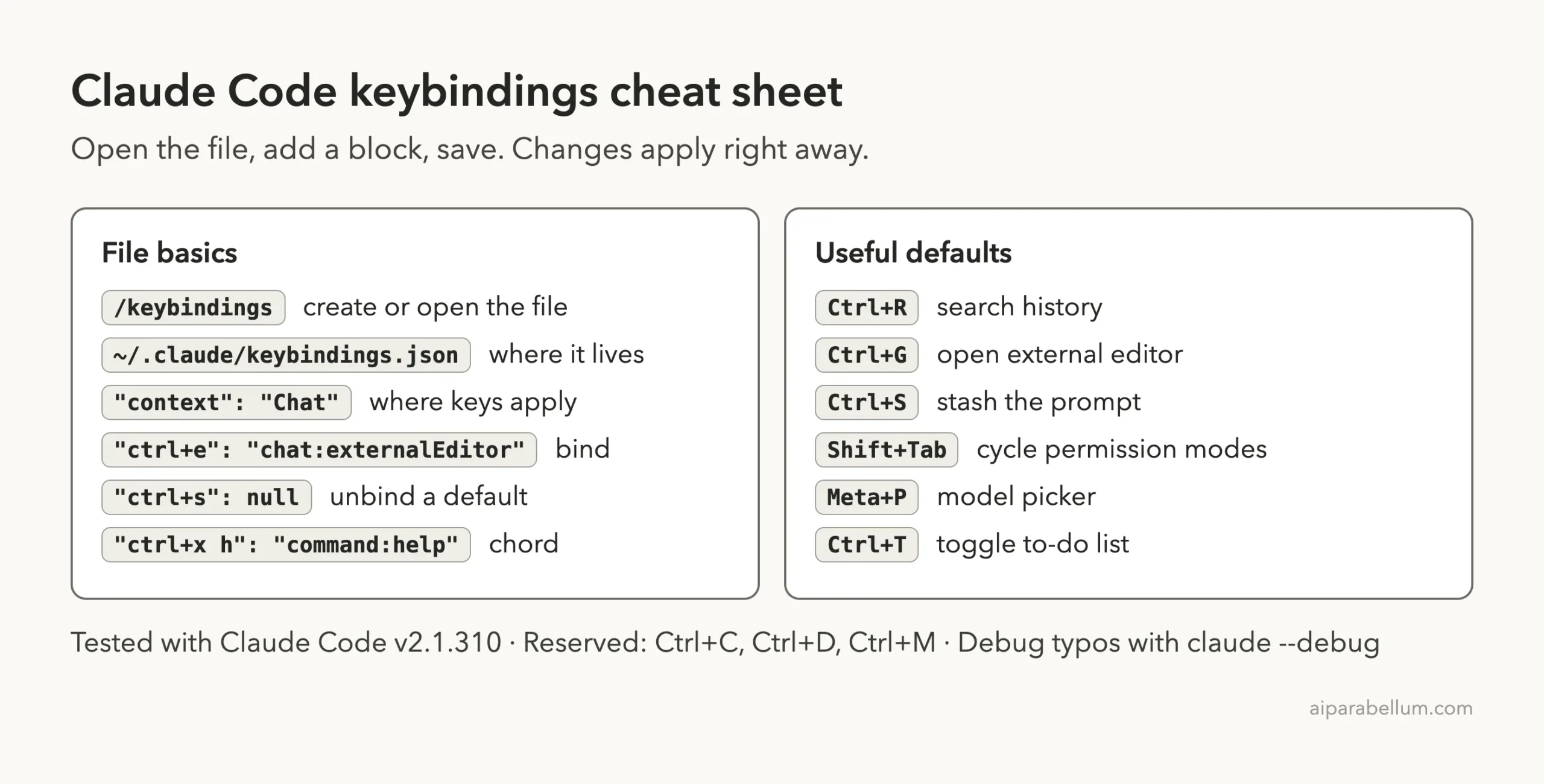
Claude Code Keybindings Cheat Sheet
Frequently Asked Questions
Where is the Claude Code keybindings file?
It lives at ~/.claude/keybindings.json in your home folder. Run /keybindings to create it or open it.
Do I need to restart Claude Code after editing shortcuts?
No. Claude Code detects changes to the file and applies them automatically. Our custom chord worked in the same session as soon as the file changed.
Can I bind a key to a slash command?
Yes. Use command: followed by the command name, such as “meta+g”: “command:compact” in a Chat block.
How do I reset a shortcut to its default?
Remove that key from your file. Any key you do not list keeps its default binding.
Why does my new shortcut do nothing?
Check the context, the spelling of the modifier and action, and any stray spaces. Then start Claude Code with –debug to see the validation warnings.
Conclusion
Claude Code keybindings give you full control over the keyboard with one small JSON file: run /keybindings, add a context block, and bind actions, slash commands or chords, or set a default to null to switch it off. Changes apply live, so it is easy to experiment and undo. Pair this with the rest of your personal setup in our settings files guide, and explore more about Anthropic’s assistant on our Claude AI overview.
Previous in the series: Part 26, How to Customize the Claude Code Status Line
Next in the series: Part 28: Claude Code Skills: Create Your Own Reusable Skills.