The Claude Code status line is a small bar at the bottom of your session that shows whatever you want to keep an eye on, like the current model, how full the context window is, your git branch, or the estimated cost so far. It is powered by a tiny script you write (or let Claude write for you), and it updates by itself as you work. Once you set it up, you stop typing commands just to check where you stand.
In this guide we built a status line for real in a throwaway demo project. You will see the settings entry, the script, a quick way to test it without starting Claude, the live bar after one prompt, and a two-row colored version that loaded the moment we changed one line in the settings file.
This is Part 26 of 53 in our Claude Code tutorials series. In the previous part we covered output styles, which change how Claude talks to you; today’s feature changes what you see while it works.
Tested with Claude Code v2.1.310 on October 25, 2026, on macOS. We used one short prompt in a demo folder with a single Python file and a fresh git repo.
Quick Summary: The Claude Code Status Line at a Glance
| Question | Short answer |
|---|---|
| What is it? | A custom bar at the bottom of Claude Code that shows whatever your script prints |
| Fastest setup | Run /statusline with a plain-English description of what you want |
| Manual setup | Add a statusLine entry with “type”: “command” to a settings file |
| What data does it get? | JSON on stdin: model, folder, context use, cost, duration, session ID and more |
| Does it cost tokens? | No, it runs on your computer and uses no API tokens |
| How do I remove it? | Run /statusline delete, or delete the statusLine field from settings |
What the Status Line Is and Why It Exists
Claude Code already shows a few badges in its footer, such as your permission mode. The status line adds your own row above those badges and does not replace them. Whatever your script prints becomes that row.
Anthropic’s status line documentation lists the most common reasons people set one up:
- Watching context window usage as a session grows
- Tracking the estimated cost of a session
- Telling several open sessions apart
- Keeping the git branch and file changes in view
The first point matters more than it sounds. In our context window guide we saw that long sessions slowly fill up, and a status line shows that number all the time instead of only when you run /context.
The status line is just a script. If you can print it in a terminal, you can show it in Claude Code.
How It Works Behind the Scenes
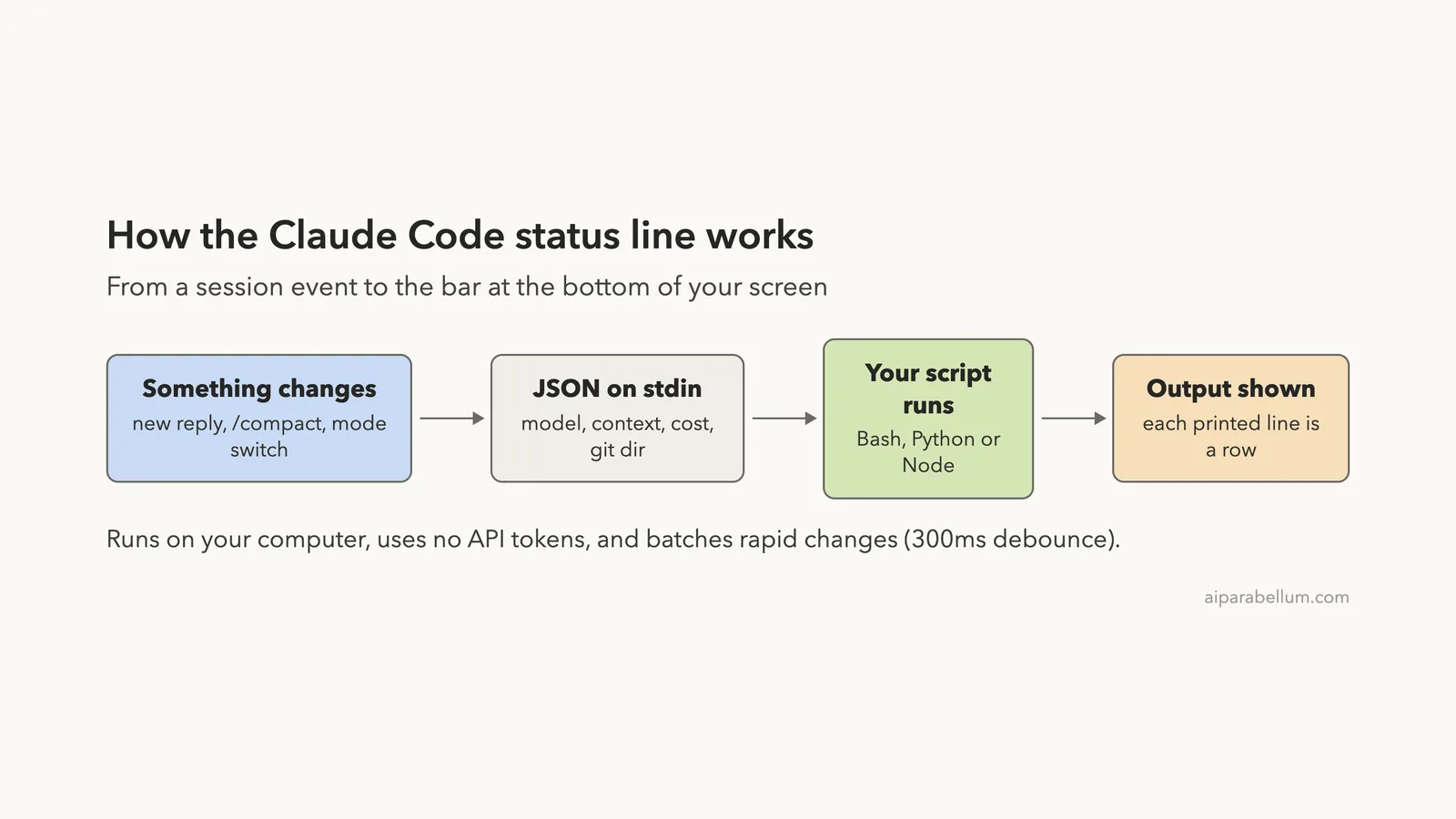
Each time something changes in your session, Claude Code runs your command and sends it a block of JSON on standard input. Your script picks the fields it wants, prints some text, and exits. Claude Code then shows that text at the bottom of the screen.
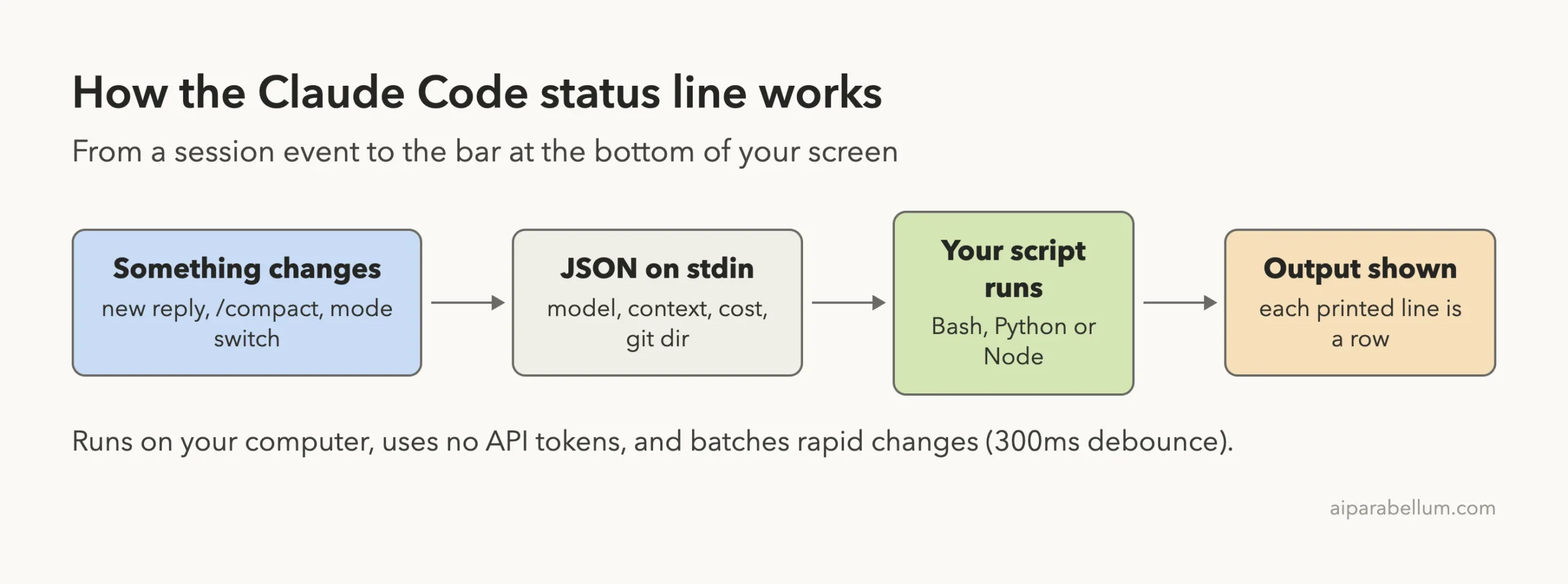
The script runs once when a session starts or resumes. After that, it runs again when any of these happen:
- A new reply from Claude arrives
- /compact finishes
- The permission mode or vim mode changes
- You change the command in your statusLine settings
- A refreshInterval timer runs out, if you set one
Rapid changes are batched with a 300 millisecond debounce, so your script runs once after things settle. If a new update arrives while your script is still running, Claude Code cancels the old run.
Two Ways to Set Up Your Status Line
You can let Claude build the status line for you or write it yourself. Both end with the same result: a script file plus a statusLine entry in a settings file.
| Method | What you do | Best for |
|---|---|---|
| /statusline command | Describe the bar in plain English; Claude writes the script in ~/.claude/ and updates your settings | A quick start with no scripting |
| Manual script | Write a Bash, Python or Node script and point statusLine at it | Full control, project-specific bars, sharing with a team |
Option 1: Use the /statusline Command
Type /statusline followed by what you want to see. The docs give this example:
/statusline show model name and context percentage with a progress barClaude Code then writes a script and updates your settings, and you approve the file edits if it asks. In our session the command showed up in the menu with the description you see below.
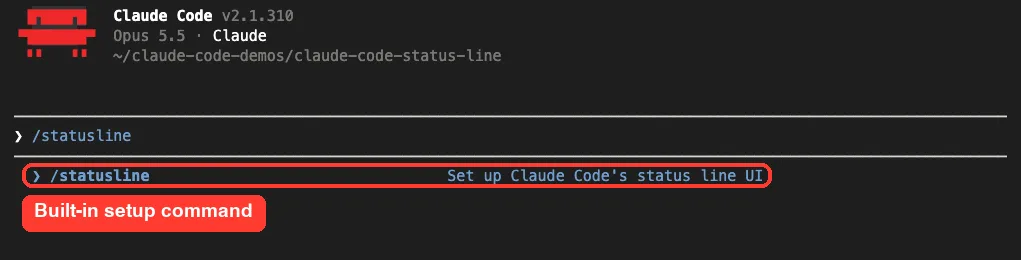
We did not press Enter here on purpose. The command saves to your user-level files in ~/.claude/, and we wanted our demo kept inside the throwaway project, so we went the manual route for the rest of the test.
Option 2: Write the Script Yourself
The manual route has three steps: write a script, make it executable, and add it to settings. We followed the official step-by-step example, but saved it in the project’s .claude folder instead of the home folder.
Step 1: Create a script that reads JSON
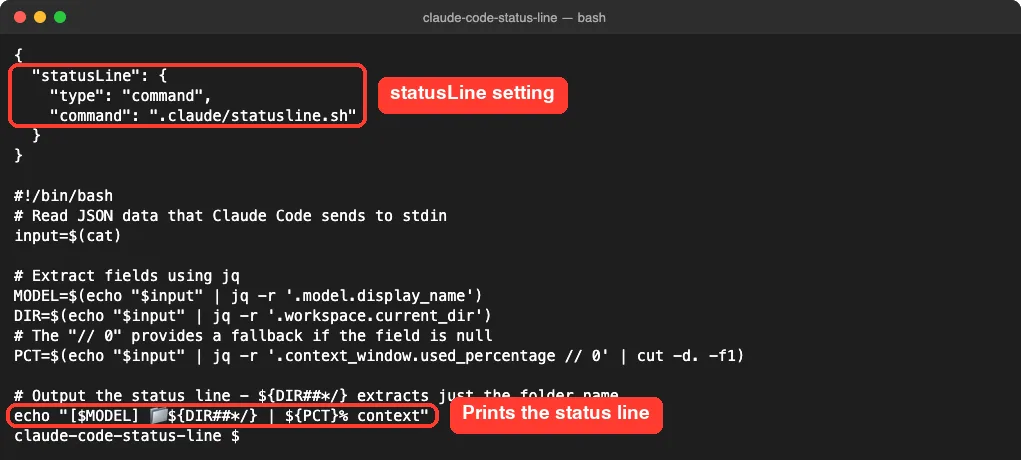
This script uses jq, a small command-line JSON tool you may need to install, to pull out the model name, the folder and the context percentage.
#!/bin/bash
# Read JSON data that Claude Code sends to stdin
input=$(cat)

# Extract fields using jq
MODEL=$(echo "$input" | jq -r '.model.display_name')
DIR=$(echo "$input" | jq -r '.workspace.current_dir')
# The "// 0" provides a fallback if the field is null
PCT=$(echo "$input" | jq -r '.context_window.used_percentage // 0' | cut -d. -f1)

echo "[$MODEL] 📁 ${DIR##*/} | ${PCT}% context"
Step 2: Make it executable
chmod +x .claude/statusline.shStep 3: Add a statusLine entry to settings
Set “type” to “command” and point “command” at your script. We used the project file .claude/settings.json; for every project, use ~/.claude/settings.json instead. If you need a refresher on which file wins, see our settings files tutorial.
{
  "statusLine": {
    "type": "command",
    "command": ".claude/statusline.sh"
  }
}
Test the Script With Mock Input First
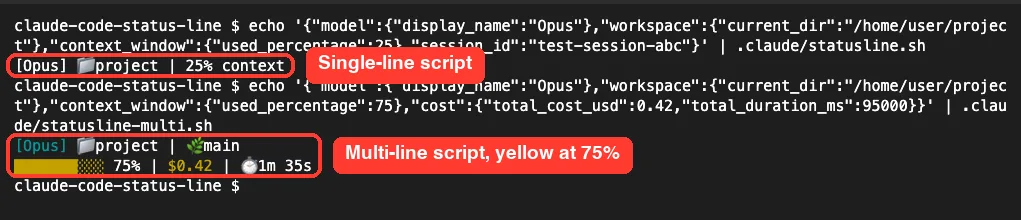
You do not need to open Claude Code to check your script. The docs suggest piping a small sample of JSON into it, which is exactly what Claude Code will do later.
echo '{"model":{"display_name":"Opus"},"workspace":{"current_dir":"/home/user/project"},"context_window":{"used_percentage":25},"session_id":"test-session-abc"}' | .claude/statusline.shWe ran that, then ran the same kind of test on a second, two-row script with 75% context. Both printed exactly what we expected, and the bar in the second one turned yellow, as designed.
Seeing the Status Line Live in Claude Code
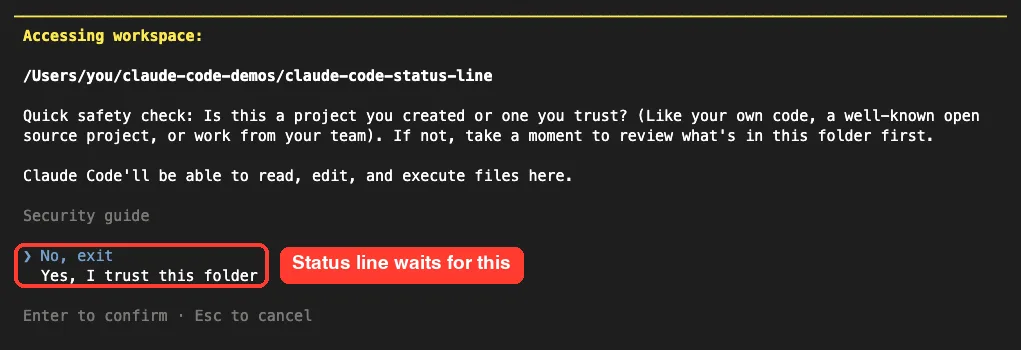
When we opened Claude Code in the new folder, it first asked whether we trusted it. This matters for status lines: because statusLine runs a shell command, it follows the same workspace trust rule as hooks and stays blank until you accept.
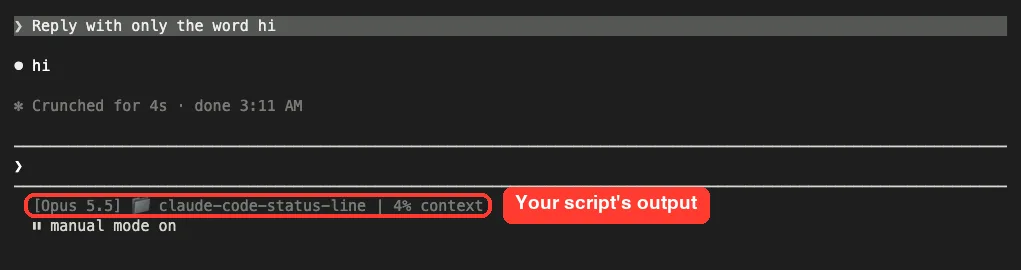
After we trusted the folder, the bar appeared right away with 0% context. We then sent one short prompt, and once the reply came back, the bar updated to show 4% context. Notice that it sits in its own row above the built-in “manual mode on” badge.
Switching to a Multi-Line, Colored Status Line
Next we tried the docs’ multi-line example. It prints the model, folder and git branch on one row, then a context bar, the estimated cost and the session time on a second row. The bar is green under 70%, yellow from 70 to 89%, and red at 90% or more.
Without leaving Claude Code, we used a ! shell command to point the settings at the new script. The status line reloaded on its own, which matches the docs: a change to the command runs right away, with no debounce.
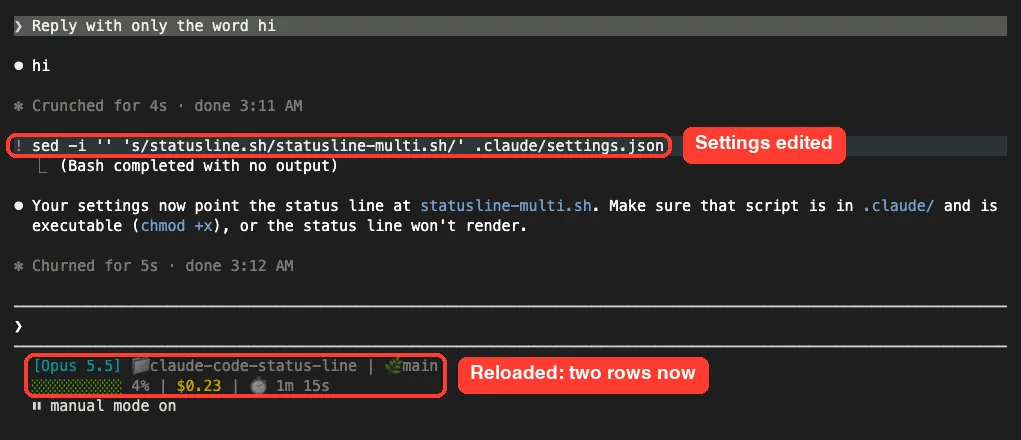
One small surprise: the output of our ! command was passed to Claude, which replied with a short reminder to keep the script executable. That reply was a normal model turn, so it counts toward usage like any other.
The Most Useful Data Fields
Claude Code sends many fields. These are the ones most people start with, and a few that can be missing early in a session.
| Field | What it holds | Watch out for |
|---|---|---|
| model.display_name | The current model’s name | Changes when you switch with /model |
| workspace.current_dir | The working folder | Same value as cwd |
| context_window.used_percentage | How full the context window is | Can be null early; use a fallback |
| cost.total_cost_usd | Estimated session cost | An estimate, not your bill |
| cost.total_duration_ms | Total session time in milliseconds | Convert to minutes yourself |
| session_id | A unique ID per session | Good as a cache file name |
| rate_limits.five_hour.used_percentage | 5-hour limit used | Only for Pro and Max subscribers, after the first reply |
| vim.mode, agent.name, pr.number | Vim mode, agent name, open pull request | Absent unless that feature is in use |
The context percentage counts input tokens only, so it does not include output tokens. If you switch models often, our model guide explains what each choice means for that number.
Optional Settings: padding, refreshInterval and More
- padding adds extra horizontal spacing, in characters. It defaults to 0.
- refreshInterval re-runs your command every N seconds, with a minimum of 1. Use it for a clock or for data that changes while the session is idle.
- hideVimModeIndicator set to true hides the built-in “– INSERT –” text, useful when your script shows vim mode itself.
Your script can also print colors with ANSI codes and clickable links with OSC 8 codes, in terminals that support them. Terminal.app does not support clickable links, so try iTerm2, Kitty or WezTerm if links matter to you. Our terminal setup guide covers picking a terminal.
Real Examples You Can Build
The official docs include ready-made scripts in Bash, Python and Node.js. Here is what each one does, so you can pick a starting point.
| Example | What it shows | Key fields |
|---|---|---|
| Context bar | Model plus a 10-block progress bar | context_window.used_percentage |
| Git status | Branch with green staged and yellow modified counts | workspace.current_dir plus git commands |
| Cost tracking | Estimated cost and minutes and seconds | cost.total_cost_usd, cost.total_duration_ms |
| Multi-line | Git info on row one, colored bar on row two | A mix of the above |
| Rate limits | 5-hour and 7-day usage for subscribers | rate_limits.* |
| Cached git | Git info refreshed only every 5 seconds | session_id for the cache file |
Windows users can run a PowerShell script through powershell -NoProfile -File, or a Bash script when Git Bash is installed. Use forward slashes in the command path. We tested on macOS; the Windows and Linux steps follow Anthropic’s official instructions.
Try It Yourself
Make a tiny folder, trust it, and ask Claude to set up a project-only status line. Paste this prompt into Claude Code:
Create .claude/statusline.sh in this project that reads the status line JSON
from stdin with jq and prints: [model] folder | context % | $cost.
Make it executable and add a statusLine entry with "type": "command"
to .claude/settings.json. Do not touch my user settings.
When it is done, send one more short message and watch the context number and cost change after the reply. Then try adding “refreshInterval”: 5 and a clock to the script.
Common Mistakes
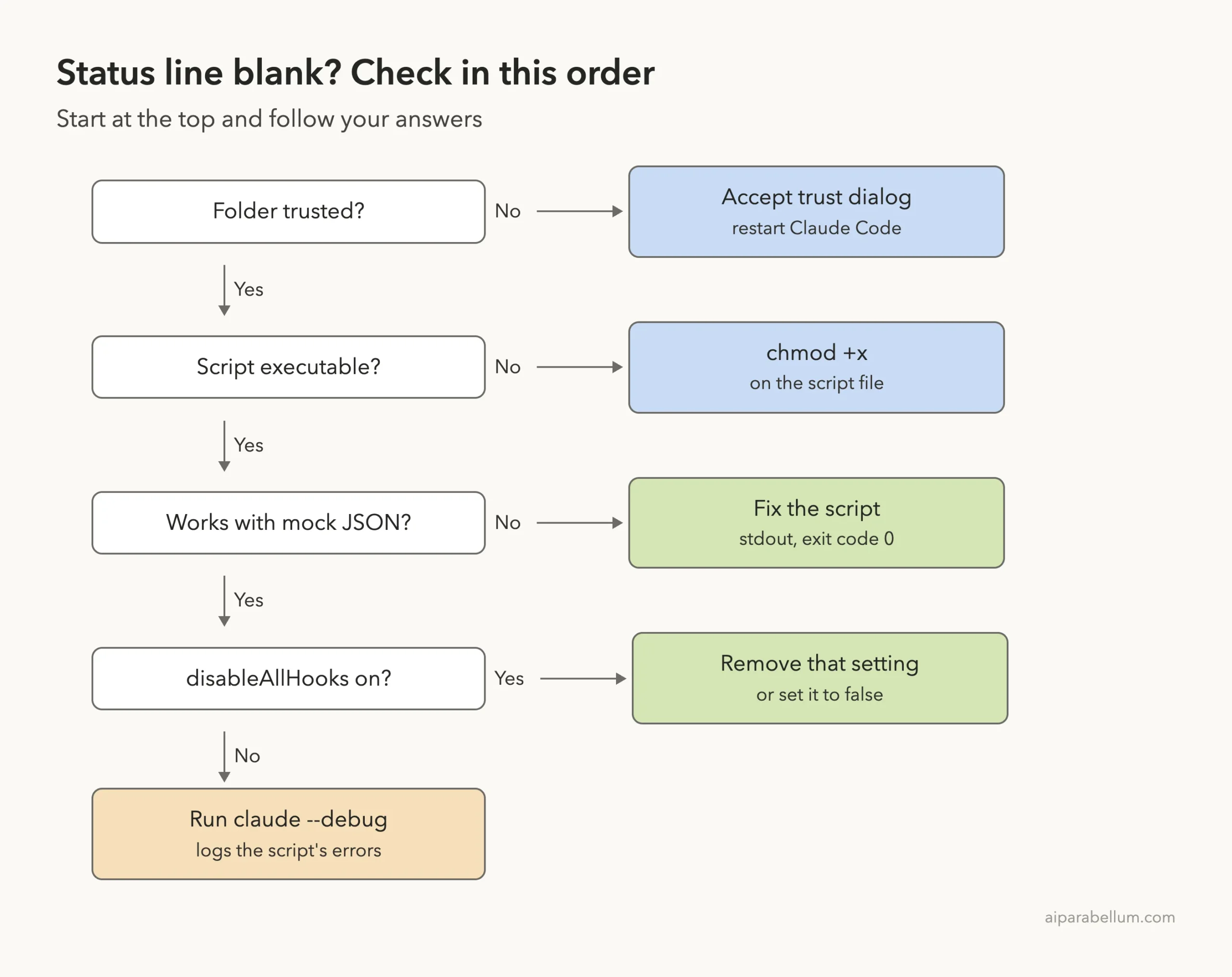
- Forgetting chmod +x. A script that cannot run leaves the bar blank.
- Printing to stderr. Only standard output is shown.
- A non-zero exit code. Claude Code shows output only after the script exits with code 0.
- Not handling nulls. Fields like used_percentage can be null early, so add fallbacks such as // 0 in jq.
- Using $$ or a process ID as a cache key. It changes on every run; use session_id instead.
- Leaving disableAllHooks set to true, which turns off your custom status line too.
- Using tput cols for width. Read the COLUMNS and LINES variables instead.
If your organization sets allowManagedHooksOnly in managed settings, only a status line from those managed settings can run. Ask your admin if yours disappears without warning.
Pro Tips
- Keep it short. Long output may be cut off or wrap, and notifications share the same row on narrow terminals.
- Cache slow commands like git status for a few seconds, keyed by session_id.
- Run claude –debug to log your script’s errors, and look for “Status line command skipped: workspace trust not accepted”.
- Put a team status line in project settings so everyone gets it, and personal ones in your home folder. The .claude folder tutorial shows where each file lives.
- Want clickable ID links without a script? The docs point to the footerLinksRegexes setting.
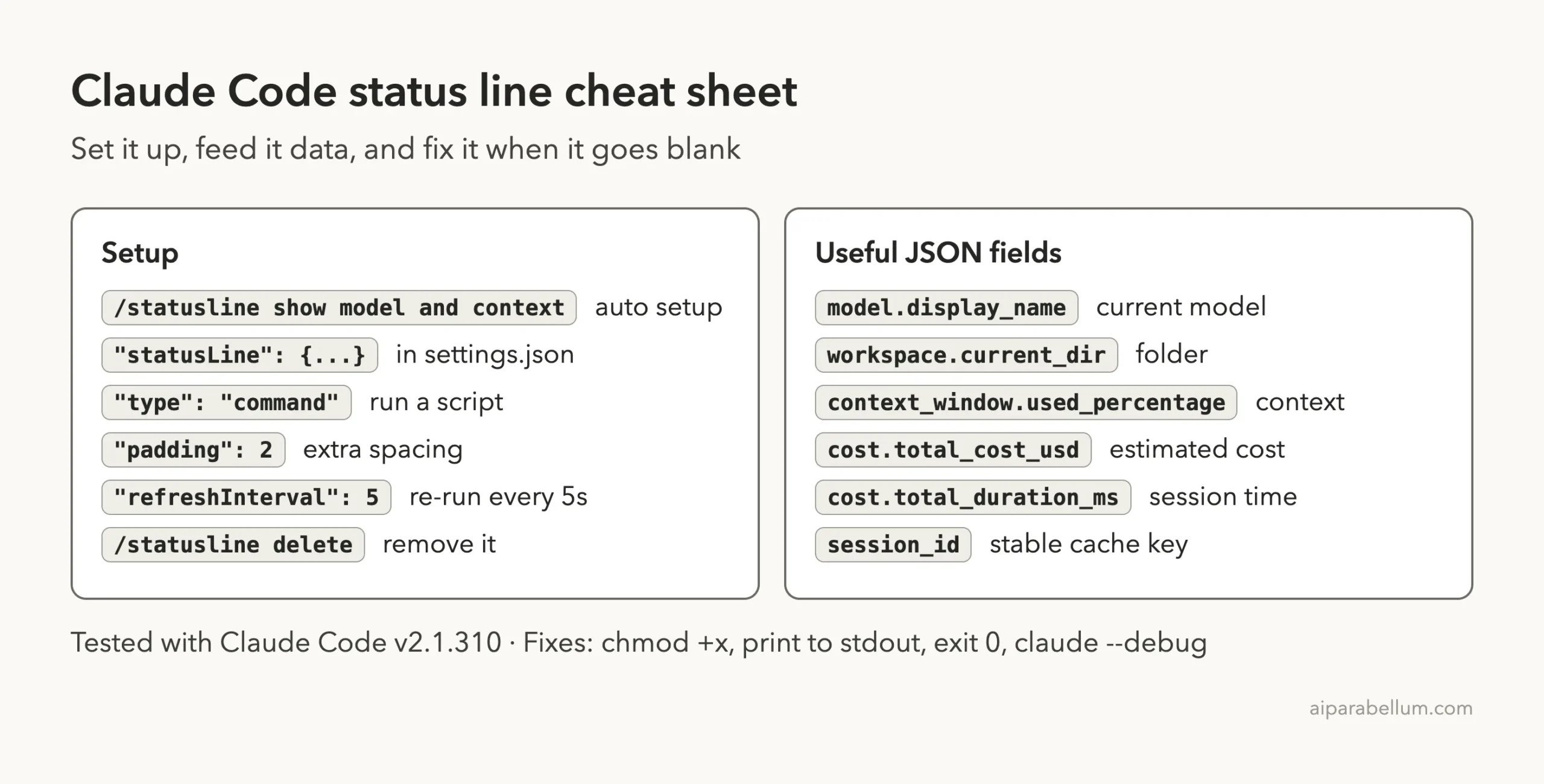
Claude Code Status Line Cheat Sheet
Frequently Asked Questions
Does the Claude Code status line use API tokens?
No. The script runs locally on your computer, so it costs nothing in tokens. Only your normal prompts use the model.
Why is my status line blank?
The usual causes are an untrusted folder, a script that is not executable, output going to stderr, or a non-zero exit code. Test it with mock JSON, then run claude –debug.
Can I use Python or Node instead of Bash?
Yes. Any command that reads stdin and prints text works, and the docs include Python and Node.js versions of every example.
Why does /context show a higher number than my status line?
The status line uses counts from the last API response, while /context adds an estimate for messages since then. They line up again after the next reply.
How do I turn the status line off?
Run /statusline delete or /statusline remove it, or delete the statusLine field from your settings file. You can browse other built-in commands in our slash commands guide.
Conclusion
The Claude Code status line turns a plain footer into a live dashboard that shows exactly what you care about, from context use and cost to your git branch. In our test, a ten-line Bash script and a four-line settings entry gave us a bar that updated after every reply, and switching to a two-row colored version took one settings change with no restart. Start with /statusline if you want it done for you, write your own script when you want control, and if you are new to the assistant behind all of this, our Claude AI overview is a good place to begin.
Previous in the series: Part 25, Claude Code Output Styles: Change How Claude Responds
Next in the series: Part 27: How to Customize Claude Code Keyboard Shortcuts.