Claude Code output styles let you change how Claude talks to you for a whole session, without repeating the same request in every prompt. One command can make answers shorter, add a short explanation of each change, or have Claude start work without asking routine questions. You can also write your own style in a small Markdown file, so Claude answers like a patient teacher, a writing assistant, or anything else you need.
In this guide we switched styles in a real Claude Code session on a tiny demo project. You will see the same question answered in two very different ways, a custom style we wrote ourselves, the Explanatory style’s Insight block, and the settings file where your choice is saved.
This is Part 25 of 53 in our Claude Code tutorials series. In the previous part we looked at environment variables, and today’s feature lives in the same settings files you have been learning about.
Tested with Claude Code v2.1.310 on October 25, 2026, on macOS. We used three short prompts in a throwaway folder with one small Python file.
Quick Summary: Claude Code Output Styles at a Glance
| Question | Short answer |
|---|---|
| What is an output style? | A set of instructions that shapes Claude’s role, tone and response format for every reply in a session |
| Which styles come built in? | Default, Proactive, Concise, Explanatory and Learning |
| How do I switch? | Run /output-style followed by a style name, or pick one under Output style in /config |
| Where is my choice saved? | As outputStyle in .claude/settings.local.json for that project |
| Can I write my own? | Yes, as a Markdown file in .claude/output-styles/ or ~/.claude/output-styles/ |
| Is it guaranteed? | No, it is an instruction Claude follows; use a hook for things that must always happen |
What Output Styles Are and Why They Exist
Every Claude Code session runs on a system prompt, a block of instructions that tells Claude how to behave. An output style adds its own instructions on top of that prompt, and Claude Code sends them with every request. That is why one switch changes every answer that follows, not just the next one.
Without styles, you would have to type “keep it short” or “explain your reasoning” again and again. A style turns that habit into a setting. Anthropic’s output styles documentation also points out that a custom style can turn Claude into something other than a software engineer, such as a data analyst or a writing helper.
An output style changes how Claude talks to you. It does not change what Claude is allowed to do.
The Five Built-In Styles
Claude Code starts in the Default style, which simply means no extra style instructions are added. The other four keep Claude’s normal engineering instructions and add their own on top.
| Style | What changes | Good fit when |
|---|---|---|
| Default | Nothing extra; Claude Code’s standard instructions | You are happy with normal answers |
| Proactive | Claude starts work right away and makes reasonable assumptions about routine choices | You prefer to correct course rather than answer questions |
| Concise | Replies lead with the result and skip the lead-in, narration and recap | Default answers feel longer than you want |
| Explanatory | Claude adds short Insight blocks about the choices behind its code | You are learning a codebase and want the reasoning |
| Learning | Insight blocks plus small TODO(human) spots for you to code yourself | You want hands-on practice while the task still gets done |
A few details from the docs are worth knowing. Concise still answers in full when you ask for detail, and it keeps error reports, failing tests, security warnings and confirmations for risky actions complete. Proactive does not change your permission mode, so permission prompts still appear exactly as before.
Step 1: See Which Output Styles You Have
Before switching anything, it helps to see the menu. Type /output-style with nothing after it, and Claude Code lists every style you can pick and marks the one in use.
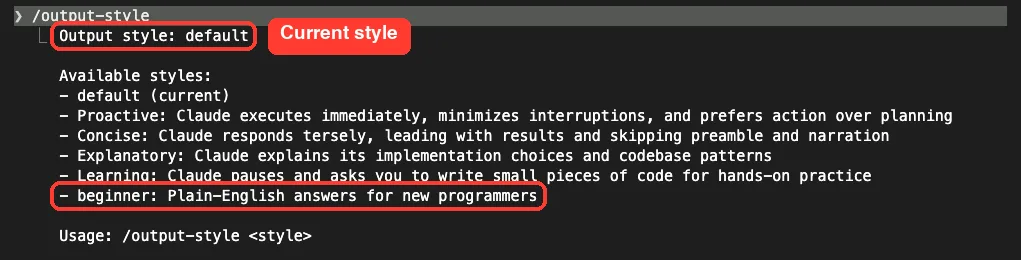
In our session the list showed the five built-in styles plus one more, called beginner. That one is a custom style we wrote for this demo, and we will build it together in Step 4. The /output-style command needs Claude Code v2.1.269 or later, according to the docs.
Step 2: Switch Styles With /output-style
To switch, add the style name after the command. The command ignores case, so concise and Concise both work. We switched to Concise and asked a simple question about our demo file, convert.py, which turns Celsius into Fahrenheit and back.
/output-style concise
What does convert.py do?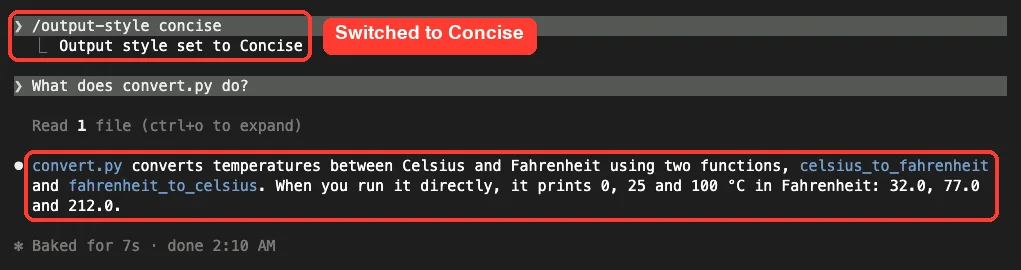
The reply opened with the answer, named both functions and listed the printed values. There was no “Great question” lead-in and no recap at the end. Since v2.1.251, a new style kicks in from your very next message, so you no longer need to run /clear first.
Switch From the /config Menu Instead
If you prefer menus, run /config and type output in the search box. The Output style row shows your current style, and pressing Enter on it opens a picker.
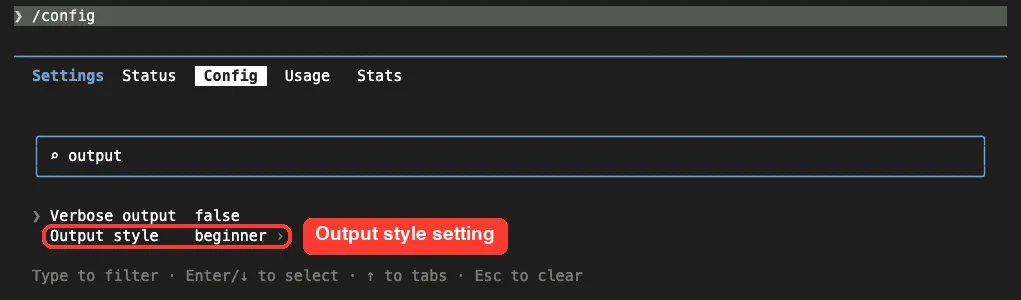
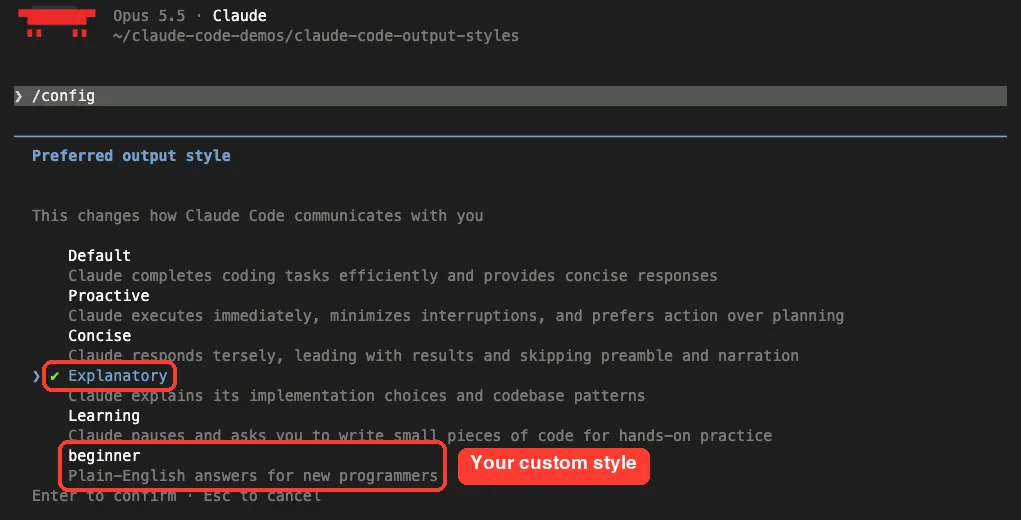
The picker shows each style’s description, which makes it easy to remember what each one does. Custom styles show up here too, with the description you wrote. If you are new to this panel, our guide to slash commands covers /config and its neighbors.
Step 3: Watch the Explanatory Style Add Insights
Next we tried Explanatory, the style for people who want to learn while Claude works. We asked for a tiny edit, approved the change at the permission prompt, and looked at the reply.
/output-style explanatory
Add a one-line docstring to celsius_to_fahrenheit in convert.py.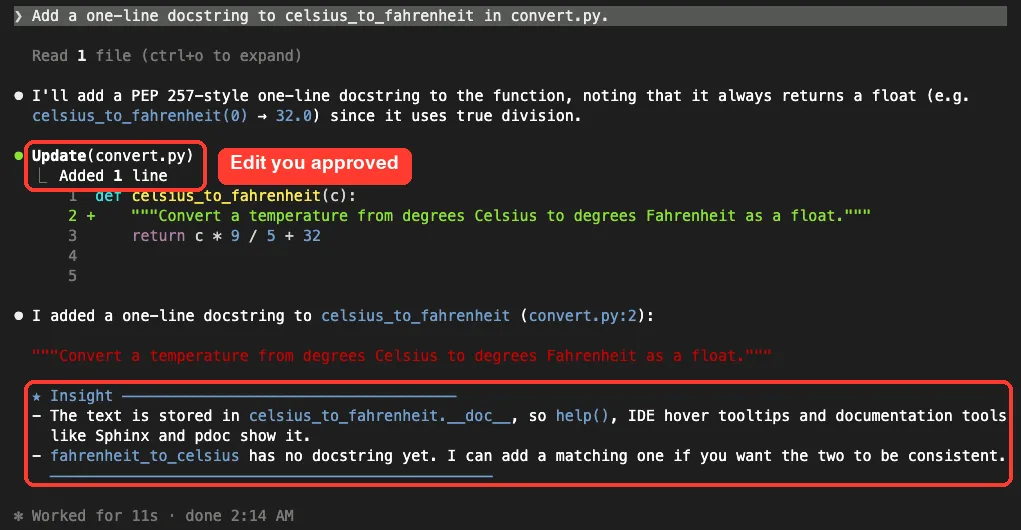
Claude made the one-line change, then added an Insight block with two points. The first explained where Python stores a docstring and which tools read it. The second noticed that the other function had no docstring yet and offered to add one.
The docs say these explanations appear in the conversation only and are not written into your files as comments. That matched our test: the file got just the docstring we asked for. The Learning style works the same way but also leaves a TODO(human) comment and waits for you to write that piece of code.
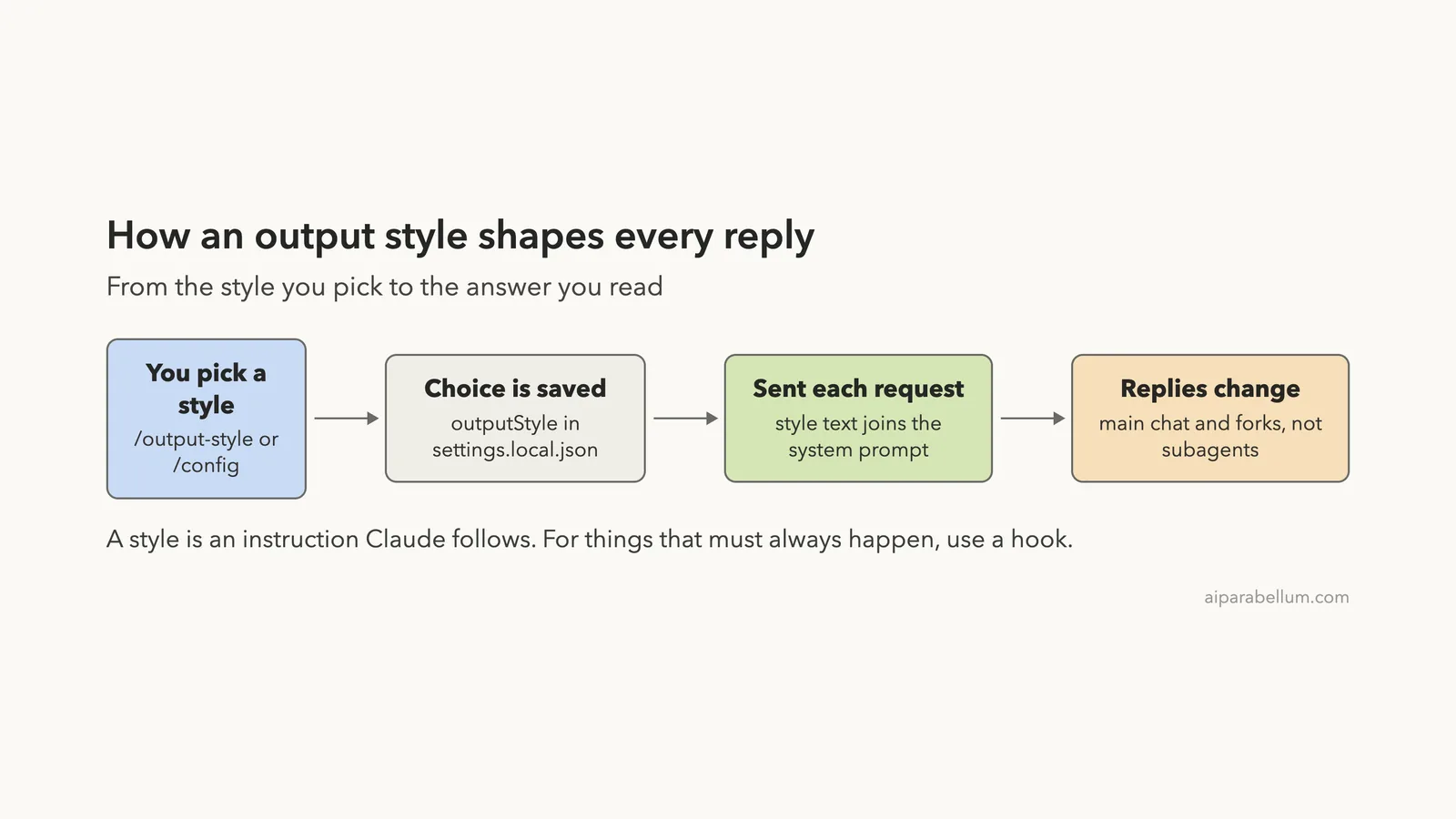
Diagram: How an Output Style Shapes Every Reply
Here is the whole journey in one picture, from the moment you pick a style to the reply on your screen.
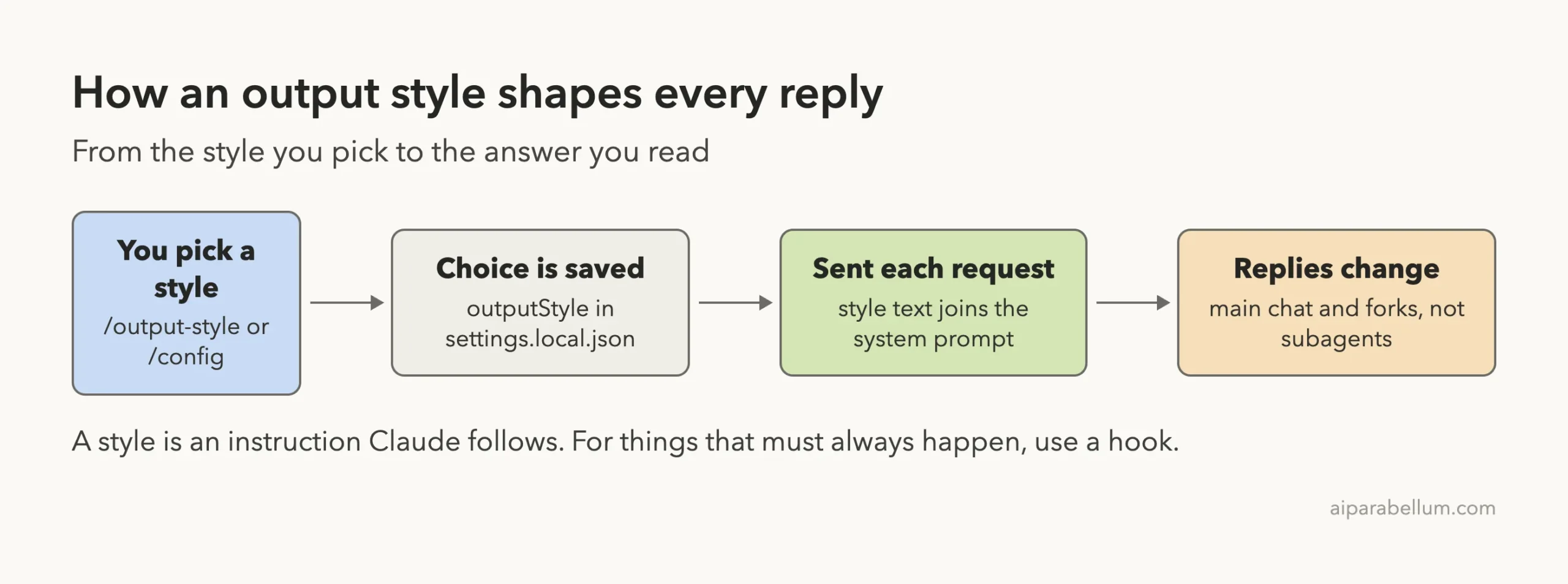
One detail surprises people. Styles apply to the main conversation and to a fork of it, but other subagents run their own system prompt, so a style does not change how they answer.
Step 4: Create a Custom Output Style
A custom output style is a plain Markdown file. The top holds frontmatter, a few settings between — lines, and the rest is your instructions for Claude. You can save it in one of three places.
- Project: .claude/output-styles/ in your project, shared with anyone who uses the repo
- User: ~/.claude/output-styles/ in your home folder, available in all your projects
- Managed policy: .claude/output-styles inside the managed settings directory, set by an admin
We created .claude/output-styles/beginner.md in our demo folder. It tells Claude to explain things for a new programmer, keep answers short, and end with one suggestion.
---
description: Plain-English answers for new programmers
keep-coding-instructions: true
---

You are helping someone who is new to programming.

- Explain ideas in plain English and avoid jargon.
- Keep answers under 120 words.
- End every answer with one short "Try this next:" suggestion.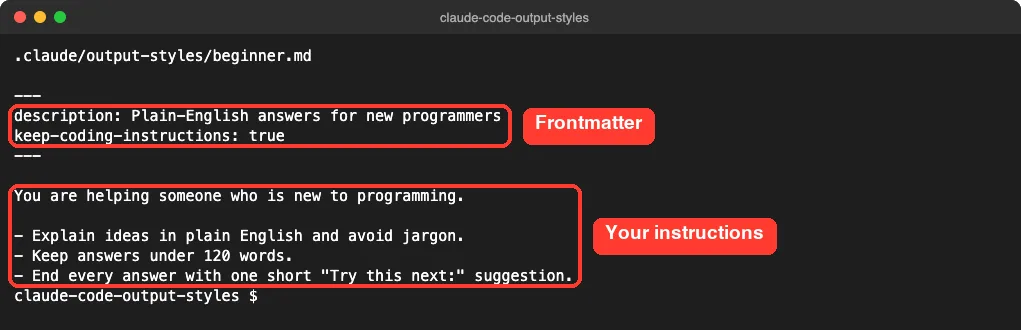
Because we did not set a name field, the file name became the style name, beginner. If you put a style file in the same folder layout as your .claude folder, it travels with the project.
The Frontmatter Fields
Every field is optional, and a misspelled field is silently ignored. If the YAML does not parse, the style still loads under its file name with no fields set, and claude –debug shows the error.
| Field | What it does | Default |
|---|---|---|
| name | Name shown in the /config picker | The file name |
| description | Short line shown in the picker | None |
| keep-coding-instructions | Keeps Claude Code’s built-in software engineering instructions alongside your style | false |
| force-for-plugin | Plugin styles only; turns the style on whenever the plugin is enabled | false |
The keep-coding-instructions field matters more than it looks. Without it, a custom style drops Claude Code’s section on how to scope changes, write comments and verify work. Set it to true when you only want to change the tone, and leave it out when Claude will not be writing code at all.
Use Your Custom Style
Claude Code reads style files when it starts, so restart it after you create or edit one. Then switch to it like any other style. We asked the exact same question we asked in Concise mode.
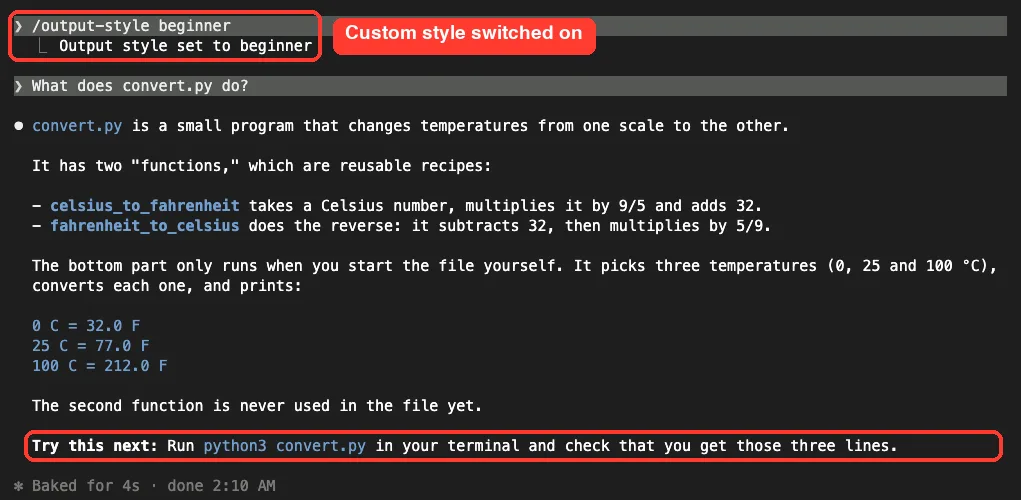
The difference is easy to see. Claude called functions “reusable recipes,” explained what the bottom of the file does, and ended with a “Try this next” tip, just as our instructions asked. Same file, same question, very different answer.
Step 5: Check Where Your Choice Is Saved
The /output-style command and both menus save your pick to .claude/settings.local.json at the local project level. After our session, that file held one line.
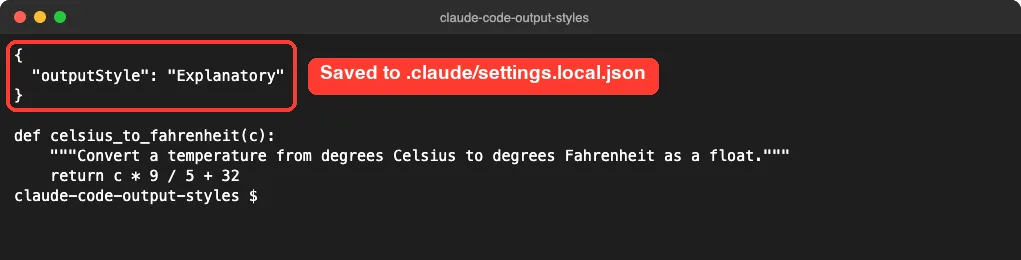
You can also set the style by hand in any settings file. The value is case-sensitive here, so use Proactive, Concise, Explanatory or Learning exactly. A wrong value like explanatory silently gives you Default.
{
  "outputStyle": "Explanatory"
}
To use one style in every project, put outputStyle in ~/.claude/settings.json. A project’s own settings files still win over that, following the order we covered in our settings files guide. The desktop app has no style menu, so there you set this field directly.
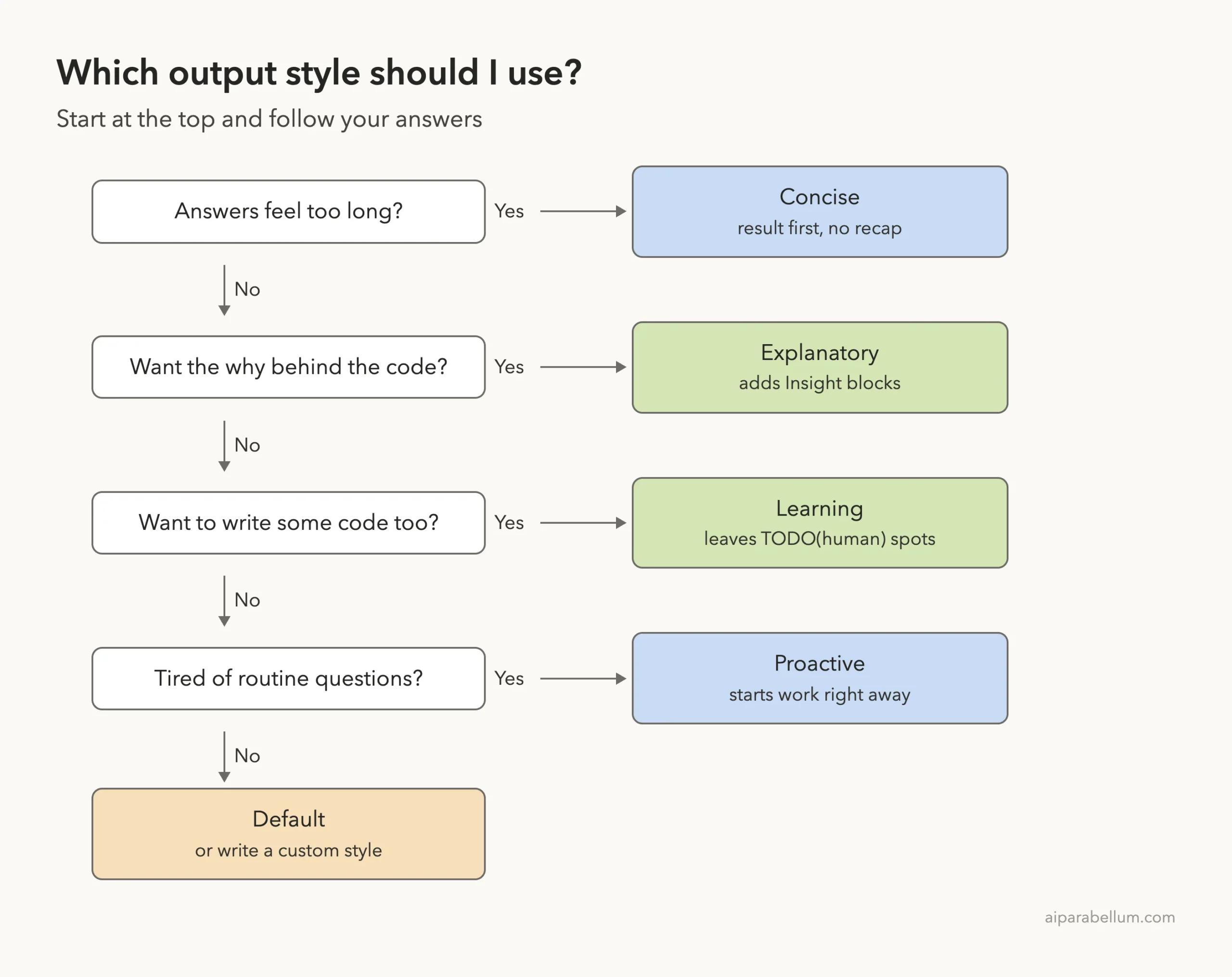
Which Output Style Should You Use?
If you are not sure where to start, this decision ladder walks you through it. Answer each question from the top and stop at the first yes.
Output Styles Compared With Other Features
A style is not the right tool for everything. The docs suggest a simple split between features.
| You want | Use |
|---|---|
| Every reply in a certain voice, length or format | An output style |
| Claude to know your project’s rules and commands | CLAUDE.md |
| Instructions for one kind of task, like a review checklist | A skill |
| Something to happen every time, with no exceptions | A hook |
| A helper with its own instructions and tools | A subagent |
| One extra instruction at launch | The –append-system-prompt flag |
These features work well together. Your CLAUDE.md file stays loaded whichever style you pick, so a style for tone plus CLAUDE.md for facts is a great pairing. For guaranteed actions, see Anthropic’s hooks guide.
Real Examples of Output Styles in Use
- Busy fixing bugs: switch to Concise so status updates are one or two lines.
- Joining a new team: use Explanatory for a week to learn why the code is shaped the way it is.
- Learning to code: use Learning so Claude leaves the interesting parts for you.
- Teaching a class: share a project style like our beginner.md so every student gets the same friendly tone.
- Writing docs, not code: a custom style without keep-coding-instructions can make Claude a writing assistant.
Try It Yourself
Make a folder with one small script, then create a custom style and compare it with Concise. Restart Claude Code after saving the style file, then run this in the session.
/output-style concise
Explain what this project does in one short paragraph.
/output-style beginner
Explain what this project does in one short paragraph.
Compare the two answers side by side. Then open .claude/settings.local.json and check that outputStyle matches the last style you picked. Run /output-style default when you want to go back.
Common Mistakes With Claude Code Output Styles
- Writing outputStyle in lowercase in a settings file. The value is case-sensitive, and a mismatch gives you Default without any warning.
- Editing a style file and expecting a running session to notice. In the terminal, restart Claude Code after creating or changing a style.
- Leaving out keep-coding-instructions on a coding style. Claude then loses its built-in guidance on scoping and verifying changes.
- Expecting a style to enforce a rule. It is an instruction Claude follows, so use a hook for anything that must always happen.
- Assuming Proactive skips approvals. It does not touch your permission mode, and prompts still appear.
Pro Tips
- Keep custom styles short and specific. Clear bullet rules like “under 120 words” worked well in our test.
- Add a description to every custom style, since it appears in both /output-style and the /config picker.
- Expect Explanatory and Learning to cost more output tokens because the replies are longer by design, while Concise does the opposite.
- Check in a team style under .claude/output-styles/ so everyone gets the same voice, and keep personal picks in settings.local.json.
- If a style does not seem to apply, Anthropic’s settings reference explains which file wins.
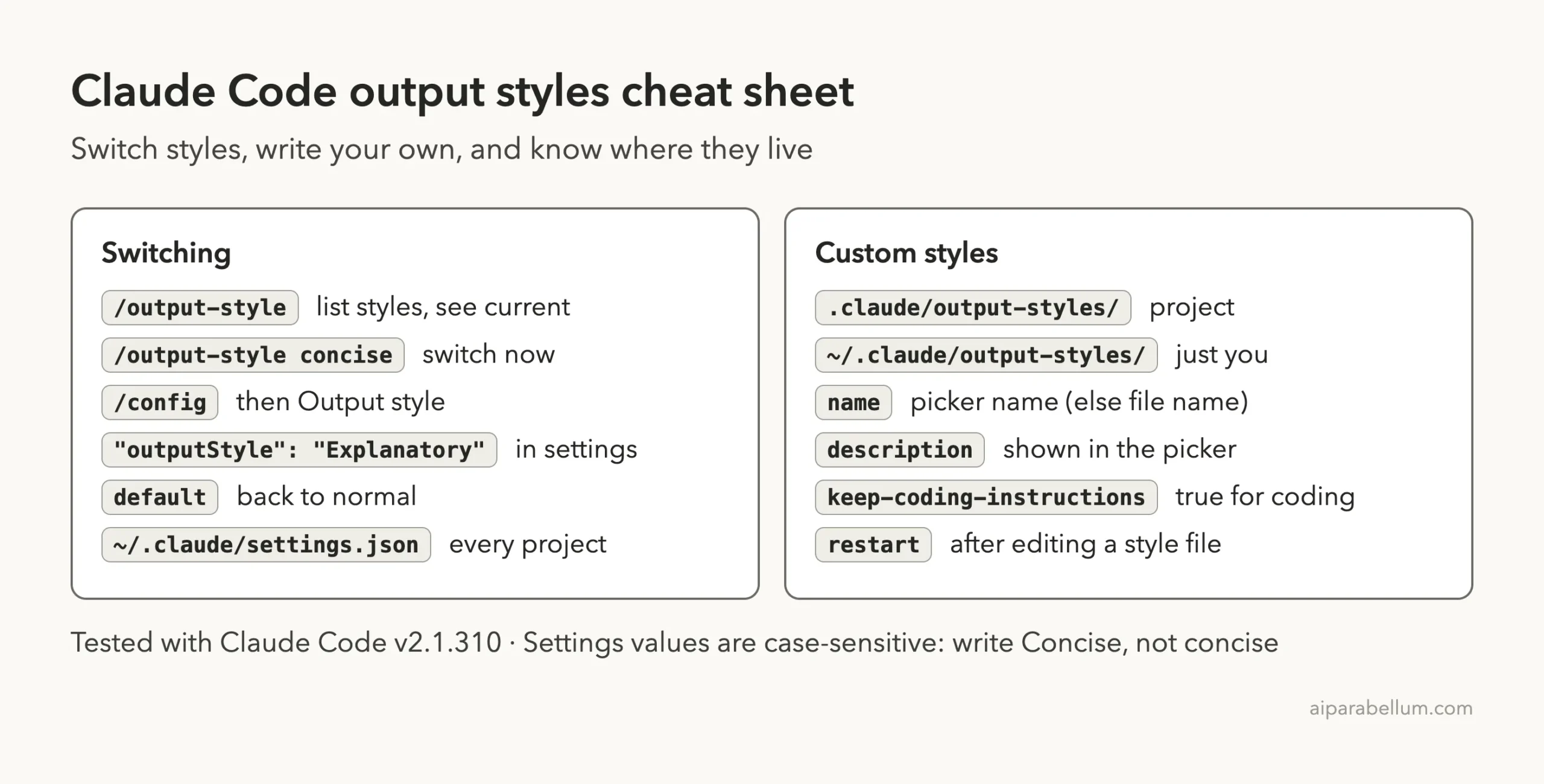
Output Styles Cheat Sheet
Frequently Asked Questions
What are Claude Code output styles?
They are instruction sets that change Claude’s role, tone and response format for every reply in a session. Claude Code ships five built-in styles, and you can write your own in Markdown.
How do I go back to the normal style?
Run /output-style default, or pick Default in the /config picker. Default simply means no extra style instructions are added.
Why is my custom output style not showing up?
Check that the file sits in .claude/output-styles/ or ~/.claude/output-styles/ and ends in .md. Then restart Claude Code, because the terminal reads style files only at startup.
Do output styles change what Claude is allowed to do?
No. Permissions still come from your permission mode and rules, which we covered in the allow and deny tutorial.
Do output styles cost more tokens?
A style adds some input tokens, though prompt caching reduces that after the first request. Explanatory and Learning also produce longer replies, while Concise keeps them short.
Conclusion
Claude Code output styles give you one switch for how Claude talks to you, from short Concise replies to teaching-friendly Explanatory and Learning modes, plus custom styles you write in a few lines of Markdown. In our real session the same question came back as a three-line summary in Concise and a friendly beginner lesson in our custom style, while Explanatory added Insight blocks without touching the file. Pick a built-in style with /output-style, keep custom ones in .claude/output-styles/, and if you are still getting to know the assistant behind it all, our Claude AI overview is a good place to start.
Previous in the series: Part 24, Claude Code Environment Variables Worth Knowing
Next in the series: Part 26: How to Customize the Claude Code Status Line.