Claude Code slash commands are short instructions that start with a forward slash, like /help or /clear, and they control the tool itself instead of asking Claude to do a task. With them you can switch models, free up memory, rename a session, ask a quick side question or start over without leaving your terminal. Once you know a dozen of them, every session feels faster and more under your control.
This guide covers the essential commands you will use every day. We ran each one in a real session on a Mac, inside a tiny demo folder, so every screenshot shows what Claude Code actually printed.
This is Part 8 of 53 in our Claude Code tutorials series. In the previous part we covered interactive mode shortcuts, where the slash first showed up as one of the input prefixes. This part goes deeper into the commands behind it.
Tested with Claude Code v2.1.309 on October 24, 2026, on macOS, in a throwaway demo folder with two small files. Which commands you see depends on your plan, platform and installed plugins, so your menu may look a little different.
Quick Summary: Claude Code Slash Commands at a Glance
| Command | What it does | When to use it |
|---|---|---|
| /help | Shows help and available commands | When you forget a key or command |
| /model | Switches the AI model | Harder task or faster answers |
| /effort | Sets how much reasoning Claude applies | Tough problems or quick checks |
| /btw | Asks a side question without adding it to history | Quick off-topic questions |
| /context | Shows what fills the context window | Before a long session gets slow |
| /compact | Summarizes the chat to free space | Same task, long conversation |
| /clear | Starts a new conversation with empty context | Switching to a new task |
| /resume | Reopens an earlier conversation | Coming back to old work |
| /rename | Names the current session | Finding it later in /resume |
| /rewind | Rolls code and chat back to a checkpoint | When an edit went wrong |
What Are Claude Code Slash Commands and Why Do They Exist?
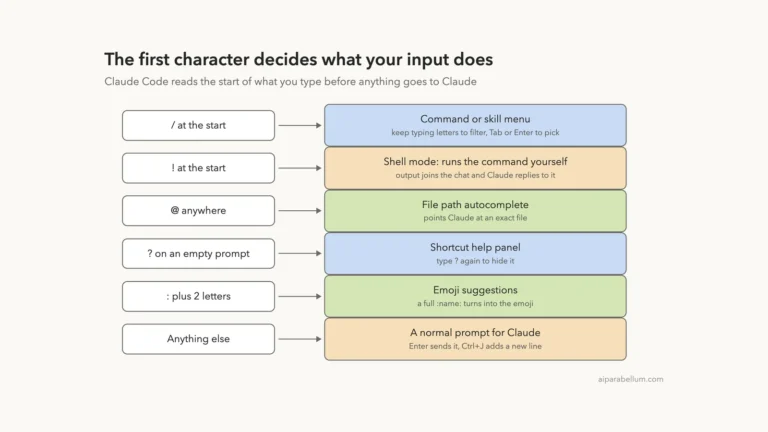
When you type a normal message, it goes to Claude as a prompt. When your message starts with a slash, Claude Code reads it first and treats it as a command. Anthropic’s commands reference describes them as a quick way to switch models, manage permissions, clear context and run workflows from inside a session.
There are two kinds. Built-in commands, like /clear or /model, are coded into the tool. Bundled skills, like /code-review or /loop, are prompts handed to Claude, and they work the same way as skills you write yourself.
A slash command talks to Claude Code. A normal message talks to Claude.
Two simple rules matter most. A command is only recognized at the start of your message, and any text after the command name becomes its argument. So /rename tip-calculator renames the session to tip-calculator, while “please /rename this” is just a normal prompt.
Required and optional arguments
The official reference uses angle brackets for required arguments and square brackets for optional ones. For example, /add-dir <path> needs a path, while /compact [instructions] works fine on its own.
- /model with no argument opens a picker, or /model sonnet switches directly.
- /compact alone summarizes everything, or /compact keep the test results focuses the summary.
- /clear alone starts fresh, or /clear old-bug labels the previous chat in the /resume list.
Step 1: Open the Command Menu With a Slash
Start Claude Code in a project folder and type a single slash on an empty prompt. A menu appears with every command available to you, each with a one-line description. If you are new to starting sessions, our guide to your first session walks through launch and the trust prompt.
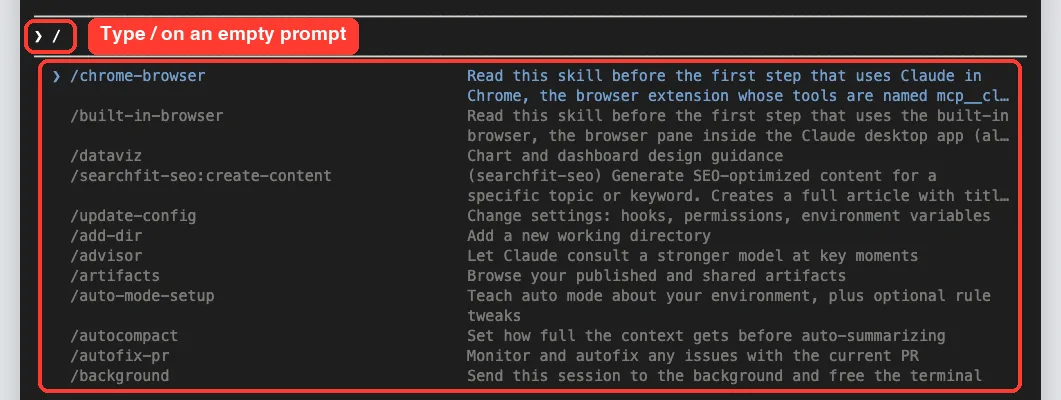
Our list also shows skills from plugins installed on this Mac, so yours will look different. Use the arrow keys to move through the list, and press Enter to run the highlighted command.
Step 2: Filter the List by Typing Letters
The full menu is long, so keep typing. Each letter after the slash narrows the list to commands whose names or descriptions match. In our test, typing /co showed /copy, /color, /config, /compact, /context and /code-review right at the top.
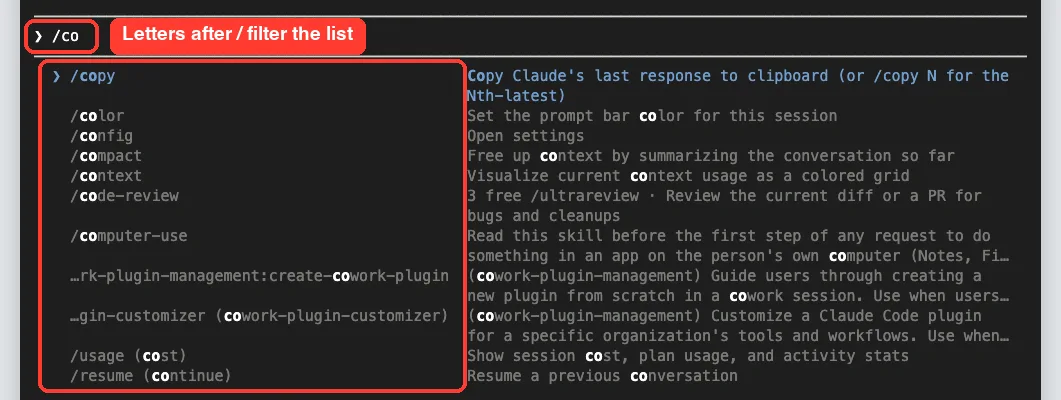
Aliases find the same command
Many commands have aliases, which are other names that run the same thing. The docs list /new and /reset as aliases for /clear, and our test confirmed it: typing /new highlighted /clear with “new” shown in brackets.

The menu also ignores dashes. When we typed /adddir with no dash, it still highlighted /add-dir, which matches how the docs say highlighting works in recent versions.
What happens after a typo
If your letters match nothing, Claude Code shows a “No commands match” message. When we pressed Enter on /clr anyway, it replied with an Unknown command notice and suggested a close match.

Note the suggestion was /cd, not /clear, so read it before you accept. The safe habit is to wait for a highlighted match before pressing Enter.
Step 3: Get Help With /help
The /help command opens a panel with three tabs: General, Commands and Custom commands. The General tab lists the most useful shortcuts, including the slash for commands, the exclamation mark for shell mode and /btw for side questions.
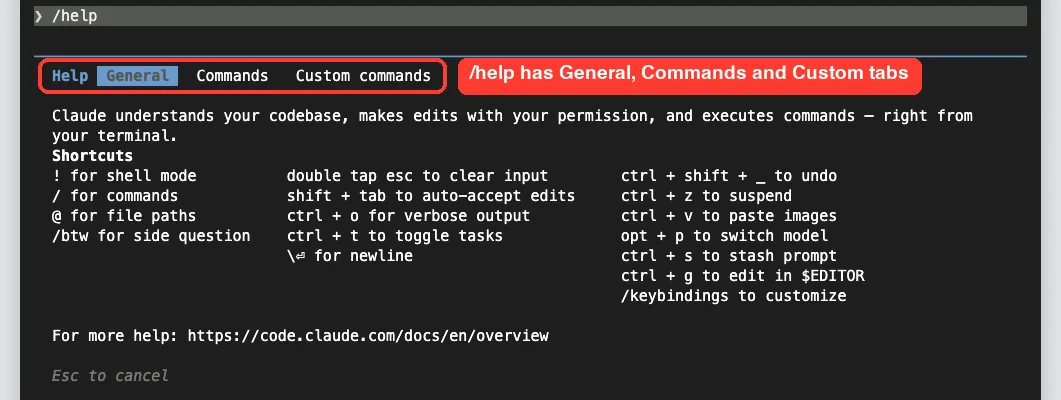
The panel itself says to press Esc to close it. It’s the fastest way to check a shortcut without leaving your terminal.
Step 4: Switch Models With /model and /effort
Before we tried more commands, we sent one normal prompt so the session had something to work with. Claude read our tiny tip.py file and answered in one sentence that it works out a restaurant tip, 15% by default.
Next, /model with no argument opened a picker with the models available to our account. The docs say your pick becomes the default for new sessions, and the picker itself reminded us that pressing s switches for this session only.
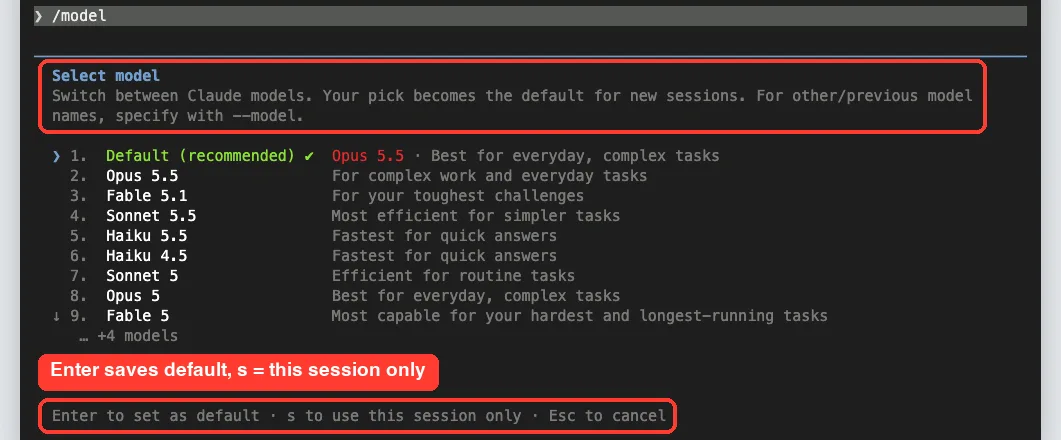
The picker also showed the effort level with left and right arrows to adjust it. You can check the level directly with /effort status, which printed “auto (currently medium)” in our session. The model configuration docs explain each level in detail.
Step 5: Ask a Side Question With /btw
Sometimes you want a quick fact without cluttering the main conversation. That’s what /btw is for, so we used it to ask which default percent tip() uses and got a short answer in a separate panel.
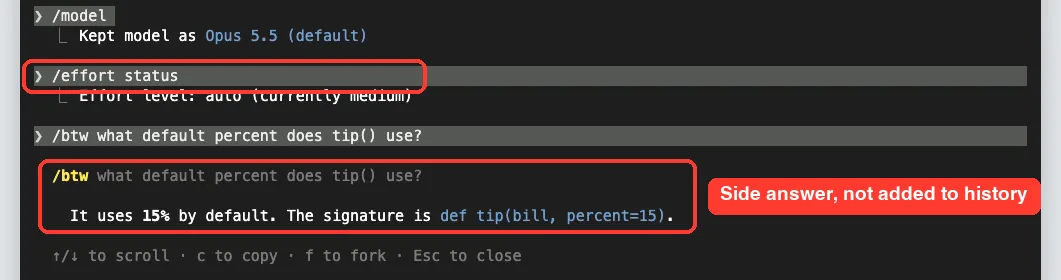
According to the docs, the side question is not added to the conversation. The panel offered keys to copy the answer, fork it or close it with Esc.
Step 6: Organize the Session With /rename and /color
If you run several sessions, names and colors help you tell them apart. We ran /rename tip-calculator and then /color blue, and both changes showed up on the prompt bar right away.

The available colors are red, blue, green, yellow, purple, orange, pink and cyan, and /color default resets it. A named session is also much easier to spot later in the /resume picker.
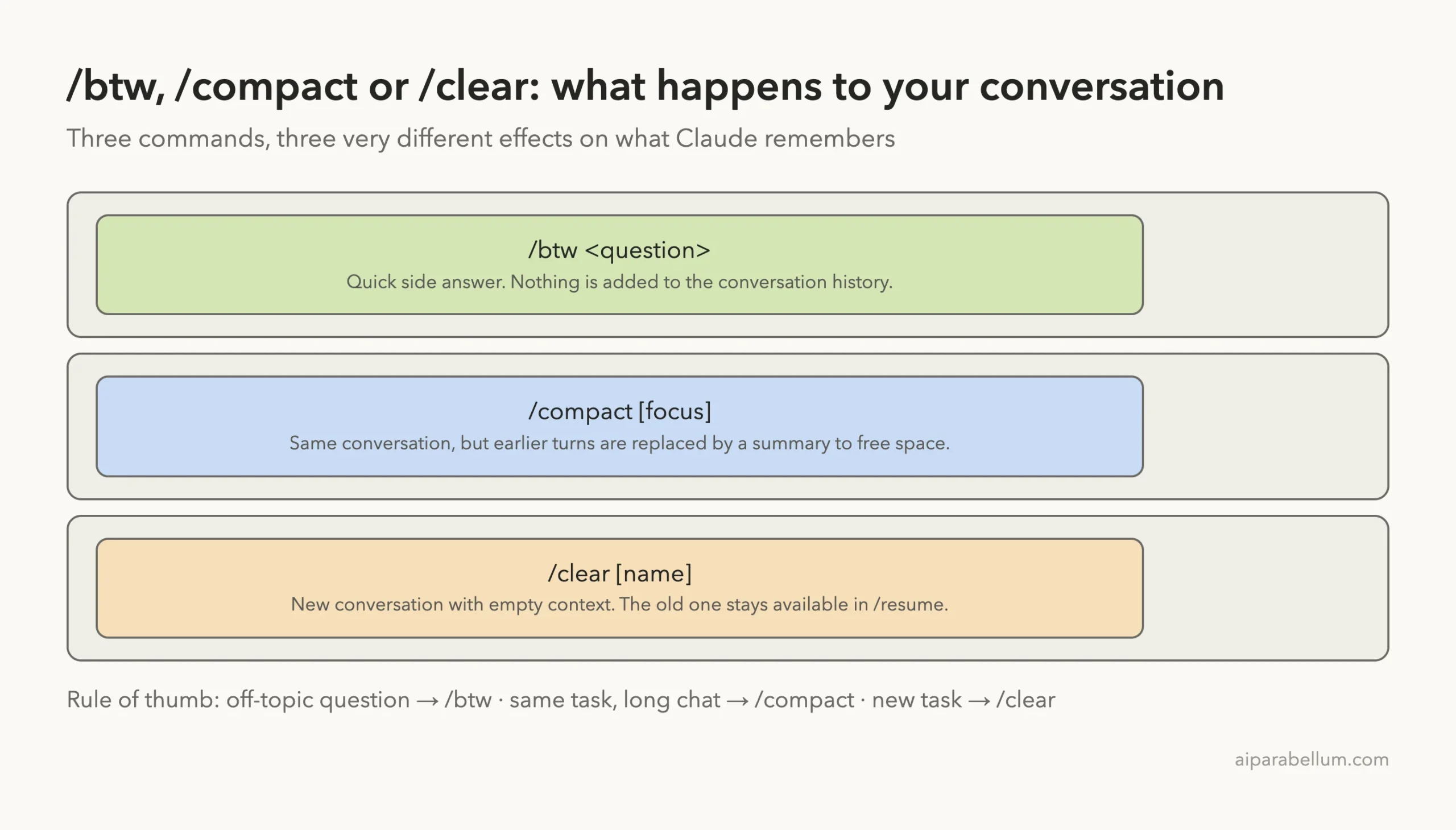
Step 7: Free Up Context With /compact and /clear
Long chats fill Claude’s context window, which is its working memory. Running /context shows a colored grid of what is using that space, and in our demo it also listed every skill with its token cost. If you want the background on context, our guide on the agent loop explains it.
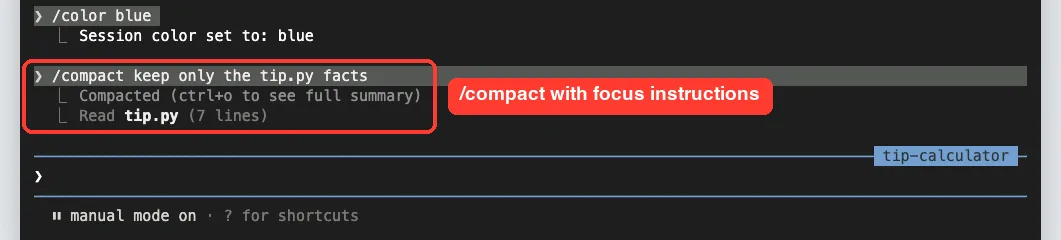
To free space on the same task, use /compact. We ran /compact keep only the tip.py facts, and Claude Code replaced the earlier turns with a summary while keeping what we asked for.
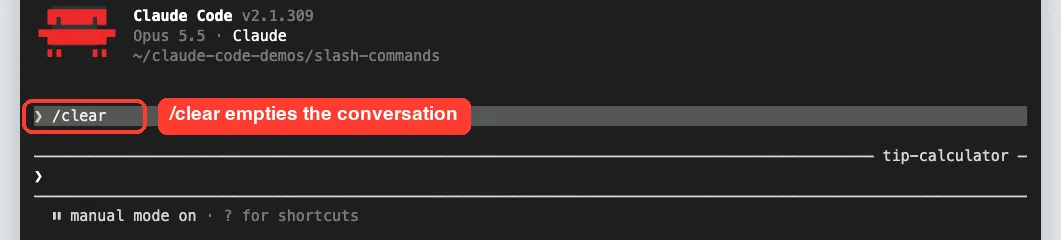
When you move on to something unrelated, /clear is the better choice. It starts a new conversation with empty context, and the docs say you can return to the old one with /resume.
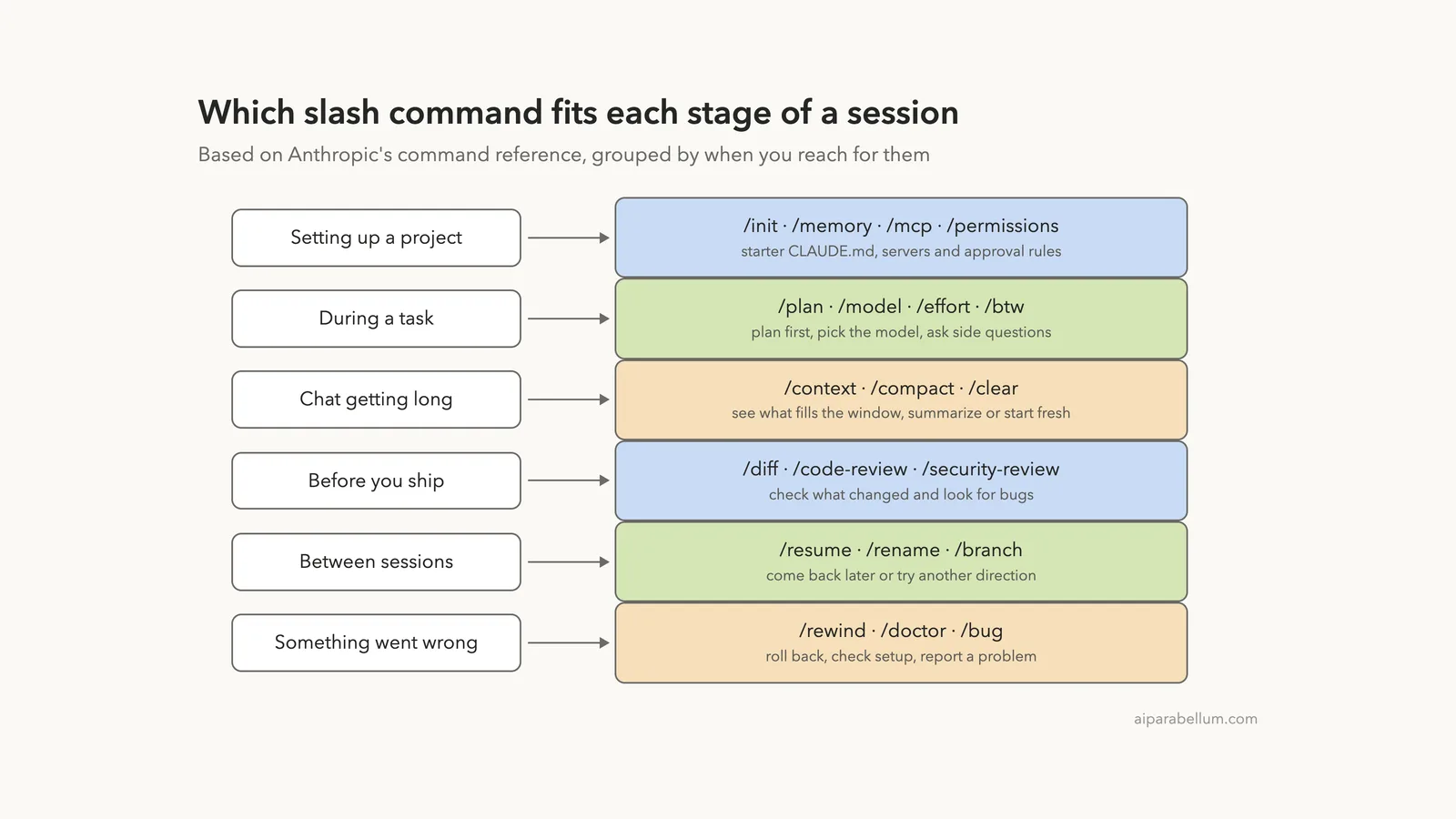
Diagrams: Which Slash Command to Use and When
The official reference groups commands by where they fit in a typical workflow. Here is our own version of that idea as a quick visual guide.
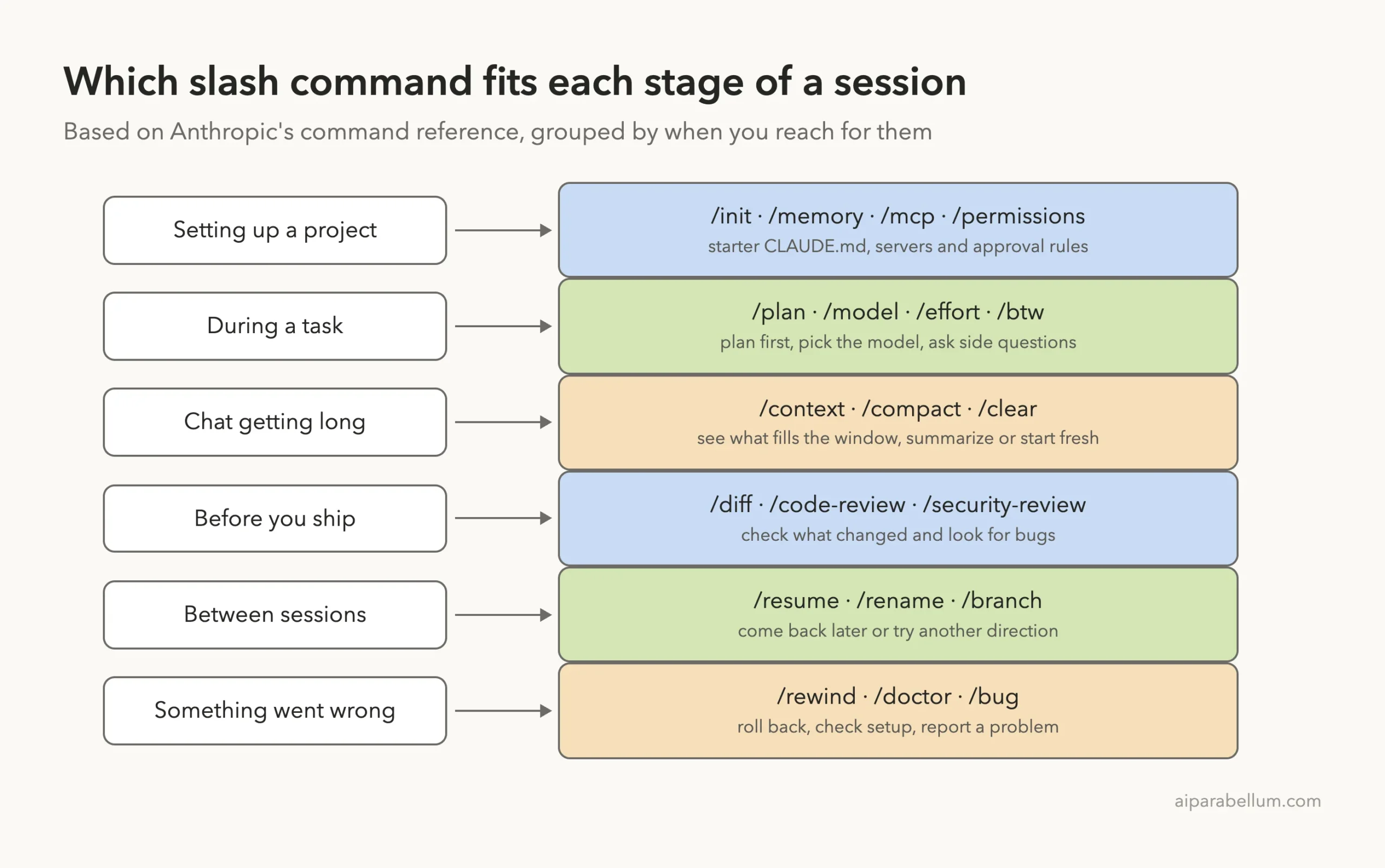
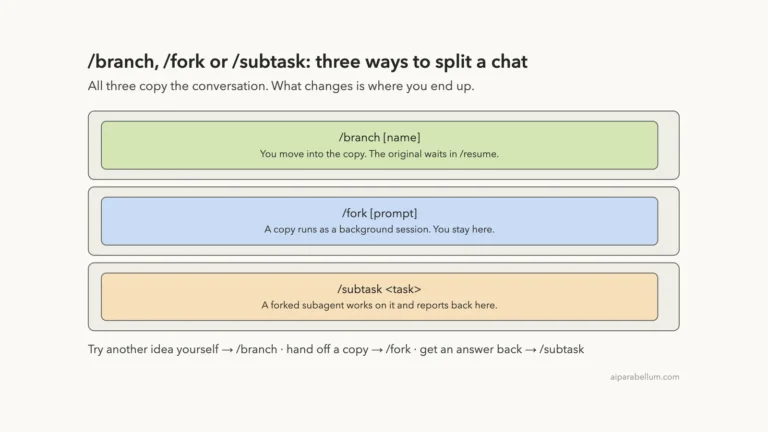
The three commands people mix up most are /btw, /compact and /clear. They all deal with the conversation, but they do very different things to it.
Real Examples of Slash Commands in Daily Work
Here is how these commands fit into ordinary days with Claude Code. Each one maps to a moment you will likely recognize.
| Situation | Command to try | Why it helps |
|---|---|---|
| First time in a new repo | /init | Creates a starter CLAUDE.md guide |
| Big change ahead | /plan fix the login bug | Enters plan mode and starts on the task |
| Quick syntax question mid-task | /btw | Keeps the main chat focused |
| Chat feels slow and long | /context then /compact | See the problem, then free space |
| Done with one feature | /clear | New task, clean memory |
| Want to see what Claude changed | /diff | Reviews edits in your working tree |
| An edit broke something | /rewind | Rolls code and chat back to a checkpoint |
| Setup feels off | /doctor | Runs a setup checkup and proposes fixes |
If you are still choosing how to sign in or which plan to use, our page on plans and login explains why some commands appear only for certain accounts.
Try It Yourself
Make a small practice folder with one short script, start Claude Code there, and run this practice round. It uses only one or two prompts, so it stays cheap.
- Type / and scroll the menu, then type /co to filter it.
- Run /help and look through the three tabs.
- Send the prompt below, then try /btw with a follow-up question.
- Run /rename practice and /color green.
- Run /compact, then /clear, and finally /resume to find your named session.
In one short sentence, what does the script in this folder do?If you need help creating the folder and launching Claude Code, the install guide covers the setup steps.
Common Mistakes With Slash Commands
- Putting the command in the middle of a sentence. Claude Code only recognizes it at the start of a message.
- Pressing Enter on a typo. If nothing is highlighted, Enter submits your text as typed and returns Unknown command.
- Using /clear when you meant /compact. /clear starts a new conversation, so Claude no longer has the earlier details in context.
- Expecting /btw answers to stick. Side questions are not added to the conversation, so ask normally if Claude needs to remember it.
- Changing the model by accident. Pressing Enter in the /model picker saves your pick as the default for new sessions, while s keeps it to this session.
- Assuming every command exists for everyone. The docs note that availability depends on platform, plan and environment.
Pro Tips for Claude Code Slash Commands
- Pass focus text to /compact, such as /compact keep the failing test names, so the summary keeps what matters.
- Give a name with /clear, like /clear auth-work, to label the old chat in the /resume picker.
- Use /plan with a description to enter plan mode and start the task in one step.
- Run /context before a long session gets sluggish, not after.
- Check /release-notes after updating to see what new commands arrived.
- Some commands, such as /status and /usage, run immediately even while Claude is responding, according to the docs.
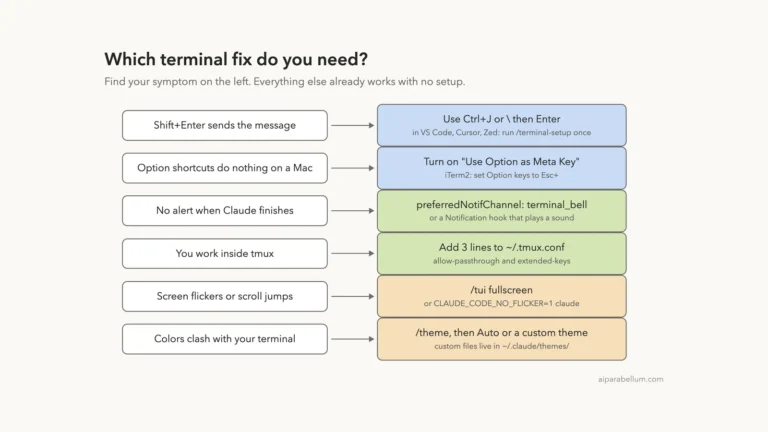
Many shortcuts pair well with commands. Our earlier part on terminal setup helps make sure keys like Shift+Enter work in your terminal.
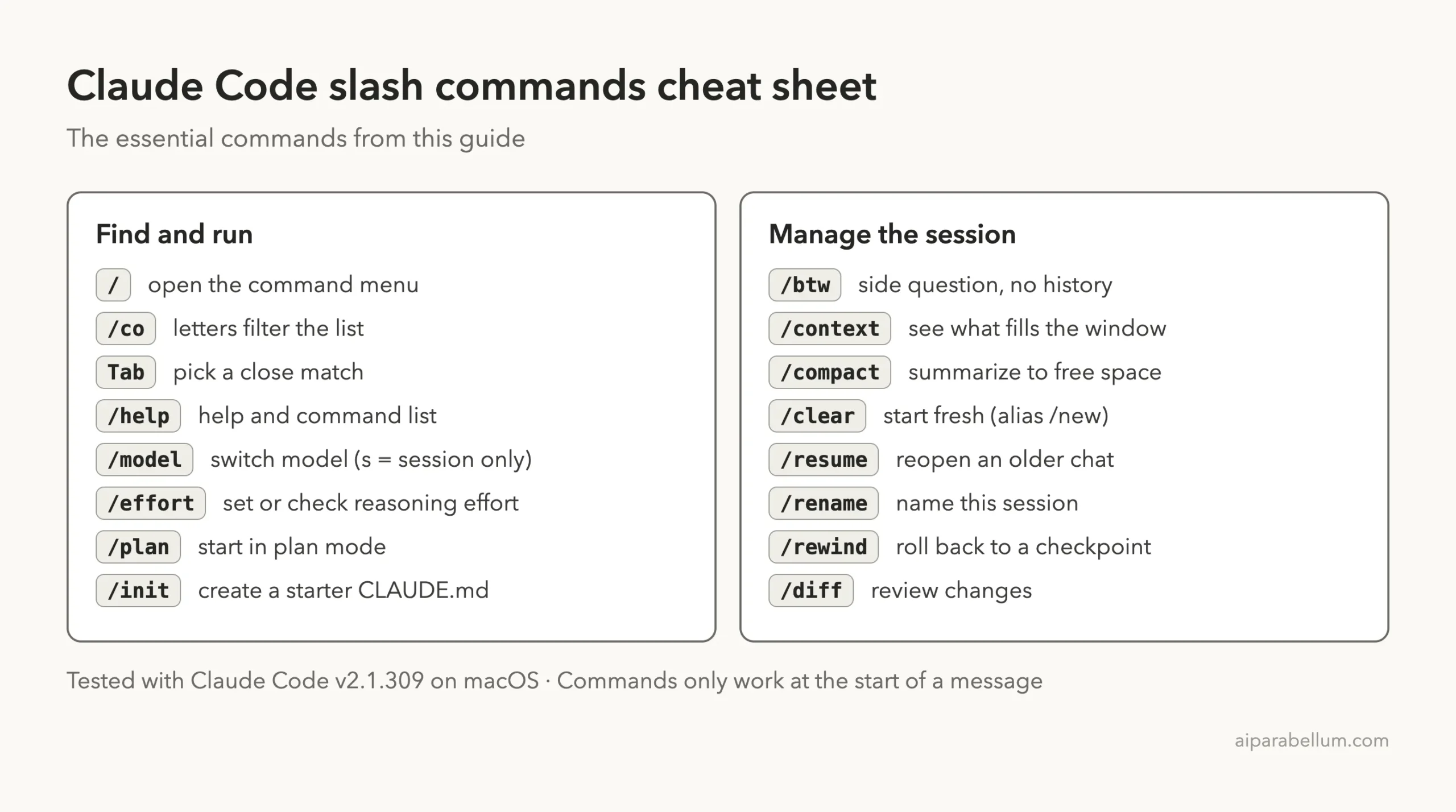
Claude Code Slash Commands Cheat Sheet
Save or bookmark this card for your next session. It covers the essentials from this guide.
Frequently Asked Questions
How do I see all Claude Code slash commands?
Type a single slash on an empty prompt to open the menu, or run /help and open its Commands tab. The full list also lives in Anthropic’s official command reference.
What is the difference between /clear and /compact?
/compact keeps the same conversation but replaces earlier turns with a summary. /clear starts a brand new conversation with empty context, and you can return to the old one with /resume.
Can I create my own slash commands?
Yes. The docs point to skills as the way to add your own commands, and they show up in the menu next to the built-in ones. We will cover that in a later part of this series, and you can read the skills docs now.
Why don’t I see a command mentioned in a tutorial?
Claude Code leaves commands you can’t use out of the menu. Availability depends on your platform, plan, version and environment, and a few commands such as /heapdump are hidden until you type the full name.
Can I run a slash command while Claude is still answering?
Yes. The docs say Claude Code queues most commands until the current turn finishes, while a few, such as /status, /tasks and /usage, run immediately.
Conclusion
Claude Code slash commands give you direct control over the tool itself. Type a slash to open the menu, add letters to filter it, and lean on a small core set: /help when you’re stuck, /model and /effort to tune Claude, /btw for side questions, /compact and /clear to manage memory, /rename and /resume to keep sessions organized, and /rewind when something goes wrong. Start with the ten commands in the summary table and add more as your projects grow. To learn more about the models behind the tool, visit our Claude AI page, or read our Claude Code overview if you’re new to the series.
Previous in the series: Part 7: Claude Code Interactive Mode: Shortcuts and Input Tricks
Next in the series: Part 9: Advanced Claude Code Slash Commands You Should Know.