When you type a request into Claude Code, it does not just write an answer and stop. It reads your files, runs commands, makes changes and checks its own work, over and over, until the job is done. This guide explains how Claude Code works under the hood, using a real bug fix we watched it do step by step.
Once you understand the loop and the tools behind it, the approval prompts stop feeling random. You will know why it wants to run a command, what each tool name means, and where you can step in.
This is Part 4 of 53 in our Claude Code tutorials series. If you have not opened a session yet, start with your first session and then come back here.
Tested with Claude Code v2.1.309 on October 24, 2026, on a Mac, in the terminal.
How Claude Code Works at a Glance
Here is the short version in one table. Each row is one piece of the system you will see in action below.
| Piece | What it does | Where you see it |
|---|---|---|
| The model | Reasons about your task and picks the next step | Model name on the start screen, /model to switch |
| Built-in tools | Read, edit and write files, run shell commands, search the web | Lines like Bash(…) and Update(file) in the chat |
| The agentic loop | Gather context, take action, verify results, repeat | A chain of tool calls after one prompt |
| Permissions | Decide which actions need your approval | Yes/No prompts and the mode in the footer |
| Checkpoints | Snapshot files before edits so you can undo | Esc twice opens the Rewind menu |
| Context window | Holds the conversation, files read and tool output | /context shows what fills it |
What the Agent Loop Is and Why It Exists
A regular chatbot can only reply with text. If you ask it to fix a bug, it guesses at a fix and you copy it into your editor yourself. Claude Code is different because it has tools, so it can look at the real code, change it and run it.
Anthropic’s official guide describes three phases: gather context, take action and verify results. These phases blend together. A simple question might only need the first phase, while a bug fix can cycle through all three several times.
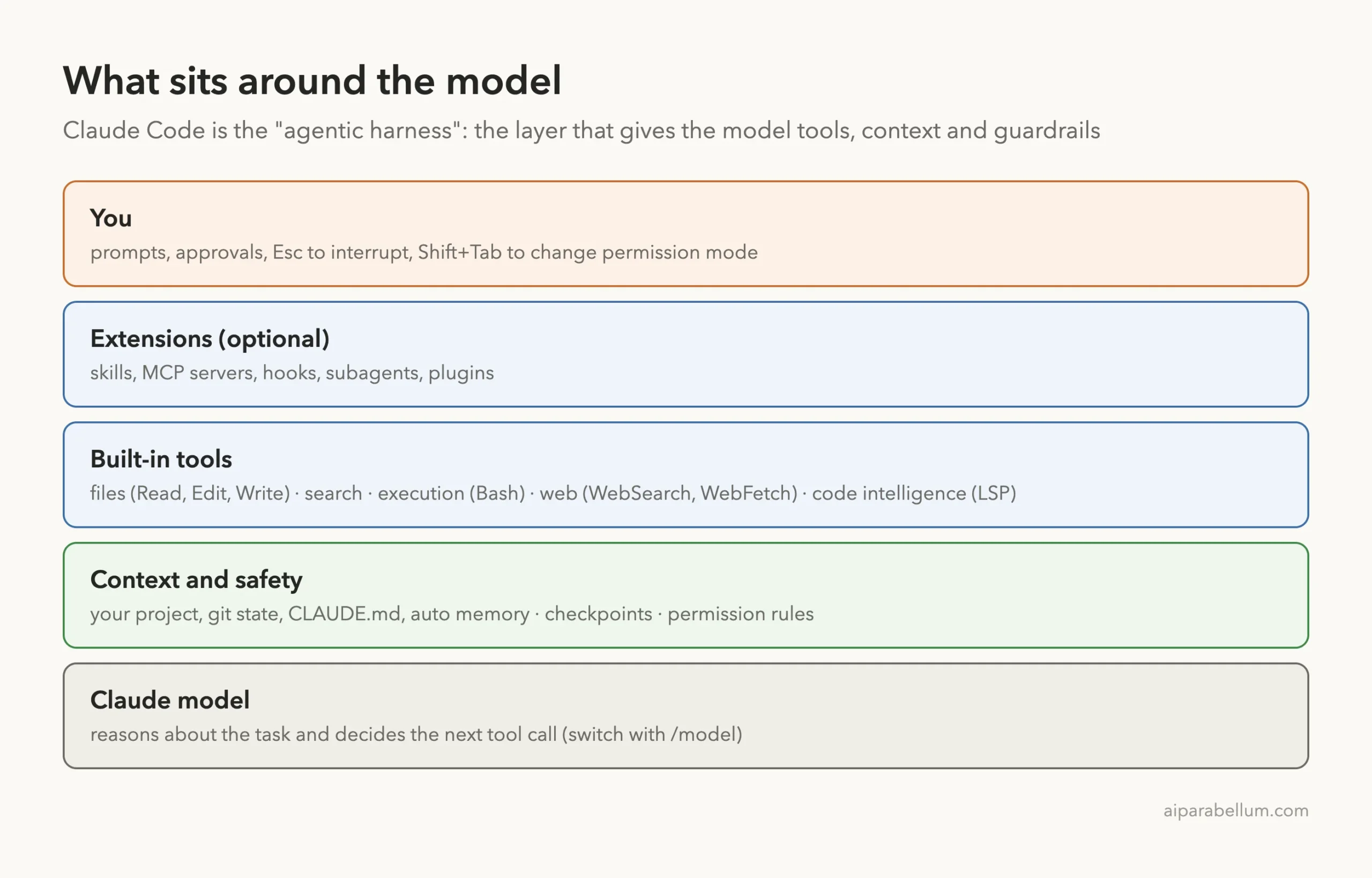
The docs also give the outer layer a name: the agentic harness. The Claude model does the thinking, and Claude Code is the layer around it that supplies the tools, manages what the model sees and enforces your permission rules.
The model decides what to do next. Claude Code gives it the hands to do it, and you hold the brakes.
Step 1: Ask Claude Code Which Tools It Has
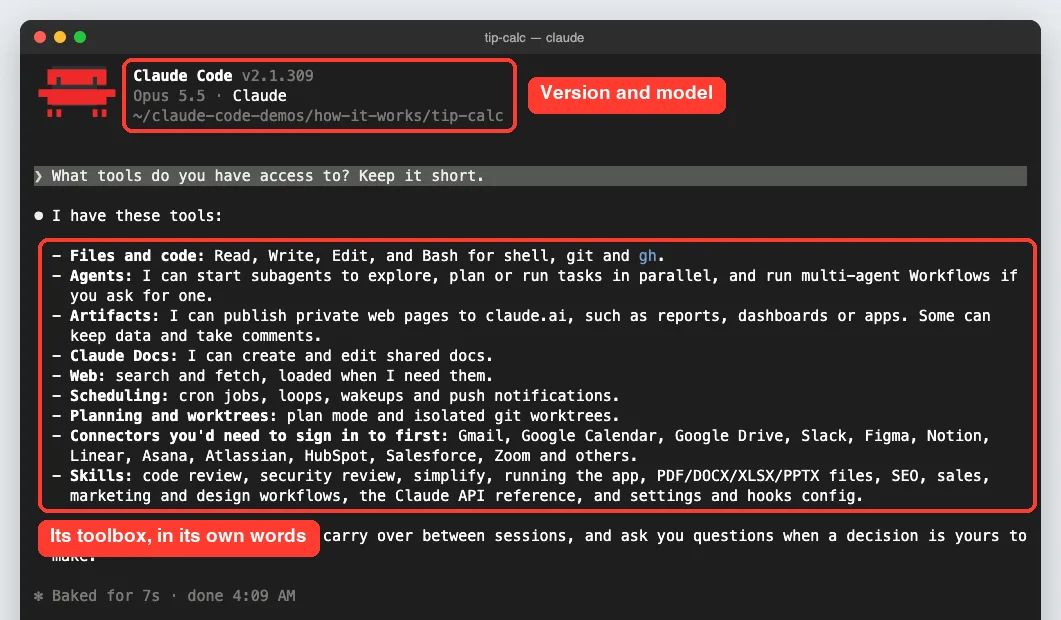
The easiest way to see the toolbox is to ask. The official tools reference suggests exactly this prompt, because your tool set depends on your provider, platform and settings.
What tools do you have access to?In our session, it answered with a grouped list. File and code tools came first, followed by subagents, web search and fetch, planning tools, and any connectors and skills installed on this computer. Your list will look different if you have other extensions set up.
The Five Groups of Built-In Tools
The docs sort the main built-in tools into five groups. Each group is a different kind of power, and the tool names are the exact words you will later use in permission rules.
| Group | What Claude can do | Example tool names | Asks first in manual mode? |
|---|---|---|---|
| File operations | Read files, edit code, create files | Read, Edit, Write, NotebookEdit | Read: no; Edit and Write: yes |
| Search | Find files and search inside them | Glob, Grep (or find and grep through Bash) | No, inside your project |
| Execution | Run shell commands, tests and git | Bash, PowerShell, Monitor | Yes, except a set of read-only commands |
| Web | Search the web and fetch pages | WebSearch, WebFetch | Yes |
| Code intelligence | See type errors, jump to definitions | LSP (needs a code intelligence plugin) | No |
There are more tools for orchestration, such as Agent for starting a subagent, AskUserQuestion for multiple-choice questions, and EnterPlanMode for plan mode. The full list lives in the tools reference.
A Surprise on Mac and Linux
On macOS, Linux and WSL, the docs say Claude Code leaves Glob and Grep out of the default tool set. Claude searches with find and grep through the Bash tool instead, and those searches show up in your permission rules as Bash calls. On Windows, Glob and Grep are part of the default set.
Step 2: Watch the Loop Gather Context
For the demo, we made a tiny Python tip calculator with two failing tests. The bug was simple: the code treated 20 as 2000 percent instead of 20 percent. Then we typed one short prompt and watched.
fix the failing testsWe never told it which files to open. Its first move was a single Bash command that printed the README, the code and the test file, then tried to run the tests with pytest. Because we started in manual mode, it stopped and asked before running anything.
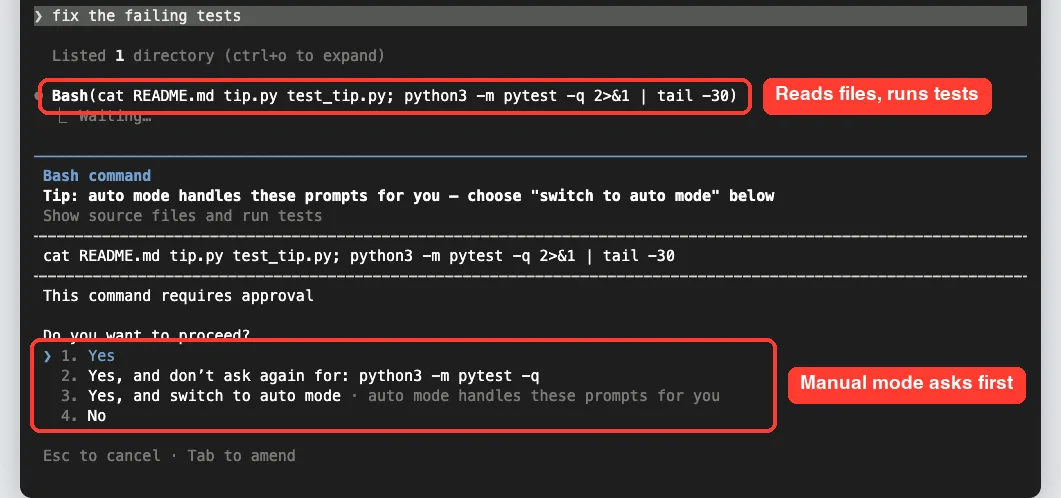
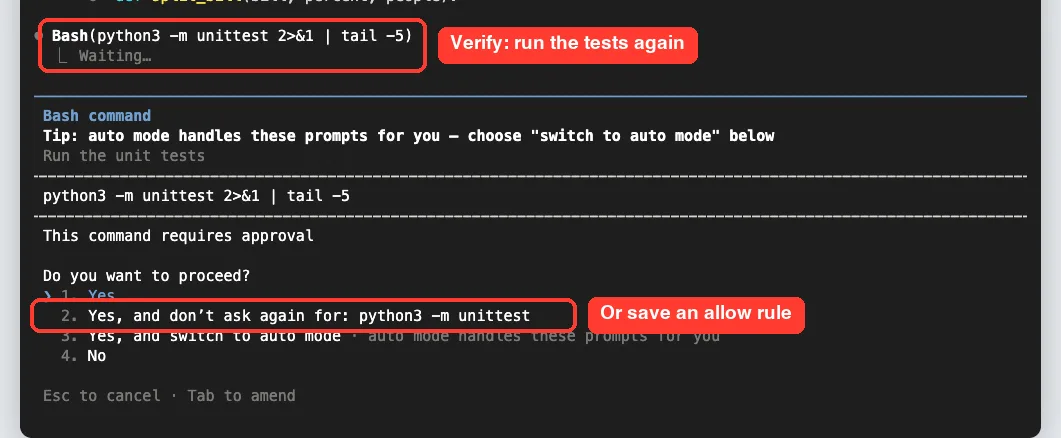
Notice the four choices. You can approve once, approve and stop asking for that command, switch to auto mode, or say no. The second option saves an allow rule, so the same command runs without a prompt next time.
Step 3: Watch It Take Action
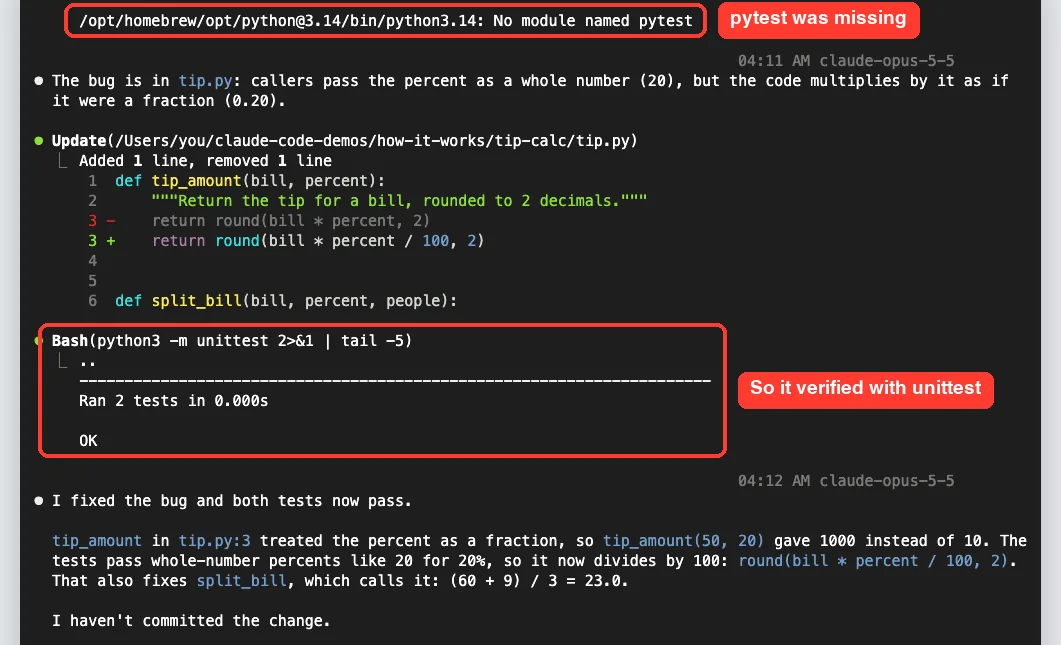
After reading the output, Claude Code explained the bug in one sentence. Callers pass the percent as a whole number like 20, but the code multiplied by it as if it were a fraction like 0.20.
Then it proposed an edit. The Edit tool does exact string replacement, so the preview shows the old line in red and the new line in green, and nothing else in the file changes.
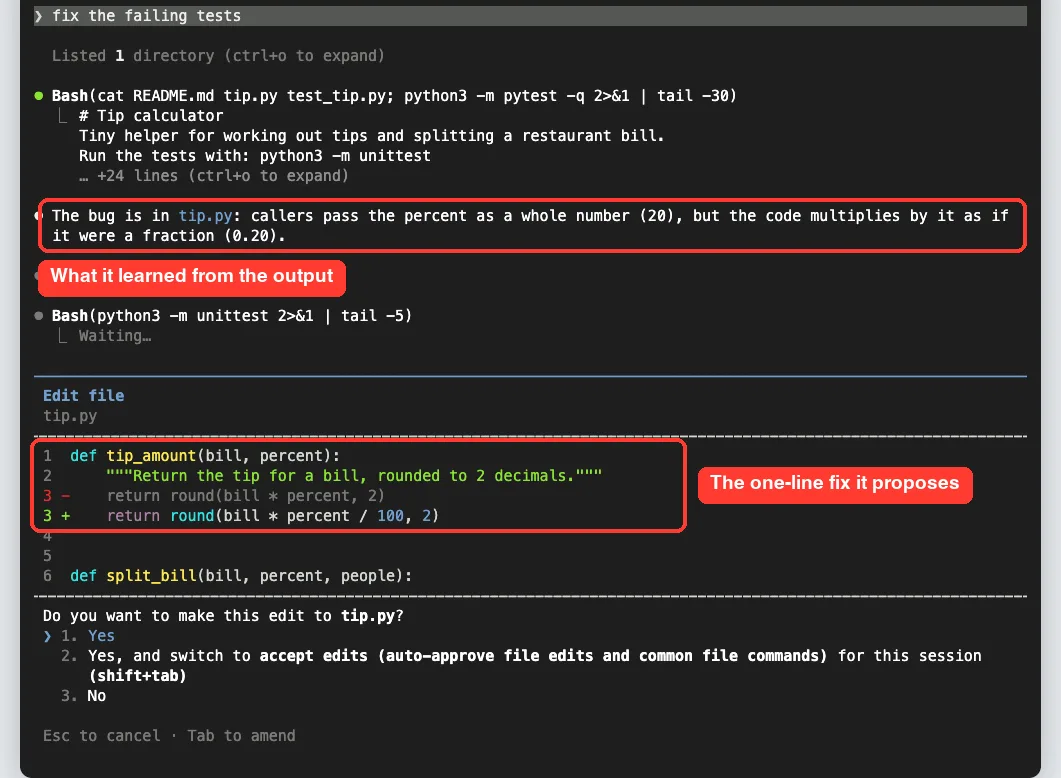
The edit prompt also offers to switch to accept edits mode for the rest of the session. That mode lets Claude edit files and run common file commands without asking, while still asking for other commands.
Step 4: Watch It Verify the Result
A good fix is a tested fix. Right after the edit, Claude Code asked to run the tests again, this time with Python’s built-in unittest runner.
How It Course-Corrected on Its Own
Why unittest and not pytest? We pressed Ctrl+O to open the detailed transcript and found the answer. Its first test run had failed with “No module named pytest,” because pytest is not installed on this Mac.
The README it had just read says to run the tests with python3 -m unittest, and that is the command it used to verify the fix. Both tests passed. This is the loop in action: each tool result feeds the next decision.
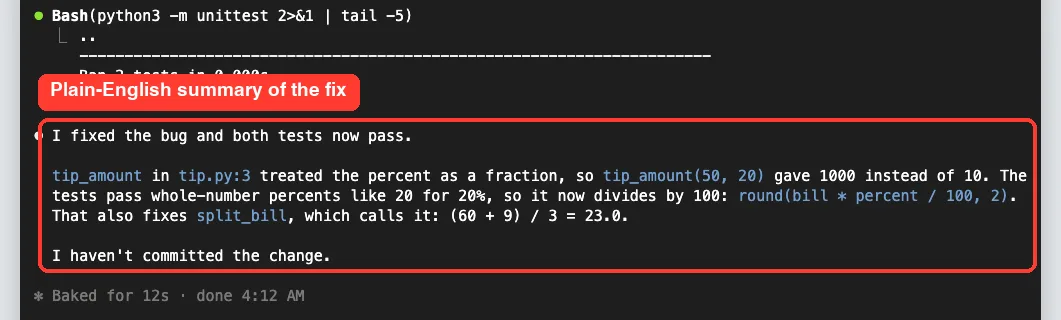
Finally, it reported back in plain English. It named the file and line, showed the math, noted that the fix also repaired split_bill, and said it had not committed the change.
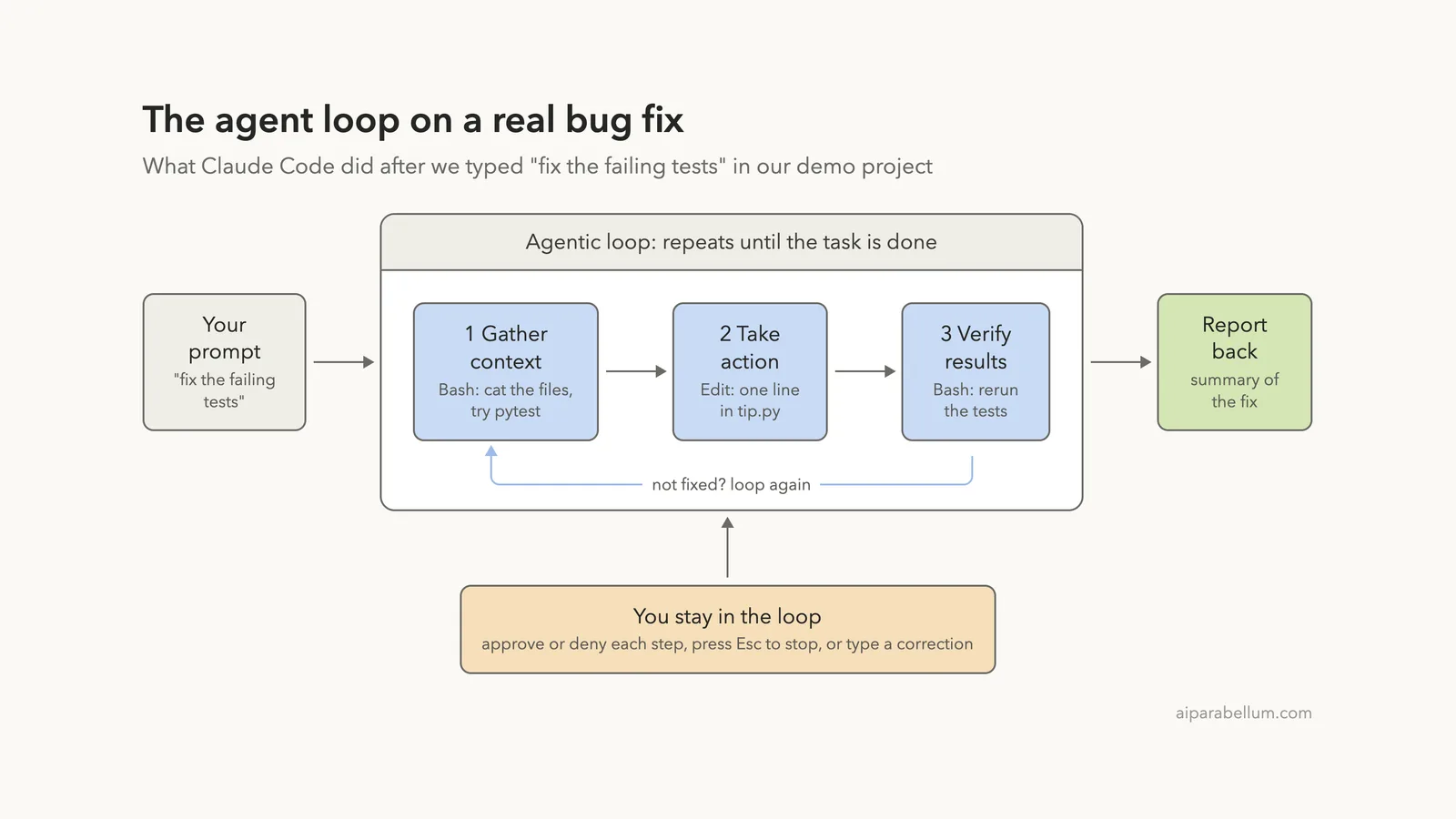
The Claude Code Agent Loop, Drawn Out
Here is the same run as a diagram. One prompt led to three tool calls, with a decision between each one, and you could step in at any point.
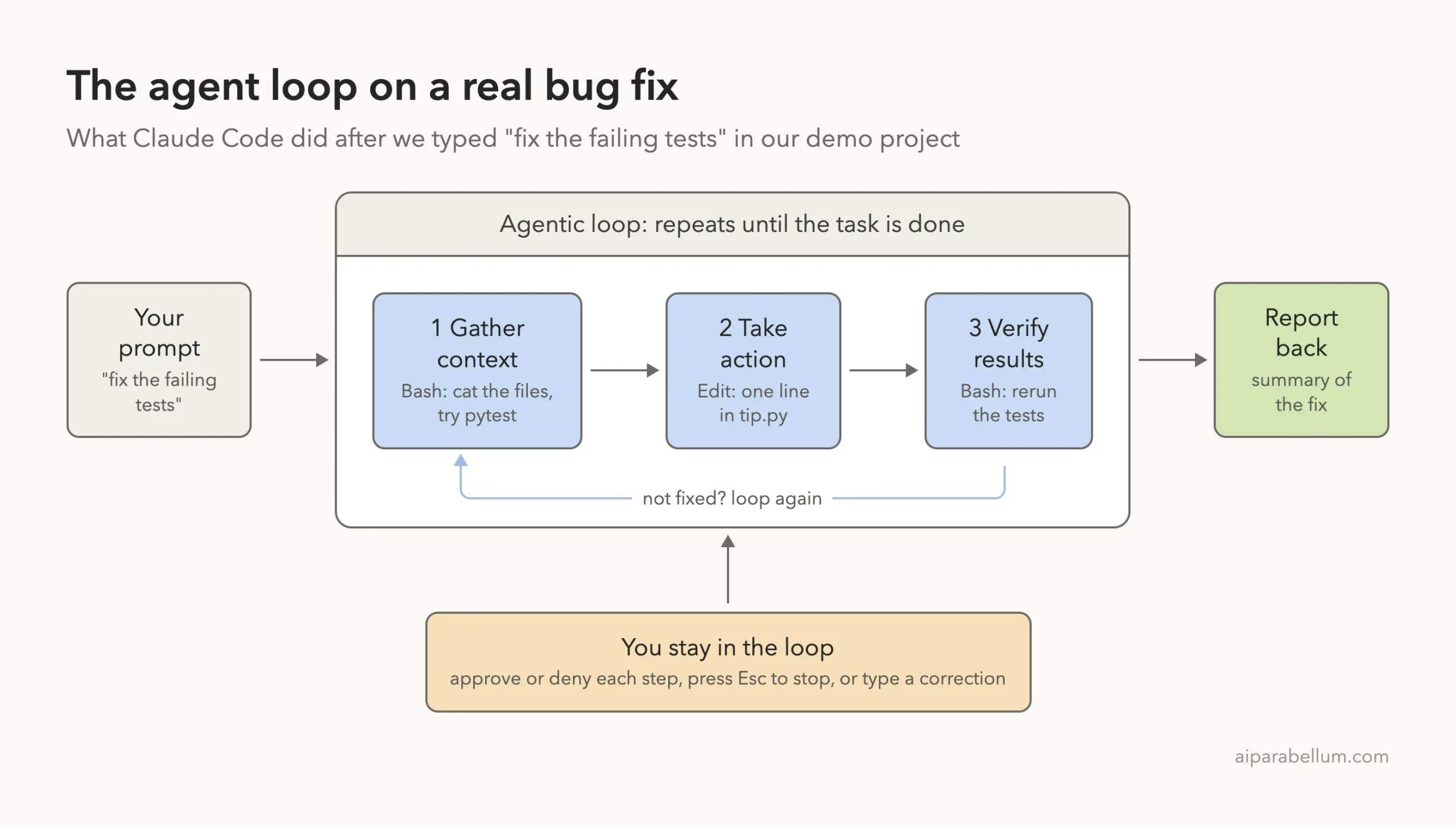
For a bigger job, the loop simply runs longer. The docs give “fix the failing tests” as an example that might mean running the suite, reading the errors, searching for source files, reading them, editing them and running the tests again.
What Claude Code Can See in Your Project
When you run claude in a folder, it can reach more than the file you are thinking about. Per the docs, it has access to the following.
- Your project files in that folder and its subfolders, plus files elsewhere if you allow it.
- Your terminal, meaning any command you could run yourself.
- Your git state, such as the current branch and uncommitted changes.
- Your CLAUDE.md file with project rules, and auto memory it saves as you work.
- Any extensions you set up, such as MCP servers, skills and subagents.
Everything it reads lands in the context window, along with the conversation and tool output. When that fills up, Claude Code clears older tool output first and then summarizes the conversation if needed. Run /context to see what is using space, and read the context window guide for a deeper look.
Your Safety Nets: Checkpoints and Permission Modes
The loop is powerful, so Claude Code gives you two ways to stay safe. Checkpoints let you undo file changes, and permission modes control what it can do without asking.
Rewind With Checkpoints
Before Claude edits a file, it snapshots the current contents. Press Esc twice on an empty prompt and the Rewind menu lists each of your prompts with the code changes it caused.
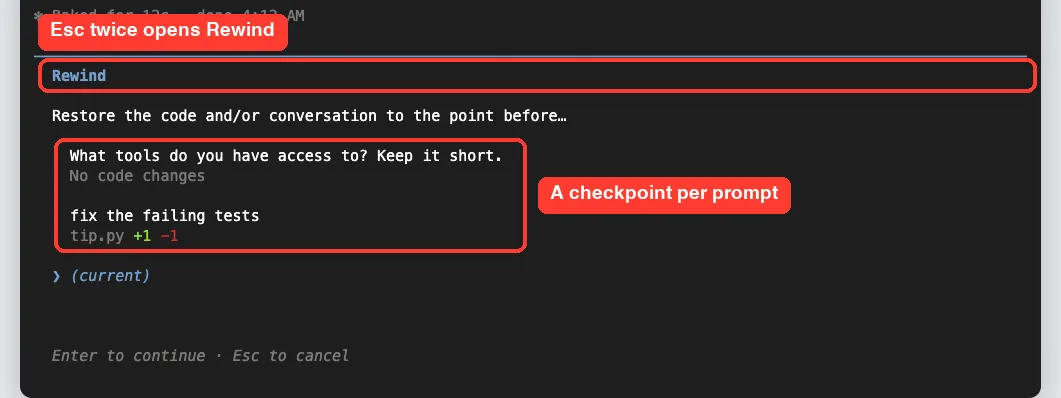
Checkpoints only cover file edits. Things that affect remote systems, like databases, APIs or deployments, cannot be undone this way, as the checkpointing docs explain.
Switch Permission Modes With Shift+Tab
Press Shift+Tab to cycle modes. In our session the footer moved from manual to accept edits, then plan, then auto.

| Mode | What happens | Good for |
|---|---|---|
| Manual | Asks before file edits and shell commands | Learning and sensitive projects |
| Accept edits | Edits files and runs common file commands without asking | Steady coding you review in git |
| Plan | Explores and proposes a plan without editing source files | Big changes you want to think through |
| Auto | A classifier reviews actions and blocks risky ones | Fewer interruptions on trusted work |
We cover these modes in depth in a later part. If the prompts already feel like too much, our guide on fewer permission prompts walks through the options, and the official permission modes page has every detail.
Real Examples of the Loop in Everyday Work
The loop adapts to what you ask. Here is how it tends to play out for common requests, based on the three phases in the docs.
- “What does this project do?” usually stays in the gather phase. It reads and searches, then answers.
- “Fix the login bug” cycles through all three phases, often more than once.
- “Rename this function everywhere” leans on search, then many small edits, then a test run.
- “Why does this error happen?” may add a web search or fetch to look up the message.
You can also steer it mid-loop. Press Esc to stop the current step, or type a correction and press Enter while it works, and it reads your message before its next step.
Try It Yourself
Make a tiny project with one failing test, open it in Claude Code in manual mode, and paste this prompt. Then answer each prompt carefully and watch which tool it picks at each step.
Fix the failing tests. Before each step, tell me in one line
which phase you are in (gather context, take action, or verify)
and which tool you are about to use.
When it finishes, press Ctrl+O to read the detailed transcript, then press Esc twice to see your checkpoints. Pick Esc again to leave the Rewind menu without changing anything.
Common Mistakes When Learning How Claude Code Works
- Telling it every file to open. You can, but it usually finds the right files on its own, so start with the goal.
- Approving prompts without reading them. The preview shows the exact command or edit, so take two seconds to check it.
- Expecting rewind to undo everything. Checkpoints cover file edits, not commands that changed a database or a server.
- Putting long-term rules only in chat. Early instructions can get lost when context is compacted, so put lasting rules in CLAUDE.md.
- Assuming every computer has the same tools. Your tool set depends on your platform, provider and settings.
Pro Tips
- Give it a way to check its work, like a test command, so the verify phase has something real to run.
- Use “Yes, and don’t ask again” only for safe commands you run often, such as your test command.
- Switch to plan mode before a big change so it explores first and edits later.
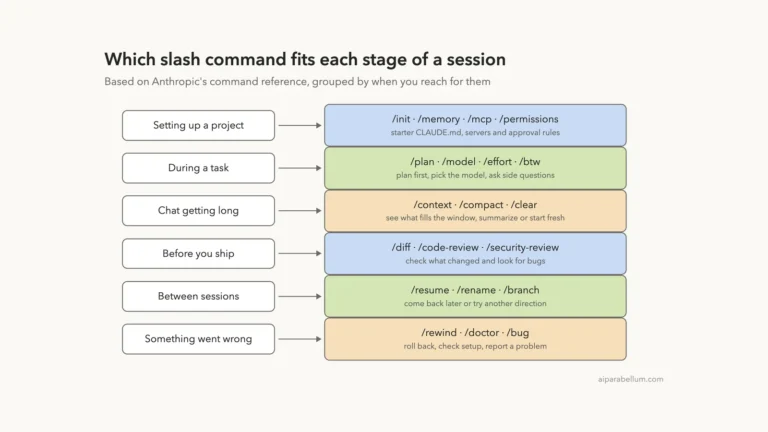
- Run /context during long sessions to see what is filling the window, and /compact to free space.
- Use the Ctrl+O transcript whenever a result surprises you. It shows every tool call and its output.
If you want ideas for real coding tasks to hand over, our guide on Claude for coding is a good next read.
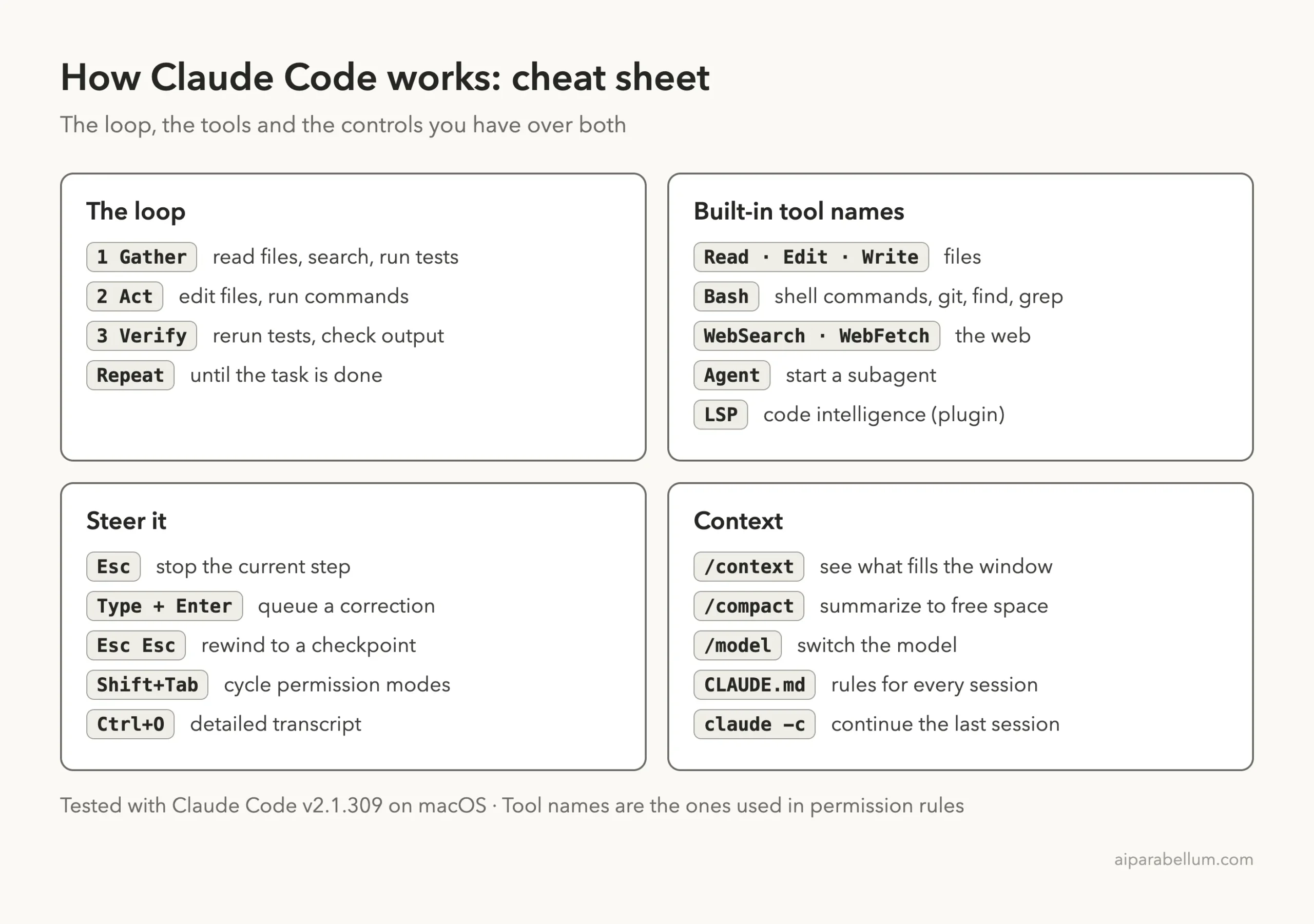
Claude Code Agent Loop Cheat Sheet
Save this card for quick reference while you practice.
Frequently Asked Questions
Does Claude Code send my whole project to the model at once?
No. It reads files as it needs them through tools like Read or Bash. Only what it reads, plus the conversation and tool output, goes into the context window.
Which model runs the agent loop?
A Claude model does the reasoning. Our session used the model shown on the start screen, and you can switch with /model or start with claude –model followed by a name.
Can I add my own tools?
Yes. You add custom tools by connecting an MCP server. Skills add reusable workflows through the existing Skill tool instead of adding a new tool.
Why did it use Bash to read files instead of the Read tool?
On macOS, Linux and WSL, searches and quick looks often go through Bash with commands like cat, find and grep. The docs note that viewing a file this way can also count as reading it before an edit.
How do I stop Claude Code in the middle of a task?
Press Esc. The running tool call is canceled and Claude waits for your next instruction, so you can redirect it without starting over.
Conclusion
How Claude Code works comes down to a simple idea: a Claude model reasons about your request, built-in tools let it read, edit, run and search, and the agentic loop repeats gather, act and verify until the job is done. In our demo, one short prompt became a file read, a failed pytest run, a one-line edit and a passing unittest run, with an approval at each step and a checkpoint we could rewind to. Keep an eye on the tool names in the chat, use Ctrl+O when you want the full story, and lean on permission modes and checkpoints as your safety nets. For more on the model family behind it, visit our Claude AI page.
Previous in the series: Part 3: Your First Claude Code Session, Step by Step
Next in the series: Part 5: Claude Code Plans and Login Options Explained.