You installed Claude Code, typed claude, and now a blinking prompt is waiting for you. What should you actually say to it? This guide walks you through a complete Claude Code first session, from opening a project to asking questions, approving a code change, committing it with Git and coming back later.
We did every step for real on a Mac with a tiny grocery list app, so each screenshot below is genuine output from our own session. You will see exactly what the approval prompts look like and what to press at each one.
This is Part 3 of 53 in our Claude Code tutorials series. If Claude Code is not on your computer yet, go back to the install guide and then return here.
Tested with Claude Code v2.1.309 on October 24, 2026, on a Mac, in the terminal.
Your First Claude Code Session at a Glance
Here is the whole session in one table. Each row is one step, and most steps are just one sentence you type in plain English.
| Step | What you do | What you see |
|---|---|---|
| 1. Open the project | cd into the folder, run claude | Version, model and folder at the top |
| 2. Ask a question | what does this project do? | A plain-English tour of your code |
| 3. Make a change | Describe the change you want | A preview of the edit and a Yes/No prompt |
| 4. Approve commands | Pick Yes when it wants to run something | The exact command before it runs |
| 5. Commit with Git | commit my changes with a descriptive message | A written commit message to approve |
| 6. Exit and resume | /exit, later claude -c | Your last conversation comes back |
What a Claude Code Session Is and Why It Matters
A session is one running conversation between you and Claude Code inside a project folder. While it runs, Claude Code can read the files in that folder, suggest edits, and run commands in your terminal. We covered the big picture in our beginner guide, so here we focus on the hands-on part.
The folder you start in matters a lot. Claude Code treats it as the project, so always open your terminal inside the project you want help with. Starting in your home folder or on the desktop is like asking a mechanic to fix “the car” without saying which one.
You also stay in charge the whole time. In manual mode, Claude Code stops and asks before it edits files or runs shell commands, and nothing happens until you pick Yes.
Think of your first session as a guided tour: you ask, it explains, it proposes, and you decide.
Step 1: Start Your First Session in a Project Folder
Open a terminal, move into your project with cd, and type claude. Our demo project was a tiny Python app with two files, main.py and storage.py, plus a README and a Git repository.
cd ~/claude-code-demos/first-session/grocery-list
claude
The first time you open a new folder, Claude Code asks whether you trust it. Only say yes for folders you created or know well. If this is your very first launch on the computer, it also asks you to sign in through your browser, which we showed in Part 2.
After that, you land on the start screen. It shows the Claude Code version, the model in use and the folder you are working in, with the prompt box right below.
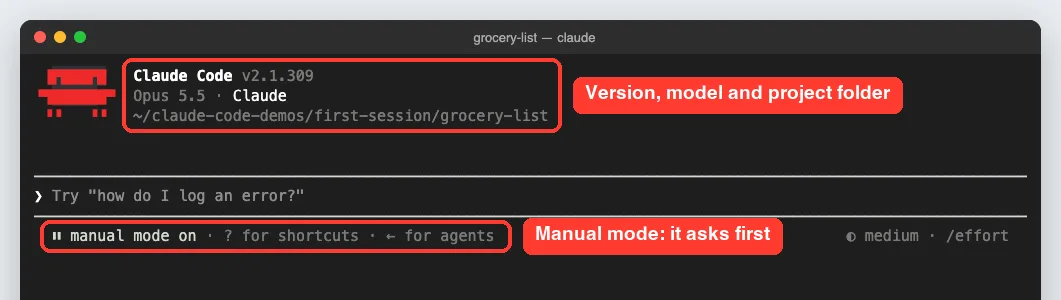
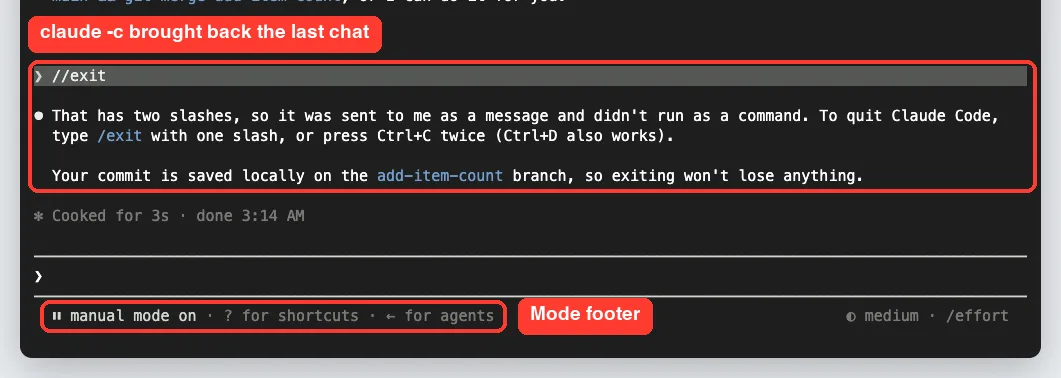
Look at the line under the prompt box. Ours says manual mode on, which means Claude Code will ask before acting.
We launched it with claude –permission-mode default so you can see every approval prompt. On recent versions, the official docs say a plain claude may start in auto mode instead, and the footer will tell you which one you got.
Which permission mode should a beginner use?
Stick with manual mode for your first few sessions. Seeing every proposed edit and command teaches you how Claude Code thinks, and you can switch later. The permission modes guide explains every option in detail.
Step 2: Ask Your First Question
The best first prompt is simple. The official Claude Code quickstart suggests this one, and we used it word for word:
what does this project do?You do not need to paste any code or point to files. Claude Code reads the project files it needs on its own. In our case it took about 15 seconds and came back with a clear breakdown.
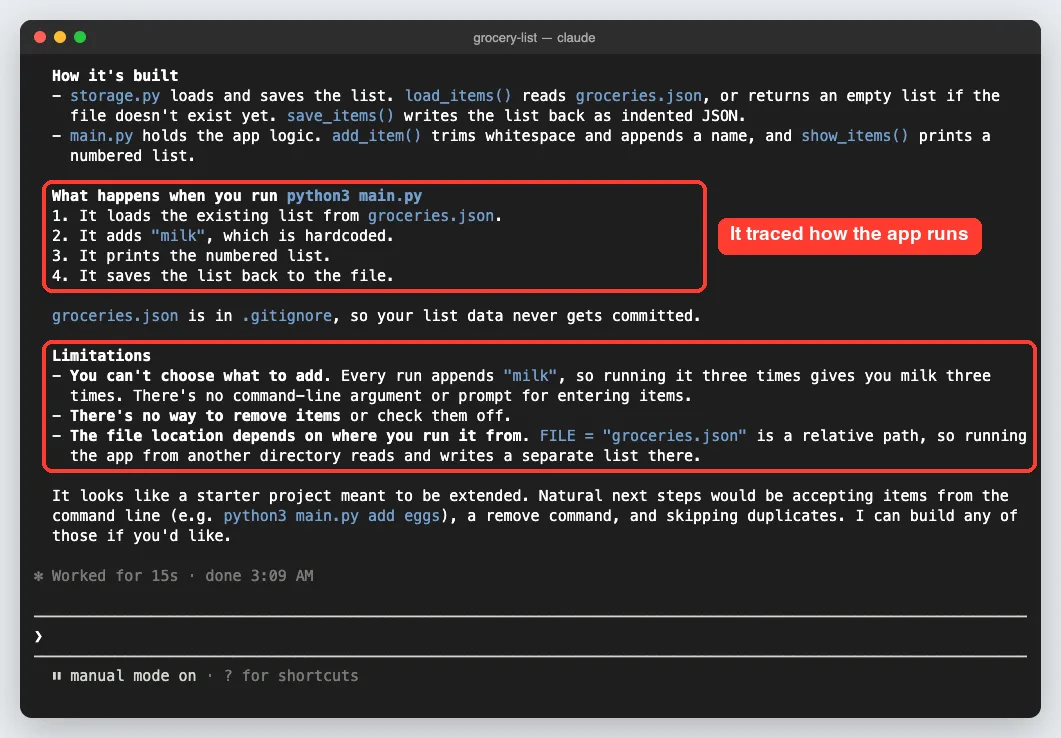
It explained which file does what, listed the four things that happen when you run the app, and even pointed out problems. For example, it noticed that every run adds “milk” again because the item is hardcoded. That is a lot of insight from one short question.
More good first questions to try
- what technologies does this project use?
- where is the main entry point?
- explain the folder structure
- what can Claude Code do?
Asking questions first is free of risk, because reading files never changes them. It also helps Claude Code build a picture of your project before you ask for changes.
Step 3: Make Your First Code Change
Now ask for something small and specific. We typed this:
add a function to main.py that prints how many items are on the list, and call it at the endClaude Code read main.py and then paused with an edit preview. Green lines with a plus sign are what it wants to add, and the question underneath asks for your decision.
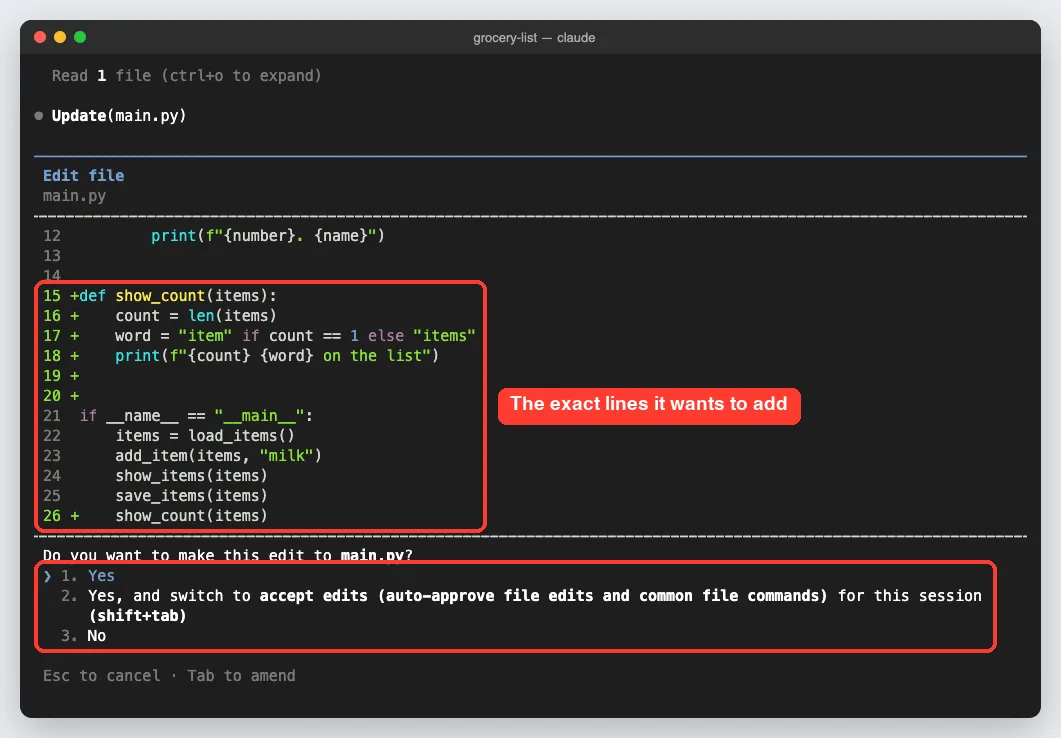
You get three choices. Yes approves just this edit, and the second option approves it and switches the session to accept edits mode, so later file edits go through without asking.
No rejects it, and you can then tell Claude Code what to do differently. Esc cancels, and Tab lets you add a note to your answer.
We picked Yes. Read the preview every time, at least while you are learning. It is the single best habit you can build in your Claude Code first session.
Step 4: Approve or Reject Commands
Right after the edit, Claude Code wanted to test its work. It asked to run the app twice from a temporary scratch folder, so our real grocery file would stay untouched.
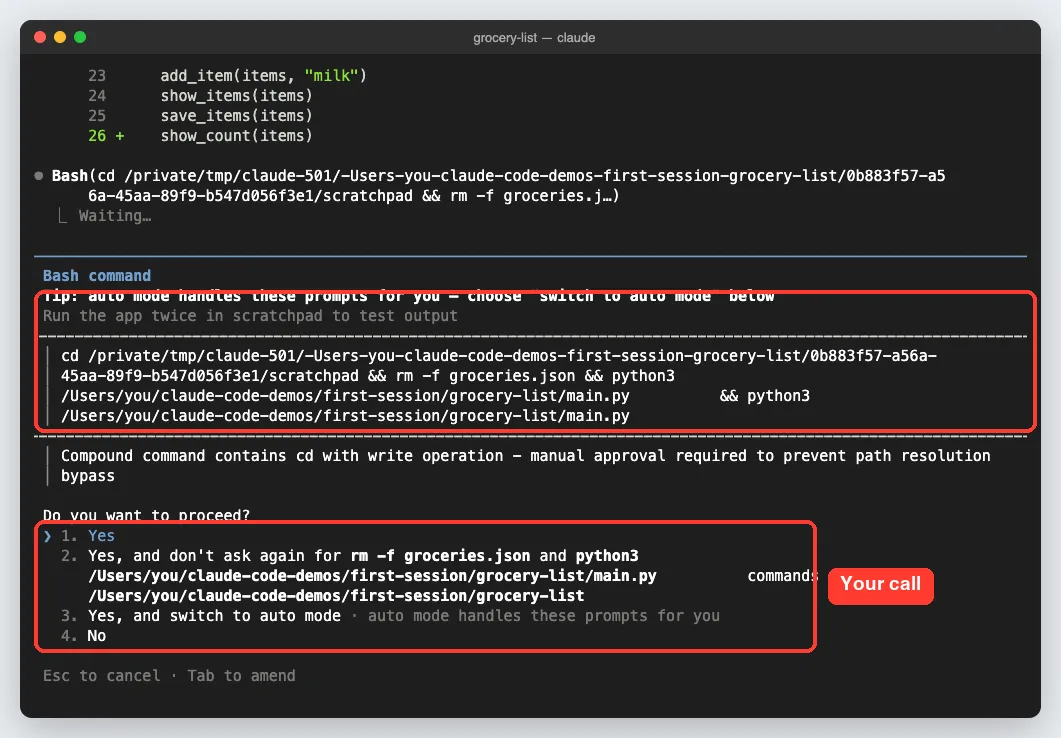
This prompt works the same way as the edit prompt. You see the full command and a short description, then choose. The options also include “don’t ask again” for similar commands in this folder, and “switch to auto mode,” which lets a classifier review actions instead of you.
We picked Yes again. A few seconds later, Claude Code reported back with a plain summary and the real output from both test runs.
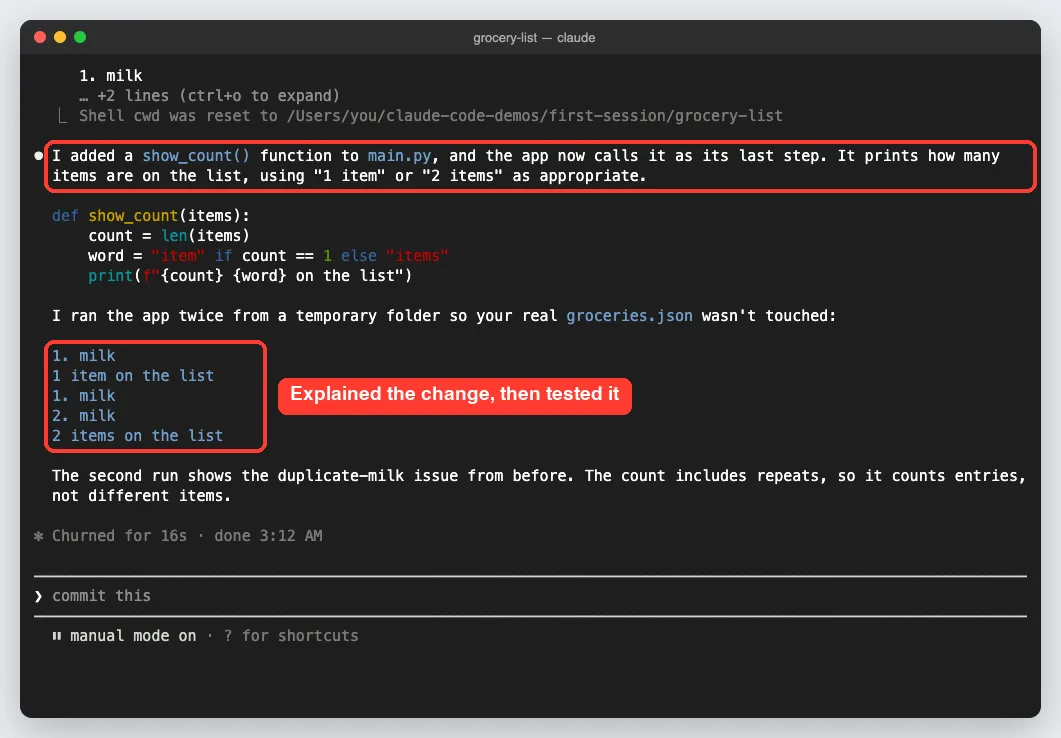
Notice the honest note at the bottom. The count includes the duplicate milk from the second run, and Claude Code pointed that out instead of hiding it. If you want that fixed, it is one more prompt away.
Step 5: Use Git Inside Your Session
Claude Code makes Git conversational. You do not need to remember any Git commands; you just say what you want. We typed the prompt from the official docs:
commit my changes with a descriptive messageClaude Code wrote a commit message describing the change and asked to run the Git command. The message was clear and specific, which is more than many of us manage at the end of a long day.
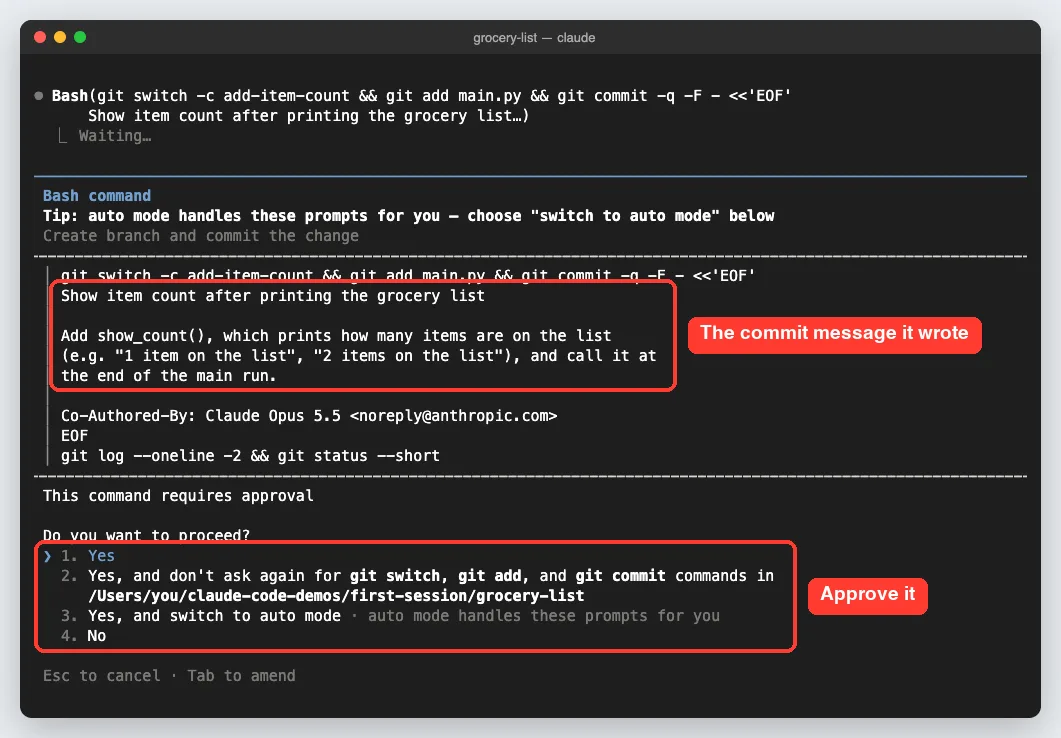
Look closely and you will see it also planned to create a new branch called add-item-count. After we approved, it explained why.
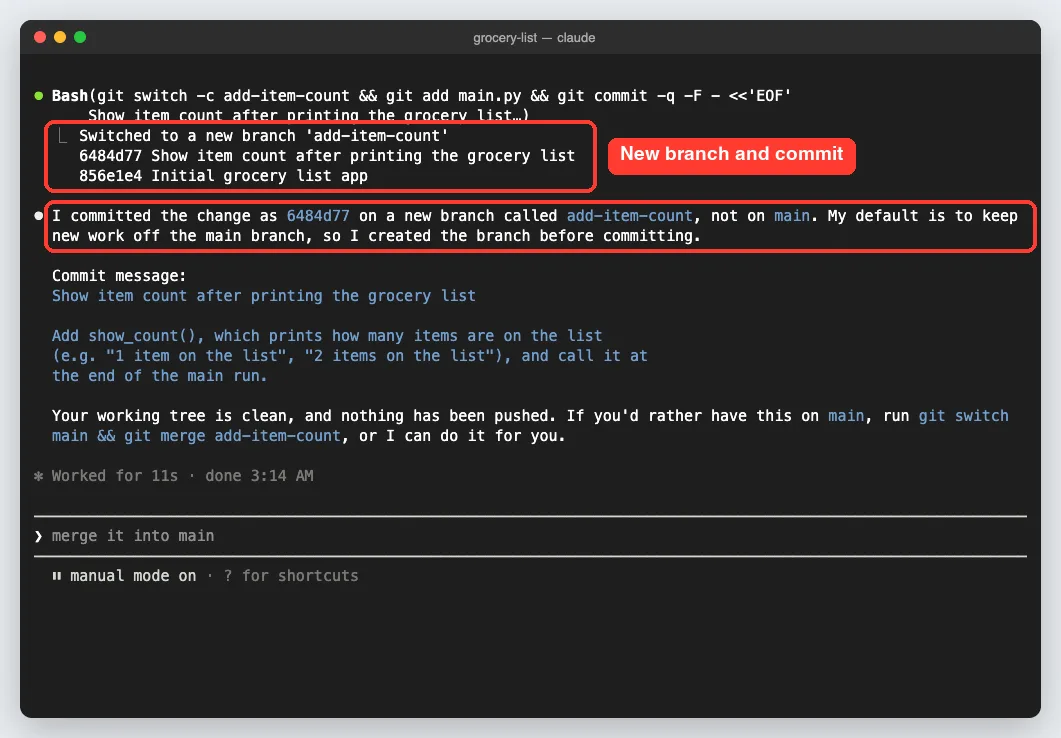
Its reason was simple: it prefers to keep new work off the main branch. It also noted that nothing was pushed and offered to merge the branch if we wanted. This is a good example of why you should read the final message, not just the green check marks.
Other Git prompts worth trying
- what files have I changed?
- show me the last 5 commits
- create a new branch called feature/quickstart
- help me resolve merge conflicts
How the Whole Session Fits Together
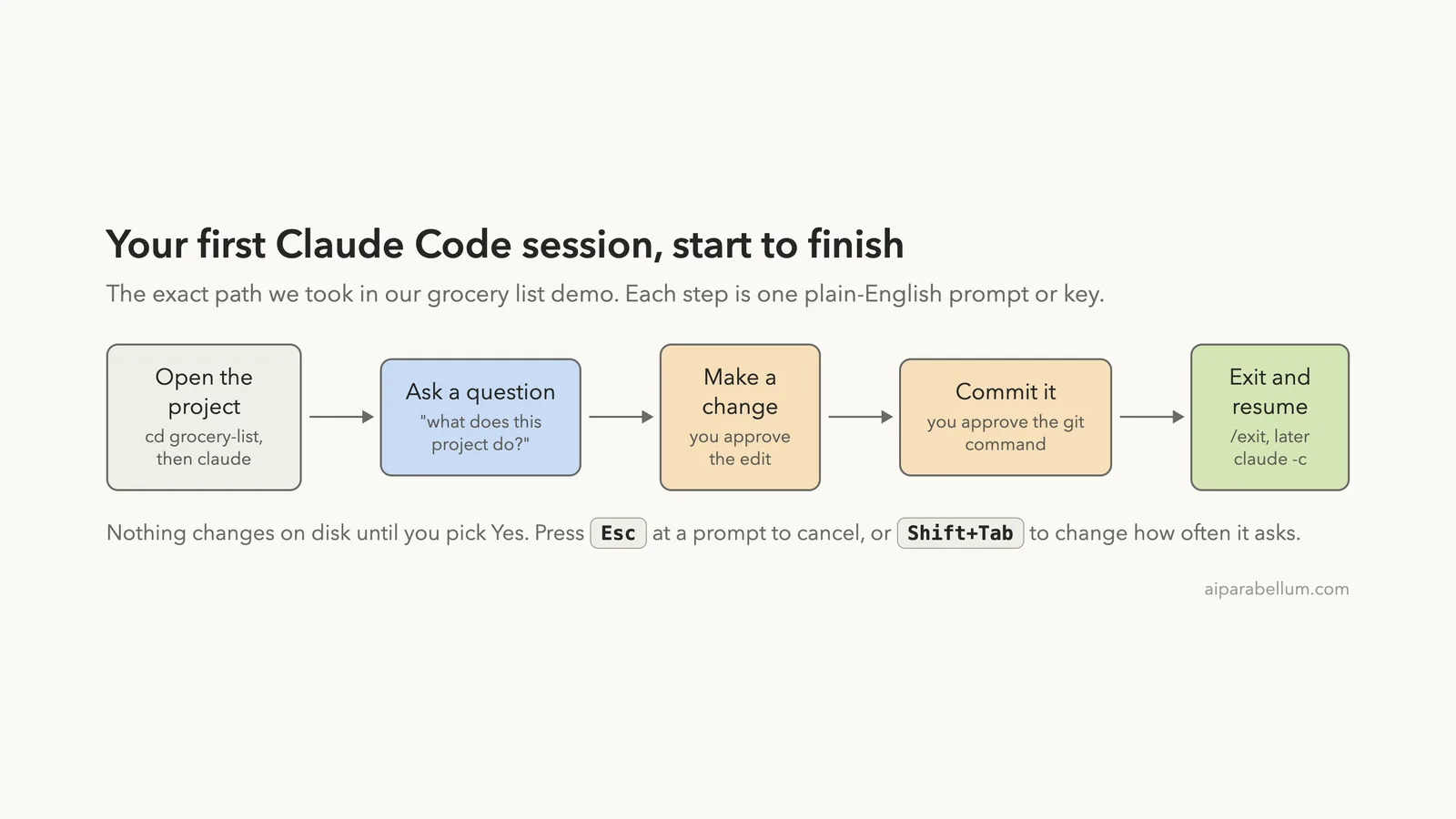
Here is the path we followed, from opening the folder to coming back later. You can reuse this order for almost any small task.
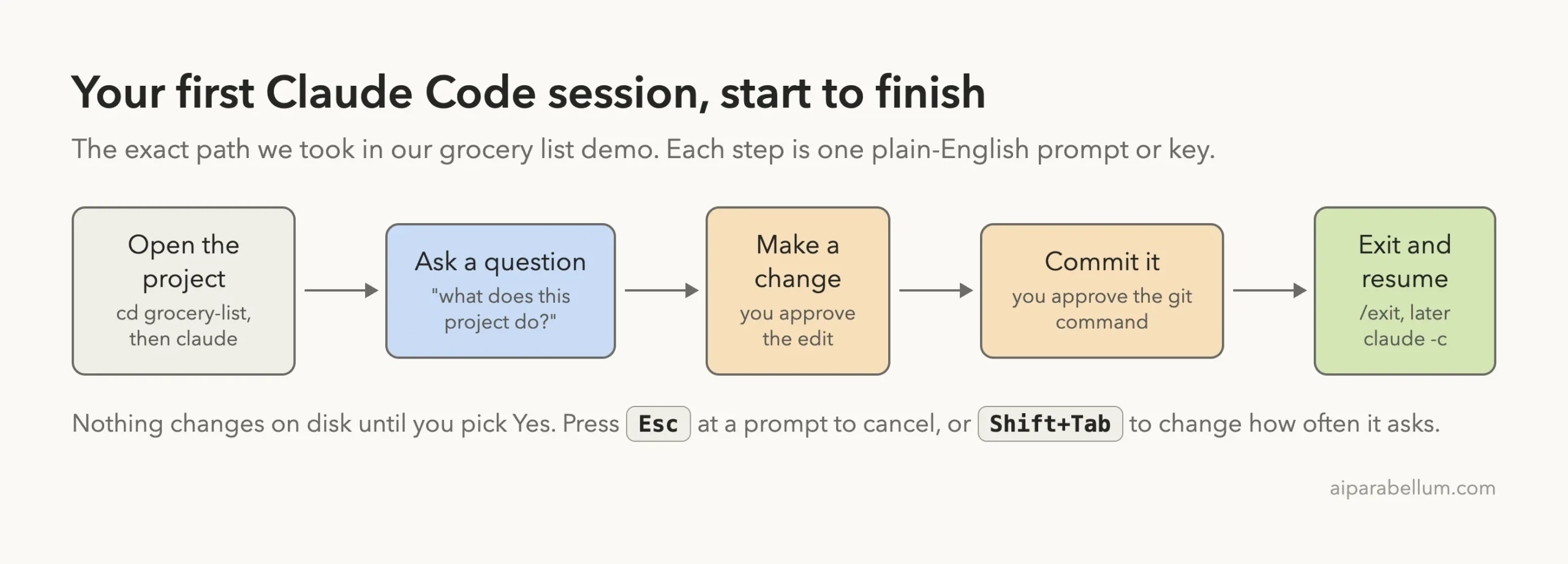
The two orange steps are where you approve things. Everything else is reading and talking, so it is safe to explore as much as you like.
Step 6: Switch Modes, Exit and Resume
Switch permission modes with Shift+Tab
Press Shift+Tab at the empty prompt and the footer changes. In our session, each press moved through manual mode, accept edits, plan mode and auto mode, and then back to manual.

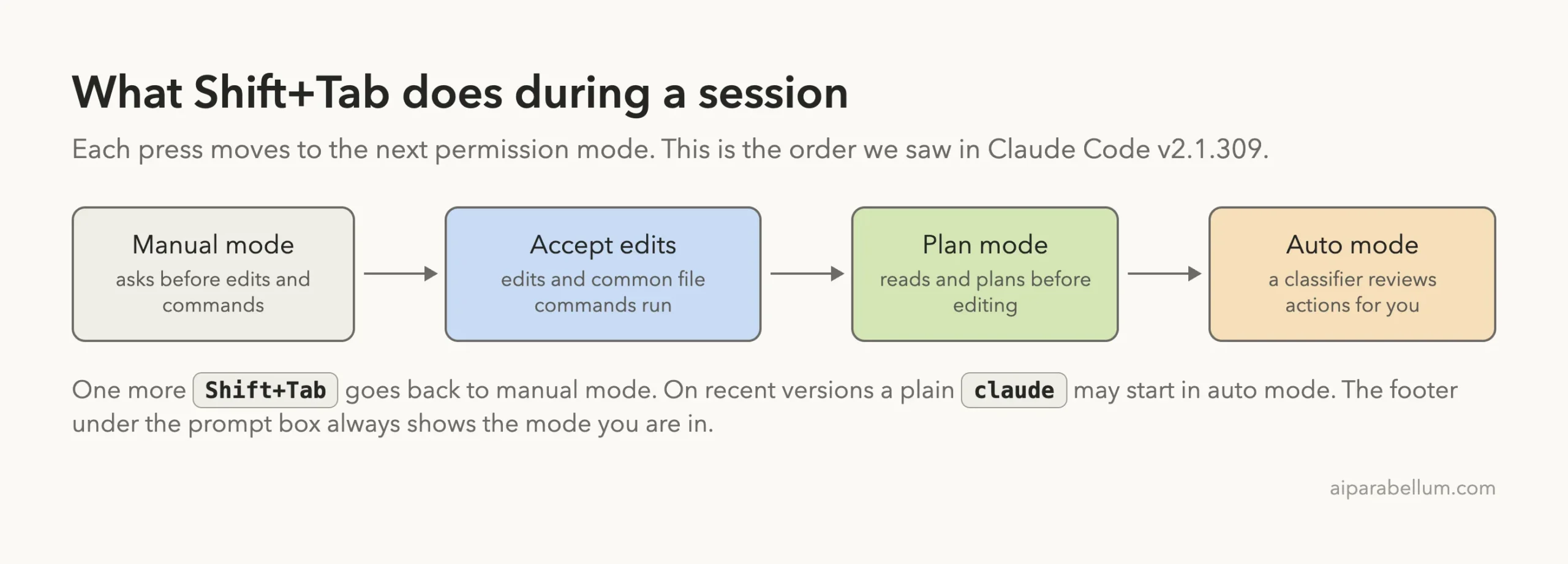
Plan mode is handy when you want Claude Code to study the code and suggest a plan before touching anything. If the constant prompts start to slow you down later, our guide on fewer permission prompts covers the safe options.
Exit the right way
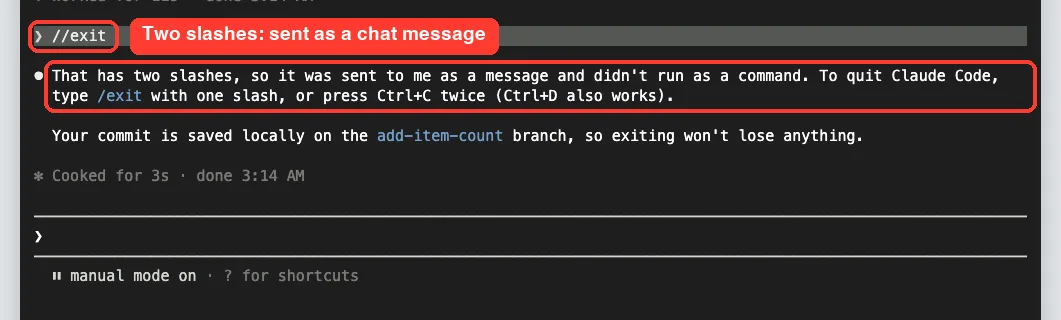
To leave, type /exit with one slash, or press Ctrl+D twice. We made a real typo here and typed two slashes.
Claude Code did not quit. It treated the text as a normal message and politely explained the mistake.
Pick up where you left off
Your conversation is not lost when you exit. Back in the same folder, run claude -c to continue the most recent conversation, or claude -r to choose an older one. We used claude -c and our whole chat, including the typo, came right back.
Real Examples of First-Session Prompts
Here are the exact prompts we used and what each one did. All of them came from or were modeled on the official quickstart.
| Prompt we typed | What Claude Code did | Approval needed? |
|---|---|---|
| what does this project do? | Read both files and explained the app and its limits | No |
| add a function to main.py that prints how many items are on the list | Added show_count() and called it at the end | Yes, for the edit |
| (none, it chose to test on its own) | Ran the app twice in a scratch folder | Yes, for the command |
| commit my changes with a descriptive message | Created a branch and committed with a clear message | Yes, for the git command |
That is four prompts for a full loop of understand, change, test and save. Your own project will be bigger, but the rhythm stays the same.
Try It Yourself
Want to practice without risking real work? Make a small throwaway project and run the same session.
- Create a new folder with one or two small script files.
- Run git init and make a first commit, so you can undo anything.
- Open a terminal in that folder and run claude.
- Ask what the project does, then paste the prompt below.
- Read each preview, pick Yes, then ask it to commit.
Add a function that prints a friendly goodbye message when the program ends. Keep the change small, show me the edit first, and then run the program once so I can see the output.When you are done, type /exit, then run claude -c to see your conversation come back. For more prompt ideas, see our guide on Claude for coding.
Common Mistakes in Your First Claude Code Session
- Starting in the wrong folder. Claude Code works on the folder you launch it from, so cd into your project first.
- Approving without reading. The preview is there for a reason; skim every edit and command before you pick Yes.
- Asking vague questions. “fix the bug” gives Claude Code little to work with, while a clear description of the problem gets better results.
- Typing //exit. Two slashes send a chat message; use one slash, or Ctrl+D twice.
- Skipping Git. Without a commit to return to, undoing a change you dislike is much harder.
Pro Tips for Your First Claude Code Session
- Let it explore first. Ask a question or two before asking for changes, so it understands your code.
- Break big jobs into steps. A numbered list of small tasks works better than one giant request.
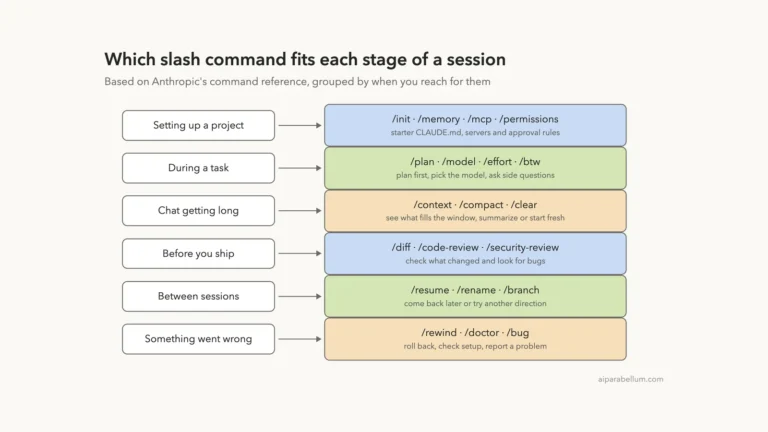
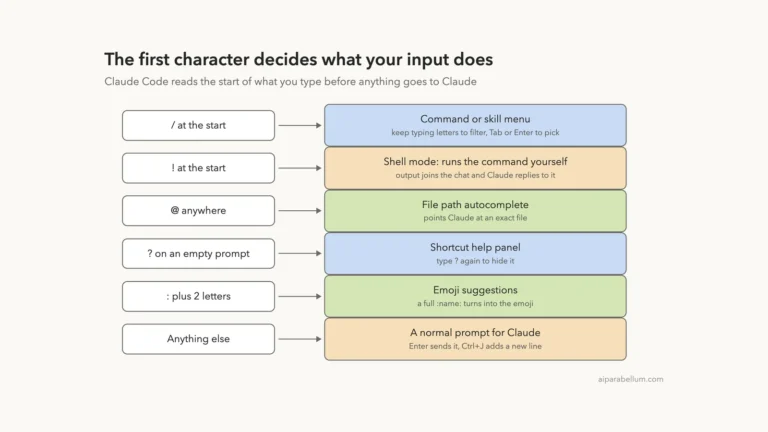
- Type / to see the commands and skills available to you, and use Tab to complete them.
- Press the Up arrow to bring back an earlier prompt instead of retyping it.
- Use claude “task” to start a session with your first prompt already sent, and claude -p “query” for a quick one-off answer.
The best practices page and the common workflows guide are worth bookmarking. Our own Claude tips list adds more everyday tricks.
First Session Cheat Sheet
Save this card and keep it next to your terminal for the first week.
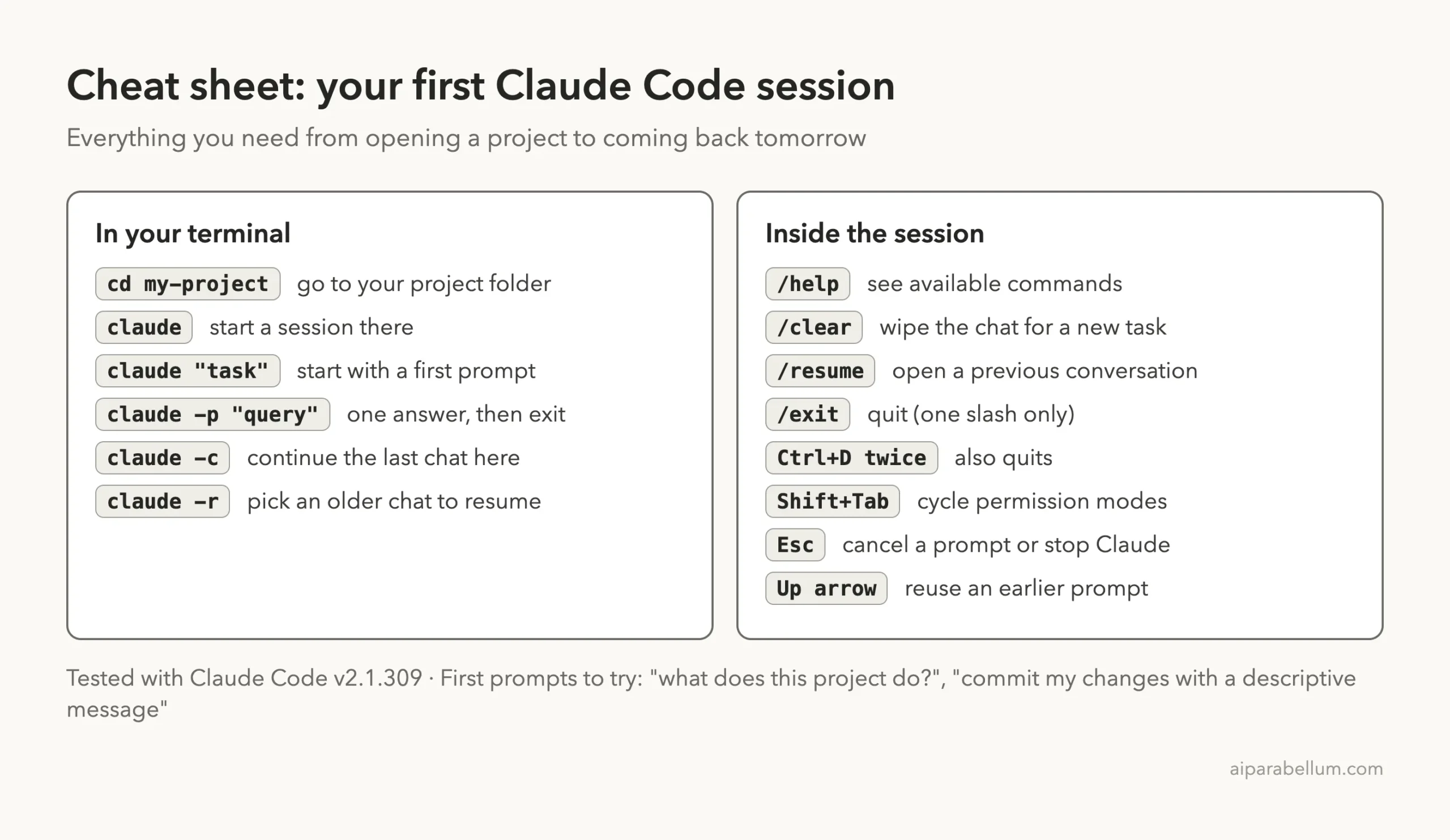
For the complete lists, see the official CLI reference and commands reference.
Frequently Asked Questions
Do I need to paste my code into Claude Code?
No. Claude Code reads the files in your project folder as it needs them. You just describe what you want in plain English.
Will Claude Code change my files without asking?
In manual mode, it asks before editing files or running commands, and it shows you the change first. Other modes, such as accept edits or auto mode, ask less often, and the footer always shows which mode you are in.
How do I continue yesterday’s conversation?
Open the same project folder and run claude -c for the most recent conversation, or claude -r to pick an older one. Inside a session, /resume does the same job.
What is the difference between /clear and /exit?
/clear wipes the conversation history so you can start a fresh task in the same session. /exit closes Claude Code completely.
Can I use Claude Code if I don’t know Git?
Yes. You can ask in plain English, such as “what files have I changed?” or “commit my changes,” and Claude Code runs the Git commands after you approve them.
Conclusion
Your first Claude Code session comes down to a simple rhythm: open your project, ask what it does, request one small change, read and approve the previews, commit the result, and exit with one slash so you can resume later with claude -c. Stay in manual mode while you learn, keep your requests specific, and lean on Git as your safety net. Once that loop feels natural, you are ready to let Claude Code take on bigger tasks, and you can always explore more about the model behind it on our Claude AI page.
Previous in the series: Part 2: How to Install Claude Code on Mac, Windows and Linux
Next in the series: Part 4: How Claude Code Works: The Agent Loop and Built-In Tools.