What is Claude Code, and why are so many developers talking about it? In plain terms, Claude Code is an AI coding assistant from Anthropic that reads your project, edits files, runs commands and checks its own work. You talk to it in normal English, and it asks your permission before it changes anything.
This guide walks you through what it is, where it runs, and what a real first session looks like. We tested every step ourselves on a tiny demo project, so every screenshot below is real output, not a mockup.
This is Part 1 of 53 in our Claude Code tutorials series. Start here, and each new part builds on what you learn today.
Tested with Claude Code v2.1.309 on October 24, 2026, on a Mac, in the terminal.
Claude Code at a Glance
Here is the short version before we dig in. If you only have a minute, this table covers the basics.
| Question | Short answer |
|---|---|
| What is it? | An agentic coding tool that reads your codebase, edits files and runs commands |
| Who makes it? | Anthropic, the company behind Claude |
| Where does it run? | Terminal, VS Code, JetBrains, a desktop app and the web |
| How do you start it? | Open a project folder in a terminal and type claude |
| What do you need? | A Claude subscription or an Anthropic Console account (most surfaces) |
| Does it change files on its own? | In the default mode, it asks before each edit or command |
What Is Claude Code, in Plain English?
Anthropic’s own docs describe Claude Code as an agentic coding tool that reads your codebase, edits files, runs commands, and works with your development tools. The word agentic is the key part. A regular chatbot answers questions, while Claude Code can actually do the work inside your project.
Think of the difference this way. If you paste code into a chat window, you copy the answer back and test it yourself. With Claude Code, it opens the files, makes the change, runs the test and tells you what happened.
Claude Code does not just suggest code. It reads, edits, runs and checks, and you approve each step.
It is built on the same Claude models you may already use in the chat app. If you are new to Claude in general, our Claude AI overview is a good place to get the bigger picture first.
Why Claude Code exists
Lots of coding work is not hard, just slow. Writing tests, fixing lint errors, updating dependencies and writing release notes all eat up hours. The official overview lists exactly these chores as the kind of work Claude Code is meant to take off your plate.
It also helps with bigger jobs. You can describe a feature in plain language, and it plans the approach, writes code across several files and checks that it works.
What it can do for you
Based on the official docs, here is what Claude Code handles today:
- Build features and fix bugs from a plain-English description or an error message
- Write and run tests, then fix what fails
- Work with git: stage changes, write commit messages, create branches and open pull requests
- Connect to outside tools such as Google Drive, Jira or Slack through MCP, the Model Context Protocol
- Follow your project rules stored in a CLAUDE.md file
- Run in scripts and CI with the claude -p command
- Run on a schedule, or split a big task across several agents
Do not worry if some of these terms are new. Later parts of this series cover each one with its own hands-on demo.
Where You Can Use Claude Code
Claude Code is not only a terminal tool. The docs call each place you can use it a surface, and they all share the same engine underneath.
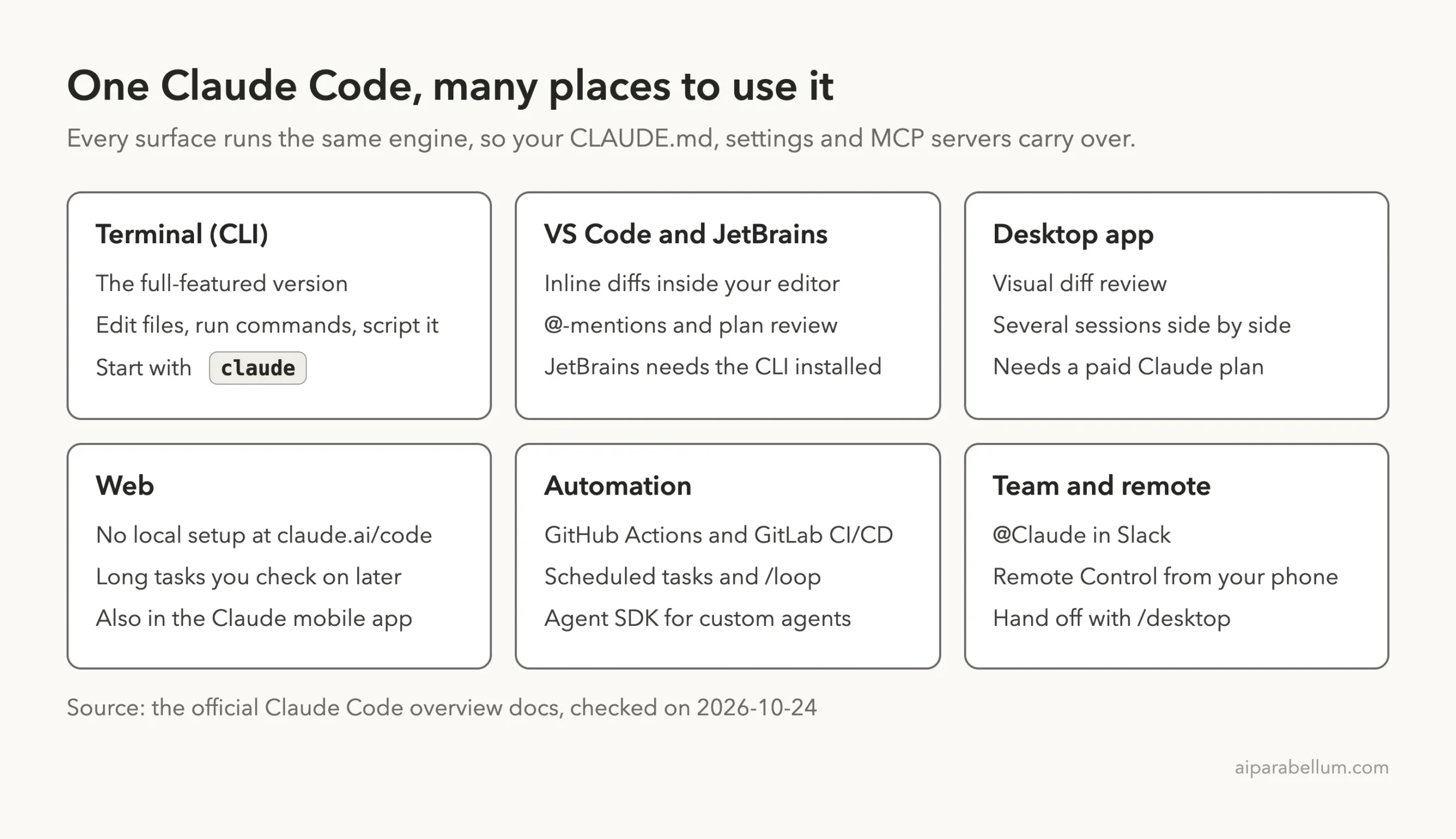
Because the engine is shared, your CLAUDE.md files, settings and MCP servers work the same on every surface. You can start in the terminal today and move to an editor later without starting over.
| Surface | Best for | Good to know |
|---|---|---|
| Terminal (CLI) | Full control and scripting | The most complete version |
| VS Code or Cursor | Seeing diffs inside your editor | Install the extension from the Extensions view |
| JetBrains IDEs | IntelliJ, PyCharm, WebStorm users | Needs the CLI installed separately |
| Desktop app | Visual diff review, several sessions at once | Requires a paid subscription |
| Web | Long tasks, repos you do not have locally | Start at claude.ai/code, no local setup |
In this series, we mostly use the terminal because it shows every step clearly. If you prefer an editor, the VS Code guide walks through that setup.
How to Get Claude Code Running
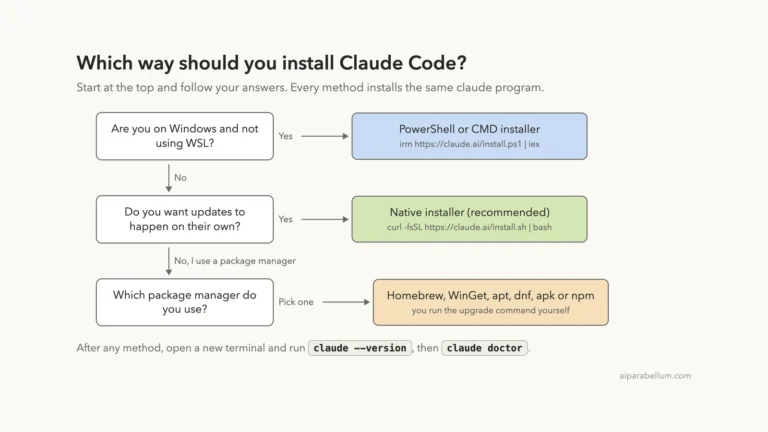
Part 2 of this series covers installation in detail for every system. Here is the quick version from the official docs so you can follow along today.
Step 1: Install it
On macOS, Linux or WSL, open a terminal and run the native installer. It is the method Anthropic recommends, and it updates itself in the background.
curl -fsSL https://claude.ai/install.sh | bashOn Windows PowerShell, the docs use a different one-line command. Homebrew and WinGet installs also work, but those do not update on their own.
irm https://claude.ai/install.ps1 | iexStep 2: Check the version
Open a new terminal window and run claude –version. A working install prints a version number, like the 2.1.309 we used for this guide. If your shell says the command is not found, the setup docs explain how to fix your PATH.
Step 3: Start it in a project folder
Move into a project folder and type claude. On first use, it asks you to log in with your Claude account.
cd your-project
claude
One tip before you start: practice on a small test folder, not your most important project. That is exactly what we did below.
A Real First Session With Claude Code
To show you what Claude Code actually does, we built a tiny Python project called tip-splitter. It has one script that works out the tip on a restaurant bill and splits the total between friends.
We planted one bug on purpose. The script multiplied the bill by the tip percent without dividing by 100, so a 20% tip on a $50 bill came out as $1,000.
The welcome screen
When you type claude in the folder, you land on this screen. It shows the version, the model in use and the folder Claude Code is working in.
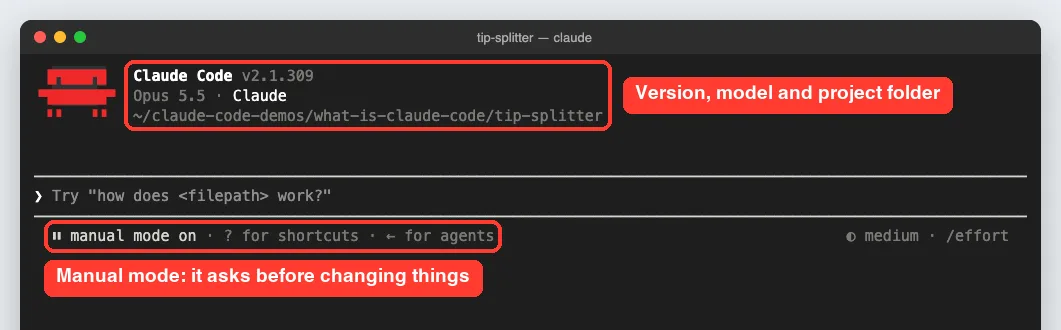
Notice the line that says manual mode on. In this mode, Claude Code asks before it edits a file or runs a command, which is the safest way to learn.
Asking about the project
Our first prompt was simple: what does this project do? We did not point it to any file.
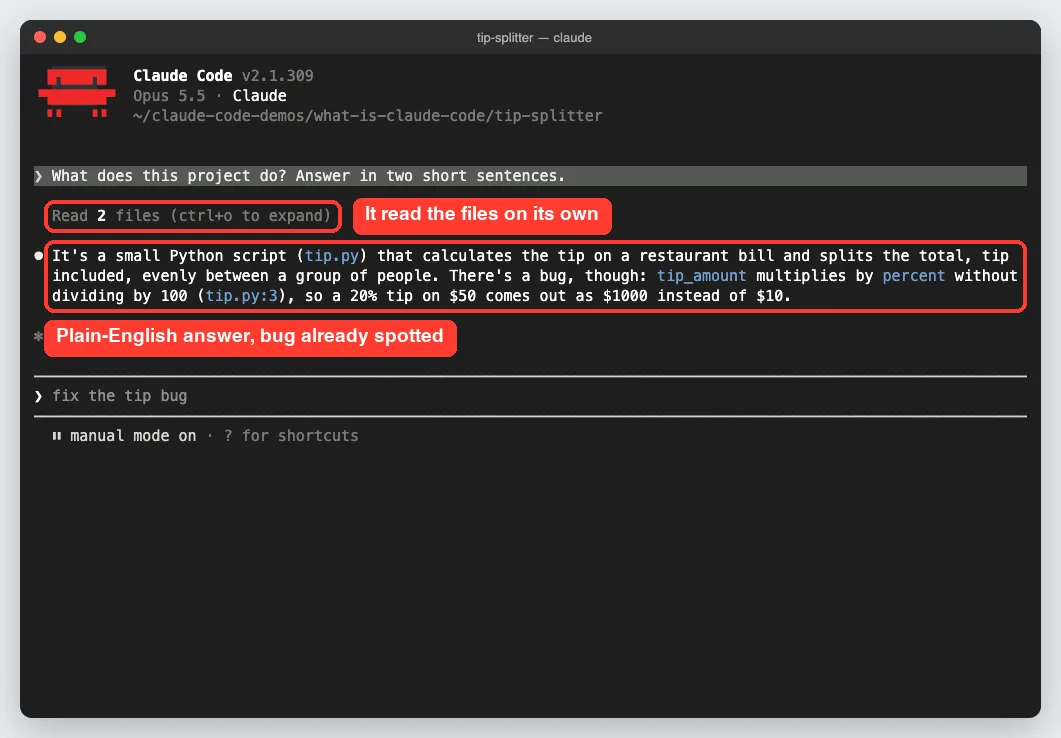
It read both files on its own, explained the project in two sentences and flagged the bug on line 3. We had not even asked about bugs yet.
Fixing the bug, with your permission
Next we asked it to find and fix the bug. Before touching anything, it showed the exact edit it wanted to make and waited.
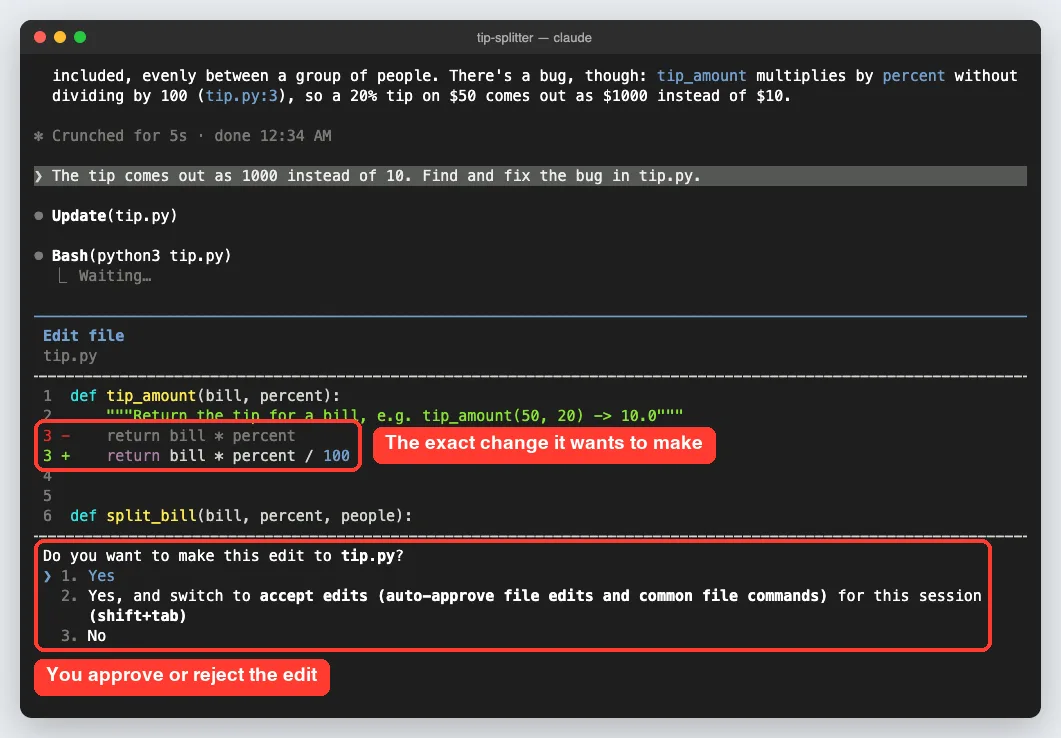
The red line is the old code, and the green line is the fix. You can say yes, say yes and auto-approve edits for the session, or say no.
Running the script to check the fix
After the edit, Claude Code wanted to run the script to prove the fix worked. Running a command is a separate action, so it asked again.
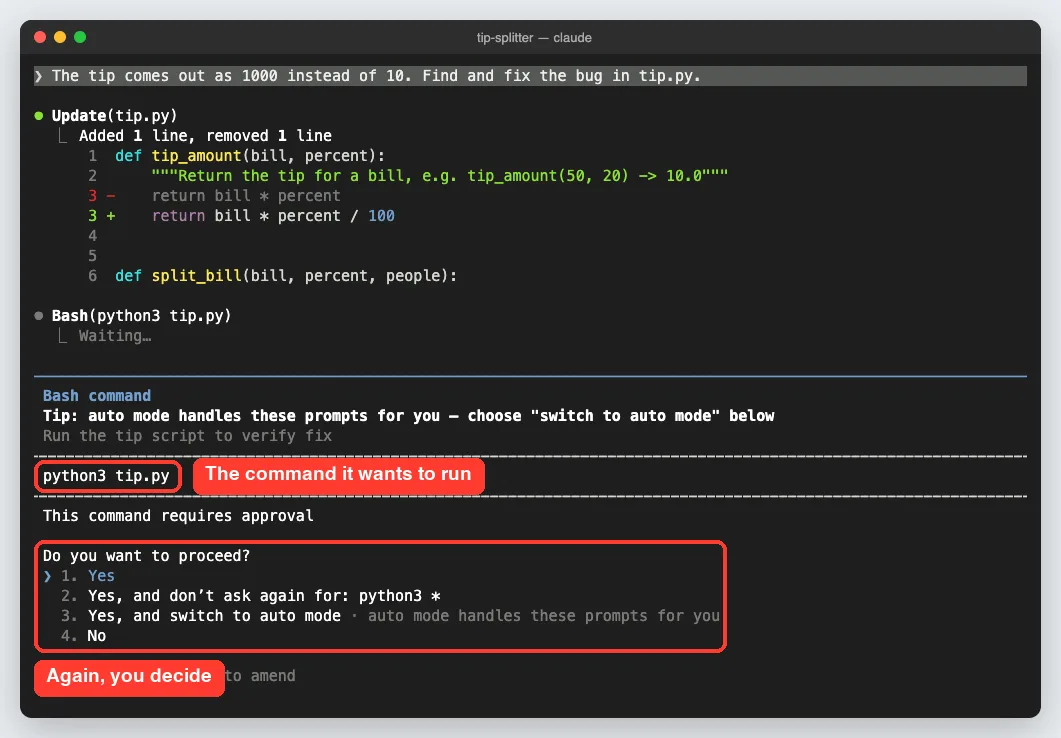
Once the command was approved, it ran the script and reported the result in plain English.

That is the whole loop in one small task: read, propose, ask, act and check. It took three short prompts and under a minute of waiting.
How Claude Code Works Behind the Scenes
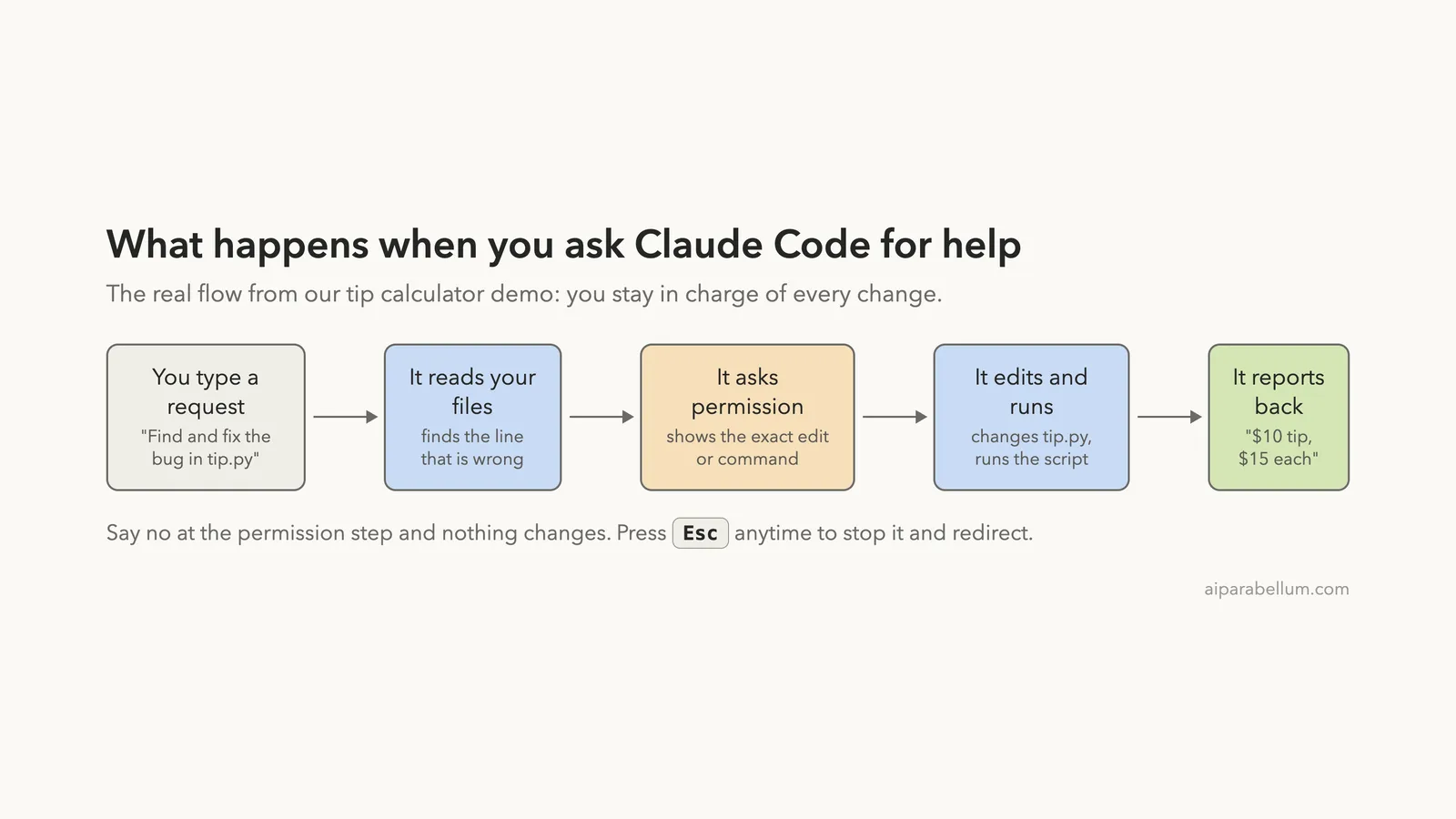
Our demo followed the same pattern you will see in almost every Claude Code session. Here it is as a simple flow.
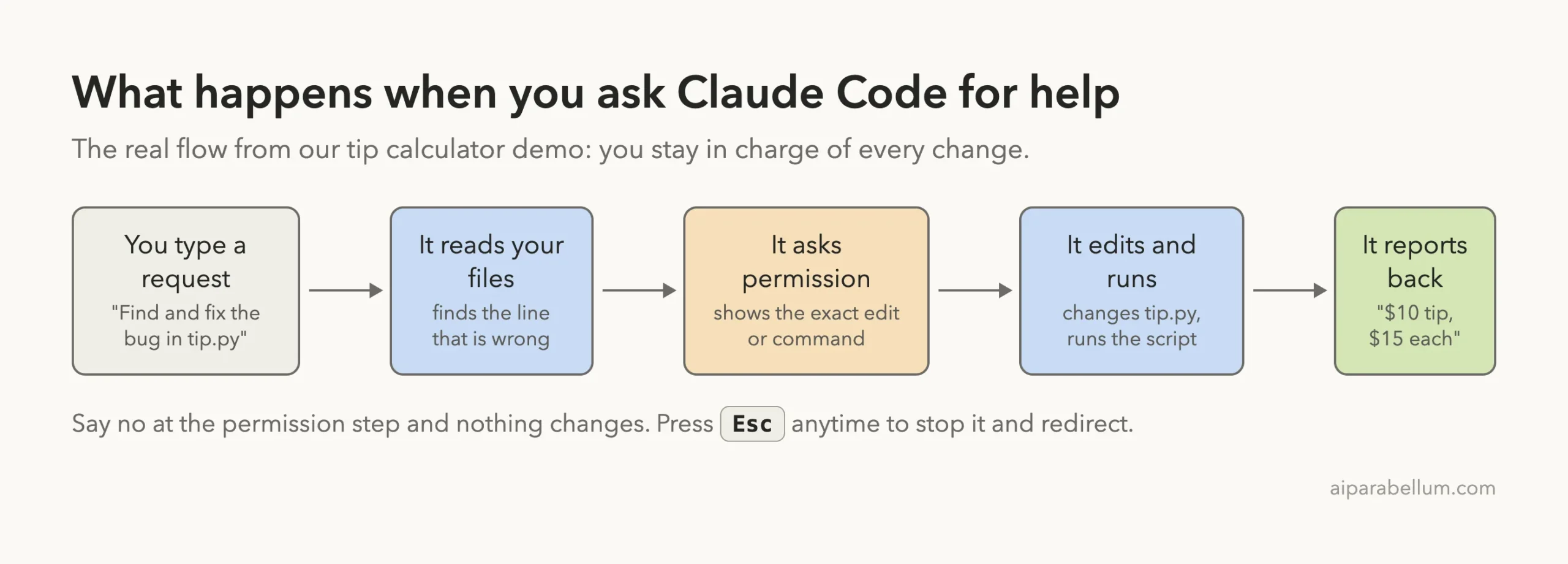
The permission step is what keeps you in charge. If you say no, nothing changes, and you can press Esc at any time to stop it and give new directions.
You are the reviewer. Claude Code does the typing, but nothing lands without your yes in the default mode.
Part 4 of this series goes deeper into the agent loop and the built-in tools Claude Code uses to read, edit and run things.
The help menu is your map
Type /help inside a session to see the main shortcuts. It is the best place to start when you forget a key.
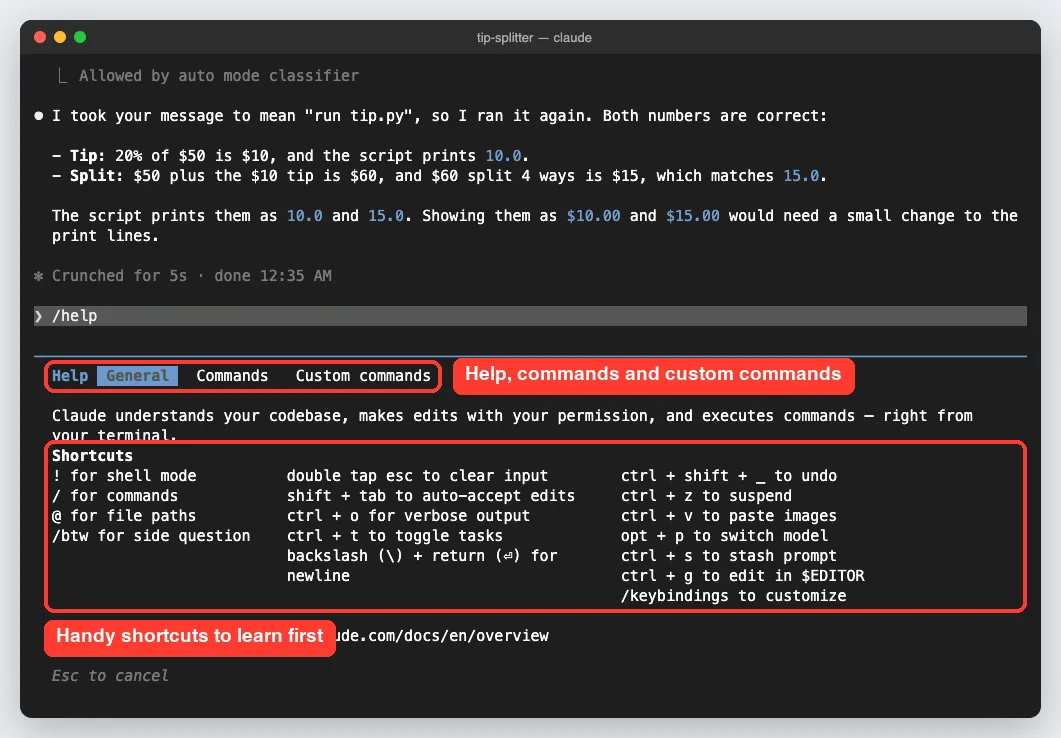
A few shortcuts are worth learning on day one. The @ sign points Claude at a file, the ! sign runs a shell command yourself, and Shift+Tab switches permission modes.
Real Examples of What You Can Ask
The best prompts read like a note to a helpful coworker. Here are prompts you can try, based on the uses the official docs describe.
| Goal | Example prompt |
|---|---|
| Understand a project | What does this project do? Answer in two short sentences. |
| Fix a bug | The tip comes out as 1000 instead of 10. Find and fix the bug. |
| Add tests | Write tests for the split_bill function, run them and fix any failures. |
| Clean up git | Commit my changes with a descriptive message. |
| Review changes | Review the files I changed today for obvious mistakes. |
You can also run Claude Code without opening a session at all. The -p flag sends one prompt and prints the answer, which makes it easy to use in scripts. The CLI reference lists every flag.
claude -p "explain what tip.py does in one sentence"Curious how it compares with other tools? We have side-by-side looks at Cursor comparison and Claude vs Copilot.
Try Claude Code Yourself
The fastest way to understand Claude Code is to repeat our demo. Make a new empty folder, add one small file with a planted bug, and start claude inside it.
- Create a folder called tip-splitter and add a file named tip.py
- Write a small function that forgets to divide a percent by 100
- Open a terminal in that folder and type claude
- Paste the prompt below and approve each step as it asks
What does this project do? Answer in two short sentences.
Then find any bug in tip.py, fix it, and run the script to prove it works.
Read every permission prompt before you approve it. That habit matters more than any shortcut.
Common Mistakes Beginners Make
Most first-week problems come from a few habits. Here are the ones to avoid.
- Starting Claude Code in your home folder instead of a project folder, so it has no clear scope
- Approving prompts without reading the diff or the command
- Typing while a permission prompt is open; in our test, a stray number key picked a menu option
- Writing vague prompts like “make it better” instead of naming the file and the goal
- Testing on an important project before you are comfortable with the flow
- Forgetting that Homebrew and WinGet installs do not update themselves
That third point really happened to us. We typed a prompt containing “python3” while a command prompt was still open, and the menu read the 3 as option 3, so wait for each prompt to close first.
Pro Tips for Getting Started
These small habits will make your first sessions smoother. They come from our testing and from the official docs.
- Ask Claude Code to explain a project before you ask it to change one
- Keep each request to one clear goal, then build on it
- Press Esc to stop and redirect instead of waiting for a wrong answer to finish
- Use git in your project so you can always roll back a change
- Add a CLAUDE.md file with your project rules; the memory docs explain how
- Run /help whenever you forget a shortcut
If you already use Claude in the browser, many of the same prompting habits carry over. Our list of Claude tips and our guide on coding with Claude are useful extras.
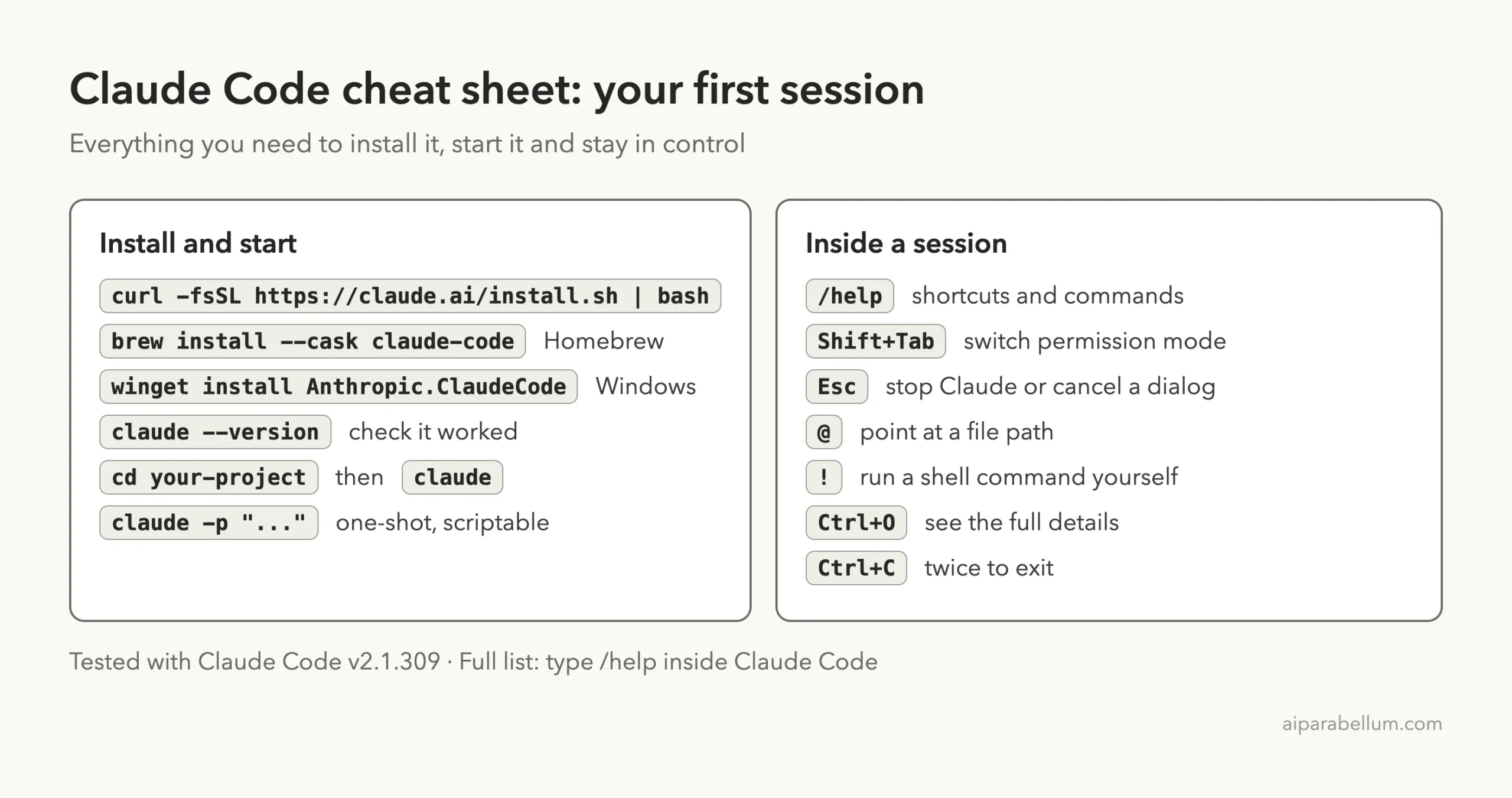
Claude Code Cheat Sheet
Save this card for your first few sessions. It covers installing, starting and the keys you will use most.
Frequently Asked Questions
Is Claude Code the same as Claude chat?
No. Both use Claude models, but Claude Code works inside your project. It reads files, edits them and runs commands, while the chat app only replies in a chat window.
Do I need to pay for Claude Code?
Most surfaces need a Claude subscription or an Anthropic Console account, according to the docs. The desktop app requires a paid subscription, and the terminal, VS Code and JetBrains also support third-party providers.
Can Claude Code change my files without asking?
In the default manual mode, it asks before each edit and each command. You can switch to modes that approve more on their own, which a later part of this series covers.
Do I need to be an expert programmer?
No, but basic comfort with a terminal helps. The docs even include a terminal guide for people who have never opened one.
Which version did you test?
We used Claude Code v2.1.309 on a Mac in October 2026. The native installer updates in the background, so your screens may look a little different.
Conclusion
Claude Code is an AI coding assistant that does real work inside your project: it reads your files, proposes changes, asks for your approval, then edits, runs and checks the result. In our test it explained a project, found a planted bug and proved the fix in three short prompts, all while asking permission at every step. It runs in the terminal, your editor, a desktop app and the web, and the same setup follows you everywhere. Install it, try it on a small test folder, and you will understand it faster than any description can explain. For the full official picture, see the Claude Code overview, and keep this tutorial series handy as you go.
Next in the series: Part 2: How to Install Claude Code on Mac, Windows and Linux.