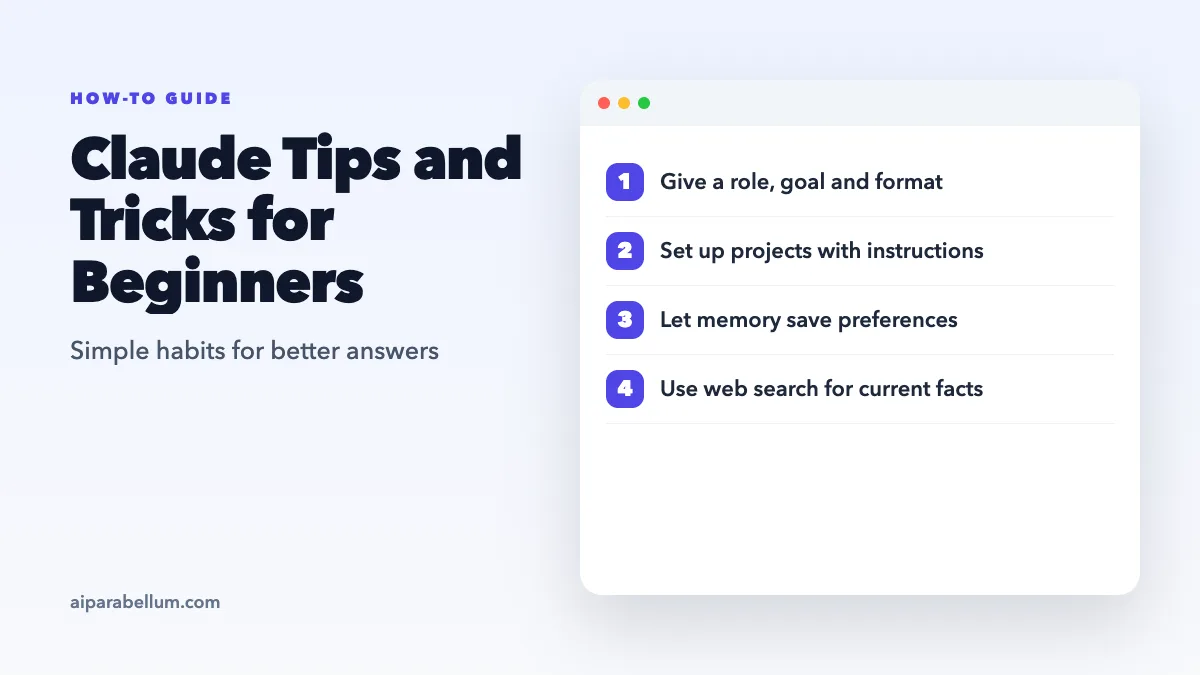
If you just opened Claude for the first time, it can feel like a blank text box that could do anything, which is exactly what makes it hard to start. These Claude tips and tricks for beginners will help you get clearer answers, waste less of your usage, and use the features most new users never notice. You do not need any technical skills, just a few habits that make a big difference.
Each tip below is short and practical. Try one or two today, and add more as you get comfortable.
Why a Few Simple Habits Matter So Much
Claude responds to what you give it. A vague request gets a generic answer, while a clear one with some background gets something you can actually use. Most beginner frustration comes from that gap, not from the tool itself.
Claude also has features that sit quietly in menus, like projects, memory, and web search. Once you know they exist, you stop repeating yourself in every chat. If you want a quick refresher on what the assistant can do overall, our Claude AI overview covers the basics.
The fastest way to get better answers from Claude is to share more context, not to use fancier words.
Claude Tips for Writing Better Prompts
Good prompting is the skill that pays off everywhere else. These first four tips cost nothing and work on every plan.
1. Give Claude a Role, a Goal, and an Audience
Instead of “write an email about the meeting,” try telling Claude who it is helping, what you want, and who will read it. For example, ask for a friendly email to your team that moves Friday’s meeting to Monday and asks for updated reports. That one sentence of context changes the tone, length, and detail of the answer.
2. Show an Example of What You Want
If you have a past email, a product description, or a paragraph you like, paste it in. Ask Claude to match its style or format. Examples beat long explanations almost every time.
3. Ask for a Specific Format
Tell Claude how you want the answer shaped. You can ask for a bulleted list, a table, a short summary under 100 words, or three options to choose from. This saves you from reformatting the answer yourself.
4. Treat the First Answer as a Draft
You do not need a perfect prompt on the first try. Reply with simple follow-ups like “make it shorter,” “less formal,” or “add a closing line.” For more ideas on structuring requests, our guide on writing AI prompts walks through the basics step by step.
Organize Your Work With Projects
Projects are one of the most useful features for beginners, and they are available on the free plan too. A project is a workspace with its own chats, uploaded files, and custom instructions. Free users can create up to five projects.
5. Add Project Instructions Once
Inside a project, you can write instructions that apply to every chat in it. You might tell Claude to always use a casual tone, write for small business owners, or keep answers short. You stop retyping the same preferences in every new conversation.
6. Upload Reference Files to the Project
Add documents Claude should keep in mind, like a style guide, a resume, or class notes. Claude uses this project knowledge as background for every chat inside that project. On paid plans, projects can handle much larger amounts of content.
Projects work well for ongoing tasks like studying, job hunting, or running a side business. Our walkthrough on Claude for project management shows a real setup you can copy.
Make Claude Remember the Right Things
Claude can carry useful context from one chat to the next, so you spend less time re-explaining yourself.
7. Use Memory and Say “Remember This”
Memory is on by default for Free, Pro, and Max plans. Claude saves useful details as you chat, and you can also tell it to “remember this” to save something directly. You can review and edit what it has saved in your settings at any time.
8. Ask Claude to Find Past Chats
On paid plans, you can ask Claude to search your previous conversations. Try something like “let’s continue where we left off with my budget plan.” Inside a project, this search stays limited to that project’s chats.
9. Go Incognito for One-Off Questions
If you want a chat that is not saved to your history, look for the ghost icon in the top corner when you start a new chat outside a project. Incognito chats do not add to memory and are not used when Claude searches your past conversations. This is handy for quick, private questions you do not want shaping future answers.
Claude Feature Tips Beginners Often Miss
Here is a quick look at the features covered in this guide and where they help most.
| Feature | What It Does | Best For | Plans |
|---|---|---|---|
| Projects | Groups chats, files, and instructions | Ongoing work and study | All plans (Free: up to 5) |
| Memory | Carries context into new chats | Saving your preferences | On by default for Free, Pro, Max |
| Past chat search | Finds earlier conversations | Picking up old threads | Paid plans |
| Web search | Pulls current info with citations | News, prices, recent events | All plans (Team and Enterprise admins enable it) |
| File uploads | Reads PDFs, documents, and images | Summaries and reviews | All plans |
| Artifacts | Creates docs, slides, and small tools | Shareable results | All plans |
10. Turn On Web Search for Current Topics
Claude’s built-in knowledge has a cutoff date, so recent news or prices may be out of date. With web search on, Claude looks things up and includes citations so you can check the sources yourself. If you want to be sure it searches, include “search the web” in your prompt.
11. Upload Files the Smart Way
You can add files with the plus button in the chat box, drag them in, or paste images from your clipboard. A few habits help Claude read them better:
- Use clear images, ideally 1000 x 1000 pixels or larger
- Refer to PDF pages by the number your PDF viewer shows, not the number printed on the page
- Keep PDFs to 100 pages or fewer when charts and images matter, since longer files are read as text only
- Split very large documents into smaller sections
12. Ask for an Artifact When You Want Something Reusable
Artifacts are things Claude makes that you would put in front of someone, like a document, a slide deck, or a small interactive tool. They open beside your chat, and you can edit and share them. Artifacts need code execution and file creation turned on in your capability settings.
Claude Tricks to Stretch Your Usage
Every plan has usage limits that reset on a rolling five-hour window, and paid plans add weekly limits. Long chats, big files, and heavy features use more of that allowance. These habits help you get more done before you hit a limit:
- Start a new chat when you switch topics, instead of adding to a very long one
- Turn web search off for chats that do not need current information
- Ask for key points instead of a full summary of a very long article link
- Put recurring background into project files instead of pasting it again
- Be specific up front so you need fewer back-and-forth rounds
If you find yourself hitting limits daily, the Pro plan costs $20 a month billed monthly, or $200 a year if you pay annually up front. Pro gives you at least five times the usage of Free per five-hour session, plus Claude Code for programming help.
Common Beginner Mistakes to Avoid
A few mistakes come up again and again with new users. Steering clear of them will save you time and frustration.
Trusting Every Answer Without Checking
Claude is helpful, but it can still make mistakes. Double-check important facts, numbers, and anything medical, legal, or financial before you act on it.
Sharing Sensitive Personal Details
Avoid pasting passwords, full account numbers, or private details you would not want stored. Use incognito chats when a question feels personal, and still keep sensitive data out of it.
Giving Up After One Weak Answer
A disappointing first reply usually means Claude needs more context. Add details, give an example, or explain what was wrong, and try again. If AI text sounds too robotic, our tips on fixing AI writing habits can help you polish it.
Where to Go Next With Claude
Once these basics feel natural, you can branch out into more focused uses. Claude is popular for writing, studying, research, and coding. If you write software, start with our guide on using Claude for coding.
You might also wonder how Claude compares with other assistants. Our Claude vs Gemini breakdown and the AI prompt examples collection are good next reads.
Pick one habit from this list each week, and within a month Claude will feel like a real assistant instead of a blank box.
Conclusion
These Claude tips and tricks for beginners all come down to one idea: give Claude clear context, and let its built-in features carry that context for you. Write prompts with a role, goal, and format, then refine the first draft with quick follow-ups. Use projects to keep files and instructions in one place, let memory save your preferences, and turn on web search when you need current facts. Add smart file habits and a few usage-saving tricks, and you will get better results faster while avoiding the mistakes most new users make.