Want to install Claude Code but not sure which command to run? Good news: on most computers it takes one line in a terminal and about a minute of waiting. This guide shows you the exact steps for Mac, Windows and Linux, plus how to check that it worked.
We ran a real fresh install on a Mac for this tutorial, in a throwaway test folder, so every terminal screenshot below is genuine output. We tested on macOS; the Windows and Linux steps follow Anthropic’s official instructions.
This is Part 2 of 53 in our Claude Code tutorials series. If you are brand new, start with Part 1 first, then come back here.
Tested with Claude Code v2.1.309 on October 24, 2026, on a Mac, in the terminal.
Installing Claude Code at a Glance
Here is the whole process in one table. Pick the row for your computer and you already know the main command.
| Your system | Command to run | Updates itself? |
|---|---|---|
| macOS, Linux or WSL | curl -fsSL https://claude.ai/install.sh | bash | Yes |
| Windows PowerShell | irm https://claude.ai/install.ps1 | iex | Yes |
| Windows CMD | curl -fsSL https://claude.ai/install.cmd -o install.cmd && install.cmd && del install.cmd | Yes |
| Homebrew (Mac) | brew install –cask claude-code | No, run brew upgrade |
| WinGet (Windows) | winget install Anthropic.ClaudeCode | No, run winget upgrade |
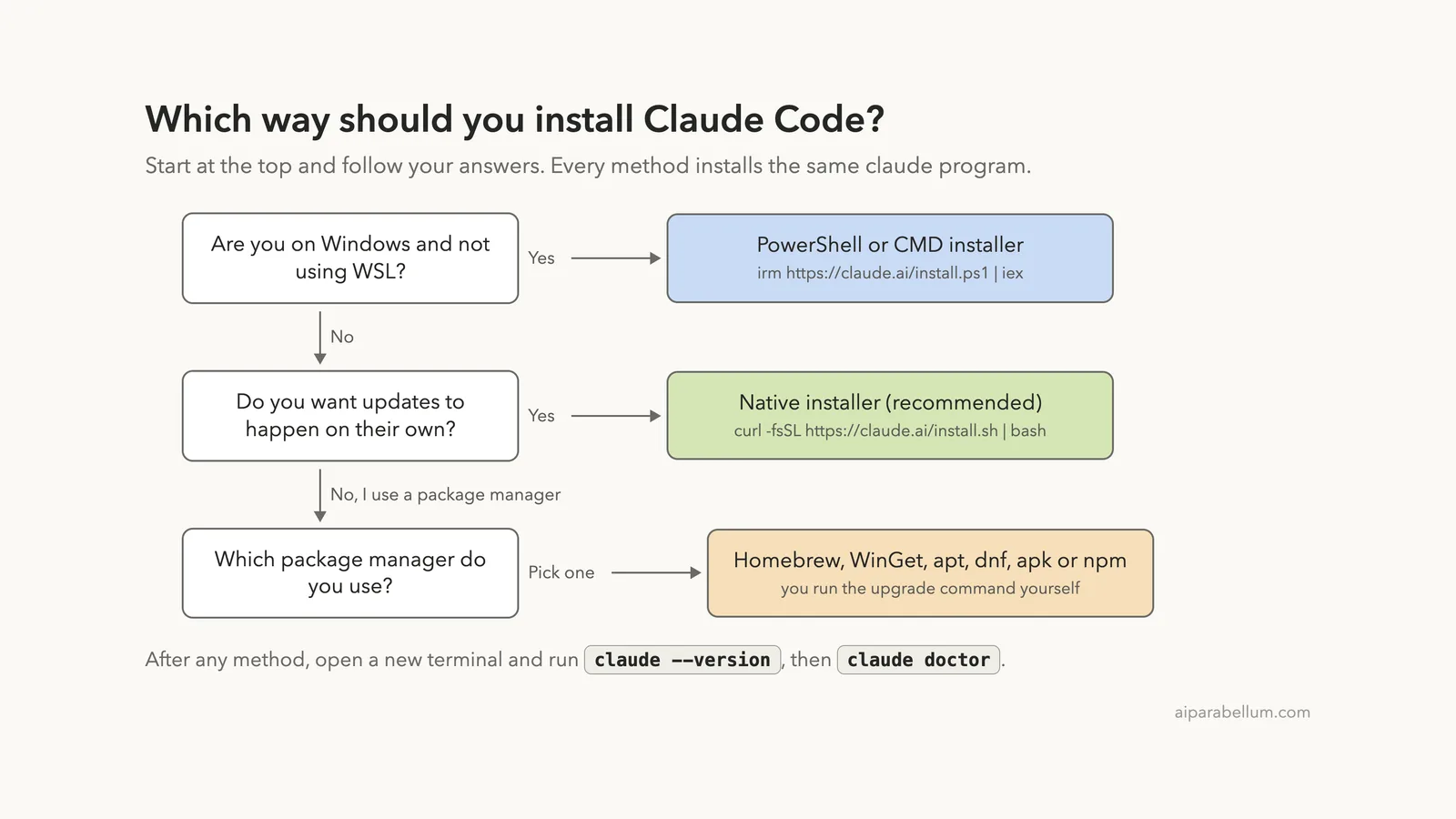
After any of these, open a new terminal and run claude –version. If you see a version number, you are ready.
What You Need Before You Install Claude Code
Claude Code is a program that runs in your terminal, so your computer needs to meet a few basic requirements first. The official setup page lists them clearly.
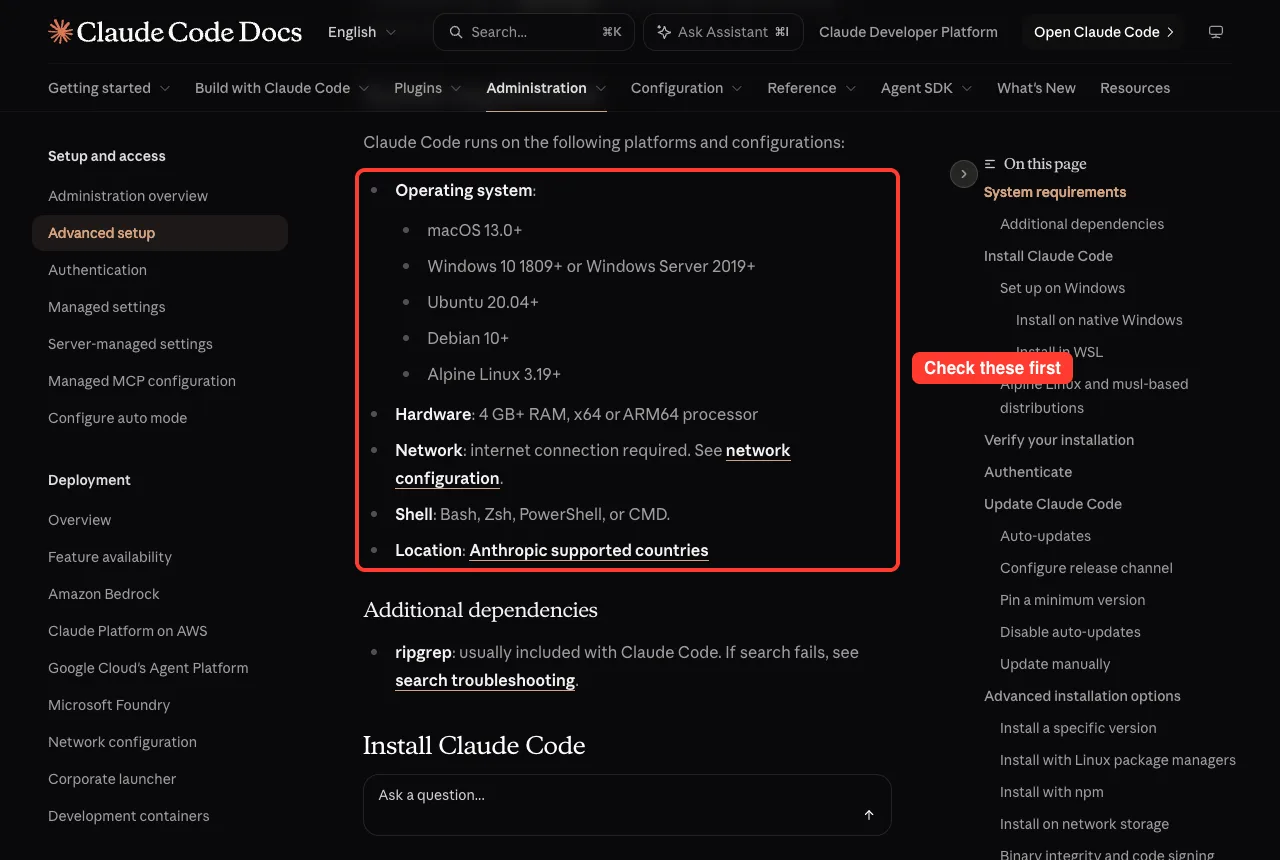
- Operating system: macOS 13.0 or newer, Windows 10 1809 or newer (or Windows Server 2019+), Ubuntu 20.04+, Debian 10+ or Alpine Linux 3.19+
- Hardware: at least 4 GB of RAM and an x64 or ARM64 processor
- Network: an internet connection
- Shell: Bash, Zsh, PowerShell or CMD
- Location: a country Anthropic supports
You also need the right account
Installing is free, but using Claude Code needs an account. The docs say it requires a Pro, Max, Team, Enterprise or Console account, and the free claude.ai plan does not include Claude Code access.
You can also connect through a cloud provider such as Amazon Bedrock, Google Cloud’s Agent Platform or Microsoft Foundry. If you are still deciding on a plan, our Claude AI overview explains the basics.
Install first, sign in second. The install itself never asks for your account.
Which Install Method Should You Use?
Anthropic offers several ways to install, but they all give you the same claude program. The real difference is how updates work.
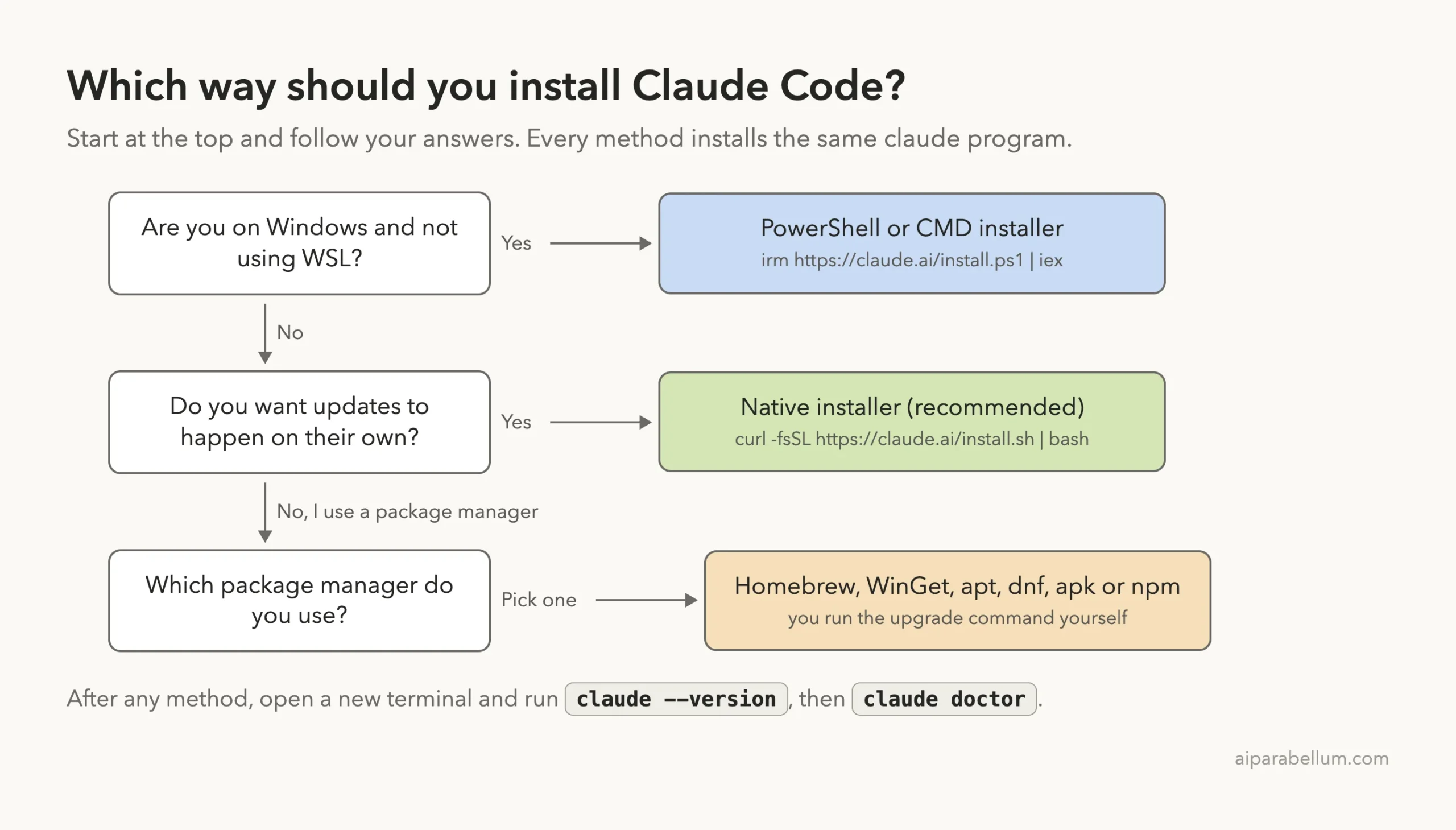
For most people, the native installer is the right pick. Anthropic calls it the recommended method, and native installs update in the background so you stay on the latest version.
Package managers like Homebrew and WinGet are handy if you already manage your apps that way. Just remember that they do not update Claude Code on their own.
How to Install Claude Code on Mac
We tested this part ourselves. To keep our working copy of Claude Code untouched, we ran the official installer inside a separate test home folder, which is why you will see a fake-home folder in some paths.
Step 1: Open Terminal and run the installer
Open the Terminal app (press Command+Space and type Terminal). Then paste this command and press Return.
curl -fsSL https://claude.ai/install.sh | bashDo not panic if nothing seems to happen for a bit. The docs point out that the command shows no progress while it downloads. In our test, it finished in under a minute.
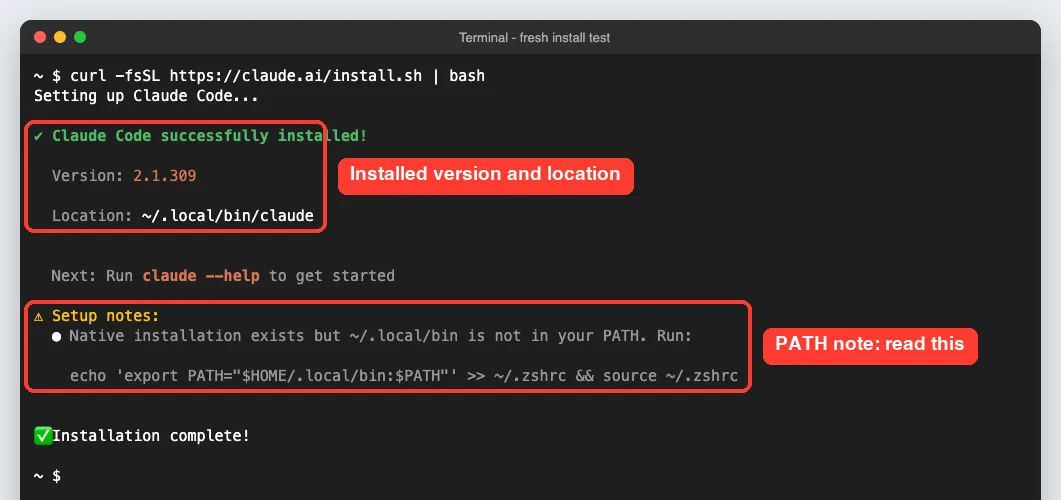
The installer told us three useful things. It installed version 2.1.309, it put the program at ~/.local/bin/claude, and it warned that this folder was not in our PATH yet.
Step 2: Fix your PATH if the installer asks
Your PATH is the list of folders your terminal searches when you type a command. If ~/.local/bin is missing from it, typing claude gives a “command not found” error even though the install worked.
The installer printed the exact fix for our shell. On a Mac with the default Zsh shell, it looks like this:
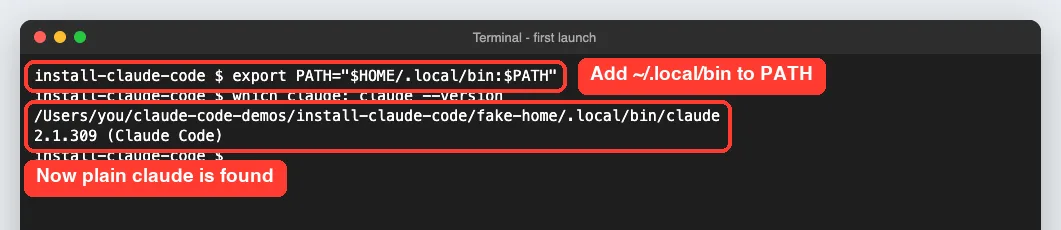
echo 'export PATH="$HOME/.local/bin:$PATH"' >> ~/.zshrc && source ~/.zshrcCopy the line your own installer shows, since it matches your shell. In our test session we set the PATH directly, and plain claude was found right away.
Step 3: Check the version
Open a new terminal window and run the version check. A working install prints a number followed by “(Claude Code)”.
claude --version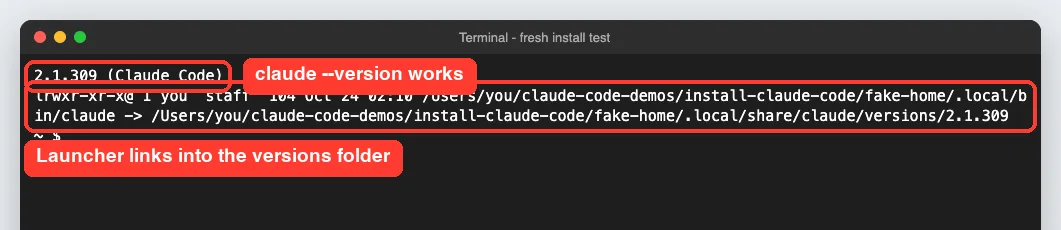
We also listed the launcher file to see how the native install is organized. On macOS and Linux, ~/.local/bin/claude is a link into ~/.local/share/claude/versions/, which is how background updates can swap versions cleanly.
The Homebrew option on Mac
If you prefer Homebrew, the docs give this command instead. We did not test it, because we only ran the recommended native installer.
brew install --cask claude-codeThe claude-code cask follows the stable channel, which is usually about a week behind. The claude-code@latest cask gets new versions as soon as they ship.
How to Install Claude Code on Windows
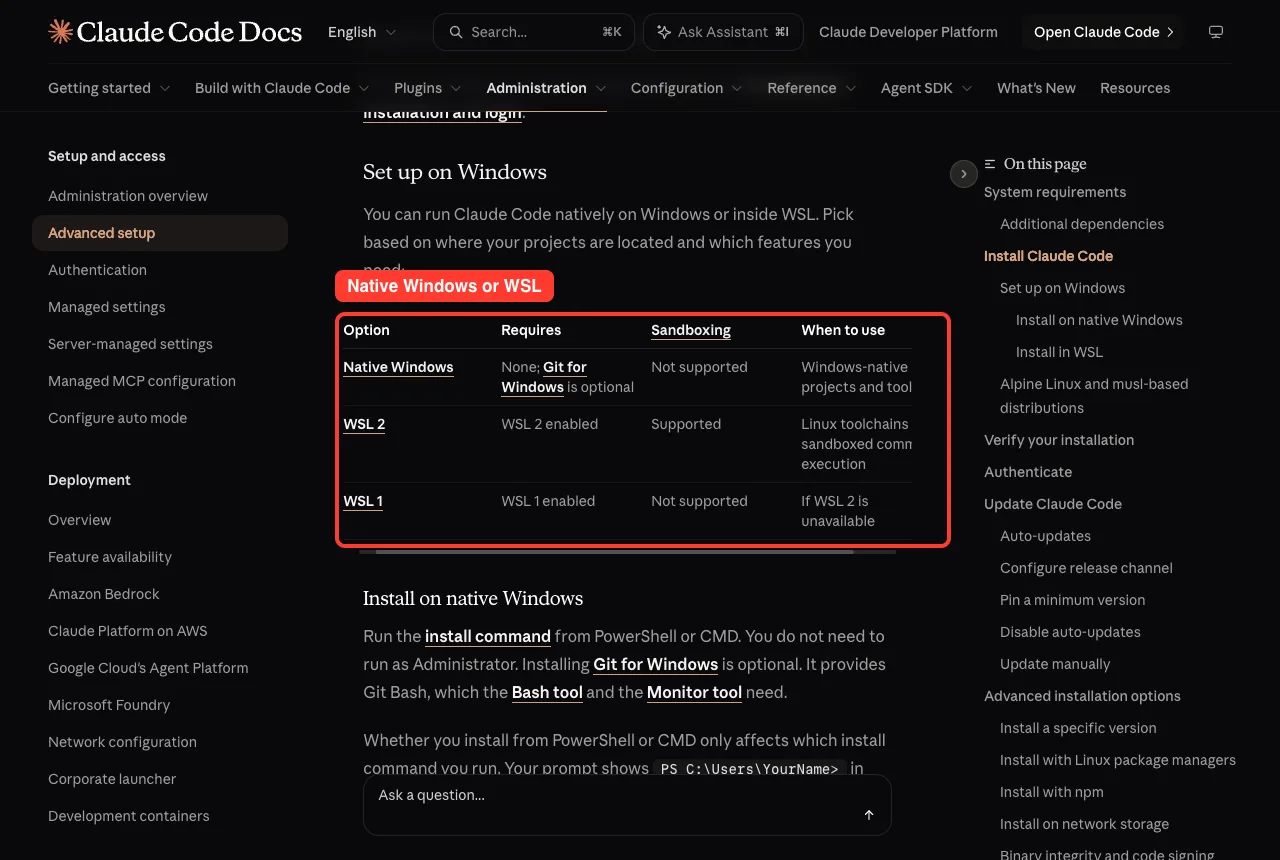
On Windows you have two choices: run Claude Code natively, or run it inside WSL, the Windows Subsystem for Linux. Since we only have a Mac, this section follows Anthropic’s official Windows instructions.
Native Windows with PowerShell
Open PowerShell. You can tell you are in PowerShell because the prompt starts with PS, like PS C:\Users\YourName>. Then run:
irm https://claude.ai/install.ps1 | iex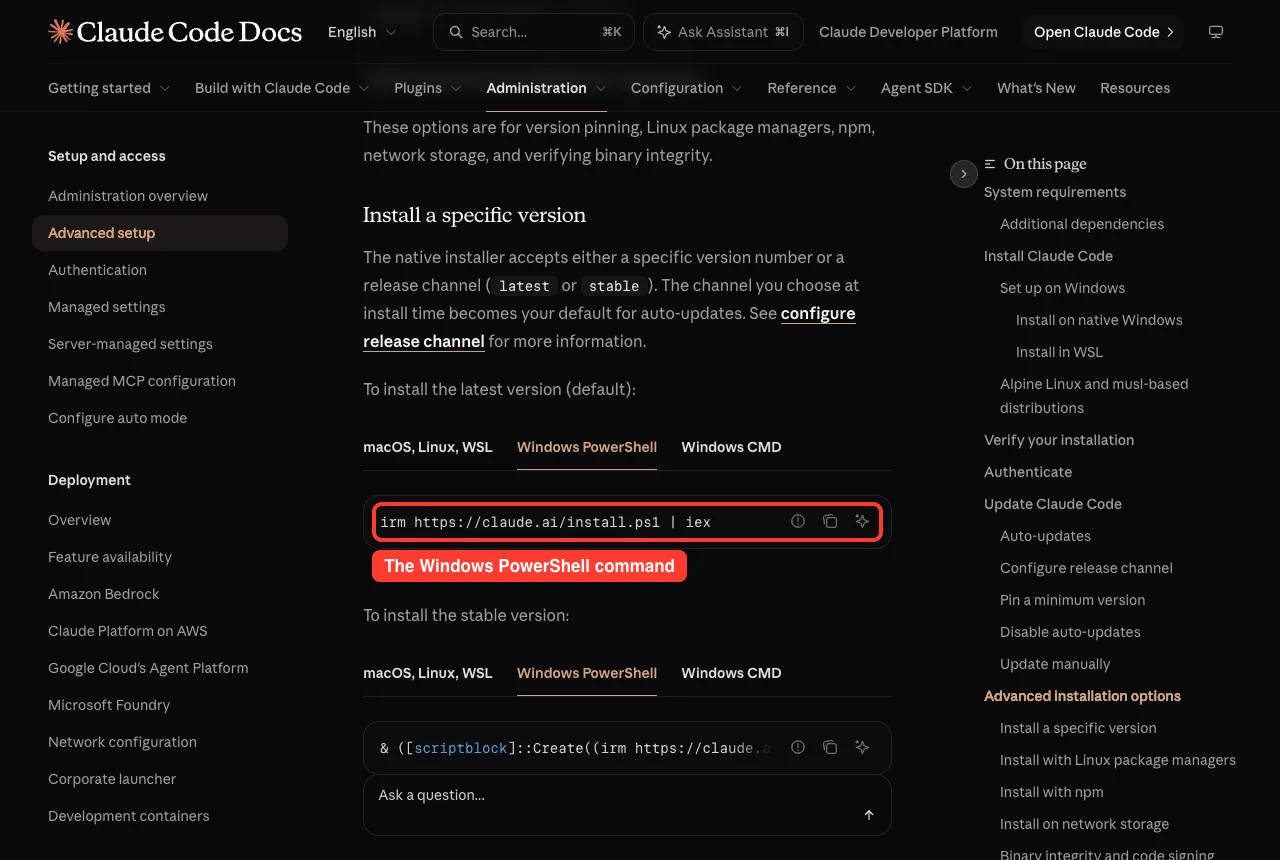
You do not need to run as Administrator. If you use CMD instead of PowerShell, the docs give a separate curl command, which is in the table at the top of this guide.
Should you install Git for Windows?
It is optional but recommended. With Git for Windows, Claude Code can use Git Bash for its Bash tool, and without it Claude Code runs shell commands through PowerShell instead.
Windows inside WSL
If your projects use Linux tools, open your WSL distribution and run the macOS and Linux command there. You install and launch claude inside the WSL terminal, not from PowerShell or CMD. The docs note that sandboxing works in WSL 2 but not on native Windows.
How to Install Claude Code on Linux
On Ubuntu, Debian and most other distributions, the native installer is the same one-line command used on a Mac. Run it in your terminal, then fix your PATH if asked.
curl -fsSL https://claude.ai/install.sh | bashUsing apt, dnf or apk
Anthropic also publishes signed package repositories for apt (Debian and Ubuntu), dnf (Fedora and RHEL) and apk (Alpine). The docs walk you through adding the signing key and the repository first.
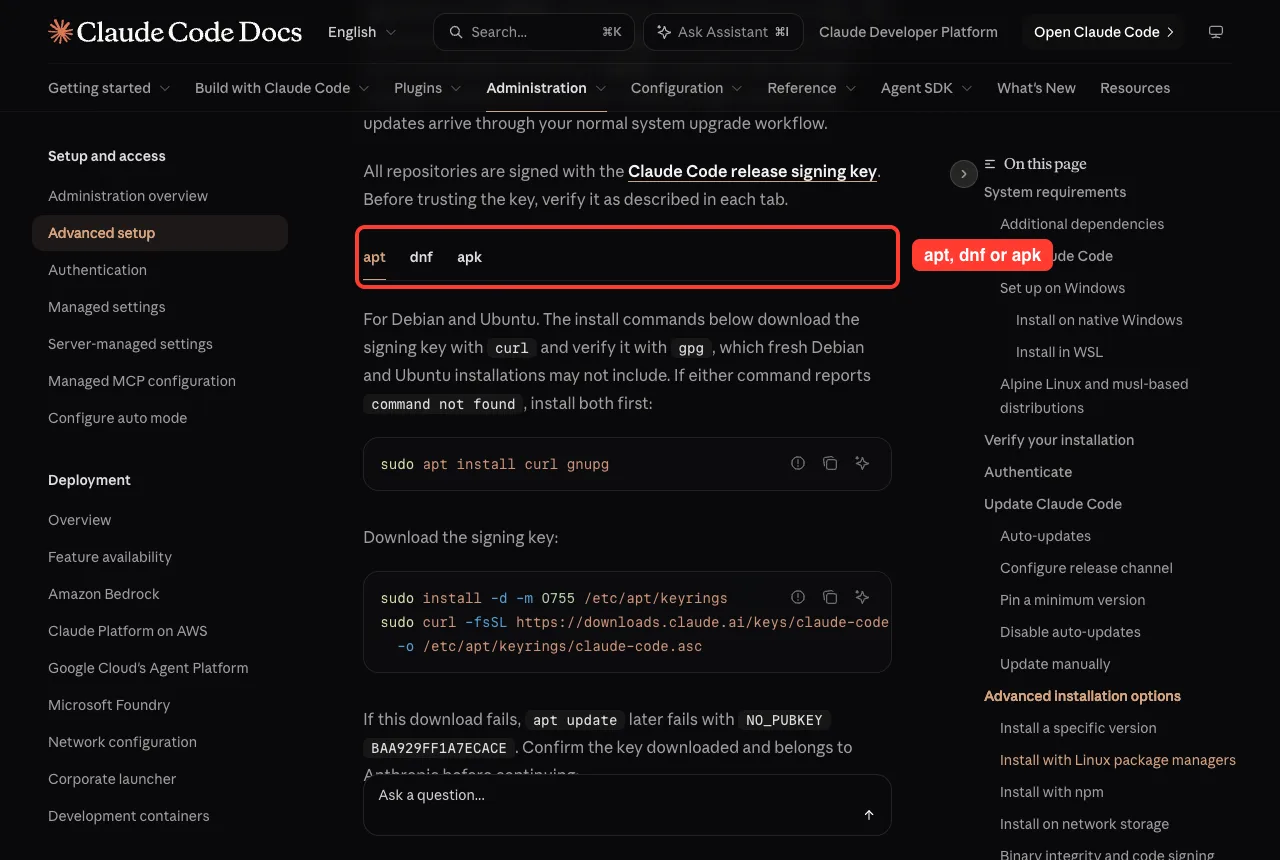
Each repository offers a stable and a latest channel. Package manager installs do not auto-update through Claude Code, so updates arrive with your normal system upgrades, such as sudo apt update && sudo apt upgrade claude-code.
A note for Alpine users
Alpine does not include bash or curl by default, so the install command fails until you add them. The docs suggest installing bash, curl, libgcc, libstdc++ and ripgrep, then setting USE_BUILTIN_RIPGREP to 0 in your settings.
What about npm?
You can also install with npm if you have Node.js 22 or later. Never use sudo with it, because the docs warn that this can cause permission problems.
npm install -g @anthropic-ai/claude-codeCheck Your Install With claude doctor and claude update
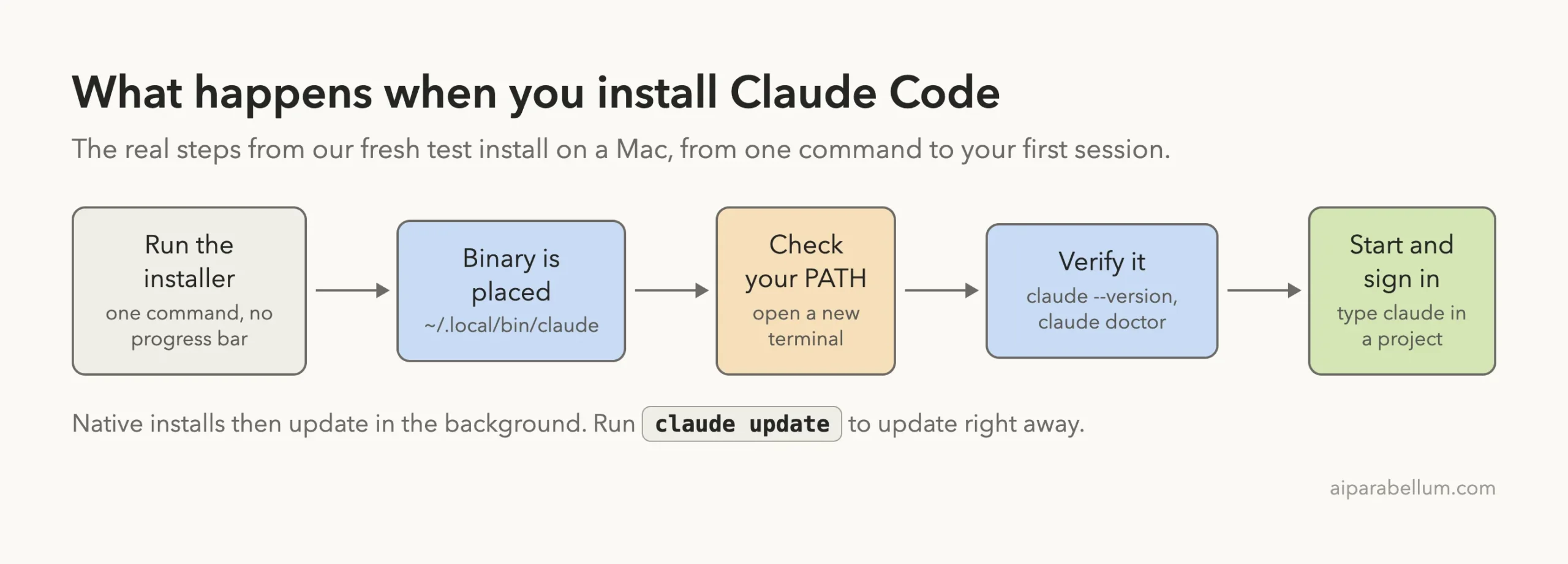
Here is the full journey from one command to a working session. The middle steps are where most install problems show up.
Run a health check
The claude doctor command checks your setup without starting a session. It reports the install type, version, platform, search tool and update status.
claude doctor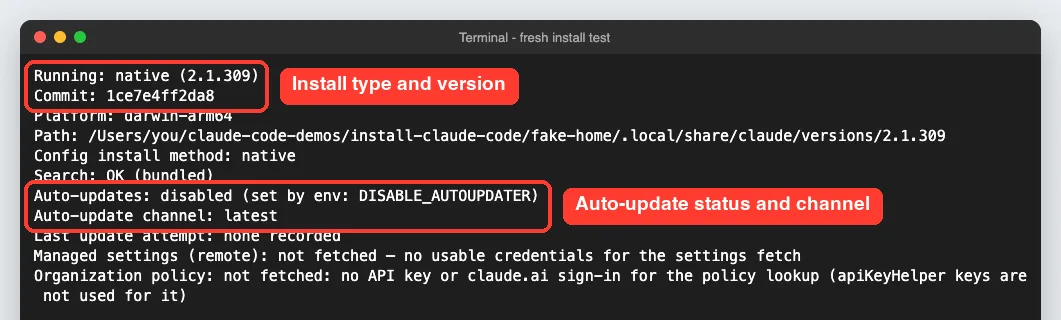
One honest note: our doctor screen says auto-updates are disabled. That is only because our test machine sets the DISABLE_AUTOUPDATER variable, and a normal native install shows them as enabled.
Update on demand
Native installs update in the background and apply the new version the next time you start Claude Code. If you want the newest version right now, run this:
claude update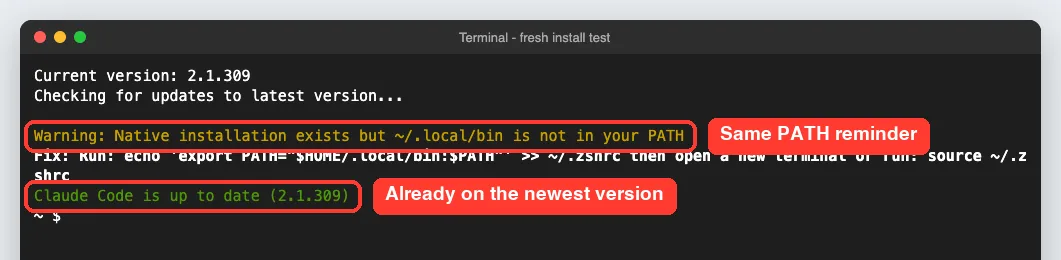
Ours said “Claude Code is up to date (2.1.309)”. It also repeated the PATH reminder, which is a nice safety net if you skipped that step.
Start Claude Code for the First Time
Now move into a project folder and type claude. We used a tiny test project with one Python file and a README.
cd my-first-project
claude
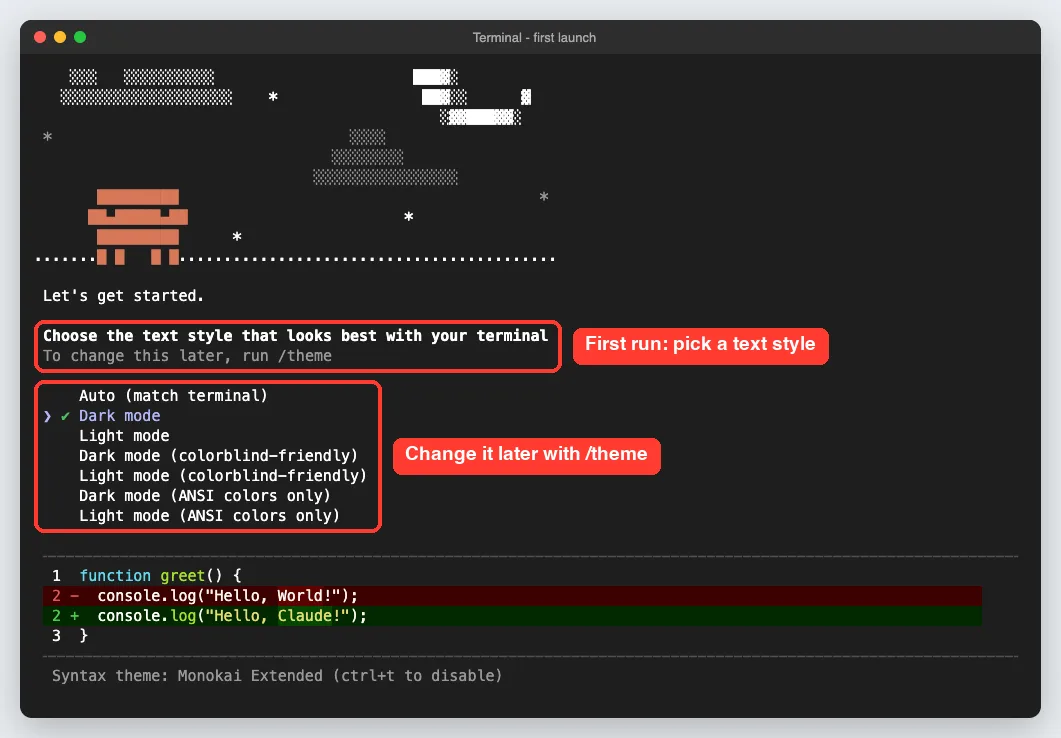
The very first launch asks you to choose a text style that suits your terminal. You can change it later with the /theme command.
Next, it asks how you want to sign in. You can use a Claude subscription, an Anthropic Console account, or a third-party platform such as Amazon Bedrock.
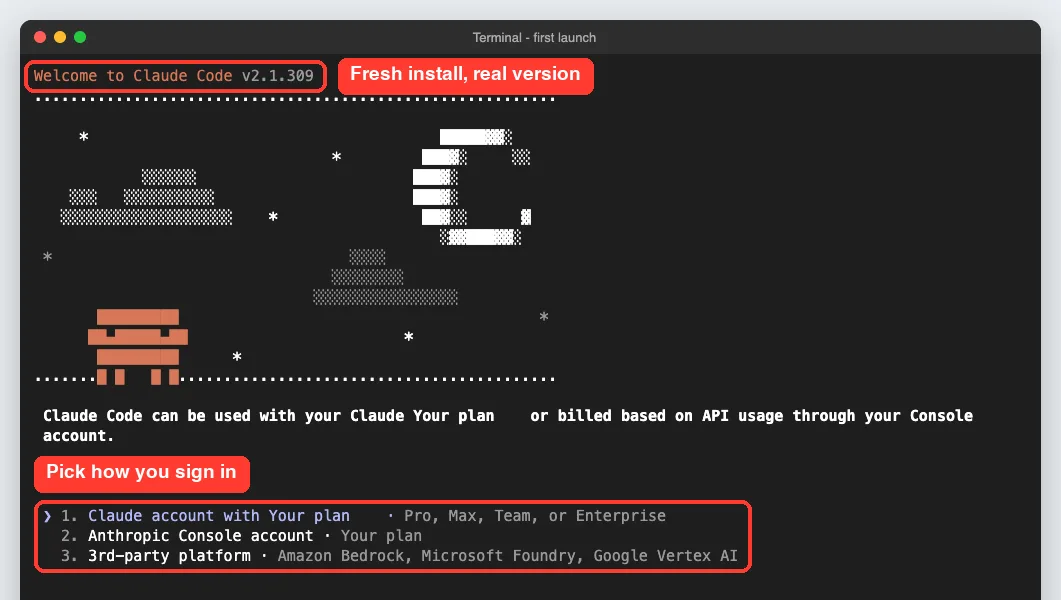
For subscription and Console accounts, you finish signing in through your browser. Once you are logged in, your credentials are saved, and you can type /login later to switch accounts.
Try It Yourself
Ready to do it on your own machine? Follow this short practice run from start to finish.
- Run the install command for your system from the table at the top
- Fix your PATH if the installer prints a setup note
- Open a new terminal and run claude –version, then claude doctor
- Make a folder called my-first-project and add one small file
- Start claude in that folder, pick a text style and sign in
- Paste the prompt below as your first message
What does this project do? Then tell me which Claude Code version I am running and one thing I should set up next.If all of that works, your install is complete. The official quickstart guide has more first prompts to try.
Common Mistakes When You Install Claude Code
Most install problems come from a short list of slips. Here is what to watch for.
- Skipping the PATH note, then getting “command not found” in a new window
- Testing in the same terminal window instead of opening a new one
- Pasting the PowerShell command into CMD, or the other way around
- Using sudo with npm, which the docs warn against
- Forgetting that Homebrew, WinGet and Linux package installs need manual upgrades
- Expecting the free claude.ai plan to work; it does not include Claude Code
The docs list two telltale errors on Windows. “The token ‘&&’ is not a valid statement separator” means you are in PowerShell, and “‘irm’ is not recognized” means you are in CMD.
Pro Tips for a Smooth Setup
These habits save time later. They come from our test install and from the official setup page.
- Stick with the native installer unless you have a strong reason not to
- Run claude doctor any time something feels off; it never starts a session
- Want fewer surprises? Set the release channel to stable with /config or the autoUpdatesChannel setting
- On Windows, install Git for Windows so Claude Code can use Git Bash
- Keep a small test folder for trying new features before using real projects
- If an install fails, the install troubleshooting page matches common errors to fixes
Once you are up and running, you may get tired of approving every step. Our guide on permission prompts explains your options, and our beginner guide to coding with Claude covers good prompting habits. If you are still comparing tools, see our Cursor comparison.
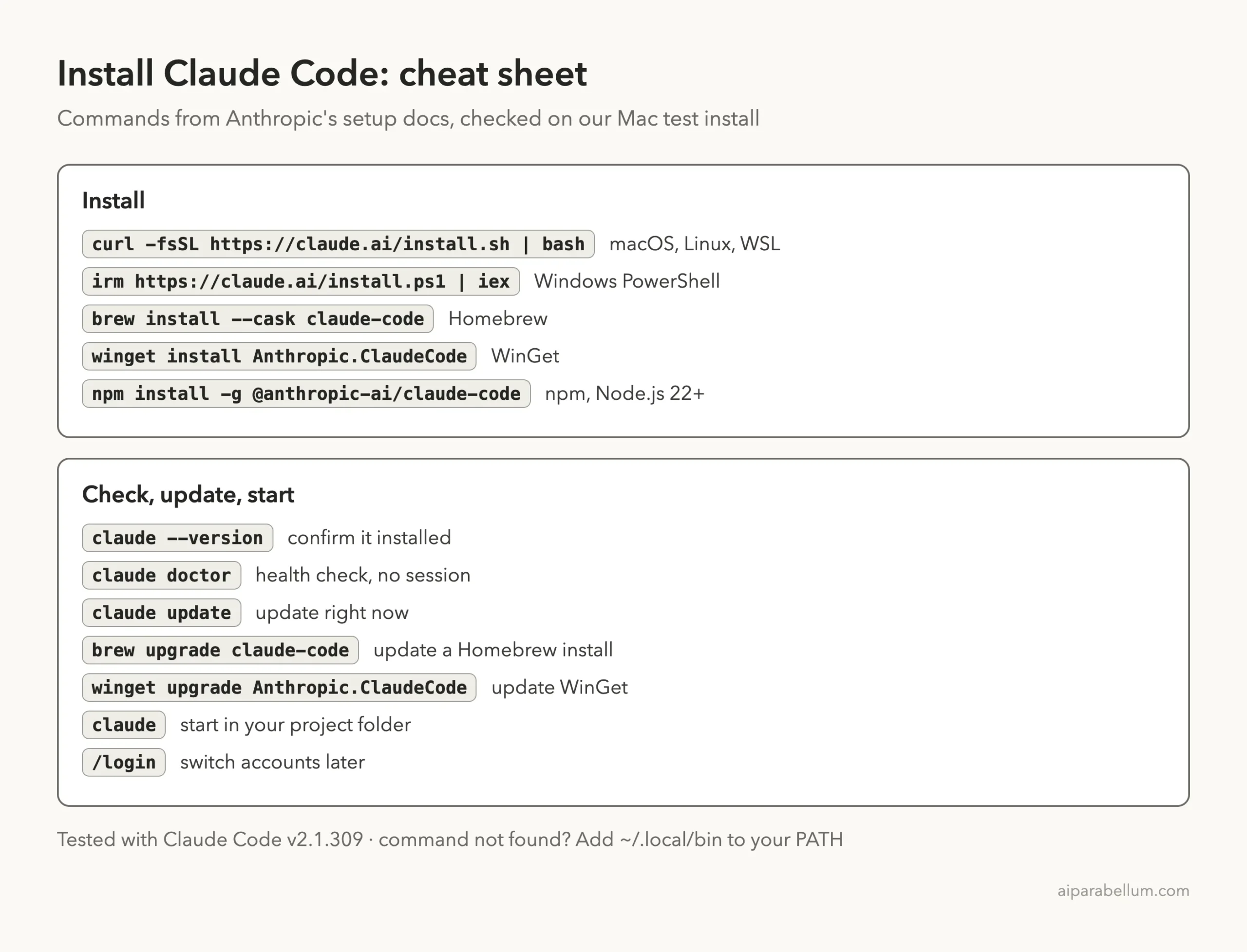
Claude Code Install Cheat Sheet
Save this card. It has every install, check and update command from this guide in one place.
Frequently Asked Questions
Is Claude Code free to install?
Yes, the installer itself costs nothing. To use it, though, you need a Pro, Max, Team, Enterprise or Console account, or access through a supported cloud provider.
Do I need Node.js to install Claude Code?
No. The native installer does not need Node.js. Only the npm method needs it, and that requires Node.js 22 or later.
Why does my terminal say “claude: command not found”?
The install folder is not on your PATH yet. Run the PATH line the installer printed, then open a new terminal window and try again.
How do I update Claude Code?
Native installs update on their own in the background. Run claude update to get the newest version now, or use brew upgrade or winget upgrade if you installed with those.
How do I uninstall Claude Code?
For a native install on Mac or Linux, the docs say to remove ~/.local/bin/claude and the ~/.local/share/claude folder. The setup docs list the steps for every other method too.
Conclusion
Installing Claude Code is quick on every major system: run the native installer with one command on Mac, Linux or WSL, or the PowerShell command on Windows, then fix your PATH if the installer asks. In our real test on a Mac, version 2.1.309 installed in under a minute, claude doctor confirmed a healthy native install, and the first launch walked us straight into picking a text style and a login method. Package managers like Homebrew, WinGet, apt and npm work too, as long as you remember to upgrade them yourself. Once claude –version prints a number, you are ready for real work, and the rest of our tutorial series will take it from there.
Previous in the series: Part 1: What Is Claude Code? A Beginner-Friendly Guide
Next in the series: Part 3: Your First Claude Code Session, Step by Step.