Claude Code runs in almost any terminal straight out of the box, but a few small tweaks make it feel a lot smoother. A good Claude Code terminal setup means new lines go where you want them, your Mac’s Option shortcuts work, you hear a ping when Claude finishes, and the colors look right. This guide walks through each fix, shows what we saw on a real Mac, and tells you which ones you can skip.
Here is the good news first: you may not need any of it. Anthropic’s own docs say the setup page is only for when something specific is not behaving the way you expect. So read the symptom list, fix what bugs you, and move on.
This is Part 6 of 53 in our Claude Code tutorials series. In the last part we covered Claude Code plans and logins, so you should already be signed in and ready to type.
Tested with Claude Code v2.1.309 on October 24, 2026, on macOS, inside a small throwaway demo folder. We tested on macOS; the Windows and Linux steps follow Anthropic’s official instructions.
Claude Code Terminal Setup at a Glance
This table sums up every fix in the guide. Find the problem you have and jump to that section.
| Problem | Quick fix | Where it lives |
|---|---|---|
| Shift+Enter sends your message | Ctrl+J, or \ then Enter, or /terminal-setup | Your terminal or editor config |
| Option shortcuts do nothing on a Mac | Turn on “Use Option as Meta Key” | Terminal app settings |
| No alert when Claude finishes | preferredNotifChannel set to terminal_bell | ~/.claude/settings.json |
| Shortcuts and alerts break in tmux | Three lines in ~/.tmux.conf | tmux config |
| Screen flickers or scroll jumps | /tui fullscreen | Saved Claude Code preference |
| Colors clash | /theme, Auto or a custom theme | ~/.claude/themes/ |
| You want Vim keys | /config, Editor mode, vim | ~/.claude/settings.json |
What Terminal Setup Means and Why It Exists
Your terminal is the window Claude Code lives in. It decides which signals reach Claude Code when you press a key, and whether alerts from Claude Code reach you. Most modern terminals send the right signals by default, but some editors, older apps and tools like tmux do not.
That is why the official terminal page is organized by symptom instead of by feature. It is also separate from keybindings. Terminal setup gets the right signals to Claude Code, while keybindings change which keys Claude Code itself responds to.
If everything already feels right, you can skip terminal setup. Fix only what bothers you.
Before you change anything, check your version. Some fixes below need a recent release, and our install guide shows how to update.

Step 1: Get Multiline Prompts Working
Pressing Enter sends your message. That is great for short questions, but longer prompts read better on several lines. The docs give you two ways to add a line break that work in every terminal with no setup:
- Press Ctrl+J
- Type a backslash (\), then press Enter
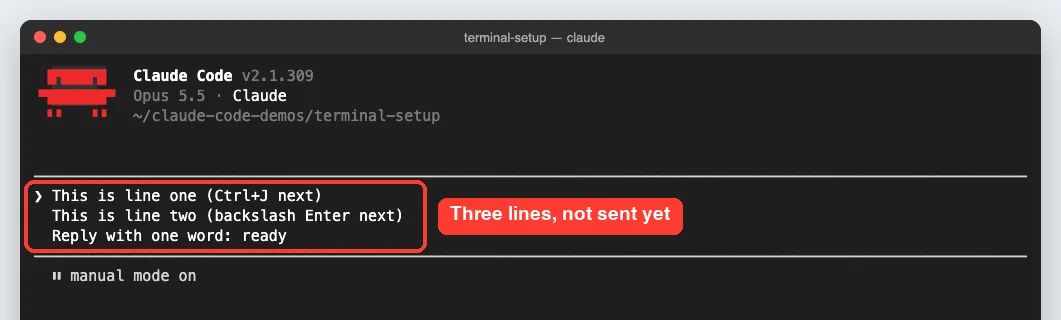
We tried both in one prompt. The first line ended with Ctrl+J, and the second ended with a backslash and Enter. The input box grew to three lines and nothing was sent yet.
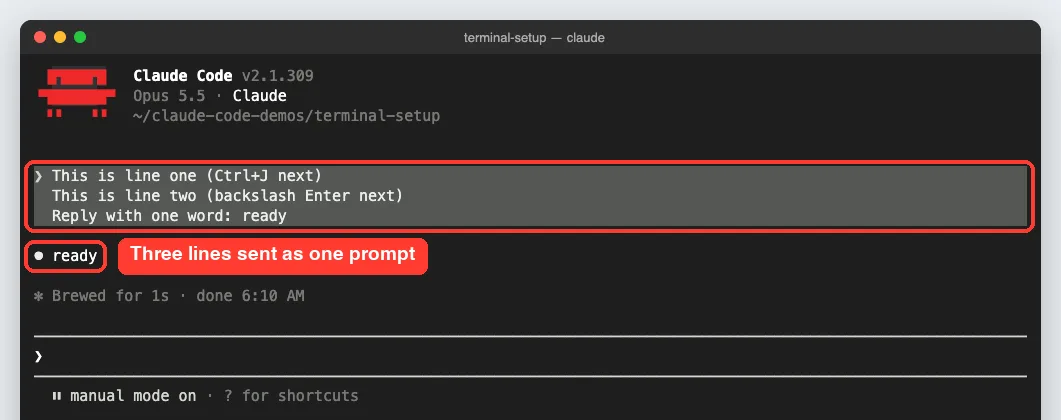
When we pressed plain Enter, all three lines went out as a single prompt. Claude answered with the one word we asked for.
Does Shift+Enter Work in Your Terminal?
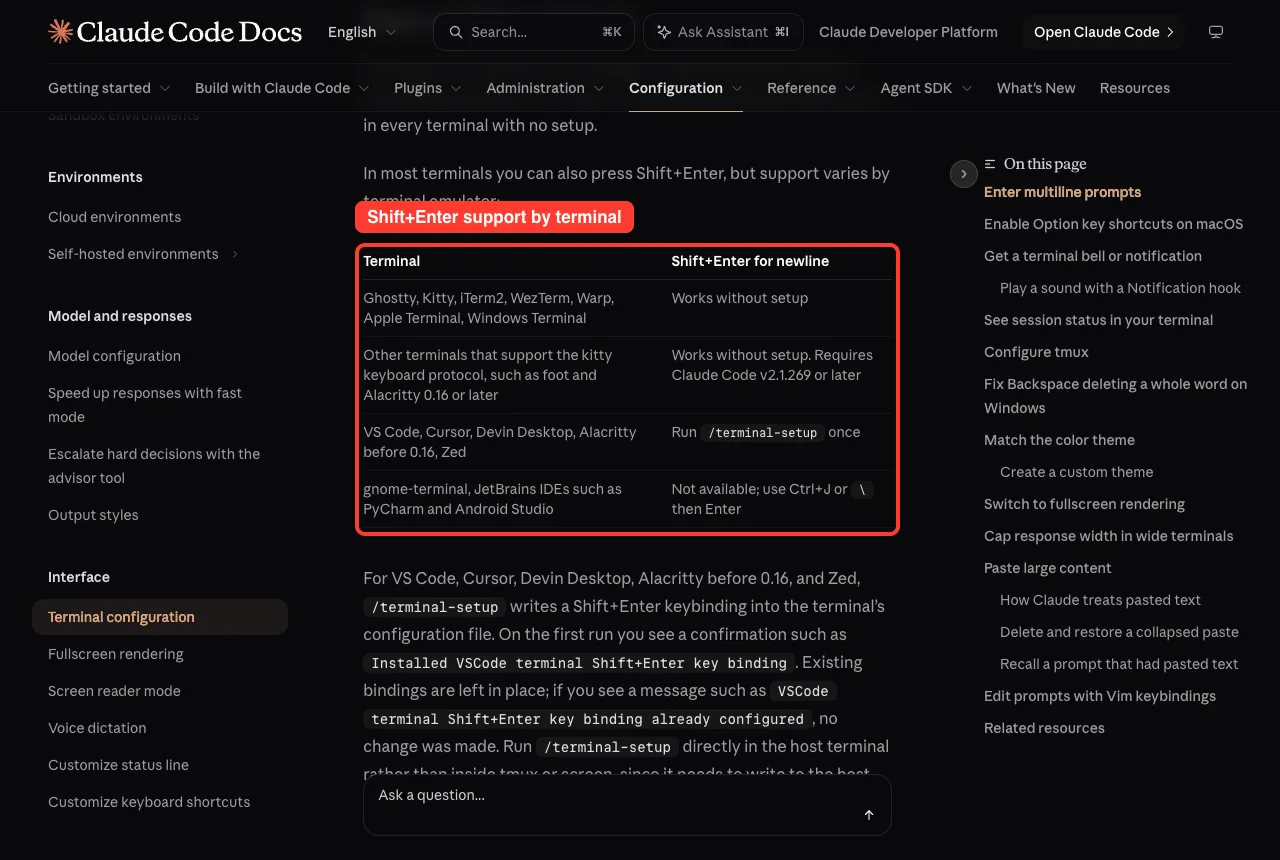
Shift+Enter feels more natural to many people, but support depends on the terminal. According to the docs, it works without setup in Ghostty, Kitty, iTerm2, WezTerm, Warp, Apple Terminal and Windows Terminal. Terminals that support the kitty keyboard protocol, like foot and Alacritty 0.16 or later, also work on Claude Code v2.1.269 or later.
Use /terminal-setup in VS Code, Cursor and Zed
VS Code, Cursor, Devin Desktop, Zed and Alacritty before 0.16 need one extra step. Run /terminal-setup once and Claude Code writes a Shift+Enter key binding into that terminal’s config file. In gnome-terminal and JetBrains IDEs such as PyCharm, Shift+Enter is not available, so stick with Ctrl+J or backslash-Enter.
A few details from the docs are worth knowing before you run it:
- Existing bindings are left alone; you see an “already configured” message if one exists
- In VS Code, Cursor and Devin Desktop it also turns GPU acceleration off in the integrated terminal to stop garbled text
- In Zed it backs up your keymap.json before merging the new binding
- Run it in the host terminal, not inside tmux or screen
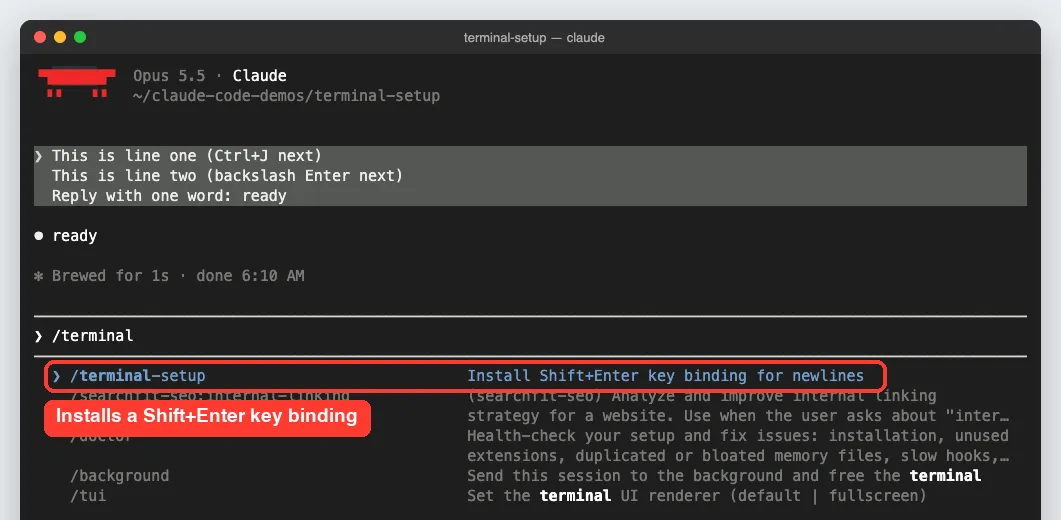
We did not run /terminal-setup on our test Mac, because it changes real terminal settings. The screenshot shows the command and its description as Claude Code listed it.
Step 2: Turn On Option Key Shortcuts on macOS
Some Claude Code shortcuts use the Option key, such as Option+Enter for a new line or Option+P to switch models. On a Mac, most terminals do not send Option as a modifier by default, so those shortcuts quietly do nothing. The fix is a setting usually called “Use Option as Meta Key.”
| Terminal | Where to change it |
|---|---|
| Apple Terminal | Settings, Profiles, Keyboard, check “Use Option as Meta Key” |
| iTerm2 | Settings, Profiles, Keys, General, set Left and Right Option key to “Esc+” |
| VS Code | Add “terminal.integrated.macOptionIsMeta”: true to settings |
| Ghostty, Kitty and others | Look for an Option-as-Alt or Option-as-Meta setting in the config file |
If you accepted Claude Code’s first-run terminal setup prompt in Apple Terminal, this is already done. That prompt runs /terminal-setup, which turns on Option as Meta and turns off the audible bell in your profile.
Step 3: Get a Bell or Notification When Claude Finishes
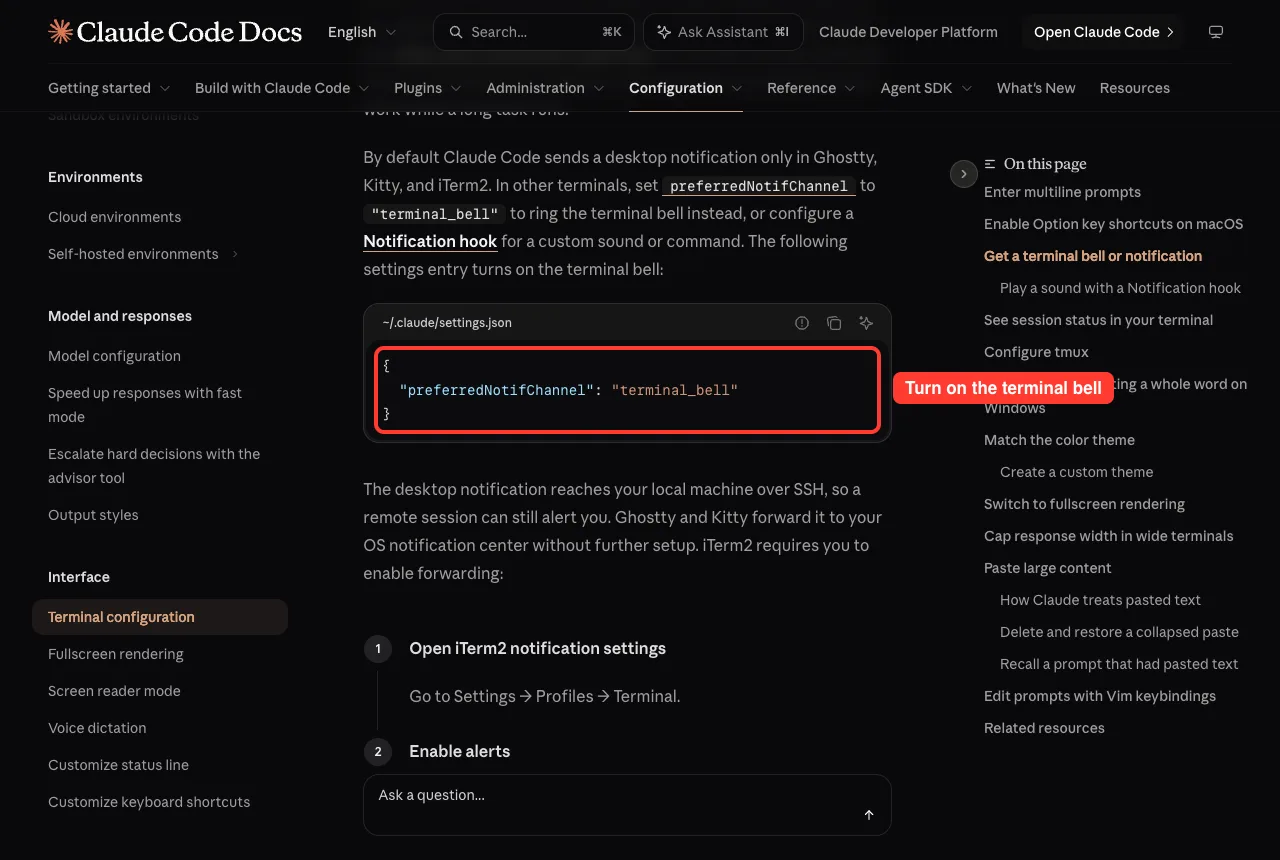
Long tasks are a great time to grab coffee. Claude Code fires a notification event when it finishes or stops for a permission prompt while you seem to be away. By default it sends a desktop notification only in Ghostty, Kitty and iTerm2.
In other terminals, like Apple Terminal, add this one setting to ring the terminal bell instead:
{
  "preferredNotifChannel": "terminal_bell"
}
iTerm2 users need one more step to forward alerts. Go to Settings, Profiles, Terminal, check “Notification Center Alerts,” then open “Filter Alerts” and turn on “Send escape sequence-generated alerts.”
Play a Sound With a Notification Hook
Want a real sound? A Notification hook runs a command of your choice. The docs show this macOS example that plays the Glass system sound:
{
  "hooks": {
    "Notification": [
      {
        "hooks": [{ "type": "command", "command": "afplay /System/Library/Sounds/Glass.aiff" }]
      }
    ]
  }
}
Hooks run next to the built-in notification instead of replacing it. That makes them handy in Warp or the VS Code terminal, which do not get desktop notifications. You can learn more in the official hooks guide.
Step 4: Configure tmux for Claude Code
tmux sits between Claude Code and your real terminal, and by default it swallows some signals. Inside tmux, Shift+Enter sends instead of adding a line, and desktop notifications and the progress bar never reach your terminal. The diagram below shows where things get stuck.
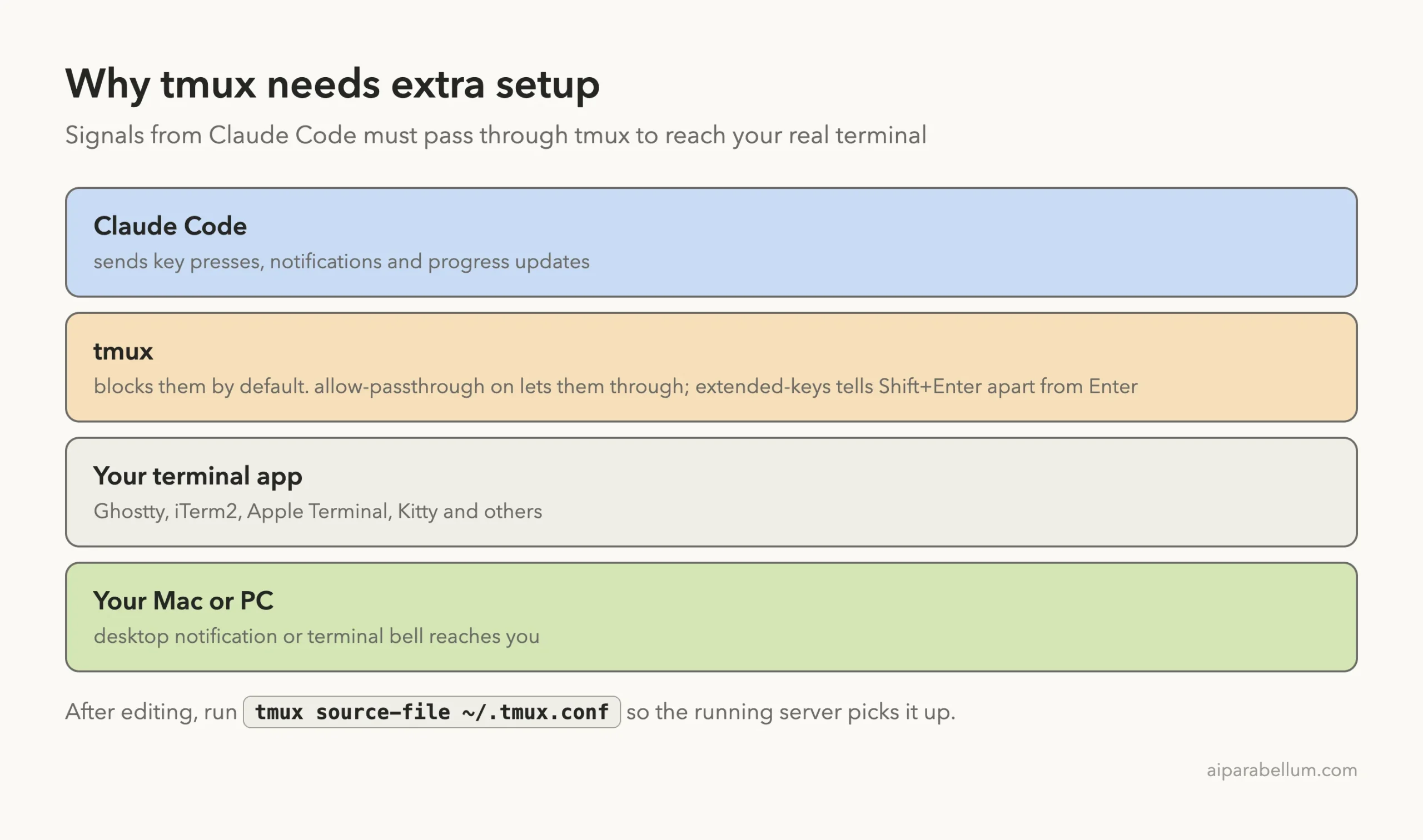
Add these three lines to ~/.tmux.conf:
set -g allow-passthrough on
set -s extended-keys on
set -as terminal-features 'xterm*:extkeys'
Then run tmux source-file ~/.tmux.conf so the running tmux server picks up the change. The first line lets notifications and progress updates through. The other two let tmux tell Shift+Enter apart from plain Enter.
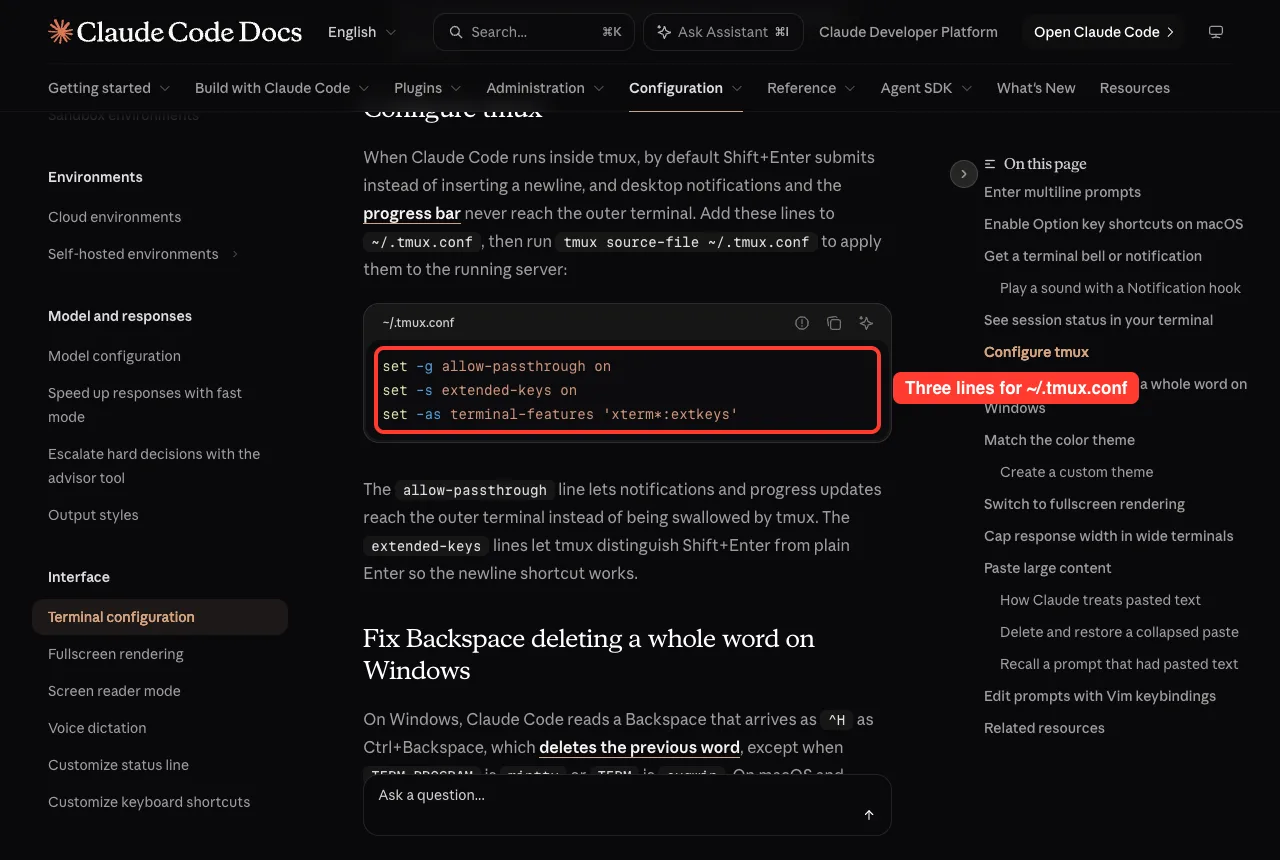
tmux was not installed on our test Mac, and we did not install it, so this step comes straight from the docs.
Step 5: Match the Color Theme
Type /theme to open the theme picker. It lists Auto (match terminal), dark and light modes, colorblind-friendly versions and ANSI-only versions. A live diff preview at the bottom shows how code changes will look before you pick.
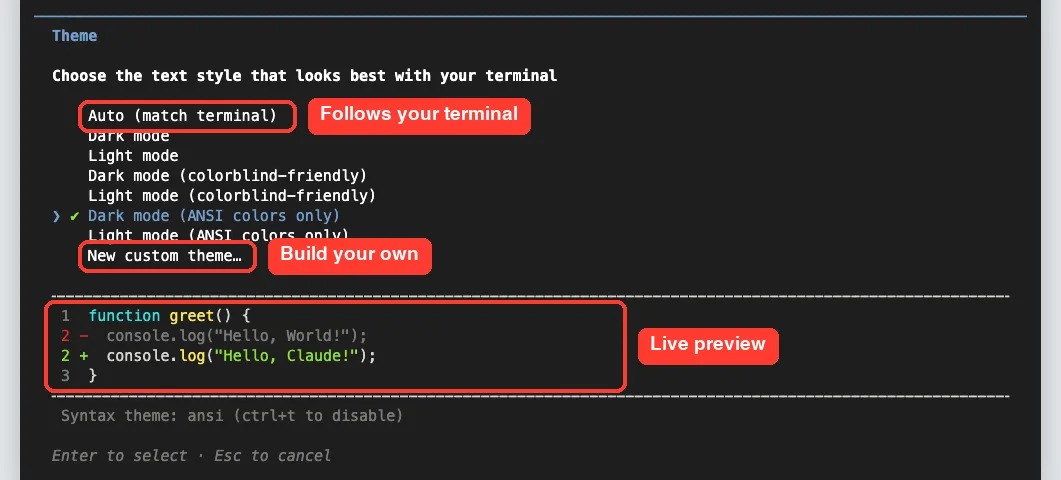
Auto detects your terminal’s light or dark background, so Claude Code follows your OS appearance whenever your terminal does. Note that Claude Code does not change the terminal’s own color scheme. That is set by your terminal app.
Create a Custom Theme
Pick “New custom theme…” at the end of the list to build one step by step. Each custom theme is a JSON file in ~/.claude/themes/ with three optional fields: name, base and overrides.
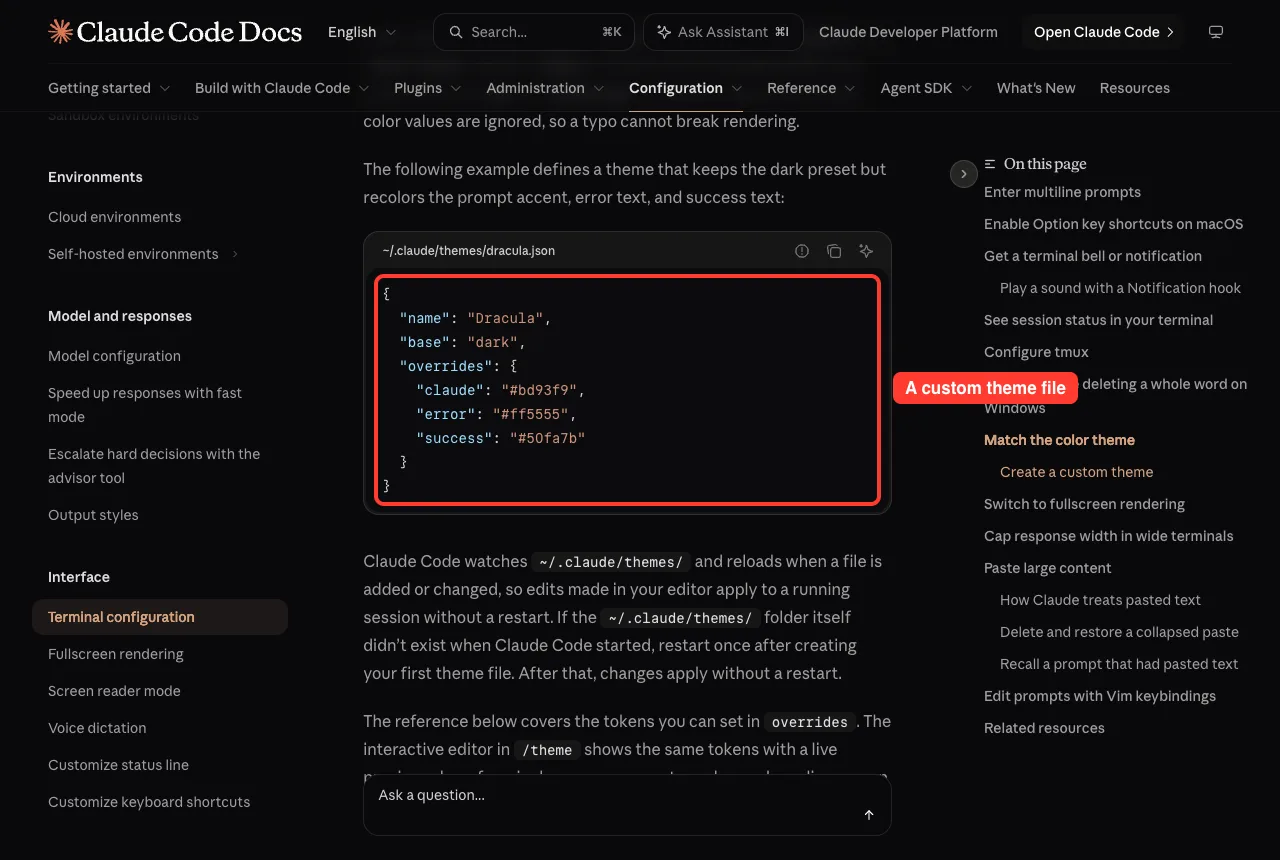
Colors can be written as hex values, rgb(), ansi256() or ANSI color names. Unknown tokens and bad values are ignored, so a typo will not break the screen. Claude Code also watches the folder, so edits apply to a running session without a restart.
Step 6: Stop Flicker With Fullscreen Rendering
If the display flickers or the scroll position jumps while Claude works, try fullscreen rendering. Run /tui fullscreen to switch and save the choice for future sessions. To try it once without saving, start Claude Code like this:
CLAUDE_CODE_NO_FLICKER=1 claude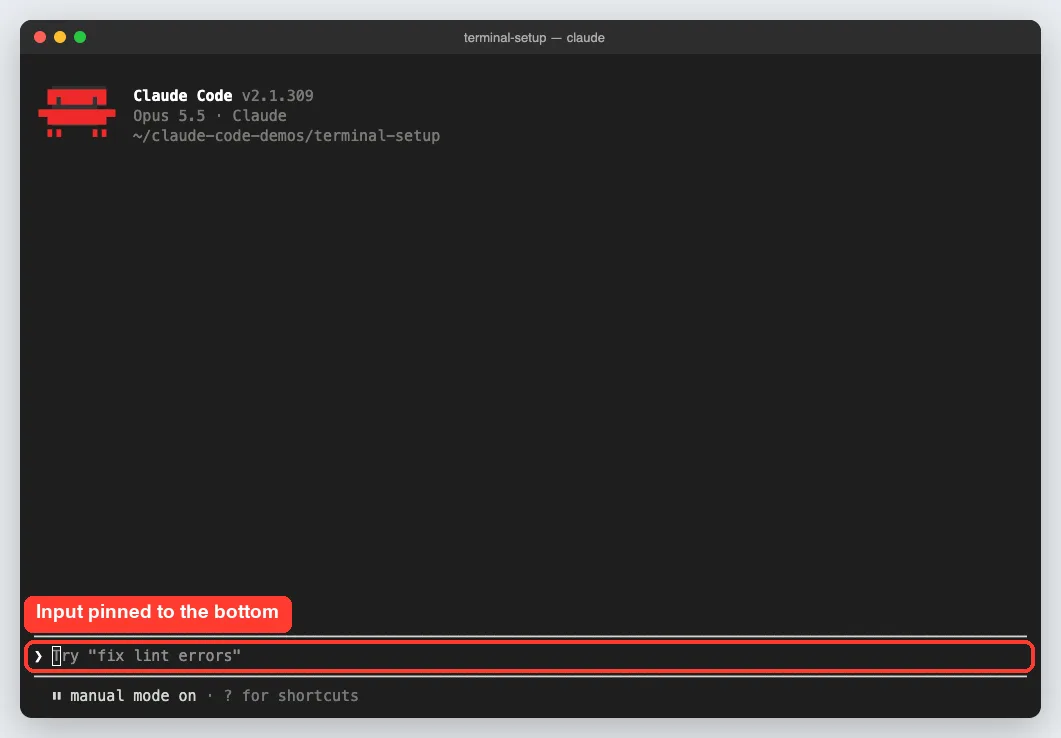
In this mode you scroll with the mouse or PageUp inside Claude Code, not with your terminal’s own scrollback. The /tui command switches between the two renderers.
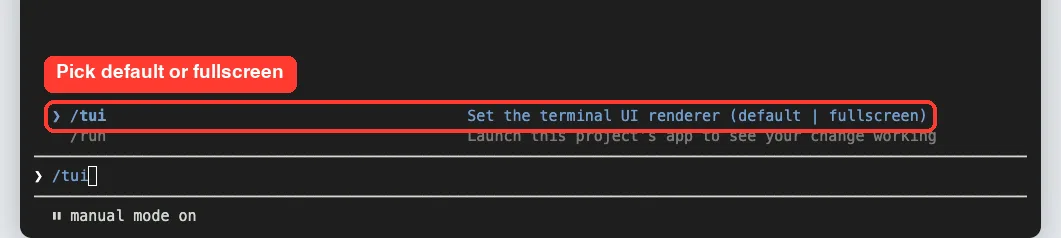
If flicker is your only problem and your terminal supports synchronized output but is not detected, such as Emacs eat, the docs suggest CLAUDE_CODE_FORCE_SYNC_OUTPUT=1 instead.
Step 7: Edit Prompts With Vim Keys
If your fingers think in Vim, Claude Code has a Vim-style editing mode for the prompt. Open /config, type “editor” in the search box, and change Editor mode from normal to vim.
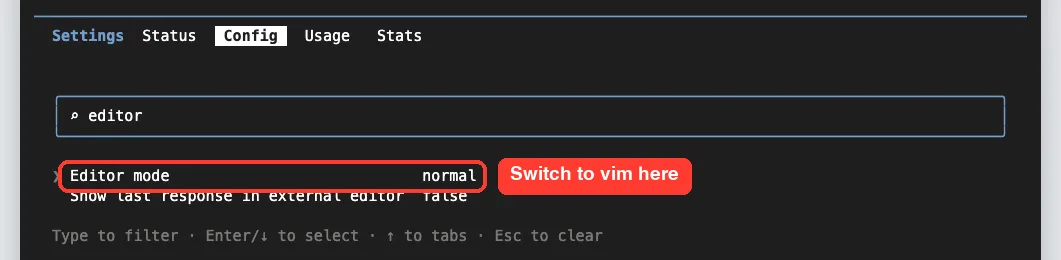
You can also set “editorMode”: “vim” in ~/.claude/settings.json. One difference from real Vim: Enter still sends your prompt in INSERT mode. Use o or O in NORMAL mode, or Ctrl+J, for a new line.
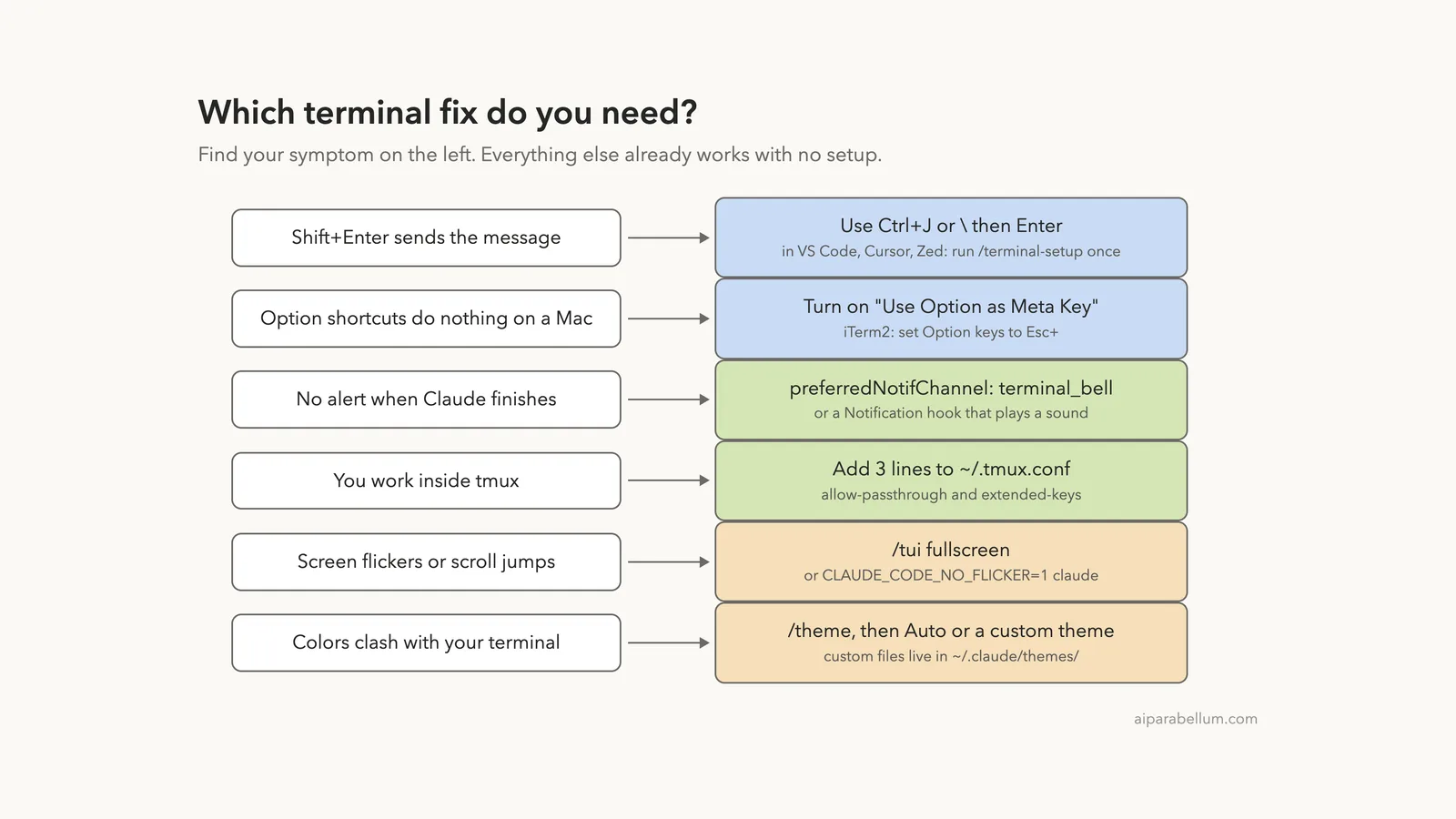
Which Claude Code Terminal Setup Fix Do You Need?
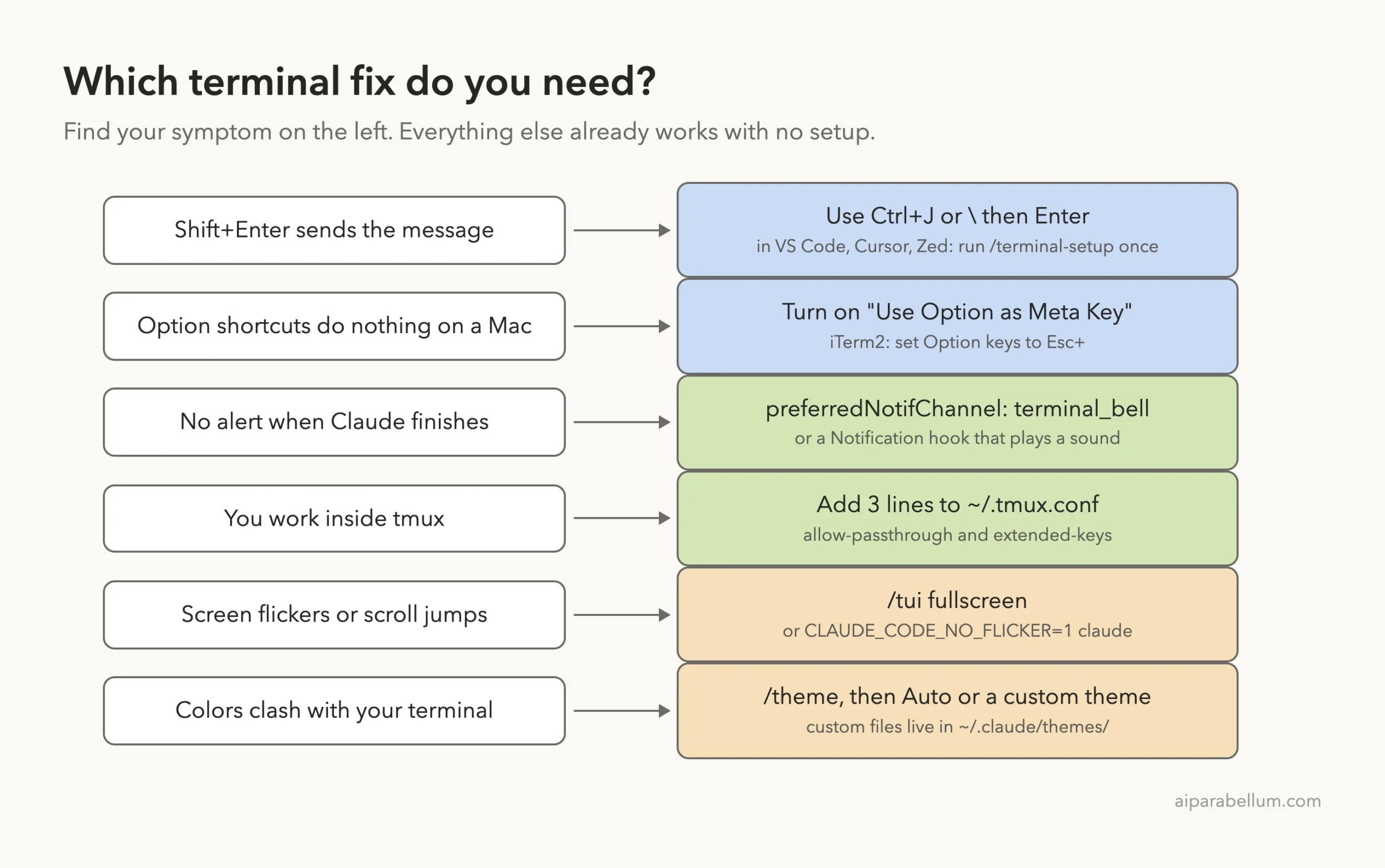
Here is the whole guide as one picture. Find your symptom on the left and follow the arrow.
Real Examples of Terminal Setups
Here is how the fixes add up for a few common setups:
- Apple Terminal on a Mac: Shift+Enter already works. Accept the first-run setup prompt for Option keys, and add the terminal bell setting for alerts.
- iTerm2 on a Mac: Shift+Enter and desktop notifications work. Set Option keys to Esc+ and turn on escape sequence alerts.
- VS Code terminal: run /terminal-setup once for Shift+Enter, add macOptionIsMeta on a Mac, and use a Notification hook or the bell for alerts.
- SSH plus tmux on a server: add the three tmux lines, and alerts from Ghostty or Kitty can still reach your local machine.
Large pastes are handled for you too. When you paste more than 800 characters or more than three lines, Claude Code folds it into a placeholder like [Pasted text #1 +120 lines] and still sends the full text. For very big logs, the docs suggest saving to a file and asking Claude to read it.
Try It Yourself
Open Claude Code in a small practice folder and try every newline method in one prompt. Type the first line and press Ctrl+J, type the second and end it with a backslash and Enter, then type the last line and press Enter.
This is line one
This is line two
Reply with one word: ready
If Claude replies with one word, your multiline input works. Next, open /theme and move through the list to watch the preview change, then press Esc to cancel without saving.
Common Mistakes With Claude Code Terminal Setup
- Running /terminal-setup inside tmux or screen. It needs to write to the host terminal’s config, so run it outside.
- Forgetting tmux source-file after editing ~/.tmux.conf, then wondering why nothing changed.
- Expecting /theme to change your terminal’s background. It only changes Claude Code’s colors.
- Pasting a huge log into the prompt in VS Code. The integrated terminal can drop characters, so use a file.
- Thinking Enter adds a new line in Vim INSERT mode. It still sends the prompt.
Pro Tips
- Learn Ctrl+J first. It works in every terminal, so you never have to think about it again.
- Pick the Auto theme if you switch between light and dark mode during the day.
- Use a Notification hook when you run several sessions at once, so each finish gets your attention.
- Set maxProseWidth in settings if very wide windows make Claude’s answers hard to read.
- Check the terminal configuration docs after big updates, since new terminals get added.
For more everyday shortcuts, see our list of Claude tips. If you are new to the tool, our first session guide covers the basics of typing prompts and approving changes.
Claude Code Terminal Setup Cheat Sheet
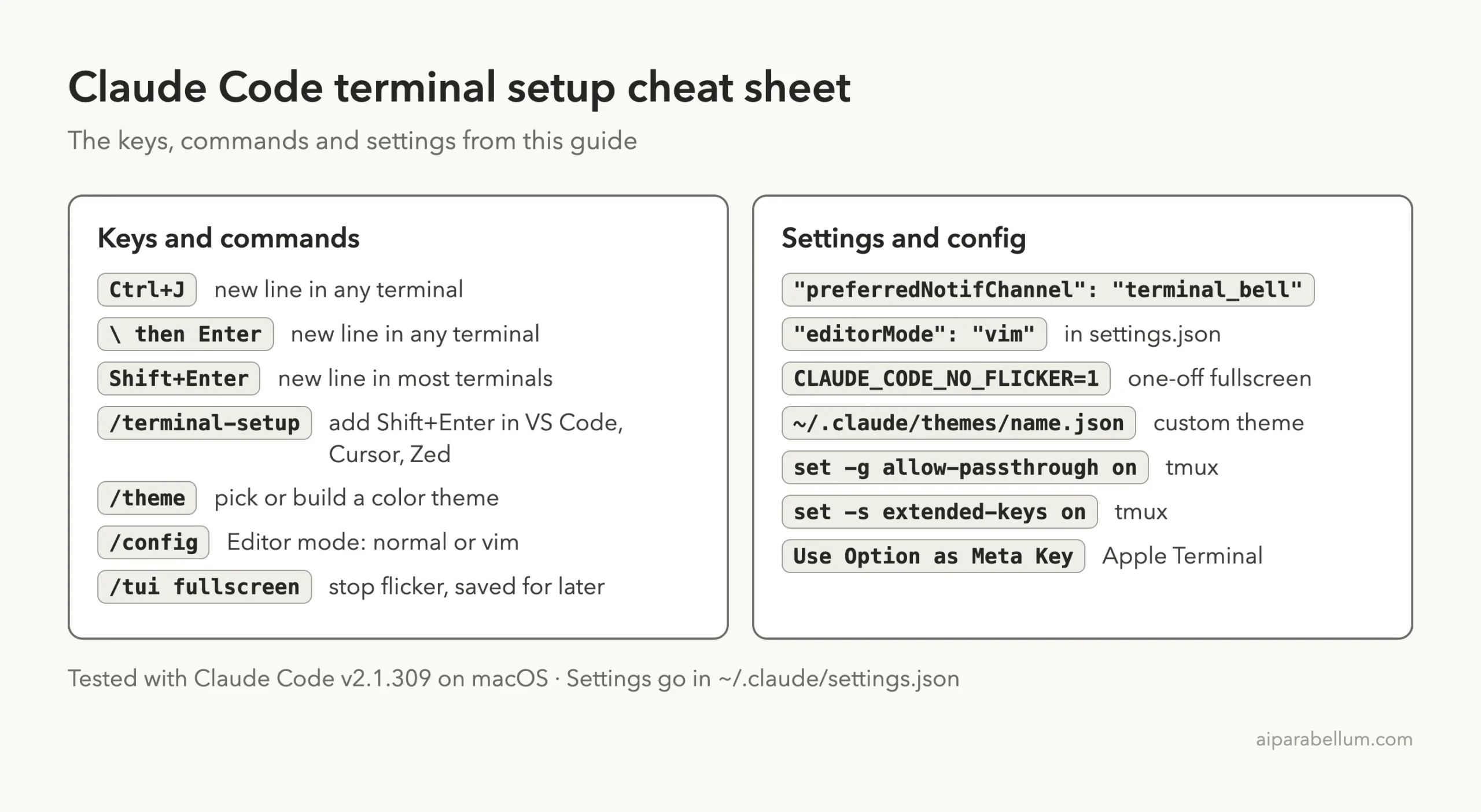
Save this card for quick reference. It holds every key, command and setting from this guide.
Frequently Asked Questions
Do I need to set up my terminal before using Claude Code?
No. Claude Code works in any terminal without setup. The fixes in this guide are only for specific problems, like Shift+Enter sending your message or missing alerts.
What does /terminal-setup actually change?
It writes a Shift+Enter key binding into the config of VS Code, Cursor, Devin Desktop, Zed or older Alacritty. In VS Code-style editors it also adjusts GPU acceleration and scroll settings, and in Apple Terminal it turns on Option as Meta.
How do I add a new line without sending the prompt?
Press Ctrl+J, or type a backslash and press Enter. Both work everywhere. Shift+Enter also works in most modern terminals.
Why don’t I get notifications in Apple Terminal?
Built-in desktop notifications only go to Ghostty, Kitty and iTerm2. In other terminals, set preferredNotifChannel to “terminal_bell” or add a Notification hook.
Can I go back from fullscreen mode?
Yes. Run /tui and choose the default renderer. If you only used CLAUDE_CODE_NO_FLICKER=1 for one launch, the next normal launch uses your saved choice.
Conclusion
A Claude Code terminal setup is mostly about fixing small annoyances, not a big install job. Use Ctrl+J or backslash-Enter for new lines everywhere, run /terminal-setup in editors like VS Code, turn on Option as Meta on a Mac, add the terminal bell or a hook for alerts, give tmux its three lines, and use /theme and /tui fullscreen to make the screen look right. Fix only what bothers you, then get back to building. To learn more about the models behind the tool, visit our Claude AI page.
Previous in the series: Part 5: Claude Code Plans and Login Options Explained
Next in the series: Part 7: Claude Code Interactive Mode: Shortcuts and Input Tricks.