Once Claude Code is running, most of your time goes into one small box: the prompt input. Learning a handful of Claude Code shortcuts turns that box from a plain chat field into a fast control panel. You can stop Claude mid-sentence, run shell commands yourself, point at exact files, search old prompts and park a half-written idea, all without touching the mouse.
This guide covers the shortcuts and input tricks that matter most for everyday work. We tried each one in a real session on a Mac, so every screenshot shows what actually happened on screen.
This is Part 7 of 53 in our Claude Code tutorials series. In the last part we covered terminal setup, including how to add new lines with Ctrl+J and fix Option keys on a Mac, so this part builds right on top of that.
Tested with Claude Code v2.1.309 on October 24, 2026, on macOS, inside a small throwaway demo folder with three tiny files. Shortcuts can vary by platform and terminal, so check the official page if a key behaves differently for you.
Claude Code Shortcuts at a Glance
Here are the keys you will use most, grouped by what they do. The rest of the guide shows each one in action.
| Key or prefix | What it does | When to use it |
|---|---|---|
| ? | Shows the shortcut help panel | On an empty prompt, any time you forget a key |
| / | Opens the command and skill menu | At the start of your input |
| @ | File path autocomplete | To point Claude at an exact file |
| ! | Shell mode | To run a command yourself and let Claude see the output |
| Esc | Stops Claude mid-turn | When Claude heads the wrong way |
| Ctrl+C | Clears input, or interrupts | Press twice on an empty prompt to exit |
| Ctrl+R | Searches past prompts | To reuse something you typed before |
| Ctrl+S | Stashes and restores a draft | To ask something else first |
| Shift+Tab | Cycles permission modes | To switch to plan mode or auto-accept edits |
| Ctrl+O | Opens the detailed transcript | To see tool calls, times and models |
What Interactive Mode Is and Why Shortcuts Matter
Interactive mode is the normal Claude Code experience: you type claude in a folder, a session opens, and you chat back and forth while Claude reads and edits files. If you have not opened one yet, start with our guide to your first session.
Anthropic keeps a full reference of the keys on its interactive mode docs. It is long, with tables for general controls, text editing, multiline input, vim mode and more. You do not need all of it on day one.
The reason shortcuts matter is simple. Claude works in a loop of reading, thinking and acting, which we explained in our agent loop guide. The faster you can steer that loop, the less time you waste waiting on a wrong turn.
You only need about ten keys to feel fast. Learn those first and look up the rest when you need them.
Step 1: Press ? to See Every Shortcut
The first shortcut to learn is the one that shows you all the others. With the prompt empty, type a question mark. A help panel opens right under the input box.
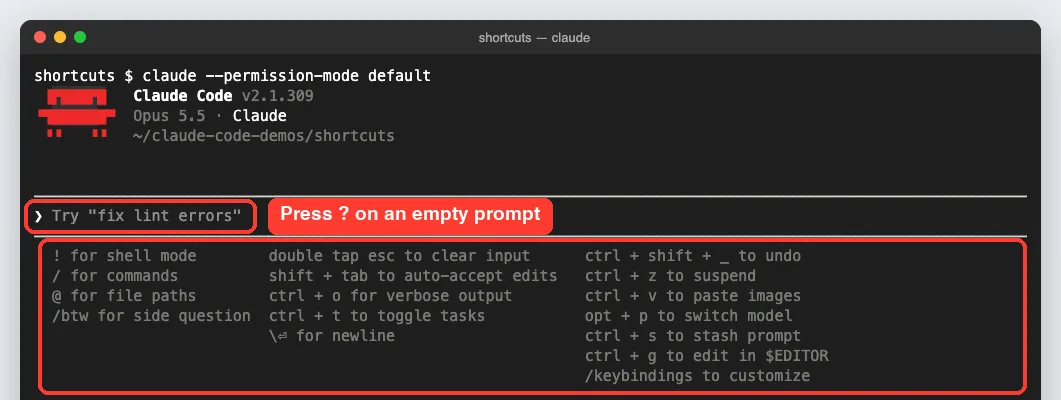
In our session the panel listed the exclamation mark for shell mode, the slash for commands, the at sign for file paths, /btw for side questions, and keys like Ctrl+S to stash a prompt and Ctrl+G to edit in your text editor. Typing the question mark again hides it, and if your input already has text, the key just types a normal question mark.
Step 2: Use the Slash Menu for Commands
Typing / at the start of your input opens the command menu. It lists built-in commands, skills, and commands from plugins and MCP servers. Keep typing letters to filter the list.
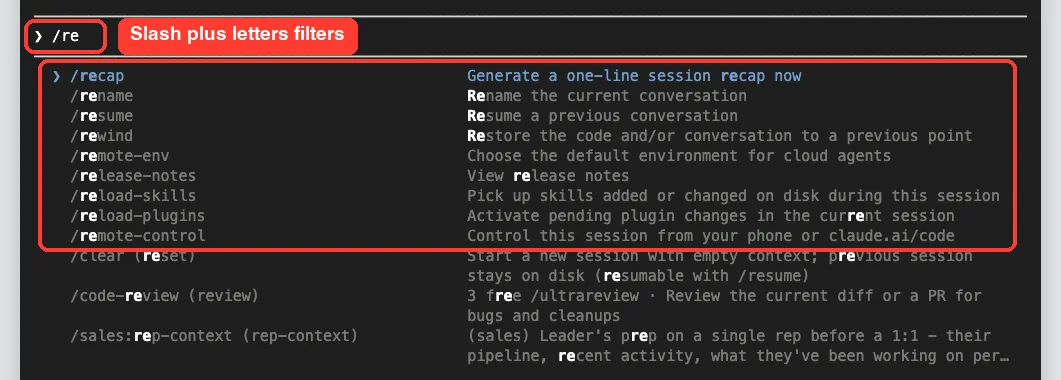
Use the arrow keys to move and Enter or Tab to pick. The docs also note that completion works partway through a prompt: type a space, then / and a few letters, and Claude Code suggests matching commands. A command only runs on its own when it starts your message, though.
Step 3: Mention Files With @
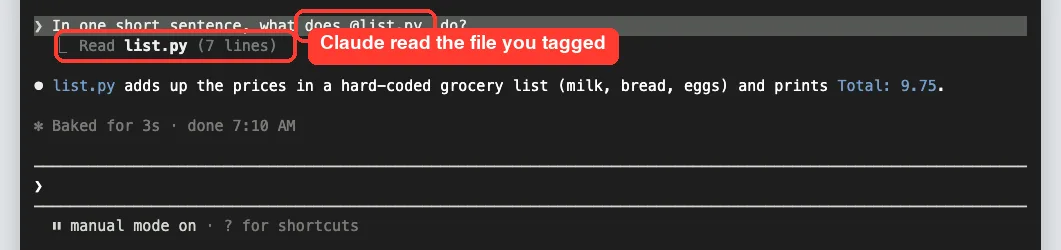
When you want Claude to look at one exact file, type @ and the first letters of its name. Claude Code shows matching paths, and Tab accepts the top one. This saves Claude from searching and saves you from typing long paths.

We asked, “In one short sentence, what does @list.py do?” Claude read the file and answered in one line. The screenshot below shows the Read step right under our prompt.
Step 4: Run Shell Commands With !
Start your input with an exclamation mark to enter shell mode. Whatever you type runs directly as a shell command, without Claude interpreting it or asking for approval. The command and its output then join the conversation.
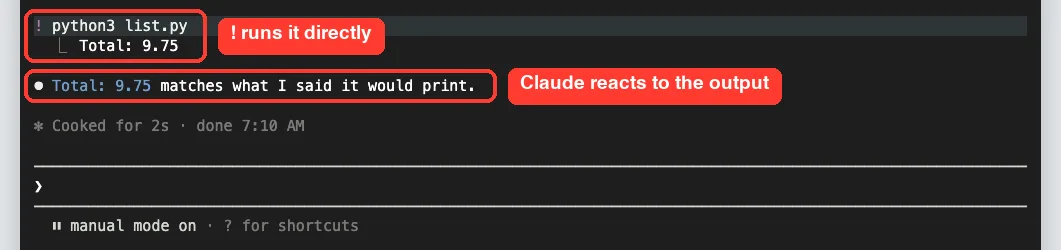
! python3 list.py, and Claude replied to the output on its own.Notice what happened next. Claude responded to the output automatically, noting that “Total: 9.75” matched what it had predicted. The docs say this reply costs the same as a normal prompt, and you can turn it off by setting respondToBashCommands to false in settings.json.
A few more shell mode details from the docs:
- Press Escape, Backspace or Ctrl+U on an empty prompt to leave shell mode
- Tab completes from your earlier ! commands in the same project
- Pasting text that starts with ! into an empty prompt also switches to shell mode
- Commands you type with ! run outside the sandbox, because the sandbox applies to commands Claude runs
How the First Character Changes Your Input
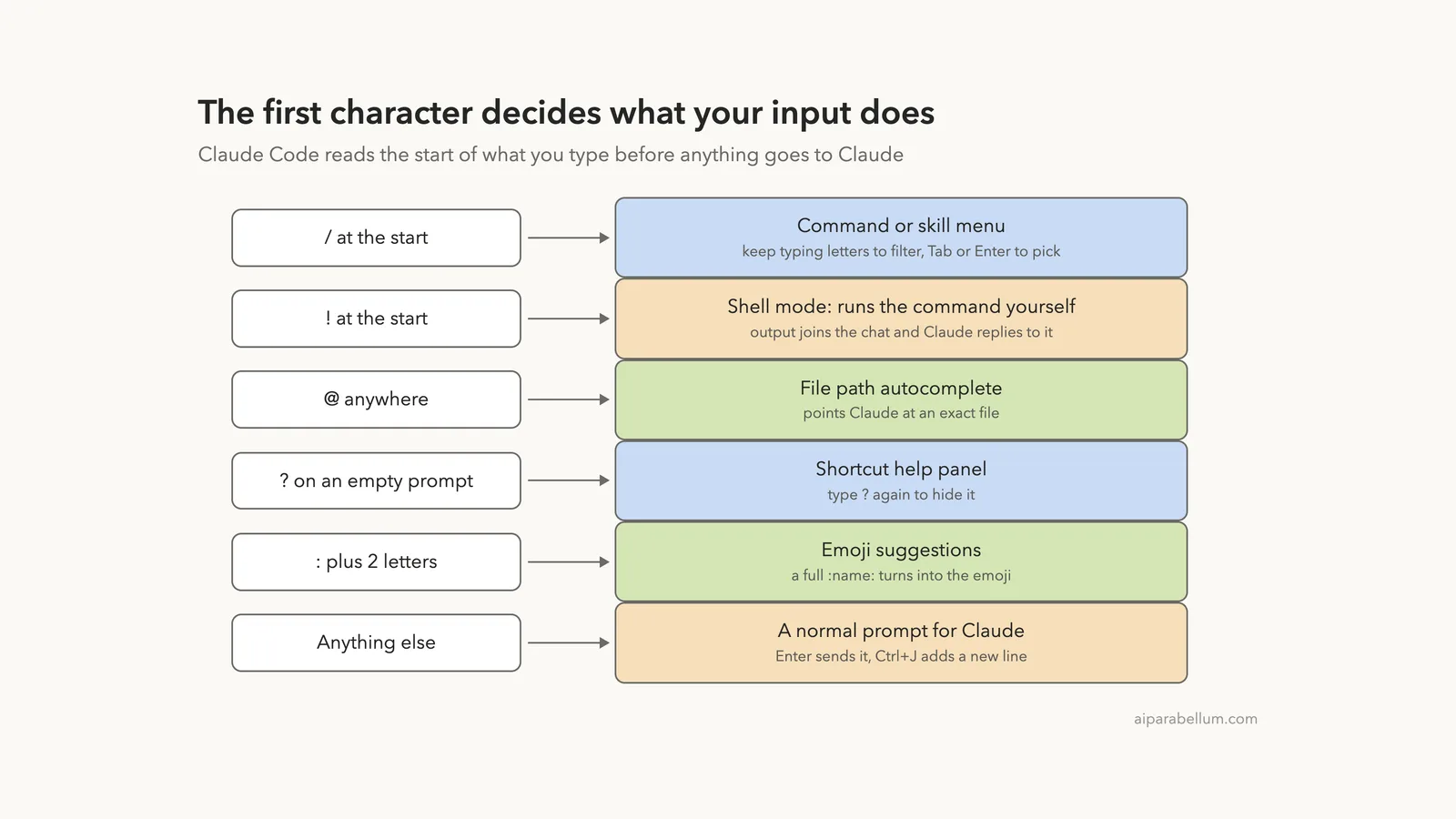
Steps 1 to 4 share one idea: the character you type first tells Claude Code what to do with the rest. This diagram puts all the prefixes side by side.
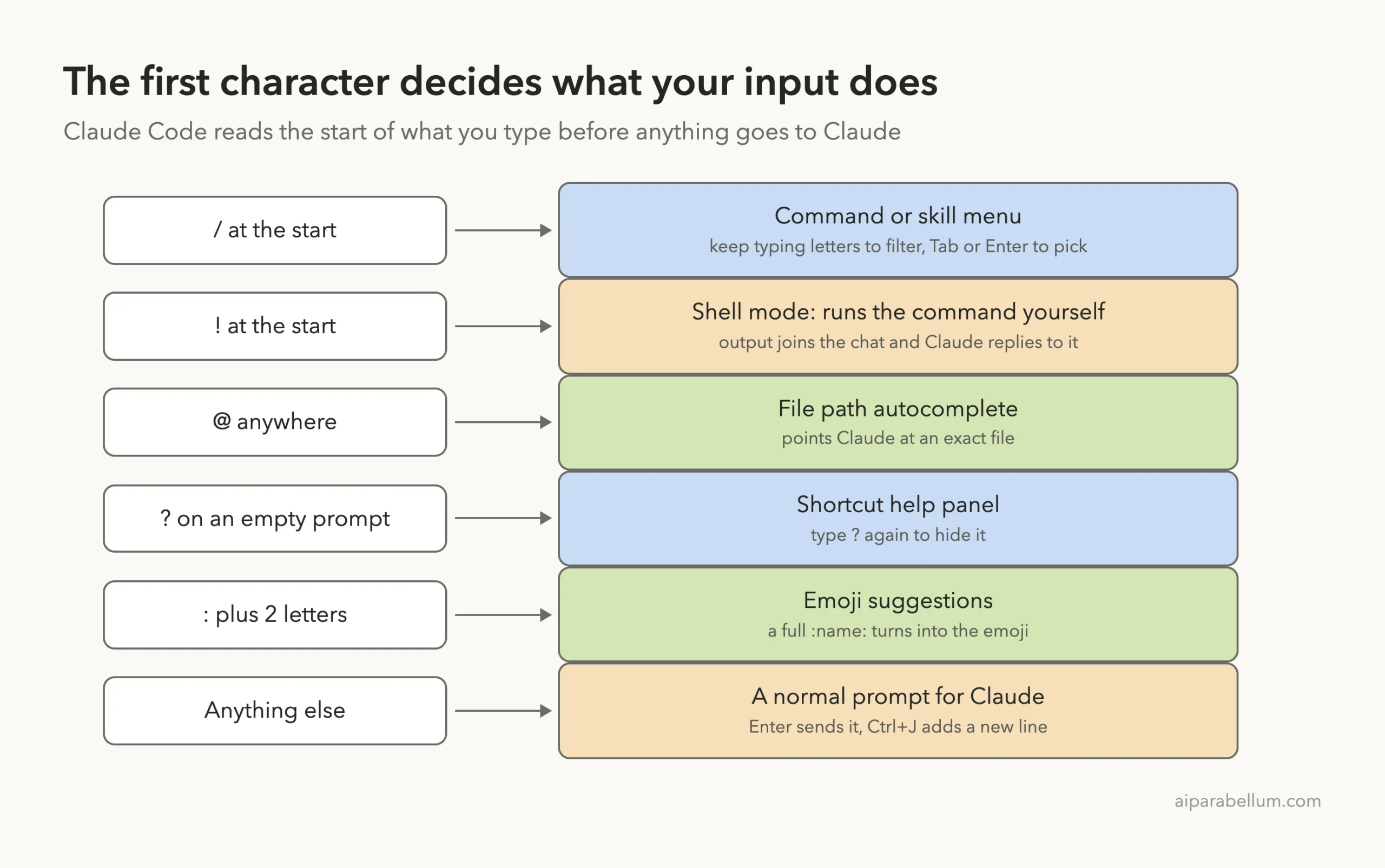
The colon is the newest one. Type a full shortcode like :heart: and it becomes the emoji, or type a colon plus two letters to get suggestions. You can switch it off with emojiCompletionEnabled set to false.
Step 5: Find Old Prompts With Ctrl+R
Claude Code keeps a history of what you type, stored per working directory. The Up arrow walks back through it, and it even reaches prompts from earlier sessions in the same project.
For anything older, press Ctrl+R and type a few words. Unlike the Up arrow, this search covers prompts from all your projects, not just the current folder. To test it, we closed our session, opened a fresh one in the same folder, pressed Ctrl+R and typed “which file.”

Press Ctrl+R again to cycle to older matches. Tab or Esc puts the match in the input so you can edit it, and Enter sends it right away. Ctrl+C cancels and gives you back what you had before.
Step 6: Park a Draft With Ctrl+S
Sometimes you are halfway through a long prompt and realize you need to ask something else first. Press Ctrl+S. Your text disappears from the box and a small “stashed” note appears in the footer.

Ask your other question, then press Ctrl+S again on an empty prompt. The docs say it restores the text, cursor position, pasted content and input mode. In our test, the draft came right back.
Step 7: Clear Safely and Get Drafts Back
Ctrl+C clears your input when nothing is running. A second press on an empty prompt exits Claude Code, so be a little careful with it.
The good news is that clearing is not final. Press Up right after clearing and your draft comes back. We typed a sentence, pressed Ctrl+C, then pressed Up.

The docs say this needs v2.1.288 or later for the right-away case. After you send other messages, Up still steps back to cleared drafts, and the session keeps the ten most recent ones until you exit.
Esc Versus Ctrl+C
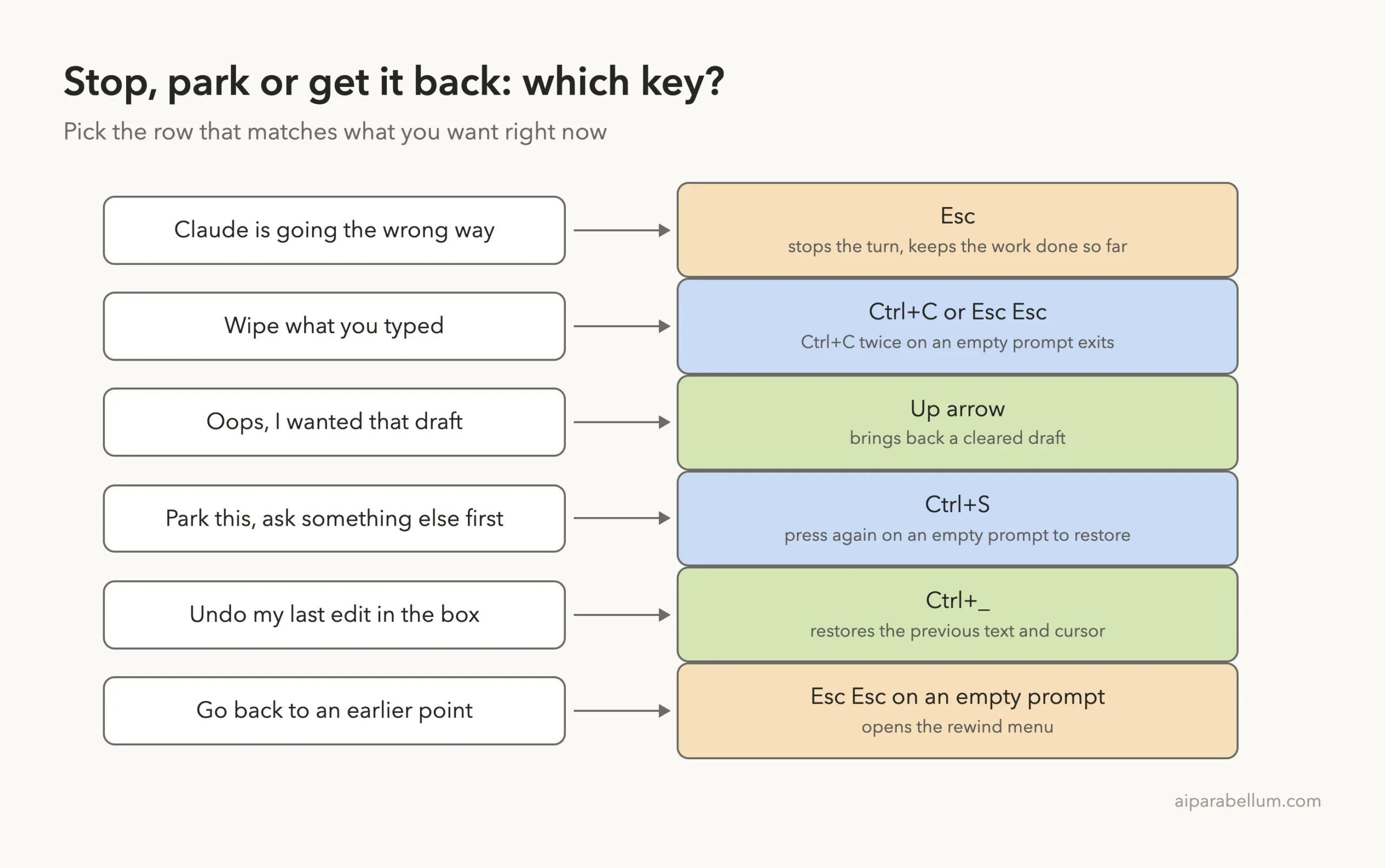
These two keys look similar, but they do different jobs. Esc stops Claude’s current response or tool call and keeps the work done so far, so you can redirect it. It also closes dialogs.
Double Esc depends on the box. With text in it, double Esc clears the draft and saves it to history. With the box empty, it opens the rewind menu so you can go back to an earlier point in the code and conversation.
Step 8: Ask a Side Question With /btw
Want to check something quickly without cluttering the conversation? Type /btw followed by your question. Claude answers from what is already in the session, and the exchange never enters the conversation history.

The overlay listed keys to scroll, copy, fork and close. The docs add that side questions have no tool access, so Claude cannot read new files or run commands for them. You can even use /btw while Claude is still working on a main task.
Step 9: See the Details With Ctrl+O
The normal view keeps things tidy. Press Ctrl+O to open the transcript viewer, which shows detailed tool usage plus a timestamp and model name on each assistant message.
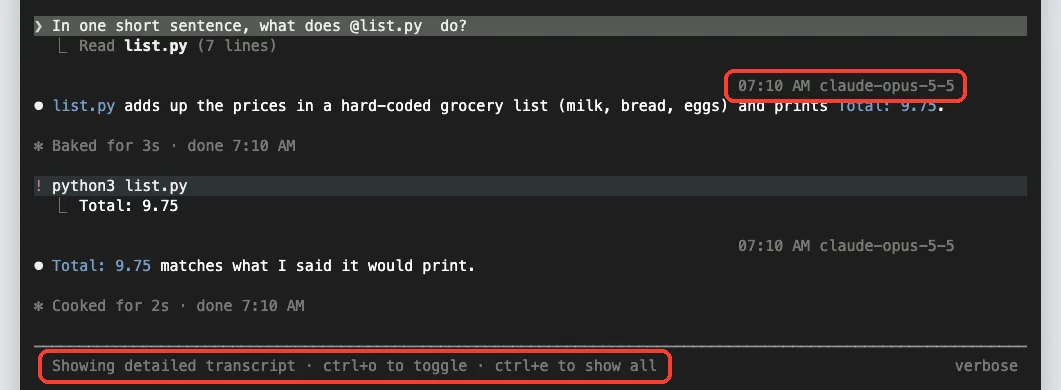
Press Ctrl+O again, q or Esc to go back. If you use fullscreen rendering from the last part, the transcript viewer adds extras like ? for help and { and } to jump between your prompts.
Step 10: Switch Modes With Shift+Tab
Shift+Tab cycles through permission modes without typing a command. In our session, each press moved the footer from manual mode to accept edits, then plan mode, then auto mode, then back to manual.

The docs say auto and bypass modes only appear in the cycle when they are available to you. We will dig into what each mode does in a later part of the series.
Real Examples of Shortcuts in Daily Work
Shortcuts make the most sense when you see them strung together. Here are a few small flows that match how people actually work.
Fix a Failing Test Faster
Run your tests yourself in shell mode, for example with npm test after the exclamation mark. Claude sees the failures and explains them without a second prompt. Then ask it to fix the one that matters, using @ to name the file.
Redirect Without Starting Over
If Claude starts editing the wrong file, press Esc. It stops but keeps what it already did. Type a short correction and press Enter to keep going.
Reuse a Great Prompt
Wrote a detailed review prompt last week? Press Ctrl+R, type a word you remember from it, and press Tab to edit before sending. This beats retyping it from memory.
Write Long Prompts in Your Editor
For anything longer than a few lines, press Ctrl+G to open the prompt in your default text editor. Save and close, and the text lands back in the input box.
Try It Yourself
Make a tiny practice folder with one small script, open Claude Code in it, and work through this list:
- Press ? to open the help panel, then ? again to close it
- Type /re and look at the filtered commands, then press Ctrl+C
- Paste the prompt below, using @ and Tab to fill in your file name
- Run your script with ! and watch Claude react
- Type a draft, press Ctrl+S, ask /btw what you ran, then press Ctrl+S again
In one short sentence, what does @your-file do?That whole practice run used only three short model requests in our test: the @ question, the reply to the shell output, and the /btw answer. The other steps happen entirely in your terminal.
Common Mistakes With Claude Code Shortcuts
- Pressing Ctrl+C twice by habit. On an empty prompt, the second press exits Claude Code. Use Esc to stop Claude instead.
- Expecting Option shortcuts to work on a Mac out of the box. Option+B, Option+F and similar keys need Option set as Meta in your terminal, as covered in Part 6.
- Forgetting that ! commands cost a reply. Claude answers shell output automatically unless you turn respondToBashCommands off.
- Asking /btw to check a new file. Side questions have no tools, so they only know what the session already contains.
- Thinking a cleared draft is gone. Press Up first before retyping anything.
Pro Tips for Faster Input
- Use Ctrl+W to delete back to the last space. One press removes a whole path like src/utils/foo.ts.
- Press Ctrl+_ to undo your last edit in the input box.
- Press Option+P on a Mac to switch models without clearing your prompt.
- Press Ctrl+B to move a running Bash command or agent to the background so you can keep chatting.
- Type a message and press Enter while Claude works to queue it instead of interrupting.
- If you love Vim keys, turn on vim mode in /config under Editor mode.
You can see more general advice in our collection of Claude tips. For changing the keys themselves, Anthropic documents a keybindings file you can edit.
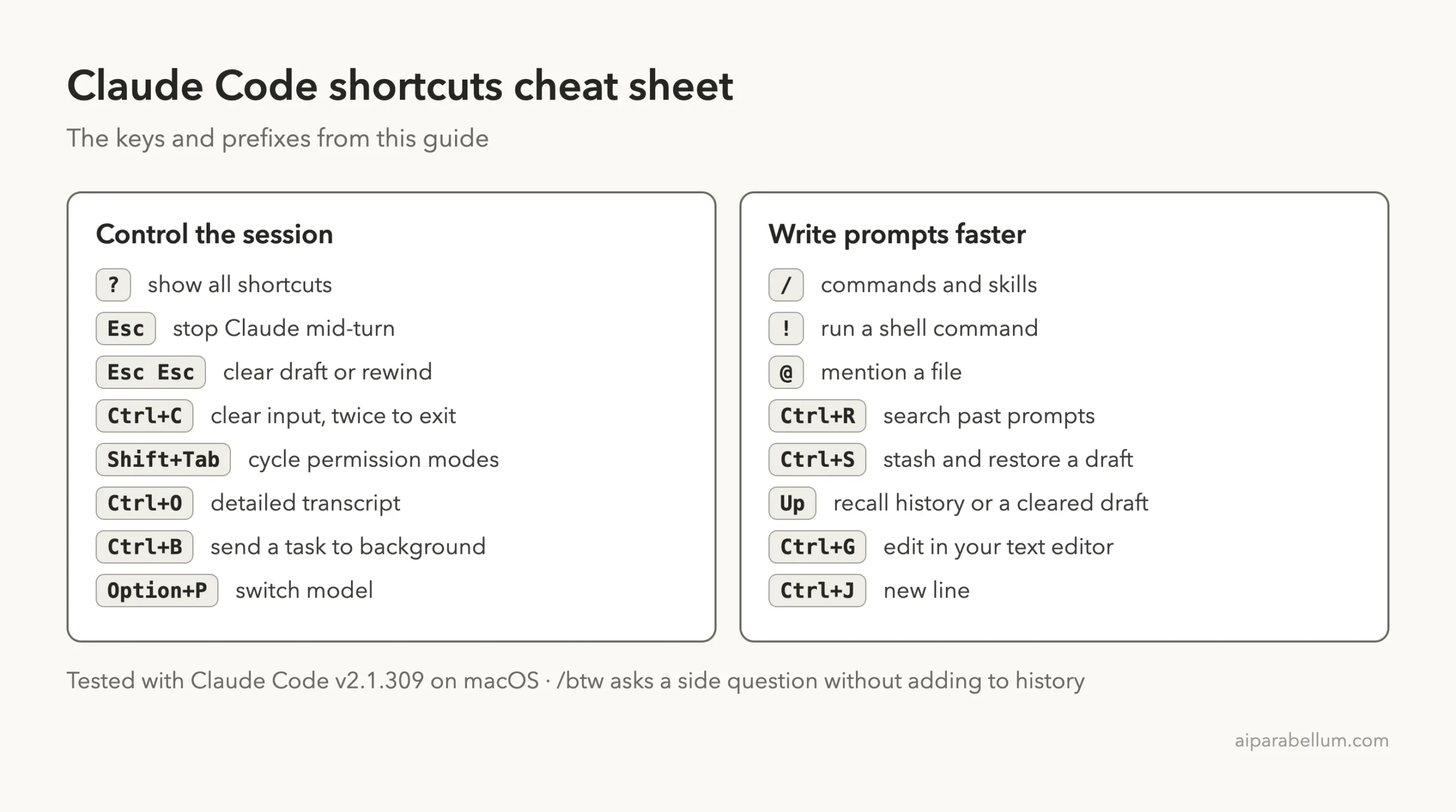
Claude Code Shortcuts Cheat Sheet
Save this card or keep it open in a tab until the keys become muscle memory.
Frequently Asked Questions
How do I see all Claude Code shortcuts?
Type ? on an empty prompt to open the help panel. The full list lives on Anthropic’s interactive mode docs page.
How do I stop Claude Code without closing it?
Press Esc. It stops the current response or tool call and keeps the work done so far. Ctrl+C also interrupts a running operation.
Does the ! shell mode need approval?
No. Commands you type in shell mode run directly without Claude approving them. Claude then sees the output and replies to it.
Can I change the keyboard shortcuts?
Many of them, yes, through the keybindings configuration file. Type /keybindings inside Claude Code to open that file, and see Anthropic’s keybindings docs for every action you can change.
Does /btw cost anything?
It uses a model request, but the docs say it costs little beyond the answer while the prompt cache is warm. It never adds to your main conversation.
Conclusion
Claude Code shortcuts are small, but together they change how a session feels. Press the question mark to see the list, use the slash for commands, the at sign for files and the exclamation mark for shell commands, steer Claude with Esc and Shift+Tab, and lean on Ctrl+R, Ctrl+S and the Up arrow so you never lose or retype a prompt. Start with the ten keys in the summary table, keep the cheat sheet nearby, and add the rest as you need them. To learn more about the models behind the tool, visit our Claude AI page, or read our Claude Code overview if you are new to the series.
Previous in the series: Part 6: How to Set Up Your Terminal for Claude Code
Next in the series: Part 8: Claude Code Slash Commands Explained: The Essentials.