Once the basics feel easy, advanced Claude Code commands are where the tool really starts to save you time. They let you review every edit before you trust it, undo a change that went wrong, split a conversation to test a different idea and save a record of the whole session. This guide walks through the power commands that sit one level above the everyday ones.
We ran each command in a real session on a Mac, inside a tiny throwaway demo folder with one Python file. Every screenshot below shows what Claude Code actually printed, so you know exactly what to expect.
This is Part 9 of 53 in our Claude Code tutorials series. In the previous part we covered the essential slash commands like /help, /model, /compact and /clear, so this part picks up right where that one left off.
Tested with Claude Code v2.1.309 on October 24, 2026, on macOS, in a demo git repository with one small script. Which commands you see depends on your plan, platform and setup, so your menu may differ a little.
Quick Summary: Advanced Claude Code Commands at a Glance
| Command | What it does | When to use it |
|---|---|---|
| /diff | Opens a viewer for uncommitted changes | Right after Claude edits files |
| /rewind | Restores code, chat or both to an earlier point | When an edit went the wrong way |
| /recap | Writes a one-line summary of the session | Coming back after a break |
| /export [file] | Saves the conversation as plain text | Keeping notes or sharing a log |
| /branch [name] | Copies the chat so you can try another direction | Testing an idea without losing the original |
| /fork and /subtask | Run a copy of the chat in the background | Parallel side work |
| /add-dir <path> | Adds another folder Claude can read | Work that spans two folders |
| /config key=value | Changes a setting without opening a menu | Quick setting tweaks |
| /code-review | Checks the current diff for bugs | Before you commit or ship |
| /loop and /goal | Repeat a prompt or keep working toward a goal | Watching or long-running tasks |
What Makes These Claude Code Commands “Advanced”?
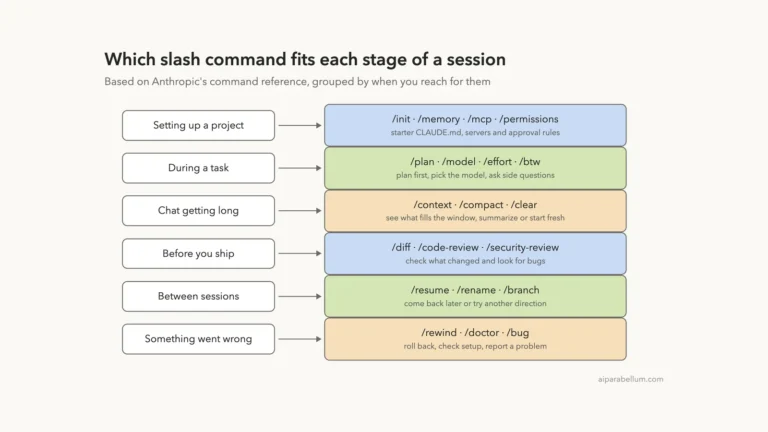
The basic commands manage the conversation itself. The advanced ones reach further: they look at your files, roll back edits, copy whole sessions and change how Claude Code behaves. Anthropic’s commands reference groups them by moment, such as during a task, before you ship and when something is wrong.
Some are built-in commands coded into the tool. Others, like /code-review, /simplify and /loop, are bundled skills, which are prompts handed to Claude that work like skills you write yourself.
Basic commands manage the chat. Advanced commands manage your work.
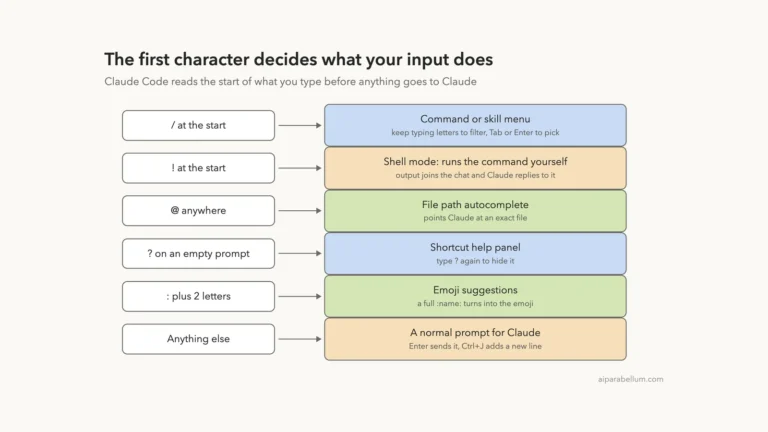
One rule from the basics still applies. A command only counts at the very start of your message, and anything you type after the name becomes its argument.
Step 1: Review Every Edit With /diff
We started by asking Claude to add a one-line docstring to the tip function in our demo file. In the default permission mode it showed the proposed change and waited for our approval before writing anything.
After we approved, we ran /diff. It opened a viewer titled “Uncommitted changes (git diff HEAD)” with a list of changed files, and pressing Enter on tip.py showed the exact line Claude added.
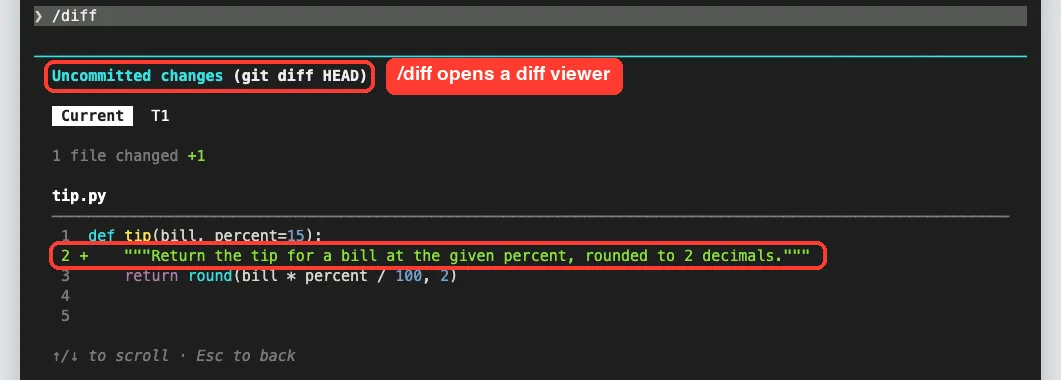
The viewer also had two tabs, Current and T1, and the footer said the left and right arrows switch the source. Press Esc to go back and Esc again to close it.
Why /diff beats scrolling back
Claude’s chat replies can be long, and edits get buried. The diff viewer puts every change in one place, which makes it the safest habit before you commit anything.
Step 2: Get a Recap and Export the Session
Next we ran /recap. It returned a single sentence saying what we asked for, what was done, and a sensible next step, which was to run the script and check that it still prints 6.0.
Then we ran /export session-notes.txt. With a filename, the docs say it writes straight to that file, and our session confirmed it with an “exported to” message showing the path.
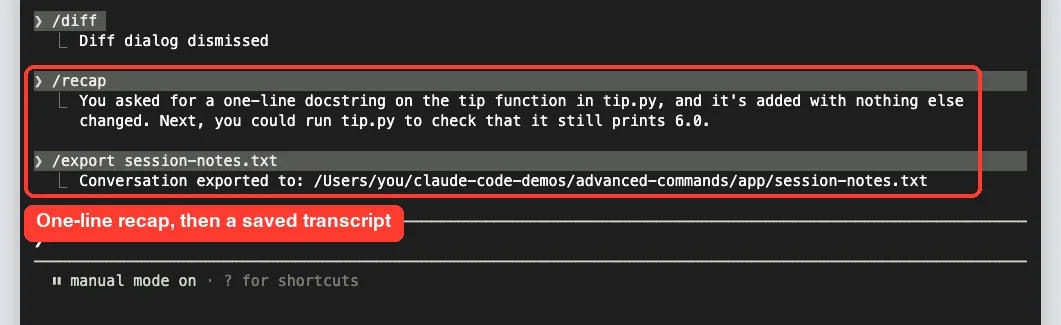
Without a filename, /export opens a dialog where you can copy to the clipboard or save to a file. If you only need one answer, /copy copies the last response, and /copy 2 copies the one before it.
Step 3: Try a Different Direction With /branch
Say you like the current state but want to test a risky idea. That’s what /branch is for. We ran /branch try-ten-percent, and Claude Code created a copy of the conversation and switched us into it.
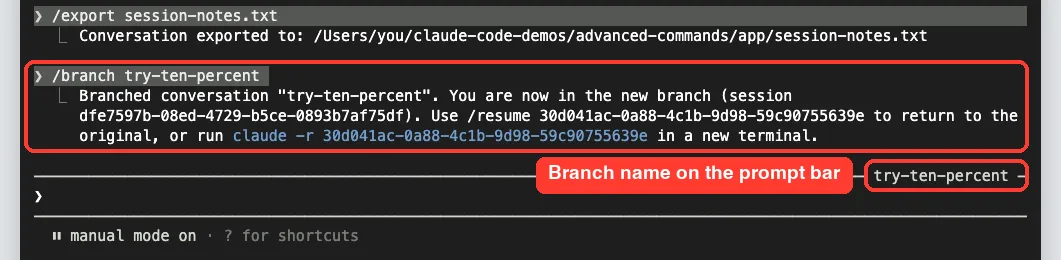
The message even told us which /resume command returns to the original. The branch name also appeared on the prompt bar, so we always knew which copy we were in.
Finding both versions later
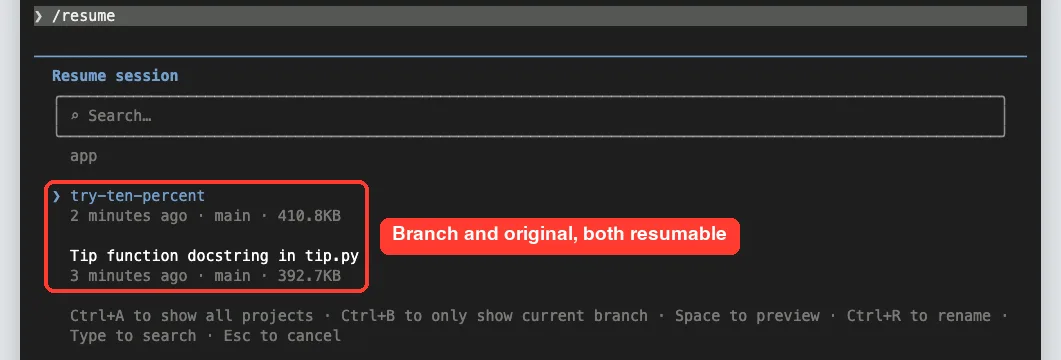
In a fresh session we opened /resume. Both conversations were listed: the branch called try-ten-percent and the original, which Claude Code had auto-titled “Tip function docstring in tip.py”.
Branch, Fork or Subtask: Which One Should You Use?
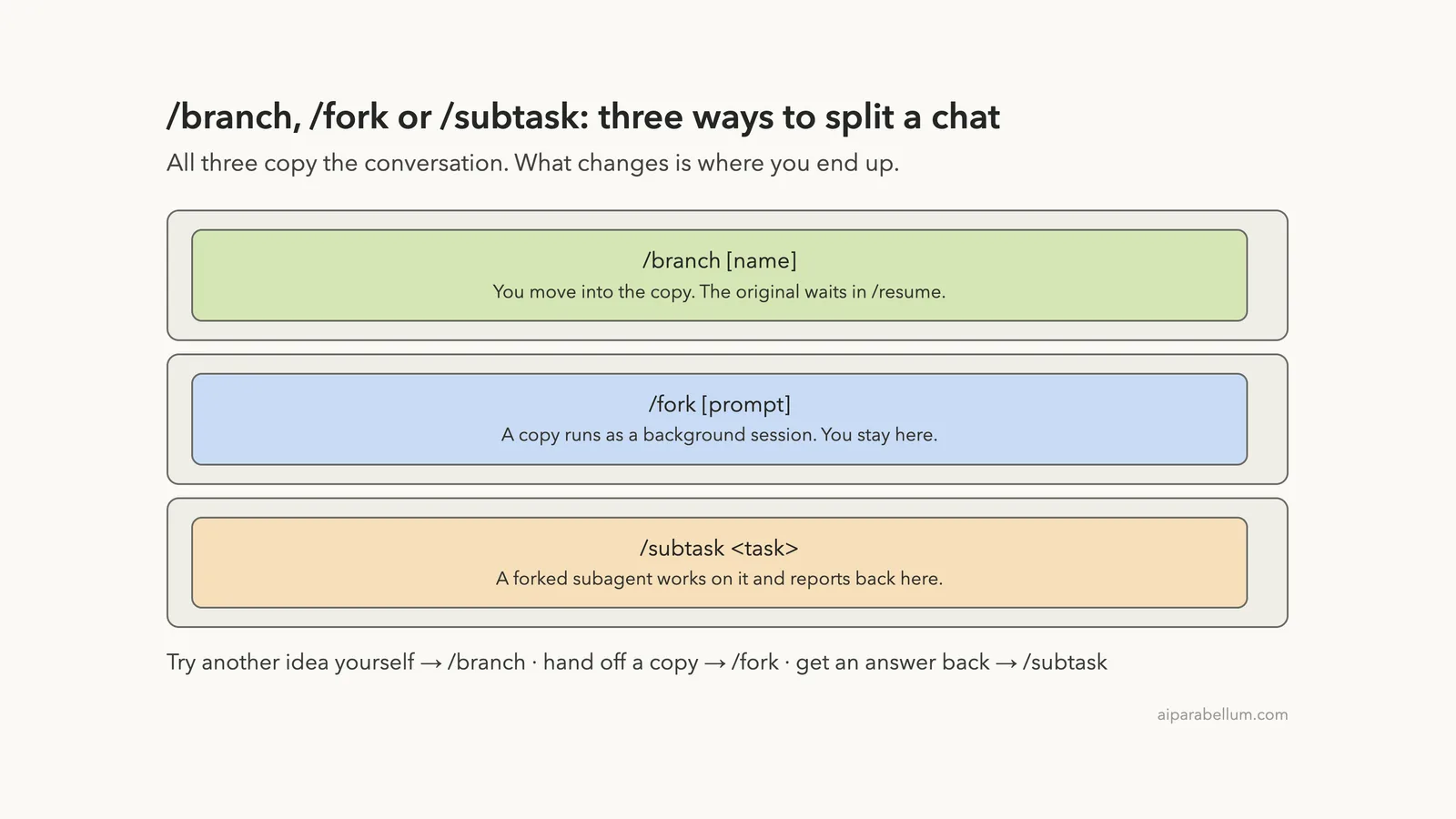
Three commands copy your conversation, and they are easy to mix up. Here is our own map of how they differ, based on the official reference.
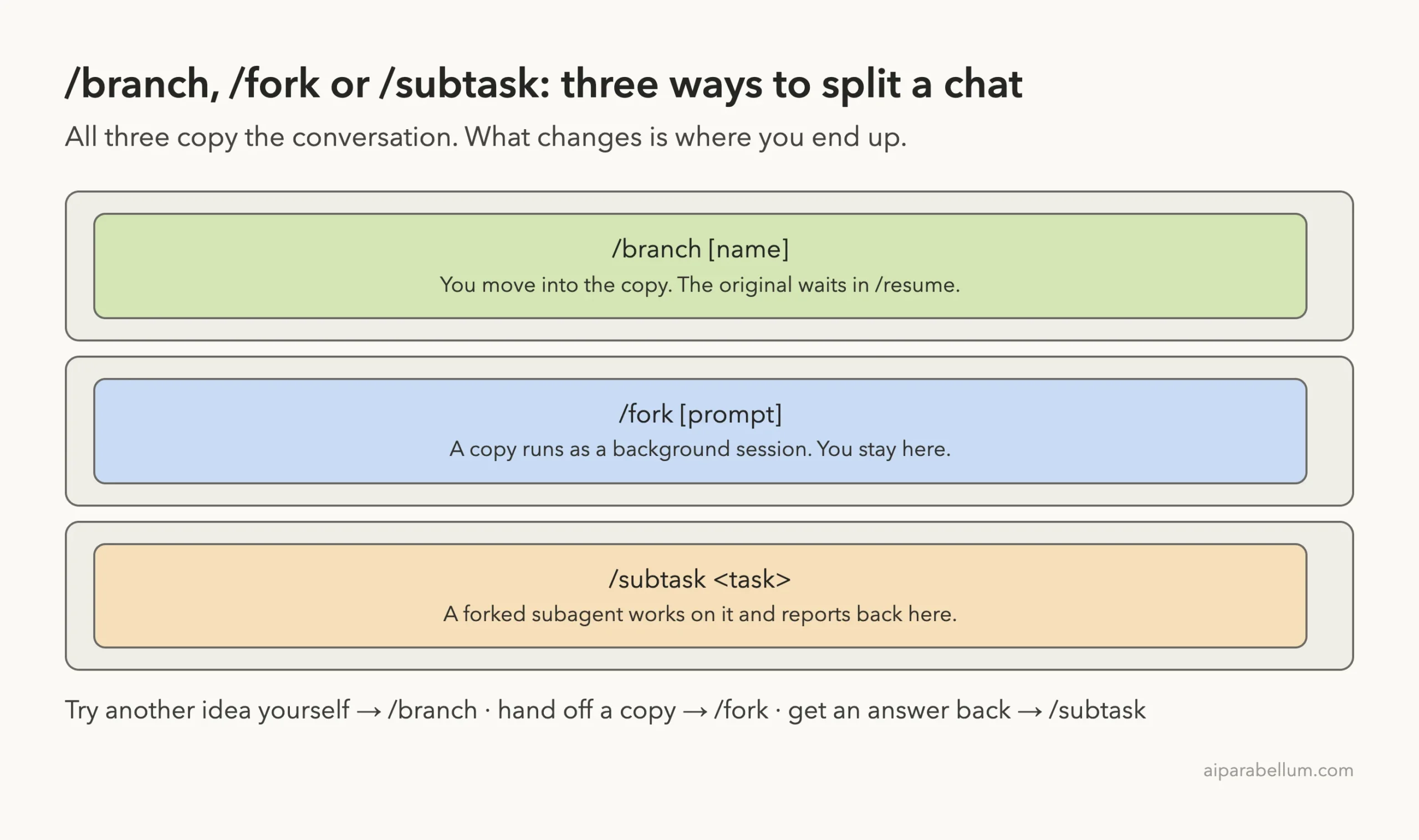
- /branch switches you into the copy, and the original waits in /resume.
- /fork copies the chat into a new background session while you keep working here.
- /subtask starts a forked subagent, and its result comes back into this conversation.
We only tested /branch in our demo, since the other two run extra background work. The agent view docs explain how background sessions are managed.
Step 4: Undo a Bad Edit With /rewind
This is the command you’ll be happiest to know. We asked Claude to change the default tip from 15 to 18 percent, approved the edit, and then ran /rewind. A menu listed every prompt from the session with a note about which files each one changed.
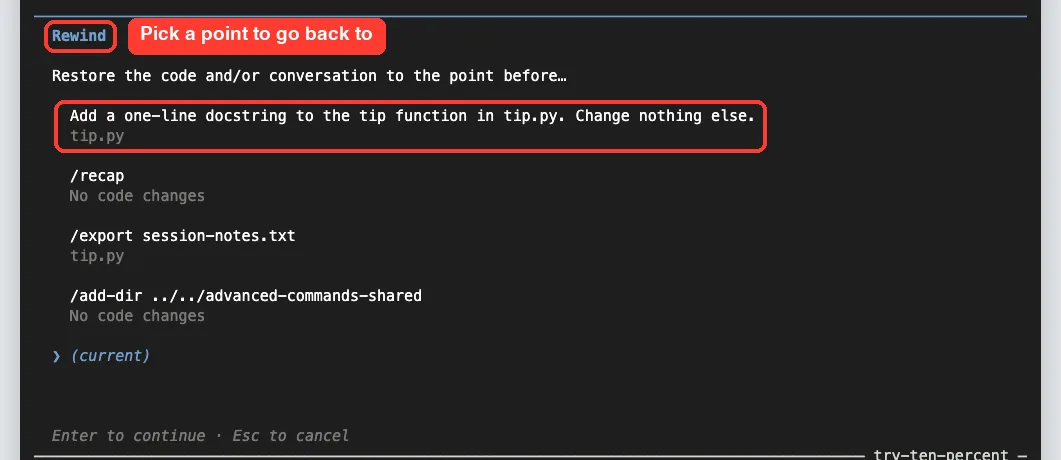
After we picked our prompt, Claude Code asked what to restore. The options were code and conversation, conversation only, code only, or a summary from or up to that point.
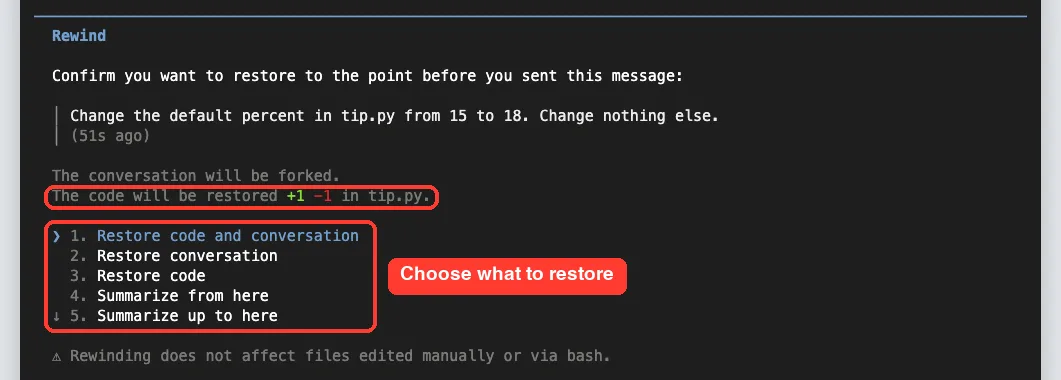
Notice the warning at the bottom: rewinding does not affect files edited manually or via bash. We chose “Restore code and conversation”, then checked the file with a shell command.
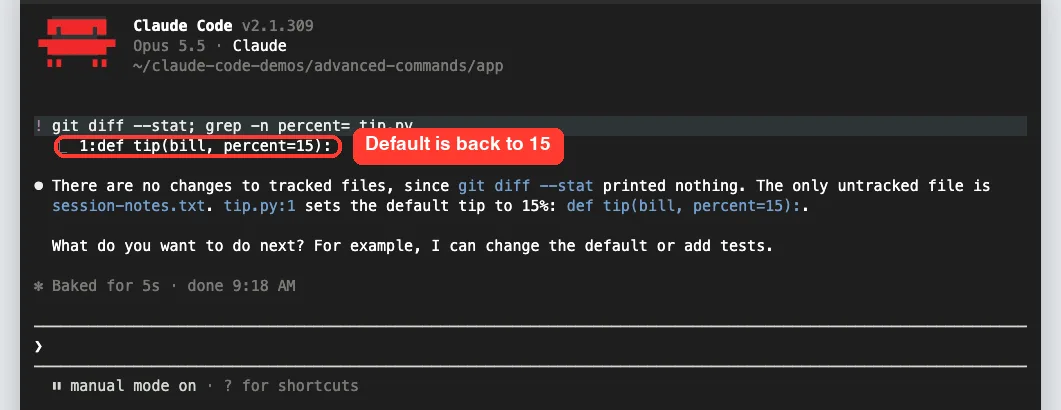
Git showed no changes, and the default was 15 again. The checkpointing guide covers how these restore points work in more depth.
A note from our branch test
When we opened /rewind inside the branched session, the older prompts showed “No code restore” instead of a file name. Code restore worked fine in a normal session, so if you plan to undo edits, do it in the session where they happened.
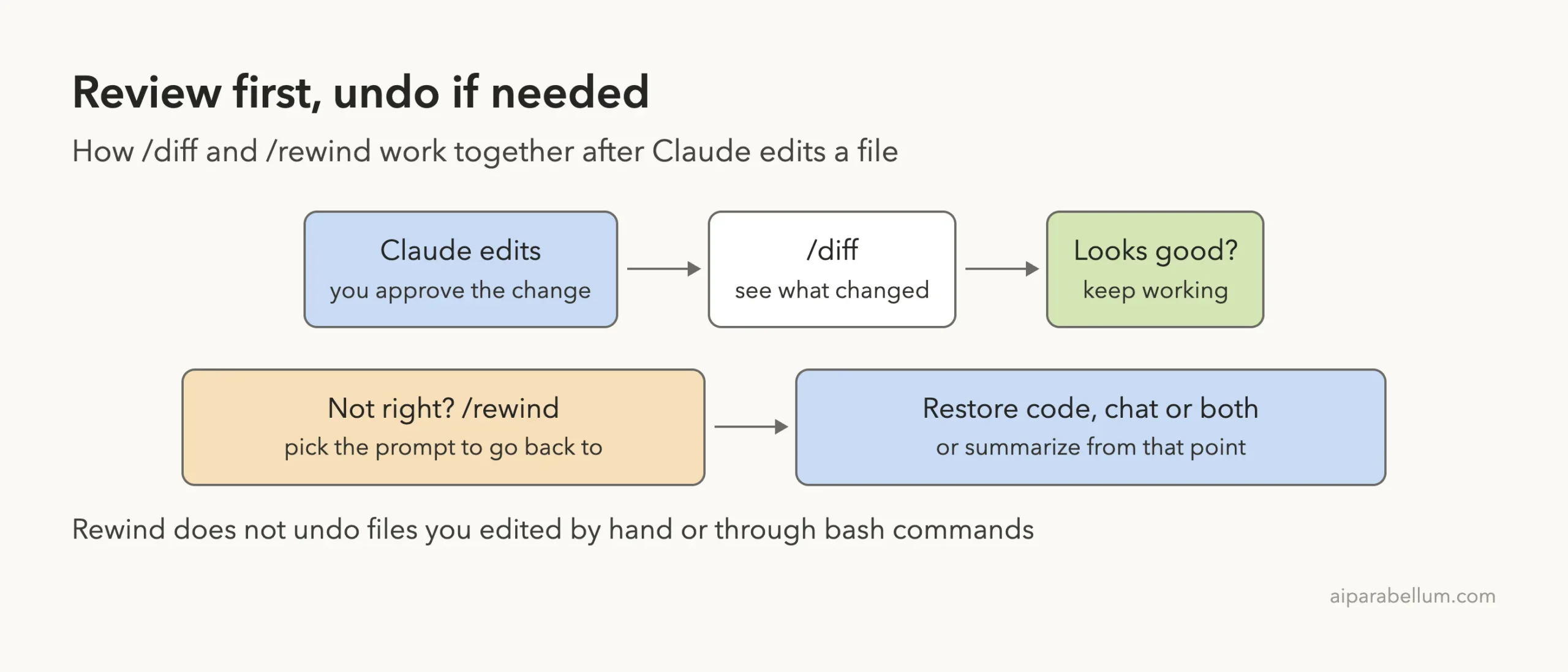
How /diff and /rewind Work Together
These two commands form a simple safety net. Review first, then decide whether to keep going or roll back.
If you’re curious how Claude decides to make edits in the first place, our explainer on how it works walks through the agent loop.
Step 5: Add Another Folder With /add-dir
Sometimes a task needs files outside your project, like a shared config folder. We ran /add-dir with the path to a sibling folder, and Claude Code asked for confirmation first.
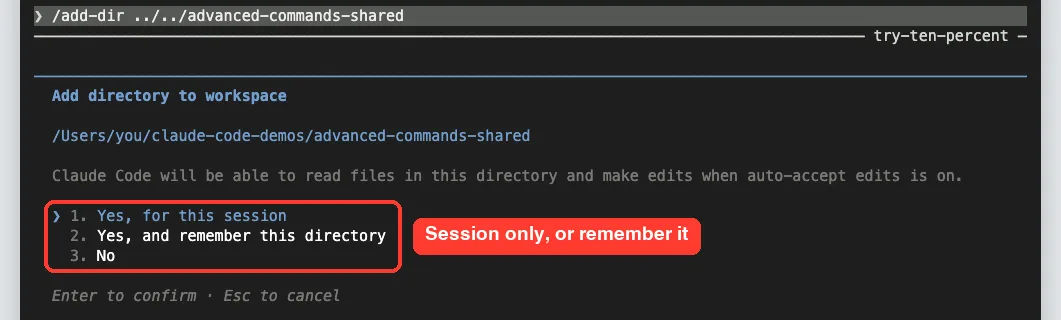
The dialog said Claude can read files there and edit them when auto-accept edits is on. The docs add that most .claude configuration in the added folder isn’t picked up, and that /cd is the command to move the whole session to a new folder instead.
Step 6: Change Settings Fast With /config
The /config command opens the settings screen, but it also accepts key=value pairs. The docs give examples such as /config theme=dark and /config model=sonnet, which change a setting without opening any menu.
To see which keys exist, we ran /config –help. It printed a long list with each key and its allowed values, from model and theme to permissionMode and outputStyle.
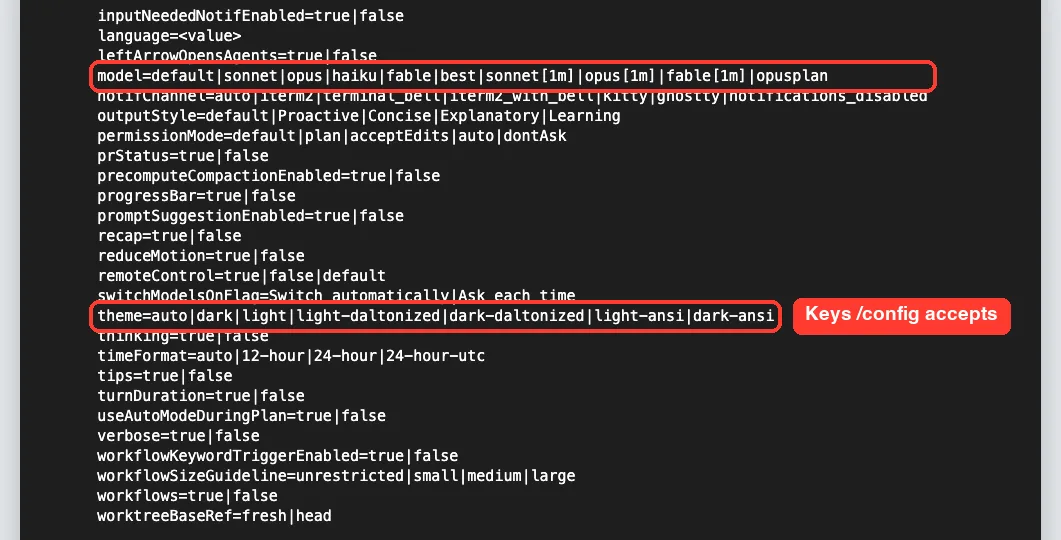
We didn’t change any settings in our test, since the docs note that /config saves them. The settings docs explain each one.
More Advanced Commands Worth Knowing
These commands run heavier work, so we read the official docs instead of running them in our small demo. Each is worth a look once your projects grow.
| Command | What the docs say it does |
|---|---|
| /code-review [level] | Reviews the current diff or a PR for correctness bugs; –fix applies findings |
| /security-review | Checks your branch’s changes for risks like injection and data exposure |
| /simplify | Runs four review agents for cleanup; it doesn’t look for bugs |
| /loop [interval] [prompt] | Repeats a prompt while the session stays open |
| /goal [condition] | Keeps Claude working across turns until a condition is met |
| /batch <instruction> | Splits a large change into 5 to 30 units, each in its own worktree |
| /tasks | Lists background work in this session, including finished subagents |
| /permissions | Manages allow, ask and deny rules for tools |
| /autocompact | Sets how full context gets before automatic compaction |
| /tui [default|fullscreen] | Switches the terminal renderer; with no argument it prints the current one |
In our session, /tui with no argument printed “Current renderer: default”, and /tasks showed “No tasks currently running”. The code review guide explains the review levels.
Real Examples of Advanced Commands in Daily Work
| Situation | Command to try | Why it helps |
|---|---|---|
| Claude just edited three files | /diff | See every change in one viewer |
| A refactor broke your tests | /rewind | Restore code to the prompt before it |
| Two ways to fix one bug | /branch | Try plan B and keep plan A in /resume |
| Writing up what you did today | /recap then /export | A summary plus a full text log |
| App and shared library in two folders | /add-dir | Let Claude read both |
| About to open a pull request | /code-review | Catch bugs before reviewers do |
| Waiting on a deploy | /loop 5m check the deploy | Claude checks again on a schedule |
Watch your usage with the repeating ones. Our guide on plans and login explains how each sign-in type is billed.
Try It Yourself
Create a practice folder with one short script, run git init and make a first commit, then start Claude Code there. This round uses only one prompt, so it stays cheap.
- Send the prompt below and approve the edit.
- Run /diff and open the changed file.
- Run /recap, then /export practice-notes.txt.
- Run /branch experiment, then open /resume to see both sessions.
- Run /rewind, pick your prompt and choose “Restore code and conversation”.
Add a one-line comment at the top of the script explaining what it does. Change nothing else.If you need help starting a session in a new folder, our first session guide covers it step by step.
Common Mistakes With Advanced Commands
- Expecting /rewind to undo shell changes. The docs and the rewind screen both say it doesn’t affect files edited manually or via bash.
- Rewinding in the wrong session. In our branched session, older prompts showed “No code restore”.
- Confusing /branch with /fork. /branch moves you into the copy, while /fork leaves you where you are.
- Running /diff outside git. Our viewer was titled git diff HEAD, so a repository gives the clearest view.
- Using /add-dir when you meant /cd. /add-dir adds a folder, while /cd moves the whole session.
- Setting /loop and forgetting it. Repeated prompts keep using your plan or API budget while the session is open.
Pro Tips for Advanced Claude Code Commands
- Make /diff a habit after every edit, even small ones.
- Name your branches, like /branch faster-sort, so they’re easy to spot in /resume.
- Give /code-review a target, such as a PR number or a path, to review just that.
- Use /config –help to find a key, then set it in one line.
- Pair /recap with /export at the end of a day for quick notes.
- Read /release-notes after updating, since new commands show up often.
Comfortable keys help too. Our shortcuts guide covers the input tricks that pair well with these commands.
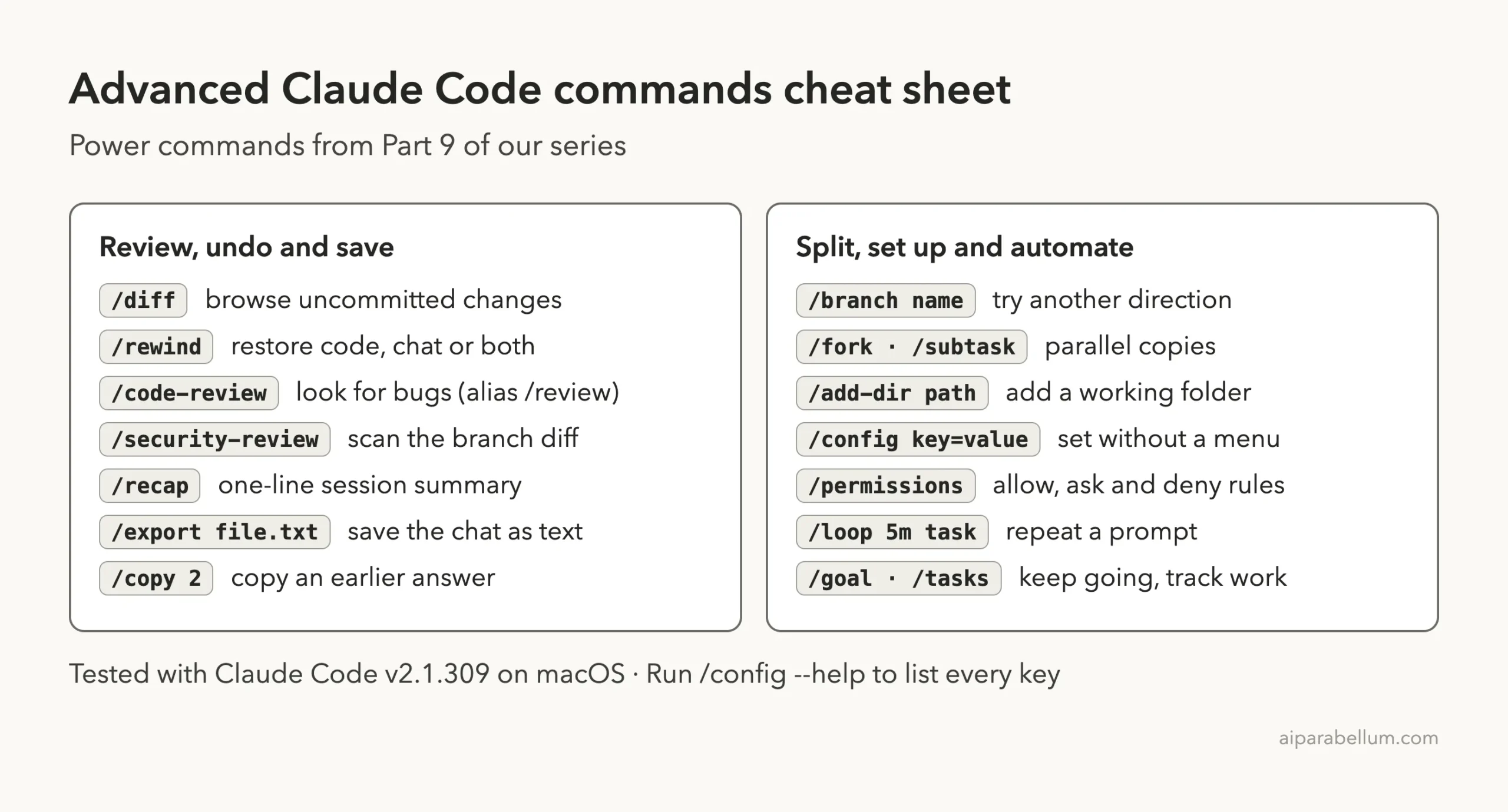
Advanced Claude Code Commands Cheat Sheet
Save this card for your next session. It covers the power commands from this guide.
Frequently Asked Questions
Can /rewind undo any change Claude made?
It restores edits Claude made through its own file tools. The rewind screen warns that it does not affect files edited manually or via bash, so use git for those.
What is the difference between /branch and /fork?
/branch switches you into a copy of the conversation and keeps the original in /resume. /fork copies the conversation into a new background session while you keep working in the current one.
Does /diff need a git repository?
The docs describe it as reviewing changes in your working tree. In our git demo the viewer was labeled “git diff HEAD”, so a repository gives you the clearest results.
Can I change settings without opening the settings menu?
Yes. Pass key=value pairs, like /config theme=dark, and run /config –help to list the keys your version accepts.
Do advanced commands like /code-review cost more?
Bundled skills such as /code-review and /simplify hand work to Claude, so they use model time like any prompt. Heavier options like /code-review ultra run in the cloud, and the docs say /ultrareview needs usage credits after the free runs.
Conclusion
Advanced Claude Code commands turn a chat into a controlled workflow. Use /diff to review every edit, /rewind to roll back mistakes, /branch to explore a second idea without losing the first, /recap and /export to keep a record, and /add-dir and /config to shape your workspace, then reach for /code-review, /loop and /goal as your projects grow. Start with the safety pair of /diff and /rewind, since they make every other experiment less risky. To learn more about the models behind the tool, visit our Claude AI page, or start from our Claude Code overview if you’re new to the series.
Previous in the series: Part 8, Claude Code Slash Commands Explained: The Essentials
Next in the series: Part 10: Claude Code Permission Modes Explained.