Claude Code permission modes decide one simple thing: does Claude stop and ask you before it edits a file or runs a command, or does it just go ahead? Pick the right mode and you get a helper that moves fast on safe work and slows down on risky work. Pick the wrong one and you either click “Yes” fifty times an hour or let an AI run loose on your machine.
In this guide we switch through every mode in a real session, show you what each one allows, and help you choose the right one for the job. You will also see the exact status bar labels, so you always know which mode you are in.
This is Part 10 of 53 in our Claude Code tutorials series. In the previous part we covered advanced slash commands like /diff and /rewind, which pair nicely with the modes you will learn here.
Tested with Claude Code v2.1.309 on October 24, 2026, on macOS, inside a throwaway demo folder with one small Python file. What you see can vary with your plan, model and organization settings.
Quick Summary: Claude Code Permission Modes at a Glance
| Mode | Status bar shows | What runs without asking | Best for |
|---|---|---|---|
| default (Manual) | manual mode on | Reads only | Sensitive or unfamiliar code |
| acceptEdits | accept edits on | Reads, file edits, common file commands | Iterating on code you review later |
| plan | plan mode on | Reads and exploring, no edits | Thinking before changing anything |
| auto | auto mode on | Everything, with background safety checks | Long tasks with fewer prompts |
| dontAsk | don’t ask on | Reads and pre-approved tools only | CI pipelines and scripts |
| bypassPermissions | bypass permissions on | Everything, no checks | Isolated containers and VMs only |
What Are Claude Code Permission Modes?
When you work with Claude Code, Claude uses tools. It reads files, writes files and runs shell commands, as we explained in the agent loop part of this series. A permission mode is the baseline rule for which of those actions need your OK first.
Anthropic’s permission modes guide describes each mode as a different tradeoff between convenience and oversight. More freedom means fewer interruptions, but also less of a chance to catch a mistake before it happens.
A permission mode is a dial, not a switch. Turn it up for safe work and down for risky work.
Modes are only the baseline. You can layer permission rules on top to always allow or always block specific tools. The docs are clear that deny rules block in every mode, even bypassPermissions, so a good deny list is your safety net no matter what mode you pick.
Why the names look different in different places
The careful mode is called Manual in the terminal and in the apps. Its config value is default, which is what settings files, hooks and the SDK use. The CLI also accepts manual as an alias, so claude –permission-mode manual works too.
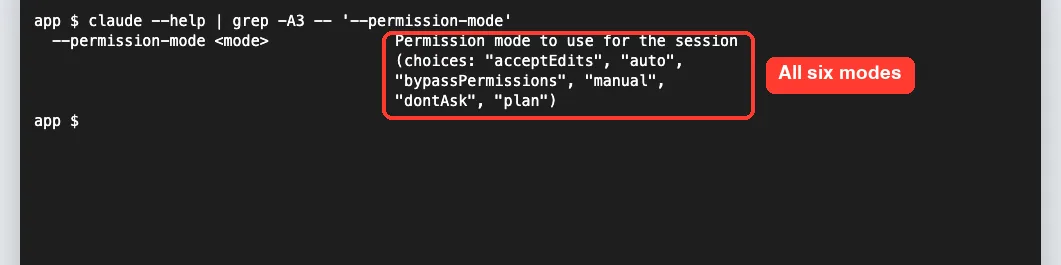
Step 1: Start in Manual Mode and Watch the Prompts
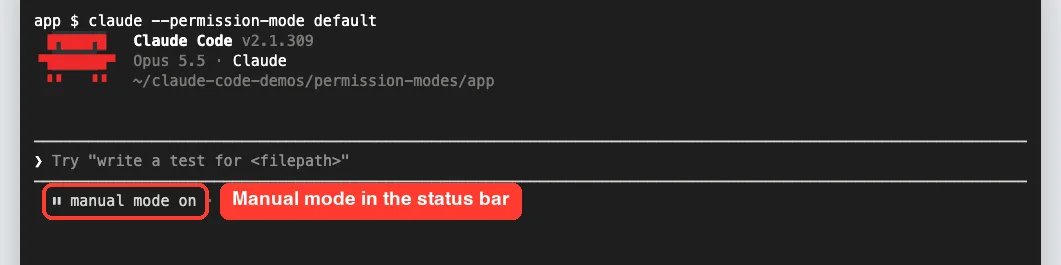
We started our demo with claude –permission-mode default so you can see the most careful mode first. The status bar under the prompt box showed “manual mode on” right away.
Next we asked Claude to add a one-line docstring to the greet function in greet.py. Claude read the file freely, because reads never need approval. When it tried to edit, it stopped and showed us the exact change with three choices.
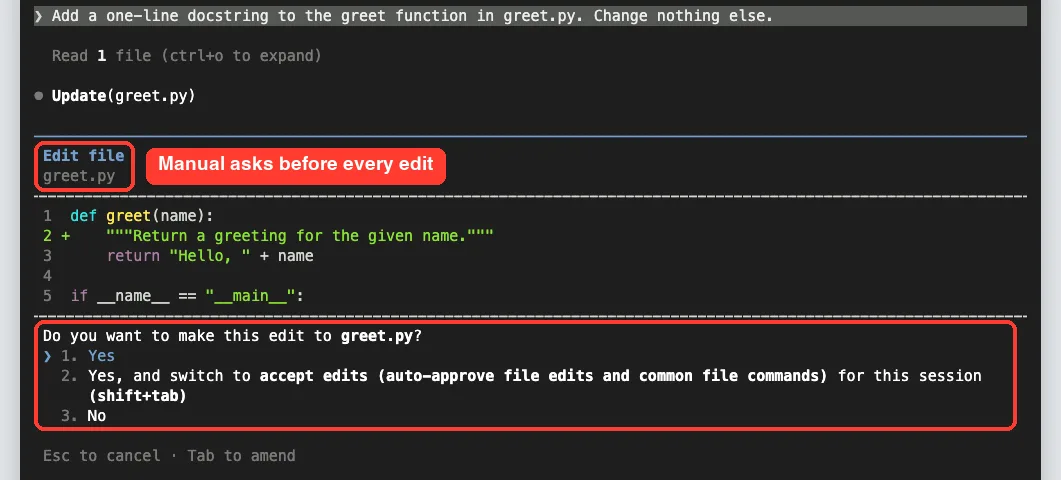
Notice the second option. It approves this edit and switches the session to accept edits mode in one step. That is a handy shortcut when you realize the task is safe and you are tired of approving each change.
Step 2: Press Shift+Tab to Switch Permission Modes
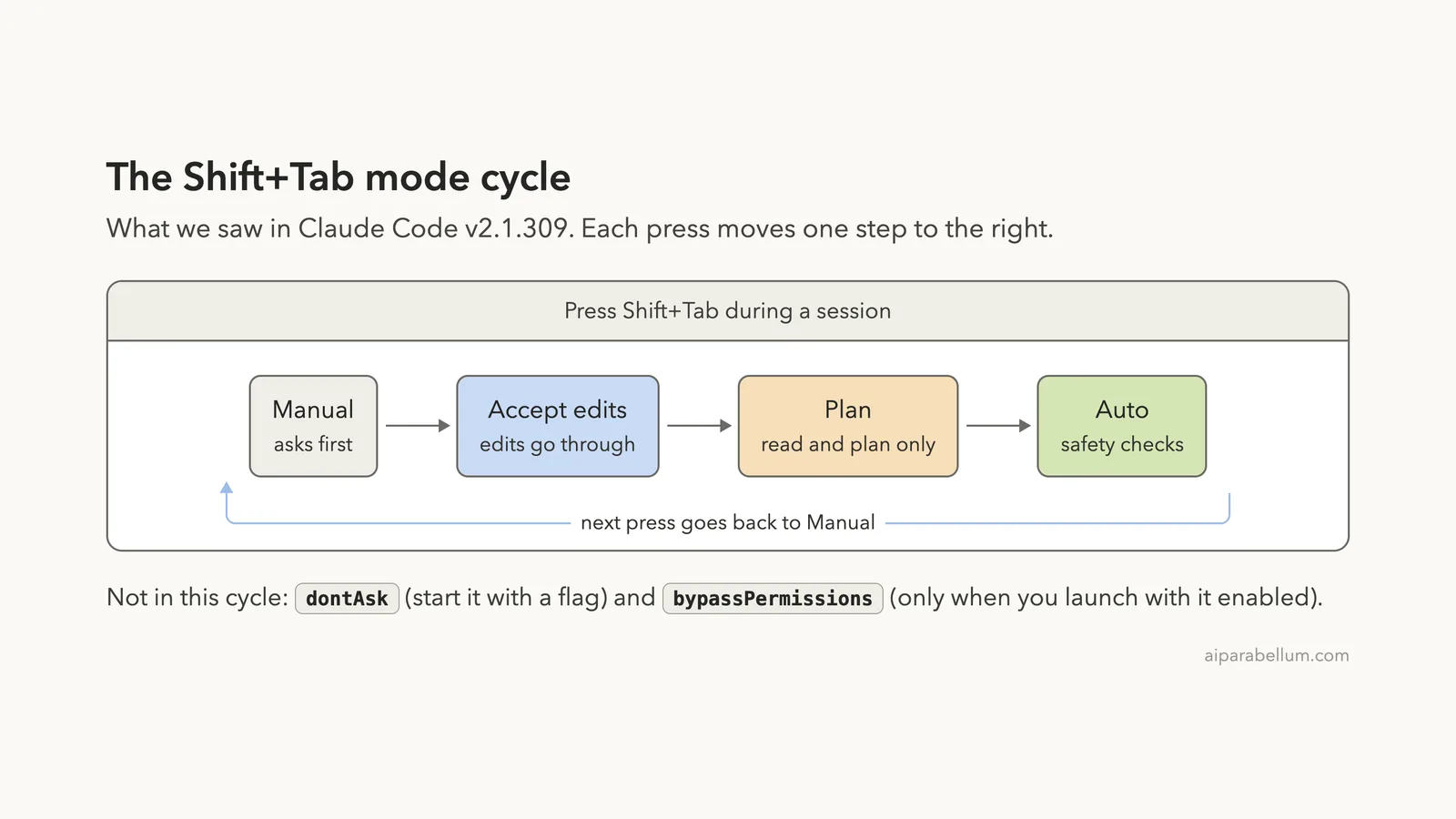
During a session, you change modes with Shift+Tab. We covered the shortcut briefly in our shortcuts guide, and here is exactly what it does. Each press moves to the next mode, and the status bar updates instantly.
In our session the cycle went Manual, then accept edits, then plan, then auto, then back to Manual. That matches the order in the docs, which also note that auto only appears when it is available to your account and model.
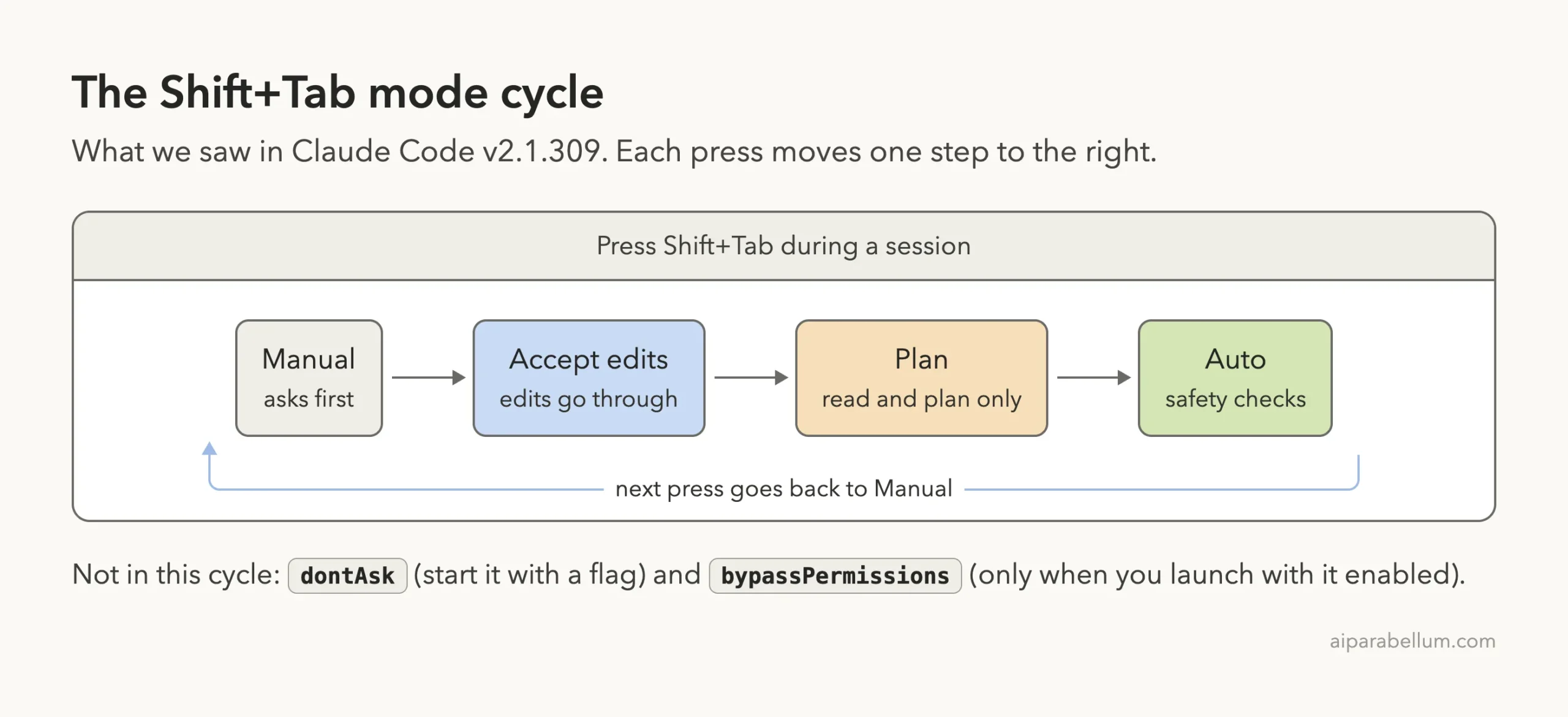
Two modes never show up in the normal cycle. dontAsk must be set with the –permission-mode flag. bypassPermissions only joins the cycle if you launched the session with it enabled.
Step 3: Let Edits Flow With acceptEdits Mode
One press of Shift+Tab from Manual put us in accept edits mode. We asked Claude to create a TODO.md file with one line, and it wrote the file straight away, with no prompt at all.
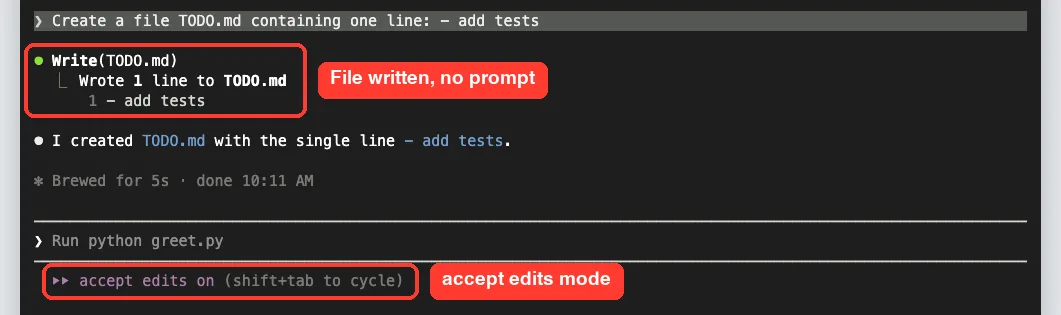
According to the docs, this mode also auto-approves common file commands like mkdir, touch, rm, rmdir, mv, cp and sed. That only applies inside your working directory or folders you have added. Anything outside that scope still asks.
Shell commands still ask in acceptEdits
Accept edits is not a free pass. Most other shell commands still need approval. When we asked Claude to run git push in this mode, it stopped and showed a Bash permission prompt.
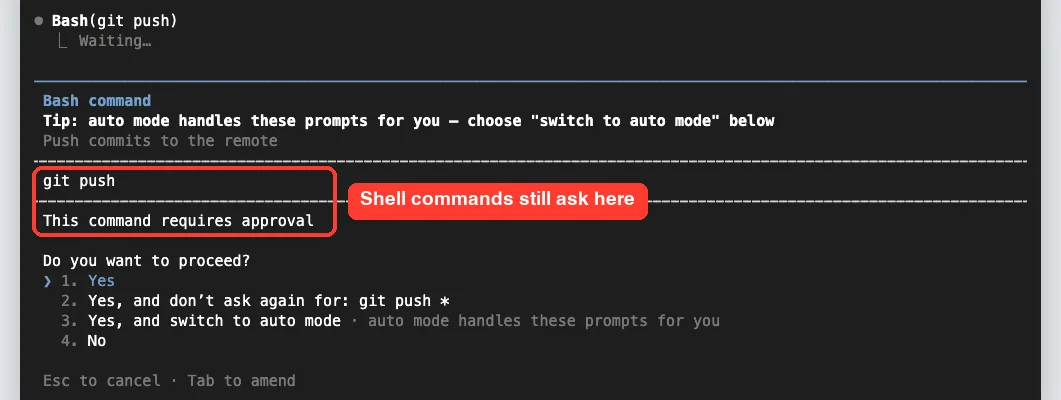
The prompt offered an option to approve and switch to auto mode. The docs explain that this option appears on Bash prompts in Manual and accept edits modes when auto mode is available. We approved once here, and the push failed harmlessly because our demo folder was not a git repository.
Step 4: Think First With Plan Mode
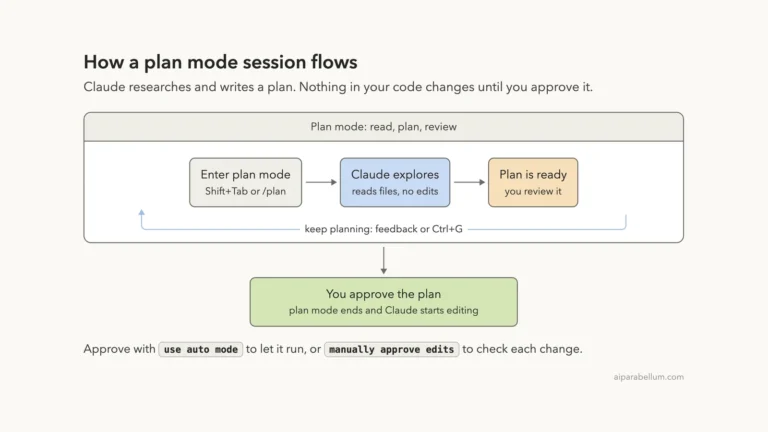
Plan mode tells Claude to research and propose changes without making them. Claude reads files and explores, then writes a plan for you to review. Your source code stays untouched until you approve.
We pressed Shift+Tab once more and asked Claude to plan how to add a –name option to greet.py in three short steps. It came back with a clear plan and a menu of choices.
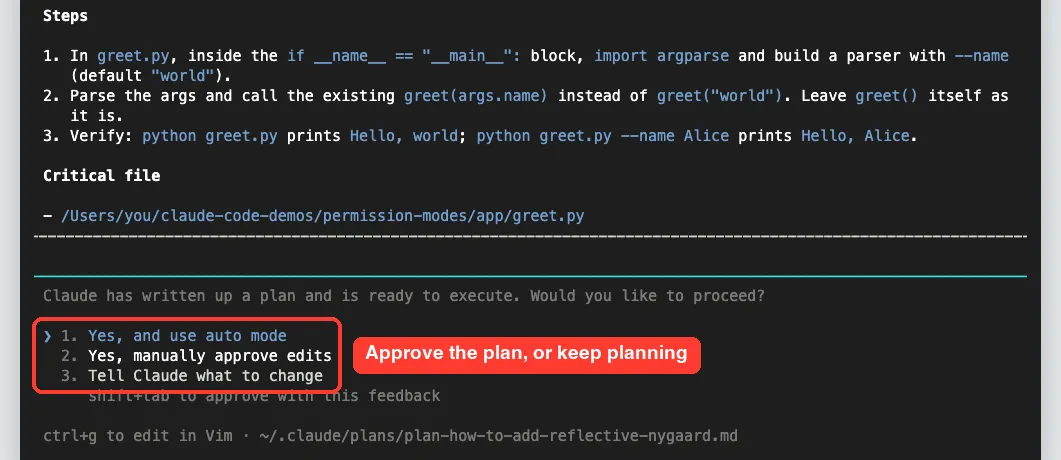
In our version the three choices were “Yes, and use auto mode”, “Yes, manually approve edits” and “Tell Claude what to change”. Approving switches you out of plan mode so Claude can start editing. The footer also showed that Ctrl+G opens the plan in your editor so you can change it yourself.
We pressed Esc instead. Claude recorded that we rejected the plan, and the session stayed in plan mode, ready for more planning.
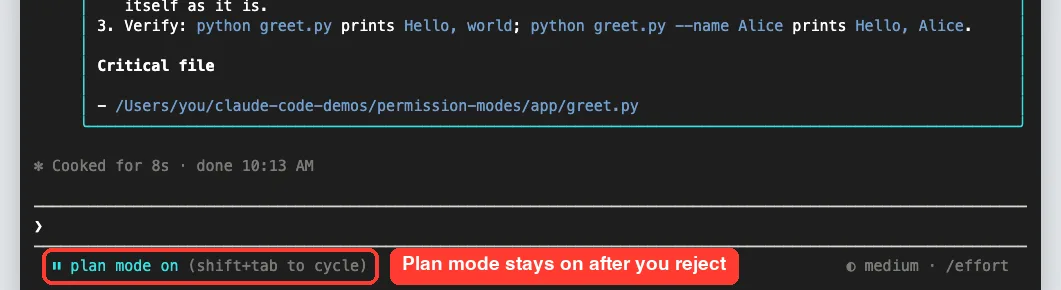
You can also use plan mode for a single prompt by starting it with /plan, or launch straight into it with claude –permission-mode plan. Part 11 of this series covers plan mode in much more depth.
Step 5: Reduce Prompts With Auto Mode
One more Shift+Tab press took us to auto mode. In this mode Claude runs without routine permission prompts, while a separate classifier model reviews each action before it runs.
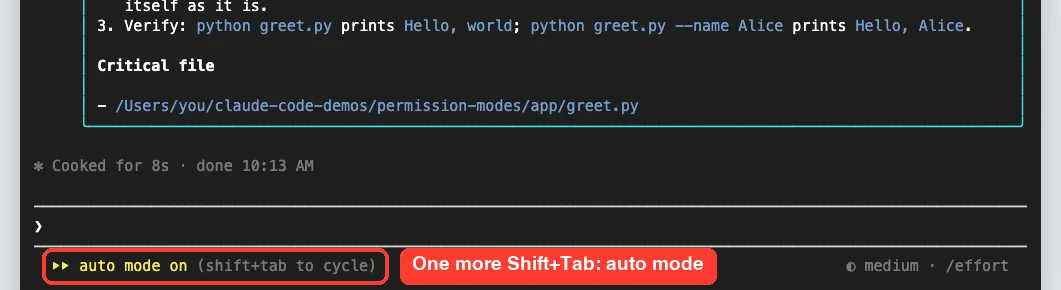
The docs say the classifier blocks actions that go beyond your request, target infrastructure it does not recognize, or look driven by hostile content Claude read. Examples it blocks by default include piping downloaded code into bash, force pushes and mass deletion on cloud storage.
Auto mode has requirements. It needs a supported model, and Team and Enterprise admins can switch it off. If the classifier blocks an action 3 times in a row or 20 times in total, auto mode pauses and Claude Code goes back to asking you.
Auto mode cuts down on prompts, but it is not a promise of safety. Use it when you trust the general direction of the task.
Step 6: Lock Things Down With dontAsk Mode
dontAsk is the opposite of auto. Anything that would normally prompt you is denied automatically. Only reads, read-only commands and tools you have pre-approved with allow rules can run.
We started a new session with claude –permission-mode dontAsk and asked Claude to create a notes.txt file. The Write tool was refused at once, and Claude explained why instead of trying another route.
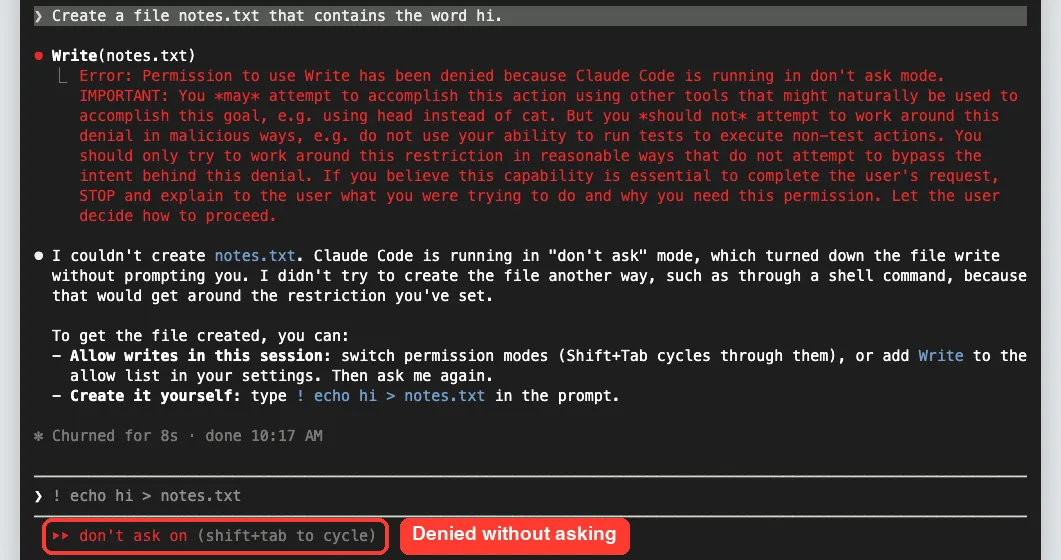
This mode never waits for input, which makes it a great fit for CI pipelines and scripts. You decide in advance exactly which tools Claude may use, for example with –allowedTools, and everything else is turned down.
Step 7: Understand bypassPermissions (and Why to Avoid It)
bypassPermissions turns off permission prompts and safety checks, so tool calls run immediately. The docs warn to use it only in isolated environments like containers or VMs without internet access, where Claude cannot damage your real machine.
The first time you start an interactive session in this mode, Claude Code shows a warning dialog. We launched it in our demo folder only to see that screen, then chose to back out.
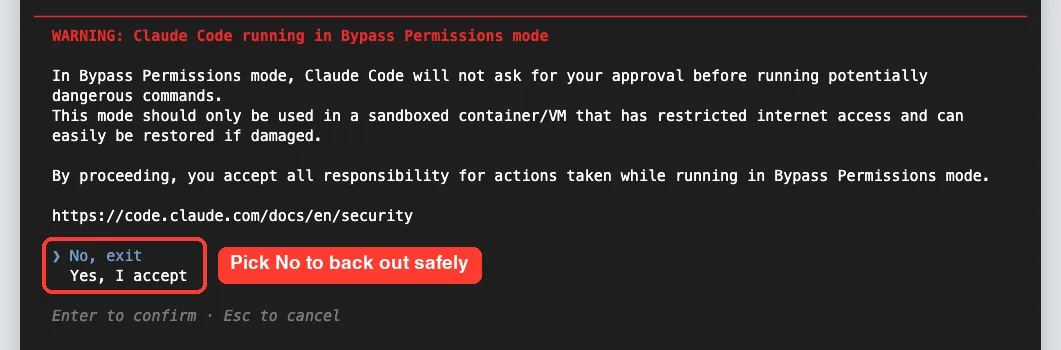
If you accept, Claude Code saves that choice in your user settings so later sessions skip the dialog. Even in this mode, deny rules still apply, and a few things such as ask rules and deletions of critical paths like your home folder still prompt.
Which Permission Mode Should You Use?
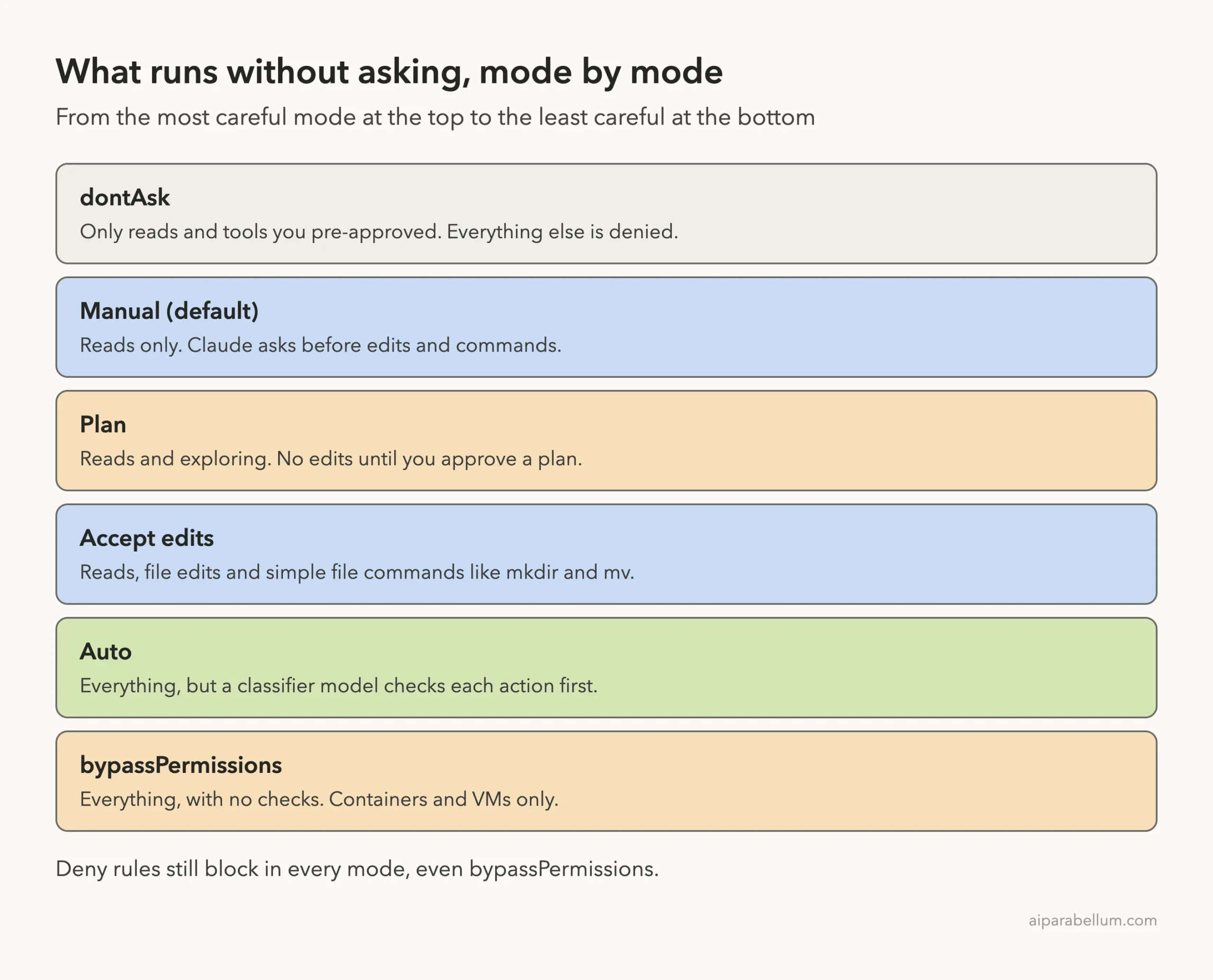
Here is a simple way to think about it. Start careful, and only loosen the rules when the task and the folder are ones you trust. The stack below runs from the most careful mode at the top to the least careful at the bottom.
Real examples of picking a mode
- Reviewing a pull request in a codebase you just cloned: Manual or plan mode.
- Fixing a batch of typos across your docs folder: accept edits, then check the changes with /diff.
- Upgrading a dependency and fixing the tests that break: auto mode, if it is available to you.
- Running “fix lint errors” in a GitHub Action: dontAsk with a short allow list.
- A throwaway dev container with no secrets: bypassPermissions, if you really must.
How to Set a Default Permission Mode
Shift+Tab only changes the current session. To choose the mode a session starts in, you have two options.
For one session, pass the flag, like claude –permission-mode plan. To make it stick, set permissions.defaultMode in a settings file.
{
  "permissions": {
    "defaultMode": "default"
  }
}
Saved in ~/.claude/settings.json, this example starts every terminal session on your machine in Manual mode. The settings documentation explains which file wins when several set a value.
There is one catch. The docs say “auto” and “bypassPermissions” do not take effect from a project’s .claude/settings.json or .claude/settings.local.json. Put those values in your user settings instead.
Try It Yourself
Create a tiny practice folder with one script, start Claude Code there with claude –permission-mode default, and then paste this prompt. Press Shift+Tab between steps to compare how each mode behaves.
Add a one-line comment at the top of the main script in this folder explaining what it does. Change nothing else.Run it once in Manual mode and approve the edit. Then switch to accept edits and ask for a second comment, and finally switch to plan mode and ask Claude to plan a small new feature without building it. Watch the status bar each time.
Common Mistakes With Permission Modes
- Forgetting which mode you are in. Glance at the status bar before you send a risky prompt.
- Assuming accept edits approves everything. Most shell commands still ask.
- Using bypassPermissions on your everyday laptop. Keep it for containers and VMs.
- Putting “defaultMode”: “auto” in a project settings file. It is ignored there, so the session starts in another mode.
- Leaving plan mode on by accident and wondering why Claude will not edit anything.
Pro Tips
- Use the “Yes, and switch to accept edits” option on an edit prompt to change modes without breaking your flow.
- Pair accept edits with /diff so you still review every change, just after the fact.
- Add deny rules for commands you never want run, since they hold in every mode. Our essential commands guide shows where /permissions lives.
- For local work with fewer prompts and no classifier, the docs suggest Manual mode plus the Bash sandbox in auto-allow mode.
- For CI runs, combine dontAsk with a tight allow list, as the non-interactive mode docs describe.
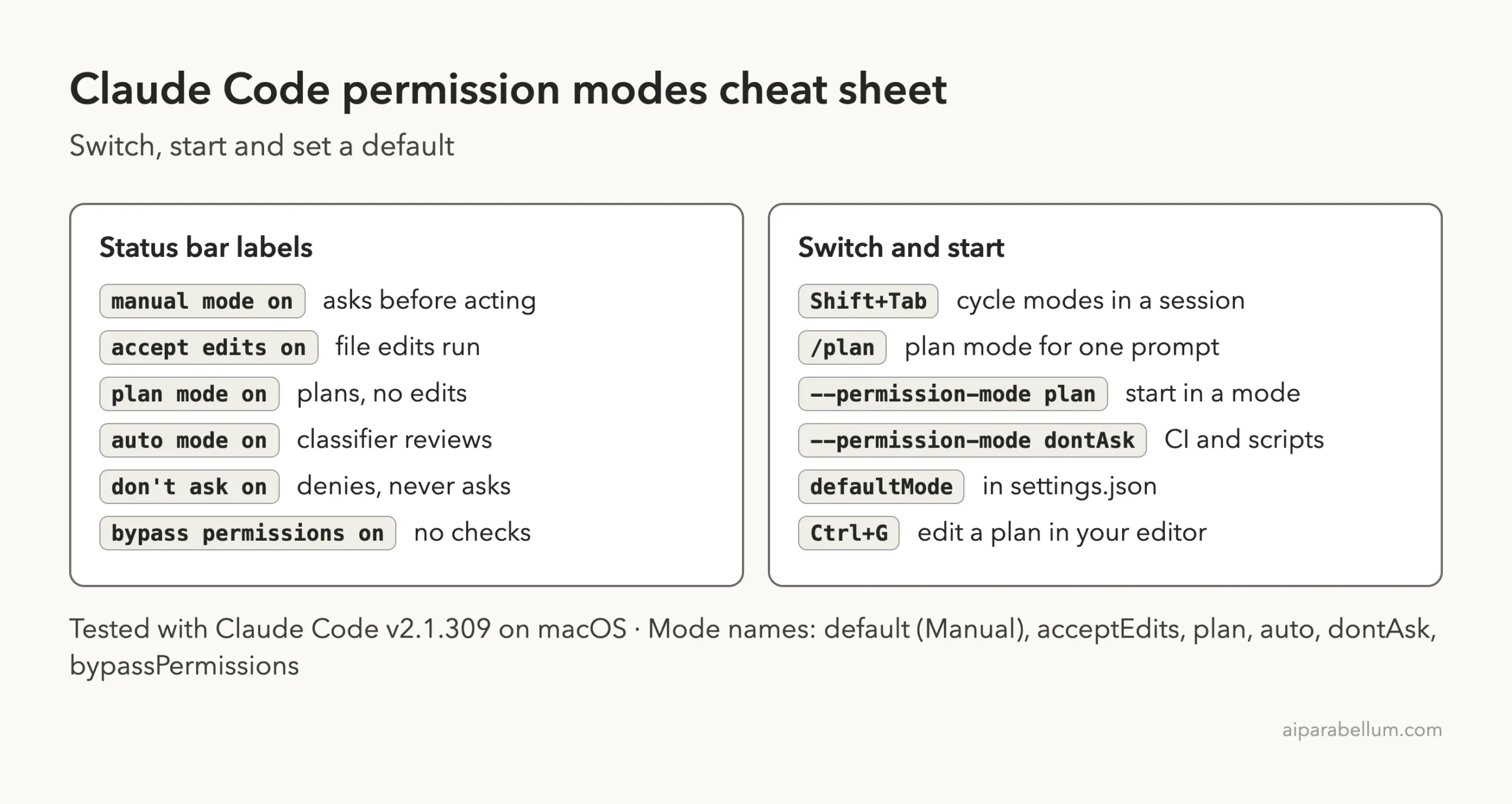
Permission Modes Cheat Sheet
Save this card for quick reference. It lists the status bar labels and the main ways to switch and start each mode.
Frequently Asked Questions
What is the default permission mode in Claude Code?
The docs say that from v2.1.283, interactive terminal and VS Code sessions start in auto mode when nothing else sets a mode and auto is available. Otherwise the session starts in Manual, which is also the default for claude -p runs.
How do I switch permission modes in Claude Code?
Press Shift+Tab during a session to cycle through Manual, accept edits, plan and auto. To start in a specific mode, launch with claude –permission-mode followed by the mode name.
Is auto mode safe to use?
It is safer than bypassPermissions because a classifier reviews each action, but Anthropic says it does not guarantee safety. Use it for tasks where you trust the overall direction, and keep reviewing sensitive operations yourself.
What is the difference between dontAsk and bypassPermissions?
dontAsk denies anything that would normally prompt you, so Claude can only use tools you pre-approved. bypassPermissions allows nearly everything with no checks, which is why it belongs only in isolated environments.
Can I make plan mode the default for one project?
Yes. Set defaultMode to plan in that project’s .claude/settings.json and terminal sessions there will start in plan mode. The VS Code extension uses its own initial permission mode setting instead.
Conclusion
Claude Code permission modes give you a simple way to match Claude’s freedom to the risk of the task: Manual asks before every change, accept edits lets file changes flow, plan mode keeps Claude to research and proposals, auto mode swaps prompts for background safety checks, dontAsk locks a session to pre-approved tools, and bypassPermissions removes checks for isolated sandboxes only. Watch the status bar, use Shift+Tab to move between modes, and set a default that fits how you work. If you are still getting set up, start with our guide to installing Claude Code, and visit our Claude AI page to learn more about the models behind it.
Previous in the series: Part 9, Advanced Claude Code Slash Commands You Should Know
Next in the series: Part 11: How to Use Plan Mode in Claude Code.