Claude Code plan mode lets you ask Claude to think before it touches your code. Claude reads your files, works out what needs to change and hands you a written plan. Nothing in your project changes until you say yes.
In this tutorial we run a real plan mode session from start to finish. You will see how to turn plan mode on, how to push back on a plan, how to edit the plan yourself and how to approve it so Claude starts building.
This is Part 11 of 53 in our Claude Code tutorials series. In the previous part we compared every permission mode side by side, and plan mode was one of them. Now we go deep on it.
Tested with Claude Code v2.1.309 on October 24, 2026, on macOS, inside a throwaway demo folder with a tiny Python to-do app. What you see can vary with your plan, model and organization settings.
Quick Summary: Claude Code Plan Mode at a Glance
| Task | How to do it | What you see |
|---|---|---|
| Start a session in plan mode | claude –permission-mode plan | plan mode on in the status bar |
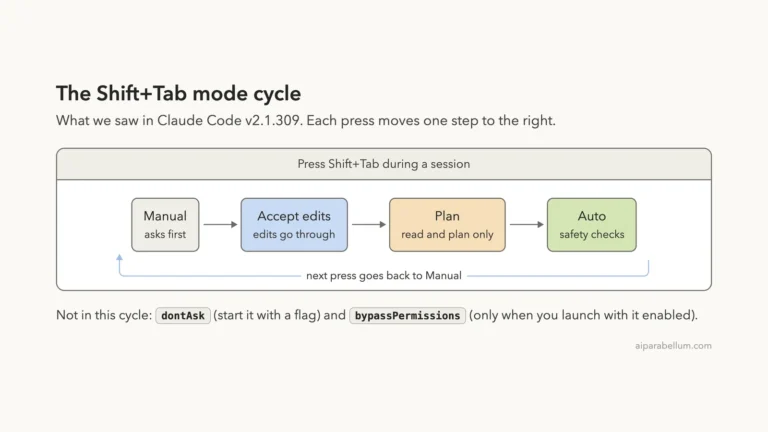
| Switch during a session | Shift+Tab until plan mode shows | plan mode on |
| Plan just one prompt | Start the prompt with /plan | Enabled plan mode |
| Ask for changes to a plan | Pick option 3 and type feedback | A revised plan |
| Edit the plan yourself | Press Ctrl+G | The plan opens in your text editor |
| Approve and start building | Pick option 1 or 2 | Plan mode turns off, edits begin |
| Leave without approving | Press Shift+Tab again | The next mode in the cycle |
What Is Plan Mode in Claude Code?
Plan mode is one of Claude Code’s permission modes. Anthropic’s permission modes guide says it tells Claude to research and propose changes without making them. Claude reads files, can run shell commands to explore, and writes a plan, but it does not edit your source.
Think of it as a planning meeting before the work starts. Claude still does the reading and thinking parts of the agent loop, but it stops before the “take action” step. You get to check the direction first.
Plan mode moves the review to the start. You correct a plan in seconds instead of undoing a dozen edits later.
Why plan mode exists
When you ask an AI to change code, the risky part is not typing. It is a wrong idea about what to change. A quick plan shows you that idea while it is still cheap to fix.
The docs list plan mode as the best fit for exploring a codebase before changing it. It is also handy when a task spans several files, when you want to agree on an approach with a teammate, or when you simply want to learn how a project works.
What Claude can and cannot do while planning
| Action | In plan mode |
|---|---|
| Read files and search code | Allowed |
| Edit your source files | Blocked until you approve a plan |
| Read-only shell commands | Allowed |
| Other shell commands | Reviewed by the auto mode classifier when it is available, otherwise Claude asks you |
| Write its own plan file | Allowed, in ~/.claude/plans/ |
One exception is worth knowing. The docs say that in interactive terminal sessions where bypass permissions is available, plan mode’s blocks are not enforced. Claude is still told to plan without editing, but nothing stops an edit, so keep bypass permissions out of sessions where you rely on plan mode.
Step 1: Turn On Plan Mode
You have three ways in, and they suit different moments. We tried each one in our demo.
Start a whole session in plan mode
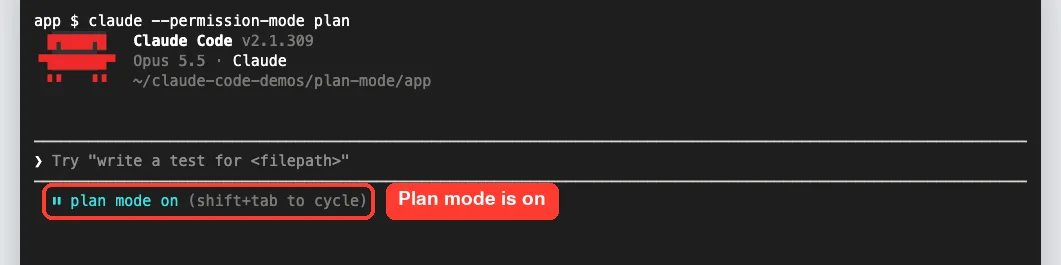
Launch Claude Code with the permission mode flag. This is the cleanest option when you know you want to look before you leap.
claude --permission-mode planThe status bar under the prompt box showed “plan mode on” right away, with a reminder that Shift+Tab cycles modes.
Switch with Shift+Tab mid-session
Already working in another mode? Press Shift+Tab until the status bar reads “plan mode on”.
We covered this key in our shortcuts guide. Press it again later to leave plan mode without approving anything.
Plan a single prompt with /plan
The docs also let you prefix one prompt with /plan. We started a fresh session in Manual mode and typed our request after /plan. Claude Code replied with “Enabled plan mode” before it began exploring.

This is the quickest route when most of your work is simple but one request needs more care. Our slash commands guide lists other commands that pair well with it.
Step 2: Ask for a Plan
Our demo app was a tiny to-do list in tasks.py. It could add and list tasks, and each task already had a done flag, but nothing set it. We asked for a plan.
Plan how to add a done command to tasks.py that marks a task as complete by its number. Keep the plan short.Claude read the files and came back in about 20 seconds. The plan had a short context note, numbered changes with the exact code it meant to add, and a verification section with three commands to test the result.
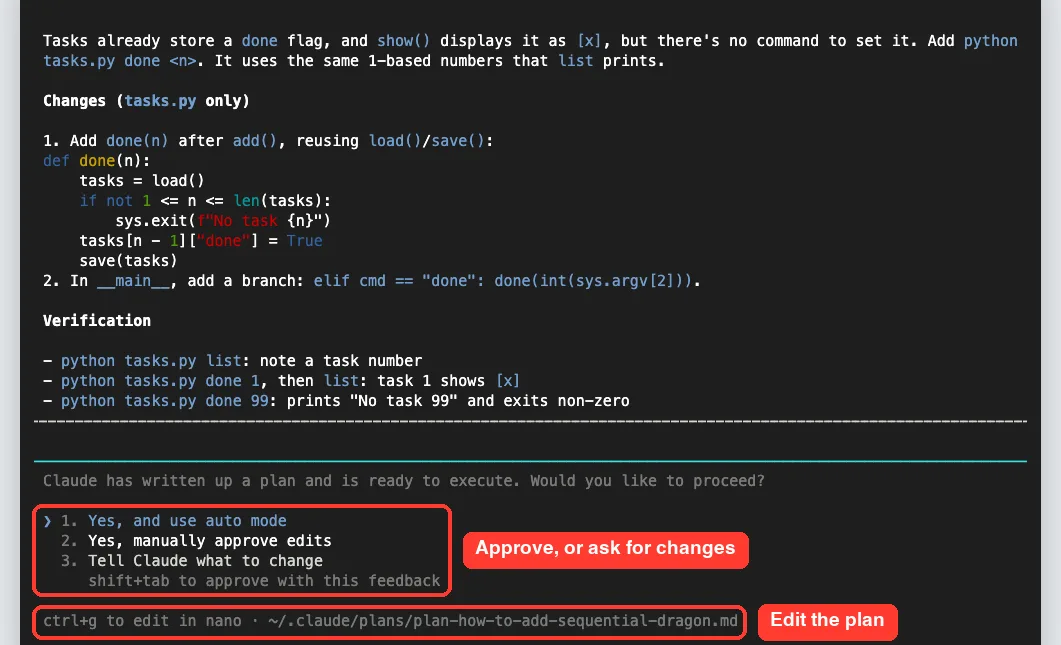
Under the plan, Claude asked whether we wanted to proceed. The footer also showed the path of the saved plan file, a Markdown file in ~/.claude/plans/ with a random name.
The three choices in the approval menu
- Yes, and use auto mode: approve and let Claude build with background safety checks. The docs say this reads “Yes, auto-accept edits” when auto mode is not available to you.
- Yes, manually approve edits: approve, then review each edit one at a time.
- Tell Claude what to change: stay in plan mode and give feedback. The docs call this “No, keep planning”.
The docs add one optional extra. If you turn on the showClearContextOnPlanAccept setting, a first option appears that approves the plan and clears the planning context.
Step 3: Push Back With Feedback
Good plans are often second drafts. Our first plan only touched tasks.py, and we wanted the README updated too.
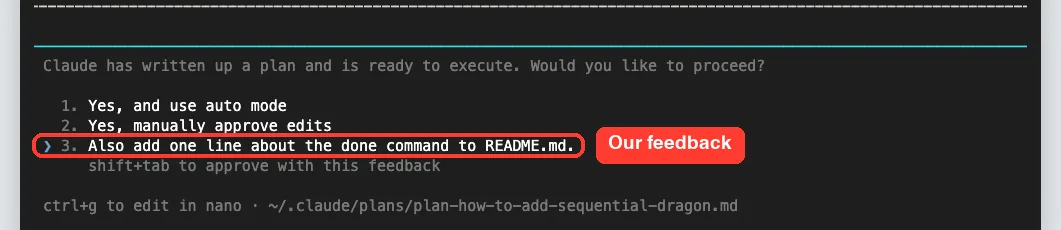
We moved to option 3 and simply typed our note into it. The menu also showed that Shift+Tab would approve the plan along with the feedback in one go.
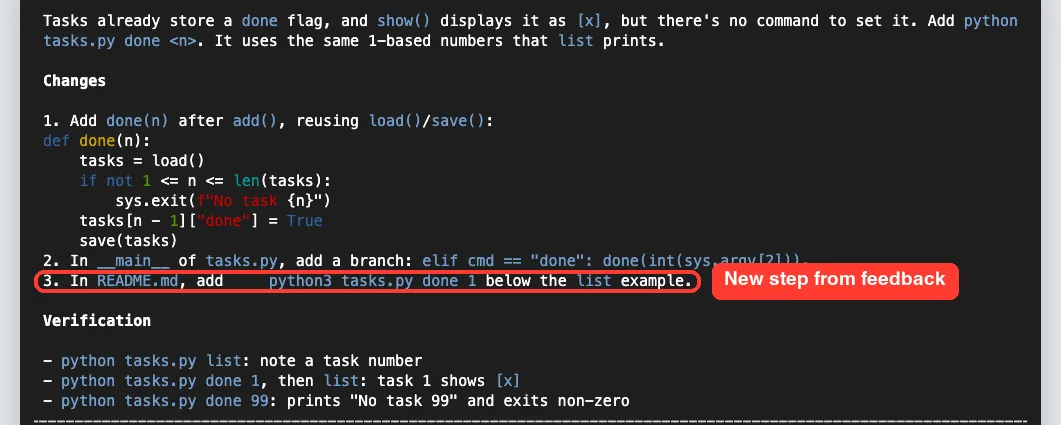
After we pressed Enter, Claude revised the plan. It kept the original steps and added a new step 3 for the README line.
Feedback in plan mode is cheap. Use it until the plan reads like something you would sign off on.
Step 4: Edit the Plan Yourself With Ctrl+G
Sometimes it is faster to fix the plan than to explain the fix. The docs say Ctrl+G opens the proposed plan in your default text editor so you can change it directly.
The footer names your editor, and in Part 10 it said Vim. For this demo we set the EDITOR variable to nano first, and the footer then said nano. Pressing Ctrl+G opened the plan file, and we added our own rule near the top.
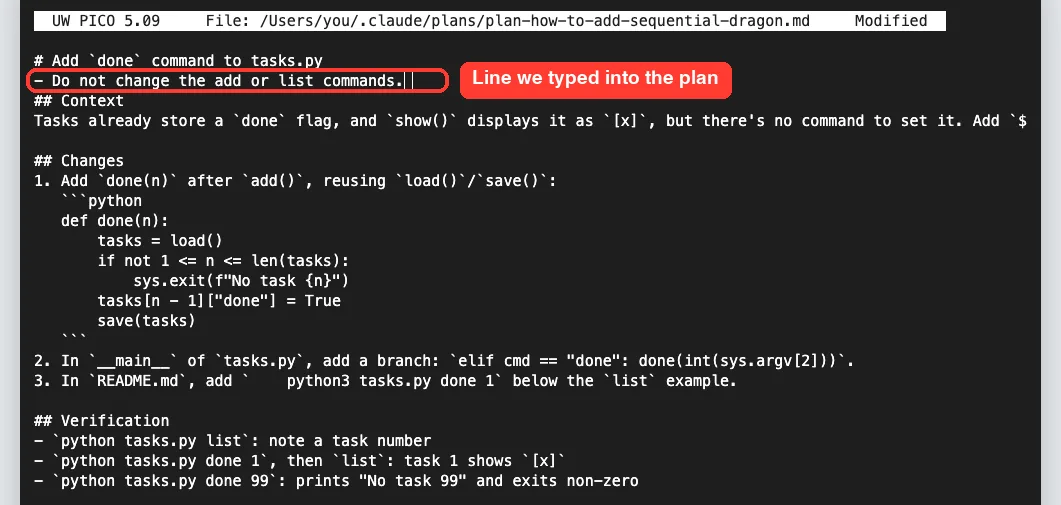
After we saved and closed the editor, we were back at the same approval menu. The plan file now carried our extra rule, so it becomes part of what you approve.
Step 5: Confirm Nothing Changed Yet
Before approving anything, we checked the code. A quick search for function definitions in tasks.py showed only the original four functions. There was no done function, even after two rounds of planning.

That is the core promise of plan mode. Claude can look at everything, but your files stay the same until you approve.
Step 6: Approve the Plan and Watch Claude Build
In a new session, we asked for the same plan with the README step built in. This time we picked “Yes, manually approve edits” so we could review every change.
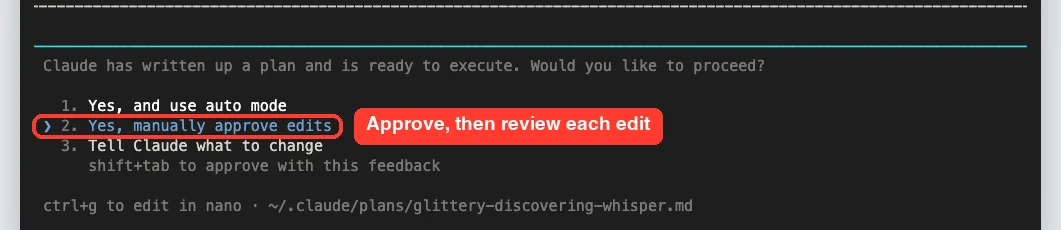
Plan mode switched off and Claude began editing. Its first edit prompt showed the exact done function from the plan, with a Yes, a No and an option to switch to accept edits for the rest of the session.
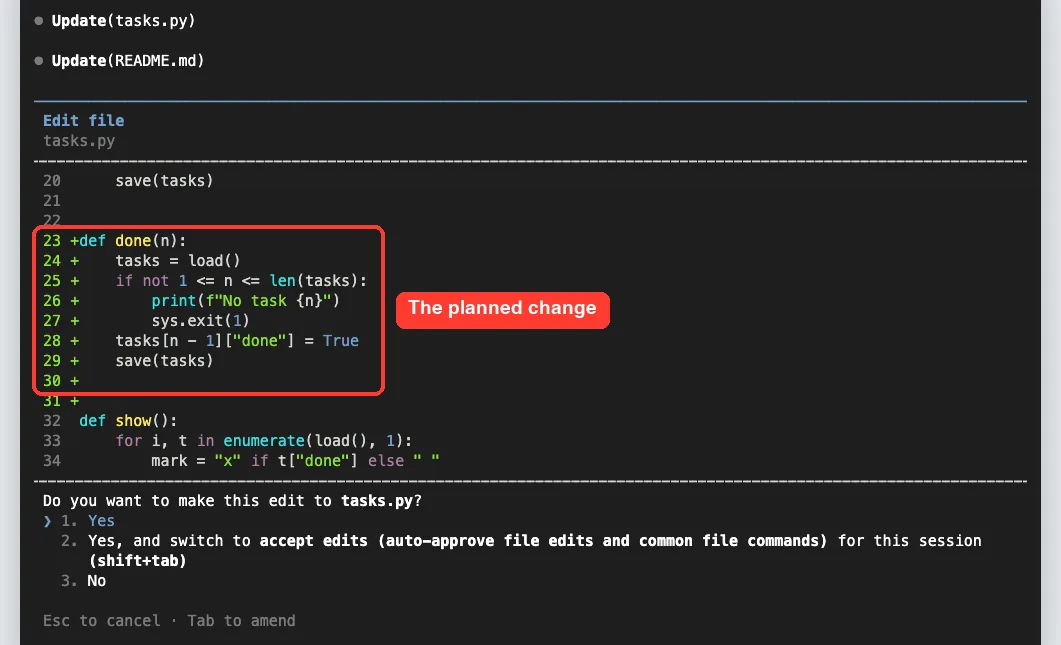
We chose to switch to accept edits so the rest of the plan could flow. Claude updated tasks.py and README.md, then tested the new command on a copy of the data file so our real list stayed untouched.
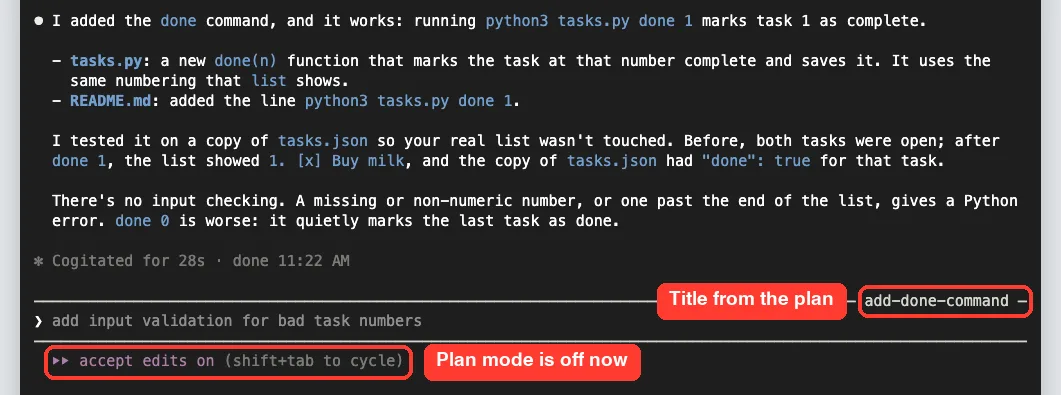
Two details stood out. The docs say accepting a plan gives the session a generated title, and ours was named add-done-command. Claude also flagged an edge case it had not handled, which is a perfect topic for the next plan.
Finally, we exited and ran the app ourselves. The done command worked on the first try.

How the Plan Mode Workflow Fits Together
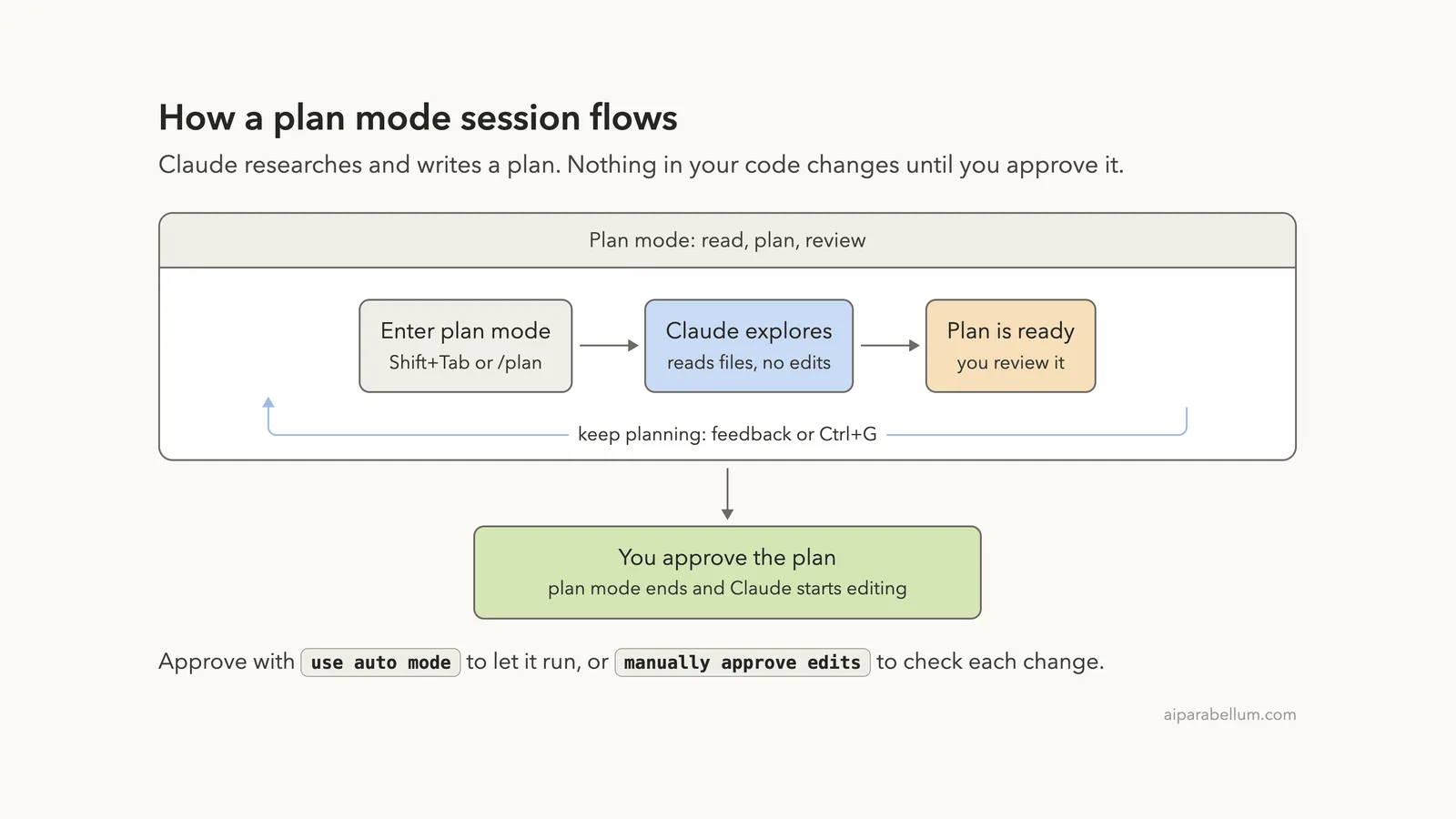
Here is the whole flow in one picture. You can loop through feedback and edits as many times as you like before you approve.
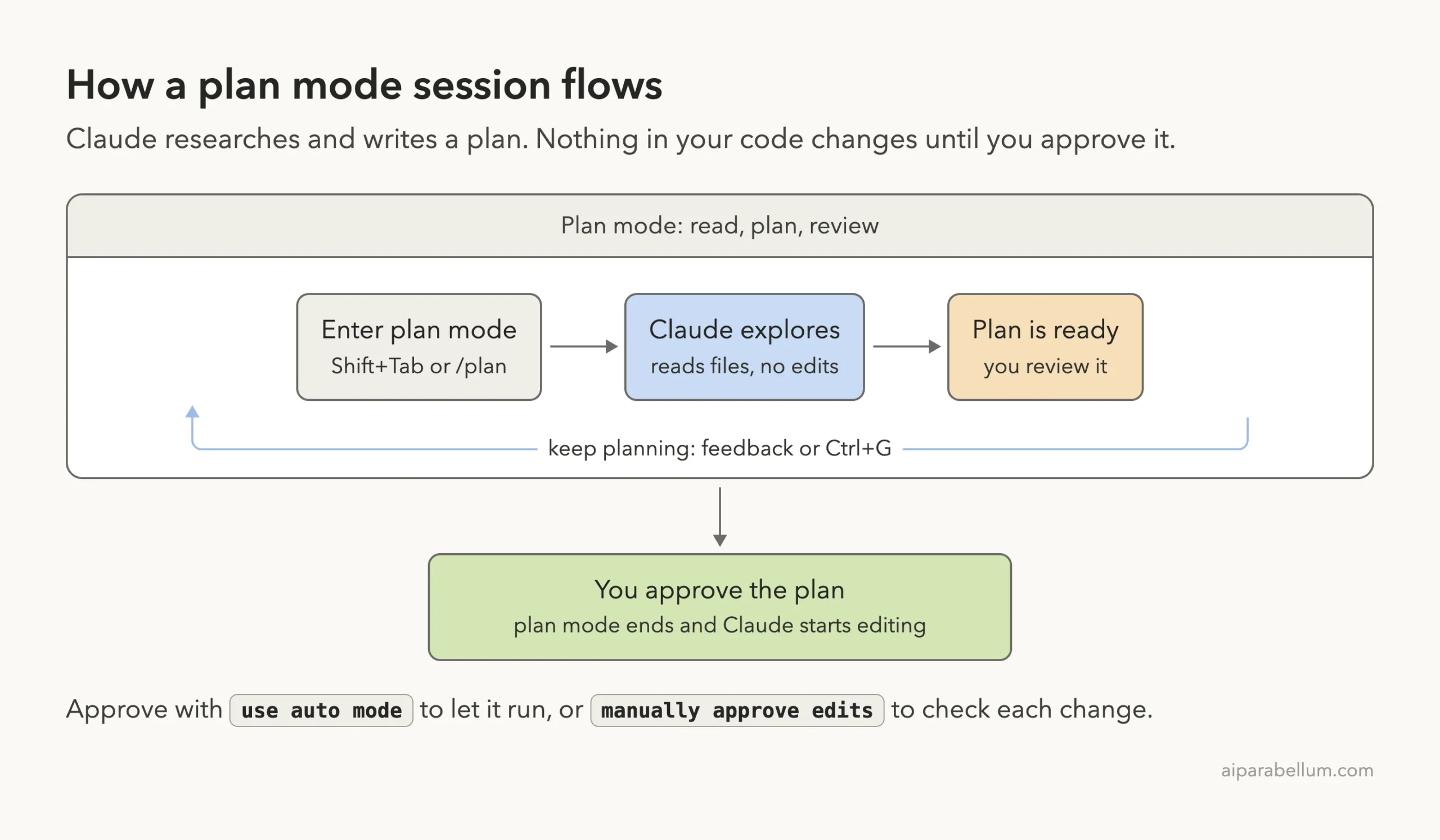
To plan again after approving, cycle back to plan mode with Shift+Tab or start your next prompt with /plan. The common workflows page in the Claude Code docs describes the same “plan before editing” pattern.
When Should You Use Plan Mode?
Plan mode adds a step, so it is not for every request. Use this simple ladder to decide.
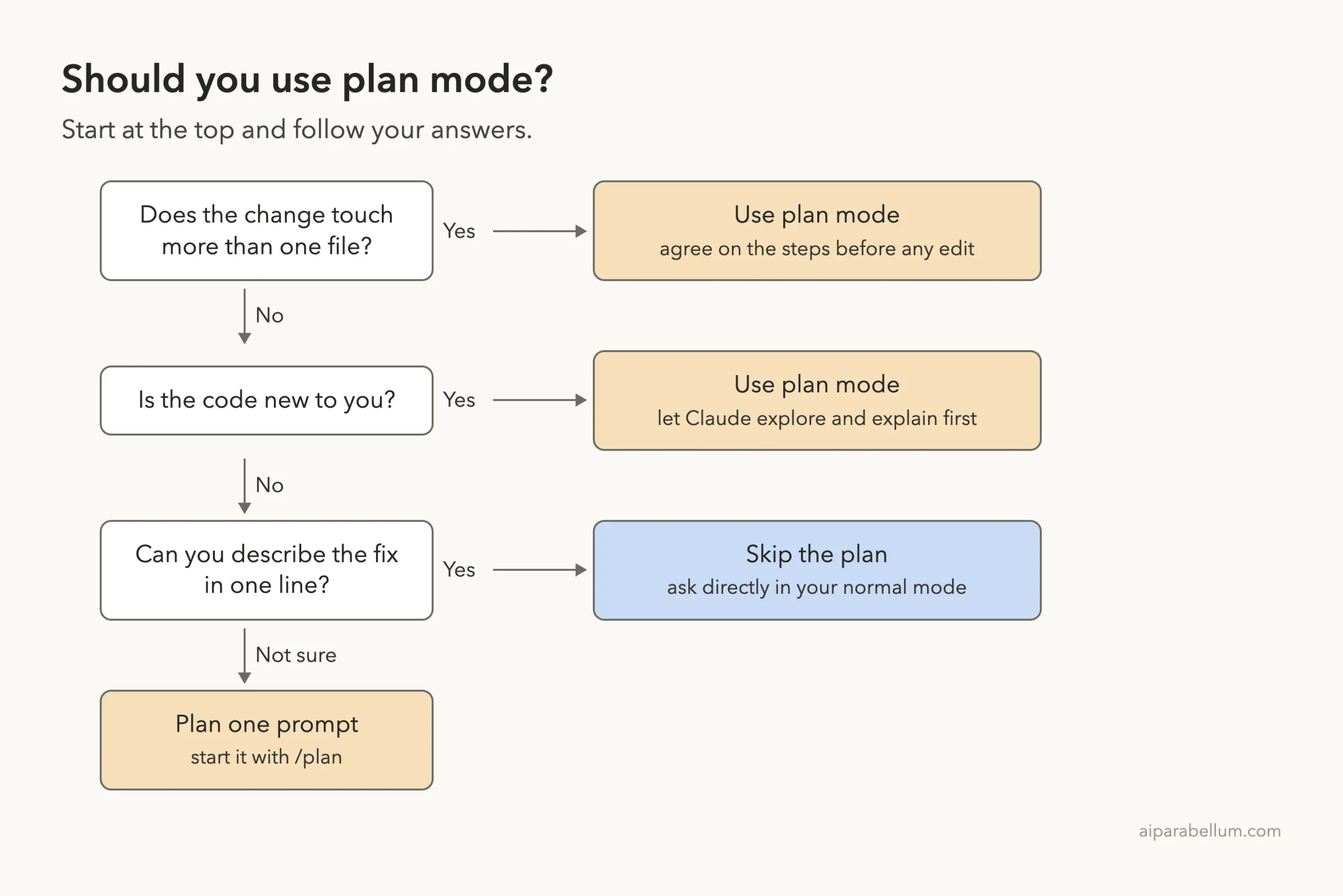
Real examples where planning pays off
- Adding a feature that touches the API, the database and the tests.
- Joining a project you have never seen and asking how login works.
- Renaming a function used in dozens of places.
- Upgrading a library where you want to know the breaking changes first.
- Agreeing on an approach you will later share with your team.
For a typo fix or a one-line change, skip the plan and ask directly. If you are new to the tool, our first session walkthrough shows how a normal request flows.
How to Make Plan Mode the Default
If a project is sensitive, you can start every terminal session there in plan mode. The docs say to set defaultMode to plan in the project’s .claude/settings.json file.
{
  "permissions": {
    "defaultMode": "plan"
  }
}
There are two catches.
The VS Code extension does not read project settings for the starting mode, so set claudeCode.initialPermissionMode to plan in your VS Code user settings instead. In the desktop app, picking Plan from the mode selector applies to the current session only. The settings documentation explains how settings files stack.
Try It Yourself
Make a small practice folder with one script you know well. Start Claude Code with claude –permission-mode plan and paste this prompt.
Plan how to add one small, useful feature to the main script in this folder. List the files you would change, the steps in order, and how to test it. Keep the plan short and do not make any changes yet.When the plan appears, pick option 3 and ask for one change. Then press Ctrl+G and add a rule of your own. Finally, approve with “Yes, manually approve edits” and review each edit as it comes in.
Common Mistakes With Plan Mode
- Forgetting plan mode is on, then wondering why Claude will not edit. Check the status bar.
- Approving the first plan without reading it. The plan is only useful if you review it.
- Giving vague feedback like “make it better”. Name the file, step or rule you want changed.
- Expecting plan mode to block edits in a session started with bypass permissions. The docs say it does not there.
- Putting defaultMode in a project file and expecting VS Code to follow it. VS Code uses its own setting.
Pro Tips for Better Plans
- Ask for a verification section. Our plans included test commands, which made the result easy to check.
- Say “keep the plan short” for small tasks, so you can read it in one screen.
- Use /plan for one careful prompt instead of switching your whole session.
- Pick “Yes, manually approve edits” on unfamiliar code, then switch to accept edits once you trust the direction.
- After the build, review the result with /diff, which we covered in advanced commands.
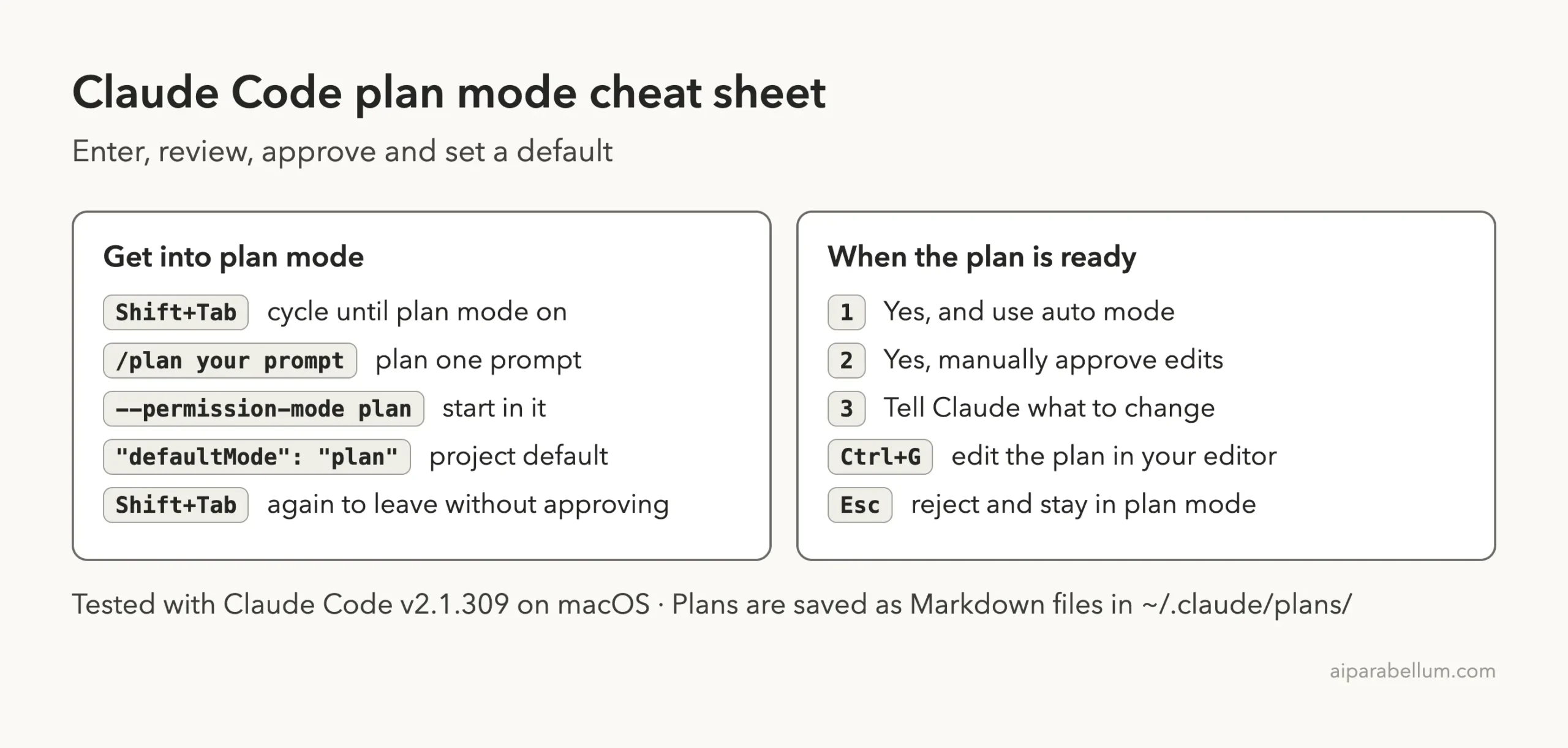
Plan Mode Cheat Sheet
Save this card for quick reference. It covers every way in, every choice at the approval menu and how to leave.
Frequently Asked Questions
How do I turn on plan mode in Claude Code?
Press Shift+Tab until the status bar shows “plan mode on”, start a prompt with /plan, or launch with claude –permission-mode plan. All three put Claude into the same read-and-plan behavior.
Can Claude edit files in plan mode?
No. Claude can read files and explore, but edits to your source stay blocked until you approve the plan. The one exception the docs name is an interactive terminal session where bypass permissions is available.
Where are Claude Code plans saved?
Plans are saved as Markdown files in ~/.claude/plans/ by default. The docs mention a plansDirectory setting if you want them somewhere else.
How do I exit plan mode without approving?
Press Shift+Tab to move to the next mode in the cycle. In our test, pressing Esc at the approval menu rejected the plan but kept the session in plan mode.
Does plan mode work in VS Code?
Yes. You can pick Plan from the mode indicator, or set claudeCode.initialPermissionMode to plan in your VS Code user settings to start conversations in it.
Conclusion
Claude Code plan mode gives you a safe first step on any change that matters: Claude explores your code and writes a clear plan, you shape it with feedback or Ctrl+G, and nothing changes until you approve with auto mode or with manual review. Turn it on with Shift+Tab, /plan or –permission-mode plan, read every plan before you say yes, and save it for work that touches more than one file or code you do not know yet. To learn more about the models behind the tool, visit our Claude AI page, and if you are still getting started, start with Claude Code basics.
Previous in the series: Part 10, Claude Code Permission Modes Explained
Next in the series: Part 12: Claude Code Allow and Deny Rules: Control What Runs.