Claude Code settings are small JSON files that decide how Claude Code behaves: which model it starts with, what it may run without asking, which files it must never read, and how it looks in your terminal. There are three files you can edit yourself, one for you, one for your team and one for you in a single project. Once you know which file wins when they disagree, you can share a solid setup with teammates and still keep your own preferences.
In this guide we set up all three files in a tiny demo project and watched Claude Code react in a real session. You will see the startup screen name the file a model came from, a local file quietly override the team file, a one-session flag beat both, and a single stray comma break a file.
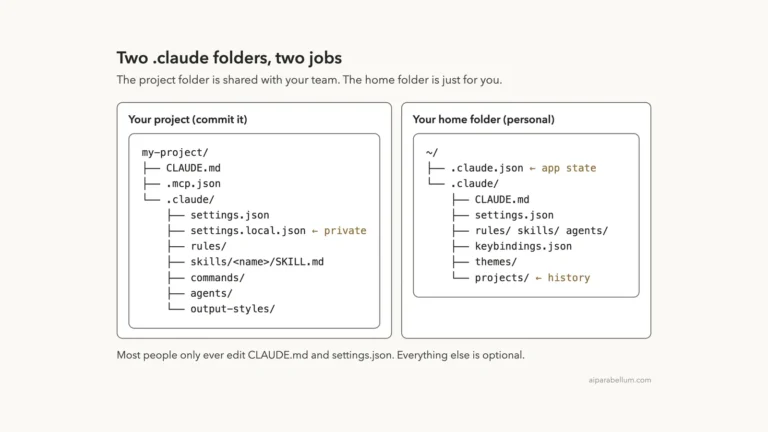
This is Part 23 of 53 in our Claude Code tutorials series. In the previous part we mapped the whole .claude folder, where two of these settings files live. This part goes deep on the settings files themselves.
Tested with Claude Code v2.1.310 on October 25, 2026, on macOS. We used one short prompt in a small throwaway project; every other step needed no model calls at all.
Quick Summary: Claude Code Settings at a Glance
| Question | Short answer |
|---|---|
| What are settings? | JSON keys that change how Claude Code behaves, such as model, permissions and display options |
| User settings file | ~/.claude/settings.json, applies to you in every project |
| Shared project file | .claude/settings.json, applies to everyone who works in the project |
| Project local file | .claude/settings.local.json, applies to you in one project and stays out of git |
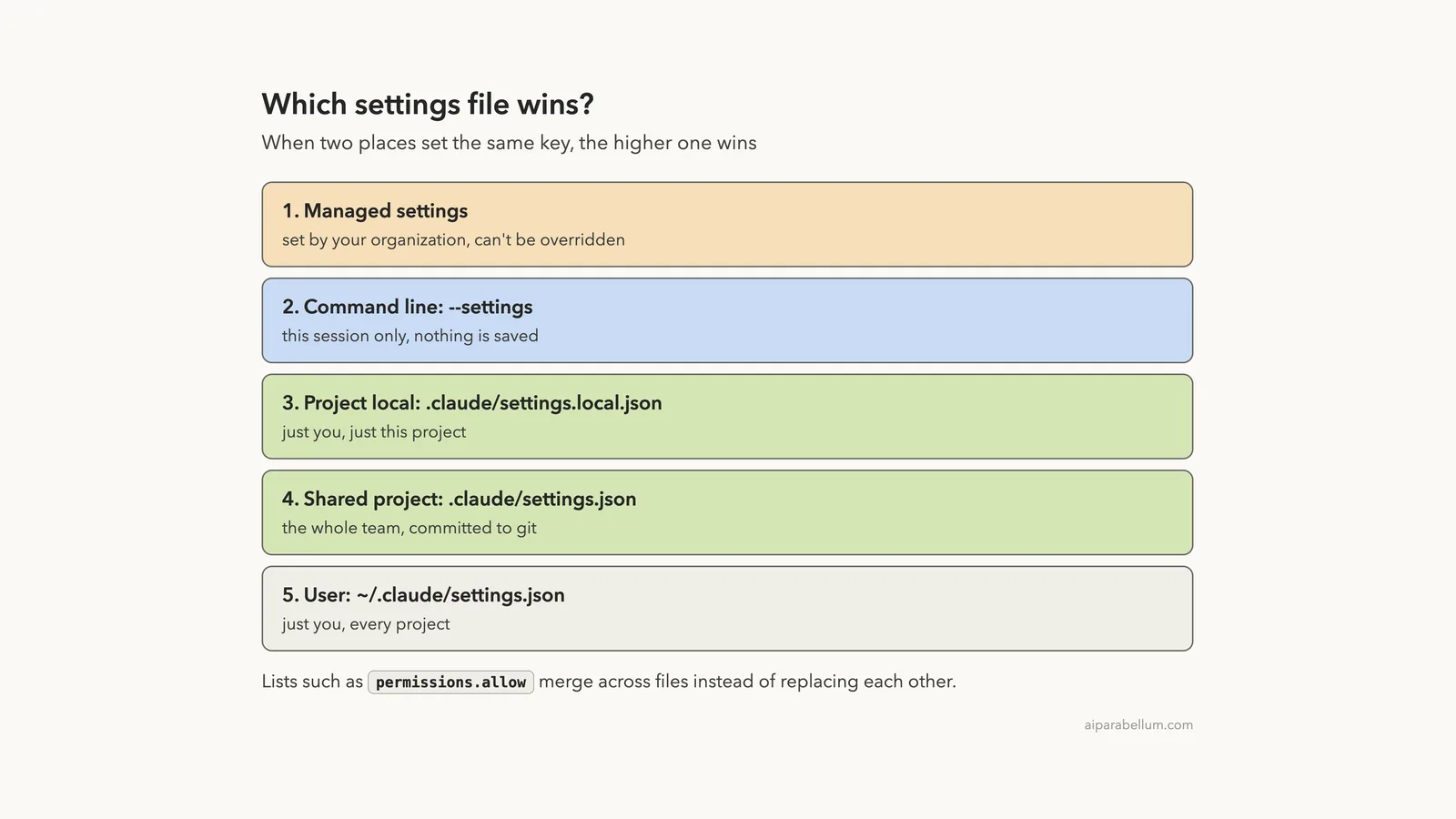
| Who wins? | Managed, then –settings, then local, then shared project, then user |
| How do I check what loaded? | Run /status and read the Setting sources line |
| Do I need to restart after an edit? | Usually not; most keys reload live, but model and effort wait for a new session |
What Claude Code Settings Files Are and Why There Are Several
Different people need different control. You want your own theme and default model everywhere, your team wants the same permission rules for everyone in a repo, and sometimes you want a personal exception in just one project. One file can’t do all three jobs, so Claude Code reads several.
Anthropic’s settings files guide lists four sources, each with a scope. Here is how they compare:
| Scope | File | Who it affects | Good for |
|---|---|---|---|
| User | ~/.claude/settings.json | You, in every project on this machine | Theme, default model, your own permission rules |
| Shared project | .claude/settings.json | Everyone working in that project | Team permissions, hooks, plugins and project env variables |
| Project local | .claude/settings.local.json | You, in this one project | Personal overrides and testing before you share |
| Managed | managed-settings.json and other managed sources | Everyone your organization deploys it to | Security policy and compliance |
Installing Claude Code doesn’t create any of these files. Claude Code writes the user file the first time you change a /config option it stores there, and it writes the local file the first time you give a standing approval on a permission prompt.
There is also a fifth file, ~/.claude.json, that Claude Code keeps for itself. It holds your account details, MCP server setups and per-project state like trust decisions, and the docs say you don’t need to edit it.
User for you everywhere, project for the team, local for you in one place. Almost every settings question comes back to those three scopes.
Step 1: Create a Shared Project Settings File
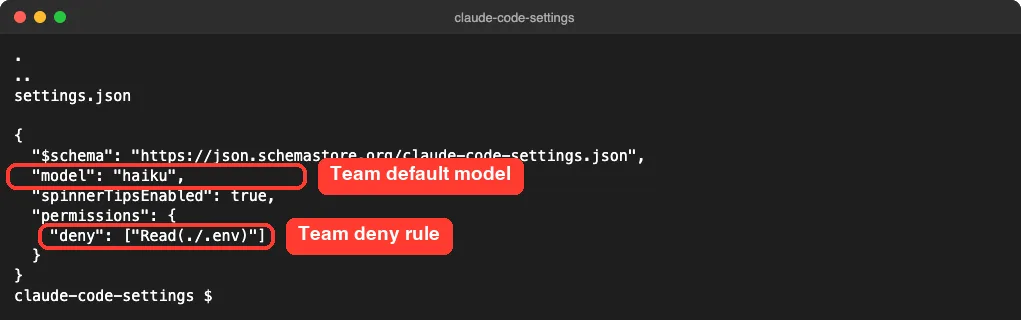
We started with a tiny project holding a README, a one-line Python script and a fake .env file. Then we added a shared .claude/settings.json and committed it to git, the way a team would.
The file sets three things. It picks Haiku as the team’s default model, keeps the spinner tips on, and blocks Claude from reading the .env file:
{
  "$schema": "https://json.schemastore.org/claude-code-settings.json",
  "model": "haiku",
  "spinnerTipsEnabled": true,
  "permissions": {
    "deny": ["Read(./.env)"]
  }
}
The $schema line is optional but handy. It points to the published JSON schema, which gives you autocomplete and inline checks in VS Code, Cursor and other editors that support JSON schema.
Step 2: Start Claude Code and See Where the Model Came From
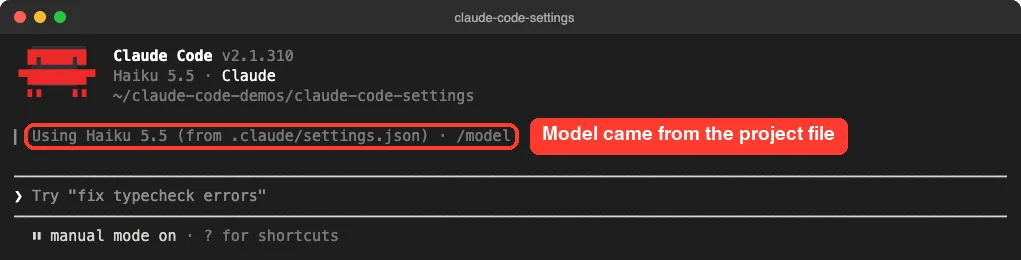
We launched Claude Code in the project and accepted the trust prompt. Right under the welcome header, Claude Code printed a line saying it was using Haiku 5.5 from .claude/settings.json.
That line is a nice detail from the docs: when project or managed settings pick the model, the startup header names the file that set it. It is the fastest way to answer “why am I on this model?”
Step 3: Check Which Files Loaded With /status
Next we typed /status. The Status tab includes a Setting sources line that lists every settings file Claude Code read for this session. Ours said User settings and Shared project settings, since no local file existed yet.

Keep one limit in mind. The docs say this line confirms which files were read, but it doesn’t show which file supplied each key. To see entries Claude Code rejected, run claude doctor from your shell.
The /status screen also shows account details, so crop it before you share a screenshot with anyone.
Step 4: Let Claude Code Write Your Local Settings File
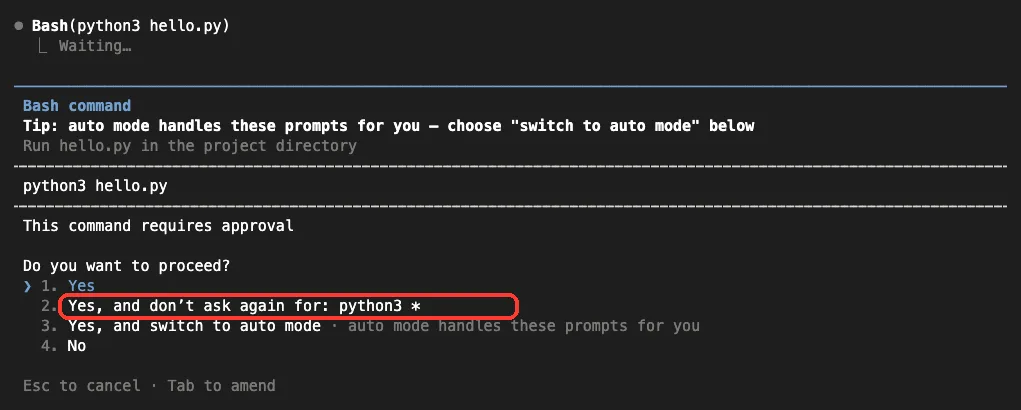
This was the only step that used the model. We asked Claude to run python3 hello.py, and because we were in manual mode, Claude Code asked for approval first.
The second option read “Yes, and don’t ask again for: python3 *”. We picked it, and the script printed its hello message.
After we exited, a new file sat in the project: .claude/settings.local.json. Claude Code had written the approval into it as an allow rule. When we ran git status, only the .env file showed up as untracked, because Claude Code keeps the local file out of git.
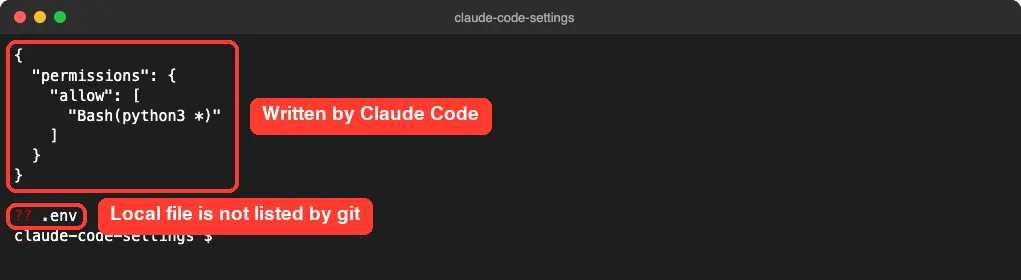
How does it stay out of git? The docs explain that the first time Claude Code writes this file in a repository that doesn’t already ignore it, it adds **/.claude/settings.local.json to your global git excludes file. If you create the file by hand instead, add it to .gitignore yourself.
Step 5: Change an Option With the /config Menu
You don’t have to edit JSON for common options. We opened /config, went to the Config tab, typed “tips” into its search box and switched Show tips from true to false.
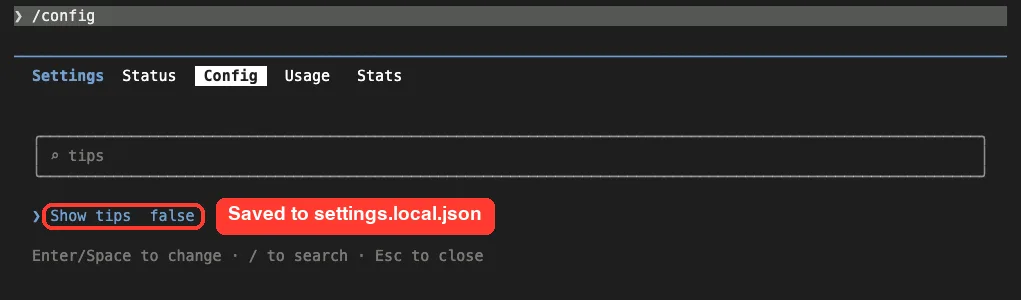
Most /config options save to your user file. A few, including Show tips, save to the project local file, and our test matched the docs exactly. The local file now held spinnerTipsEnabled set to false.
That also overrides the team’s true value, but only for us. Here is where /config saves each kind of option:
- Most options go to ~/.claude/settings.json
- A few, such as Show tips, go to .claude/settings.local.json
- The global config options go to ~/.claude.json
You can also skip the menu and pass a key directly, such as /config verbose=true.
Step 6: Override the Team Model in Your Local File
Now for the precedence test. We added “model”: “sonnet” to the local file, so it disagreed with the team file’s “haiku”.
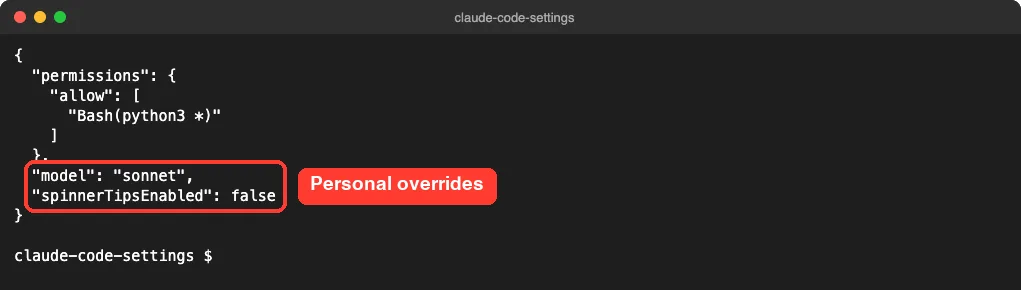
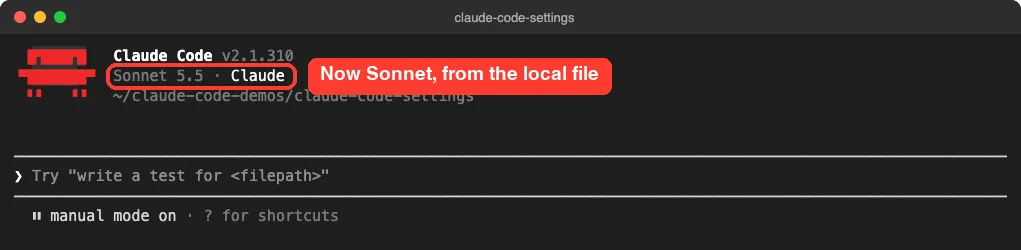
We started a fresh session and the header said Sonnet 5.5. The local file won because project local sits above shared project in the order. Our teammates’ sessions would still start on Haiku.
/status now listed three sources: User settings, Shared project settings and Project local settings.

Step 7: Try a Setting for One Session With –settings
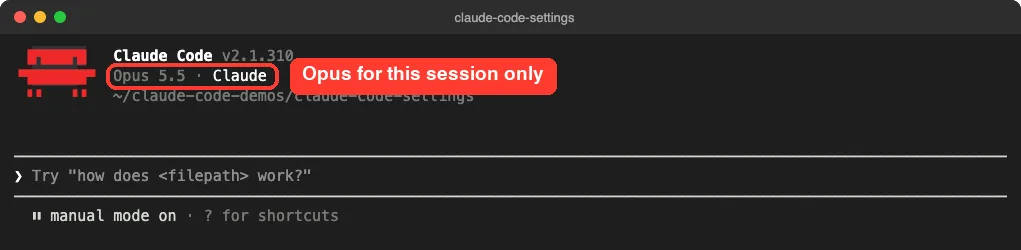
Sometimes you want to try a value without saving it anywhere. The –settings flag takes JSON inline or a path to a file, and it lasts for one session only:
claude --settings '{"model": "opus"}'Our session started on Opus 5.5, even though both files named other models. The command line sits above every file except managed settings. The docs add that –settings doesn’t write to any file, so your next session goes back to whatever your files say.
Some keys also have their own flag or environment variable. For the model, –model and ANTHROPIC_MODEL both override the model key for a session; see our guide to choosing a model for that order.
How Claude Code Settings Precedence Works
When the same key shows up in more than one place, Claude Code uses the value from the highest level that sets it. Our demo walked down most of this stack: project picked Haiku, local beat it with Sonnet, and the command line beat both with Opus.
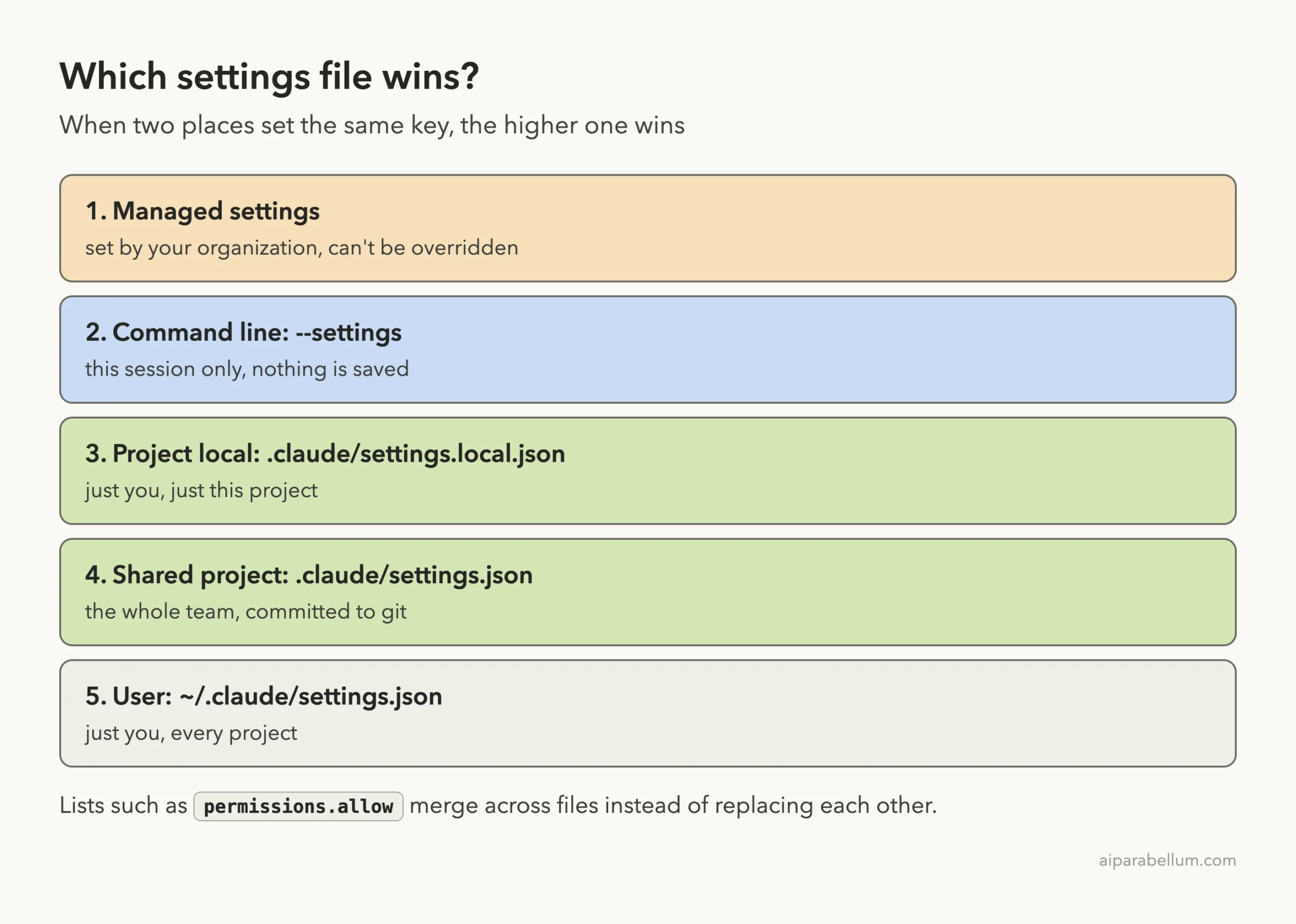
A few details from the docs are worth knowing:
- Nothing in your own files or –settings overrides a managed key.
- Lists merge instead of replacing each other. If two files set permissions.allow, Claude Code combines both lists.
- A few model-related keys, such as fallbackModel and modelPicker, follow their own rules instead of merging.
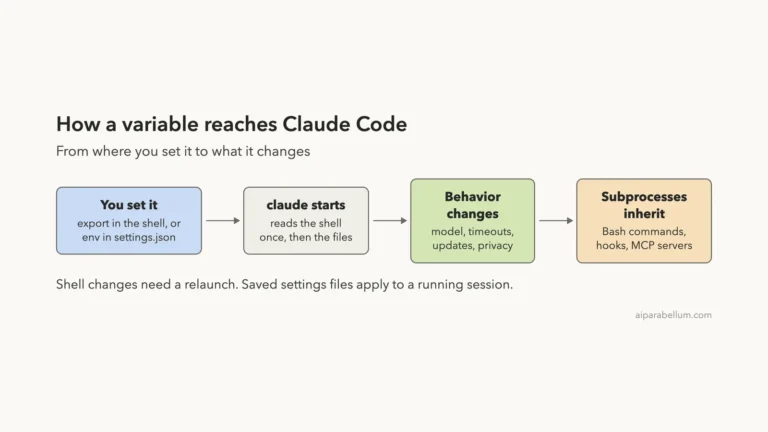
- Environment variables aren’t a level in this stack. Each variable and key pair has its own rule, which the docs list.
- For a few security keys, a stricter value from a lower level still wins over managed settings.
Permission rules have their own logic on top of this. Our allow and deny guide covers how allow, ask and deny rules combine.
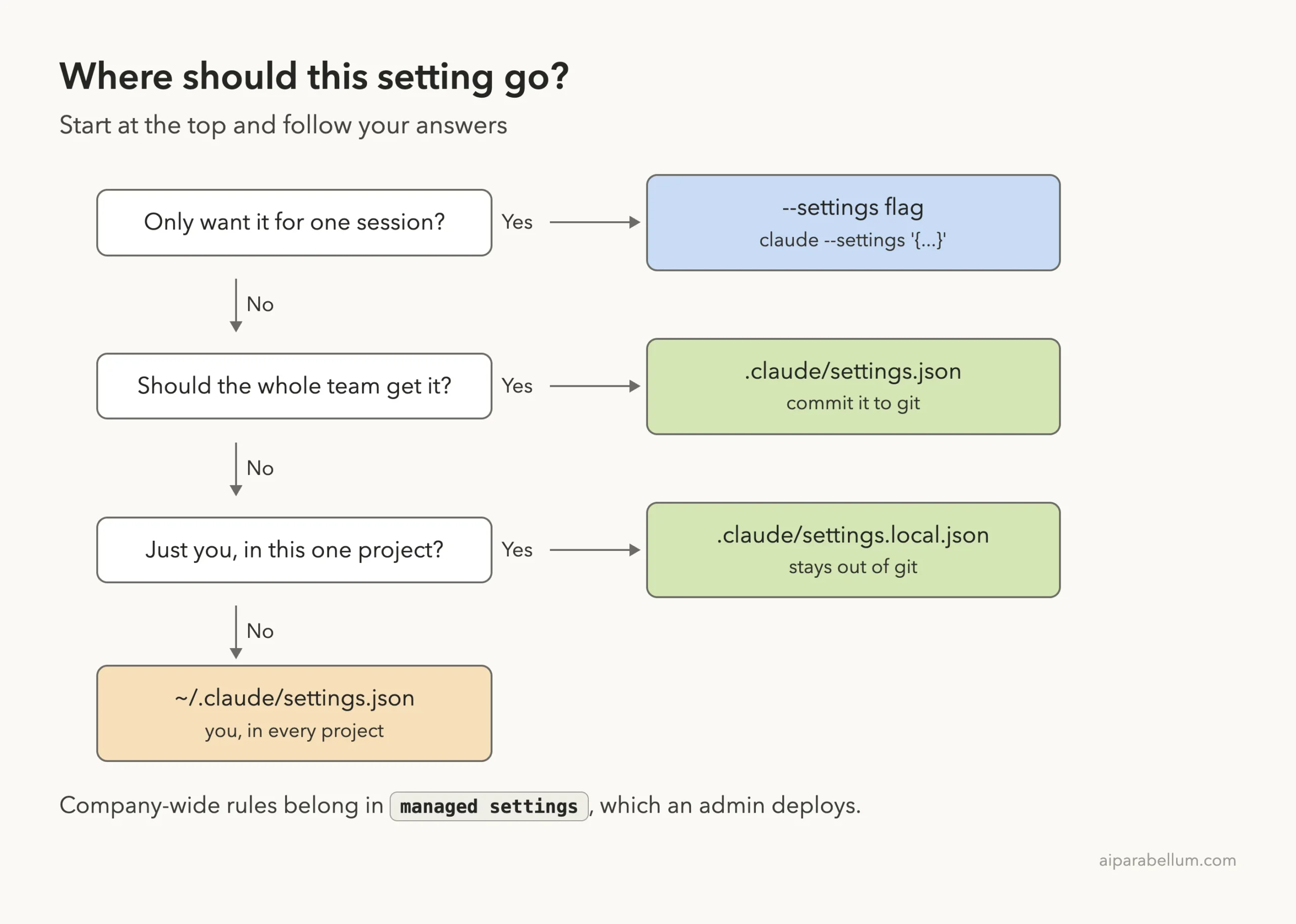
Which Settings File Should You Use?
If you are unsure where a key belongs, ask yourself who should get it. This quick ladder covers the common cases:
Step 8: What Happens When a Settings File Breaks
Settings files are strict JSON. A // comment or a trailing comma is a syntax error, so we tested that on purpose by leaving a comma after the last key in the local file.
At the next start, Claude Code showed a Settings Error dialog. It named the file, said it had invalid or malformed JSON, and warned that files with errors are skipped entirely, not just the invalid settings.
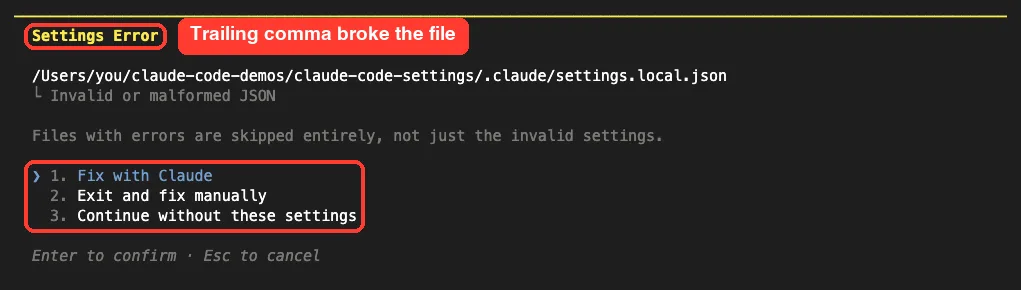
You get three choices: fix it with Claude, exit and fix it yourself, or continue without that file. The docs add that a smaller problem, such as one malformed permission rule, shows a Settings Warning instead and only that entry is skipped.
Real Examples of Useful Settings
The All settings reference lists every key with its scope, default and an example. Here are a few that many people set early:
| Key | What it does | Example value |
|---|---|---|
| model | Sets the model new sessions start with | “sonnet” |
| permissions | Allow, ask and deny rules for tools | {“deny”: [“Read(./.env)”]} |
| spinnerTipsEnabled | Shows or hides tips in the spinner line | false |
| language | Asks Claude to reply in another language | “spanish” |
| env | Sets environment variables for every session | {“DISABLE_AUTO_COMPACT”: “1”} |
| cleanupPeriodDays | Days to keep session transcripts (default 30) | 20 |
Check each key’s Scope line before you commit it. Some keys only work from user or managed settings and are ignored in a repository file. For example, permissions.defaultMode values auto and bypassPermissions don’t take effect from project or local settings; our permission modes guide explains those modes.
When Edits Take Effect
Claude Code watches your settings files and reloads them when they change, so edits to permissions or hooks apply without a restart. A few keys are read only at session start. The model and effort level are the ones you will hit most, so use /model or /effort to change them mid-session.
Windows and Linux Notes
We tested on macOS; the Windows and Linux steps follow Anthropic’s official instructions. On Windows, ~/.claude means %USERPROFILE%\.claude. To keep your home-folder files somewhere else on any system, set the CLAUDE_CONFIG_DIR variable.
Try It Yourself
Make a throwaway folder, run git init, and add a .claude/settings.json that sets “model”: “haiku”. Start Claude Code, read the startup header, and run /status to see your sources.
Then paste this prompt and pick “Yes, and don’t ask again” when the permission prompt appears:
Run python3 --version and tell me the result in one line.Exit, open .claude/settings.local.json and look for the new allow rule. Finally, add “model”: “sonnet” to that local file and start a new session to watch the local file win.
Common Mistakes With Claude Code Settings
- Leaving a trailing comma or a // comment in the JSON, which makes Claude Code skip the whole file.
- Committing settings.local.json by hand. It is meant to stay personal.
- Putting a personal preference in the shared file, which changes it for every teammate.
- Expecting a model change in a file to reach the running session. Use /model, or start a new session.
- Forgetting that an environment variable like ANTHROPIC_MODEL can override the model key.
- Editing ~/.claude.json by hand when the setting belongs in settings.json.
Pro Tips
- Add the $schema line to every settings file for autocomplete and quick error checks in your editor.
- Use the local file to test a rule first, then move it to the shared file once it works.
- Run /status after any edit; it takes two seconds and tells you which files loaded.
- Use –settings to try a value for one session without touching any file.
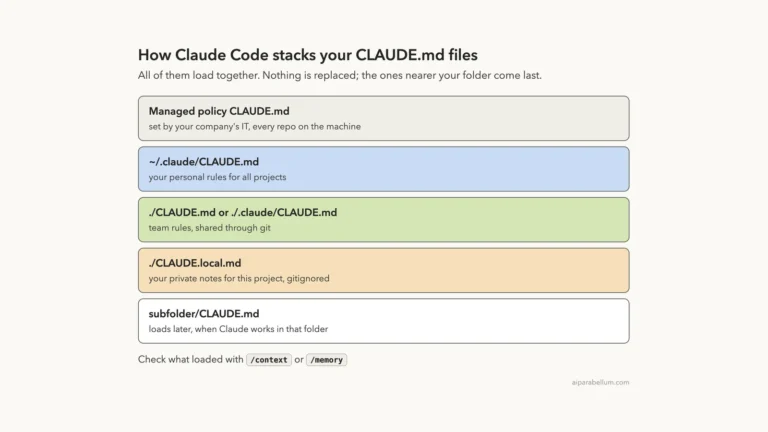
- Put the project’s instructions in a CLAUDE.md file and the project’s rules in settings.json; they do different jobs.
- Remember that some team keys, such as allow rules and most env values, apply only after each teammate trusts the folder.
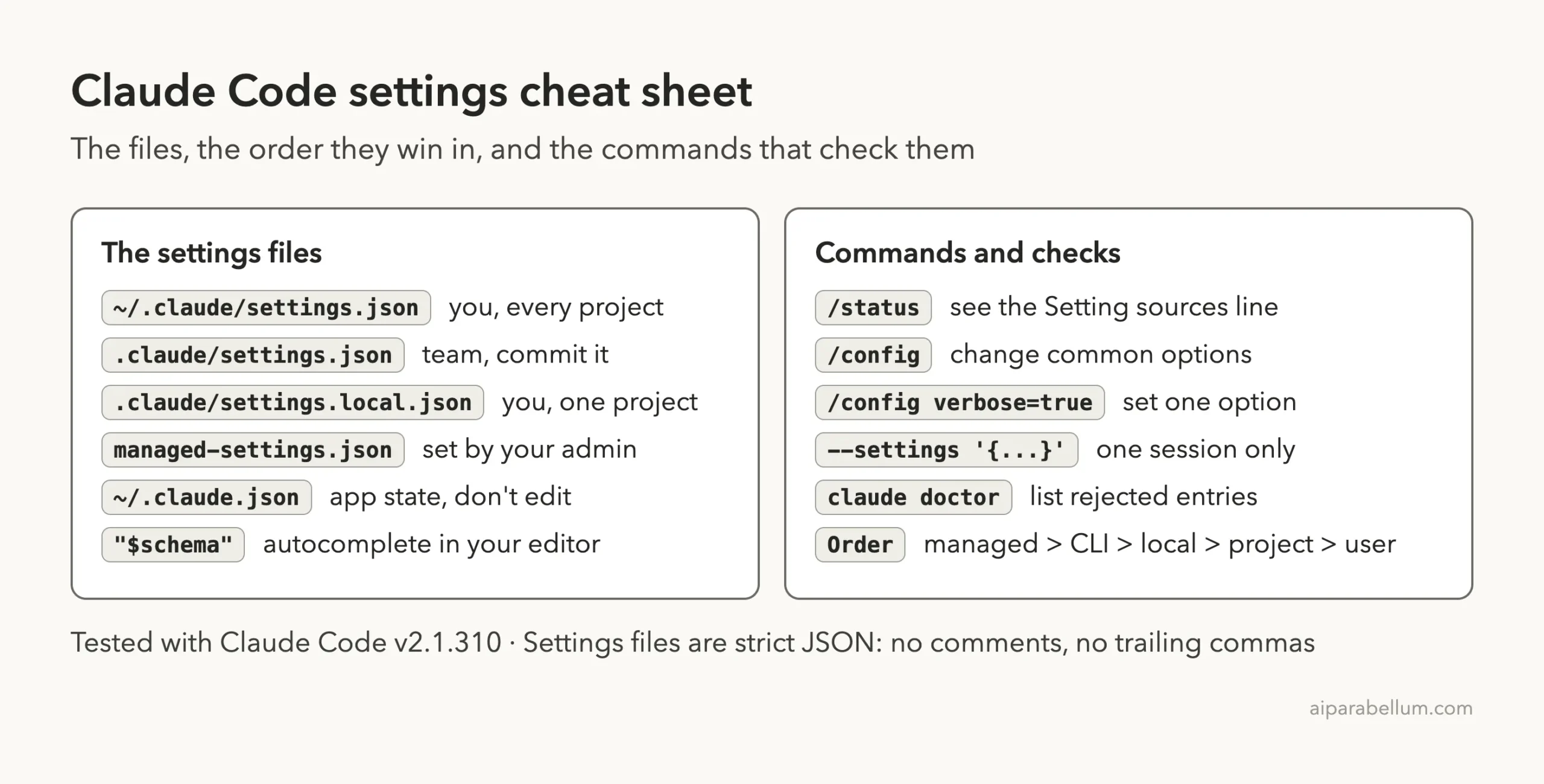
Claude Code Settings Cheat Sheet
Frequently Asked Questions
Where is the Claude Code settings.json file?
Your personal file is ~/.claude/settings.json in your home folder. A project can also have .claude/settings.json for the team and .claude/settings.local.json for you. None of them exist until you or Claude Code create them.
Which settings file wins if two disagree?
The highest level wins: managed settings, then –settings, then the project local file, then the shared project file, then your user file. List keys such as permissions.allow merge instead.
Do I need to restart Claude Code after editing settings?
Usually not. Claude Code reloads most edits live, including permissions and hooks. Keys read at startup, such as the model, need a new session or the /model command.
Should I commit .claude/settings.local.json?
No. It holds your personal overrides, and Claude Code keeps it out of git when it creates the file. Commit .claude/settings.json instead.
How do I see which settings files loaded?
Run /status inside Claude Code and read the Setting sources line. For entries Claude Code rejected, run claude doctor.
Conclusion
Claude Code settings come down to three files you control and one your organization may control: user settings for you everywhere, shared project settings for the team, and a local file for you in one project, with managed settings above them all. In our real test, the startup header named the project file that picked Haiku, a local file switched us to Sonnet, –settings gave us Opus for one session, and a single comma got a whole file skipped. Keep your files valid JSON, check /status after each change, and if you are new to Claude in general, our Claude AI overview is a good place to begin.
Previous in the series: Part 22, The .claude Folder Explained: Where Claude Code Keeps Its Setup
Next in the series: Part 24: Claude Code Environment Variables Worth Knowing.