Picking the right Claude Code model is one of the easiest ways to make your sessions faster, cheaper or smarter. A quick rename does not need the same brainpower as a tricky bug hunt, and Claude Code lets you switch between Haiku, Sonnet, Opus and Fable in seconds. The trick is knowing which one to pick and which setting actually wins when you set it in more than one place.
In this tutorial we switch models for real in a tiny demo project. You will see the model picker, the effort slider, a session-only switch, a model set by a project settings file and the hybrid opusplan option.
This is Part 16 of 53 in our Claude Code tutorials series. In the previous part we learned how to manage the context window with /context and /compact. Now we choose the model that does the actual thinking.
Tested with Claude Code v2.1.309 on October 24, 2026, on macOS. The model list you see depends on your plan, your provider and your Claude Code version, so your picker may look a little different.
Quick Summary: Claude Code Model Options at a Glance
| You want to | Use this |
|---|---|
| Open the model picker | /model |
| Switch and keep it for new sessions | Enter in the picker, or /model sonnet |
| Switch for this session only | s in the picker |
| Start one session on a model | claude –model haiku |
| Set a model for one shell | ANTHROPIC_MODEL=opus |
| Set a model for a whole project | “model”: “sonnet” in .claude/settings.json |
| Plan with Opus, build with Sonnet | opusplan |
| Change how hard the model thinks | Left and right arrows in /model, or /effort |
What Is a Claude Code Model and Why Choose One?
Claude Code is the agent, and the model is the brain it sends your requests to. Every prompt, file read and plan goes to one Claude model, and that model decides what to do next. Different models trade speed and cost against depth of reasoning.
If you are new to the family, our Claude AI guide covers the basics. For coding, the official model configuration docs describe each option in plain terms.
The model aliases you can use
You don’t need to remember long version numbers. Claude Code accepts short aliases that always point to the recommended version for your provider:
| Alias | What it does |
|---|---|
| default | Clears any override and uses the default for your account |
| haiku | The fast, efficient model for simple tasks |
| sonnet | The latest Sonnet, for daily coding tasks |
| opus | The latest Opus, for complex reasoning |
| fable | The Fable model, for your hardest and longest-running tasks |
| best | Fable where it is available to you, otherwise Opus |
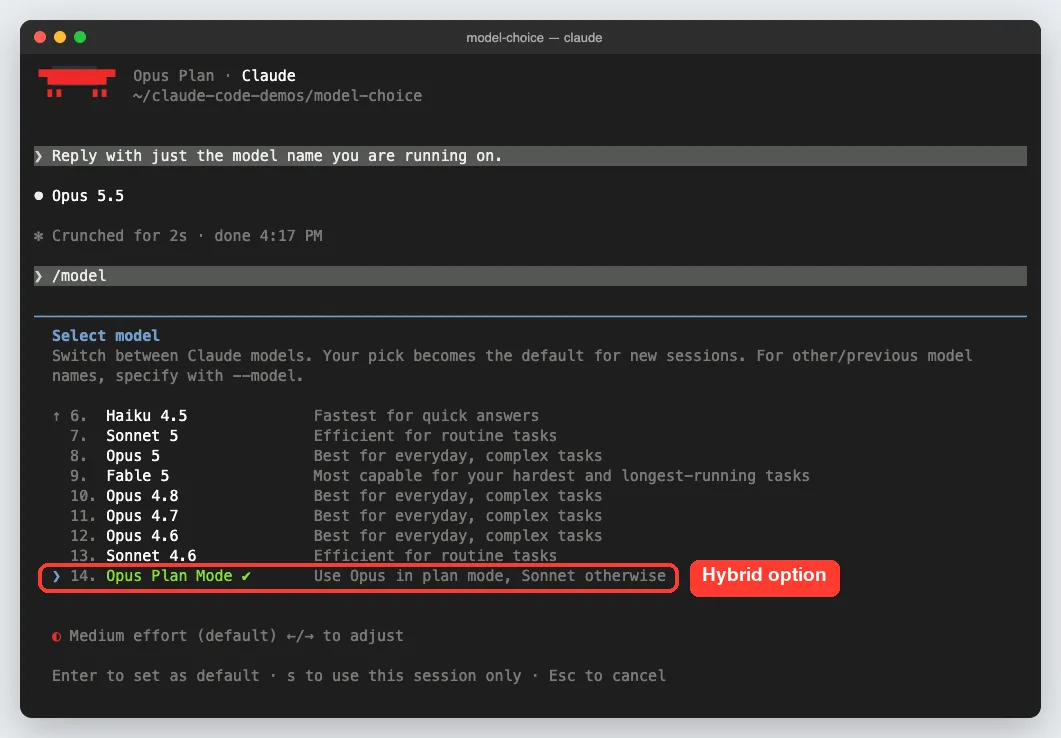
| opusplan | Opus in plan mode, then Sonnet when it carries out the plan |
On the Anthropic API, opus, sonnet and haiku point to Opus 5.5, Sonnet 5.5 and Haiku 5.5. Some cloud providers map them to earlier versions, so check the table in the docs if you use Amazon Bedrock, Google Cloud or Microsoft Foundry.
What you get if you set nothing
The docs say the default is Opus 5.5 on Pro, Max, Team, Enterprise and the Anthropic API. Our picker matched that, labeling the first row “Default (recommended)” with Opus 5.5 next to it. Fable is never the default, so you have to pick it yourself.
Aliases move forward with each release. Use an alias to stay current, or a full model name like claude-opus-5-5 to stay put.
Step 1: Start Claude Code on a Specific Model
We made a throwaway folder with a short README and a shelf.txt file listing four books. Then we launched Claude Code with the –model flag set to haiku and asked a tiny question about the file.
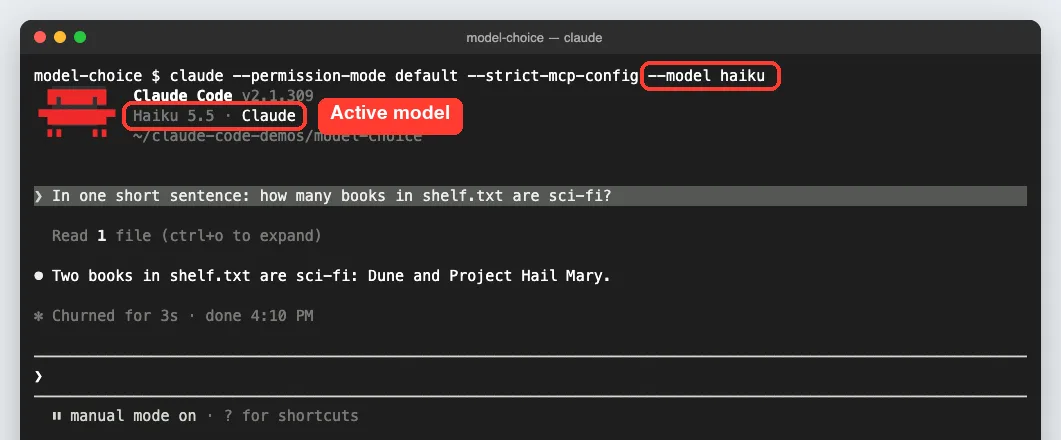
The header under the Claude Code version shows the active model. Haiku read the file and answered in one line, and Claude Code reported that the turn took about three seconds. For quick lookups like this, a small model is all you need.
The –model flag only affects the session you launch with it. That makes it handy for running different models in different terminal tabs at the same time, which the docs recommend over switching with /model.
Step 2: Open the Model Picker With /model
Inside a session, type /model and press Enter. Claude Code opens a picker with every model your account can use and a short description of each one.
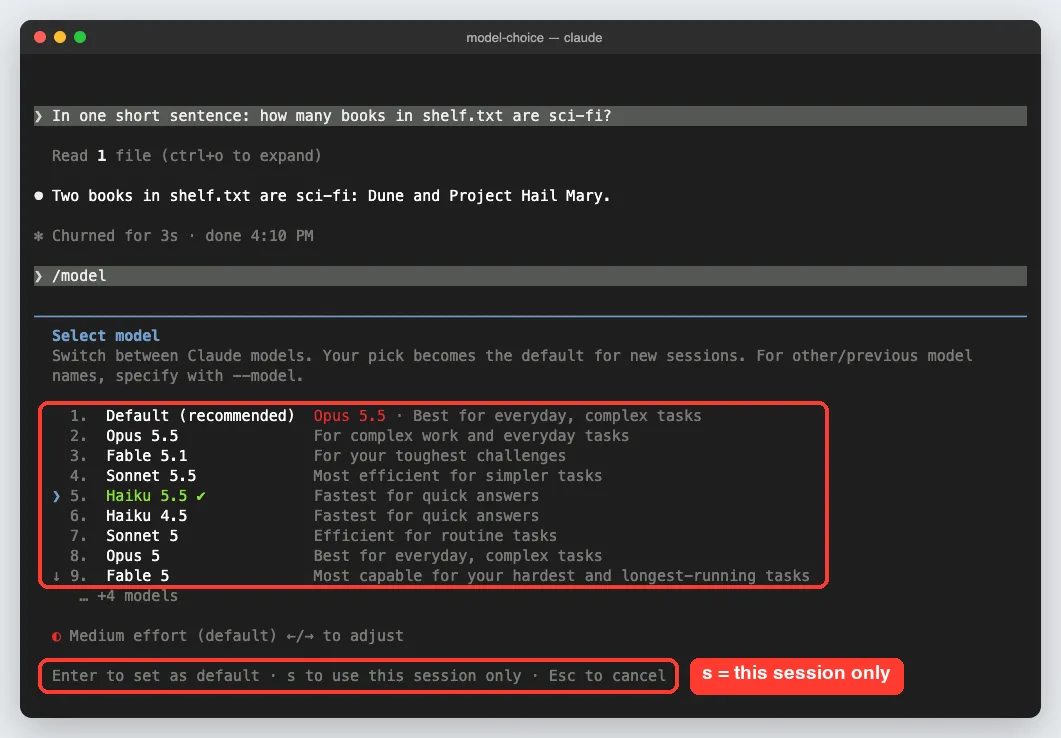
Our list had 14 rows, including older versions like Opus 4.8 and Sonnet 4.6. The check mark showed our current model, Haiku 5.5. The footer explains the two ways to confirm a choice:
- Enter switches the model and saves it as your default for new sessions
- s switches the model for this session only and leaves your default alone
- Esc closes the picker without changing anything
Typing /model followed by a name, such as /model sonnet, behaves like Enter. It switches right away and saves the choice to your user settings file.
Adjust effort while you pick
Under the list sits an effort line. Press the left or right arrow and the level changes. We pressed right once and Medium effort became High effort.
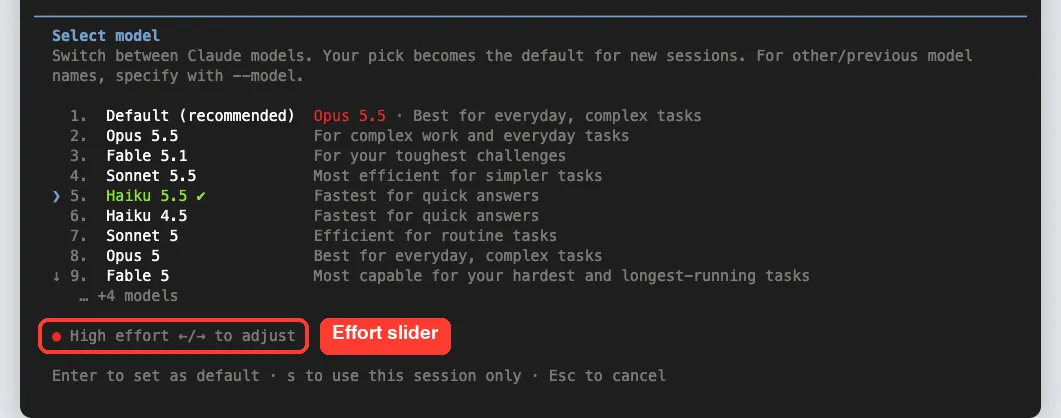
Effort controls how much the model thinks before it acts. We cover it in more detail in Step 5.
Step 3: Set a Model for a Whole Project
Sometimes a team wants everyone in a repo to use the same model. You can put a model field in the project’s .claude/settings.json file. We added “model”: “sonnet” to our demo project and started Claude Code with no flags.
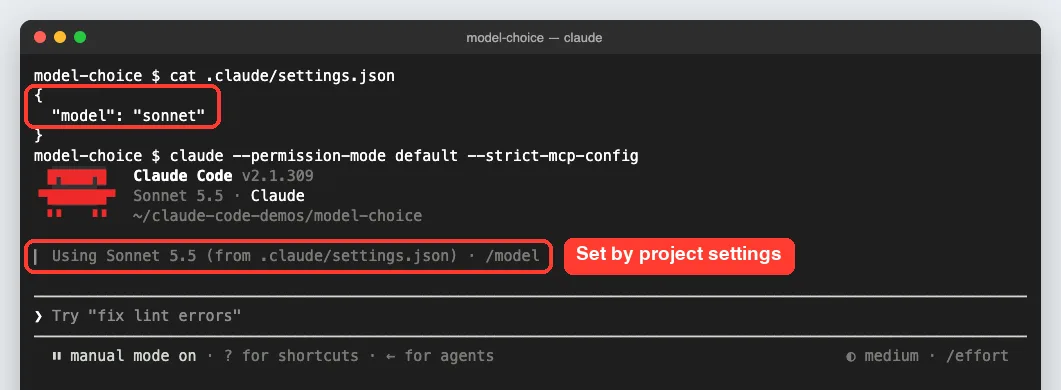
The startup notice read “Using Sonnet 5.5 (from .claude/settings.json)” and pointed to /model. That small line saves a lot of confusion, because it tells you exactly why the session did not start on your usual model.
You can still override it with /model for the current session. The project setting comes back at the next launch, as the docs explain. Our guide to permission rules uses the same settings files, so the layout will feel familiar.
Step 4: Switch for One Session Only
Next we opened /model again, moved up to Opus 5.5 and pressed s instead of Enter. Claude Code confirmed the change in one line.
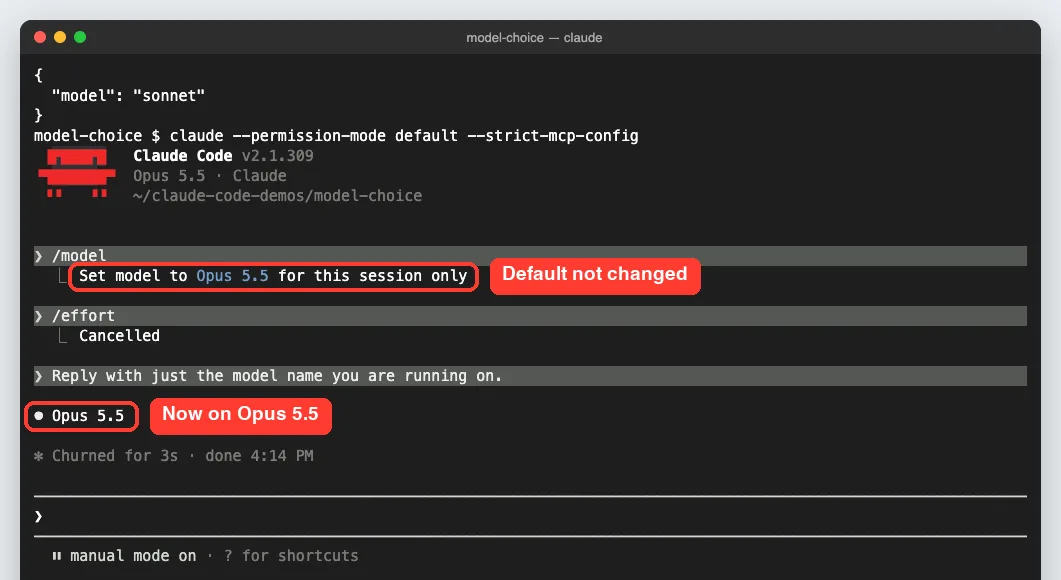
The message said “Set model to Opus 5.5 for this session only,” and the header changed to Opus 5.5. We asked Claude which model it was running on, and it replied Opus 5.5. We also checked our user settings file afterward, and no model value had been saved.
Session-only switches are great for one hard task in the middle of easy work. When you quit, the next session starts on your usual model again.
Step 5: Change the Effort Level
Effort levels let the model decide how much to think on each step. Lower effort is faster and cheaper, while higher effort reasons more deeply. Type /effort to open a slider.
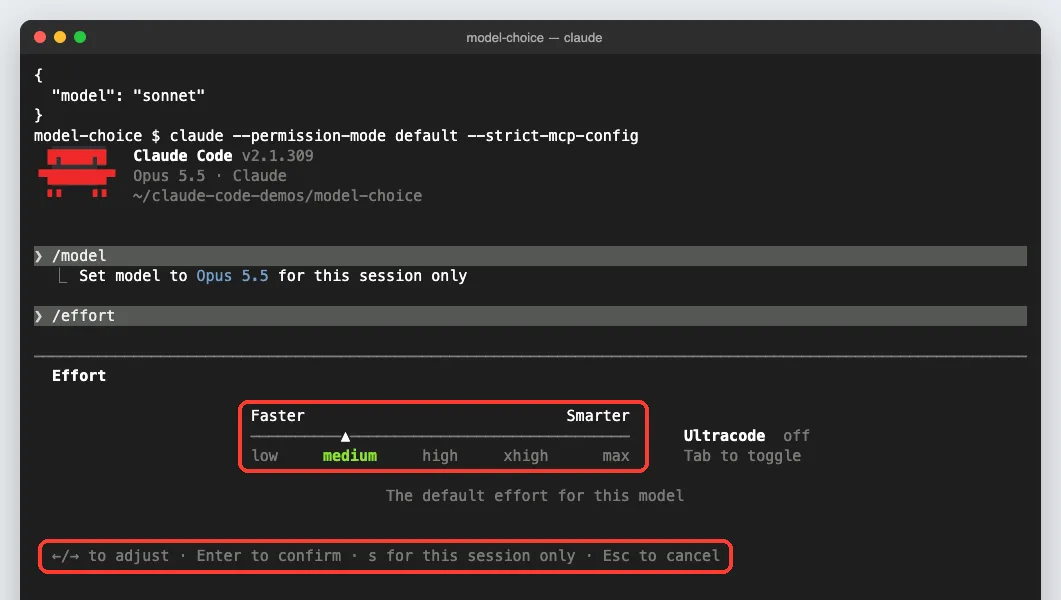
Our slider showed low, medium, high, xhigh and max, with medium marked as “The default effort for this model.” The same Enter and s rule applies here: Enter saves the level, and s keeps it for this session only.
| Level | Good for |
|---|---|
| low | Quick back-and-forth, renames, first sketches |
| medium | Everyday work with a clear scope (default on Opus 5.5, Sonnet 5.5 and Haiku 5.5) |
| high | Bug fixes where edge cases matter |
| xhigh | Deeper reasoning at higher token spend |
| max | Hard problems you want Claude to work through alone; applies to the current session only |
Want deeper thinking on just one prompt? The docs say you can include the word ultrathink anywhere in your message. It asks for more reasoning on that turn without changing your effort setting.
Step 6: Try opusplan for Plan, Then Build
The opusplan alias is a hybrid. It uses Opus while you are in plan mode and switches to Sonnet when Claude carries out the plan. We launched with –model opusplan, pressed Shift+Tab twice to enter plan mode and asked which model was answering.
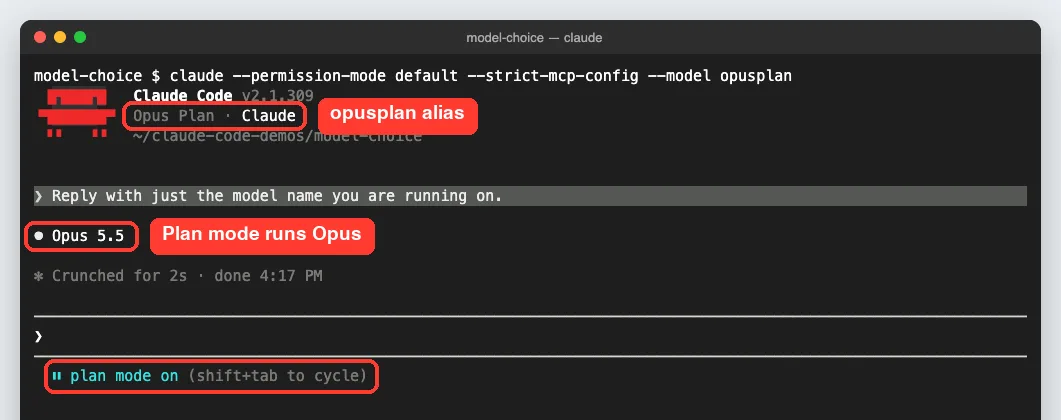
The header showed “Opus Plan,” and in plan mode the reply came from Opus 5.5. If plan mode is new to you, start with our plan mode tutorial, since opusplan only pays off when you plan before you build.
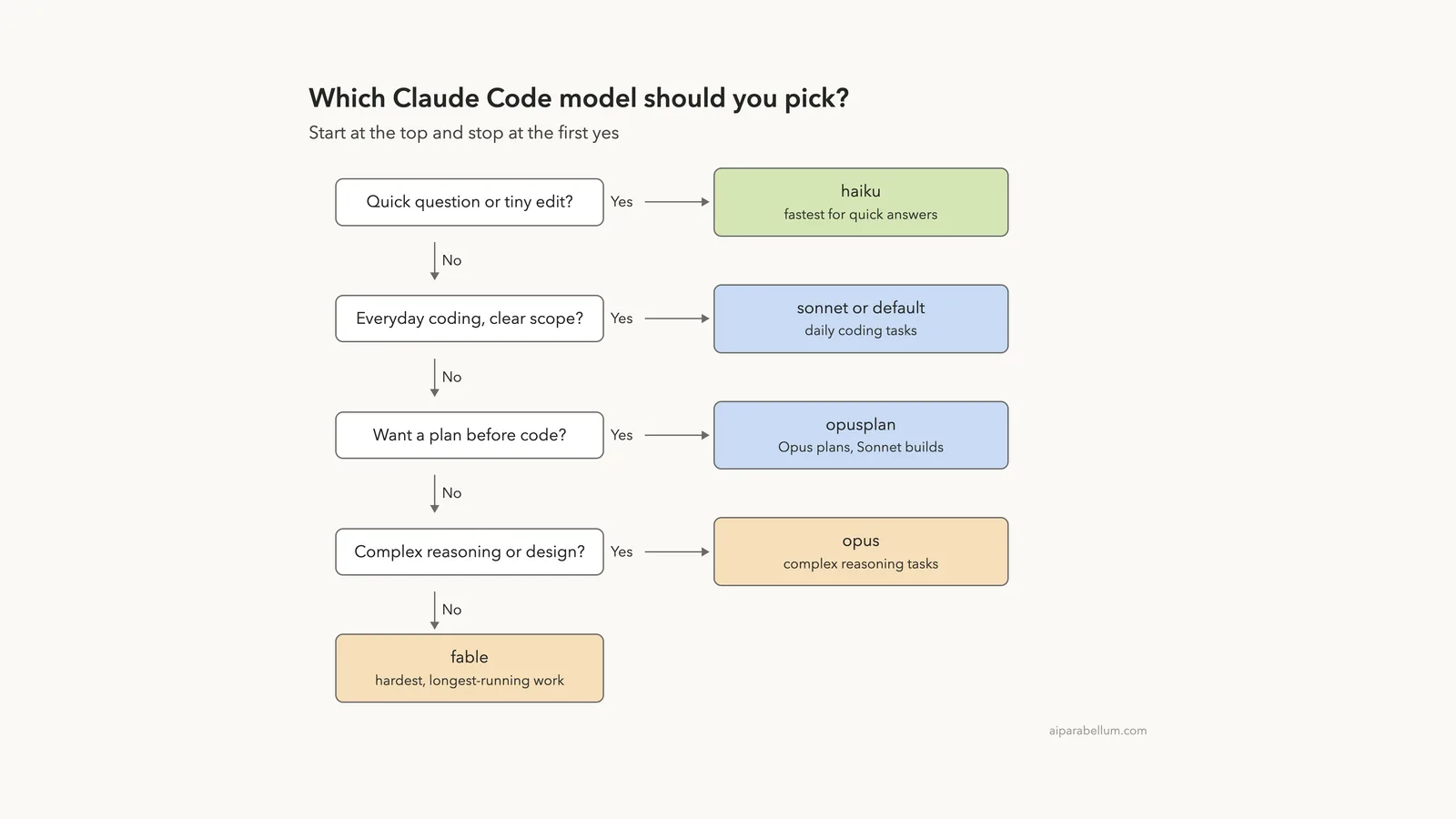
Which Claude Code Model Should You Pick?
Here is a simple ladder based on how the docs describe each model. Start at the top and stop at the first question you answer yes to.
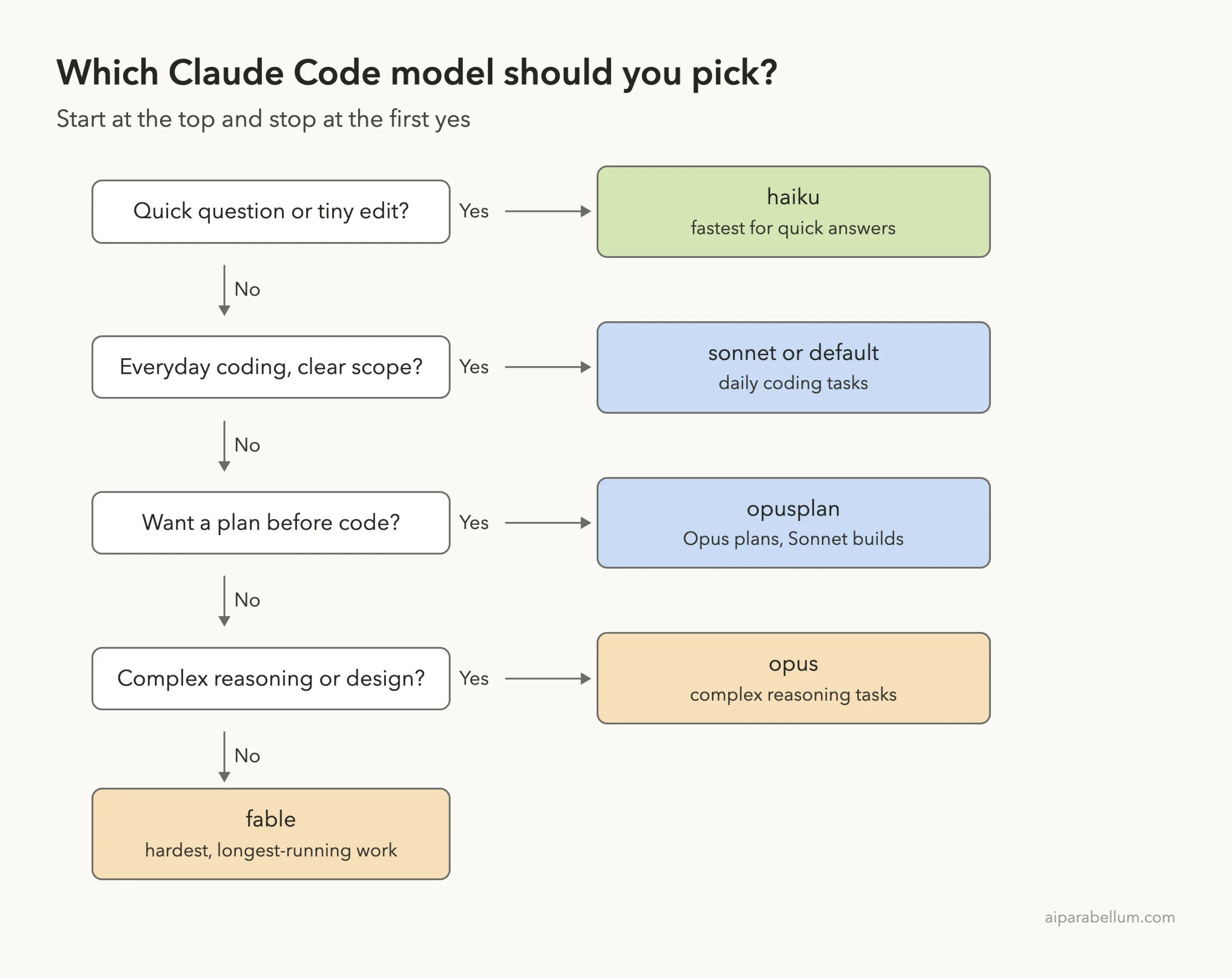
This is a starting point, not a rule. The default model already handles most coding work well, so switch only when a task clearly needs more speed or more depth.
Which model setting wins?
You can set a model in five places, and Claude Code uses the highest one in this order. Knowing it saves you from wondering why a session started on the “wrong” model.
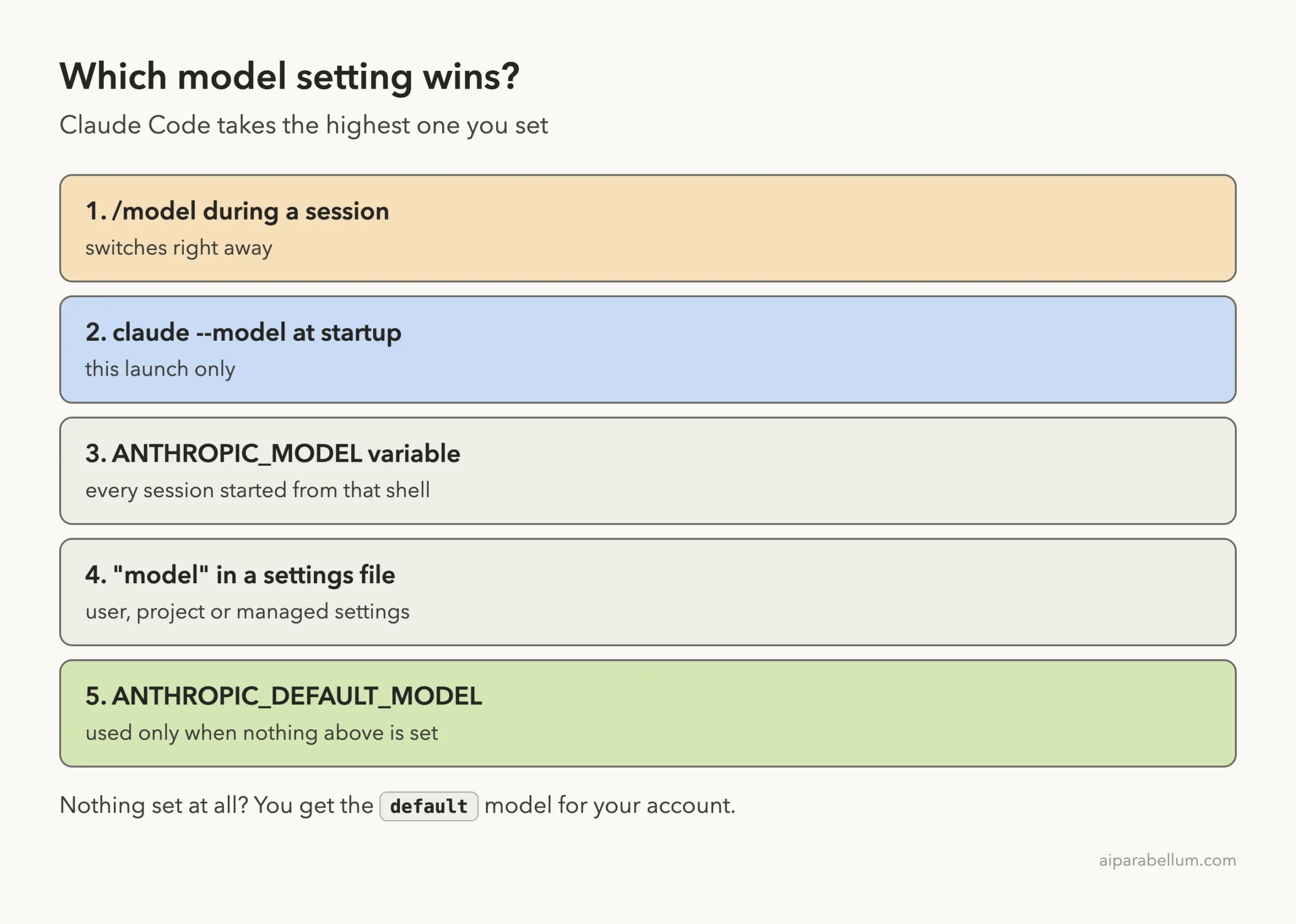
One extra rule: a session you resume with –resume or –continue usually keeps the model it was using. Our guide to resuming sessions explains how those commands work.
Real Examples of Choosing a Model
Here is how the options fit common days at the keyboard:
- You are renaming variables across a few files. Launch with claude –model haiku and keep effort low.
- You are building a small feature with a clear spec. The default model at medium effort is a good fit.
- You are planning a database migration. Use opusplan so Opus writes the plan and Sonnet does the edits.
- You are chasing a bug nobody can explain. Press s in /model to jump to Opus or Fable for this session only.
- Your team wants one model for a repo. Add a model field to the shared project settings file.
Note that Fable may bill to usage credits on some plans. The docs say the picker shows “Requires usage credits” on the Fable row when that applies, and our plans guide covers how plans differ.
Try It Yourself
Make a small folder with one text file, then start Claude Code there with claude –model haiku. Paste this prompt:
In one short sentence, tell me what this folder contains.Now open /model, move to a different model and press s. Ask the same question again and compare the header and the answer. Finally, quit and start Claude Code again to confirm your default did not change.
Common Mistakes When Choosing a Claude Code Model
- Pressing Enter when you meant s. Enter saves the model as your default for every new session.
- Forgetting a project setting. If a session keeps starting on another model, look for the startup notice naming a settings file.
- Leaving ANTHROPIC_MODEL in your shell profile. It applies again at every launch and outranks what you saved with /model.
- Typing a model name wrong with –model. The docs say Claude Code does not check it up front, so you only see an error on the first request.
- Using an old Claude Code version. The docs list minimum versions for newer models, such as v2.1.280 for Opus 5.5, so run claude update first.
Pro Tips for Picking the Right Model
- Watch the header. It always shows the active model, and it is faster than opening a menu.
- Pin a version for repeatable results. A full name like claude-opus-5-5 will not move when a new Opus ships.
- Remember subagents. The docs say a /model switch also reaches subagents that inherit your session’s model.
- Change effort before you change models. Moving from medium to high on the same model is often enough.
- Keep slash commands handy. Our slash commands guide lists /model and /effort with the other essentials.
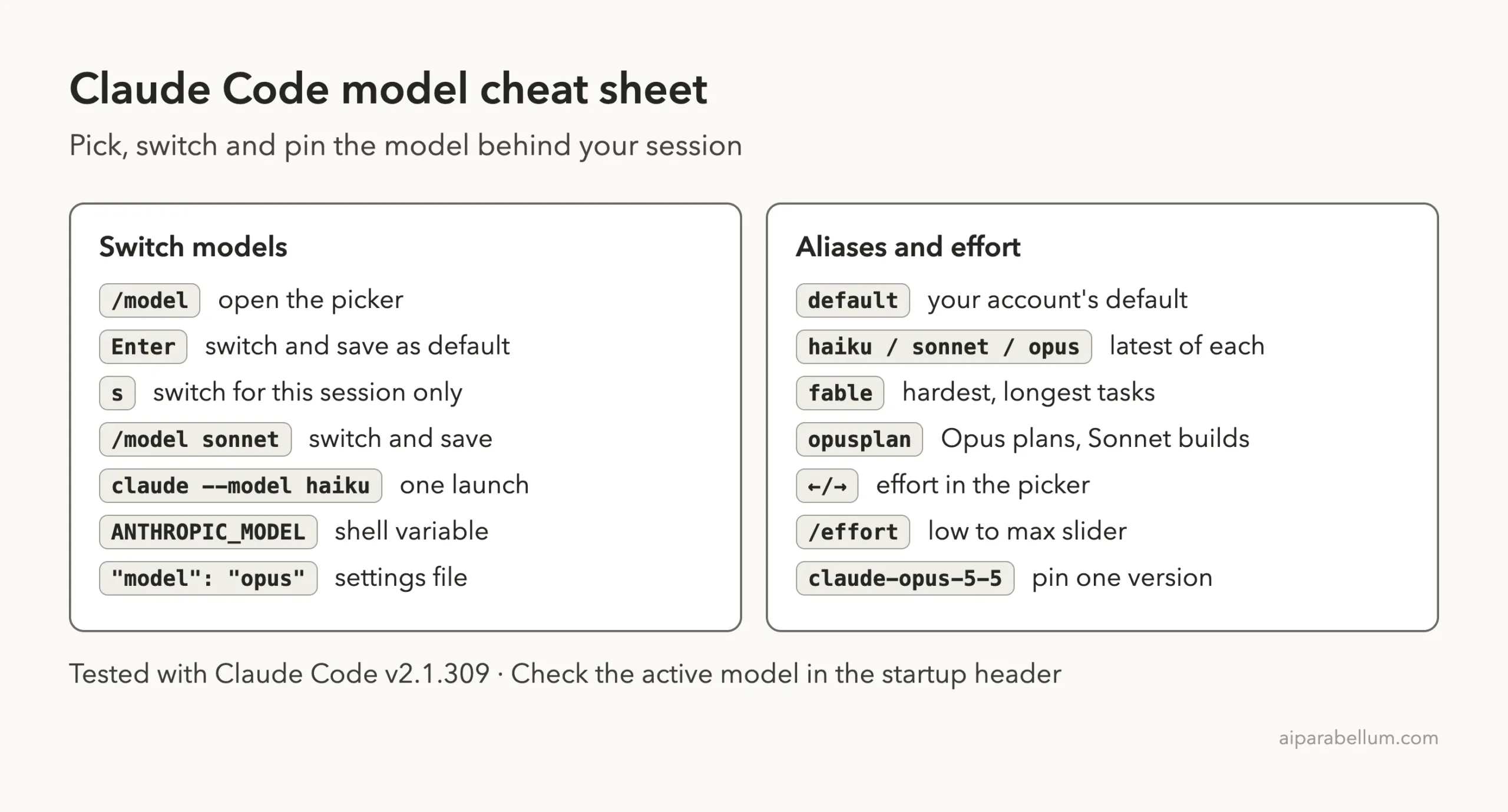
Claude Code Model Cheat Sheet
Frequently Asked Questions
What model does Claude Code use by default?
On Pro, Max, Team, Enterprise and the Anthropic API, the docs say the default is Opus 5.5. Microsoft Foundry defaults to Sonnet 4.5, and an admin can set a different organization default.
How do I check which model I am using?
Look at the startup header, which shows the model name under the Claude Code version. The status line, if you set one up, and /status also show it, but /status displays account details too.
Does /model change my default for new sessions?
Yes, if you press Enter or type /model with a name. Press s in the picker to switch for the current session only.
What is the difference between opus and opusplan?
The opus alias uses Opus for everything. The opusplan alias uses Opus only in plan mode and Sonnet when Claude carries out the plan.
Can I use a different model in each terminal?
Yes. Start each terminal with its own claude –model flag, which applies only to that session, instead of switching with /model.
Conclusion
Choosing a Claude Code model comes down to matching the brain to the job: Haiku for quick answers, the default or Sonnet for everyday coding, opusplan when you want a plan first, and Opus or Fable for the hardest problems. Use /model with Enter to change your default, press s for a one-session switch, reach for –model or a project settings file when you need something more permanent, and tune effort before you jump to a bigger model. Watch the startup header and you will always know which model is doing the work. If you want to dig into every option, the official settings reference is the place to go next.
Previous in the series: Part 15, Claude Code Context Window: /context and /compact Explained
Next in the series: Part 17: Claude Code Fast Mode Explained.