Claude Code sessions are saved conversations tied to a project folder, and they let you pick up exactly where you left off. Close your terminal, restart your laptop or switch tasks for a day, and the whole chat is still there when you come back. You just need to know which command brings it back.
In this tutorial we start two real sessions, give them names, quit, and then bring them back four different ways. We also branch a conversation to try a second idea without losing the first one.
This is Part 14 of 53 in our Claude Code tutorials series. In the previous part we used checkpoints to undo and rewind changes inside one session. Now we zoom out and manage whole sessions.
Tested with Claude Code v2.1.309 on October 24, 2026, on macOS, inside a throwaway demo folder with two tiny Python files. Your screens can look a little different depending on your version.
Quick Summary: Claude Code Sessions at a Glance
| You want to | Use this |
|---|---|
| Reopen the latest chat in this folder | claude –continue |
| Pick an older chat from a list | claude –resume |
| Jump straight to a named chat | claude –resume name |
| Switch chats without quitting | /resume |
| Name a chat when you start | claude -n name |
| Name or rename the current chat | /rename name |
| Try another idea on a copy | /branch name or –fork-session |
What Are Claude Code Sessions?
A session is one conversation with Claude Code, stored on your computer and linked to the folder you started it in. Claude Code saves it continuously as you work. You never press a save button.
Each session is written to a local transcript file. By default it lives at ~/.claude/projects/ in a folder named after your project path, as one .jsonl file per session. Transcripts are cleaned up after 30 days unless you change the cleanupPeriodDays setting.
Real work rarely fits in one sitting. You might fix a bug in the morning, review a pull request after lunch and return to the bug tomorrow. Sessions let each task keep its own history, so Claude doesn’t need you to explain everything again.
A session is your project’s memory of the conversation. Name it, and you can always find it again.
What a resumed session brings back
According to the official sessions guide, resuming restores more than just the messages:
- The conversation history, including tool calls and their results
- The model the session was using, in most cases
- The agent it was started with, if you used one
- The permission mode, when you resume from the terminal with –continue or by name or ID
- An active goal and session-scoped scheduled tasks that haven’t expired
Some launch flags are not restored. If your session depended on –mcp-config, –settings, –plugin-dir, –fallback-model or –add-dir, pass them again when you resume. Normal settings files are read again at startup, so you don’t need to repeat those.
How a Session Moves From Start to Finish
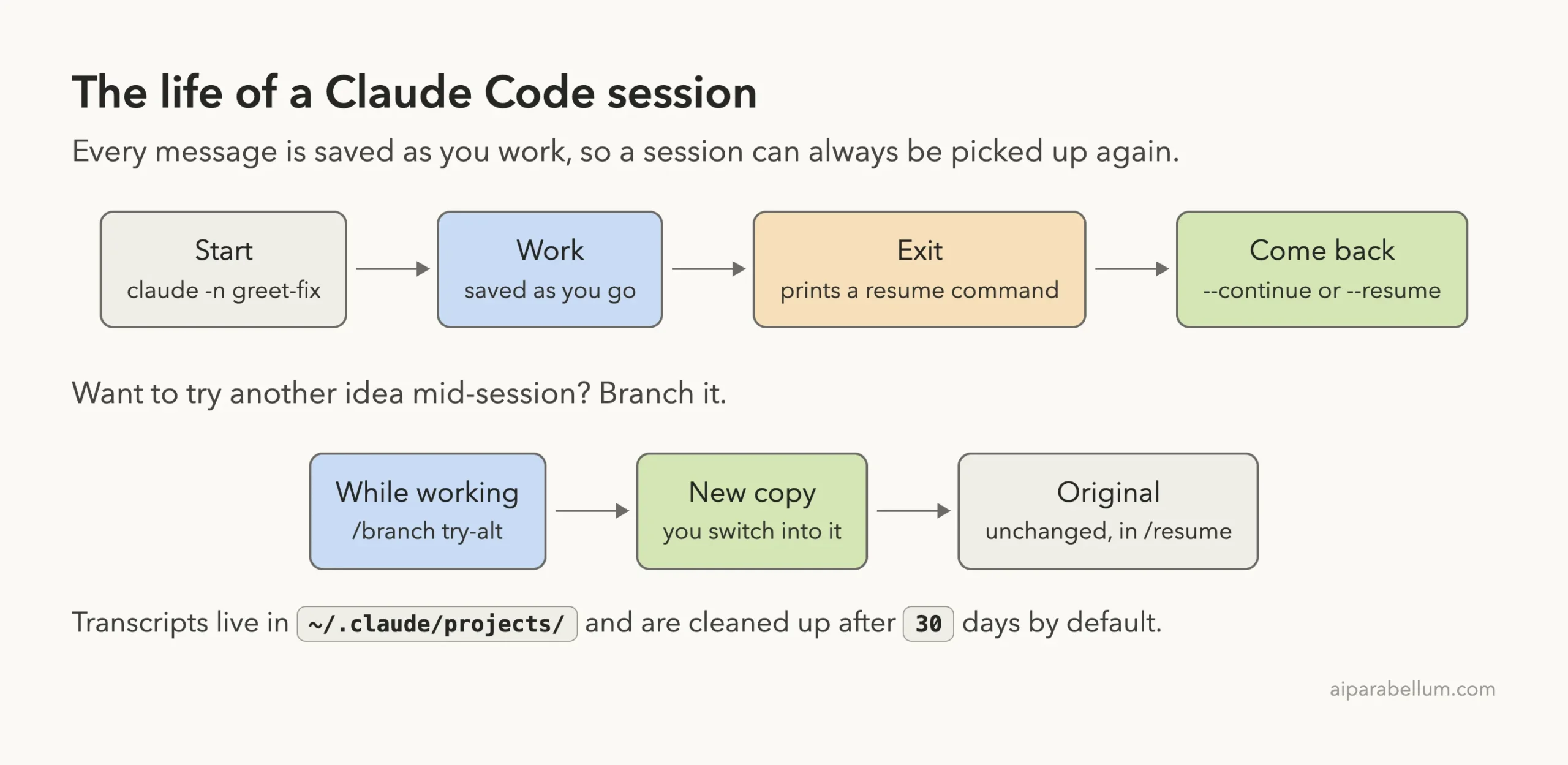
The flow is simple. You start a session, work in it, quit, and come back later. A branch is an optional side path: it copies the chat so far and leaves the original untouched.
Step 1: Start a Named Session With -n
The easiest way to find a session later is to name it from the start. In our demo folder we launched Claude Code with a short, descriptive name:
claude -n greet-fixThen we asked one tiny question about greet.py. Look at the right end of the line above the input box: the name greet-fix appears there for the whole session.
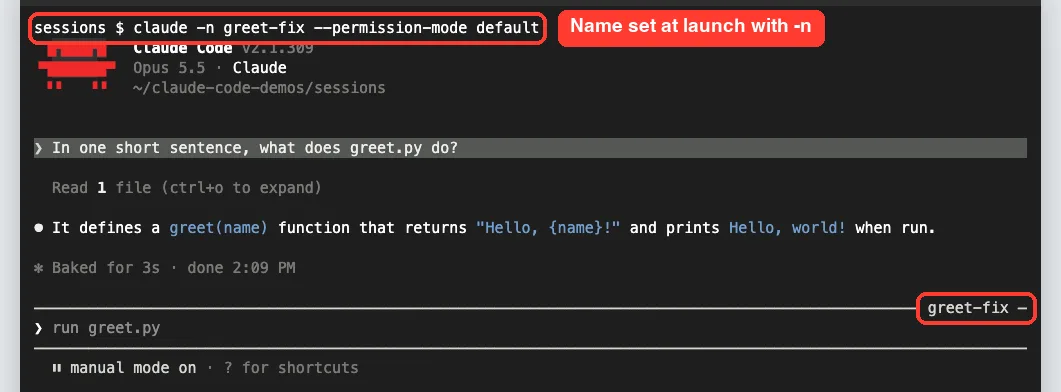
Good names describe the task, not the date. Names like auth-refactor, fix-login-bug or docs-update are easy to search for and easy to type.
Step 2: Rename a Session With /rename
Forgot to name it? No problem. We started a second session with plain claude, asked about tip.py, and then typed this inside the session:
/rename tip-calcClaude Code confirmed with “Session renamed to: tip-calc”, and the prompt bar switched to the new name right away.
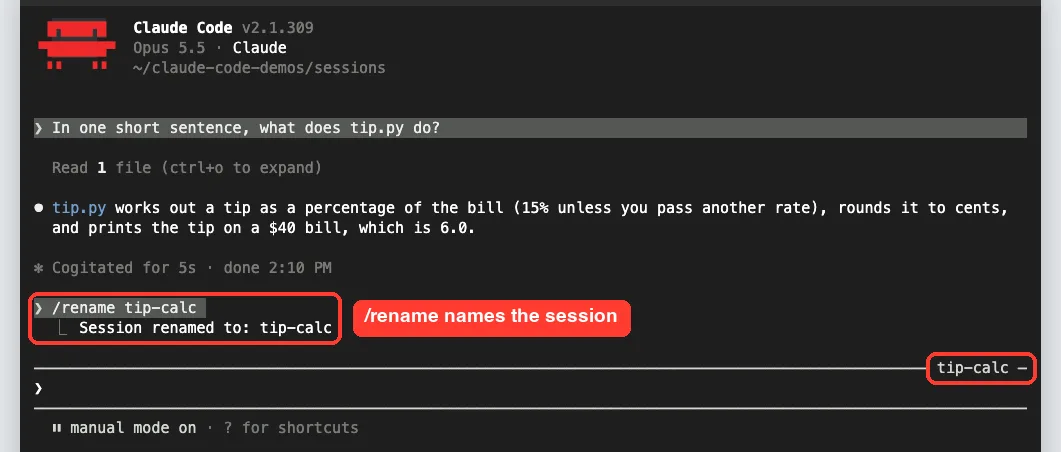
Sessions you never name still get a generated title. Claude Code writes a short summary of your first prompt in the background, and that title also works with –resume. There is also a default display name, such as my-app-3f, used in lists of running sessions, but it is not a resume handle.
Other ways to name a session
| When | How |
|---|---|
| At startup | claude -n name |
| During a session | /rename name |
| In the session picker | Highlight a session and press Ctrl+R |
| When you accept a plan | The session gets a title based on the plan, unless you already named it |
Step 3: Read the Resume Hint When You Exit
When you quit with /exit or by pressing Ctrl+D twice, Claude Code prints a ready-to-use command before handing your shell back. In our test it looked like this:
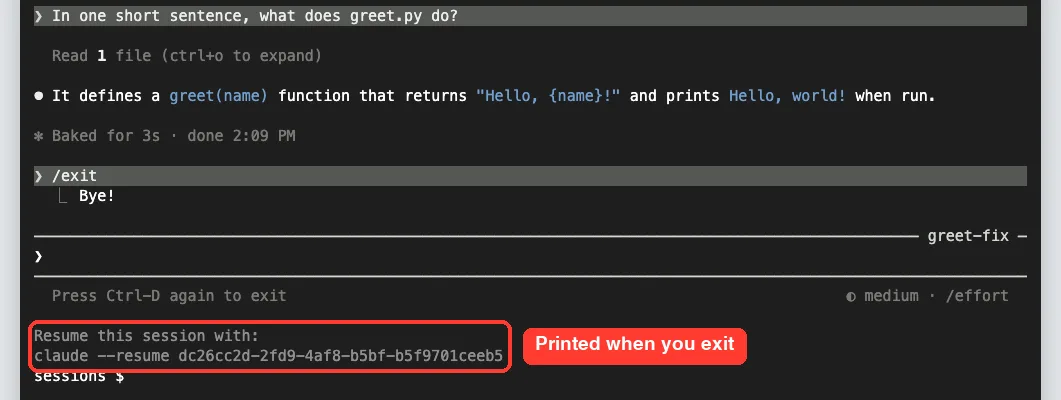
Notice that it shows the session ID, a long string of letters and numbers, even for our named session. You can copy that command as is, but typing the name is easier. A session ID also works from any folder on your machine, which is handy if you forget where you started.
Step 4: Pick Up Where You Left Off With claude –continue
This is the fastest way back. From the same folder, run:
claude --continueIt reopens the most recent session in the current directory, no questions asked. Our last session was tip-calc, so that is what came back, with the full history on screen. To prove Claude really remembered, we asked which file we had asked about earlier.
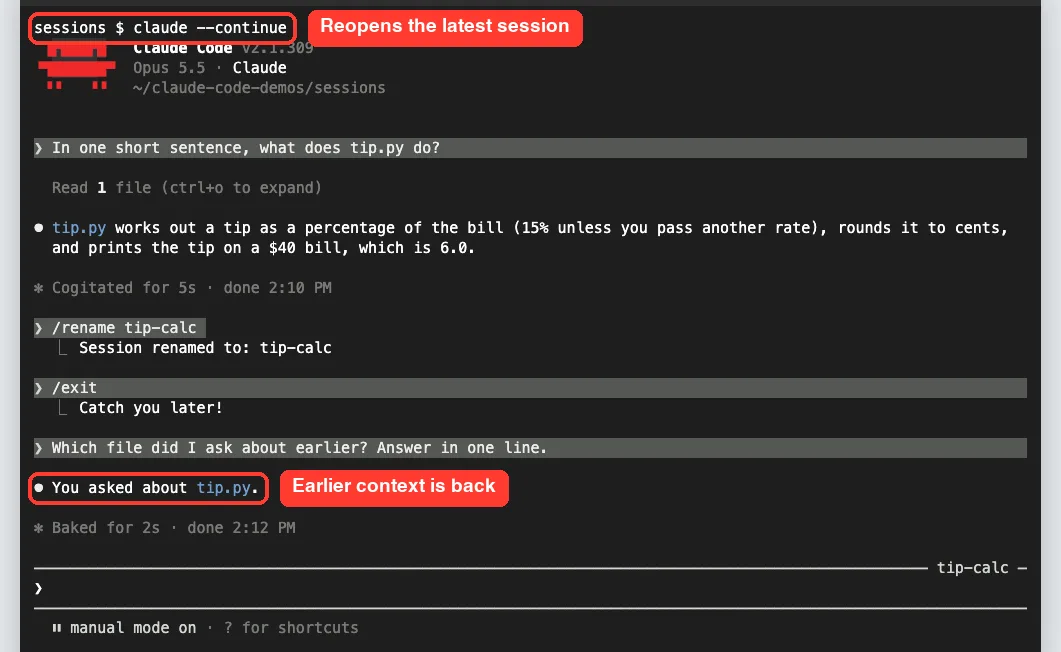
Claude answered “You asked about tip.py.” It didn’t need to read any files again. The earlier conversation was loaded back into its context.
One thing to know: –continue skips sessions created with claude -p, the Agent SDK, or a session whose first prompt was /loop. You can still open those by session ID.
Step 5: Browse Old Chats in the Session Picker
When the session you want isn’t the latest one, open the picker:
claude --resumeYou get a list of saved sessions for this folder. Each row shows the name, how long ago you used it, the git branch and the file size. Our demo folder isn’t a git repository, so the branch column simply shows HEAD.
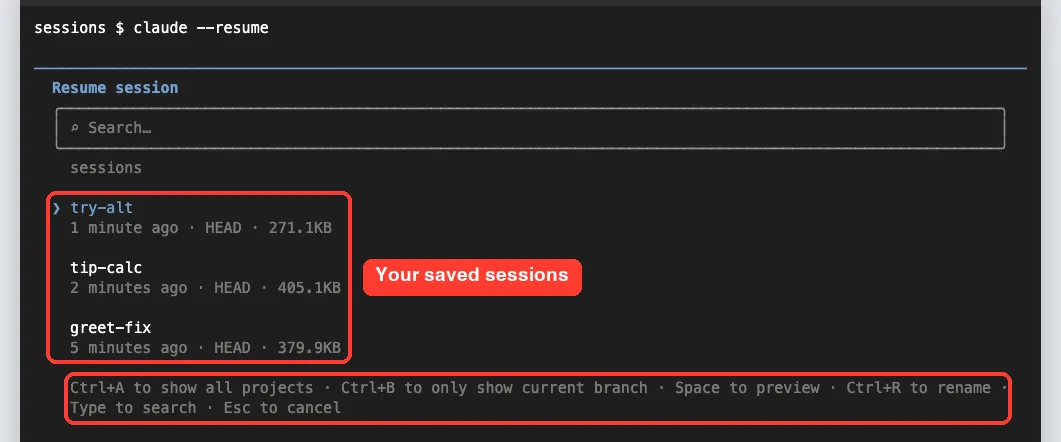
The hint line at the bottom lists the main shortcuts. Here are the ones you’ll use most:
| Key | What it does |
|---|---|
| Up / Down, or k / j | Move between sessions |
| Enter | Resume the highlighted session |
| 1 to 9 | Resume the session at that position |
| Space | Preview the session |
| Ctrl+R | Rename the highlighted session |
| Any letter or / | Search by name |
| Ctrl+A | Show sessions from every project on this machine |
| Ctrl+B | Show only sessions from the current git branch |
| Esc | Leave the picker or search mode |
Preview before you commit
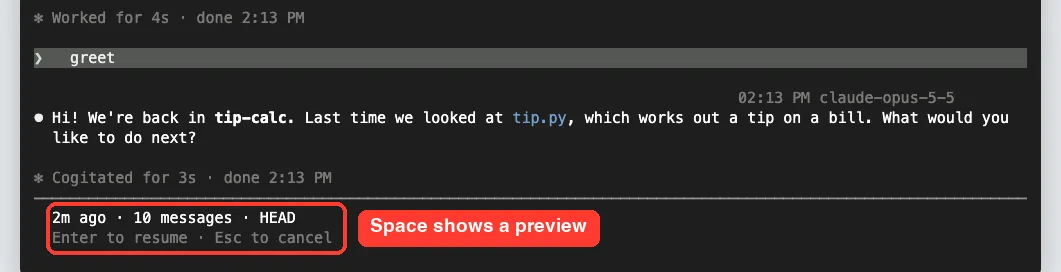
Not sure which session is which? Highlight one and press Space. The picker shows the conversation, and a footer tells you how old it is and how many messages it holds.
Rename and search inside the picker
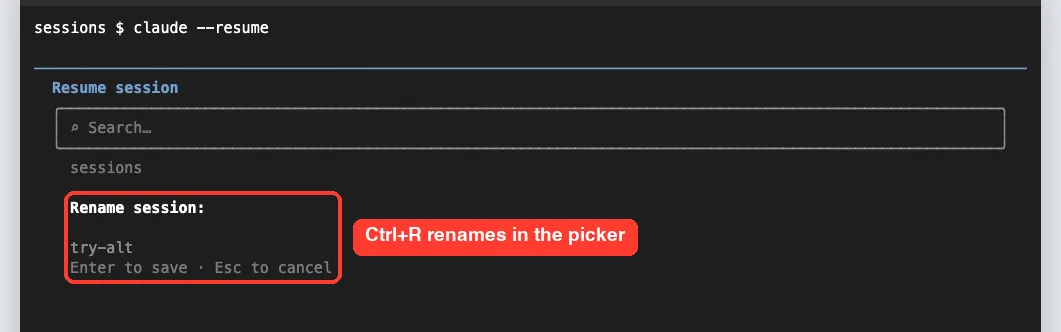
Press Ctrl+R on a highlighted row to rename it on the spot. A small field opens with the current name; Enter saves and Esc cancels.
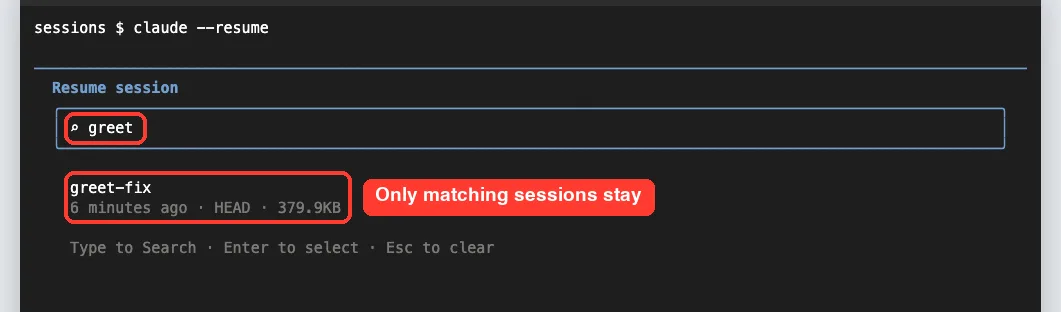
To search, just start typing. We typed greet, and only the matching session stayed in the list. You can even paste a GitHub, GitLab or Bitbucket pull request URL to find the session that created it.
Step 6: Resume a Session Directly by Name
If you already know the name, skip the picker:
claude --resume greet-fixClaude Code opened greet-fix straight away, with the earlier question and answer on screen.
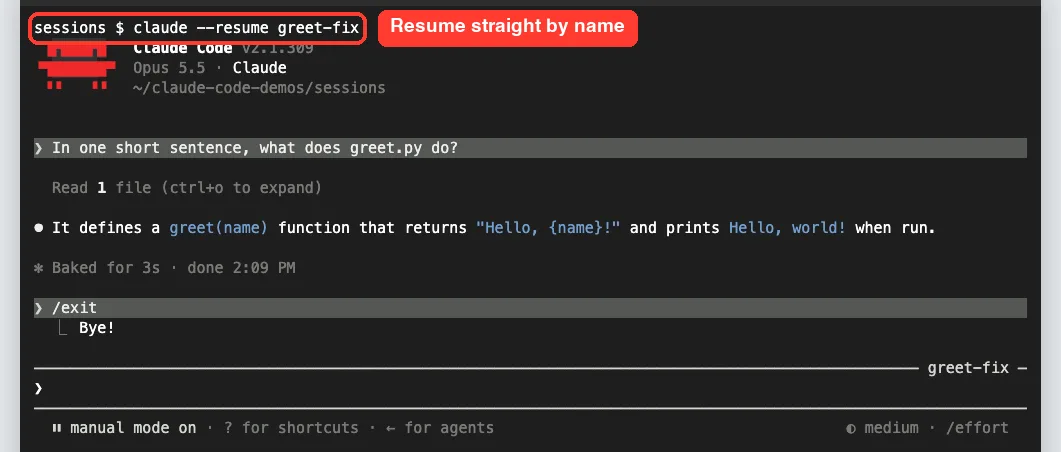
Name matching looks across the current repository and its worktrees. If the name matches more than one session, claude –resume opens the picker with the name already in the search box. The in-session /resume name reports an error instead, so run /resume with no name to choose.
Step 7: Switch Sessions Without Quitting Using /resume
Already inside Claude Code? Type /resume to open the same picker without leaving. Pick a session, press Enter, and the terminal switches to it.
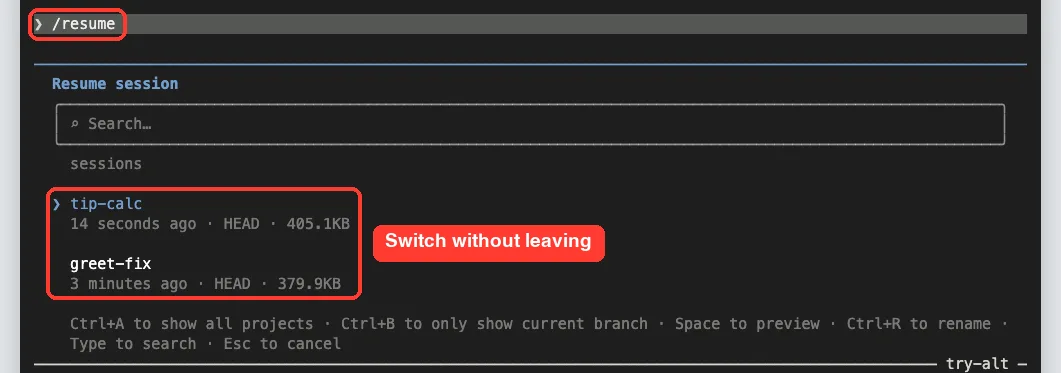
The session you are currently in doesn’t appear in the list, since you’re already there. One detail from the docs: when you switch with /resume, the other conversation continues in your current permission mode, unless it ended in plan mode.
Step 8: Branch a Session to Try Another Idea
Sometimes you want to explore a different approach without messing up the conversation you have. That’s what branching is for. Inside a session, run:
/branch try-altClaude Code copies the conversation so far into a new session and switches you into it. The confirmation prints both session IDs and tells you exactly how to get back to the original.
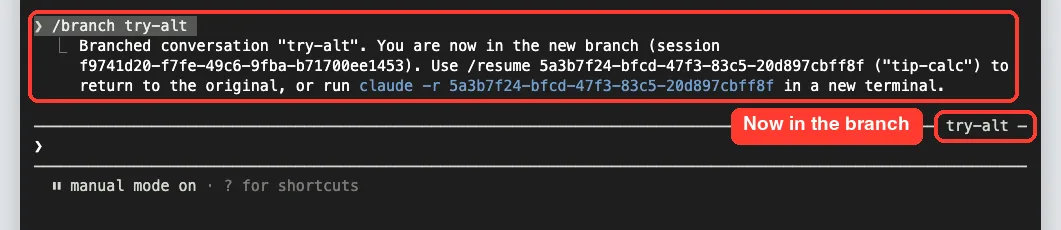
From the command line, you can do the same thing with –fork-session:
claude --continue --fork-sessionThere’s one difference worth knowing. A /branch runs in the same process, so any “allow for this session” permissions carry over. A –fork-session starts a new process, so you approve those again.
Branching is not the same as rewinding. A checkpoint rewind goes back in time inside one session, while a branch splits one conversation into two.
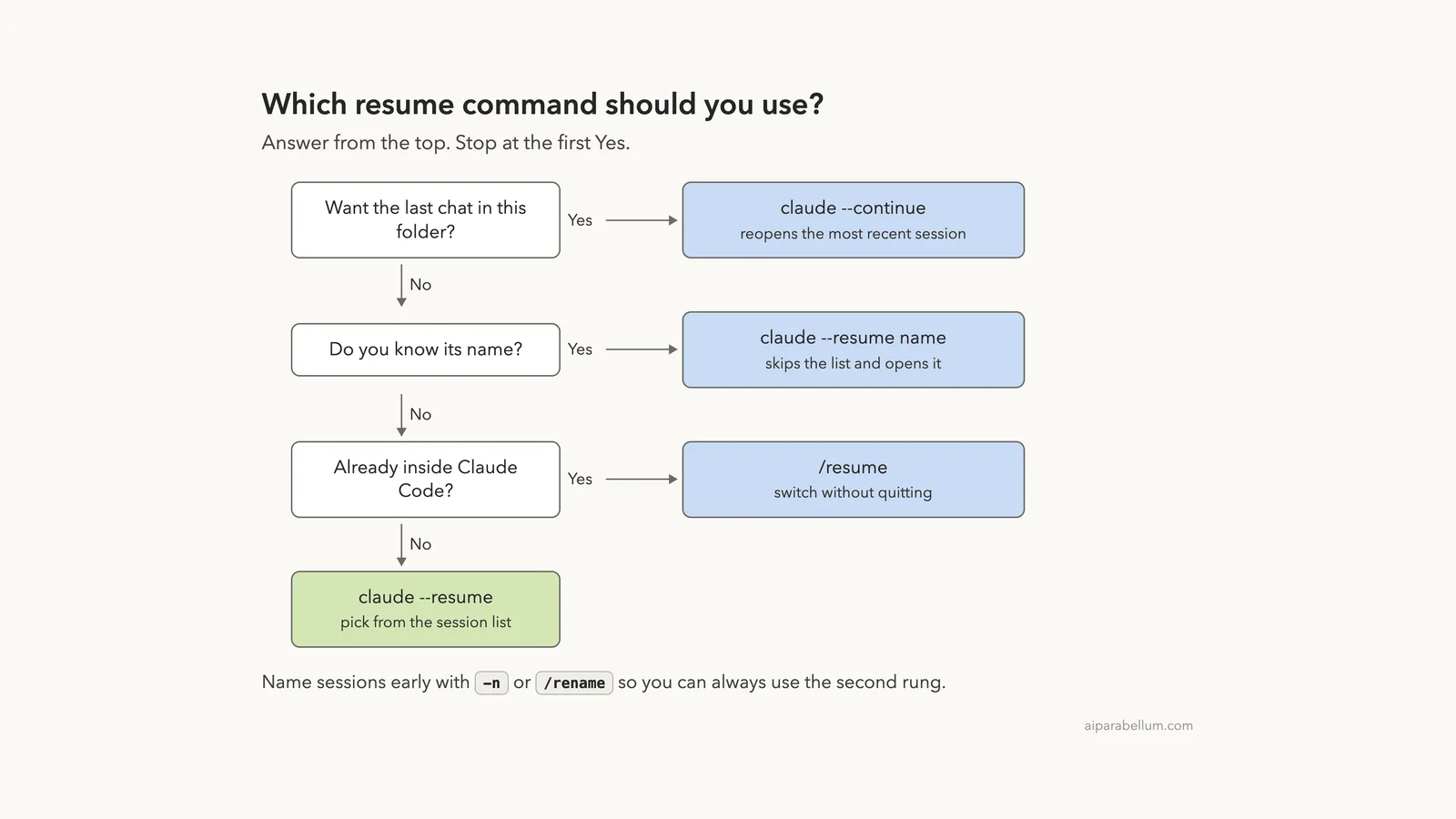
Which Resume Command Should You Use?
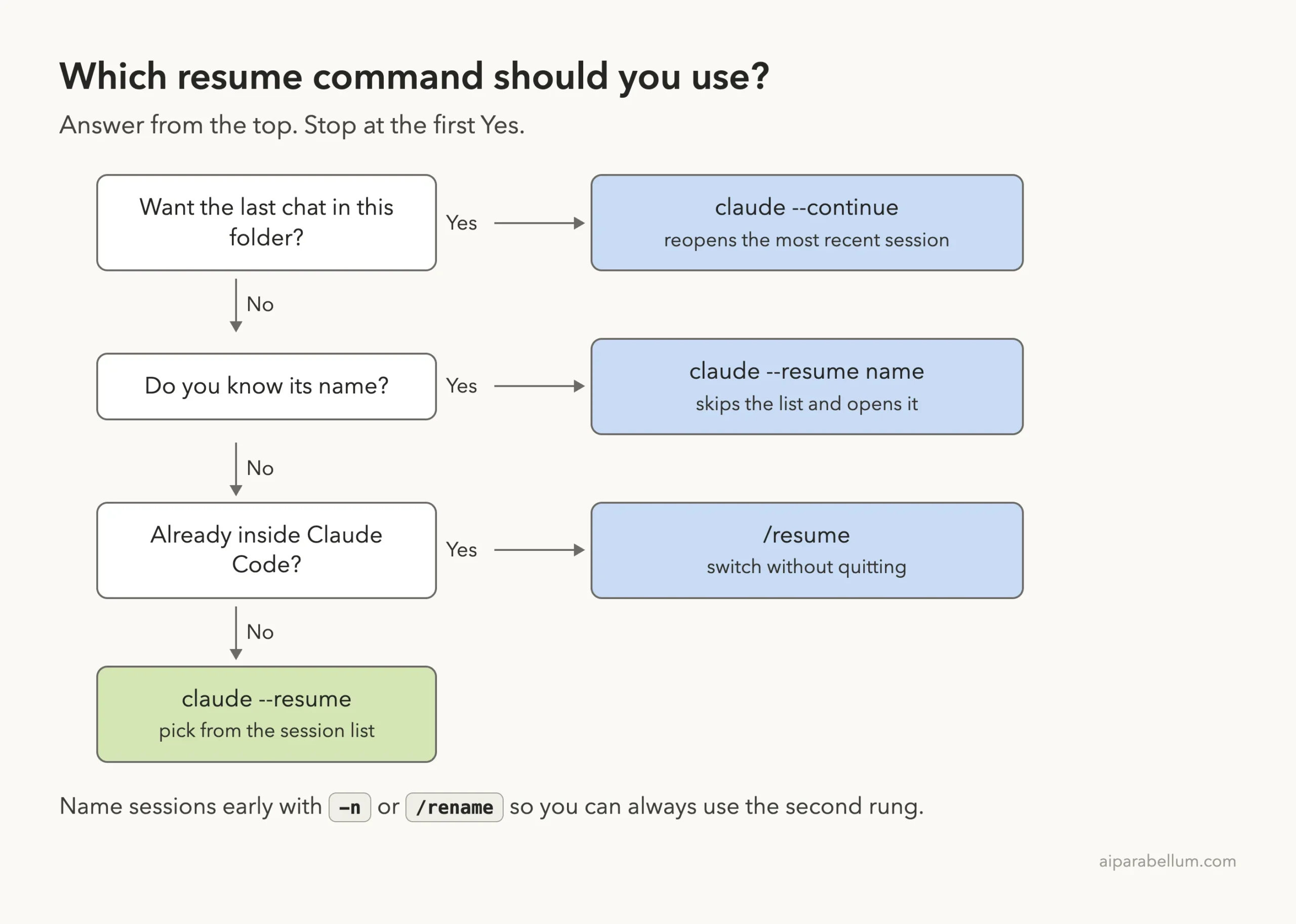
Most days you’ll only need the first two rungs. That’s why naming early pays off.
Real Examples of Using Sessions
- Overnight break. You were halfway through a refactor at 6 PM. The next morning, claude –continue puts you right back in the thread.
- Two tasks at once. Keep a fix-login session and a docs-update session in the same project, and jump between them with /resume.
- A risky experiment. Before trying a big rewrite, /branch try-rewrite. If it goes badly, /resume the original.
- Pull request follow-up. Run claude –from-pr 42 to see sessions linked to that pull request and pick up the review.
- Quick question from a script. Send a follow-up to an old session and get JSON back with claude -p –resume plus a session ID and –output-format json.
Try It Yourself
Make an empty practice folder with one small file, such as notes.py. If you’re new, our first session guide covers startup and the trust prompt. Then run claude -n practice and send this:
In one short sentence, what does notes.py do?Now exit with /exit and read the resume hint. Next, run claude –continue and ask “Which file did I ask about?” to confirm the memory came back. Finally, run claude –resume, press Space to preview, press Ctrl+R to rename it practice-done, and press Esc to leave.
Common Mistakes With Claude Code Sessions
The most common slip is typing a shell command at the Claude prompt. We did this ourselves during testing: we typed claude –resume inside a running session. Claude treated it as a normal message and explained that it’s a shell command.
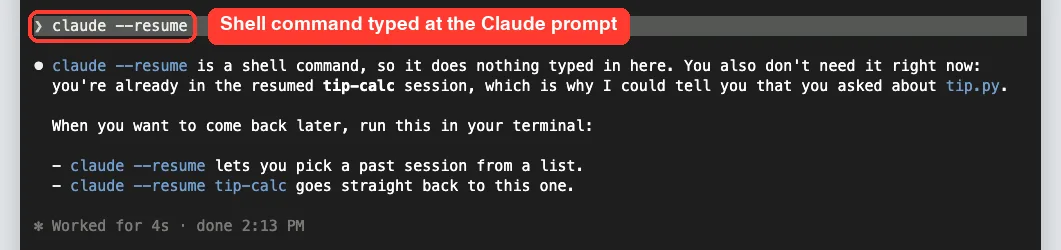
- Running claude –continue from the wrong folder. It only looks at the current directory, so cd into your project first.
- Expecting the default display name, like my-app-3f, to work with –resume. It doesn’t; use a name you set or the generated title.
- Opening the same session in two terminals without forking. Messages from both get mixed into one transcript.
- Forgetting launch flags. –mcp-config, –settings and –add-dir are not restored, so pass them again.
- Treating transcripts as permanent. They’re removed after 30 days by default.
Pro Tips for Managing Sessions
- Name every session that will last more than a few minutes. It turns the second rung of the ladder into your default.
- Use /clear when you switch tasks. It starts fresh but saves the old session, so /resume can bring it back. Pass a name, like /clear release-prep, to label the session you’re leaving.
- Press Ctrl+A in the picker to find a session from another project. Selecting one copies a cd and resume command to your clipboard.
- Use /export to copy or save a readable transcript when you want to share what happened.
- Keep long sessions lean with /compact. The context window guide explains what survives compaction.
- Pair branching with plan mode. Accepting a plan also gives an unnamed session a title based on the plan.
- Remember that resuming from the terminal restores the permission mode, except bypass mode. Our permission modes guide explains each one.
Claude Code Sessions Cheat Sheet
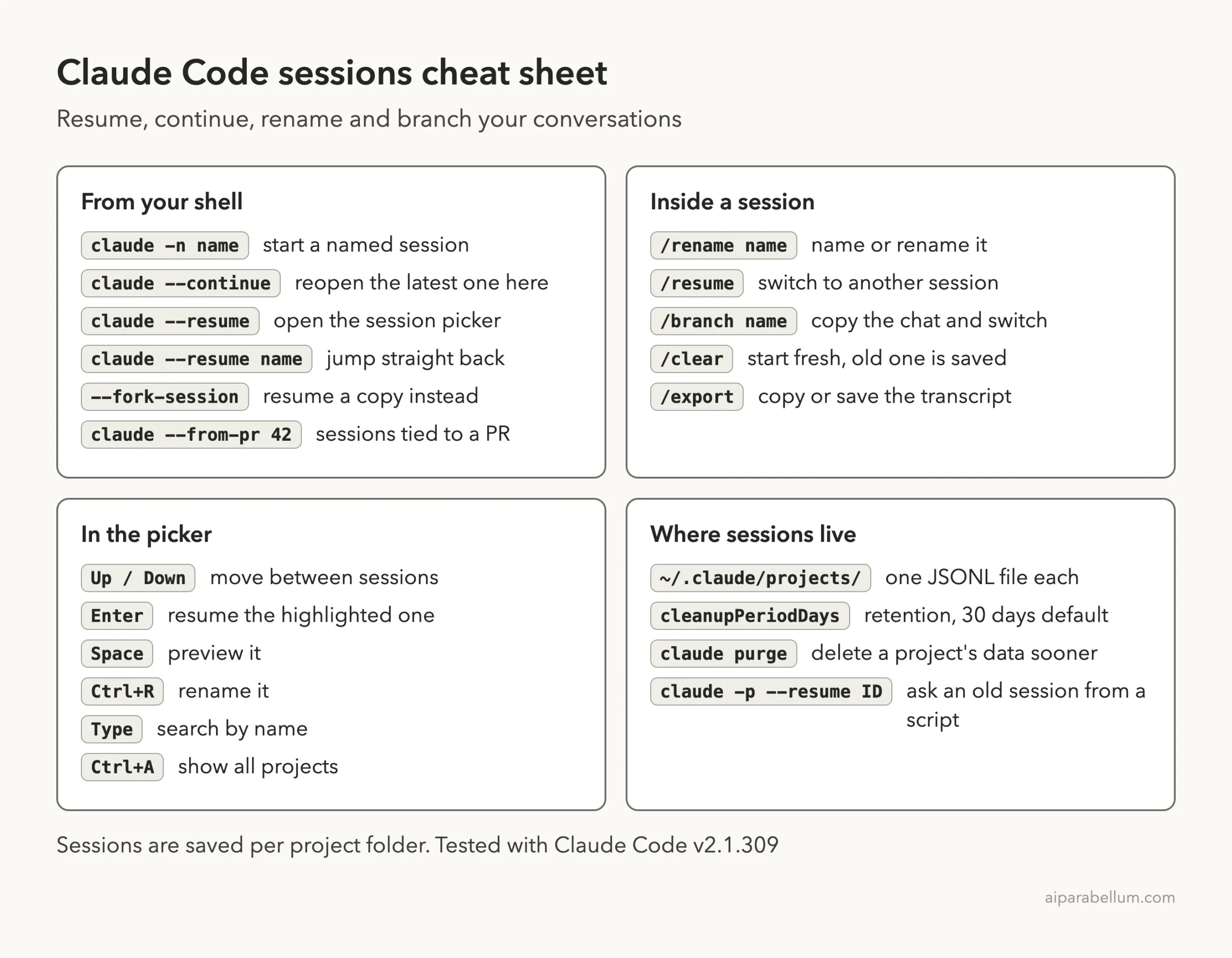
For every built-in command in one place, see our guide to essential slash commands, our list of advanced slash commands, or the official CLI reference.
Frequently Asked Questions
What is the difference between claude –continue and claude –resume?
claude –continue reopens the most recent session in the current folder with no questions. claude –resume opens a picker so you can choose any saved session, or jumps straight to one if you add its name or ID.
How do I rename a Claude Code session?
Type /rename followed by the new name inside the session. You can also highlight a session in the picker and press Ctrl+R, or name it at launch with claude -n name.
Where does Claude Code store sessions?
On your computer, as JSONL files under ~/.claude/projects/, in a folder named after your project path. You can move this location with the CLAUDE_CONFIG_DIR environment variable.
How long are Claude Code sessions kept?
For 30 days by default. Change it with the cleanupPeriodDays setting, or delete a project’s data sooner with claude purge.
Can I resume a session in the desktop app or VS Code?
Each one keeps its own session list. The desktop app can also resume a CLI session, and the VS Code extension has its own way to resume past conversations.
Conclusion
Claude Code sessions turn every conversation into something you can come back to. Name a session with -n or /rename, reopen the latest one with claude –continue, pick any older one with claude –resume, and switch without quitting using /resume. When you want to explore a new idea, /branch gives you a safe copy. Try it on a small practice folder today, then learn more about the assistant behind it in our Claude AI overview.
Previous in the series: Part 13, Claude Code Checkpoints: How to Undo and Rewind Changes
Next in the series: Part 15, Claude Code Context Window: /context and /compact Explained, is coming soon.