Claude Code rewind is your undo button for an AI coding session. Every time you send a prompt, Claude Code quietly saves a checkpoint, so if Claude breaks something or a conversation drifts off course, you can jump back to an earlier point in seconds. You can roll back the code, the conversation or both.
In this tutorial we make two real edits with Claude Code, open the rewind menu, look at every option and then restore the project to an earlier state. You will also learn what checkpoints do not track, which matters just as much as what they do.
This is Part 13 of 53 in our Claude Code tutorials series. In the previous part we set up allow and deny permission rules to control what Claude can run. Checkpoints are the other half of working safely: rules stop mistakes, and rewind cleans them up.
Tested with Claude Code v2.1.309 on October 24, 2026, on macOS, inside a throwaway demo folder with one tiny Python file. Your screens can look a little different depending on your version.
Quick Summary: Claude Code Rewind at a Glance
| Question | Short answer |
|---|---|
| When is a checkpoint saved? | Before each prompt you send that starts a turn |
| How do I open the menu? | Type /rewind, or press Esc twice with an empty input |
| What can I restore? | Code and conversation, conversation only, or code only |
| Can it free up context? | Yes, with Summarize from here or Summarize up to here |
| How many are kept? | File snapshots for the 100 most recent checkpoints in a session |
| Does it work after resuming? | Yes, checkpoints are saved with the conversation |
| What is not tracked? | Files changed only by Bash, your own edits, symlinks and hard links |
What Are Claude Code Checkpoints?
A checkpoint is a saved snapshot of your files taken just before Claude starts working on a prompt. Claude Code creates one automatically each time you send a prompt that starts a new turn. You don’t have to turn anything on or remember to save.
Checkpoints track the changes Claude makes with its own file editing tools, the same tools we looked at in our guide to the agent loop. When you rewind, Claude Code uses those snapshots to put files back the way they were.
The feature exists because AI edits are fast and sometimes wrong. A bad refactor, a fix that breaks two other things, or a long chat that heads in the wrong direction is easy to create. Rewind lets you try ideas freely, because getting back to a known good state takes one menu.
Checkpoints make it cheap to experiment. You can always go back.
Claude Code Rewind vs. Git
Checkpoints are not a replacement for version control. Anthropic describes them as quick, session-level recovery, while Git is for permanent history, branches and teamwork. Think of rewind as an undo stack for one session and Git as your long-term memory.
| Feature | Checkpoints and /rewind | Git |
|---|---|---|
| Setup | Automatic, nothing to do | You commit by hand |
| Scope | One Claude Code session | Whole project history |
| Rewinds the chat | Yes | No |
| Tracks Bash and manual edits | Mostly no | Yes |
| Shared with a team | No | Yes |
| Kept long term | Cleaned up after about 30 days by default | Yes |
How Checkpoints Work Behind the Scenes
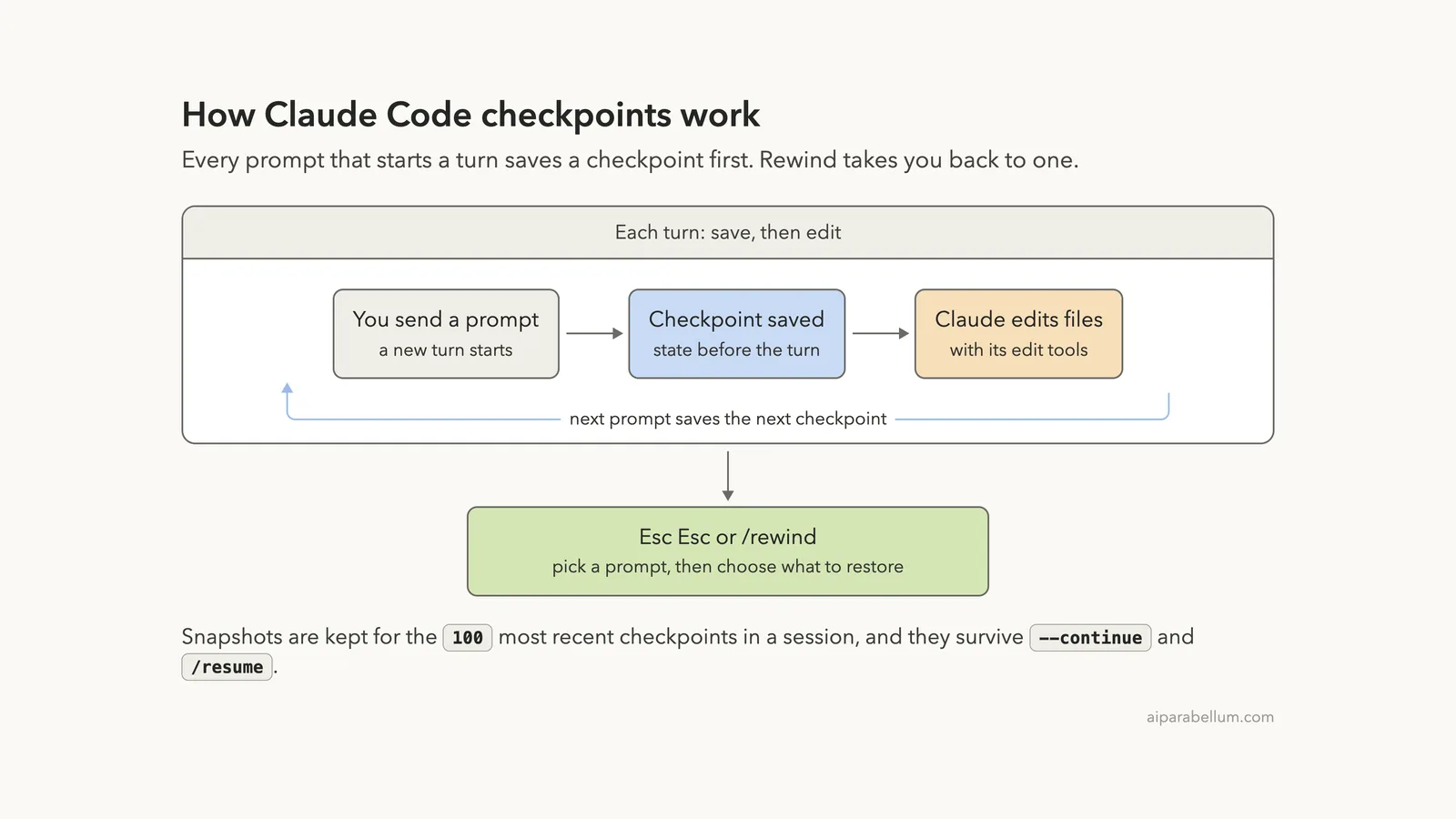
The cycle is simple. You send a prompt, Claude Code saves the current state, and then Claude edits files. The next prompt saves the next checkpoint, and so on through the session.
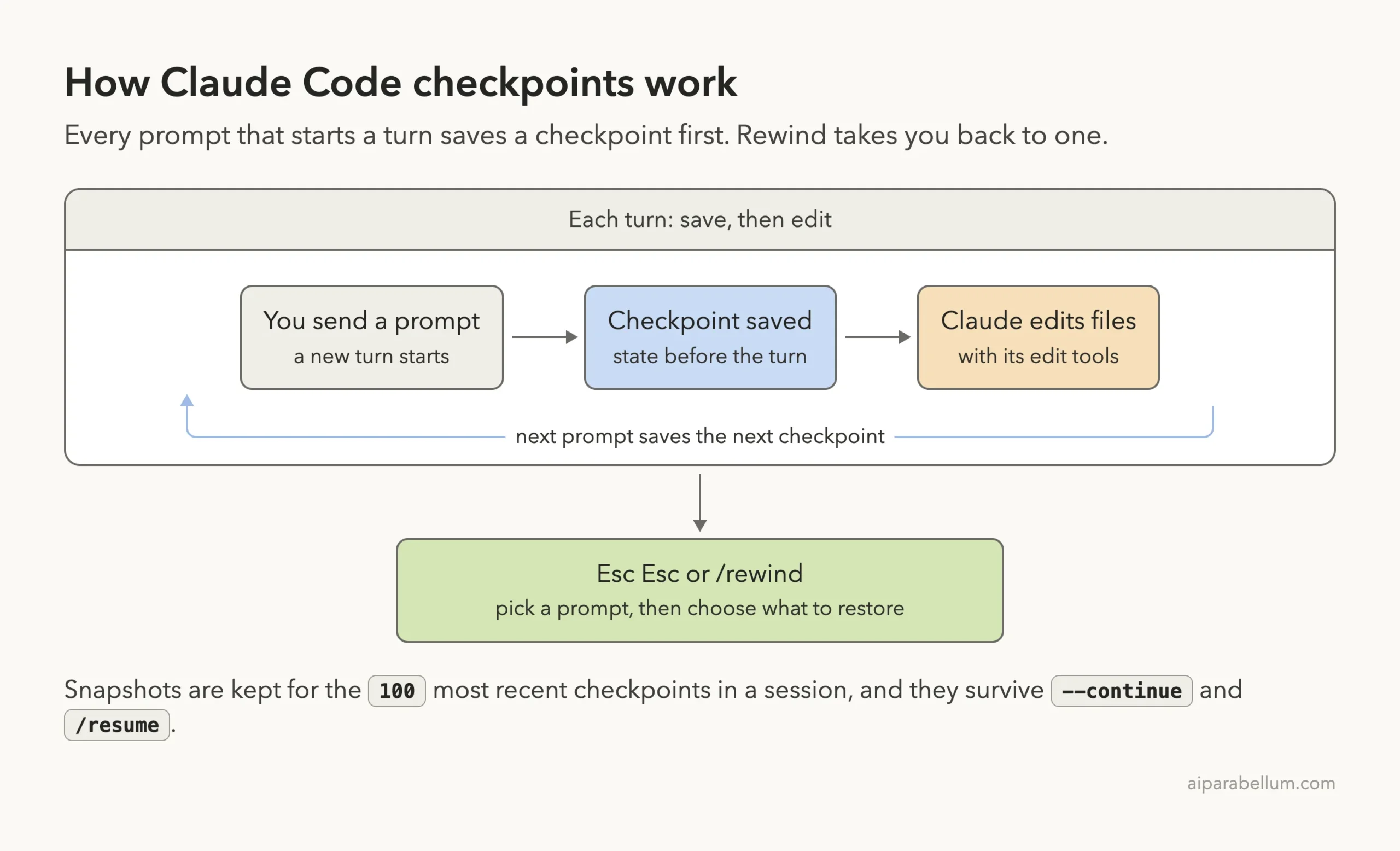
A few details from the official checkpointing docs are worth knowing:
- Claude Code keeps file snapshots for the 100 most recent checkpoints in a session.
- Checkpoints are saved with the conversation, so /rewind still works after you resume a session.
- Old snapshots are removed in a cleanup sweep, by default about 30 days after the session last saved one. You can keep them longer with the cleanupPeriodDays setting.
- If the snapshots are already gone, a rewind can fail with a “No files were restored” message.
Step 1: Make a Few Changes With Claude
To see rewind in action, you need something to undo. Our demo folder held one file, greet.py, with a function that returns “Hello, World!”. We started Claude Code in accept edits mode, which you met in our post on permission modes, so the edits went through without approval prompts.
We sent two short prompts. The first changed “Hello” to “Hi”. The second added a new farewell() function to the same file.
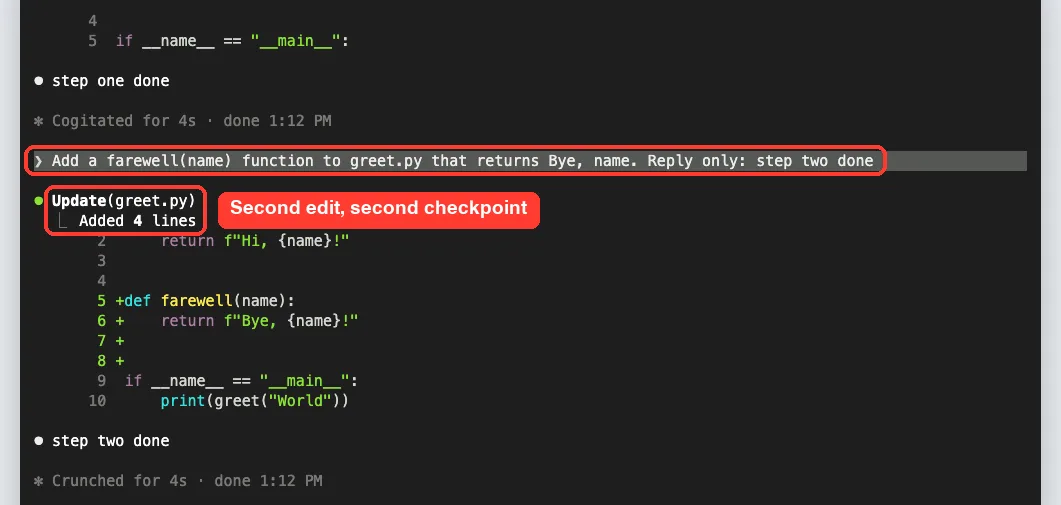
Behind the scenes, Claude Code now has two checkpoints. One holds the file before “Hi”, and one holds the file before farewell() was added.
Step 2: Open the Rewind Menu
There are two ways to open the menu. You can type the /rewind command, or press Esc twice while the prompt input is empty.
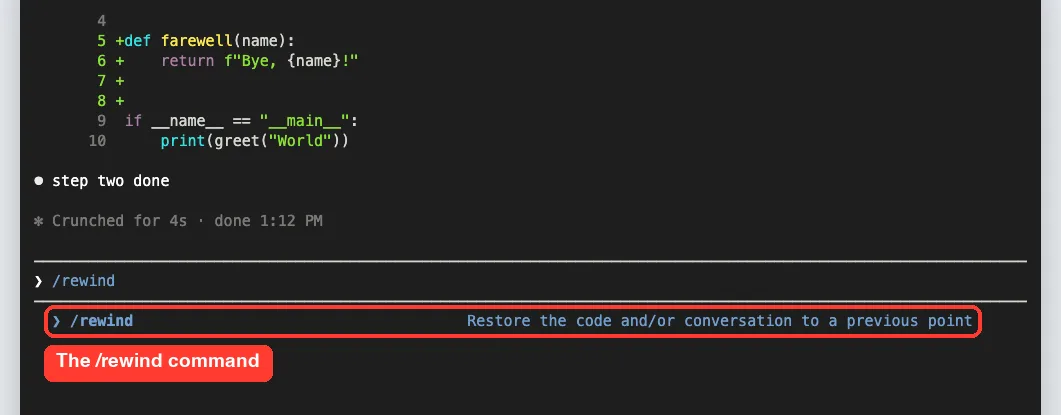
The double Esc shortcut has one catch. If your input box has text in it, double Esc clears the text instead of opening the menu. The cleared text goes into your input history, so you can press Up later to get it back.
We covered this and other keys in our guide to Claude Code shortcuts.
Reading the Rewind List
The menu lists the prompts you sent in this session, oldest at the top. Under each prompt, Claude Code shows which files changed after it and by how much. In our demo, it showed greet.py +1 -1 under the first prompt and greet.py +4 under the second.
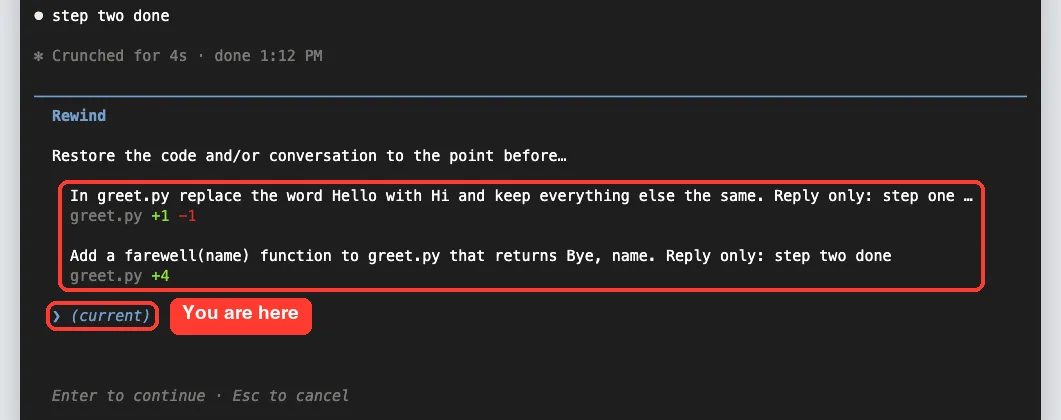
The “(current)” row at the bottom is where you are right now. Choosing a prompt means “take me back to the point just before I sent this.”
Step 3: Pick the Checkpoint You Want
Use the Up and Down arrow keys to move through the list, then press Enter. We picked the second prompt, because we wanted to remove the farewell() function but keep the “Hi” change.
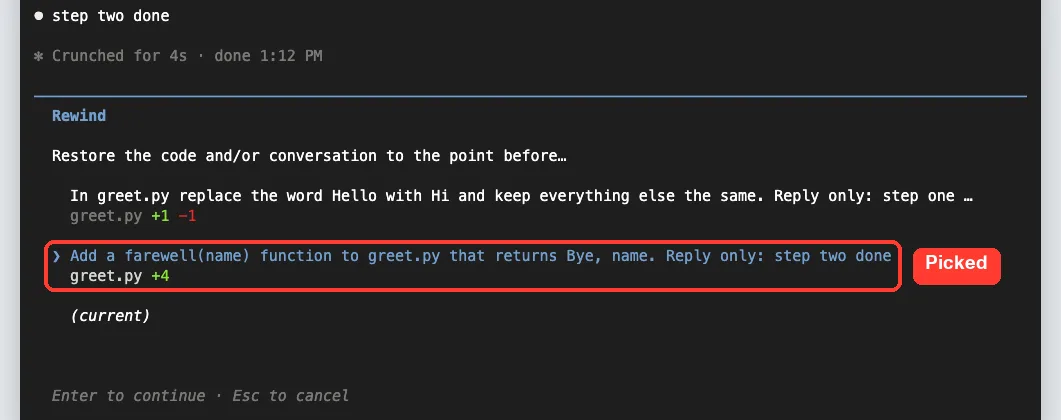
This is the part that trips people up. Selecting a prompt restores the state from before that prompt ran. So to undo prompt 2, you select prompt 2 itself.
Step 4: Choose What to Restore
After you press Enter, Claude Code shows a confirm screen. It repeats your prompt, previews what will happen, and lists the actions you can take.
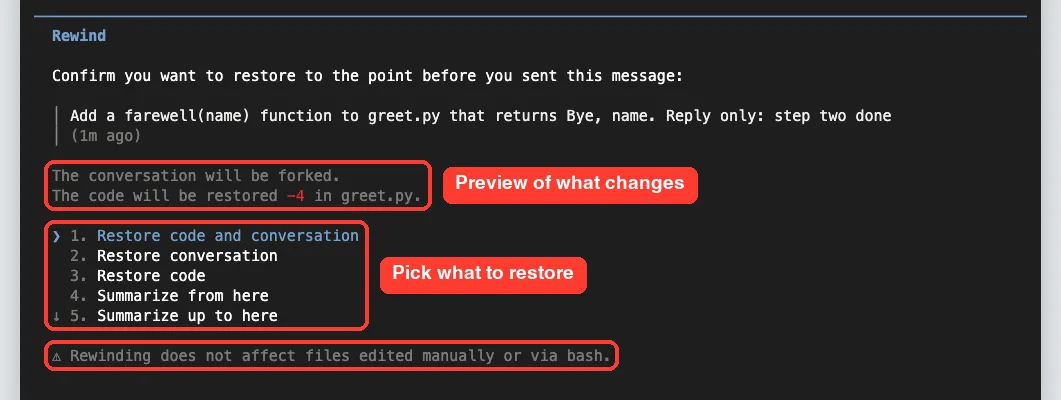
In our session the preview said the conversation would be forked and the code restored -4 in greet.py. Here is what each action does:
| Action | Code | Conversation | Use it when |
|---|---|---|---|
| Restore code and conversation | Reverted | Rewound | Both went wrong and you want a clean retry |
| Restore conversation | Kept as is | Rewound | The files are fine but the chat went off track |
| Restore code | Reverted | Kept | The discussion is useful but the code is broken |
| Summarize from here | Unchanged | Later messages compressed | A long debugging thread is eating context |
| Summarize up to here | Unchanged | Earlier messages compressed | You want to keep recent messages in full |
| Never mind | Unchanged | Unchanged | You changed your mind |
The two code restore options only appear when the selected checkpoint has tracked file changes to revert. If no edits were captured after that point, you only see Restore conversation, the summarize options and Never mind.
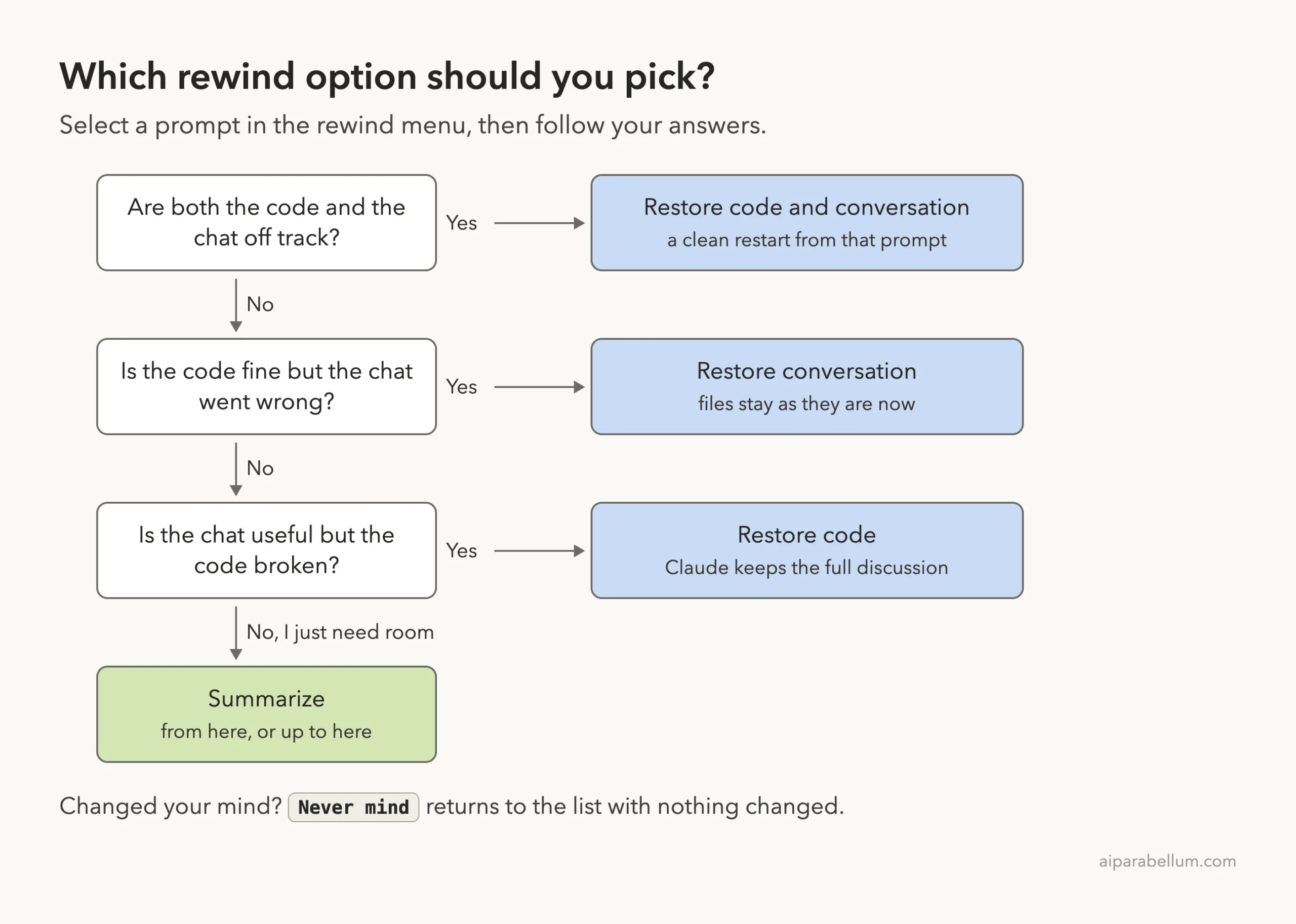
Which Rewind Option Should You Pick?
If you are not sure, ask yourself what went wrong: the code, the chat or both. This decision ladder walks you through it.
Step 5: Use Summarize to Free Up Context
The two summarize options don’t undo anything. They compress part of the conversation into a summary, which frees space in Claude’s context window. Files on disk stay exactly as they are.
When you highlight a summarize option with the arrow keys, the row shows “add context (optional)”. You can type instructions there, such as what the summary should focus on, and press Enter.
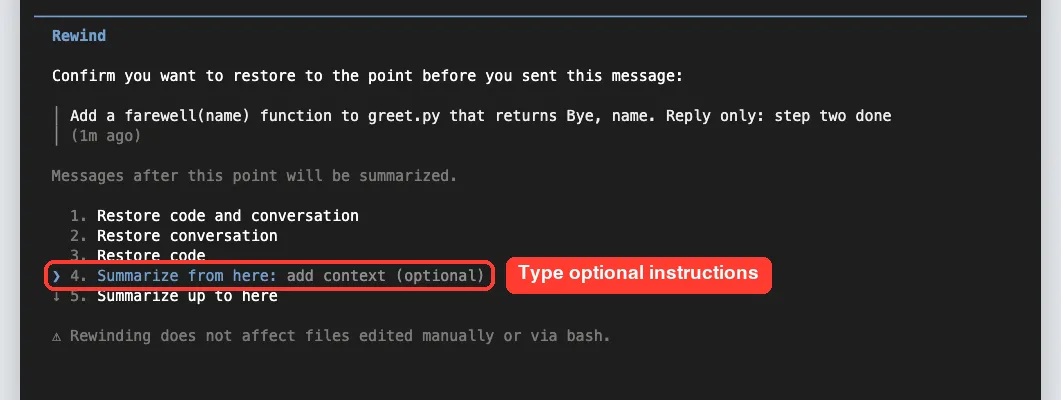
Pressing a summarize option’s number key summarizes right away, with no instructions. Either way, a “Summarized conversation” marker appears where the compressed messages were. The originals stay in the session transcript, so Claude can still refer back to details.
Summarize works like a targeted version of /compact, which we covered in advanced slash commands. If you want to try a different approach while keeping the original session untouched, the docs point to /branch or claude –continue –fork-session instead.
Step 6: Restore and Check the Result
We chose option 1, Restore code and conversation. The second exchange disappeared from the screen, and our original prompt came back into the input box, ready to edit or send again.
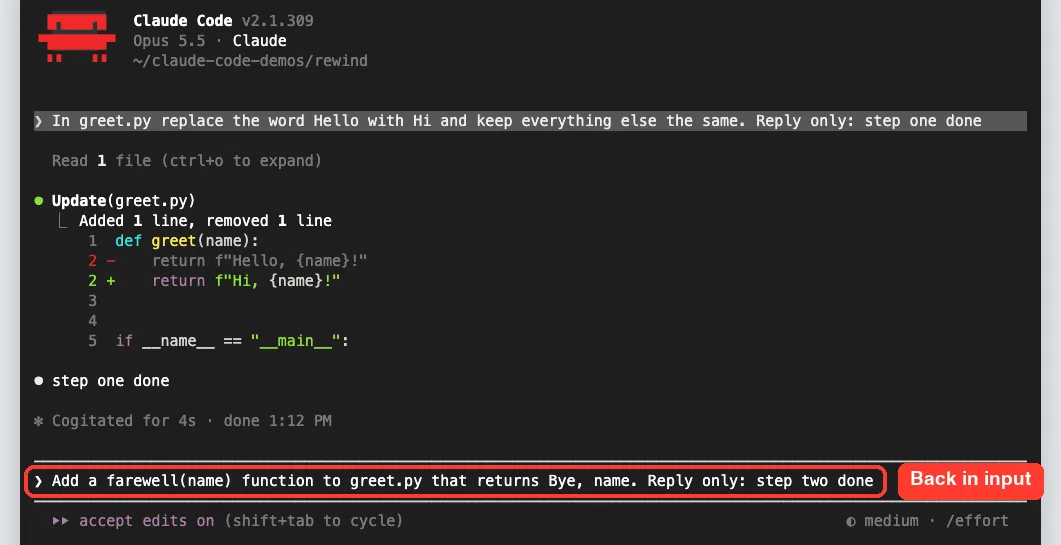
That restored prompt is handy. You can fix the wording and resend it, or clear it and ask for something else entirely.
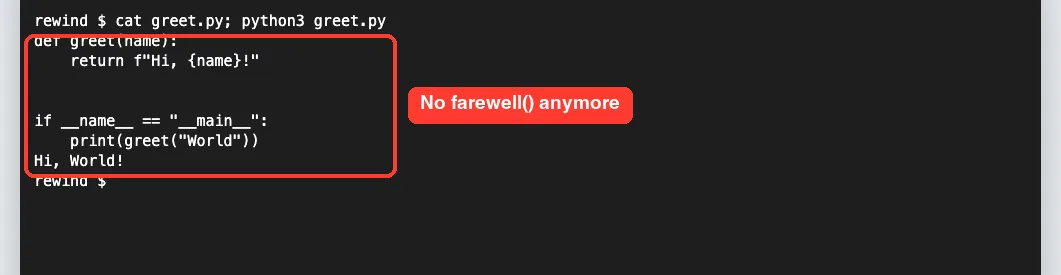
Then we checked the file outside Claude Code. The farewell() function was gone, the “Hi” change from the first prompt was still there, and the script printed “Hi, World!”.
Rewinding After You Resume a Session
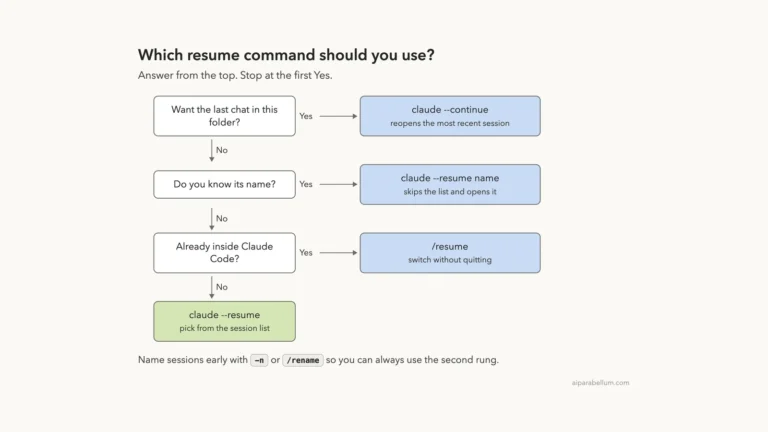
We actually closed Claude Code between the edits and the restore. We reopened it with claude –continue, and /rewind still listed both prompts with their file changes. That matches the docs: checkpoints are saved with the conversation.
One quirk to know: if you exit right after a rewind, the rewound messages can come back the next time you open that session. The fix is to send Claude a prompt before you exit, because Claude Code saves the rewound conversation together with that prompt. Files you restored stay as the rewind left them.
What Claude Code Rewind Does Not Track
The rewind screen itself warns that it “does not affect files edited manually or via bash.” Here are the limits from the official docs, in plain words:
- Bash changes: a file that only shell commands changed is not tracked. Once Claude has edited a file with its edit tools, though, later Bash changes to that same file are undone too.
- Your own edits: changes you make in your editor, or edits from another Claude Code session, are normally not captured unless they touch the same files as this session.
- Subagents: most subagent edits are not captured. A forked skill running in the foreground is the exception.
- Symlinks and hard links: these are skipped, and you see a “Restored the code, but skipped N files” warning.
- Messages you typed while Claude was still working can show “No code restore”. Select the prompt that started that turn instead.
If a shell command made the change, Git is your undo button, not /rewind.
Real Examples of When to Rewind
Here are everyday situations where a quick rewind saves time:
- A refactor broke your tests. Select the refactor prompt and choose Restore code and conversation, then ask again with clearer limits.
- Claude misunderstood you, but no files changed. Choose Restore conversation, fix your prompt and resend it.
- You had a great discussion, but the code it produced is wrong. Choose Restore code, so Claude keeps the reasoning and you get your old files back.
- A long debugging session filled the context window. Pick the point where the debugging started and choose Summarize from here to keep your first instructions intact.
- You want to compare two approaches. Try one, rewind, then try the other from the same starting point.
Try It Yourself
Make a new empty folder with one small file, such as greet.py, and start Claude Code there. If this is your first time, our first session guide walks you through startup. Then send these two prompts one at a time:
In greet.py replace the word Hello with Hi and keep everything else the same. Reply only: step one doneAdd a farewell(name) function to greet.py that returns Bye, name. Reply only: step two doneNow press Esc twice, select the second prompt, and choose Restore code and conversation. Open greet.py and confirm that “Hi” is still there but farewell() is gone. For extra practice, rewind again and try Restore code on its own to see how the conversation stays.
Common Mistakes With Checkpoints
- Selecting the wrong prompt. Remember that you go back to the state before the prompt you select.
- Pressing Esc twice with text in the input box. That clears your text instead of opening the menu.
- Expecting rewind to undo a shell command, like a file a script generated or deleted. Use Git for that.
- Treating checkpoints as backups. They live in one session and are cleaned up after about 30 days by default.
- Choosing Restore conversation when you meant to fix the code. That option leaves your files as they are now.
- Exiting right after a rewind and being surprised the old messages came back. Send one prompt first.
Pro Tips for Claude Code Rewind
- Commit to Git before big tasks. Checkpoints handle small slips, and commits protect everything else.
- Keep prompts focused. One task per prompt gives you one clean checkpoint per step, which makes rewinding precise.
- Read the preview line before you confirm. A message like “restored -4 in greet.py” tells you exactly what will change.
- Use the restored prompt. After a rewind, edit the text that comes back into the input box rather than typing from scratch.
- If you ran /clear earlier in the same process, the menu shows a “/resume <session-id> (previous session)” entry at the top that brings back the cleared conversation.
- To see which paths a restore skipped, turn on /debug before you restore and check the debug log, as the error reference explains.
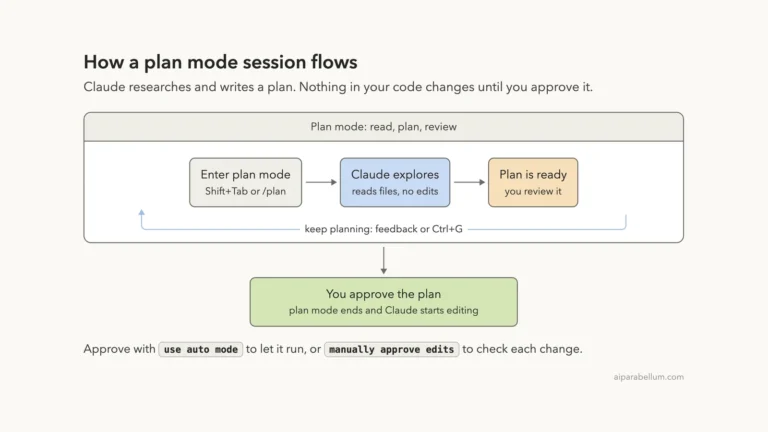
- Pair rewind with plan mode for big changes. Plan first, then rewind any step that goes sideways.
Claude Code Rewind Cheat Sheet
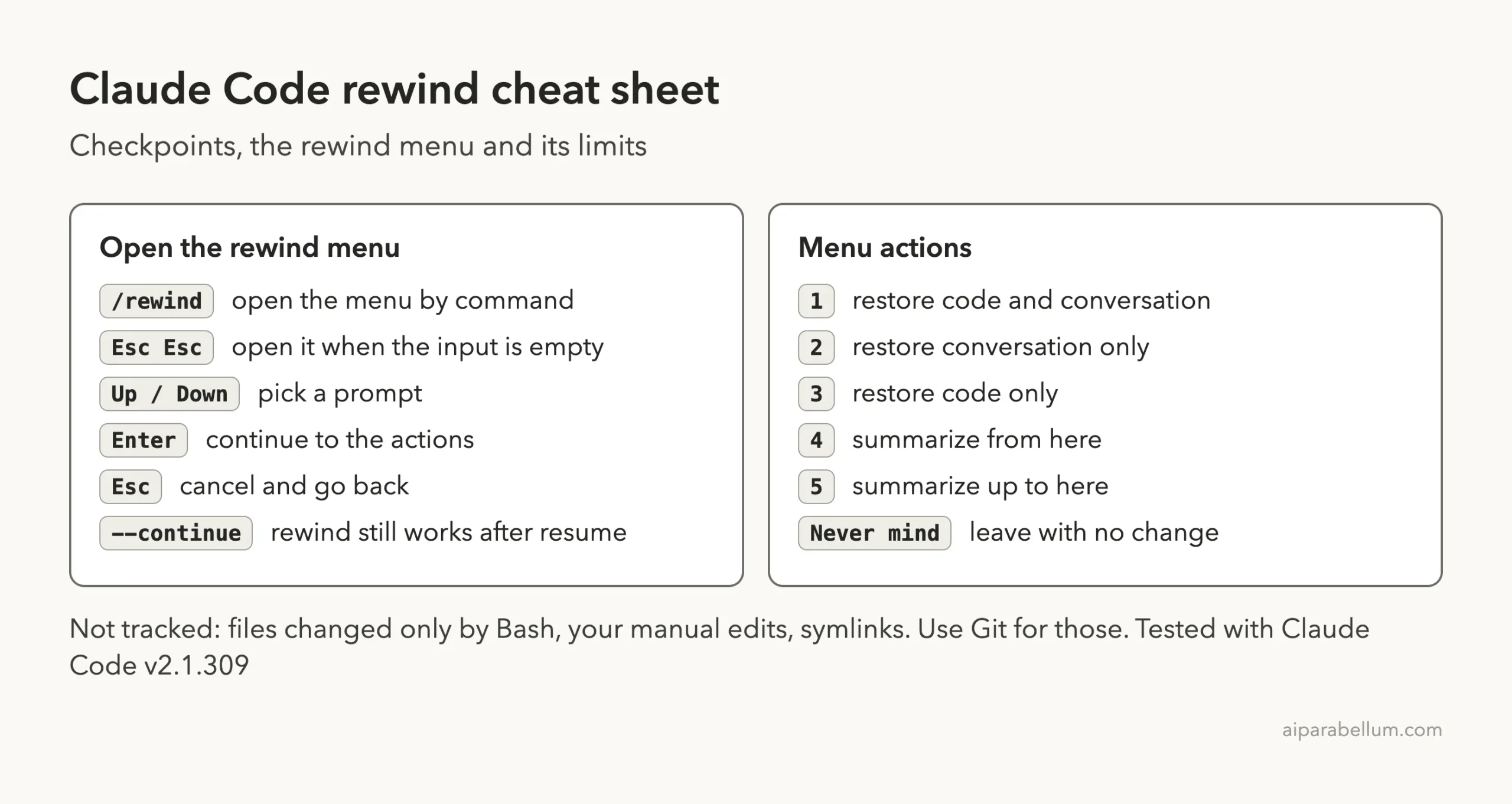
For the full list of built-in commands, see our guide to essential slash commands or the official commands reference.
Frequently Asked Questions
How do I undo changes in Claude Code?
Type /rewind or press Esc twice with an empty input. Select the prompt whose changes you want to undo, then choose Restore code or Restore code and conversation.
Does Claude Code rewind undo Bash commands?
Not for files that only Bash changed. If Claude already edited a file with its own tools, later Bash changes to that file are undone. For everything else, use Git.
How many checkpoints does Claude Code keep?
It keeps file snapshots for the 100 most recent checkpoints in a session. Snapshots are cleaned up about 30 days after the session last saved one, unless you raise cleanupPeriodDays.
Can I rewind after closing Claude Code?
Yes. Checkpoints are saved with the conversation. Resume the session with claude –continue or /resume, then run /rewind as usual.
Is a checkpoint the same as /compact?
No. A checkpoint restores earlier files or messages. The summarize options in the rewind menu are closer to /compact, because they compress part of the conversation without touching your files.
Conclusion
Claude Code rewind takes the fear out of letting an AI edit your project. Every prompt saves a checkpoint, and with Esc twice or /rewind you can restore the code, the conversation or both, or summarize a long thread to free up context. Just remember its limits: shell commands, your own edits and symlinks are not covered, so keep Git as your real safety net. Try it on a small file today, then explore more of what the assistant can do in our Claude AI overview.
Previous in the series: Part 12, Claude Code Allow and Deny Rules: Control What Runs
Next in the series: Part 14: How to Resume, Continue and Rename Claude Code Sessions.