The Claude Code context window is everything Claude can “see” during a session: your instructions, the files it reads, its own replies and a lot of setup you never typed. When that space fills up, answers get slower, cost more tokens and can lose track of early details. The good news is that two commands, /context and /compact, let you see the space and take it back.
In this tutorial we run a real session on a tiny demo project and measure the context window after every step. You will see it grow when Claude reads a big file, shrink after /compact and reset after /clear.
This is Part 15 of 53 in our Claude Code tutorials series. In the previous part we learned how to resume saved sessions. Now we look inside one session and manage how much it remembers.
Tested with Claude Code v2.1.309 on October 24, 2026, on macOS, using Opus 5.5 with a 1 million token window. Your numbers will differ with your model, plugins and project files.
Quick Summary: Context Window Commands at a Glance
| You want to | Use this |
|---|---|
| See what is using space right now | /context |
| See every item in the breakdown | /context all |
| Free space but keep working on the same task | /compact |
| Choose what the summary keeps | /compact focus on … |
| Summarize only part of the chat | /rewind, then Summarize from here or up to here |
| Start a brand new conversation | /clear |
| Change when auto-compaction runs | /autocompact 500k (or auto) |
What Is the Claude Code Context Window?
Think of the context window as Claude’s working desk. Everything on the desk is sent to the model with each message, and the desk has a fixed size measured in tokens. A token is a small chunk of text, roughly three quarters of a word in English.
According to the official context window guide, the window holds your instructions, the files Claude reads, its own responses and content that never appears in your terminal. That last part surprises most people.
What loads before you type anything
When a session starts, several things land in context right away:
- Your CLAUDE.md files (or AGENTS.md in some setups) and auto memory
- The names of MCP tools, since full MCP tool definitions are loaded on demand
- Short descriptions of every skill you have installed
- The system prompt and built-in tool definitions, plus extras such as an output style
What gets added as Claude works
Every file Claude reads is added to the conversation. Path-scoped rules load next to the files they match, and hooks can add their output too. If Claude hands research to a subagent, the big reads stay in the subagent’s own window and only a summary comes back to yours.
Context is not free storage. Everything in it is resent with each message, so a cluttered window costs you on every turn.
Step 1: Run /context to See Your Usage
We created a throwaway folder with three small files: a short CLAUDE.md, a tiny recipes.py and a kitchen-log.md of about 6,800 words. Then we started Claude Code and typed /context. The slash menu describes it as a way to visualize context usage as a colored grid.
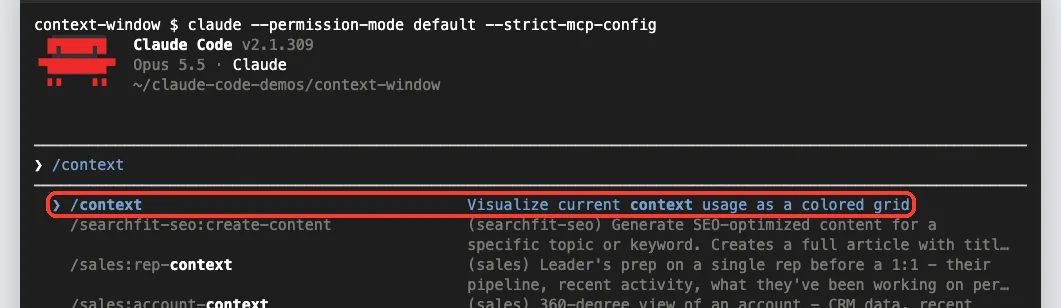
One note about our setup: our test Mac has many plugins installed, so we launched with claude –strict-mcp-config to skip MCP servers and keep the screenshots readable. You don’t need that flag in normal use.
Press Enter and Claude Code draws a grid of small icons. Each icon stands for a slice of the window, colored by category. On the right you get the model, the total used and an estimate per category.
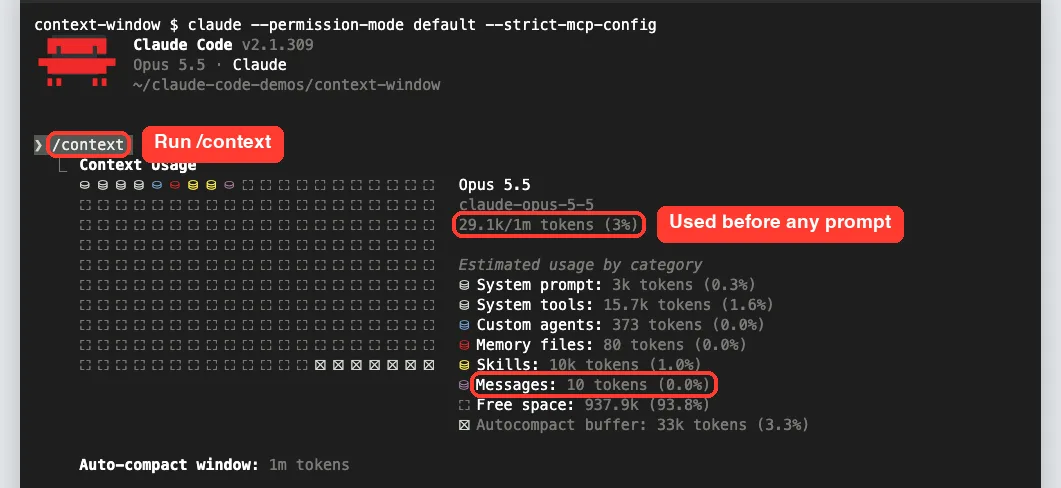
How to read the /context breakdown
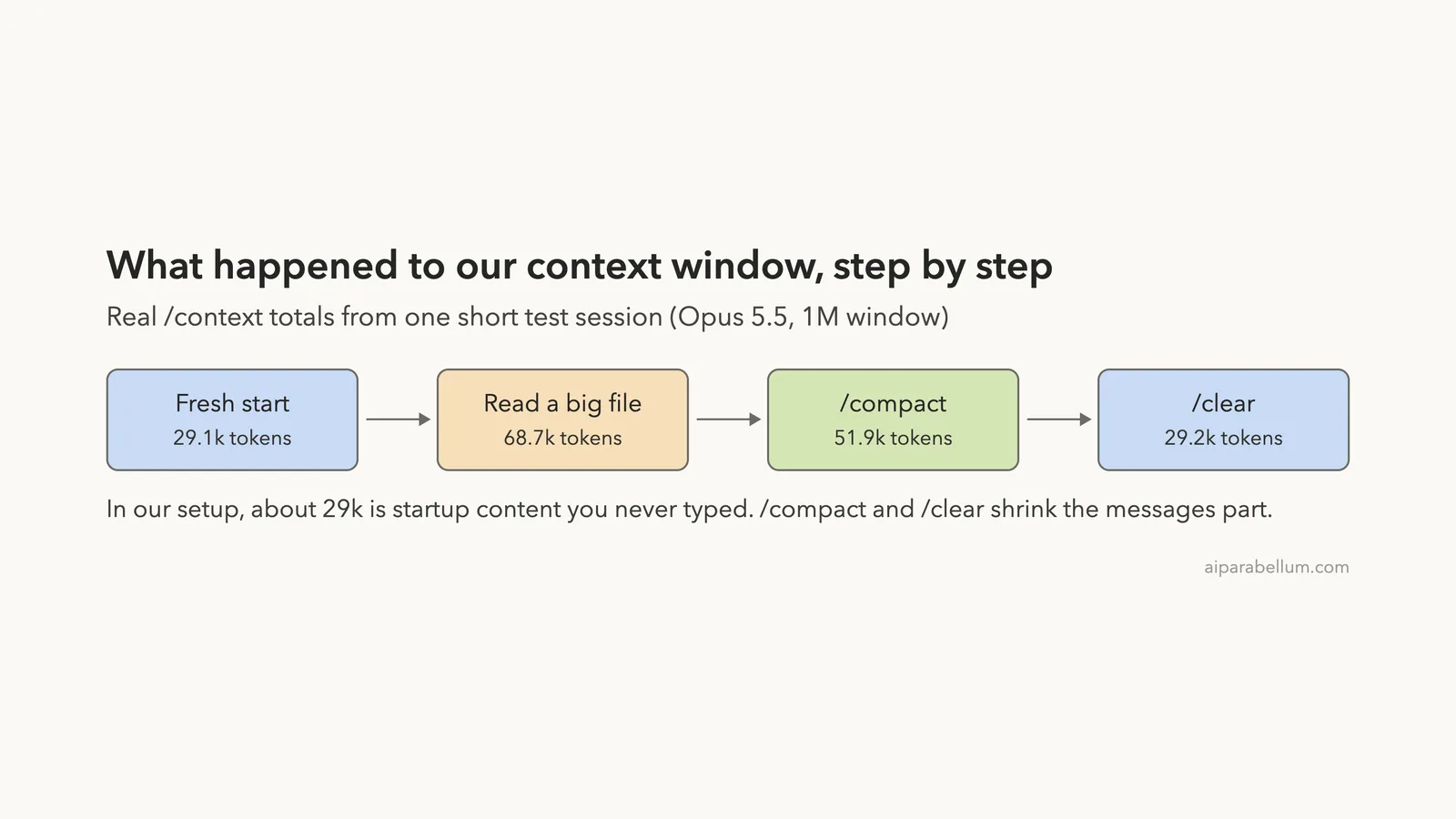
Our fresh session used 29.1k of 1m tokens, or 3%, and our messages were only 10 tokens. The rest was startup content. Here is what each line meant in our run:
| Category | Our fresh session | What it is |
|---|---|---|
| System prompt | 3k tokens | Claude Code’s built-in instructions |
| System tools | 15.7k tokens | Definitions of built-in tools like Read and Bash |
| Custom agents | 373 tokens | Descriptions of subagents you have installed |
| Memory files | 80 tokens | Our small CLAUDE.md |
| Skills | 10k tokens | Skill descriptions from installed plugins |
| Messages | 10 tokens | The conversation itself |
| Autocompact buffer | 33k tokens | Space reserved so automatic compaction can run |
Below the grid, /context lists items in each category, such as each memory file and skill with its token cost. Run /context all if you want every item expanded. The commands reference says it also shows suggestions for context-heavy tools, memory bloat and capacity warnings.
Step 2: Watch the Context Window Grow
Next we asked Claude to read the big log file and answer one short question. Claude searched, read the file and replied in one line.
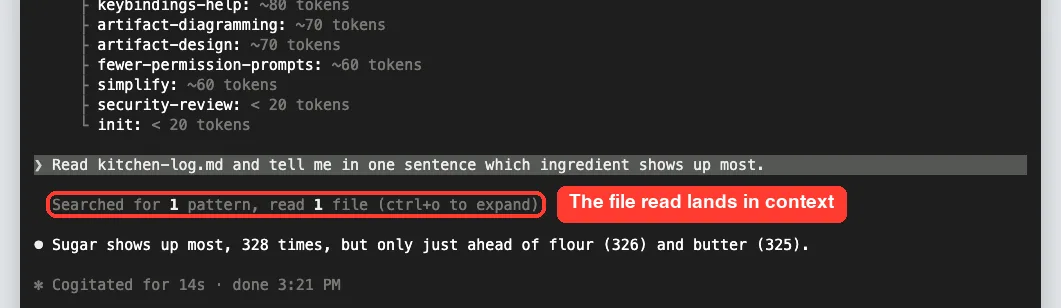
The answer was tiny, but the file content now sits in the conversation. Running /context again made that clear.
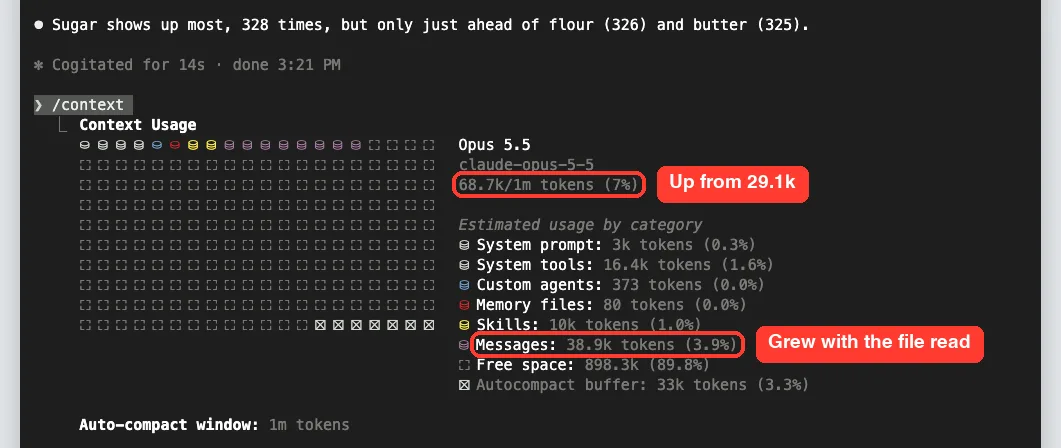
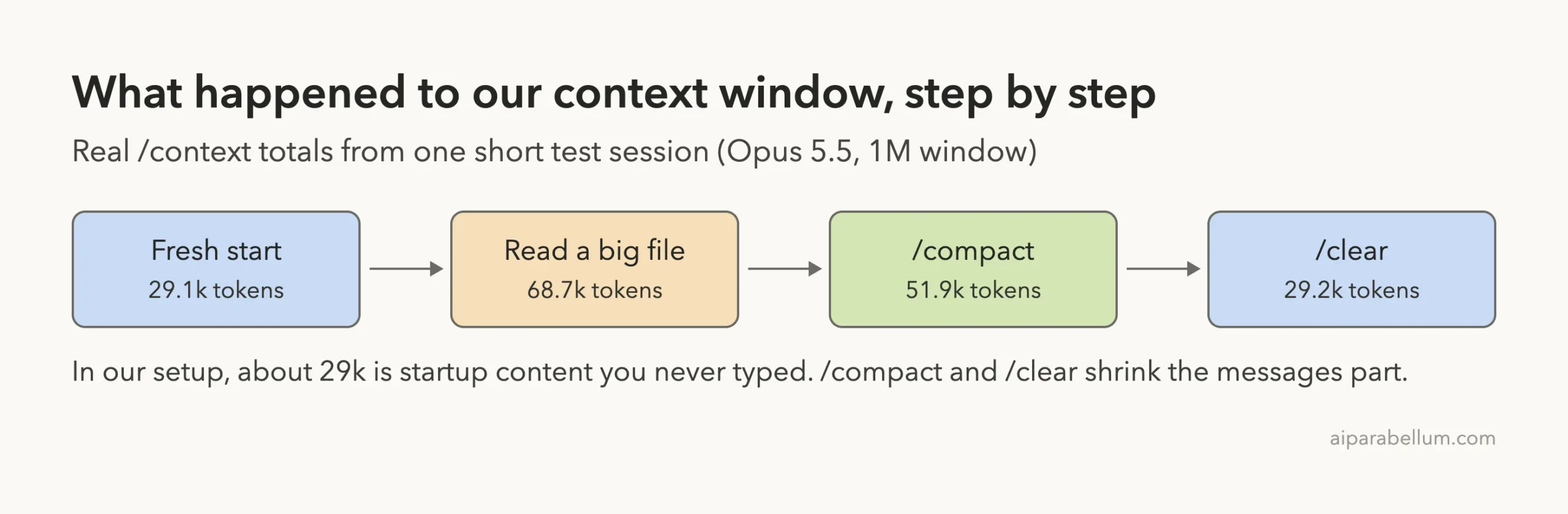
Messages went from 10 tokens to 38.9k tokens after one question. That is the core lesson: big reads are expensive, and they stay in context until something removes them.
Step 3: Free Space With /compact
The /compact command replaces the conversation so far with a structured summary. You keep working in the same session, but the long history is condensed. You can add instructions to steer the summary, so we typed this:
/compact keep only the ingredient answer and the recipe namesClaude Code showed “Compacted” with a hint that Ctrl+O shows the full summary. It also printed “Referenced file kitchen-log.md” instead of the file content.
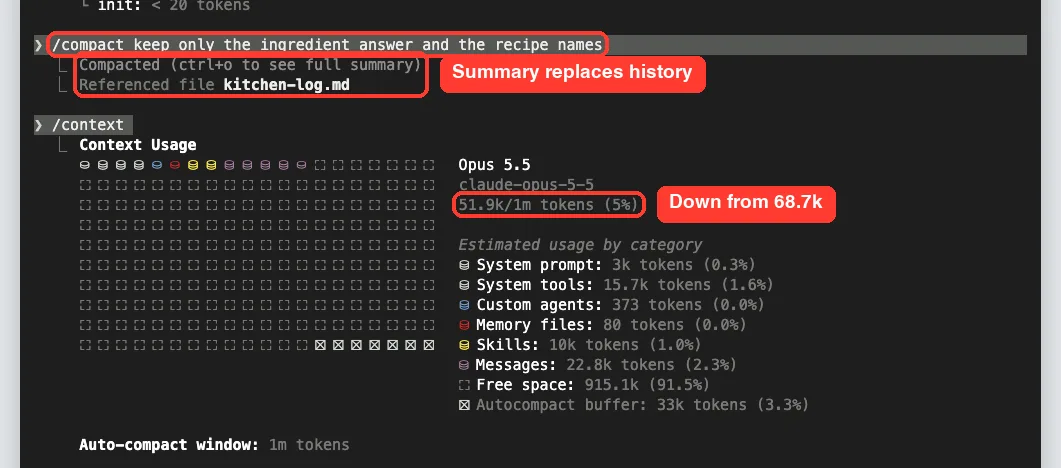
That “Referenced file” line matches the docs. Right after compaction, Claude Code re-reads up to five recently modified files it worked with, but a file over 5,000 tokens comes back only as a path reference. Claude can still open it again if it needs to.
Notice that compaction did not drop usage to zero. Startup content stays, and the summary plus any re-added items take space too. In our run, messages fell by about 16k tokens.
What survives compaction
Not everything is treated the same way. The official docs list what happens to each kind of content:
| Content | After /compact |
|---|---|
| System prompt and output style | Still apply |
| Project-root CLAUDE.md and unscoped rules | Re-injected from disk |
| Auto memory | Re-injected from disk |
| Plan written in plan mode | Re-injected from disk |
| Rules with paths: frontmatter and nested CLAUDE.md | Reloaded on demand when a matching file is touched |
| Files Claude read or edited | Up to five re-read, most recently modified first |
| Invoked skill bodies | Re-injected, capped at 5,000 tokens each and 25,000 total |
| Context added earlier by hooks | Summarized with the rest |
| Background commands and subagents | Keep running |
The practical takeaway is simple. Anything that must survive a long session belongs in your project-root CLAUDE.md, not in a chat message.
Step 4: Set When Auto-Compaction Runs
You rarely have to compact by hand. Claude Code compacts automatically as you approach the limit, so a full context window doesn’t end your session. The agent loop guide says it clears older tool outputs first, then summarizes the conversation if needed.
The /autocompact command controls how full the window gets before that happens. Without an argument, it opens a dialog that shows the current setting.
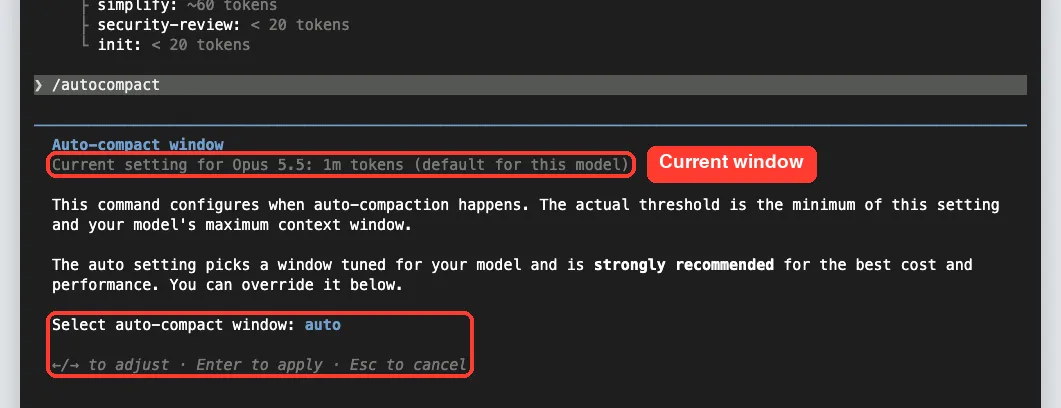
Per the model configuration docs, you can set the window in a few ways:
- /autocompact 500k saves a window for the current model in your user settings
- /autocompact auto goes back to the window tuned for your model
- claude –autocompact 300k applies a window for one launch only
- “autoCompactWindow”: 200000 in settings.json sets it for every model
- The CLAUDE_CODE_AUTO_COMPACT_WINDOW environment variable overrides the others, which is handy in scripts
Accepted sizes run from 100K to 1M tokens. You can write 200000, 500k or 1M, or a bare number from 100 to 1000, which means thousands. Claude Code always caps the value at your model’s real window.
Models with a native 1 million token window, such as Opus 5.5 in our test, compact at about 967K tokens by default. That matches the 33k autocompact buffer we saw in /context.
Step 5: Start Over With /clear
When you switch to unrelated work, /clear is the cleaner choice. It starts a new conversation with empty context. The old one is not deleted; you can bring it back with /resume.
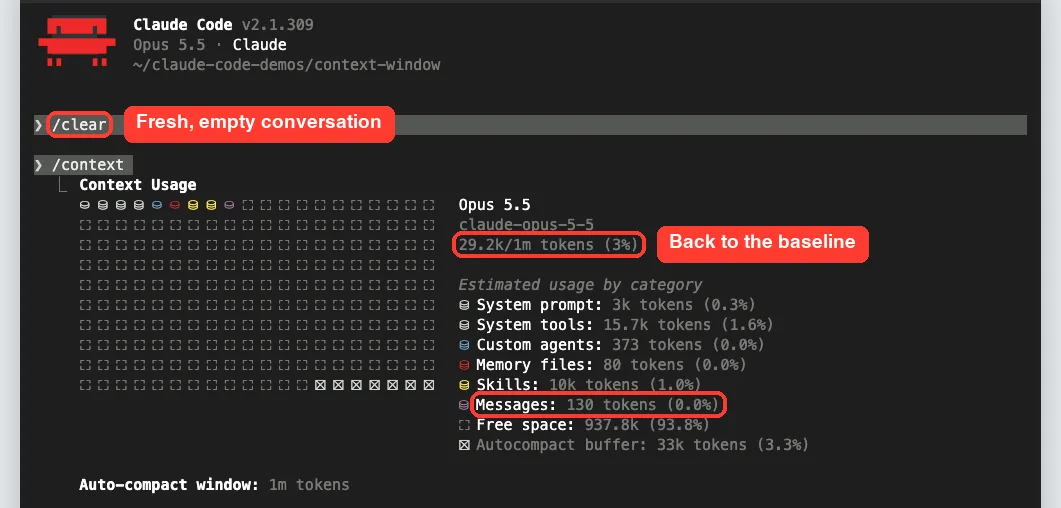
Our total dropped to 29.2k, almost exactly the fresh-session number. That remaining amount is the startup content you can only shrink by trimming CLAUDE.md, skills, plugins and MCP servers.
How the Context Window Changed in Our Test
Here is the whole session in one picture. Each box shows the real /context total at that moment.
Which Context Command Should You Use?
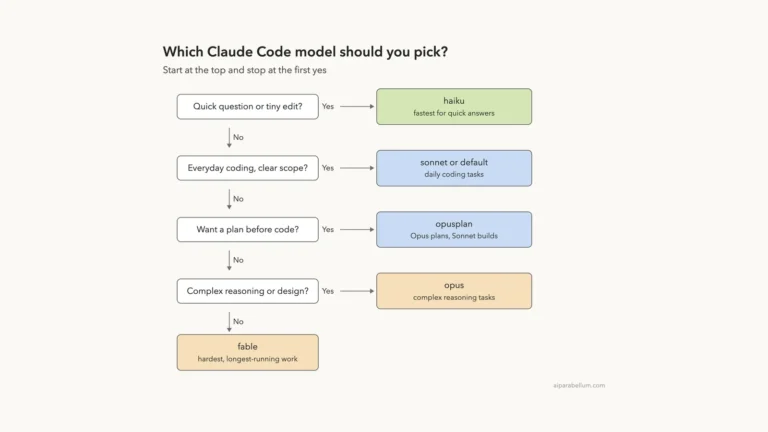
The commands overlap a little, so this ladder helps you pick. Start at the top and follow your answers.
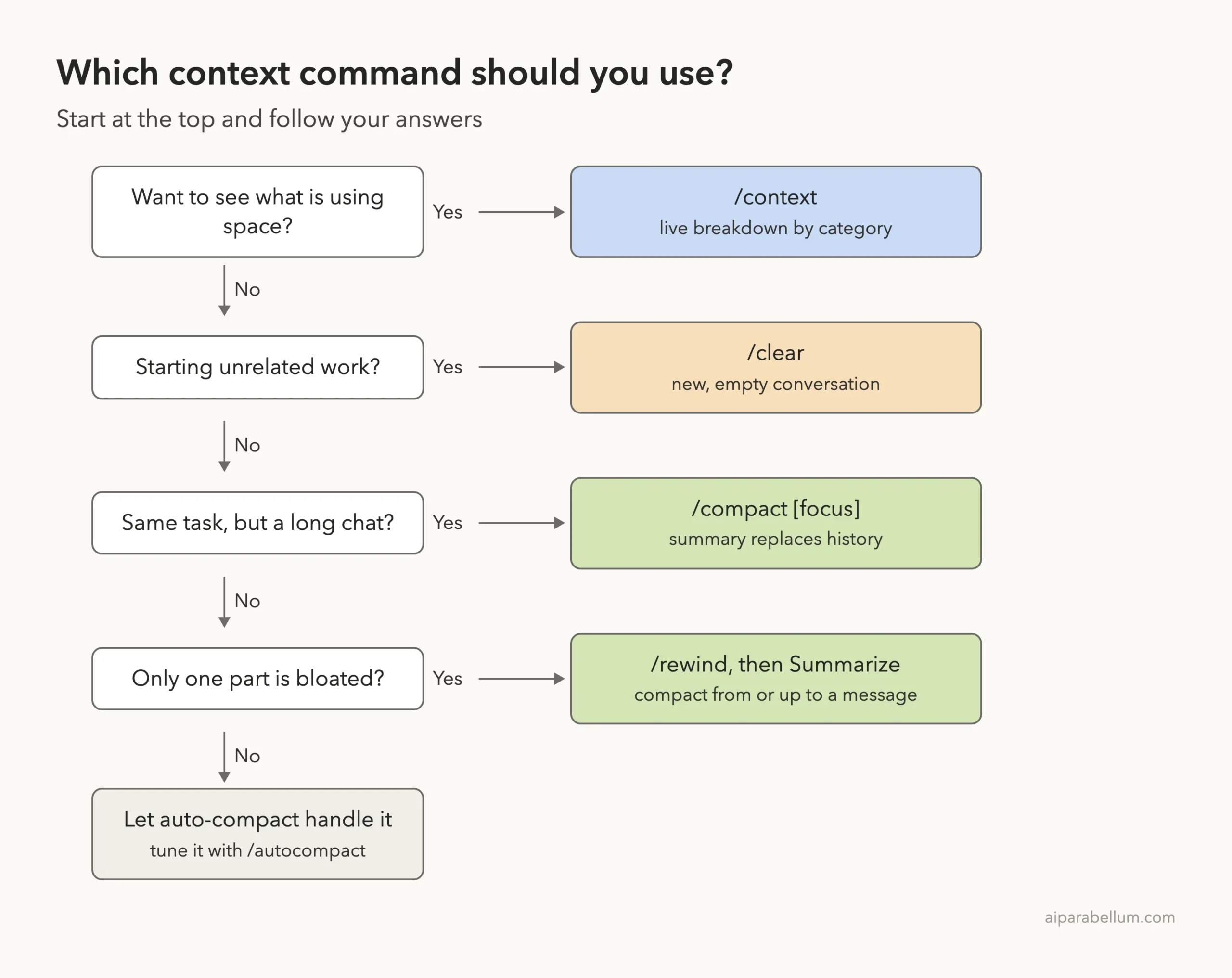
The /rewind option is covered in detail in our checkpoints tutorial. Pick a message, then choose Summarize from here or Summarize up to here to compact just one stretch of the conversation.
Real Examples of Managing Context
- Bug hunt that ran long: you are still fixing the same login bug after an hour. Run /compact focus on the login bug and the files we changed, then keep going.
- Switching tasks: you finished the bug and now want to write docs. Run /clear so old code and logs don’t crowd out the new work.
- Huge log file: instead of reading a 10,000-line log yourself, ask Claude to use a subagent to search it. The big read stays in the subagent’s window.
- Slow, pricey sessions: run /context and check the Skills and MCP lines. Removing plugins you never use lowers the floor for every session.
- Team rules keep vanishing: move them from chat into the project-root CLAUDE.md so they are re-injected after every compaction.
Try It Yourself
Make an empty practice folder, add one large text file and one small code file, then start Claude Code there. Run /context first and note the total. Then paste this prompt:
Read the largest file in this folder and tell me in one sentence what it is about.Run /context again and compare the Messages line. Then try /compact with your own focus, like /compact keep only the one-sentence answer, and check /context a third time. Finish with /clear and see how close you get to the starting number.
Common Mistakes With the Context Window
- Keeping one session for everything. Old, unrelated conversation costs tokens on every message. Use /clear between tasks.
- Putting key rules only in chat. Detailed instructions from early in a long conversation may be lost after compaction. Put them in CLAUDE.md.
- Compacting without a focus. The automatic pass guesses what matters. A short focus line keeps what you actually need.
- Relying on path-scoped rules after compaction. Rules with paths: frontmatter are summarized away and only reload when a matching file is touched again.
- Reading giant files directly. One big read can fill a lot of space. Ask for a search, a specific range or a subagent instead.
- Confusing /clear with deleting. The old conversation is still available through /resume.
Pro Tips for a Lean Context Window
- Add a “Compact Instructions” section to CLAUDE.md. The docs say it tells Claude what to preserve during compaction, and it works for automatic passes too.
- Press Ctrl+O after compaction to read the full summary and check nothing important is missing.
- Put the most important lines at the top of a skill’s SKILL.md. After compaction, large skills are truncated and the start of the file is what stays.
- Use /memory to open and trim the CLAUDE.md files that /context says are loading.
- If auto-compaction keeps refilling instantly because one tool output is huge, Claude Code stops after a few tries and shows an error rather than looping. Clear or rewind past that output.
- Check our slash commands guide and advanced commands for related tools like /btw, which answers a side question without adding to history.
Claude Code Context Window Cheat Sheet
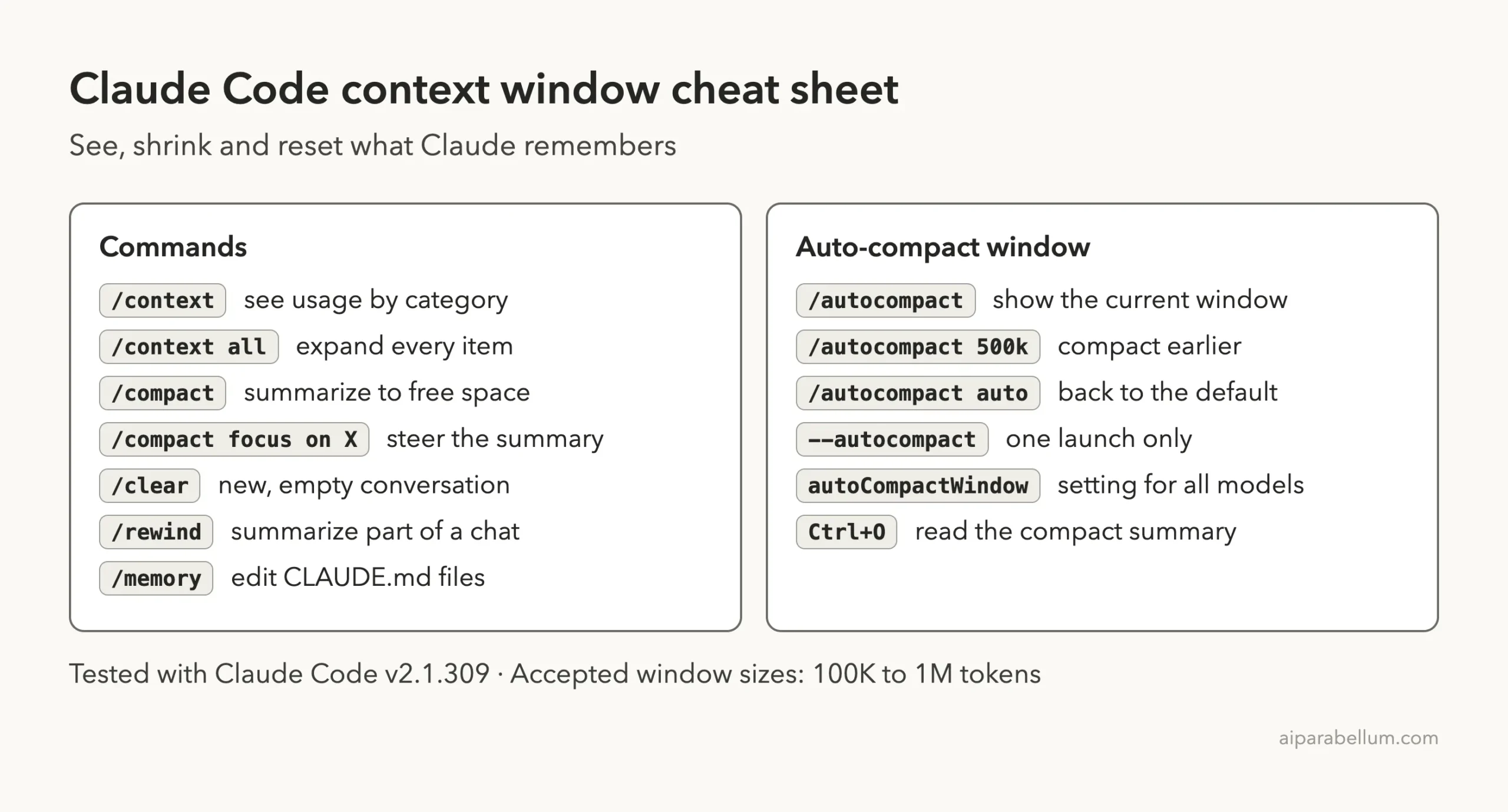
Frequently Asked Questions
How big is the Claude Code context window?
It depends on the model. The docs say Fable models, Sonnet 5 and later, Haiku 5.5, Opus 4.6 and later, and Sonnet 4.6 support a 1 million token window. Our Opus 5.5 test showed 1m in /context.
See the extended context section for plan availability.
Does /compact delete my conversation?
No. It replaces the history in context with a summary, and you stay in the same session. In our run, Claude Code also noted that earlier messages are saved in the session transcript on disk.
What is the difference between /compact and /clear?
/compact keeps the same conversation but shortens it into a summary. /clear starts a new conversation with empty context, and the old one stays available in /resume.
Why does a new session already use thousands of tokens?
Startup content loads first: the system prompt, tool definitions, CLAUDE.md, auto memory, skill descriptions and MCP tool names. In our test that was about 29k tokens before any prompt.
Can I stop automatic compaction from running so late?
Yes. Run /autocompact with a size like 500k to compact earlier, or pass –autocompact for a single launch. Run /autocompact auto to return to the default.
Conclusion
The Claude Code context window is the desk Claude works on, and now you know how to keep it tidy. Use /context to see what is filling it, /compact with a focus to shrink a long chat on the same task, /clear when you change tasks, and /autocompact if you want compaction to run sooner. Keep lasting rules in CLAUDE.md and send big reads to subagents, and your sessions will stay fast and focused. To learn more about the model behind all this, read our Claude AI overview, or revisit the agent loop to see how context fits into each turn.
Previous in the series: Part 14, How to Resume, Continue and Rename Claude Code Sessions
Next in the series: Part 16: How to Choose a Model in Claude Code.