Claude Code fast mode makes Claude Opus answer up to 2.5 times faster, according to Anthropic’s docs. It is the same model with the same quality, just tuned for speed instead of cost. The catch is a higher price per token, so it pays to know when the speed is worth it.
In this guide we run the /fast command for real in a small demo project. You will see the fast mode panel, the messages you get when something blocks it, how it behaves in print mode, and how to switch it off for good.
This is Part 17 of 53 in our Claude Code tutorials series. In the previous part we learned how to choose a model with /model and /effort. Fast mode builds right on top of that, since it only works with certain Opus models.
Tested with Claude Code v2.1.309 on October 24, 2026, on macOS. Our test account did not have usage credits turned on, so we could not switch fast mode on. Every screen below is what Claude Code really showed us, and the parts we could not see live come straight from Anthropic’s official docs.
Quick Summary: Claude Code Fast Mode at a Glance
| Question | Short answer |
|---|---|
| What is it? | A faster setup for Claude Opus, not a new model |
| How much faster? | Up to 2.5x, per the docs |
| How do I turn it on? | /fast, then Space and Enter |
| Which models? | Opus 5.5, Opus 5 and Opus 4.8 |
| Price on Opus 5.5 | $8 input / $40 output per million tokens |
| Who can use it? | Pro, Max, Team, Enterprise (with usage credits) and Claude Console |
| How do I know it is on? | A small ↯ icon next to the prompt |
| How do I block it? | CLAUDE_CODE_DISABLE_FAST_MODE=1 |
What Is Claude Code Fast Mode?
Fast mode is a high-speed configuration for Claude Opus. Claude Code sends your requests with a different API setting that puts speed ahead of cost efficiency. You get the same answers and the same tools, just sooner.
It is easy to confuse this with picking a smaller model like Haiku. That is not what happens here. Fast mode keeps you on Opus, so you do not give up any reasoning power to get the extra speed.
Fast mode buys you time, not a different brain. You keep Opus and pay more per token.
Which models support fast mode?
The docs list three supported models: Opus 5.5, Opus 5 and Opus 4.8. It does not work on Sonnet, Haiku or other models. Opus 4.7 lost fast mode support in July 2026, so switching to it turns fast mode off.
In Claude Code v2.1.280 and later, Opus 5.5 is the model fast mode uses by default. Our session confirmed that, since the autocomplete hint for /fast read “Toggle fast mode (Opus 5.5).”
Why does fast mode exist?
Waiting is the hidden cost of working with an AI coding agent. When you are fixing a bug live or trying five small tweaks in a row, a few seconds per reply adds up fast. Fast mode trades money for those seconds.
For long jobs that run while you grab coffee, the speed matters much less. That is why Anthropic suggests keeping standard mode for long autonomous tasks, CI pipelines and anything cost sensitive.
How to Turn On Fast Mode in Claude Code
There are two ways to turn it on in the terminal. You can use the /fast command inside a session, or you can set it in your settings file. Here is the command route first, since that is what most people will use.
Step 1: Type /fast
Start Claude Code in any project and type /fast at the prompt. The autocomplete list shows the command with a short description.
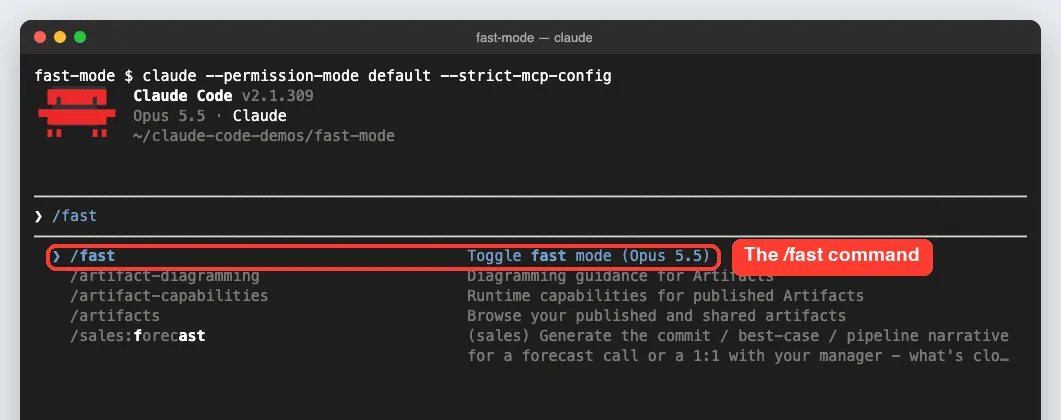
Notice that the hint names Opus 5.5. If you are on a model that does not support fast mode, the docs say turning it on switches you to Opus automatically.
Step 2: Toggle it in the panel
Press Enter to open the fast mode panel. According to the docs, you press Space to toggle it on or off and then Enter to confirm.
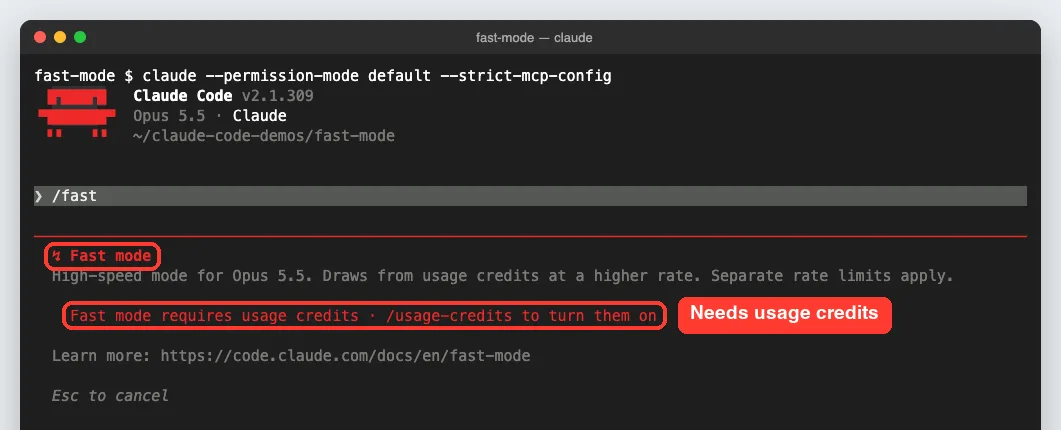
Our panel described fast mode as a high-speed mode for Opus 5.5 that draws from usage credits at a higher rate, with separate rate limits. Below that, a red line said fast mode requires usage credits and pointed us to /usage-credits. Pressing Space and Enter did not change anything, because the requirement was not met.
Step 3: Check that it is on
When everything is in place, the docs describe three clear signs. You see a “Fast mode ON” confirmation, a small ↯ icon appears next to the prompt, and running /fast again tells you whether it is on or off.
We could not show the ↯ icon in our own session, since our account was blocked at the credits step. We chose not to turn on paid usage credits just for a screenshot, and we will not show you a fake one.
Turn it on with /fast on
You can also type /fast on directly. We tried it in a session started on Sonnet 5.5 to see what happens on an unsupported model.
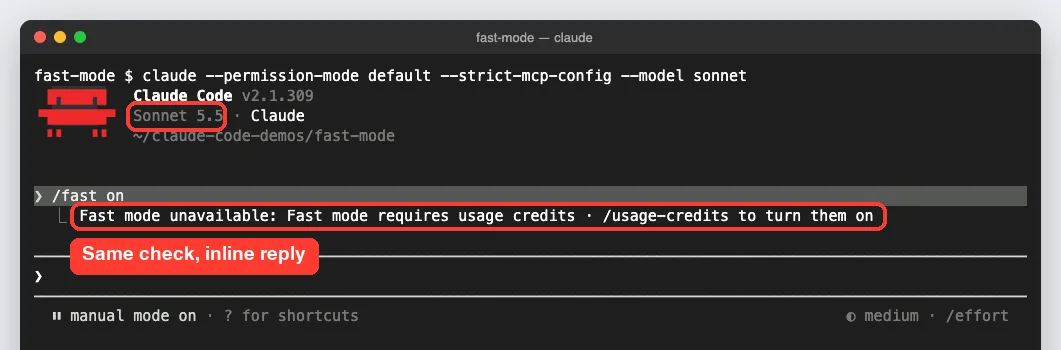
Claude Code skipped the panel and answered in one line: fast mode unavailable because it requires usage credits. With credits turned on, the docs say this command would switch the session to Opus and turn fast mode on.
Set fast mode in your settings file
The second route is your user settings file. Add this line and fast mode starts on by default:
{
  "fastMode": true
}
The /fast toggle saves to this same fastMode setting. By default, fast mode you turn on in an interactive session carries over to your next sessions too.
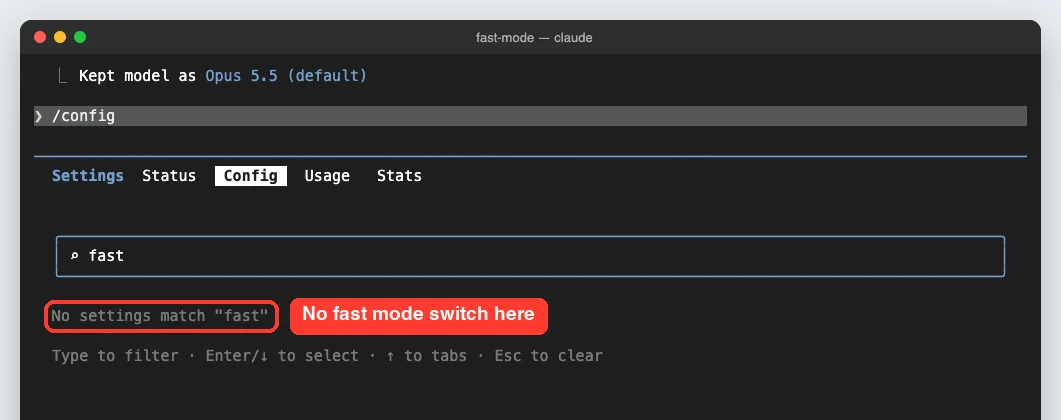
We also searched the /config screen for “fast” and got “No settings match.” So in v2.1.309, the /fast command and the settings file are the places to manage it from the terminal.
How Fast Mode Works, Step by Step
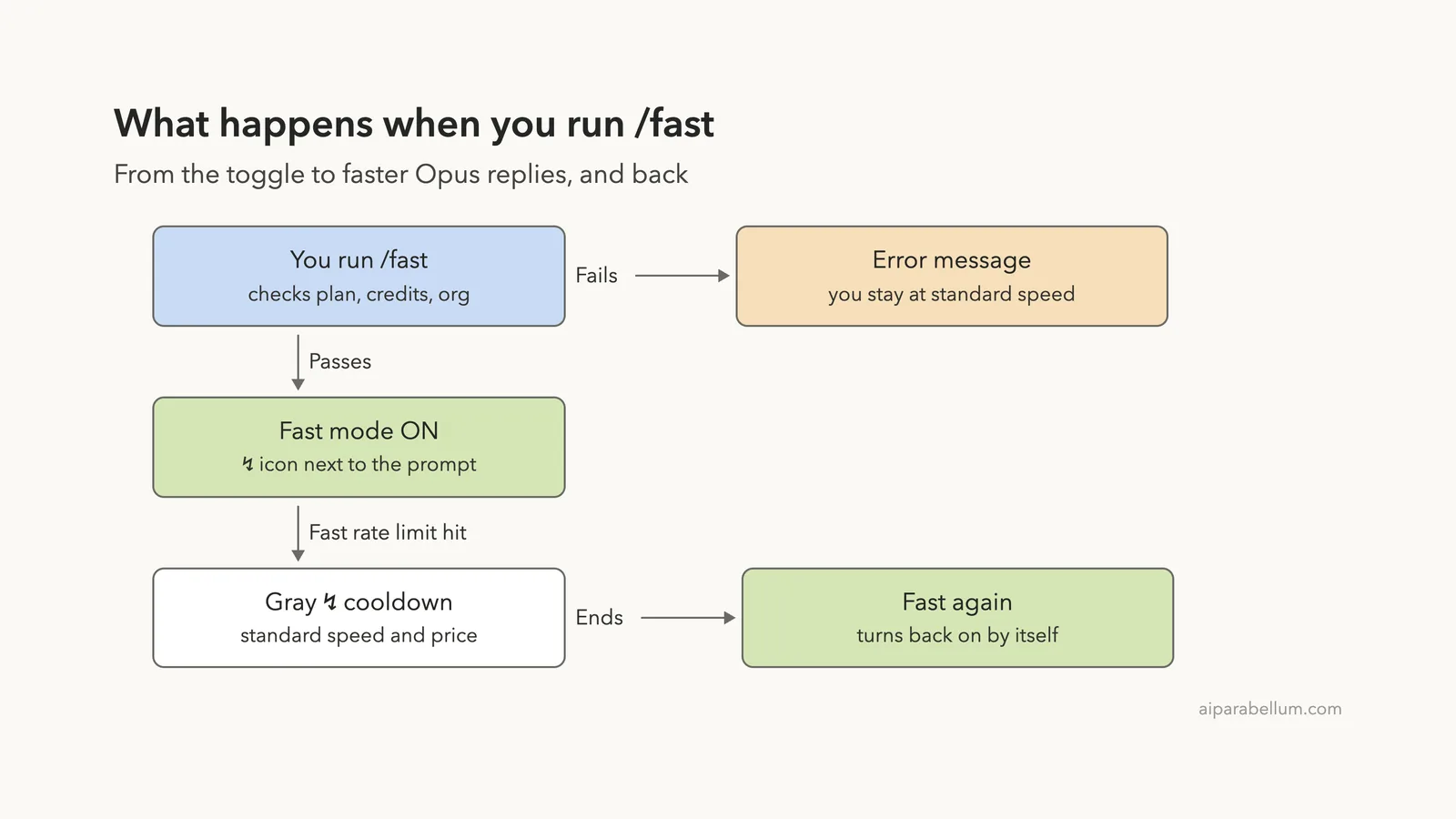
Before fast mode turns on, Claude Code runs a few checks. It looks at your plan, your usage credits and your organization’s settings. If anything fails, you stay at standard speed and see a message that explains why.
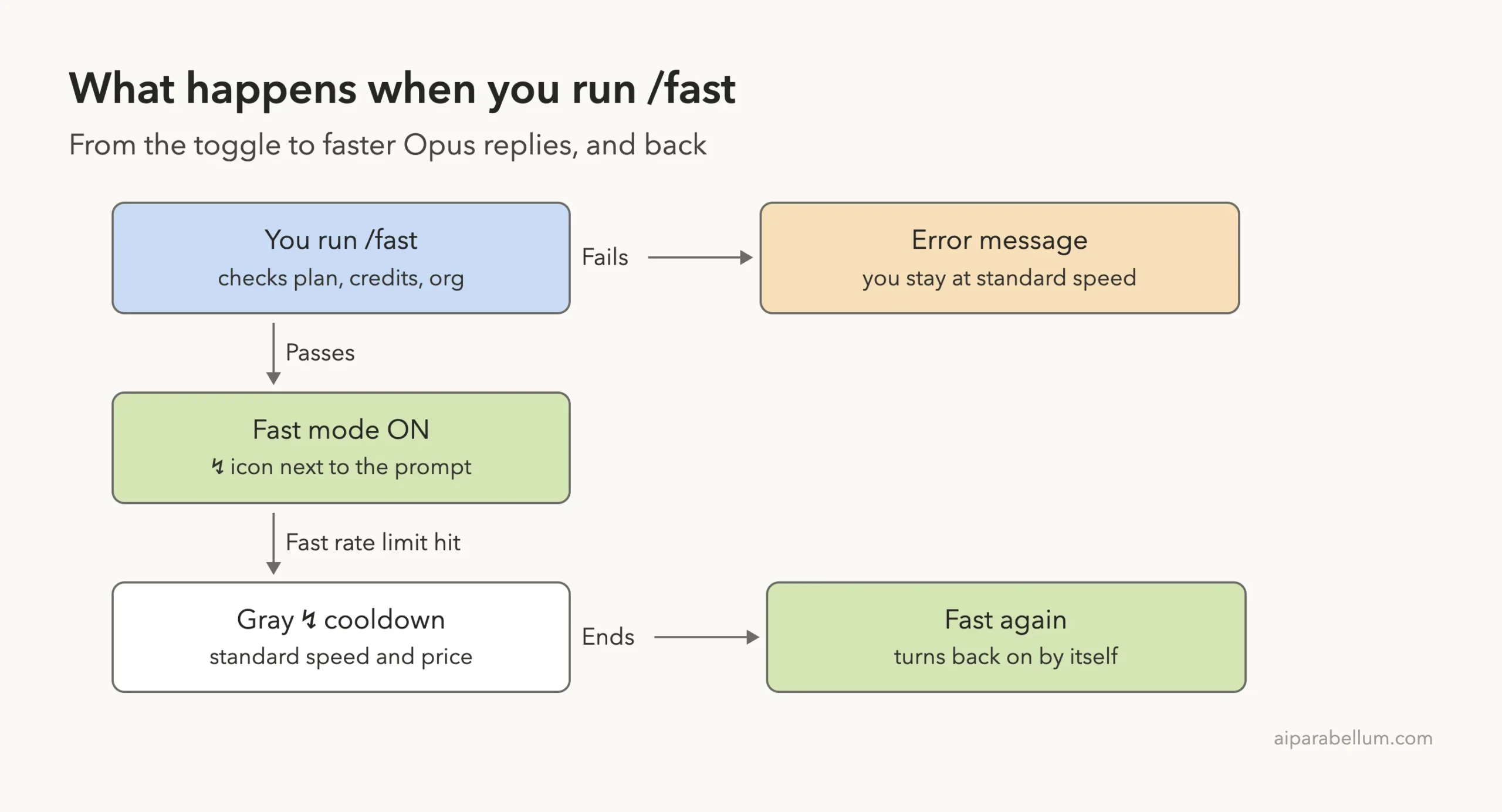
Once fast mode is on, it has its own rate limits, separate from standard Opus. All supported Opus models share one fast mode pool. When you hit that limit, here is what the docs say happens:
- Fast mode falls back to standard speed on its own.
- The ↯ icon turns gray to show a cooldown.
- You keep working at standard speed and standard pricing.
- When the cooldown ends, fast mode turns back on by itself.
Running out of usage credits works a bit differently. Claude Code shows a “Fast mode disabled · usage credits exhausted” notice and turns fast mode off for the rest of that session, with no automatic return.
What happens when you switch models
Fast mode follows your model choice. If you switch to a model that does not support it, Claude Code turns fast mode off and shows “Fast mode OFF.” Switch back to a supported Opus model, and it turns on again if your saved preference is on.
Turning fast mode off with /fast keeps you on Opus. To move to another model, use /model as we covered in Part 16.
Understand the Cost of Claude Code Fast Mode
Speed costs more per token. Here are the fast mode prices from the docs, per million tokens:
| Model | Input (per MTok) | Output (per MTok) |
|---|---|---|
| Opus 5.5 | $8 | $40 |
| Opus 5 | $10 | $50 |
| Opus 4.8 | $10 | $50 |
The price is flat across the full 1M token context window. Anthropic points to its pricing page if you want to compare these numbers with standard Opus rates.
Why you should turn it on early
The first time you turn on fast mode in a conversation, you pay the full fast mode price for the whole conversation so far, as uncached input. The longer the chat, the bigger that one-time charge.
The good news is that it only happens once per conversation. Toggling fast mode off and on again later does not repeat it. Still, the cheapest move is to turn it on at the very start of a session.
Decide on fast mode before you start, not halfway through a long chat.
Where you pay for it
- Pro and Max: fast mode comes out of your usage credits, even if you still have plan usage left. Turn credits on in Settings, then Usage, on claude.ai, or run /usage-credits.
- Team and Enterprise: your organization pays from its usage credits, and an Owner must enable fast mode first. Run /usage to see your own credits spend.
- Claude Console: your organization pays per token with the rest of its API usage. Fast mode access must be provisioned, and the free Evaluation plan cannot use it.
Fast mode is not available on Amazon Bedrock, Google Cloud’s Agent Platform, Microsoft Foundry or Claude Platform on AWS. If you need a refresher on plans, see our guide to Claude Code plans.
When Should You Use Fast Mode?
The docs give a simple rule. Use fast mode when waiting hurts more than spending, and skip it when cost matters more than speed.
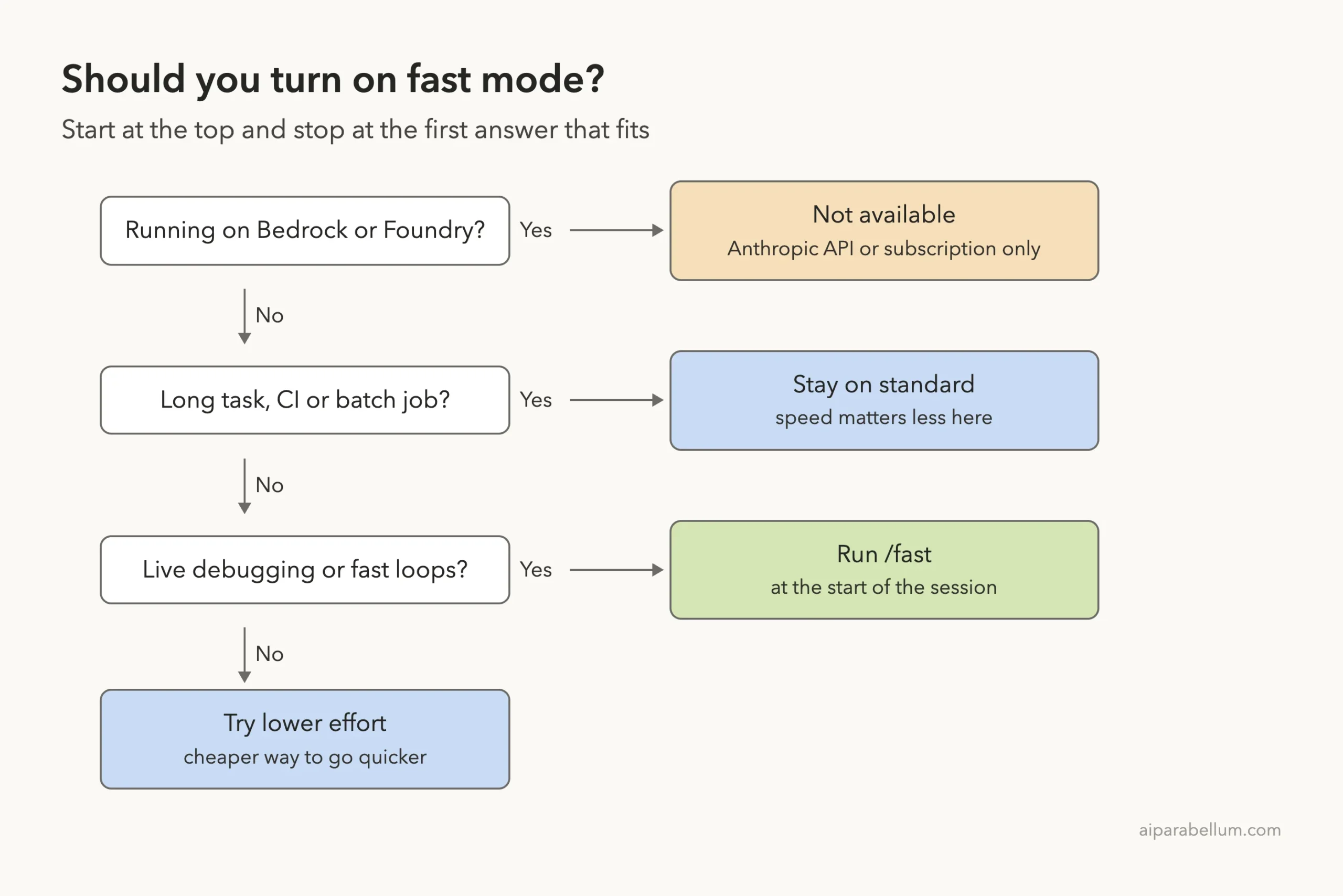
| Good fit for fast mode | Better on standard mode |
|---|---|
| Rapid iteration on code changes | Long autonomous tasks |
| Live debugging sessions | Batch processing or CI/CD pipelines |
| Time-sensitive work with a tight deadline | Cost-sensitive workloads |
Fast mode vs effort level
Effort level is the other speed knob in Claude Code. They work in different ways, and you can use both together.
| Setting | What it does |
|---|---|
| Fast mode | Same quality, lower latency, higher cost |
| Lower effort | Less thinking time, faster replies, maybe lower quality on hard tasks |
For a simple, clear task, the docs suggest fast mode plus a lower effort level for maximum speed. For a tricky bug, keep effort where it is and let fast mode handle the speed.
Real Examples From Our Test Session
Beyond the panel, we tried fast mode in two other places where people often get stuck. Both runs used only slash commands, so no prompts went to the model.
Example 1: Fast mode in print mode
Print mode, the -p flag, runs Claude Code without the interactive screen. The docs say /fast only works there when the session is launched with fast mode in its –settings value.
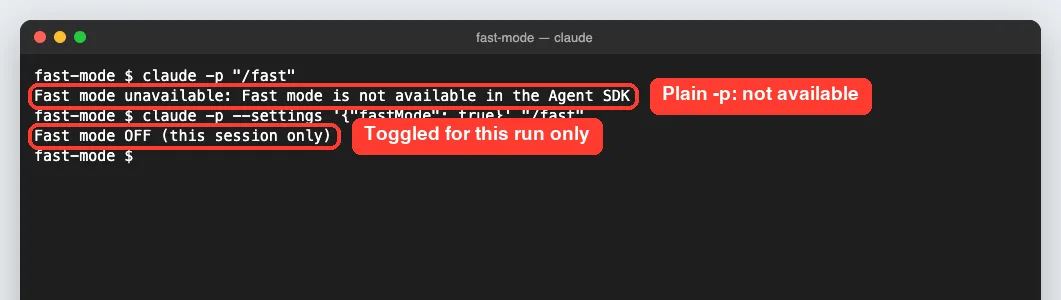
A plain claude -p “/fast” answered that fast mode is not available. With –settings ‘{“fastMode”: true}’, the session started with fast mode on, so /fast toggled it and printed “Fast mode OFF (this session only).” That matches the docs: in print mode the toggle applies to that one run and is never saved as your default.
Example 2: Blocking fast mode with a variable
Some teams want fast mode off everywhere to keep costs predictable. The docs offer an environment variable for that.
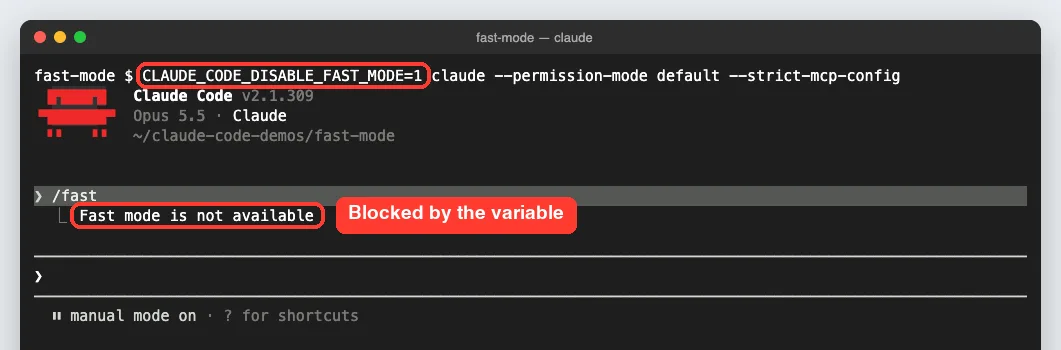
We started Claude Code with CLAUDE_CODE_DISABLE_FAST_MODE=1 in front of the command. This time /fast skipped the panel and the credits message and said fast mode is not available. You can find more switches like this in the environment variables reference.
Example 3: Reset fast mode each session
If your team runs many sessions at once, a fast mode that sticks around can get expensive. Add this to any settings file so every session starts with fast mode off:
{
  "fastModePerSessionOptIn": true
}
Users can still turn it on with /fast, but only for that session. Team and Enterprise Owners can push this setting to everyone through server-managed settings.
Try It Yourself
Make a tiny practice folder with one small script, start Claude Code there, and run /fast to see what your account shows. If fast mode turns on, look for the ↯ icon, then send this short prompt:
Read greet.py and add a docstring to the greet function. Keep the change small and show me the diff.Run /fast again when you are done to turn it off. If you get a message instead, match it to the “Common mistakes” list below. Our slash commands guide covers the other commands you will use along the way.
Common Mistakes With Fast Mode
- Expecting your plan usage to cover it. On subscription plans, fast mode is billed only from usage credits, so “Fast mode requires usage credits” means you need to turn those on.
- Turning it on deep into a long chat. The one-time charge covers the whole conversation so far, so it costs the most late in a session.
- Thinking it is a different model. It is the same Opus, so do not expect different answers, only faster ones.
- Using it on a cloud provider. Bedrock, Google Cloud’s Agent Platform, Microsoft Foundry and Claude Platform on AWS do not offer it.
- Forgetting it stays on. By default your choice carries over to new sessions, so check for the ↯ icon before a long, cheap task.
- Missing the Owner step. On Team and Enterprise, fast mode is off until an Owner enables it, and you will see “Fast mode has been disabled by your organization.”
Pro Tips for Claude Code Fast Mode
- Pair it with lower effort for quick, simple edits, and keep normal effort for tricky debugging.
- Turn it on at the start of a focused work block, then off before you hand Claude a long task.
- Run /fast with no changes whenever you are unsure, since it tells you the current state.
- Behind a company proxy or LLM gateway, the availability check may fail. The docs explain two skip variables for that case in the fast mode guide.
- Keep an eye on your context, too. Our context window tutorial shows how /compact keeps long sessions cheaper.
- Track your spend with the tips in Anthropic’s cost guide, since the credits figure on claude.ai does not split out fast mode.
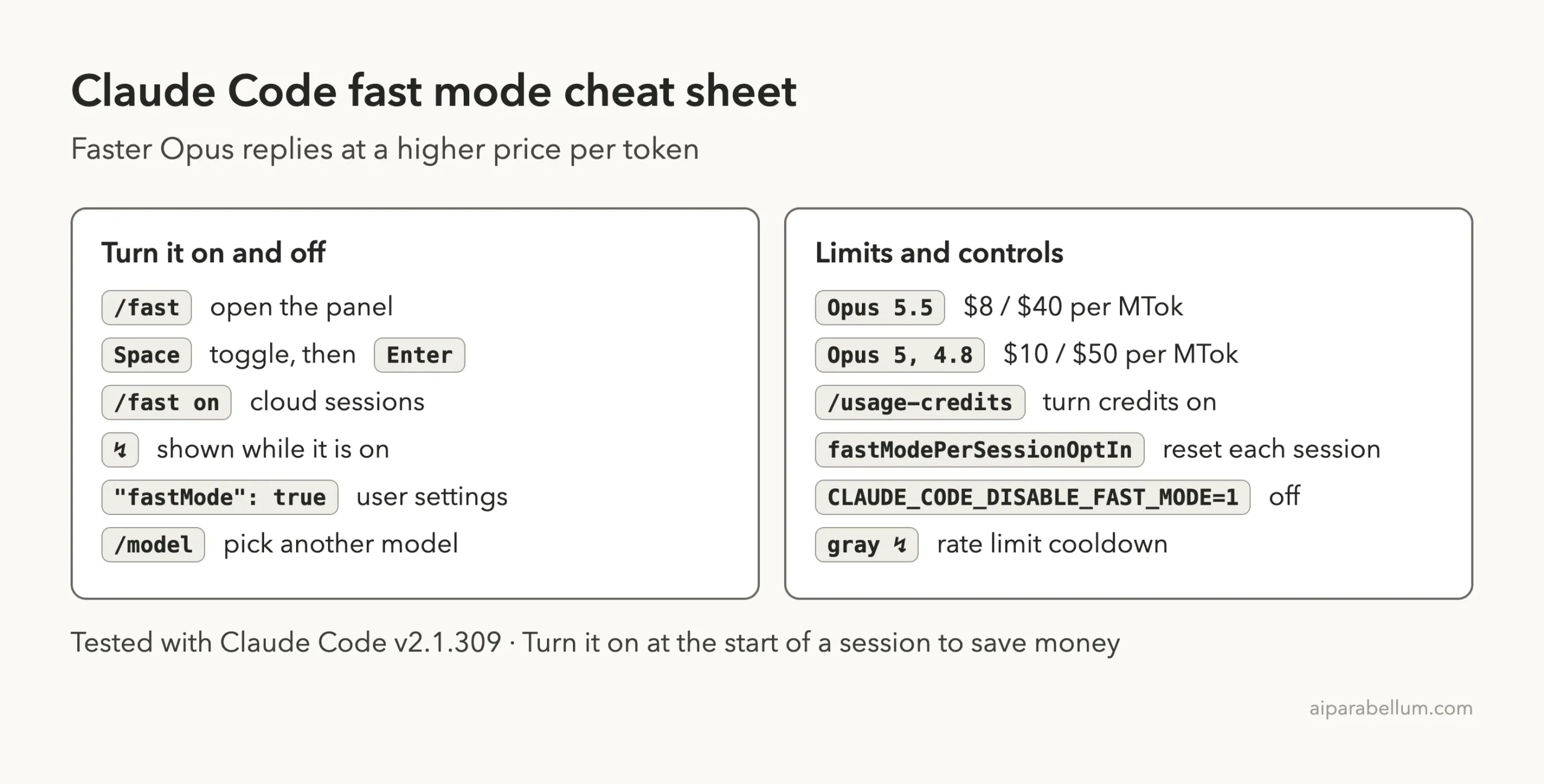
Claude Code Fast Mode Cheat Sheet
Frequently Asked Questions
Is Claude Code fast mode a different model?
No. It is Claude Opus with a different API setting that favors speed. Quality and capabilities stay the same.
Is fast mode included in my Pro or Max plan?
No. On subscription plans it is billed from usage credits only, even when you still have plan usage left. You need to turn usage credits on first.
Why does /fast say fast mode requires usage credits?
Your account does not have usage credits turned on. On Pro and Max, run /usage-credits or open Settings, then Usage, on claude.ai. On Team and Enterprise, ask a billing admin.
Can I use fast mode with Sonnet or Haiku?
No. Only Opus 5.5, Opus 5 and Opus 4.8 support it. Turning it on from another model switches you to Opus.
How do I turn fast mode off for good?
Run /fast and toggle it off, or set “fastMode”: false in your settings. To block it completely, set CLAUDE_CODE_DISABLE_FAST_MODE=1.
Conclusion
Claude Code fast mode gives you the same Opus answers up to 2.5 times faster, in exchange for a higher price per token billed from usage credits or your API account. Turn it on with /fast at the start of a session when you are iterating or debugging live, watch for the ↯ icon, and turn it off before long or cost-sensitive jobs. If /fast shows a message instead, it is telling you exactly what is missing, whether that is usage credits, an Owner’s approval or a supported model. For more on how Anthropic’s assistant fits your workflow, see our Claude AI overview.
Previous in the series: Part 16, How to Choose a Model in Claude Code
Next in the series: Part 18: How to Fix a Bug With Claude Code.