You can fix bugs with Claude Code by doing what you would do with a sharp teammate: show it the error, let it find the cause, and make it prove the fix works. The trick is not a magic prompt. It is a simple loop of reproduce, diagnose, fix and verify that keeps you in control the whole time.
In this guide we break a tiny shopping cart project on purpose and then let Claude Code fix it for real. You will see every step on screen, from the first failing test to a new regression test that stops the bug from coming back.
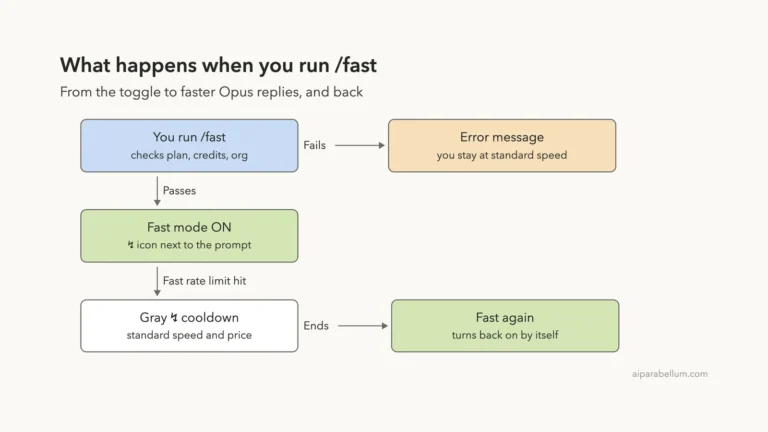
This is Part 18 of 53 in our Claude Code tutorials series. In the previous part we covered fast mode, which is handy when you want quicker replies during a live debugging session like this one.
Tested with Claude Code v2.1.309 on October 24, 2026, on macOS, using the Sonnet 5.5 model in default permission mode. Every screenshot below is from that real session, and we kept it to four short prompts.
Quick Summary: Fixing Bugs With Claude Code
| Step | What you type or do | What Claude Code does |
|---|---|---|
| 1. Share the error | The symptom plus the command that shows it | Runs the command and reads the output |
| 2. Diagnose | “Find the root cause, don’t edit yet” | Reads the code and explains the cause |
| 3. Pick a fix | “Suggest a few ways to fix it” | Lists options and trade-offs |
| 4. Apply and verify | “Apply the fix, then run the tests” | Shows a diff for approval, then reruns the tests |
| 5. Lock it in | “Add a regression test” | Writes a test that fails on the old code |
Why a Bug Fix Workflow Matters in Claude Code
Claude Code is an agent, not a chat box. It can run your tests, read files and edit code on its own, which we explained in the agent loop part of this series. That power is great for bugs, but it also means a vague request can send it off fixing the wrong thing.
Anthropic’s official common workflows guide gives a three-step recipe for bugs: share the error, ask for fix ideas, then apply one. Its best practices page adds the most important rule of all: give Claude a check it can run, like a test suite or a build.
A fix you cannot verify is just a guess. Give Claude Code a test it can run, and the guessing stops.
The docs explain why. Claude stops when the work looks done, and without a check, “looks done” is the only signal it has. With a passing or failing test, it can run the check, read the result and keep going until the check passes.
Our Demo: A Shopping Cart With a Hidden Bug
We built a throwaway Node.js project called tiny-shop with one function and three tests. The function, cartTotal, adds up price times quantity for each item and applies an optional coupon. We slipped in a classic bug: the loop starts at 1 instead of 0, so the first item is never counted.
Here is what running the tests looked like before Claude Code touched anything.
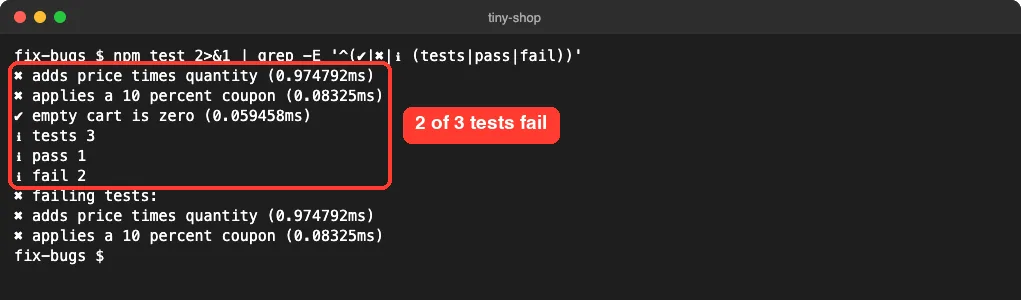
Notice that the empty cart test passes. That is a good reminder that one green test does not mean the code works.
Step 1: Share the Error and How to Reproduce It
The docs suggest you tell Claude the command that reproduces the problem, any steps to trigger it, and whether the error is steady or random. A test command is perfect, because Claude can run it itself and see the full output.
We started Claude Code in the project folder and sent this first prompt. The last sentence matters: we asked it not to edit anything yet, so we could check its thinking first.
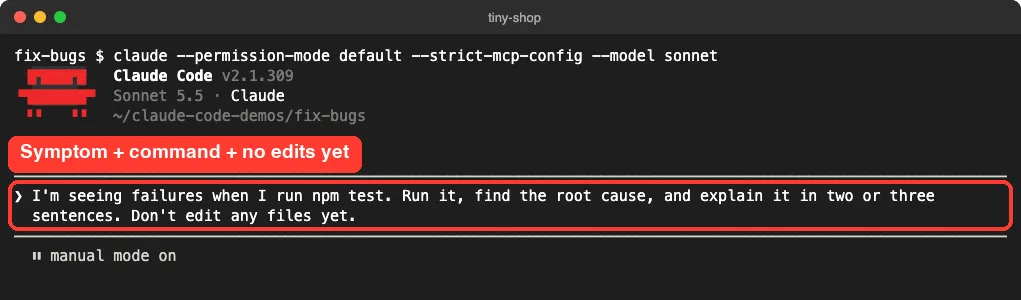
Approve the Test Command
In default mode, Claude Code asks before running a shell command. It wanted to run npm test, so a permission prompt popped up with four choices.
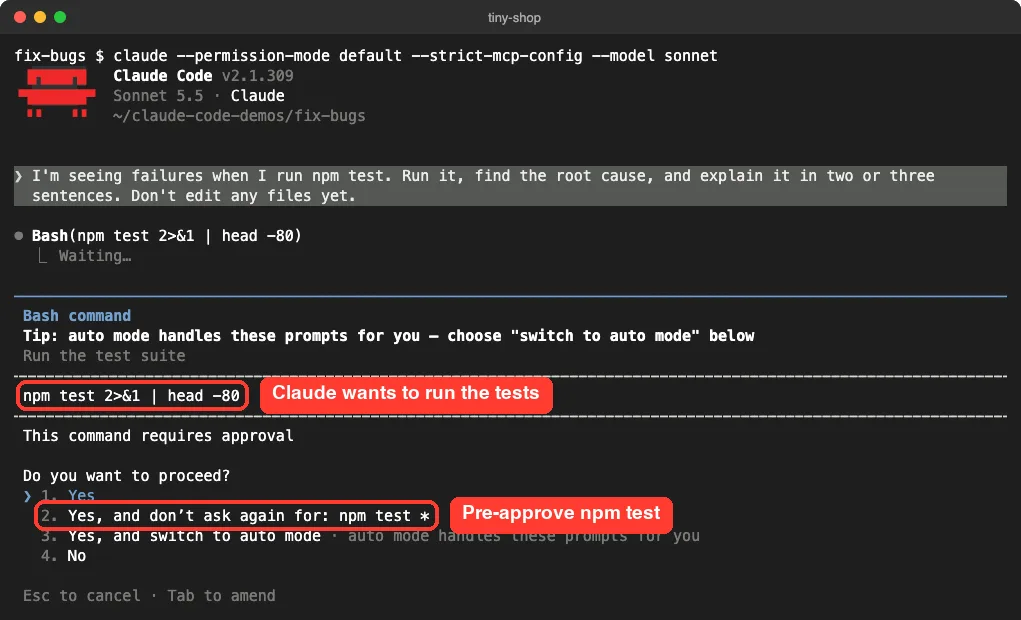
We picked option 2, “Yes, and don’t ask again for: npm test *”. That saves you from approving the same test command over and over during a fix. You can learn more about these rules in our guide to permission rules.
Step 2: Let Claude Code Find the Root Cause
Claude ran the tests, listed the project files, and read the code. Then it came back with a short, clear diagnosis.
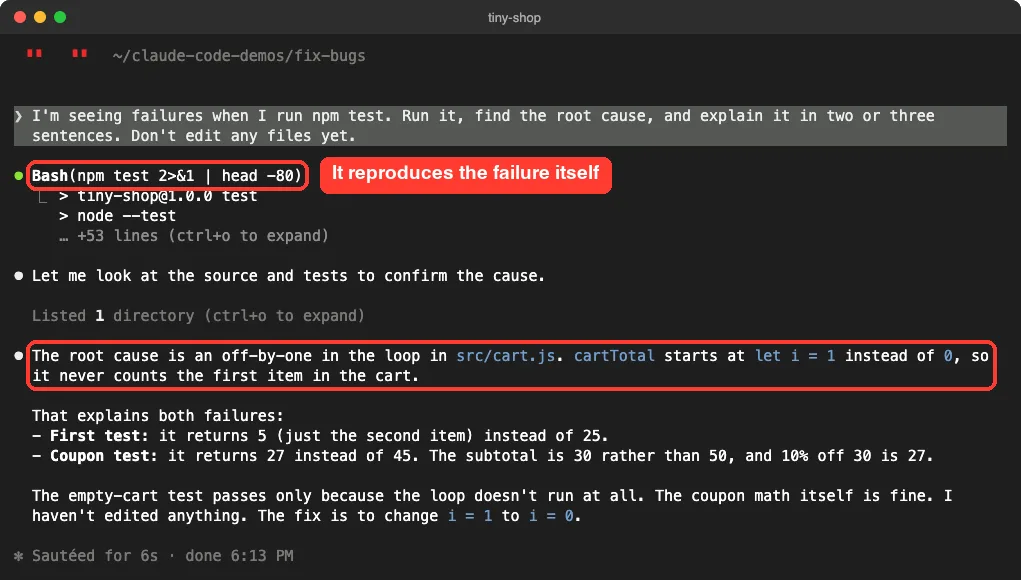
The explanation did more than name the bug. It showed the math for both failures, explained why the empty cart test still passed, and confirmed it had not edited anything. That is exactly the kind of evidence you want before letting any tool change code.
Why “Don’t Edit Yet” Is a Smart Move
Asking for a diagnosis first is a light version of plan mode. If the cause sounds wrong, you can correct it before a single line changes. For bigger bugs, you can switch to full plan mode with Shift+Tab, where Claude reads and proposes but makes no edits until you approve.
Step 3: Ask for a Few Ways to Fix It
The official recipe’s second step is to ask for fix recommendations. This is where you stay the decision maker instead of just accepting the first idea.
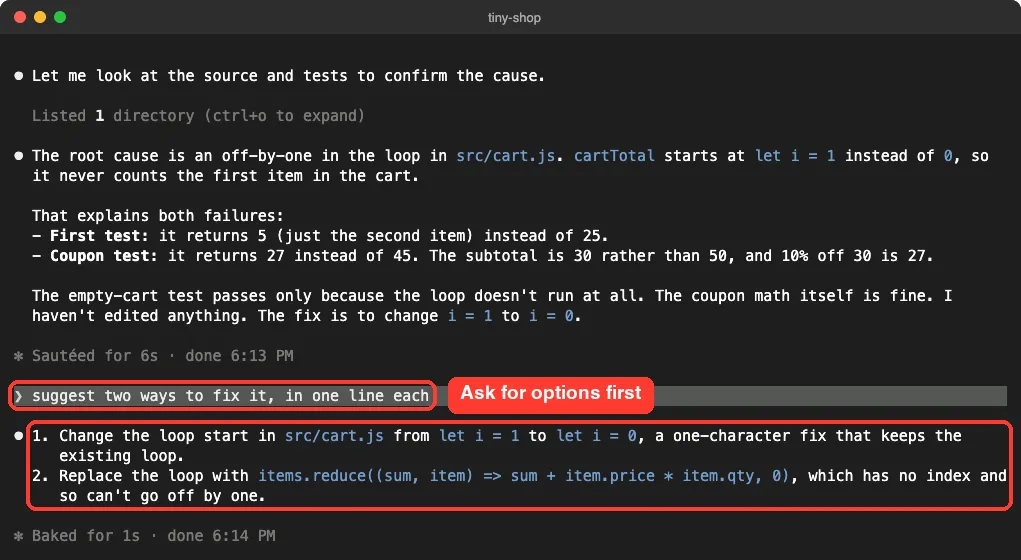
Option 1 is the smallest possible change. Option 2 rewrites the loop so this type of bug cannot happen again. In a real project you would pick based on your team’s style, but for a small hotfix the smaller diff is easier to review.
Step 4: Apply the Fix and Verify It With Tests
Next we asked Claude to apply the first fix and run the tests again. Putting both in one prompt is what the best practices page recommends: do the work and run the check in the same message.
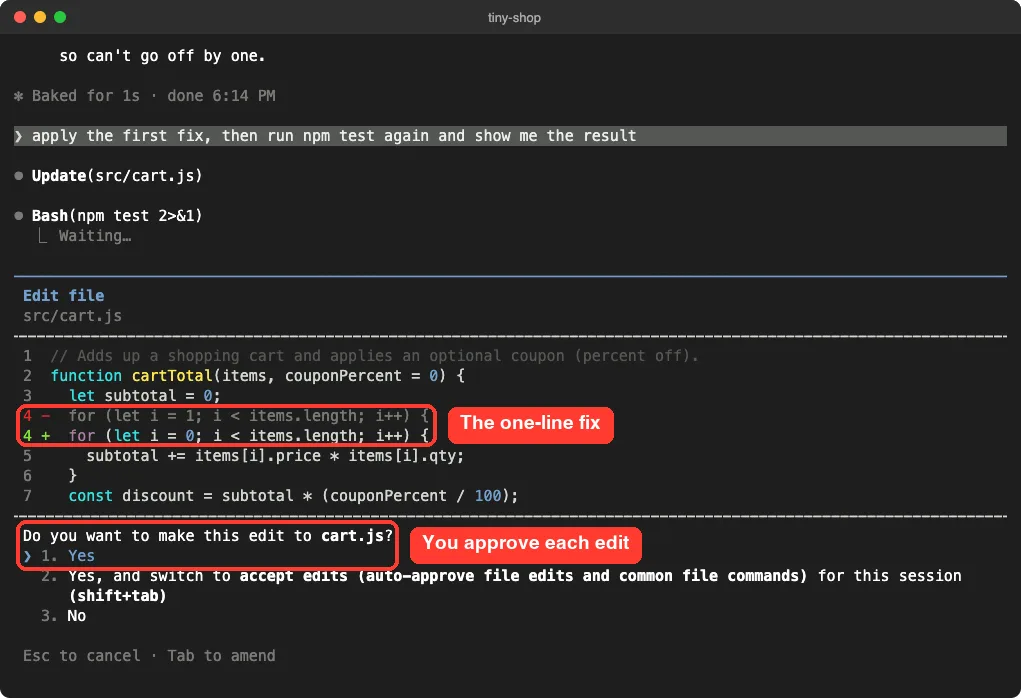
This edit prompt is your safety net. You see the red line being removed and the green line being added, and nothing touches disk until you say yes. Option 2 would switch to accept edits mode, which we covered in our permission modes guide.
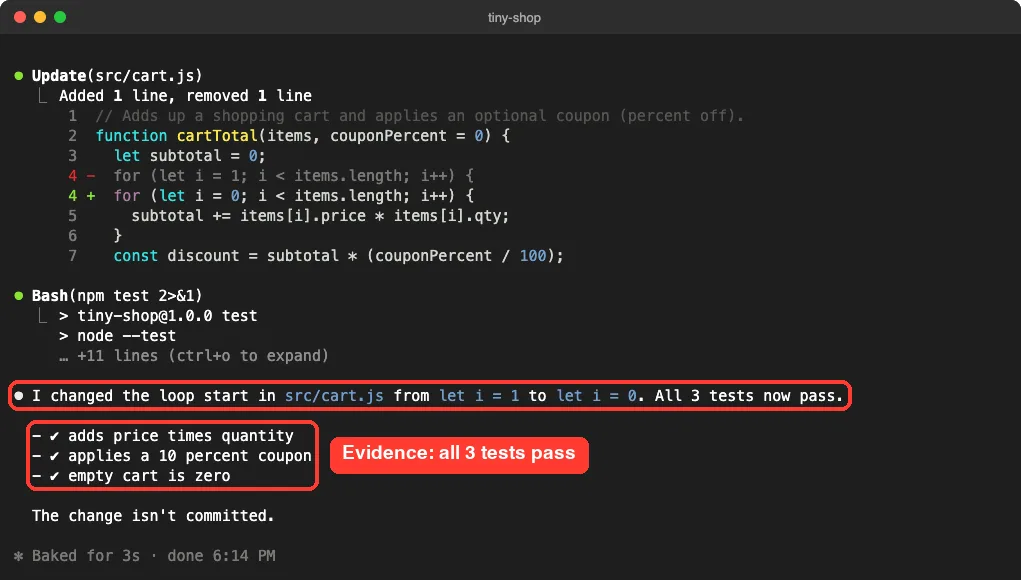
Look at what Claude showed us here. It did not just say “fixed.” It listed every test that now passes and noted that nothing was committed, so you know the exact state of your repo.
Step 5: Add a Regression Test So the Bug Stays Fixed
A bug fix without a test can quietly break again later. So our last prompt asked for one regression test with a single-item cart, which is the case the old loop would get wrong.
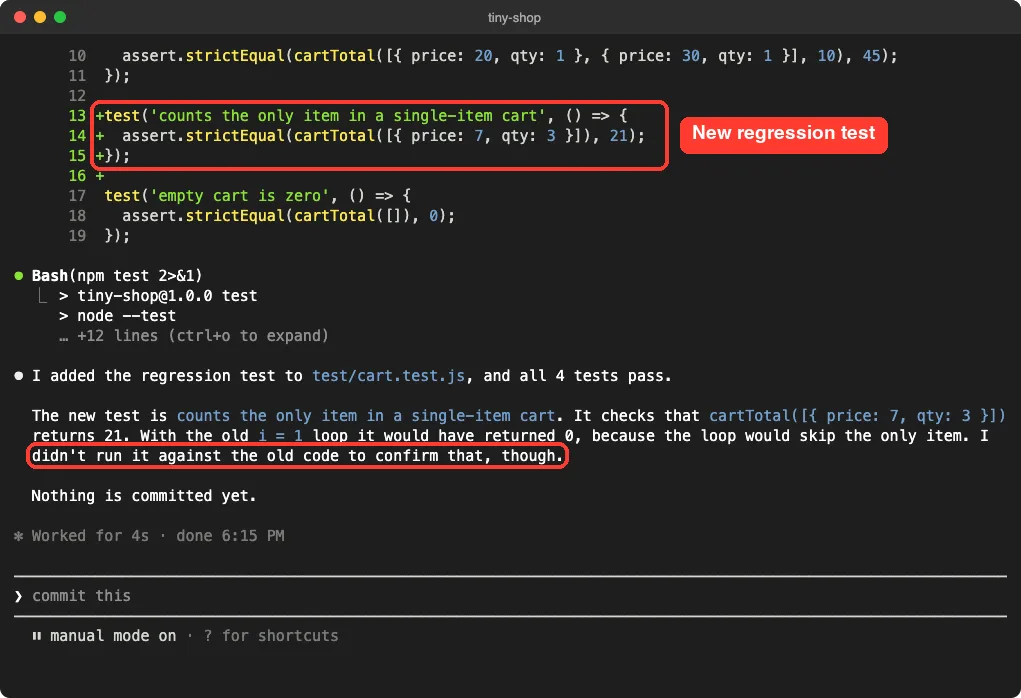
We liked one detail a lot. Claude said the test would fail on the old code, but also admitted it had not actually run it against the old code. That honesty tells you exactly what is left to verify.
Check the Regression Test Yourself
So we checked it ourselves in a normal shell, with no AI involved. We stashed the fixed file to bring back the buggy loop, ran the tests, then restored the fix.
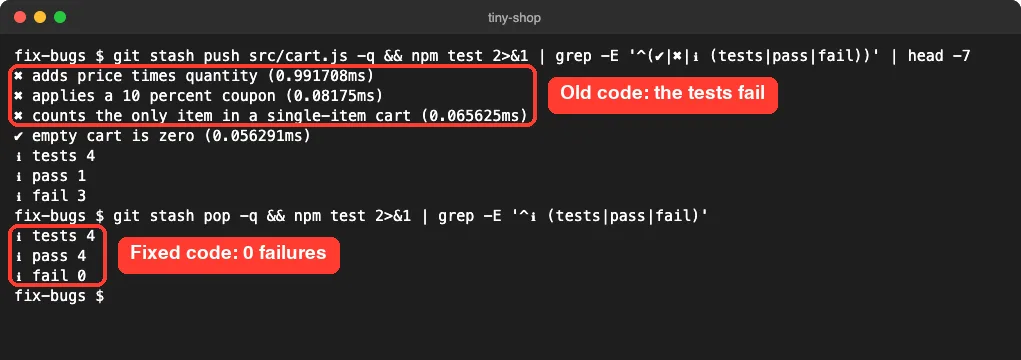
That is the full proof. The new test catches the bug, and the fix makes every test pass.
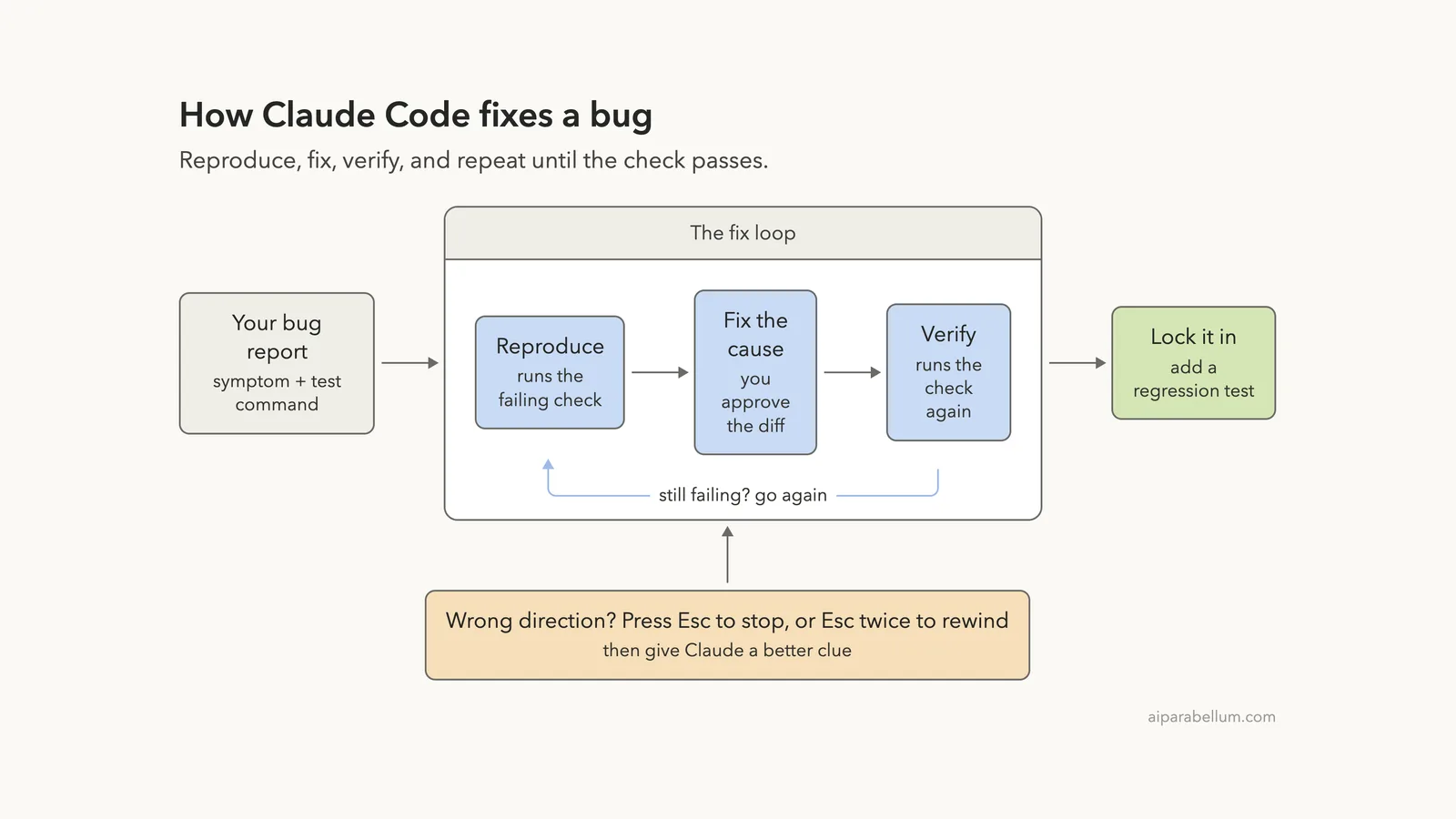
The Bug Fix Loop at a Glance
Here is the whole process as one picture. The middle box is the part Claude Code repeats on its own when you give it a test to run.
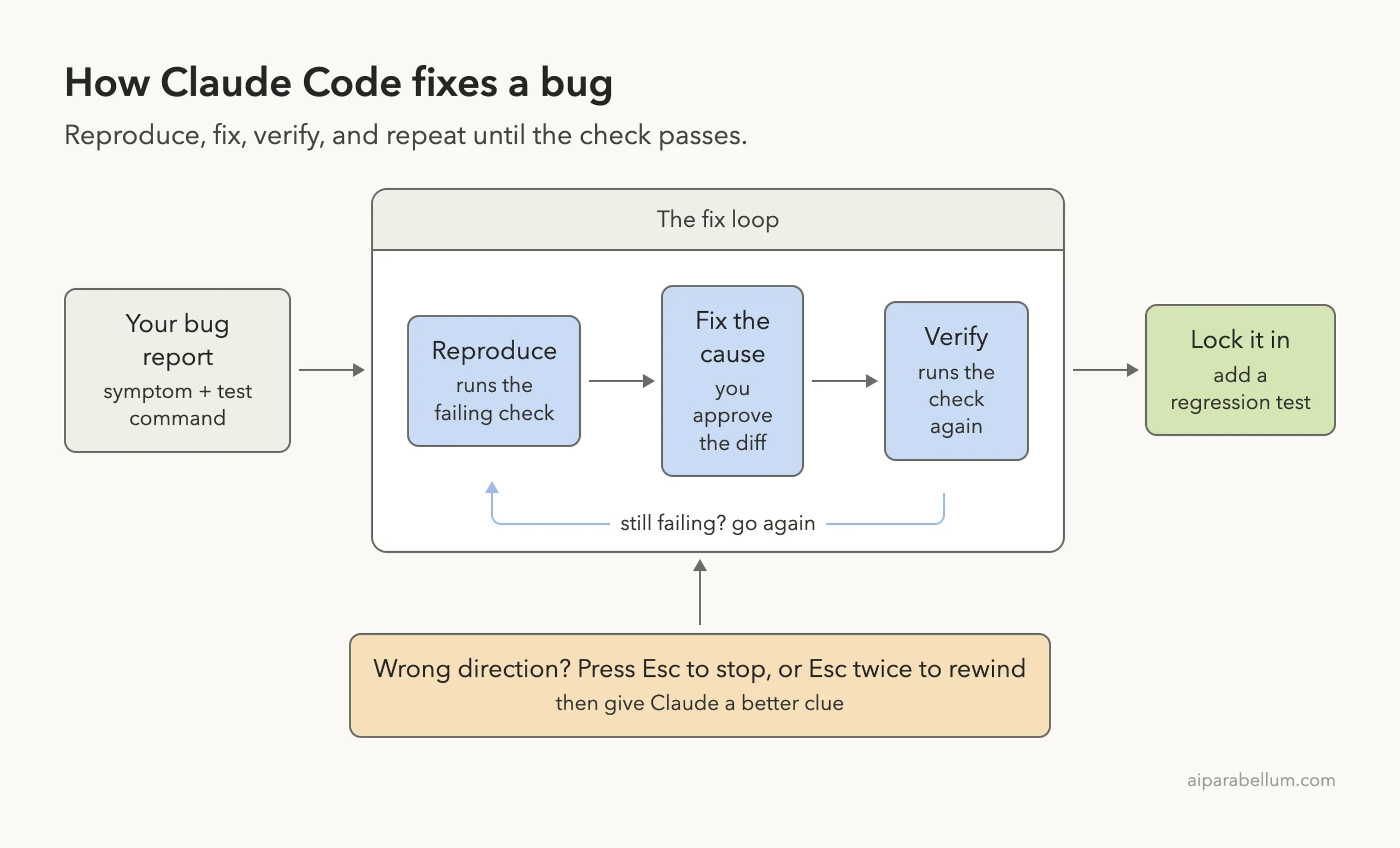
If Claude heads the wrong way, press Esc to stop it mid-action. Press Esc twice, or run /rewind, to roll back both the chat and the code, as shown in our checkpoints and rewind tutorial and the official checkpointing docs.
How to Write a Good Bug Prompt for Claude Code
Most bad fixes come from thin prompts. The best practices page compares “fix the login bug” with a prompt that names the symptom, the likely location and what “fixed” looks like. The second one wins every time.
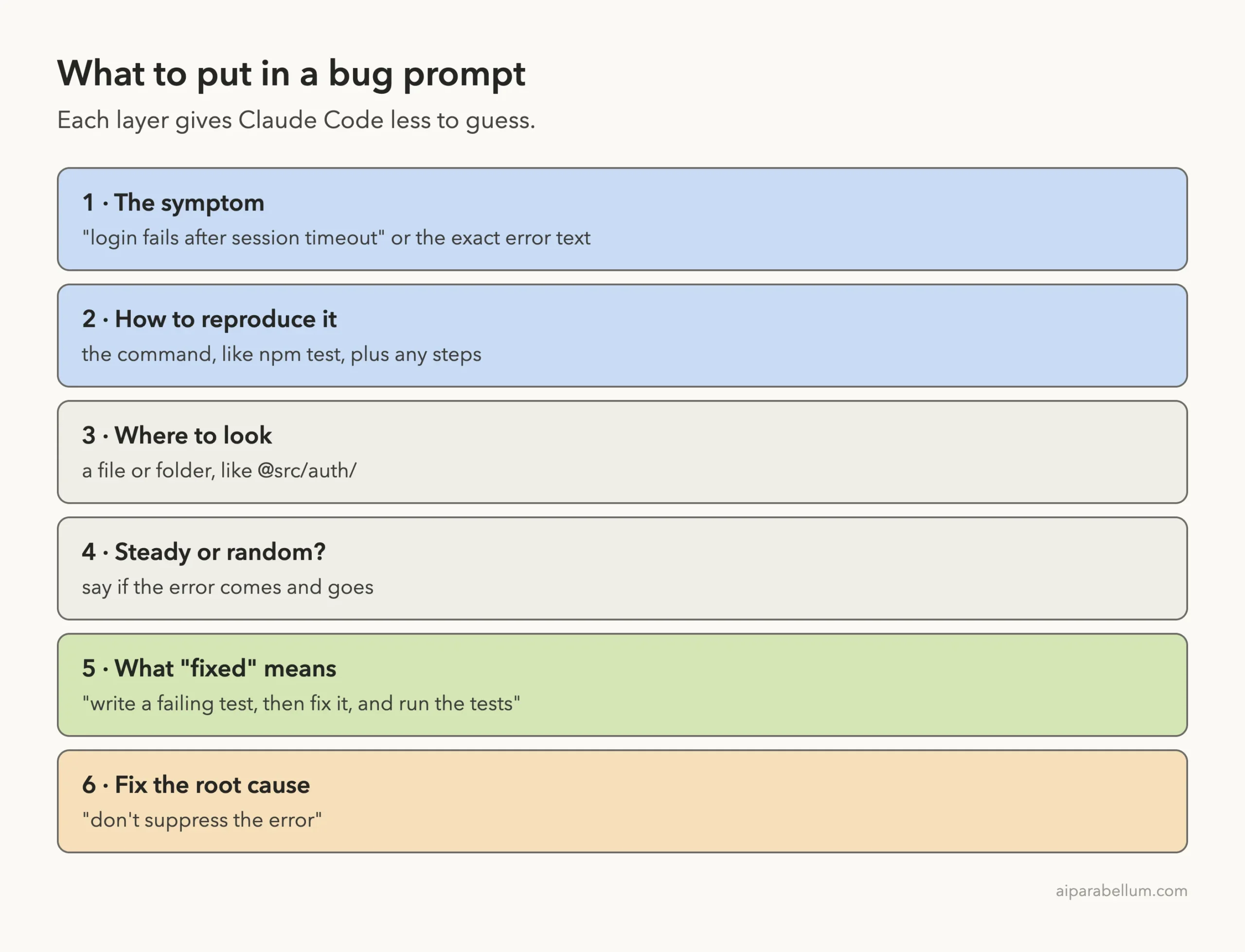
Real Prompt Examples
Here are a few patterns based on the official docs, adapted for everyday bugs.
- A failing test: “npm test fails in the cart tests. Find the root cause and explain it before you edit anything.”
- A build error: “The build fails with this error: [paste error]. Fix it and verify the build succeeds. Address the root cause, don’t suppress the error.”
- A user report: “Users say login fails after session timeout. Check the auth flow in @src/auth/, write a failing test that reproduces it, then fix it.”
- A crash log: run
cat error.log | claude -p "explain this error"to pipe the log straight in. - A visual bug: paste a screenshot with Ctrl+V (Alt+V on Windows and WSL) and describe what looks wrong.
Bug Prompt Before and After
| Weak prompt | Stronger prompt | Why it works |
|---|---|---|
| “fix the bug” | “npm test fails in cart.test.js, find the cause” | Gives a command Claude can run |
| “the build is broken” | “fix it and verify the build succeeds” | Defines what done means |
| “make the error go away” | “address the root cause, don’t suppress it” | Blocks quick hacks like ignore comments |
| “it crashes sometimes” | “it crashes about 1 in 10 runs on login” | Says the bug is intermittent |
Try It Yourself
Create a small folder with one buggy function and a test, just like our tiny-shop demo. Start Claude Code in that folder, never in an important project for your first try, and paste this prompt.
I'm seeing failures when I run npm test. Run it, find the root cause,
and explain it in two or three sentences. Don't edit any files yet.
Then suggest two ways to fix it, in one line each.
Pick one option, then ask Claude to apply it, rerun the tests and add a regression test. Finally, check the new test yourself by undoing the fix once, the way we did with git stash.
Common Mistakes When Fixing Bugs With Claude Code
- Saying only “fix it.” Without a symptom and a command, Claude has to guess what broken means.
- Skipping the check. If you don’t ask Claude to run the tests, you become the test runner.
- Accepting “it should work now.” Ask for evidence like test output, the command it ran, or a screenshot.
- Correcting over and over. The docs say that after two failed corrections, run /clear and write a better first prompt using what you learned.
- Letting it suppress the error. Watch for diffs that add ignore comments or empty catch blocks instead of real fixes.
- Mixing tasks in one session. Fixing a bug, then asking something unrelated, fills the context window with noise.
Pro Tips for Faster, Safer Fixes
- Pre-approve your test command with “don’t ask again” so the fix loop runs without constant prompts.
- Use @ to point at the suspect file, like @src/cart.js, so Claude reads it right away.
- Ask for a failing test first on tricky bugs. A test that fails before the fix and passes after is the strongest proof you can get.
- For a large codebase, say “use a subagent to investigate” so the file reading happens in its own context. The subagents docs explain how.
- Run the bundled /code-review skill after the fix. The docs say it reviews your current diff for bugs in a fresh subagent.
- Name your session, like “cart-total-bug,” so you can pick it up later. Our sessions guide shows how.
Claude Code Bug Fixing Cheat Sheet
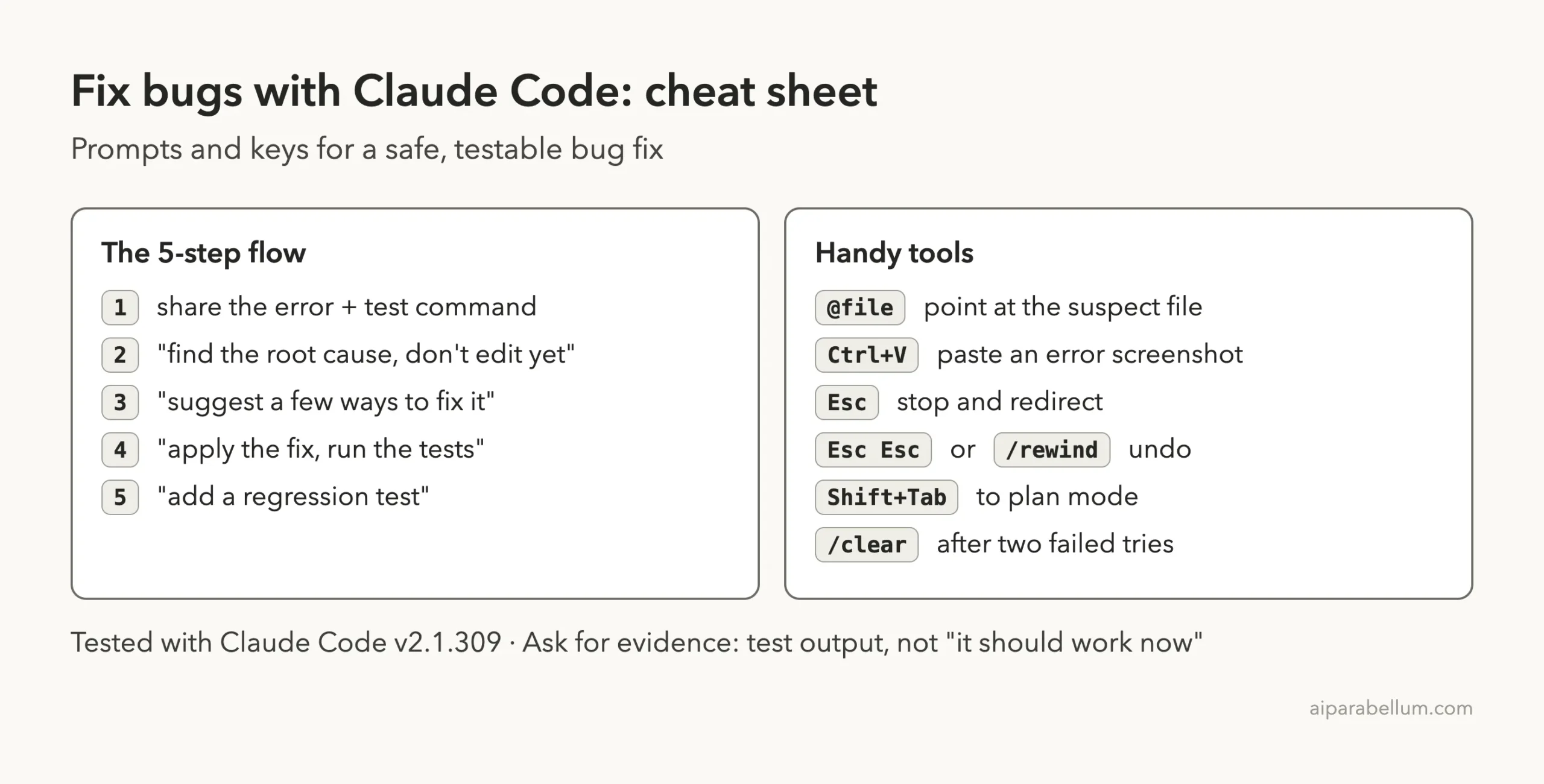
Frequently Asked Questions
Can Claude Code fix bugs without tests?
Yes, but it is riskier. Without a check it can run, Claude can only judge that the code looks right. If your project has no tests, ask it to write a small failing test first, or give it a script or build command that shows the error.
Will Claude Code change my files without asking?
Not in default mode. As our screenshots show, it asks before running commands and shows a diff before each edit. Modes like accept edits or auto mode reduce those prompts, so pick them only when you trust the task.
What if Claude Code’s fix is wrong?
Press Esc to stop it, or Esc twice to rewind the code and the chat to an earlier point. Then add the clue it was missing. If two corrections still fail, run /clear and start over with a sharper prompt.
Can I paste an error screenshot into Claude Code?
Yes. The docs say you can drag and drop an image, paste it with Ctrl+V (Alt+V on Windows and WSL), or give the path to an image file. Screenshots help most for UI bugs.
Which model is best for debugging?
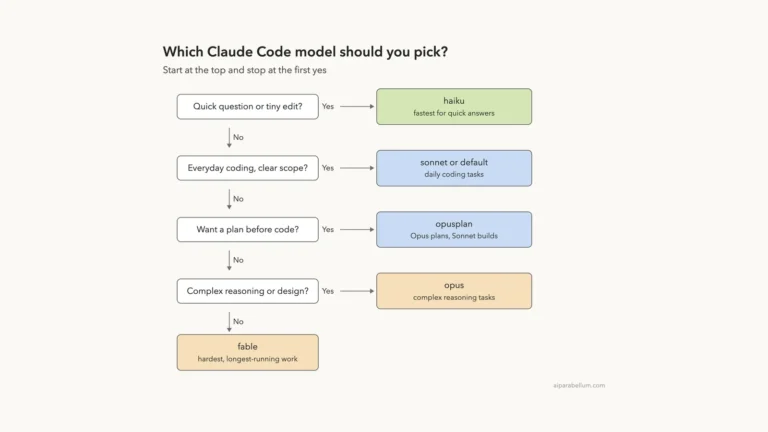
Our small bug was easy for Sonnet 5.5. For deep, multi-file bugs you may want a stronger model, which we compare in our model choice guide.
Conclusion
Fixing bugs with Claude Code works best as a calm loop, not a single magic prompt: share the symptom and a command that shows it, ask for the root cause before any edits, choose a fix, make Claude rerun the tests, and finish with a regression test you can check yourself. In our real session that took four short prompts, one approved command and two approved diffs, and every step left clear evidence on screen. Use the same pattern on your own projects, and if you are new to Claude in general, our Claude AI overview is a good next read.
Previous in the series: Part 17, Claude Code Fast Mode Explained
Next in the series: Part 19: Add a Feature and Write Tests With Claude Code.