Claude Code MCP scope decides where a server is saved and which projects can use it. That is why a server you added yesterday can be missing today: by default it only belongs to the folder you added it in. In this guide we add the same test server at all three scopes, look at the files each one writes, and check which copy wins when the names clash.
Browse all our Claude Code tutorials for more guides like this one.
Tested with Claude Code v2.1.322 on November 13, 2026, on macOS. Every command ran against a small local test server and a throwaway home folder, so the paths in the screenshots point there. On your machine the same file is ~/.claude.json.
Claude Code MCP Scope: The Quick Answer
To add an MCP server globally, so it loads in every project, add --scope user to the command.
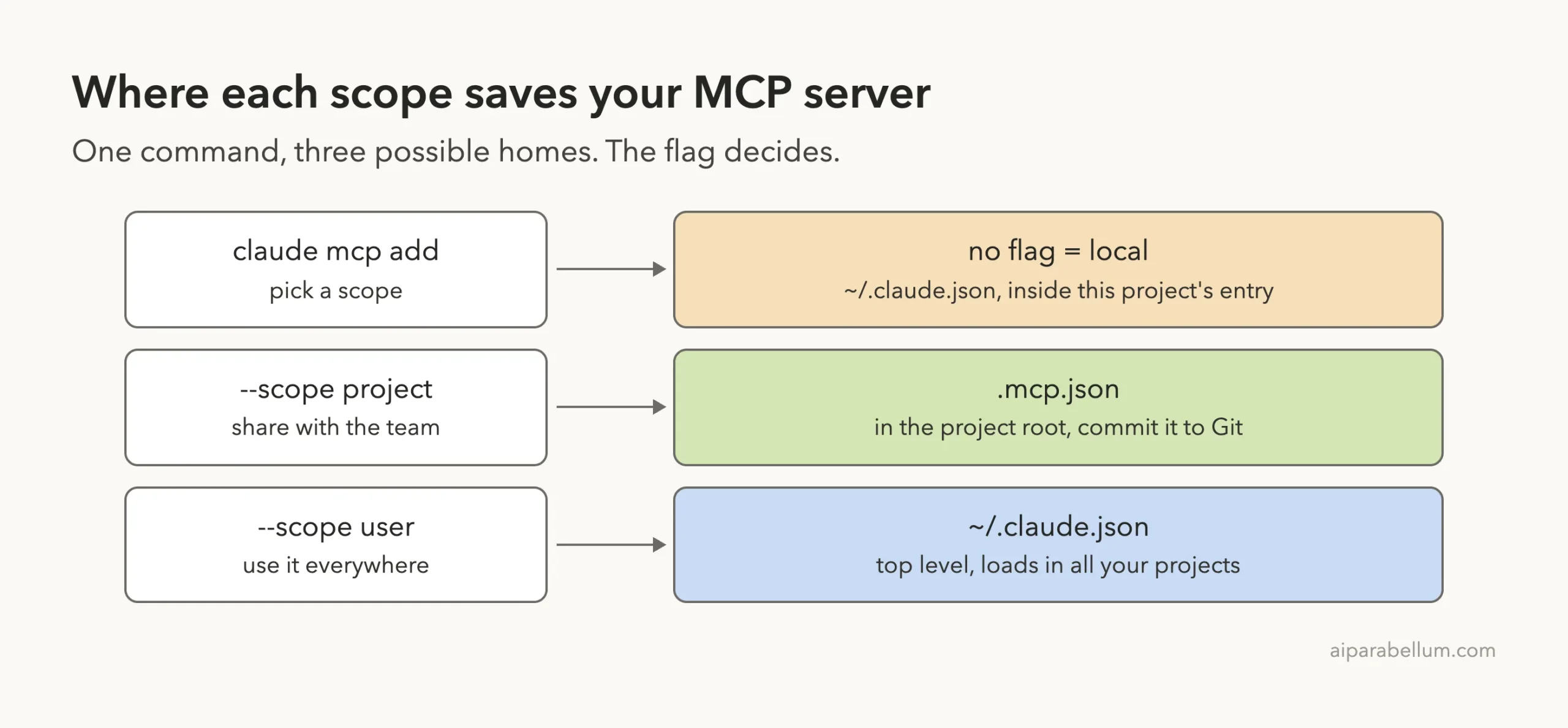
claude mcp add --scope user my-notes -- notes-serverLeave the flag out and you get local scope, which only works in the current project. Use --scope project when your team should get the server too. The short form -s works the same way as --scope.
| Scope | Flag | Loads in | Shared with team | Saved in |
|---|---|---|---|---|
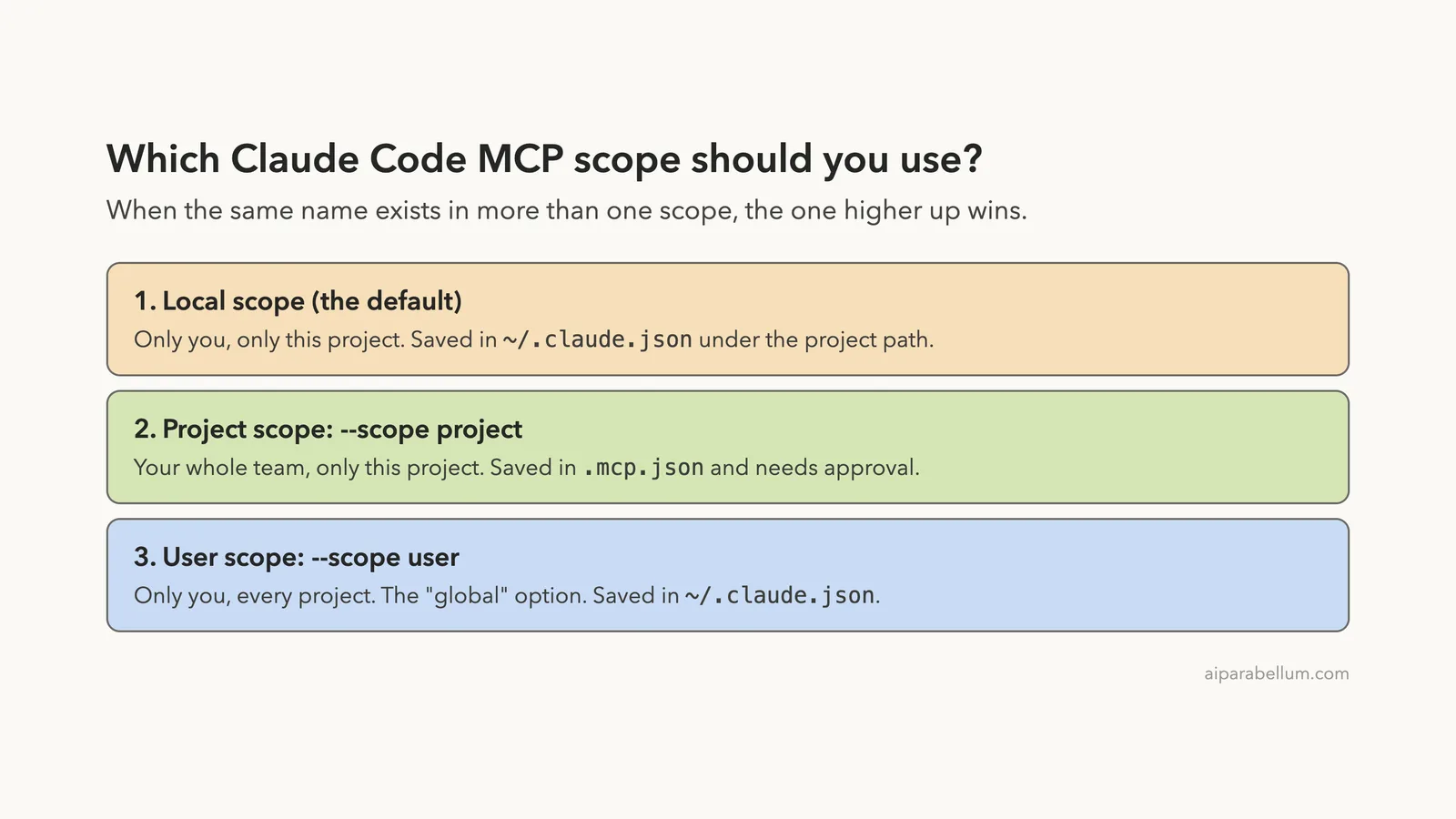
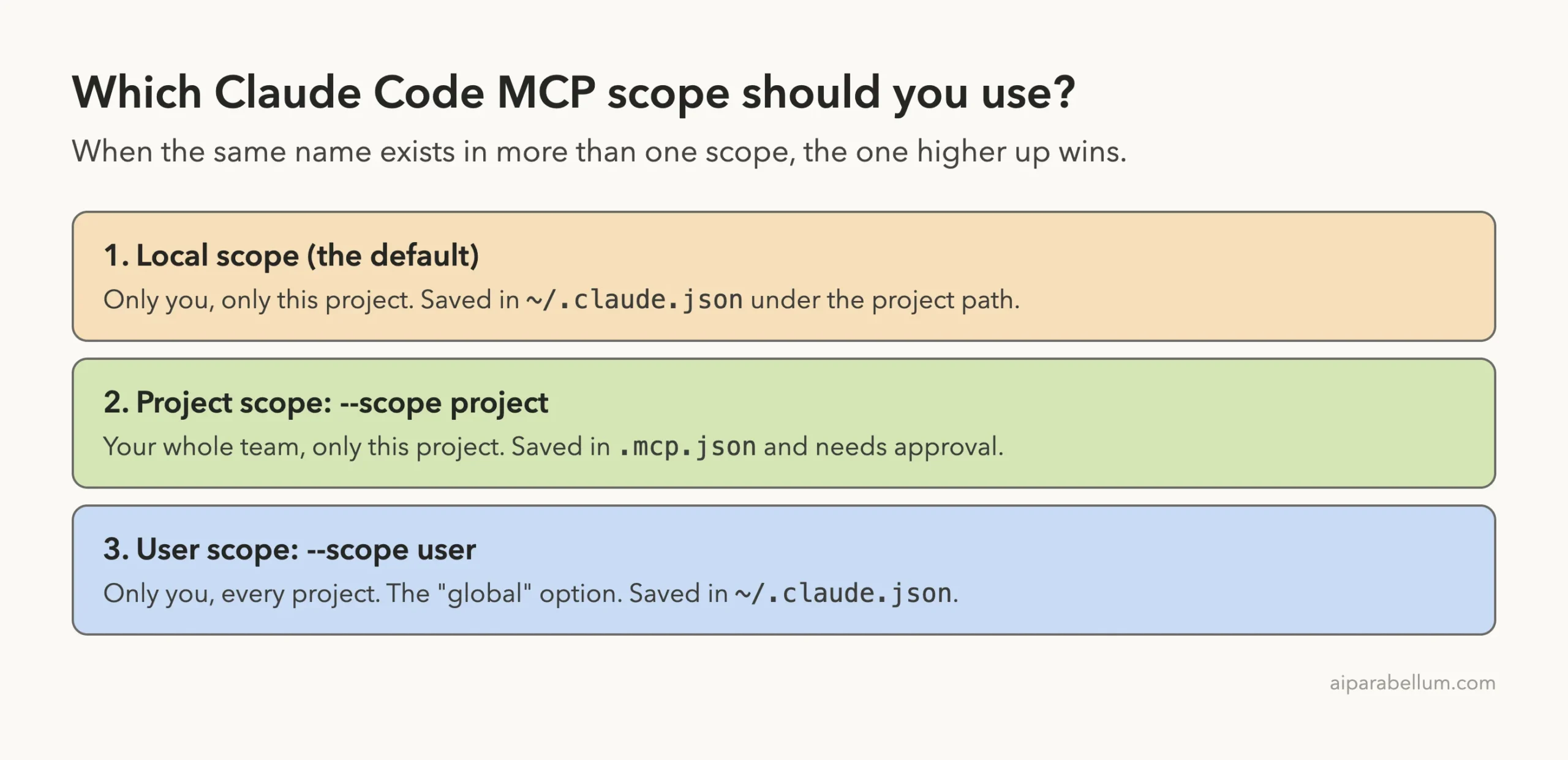
| Local | None (default) or --scope local | Current project only | No | ~/.claude.json, under the project path |
| Project | --scope project | Current project only | Yes, through Git | .mcp.json in the project root |
| User | --scope user | All your projects | No | ~/.claude.json, at the top level |
What an MCP Scope Is and Why It Exists
MCP servers are small programs that give Claude extra tools, such as a database or a browser. If the idea is new to you, start with our MCP servers guide. A scope is simply the place where Claude Code writes down that a server exists.
The place matters because it answers two questions. Which folders can use this server? And does anyone else get it?
A database server with your password in it should stay private. A docs server the whole team needs should travel with the code. A personal helper you use daily should follow you everywhere, and the official MCP docs give each of those cases its own scope.
Scope is not about what a server can do. It is about where it is saved and who can see it.
Our Test Setup
We made two empty project folders, shop-app and blog-site. We also wrote a tiny test server called notes-server that takes one word and reports it back, so we can always tell which copy is running.
The server has no real job. That keeps the test about scope and nothing else, and it means you can follow along with any server you already use.
Step 1: Add a Server With Local Scope (the Default)
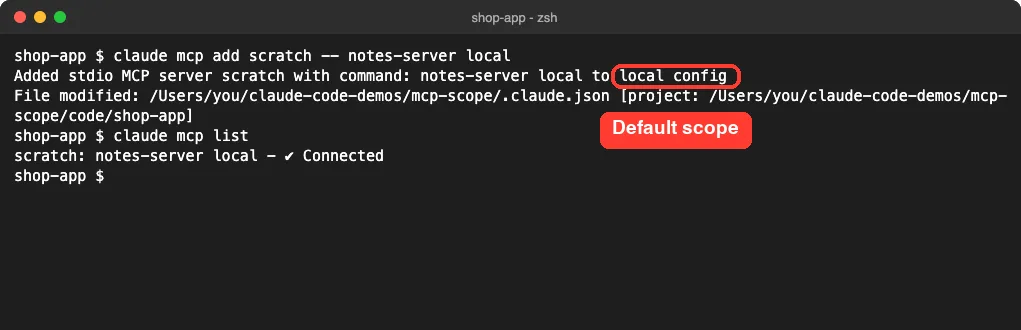
Inside shop-app, we added the server with no scope flag at all.
claude mcp add scratch -- notes-server localClaude Code answered with to local config. It also printed the file it changed and the project the entry belongs to, then claude mcp list showed the server as connected.
Then we moved to the other folder and listed the servers again. Nothing was there.
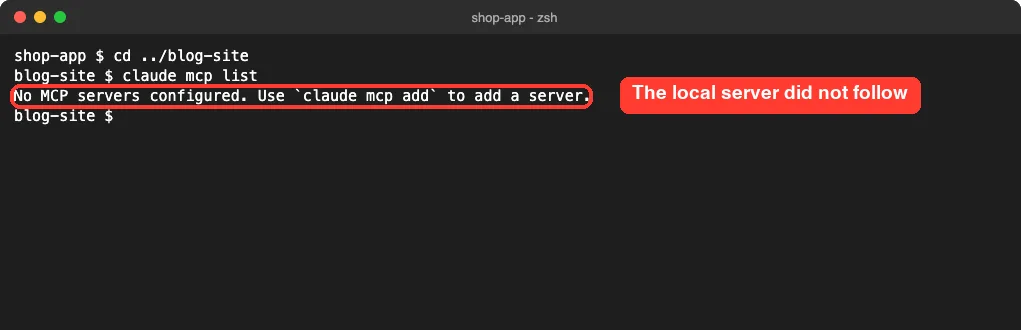
This is the most common surprise with MCP in Claude Code. The server is not broken or deleted. It was saved for one folder only, and you are standing in a different one.
Step 2: Add an MCP Server Globally With User Scope
Still in blog-site, we added a second server with --scope user.
claude mcp add --scope user my-notes -- notes-server userThis time the answer said to user config, and no project path was printed next to the file. We listed the servers in blog-site, moved back to shop-app and listed them again.
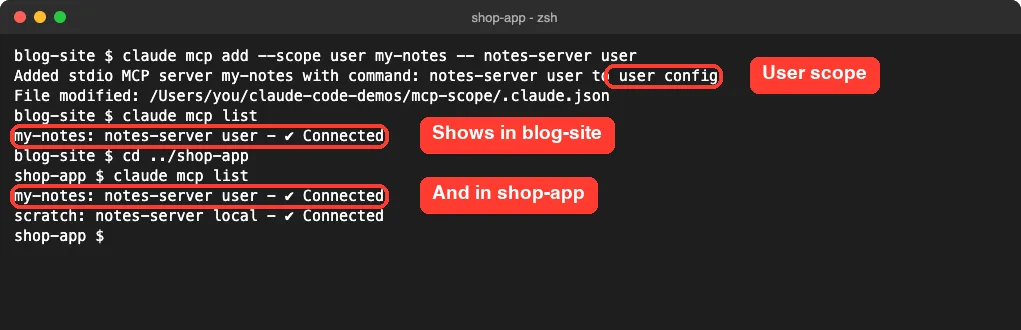
The user server appeared in both folders. In shop-app it sits next to the local scratch server, so the two scopes add up in the list.
User scope is what most people mean by global. It is still private to your account on your computer, so teammates do not get it.
Step 3: Share a Server With Project Scope
Back in shop-app, we added a third server with --scope project.
claude mcp add --scope project team-docs -- notes-server projectClaude Code created a new file named .mcp.json in the project folder. It is plain JSON with one mcpServers block, and it is meant to be committed to Git with the rest of the code.
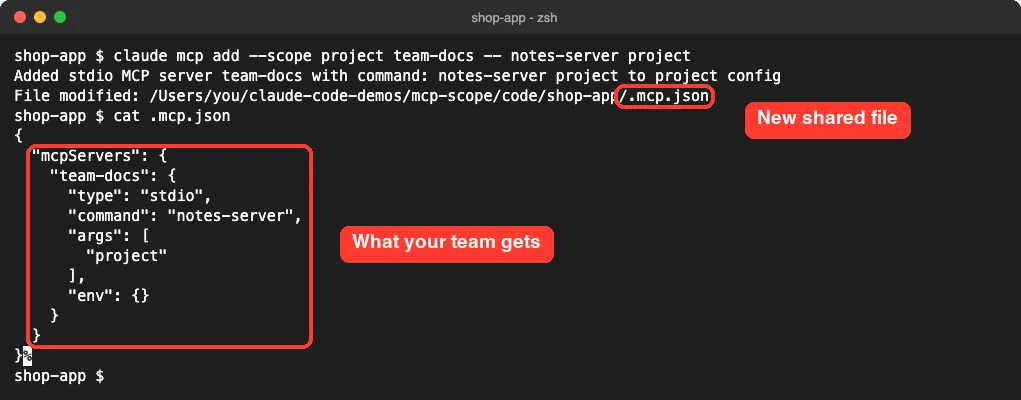
Here is the part people miss. A project server does not start right away. In our list it showed up as Pending approval, with a hint to run claude to approve it.
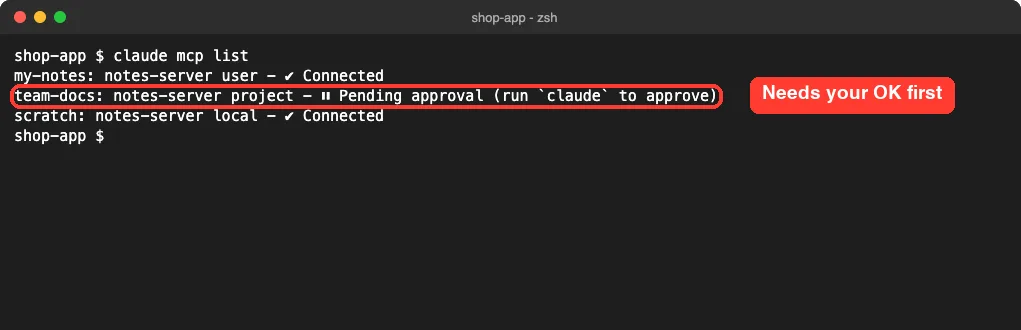
The docs explain why. A .mcp.json file can arrive with any repository you clone, so Claude Code asks before it runs servers from one. You approve them the next time you start an interactive session in that folder, and claude mcp reset-project-choices clears those answers.
The docs also note that claude -p runs cannot show that prompt, so they load project servers without asking. Keep that in mind before you run scripts inside a repository you do not know.
Where Each Scope Is Saved
Two of the three scopes live in the same file, which causes a lot of confusion. We printed only the MCP parts of ~/.claude.json with jq to see the difference.
jq '{mcpServers, projects: (.projects | map_values({mcpServers}))}' ~/.claude.json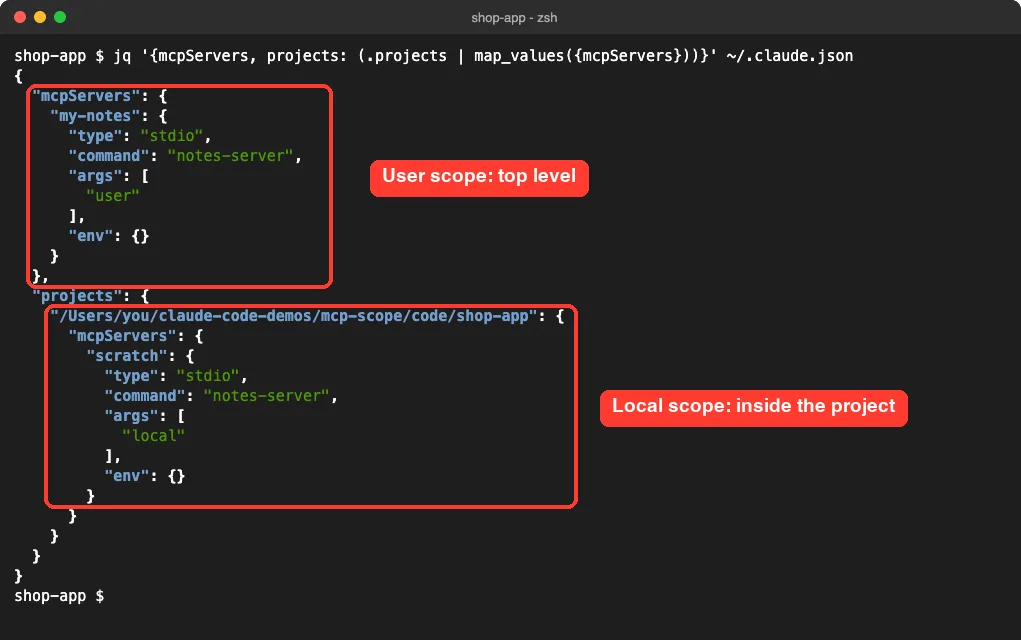
The user server sits in a top-level mcpServers block. The local server sits under projects, inside an entry named after the full folder path. That path is the reason a local server stops loading if you rename or move the folder.
The local scope name is a little misleading. The docs point out that it is not stored in the project at all, unlike .claude/settings.local.json for general settings. Our guide to the MCP config file covers the file locations in more detail.
Which Scope Wins When Names Clash
You can use the same server name in more than one scope. Claude Code then connects to one copy only. The docs give the order: local first, then project, then user, and the winning entry is used whole, with no mixing of fields.
We tested it with one name, notes, and a different label on each copy. First we added a user copy and a project copy.
claude mcp add --scope user notes -- notes-server user
claude mcp add --scope project notes -- notes-server project
claude mcp get notes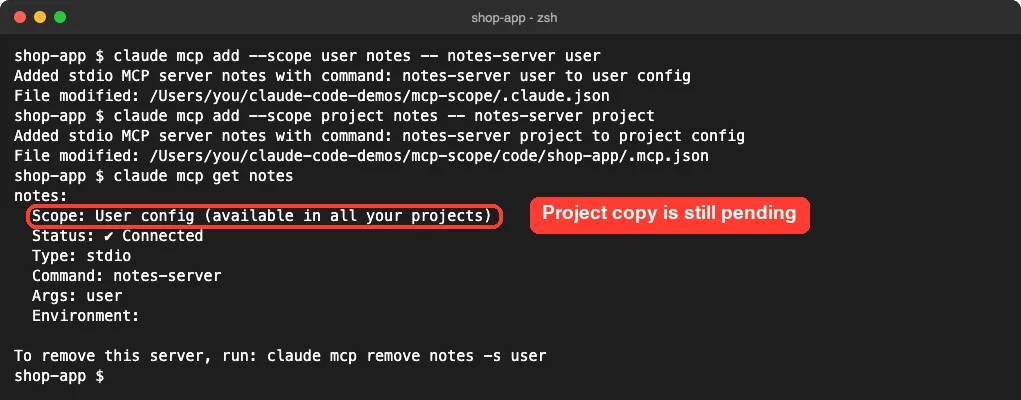
The result was the user copy, not the project one. That looks like it breaks the order, but it does not. The project copy was still waiting for approval, so Claude Code skipped it and used the next one down.
We did not approve the project copy in this test, so the project-over-user rule here follows Anthropic’s docs. What we measured is the case before approval, and it is worth knowing: a brand new .mcp.json entry does not replace your own server until you say yes.
Next we added a local copy with the same name.
claude mcp add notes -- notes-server local
claude mcp get notes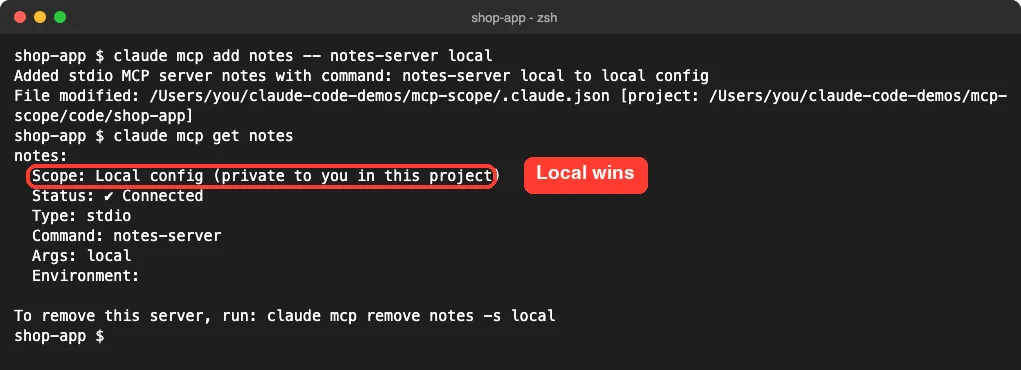
Local won right away, with no approval step. claude mcp list showed one notes line running the local copy, plus a warning that listed all three.
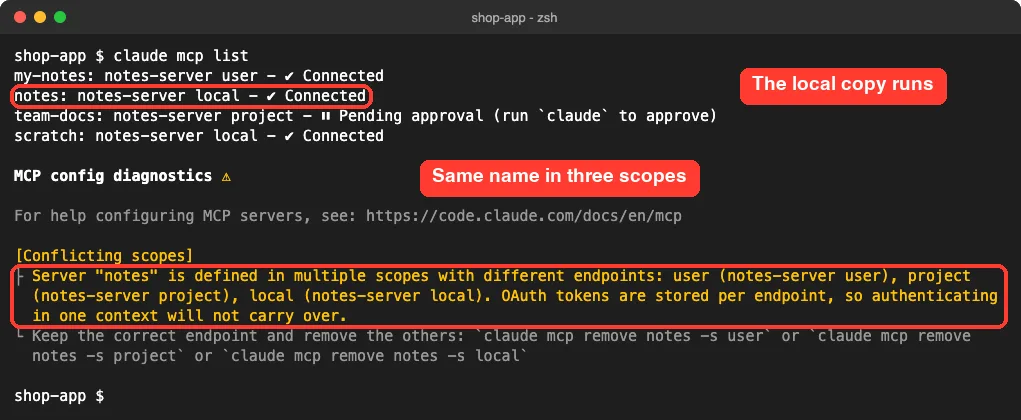
The warning is useful, not scary. It names every scope that has the server and prints the exact commands to remove the extra copies.
| What we had | Copy that loaded | How we know |
|---|---|---|
| User and project (project not approved) | User | Tested |
| User, project and local | Local | Tested |
| User only, after removing the others | User | Tested |
| User and project (project approved) | Project | Anthropic’s docs |
Remove or Move a Server Between Scopes
When a name exists in several scopes, a plain remove does not guess. We ran claude mcp remove notes and Claude Code listed the three copies and asked us to pick one with -s.
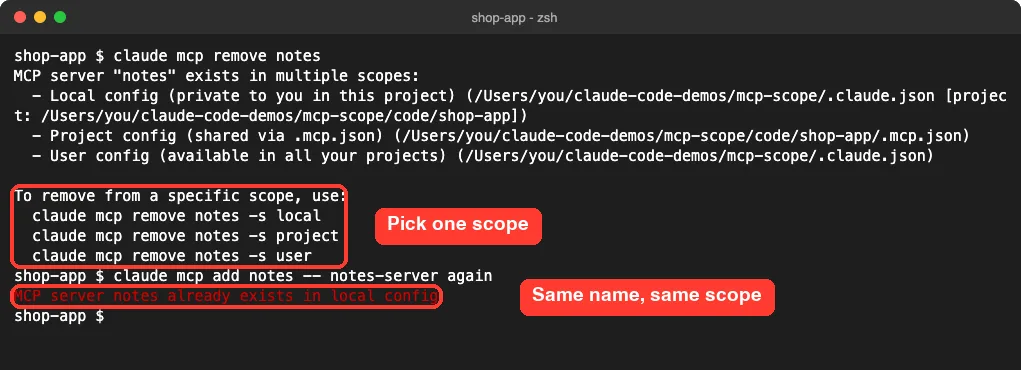
The same screenshot shows a second rule. Adding notes to local scope again failed with already exists in local config. So one name can live in three scopes, but only once in each.
We removed the local and project copies one at a time. The user copy was still there, and it still loaded in the other project.
claude mcp remove notes -s local
claude mcp remove notes -s project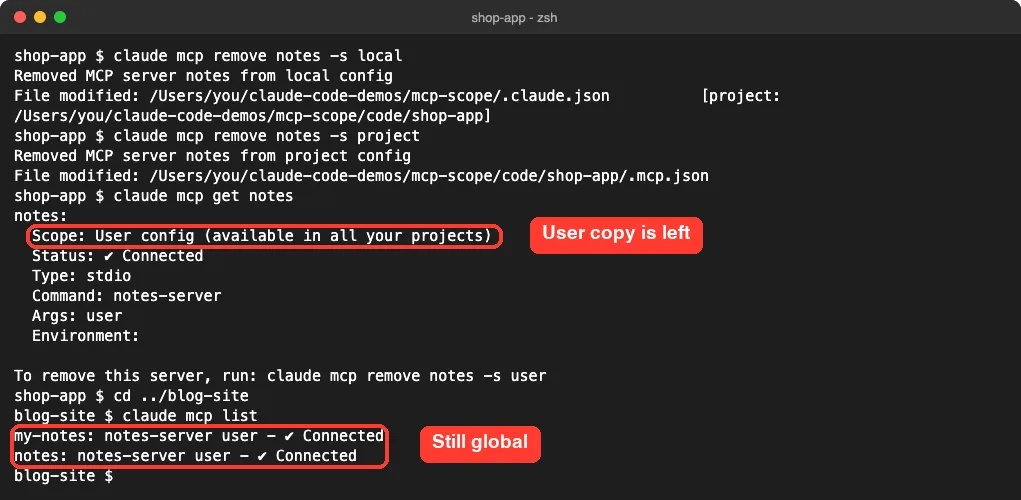
There is no move command. To change a local server into a global one, remove it with -s local and add it again with --scope user.
Which Scope Should You Pick?
- Pick local for experiments, and for servers that hold a password or key you do not want in Git.
- Pick project when everyone who opens the repository should get the same tools.
- Pick user for personal helpers you want in every folder.
Be careful with user scope. Every global server loads in every session, and each one adds tool descriptions to the conversation. Our MCP servers directory shows what each server costs before you make it global.
Try It Yourself
Open any project folder and check which scope your servers use. Run claude mcp list, then claude mcp get with a server name and read the Scope line. You can also ask Claude Code to do the review for you.
Run "claude mcp list" and then "claude mcp get" for each server.
Make a table of every server, its scope, and the file it is saved in.
Tell me which ones I should move to user scope and why.
If a server you use everywhere turns out to be local, remove it and add it back with --scope user. Then open a second folder and confirm it shows up there.
Common Mistakes
- Expecting a server to be global by default. With no flag it is local, so it only loads in the folder where you added it.
- Looking for local servers inside the project. They are in
~/.claude.json, under the project’s path. - Putting a secret in
.mcp.json. That file is meant for Git, so use local scope or environment variables for keys. - Thinking a pending project server is broken. It only needs your approval in an interactive session.
- Renaming a project folder and wondering where the local servers went. They are tied to the old path.
- Removing a server without
-swhen it exists in several scopes. Claude Code stops and asks which one.
Pro Tips
- Run
claude mcp getwith the server name any time you are unsure. The Scope line tells you which copy is active. - Use different names for different servers. Reusing one name across scopes only makes sense when you want a private override.
- A local copy is a handy way to test a new version of a team server without touching
.mcp.json. - Keep global servers few. If your tool list is long, MCP tool search helps keep unused tools out of the way.
- If a server shows as failed after you add it, our guide on reading MCP logs walks through the common errors.
- The docs list two more sources below user scope: plugin servers and claude.ai connectors. They are matched by address, not by name.
- Scopes for MCP are separate from Claude Code settings files, so a change in one does not move the other.
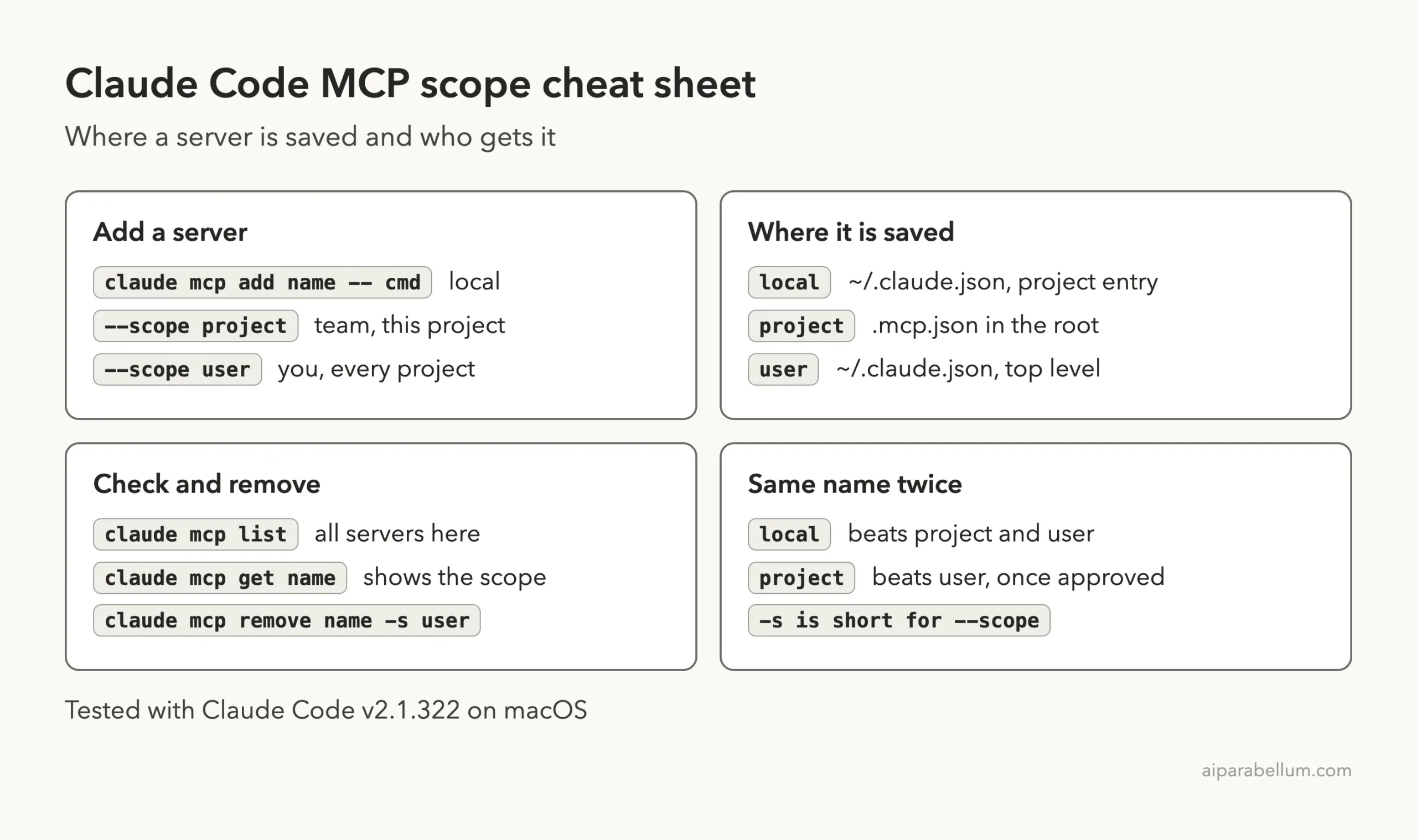
Cheat Sheet
Frequently Asked Questions
How do I add an MCP server globally in Claude Code?
Add --scope user to the command, for example claude mcp add --scope user my-notes -- notes-server. The server is saved at the top level of ~/.claude.json and loads in every project. In our test it appeared in two separate folders right away.
What is the default MCP scope in Claude Code?
Local. If you leave the flag out, the server is saved for the current project only and stays private to you. In our test a local server added in one folder did not appear in another.
What is the difference between user scope and project scope?
User scope follows you: it loads in all your projects and nobody else gets it. Project scope follows the code: it is saved in .mcp.json, shared through Git, and each person approves it before it runs.
Which MCP scope wins if two servers have the same name?
The docs give the order as local, then project, then user. In our test the local copy won at once, and a project copy that was still pending approval was skipped in favor of the user copy.
How do I move an MCP server from local to user scope?
There is no move command. Remove the server with claude mcp remove name -s local, then add it again with --scope user.
Conclusion
Claude Code MCP scope comes down to one flag: no flag keeps a server private to one folder, --scope project shares it through .mcp.json, and --scope user makes it global. In our tests the default really was local, the user server showed up everywhere, and a local copy beat the others the moment it was added, while a project copy waited for approval first. So when a server seems to vanish, check its scope with claude mcp get before you reinstall anything.