An MCP server that will not connect is one of the most annoying problems in Claude Code, because the status often just says “failed”. The good news is that the claude code mcp logs tell you exactly what went wrong, once you know where they live. In this guide we break a tiny test server on purpose, five different ways, and show what each error looks like and how to fix it.
Browse all our Claude Code tutorials for more guides like this one.
Tested with Claude Code v2.1.322 on November 13, 2026, on macOS. Every error below came from a small local test server in a throwaway project. Steps for remote HTTP servers and sign-in problems follow Anthropic’s official docs, and we say so where that applies.
Claude Code MCP Not Working: The Quick Answer
Run claude mcp list in your project folder first. Each server gets a status, and a failed one shows the reason right on the same line. For more detail on one server, run claude mcp get <name> and read the Issue: line.
If the reason is vague, such as CONNECTION_CLOSED, start Claude Code with claude --debug=mcp. It writes a debug log to ~/.claude/debug/<session-id>.txt, and that file holds the error text your server printed before it died.
| What you see | What it means | First fix to try |
|---|---|---|
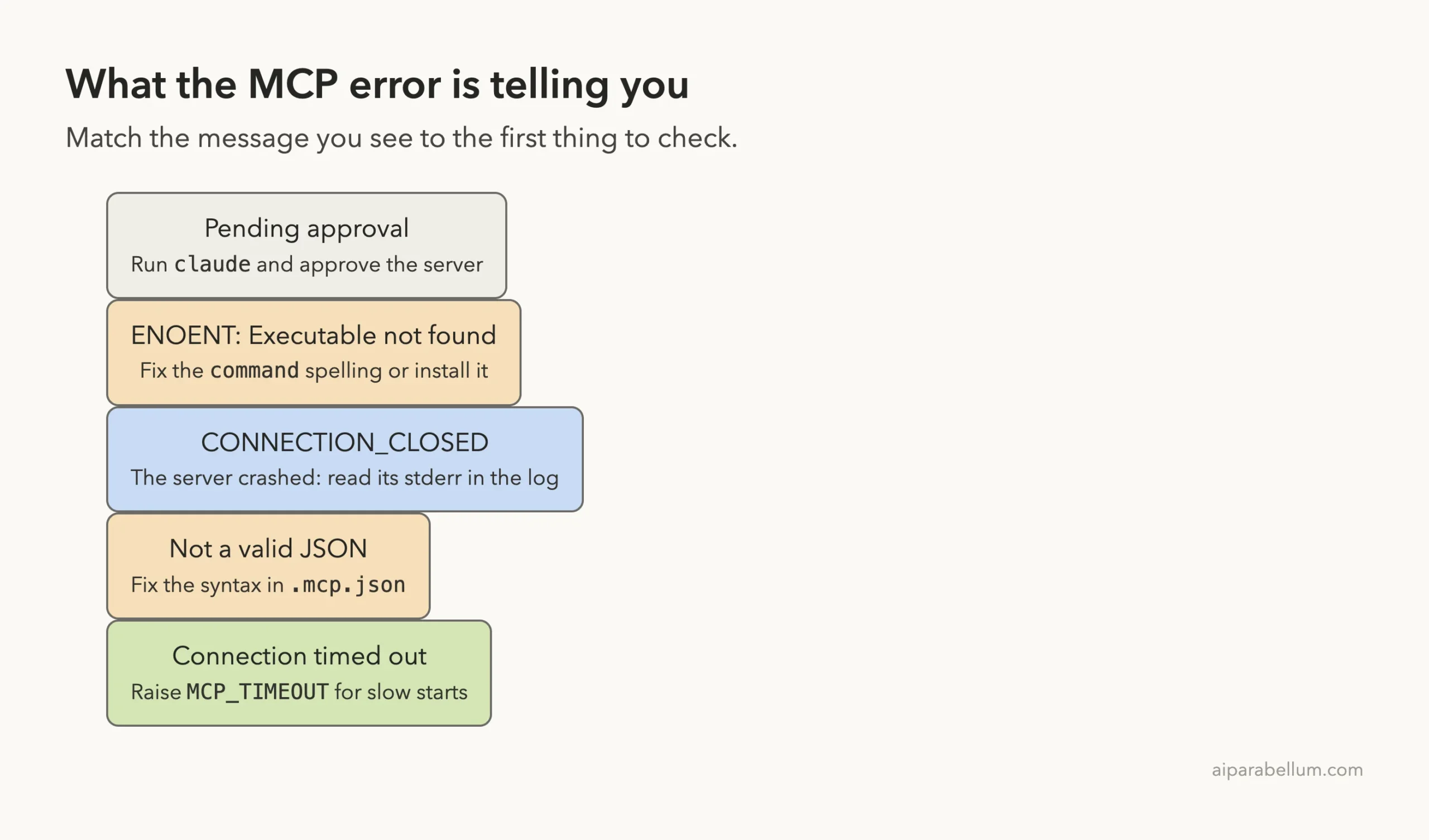
Pending approval | A project server you have not approved yet | Run claude and approve it |
ENOENT: Executable not found in $PATH | The command does not exist on your machine | Fix the spelling or install the program |
CONNECTION_CLOSED: Connection closed | The server started and then quit | Read its error in the debug log |
MCP config is not a valid JSON | A syntax error in .mcp.json | Fix the comma, quote or bracket |
connection timed out after ...ms | The server was too slow to start | Raise MCP_TIMEOUT |
Needs authentication | A remote server wants you to sign in | Open /mcp and sign in |
Where the Claude Code MCP Logs Live
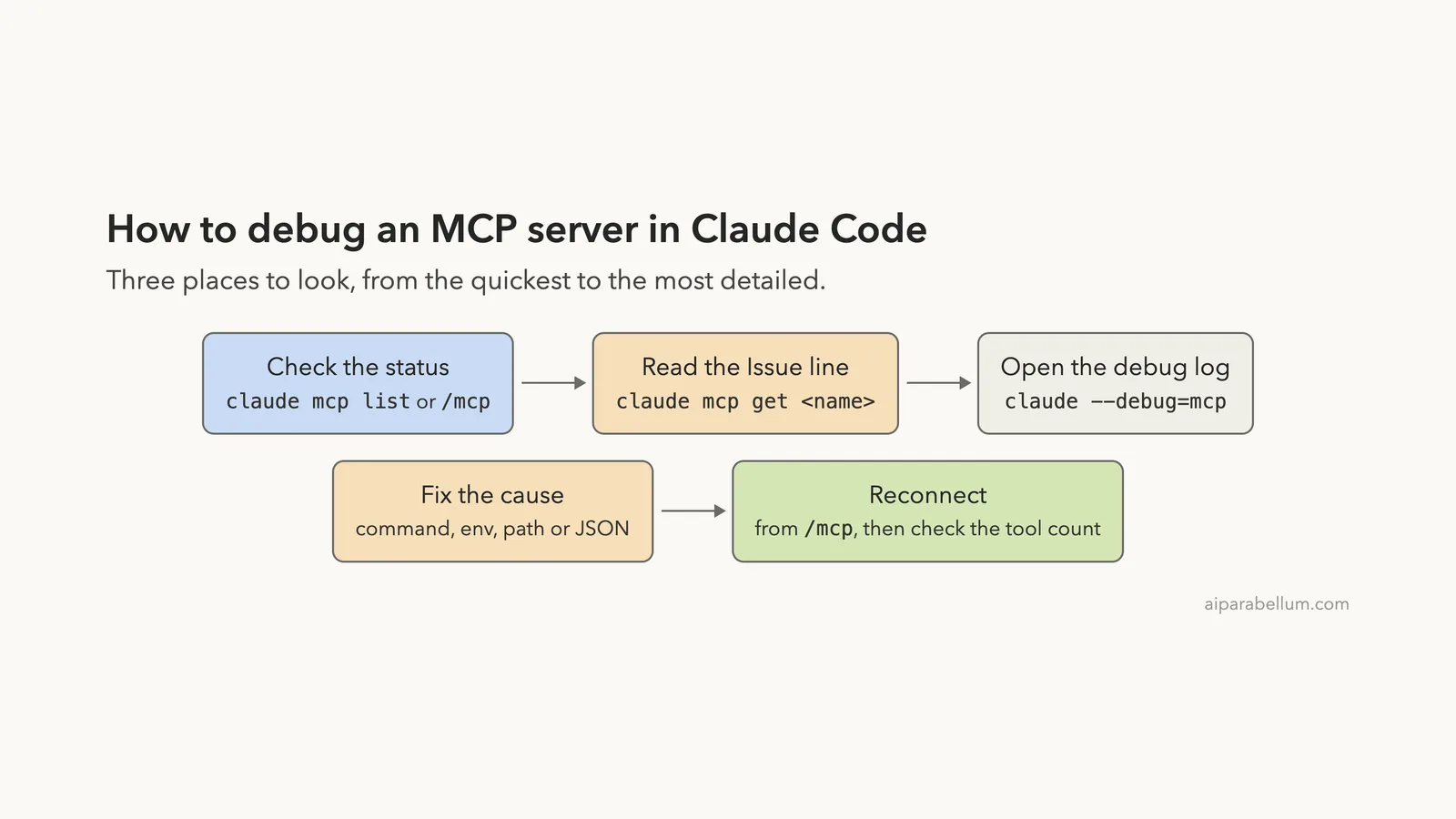
There are three places to look, and they go from quick to detailed. Most problems are solved at the first or second one. The debug log is for the stubborn cases.
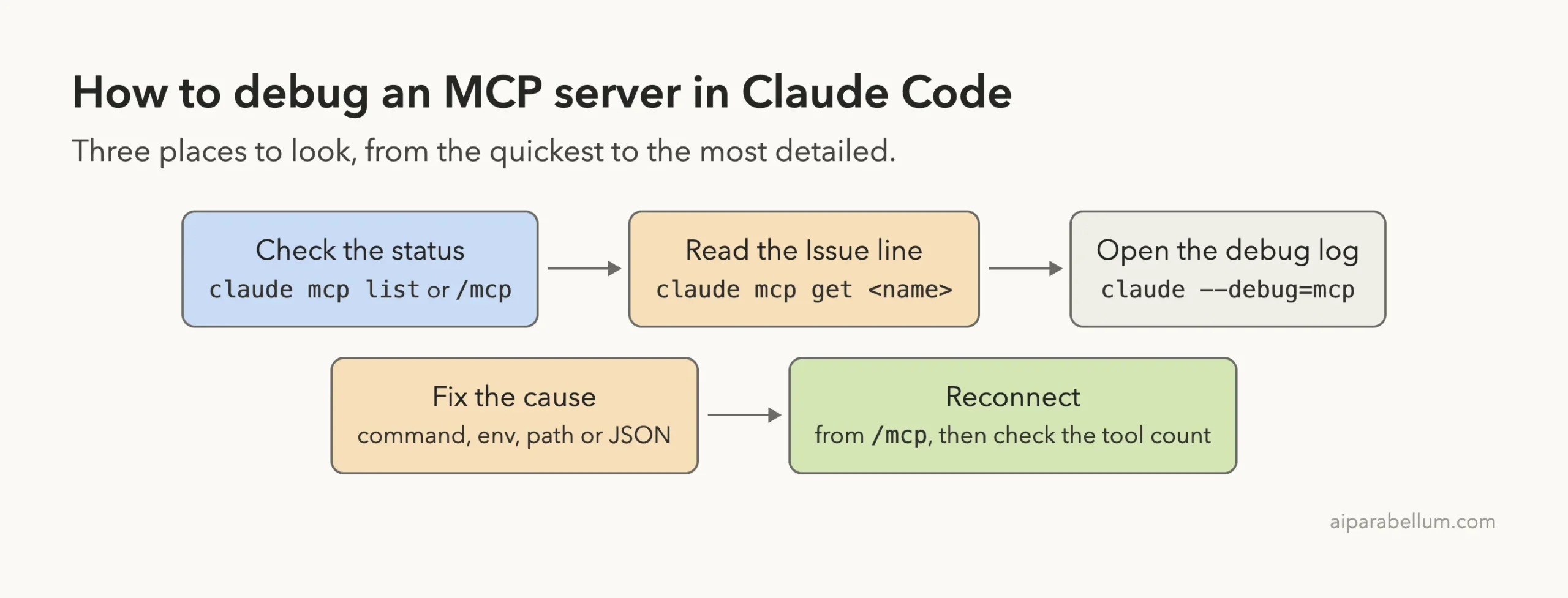
1. The Status Line
claude mcp list runs from your normal shell, so you do not even need to open a session. Inside a session, the /mcp command shows the same servers in a panel, with a check mark, a warning sign or a red cross next to each one.
2. The Issue Line
claude mcp get <name> prints one server’s full setup: its scope, command, arguments and environment variables. When the connection failed, it adds an Issue: line. According to the official MCP docs, that detail is the error code plus any error text the server returned.
3. The Debug Log
The debug log is the full story. You turn it on when you start Claude Code, using one of the flags from the CLI reference.
| Command | What it does |
|---|---|
claude --debug | Turns on debug mode for everything |
claude --debug=mcp | Logs only the MCP category, so the file stays short |
claude --debug-file ./mcp-debug.log | Turns on debug mode and writes to the file you name |
By default the log goes to ~/.claude/debug/<session-id>.txt. On our Mac, Claude Code also kept a shortcut called ~/.claude/debug/latest that points at the newest log, which saves you from hunting for the session ID.
The filter matters. Our unfiltered log from a short session was 311 lines long, while the --debug=mcp log held only the MCP lines. Note that the filter only works in the = form, so write --debug=mcp with no space.
Our Test Setup: A Tiny Server We Can Break
To show real errors, we wrote a small MCP server called notes. It is one Node.js file with no packages to install, and it offers a single tool that lists the files in a notes folder. It refuses to start unless a NOTES_DIR environment variable is set, which gives us an easy way to make it crash.
The server is registered in a project-level .mcp.json file. If you are not sure where that file belongs, our guide to the MCP config file covers every location.
{
  "mcpServers": {
    "notes": {
      "command": "node",
      "args": ["/Users/you/claude-code-demos/sandbox/mcp-logs/project/notes-server.js"],
      "env": { "NOTES_DIR": "/Users/you/claude-code-demos/sandbox/mcp-logs/project/notes" }
    }
  }
}
A failed status tells you that something broke. The log tells you what broke.
Error 1: Pending Approval
The very first check did not show “Connected”. It showed Pending approval. This is not a bug: Claude Code asks before it uses any server that comes from a project’s .mcp.json file, because that file could have been written by someone else.
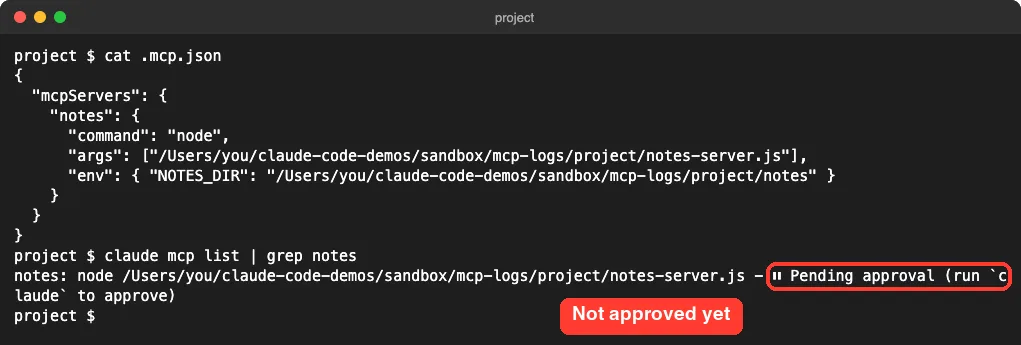
The fix is to run claude in the project folder. A prompt appears that names the new server, and you choose to use it.
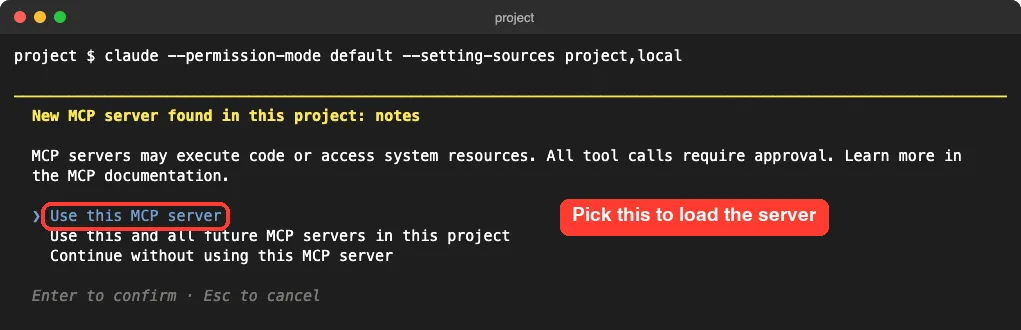
If you dismissed that prompt earlier, the server stays off. The docs say you can approve it later from /mcp, or reset all your choices for the project with claude mcp reset-project-choices.
Error 2: ENOENT, Executable Not Found
For the first real break, we changed the command from node to nod. This stands in for any case where the program is misspelled or not installed, such as a missing npx, uvx or python.
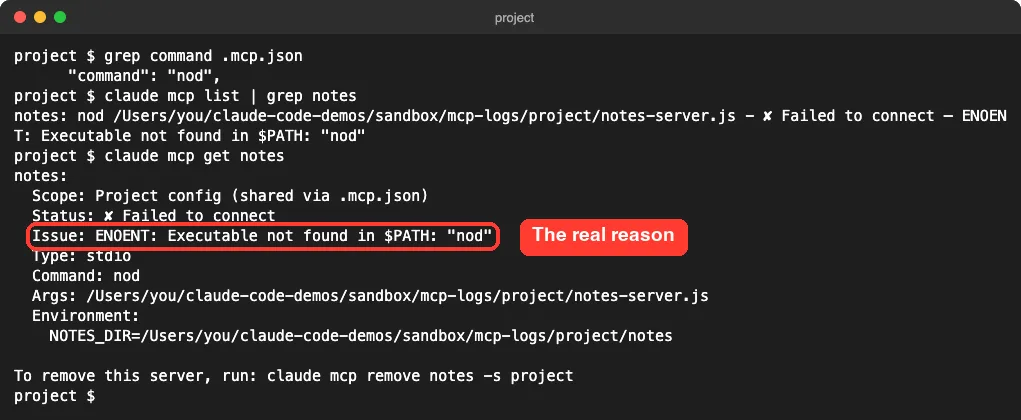
This one is easy because the status line already names the problem: ENOENT: Executable not found in $PATH: "nod". You do not need the debug log at all.
To fix it, correct the spelling in command, or install the missing program. A quick test is to type the command by itself in your terminal. If your shell cannot find it, Claude Code cannot find it either.
Error 3: CONNECTION_CLOSED, the Server Crashed
Next we put the command back and removed the env block, so the server starts and then quits with an error. This is the most common kind of failure, and the least helpful one at first glance.
Inside a session, /mcp showed a red cross next to notes, and the server’s detail screen said only “failed”. We started this session with --debug=mcp, so the top of the screen also shows where the log is being written.
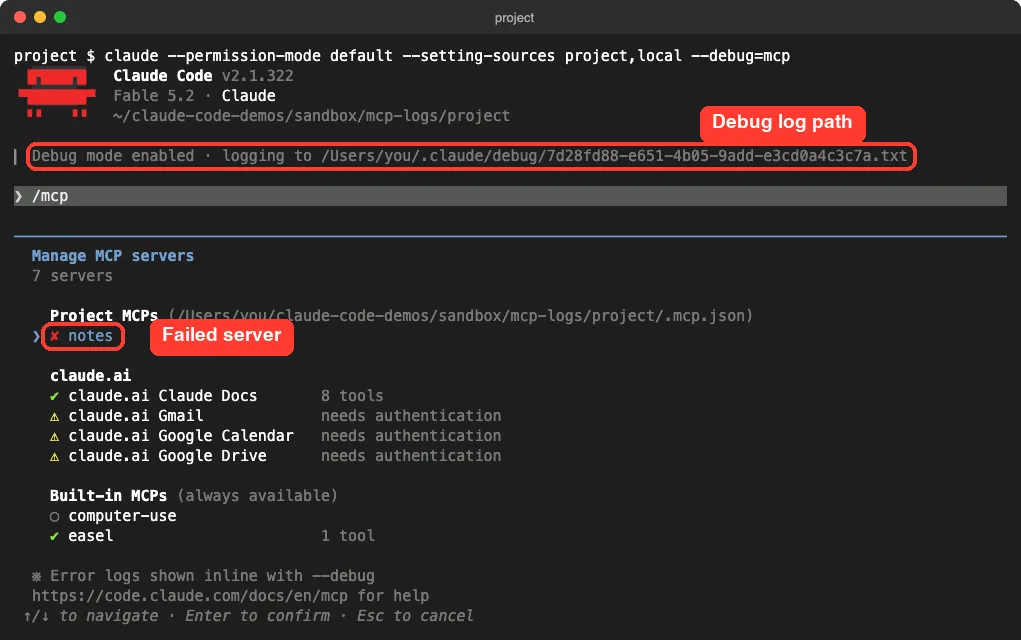
From the shell, claude mcp get notes reported CONNECTION_CLOSED: Connection closed. That tells you the server process ended, but not why. This is where the debug log earns its place.
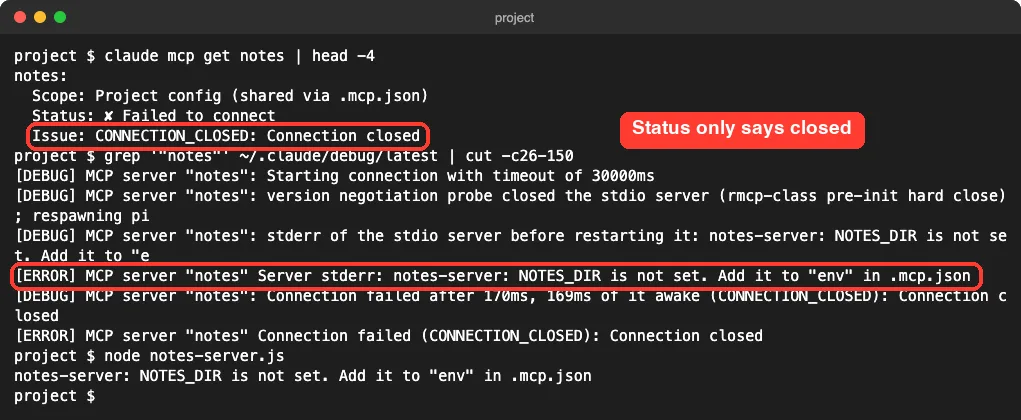
We searched the newest log for our server’s name with this command:
grep '"notes"' ~/.claude/debug/latestThe log had six lines for the server. The key one starts with [ERROR] and says Server stderr: notes-server: NOTES_DIR is not set. That is the message our server printed before it quit, word for word.
The Shortcut: Run the Command Yourself
The docs suggest another check for local servers: run the configured command directly in your terminal. We ran node notes-server.js and got the same error at once, as the last lines of the screenshot show.
If the command starts and then sits there waiting for input, the server itself is fine and the problem is in your config. If it prints an error, that error is your answer. In our case the fix was to put the env block back.
Error 4: Bad JSON in .mcp.json
For the fourth break we deleted one comma from .mcp.json. Hand-edited JSON breaks like this all the time: a missing comma, an extra comma after the last item, or a quote that never closes.
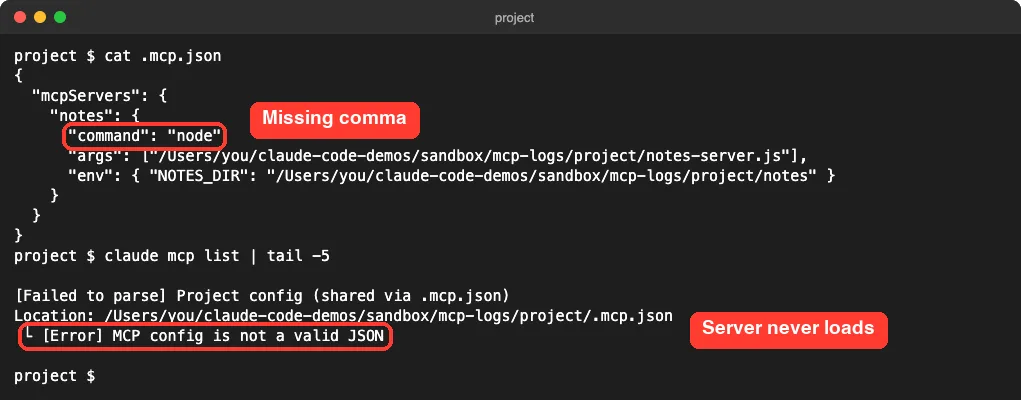
This failure looks different. The server does not show as failed, because it never loads at all. Instead, claude mcp list prints a diagnostics block at the end of its output that names the file and says MCP config is not a valid JSON.
When we then ran claude mcp get notes, it answered No MCP server named "notes". So if a server you know you added has vanished, check the bottom of claude mcp list for a parse error before anything else.
The Wrong Key Name
A close cousin of this error is using the wrong top-level key. Some other tools, such as VS Code, store servers under servers. Claude Code wants mcpServers.
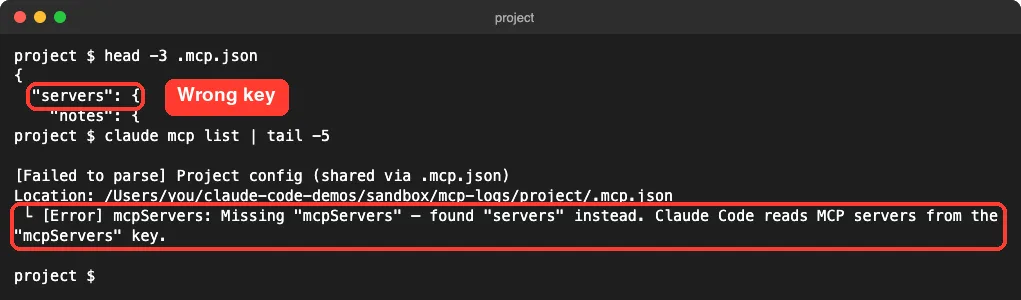
The message here is unusually friendly. It says the mcpServers key is missing, that it found servers instead, and which key Claude Code reads. Rename the key and the server loads.
Error 5: Connection Timed Out
Some servers are just slow to start. The docs give the default startup limit as 30 seconds, and note that a first run through npx can be slow while the package downloads.
We made a copy of our server that waits four seconds before it starts, then set the limit to one second to force the error.
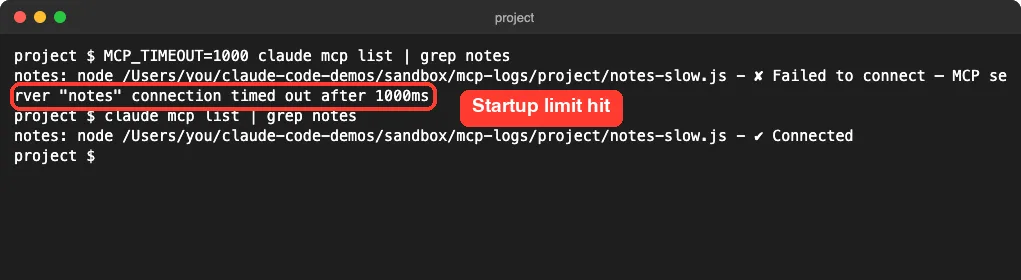
The status line read MCP server "notes" connection timed out after 1000ms. With the default limit, the same server connected. To give a slow server more time, set the limit in milliseconds when you start Claude Code:
MCP_TIMEOUT=60000 claudeBonus: The Relative Path Trap
One more failure is worth showing because it comes and goes. We changed the server path to a relative one, ./notes-server.js.
From the project root it connected. From a subfolder of the same project, it failed with CONNECTION_CLOSED.
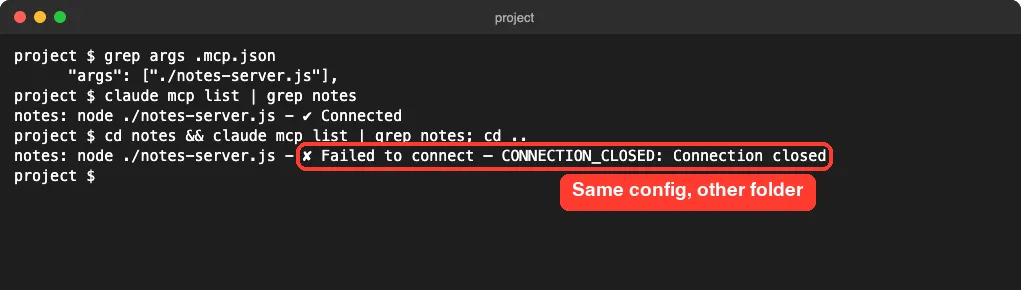
Anthropic’s debugging guide explains why: relative paths resolve against the folder you launched Claude Code from, not the location of .mcp.json. Use absolute paths for local scripts. Programs on your PATH, like npx, work as they are.
Fix It and Reconnect Without Restarting
Once you have fixed the config, you do not have to quit your session. We started a session with the crashing config, repaired .mcp.json from inside it, then opened /mcp, selected notes and chose Reconnect.
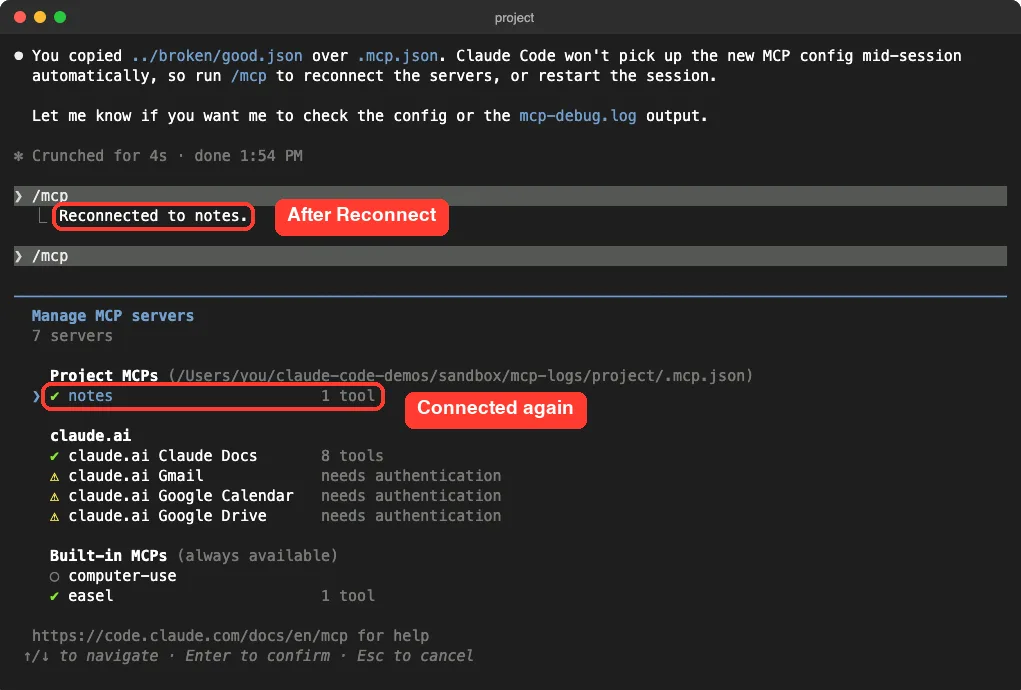
Claude Code replied Reconnected to notes. and the panel showed a green check with 1 tool. Reconnect picked up the edited file in our test, with no restart.
The docs also describe /mcp reconnect all, which retries every server that failed or needs sign-in. It needs Claude Code v2.1.284 or later.
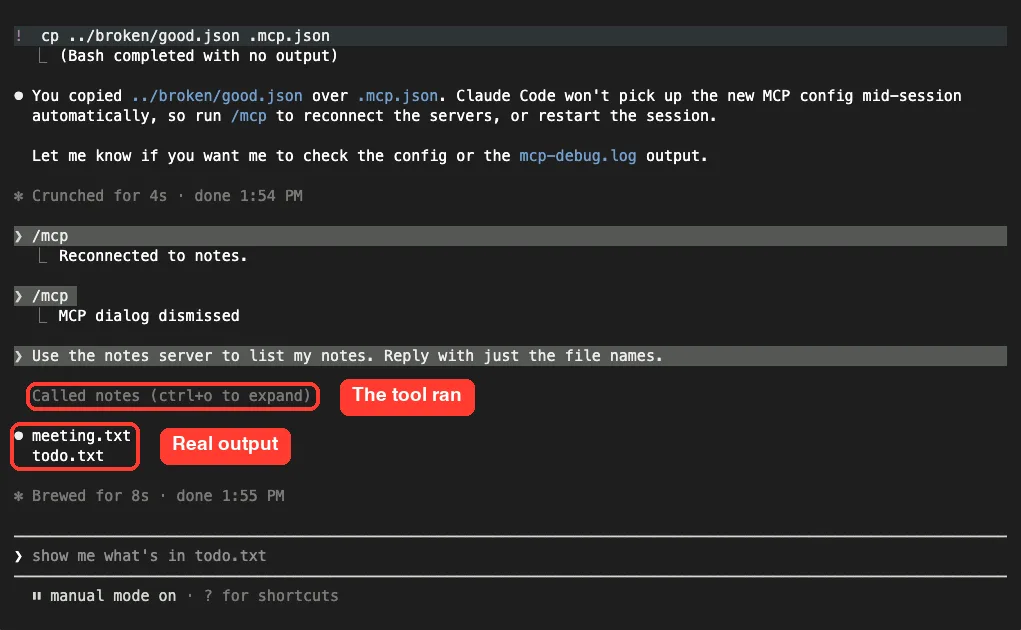
A green check is good, but the real proof is a tool call. We asked Claude to list the notes, and the server answered.
What About Remote Servers?
Our test server runs locally, so we did not reproduce remote failures. These steps come from Anthropic’s docs for HTTP servers.
Needs authenticationmeans the server wants a sign-in. Open/mcpand sign in from the server’s menu, or runclaude mcp login <name>in your shell.Failed to connecton a remote server comes with an HTTP status or error code on the same line, which often names the cause, such as a rejected token.- To check that a URL is reachable, run
curl -Iagainst it. A 401 or 403 means the server is up and wants a sign-in. No response at all points to the URL or your network. - Claude Code warns about hidden spaces or line breaks in config values, a common result of pasting a token.
Remote servers also retry in ways local ones do not. The docs say a dropped HTTP server gets up to five reconnect attempts, while a local server that exits is simply marked failed until you reconnect it.
Try It Yourself
You can practice on your own setup without breaking anything. Open a project that has at least one MCP server, start Claude Code with claude --debug=mcp, and paste this prompt:
Read the newest file in ~/.claude/debug and tell me, for each MCP server,
whether it connected, how long it took, and any error lines. Do not change anything.
You will get a plain summary of what each server did at startup. It is a safe way to learn what a healthy log looks like before you need it in a hurry.
Common Mistakes
- Putting the config in the wrong place. The docs list the right files as
~/.claude.jsonand.mcp.jsonat the project root. Paths such as~/.claude/mcp.jsonare not read. - Adding
mcpServerstosettings.json. The docs say settings files do not read that key. - Running
claude mcp addin one project and expecting the server in another. Local scope is tied to the project where you added it. - Reading only the status and stopping at
CONNECTION_CLOSED. The cause is one step further, in the log. - Writing
--debug mcpwith a space. Only the=form applies the filter.
Pro Tips
- Have your own servers print a clear message before they exit. Ours named the missing variable, and that exact line showed up in the log.
- Use
--debug-filewhen you want to share a log, since you choose where it lands. - The docs list a
/debugcommand that turns on debug logging mid-session and asks Claude to help diagnose the problem. - If you suspect a server is hurting your whole setup, the docs suggest
claude --safe-mode, which starts with MCP servers and other add-ons turned off. Our guide to the /doctor command covers more checks. - On our Mac we also found a per-server log folder under
~/Library/Caches/claude-cli-nodejs/. It held the same lines fornotes, but it is not in the docs we read, so treat it as a bonus that may change. - Too many servers can crowd your context. See how MCP tool search keeps that in check.
New to all this? Start with our MCP basics guide, pick a server from our Claude MCP Servers Directory, or see the best MCP servers we have tested. You can read more about the assistant itself on our Claude AI page.
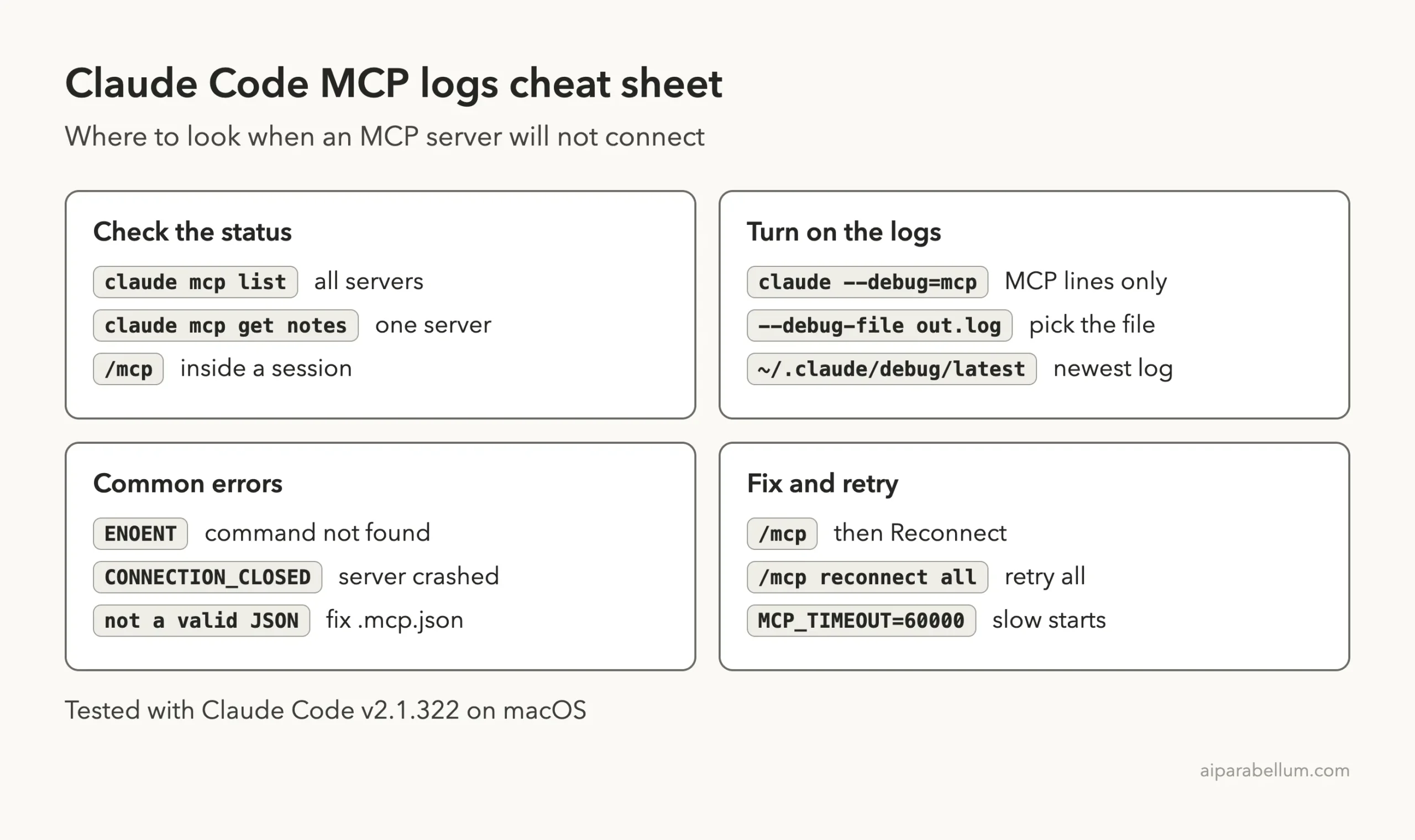
Cheat Sheet
Frequently Asked Questions
Where are the Claude Code MCP logs stored?
Start Claude Code with claude --debug or claude --debug=mcp and it writes a debug log to ~/.claude/debug/<session-id>.txt. You can pick another file with --debug-file.
Why does my MCP server say Failed to connect?
Claude Code could not start or reach the server. Run claude mcp get <name> and read the Issue: line. In our tests it was a wrong command, a crash on startup or a slow start.
What does CONNECTION_CLOSED mean?
The server process started and then ended before it finished connecting. Open the debug log and look for the Server stderr line, or run the server’s command yourself to see its error.
Do I need to restart Claude Code after fixing .mcp.json?
Not in our test. We fixed the file, opened /mcp, chose Reconnect on the server, and it connected in the same session.
Why did my MCP server disappear from the list?
A syntax error or a wrong key in .mcp.json stops the file from loading, so its servers are not listed. Look for a “Failed to parse” block at the end of the claude mcp list output.
Conclusion
When Claude Code MCP is not working, resist the urge to reinstall things and read the evidence instead. Check the status with claude mcp list, read the Issue: line with claude mcp get, and open the debug log with claude --debug=mcp when the status is vague. In our five deliberate breaks, every cause was named in one of those three places, and the fix took a minute once we could see it.