Claude Code doctor is the built-in checkup you reach for when something in your setup quietly stops working. A hook never fires, a setting seems ignored, or a server you added never shows up. In this guide you will learn the two doctor tools, what each one checks, and how to use them to find and fix a broken configuration in a few minutes.
We did not just read about it. We broke a real settings file on purpose in a small demo project, then used the doctor tools to find the problem, let Claude fix it, and confirmed the fix worked.
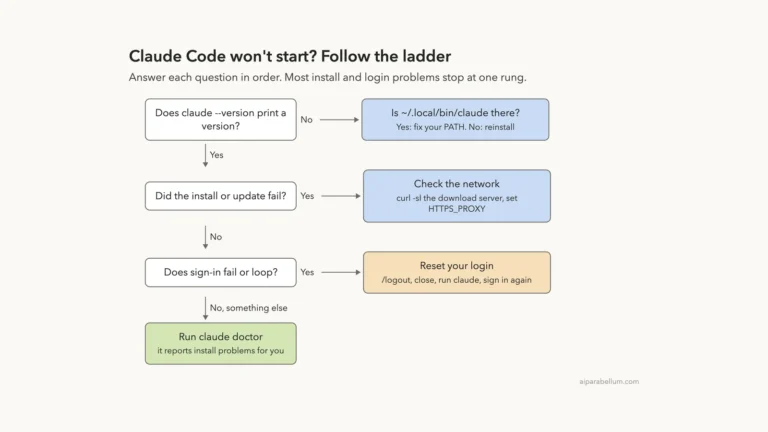
This is Part 46 of 53 in our Claude Code tutorials series. In the previous part we covered install and login problems; this part picks up once Claude Code runs but your setup does not behave the way you expect.
Tested with Claude Code v2.1.310 on October 25, 2026, on macOS.
Quick Summary: Claude Code Doctor Tools at a Glance
| Tool | Where you run it | What it does | Changes anything? |
|---|---|---|---|
| claude doctor | Your shell | Install health and settings-file errors | No, read-only |
| /doctor | Inside a session | Full setup checkup with proposed fixes | Only after you confirm |
| /doctor prompt-audit | Inside a session | Checks your instructions for outdated or conflicting rules | Only after you confirm |
| /hooks, /mcp, /context | Inside a session | Show what actually loaded | No |
| claude –safe-mode | Your shell | Starts with your customizations turned off | No |
What the Claude Code Doctor Does and Why It Exists
Claude Code reads a lot of files when it starts: settings at several levels, CLAUDE.md files, hooks, skills, plugins and MCP servers. When one of them has a typo or sits in the wrong place, Claude Code often skips it without much noise. You only notice later, when the thing you set up simply does not happen.
Anthropic’s official configuration debugging guide says the cause is usually one of three things. The file did not load, it loaded from a different place than you thought, or another file overrode it. The doctor tools exist to show you which one it is.
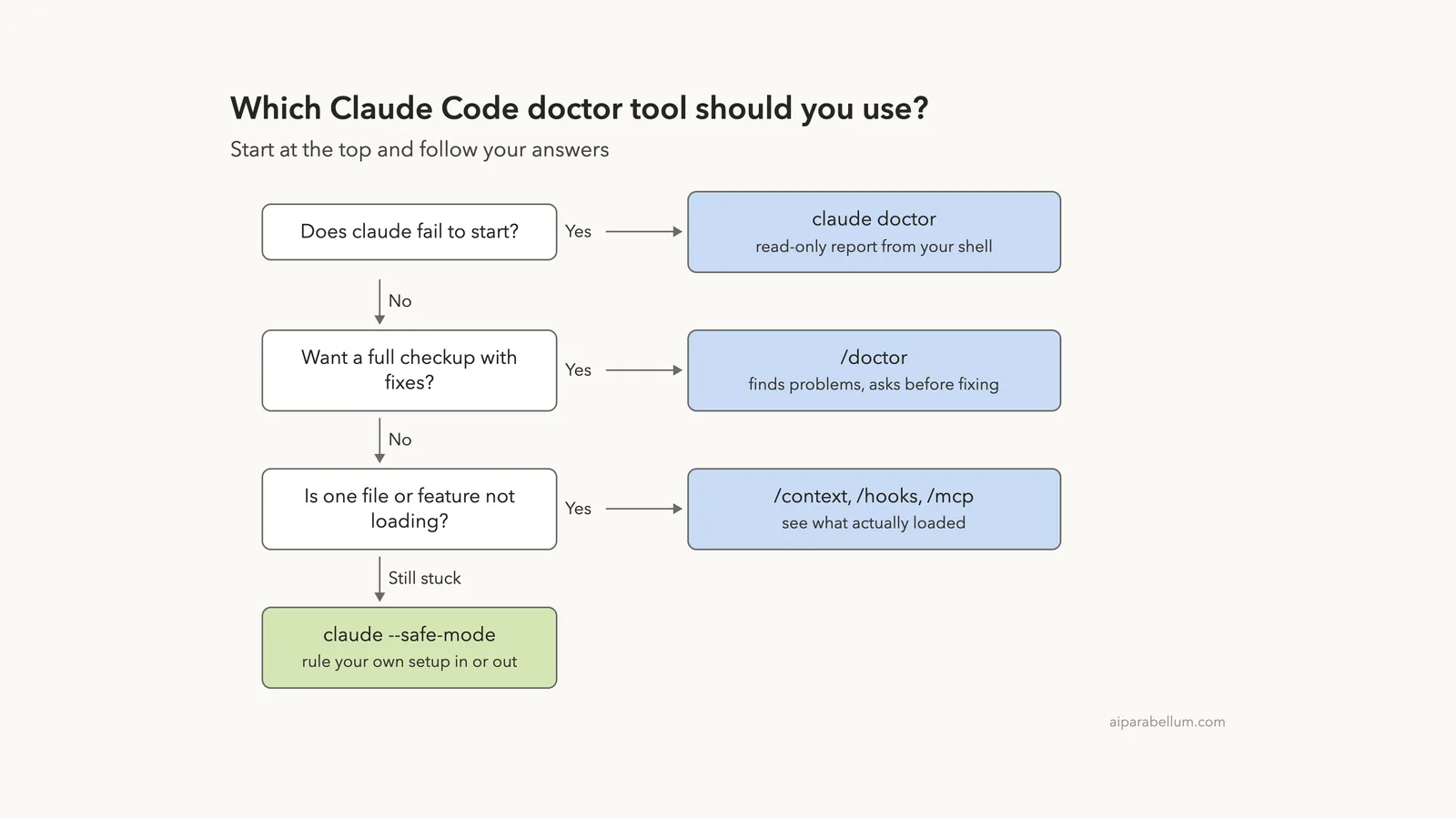
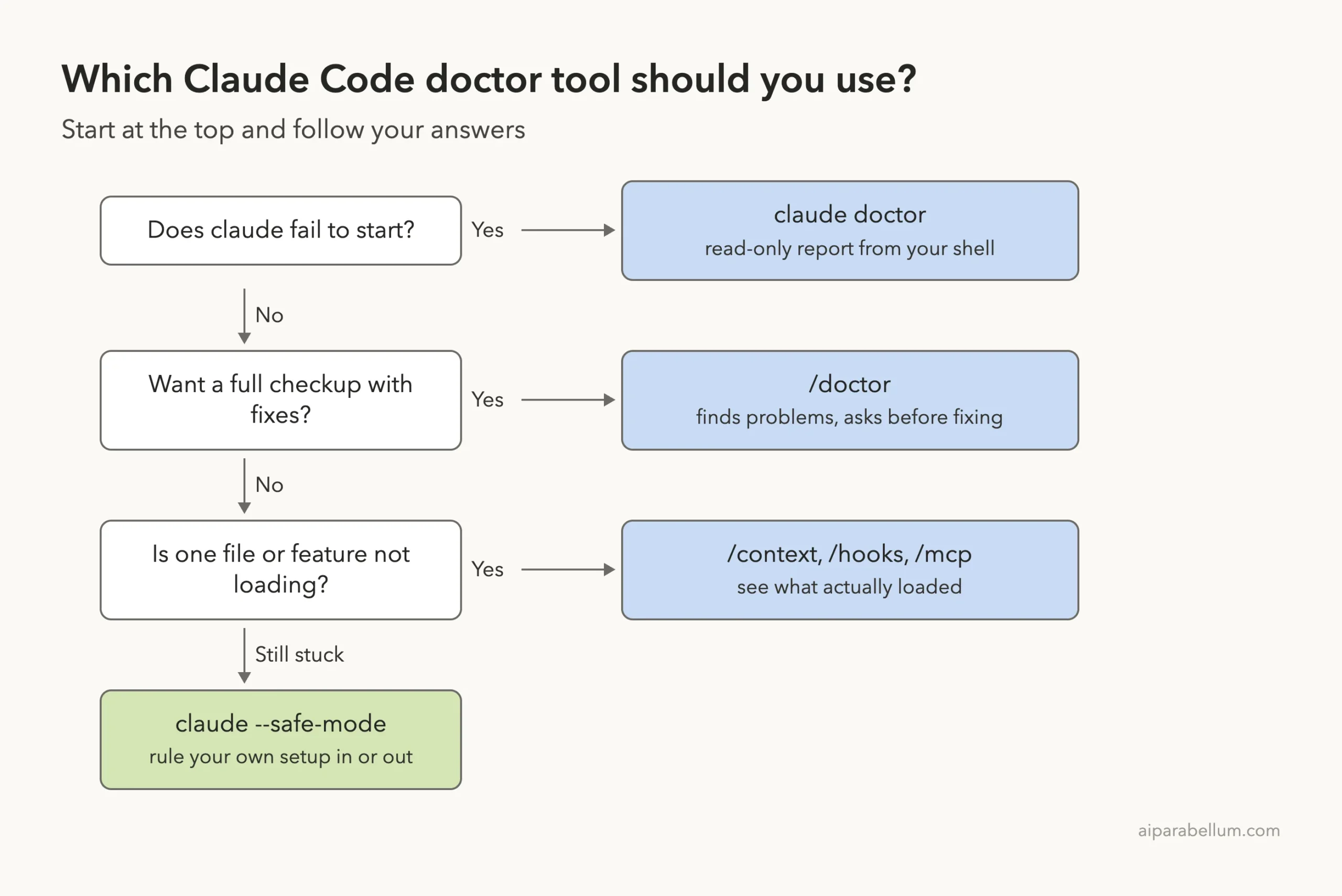
There are two of them, and the names are almost the same, so it helps to keep them apart:
- claude doctor is a terminal command. It prints a read-only report without starting a session, so it works even when Claude Code will not open.
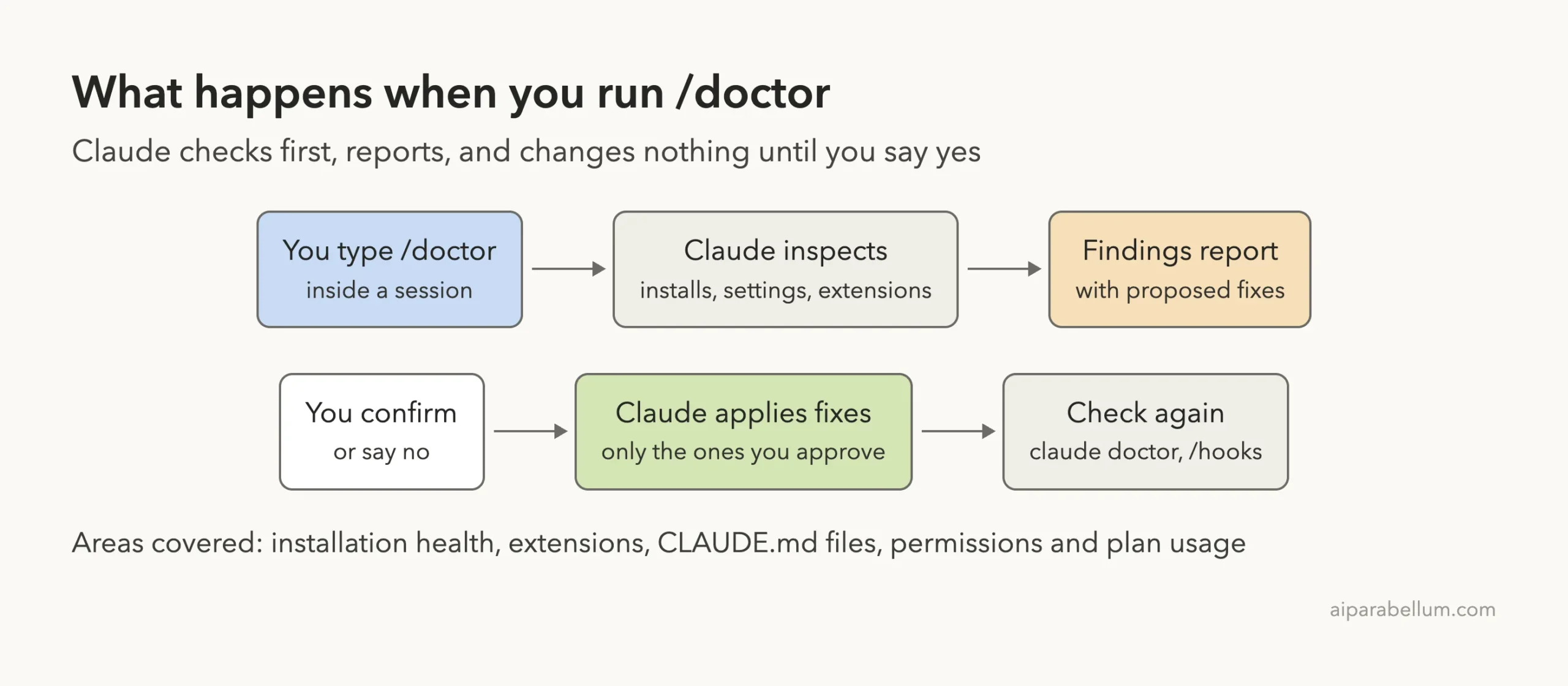
- /doctor is a command you type inside a session. Claude runs a full checkup, reports what it found, and proposes fixes it applies only after you agree. Its alias is /checkup.
Use claude doctor to look. Use /doctor when you want Claude to look and then help you fix it.
Our Demo: A Hook That Never Fires
To show the tools working for real, we made a tiny throwaway project with one Python file, a short CLAUDE.md and a project settings file. The settings file has a hook that should print a message before Claude edits or writes a file.
We made one classic mistake on purpose. The hook’s matcher is a JSON list of tool names instead of a single string. The docs list this exact error in their common causes table, so it is a fair test.
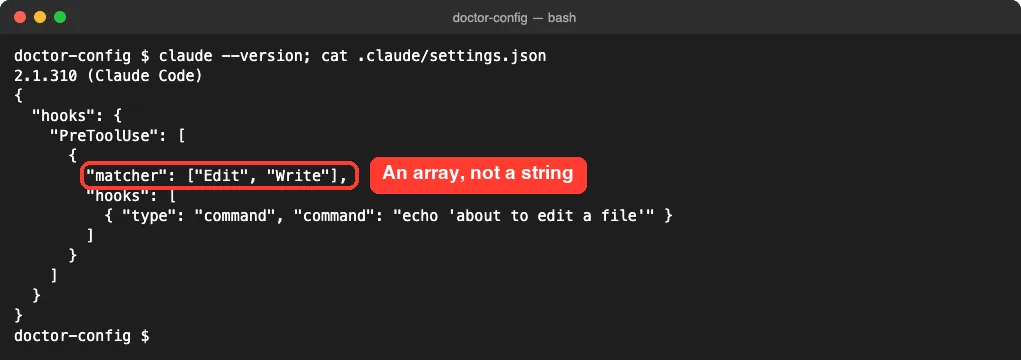
Here is the settings file we used. If you want to repeat the test, save it as .claude/settings.json inside an empty practice folder.
{
  "hooks": {
    "PreToolUse": [
      {
        "matcher": ["Edit", "Write"],
        "hooks": [
          { "type": "command", "command": "echo 'about to edit a file'" }
        ]
      }
    ]
  }
}
If hooks are new to you, our guide to Claude Code hooks explains matchers and events in plain English.
Step 1: Run claude doctor From Your Terminal
Open a terminal in your project folder and run the command below. You do not need to start a session first.
claude doctorThe top half of the report covers your install. It shows the install type and version, the path to the program, the Search tool, and whether auto-updates are on.
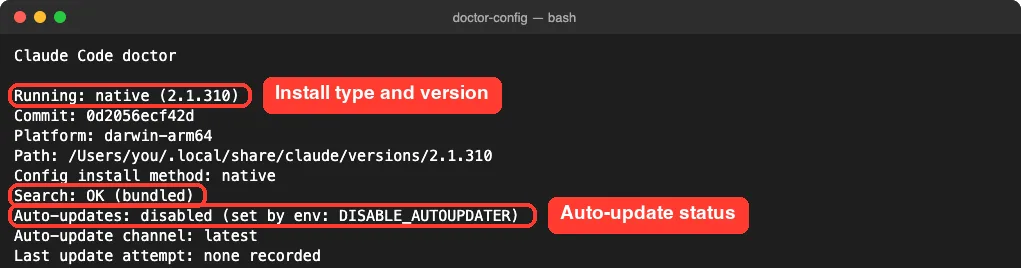
On our Mac, auto-updates showed as disabled because an environment variable turns them off. That is a good example of why this report helps: it tells you not just the state but where the setting came from.
The Search line matters too. The troubleshooting docs say that if you switch to your system ripgrep, this line should show its path instead of “OK (bundled)”.
Read the Invalid Settings Section
Further down, claude doctor found our mistake. It named the exact file, the exact key and the reason: it expected a string but received an array.
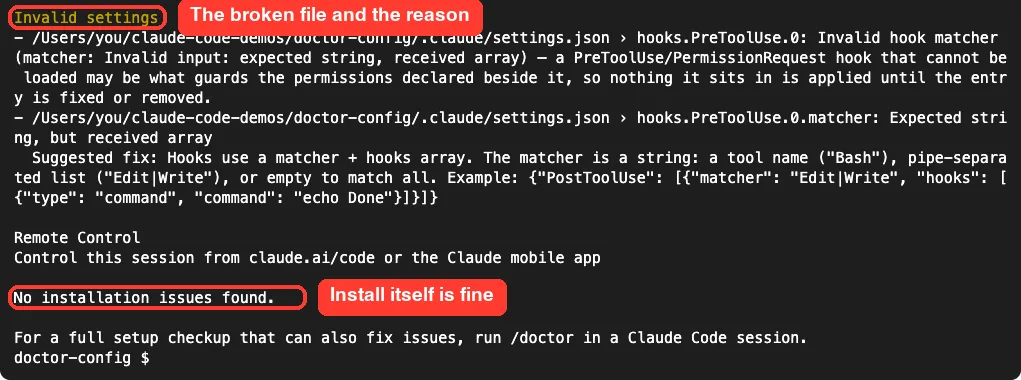
It even prints a suggested fix with a working example, “Edit|Write”. Notice the last lines too. It reports “No installation issues found”, so you know the problem is your configuration, not the program.
Step 2: See the Settings Error When You Start a Session
Next, we started Claude Code in the same folder. Before the session opened, it showed a Settings Error screen with the same details.
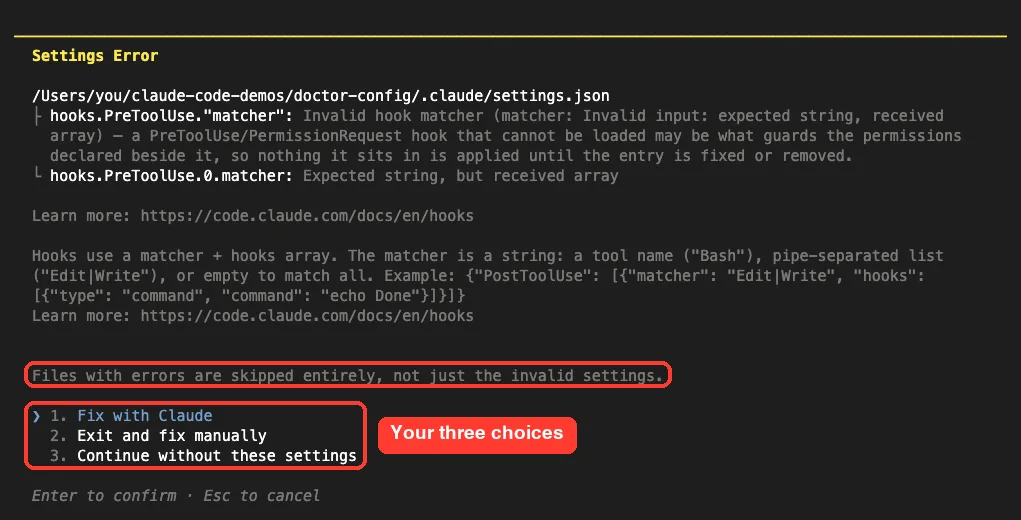
One line here is easy to miss and very important. Files with errors are skipped entirely, not just the broken setting. One typo can switch off every other setting in that file.
The docs add a sharper warning. If the bad matcher sits under PreToolUse or PermissionRequest, none of that file’s other hooks load either, including ones that may guard your permissions.
You get three options:
- Fix with Claude: Claude reads the error and proposes an edit.
- Exit and fix manually: you close Claude Code and edit the file yourself.
- Continue without these settings: the session opens, but the broken file stays off.
Step 3: Confirm What Actually Loaded With /hooks
First we chose to continue without the broken file, to see what Claude Code really loaded. Then we typed /hooks, which lists every hook registered for the session.
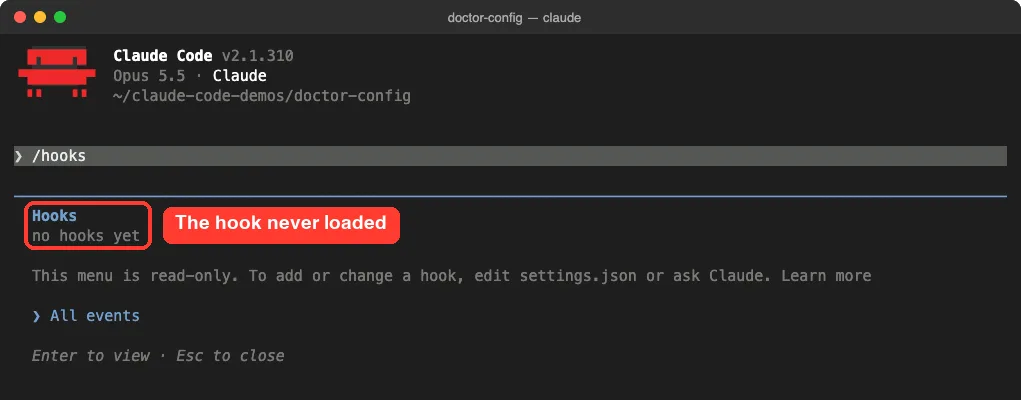
This is the heart of debugging your configuration. The docs put it simply: if a hook you defined does not appear in /hooks, Claude Code did not load it. The same idea works for other features:
| Command | Shows you |
|---|---|
| /context | Everything in the context window, including memory files and skills |
| /memory | Which CLAUDE.md files exist at each level |
| /skills | Skills from your project, user and plugin sources |
| /hooks | Hooks that are active right now |
| /mcp | MCP servers, their status and approval |
| /permissions | Allow and deny rules in effect |
| /status | Active settings sources, including managed settings |
Our guide to the context window shows how to read the /context breakdown in more detail.
Step 4: Let Claude Fix the Problem
Next we started a new session and picked “Fix with Claude” on the Settings Error screen. Claude read the file, explained that the matcher must be a pipe-separated string, and proposed a one-line edit.
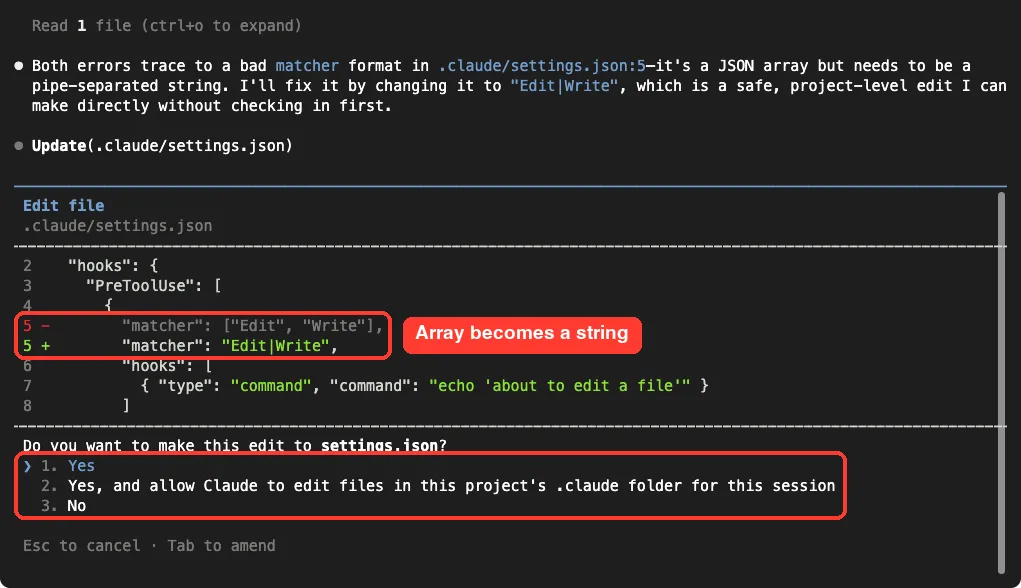
We were in manual mode, so Claude asked before touching the file. We chose Yes, and the matcher became “Edit|Write”. Claude also noted that it did not change any global config or the install itself.
Then we ran /hooks again in the same session. The hook was there, with no restart needed.
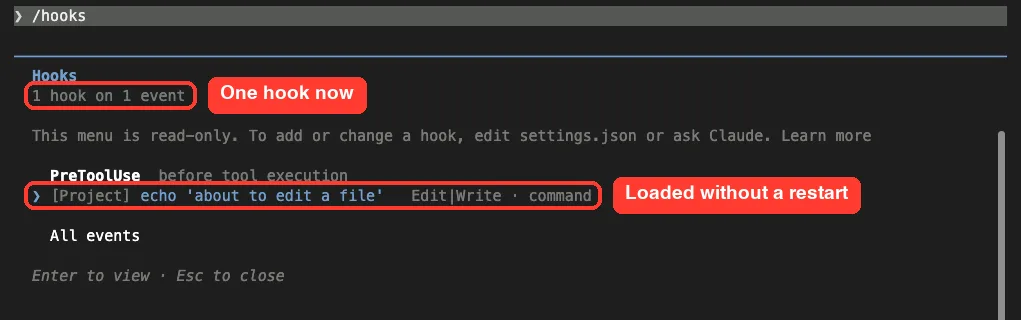
That matches the docs: when you edit settings.json, the change takes effect in the running session after a short delay. If /hooks still shows the old version a few seconds after you save, run it again to refresh the view.
Step 5: Run the Full /doctor Checkup
The startup screen only covers broken settings files. For a wider checkup, type /doctor at the prompt. The menu describes it as a health check for your setup that can also fix issues.
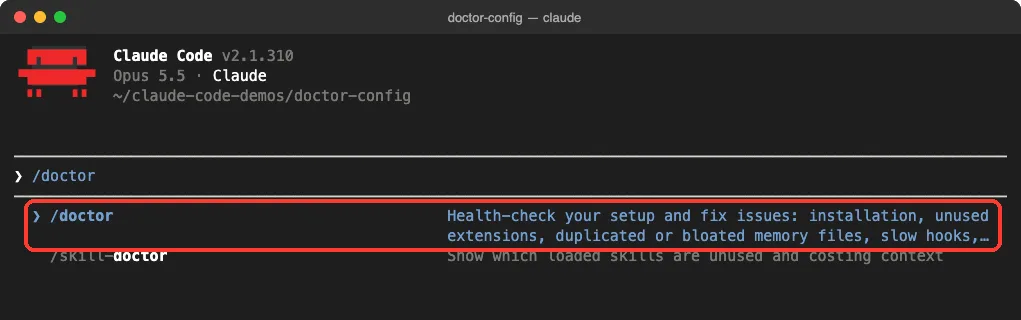
According to the official skills page, the checkup covers these areas:
- Installation health: duplicate or leftover installs, PATH problems, settings files that do not parse, and whether a newer version is out.
- Extensions: unused skills, MCP servers and plugins compared with their context cost, plus slow hooks.
- CLAUDE.md files: local copies that duplicate checked-in ones, and content Claude could work out from the code itself.
- Permissions: an offer to make auto mode your default and to pre-approve read-only commands you often deny.
- Usage: on Pro, Max, Team or Enterprise plans, changes that could lower your plan usage over the last 7 days (needs v2.1.305 or later).
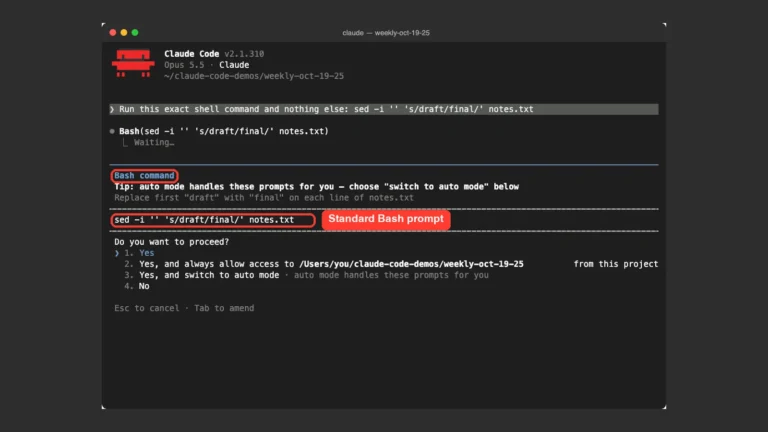
In our session, Claude started by running small read-only shell checks. Each one had a short description, such as “List project files and parse-check settings files”. In manual mode, every check asks for your approval first.
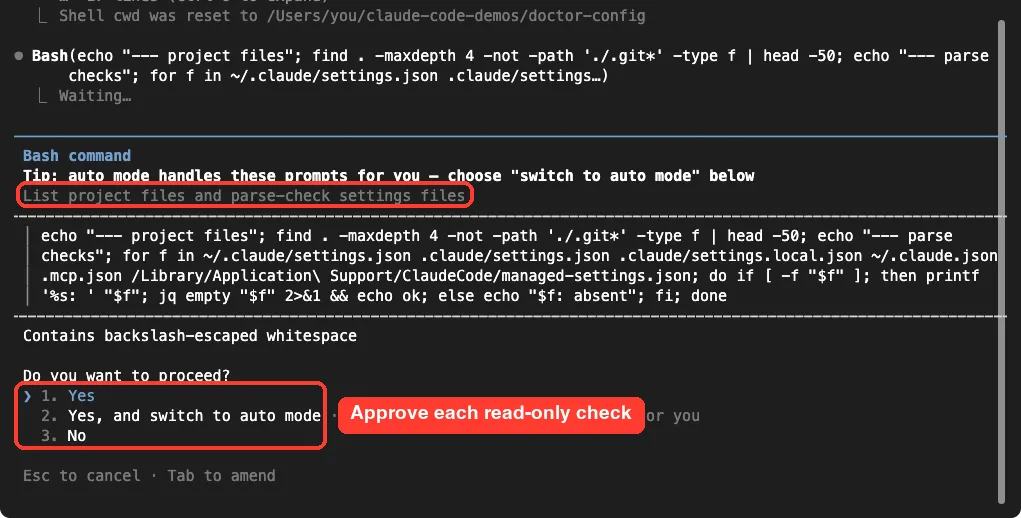
You can read each command before you say yes, which is a good habit. When the checks finish, Claude reports its findings and asks before changing anything. You stay in control of every fix.
Audit Your Instructions With prompt-audit
If your setup is healthy but Claude keeps ignoring a rule, try /doctor prompt-audit instead. It checks your CLAUDE.md files, skills and other configuration for outdated or conflicting instructions. It needs Claude Code v2.1.283 or later.
This ties into a point the docs make well. If /context shows your CLAUDE.md file loaded but Claude still does not follow it, the issue is often how the rule is written, not whether it loaded.
Step 6: Rule Out Your Setup With Safe Mode
Sometimes you cannot tell which customization causes a problem. For that, start Claude Code with your customizations turned off:
claude --safe-modeSafe mode turns off CLAUDE.md, skills, plugins, hooks, MCP servers, custom commands and agents, output styles and keybindings. Login, model choice, built-in tools and permissions still work normally.
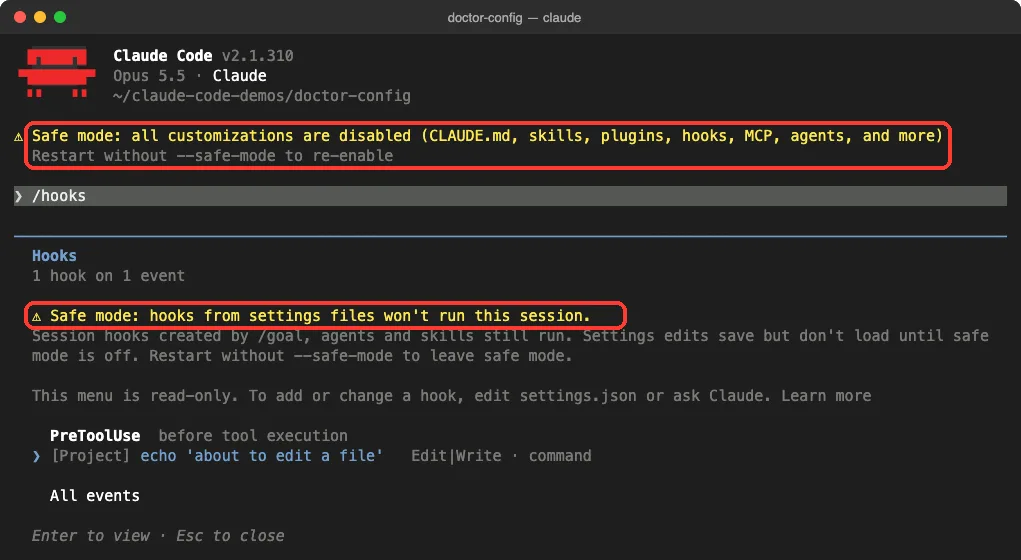
One detail we noticed in our test: safe mode still checked the settings file and showed the same Settings Error screen while the matcher was broken. Once the file was fixed, /hooks still listed the hook but warned that hooks from settings files would not run this session.
If the problem goes away in safe mode, the cause is one of your customizations. If it stays, the docs suggest a fully clean test with an empty folder and a fresh config directory:
mkdir -p ~/claude-clean/empty && cd ~/claude-clean/empty
CLAUDE_CONFIG_DIR=~/claude-clean/config claude --setting-sources user
You will see the first-run screens again, which proves the clean config is in use. We tested on macOS; the Windows and Linux steps follow Anthropic’s official instructions, which include a PowerShell version of these commands.
Real Examples: Common Configuration Problems and Fixes
The docs keep a table of the mistakes that cause most configuration surprises. Here are the ones you are most likely to hit:
| Symptom | Cause | Fix |
|---|---|---|
| Hook never fires | Matcher is a JSON array | Use one string such as “Edit|Write” |
| Hook never fires | Matcher is lowercase, like “bash” | Tool names are capitalized: Bash, Edit, Write |
| Global hooks or permissions ignored | Added to ~/.claude.json | Put them in ~/.claude/settings.json |
| A settings.json value seems ignored | Same key in settings.local.json | The local file wins; remove one copy |
| Skill missing from /skills | Saved as .claude/skills/name.md | Use .claude/skills/name/SKILL.md |
| Project MCP servers never load | .mcp.json is inside .claude/ | Move it to the repository root |
| Project MCP server missing | Approval prompt was dismissed | Approve it from /mcp |
The settings file mix-up is very common. Our guide to settings files explains which file wins when the same key appears in more than one place. For server problems, see our MCP guide.
Try It Yourself
Make an empty practice folder, add the broken settings file from earlier, and run claude doctor. Then start Claude Code there and paste this prompt:
My PreToolUse hook in .claude/settings.json never runs. Check why it
does not load, explain the cause in one sentence, and propose a fix.
Ask me before you change the file.
After the fix, run /hooks to confirm the hook loaded. For extra practice, save a skill as .claude/skills/notes.md and check whether it shows up in /skills.
Common Mistakes
- Mixing up the two tools. claude doctor runs in your shell and only reports. /doctor runs in a session and can fix things.
- Ignoring the Settings Error screen. Choosing “Continue without these settings” turns off the whole file, not just one line.
- Assuming a file loaded. Check /hooks, /mcp or /context before you rewrite anything.
- Approving checks without reading them. In manual mode, glance at each command first.
- Putting settings in ~/.claude.json. That file holds app state; your settings belong in ~/.claude/settings.json.
Pro Tips
- Run claude doctor right after you edit any settings file. It catches parse errors in seconds and costs nothing.
- Use claude –debug when a hook appears in /hooks but still does not fire. The debug log shows which matchers were checked.
- Try /debug mid-session to turn on logging from that point and let Claude read the log for you.
- Keep the fix small. Ask Claude to explain the cause before it edits, as in our practice prompt.
- Learn the folder layout once. Our guide to the .claude folder shows where each file should live.
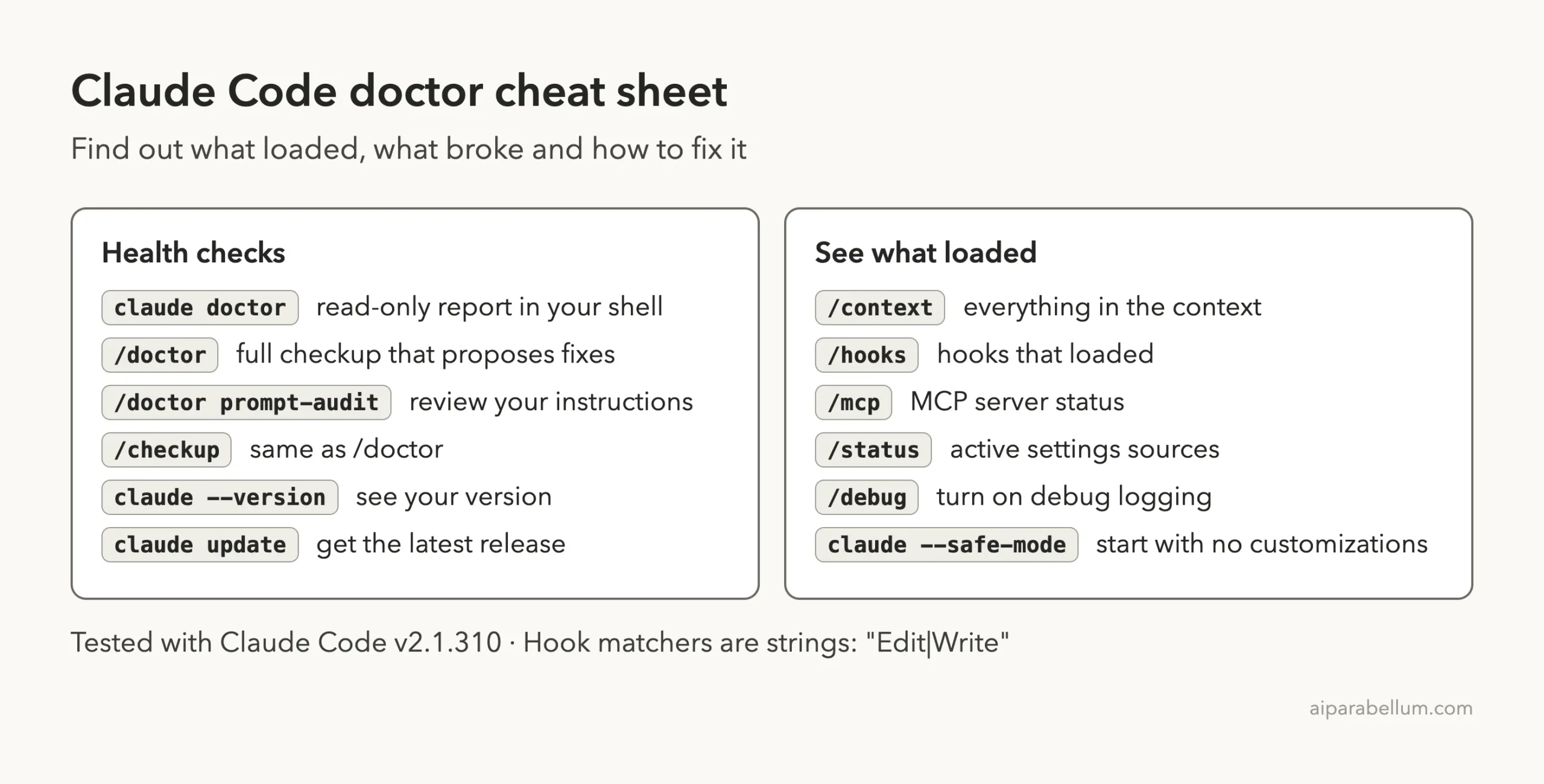
Claude Code Doctor Cheat Sheet
Frequently Asked Questions
What is the difference between claude doctor and /doctor?
claude doctor runs in your terminal without starting a session and prints a read-only report. /doctor runs inside a session, checks more areas, and proposes fixes that Claude applies only after you confirm.
Does /doctor change my files without asking?
The docs say Claude reports its findings first and asks before changing anything. In manual mode you also approve each command it runs, and each edit shows a diff before it happens.
Do I need to restart Claude Code after fixing settings.json?
Usually not. In our test the fixed hook showed up in /hooks in the same session. If you still see the old version, wait a few seconds and run /hooks again.
What should I do if claude will not start at all?
Run claude doctor from your shell, since it does not need a session. For install and sign-in errors, our previous part on install and login problems walks through each fix.
Is /doctor available on every plan?
The checkup itself is part of Claude Code. Only the usage section is limited to Pro, Max, Team and Enterprise plans, and it needs v2.1.305 or later.
Conclusion
When your Claude Code setup misbehaves, you do not have to guess. Run claude doctor for a quick read-only report, start a session to see the Settings Error screen, check /hooks, /mcp or /context to see what really loaded, and run /doctor when you want Claude to find problems and fix them with your approval. If you are still stuck, safe mode tells you whether your own customizations are to blame. Learn these few commands once, and a silent configuration bug becomes a five-minute fix. For more on Claude itself, visit our Claude AI guide.
Previous in the series: Part 45, How to Fix Claude Code Install and Login Problems
Next in the series: Part 47: Common Claude Code Errors and How to Fix Them.