Claude Code login problems and install errors usually come down to a short list of causes: a folder missing from your PATH, a blocked download, a second copy of the program, or a sign-in code that expired. The good news is that each one has a clear message and a clear fix. In this guide you will learn how to read those messages and run the right check for each one.
We ran every macOS check in this guide for real, including a broken PATH we created on purpose and a fresh sign-in screen from an empty config folder. You will see the actual output, so you know what a healthy result looks like.
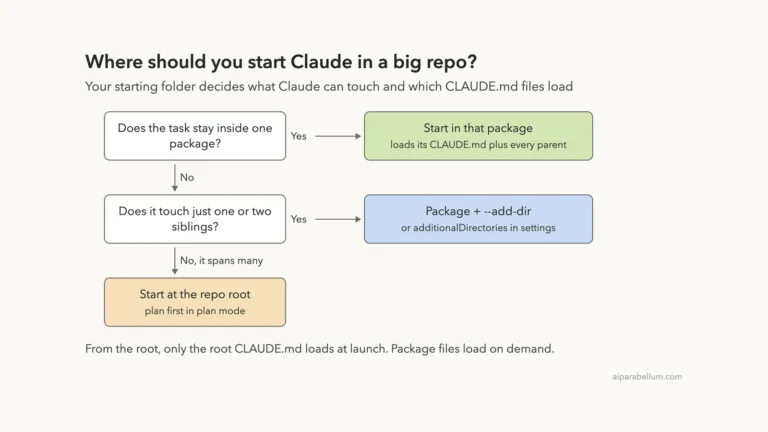
This is Part 45 of 53 in our Claude Code tutorials series. In the previous part we covered large codebases and monorepos; this part helps when Claude Code will not install, start or sign in at all.
Tested with Claude Code v2.1.310 on October 25, 2026, on macOS. We tested on macOS; the Windows and Linux steps follow Anthropic’s official instructions.
Quick Summary: Common Claude Code Install and Login Errors
| What you see | Likely cause | First thing to try |
|---|---|---|
| command not found: claude | Install folder not in PATH | Add ~/.local/bin to your PATH |
| syntax error near unexpected token ‘<‘ | Installer got a web page, not a script | Retry later or use Homebrew or WinGet |
| Failed to fetch version | Download server blocked | Test the network and set HTTPS_PROXY |
| Auto-update failed in the footer | Background update did not install | Run claude update in your shell |
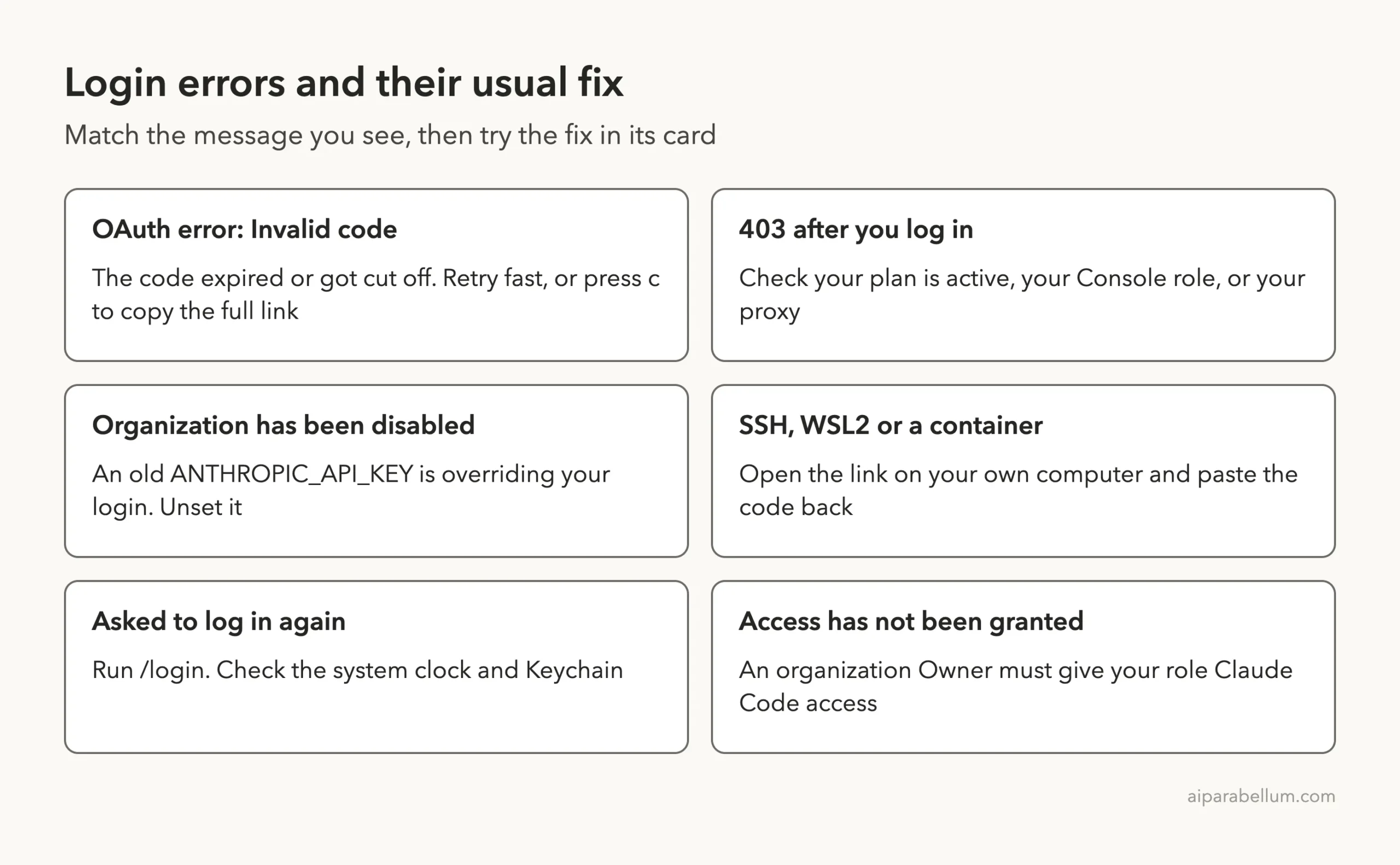
| OAuth error: Invalid code | Code expired or was cut off | Retry quickly, press c to copy the link |
| 403 Forbidden after login | Plan, role or proxy issue | Check your plan or Console role |
| This organization has been disabled | Old ANTHROPIC_API_KEY overrides login | Unset the variable |
Why Claude Code Install Problems Happen
The native installer downloads Claude Code from downloads.claude.ai and places the program at ~/.local/bin/claude on macOS and Linux. On Windows it goes to %USERPROFILE%\.local\bin\claude.exe. If any part of that chain breaks, you get an error before Claude Code ever starts.
Sign-in is a separate step. When you first run claude, it opens a browser so you can log in with your Claude account, a Console account or a cloud provider. If the browser cannot reach Claude Code’s local callback, or a stray API key takes over, you see a login error instead.
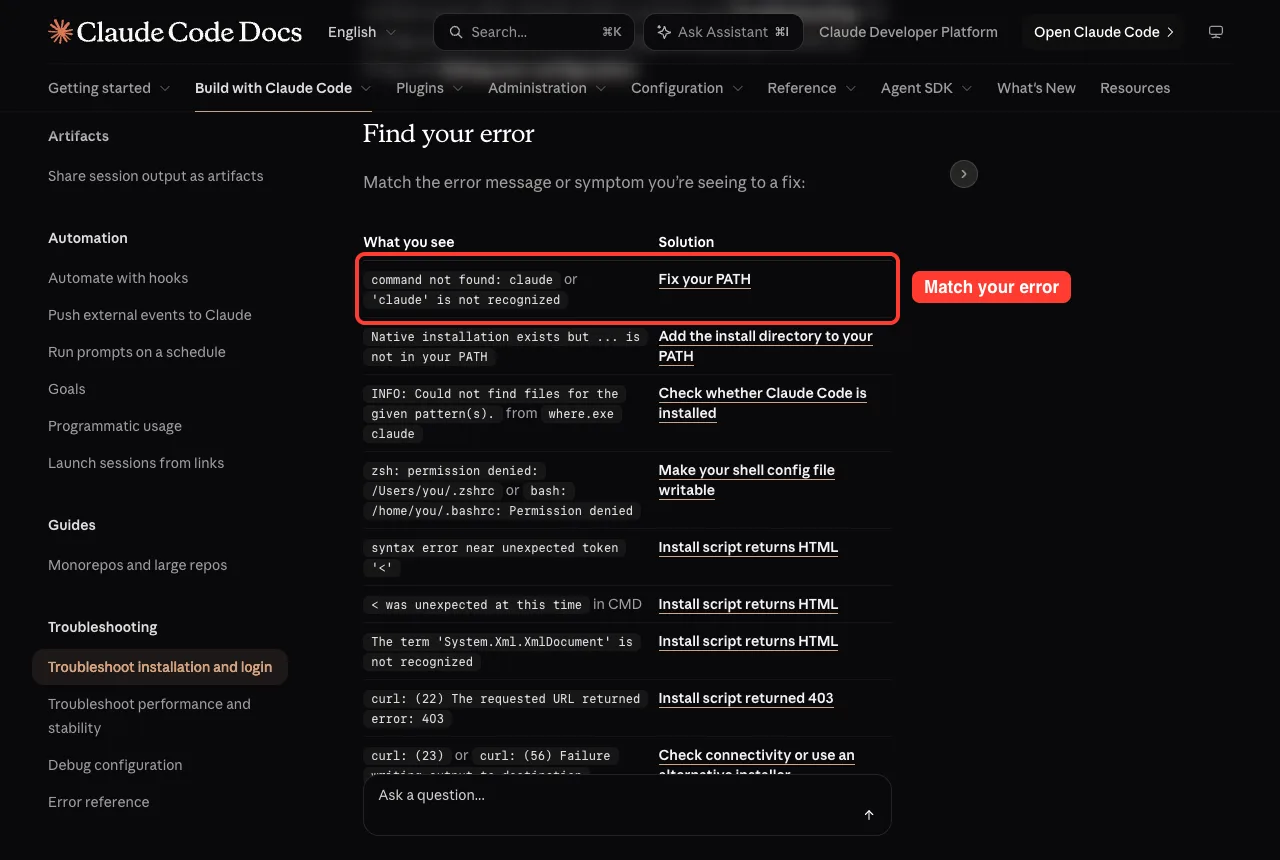
Anthropic keeps one official page, its troubleshooting guide, that maps each error message to a fix. It starts with a big “Find your error” table, and that is the fastest place to look.
If you have not installed Claude Code yet, start with our install guide and come back here if something goes wrong.
Step 1: Check Whether Claude Code Is Installed
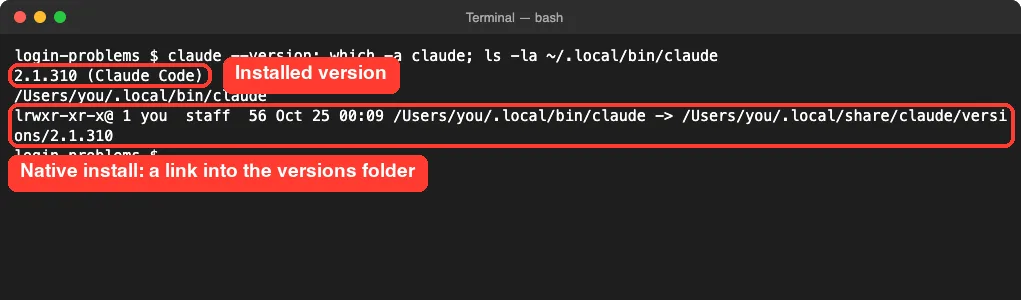
Start with three commands. The first prints the version, the second lists every claude program on your PATH, and the third shows the native install itself.
claude --version
which -a claude
ls -la ~/.local/bin/claude
On our Mac, all three looked healthy. A native install shows ~/.local/bin/claude as a link into ~/.local/share/claude/versions/, one folder per downloaded version.
If ls prints “No such file or directory”, there is no native install. Either install Claude Code, or check whether you used npm or Homebrew instead, which we cover in Step 4.
Step 2: Fix “command not found: claude”
This is the most common install problem. The install worked, but your shell does not look in ~/.local/bin, so it cannot find the program. The installer even warns about it with a “Native installation exists but ~/.local/bin is not in your PATH” note.
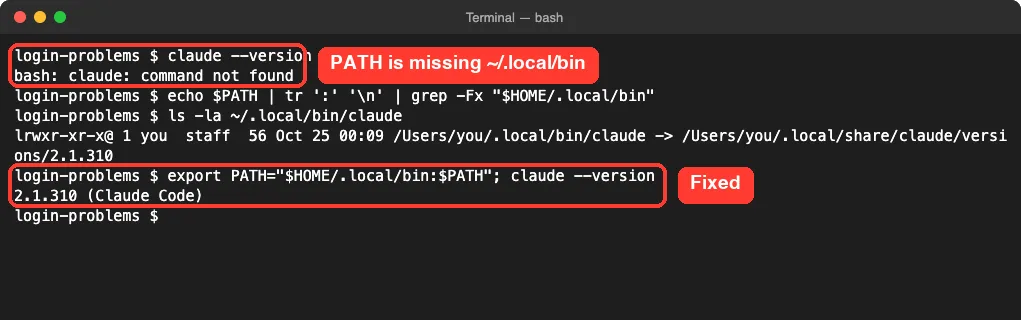
To show this for real, we removed ~/.local/bin from PATH in a test shell. Claude Code instantly became “command not found”, even though the file was still there.
The PATH Check
This command lists your PATH entries and filters for the install folder. If it prints nothing, the folder is missing.
echo $PATH | tr ':' '\n' | grep -Fx "$HOME/.local/bin"The Permanent Fix
For Zsh, the default on macOS, add the folder to ~/.zshrc and reload it. In our demo we only exported PATH for one shell, so we did not touch the real config file.
echo 'export PATH="$HOME/.local/bin:$PATH"' >> ~/.zshrc
source ~/.zshrc
For Bash on Linux, use ~/.bashrc instead. For Bash on macOS, the docs say to use ~/.bash_profile, because Terminal starts Bash as a login shell that ignores ~/.bashrc.
Still Not Found?
- Open a new terminal window. A window that was already open keeps its old PATH.
- Quit and reopen your editor if you use its built-in terminal.
- Run grep -n ‘.local/bin’ ~/.zshrc to confirm the line was saved.
- Run echo $0 to check which shell you are really using.
If the echo command itself says “permission denied”, your user cannot write to that file. The docs suggest checking the owner with ls -l ~/.zshrc, then using chown or chmod u+w to fix it.
Step 3: Test the Network When Downloads Fail
Errors like “Failed to fetch version”, “curl: (56) Failure writing output” or a timed-out update all point to the network. The official check asks the download server for headers only.
curl -sI https://downloads.claude.ai/claude-code-releases/latestA first line of HTTP/2 200 means you reached the server, which is what we saw.
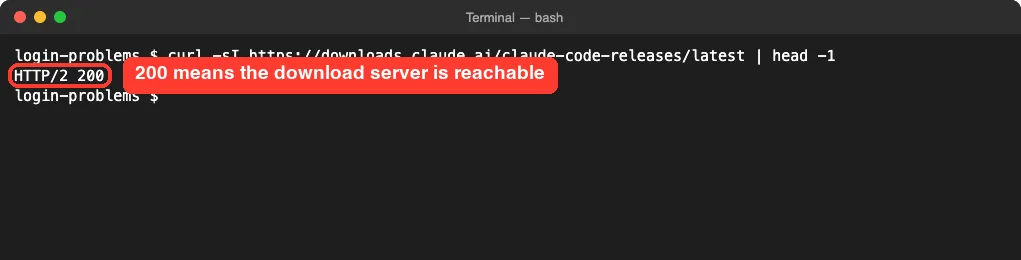
A 403 usually means a proxy or filter is blocking the host, or Claude Code is not available in your region. A 5xx error is usually a short service issue, so wait a few minutes. No output at all means your network is blocking the connection.
Behind a Corporate Proxy
Set both proxy variables before you run the installer or claude update. Ask your IT team for the real address.
export HTTP_PROXY=http://proxy.example.com:8080
export HTTPS_PROXY=http://proxy.example.com:8080
curl -fsSL https://claude.ai/install.sh | bash
If your proxy inspects TLS and you see “unable to get local issuer certificate”, the docs suggest passing your company’s CA file to curl with –cacert. Once installed, set NODE_EXTRA_CA_CERTS so Claude Code trusts it too. Our guide to environment variables explains how these work.
When the Installer Returns HTML
If you see “syntax error near unexpected token ‘<‘”, the install link sent back a web page instead of a script. Retry after a few minutes, or use another method such as brew install –cask claude-code on macOS or winget install Anthropic.ClaudeCode on Windows. The docs note these two methods do not update themselves by default.
Step 4: Check Permissions and Duplicate Installs
Two copies of Claude Code can cause version mix-ups. A folder you cannot write to can make installs fail. We ran the official checks for both in one go.
test -w ~/.local/bin && echo "writable" || echo "not writable"
test -w ~/.claude && echo "writable" || echo "not writable"
ls -la ~/.claude/local/
npm -g ls @anthropic-ai/claude-code 2>/dev/null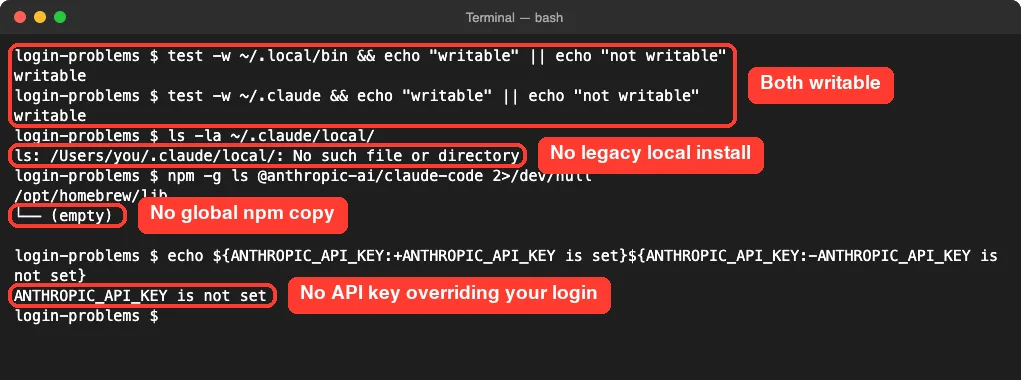
The ~/.claude/local folder is a legacy npm install from older versions. If you find extras, the docs recommend keeping only the native install and removing the others with npm uninstall -g @anthropic-ai/claude-code or brew uninstall –cask claude-code.
One copy of Claude Code on your PATH is the goal. Two copies is a mystery waiting to happen.
Step 5: Update and Run claude doctor
If you see a red “Auto-update failed · Run claude doctor” line in the session footer, you can keep working. To actually finish the update, run claude update from your shell.

Next, claude doctor prints an install report: how Claude Code is running, its version, its path and its auto-update status. On our Mac it ended with “No installation issues found.” We hid two account lines in this screenshot for privacy.
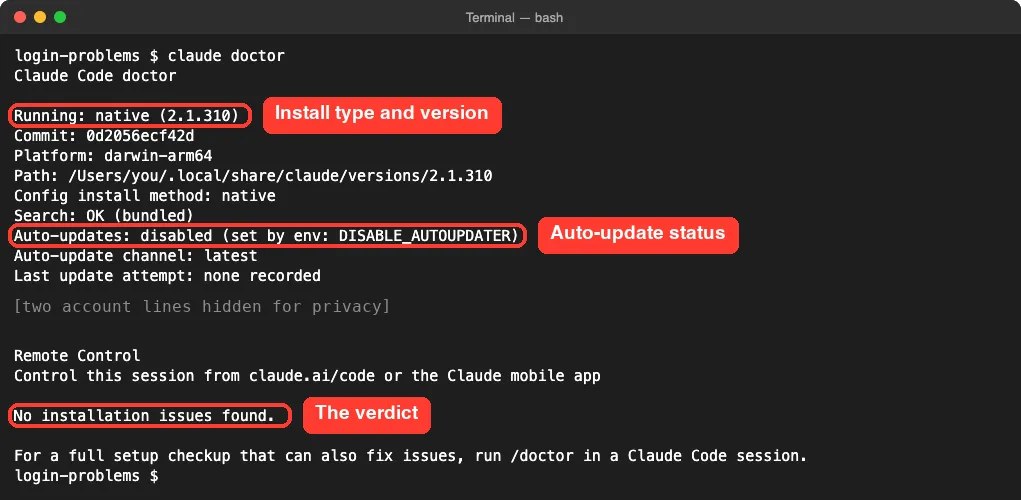
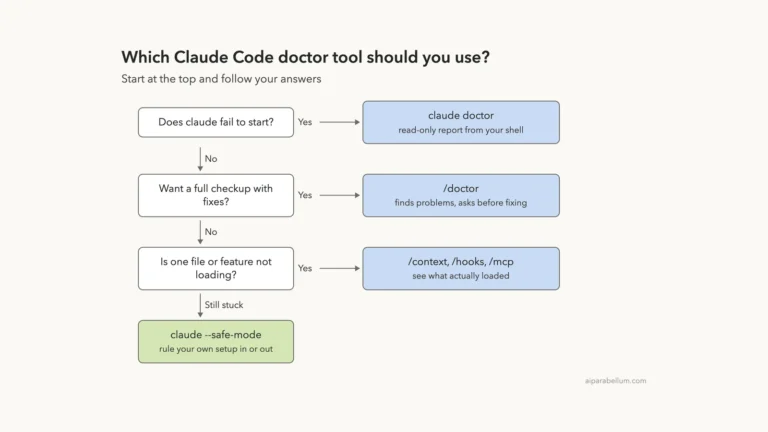
Notice our report says auto-updates are disabled by the DISABLE_AUTOUPDATER variable. That is a real example of doctor pointing to the exact setting behind a behavior. We go deeper into the in-session /doctor command in the next part of this series.
Step 6: Fix Claude Code Login Problems
Once Claude Code starts, sign-in is the next hurdle. First, confirm whether you are logged in at all with claude auth status. We ran it with a fresh, empty config folder so it would show the signed-out state.
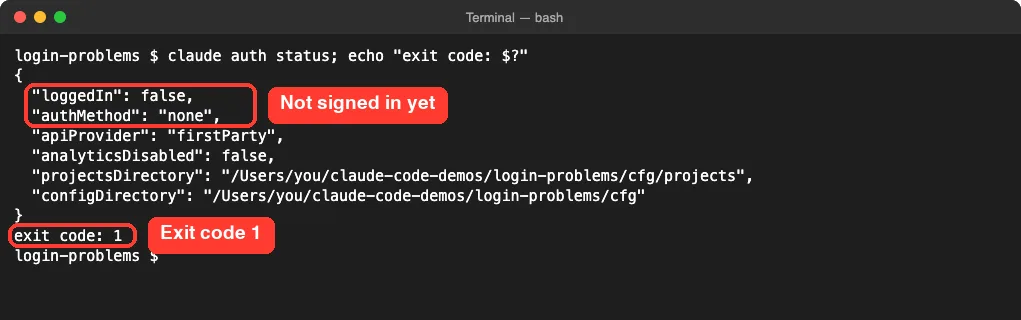
Starting claude from that empty folder showed the real login menu. You pick a Claude account, an Anthropic Console account, or a third-party cloud platform. Our privacy filter swapped a couple of plan words on this screen for “Your plan”.
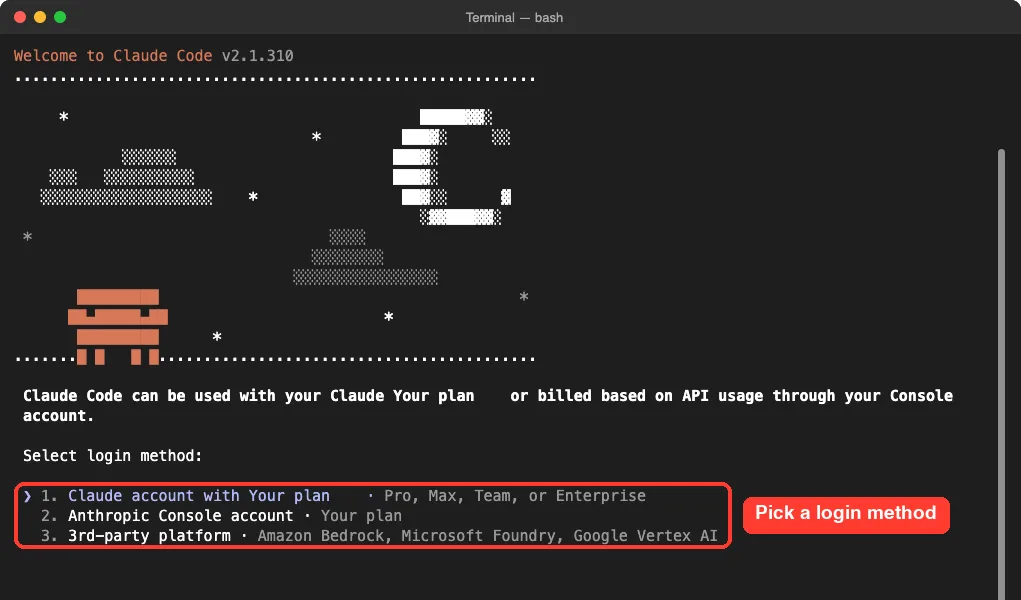
Our guide to plans and login options explains which choice fits you.
Reset Your Login
When login fails and you cannot tell why, the docs recommend a clean reset. It fixes most cases.
- Run /logout inside Claude Code.
- Close Claude Code.
- Run claude again and sign in.
Be aware that logging out removes all stored credentials, including saved MCP server logins and plugin secrets.
When the Browser Does Not Open
After you pick a method, Claude Code tries to open your browser. If nothing opens, it shows the sign-in link with “(c to copy)” and a “Paste code here if prompted” box. We hid the one-time link in this screenshot.
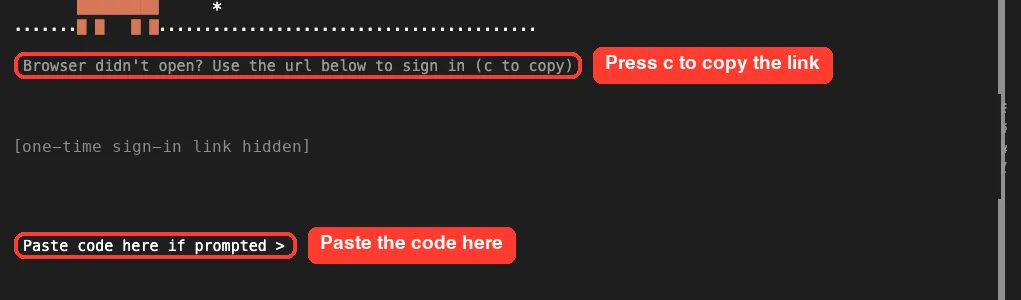
This is the same fix for WSL2, SSH and containers, where the browser runs on a different machine. Open the link on your own computer, sign in, and paste the code it shows into the terminal. If pasting does nothing, try claude auth login, which reads the code from standard input.
OAuth Error: Invalid Code
This means the code expired or got cut off when you copied it. Press Enter to retry and finish quickly after the browser opens. On a remote session, copy the link and open it in your local browser.
403 Forbidden After Login
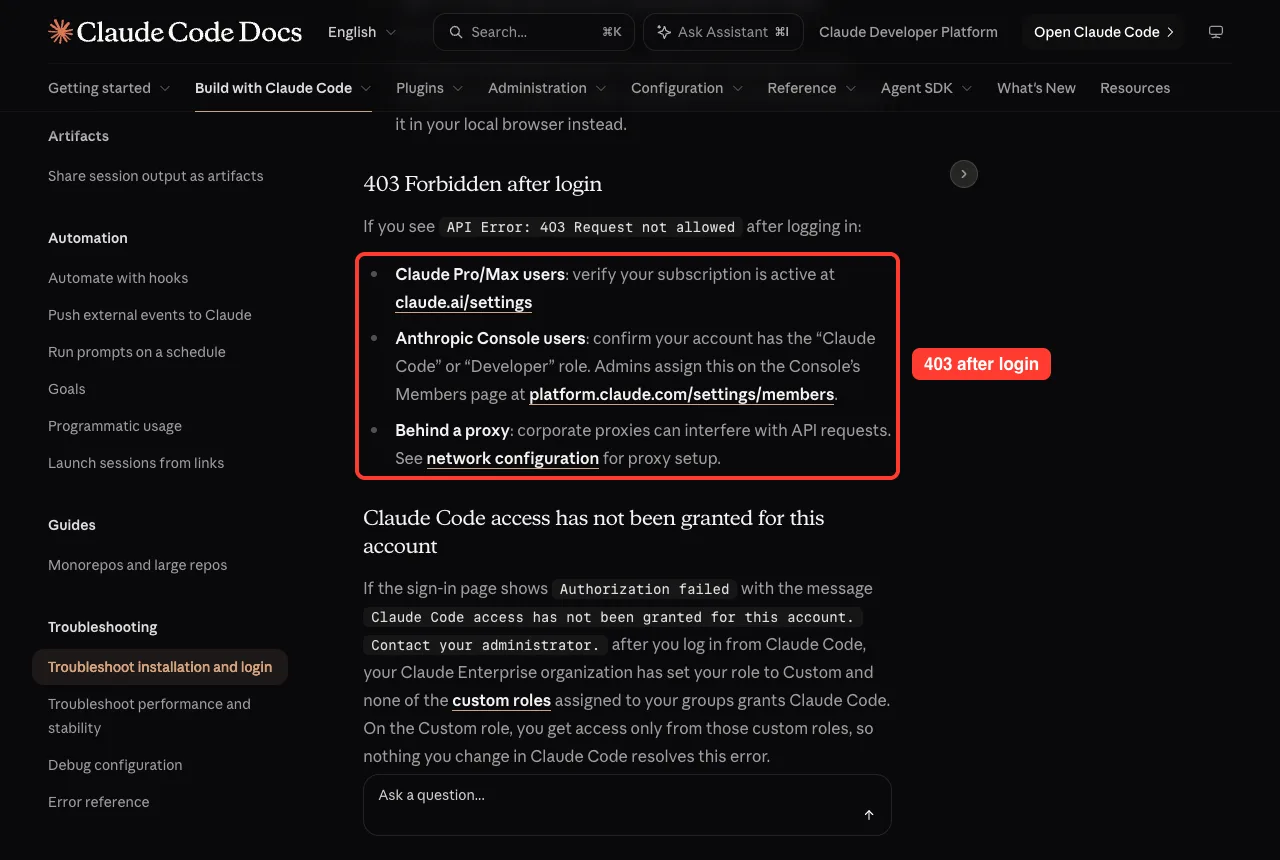
If you see “API Error: 403 Request not allowed”, check that your Pro or Max plan is active. Console users need the “Claude Code” or “Developer” role, which an admin sets. A corporate proxy can also cause it.
“This Organization Has Been Disabled”
If you have an active plan but see this error, an ANTHROPIC_API_KEY variable is taking over. It is often an old key from a past job left in your shell profile. Run unset ANTHROPIC_API_KEY, remove the export line from ~/.zshrc or ~/.bashrc, then run /status to confirm which login is active.
Logged Out Again and Again
Run /login to sign in again. If it keeps happening, check that your system clock is correct, since token checks depend on it. On macOS, claude doctor warns “macOS Keychain is not writable” when the Keychain blocks saving your login.
Windows Install Errors
Most Windows errors come from running a command meant for another shell. “irm is not recognized” means you are in CMD, not PowerShell. “&& is not a valid statement separator” means you ran the CMD command in PowerShell.
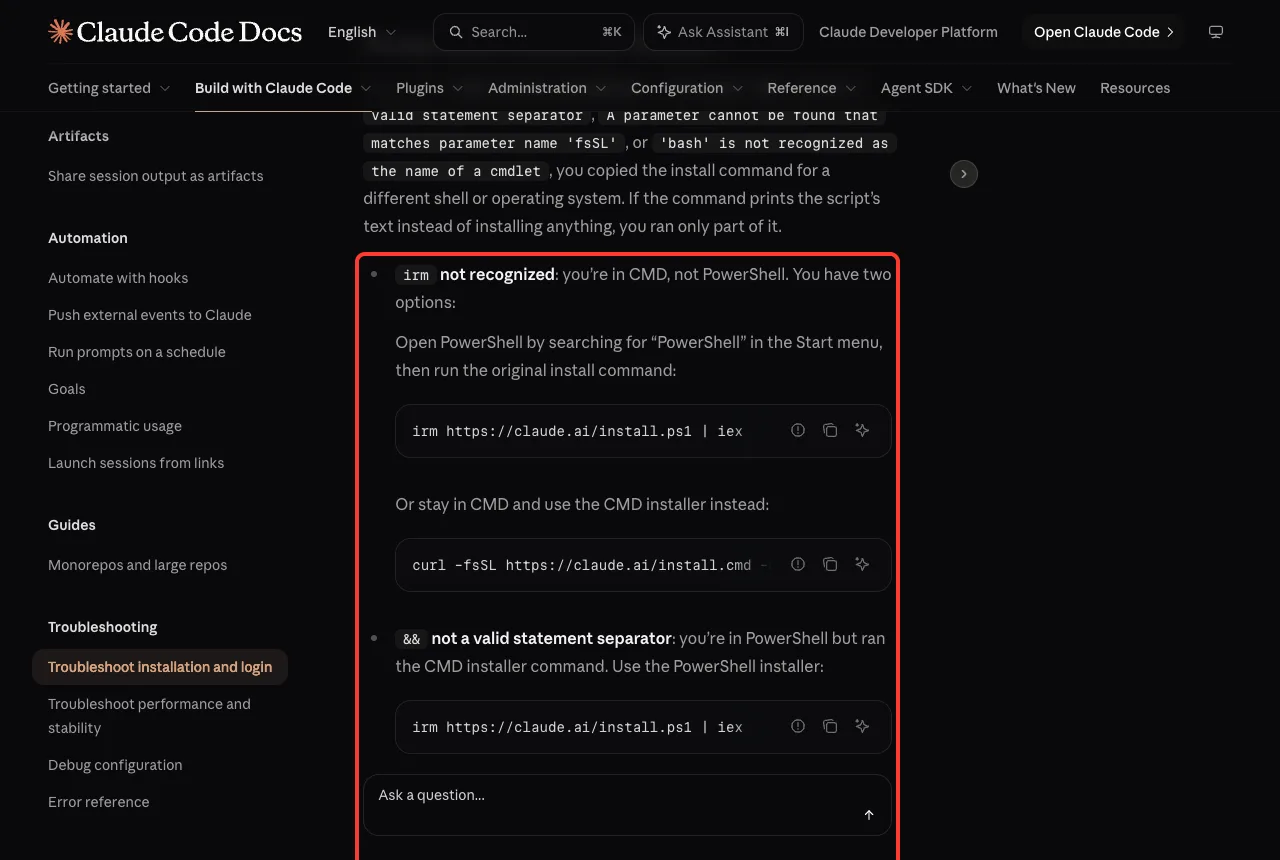
In PowerShell, the installer is irm https://claude.ai/install.ps1 | iex. If you see “running scripts is disabled on this system” with npm, the docs suggest Set-ExecutionPolicy -ExecutionPolicy RemoteSigned -Scope CurrentUser, or calling claude.cmd instead.
Real Examples From Our Test
| Check we ran | What we saw | What it told us |
|---|---|---|
| claude –version | 2.1.310 (Claude Code) | Installed and runnable |
| Same command with PATH broken | bash: claude: command not found | The file was fine; only PATH was wrong |
| curl -sI downloads server | HTTP/2 200 | Network was open |
| claude update | Claude Code is up to date | Already on the latest version |
| claude doctor | No installation issues found | Healthy native install |
| claude auth status (empty config) | loggedIn false, exit code 1 | No login saved in that folder |
Try It Yourself
Run the safe checks from this guide on your own machine. None of them change anything. If Claude Code already starts, you can also ask it to explain your results.
I ran claude --version, which -a claude and claude doctor. Here is the output:
[paste output]
In plain English, is my install healthy? If not, which single fix should I try first?
Common Mistakes
- Fixing PATH but testing in the same old terminal window.
- Copying the macOS curl installer into Windows PowerShell.
- Keeping npm, Homebrew and native installs side by side.
- Leaving an old ANTHROPIC_API_KEY in your shell profile.
- Waiting too long between opening the sign-in page and pasting the code.
- Uninstalling and reinstalling before running claude doctor.
Pro Tips
- Copy the exact error text and search for it in the official “Find your error” table.
- Use claude auth status in scripts; it exits with code 1 when you are not logged in.
- On a remote server, press c to copy the sign-in link instead of fighting a wrapped URL.
- Run claude doctor before filing a bug, and include its output.
- Check your Claude Code settings if behavior looks odd after a successful install.
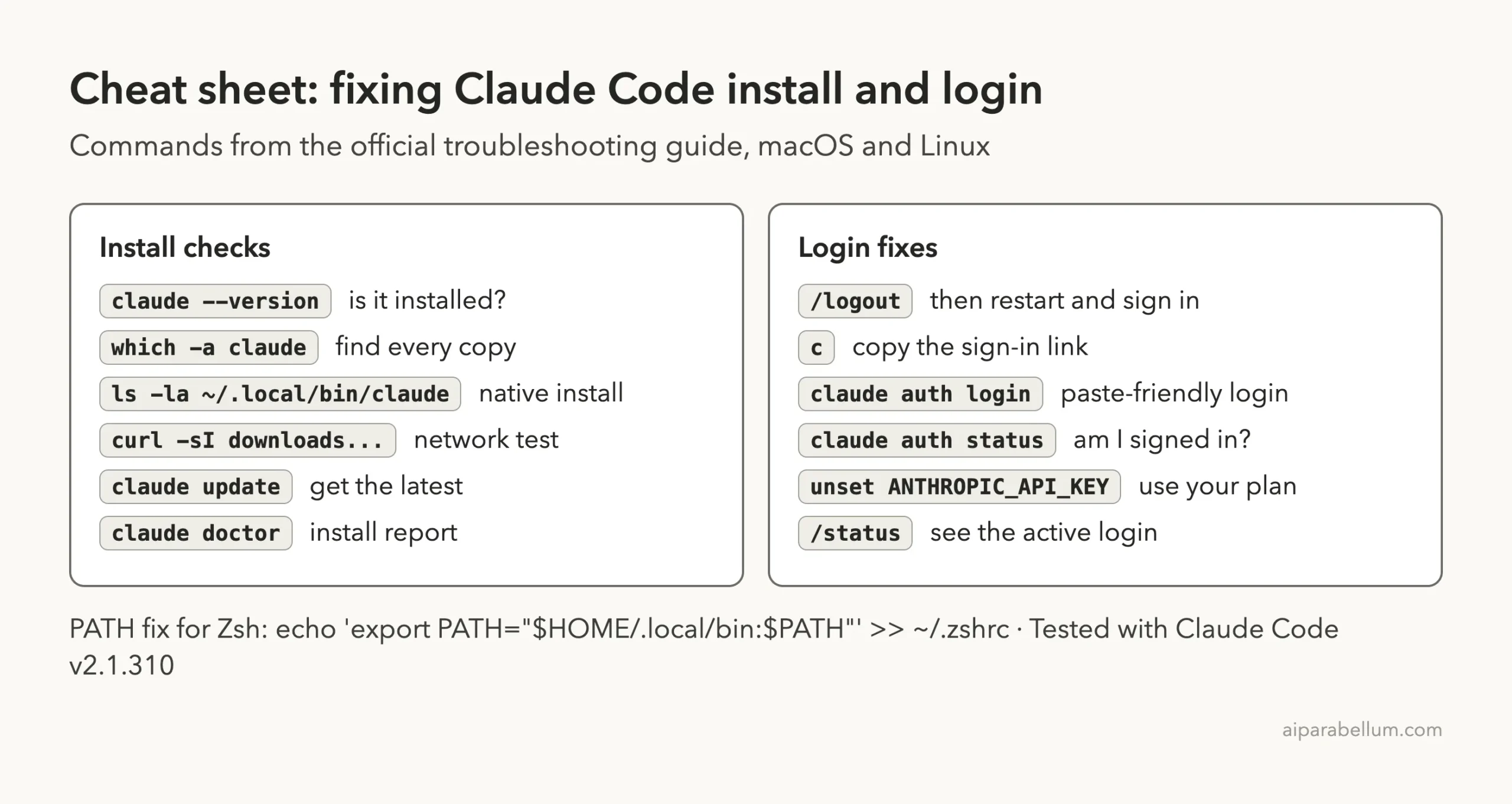
Claude Code Troubleshooting Cheat Sheet
Frequently Asked Questions
Why does it say command not found right after I installed Claude Code?
Your shell does not look in ~/.local/bin yet. Add it to your PATH in ~/.zshrc or ~/.bashrc, then open a new terminal window.
Is claude doctor safe to run?
Yes. It prints a report about your install, such as the version, path and update status. In our test it changed nothing.
How do I log in to Claude Code over SSH?
Copy the sign-in link, open it in a browser on your own computer, sign in, and paste the code it shows into the terminal. claude auth login also works when pasting into the prompt fails.
Why do I get “organization has been disabled” with a paid plan?
An ANTHROPIC_API_KEY environment variable is being used instead of your plan login. Unset it and remove it from your shell profile.
Where do I get help if nothing works?
Check the Claude Code GitHub issues, use /feedback if a session starts, or contact Anthropic support for account problems. Our Claude AI overview covers the wider Claude product family.
Conclusion
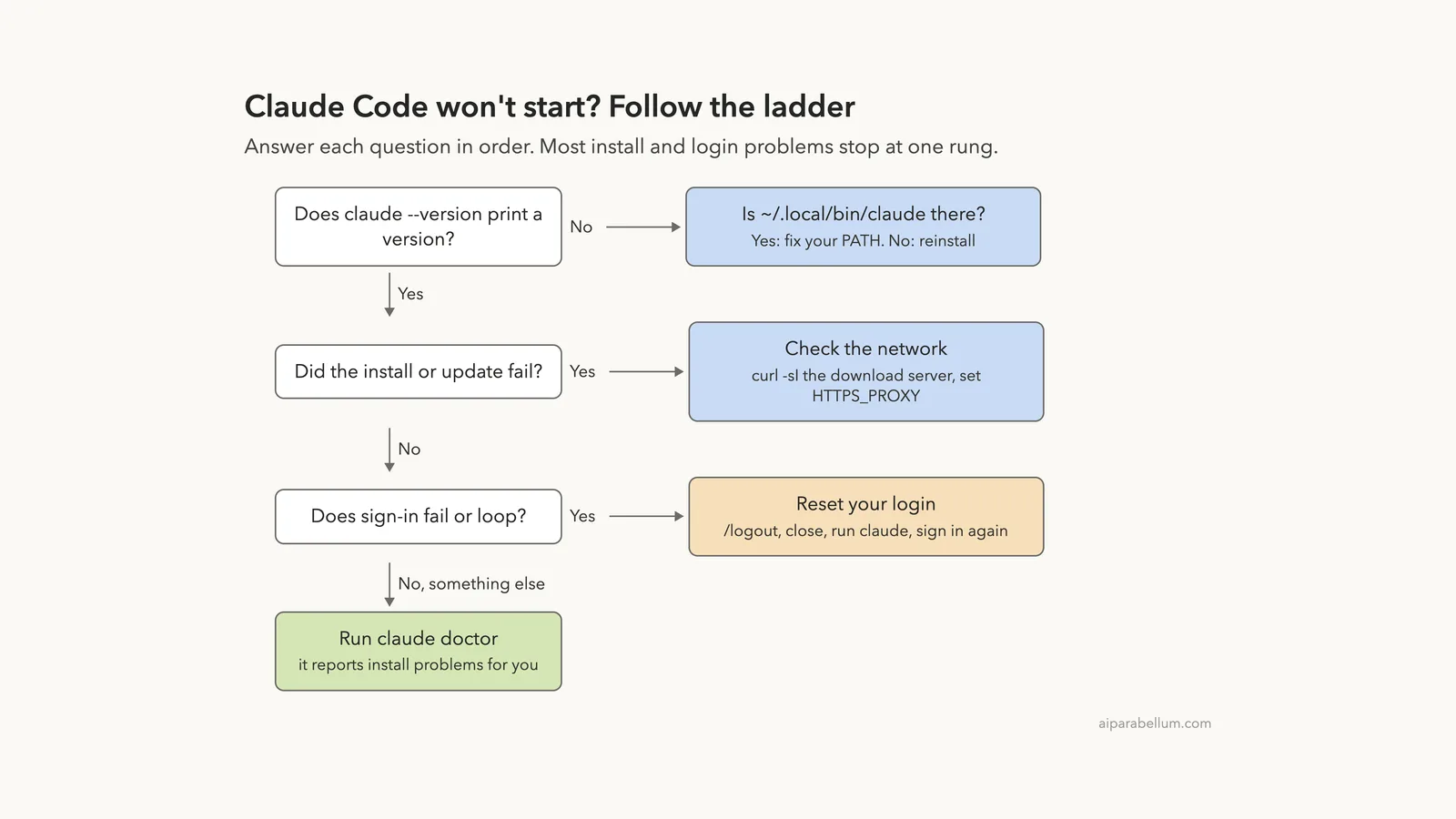
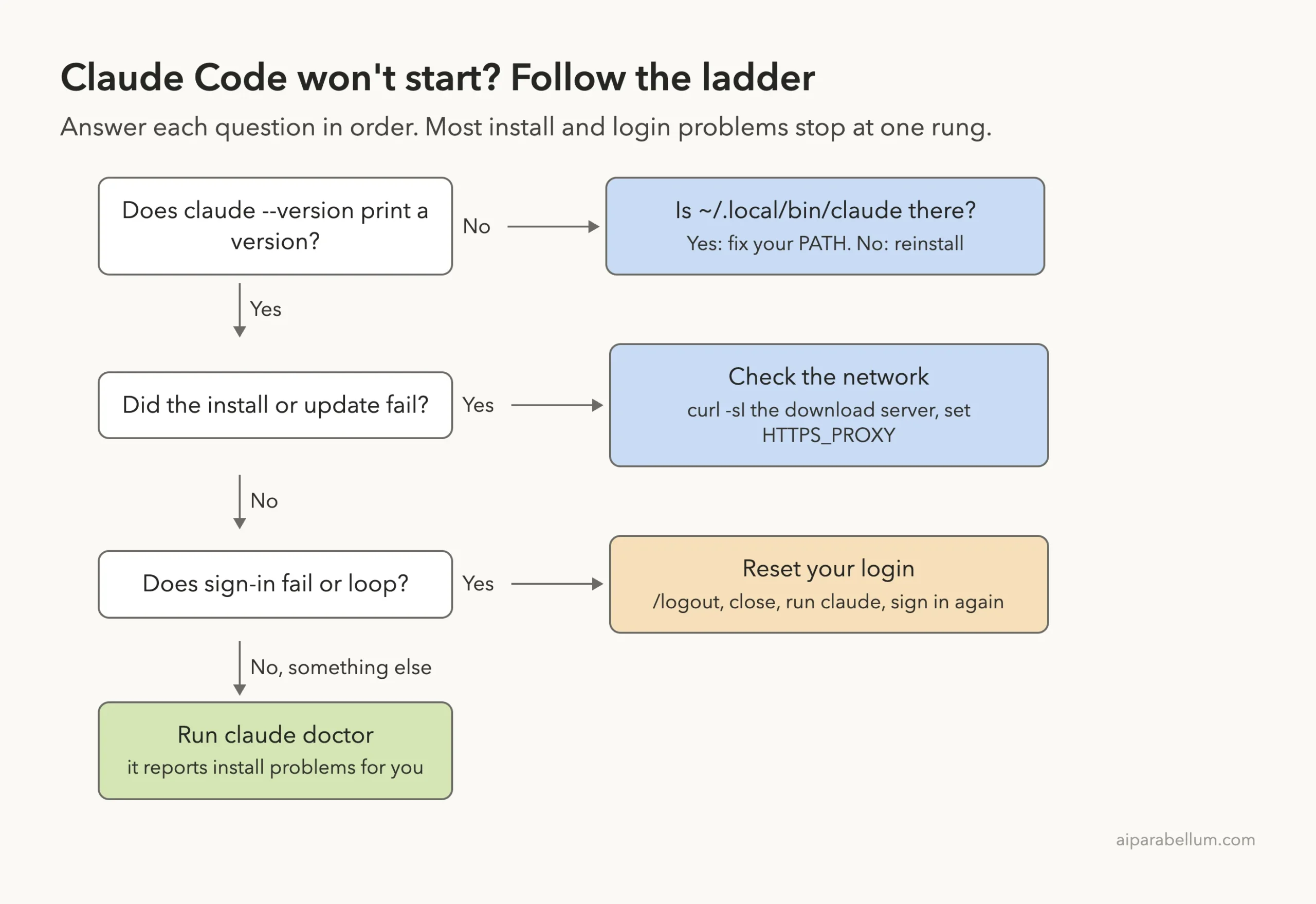
Most Claude Code install and login problems are easy to fix once you read the message carefully: check claude –version, fix your PATH, test the download server, remove duplicate installs, update, run claude doctor, and reset your login if sign-in fails. Work down the ladder in this guide one rung at a time, and keep the official troubleshooting page open for rare errors, so you spend your time coding instead of fighting your setup.
Previous in the series: Part 44, Using Claude Code in Large Codebases and Monorepos
Next in the series: Part 46: Debug Your Claude Code Configuration With /doctor.