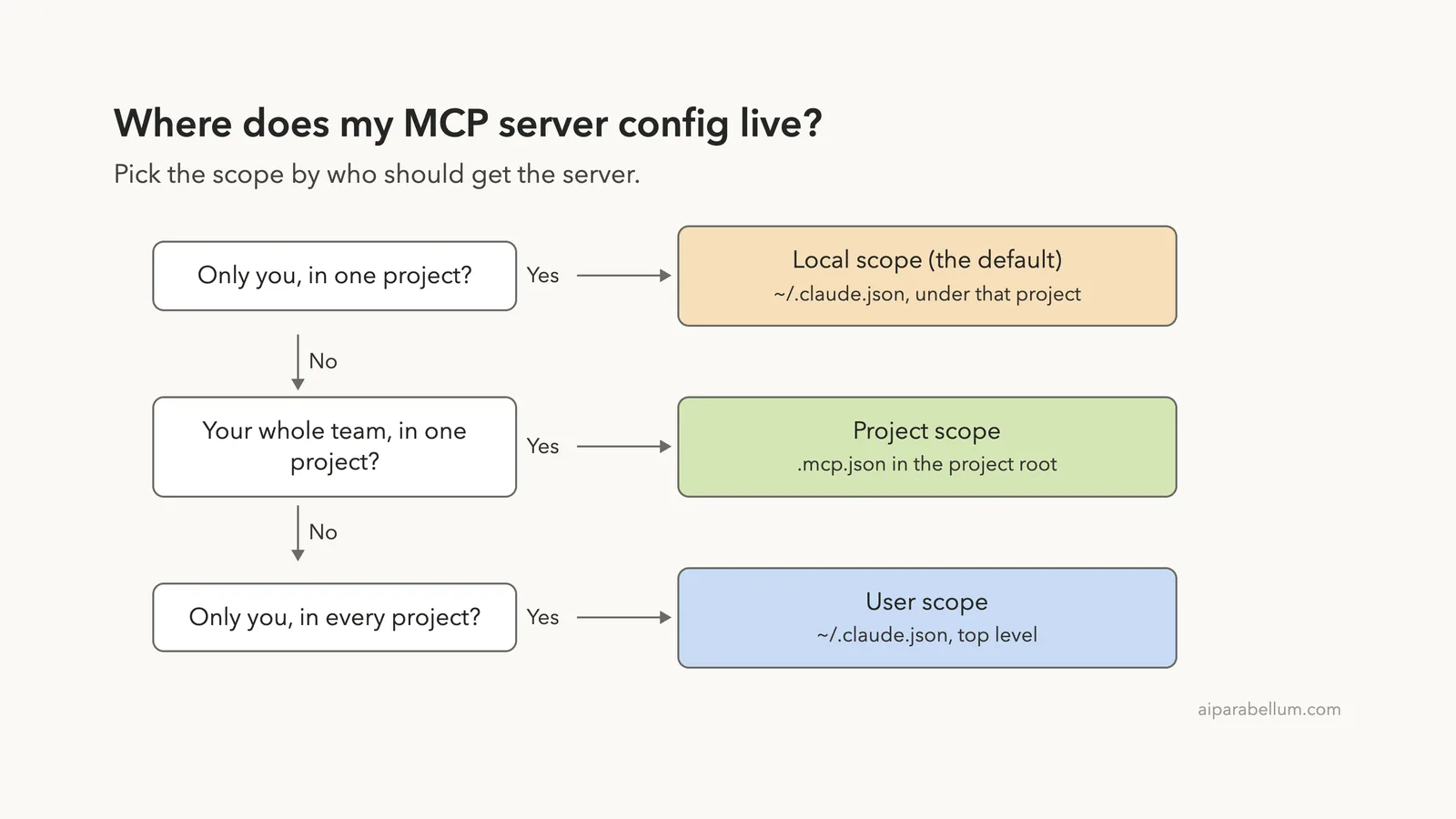
The Claude Code MCP config file location depends on the scope you chose when you added the server. Project servers live in a file named .mcp.json in the root folder of your project. Local servers and user servers both live in ~/.claude.json, the hidden file in your home folder.
That is why the search feels confusing. There is no single “MCP config file,” and the one most people expect, .mcp.json, only exists if you added a project-scoped server or wrote the file yourself.
We read the official MCP docs, then built a tiny demo MCP server and added it in all three scopes on a Mac. Below you get the exact paths, what each file looks like, where Claude Code saves your approval choices, and which definition wins when the same name appears twice.
This guide is part of our Claude Code tutorials, where we answer one specific question per post.
Tested with Claude Code v2.1.312 on November 1, 2026. We tested on macOS; the Windows and Linux steps follow Anthropic’s official instructions.
Quick Answer: Where Are the Claude Code MCP Config Files?
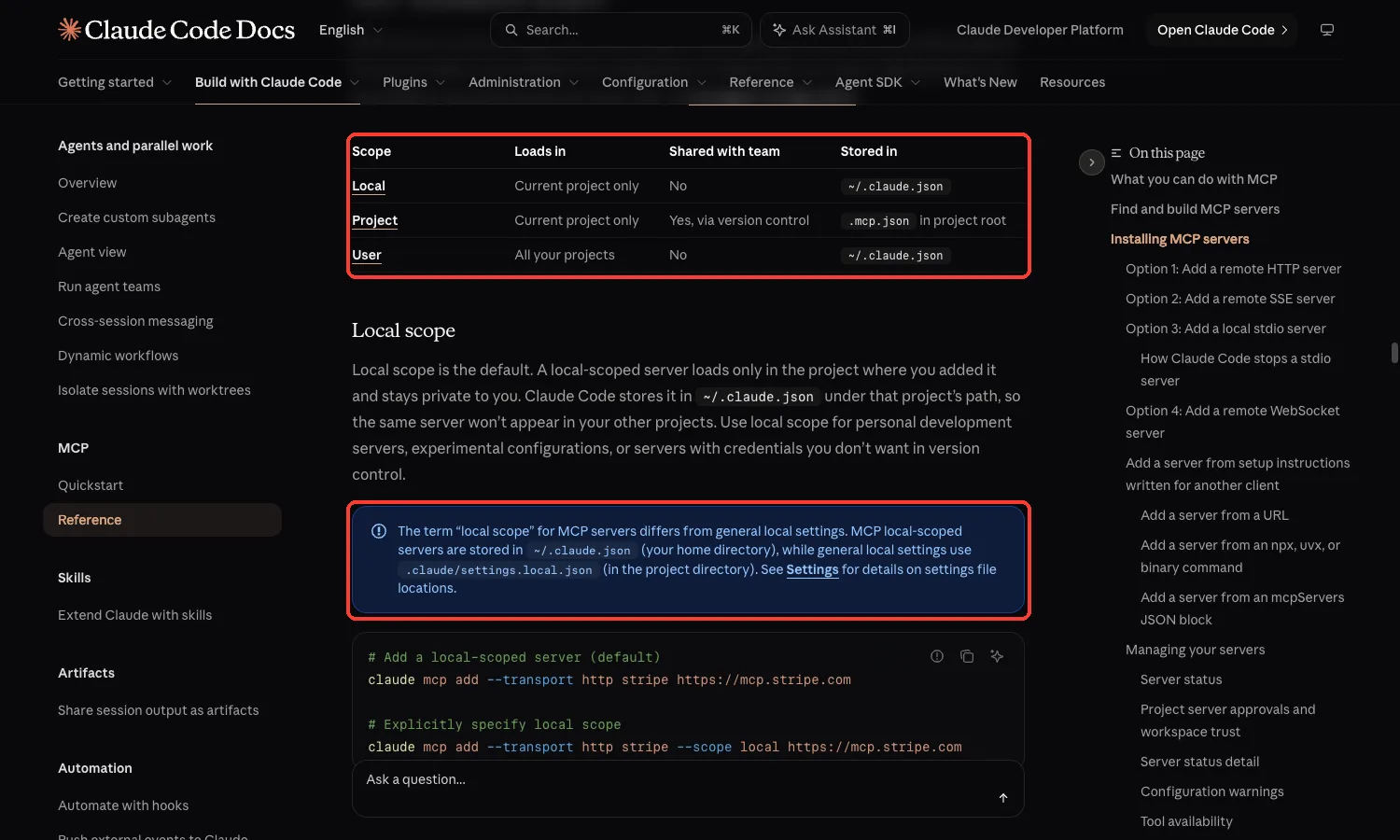
The table below comes from the official docs, and we confirmed each path in the demo further down.
| Scope | Stored in | Who gets the server |
|---|---|---|
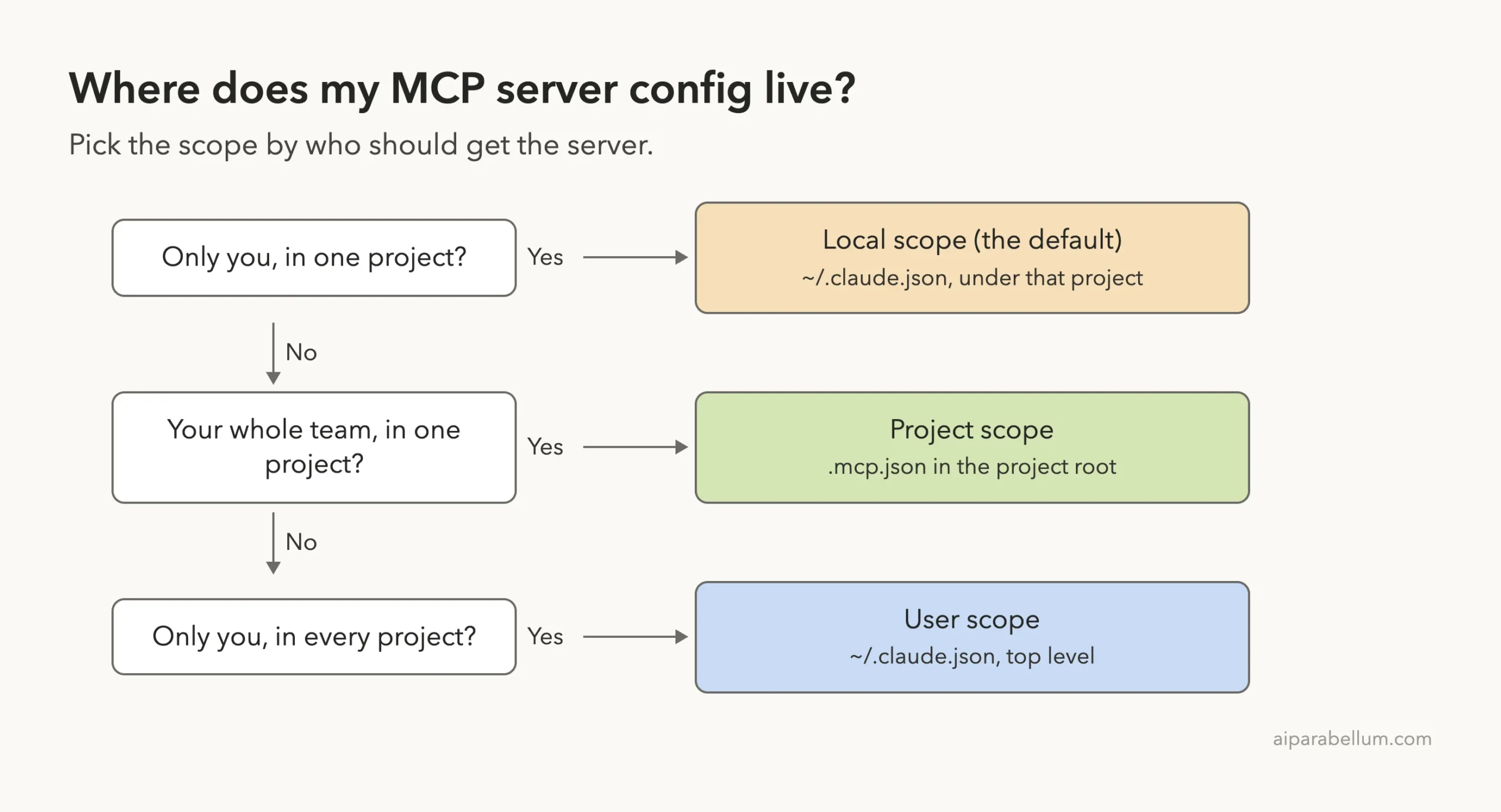
| Local (the default) | ~/.claude.json, under that project’s path | You, in that one project |
| Project | .mcp.json in the project root | Everyone who uses the project, if you commit it |
| User | ~/.claude.json, at the top level | You, in every project |
| Managed | Set by your organization | Everyone in your organization |
In these paths, ~ is your home folder. The docs say the files in your home folder are hidden because the names start with a dot, so use ls -a in a terminal to see them.
Why You Cannot Find the MCP Config File (.mcp.json)
The most common reason is simple. Claude Code creates .mcp.json only when you add a server with --scope project, or when you write the file yourself. If you added your server with the default command, it went into ~/.claude.json instead.
The second reason is the folder you are in. The file belongs in the root of the project, next to files such as package.json or README.md. It does not go inside the .claude folder, which is a common mix-up with the settings files.
If you cannot find an MCP config file, check the scope you used when you added the server.
The Three Scopes in Plain English
Claude Code has three scopes for MCP servers. The scope controls which projects load the server and whether the setup is shared with your team.
Local Scope: The Default
When you run claude mcp add with no scope flag, you get local scope. The server loads only in the project where you added it and stays private to you. Claude Code stores it in ~/.claude.json under that project’s path, so it will not show up in your other projects.
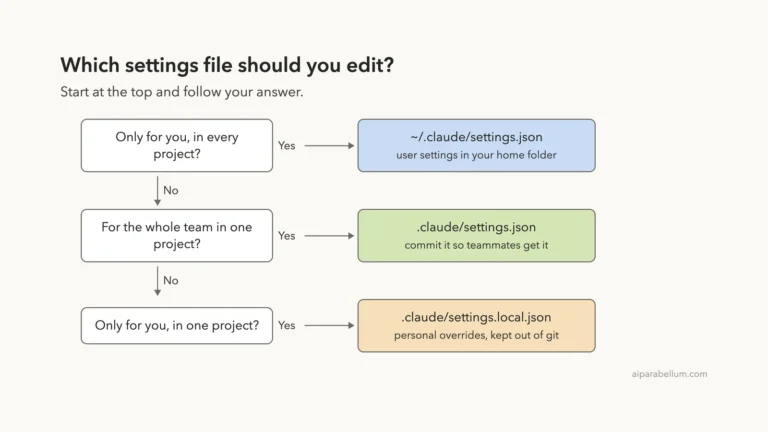
The docs add a warning that trips people up. The word “local” means something different here than in the settings files. MCP local-scoped servers are stored in ~/.claude.json in your home directory, while general local settings use .claude/settings.local.json inside the project.
Project Scope: The .mcp.json File
Project scope is for sharing. Claude Code writes the server into a .mcp.json file at the project root, and the docs suggest you check that file into version control so your teammates get the same MCP tools.
Because a teammate could add a server that runs code on your machine, Claude Code asks for your approval in an interactive session before it uses a project-scoped server. We show that prompt below.
User Scope: Everywhere on Your Machine
User scope is for servers you want in every project. Claude Code stores them at the top level of ~/.claude.json. They stay private to your user account, which makes this scope a good fit for personal utility servers.
What We Saw: Adding One Server in Each Scope
To see this for ourselves, we made a demo folder at ~/claude-code-demos/mcp-config-location. In it we wrote a small Python script, notes-server.py, that speaks the MCP protocol over stdio and offers one tool that returns two made-up notes. It does nothing else.
We then ran three commands, one per scope. We ran the user and local commands with a throwaway home folder inside the demo folder, so our real ~/.claude.json was never touched.
claude mcp add --scope project --transport stdio demo-notes -- python3 notes-server.py
claude mcp add --scope user --transport stdio user-demo -- python3 notes-server.py
claude mcp add --transport stdio local-demo -- python3 notes-server.py
The paths in our real commands were absolute, which is a good habit, because a relative path breaks when you start Claude Code from another folder. The first command printed “File modified” with the path to a new .mcp.json in the demo folder.
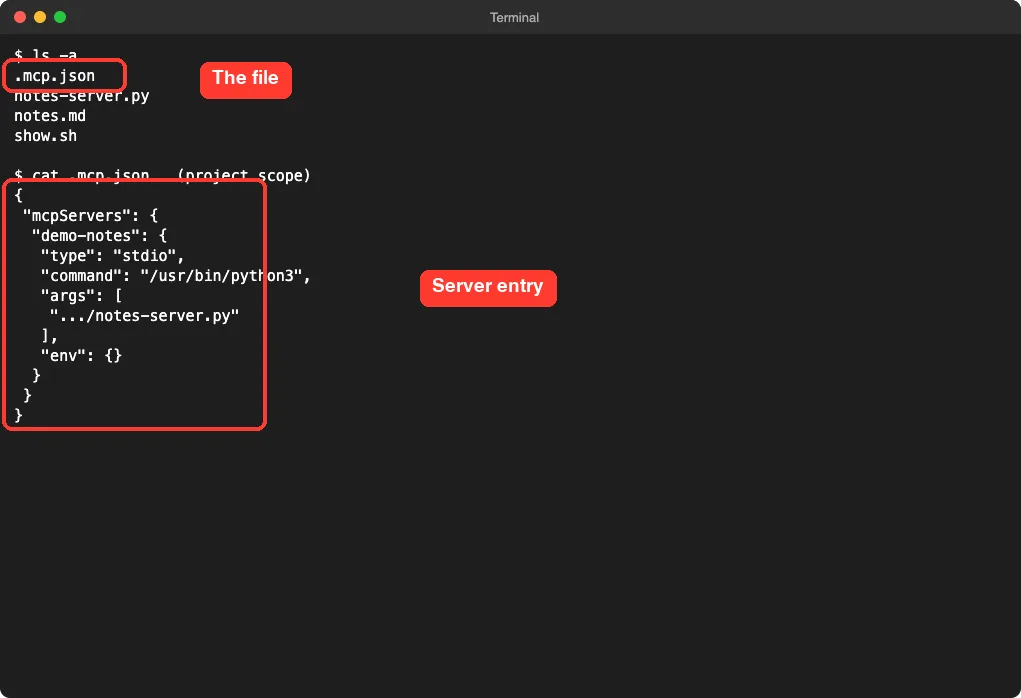
Inside that file is a single mcpServers object holding our demo-notes entry, with its type, command, arguments and an empty env block. That matches the format shown in the docs.
The other two commands printed “File modified” with a path to .claude.json in the throwaway home folder. We opened that file and listed only the MCP keys. The user server sat at the top level under mcpServers, and the local server sat under projects, inside the entry for our demo folder, in its own mcpServers object.
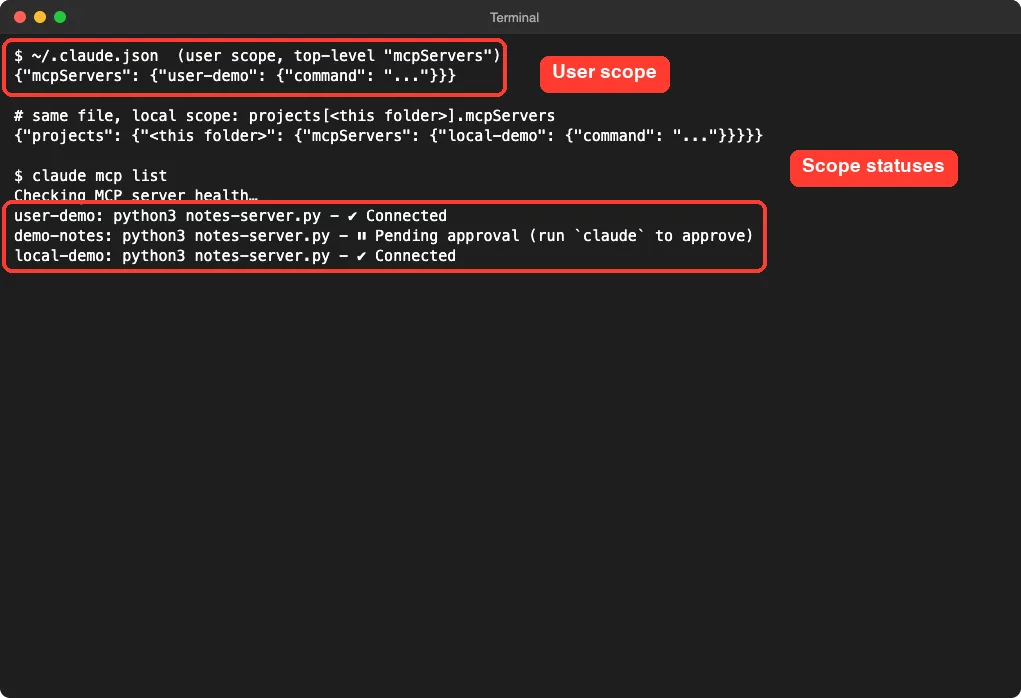
The claude mcp list output in that screenshot is worth a look. The user and local servers showed a green check and “Connected”. The project server showed “Pending approval (run claude to approve)”, which brings us to the next section.
We hid the rest of that file on purpose. The real ~/.claude.json also holds account details, so do not paste or share it without checking it first.
The Approval Prompt for Project Servers
When we started Claude Code in the demo folder, it stopped and asked about the project server. The prompt read “New MCP server found in this project: demo-notes” and offered three choices: use this server, use this and all future servers in the project, or continue without it.
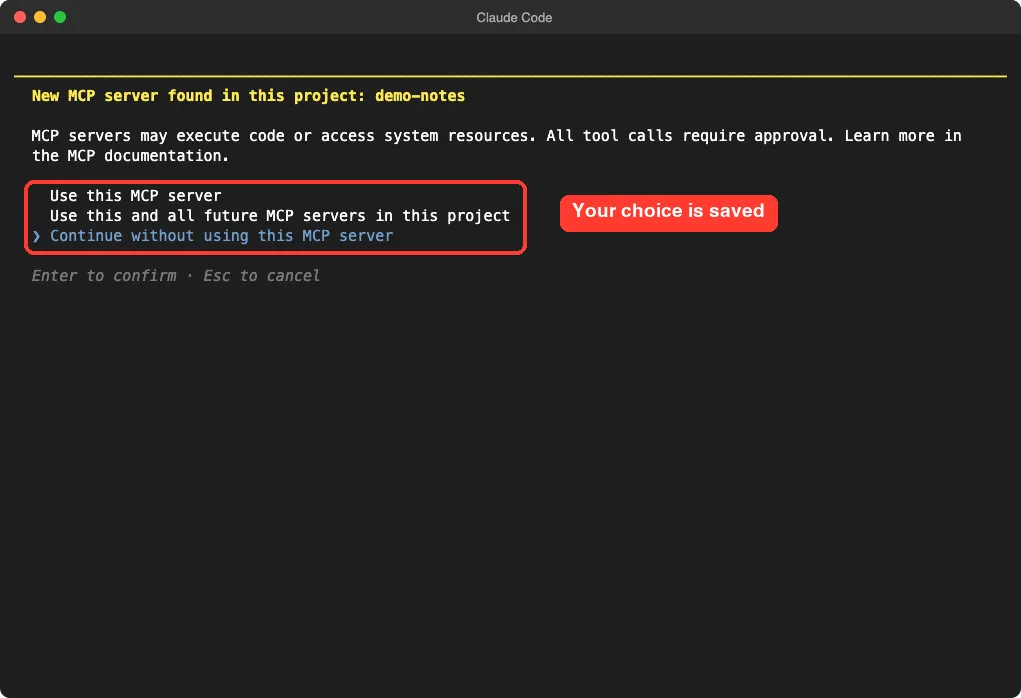
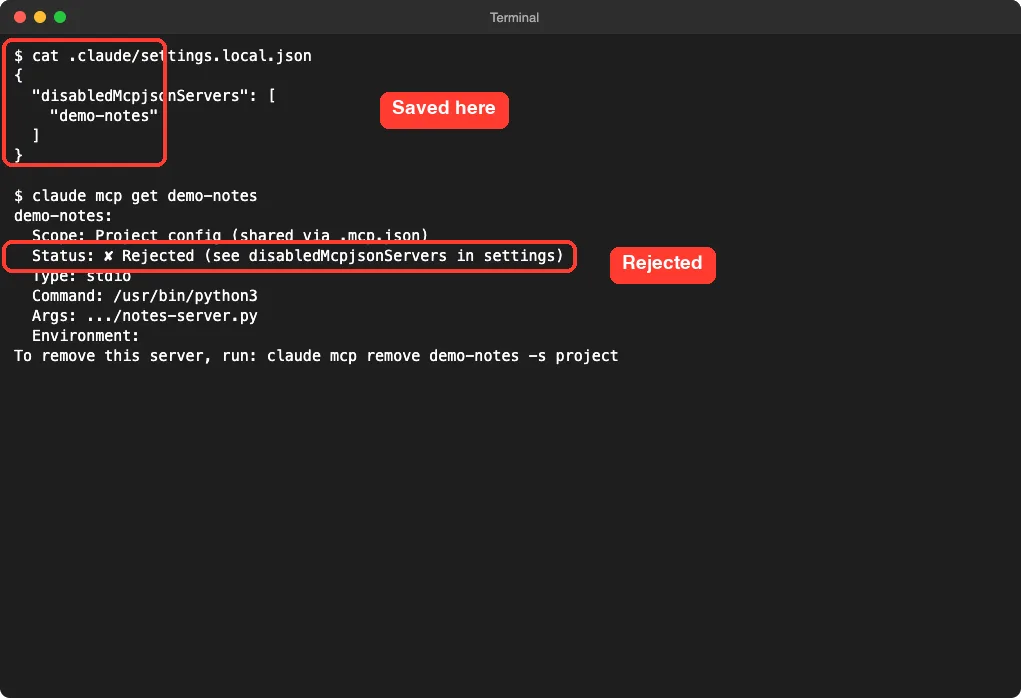
We first chose to continue without the server. Then we looked in the project folder and found that Claude Code had created .claude/settings.local.json with a disabledMcpjsonServers list containing demo-notes. Running claude mcp get demo-notes reported the scope as “Project config (shared via .mcp.json)” and the status as “Rejected”.
Next we reset that file to an empty object, started Claude Code again, and approved the server. This time the same file held an enabledMcpjsonServers list with demo-notes, and claude mcp get showed “Connected”.
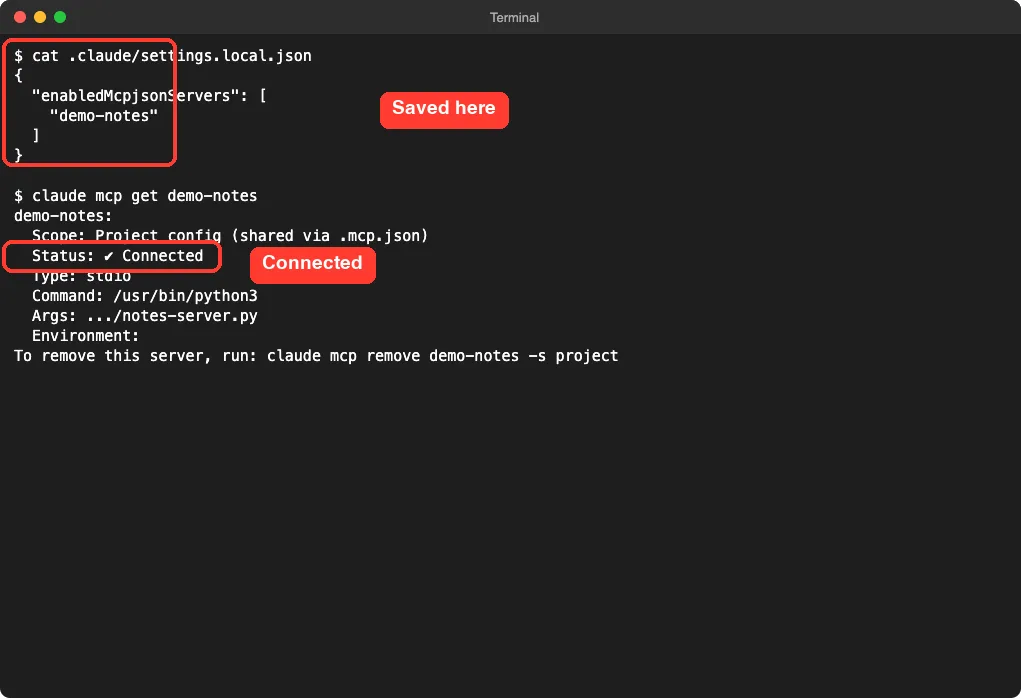
So your approval choice does not live in .mcp.json. It lives in your private .claude/settings.local.json, which is why every teammate gets their own prompt. To forget all those choices, the docs say to run claude mcp reset-project-choices.
This is one demo of one flow, so treat it as an example and not a full test. We did not ask Claude to call the tool, so this guide shows where the config lives and not how the tool behaves.
Which Definition Wins When Names Clash?
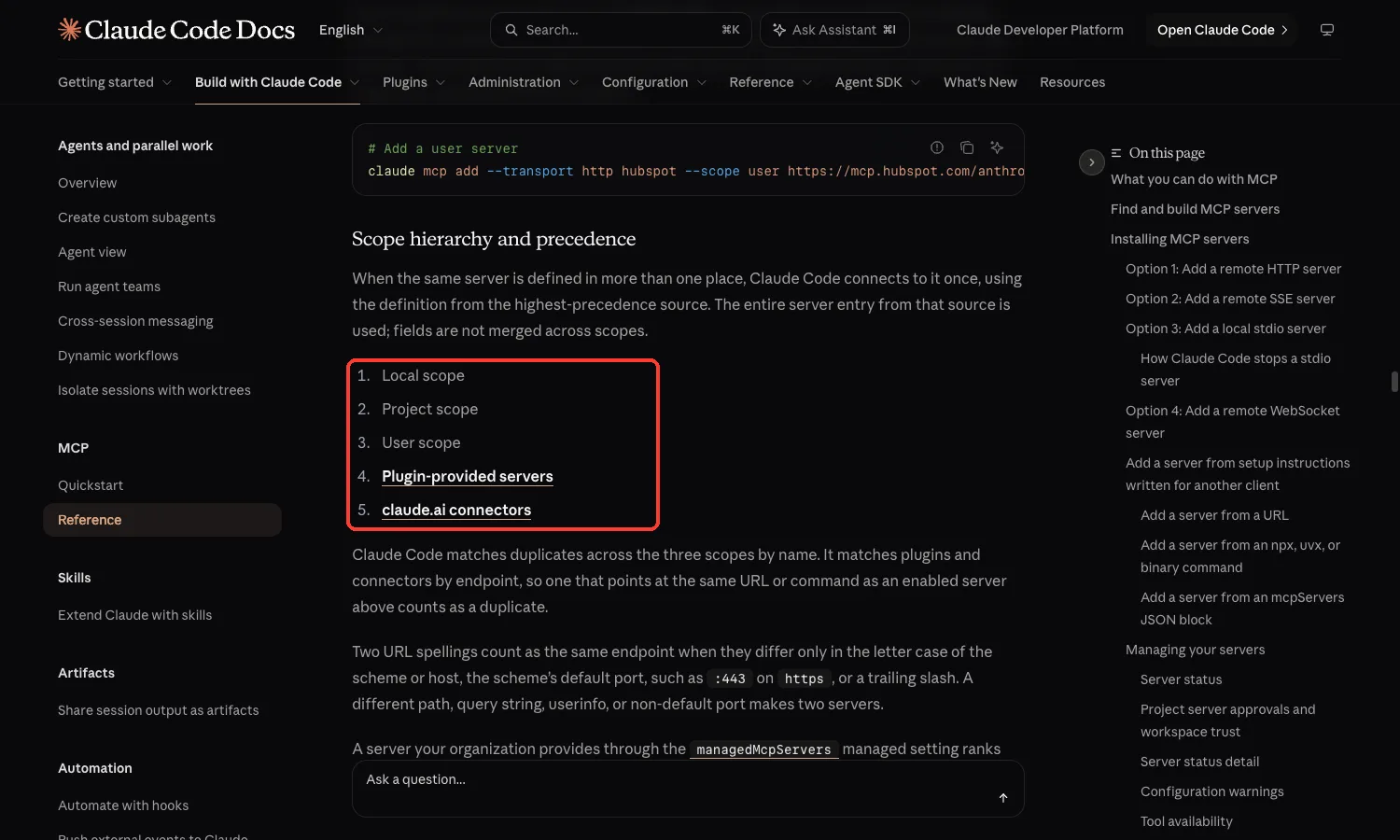
Sooner or later you may define the same server name in two places. The docs say Claude Code then connects to it once, using the highest-precedence source, and it uses the entire entry from that source. Fields are not merged across scopes.
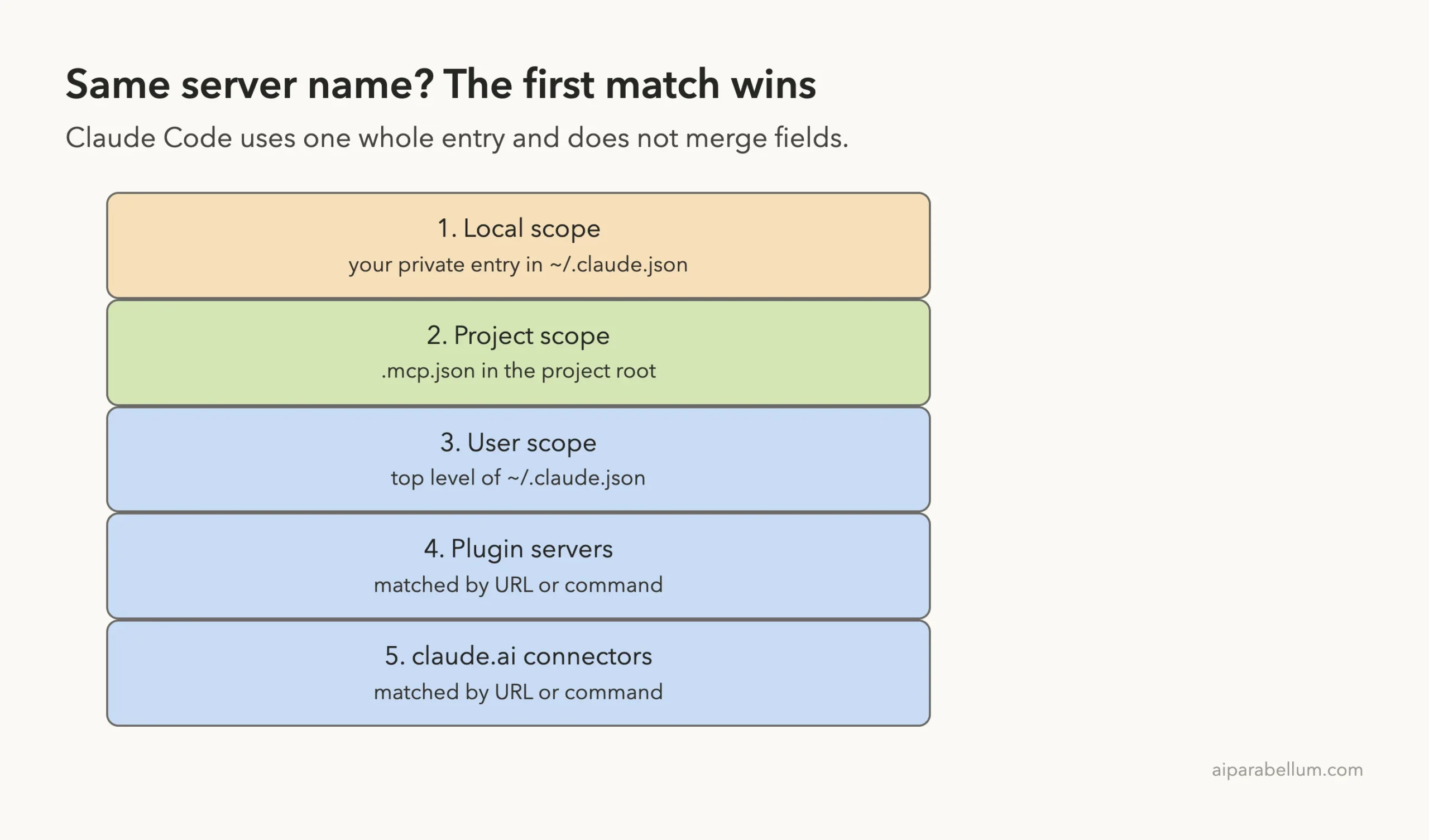
The order, highest first, is local scope, project scope, user scope, plugin-provided servers and claude.ai connectors. Claude Code matches the three scopes by name. It matches plugins and connectors by endpoint, so a plugin that points at the same URL or command as a server you already enabled counts as a duplicate.
A server your organization provides through managed settings ranks above all of these. The docs also warn that Claude Code lists a conflict when the same name has different endpoints in more than one scope. In that case, keep the one you want and remove the others with claude mcp remove <name> --scope <scope>.
How to Check Which Servers Are Loaded
You do not need to open any file to see what Claude Code loaded. These three commands answer most questions:
claude mcp listshows every server with a status, and it checks each server’s health as it runs.claude mcp get <name>shows one server, including its scope, status, command and arguments./mcpinside a session opens a panel where you can manage servers and sign in to remote ones.
The docs list the statuses you may see.
“Pending approval” means you have not approved a project server yet. “Rejected” means a disabledMcpjsonServers entry blocks it.
“Disabled for this project” means the project’s disabledMcpServers list names it, and you can turn it back on from /mcp. “Blocked by enterprise managed policy” means your organization refuses it.
Our /mcp panel was long, because we have many plugin servers installed, so we used the shell commands for the screenshots. Yours may be shorter.
How to Create or Edit the File by Hand
You can write .mcp.json yourself instead of running a command. Create it at the project root with a top-level mcpServers object. Here is a small example in the style of the docs, using a remote HTTP server:
{
  "mcpServers": {
    "shared-server": {
      "type": "http",
      "url": "https://example.com/mcp"
    }
  }
}
Keep secrets out of this file, because you will likely commit it. The docs describe environment variable expansion inside .mcp.json. Write ${VAR} to read a variable, or ${VAR:-default} to use a fallback when it is not set.
There is also a per-server timeout field in milliseconds. For example, "timeout": 600000 gives one server ten minutes per tool call, and it overrides the MCP_TOOL_TIMEOUT environment variable for that server only.
After you save the file, start Claude Code from that folder. You will see the approval prompt the first time.
Servers Not Showing Up? Common Causes
- You added the server in local scope in another project. Local servers only load in the project where you added them.
- You started Claude Code from a subfolder, not the project root. Start it from the folder that holds
.mcp.json. - The server is waiting for approval. Run
claude mcp listand look for “Pending approval”, then startclaudeand answer the prompt. - You rejected it earlier. Check
.claude/settings.local.jsonfor adisabledMcpjsonServersentry, or runclaude mcp reset-project-choices. - The JSON has a typo. A missing comma or quote in
.mcp.jsonkeeps the whole file from loading. - The name is reserved. The docs say Claude Code skips servers named
workspace,claude-in-chromeandcomputer-use, among others, and shows a warning. - A
${VAR}variable is not set. Claude Code warns about it and loads the server with the text unexpanded.
Other Places MCP Servers Can Come From
Not every server you see is in your own files. Plugins can bundle servers, and the docs say they define them in a .mcp.json at the plugin root or inline in plugin.json. That is a different file from the one in your project.
Claude Code can also fetch your claude.ai connectors, and organizations can deploy servers with managed configuration. The docs do not give a folder path for the managed file on the page we read, so we will not guess one. If your company manages Claude Code, ask your administrator.
Two session flags are handy for testing. The --mcp-config flag loads servers from a file you pass, and --strict-mcp-config makes Claude Code use only those servers.
Try It Yourself
Practice in a throwaway folder, never in a real project. This example uses a public-style placeholder URL, so the server will show as failed or needing a connection, which is fine for finding the file:
mkdir -p ~/claude-code-demos/my-mcp-test
cd ~/claude-code-demos/my-mcp-test
claude mcp add --scope project --transport http shared-server https://example.com/mcp
cat .mcp.json
claude mcp get shared-server
You should see a new .mcp.json in the folder, and claude mcp get should report the scope as project config. When you are done, remove the server with claude mcp remove shared-server -s project.
Common Mistakes
- Looking for
.mcp.jsonafter adding a server with the default command. That went to~/.claude.json. - Putting
.mcp.jsoninside.claude/. It belongs in the project root. - Mixing up MCP “local” scope with
.claude/settings.local.json. They are different places. - Editing
~/.claude.jsonby hand and breaking the JSON. Useclaude mcp addandclaude mcp removeinstead. - Committing tokens in
.mcp.json. Use${VAR}references. - Defining one server name in several scopes with different endpoints.
Pro Tips
- Use
claude mcp get <name>first. It tells you the scope without opening any file. - Use project scope for tools the whole team needs, and local scope for experiments.
- Use absolute paths for local stdio servers, so they work from any folder.
- Remove servers with the scope flag, for example
claude mcp remove <name> -s project. - Back up
~/.claude.jsonbefore manual edits, and never share it as is. - Read our guide to Claude Code MCP for how to pick and connect servers.
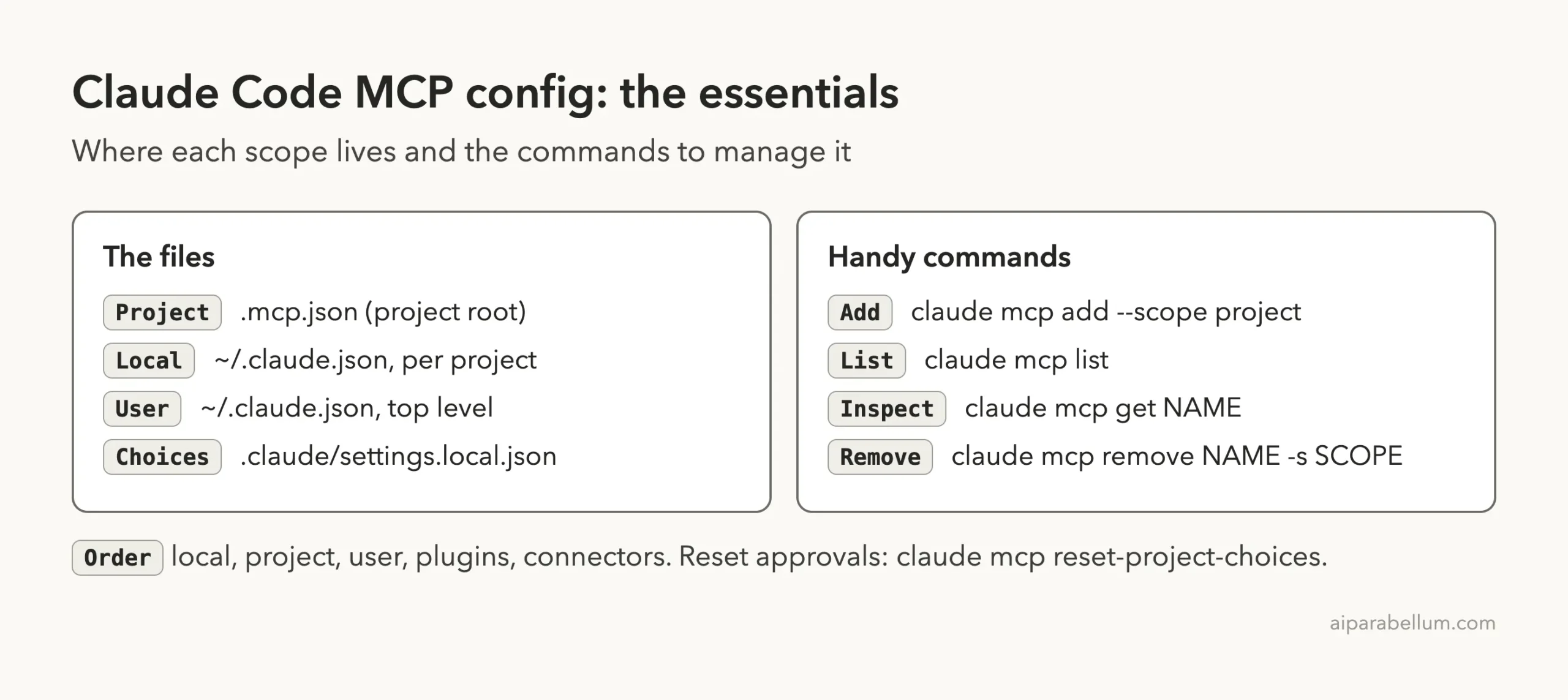
Cheat Sheet
Frequently Asked Questions
Where is the Claude Code MCP config file on Mac?
Project servers are in .mcp.json at the project root. Local and user servers are in ~/.claude.json, which is .claude.json in your home folder.
Where is the MCP config file on Windows?
The docs name the same files, .mcp.json in the project root and ~/.claude.json in your home directory. We tested on macOS, so for exact Windows paths follow Anthropic’s official instructions.
Is there a claude_desktop_config.json for Claude Code?
That is the Claude Desktop file, not a Claude Code file. The docs describe a way to import servers from Claude Desktop, which works on macOS and WSL, and imported servers keep their names when the names use only letters, numbers, hyphens and underscores.
Can I share MCP servers with my team?
Yes, use project scope. Claude Code writes the server to .mcp.json, you commit it, and each teammate approves it on first use.
How do I delete an MCP server?
Run claude mcp remove <name> with the scope flag if the name exists in more than one scope. For a project server the command looks like claude mcp remove demo-notes -s project.
Conclusion
The Claude Code MCP config file location is .mcp.json in the project root for shared servers, and ~/.claude.json for your local and user servers, with approval choices saved in .claude/settings.local.json. In our demo, one small server added in three scopes landed exactly where the docs say. To learn more about the assistant behind the tool, visit our Claude AI page, see how settings files differ in our settings.json location guide, and read the official MCP documentation for every option.