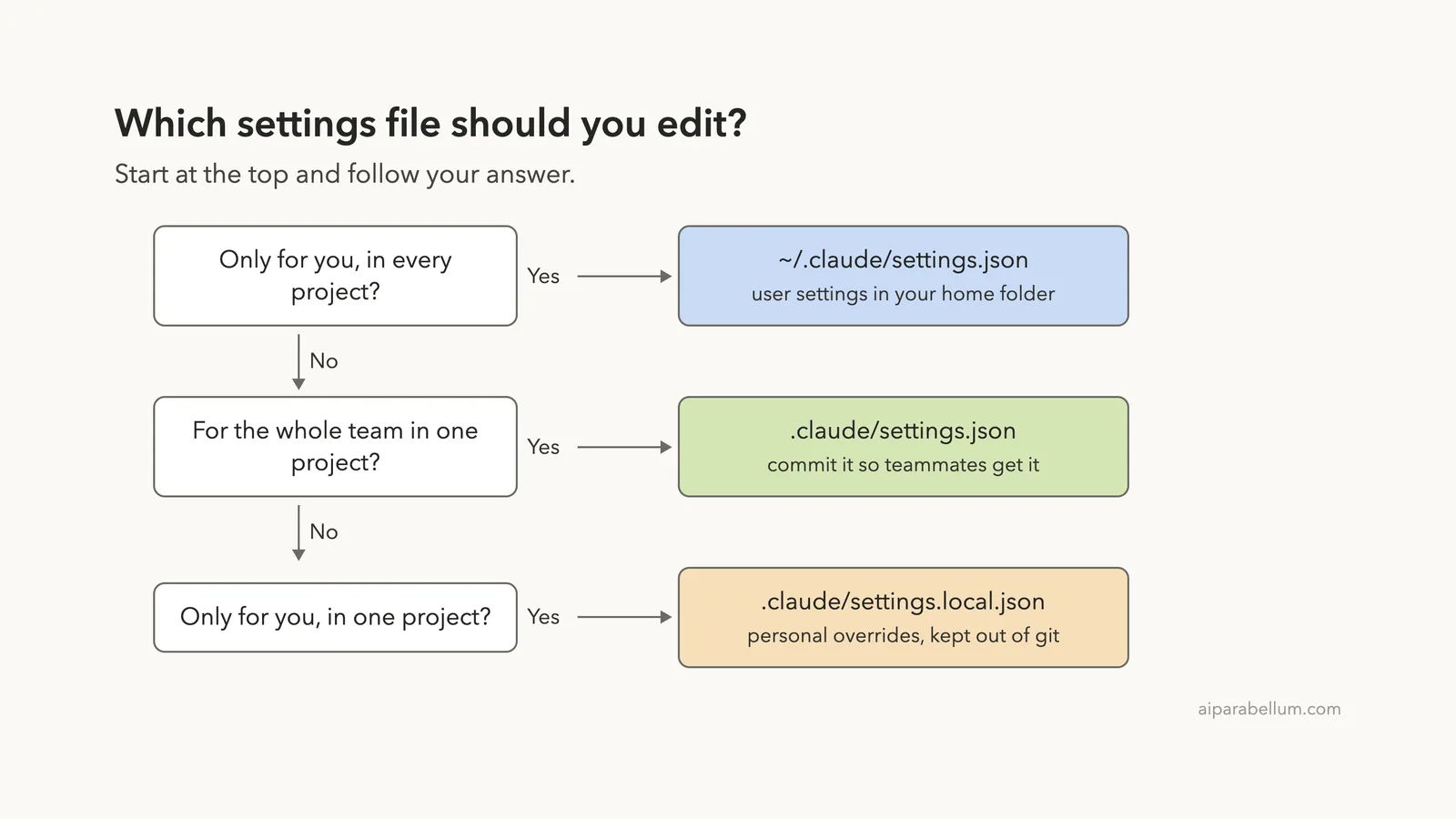
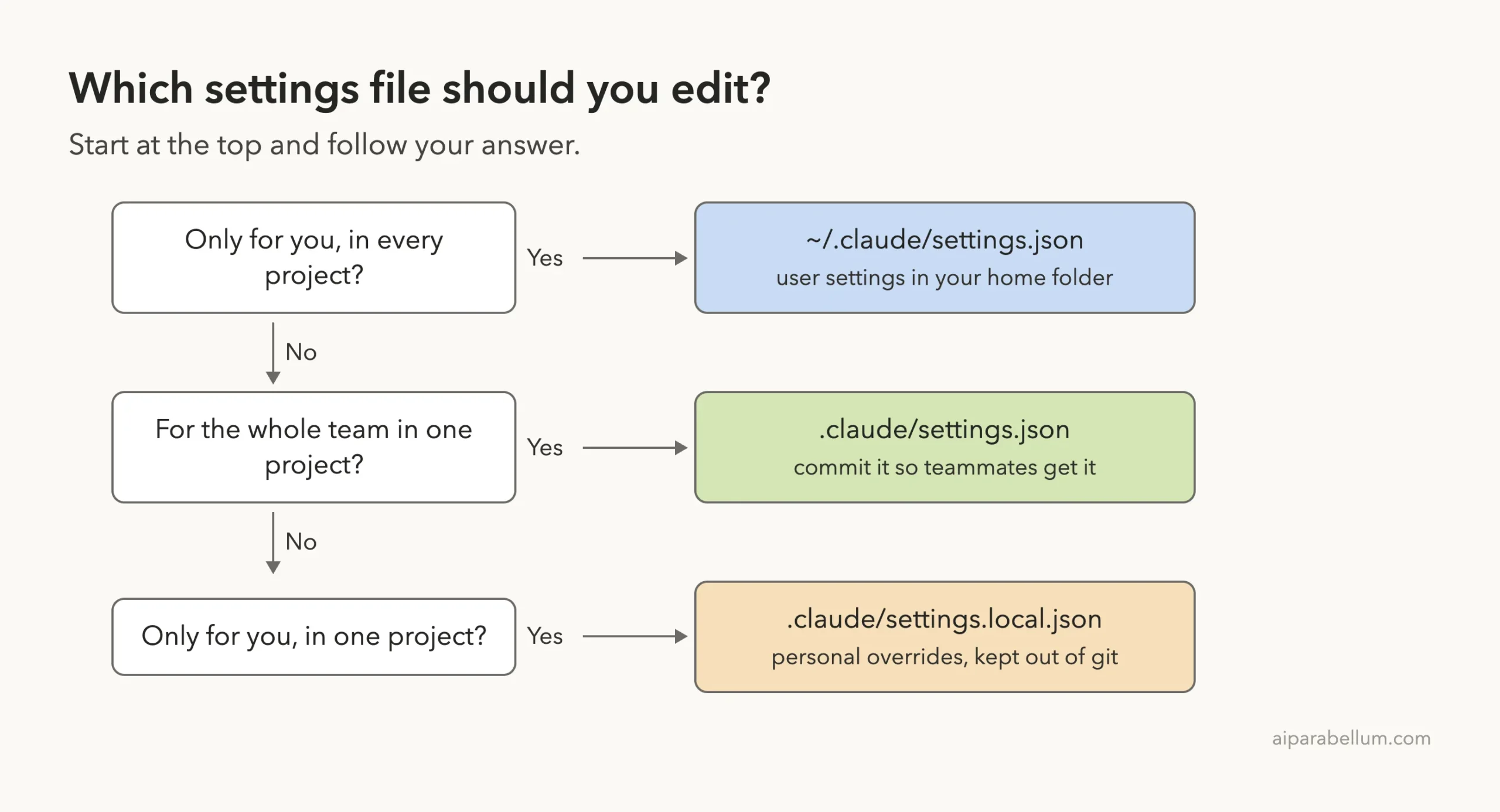
The Claude Code settings.json location depends on which of three files you mean. Your personal file is ~/.claude/settings.json in your home folder. A project file lives at .claude/settings.json inside the project, and your private project overrides go in .claude/settings.local.json.
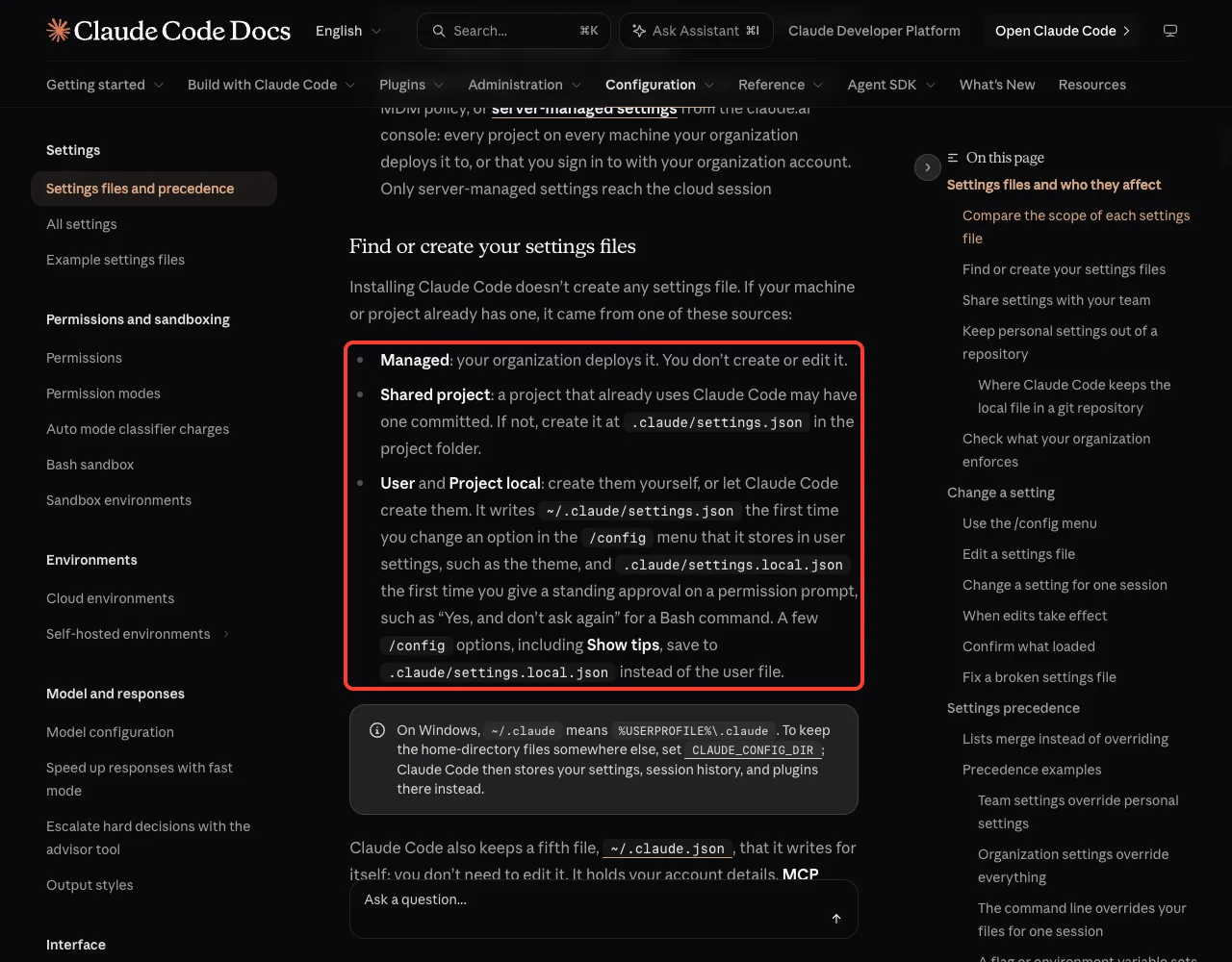
Here is the catch that confuses most people: installing Claude Code does not create any of these files. If you cannot find one, it probably does not exist yet, and you can create it yourself or let Claude Code create it the first time you change a setting.
We read the official settings docs, then watched Claude Code create a settings file for real in a throwaway demo folder on a Mac. Below you get the exact paths, what each file is for, how Claude Code picks a winner when two files disagree, and how to check which files it loaded.
This guide is part of our Claude Code tutorials, where we answer one specific question per post.
Tested with Claude Code v2.1.312 on November 1, 2026. We tested on macOS; the Windows and Linux steps follow Anthropic’s official instructions.
Quick Answer: Where Are the Claude Code Settings Files?
The table below lists every file you can use. The paths come from the official docs, and the demo section later shows two of them being created.
| Scope | Path | Who it affects |
|---|---|---|
| User | ~/.claude/settings.json | You, in every project on this machine |
| Shared project | .claude/settings.json | Everyone who works in that project folder, if you commit it |
| Project local | .claude/settings.local.json | You, in that one project only |
| Managed | managed-settings.json and other managed sources | Everyone in your organization |
| Global config | ~/.claude.json | Claude Code writes it for itself; you do not edit it |
In these paths, ~/.claude is the hidden .claude folder in your home directory. A bare .claude is the folder inside your project. On Windows, the docs say ~/.claude means %USERPROFILE%\.claude.
Why You Cannot Find the File
The most common reason is simple. The official docs state that installing Claude Code does not create any settings file. Your machine only has one if you made it, Claude Code made it, or your organization deployed one.
Claude Code creates the files in two situations. It writes ~/.claude/settings.json the first time you change an option in the /config menu that is stored in user settings, such as the theme. It writes .claude/settings.local.json the first time you pick a standing approval on a permission prompt, such as “Yes, and don’t ask again” for a Bash command.
Another reason is that the folder is hidden. Names that start with a dot are hidden in Finder and many file pickers. On a Mac, use the Finder shortcut for hidden files, or run ls -a in a terminal.
No settings file does not mean something is broken; it means you are still on the defaults.
The Three Files You Will Actually Use
Most people only ever touch three files. Here is what each one is for, in plain English.
The User File: ~/.claude/settings.json
This is your personal file. It applies to every project on your machine, and nobody else sees it. The docs suggest it for personal preferences such as theme, editor mode, default model and your own permission rules.
To open it from a terminal on a Mac, you can run open -e ~/.claude/settings.json, which opens it in TextEdit if it exists. If the command says the file does not exist, create it first with a small JSON object in it.
The Shared Project File: .claude/settings.json
This file lives inside a project folder and is meant for the team. In a git repository you commit it, so every teammate who clones the project gets the same permissions, hooks and plugins.
Claude Code reads it from the session’s primary working directory. So to use a file committed at the repository root, start Claude Code from that root.
The Local Project File: .claude/settings.local.json
This is your private layer for one project. Claude Code applies it over the shared file, so you can change something for yourself without touching your teammates’ settings.
When Claude Code creates this file inside a git repository, it adds **/.claude/settings.local.json to your global git excludes file, so it stays out of your commits. If you create the file by hand, add it to .gitignore yourself.
The Other Two: Managed Settings and ~/.claude.json
Managed settings are for organizations. Your administrator deploys them with a managed-settings.json file, an MDM policy, or server-managed settings from the claude.ai console. You do not create or edit them, and nothing in your own files overrides a managed key.
The settings page we tested against does not give a folder path for the managed file, so we will not guess one. If your company manages Claude Code, ask your administrator, or read Anthropic’s managed settings documentation.
The fifth file, ~/.claude.json, sits in your home folder next to the .claude folder. The docs say Claude Code writes it for itself. It holds account details, MCP server settings and per-project state such as trust decisions, so leave it alone unless you are fixing a problem.
What We Saw: Claude Code Creating a Local Settings File
To see this for ourselves, we made a demo folder at ~/claude-code-demos/settings-location. It held a tiny notes.md, a fake .env file, and one hand-written .claude/settings.json with a single deny rule that blocks reading ./.env.
There was no settings.local.json yet. We started Claude Code in that folder and asked it to run a harmless command: Run the shell command git --version and tell me the result. One sentence.
Claude Code showed a permission prompt. Option 2 read “Yes, and don’t ask again for: git *”. That is the standing approval the docs describe.
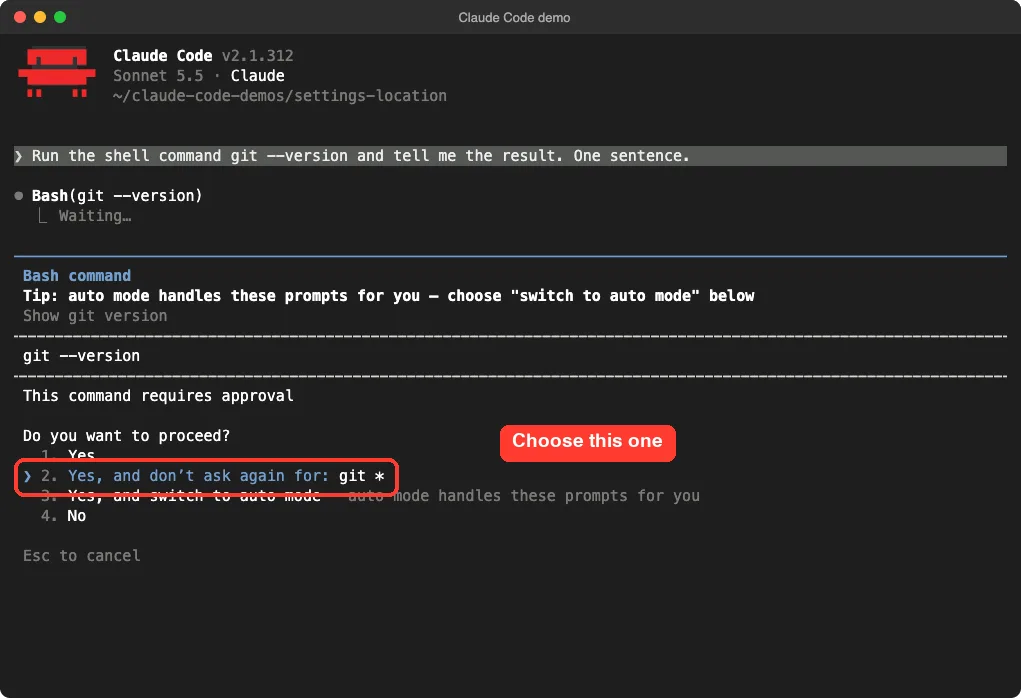
We chose option 2. The command ran, and Claude Code answered with the Git version.
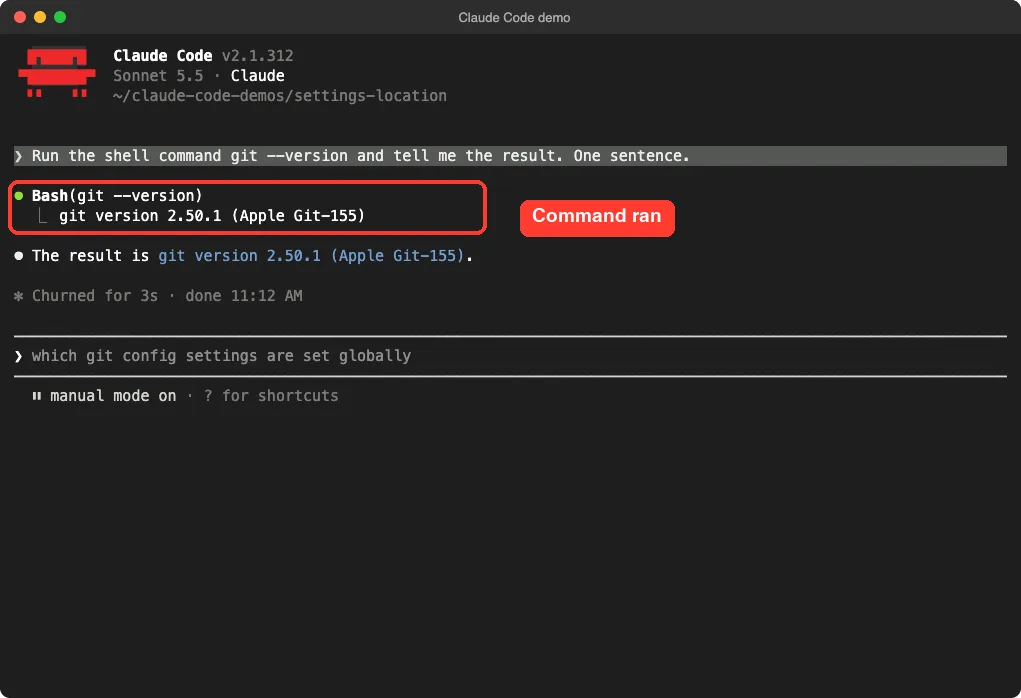
Then we looked at the folder from a normal terminal. A second file had appeared next to ours: .claude/settings.local.json. Inside it was one allow rule, Bash(git *).
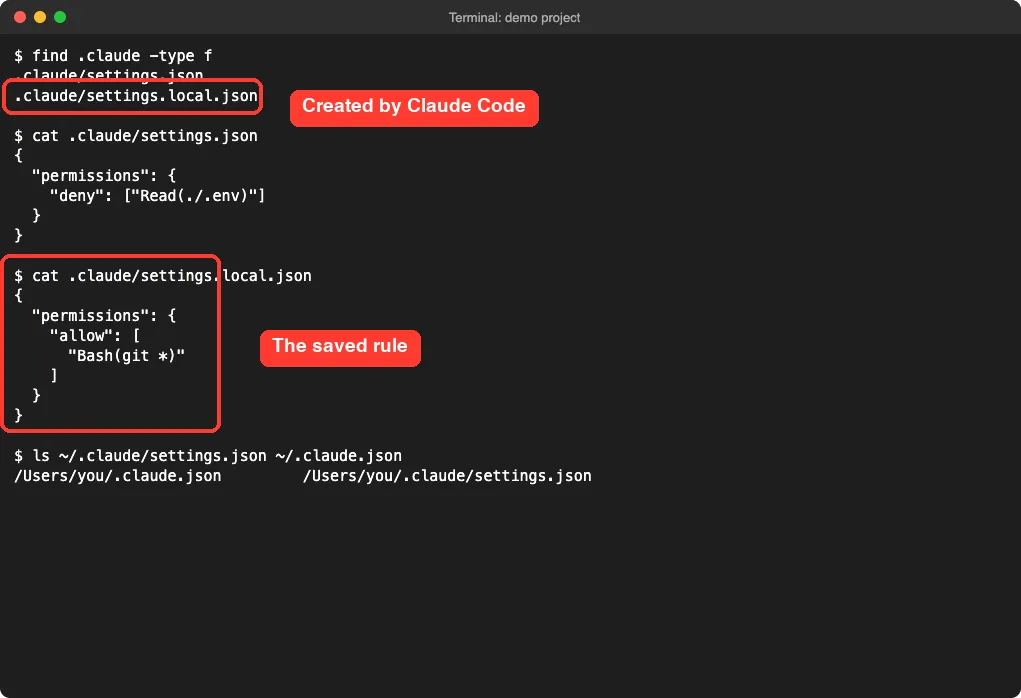
This is one demo of one flow, so treat it as an example and not a full test. It matches the docs: the shared file we wrote stayed as it was, and the new rule landed in the local file.
The last command in that screenshot lists ~/.claude/settings.json and ~/.claude.json on our Mac. We did not open or show their contents, because they belong to our own account.
Which Value Wins When Files Disagree?
Sooner or later the same key will appear in two files. Claude Code then uses the value from the highest level that sets it. The official order, highest first, is managed settings, the command line, project local, shared project, and user.
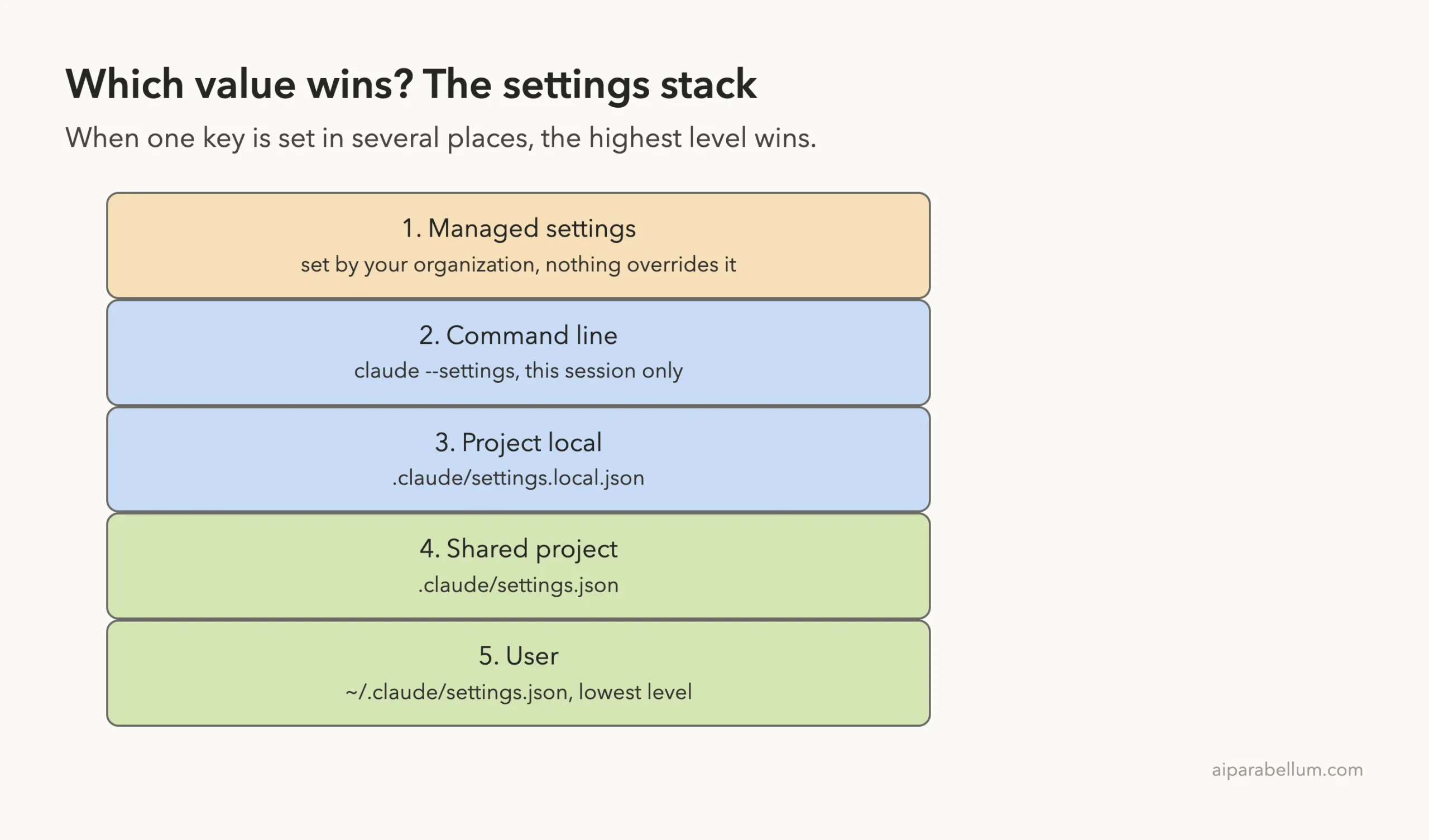
Here is the docs’ own example in plain words. You turn the spinner tips off in your user file, but your team’s shared file turns them on. The project value wins in that project, because shared project sits above user.
To get your way back, put the same key in .claude/settings.local.json in that project. Local sits above shared, so only your sessions change.
Lists Merge Instead of Overriding
Arrays such as permissions.allow do not follow the winner-takes-all rule. When the same list appears in more than one file, Claude Code combines the entries, so each file can add rules without removing another file’s rules.
The docs list a few exceptions for model-related keys, such as fallbackModel and modelPicker. If you use those, read the settings page for the exact rule.
Environment Variables Are Not a Level
Variables are decided key by key. For example, ANTHROPIC_MODEL exported in your shell applies over the model key from any file, while ANTHROPIC_DEFAULT_MODEL only applies when no file sets model.
How to Create or Edit a Settings File
You have three ways to change a setting, according to the docs. Use the first one if you are not sure which key you need.
- Run
/configinside Claude Code and change an option in the menu. Most options save to~/.claude/settings.json, and a few, such as Show tips, save to.claude/settings.local.json. - Edit the file by hand. Open the file for the scope you want and add or change a key.
- Pass a setting for one session with
claude --settings '{"model": "claude-opus-5-5"}'. Your files stay as they were.
Settings files are strict JSON. A // comment or a trailing comma is a syntax error, and Claude Code reports the file as a Settings Error the next time it starts. Here is a small valid file in the style of the docs example:
{
  "$schema": "https://json.schemastore.org/claude-code-settings.json",
  "permissions": {
    "allow": [
      "Bash(npm run lint)"
    ],
    "deny": [
      "Read(./.env)"
    ]
  }
}
The $schema line is optional. It gives you autocomplete and checking in editors that support JSON schema, such as VS Code. The docs warn that the schema can lag behind the newest releases, so a warning on a very new key does not always mean your file is wrong.
If you want the files somewhere else, the docs say to set CLAUDE_CONFIG_DIR. Claude Code then stores your settings, session history and plugins there instead of in ~/.claude.
When Do Edits Take Effect?
Claude Code watches your settings files and reloads them when they change. The docs say most edits, including permissions and hooks, reach the running session without a restart. It also loads a file you create mid-session, as long as its folder existed when the session started.
A few keys are read only once at session start. The docs name model and effortLevel as examples, so use /model and /effort to change those mid-session.
How to Check Which Files Loaded
Inside Claude Code, run /status. The Status tab has a Setting sources line that lists each settings file loaded for the session, such as User settings or Project local settings.
That line tells you which files were read, but not which file supplied each key. We skipped screenshotting that screen on purpose, because the Status tab can also show account details.
If you suspect a broken file, run claude doctor from your terminal. The docs say it shows entries Claude Code rejected, and it is the way to see what a -p run dropped, since that mode shows no dialog.
Settings Not Applying? Common Causes
The settings page has a long troubleshooting section. These are the causes most likely to bite you.
- A higher level sets the same key. A shared project file, a
--settingsflag or managed settings may be beating your value. - The file has invalid JSON. Claude Code shows a Settings Error dialog at the start of an interactive session.
- One entry is malformed. You get a Settings Warning, and Claude Code skips only that entry.
- The key waits for trust. Project
permissions.allowrules and mostenvvalues only apply after each teammate trusts the folder, while deny and ask rules apply right away. - A key cannot come from that file. For example, the docs say
permissions.defaultModevaluesautoandbypassPermissionsdo not take effect from project or local settings.
For related fixes, our guide to the context window and our tests of whether Claude Code can read PDFs and read images show other things you can control with prompts and settings.
Where Settings Live in the VS Code Extension, Desktop App and Cloud
The docs say the terminal, the VS Code and JetBrains extensions, and the desktop app all read the same settings files. So the paths above apply wherever Claude Code runs on your machine.
A cloud session runs on a different machine and reads only some of them. Your user file and your local file are not read there, because both stay on your computer. The shared project file is read only if it is committed to the repository, and server-managed settings from your organization do reach the cloud session.
One more note: the /config menu is part of the terminal interface. The docs say the VS Code chat panel and the desktop app do not open it, so edit a settings file there, or use those apps’ own settings.
Try It Yourself
Practice in a throwaway folder, never in a real project. Create it with these commands:
mkdir -p ~/claude-code-demos/my-settings-test/.claude
cd ~/claude-code-demos/my-settings-test
echo '{"permissions":{"deny":["Read(./.env)"]}}' > .claude/settings.json
claude
Then paste this prompt, and choose the “Yes, and don’t ask again” option when it appears:
Run the shell command git --version and tell me the result.Quit Claude Code and run cat .claude/settings.local.json. You should see the new allow rule.
Common Mistakes
- Looking for a file that was never created. Installing Claude Code does not make one.
- Editing
~/.claude.jsonby hand. Claude Code writes that file for itself. - Putting personal tweaks in the shared project file, which changes things for the whole team.
- Adding a comment or trailing comma, which makes the JSON invalid.
- Forgetting to
.gitignoreasettings.local.jsonyou created by hand. - Expecting your user file to beat a team or managed file. Higher levels win.
Pro Tips
- Use
/configfirst. It saves to the right file for you. - Keep team rules in
.claude/settings.jsonand your exceptions in the local file. - Run
/statusafter editing, to confirm the file loaded. - Use
claude --settingsto try a value without saving it. - Copy your files before big edits, so you can undo a mistake.
- Do not store secrets in a committed settings file.
Cheat Sheet
Frequently Asked Questions
Where is the Claude Code settings.json file on Mac?
Your personal file is ~/.claude/settings.json, which is a path inside your user folder. It only exists if you or Claude Code created it. Project files live in a .claude folder inside each project.
Where is the Claude Code settings.json file on Windows?
The docs say ~/.claude means %USERPROFILE%\.claude on Windows, so the file is %USERPROFILE%\.claude\settings.json. We tested on macOS, so this follows Anthropic’s official instructions.
Why is there no settings.json file?
Installing Claude Code does not create one. Claude Code writes it the first time you change a user-level option in /config, or you can create it yourself with a small JSON object.
What is the difference between settings.json and settings.local.json?
The .claude/settings.json file is shared with your team when you commit it. The .claude/settings.local.json file is yours alone for that project, and Claude Code keeps it out of git when it creates it.
Does the order of the files matter?
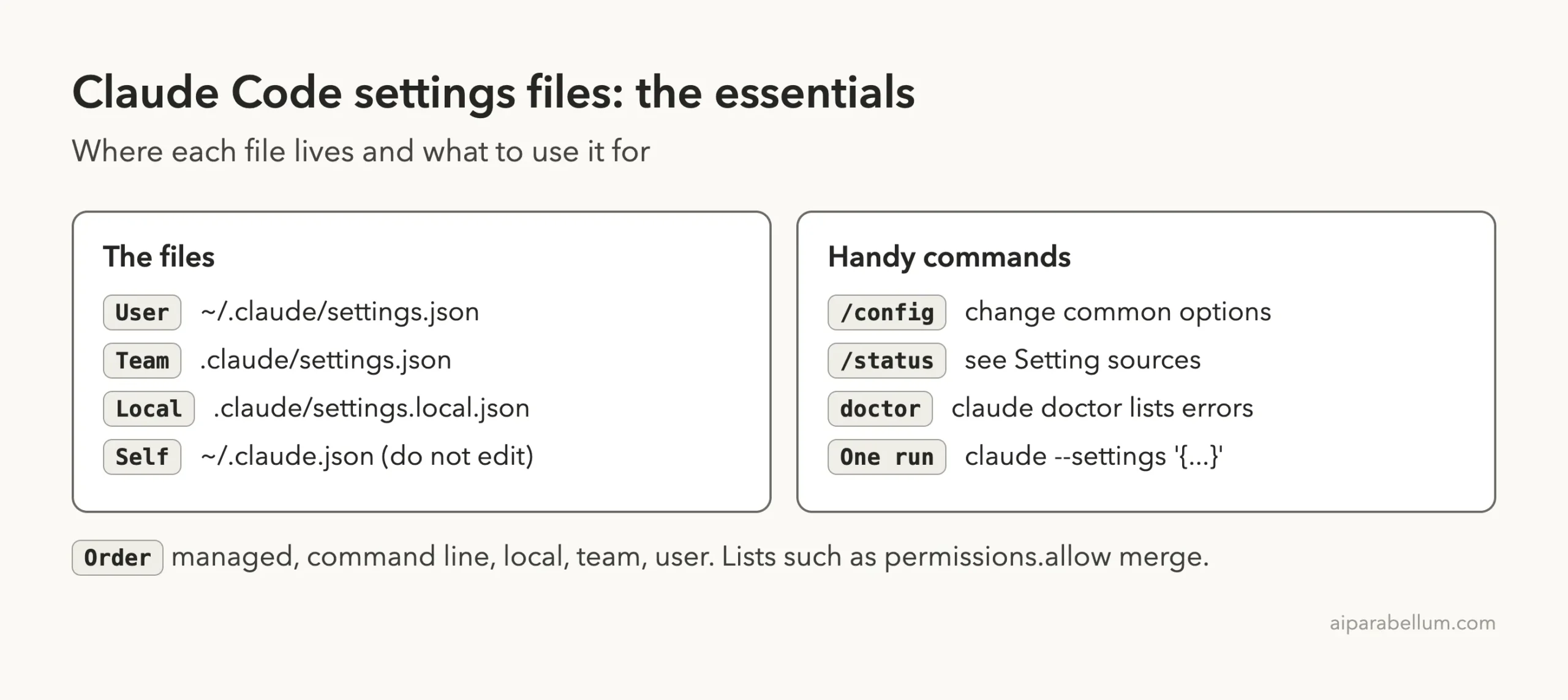
Yes. From highest to lowest, Claude Code uses managed settings, the command line, project local, shared project, and user. Lists such as permissions.allow are merged instead of overridden.
Conclusion
The Claude Code settings.json location is ~/.claude/settings.json for you everywhere, .claude/settings.json for a team project, and .claude/settings.local.json for your private project overrides, and none of them exist until you or Claude Code create them. In our one demo, choosing “Yes, and don’t ask again” created the local file with a single Bash(git *) rule, which matches the docs. To learn more about the assistant behind the tool, visit our Claude AI page, and read the official settings guide for every key and the full troubleshooting list.