Yes, Claude Code can read images. Point it at a screenshot, a chart or a design mockup, and it reads the text, the numbers and the layout, then answers your questions about what it sees. You do not need any special setup for this.
We tested it on a Mac with three made-up images: an error screenshot, a bar chart and an app mockup. Claude Code read all three correctly, and we show the exact prompts, the real output and a few limits to keep in mind.
We read the official common workflows page first, then ran Claude Code in a throwaway demo folder. If you want more guides like this, browse all our Claude Code tutorials.
Tested with Claude Code v2.1.312 on November 1, 2026. We tested on macOS; the Windows and Linux steps follow Anthropic’s official instructions.
Quick Answer: Can Claude Code Read Images?
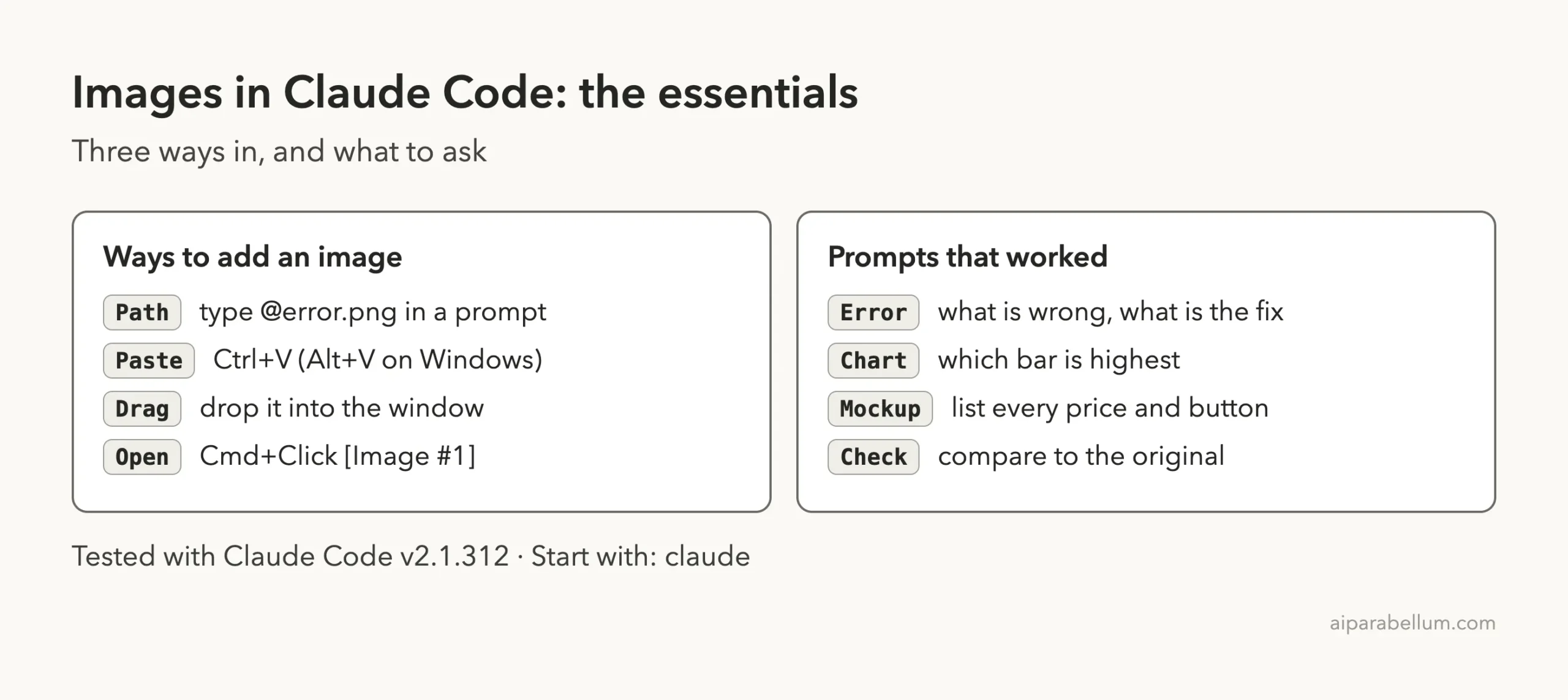
The official docs list three ways to give Claude Code an image. The table below shows each way and whether we tested it.
| Way to add an image | How it works | Did we test it? |
|---|---|---|
| Type a file path | Write @error-screenshot.png inside your prompt | Yes, all three images |
| Paste from the clipboard | Ctrl+V, or Alt+V on Windows and WSL, per the docs | Covered in our paste images guide |
| Drag and drop | Drop the image into the Claude Code window | No, we followed the docs |
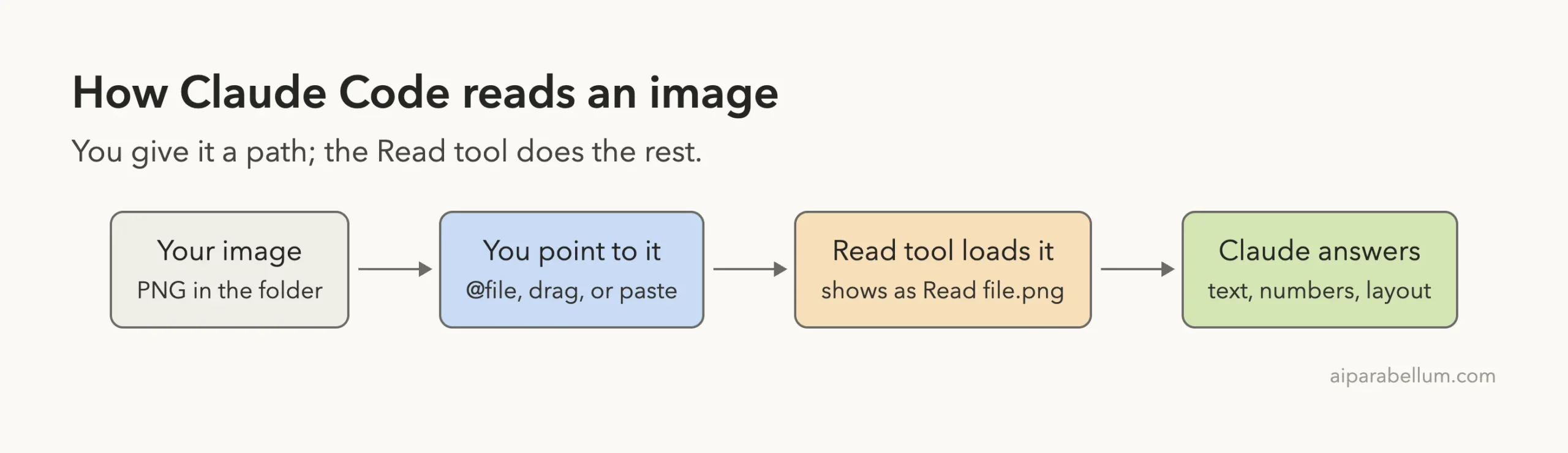
Why Reading Images Is Useful
Many problems are easier to show than to describe. A screenshot of an error message holds the exact words, and typing them out by hand wastes time.
Charts, forms and design mockups work the same way. Instead of describing a layout, you hand Claude the picture and ask a plain question.
The official docs say the same thing in simple terms: use images when text descriptions would be unclear or cumbersome, and include screenshots of errors, UI designs or diagrams for better context.
If you can screenshot it, you can ask Claude Code about it.
What the Official Docs Say
The common workflows page has a short section called Work with images. It lists the three ways to add an image, and it notes that you can work with several images in one conversation.
It also says image analysis works with diagrams, screenshots, mockups and more. When Claude mentions an image such as [Image #1], you can Cmd+Click it on a Mac, or Ctrl+Click on Windows and Linux, to open it in your default viewer.
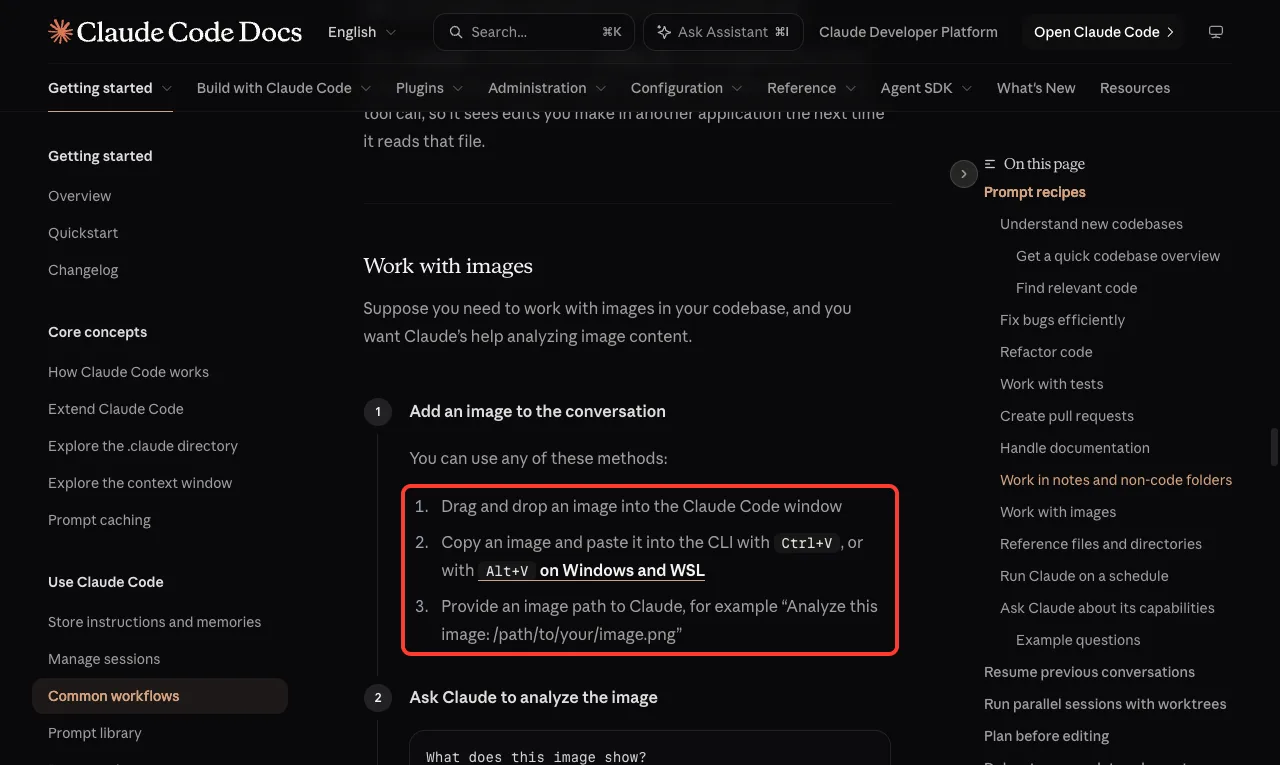
You can read the same section yourself in the official common workflows guide.
Our Test Setup
We made a demo folder at ~/claude-code-demos/read-images and drew three images ourselves with a small script. No real screenshots, photos or customer data were used.
error-screenshot.png: a fake terminal window showing a missing module error.sales-chart.png: a bar chart of loaves sold per day, with made-up numbers.app-mockup.png: a bakery order page with three products, prices and two kinds of buttons.
Then we opened Claude Code inside that folder by typing claude. Always use a demo folder or copies, never the only copy of something important.
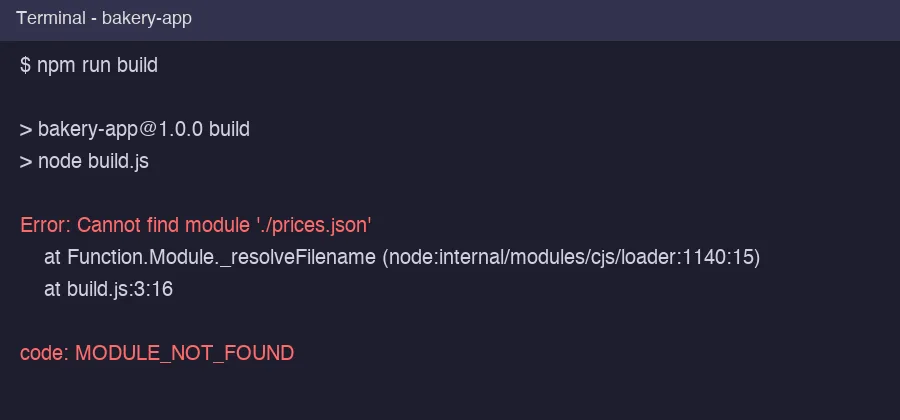
Step 1: Read an Error Screenshot
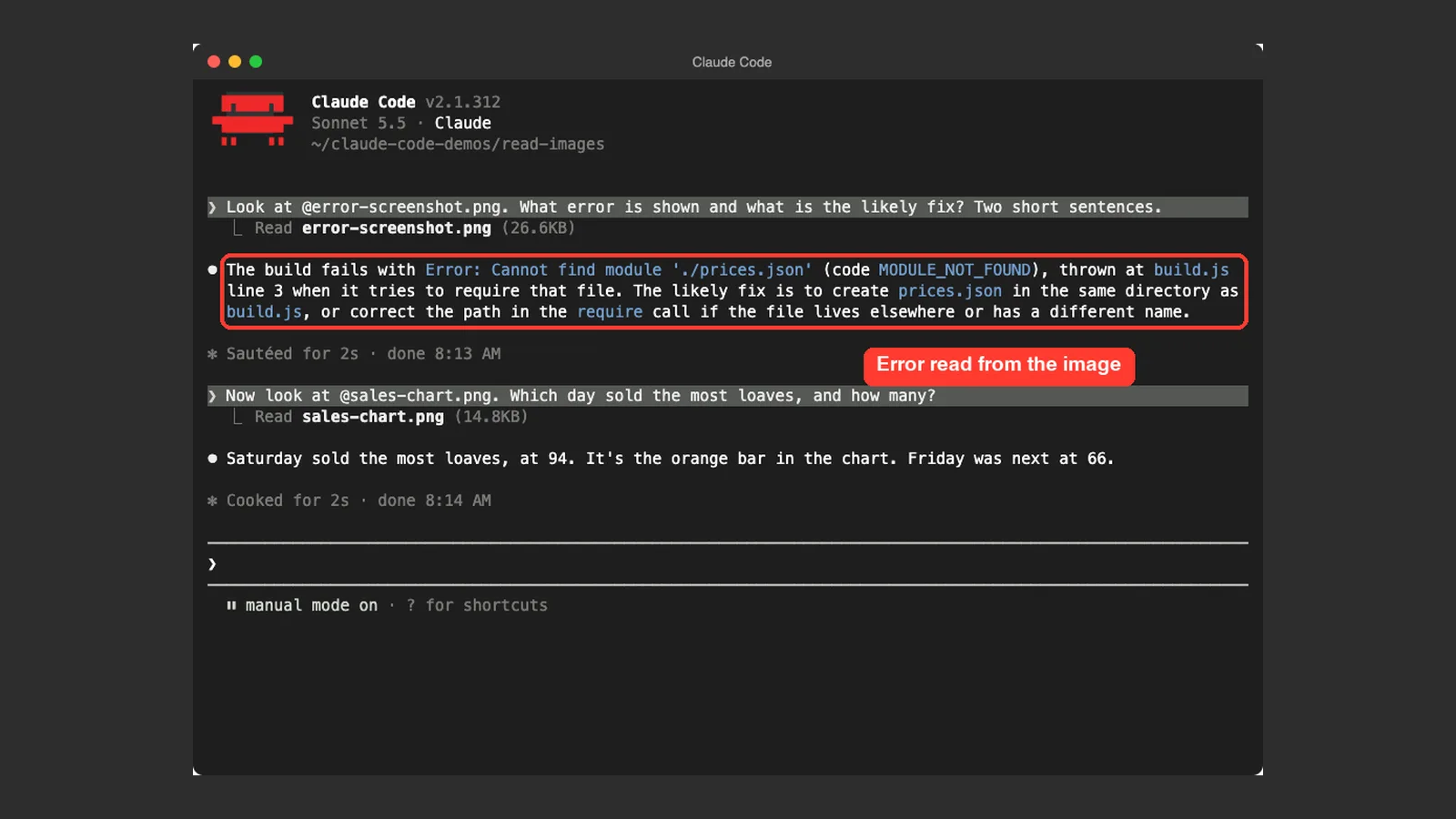
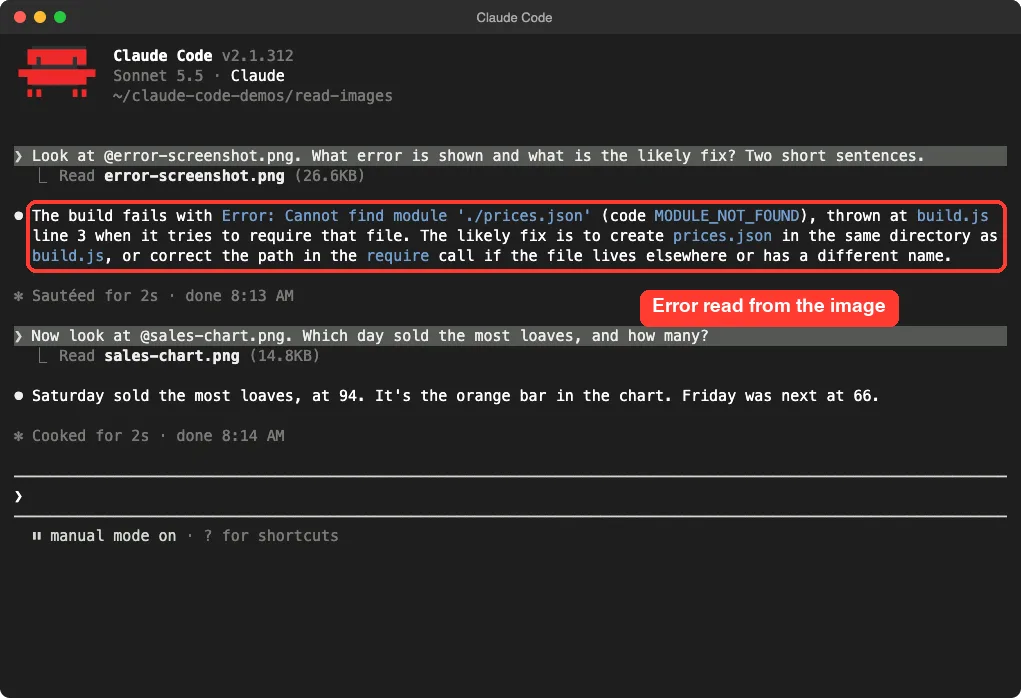
Our first prompt was: Look at @error-screenshot.png. What error is shown and what is the likely fix? Two short sentences.
Typing @ opens a path menu, and the file name goes straight into your message. Claude Code then used its Read tool, and the screen showed the line Read error-screenshot.png with the file size.
The answer was correct. It said the build fails with Cannot find module './prices.json', code MODULE_NOT_FOUND, thrown at build.js line 3. It suggested creating prices.json next to build.js, or fixing the path if the file lives somewhere else.
Every detail matched what we had drawn, including the line number. That is a real time saver when an error is hard to copy as text.
Step 2: Read a Chart
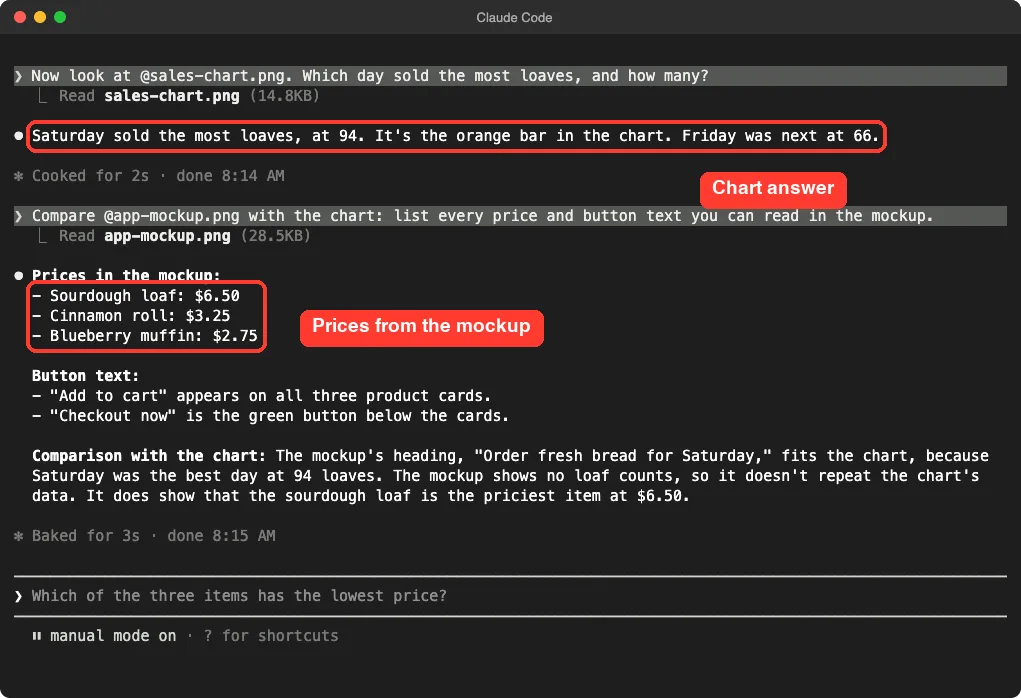
Next we asked about the chart: Now look at @sales-chart.png. Which day sold the most loaves, and how many?
Claude Code read the file and answered that Saturday sold the most, at 94, shown as the orange bar. It added that Friday was next at 66.
Both numbers match the labels we put on the bars. Notice that it used the color as well as the label, so it understood the picture and not only the text in it.
Step 3: Read a Mockup
Then we tried a layout. The prompt was: Compare @app-mockup.png with the chart: list every price and button text you can read in the mockup.
Claude Code listed all three prices correctly: Sourdough loaf at $6.50, Cinnamon roll at $3.25 and Blueberry muffin at $2.75. It also found the button text: Add to cart on all three cards, and Checkout now as the green button below them.
It even connected the two images. It noted that the heading Order fresh bread for Saturday fits the chart, because Saturday was the best day. It also said, correctly, that the mockup shows no loaf counts.
Step 4: Ask Claude How It Read the Images
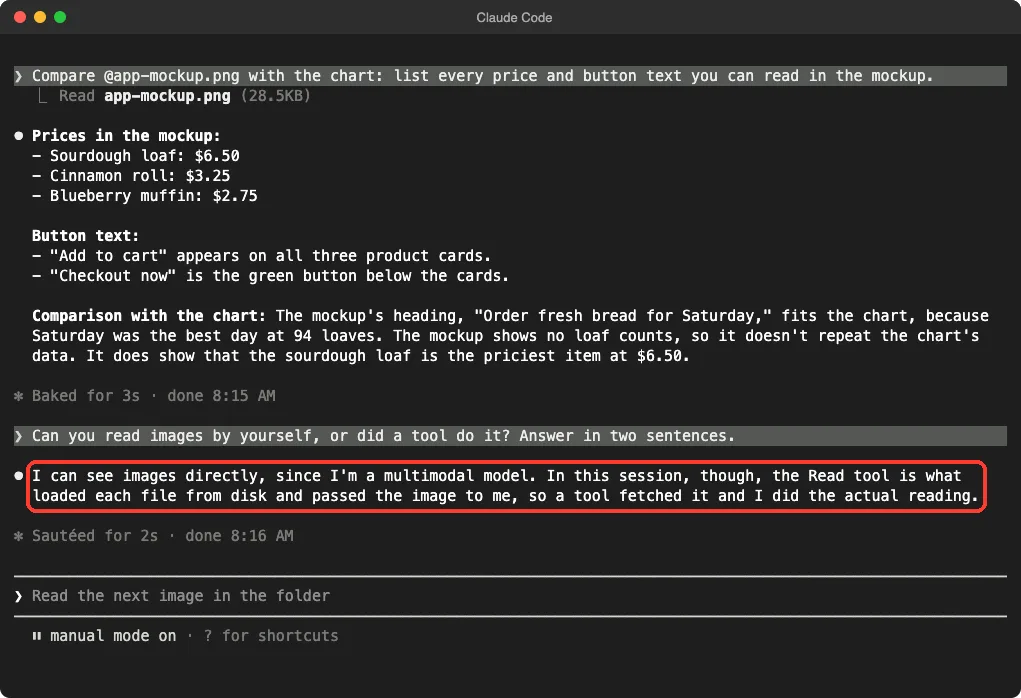
Finally we asked: Can you read images by yourself, or did a tool do it? Answer in two sentences.
Claude explained that it can see images directly. In this session, the Read tool loaded each file from disk and passed the image along, so a tool fetched it and Claude did the actual reading.
That matches what we saw on screen, where each image appeared as a Read line with a file size.
Which Way Should You Add an Image?
All three methods end up in the same place, so pick whichever fits your moment. Here is a simple way to choose.
- The image is already in your folder: use
@filename.pngin your prompt. This is the way we tested. - You just took a screenshot and it is on your clipboard: paste it with
Ctrl+V, as the docs describe. - The file is somewhere else on your computer: drag it into the Claude Code window.
- You are scripting or want an exact path: write the full path in your prompt, such as the docs example.
If you also work with documents, our test of whether Claude Code can read PDFs shows a similar flow for a different file type.
Real Examples You Can Try
These prompts follow the same pattern as our tests. Swap in your own file names.
- Fix an error:
Look at @error.png. What does this error mean and how do I fix it? - Pull numbers from a chart:
Read @chart.png and list each value as a table. - Review a design:
Look at @mockup.png and list every button and what it probably does. - Compare two images:
Compare @before.png and @after.png and tell me what changed.
We tested the first three kinds of tasks. The compare-two-images prompt is a natural extension, since the docs say you can use multiple images in one conversation, but we did not run it ourselves.
Limits and Things We Did Not Test
This was one session on one Mac, with clean, made-up images. Real screenshots are messier, with small text, odd fonts and busy backgrounds.
Here is what we did not test, so you know where to be careful:
- Blurry or very small text, where a reader could guess wrong.
- Photos of paper, such as a crumpled receipt.
- Very large images or many images in one prompt.
- Drag and drop, which we took from the docs.
Before you act on a number or a message from an image, compare it with the original. Ask Claude to quote the exact text it read, so you can spot a misread quickly.
Do Images Use Up Your Context Window?
Every image you add becomes part of the conversation, and Claude Code sends the conversation with each new request. We did not measure how much space our three small images used, so we cannot give you a number.
A simple habit helps. After a session with many images, type /context to check how full the window is, and use /clear when you finish one task and start another. Our guide to the context window explains why this matters.
Try It Yourself
Take a screenshot of any harmless error message or chart, save it into a new folder and open Claude Code there. Then paste this prompt, using your own file name.
Look at @screenshot.png.
Tell me what it shows in two sentences.
Then quote the exact text you read from it.
Compare the quote with the real image. If it matches, try a chart or a mockup next.
Common Mistakes
- Using a screenshot with private data in it. Crop or blur names, emails and numbers first.
- Skipping the check. Always compare important numbers with the original image.
- Asking a vague question. Ask for specific facts, such as the total or the error code.
- Forgetting the
@sign, so Claude does not know which file you mean. - Working on the only copy of a file. Use copies in a demo folder.
Pro Tips
- Name the image and the exact facts you want, so the answer stays short.
- Ask Claude to quote the text it read, so you can verify it fast.
- Use
/contextafter many images to see how much room is left. - Ask for results as a table when you read numbers from a chart.
- Cmd+Click on Mac, or Ctrl+Click on Windows and Linux, an
[Image #1]link to open the image in your viewer.
Cheat Sheet
Frequently Asked Questions
Can Claude Code read screenshots?
Yes. In our test, it read an error screenshot and correctly named the error, the code and the line number. The official docs list screenshots of errors as a good use.
How do I give Claude Code an image?
Type a file path with @ in your prompt, paste with Ctrl+V (Alt+V on Windows and WSL), or drag the image into the window. These are the three methods in the official docs.
Can Claude Code read charts and design mockups?
Yes, in our test. It named the tallest bar with the right value, and it listed every price and button in a mockup. Check important numbers against the original.
Does Claude Code read the image itself?
Claude told us that its Read tool loads the file and passes the image along, and that Claude does the reading. You see this as a Read line with the file name on screen.
Can I use more than one image?
The docs say you can work with multiple images in a conversation. In our test we used three images one after another in the same session, and each worked.
Conclusion
Claude Code can read images and screenshots: it read an error message, a chart and a mockup correctly in our test on a Mac, just by pointing at the files with @. This is one demo with clean, made-up images, so always compare important answers with the original, especially for small or blurry text. To learn more about the assistant behind it, visit our Claude AI page, and see the official interactive mode guide for how pasted images are kept in your prompt drafts.