You hit an odd bug on screen, and describing it in words would take five minutes. Good news: you can do a Claude Code paste image in about two seconds. This guide shows the exact key, what you should see after pasting, and what to try when nothing seems to happen.
Here is the short answer. Copy an image, click into the Claude Code prompt, and press Ctrl+V. On Windows and WSL, press Alt+V instead.
The prompt shows a chip such as [Image #1], and you type your question next to it.
Browse all our Claude Code tutorials. Tested with Claude Code v2.1.312 on October 31, 2026.
Quick Summary: Ways to Add an Image
| Method | What to do | Best for |
|---|---|---|
| Paste | Copy the image, then press Ctrl+V in the prompt (Alt+V on Windows and WSL) | Screenshots you just took |
| Drag and drop | Drag the image file into the Claude Code window | Files on your desktop or in a folder |
| File path | Type the path, for example @order-form.png | Images already inside your project |
| Open a pasted image | Cmd+Click the [Image #1] link on Mac (Ctrl+Click on Windows and Linux) | Checking what you sent |
What Happens When You Paste an Image Into Claude Code
Claude Code runs in a terminal, and terminals are built for text. So when you paste a picture, Claude Code does not draw it in the prompt. It attaches the image to your message and shows a short label in its place.
The label looks like [Image #1]. If you add a second image, it becomes [Image #2], and so on.
Claude can then look at the picture and answer questions about it. The official common workflows page says image analysis works with diagrams, screenshots, mockups, and more.
Step 1: Make a Sample Image to Test With
To test this safely, we made a throwaway demo folder and drew one tiny made-up picture: a fake bakery order form with a red error box. We never used a real project or a real customer screenshot.
You can follow along with any picture. A quick screenshot of your own screen works fine.
- Take or open an image you want Claude to look at.
- Copy it to your clipboard. On a Mac, a screenshot taken with the clipboard option is already copied for you.
- Open a terminal in a demo folder and start
claude.
Step 2: Press Ctrl+V to Paste the Image
With the Claude Code prompt ready, press Ctrl+V. We did this on macOS with the image copied, and the chip appeared at once.
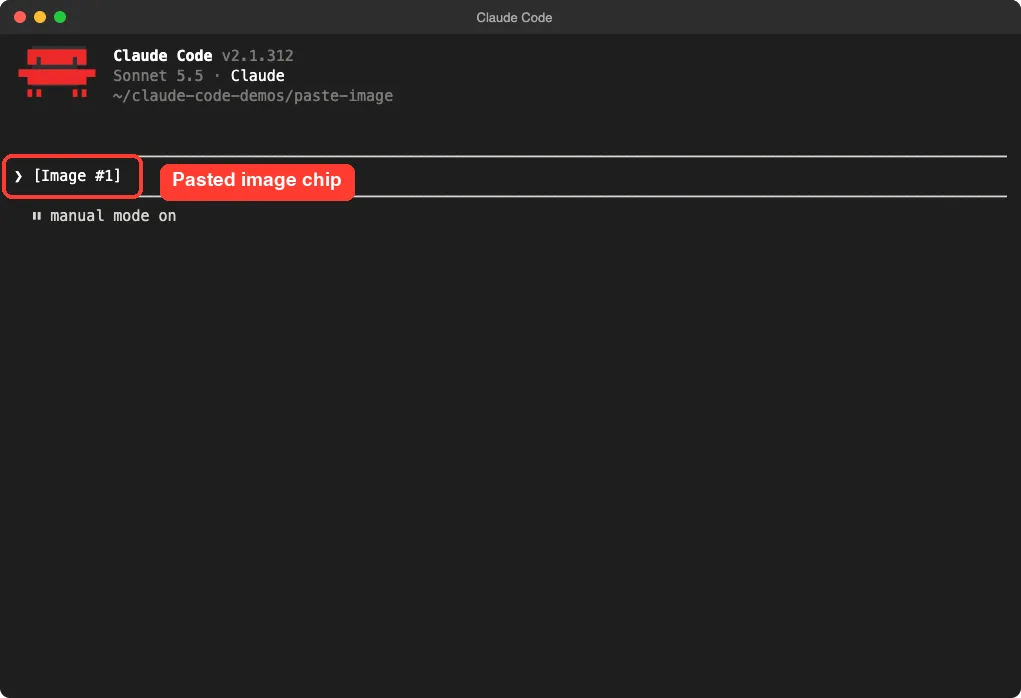
The docs list the key as Ctrl+V, and that is what we pressed on the Mac. The Windows and WSL key is Alt+V. We tested only on macOS, so the Windows and Linux steps follow Anthropic’s official instructions.
Why it is Ctrl, not the usual paste key
Many people reach for their normal paste shortcut first. Claude Code lists a different key for images, so if you only see text or nothing at all, try the documented one.
Step 3: Ask a Clear Question About the Image
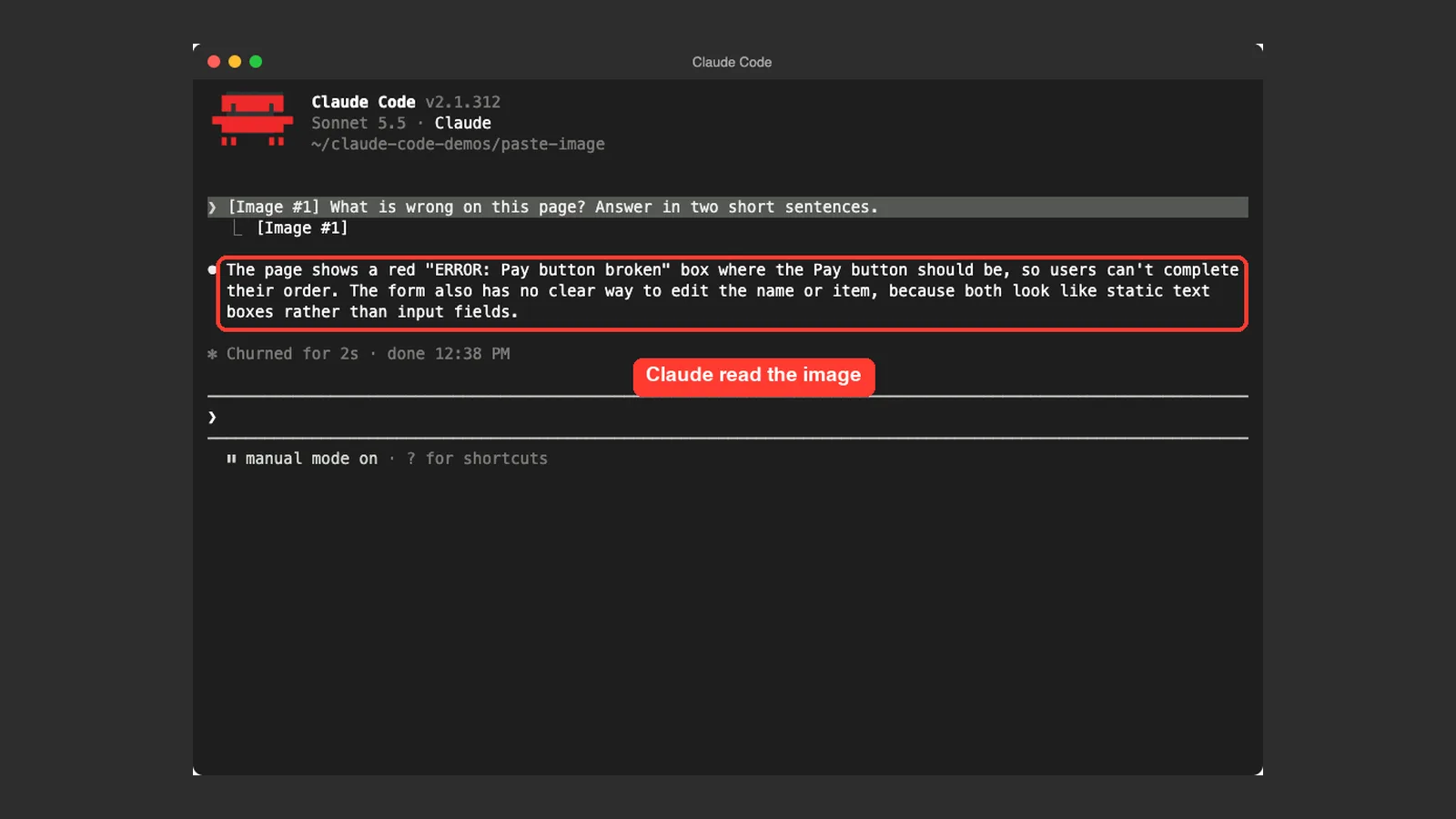
An image with no question is easy to misread. Type what you want right after the chip. We asked: “What is wrong on this page? Answer in two short sentences.”
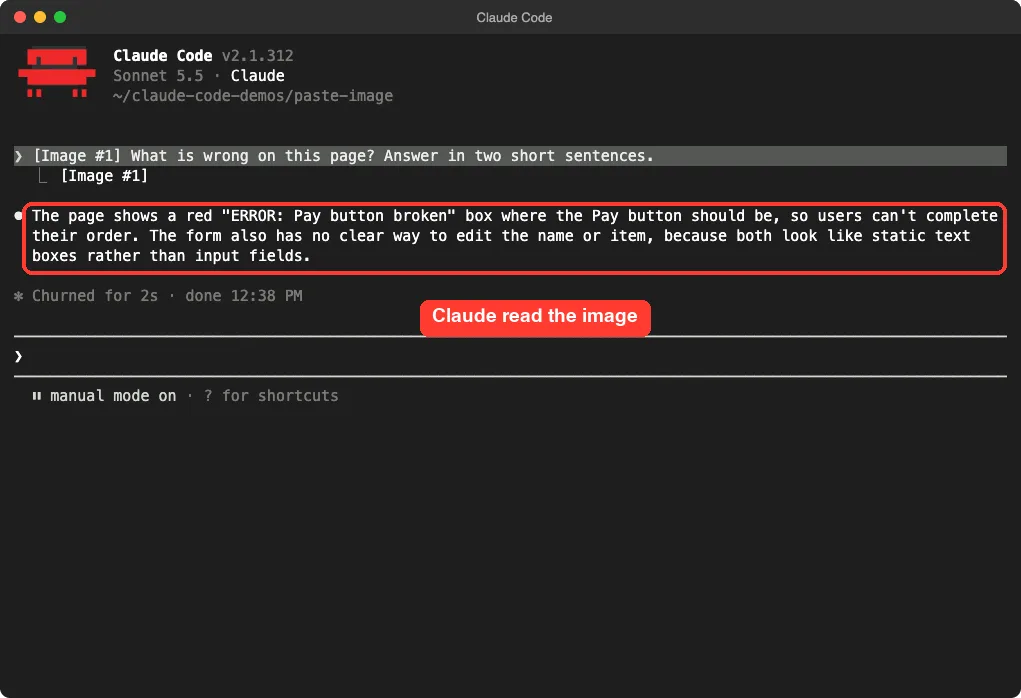
Claude answered that the page shows a red error box where the Pay button should be. It also pointed out that the name and item boxes look like plain text rather than input fields.
That was a real answer from the image alone. We never typed what the picture contained.
Other Ways to Add an Image to Claude Code
Pasting is the fastest way for a fresh screenshot. But the docs list two more methods, and each fits a different situation.
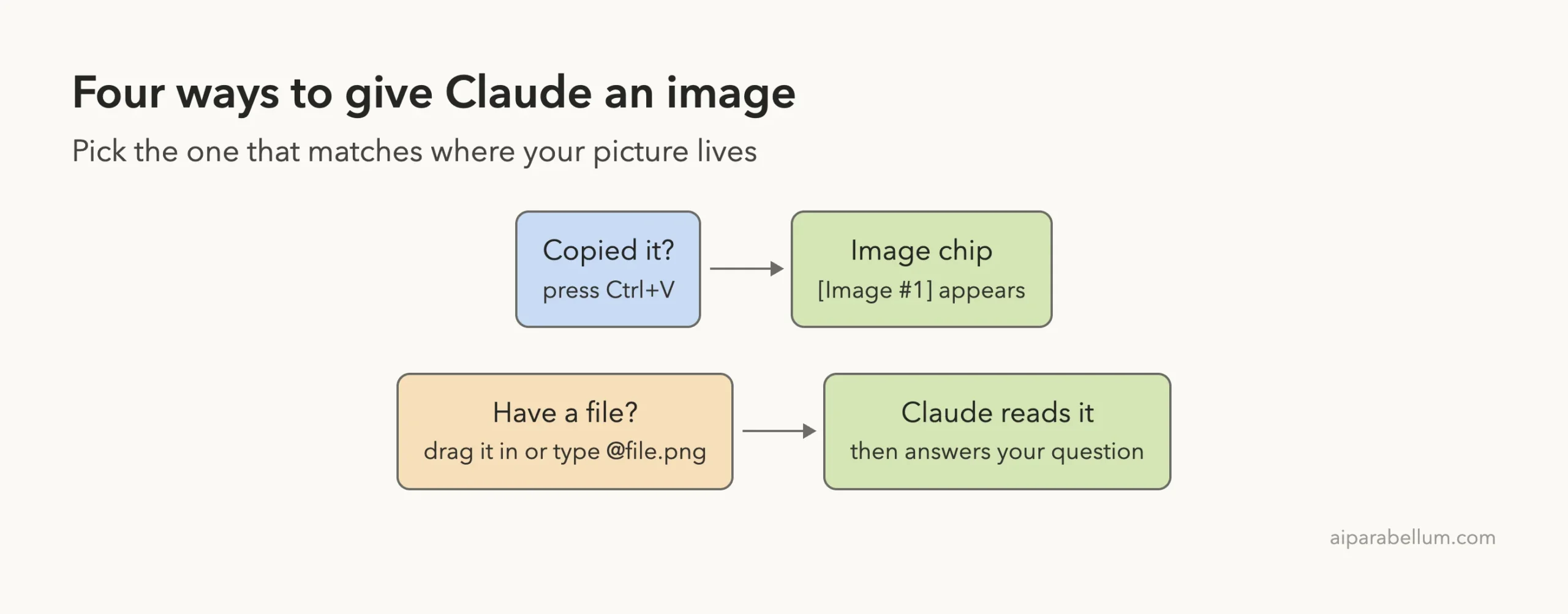
Drag and drop
The docs say you can drag and drop an image into the Claude Code window. This is handy when the picture is a file on your desktop and you do not want to copy it first. We did not test dragging in our terminal session, so we only report what the docs say.
Use a file path
You can also give Claude the path to an image, for example “Analyze this image: /path/to/your/image.png”. The @ mention works for this too. We typed “Now read @order-form.png and tell me the shop name.”
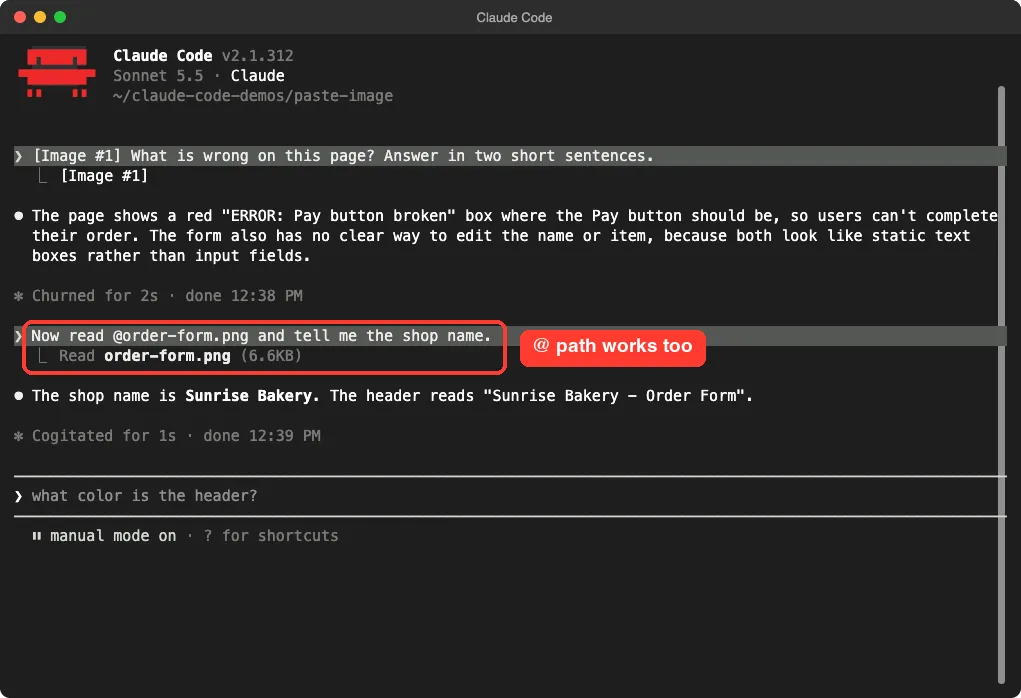
Claude Code showed a line for reading order-form.png, then answered “Sunrise Bakery”. Use this method when the image already sits inside your project folder.
You can reference several files in one message, so you can ask about more than one image at once.
What the Official Docs Say
The docs describe the three methods under “Work with images”. We highlighted the section so you can check it yourself.
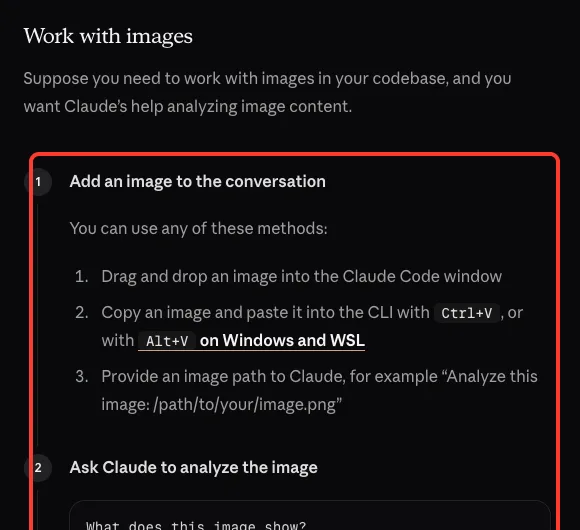
The same docs add that you can use images when text would be unclear, and that you can work with multiple images in one conversation. They also say that when Claude refers to an image like [Image #1], you can Cmd+Click (Mac) or Ctrl+Click (Windows and Linux) the link to open it in your default viewer.
Get the Image Back After You Send It
The interactive mode docs describe another useful detail. After you send a message, you can press Up to step back to the draft. Claude Code keeps the ten most recent cleared drafts for the current session, with their pasted text and images.
It discards them when you exit. This needs Claude Code v2.1.292 or later, and we have v2.1.312.
So if you pasted a screenshot and want to send it again with a different question, you do not need to copy it again.
Paste or File Path: Which Should You Use?
Both methods worked in our test, so the choice comes down to habit and where the picture lives. Here is how we would decide.
- Use paste when you just took a screenshot and it is still on your clipboard. It is the quickest path and needs no file name.
- Use a file path when the image is already in your project, such as a design file or a saved error screenshot. The path also leaves a clear record of which file Claude read.
- Use drag and drop when the file sits somewhere else on your computer and you do not want to copy or move it.
With a file path, Claude Code shows a read line for the file, as in our screenshot above. With paste, you see the numbered chip. Either way, the picture becomes part of the conversation, so later questions can refer back to it.
Keep Private Details Out of Your Screenshots
A screenshot often shows more than you mean to share. Open tabs, names, email addresses and account details can sit in the corners of the screen.
Before you paste, crop the image to the part you need. When we made our demo, we used a made-up form with a made-up name so nothing real appeared anywhere.
This habit also gives Claude a cleaner picture to read. A tight crop of one error box beats a full screen with ten windows in it.
Why Paste Might Not Work
If nothing appears after you press the key, check these common causes.
- Nothing is copied. Make sure the clipboard really holds an image, not a file name or text.
- Wrong key for your system. Use
Ctrl+Von Mac and Linux, andAlt+Von Windows and WSL, as the docs say. - The prompt is not focused. Click into the Claude Code input box first.
- The image sits in a file. Use the
@path method or drag the file in instead.
If a pasted image is not what you expected, press Ctrl+Click or Cmd+Click on the label to open it and see exactly what was attached.
Our guide to cancelling queued messages explains what to do if you send the wrong question along with your image.
Real Examples
Images save the most time when words are slow or vague. Here are situations where a pasted picture beats a long description.
- An error dialog. Paste a screenshot and ask what the message means.
- A broken layout. Paste a screenshot of the page and ask what could cause the misplaced button.
- A design mockup. Paste it and ask Claude to build a page that matches.
- A diagram. Paste a whiteboard photo and ask Claude to turn it into a list of tasks.
Each image you send becomes part of the conversation, and that counts toward your usage. You can track this with our guide to usage and costs.
Paste the picture, then ask one clear question about it.
Try It Yourself
Make a small demo folder, never a real project, and open Claude Code there. Take a screenshot of anything harmless, copy it, press Ctrl+V, and use this prompt.
What is the main thing shown in this image? Answer in two short sentences.Then save the same image into the folder and ask about it with an @ path to compare the two methods.
Common Mistakes
- Pasting a screenshot of private data, such as emails, names or passwords. Crop it first.
- Sending an image with no question, then wondering why the answer is vague.
- Pressing the wrong paste key for your system.
- Pasting a tiny, blurry image and expecting Claude to read small text.
Pro Tips
- Ask one clear question per image. It keeps answers short and on target.
- Crop screenshots to the part that matters before you paste.
- Name files clearly if you plan to use
@paths, such ascheckout-error.png. - Use
Upafter sending to bring back the draft with its images. - For long sessions, see our guide to clearing session history.
Cheat Sheet
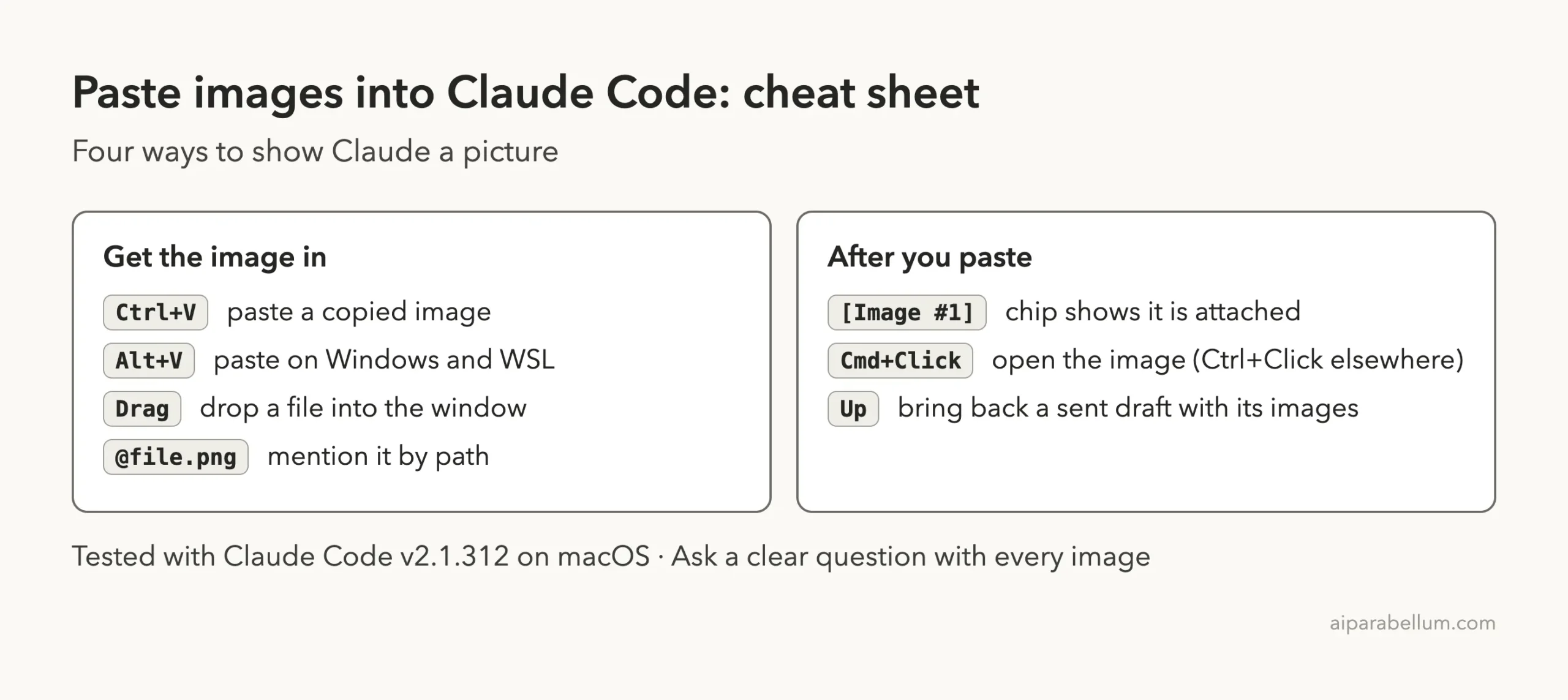
For more on how Claude itself handles images and text, see our Claude overview.
Frequently Asked Questions
How do I paste an image into Claude Code?
Copy the image, click the prompt, and press Ctrl+V. On Windows and WSL, press Alt+V. An [Image #1] chip appears in the prompt.
Can I drag and drop an image instead?
Yes, according to the official docs. You can drag and drop an image into the Claude Code window. We tested pasting and file paths, not dragging.
Can Claude Code read an image from a file path?
Yes. Give the path in your message, or use an @ mention. In our test, Claude read the file and answered a question about it.
Can I send more than one image?
Yes. The docs say you can work with multiple images in a conversation, and extra pasted images get numbers such as [Image #2].
How do I open an image I already pasted?
Cmd+Click the [Image #1] link on Mac, or Ctrl+Click on Windows and Linux. It opens in your default viewer.
Conclusion
To paste an image into Claude Code, copy it and press Ctrl+V in the prompt (Alt+V on Windows and WSL), then ask a clear question next to the [Image #1] chip. If the picture is already a file, drag it in or mention it with an @ path. We tested pasting and the path method on macOS in a demo folder, and the steps match Anthropic’s official docs.