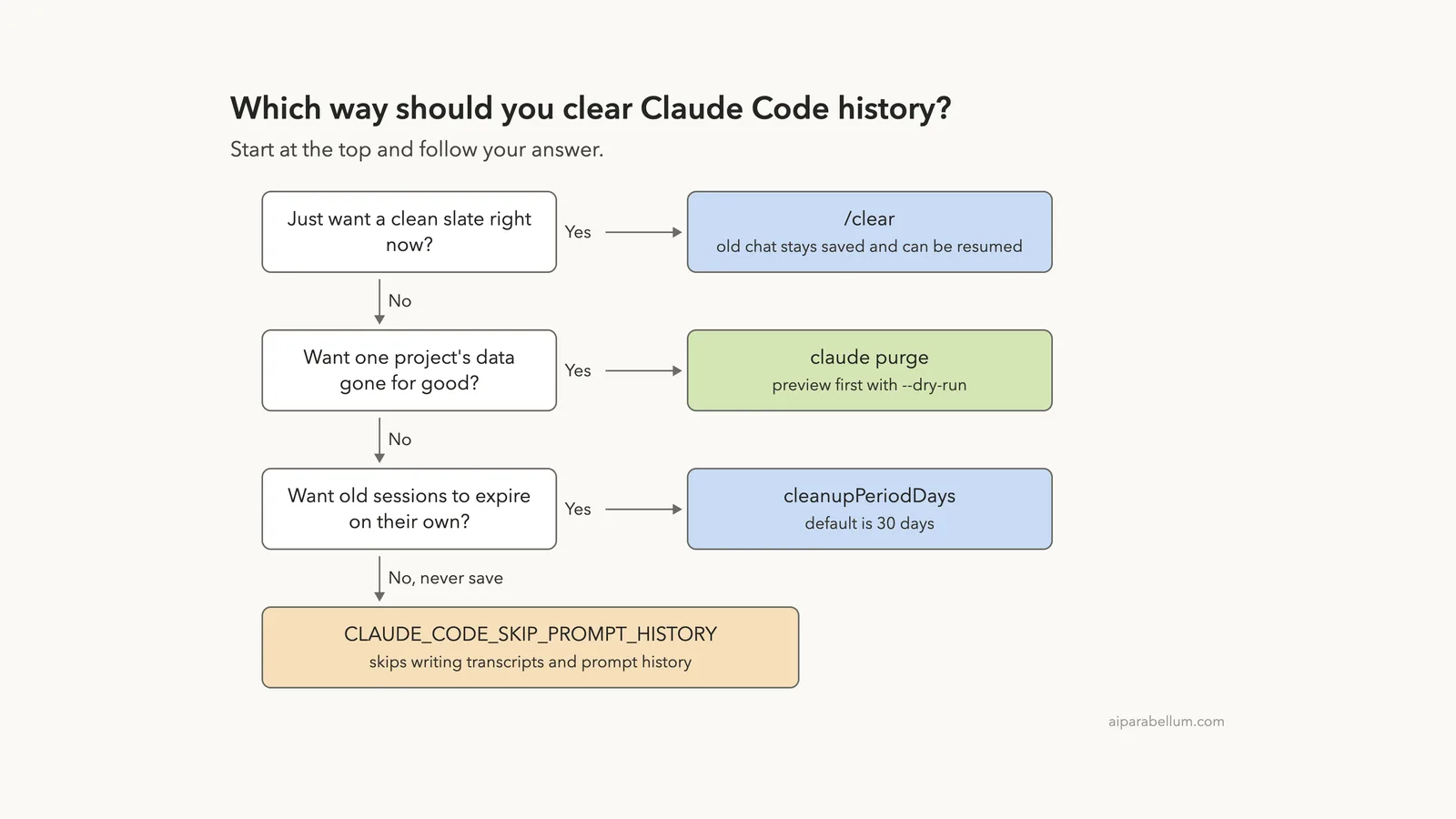
To clear Claude Code history, type /clear for a fresh, empty conversation, or run claude purge to delete a project’s saved transcripts from your computer for good. The first keeps your old chat saved. The second removes it.
Which one you need depends on what you mean by history. This guide covers every option with real output from a test run: starting fresh, deleting one project, letting old sessions expire, and stopping Claude Code from saving anything at all.
We read the official docs on sessions, settings and the .claude directory first. Then we ran Claude Code in a throwaway demo folder and deleted its history for real. Browse all our Claude Code tutorials for more help guides.
Tested with Claude Code v2.1.312 on October 31, 2026. We tested on macOS; the Windows and Linux steps follow Anthropic’s official instructions.
Quick Answer: Which Option Clears Your Claude Code History?
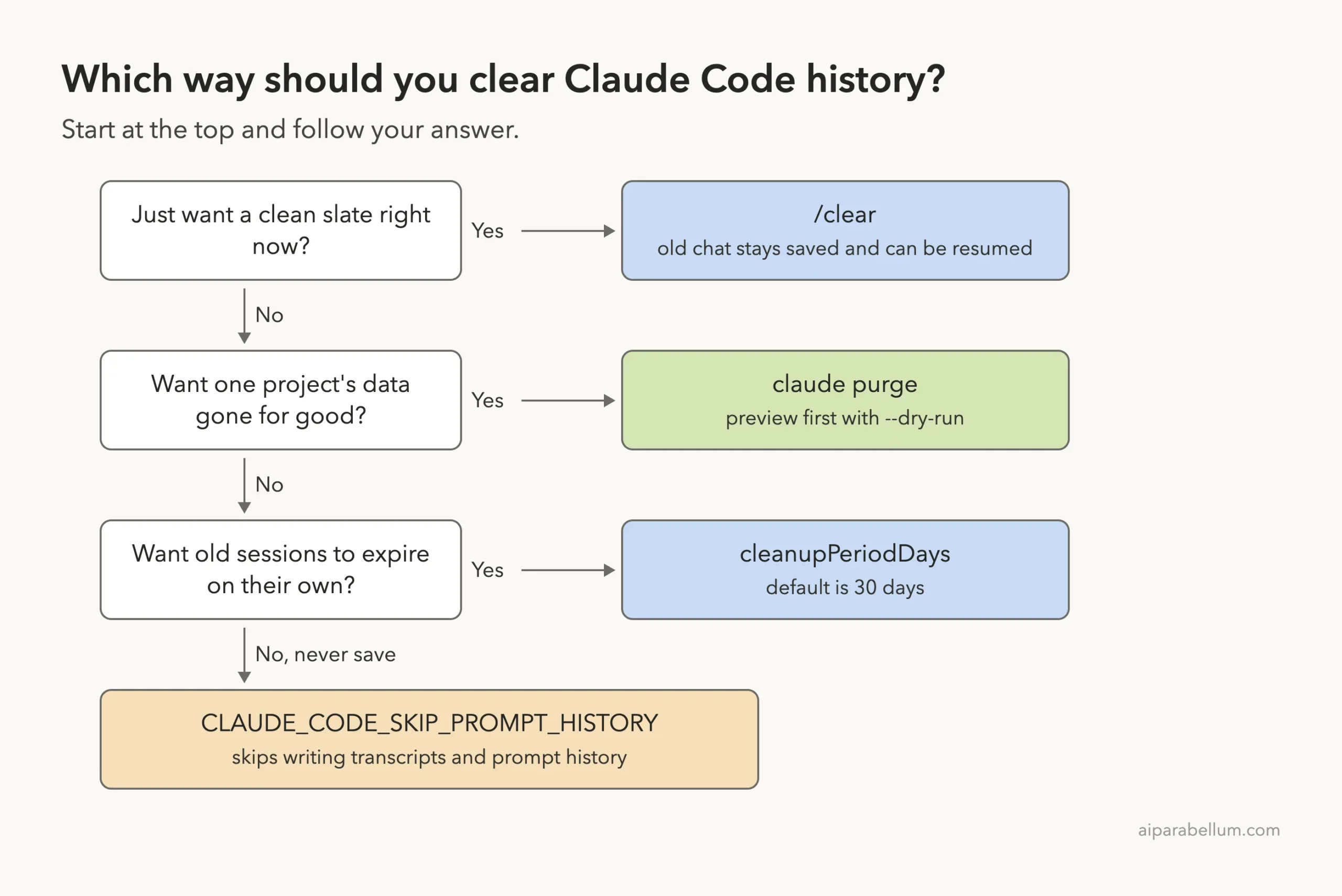
There are four different things people call history. Each has its own fix, and the table shows them side by side.
| What you want | Use this | What happens |
|---|---|---|
| A clean slate in the current terminal | /clear | Starts an empty conversation. The old one stays saved and can be resumed |
| Delete one project’s history | claude purge <path> | Removes transcripts, memory, tasks, file history and matching prompt lines |
| Delete history for every project | claude purge --all | Purges every project and deletes history.jsonl outright |
| Let old sessions expire | cleanupPeriodDays setting | Deletes files older than the number of days you choose |
| Never save a session | CLAUDE_CODE_SKIP_PROMPT_HISTORY | Skips writing transcripts and prompt history |
Where Claude Code Stores Your History
Claude Code saves every conversation as a transcript file on your own computer. According to the official .claude directory page, each transcript lives at ~/.claude/projects/<project>/<session>.jsonl. It holds your messages, tool calls and tool results.
The prompts you type are stored separately in ~/.claude/history.jsonl. That file powers up-arrow recall and Ctrl+R history search.
We created two short sessions in a demo folder and then listed the project folder. Each session became one .jsonl file, and an empty memory folder sat beside them.
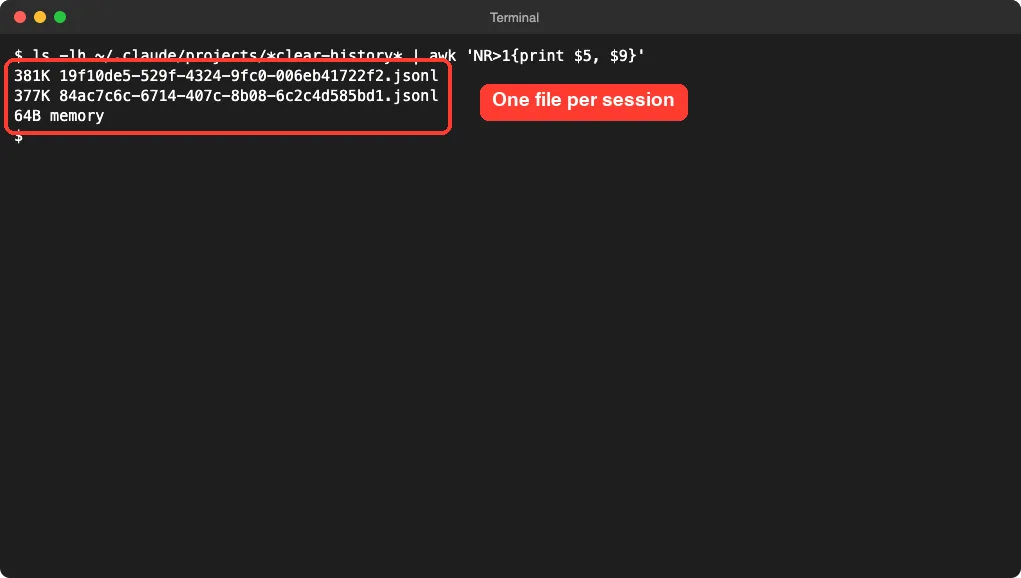
Those files are bigger than you might expect. The docs say a transcript also includes the system prompt, tool definitions and request parameters, not just your chat.
Option 1: Clear the Conversation With /clear
Type /clear and press Enter. Claude Code starts a new session with an empty context. It is the quickest way to stop old messages from affecting new work.
This does not delete anything. The docs state that Claude Code saves the previous session, and you can bring it back with /resume. If you gave the session a name with --name or /rename, the new session keeps that name.
We proved it in our demo. We asked about one file, ran /clear, asked about a second file, then opened /resume. The first conversation was waiting in the picker.
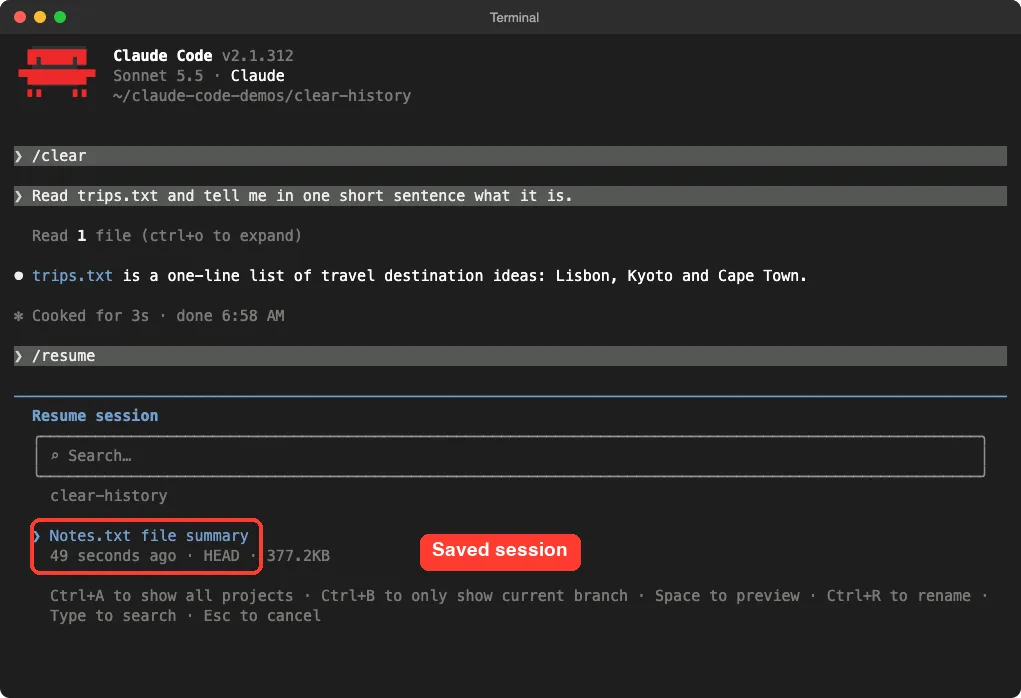
/clear, the earlier session still shows up in the /resume pickerUse /clear when you switch tasks and want less context. It also saves usage, which our guide on the context window explains.
Clear vs. Compact
The docs list /compact next to /clear. Compact replaces the history with a summary, so Claude remembers the gist.
Clear starts from nothing. Pick compact when the task continues and clear when it does not.
Option 2: Delete a Project’s History With claude purge
If you want the saved data gone, use claude purge. The official docs describe it as the command that deletes the state Claude Code holds for one project. Before v2.1.288 it was called claude project purge.
It removes four things:
- Transcripts and auto memory under
projects/ - Per-session
tasks/,debug/andfile-history/entries - Matching prompt lines in
history.jsonl - The project’s entry in
~/.claude.json
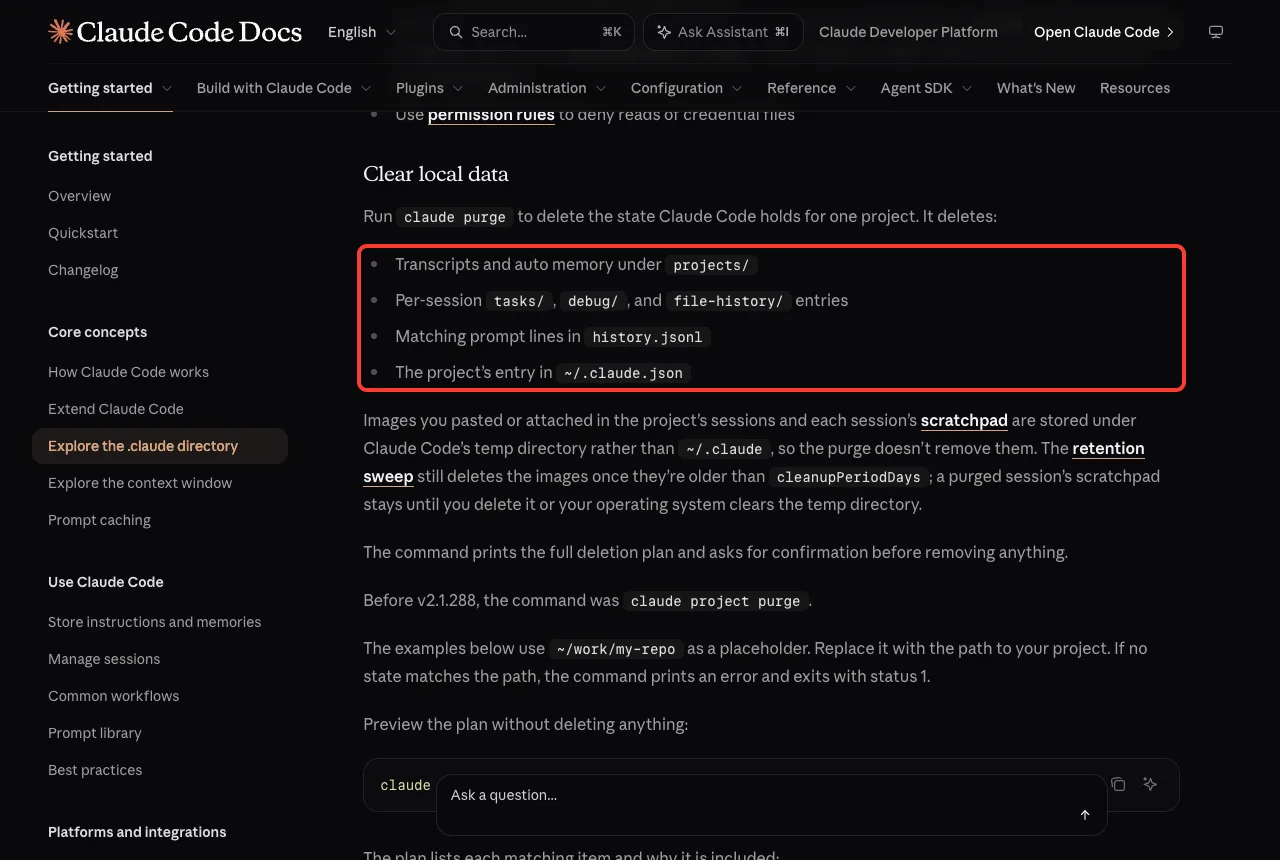
claude purge deletesStep 1: Preview With –dry-run
Always preview first. The --dry-run flag lists what would be deleted without deleting anything.
claude purge ~/claude-code-demos/clear-history --dry-runOur demo printed a plan with three items: the project’s transcript folder, its entry in ~/.claude.json, and four prompts to filter out of history.jsonl. It ended with “Dry run: 3 item(s) would be deleted.”
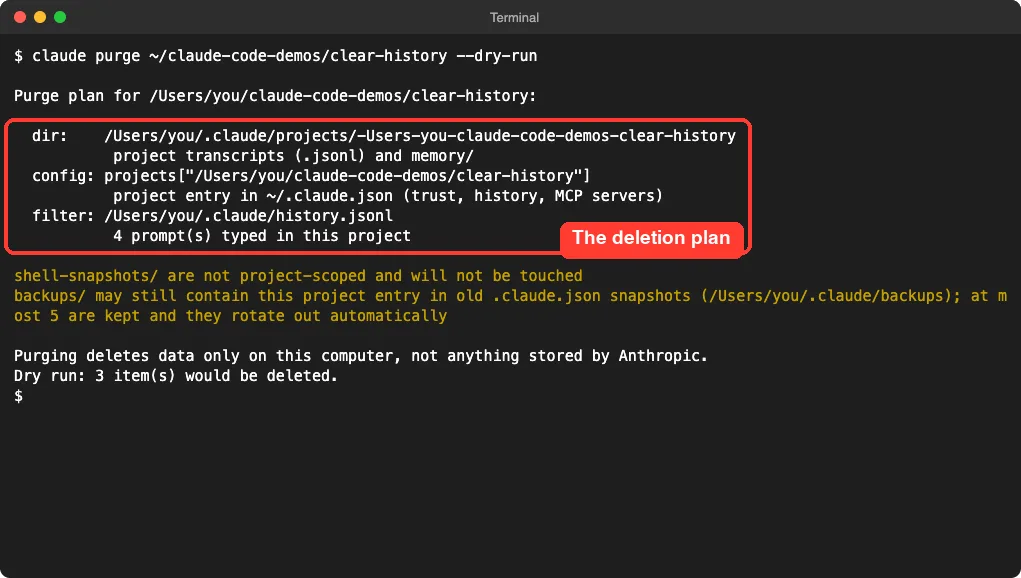
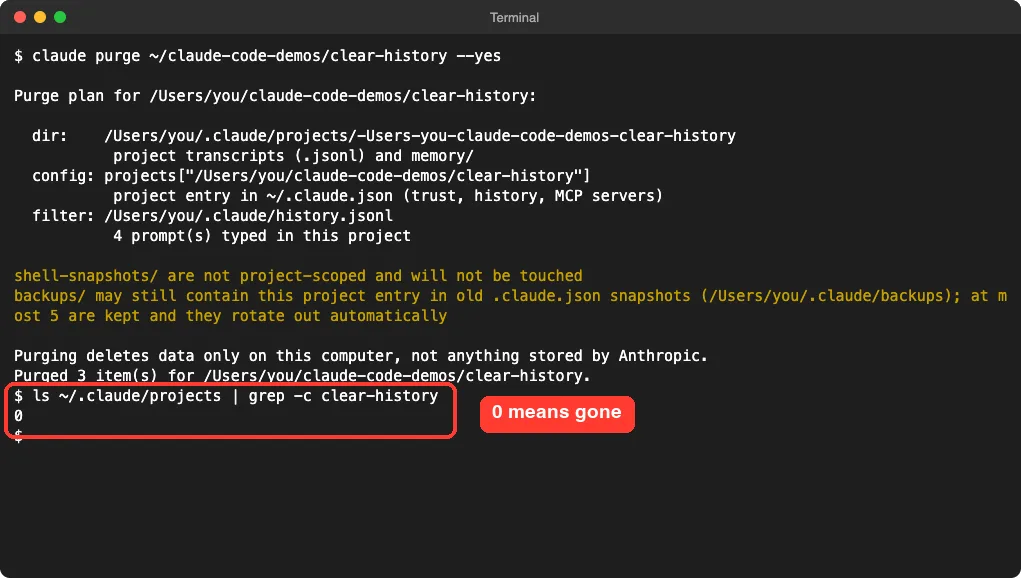
The output also carried two warnings. The shell-snapshots/ folder is not project-scoped and is not touched. Old copies of ~/.claude.json in backups/ may still mention the project until they rotate out, since only five are kept.
One more line is worth reading: purging deletes data only on this computer, not anything stored by Anthropic.
Step 2: Delete for Real
Run the same command without --dry-run. Claude Code prints the plan again and asks for a y/N confirmation. Per the docs, the confirmation is the last chance, because it cannot be undone.
claude purge ~/claude-code-demos/clear-historyAdd --yes to skip the question in scripts. We used it in our demo, then counted matching project folders. The count was 0, so the history was gone.
Other Purge Options
- Leave out the path to pick a project from an interactive list.
- Pass
-ito step through the deletion plan one item at a time. - Pass
--allinstead of a path to purge every project. This deleteshistory.jsonloutright rather than filtering it.
What Purge Does Not Remove
Images you pasted and each session’s scratchpad live under Claude Code’s temp directory, not ~/.claude. The docs say the purge does not remove them. The retention sweep still deletes the images once they pass cleanupPeriodDays, and a purged session’s scratchpad stays until you delete it or your operating system clears the temp folder.
The docs also warn about heap snapshots. If anyone ran /heapdump on the machine, delete the .heapsnapshot files it wrote, since they can hold the full conversation.
Option 3: Let Old Sessions Expire With cleanupPeriodDays
You do not have to delete by hand. Claude Code removes old files automatically once they pass the cleanupPeriodDays age.
The docs say the default is 30 days and the minimum is 1. Setting 0 fails with a validation error.
That sweep covers transcripts, subagent transcripts, file history snapshots, plan files, debug logs and more. It does not delete auto memory files. They sit in projects/<project>/memory/.
To keep history for a shorter time, add the setting to your user settings file, ~/.claude/settings.json.
{
  "cleanupPeriodDays": 7
}
Claude Code then deletes files older than 7 days. If your settings file has errors, the docs say the sweep pauses and /status shows a warning until you fix the file. Organization-managed settings can also set this value, and then the managed value wins.
Sessions you started in Claude Desktop or Cowork are kept at any age unless you set desktopSessionCleanupPeriodDays, which needs v2.1.248 or later.
Option 4: Stop Claude Code From Saving History
If you never want a transcript on disk, set the CLAUDE_CODE_SKIP_PROMPT_HISTORY environment variable. The docs say it skips writing transcripts and prompt history in any mode.
export CLAUDE_CODE_SKIP_PROMPT_HISTORY=1
claude
We did not test this variable in our demo, so the value above is only an example. Check the environment variables reference for the exact accepted values.
For headless runs there is a second route. Pass --no-session-persistence together with -p. The TypeScript Agent SDK has a persistSession: false option, and the Python SDK has no equivalent.
The trade-off is clear. With nothing saved, /resume, --continue and rewind have nothing to bring back.
Why You Might Want to Delete Claude Code History
The biggest reason is privacy. The docs say transcripts and history are not encrypted at rest, so file permissions are the only protection. If a tool reads a .env file or a command prints a credential, that value is written into the transcript.
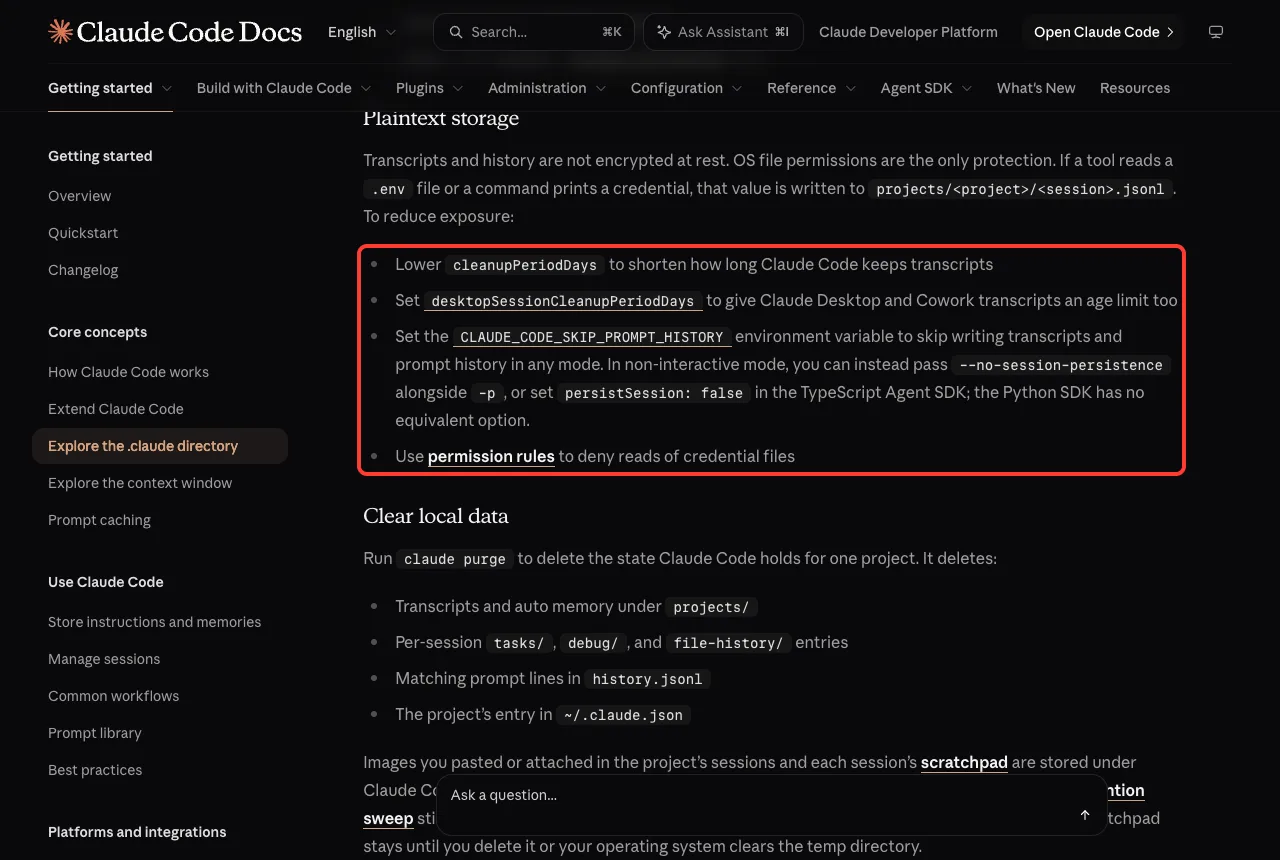
Other reasons are simpler. You may be handing a laptop to someone, finishing a client job, or just tidying disk space. Our sessions guide shows how resuming works if you change your mind.
For secrets, history cleanup is only half the job. The docs also suggest permission rules that deny reads of credential files, so the secrets never reach a transcript. See our permissions tutorial for how those rules work.
Try It Yourself
Practice on a throwaway folder, never a real project. Create a folder with one text file, start Claude Code there, and ask one short question. Then exit and run the commands below.
mkdir ~/clear-history-test
cd ~/clear-history-test
echo "hello" > notes.txt
claude
# ask: Read notes.txt and tell me what it is in one sentence.
# type /clear, then /resume, and look for the old session
# exit, then preview and delete:
claude purge ~/clear-history-test --dry-run
claude purge ~/clear-history-test
Read the dry-run plan before you answer y. Once you are comfortable, you can use the same pattern on a real project you want to wipe.
Common Mistakes
- Thinking
/cleardeletes history. It only starts a new session, and the old one stays on disk. - Running
claude purge --allby accident. It wipes every project and deleteshistory.jsonl, so use a path unless you mean it. - Skipping
--dry-run. A preview takes seconds and shows exactly what goes. - Forgetting pasted images and scratchpads. They sit in the temp folder and the purge does not remove them.
- Setting
cleanupPeriodDaysto0. The docs say this fails validation, so use 1 or higher. - Deleting
~/.claude/projects/by hand without knowing the cost. You lose resume, continue and rewind for past sessions, plus auto memory for every project.
Pro Tips
- Use
-iwith purge when you want to approve each item one by one. - Pick a short
cleanupPeriodDayson shared or work machines so old transcripts do not pile up. - Rename important sessions with
/renamebefore you clean up, so you can find the ones worth keeping. - Keep credentials out of sessions in the first place, since a transcript stores whatever a tool prints.
- Remember that
~/.claude/history.jsonlonly holds prompts. Deleting it costs you up-arrow andCtrl+Rrecall, nothing more.
Clear starts over, purge deletes, and cleanupPeriodDays does the cleaning for you.
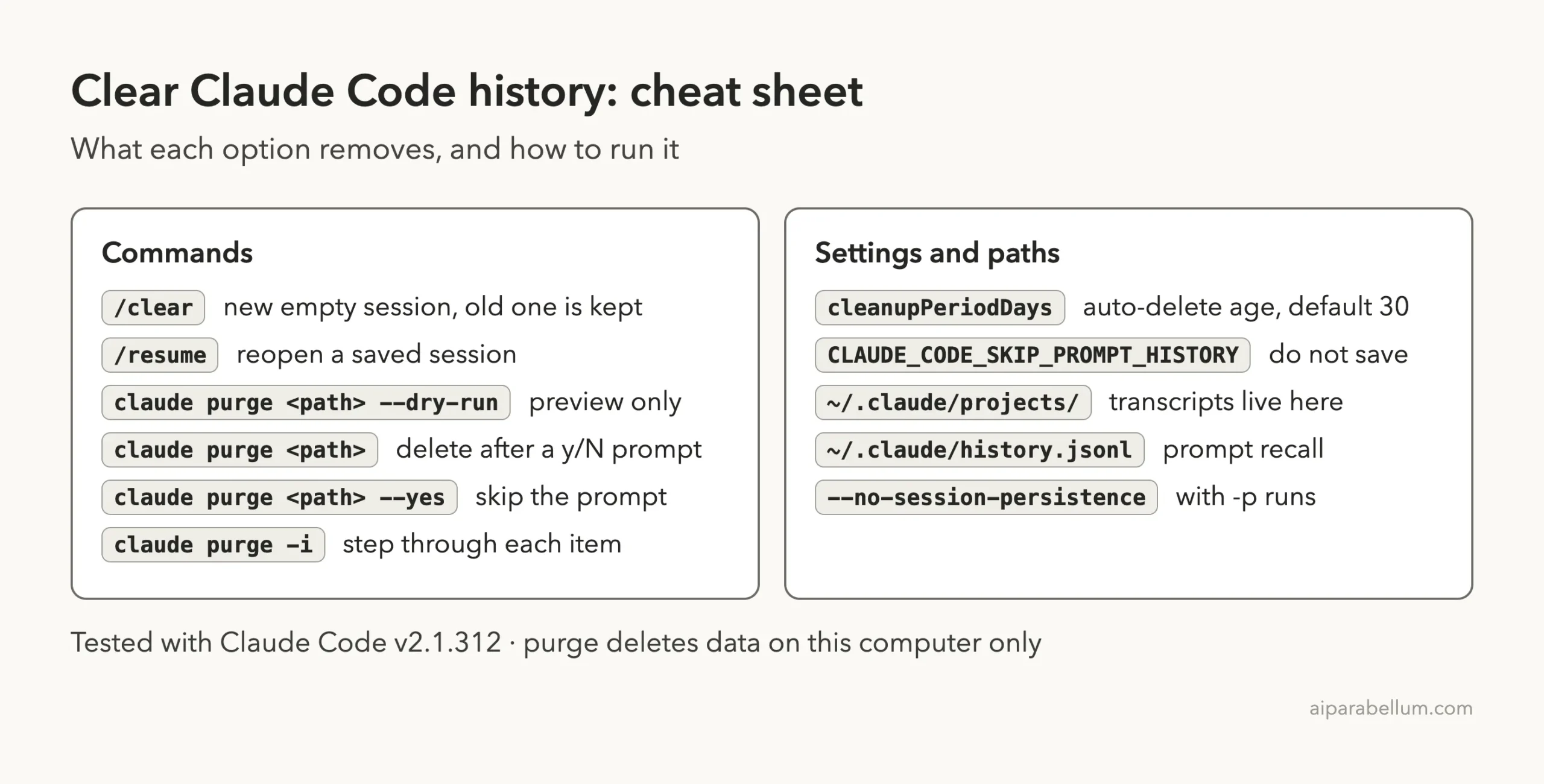
Cheat Sheet
Frequently Asked Questions
Does /clear delete my Claude Code history?
No. It starts a new empty conversation and saves the previous one. You can bring it back with /resume, as our demo showed.
How do I delete all Claude Code history?
Run claude purge --all. The docs say it purges state for every project and deletes history.jsonl outright. Add --dry-run first to preview it.
Where is Claude Code history stored?
Transcripts are in ~/.claude/projects/<project>/, one .jsonl file per session. Your typed prompts are in ~/.claude/history.jsonl. On Windows, ~/.claude resolves to %USERPROFILE%\.claude.
How long does Claude Code keep history?
The default is 30 days, controlled by cleanupPeriodDays. Claude Desktop and Cowork transcripts are kept at any age unless you set desktopSessionCleanupPeriodDays.
Does purging delete data stored by Anthropic?
No. The command prints that it deletes data only on this computer, not anything stored by Anthropic.
Conclusion
Clearing Claude Code history comes down to picking the right tool: /clear for a fresh start that keeps your old chat, claude purge with --dry-run first to delete a project for good, cleanupPeriodDays to let old sessions expire, and CLAUDE_CODE_SKIP_PROMPT_HISTORY to stop saving altogether. Practice on a demo folder, read the plan before you confirm, and remember that purging cannot be undone. Our Claude AI overview is a good next stop if you are new to the tool.