Claude Code plugins let you add a whole bundle of new abilities to Claude Code in one step. A single plugin can bring skills, subagents, hooks and MCP servers that someone else already built and tested. Instead of copying files around by hand, you pick a plugin from a catalog, choose who gets it, and start using it right away.
In this guide we install two real plugins in a throwaway demo folder. One comes from Anthropic’s official marketplace, and the other comes from a tiny marketplace we built ourselves in a few minutes.
You will see how to browse plugins, read what each one adds, pick a scope, run its commands, and then disable or remove it. Every screenshot comes from a real session on our Mac.
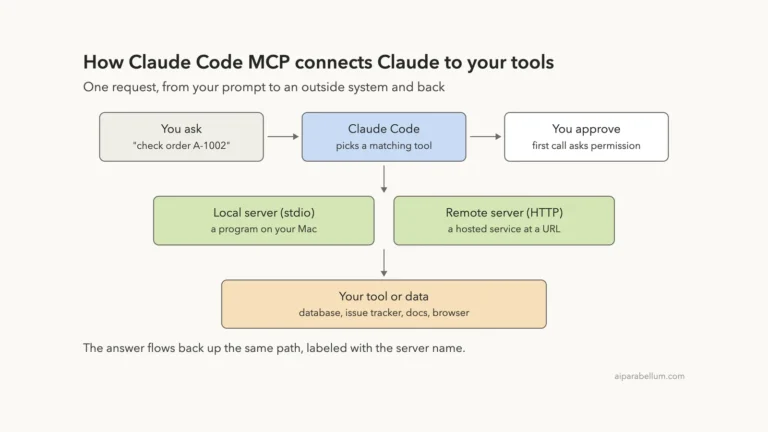
This is Part 32 of 53 in our Claude Code tutorials series. In the previous part we connected Claude to outside tools with MCP servers; today we look at the package format that can bundle those servers with skills and hooks.
Tested with Claude Code v2.1.310 on October 25, 2026, on macOS, inside a small demo folder.
Quick Summary: Claude Code Plugins at a Glance
| Question | Short answer |
|---|---|
| What is a plugin? | A folder of skills, agents, hooks or MCP servers that installs as one unit |
| Where do plugins come from? | Mostly from marketplaces, which are catalogs of plugins |
| How do I browse them? | Type /plugin in a session and use the Discover tab |
| How do I install one? | /plugin install NAME@MARKETPLACE, then pick a scope |
| How do I run what it adds? | Its skills show up as /plugin-name:skill |
| Can I install from the shell? | Yes, with claude plugin install |
| How do I pause or remove one? | Disable it, or uninstall it, from /plugin or the shell |
| Does it cost context? | A little on every turn, shown before you install |
What Claude Code Plugins Are and Why They Exist
Over the last few parts of this series, you learned about custom skills, subagents, hooks and MCP servers. Each one works fine on its own. The trouble starts when you want to share a setup that uses several of them together.
The official plugins overview describes a plugin as a directory of components that Claude Code installs and loads as one unit. A small JSON manifest at .claude-plugin/plugin.json gives the plugin its name, and it can add a version and a description.
Here is what a plugin can hold:
- Skills: instructions Claude loads when relevant, which you can also run as commands
- Agents: subagent definitions Claude can hand work to
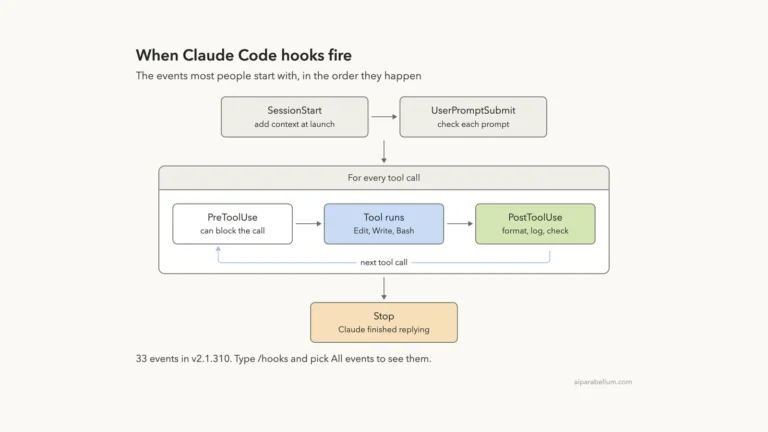
- Hooks: commands that run at points in Claude Code’s lifecycle, such as after an edit
- MCP servers: tool servers that connect while the plugin is enabled
A plugin is just a box. What matters is what is inside it, so always read the list before you install.
Do you even need a plugin?
Not always. The docs point out that a skill saved in your personal skills folder already works in every project. A plugin earns its place when you want several pieces packaged together, installed with one command, and kept up to date from a marketplace.
What a marketplace is
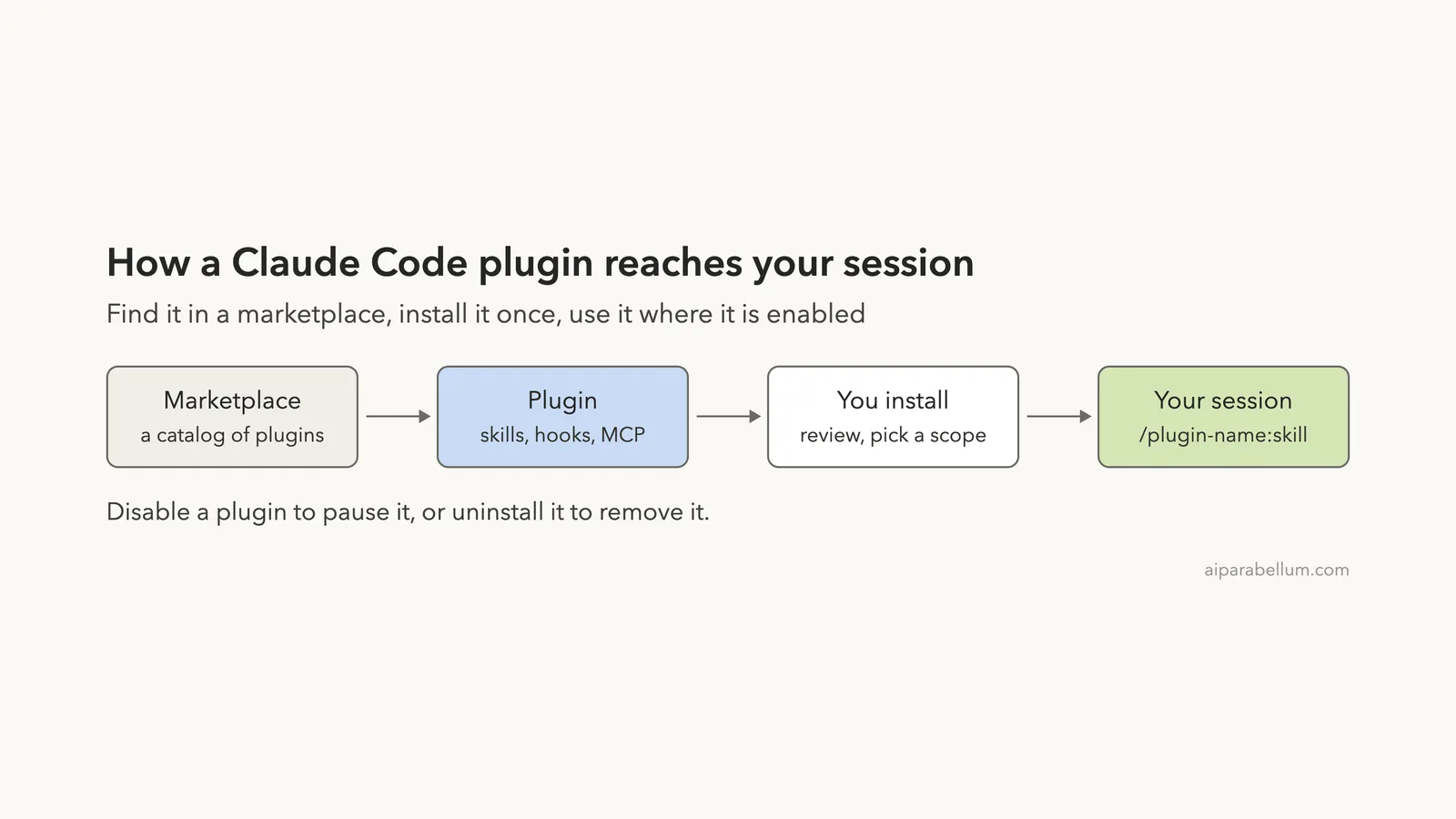
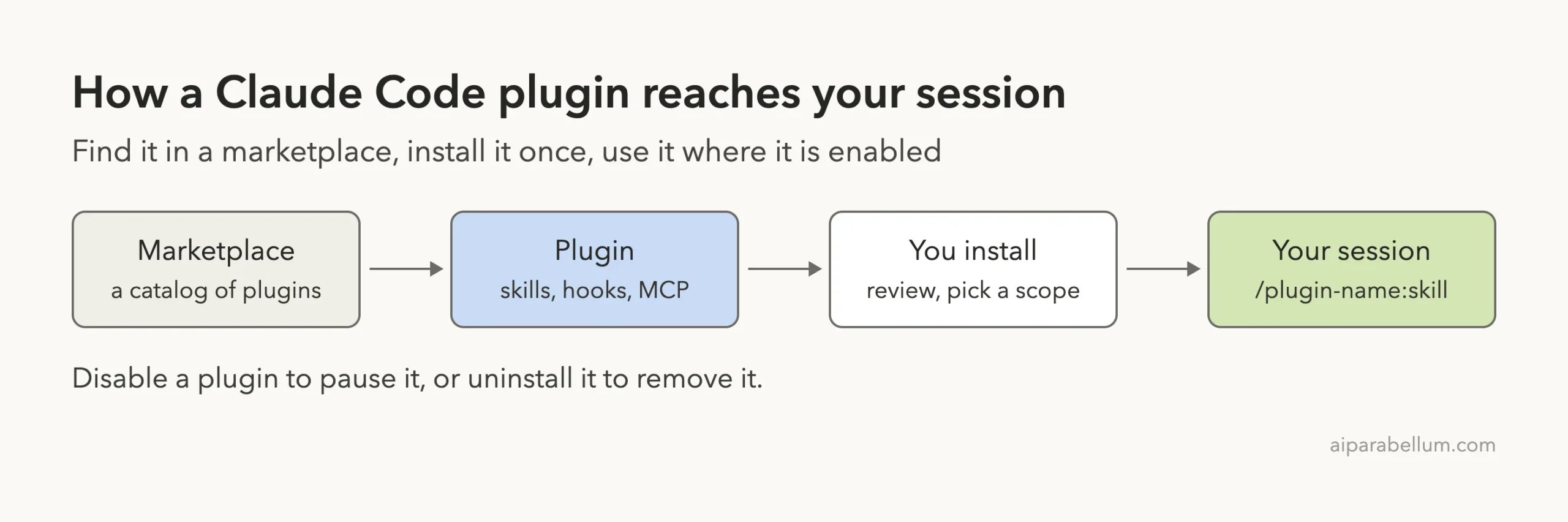
A marketplace is a catalog that lists plugins and where to fetch each one. It is not a hosted store. Claude Code adds Anthropic’s official marketplace, claude-plugins-official, the first time you start an interactive terminal session.
Step 1: Browse Plugins With the /plugin Panel
Start Claude Code in your project and type /plugin. You can also type /plugins, which is an alias for the same command. The panel opens on the Discover tab.
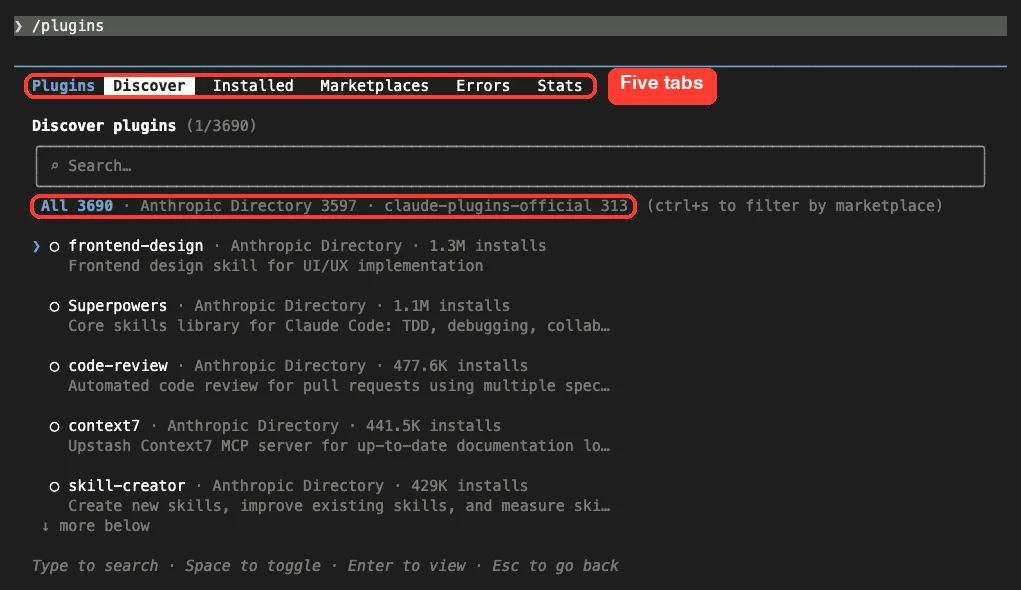
Across the top you will see five tabs: Discover, Installed, Marketplaces, Errors and Stats. On the day we tested, the Discover list showed 3,690 plugins from two sources, a built-in Anthropic Directory and the claude-plugins-official marketplace.
That number will change over time, so treat it as a snapshot. Each row shows a plugin name, its marketplace, an install count and a one-line description.
Search for what you need
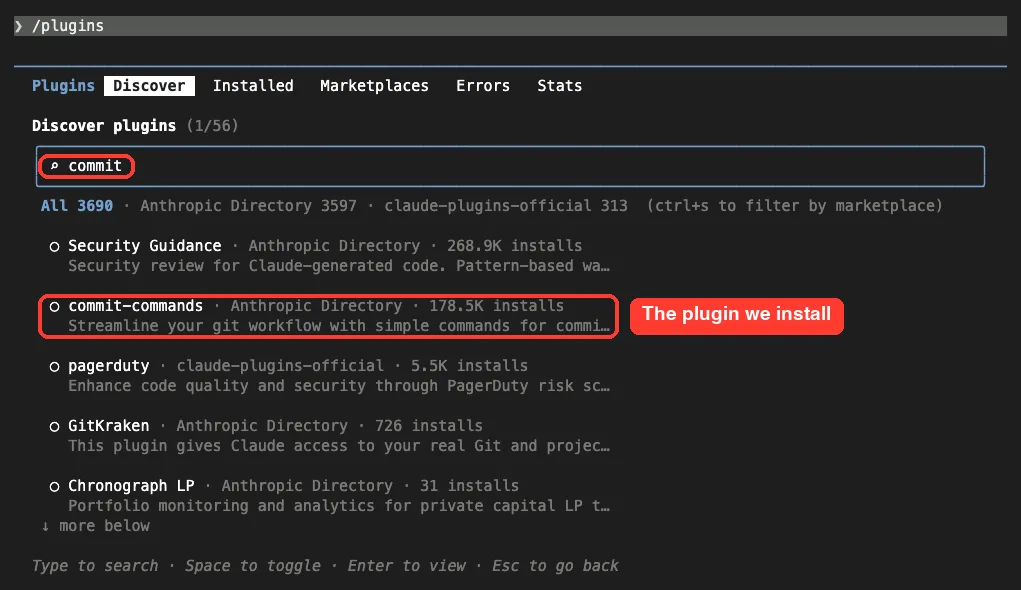
Just start typing to search. We typed commit, and the list narrowed to 56 matches. The plugin we wanted, commit-commands, sat near the top.
Press Enter on a plugin to open its details. You can also press Ctrl+S to filter by marketplace, as the hint line in the panel says.
Step 2: Read the Details Before You Install
The install guide suggests a direct command that jumps straight to a plugin’s details:
/plugin install commit-commands@claude-plugins-officialInside a session, this does not install anything yet. It opens the details pane so you can review the plugin and pick a scope first.
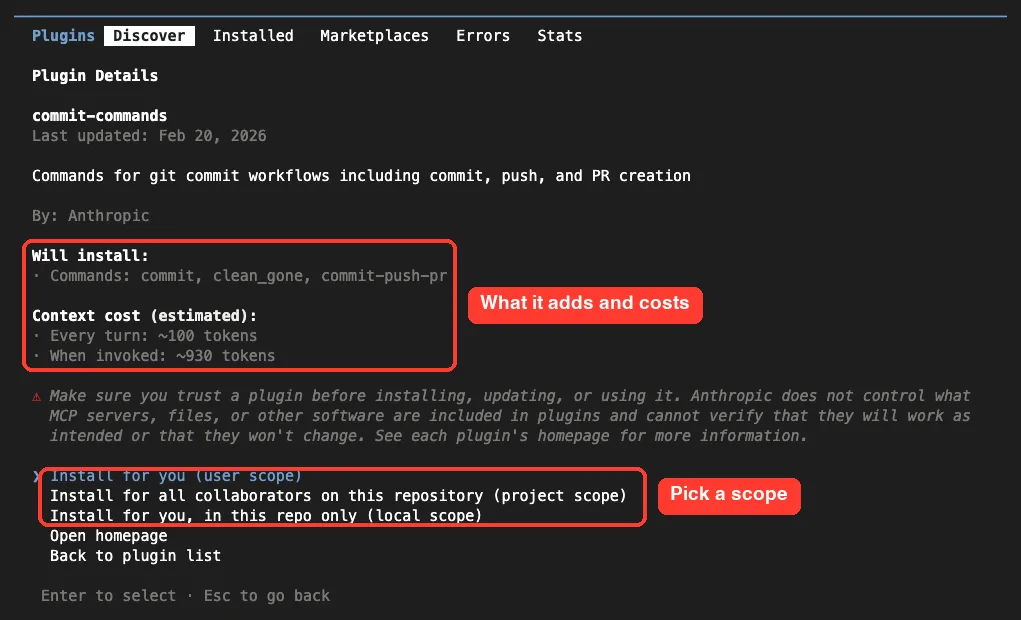
Three parts of this screen deserve a careful look:
- Will install: the commands, agents, skills, hooks and servers the plugin adds. Here it listed three commands: commit, clean_gone and commit-push-pr.
- Context cost: an estimate of about 100 tokens on every turn, and about 930 tokens when you invoke it. The docs say this estimate appears for plugins in Anthropic’s official marketplace when you open them by naming the marketplace, as we did.
- The trust warning: Anthropic does not control what files or servers a plugin includes, so make sure you trust it first.
The context cost matters because an enabled plugin is part of every session. Our context window guide explains why a few hundred tokens per plugin can add up if you install many.
Step 3: Choose an Install Scope
At the bottom of the details pane, you choose who gets the plugin. There are three options:
| Option in the panel | Scope | Who gets it | Saved in |
|---|---|---|---|
| Install for you | user | You, in every project on this machine | ~/.claude/settings.json |
| Install for all collaborators on this repository | project | Everyone who works in this repo | .claude/settings.json (committed) |
| Install for you, in this repo only | local | You, in this repo only | .claude/settings.local.json |
These are the same settings files from our settings files guide. For the demo we picked local scope, so the plugin stayed inside our test folder and did not touch any other project.
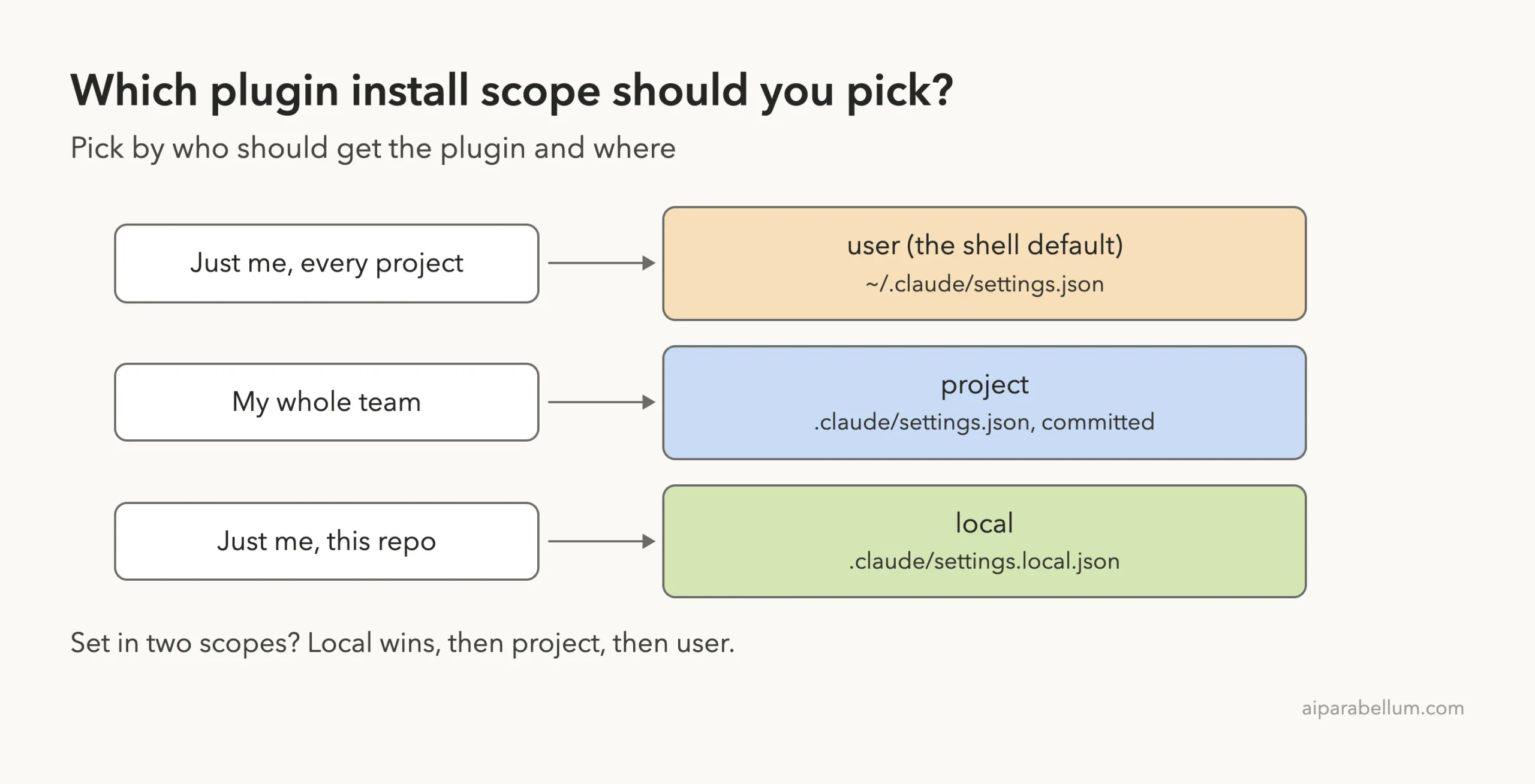
When the same plugin is set in more than one scope, local overrides project, and project overrides user. One catch with project scope: committing the setting turns the plugin on for teammates, but each person still installs it once on their own machine.
Step 4: Read the Install Summary and Run the Plugin
After we selected local scope, Claude Code installed the plugin and printed one short line.
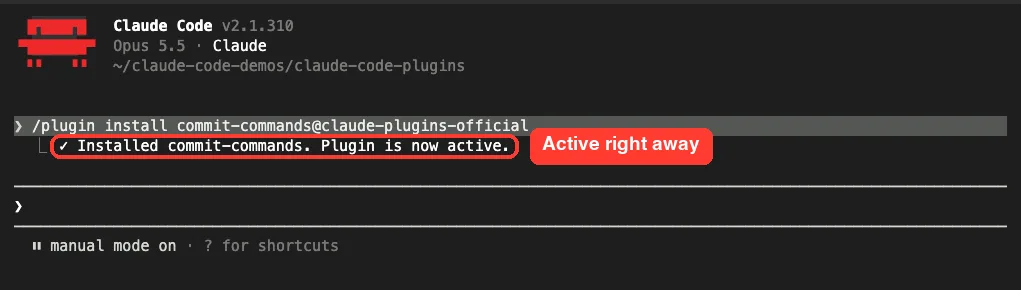
The docs list four possible endings for this summary, and each one tells you something different:
- Plugin is now active: ready to use, no reload needed.
- Active, but its bundled MCP server needs configuration: open the plugin on the Installed tab and choose Configure.
- Run /reload-plugins to apply: Claude Code reloads for you, unless that would reset the prompt cache.
- The plugin couldn’t be loaded: check the Errors tab for the reason.
Find the new commands
To confirm it works, type a slash and the plugin name. Plugin skills appear in the form /plugin-name:skill, which keeps them from clashing with your own slash commands.
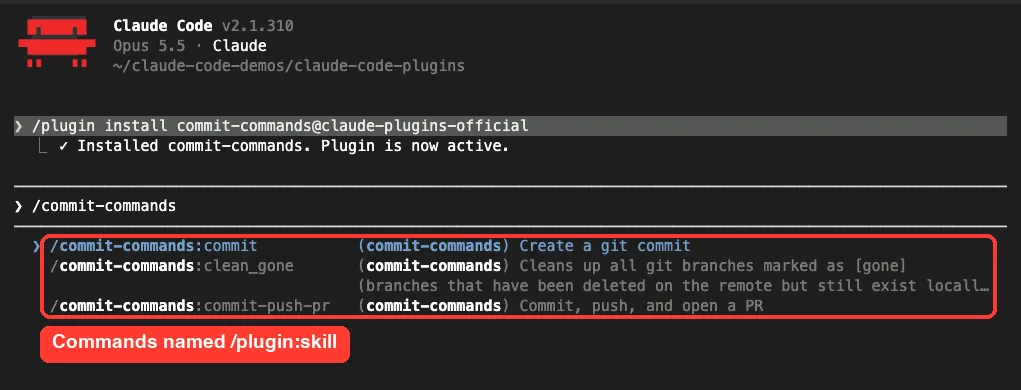
Our demo folder was not a git repository, so we did not run the commit command itself. The point here is that the plugin loaded and its commands are ready.
Step 5: Add Another Marketplace
Plugins outside the official catalog need one extra step. You add their marketplace first, and you only do this once.
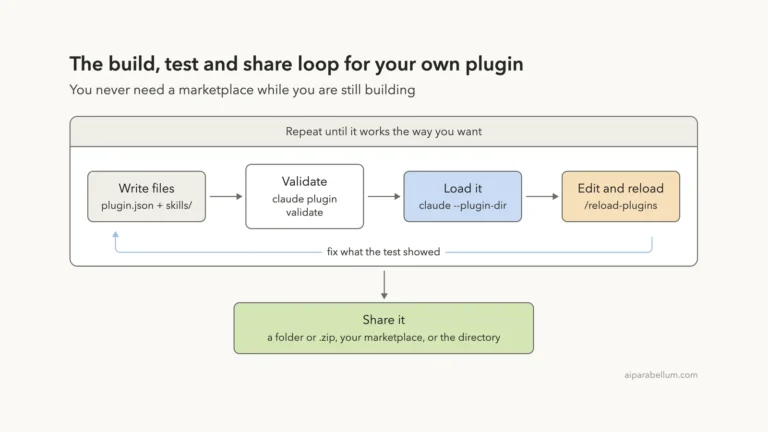
To test it, we built a tiny marketplace folder called team-plugins. It held one plugin, standup-notes, with a single skill that turns a few updates into a short standup note. We checked it with claude plugin validate, which printed “Validation passed.”
Then we added it from inside the session:
/plugin marketplace add ./team-plugins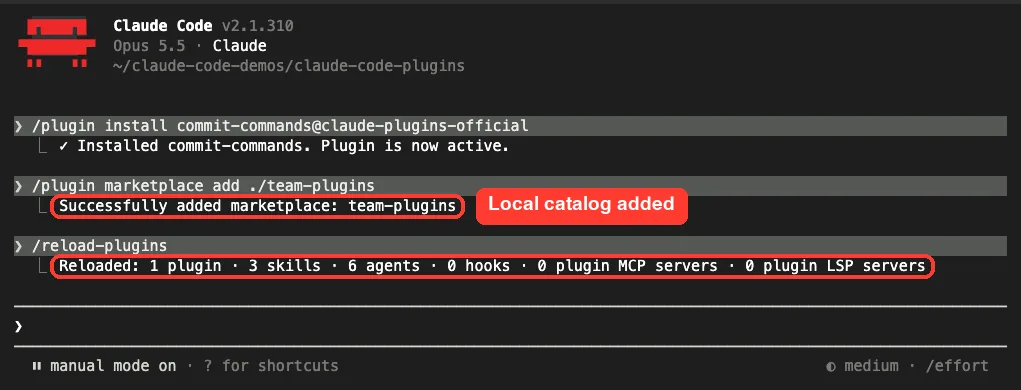
Claude Code also ran /reload-plugins on its own and printed a one-line summary. Note the ./ at the start of the path. The docs warn that a bare name/name is read as a GitHub repository, so local paths need ./ or ../ in front.
Other marketplace sources
The same command accepts four kinds of sources:
- A GitHub repository, like owner/repo, with #ref to pin a branch or tag
- A full git URL from any host, starting with https:// or git@
- A local folder or a marketplace.json file
- A hosted marketplace.json at an https:// URL
Install from your new marketplace
Next we opened our own plugin with /plugin install standup-notes@team-plugins. The details pane looked a little different this time.
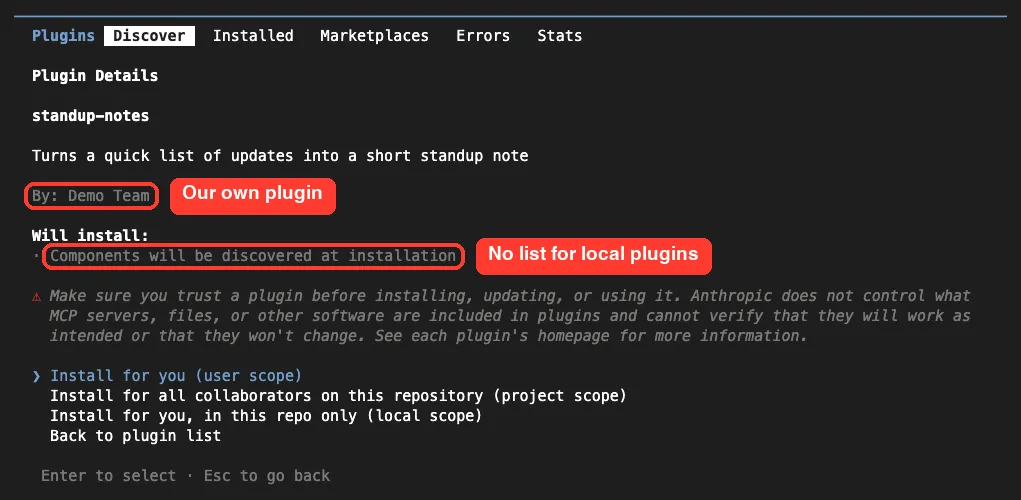
Instead of a list, it said “Components will be discovered at installation.” The docs mention this is normal for plugins from a local or custom marketplace. We picked local scope again, and it reported “Plugin is now active.”
Real Example: A Plugin Skill at Work
This was the only time we asked Claude to do real work in this tutorial. We ran our plugin’s skill with a few quick updates:
/standup-notes:standup Yesterday I fixed the price bug in sales.csv. Today I add a weekly total. No blockers.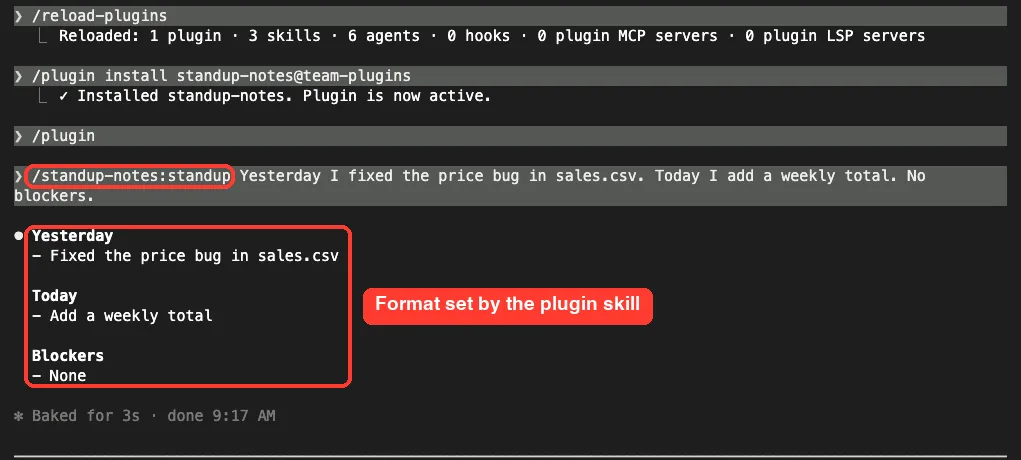
Claude answered in about three seconds with three headings: Yesterday, Today and Blockers. That is exactly the format our SKILL.md file asked for, including “None” for blockers.
It is a small example, but it shows the real value. Write a skill once, wrap it in a plugin, and anyone on your team can install the same behavior with one command.
Step 6: Manage Installed Plugins
Open /plugin and press Tab to reach the Installed tab, or run /plugin manage to jump straight there. Our two plugins showed up under a Local heading, with their marketplaces and skill counts.
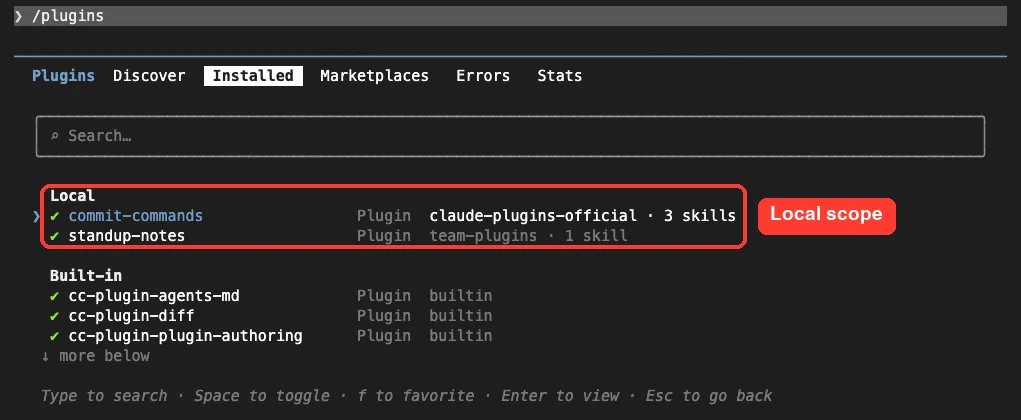
Below them, a Built-in group listed plugins that ship with Claude Code. The footer shows the shortcuts: type to search, Space to enable or disable, f to favorite, and Enter to view details.
We pressed Enter on commit-commands to open its detail view.
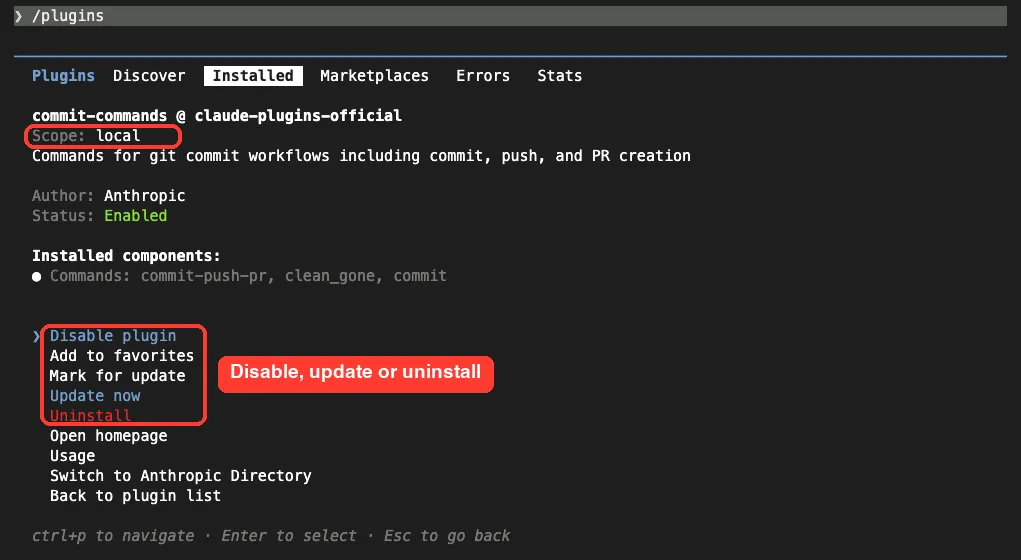
It confirmed the scope and status, listed the installed commands, and offered actions like Disable plugin, Update now and Uninstall. When you close the panel with pending changes, the docs say Claude Code runs /reload-plugins for you.
Check a plugin’s cost from the shell
For a closer look, run claude plugin details with the plugin name in your normal terminal. It prints a component inventory and a projected token cost.
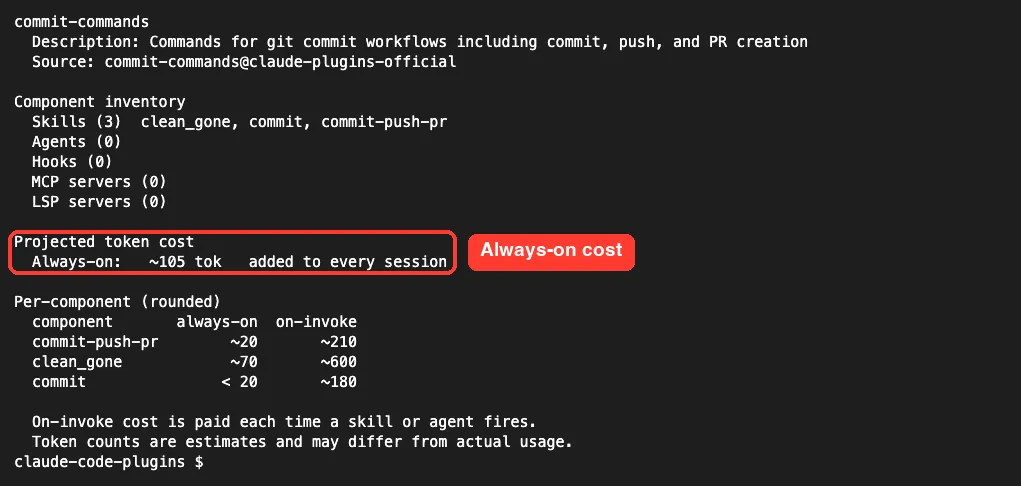
Our plugin added about 105 tokens to every session. The per-component table showed that clean_gone was the largest piece, at about 600 tokens when invoked.
Step 7: Use the Shell for Scripts and Cleanup
Everything the panel does, you can also do from your shell with claude plugin commands. That is handy for setup scripts. The full list lives in the plugin commands reference.
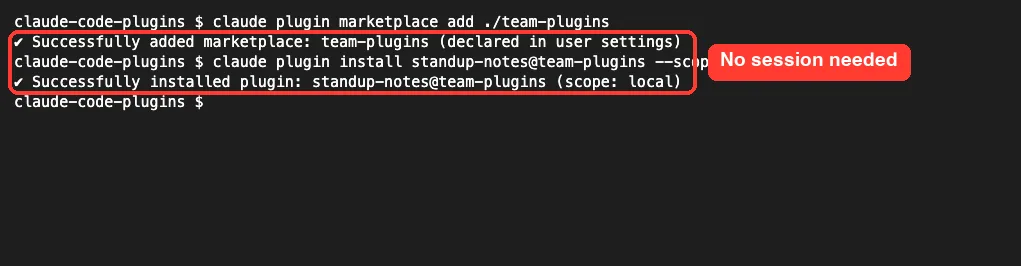
Two details stood out. The shell install uses user scope unless you pass –scope, and the marketplace was “declared in user settings” even though the plugin itself went to local scope.
Then we paused, resumed and removed the plugin:
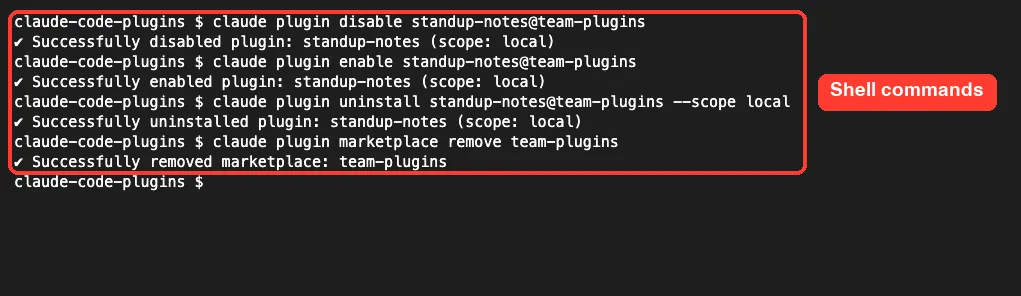
Disable and enable found the right scope on their own. The docs explain that they check local, then project, then user, and act on the first scope that lists the plugin.
Removing a marketplace goes further than you might expect. In an earlier run, removing team-plugins also uninstalled the plugin we had installed from it, and the output said so plainly.
Try It Yourself
Make an empty folder, start Claude Code there, and install commit-commands at local scope using the steps above. Then make a second folder for a tiny marketplace with one skill, add it with /plugin marketplace add, install the plugin, and run its skill with a prompt like this:
/standup-notes:standup Yesterday I wrote the README. Today I add tests for the price math. Blocked on a missing sample file.Check that the answer follows your skill’s format. Finish by opening the Installed tab, disabling one plugin with Space, and removing your test marketplace.
Common Mistakes With Claude Code Plugins
- Installing at user scope while experimenting. Use local scope in a test folder so a plugin you are only trying out does not follow you into every project.
- Skipping the details pane. It is the only place you see what a plugin adds and roughly what it costs before it lands in every session.
- Forgetting the marketplace step. If an install name ends in something other than @claude-plugins-official, add that marketplace first.
- Typing a local path without ./ in front. Claude Code reads a bare name/name as a GitHub repository.
- Expecting teammates to get a project-scope plugin automatically. The setting turns it on, but each person still installs it once.
- Removing a marketplace you still need. It also uninstalls every plugin you installed from it.
Pro Tips for Working With Plugins
- Open a plugin by naming its marketplace, as in NAME@claude-plugins-official, to see the context cost estimate.
- Check the Installed tab now and then. The docs say plugins you have not used lately appear under a Not used recently header.
- Prefer disabling over uninstalling when you only need a break from a plugin. Your settings stay in place.
- Run /reload-plugins after changing plugins from another terminal, so the open session picks up the change.
- Read the plugin security guide before installing from a marketplace you do not know. A plugin runs with your user permissions.
- Review your permission rules as well. The docs put it simply: what a plugin runs, it runs as you.
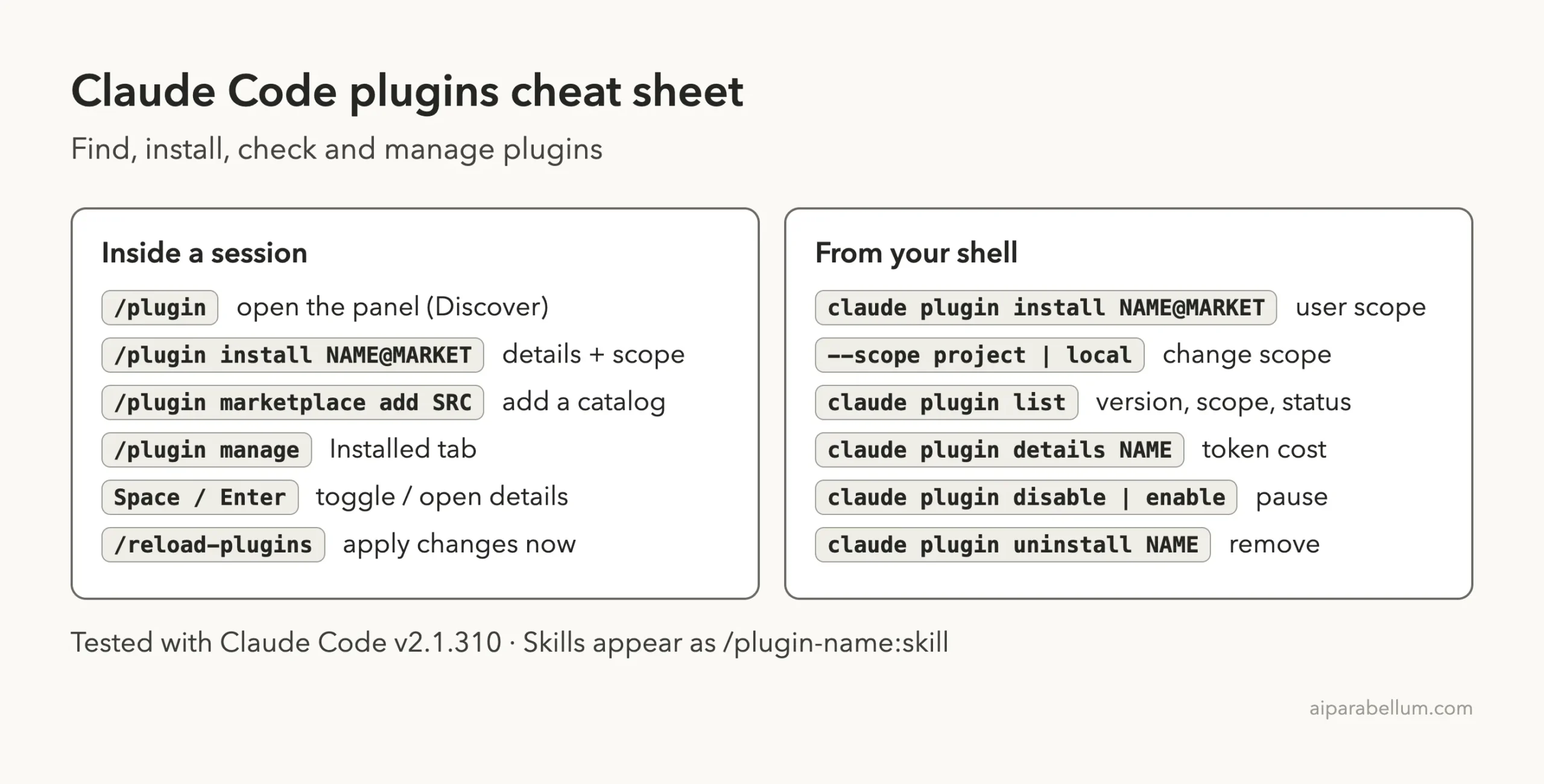
Claude Code Plugins Cheat Sheet
Keep this card handy for the commands you will use most.
Frequently Asked Questions
Where do installed plugins live on my computer?
The overview page says ~/.claude/plugins/ holds what Claude Code has fetched and installed. Your settings files record which plugins are enabled and at which scope.
Is a Claude Code plugin the same as the VS Code extension?
No. The overview page makes this clear: the VS Code extension and the JetBrains plugin run Claude Code inside an editor. A Claude Code plugin adds skills, agents, hooks or servers to Claude Code itself.
Do plugins work in claude -p?
Plugins you already installed do load. The /plugin panel does not run there, so install and manage plugins with claude plugin commands from your shell.
How do plugins get updated?
Plugins from marketplaces with auto-update on, including the official one, update in the background. You can also choose Update now on the Installed tab or run claude plugin update.
Can I build my own plugin?
Yes. The official create a plugin guide walks through it, and our next part covers it step by step.
Conclusion
Claude Code plugins turn a pile of separate skills, agents, hooks and servers into one package you can install, share and remove with a single command. Browse with /plugin, read the details pane, pick the smallest scope that fits, and check the summary line before you start using the new commands. Keep an eye on the Installed tab so only the plugins you really use stay enabled, and find more Claude guides on our Claude AI hub.
Previous in the series: Part 31, MCP in Claude Code: Connect Claude to Your Tools
Next in the series: Part 33: How to Create Your Own Claude Code Plugin.