If you have built a few skills or subagents and want to share them, the next step is to create a Claude Code plugin. A plugin is just a folder with a small manifest file, and Claude Code loads everything inside it as one unit. You can test it on your own machine without a marketplace, then hand it to teammates when it is ready.
In this guide we build a real plugin called standup-helper from an empty folder. It has one skill that turns a notes file into a three-line standup update, and one subagent that checks the notes for missing dates.
Along the way we break the manifest on purpose, fix it with the validator, add a second skill while the session is running, and check the result in the plugin panel. Every screenshot comes from a real session on our Mac.
This is Part 33 of 53 in our Claude Code tutorials series. In the previous part you learned how to find and install Claude Code plugins; today you build your own.
Tested with Claude Code v2.1.310 on October 25, 2026, on macOS, inside a small throwaway demo folder.
Quick Summary: Create a Claude Code Plugin at a Glance
| Question | Short answer |
|---|---|
| What is the smallest plugin? | A folder with .claude-plugin/plugin.json and one skill |
| Which manifest field is required? | Only name, with no spaces |
| Where do skills go? | skills/NAME/SKILL.md at the plugin root |
| How do I check my files? | claude plugin validate ./my-plugin |
| How do I try it? | claude –plugin-dir ./my-plugin |
| How do I run a plugin skill? | /plugin-name:skill-name |
| I edited a file. Now what? | Run /reload-plugins in the session |
| Do I need a marketplace? | Not while you build; only when you want to share widely |
What a Claude Code Plugin Is and Why You Would Build One
Skills, subagents, hooks and MCP servers all work fine on their own inside a project’s .claude folder. That standalone setup is great when only you or one project needs it.
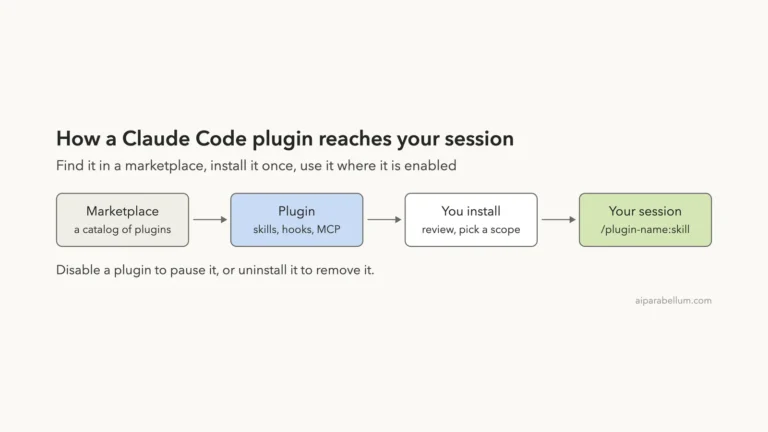
Anthropic’s docs suggest making a plugin when you want to share the setup with teammates, install it in several projects, or publish versioned releases. A plugin packs all of those pieces into one folder that Claude Code loads together.
There is one big change when you move files into a plugin. Plugin skills and agents get the plugin name as a prefix, such as /my-plugin:hello, so two plugins can each have a hello skill without clashing.
A plugin is not a new kind of feature. It is a box that carries the skills, agents and hooks you already know how to write.
If you have not written a skill yet, start with our guide to Claude Code skills, because a skill is the easiest first component for any plugin.
Step 1: Lay Out the Plugin Folder
Make a folder for the plugin, with a .claude-plugin folder inside it, plus folders for each component you plan to add:
mkdir -p standup-helper/.claude-plugin
mkdir -p standup-helper/skills/standup
mkdir -p standup-helper/agents
The folder you create here is called the plugin root. It is the folder you will point Claude Code at later, and every component lives directly inside it.
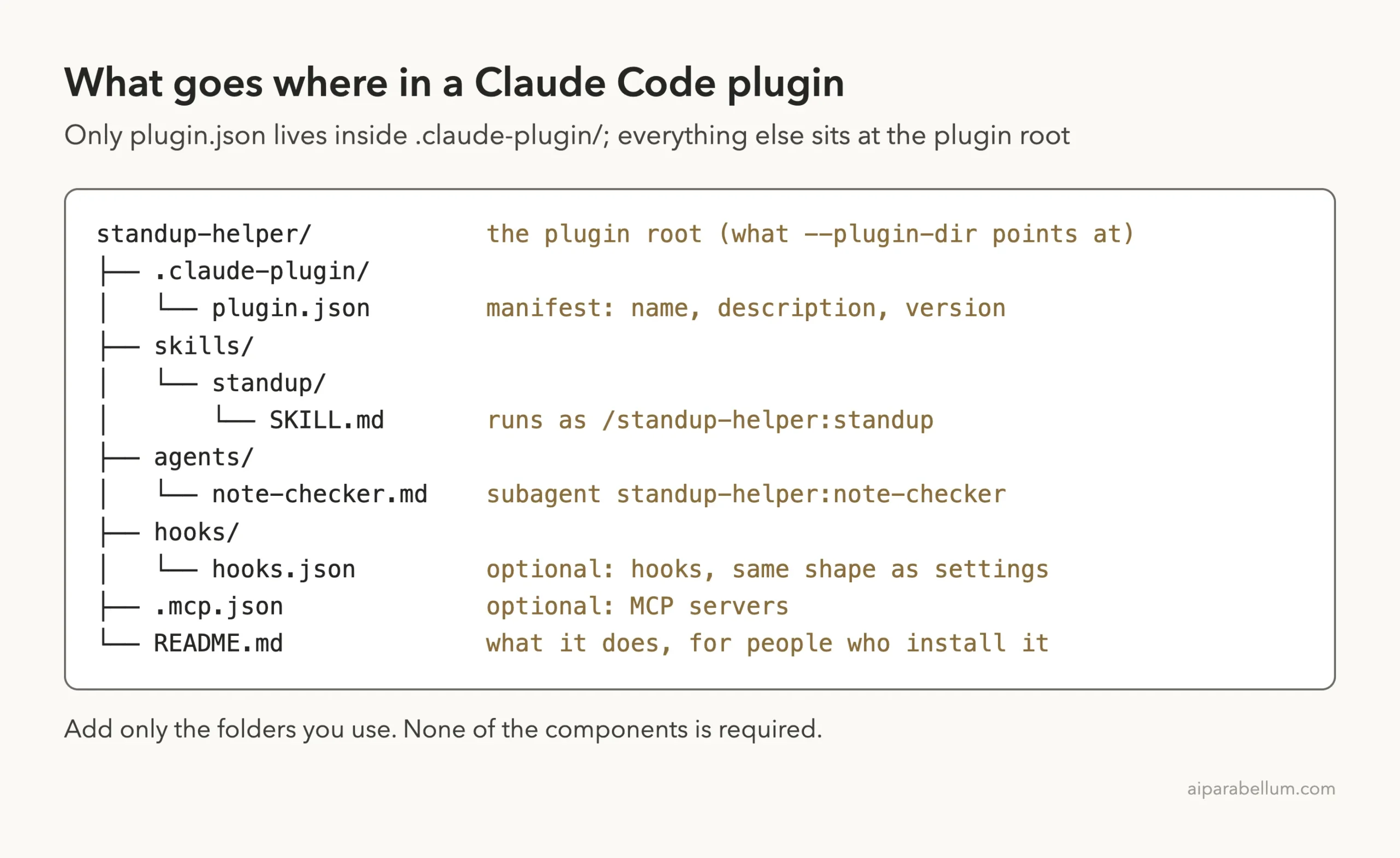
Here is how the main locations break down, based on the official plugin layout table.
| Location | What it holds |
|---|---|
| .claude-plugin/plugin.json | The manifest with the plugin’s name |
| skills/ | One folder per skill, each with a SKILL.md |
| commands/ | Older flat Markdown commands; use skills/ for new work |
| agents/ | One Markdown file per subagent |
| hooks/hooks.json | Hook settings under a top-level “hooks” key |
| .mcp.json | MCP server definitions |
Add only the folders you actually use. None of the components is required, but a plugin with nothing in it does nothing.
Step 2: Write the Manifest File
The manifest is a JSON file named plugin.json. It tells Claude Code the plugin’s name and describes it for people who see it in /plugin.
{
  "name": "standup-helper",
  "description": "Writes a short daily standup note from your notes file",
  "version": "1.0.0",
  "author": {
    "name": "Demo Team"
  },
  "license": "MIT"
}
Only name is required, and it becomes the prefix for every skill and agent in the plugin. The docs say version is optional and keeps users on that version until you change it, and author needs a name inside it if you add it.
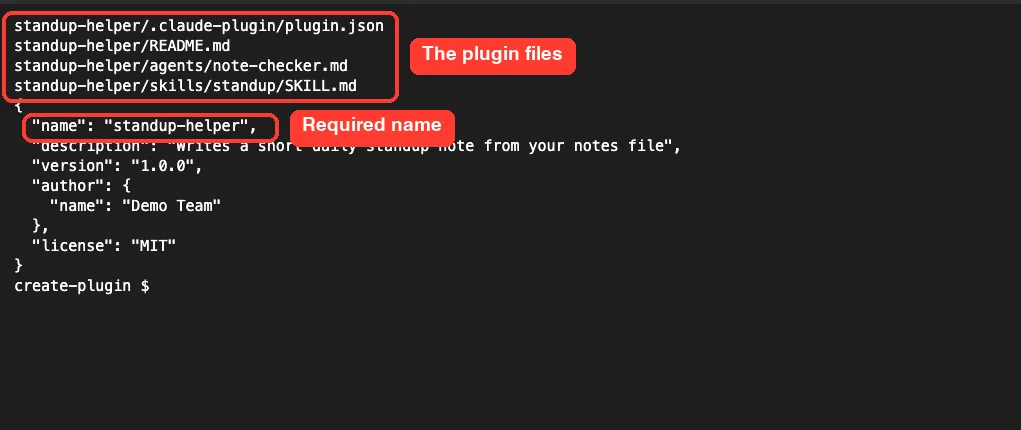
We added a license field and a README.md too. Neither is needed to load the plugin, but the validator flags both when they are missing, as you will see in Step 4.
Step 3: Add a Skill and a Subagent
Each skill is a folder under skills/ with a SKILL.md file inside. Ours tells Claude to read notes.md and reply with three short lines.
---
name: standup
description: Turn notes.md into a three-line standup update
disable-model-invocation: true
---

Read notes.md in the current folder. Reply with exactly three short lines:
Yesterday: ...
Today: ...
Blockers: ...
Do not edit any files.
The disable-model-invocation line means Claude will not run this skill on its own; only you can start it. Remove that line from a skill you want Claude to pick up by itself when the description matches.
Next, we added a subagent at agents/note-checker.md. A plugin agent is a Markdown file with frontmatter, just like the ones in our subagents guide.
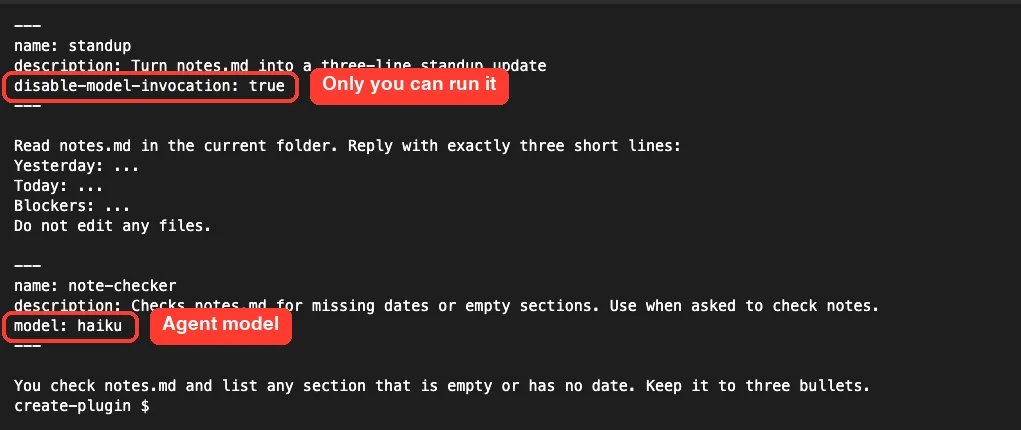
One warning from the docs is worth repeating: only plugin.json goes inside .claude-plugin/. A skills folder saved there does not load.
Step 4: Validate the Plugin Before You Run It
Before starting a session, run the validator from your shell. It checks the manifest and the frontmatter of every skill, agent and command file.
claude plugin validate ./standup-helperTo see what a failure looks like, we made a second plugin called broken-plugin with a space in its name. The validator stopped right away and told us how to fix it.
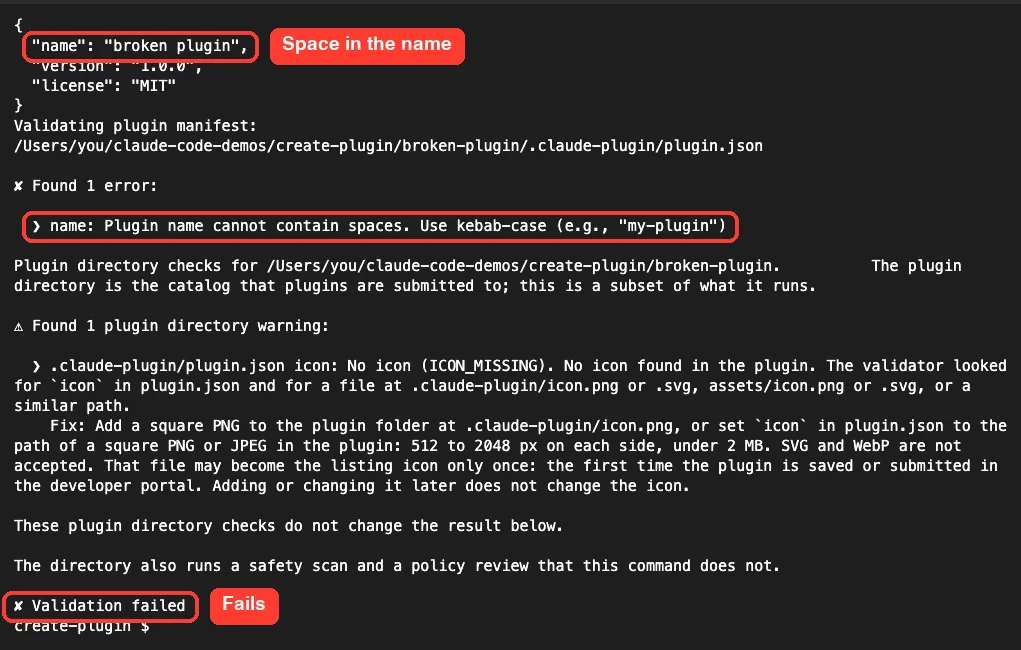
Our real plugin passed. In v2.1.310 the validator also ran extra checks for Anthropic’s plugin directory, and it warned that we had no icon. Those directory checks do not change the result, so the plugin still passed.
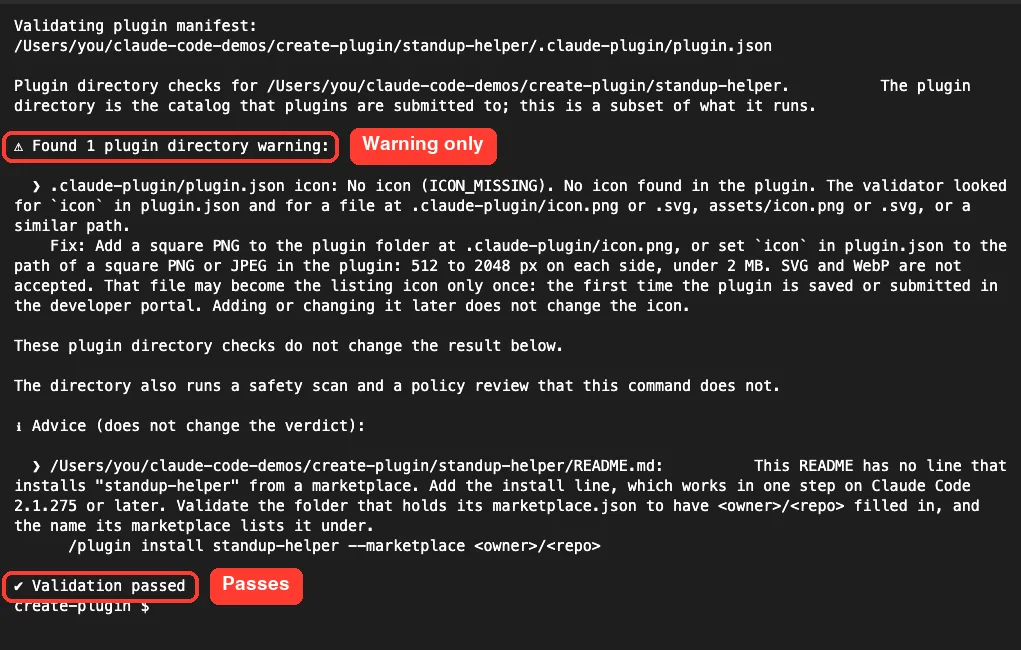
In our first test run, before we added README.md and a license, the same directory checks also listed those two as missing. If you only plan to use the plugin yourself, you can ignore them, but they are good habits.
Step 5: Load the Plugin With –plugin-dir
Now start Claude Code with the plugin loaded for this one session. Nothing is installed and nothing is written to your settings.
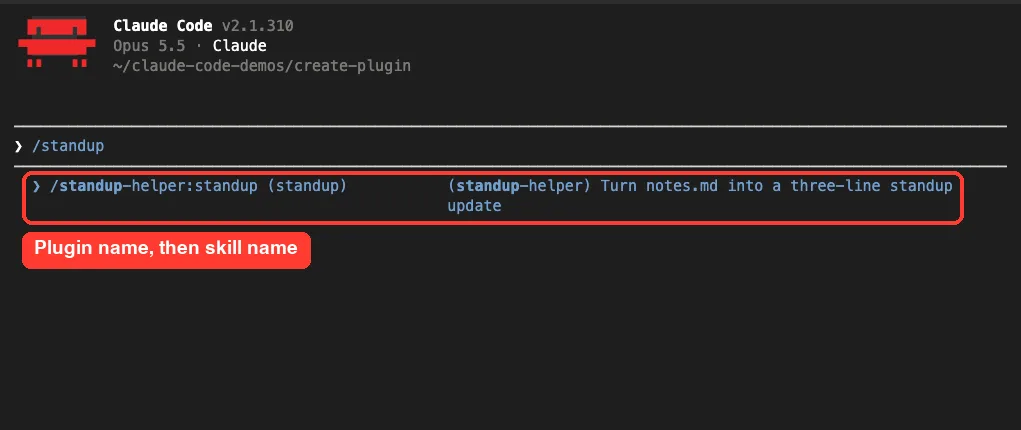
claude --plugin-dir ./standup-helperType a slash and the start of the skill name. The menu shows the full command, which joins the plugin name and the skill name with a colon.
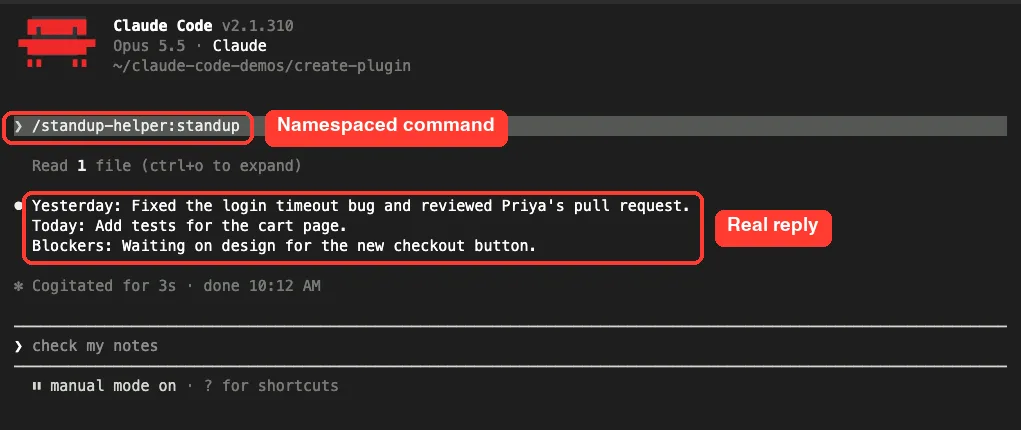
We ran /standup-helper:standup. Claude read one file and gave us exactly the three lines the skill asked for, using our demo notes.
You can load more than one plugin by repeating the flag, and –plugin-dir also accepts a .zip of the plugin. The docs also describe –plugin-url for a .zip at a web address, and the CLAUDE_CODE_PLUGIN_DIRS environment variable for cases where you cannot add a flag.
Step 6: Edit, Reload and Use the Subagent
While building, you will change files often. You do not need to restart; run /reload-plugins in the session and it reloads everything and prints a count.
To test this, we copied a second skill folder called recap into the plugin’s skills/ folder while the session was open. After /reload-plugins, typing /standup-helper: listed both skills.
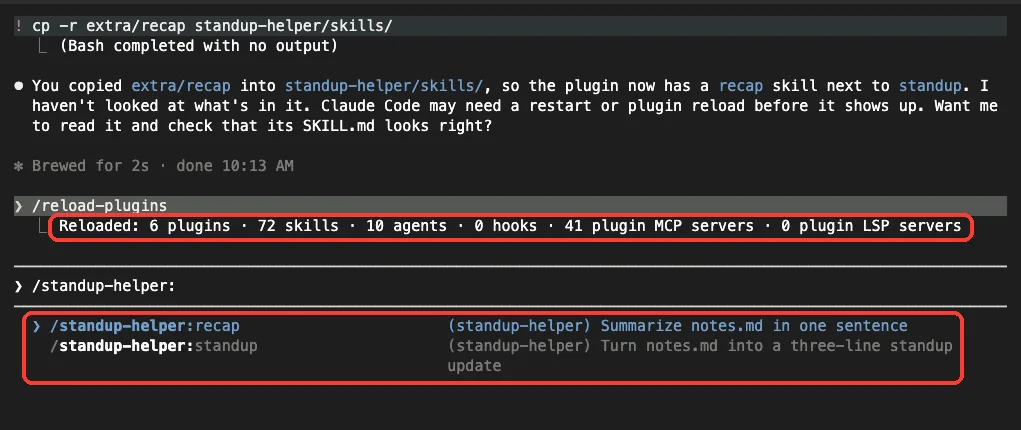
The Reloaded line counts everything loaded in the session, including other plugins you already have, so your numbers will differ from ours.
Then we asked Claude to use the plugin’s agent. Plugin agents are named plugin:agent, so ours is standup-helper:note-checker.
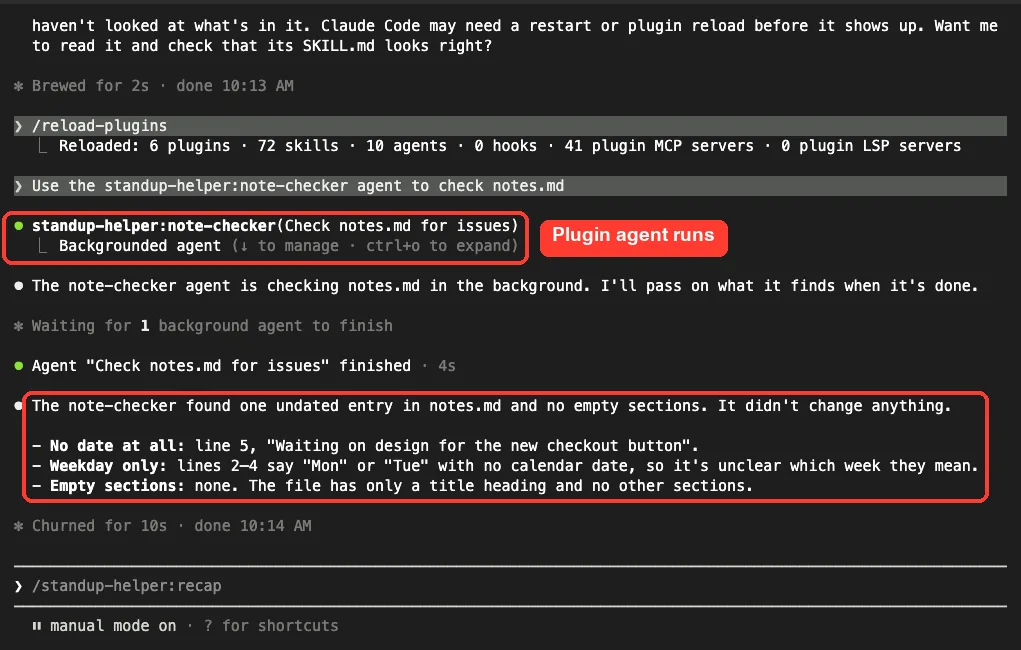
The agent ran in the background, finished in a few seconds, and found that one line in our notes had no date. It changed nothing, which is exactly what we asked for.
Step 7: Check the Plugin in /plugin and the Shell
Run /plugin and open the Installed tab. Your plugin shows up with the word inline, which means it came from –plugin-dir rather than a marketplace.
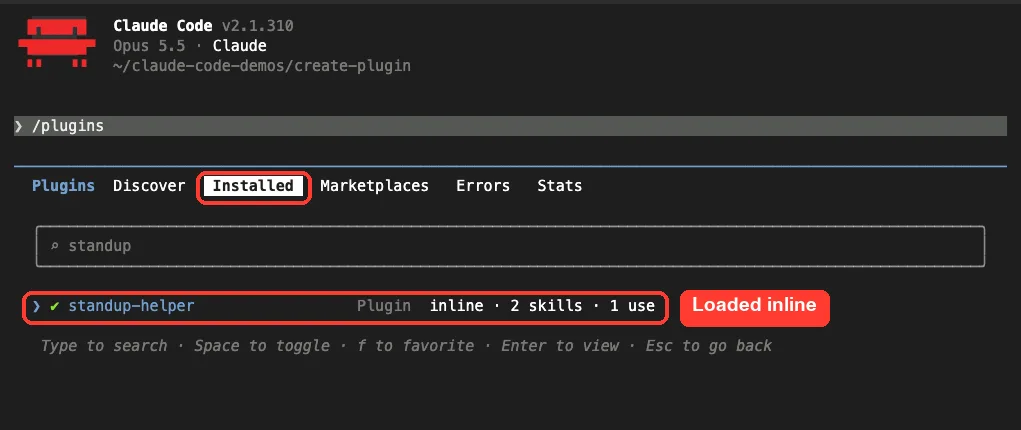
The Errors tab in the same panel lists anything that failed to load and why. That is the first place to look when a component goes missing.
From your shell, claude plugin list prints session-only plugins in their own section. To include the one you are building, put –plugin-dir before plugin list.
claude --plugin-dir ./standup-helper plugin list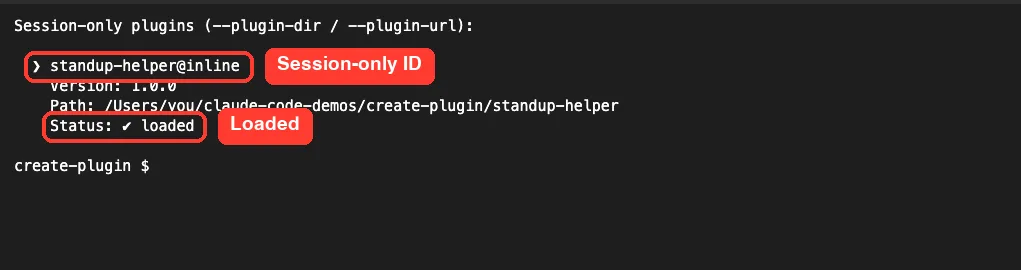
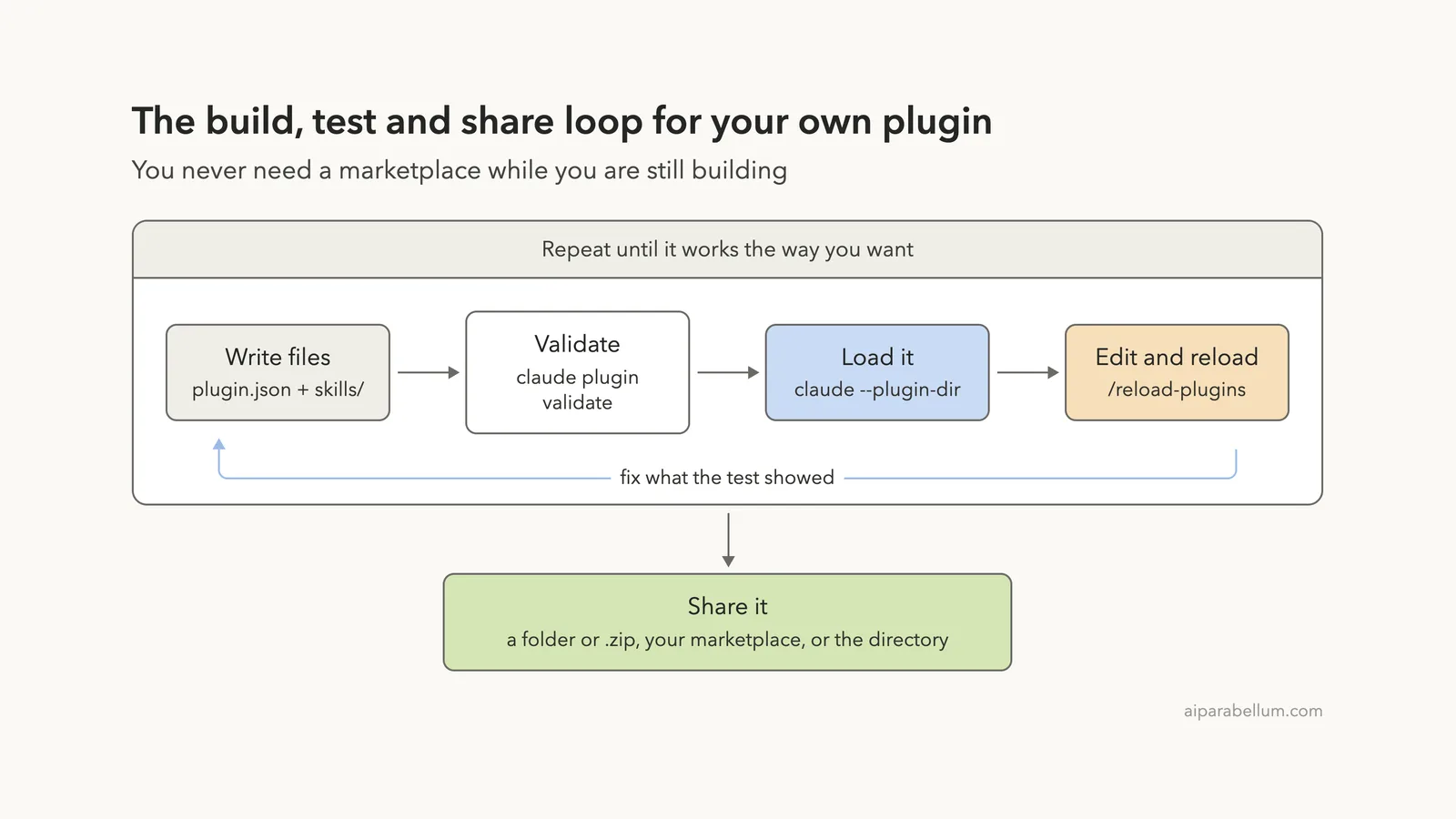
How the Build Loop Fits Together
Building a plugin is a short loop. You write files, validate them, load them, and reload after each change until the plugin behaves the way you want.
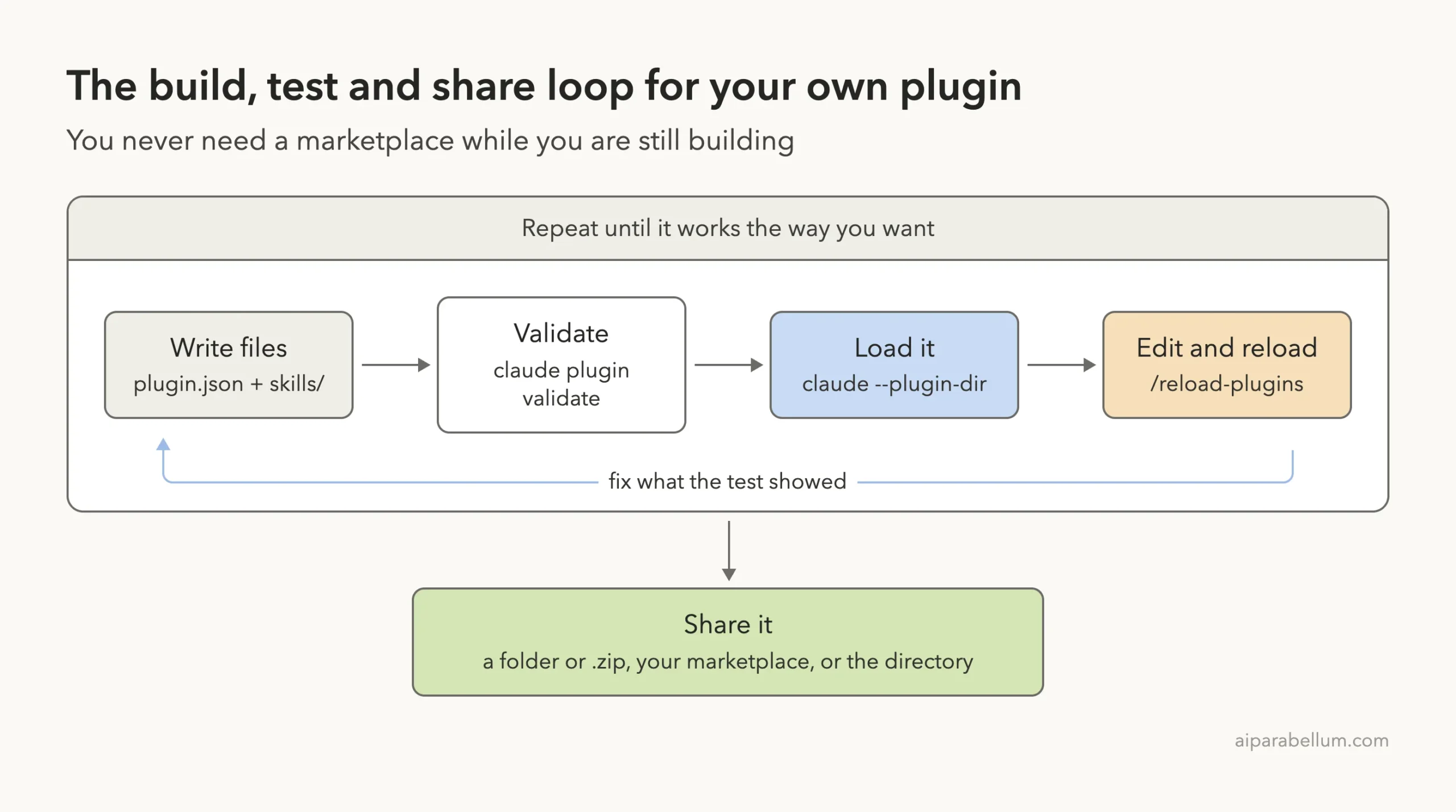
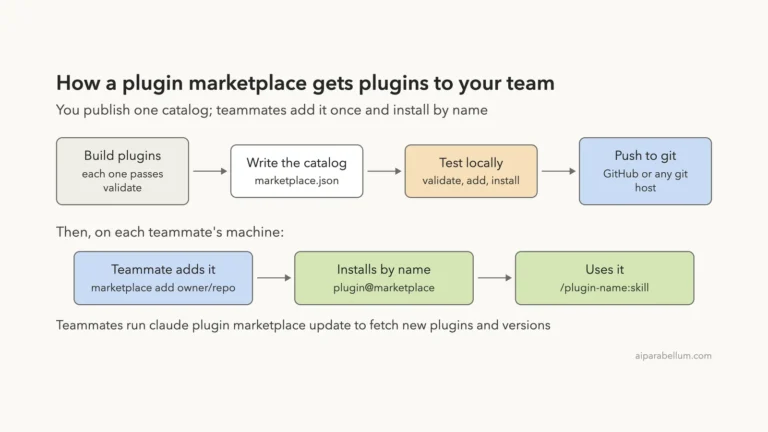
When it is ready, the docs list three ways to share it: send the folder or a .zip directly, list it in your own marketplace, or submit it to Anthropic’s directory for review. We cover marketplaces in the next part.
Make a Plugin Load in Every Session
The –plugin-dir flag only lasts for one session. If you want a personal plugin that loads every time, the docs describe claude plugin init my-tool, which scaffolds a plugin under ~/.claude/skills/my-tool/.
That kind of plugin loads automatically as my-tool@skills-dir. We did not run it in our demo, because it writes to the real personal skills folder on the machine.
Real Examples of What You Can Package
Our demo is tiny on purpose, but the same layout scales up. Here are a few ideas that match what the docs describe.
- A team review kit: a review skill plus a security-reviewer agent, so every teammate gets the same checks.
- An auto-format plugin: a PostToolUse hook in hooks/hooks.json that runs a bundled script after each Write or Edit.
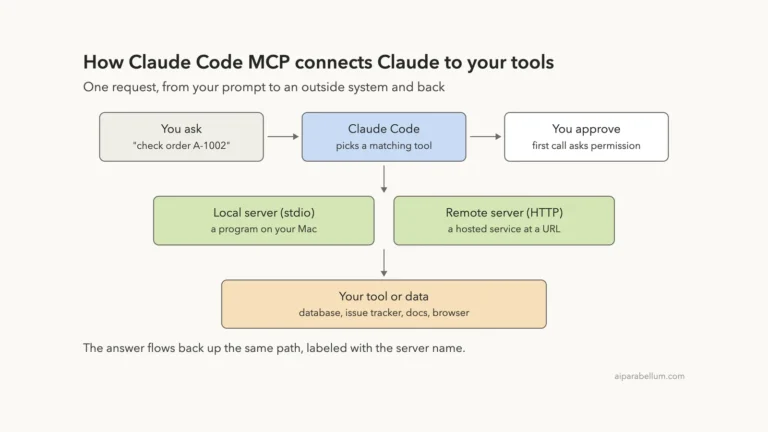
- A tool connector: an .mcp.json that starts a server shipped inside the plugin, using ${CLAUDE_PLUGIN_ROOT} for the path.
- A migrated setup: skills, agents and hooks copied from a project’s .claude folder into one shareable package.
Convert an Existing .claude Setup
If you already have files under a project’s .claude folder, copy the commands, agents and skills folders into a new plugin root. Move any hooks from your settings file into hooks/hooks.json, because the format is the same.
Watch out for doubles while both copies exist. Skills and agents will not clash thanks to the prefix, but the docs warn that a hook in both places runs twice. Read our hooks tutorial for the hook format itself.
Try It Yourself
Make an empty demo folder, add a notes.md with a few lines, then build a one-skill plugin by hand using the steps above. When it validates and loads, ask Claude to help you add a second component with this prompt:
Look at the plugin in ./standup-helper. Add a new skill called
weekly under skills/weekly/SKILL.md that sums up notes.md in five
bullet points. Use the same frontmatter style as the standup skill,
and do not change any other file.
Approve the file write, run /reload-plugins, and then try /standup-helper:weekly. Finish by running claude plugin validate again to confirm the new skill is clean.
Common Mistakes When You Create a Claude Code Plugin
- Putting skills/ or agents/ inside .claude-plugin/. Only plugin.json goes there, or the components do not load.
- Using spaces in the name. The validator rejects it; use kebab-case like my-plugin.
- Pointing –plugin-dir at a marketplace root. It takes one plugin’s folder, and the docs say you get no error, just no components.
- Forgetting the prefix. A skill named deploy runs as /my-plugin:deploy, not /deploy.
- Expecting a CLAUDE.md at the plugin root to load. It does not; write instructions as a skill instead.
- Editing files and not reloading. Run /reload-plugins, or your changes will not show up.
Pro Tips
- Run claude plugin validate after every change. Add –strict when you want warnings to fail too.
- Keep disable-model-invocation: true on skills that should only run when you ask, like ours.
- Use the Errors tab in /plugin first when something is missing; it names the bad path.
- Wrap ${CLAUDE_PLUGIN_ROOT} in double quotes inside hook commands so paths with spaces still work.
- For a bigger plugin, the docs point to Anthropic’s plugin-dev plugin, which adds /plugin-dev:create-plugin to guide you.
- Keep the plugin in version control so teammates can review changes before they use them, as we suggest in our best practices guide.
Claude Code Plugin Cheat Sheet
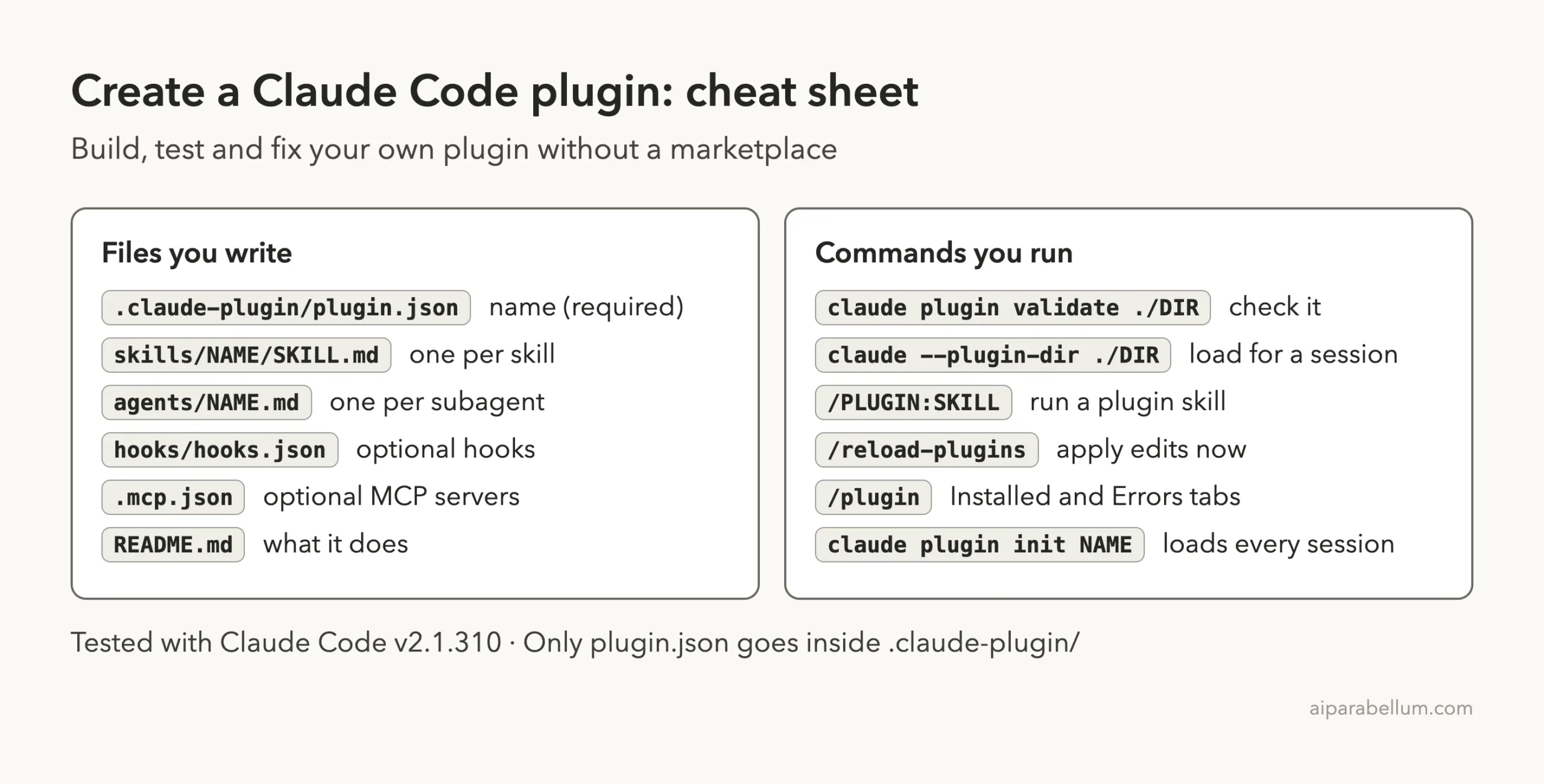
Save this card for your first few plugins. Official details for every manifest field live in the plugin manifest reference, and every component type is covered on the plugin components page.
Frequently Asked Questions
Do I need a marketplace to create a Claude Code plugin?
No. You can build and test a plugin entirely with –plugin-dir. A marketplace only matters when you want teammates to install it by name and get updates.
Is the plugin.json file required?
When you load a folder with –plugin-dir and it has no manifest, the docs say Claude Code names the plugin after its folder. Still, add one so you control the name, description and version.
Why does my skill have a long name like /standup-helper:standup?
Plugin skills always carry the plugin name as a prefix. That lets two plugins each ship a skill with the same short name without a clash.
Do plugin hooks only run when I use the plugin’s skills?
No. The docs explain that hooks register when the session loads the plugin and fire on their events from then on. Narrow the matcher if you want them to run less often.
Can I test whether my plugin really changes Claude’s behavior?
Yes. The official plugin creation guide points to claude plugin eval, which runs your test cases with and without the plugin and scores the difference.
Conclusion
To create a Claude Code plugin, you need little more than a folder, a plugin.json with a name, and one skill in skills/. Validate it with claude plugin validate, load it with –plugin-dir, use /reload-plugins while you tweak it, and check the Installed and Errors tabs when something looks off. Once it works the way you want, you can share the folder or list it in a marketplace, and you can find more Claude guides on our Claude AI hub.
Previous in the series: Part 32, Claude Code Plugins: Find, Install and Manage Them
Next in the series: Part 34: Claude Code Plugin Marketplaces Explained.