The tldraw MCP is a hosted server that promises to let an AI agent draw on a live tldraw canvas. We added it to Claude Code, asked Claude to draw a small login flow, and checked what came back. The server connected without any sign-in, but we never got to see a canvas, and this guide explains why.
This guide is part of our Claude Code tutorials. Find more servers in our MCP servers directory.
Tested with Claude Code v2.1.322 on November 11, 2026. The server is hosted at https://tldraw-mcp-app.tldraw.workers.dev/mcp, so there is no package to pin.
It comes from the apps/mcp-app folder of github.com/tldraw/tldraw, and we read that folder at commit b80eb94. Its server.json lists version 0.1.0.
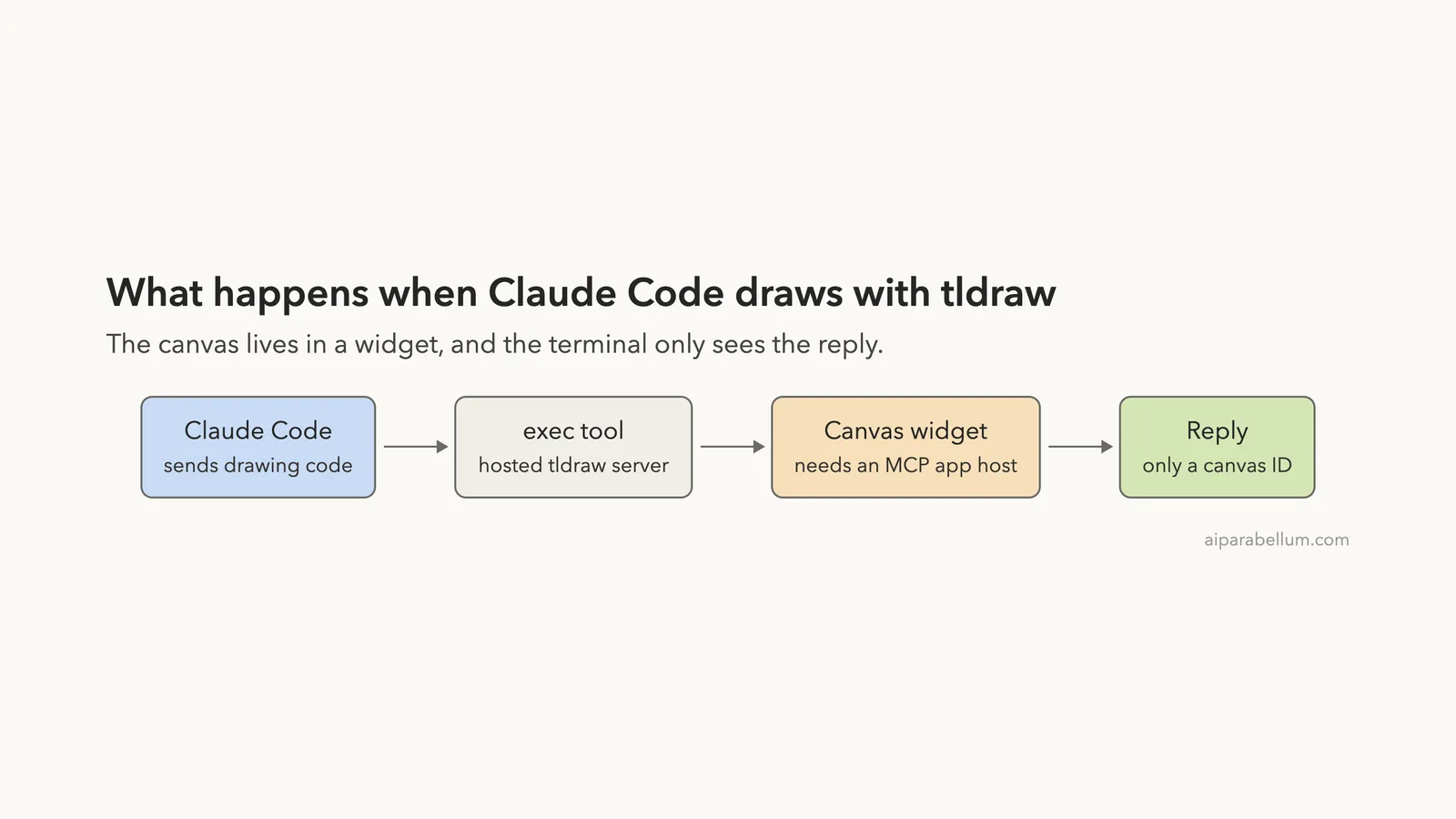
The server connected and accepted our drawing code, but Claude Code only ever got back a canvas ID, never the shapes.
Quick Summary: What We Tested
| Question | Answer |
|---|---|
| What is it? | A hosted MCP server from the tldraw project with a canvas widget and drawing tools |
| Does it need an account? | No. /mcp showed it as connected with “Auth: not signed in” |
| What did we run? | Adding the server, listing its tools, and three drawing and read-back attempts |
| What did we see? | Each exec call returned only {"canvasId": "..."}. We never saw a rendered canvas |
| Context cost | 1,322 tokens for the tool definitions, as measured for our directory |
| Our verdict | Connects easily, but in the terminal we could not confirm that anything was drawn |
One honest note. We tested only Claude Code in a terminal. The server is built for apps that can show a widget, and we did not test those.
What the tldraw MCP Is and Why It Exists
tldraw is an infinite canvas library for React that many apps use for whiteboards and diagrams. The tldraw team also ships an MCP app that exposes a canvas to AI agents. Its README says it follows the MCP app specification, so it works in clients that support that spec.
MCP is the Model Context Protocol, a standard way to give Claude extra tools. If it is new to you, our MCP guide explains it. Our plugins guide shows how plugins can bundle such servers.
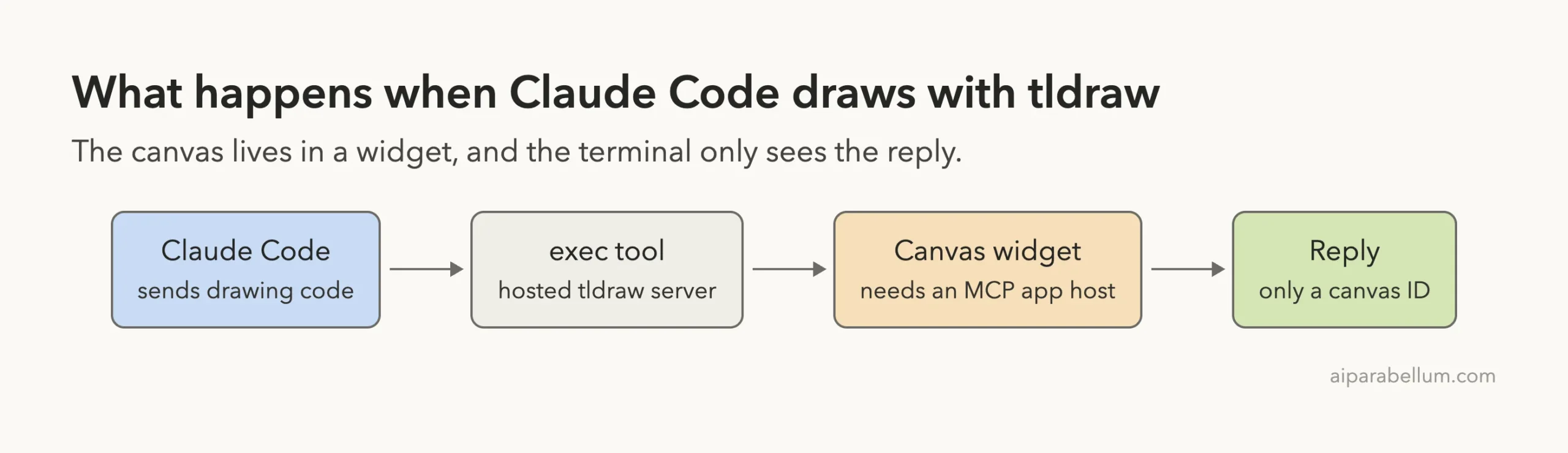
The README describes two parts. A server runs on Cloudflare Workers and keeps canvas snapshots.
A widget is a React app that renders the full canvas inside the host app’s frame.
When the AI calls exec, the widget picks up the code, runs it against the live editor, and reports back.
That design matters for this test. The canvas is not drawn by the server. It is drawn by a widget that must be shown by the app you are chatting in, and a terminal is not that kind of app.
The Six Tools Claude Code Sees
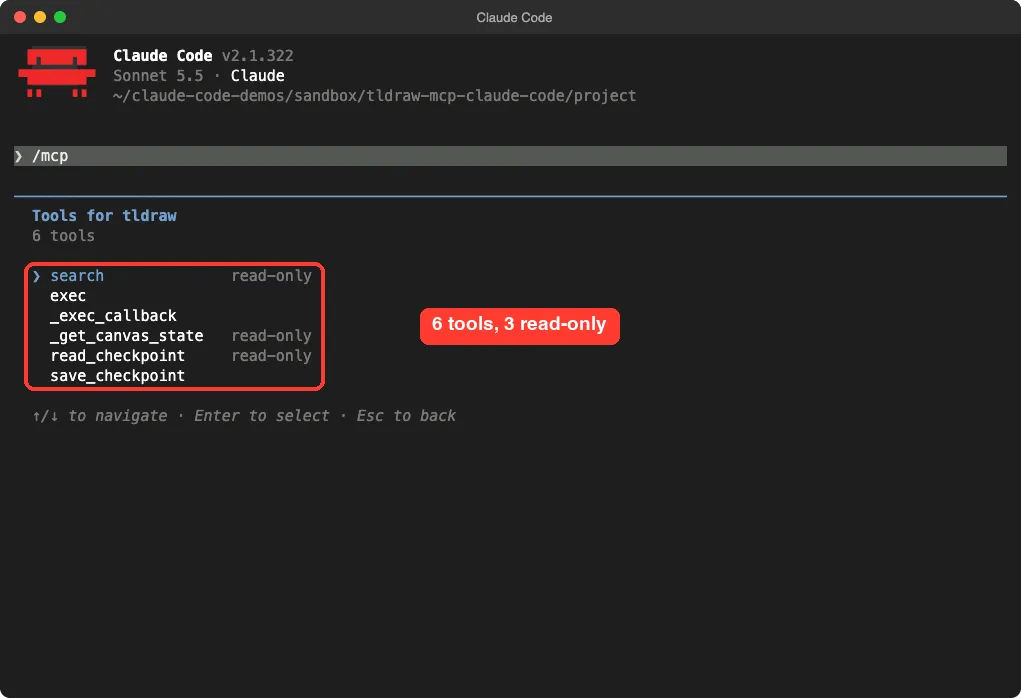
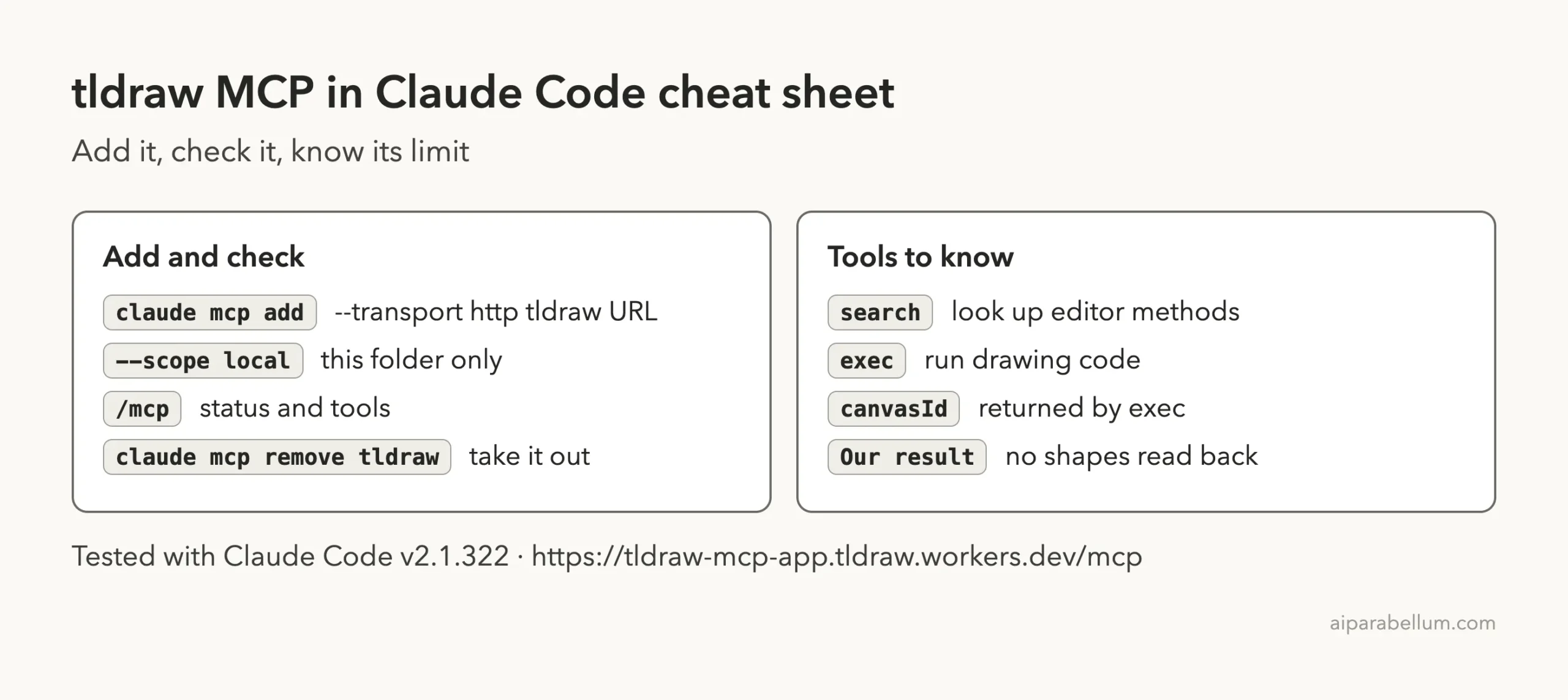
After we added the server, /mcp showed six tools. The README names the roles of five of them, and the two with names starting with an underscore are described as helpers for the widget.
| Tool | What the README says it does |
|---|---|
search | Queries the editor API spec so Claude can find methods and shape types |
exec | Runs JavaScript against the live editor in the widget |
_exec_callback | App-only tool the widget uses to return the result of an exec call |
read_checkpoint, save_checkpoint | App-only tools the widget uses to keep canvas snapshots |
_get_canvas_state | A helper listed in /mcp; the README does not describe it |
So in practice Claude has two tools it can use on its own: search and exec. Our directory measured the cost of the definitions at 1,322 tokens, which is small.
Is the tldraw MCP Safe to Add?
Before adding any server, ask what it can do and where your data goes. This one is hosted, so anything Claude sends in an exec or search call goes to a Cloudflare Worker run by the tldraw team. Do not draw confidential material on it.
The README says each session is stored in a Durable Object with up to 50 canvas snapshots, and that it deletes itself after seven days without a save. We did not verify that behavior, we only read it.
The /mcp screen labeled three of the six tools as read-only. exec is not labeled read-only, which makes sense because it changes a canvas. The apps/mcp-app folder contains an MIT license file.
We never touched our normal setup. The server was added at local scope inside a throwaway demo folder and removed after the test. The MCP docs explain scopes in detail.
How to Add the tldraw MCP to Claude Code
The project’s README lists a hosted URL, and our directory shows the matching install line. We used local scope so the server only exists in one folder.
claude mcp add --scope local --transport http tldraw https://tldraw-mcp-app.tldraw.workers.dev/mcpClaude Code printed that it added the server to the local config for the project folder. Then we started claude in that folder and ran /mcp.
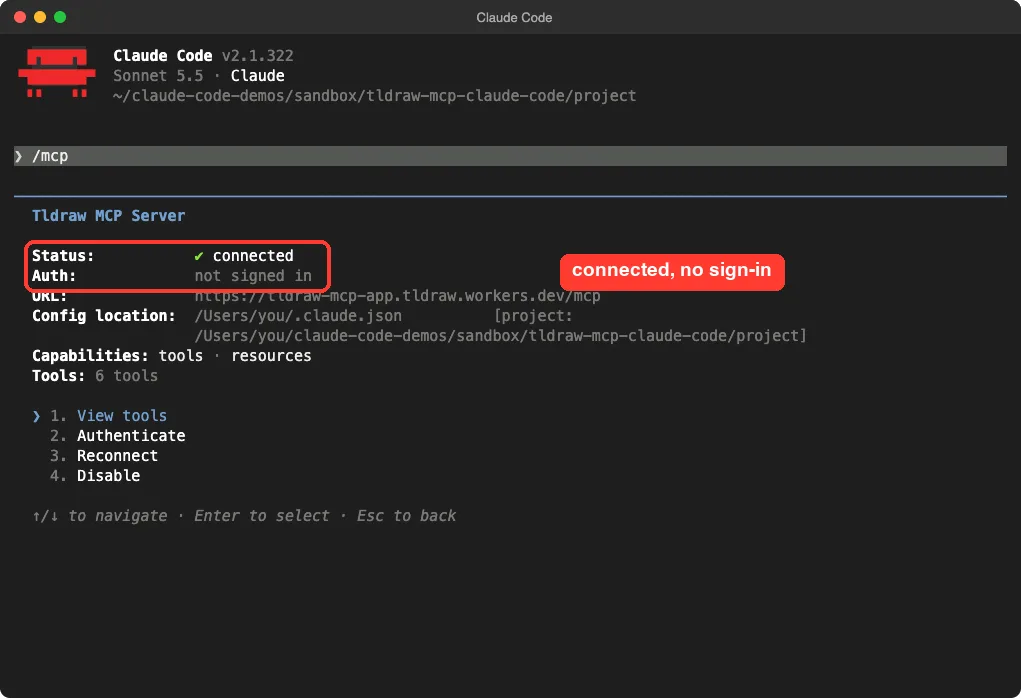
No sign-in prompt, no key, and no extra install. If you want the general steps for any server, the MCP quickstart covers them.
What the exec Tool Says It Does
The exec description is worth reading. It says the code runs in the widget, with access to the live editor object. It also tells Claude to use search first and to omit canvasId to create a new canvas.
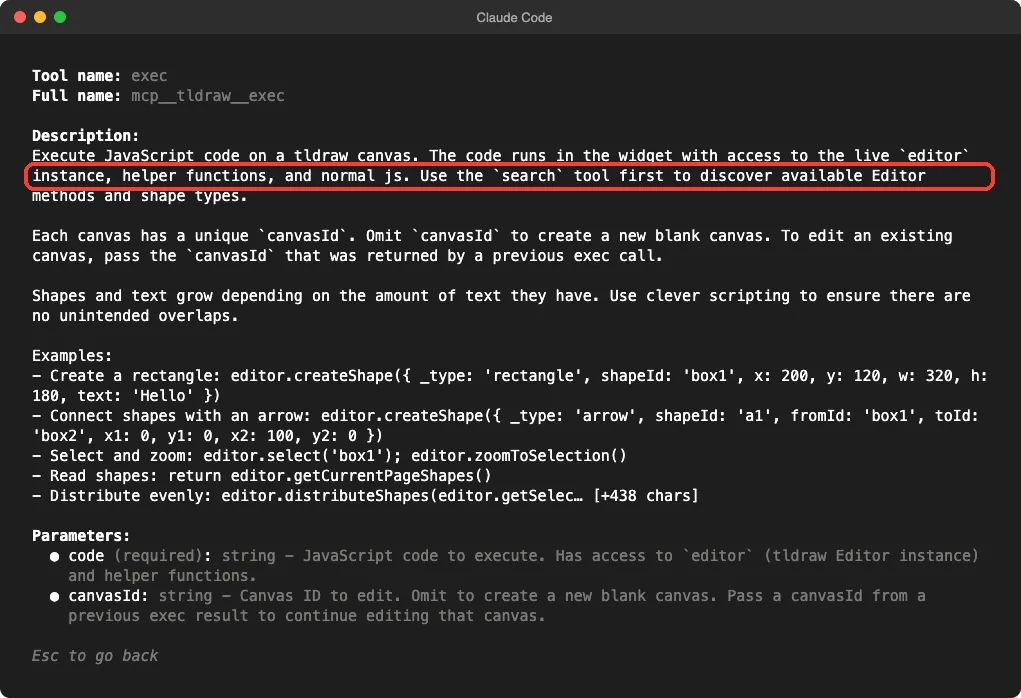
That one sentence explains everything that came next. The tool does not run your drawing code on the server and hand back a picture. It passes the code to a widget and waits for the widget to answer.
Test 1: Draw a Login Flow
We made a tiny notes file in a demo folder that described a flow: User, Login page, Check password, Dashboard. Then we asked Claude to read it and draw four boxes joined by arrows on a new canvas.
Read notes.md, then use the tldraw MCP to draw that login flow as four boxes joined by arrows on a new canvas. Keep your answer short and tell me exactly what the tool returned.Claude wrote a short script with a loop that created four rectangles and three arrows, then called exec. It did not call search first, even though the tool description suggests it. The script ended by returning the list of shapes on the page.
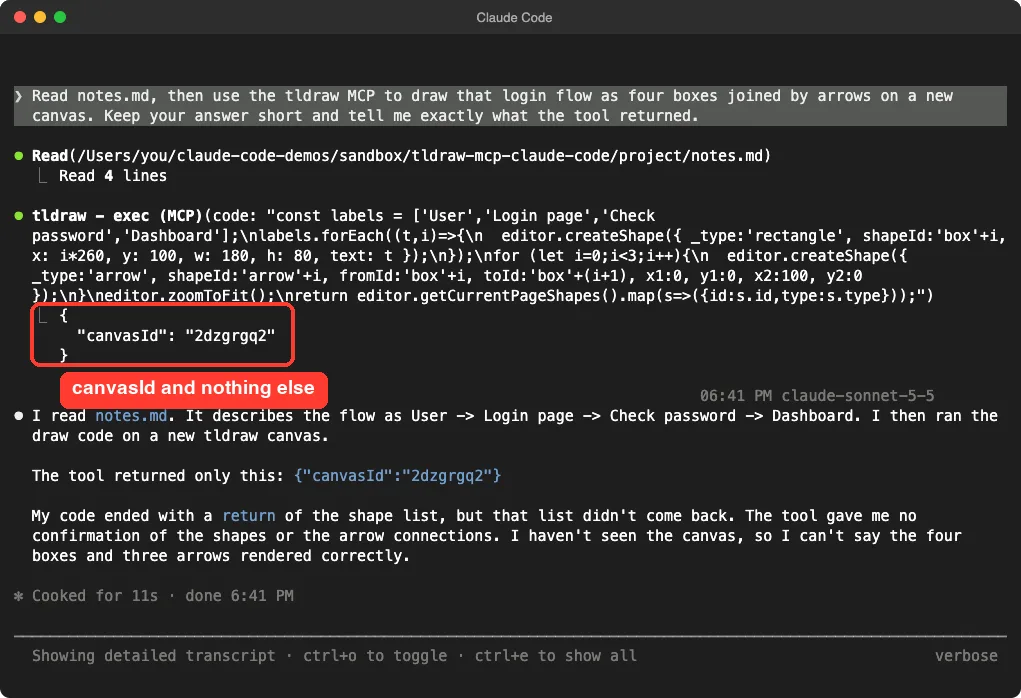
The tool returned only {"canvasId": "2dzgrgq2"}. The list of shapes that Claude’s code asked for never came back.
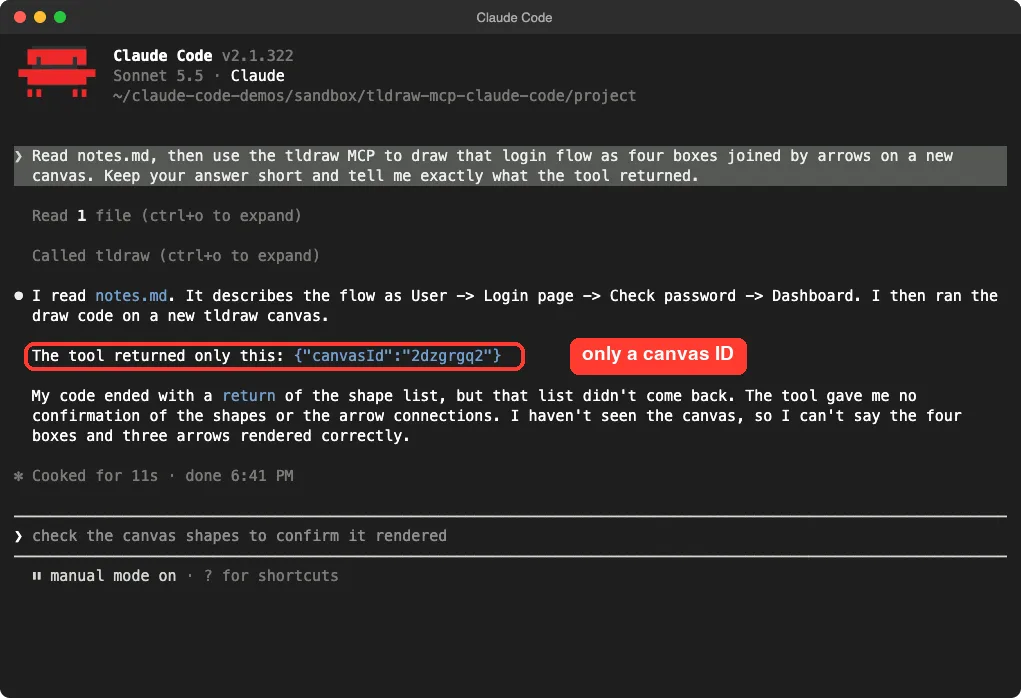
To its credit, Claude said so plainly. It told us it had not seen the canvas and could not say the four boxes and three arrows rendered correctly.
Test 2: Use search, Then Draw One Rectangle
We simplified the task in a fresh session. We asked Claude to call search, then exec on a new canvas, to create one rectangle labeled Hello and return the list of shapes.
The search call worked. It returned the spec for a rectangle shape, with properties such as w, h, x, y and text. That is the useful half of this server: Claude can look up how to build shapes.
The exec call again returned only a new canvas ID. Claude summarized it well: the rectangle should be on the canvas, but the tool did not confirm it.
Test 3: Read an Existing Canvas Back
The exec description says you can pass an earlier canvasId to keep editing that canvas. So we tried the simplest possible read: pass the ID from Test 2 and return the number of shapes.
Call the tldraw exec tool with canvasId n8vcvmp6 and the code: return editor.getCurrentPageShapes().length. Show me the exact raw result or error, in under 5 lines.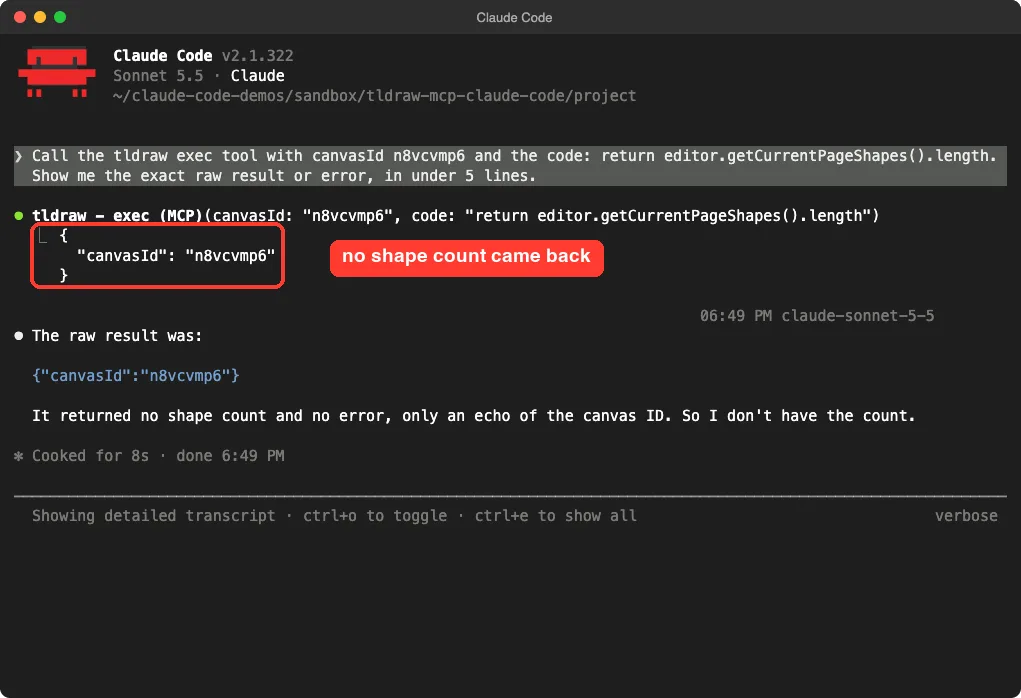
The result was the canvas ID again. There was no count and no error message. Three runs in a row gave us the same thing.
Why We Never Saw a Canvas
We can only say what we observed.
The README says the code runs in a widget that the host app shows inside a frame. Claude Code is a terminal, and the Claude Code docs we read do not describe showing MCP app widgets. We saw no widget and no link to a canvas anywhere in the session.
Our best explanation is that no widget was there to run the code and answer back. We cannot prove that from the outside, so treat it as a likely reason and not a confirmed one. What we can confirm is the behavior: accepted calls, a canvas ID, and no shapes.
The README does list a setup for Claude Desktop through its custom connector flow, and it notes that adding a custom connector is not available on the free plan. We did not test that route, so we cannot tell you how the canvas looks there.
Who Should Add the tldraw MCP to Claude Code?
| Your situation | Our advice |
|---|---|
| You work in the Claude Code terminal and want a diagram you can see | Skip it for now. We could not confirm any drawing |
| You only want Claude to look up tldraw editor methods | The search tool worked, though the tldraw docs may serve you better |
| You use an app that shows MCP app widgets | That is the case the server is built for. Test it there, because we did not |
| You need a diagram inside a terminal workflow | Ask Claude for a text diagram in Markdown or an HTML file instead |
Common Mistakes
- Trusting Claude’s summary of a drawing it never saw. Ask what the tool actually returned.
- Adding the server at user scope for a quick test. Use
--scope localso it stays in one folder. - Sending private diagrams to a hosted server without checking who runs it.
- Forgetting to remove it afterward with
claude mcp remove tldraw.
Pro Tips
- End your drawing code with a
return, as we did, so you can see right away whether results come back. - Ask Claude to quote the raw tool result. It is a quick way to catch a silent failure.
- Use
/mcpto confirm status and see which tools are read-only before you allow a server in a session.
Try It Yourself
Run this in a throwaway folder and see what your own setup returns. Compare it with our result, and remove the server when you are done.
claude mcp add --scope local --transport http tldraw https://tldraw-mcp-app.tldraw.workers.dev/mcp
claude
# inside Claude Code:
Use the tldraw search tool, then the exec tool on a new canvas, to create one rectangle labeled Hello and return the list of shapes. Tell me exactly what each tool returned.
# when finished:
claude mcp remove tldraw
Cheat Sheet
Frequently Asked Questions
Does the tldraw MCP need an account or API key?
No. In our test, /mcp showed it connected with “Auth: not signed in”, and we entered no key.
Can Claude Code show the tldraw canvas?
Not in our test. Every exec call returned only a canvas ID, and we saw no canvas in the terminal.
Did Claude actually draw the shapes?
We cannot say. Claude’s code was accepted without an error, but nothing came back to confirm shapes were created.
Does it send my data to a server?
Yes. It is hosted on a Cloudflare Worker, so your drawing code goes to it. Avoid confidential content.
How do I remove it?
Run claude mcp remove tldraw from the same folder where you added it at local scope.
Conclusion
The tldraw MCP is easy to add, needs no account, and its search tool returned useful editor details. But in Claude Code, our three exec tests returned only a canvas ID, so we could not confirm that a single shape was drawn. The server is built around a widget that an app has to show, and a terminal did not give us one. If you want to see a live canvas, try a client that supports MCP app widgets and test it yourself, and for terminal work ask Claude for a text diagram instead.
Next, browse more tested add-ons in our skills directory, or read the Claude overview.