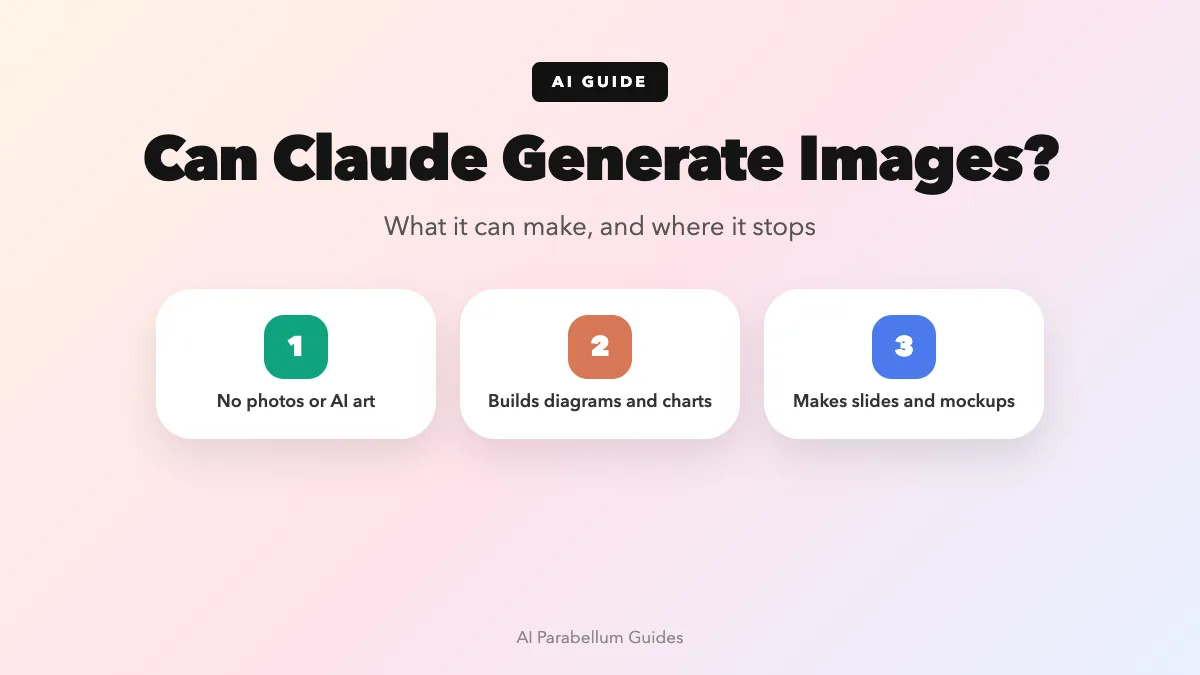
Can Claude generate images? The short answer is no, not in the way a photo or art generator does, but the full answer is more useful than a simple yes or no. Claude can read and explain images you upload, and it can build visuals like diagrams, charts, icons, slides and page mockups by writing code.
In this guide, you’ll learn exactly where that line sits. You’ll see what Claude does well with visuals, where it stops, and which tools to pair it with when you need a real picture.
The Short Answer: Claude Doesn’t Make Photos or AI Art
Claude is a language model that can see. It accepts images as input and answers in text, so it can describe a photo, read a screenshot or compare two product shots.
What it doesn’t have is a built-in text-to-image model. If you type “paint a sunset over a lake in watercolor,” Claude won’t hand you a finished watercolor the way a dedicated image generator would.
Think of Claude as a sharp-eyed designer who works in code, not a painter with a brush.
That difference matters because a lot of “images” you need at work aren’t paintings at all. They’re flowcharts, bar charts, logos made of simple shapes, slide layouts and landing pages, and Claude handles those surprisingly well.
What Claude Can Create Instead of AI Images
When Claude “draws,” it writes the instructions for a picture and lets your browser or a program render it. That approach is precise, editable and easy to change with a follow-up message.
Diagrams, Flowcharts and SVG Graphics
Ask for a process map, an org chart or a simple icon, and Claude can produce it as SVG or a diagram inside an artifact. Artifacts open in a panel beside your chat, and Anthropic’s help pages list images, diagrams and flowcharts among the things Claude can make there.
Because the result is code, you can say “make the arrows thicker” or “swap blue for green” and get an updated version in seconds. That’s much harder with a flat picture from an art generator.
Charts and Data Visuals
Paste a table or upload a spreadsheet, and Claude can turn it into a chart. With code execution and file creation turned on in your settings, it can write and run code that produces chart files you can download.
- Bar, line and pie charts from your numbers
- Simple dashboards that pull several charts together
- Labeled timelines and comparison graphics
Slides, Mockups and Page Designs
Claude’s artifact templates go well beyond plain text. The Slides template builds presentations you can export to PowerPoint or PDF, and the Design template covers mockups, prototypes, one-pagers and landing pages.
These come out as editable layouts, not single images. You can move elements, change wording and keep your brand colors consistent across a whole project.
Animated Explainers on Some Plans
There’s also a Motion template, in beta on Team and Enterprise plans, that makes animated explainers and charts. You can export the result as an MP4 video, which is handy for walkthroughs.
Can Claude Read and Analyze Images?
Yes, and this is where Claude really shines with visuals. You can upload an image on claude.ai or drag it into the chat window, and Claude will tell you what’s in it.
On claude.ai you can add up to 20 images in a single turn. Claude accepts JPEG, PNG, GIF and WebP files, and with animated GIFs it only looks at the first frame.
Here are a few practical things you can ask it to do with a picture:
- Pull text and numbers out of a screenshot or a photo of a receipt
- Explain a chart and point out the trend
- Compare two designs and list the differences
- Turn a hand-drawn sketch into a working web page layout
- Review a slide and suggest clearer wording
If you can take a picture of it, you can usually ask Claude to explain it, summarize it or rebuild it.
Where Claude’s Vision Has Limits
Anthropic is upfront about the weak spots. Claude won’t name real people in images, and it can make mistakes with blurry, rotated or very small pictures.
It also can’t reliably tell whether an image was made by AI, so don’t use it as a fake-photo detector. Counts of many tiny objects can be approximate, and it isn’t built to read complex medical scans like CTs or MRIs.
Claude vs. AI Image Generators at a Glance
The easiest way to decide is to match the job to the tool. This quick table shows where each one fits.
| Task | Claude | Dedicated Image Generator |
|---|---|---|
| Photorealistic pictures | No | Yes |
| Digital art and illustrations | Limited (simple SVG shapes) | Yes |
| Flowcharts and diagrams | Yes | Limited |
| Charts from your data | Yes | No |
| Slides and page mockups | Yes, as editable layouts | Limited |
| Describing or analyzing a photo | Yes | Limited |
| Writing image prompts | Yes | Not applicable |
Notice the pattern. Claude wins when the visual depends on structure, accuracy or data, and image generators win when you want a picture that looks hand-made or real.
How to Get Images With Claude’s Help
You don’t have to choose one tool. Many people use Claude as the planner and an image tool as the painter.
Let Claude Write Your Image Prompts
Describe the image you want, who it’s for and the mood you’re after. Then ask Claude to write three detailed prompts you can paste into an image generator such as Midjourney.
Claude is good at adding the details these tools respond to, like lighting, camera angle, style and color palette. If you’re curious why those details matter, our explainer on how image generators work breaks it down.
Build Visuals Claude Can Make Directly
For anything chart-like or layout-based, just ask Claude to build it. A clear request gets better results, so try something like this:
- “Create a flowchart showing our five-step refund process.”
- “Make a bar chart from this table and label each bar.”
- “Design a one-page flyer for a bake sale using blue and yellow.”
Keep Characters and Styles Consistent
If you’re making a series of pictures, ask Claude to write a short style guide first. Reusing that same description in every prompt helps you get consistent AI characters across a whole set.
Which Claude Plans Support Visual Work?
Artifacts are available on Free, Pro, Max, Team and Enterprise plans, so you can try diagrams and simple visuals without paying. The Docs, Slides and Design templates are available on all plans too.
Some extras are limited to paid tiers. The Dashboards template is in beta on Pro, Max, Team and Enterprise, and Motion is in beta on Team and Enterprise only.
One setting trips people up. Artifacts need “Cloud code execution and file creation” turned on under Settings and then Capabilities, so check that first if Claude only replies with plain text. Our guide on using Claude for free covers what the no-cost plan includes.
Tips for Better Visuals From Claude
A few habits make a big difference in what you get back. Keep these in mind the next time you ask for a visual.
- Say the format you want, such as SVG, a chart, a slide or a web page.
- Give exact colors, sizes and labels instead of words like “nice” or “modern.”
- Ask for one change at a time when you’re refining a design.
- Upload a reference image so Claude can match a layout or style.
- Check numbers and labels yourself before you share a chart.
For more ways to get the most out of the assistant, browse our Claude tips and tricks. You can also see how it stacks up against rivals that do generate pictures in our ChatGPT, Claude and Gemini assistant comparison.
Is Claude Right for Your Image Needs?
If you mostly need diagrams, charts, slides or page mockups, Claude may be all you need. It’s also a strong pick if you work with screenshots, scanned documents or product photos that need explaining.
If you need photos, digital paintings or social media art, pair Claude with an image generator. Use Claude for the thinking and the prompts, then let the art tool create the final picture. You can learn more about the assistant itself on our Claude AI overview.
Conclusion
So, can Claude generate images? It doesn’t create photos or AI art the way dedicated image generators do, but it reads images very well and builds diagrams, charts, slides, mockups and simple SVG graphics through code that you can edit with a quick message. The smartest approach is to let Claude handle structure, data and prompt writing, and hand the final artwork to an image tool when you need a true picture. Match the job to the tool, check your settings, and you’ll get far more visual value out of Claude than the simple “no” suggests.