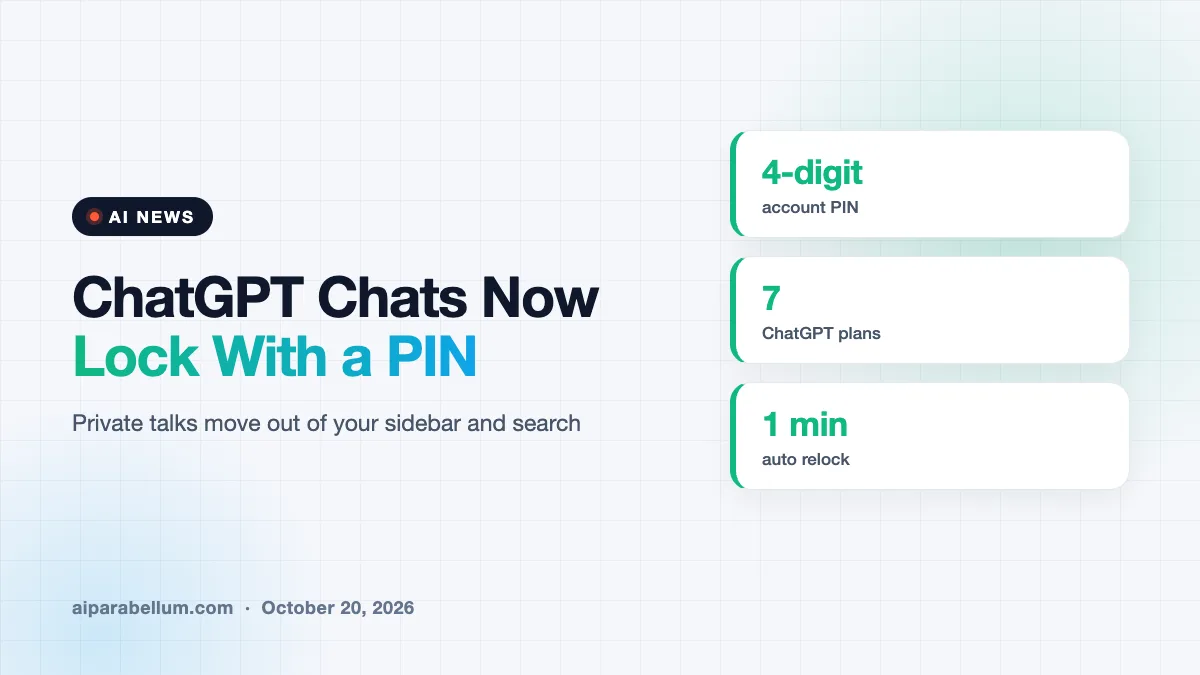
OpenAI is rolling out ChatGPT locked chats, a new way to tuck sensitive conversations behind a four-digit PIN or your phone’s face or fingerprint unlock. The feature started reaching users on Tuesday, October 20, and it covers every main plan from Free up to Enterprise and Edu. If you ever hand your phone to a friend or share your screen at work, this one is worth a look.
What ChatGPT Locked Chats Actually Do
When you lock a conversation, it leaves your regular chat history, your pinned chats and normal conversation search. It moves into a separate area found under Projects, labeled Locked chats. Opening that area asks for your account PIN, and on supported phones you can use Face ID, Touch ID or your Android unlock method instead.
This is different from a temporary chat. A temporary chat never gets saved to your history, while a locked chat stays saved so you can come back to it any time. Think of it as a drawer with a key rather than a note you throw away.
OpenAI pitches it for everyday moments, like planning a surprise or talking through something personal. You can then show someone a different chat without worrying that the private one pops up in the sidebar.
How Access and Memory Work
Unlocking gives you short-term access, not a permanent unlock. According to OpenAI’s help page, access ends after one minute away from the locked area or one minute with the app in the background, and there is a Lock now button to close it right away. Each new browser tab or app window has to ask for the PIN again.
Memory gets its own lane too. With Memory turned on, locked chats can use what ChatGPT already knows about you, and new details from locked chats are shared only with other locked chats. Those details do not flow back into your regular chats, so a private topic stays in its own space.
Files you upload or create inside a locked chat are protected along with it. While the chat is locked, those files are hidden from your other chats and file storage, and you can open them only inside that one conversation.
Quick Look at the Feature
| Detail | What OpenAI Says |
|---|---|
| Unlock method | 4-digit account PIN, plus Face ID, Touch ID or device unlock on supported phones |
| Plans | Free, Go, Plus, Pro, Business, Enterprise and Edu |
| Not available on | ChatGPT for Healthcare |
| Auto relock | After 1 minute away or in the background |
| Forgotten PIN | Resetting it permanently deletes all locked chats |
| Encryption | No end-to-end encryption or separate encrypted vault |
What Locked Chats Will Not Do
This is a privacy screen, not a safe. OpenAI is clear that locking a chat does not add end-to-end encryption and does not create a separate encrypted vault. It also does not change how long the chat is kept, your “Improve the model for everyone” setting, or anything ChatGPT remembered before you locked it.
Work accounts have extra limits. Workspace admins cannot turn the feature off, but they also cannot unlock your chats or reset your PIN. Locked chats in Enterprise and Edu workspaces are still included in the message logs available to compliance tools, so company policies still apply.
Some chats cannot be locked at all. That list includes:
- Temporary chats and archived chats
- Group chats and chats created from a shared link
- Chats with scheduled tasks or meeting recordings
- Codex conversations, including cloud Codex
Locked chats keep prying eyes out of your sidebar, but they are not a way to hide data from OpenAI or your employer.
The PIN Reset Catch
Here is the part to remember before you start locking things. If you forget your PIN and reset it, every locked chat is deleted for good, along with files and memories stored only inside them. OpenAI says its support team cannot get that content back.
Changing your PIN is fine, as long as you know the current one. Only the forgotten-PIN reset wipes everything, so pick a code you will remember and store it somewhere safe.
What This Means for You
If you use the ChatGPT app for health questions, money worries or gift planning, locked chats give you a simple way to keep those talks out of view. Here is how to get the most from it:
- Lock an existing chat from its three-dot menu, then set your PIN when asked.
- Turn on Face ID, Touch ID or device unlock on your phone for faster access.
- Tap Lock now before you share your screen or pass your phone around.
- Write your PIN down safely, since a reset erases every locked chat.
- Treat it as a screen-sharing shield, not as protection for very sensitive data.
If privacy matters a lot to you, it also helps to review your broader AI security habits. Tools like a personal cybersecurity assistant can help you think through what you share with chatbots in the first place.
The rollout is gradual, so the Lock chat option may not show up for you yet. You can follow more updates like this on our AI news page, or see how ChatGPT stacks up in our chatbot comparison guide.
Sources
Primary source: OpenAI Help Center: Using locked chats in ChatGPT. Additional reporting from TechCrunch.
Conclusion
ChatGPT locked chats bring a familiar phone-style lock to your AI conversations, and they are free to use on every main plan. The feature does a good job of keeping private talks out of your sidebar, search and regular memory. It does not encrypt anything or change how OpenAI stores your data, and a forgotten PIN means losing those chats for good. Used with that in mind, it is a handy small upgrade for anyone who shares screens or devices.