The fastest way to learn dynamic workflows is to copy a few good prompts and watch what happens. This guide gives you a set of Claude Code workflow example prompts, and we ran two of them for real on a small demo project: a fix-until-green loop and a multi-agent code review. You will see the approval screen, the progress view, the results, and one honest problem we spotted along the way.
This is Part 45 of 45 in our Claude Code Deep Dives, part of our Claude Code tutorials. In Part 44 we built a daily worktree routine, and here we close the series with workflows you can reuse.
Tested with Claude Code v2.1.322 on November 13, 2026, on macOS, in a throwaway Python project with a local Git repository. We ran the fix loop and the review workflow, opened the progress view, and opened the save dialog without saving. The migration, research and flaky-test prompts below follow Anthropic’s official docs, and we did not run them.
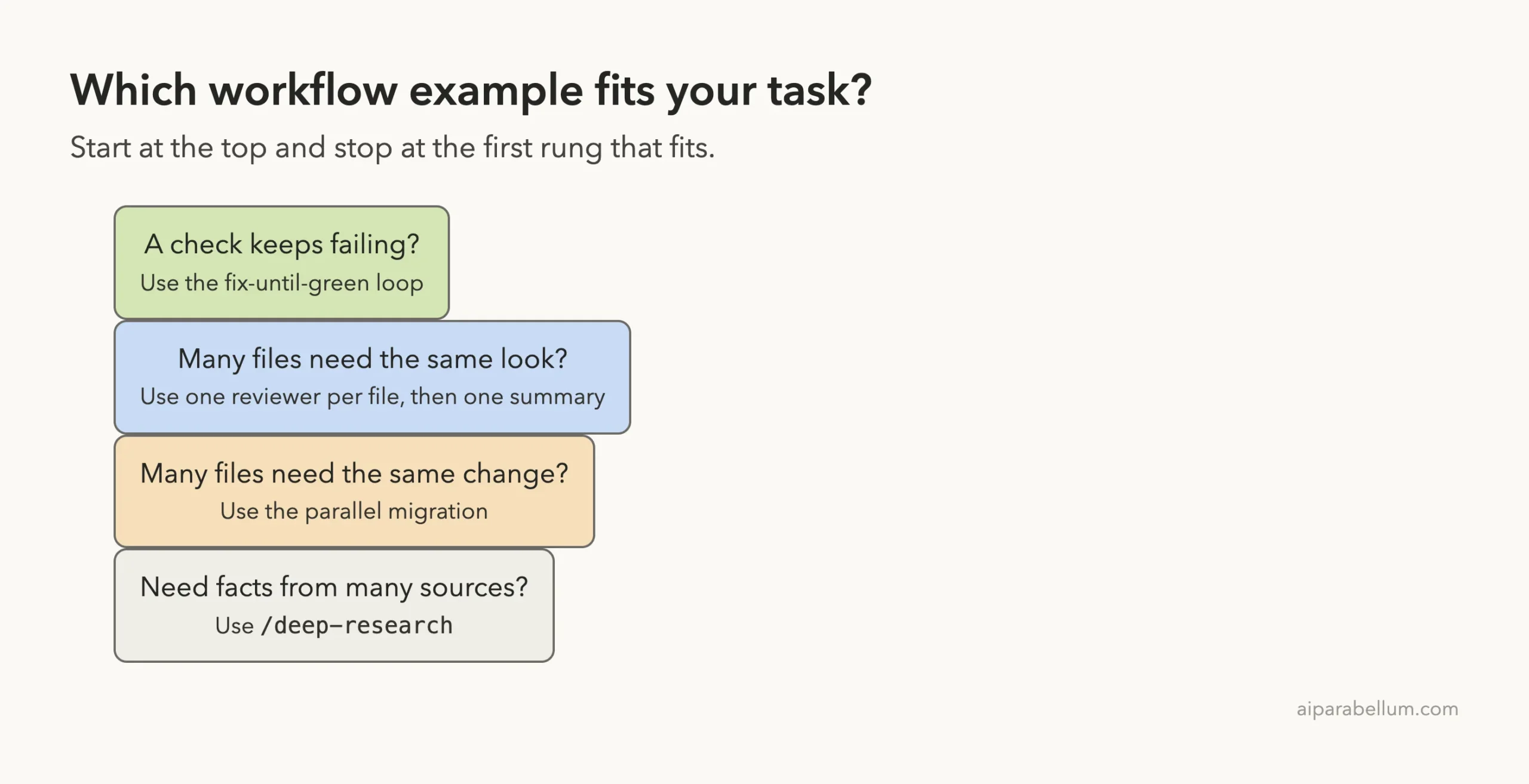
| Example | What it does | Did we run it? |
|---|---|---|
| Keep fixing until a check passes | Runs your tests, fixes the code, repeats | Yes |
| Review every changed file | One reviewer per file, then one ranked summary | Yes |
| Audit many files for one issue | One agent per file, then verify the findings | Covered in an earlier post |
| Migrate many files in parallel | Each file changed in its own isolated copy | Docs only |
| Research across many sources | Readers fan out, then one comparison | Docs only |
| Find issues until the list stops growing | Search in rounds, stop when a round finds nothing new | Docs only |
What a Dynamic Workflow Is, in Plain English
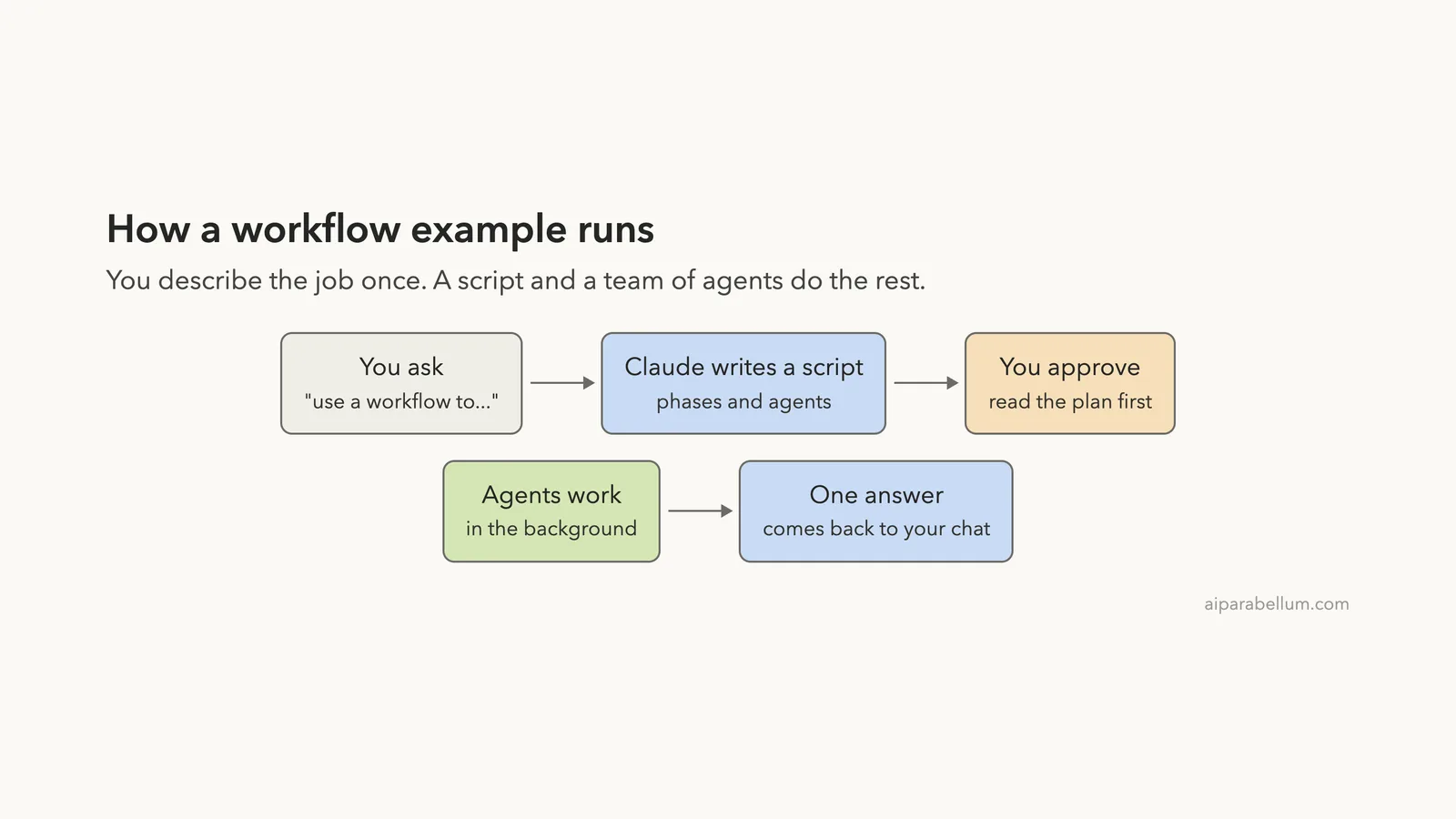
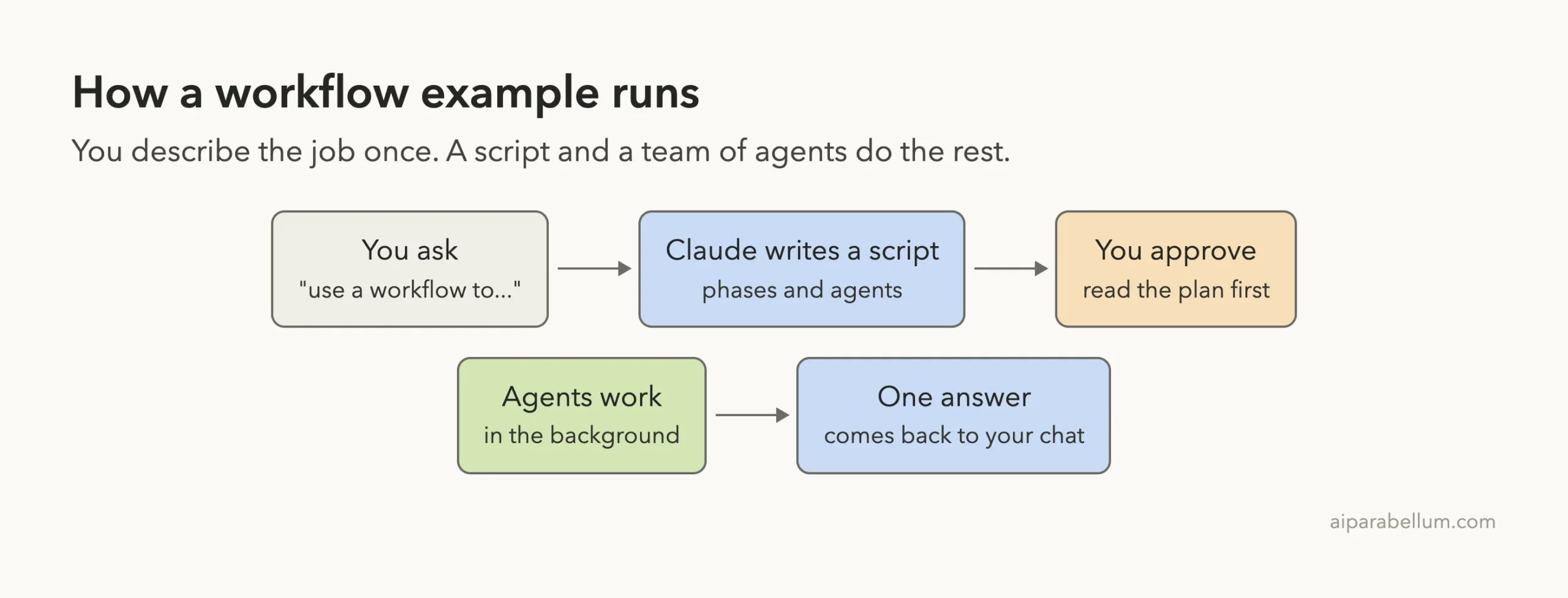
A dynamic workflow is a script that Claude writes for your task. A runtime then runs that script in the background and starts many subagents, which are small helper copies of Claude. Your chat stays free while they work, and you get one answer at the end.
The key idea is who holds the plan. With a normal chat, Claude decides every next step and every result lands in its context window. With a workflow, the script holds the loop and the results, so Claude’s context only receives the final answer.
If you want the bigger picture of when to pick a workflow, a skill or a subagent, read our guide on workflow vs skill. For a first full walkthrough of a bug-sweep workflow, see our earlier post on workflows in practice. This post is different: it is a small library of prompts you can paste.
How to Ask for a Claude Code Workflow
You have three ways to start one. First, say it in your own words, such as “use a workflow to…”.
Second, put the keyword ultracode in your prompt for a single task. Third, run /effort ultracode so Claude plans a workflow for every substantial task in the session.
Describe the job in plain words, add a stopping rule, and let the workflow do the repeating.
We used the first way for both demos. The docs say a direct request works the same as the keyword, and that the keyword only chooses how Claude structures the work. The agents still go through the normal permission checks.
One limit matters if you automate things. The docs say the keyword does not start a workflow from a prompt passed with -p, from a scheduled task prompt, or from a relayed webhook. It works in prompts you type yourself.
Our Demo Project
We never test inside a real project, so we made a tiny shop project with three Python files and a test file. The files are shop/pricing.py, shop/text.py and shop/stats.py. We planted four bugs: a discount that took off the wrong amount, a slug that kept underscores and capital letters, a text shortener that returned the wrong length, and an average that crashed on an empty list.
We committed the project to Git and ran python3 -m unittest discover. Seven tests ran and four failed, which gave the workflow something real to fix. We started Claude Code in acceptEdits mode and pre-allowed python3 and git commands, so the agents would not stop to ask about every test run.
Example 1: Keep Fixing Until a Check Passes
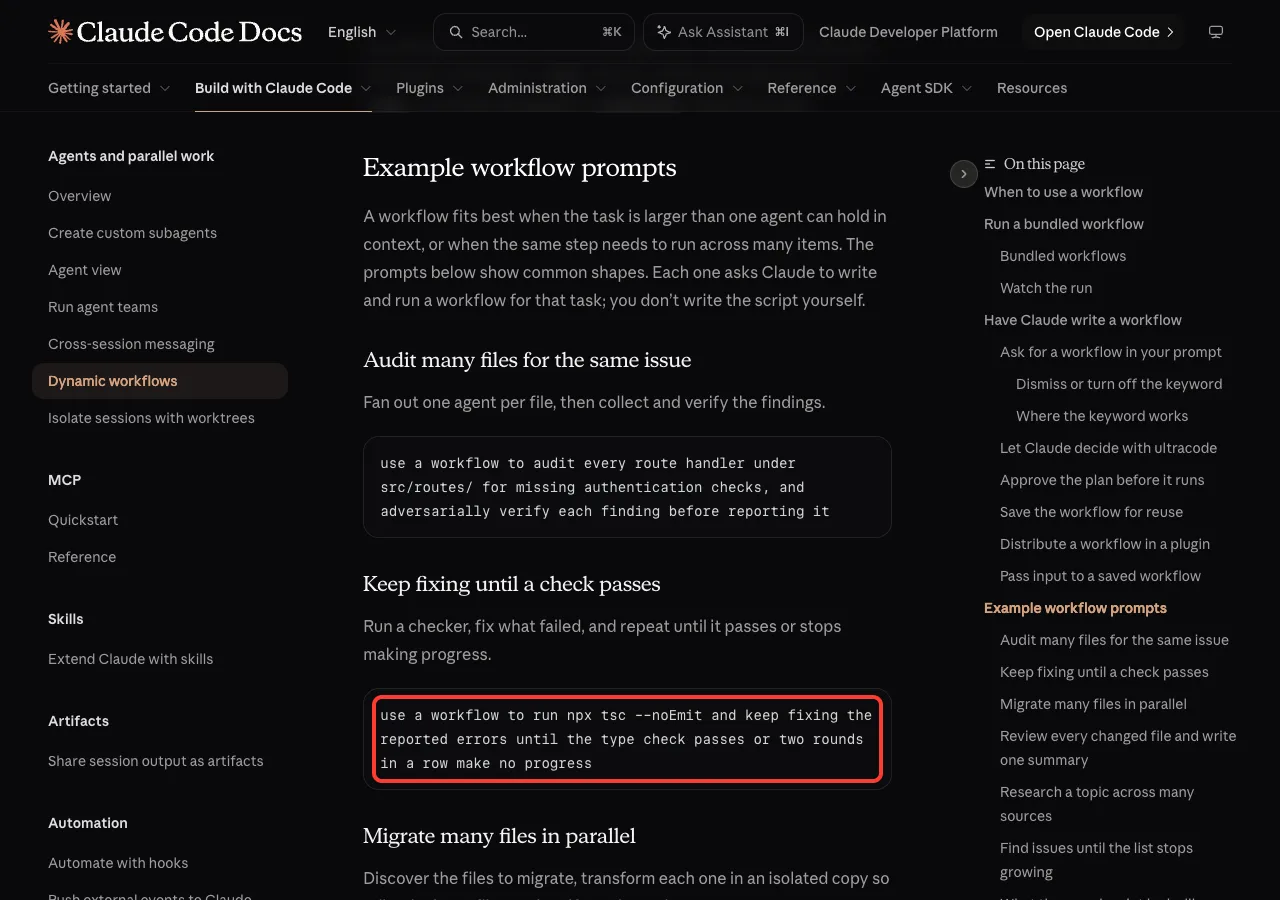
This is the most useful shape for everyday work. You give Claude a command that checks your code and let the workflow repeat fix and check until it is green. Here is the prompt we used, based on the one in the docs.
use a workflow to run python3 -m unittest discover and keep fixing the failing code until all tests pass or two rounds in a row make no progress. Keep it small, under 5 agents.Notice the two stopping rules. One is success, when all tests pass. The other is a safety stop, when two rounds in a row make no progress.
Always give a workflow a way to stop, so it cannot loop forever.
The Approval Screen
Claude first loaded its workflow-authoring skill, then called the Workflow tool and showed a dialog before anything ran. The dialog lists the phases, adds a warning that workflows can use a lot of tokens, and offers three choices: run it, view the raw script, or say no.
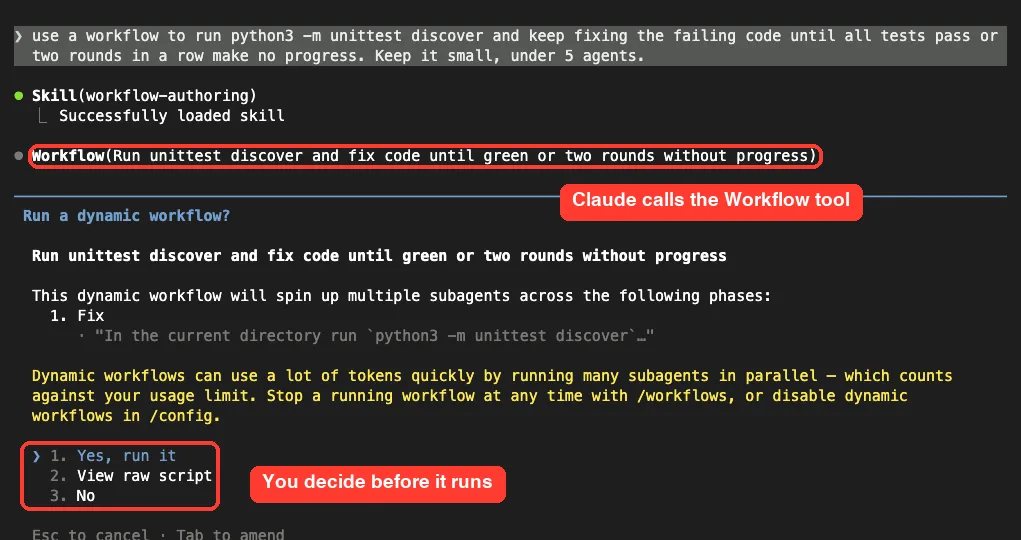
Choose the raw script option if you want to read the plan first. You can also press Ctrl+G to open the script in your editor. The docs say the dialog appears on every run in manual and accept-edits modes, and only on the first launch in auto mode.
The Result
We chose to run it. The workflow finished in 31 seconds with one agent and about 39,300 tokens. Claude Code printed a completed line in the chat, and the agent had edited the source files rather than the tests.
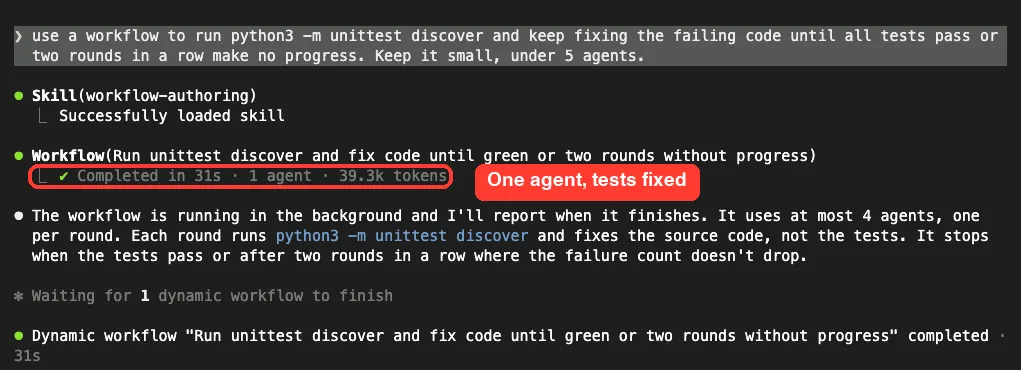
We then ran the tests ourselves. All seven passed. Here is the full diff of what the agent changed, which is short enough to read in one go.
-    return price * percent / 100
+    return price * (100 - percent) / 100

+    if not numbers:
+        return 0

-    return title.replace(" ", "_")
+    return title.lower().replace(" ", "-")

-    return text[:limit] + "..."
+    return text[:limit - 3] + "..."
Do not skip that reading step on your own projects. A workflow that says “green” has only proved that your checks pass. Whether the fix is good is still your call, and that leads to our second example.
Example 2: Review Every Changed File and Write One Summary
Our fix left uncommitted changes in three files, which made a perfect target for a review workflow. This shape runs one reviewer per file, then hands all the findings to a single agent that ranks them. Here is our prompt.
use a workflow to review every file changed since the last git commit for correctness issues, one reviewer per file, then merge the per-file findings into one ranked summary. Do not edit any files. Keep it small.The phrase “Do not edit any files” matters. It told Claude to write a read-only workflow, and the title of the workflow said so as well.
Two Phases, Four Agents
Claude ran git diff HEAD --name-only to find the changed files, then planned two phases. The Review phase starts one agent per changed file. The Merge phase starts one agent that combines the findings.
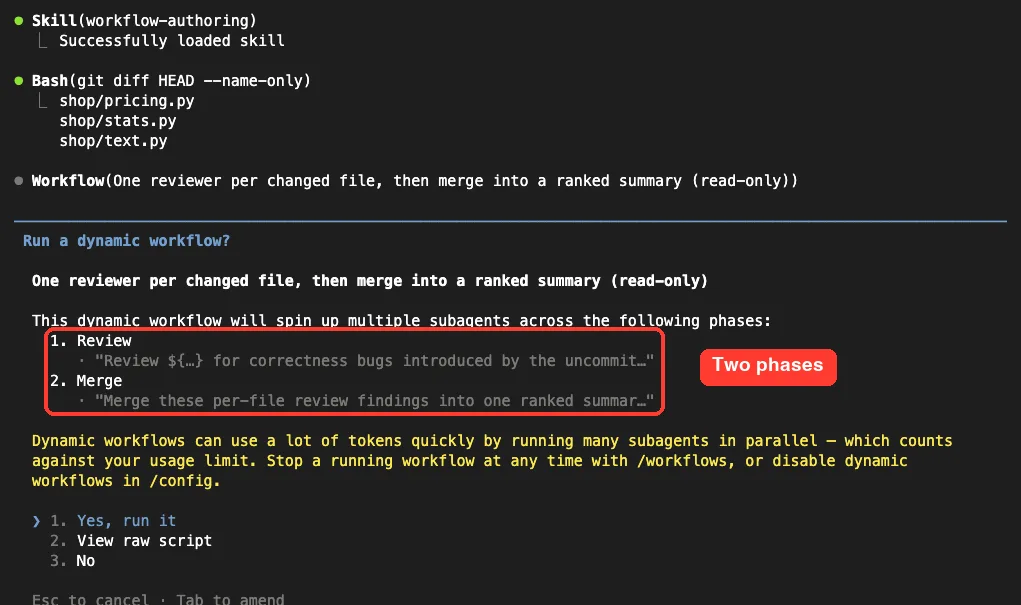
After approval we opened /workflows. The progress view lists each phase with its agent count on the left, and the agents of the selected phase on the right. Each reviewer shows its model, its token use and how long it took.
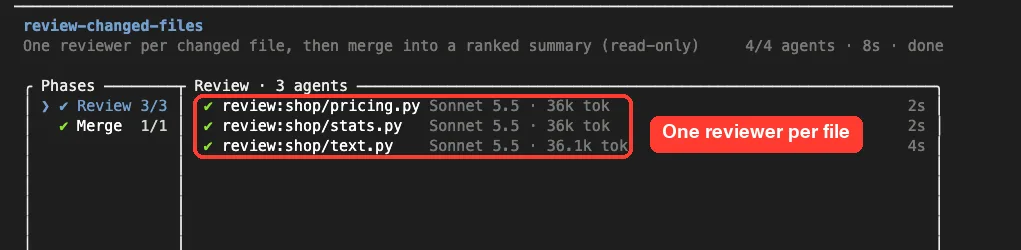
The footer of that view lists the keys. The docs describe them: the arrow keys select a phase or agent, Enter drills in, Esc goes back, p pauses, x stops and s saves the script as a command.
The Ranked Summary
The workflow finished with all four agents done and about 143,000 tokens used in total. The summary came back ranked by severity, with the file and line for each point.
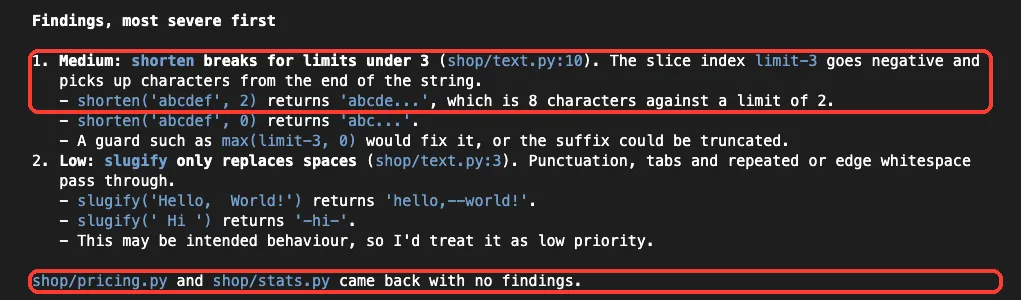
The medium finding was a real catch. The fix changed shorten to cut at limit - 3, and the reviewer pointed out that this breaks for limits under 3.
With a limit of 2, the slice index goes negative and the function returns far too many characters. The low finding said slugify only handles spaces, and it noted this may be intended.
The summary also carried an honest warning. The diagnostics reported that two of the four agents returned an empty result, and Claude said it had not checked which ones.
It added that if the empty agents were the pricing and stats reviewers, those clean results might not be real. We did not dig into the journal file, so we cannot say which agents were empty.
Treat “no findings” from a workflow as a hint, not a guarantee.
More Claude Code Workflow Example Prompts
The docs list four more shapes. We did not run these, but each is a ready-to-paste starting point. Swap in your own folders and commands.
Audit Many Files for the Same Issue
use a workflow to audit every route handler under src/routes/ for missing authentication checks, and adversarially verify each finding before reporting itThis fans out one agent per file, then asks other agents to try to disprove each finding. Our earlier post on using workflows in practice runs this shape for real.
Migrate Many Files in Parallel
use a workflow to migrate every component under src/components/ from JavaScript to TypeScript, working on each file in its own isolated copyThe docs say the isolated copies keep edits from conflicting. Start with one folder, because a migration is where a large run costs the most.
Research a Topic Across Many Sources
use a workflow to research how our three competitors handle rate limiting: read their public docs and recent changelog entries in parallel, then compare the approachesFor broad questions you can also use the bundled /deep-research workflow. It searches several angles, cross-checks the sources and returns a cited report, and it needs the WebSearch tool.
Find Issues Until the List Stops Growing
use a workflow to find flaky tests in this repo: run the suite repeatedly, record which tests fail intermittently, and stop once two rounds in a row find nothing newLike our fix loop, this one has a built-in stopping rule. Every good looping prompt names its own exit.
What a Workflow Script Looks Like
You never have to write the script, but it helps to recognize one. The docs show this small saved workflow. It finds the files, runs one agent per file, and drops any empty results.
export const meta = {
  name: 'audit-routes',
  description: 'Audit every route handler for missing auth checks',
}

const found = await agent('List every .ts file under src/routes/.', {
  schema: { type: 'object', required: ['files'], properties: { files: { type: 'array', items: { type: 'string' } } } },
})

const audits = await pipeline(found.files, file =>
  agent(`Audit ${file} for missing authentication checks.`, { label: file }),
)

return audits.filter(Boolean)
Three helpers do most of the work. agent() starts one subagent, pipeline() runs one per item in a list, and parallel() runs a set of tasks at the same time.
The script itself cannot touch your files or run shell commands. The agents do that, under your normal permission rules.
Save a Workflow So You Can Rerun It
When a run does what you wanted, you can keep it. Open /workflows, select the run and press s. The dialog asks for a name and shows where the file will go, and Tab switches between the two locations.
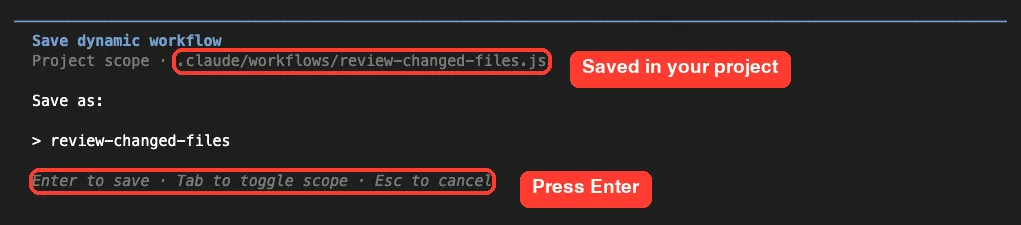
We stopped at this dialog and did not press Enter, so we did not run a saved workflow ourselves. The docs describe the rest.
A project save goes in .claude/workflows/ and is shared with everyone who clones the repo. A personal save goes in ~/.claude/workflows/ and works in every project.
A saved workflow runs as /name in later sessions. It can also take input through an args value, so you can say “Run /triage-issues on issues 1024, 1025, and 1030” instead of editing the script.
After you edit a saved script, run /reload-skills before you call it again. Teams can also ship workflows inside a plugin, where the plugin name becomes a prefix.
Keep Workflow Cost Under Control
A workflow can use many more tokens than the same task in a normal chat, and the runs count toward your plan’s limits. Our two demos were small, at about 39,000 and 143,000 tokens, but a big migration would be far larger.
The docs give you several levers. Run on a small slice first, such as one folder. Watch the token use in /workflows, where you can stop a run at any time.
Ask for a smaller model on stages that do not need the strongest one. And set a size guideline, which tells Claude how many agents to aim for.
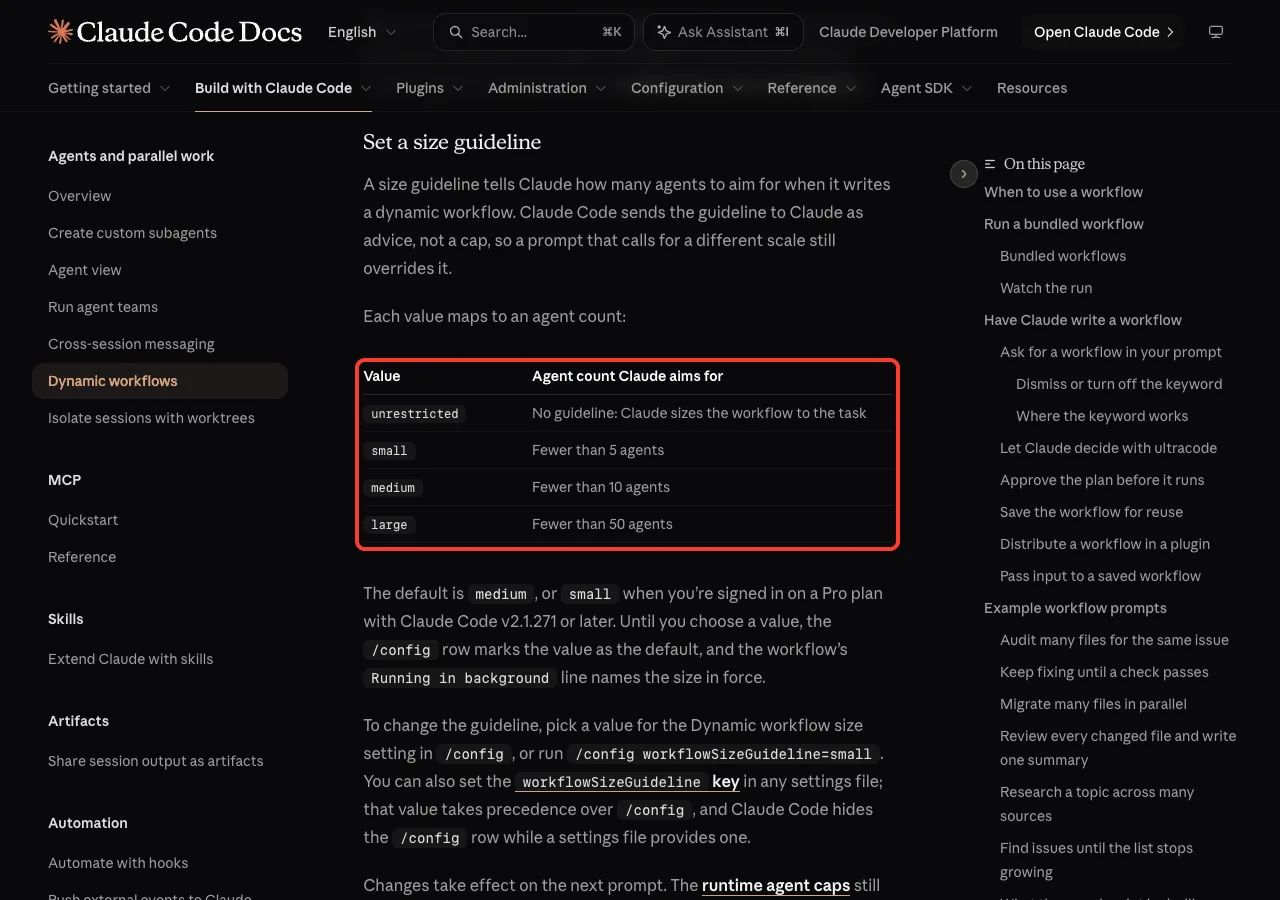
The guideline is advice, not a hard cap. The values are small for fewer than 5 agents, medium for fewer than 10, large for fewer than 50, and unrestricted for no guideline.
Change it in /config or with /config workflowSizeGuideline=small. Our run said “medium size” even though we asked for a small one, which shows that the prompt is what really steered Claude.
Claude Code also flags a run that grows large. The docs say a workflow that schedules more than 25 agents, or projects more than 1.5 million tokens, shows a Large workflow warning in the task panel.
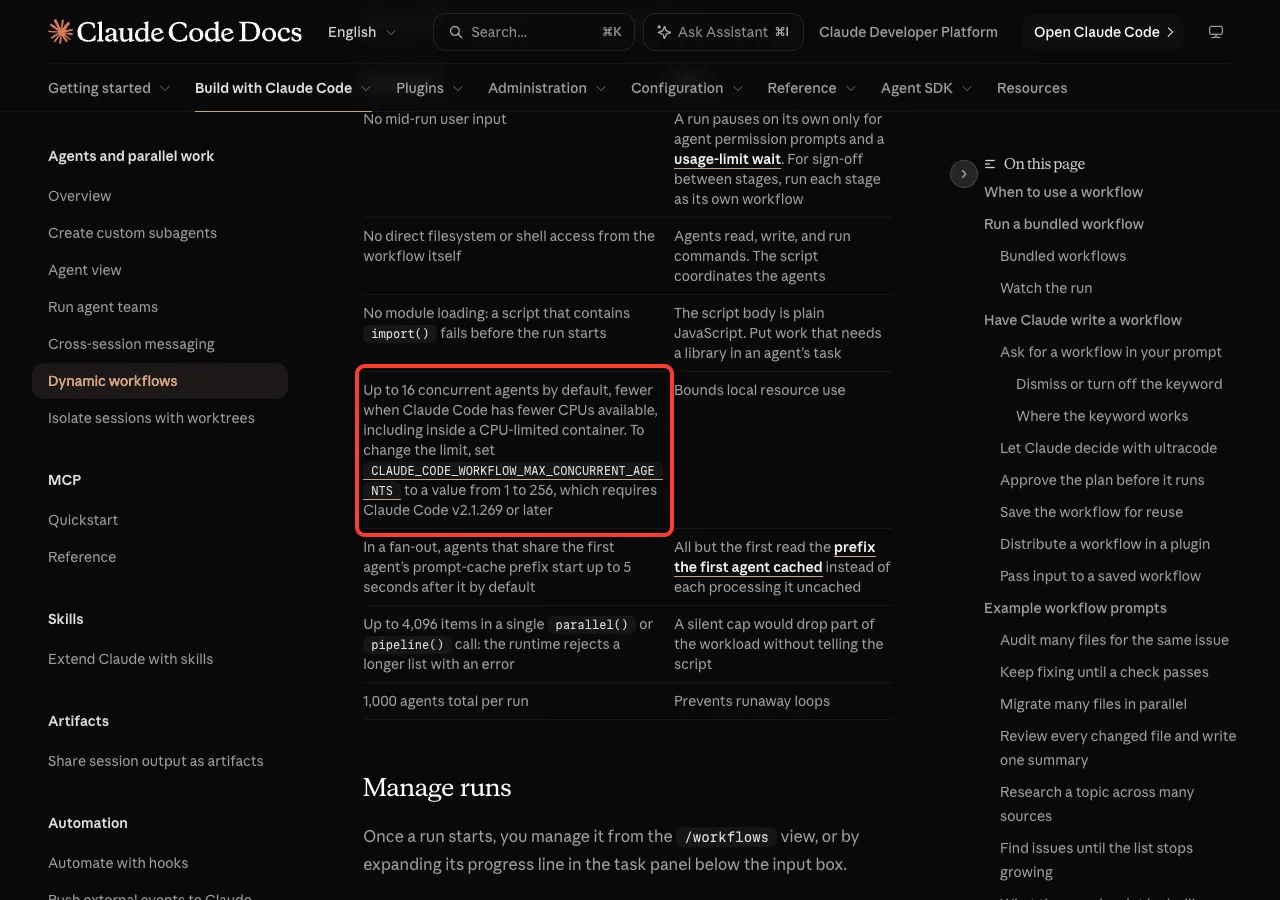
The same table lists the hard limits. A run starts up to 16 agents at once by default, accepts up to 4,096 items in one parallel() or pipeline() call, and stops at 1,000 agents in total. These caps bound the cost of a runaway script.
Try It Yourself
Make a throwaway folder with a few small files and a test command, never your real project. Then paste this prompt into Claude Code. Read the plan on the approval screen before you say yes.
use a workflow to run my tests and keep fixing the failing code until all tests pass or two rounds in a row make no progress. Keep it small, under 5 agents.When it finishes, run git diff and read every change. Then try the review prompt from Example 2 on those changes and compare what the reviewers say with what you saw.
Common Mistakes
- Skipping a stopping rule. Always say when the loop should end, such as “until the tests pass or two rounds make no progress”.
- Starting on the whole repo. Try one folder first so you can see the token cost.
- Trusting a green check. Passing tests prove little if the tests are thin, so read the diff.
- Trusting empty findings. In our review, two of four agents returned nothing, so a clean result may not be a checked result.
- Forgetting permissions. Agents use your permission rules, so add the commands they need to your allow rules before a long run.
- Expecting the keyword to work in automation. It does not start a workflow from a
-pprompt or a scheduled task.
Pro Tips
- Say “read-only” or “do not edit any files” for review and research workflows, so nothing changes by accident.
- Put a size in the prompt, such as “keep it small, under 5 agents”.
- Use the raw script view the first time you try a new shape, so you learn how Claude structures it.
- Chain two small workflows, like our fix loop then our review, instead of one giant run. The docs suggest running each stage as its own workflow when you want sign-off in between.
- Press
Option+Won macOS orAlt+Won Windows and Linux to dismiss the keyword highlight if you typedultracodeby accident. - Save only the runs you will repeat. A weekly branch review is a good candidate.
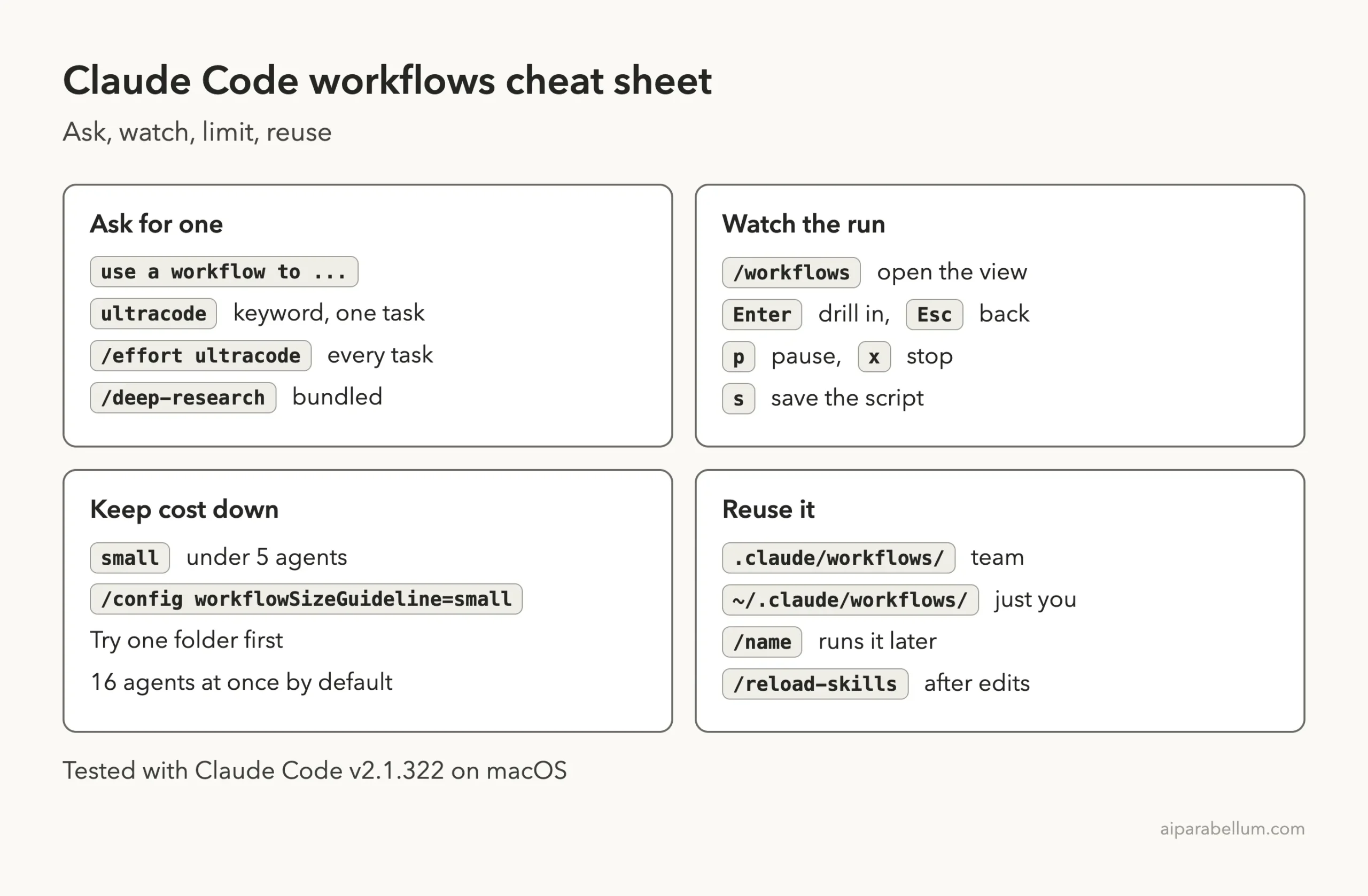
Claude Code Workflows Cheat Sheet
Frequently Asked Questions
What is a good first Claude Code workflow example?
The fix-until-green loop is a safe first one. It needs one command that checks your code, it has a clear stopping rule, and the result is a small diff you can read.
Do I need to write the workflow script myself?
No. Claude writes the script for the task you describe, and you can read it from the approval screen. You only edit a script if you want to change a saved workflow.
How much does a workflow cost?
It depends on the agent count and the work each agent does. Our fix loop used about 39,300 tokens with one agent, and our review used about 143,000 tokens with four. The docs say runs count toward your plan’s usage limits, so try a small slice first.
Can I stop a workflow that is running?
Yes. Open /workflows, select the run and press x. You can also pause with p, and the docs say a stopped run can usually be relaunched without losing finished work.
Can I turn workflows off?
Yes. The docs list three ways: switch Dynamic workflows off in /config, set "disableWorkflows": true in your user settings file, or set the CLAUDE_CODE_DISABLE_WORKFLOWS environment variable to 1. When off, the ultracode keyword no longer starts a run.
Conclusion
Dynamic workflows are easiest to learn from a few small prompts. Our fix loop turned four failing tests into a green run in 31 seconds, and our review workflow caught an edge case in the fix itself, while also reminding us not to trust empty results blindly. Start with one folder, name a stopping rule, read the plan and the diff, and save only the runs you will repeat. That closes our 45-part Claude Code Deep Dives, and you can find every part in the Claude Code tutorials hub. If you are new to Claude itself, our Claude AI guide is a good place to start, and the full list of options is in the official workflows guide.
Previous in the series: Part 44: Claude Code Worktrees: A Daily Workflow That Works