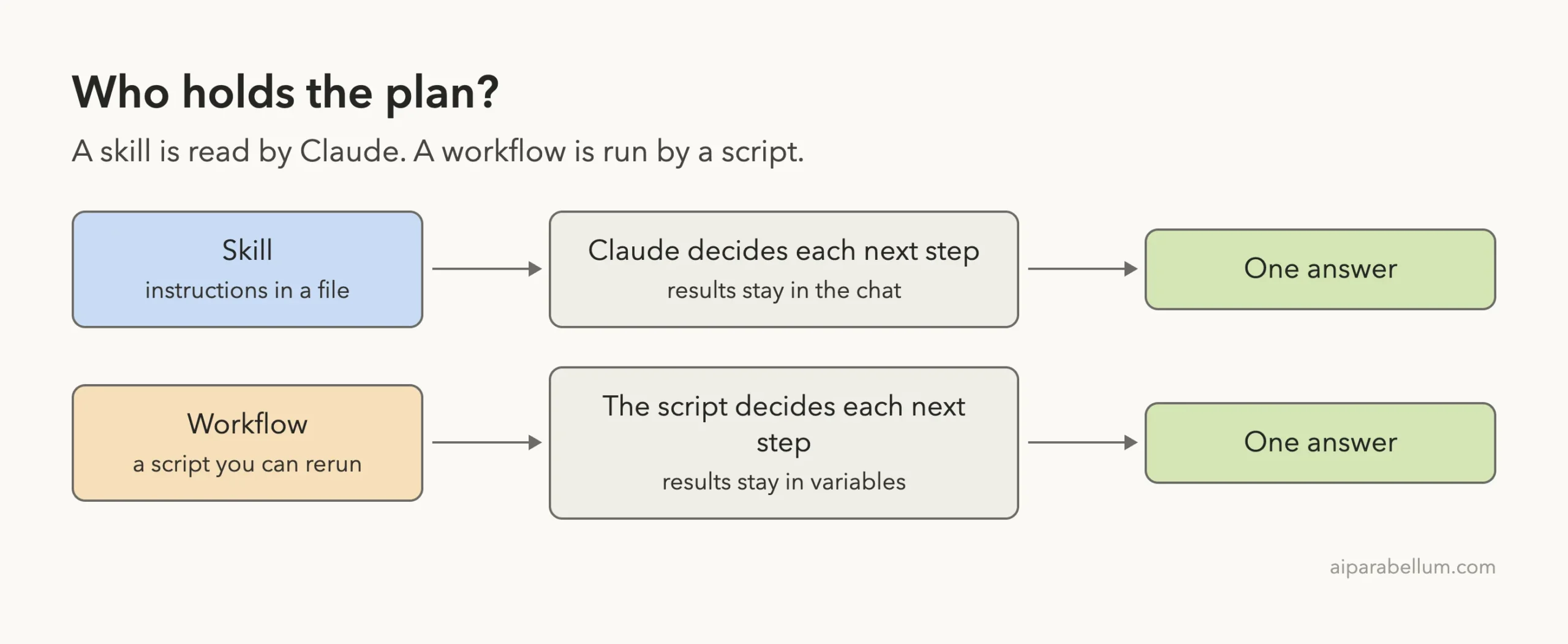
If you have seen both words in the Claude Code docs, you may wonder about the claude code workflow vs skill question, since both can run a multi-step job. We built a skill in a throwaway project, asked for a workflow on the same files and compared the two. The short answer: a skill is instructions Claude reads, while a workflow is a script that runs the plan for Claude.
This is Part 6 of 45 in our Claude Code Deep Dives, part of our Claude Code tutorials. Before this, read Part 5.
Tested with Claude Code v2.1.318 on November 4, 2026. We tested on macOS in a demo folder, with project settings only, so nothing in our personal setup was used or changed.
Claude Code Workflow vs Skill: Who Holds the Plan?
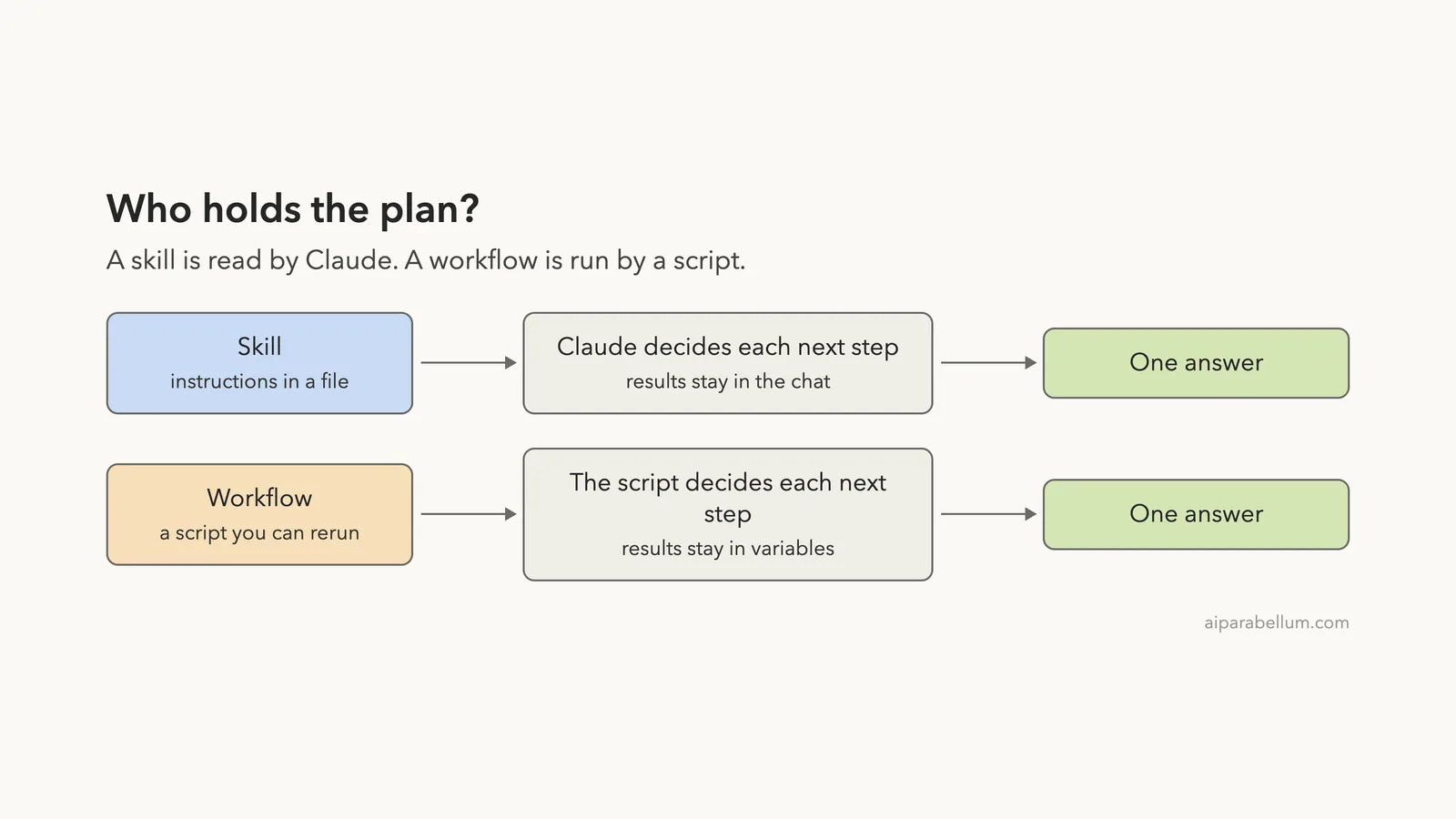
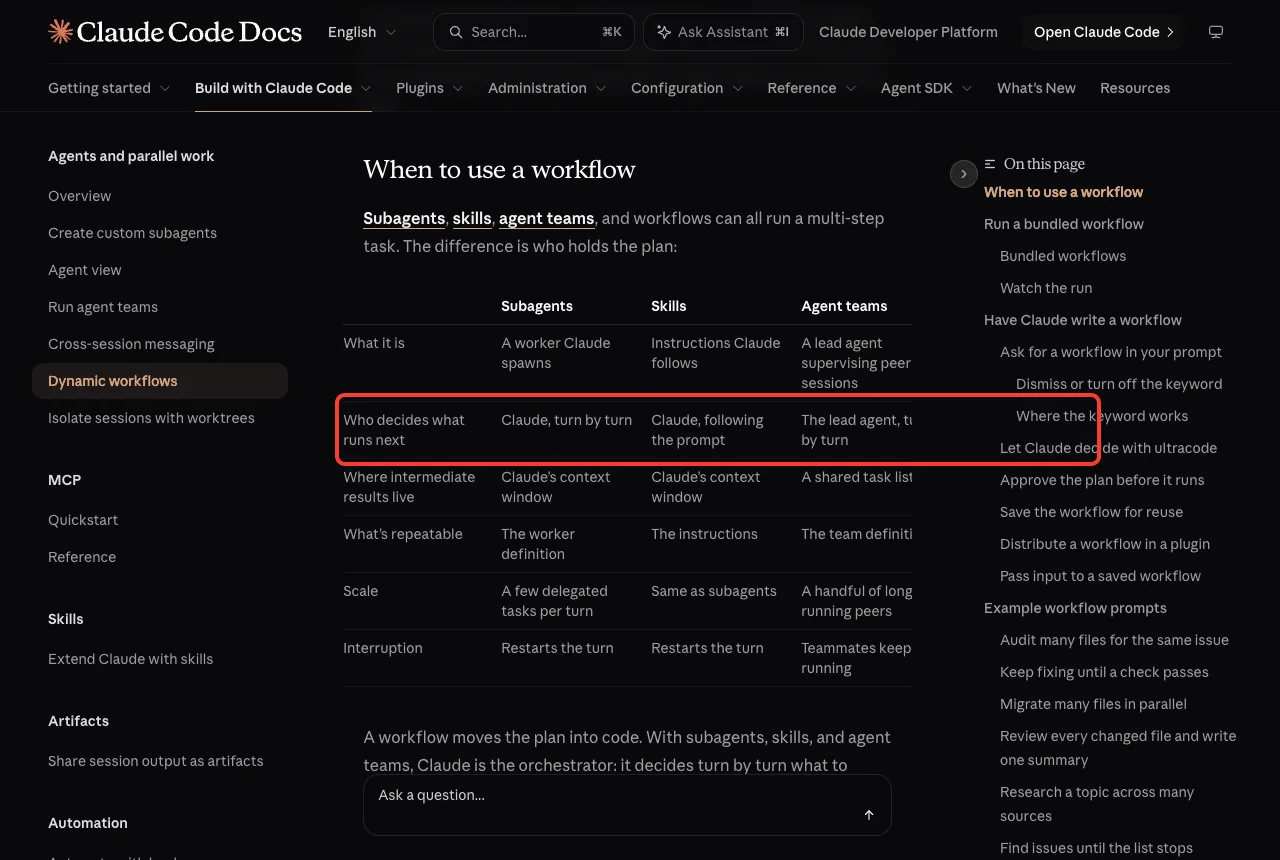
The official workflows documentation says the difference is who holds the plan. With a skill, Claude follows the prompt and decides what to do next, turn by turn. With a workflow, a script decides what runs next.
| Question | Skill | Workflow |
|---|---|---|
| What it is | Instructions Claude follows | A script the runtime executes |
| Who decides what runs next | Claude, following the prompt | The script |
| Where intermediate results live | Claude’s context window | Script variables |
| What is repeatable | The instructions | The orchestration itself |
| Scale | A few delegated tasks per turn | Dozens to hundreds of agents per run |
| How you start it | /name or Claude loads it | Ask for one, or run a saved /name |
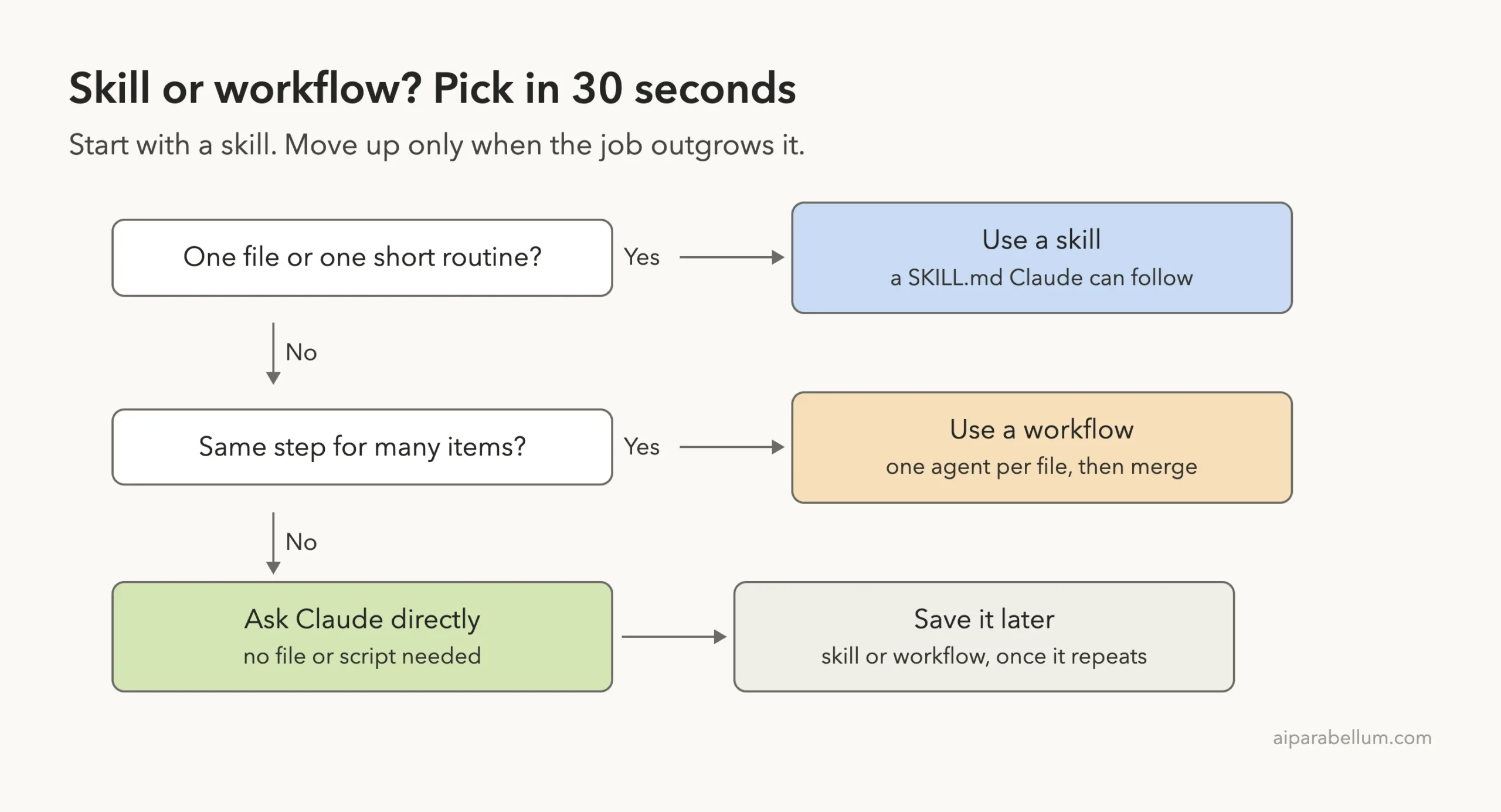
Use a skill when a single conversation can hold the whole job. Use a workflow when the job is bigger than one conversation, or when you want the plan saved as code.
What a Skill Is
A skill is a folder with a SKILL.md file inside .claude/skills/. The file holds a short description and the instructions Claude follows when you run the skill or when it matches your request.
That makes a skill a good home for a routine you repeat in one conversation, such as a review format, a release note layout or a commit style. If you want the details of the file format, our guide to the SKILL.md format lists every field.
The key point for this comparison is that Claude stays in charge. It reads the instructions, calls tools, looks at each result and chooses the next move, all inside one context window.
What a Workflow Is
The docs describe a dynamic workflow as a JavaScript script that orchestrates many subagents at once. Claude writes the script for the task you describe, and a runtime executes it in the background while your session stays responsive.
The script holds the loop, the branching and the intermediate results. Claude’s own context only receives the final answer. The docs list examples such as a codebase-wide bug sweep, a 500-file migration and a research question that needs sources cross-checked.
A workflow can also apply a quality pattern, for example having independent agents review each other’s findings before anything is reported. Our subagents tutorial covers the workers that a workflow orchestrates.
Our Demo Project
We made a small folder with three Python files, each hiding one obvious bug, and one project skill. The layout looked like this:
workflow-vs-skill/
├── src/
│   ├── cart.py
│   ├── users.py
│   └── report.py
└── .claude/
    └── skills/
        └── review-file/
            └── SKILL.md
We started Claude Code with claude --permission-mode default --setting-sources project. The second flag kept our personal settings out of the demo, so only these project files were loaded.
We kept the test small on purpose. Workflows can use many tokens, so we ran the skill fully and stopped the workflow at its approval screen, which is where you learn most about it.
Step 1: Run a Skill on One File
Here is the whole skill. It has a description, an argument hint and two lines of instructions. The placeholder $ARGUMENTS stands for whatever you type after the command name.
---
description: Review one Python file for bugs in a fixed three-line format. Use when asked to review a file.
argument-hint: [file]
---

Read $ARGUMENTS and report exactly three lines: File, Biggest bug, Suggested fix.
Keep each line under 15 words.
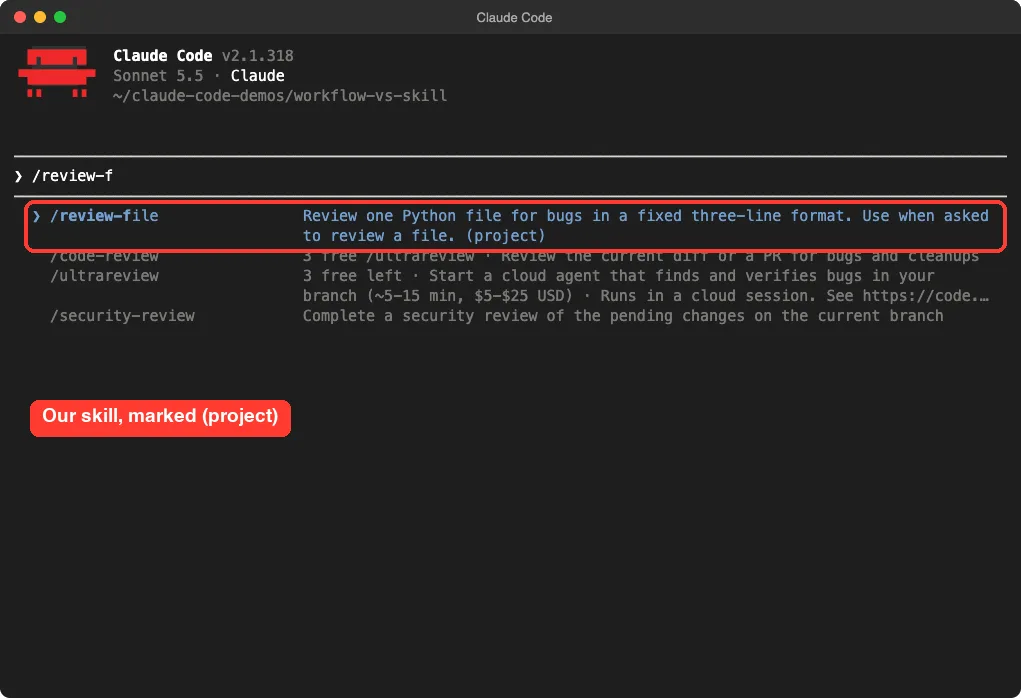
When we typed /review-f, the slash menu listed /review-file with its description and a (project) tag.
Then we ran /review-file src/cart.py. Claude read the file and answered in exactly three lines: the file name, the biggest bug (an empty cart causes a division by zero) and a fix.
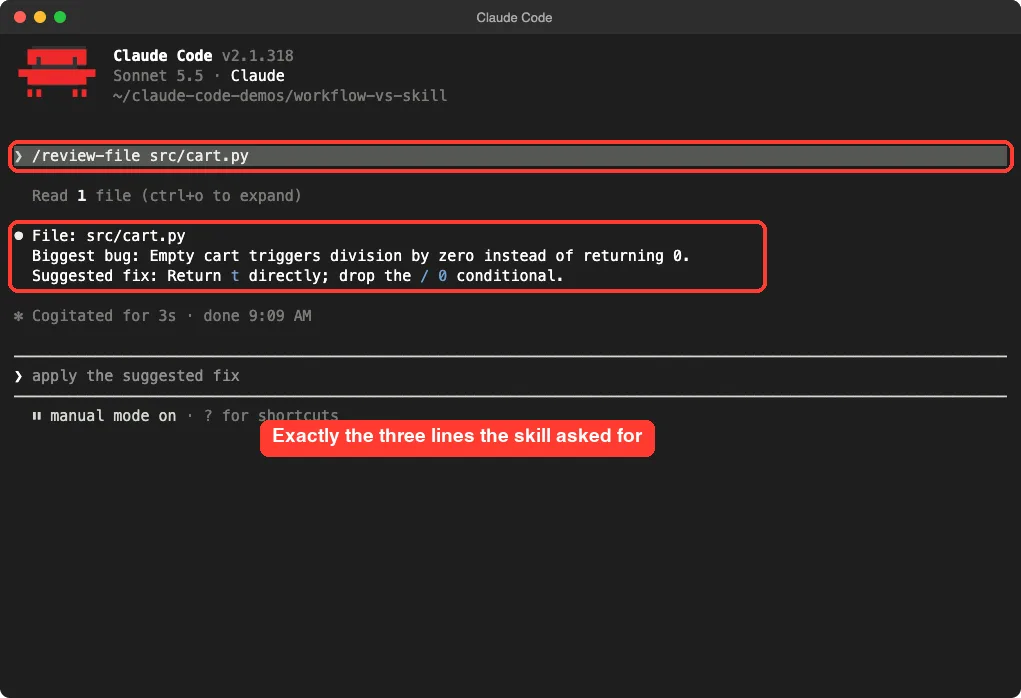
This is the skill sweet spot. The job was small, the format was fixed and Claude did everything in one turn. Writing a script for it would have been overkill.
Step 2: Ask for a Workflow on Many Files
Now the job changes. We want the same review on three files, with a separate agent for each one, and then one merged ranked list. We typed this plain prompt:
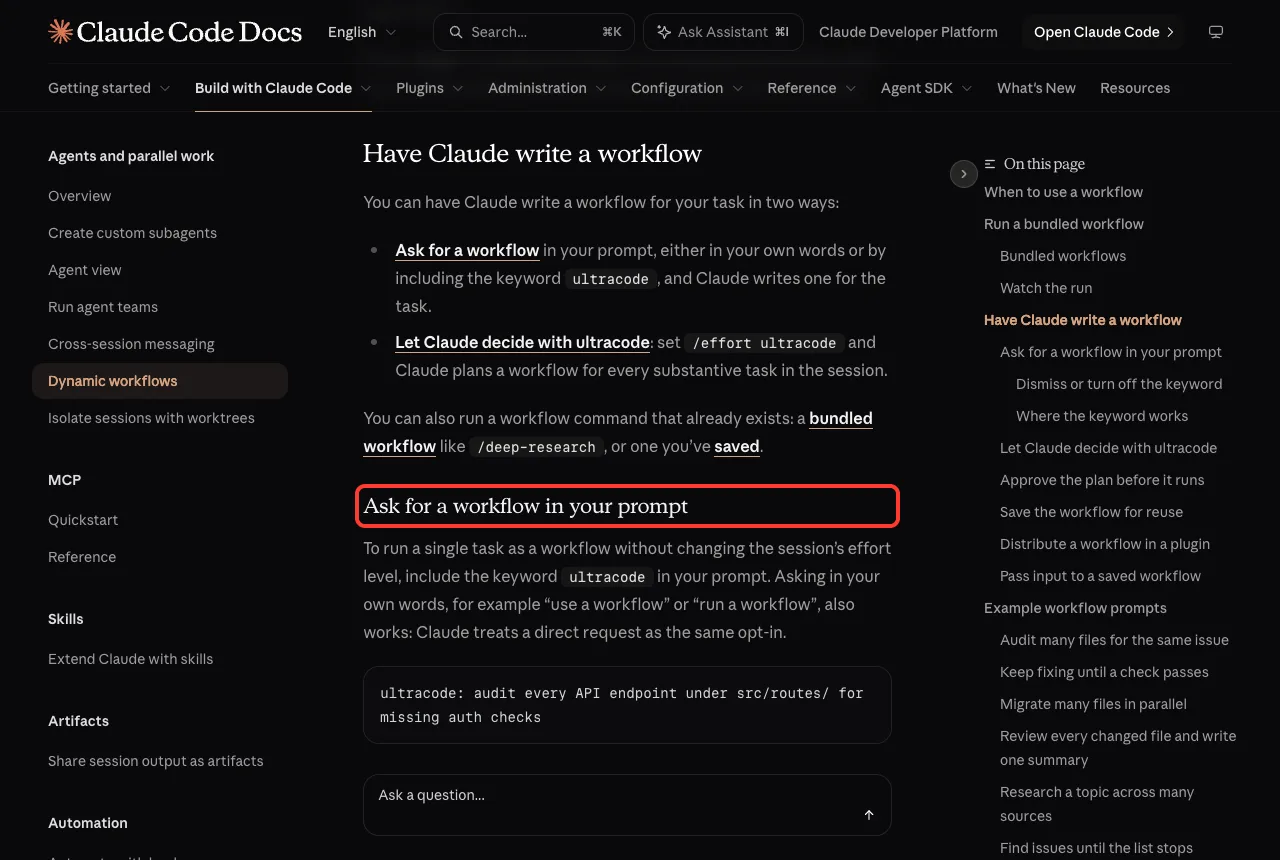
use a workflow to review src/cart.py, src/users.py and src/report.py with one agent per file, then merge the findings into one short ranked listPer the docs, asking in your own words works as an opt-in, and so does including the keyword ultracode. Claude Code did not start working right away. It first loaded its built-in workflow-authoring skill, then wrote a script and showed a “Run a dynamic workflow?” screen.
Step 3: Read the Approval Screen
The approval screen listed two phases: “Review”, with one agent per file, and “Merge”, which ranks the findings. It also warned in yellow that dynamic workflows can use a lot of tokens quickly because many subagents run in parallel, and that usage counts against your limit.
The options were “Yes, run it”, “View raw script” and “No”. In manual permission mode the docs say you are prompted for every run, unless you pick the “don’t ask again” option for a saved workflow.
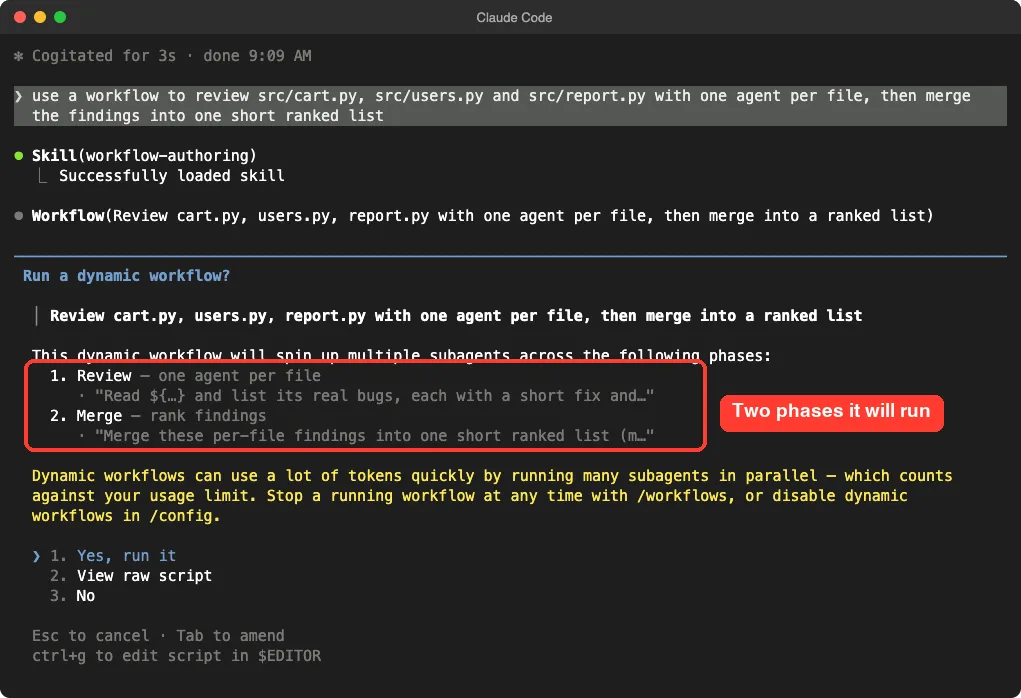
This screen is a real difference from a skill. A skill just runs when you call it, but a workflow shows you its plan and asks first.
Step 4: Look at the Raw Script
We picked “View raw script” to see what Claude wrote. The body is plain JavaScript. It lists the three files, defines a small schema for the answers, runs one agent per file in parallel and then sorts the results by severity.
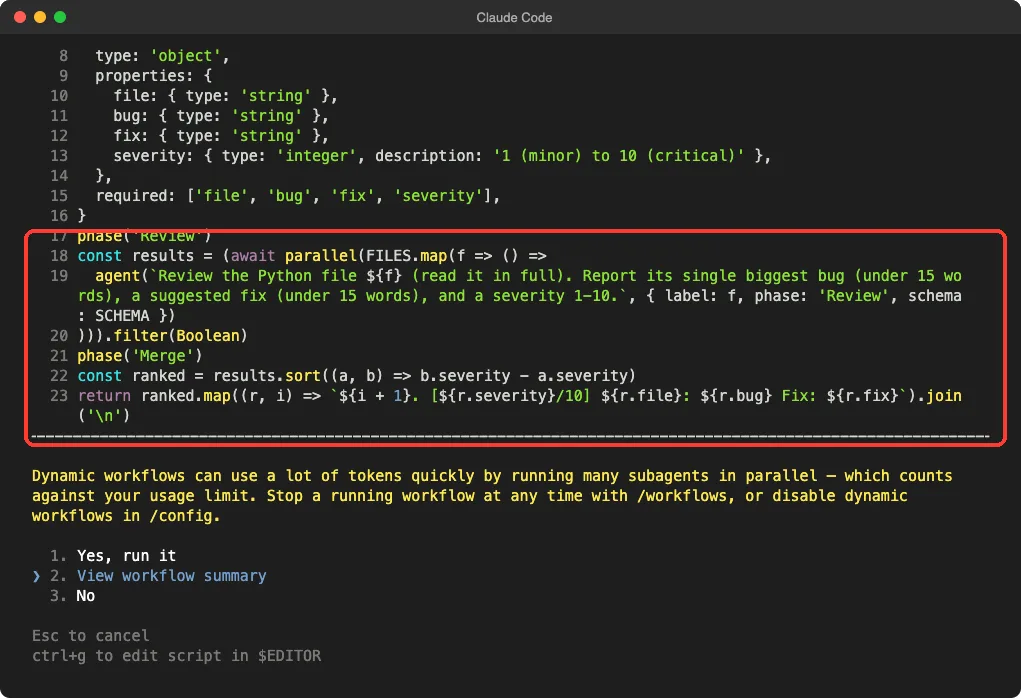
Notice that the sorting step is ordinary code. In a skill, you would ask Claude to sort, and it would do so in its own words. In a workflow, the script sorts by a number, the same way every time.
We stopped here and did not approve the run, so we cannot show you its final ranked list. What we verified is the plan, the phases and the script that Claude wrote. For a full run, the docs describe watching progress with /workflows.
Claude Code Workflow vs Skill: Side by Side
With both in front of us, the contrast was easy to see. The skill took one command and one answer. The workflow took a prompt, a plan screen and a script.
| What we saw | Skill | Workflow |
|---|---|---|
| How we started it | /review-file src/cart.py | A plain-English prompt asking for a workflow |
| Approval | None needed for the skill itself | A prompt with phases and a token warning |
| Files we wrote | One SKILL.md | None, Claude wrote the script |
| Best size of job | One file | Three files, one agent each, then a merge |
| Can you read the plan first? | Yes, it is the file | Yes, through View raw script |
Cost and Speed
The docs are direct about cost: a workflow can use a lot of tokens quickly, and on a subscription plan those tokens draw on your usage limits. For a three-file job, a skill is the cheaper choice.
A workflow earns its cost when the number of items grows. Running one agent per file across a large folder is exactly what a single conversation cannot hold.
Repeatability
Both can be reused, in different ways. A skill reuses instructions. A workflow reuses the orchestration, because you can save a run’s script as a command from /workflows by pressing s.
Per the docs, a saved workflow goes in .claude/workflows/ in your project to share with your team, or in ~/.claude/workflows/ for yourself. After that, it runs as /name in future sessions, just like a skill.
When to Use a Skill Instead of a Workflow
Pick a skill when the whole job fits in one conversation. These are the cases where it wins:
- A fixed output format, like our three-line review.
- A short routine you repeat, such as writing a changelog or a commit message.
- Background knowledge Claude should load when your request matches the description.
- Anything you want to hand to a teammate as one small file.
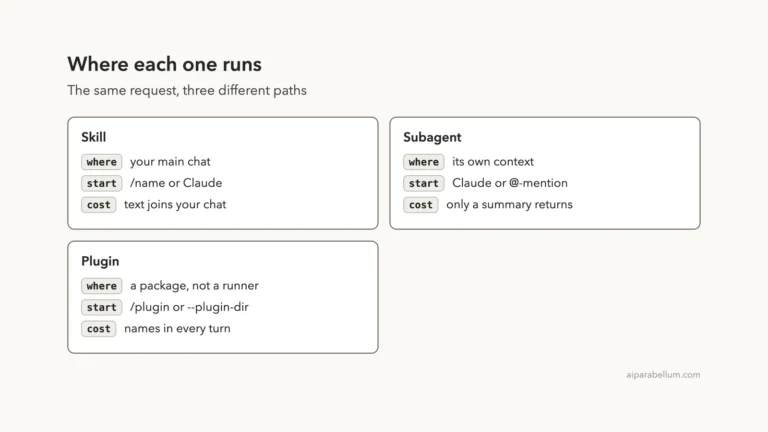
If your skill does not fire when you expect, our skill troubleshooting guide walks through the usual causes. For the wider picture, see Part 4, which compares skills, subagents and plugins.
When to Use a Workflow
Pick a workflow when the same step must run across many items, or when you want the plan codified. The docs give these example prompts, and each one starts with “use a workflow”:
- Audit every route handler for missing authentication checks.
- Keep fixing type errors until the check passes or two rounds make no progress.
- Migrate every component from JavaScript to TypeScript, each in its own isolated copy.
- Review every changed file in a pull request, then merge the findings into one ranked summary.
The docs also mention a built-in workflow, /deep-research, which fans out web searches and returns a cited report. It runs only when you invoke it.
Can You Combine Them?
Yes, and the docs hint at it. If you already have a skill that fans work out, you can point Claude at it and ask for a workflow that does the same thing.
A practical pattern is to prove the instructions as a skill on one file first. Once the output looks right, scale the same idea to many files with a workflow.
Common Mistakes
- Reaching for a workflow on a tiny job. A skill is faster and cheaper for one file.
- Writing a skill that tries to manage dozens of items. Claude’s context window fills up with every intermediate result.
- Approving a workflow without opening the plan. Use View raw script when the task touches many files.
- Leaving
/effort ultracodeon for routine work. The docs say it plans a workflow for every substantive task, so each request uses more tokens. - Typing
ultracodein a scheduled or-pprompt and expecting a workflow. The docs say the keyword is an opt-in only in a prompt you type yourself.
Pro Tips
- Start with a skill, because it is one small file you can read in ten seconds.
- Press
Option+Won macOS if theultracodehighlight appears and you did not mean to start a workflow. - Check
/modelbefore a large run if you usually switch to a smaller model for routine work. - Save a workflow only after a run does what you wanted, so your shared folder holds proven scripts.
- Turn dynamic workflows off in
/configif your team does not want them at all.
Try It Yourself
You can reproduce our demo in about ten minutes. Make a folder with three tiny Python files, each with one bug, and start Claude Code there. Paste this prompt to create the skill:
Create .claude/skills/review-file/SKILL.md with a description, argument-hint [file], and instructions to read $ARGUMENTS and report three lines: File, Biggest bug, Suggested fix.Restart the session and run /review-file on one file. Then ask for the workflow version with the prompt below, and read the approval screen before you decide whether to run it.
use a workflow to review every Python file in src/ with one agent per file, then merge the findings into one short ranked listPick View raw script first. Our Claude guide explains the wider product if you are new to it.
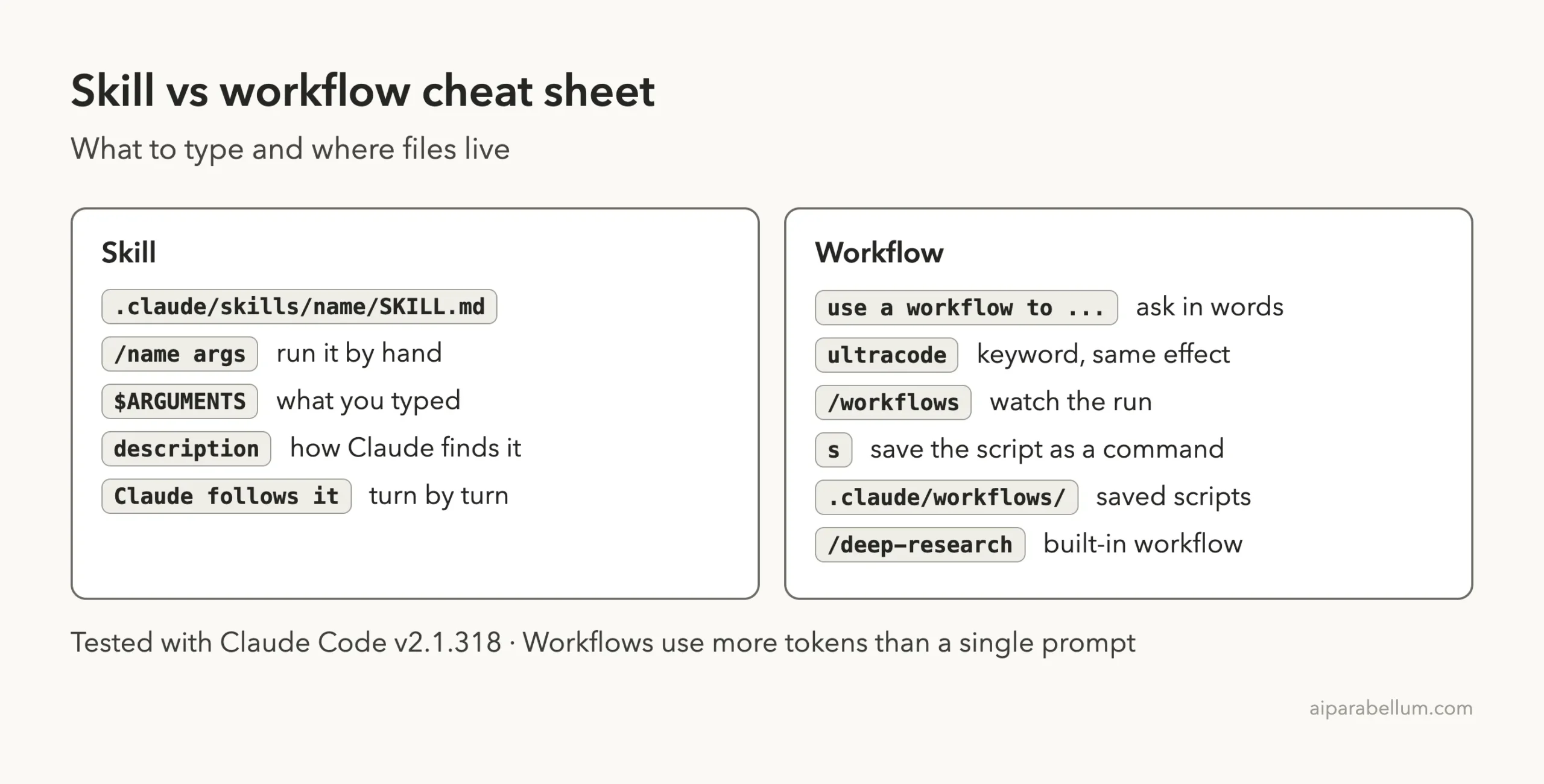
Cheat Sheet
Frequently Asked Questions
Is a workflow just a bigger skill?
No. A skill is instructions that Claude follows. A workflow is a script that a runtime executes, and the script decides what happens next.
Do I have to write the workflow script myself?
No. Per the docs, Claude writes the script for the task you describe, and you can read it with View raw script. You can also edit a saved script by hand.
How do I ask for a workflow?
Say “use a workflow” or “run a workflow” in your prompt, or include the keyword ultracode. In our test, the plain-English version worked.
Will a workflow use more of my usage limit?
It can. Claude Code showed us a warning that dynamic workflows can use many tokens quickly, and the docs say the usage counts against your limit.
Can I reuse a workflow later?
Yes. Open /workflows, select a run and press s to save its script as a command. It then runs as /name, as the docs describe.
Conclusion
A skill and a workflow both help with multi-step jobs, but they split the work differently: with a skill, Claude holds the plan, and with a workflow, a script does. In our demo, the skill handled one file in a single command, while the workflow asked for approval and showed a two-phase plan for three files. Start with a skill, move to a workflow when one step must run across many items, and always read the plan before you approve a big run.
Previous in the series: Part 5: Custom Slash Commands vs Skills in Claude Code
Next in the series: Part 7, How to Test and Improve a Skill With Anthropic’s Skill Creator, is coming soon.