Sooner or later someone asks what all that Claude Code usage is actually buying. The Claude Code receipts plugin is Anthropic’s answer: one command that turns your session history into a short, honest impact report. In this guide we explain what it does, how to install it, what the report contains and where it stops.
This guide is part of our Claude Code tutorials. Find more add-ons in our Claude Code Skills Directory.
Tested with Claude Code v2.1.319 on November 9, 2026, using the plugin from the official marketplace repository (commit 0412be7).
What We Tested and What We Did Not
We want to be clear about the scope, because this plugin reads your private history. We loaded the plugin into a real Claude Code session and confirmed that /receipts shows up. We then ran the plugin’s own mining script, the part that does the counting, against a set of sample session files that we generated for a made-up developer.
That means every number in the screenshots is invented. We did not run the final write-up step that asks the model to turn the numbers into a markdown report, so we describe that step from the plugin’s own instructions and README.
| Part | How we covered it |
|---|---|
Plugin loads and /receipts appears | Ran it in a real Claude Code session |
| Mining script and HTML receipt | Ran it for real on sample transcripts and sample git repos |
| Markdown write-up and file saving | Described from the plugin’s instructions and README |
| Windows and Linux | Not tested; the plugin is plain Node and git, so see the official docs |
Quick Summary
| Item | Detail |
|---|---|
| Plugin | receipts from the official claude-plugins-official marketplace |
| Maker | Anthropic |
| Account needed | No extra account |
| Install | /plugin install receipts@claude-plugins-official |
| Run | /receipts |
| Output | A markdown report and a self-contained HTML receipt in your home folder |
| Best for | Self-reviews, manager check-ins and “what did we get for this” conversations |
What the Receipts Plugin Is and Why It Exists
Claude Code keeps a transcript of every session on your computer. The receipts plugin reads those files and answers three simple questions: what did you ship, which projects did it go to, and what share of your usage went to each project.
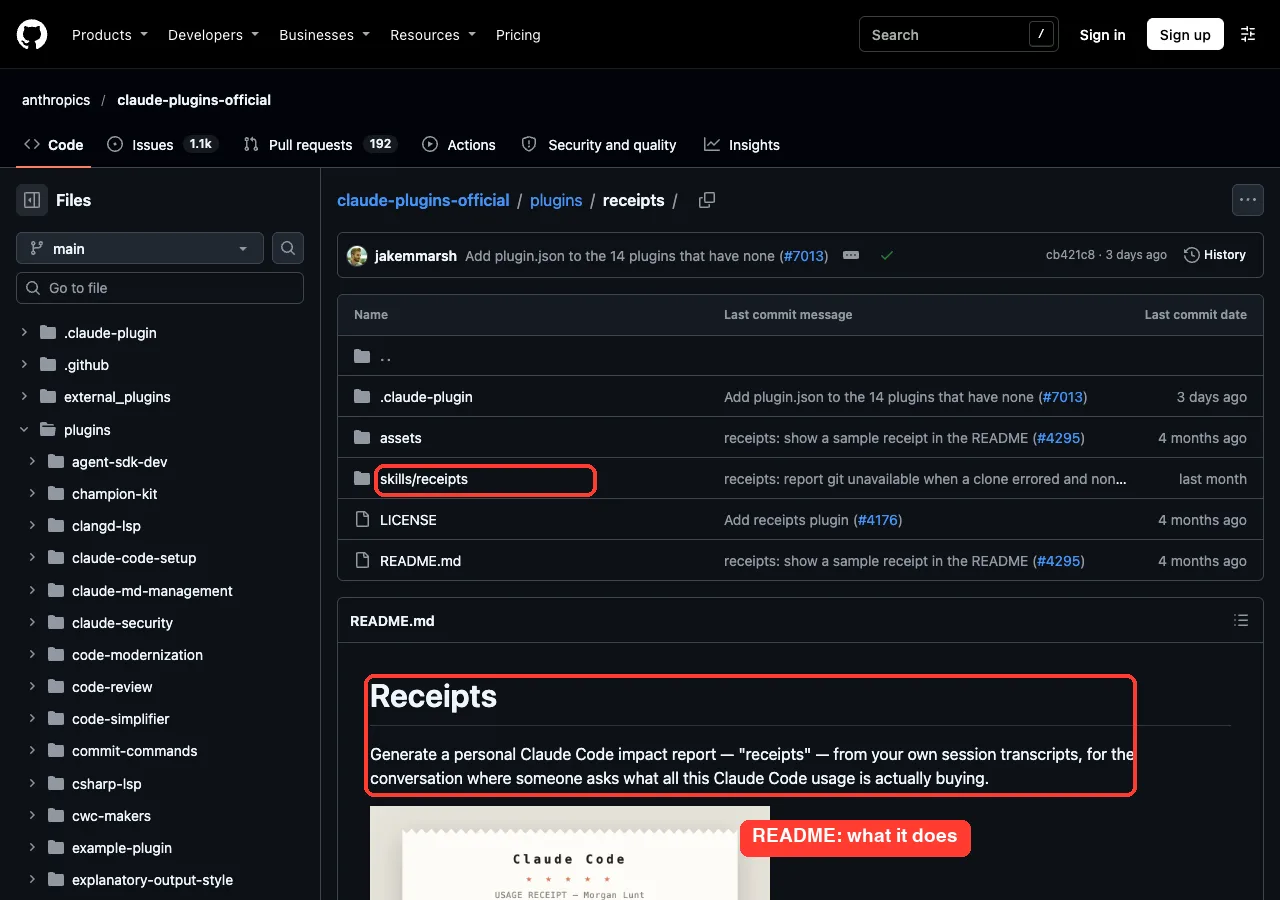
The README describes it as a report for the conversation where someone asks what all this Claude Code usage is actually buying. It is a personal tool, not a team dashboard. Everything comes from one machine and one person’s history.
Who should use it
- Developers who need to justify their Claude Code usage to a manager.
- People writing a quarterly or yearly self-review.
- Anyone curious where their sessions actually went, including the research that never touched a file.
A skill inside a plugin
If plugins are new to you, read our guide on plugin basics first. The receipts plugin is small: it holds one skill called receipts, a Node script that does the counting, a README and a sample image. It has no hooks and no MCP servers, which keeps its footprint light.
How to Install the Claude Code Receipts Plugin
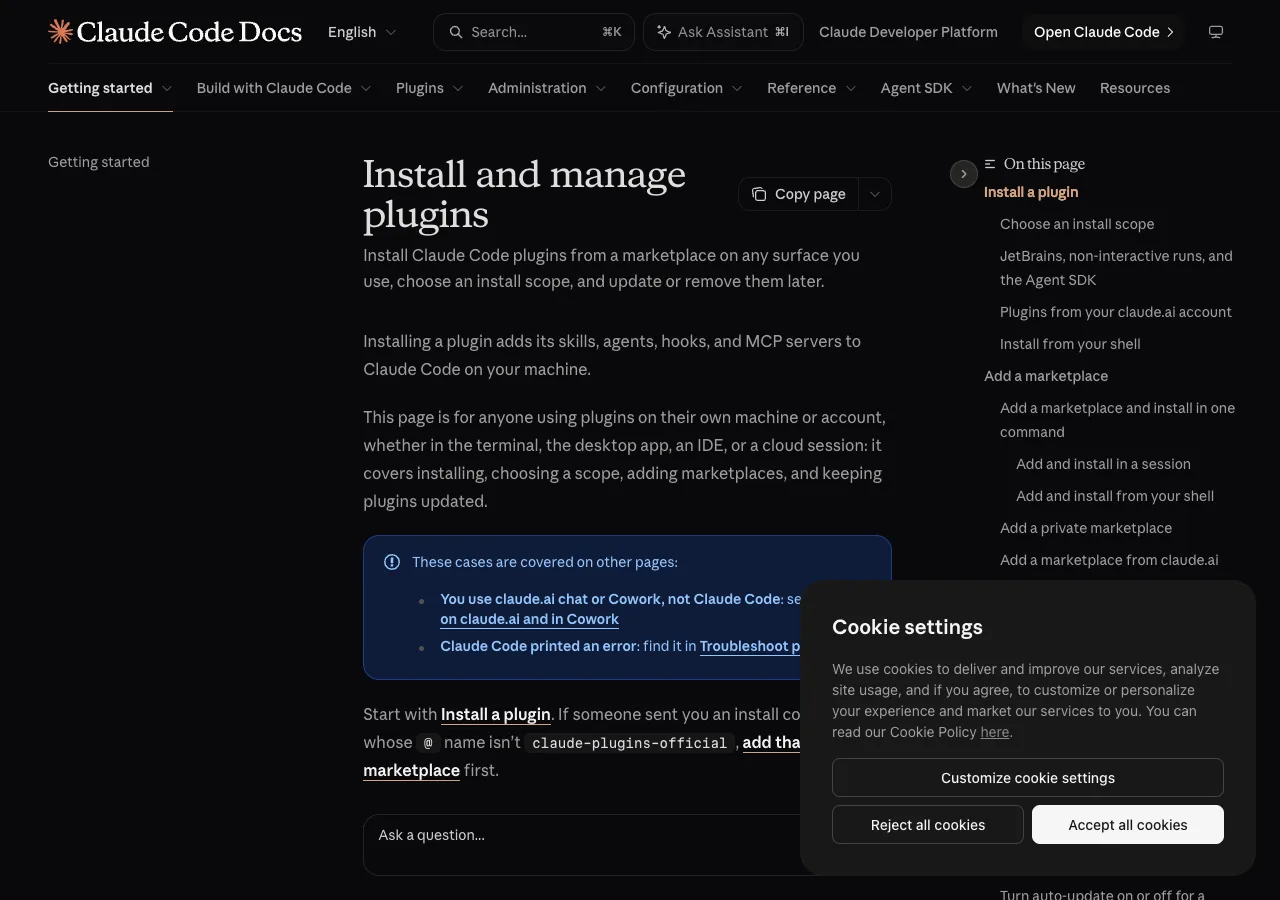
Inside Claude Code, run the install command from the official marketplace. Anthropic’s official marketplace is already available in Claude Code, so there is nothing to add first.
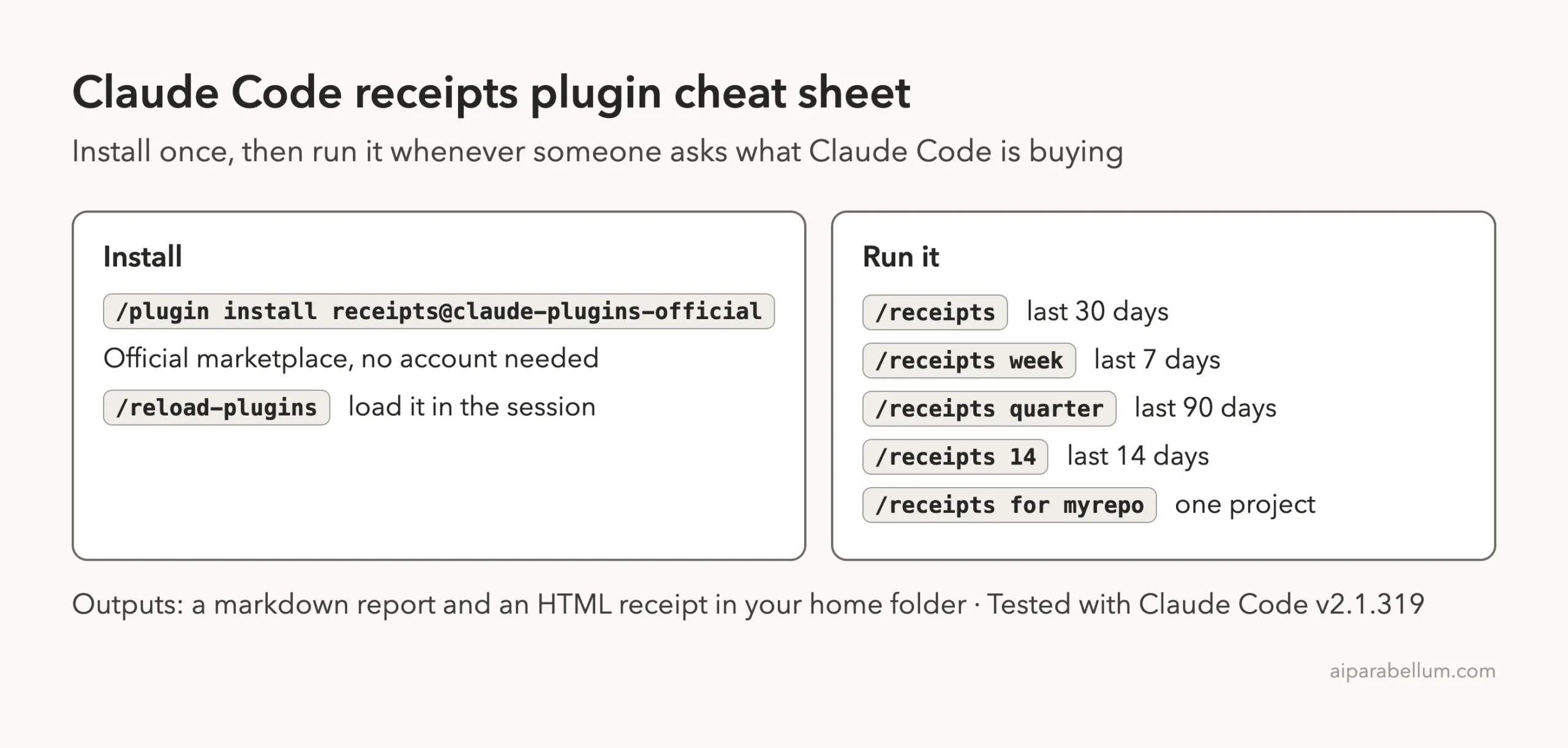
/plugin install receipts@claude-plugins-officialAfter the install, reload plugins or restart Claude Code so the skill is available in your session. The official docs cover scopes, updates and removal in detail, so see install plugins.
How we loaded it for the test
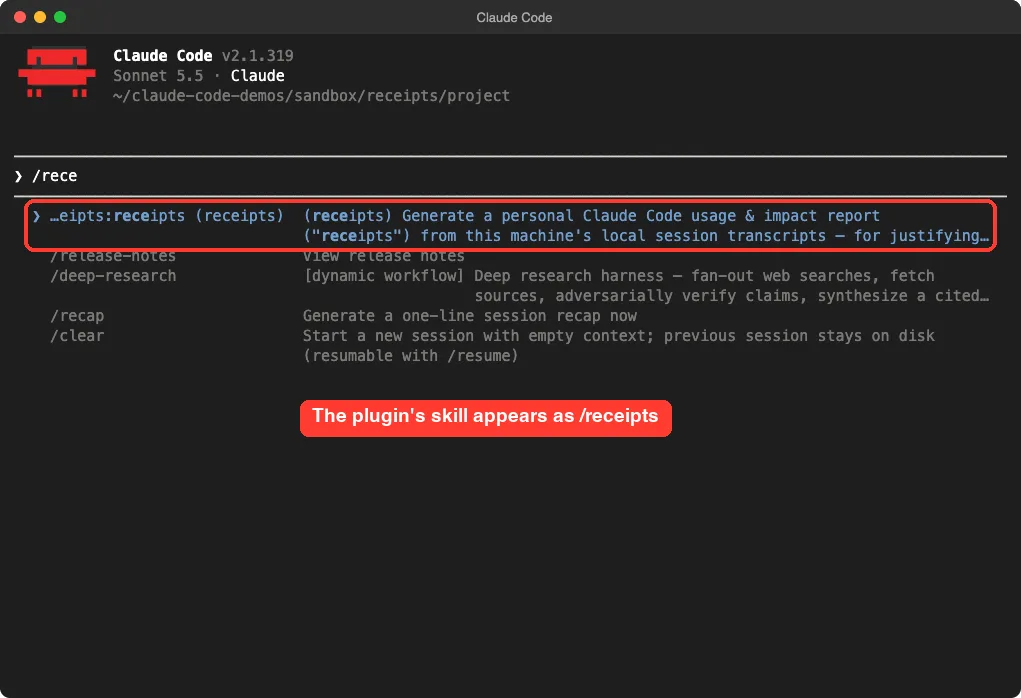
To keep our own setup untouched, we did not install it. We cloned the official repository into a throwaway folder and started Claude Code with the plugin folder passed through the --plugin-dir flag. We also used --setting-sources project so no personal settings were loaded.
claude --plugin-dir ./plugins/receipts --setting-sources projectTyping /rece at the prompt brought up the plugin’s skill at the top of the list, with its description next to it.
How to Use /receipts and Its Options
The command takes an optional period or project name. With no argument it covers the last 30 days.
| Command | What it covers |
|---|---|
/receipts | The last 30 days |
/receipts week | The last 7 days |
/receipts quarter | The last 90 days |
/receipts 14 | The last 14 days |
/receipts for myrepo | One project only, totals included |
The skill also understands year for 365 days. According to the README, the run takes about one second for a week of history and about five seconds for a year.
What happens when you run it
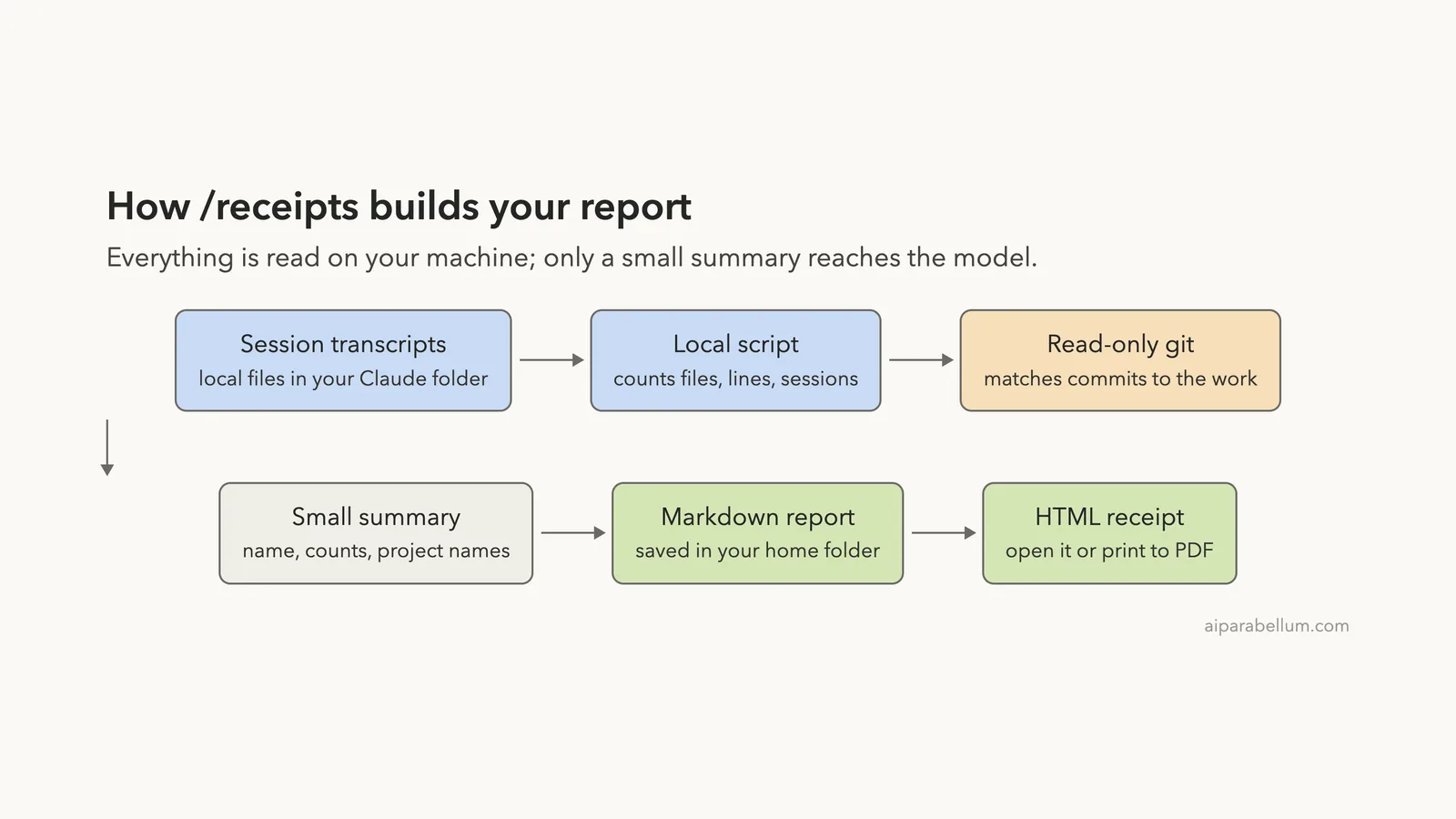
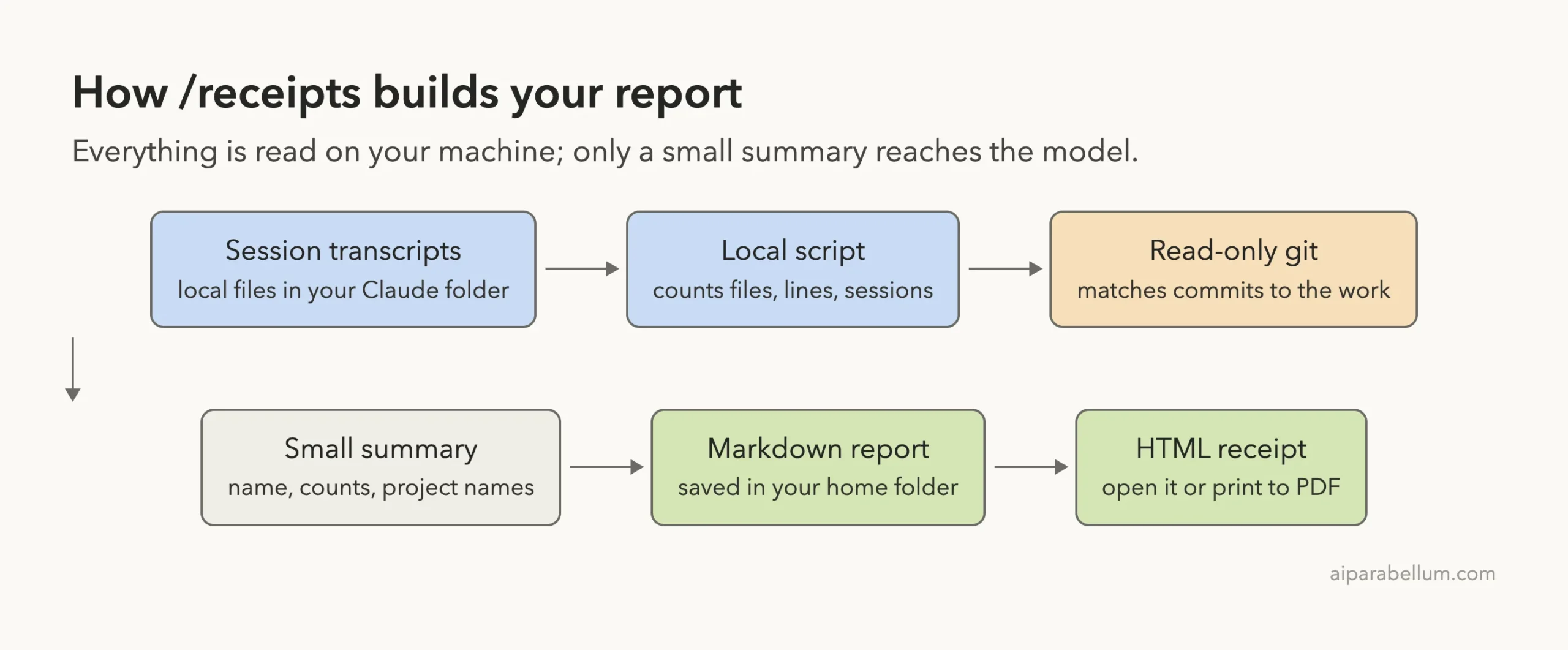
- Claude runs the bundled script, which scans your transcripts for the chosen period.
- The script writes an HTML receipt and prints a small summary of numbers.
- Claude writes a markdown report from that summary only.
- Both files are saved in your home folder, and Claude lists the project names the report contains.
What the Impact Report Contains
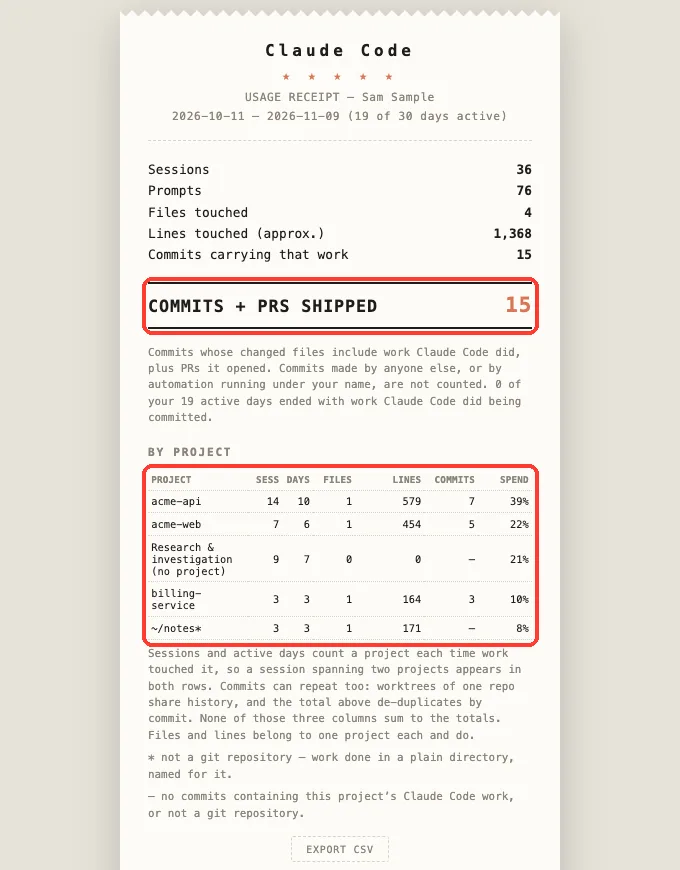
We pointed the mining script at invented sessions for a fictional developer with three git repositories, a notes folder and some web research. Here is the HTML receipt it produced.
What you shipped
The top block lists sessions, prompts, files touched and lines touched. The lines figure is labeled approximate on purpose. It measures the size of edited regions, and an edit that revisits the same region counts again, so it is not a diff size.
The headline is commits plus pull requests. A commit only counts when you authored it and its changed files include something Claude Code touched. In our sample, that came to 15 commits across three repositories.
By project
The table shows sessions, active days, files, lines, commits and each project’s share of usage. Work outside a git repository is named after its folder, and our notes folder appears with an asterisk. Sessions that touched no files appear as a row called Research and investigation, which the plugin notes is the biggest row for many people.
The spend column is a share, never a dollar amount. The script weighs token counts against each other only to rank projects, and it does not convert them into money.
Honest footnotes
The receipt tells you which columns do not add up. Sessions and active days can repeat across projects, and commits can repeat when worktrees share history. That honesty is a feature: nobody can catch you out by adding a column.
One detail from our run: the receipt said 0 of 19 active days ended with committed work. That happened because we created the sample commits all at once, not on the days of the sessions. With real daily work that number would be higher, and it is a good reminder that the report only reflects the data you feed it.
The Framing for a Manager Section
The skill’s instructions tell Claude to add two or three sentences suggesting how to present the numbers. They push you to lead with shipped output, not activity volume, and to say plainly that the report is self-reported from one machine.
They also ask you to add one or two concrete wins by hand. A story such as a migration that took 20 minutes instead of a day lands better than any total.
Lead with what shipped, then back it up with one real story.
What the Plugin Deliberately Leaves Out
The design is cautious. The plugin will not show dollar figures, hours saved or a breakdown of spend by activity. Its instructions explain that each of those would be a guess dressed up as a measurement, and one bad number would hurt trust in the rest.
If you want savings, you will have to write them yourself. If you want a cost-cutting list instead, the README points you to a sister plugin called session-report, and our guide to reducing token usage covers the same goal by hand.
Privacy: What Stays on Your Machine
This is the question to answer before you install anything that reads your history. According to the README, the counting uses local file reads and read-only git commands, with no network calls.
- It reads your session transcripts from your Claude folder.
- It runs
git rev-parsein the directories those sessions touched, and in repositories it reads your git email and runsgit log. - Only a small summary reaches the model: your name from git, counts and project names.
- No code, no conversation text and no tool or MCP server names are sent, and your email is used locally only.
We read the bundled script before running it. It uses file reads and git commands, and we found no network code in it.
Still, project names appear in the report exactly as they are on disk, so the skill reads them back to you before you share anything. Use /receipts for myrepo if a codename should stay out.
Treat project names as data
The skill also warns that a folder name could be written like an instruction. It tells Claude to treat names as plain labels. That is a thoughtful guard, though you should still skim the output before you send it.
Try It Yourself
Install the plugin in a project you do not mind reviewing, then ask for a short window first. A week is a quick way to see the format.
/receipts weekWhen it finishes, open the HTML file, check the project list, and try the Export CSV button. Then scope it to one repository.
/receipts for my-projectCommon Mistakes
- Sending the report without reading the project names first.
- Presenting lines touched as lines of code written.
- Expecting dollar savings or hours saved; the report does not guess them.
- Judging the report on a window with few sessions. Try
quarterfor a fuller picture. - Forgetting that only this machine’s history counts. Work done on another computer is not included.
Pro Tips
- Run it monthly and keep the markdown files; they make a tidy history for a review.
- Add your own wins by hand under the framing section.
- Use the project filter before sharing with someone outside your team.
- Print the HTML receipt to PDF if you need an attachment.
- Pair it with other add-ons from our plugin building guide if you want to write your own report plugin.
Honest Verdict
The receipts plugin does one job and keeps its promises small. The counting script is local, fast and careful about what it claims, and the receipt is clear enough to paste into a review.
It is not a measure of productivity, and it says so itself.
Install it if you need a quick, defensible summary of your Claude Code work. Skip it if you want cost savings or a team-wide view. For a deeper look at how Claude fits into your tools, see our overview of Claude.
/receipts optionsFrequently Asked Questions
Is the Claude Code receipts plugin free?
The plugin itself is free and comes from Anthropic’s official marketplace. The final write-up uses one model call, so it counts toward your normal usage, but the README says that call covers only a small summary.
Does it send my code to Anthropic?
According to the README, no. Only a name, counts and project names go to the model. The counting runs locally.
Where are the report files saved?
The skill saves a markdown report and an HTML receipt in your home folder, with the date range in the file names. Nothing is published anywhere unless you ask.
Can it show how much money I spent?
No. It avoids dollar figures on purpose and shows each project’s share of usage instead.
Does it work on Windows and Linux?
We tested on macOS. The script’s own comments mention Windows path handling, and the README names Linux for opening the HTML file, but check the official docs for current details.
Conclusion
The Claude Code receipts plugin gives you a calm, evidence-based answer to a question every heavy user gets asked. It counts what shipped, splits usage by project, refuses to invent savings and keeps the work on your machine. Install it, run /receipts week, read the project list, and add your own best story before you share it. For more tools like it, keep browsing the directory linked at the top.