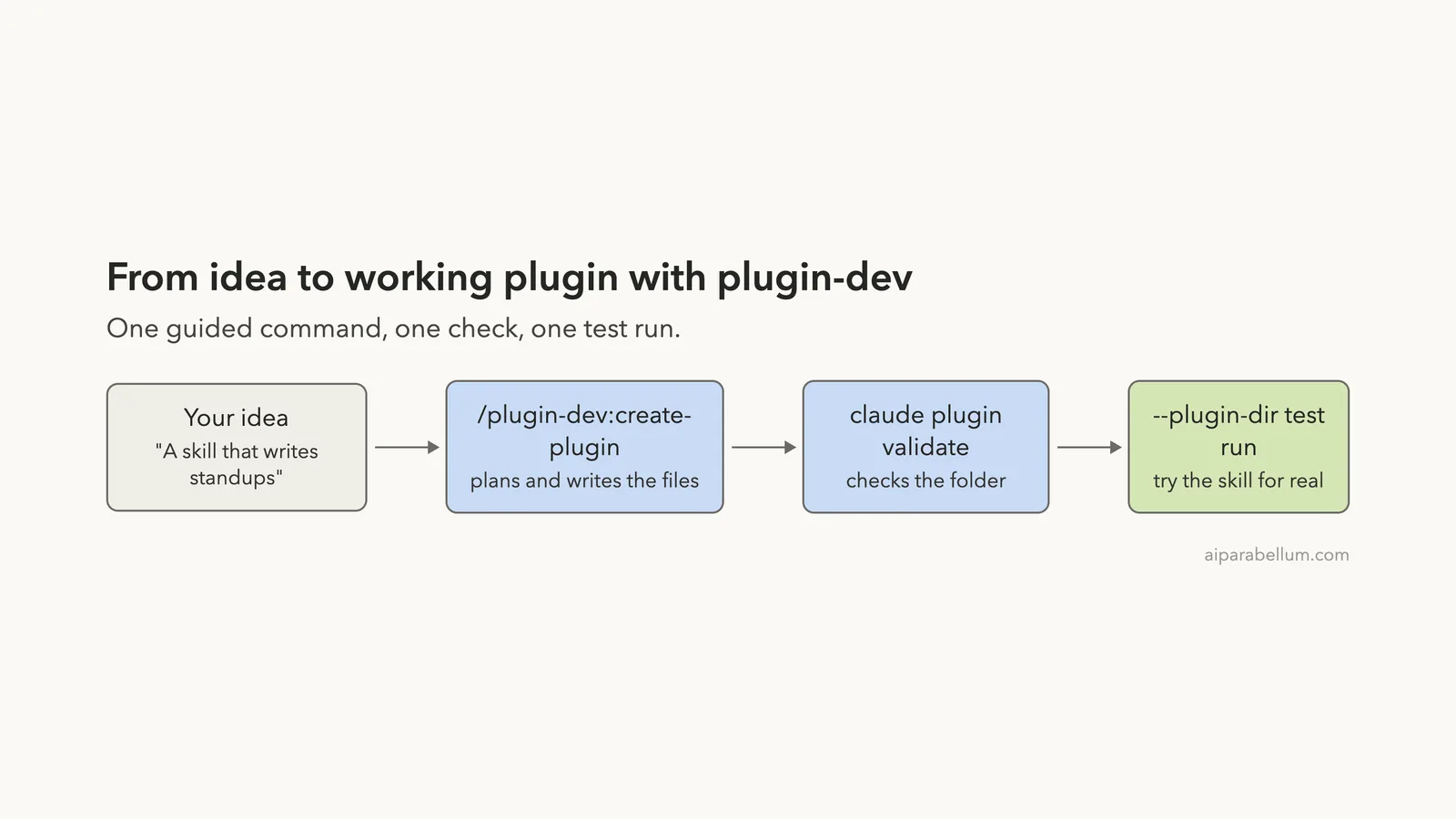
If you want to try Claude Code plugin dev without reading a pile of specs first, Anthropic ships a plugin that does the heavy lifting. It is called plugin-dev, and it teaches Claude how plugins are put together so Claude can build one for you. In this guide we used it to build a small plugin from scratch, check it, and run it.
This guide is part of our Claude Code tutorials. Find more add-ons in our Skills Directory.
Tested with Claude Code v2.1.318 and plugin-dev v0.1.1 (repository commit 0412be7) on 2026-11-07 (macOS).
We cloned the plugin into a throwaway sandbox and read every file first. It has no hooks of its own, only example scripts that sit in its reference folders. We loaded it for one session with a command-line flag, so nothing was installed into the normal Claude Code setup.
Quick Summary: What plugin-dev Gives You
| Item | What we found |
|---|---|
| Maker | Anthropic, in the official plugins repository |
| Install command | /plugin install plugin-dev@claude-plugins-official |
| Guided command | /plugin-dev:create-plugin |
| Skills inside | Seven: plugin structure, skills, commands, agents, hooks, MCP servers and plugin settings |
| Extra helpers | Three agents: agent-creator, plugin-validator and skill-reviewer |
| Account needed | No |
| What we built | A plugin named standup-notes with one skill, done in 42 seconds of Claude time |
What a Claude Code Plugin Is
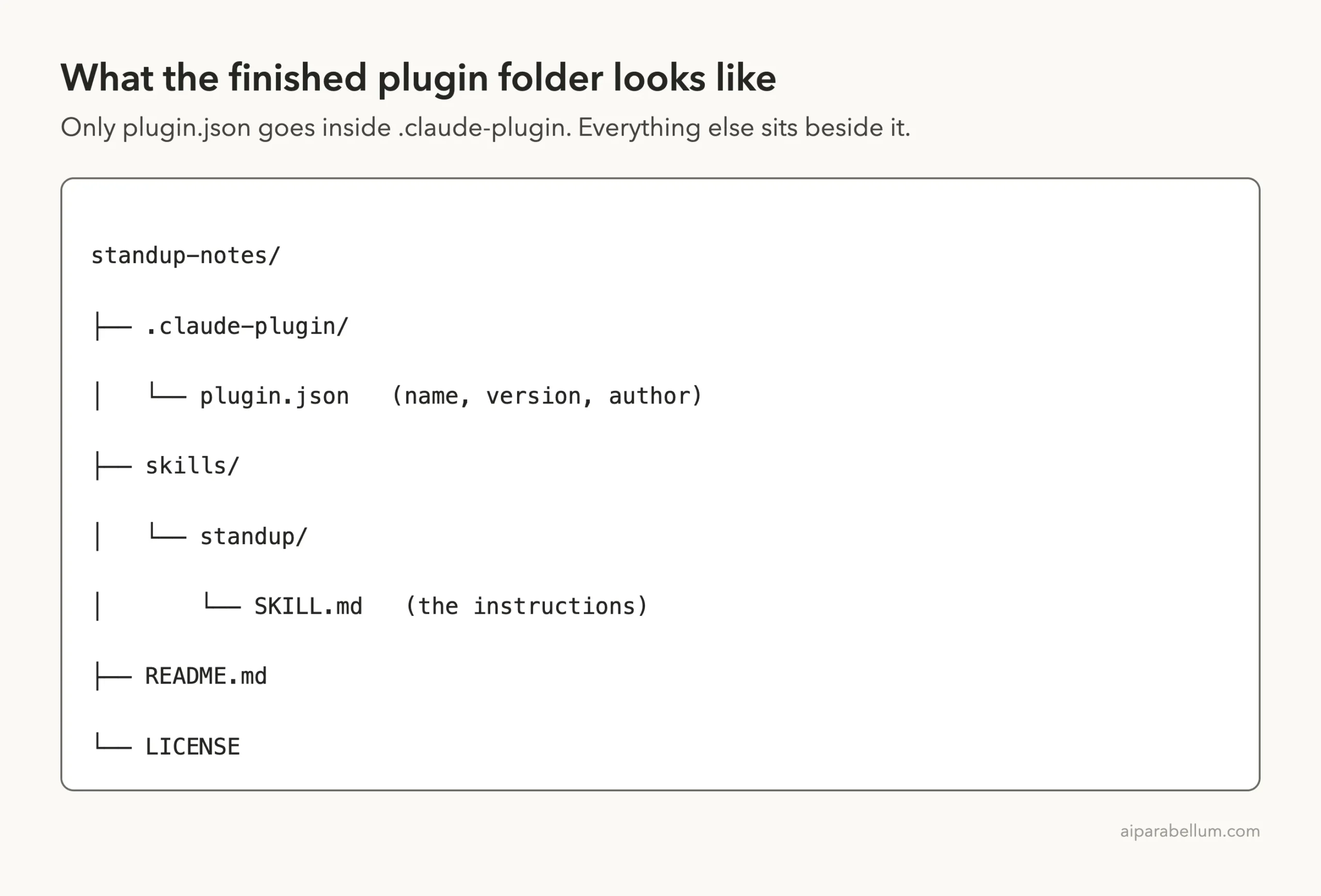
A plugin is a folder that bundles things Claude Code can use. The official docs list skills, agents, hooks, a hooks module and MCP servers as the parts a plugin can hold. A small file called .claude-plugin/plugin.json gives the plugin its name, version and description.
Most people get plugins from a marketplace, which is a catalog of plugins. You can also load one straight from a folder, which is what we do here. If you are new to the idea, our guide to Claude Code plugins explains how to find and manage them.
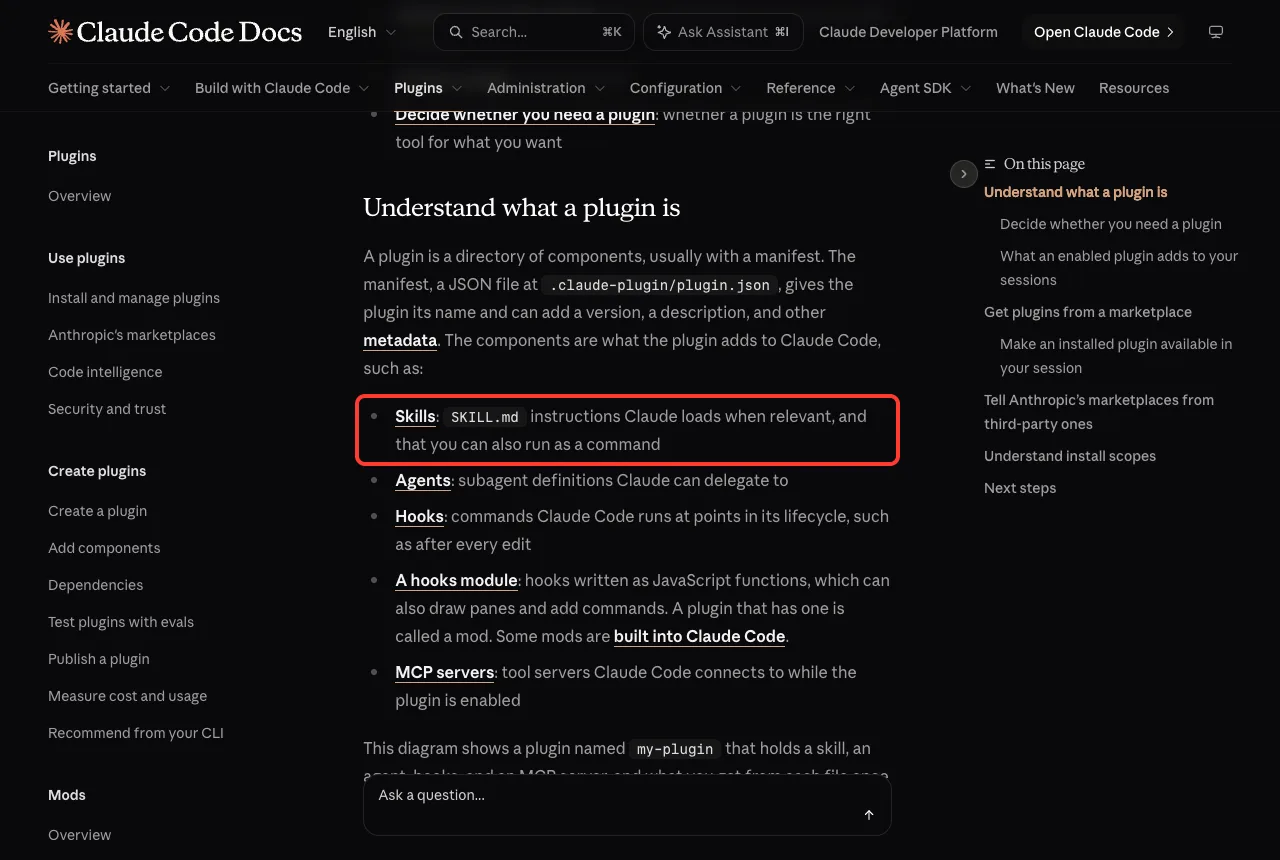
Because a plugin can run commands as you, it pays to read one before you load it. The docs tell you to review what a plugin runs first. That habit is also why we read plugin-dev’s files before using it.
What plugin-dev Is and Why It Exists
Writing a plugin by hand means remembering many small rules. Where does the manifest go, and how should a skill description be worded? What does a hook file look like?
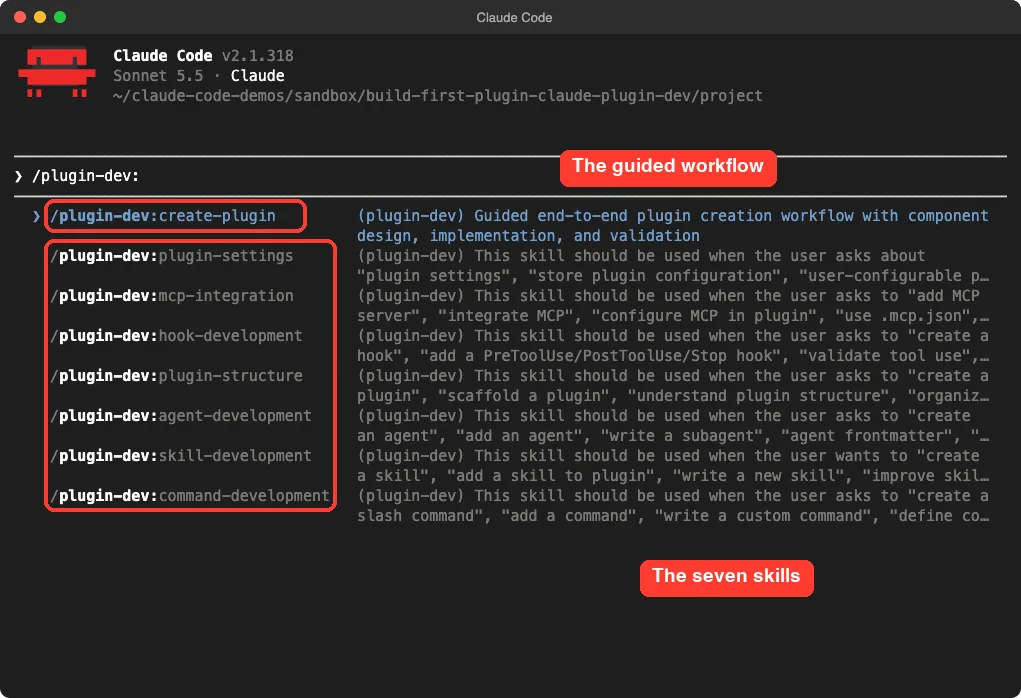
The plugin-dev toolkit answers those questions by packing the rules into seven skills. When you ask for something like a new skill or a new hook, Claude loads the matching skill and follows it. The toolkit also adds one guided command, /plugin-dev:create-plugin, which walks through discovery, planning, building, validating and testing.
Its own README describes an eight-phase workflow and says it asks clarifying questions at each phase. We asked it to skip the questions to keep the demo short, and it did.
Step 1: Load plugin-dev for One Session
We started Claude Code in an empty demo folder and pointed it at the cloned plugin with --plugin-dir. We also added --setting-sources project so no personal settings were read.
claude --plugin-dir ./repos/claude-plugins-public/plugins/plugin-dev --setting-sources projectTo confirm it loaded, we typed /plugin-dev: and let the menu open. The guided command and all seven skills appeared, each with a short note about when Claude uses it.
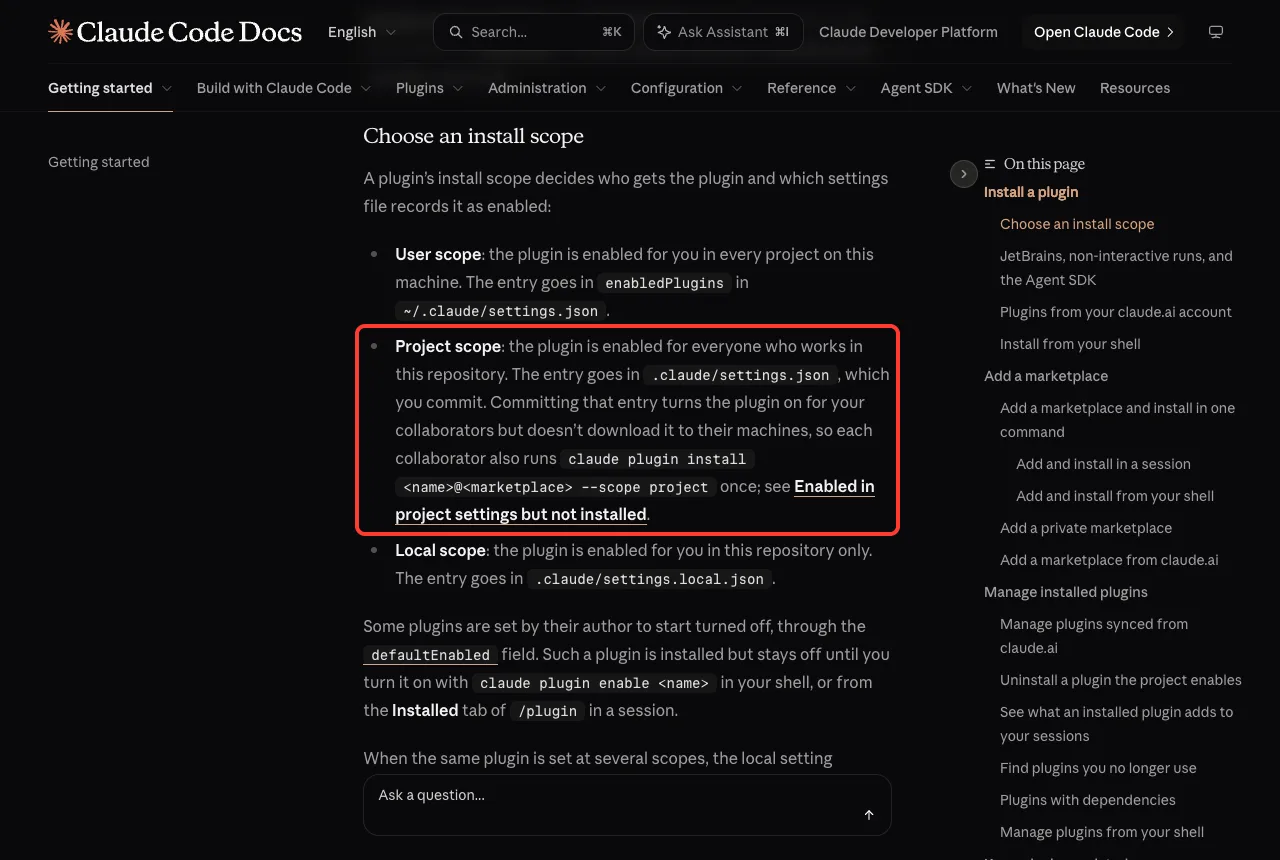
If you would rather install it for good, the command is /plugin install plugin-dev@claude-plugins-official. The docs describe three install scopes: user, project and local. They decide who gets the plugin and which settings file records it.
Step 2: Ask for a Plugin With the Guided Command
Our idea was small on purpose: a plugin with one skill that turns rough notes into a three-bullet standup update. We gave Claude the guided command plus a one-sentence description.
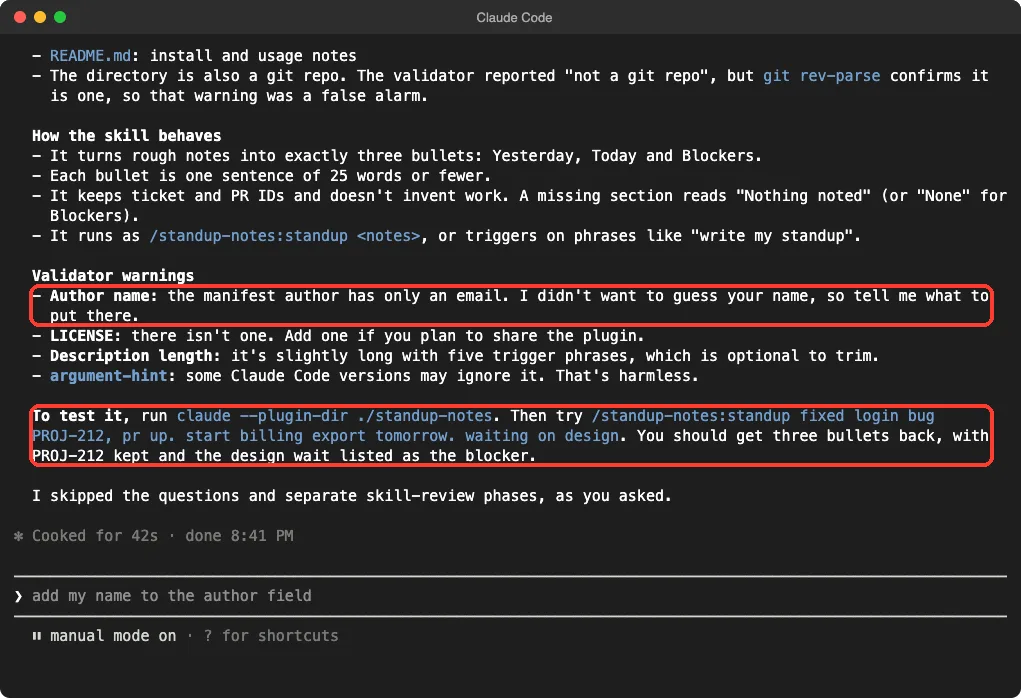
/plugin-dev:create-plugin A tiny plugin called standup-notes with one skill that turns rough notes into a three-bullet standup update. Skill only, no hooks, no MCP, no agents. Create it in ./standup-notes. Skip questions and use sensible defaults.Claude worked for 42 seconds, then reported what it made. It also listed a few warnings from its own validation step. One of them said the manifest author had only an email and no name, which Claude would not guess.
That is a good sign of how the toolkit behaves. It flagged a gap and told us how to test the result instead of hiding the gap.
Step 3: Look at What Was Built
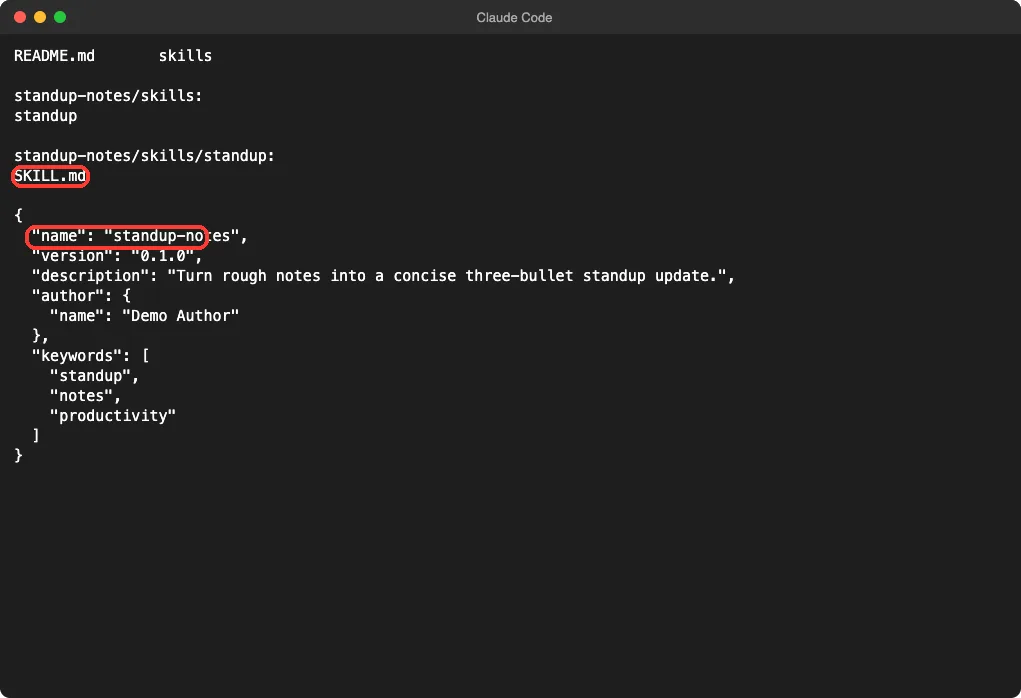
The result is a folder with three real files: a manifest, one skill and a README. A skill is a folder holding a SKILL.md file, and the folder name becomes part of the command.
The manifest Claude wrote had our own email address as the author. We replaced it with a placeholder name before going further, because an address in a manifest would travel with the plugin if you ever shared it. If you build your own, check that field first.
The SKILL.md File
The skill file starts with a few lines of settings, then plain instructions. The description is written as a list of phrases a person might say, such as “write my standup”. That is how Claude decides when to use the skill by itself.
The body states the output format, a short list of rules and one worked example. Here is the top of the file, trimmed:
---
name: standup
description: This skill should be used when the user asks to "write my standup", "turn these notes into a standup", ...
argument-hint: <rough notes>
version: 0.1.0
---

# Standup Update

Convert rough, unstructured notes into a standup update of exactly three bullets.

## Rules
- Output only the three bullets.
- Keep each bullet to one sentence, 25 words or fewer.
- Preserve ticket IDs and PR numbers when present.
- Do not invent work.
Step 4: Validate the Plugin
Claude Code has a built-in checker. Run claude plugin validate with the path to your plugin folder and it reads the manifest and the components. Adding --profile directory applies the stricter checks Anthropic’s plugin directory uses for submissions.
claude plugin validate ./standup-notes --profile directoryOur first run failed. The directory profile refuses a plugin that has no LICENSE file and no license field in the manifest. It also warned that we had no icon, and it advised adding an install line to the README.
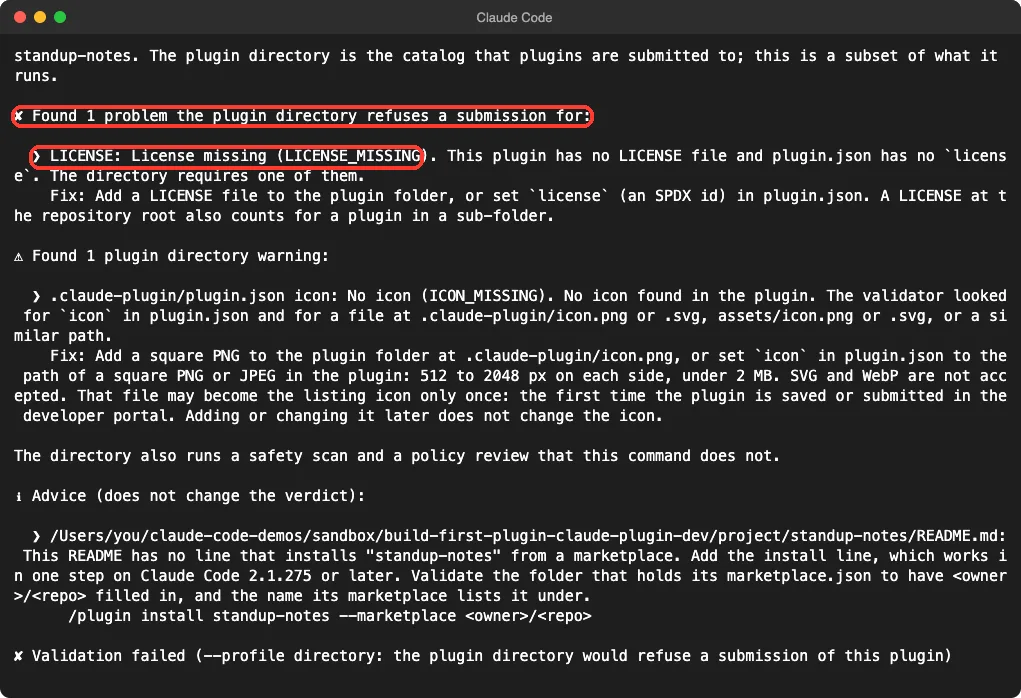
We copied a license file into the folder and ran the check again. The only license text we had on hand was the one plugin-dev ships, so we used a copy of it as a stand-in for the demo. For your own plugin, pick the license you actually want.
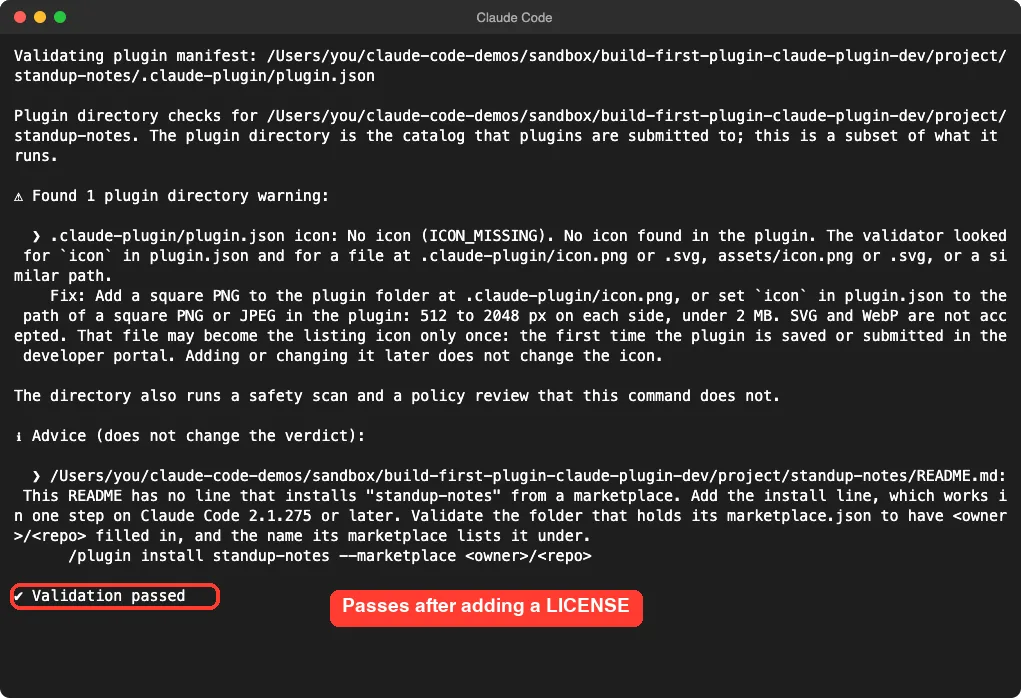
This time the result was a pass. The icon warning stayed, but the tool says warnings do not change the verdict.
Step 5: Test the Skill for Real
Now for the fun part. We started a fresh session that loaded only our new plugin, again with --plugin-dir. Typing /standup-notes:standup showed our skill in the menu with its description.
We then ran it with a messy note: fixed a login bug with a ticket number, long meetings, billing export tomorrow, waiting on design. Claude answered with exactly three bullets. The ticket number stayed, the meetings were dropped, and the design wait became the blocker.
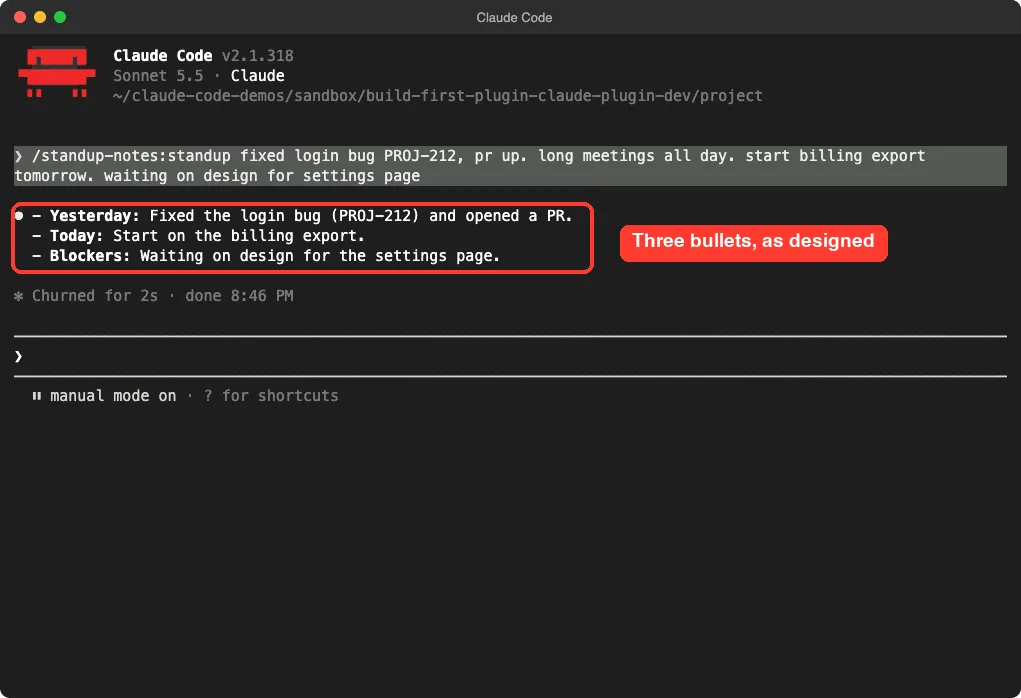
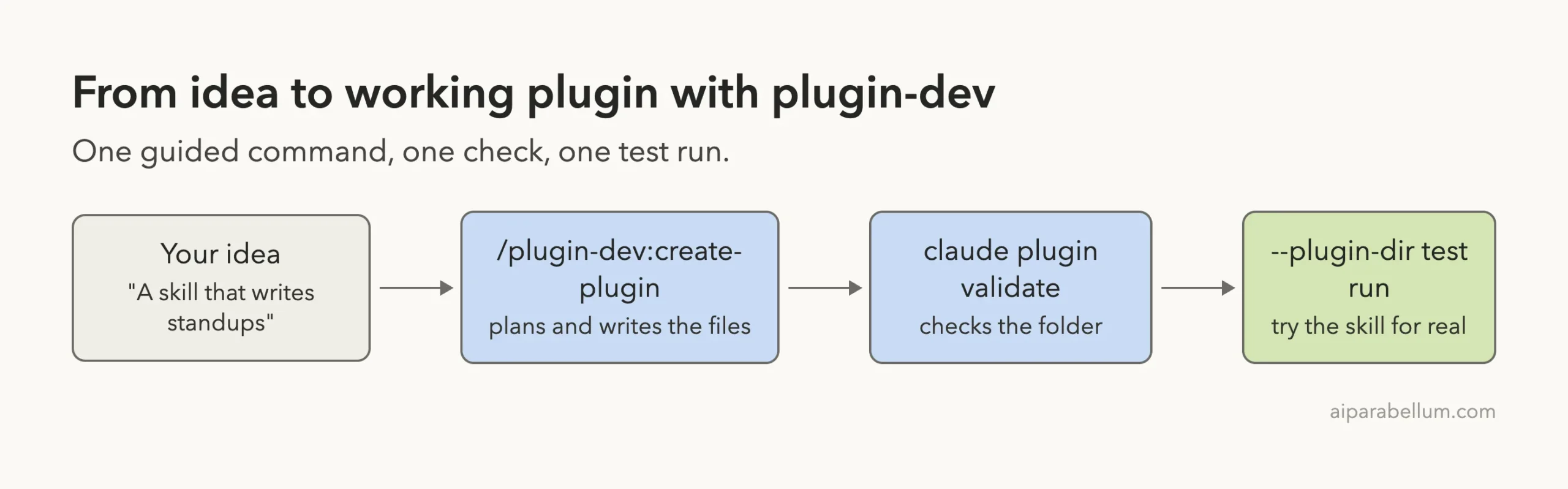
This was one run on one note, so treat it as a demo and not a benchmark. Still, it shows the whole loop works: idea, files, check, real use.
What the Other Skills Are For
We only needed the guided command and the skill-writing help. The rest of the toolkit covers the other plugin parts, and you can call each skill by name. Here is how they map to the plugin pieces, based on the descriptions plugin-dev shows in the slash menu.
| Skill | Use it when you want to |
|---|---|
plugin-structure | Lay out folders and the manifest |
skill-development | Write or improve a skill |
command-development | Add a slash command |
agent-development | Write a subagent |
hook-development | Run a script on events like before a tool runs |
mcp-integration | Bundle an MCP server connection |
plugin-settings | Let users configure your plugin |
We did not run the agent, hook or MCP skills in this test. For hooks, the toolkit ships example scripts and checker scripts in its reference folders, which are worth reading even if you never run them. To understand where plugins sit next to other building blocks, see our comparison of skills versus plugins.
Our Honest Verdict
One guided command, one license fix and one test run took us from an idea to a working plugin.
The toolkit works as advertised for a small plugin. The guided command produced a clean, valid structure in under a minute, and its own warnings were honest ones.
It also has limits we saw. The generated manifest copied a personal email, the first validation failed on a missing license, and the plugin needed a manual check of its author field. A first draft from Claude still needs your review.
- Install it if you plan to make skills or plugins for your team or for sharing.
- Skip it if you only want to try a plugin someone else wrote.
- Use the full guided workflow, with its questions, for anything bigger than a single skill.
If you want a plugin that creates hooks for you, our guide to the hookify plugin covers that angle. To see another official plugin in action, read how the feature-dev plugin guides a build.
Try It Yourself
Pick a tiny repeat task you do each week, such as turning meeting notes into action items. Load plugin-dev for one session, then paste this prompt and adjust the name and task.
/plugin-dev:create-plugin A plugin called meeting-actions with one skill that turns raw meeting notes into a list of action items with owners. Skill only. Create it in ./meeting-actions. Ask me at most two questions.When it finishes, run claude plugin validate ./meeting-actions, fix anything it flags, and test it with claude --plugin-dir ./meeting-actions.
Common Mistakes
- Putting skills, agents or hooks inside
.claude-plugin. Onlyplugin.jsonbelongs there. - Leaving a personal email or name in the manifest author field.
- Skipping the license, then finding the directory check fails when you try to share.
- Writing a vague skill description, so Claude never picks the skill on its own.
- Installing a toolkit for good when a one-session
--plugin-dirtest would do.
Pro Tips
- Read any plugin’s files before loading it, because what it runs, it runs as you.
- Ask for a small plugin first. You can add parts later with the other skills.
- Run
claude plugin validateafter every change, not only at the end. - Use phrases people really say in the skill description, such as “write my standup”.
- Check the official docs for a plugin’s token cost before installing it for good. The plugins overview explains what an enabled plugin adds to every session.
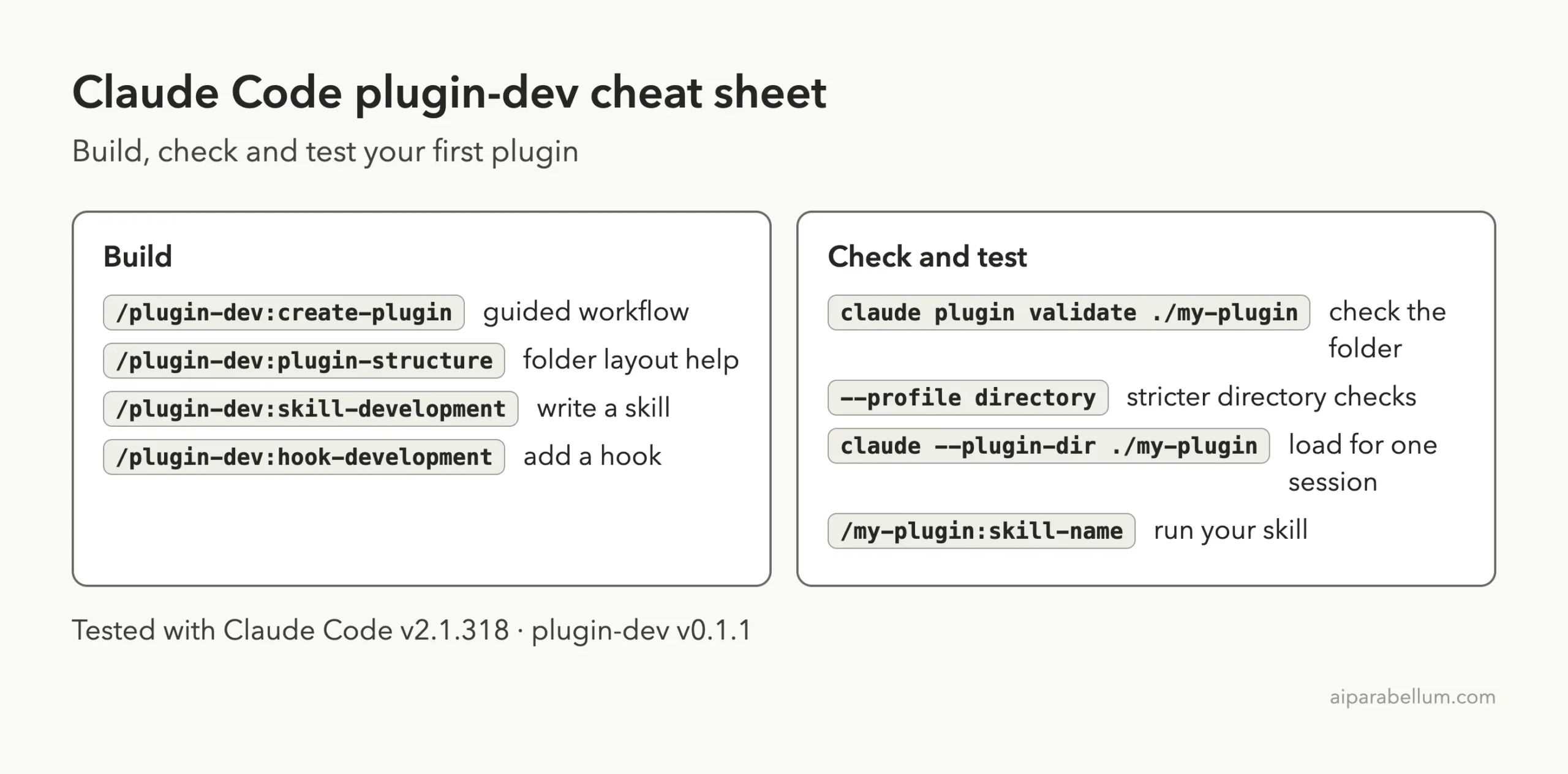
Cheat Sheet
Frequently Asked Questions
Is plugin-dev free to use?
Yes. It needs no account and no key. It runs inside Claude Code, so normal Claude Code usage applies.
Can I use plugin-dev without installing it?
Yes. Clone the repository and start Claude Code with --plugin-dir pointing at the plugin folder. That is how we tested it, and the plugin stays out of your normal setup.
What is the difference between a skill and a plugin?
A skill is one set of instructions in a SKILL.md file. A plugin is a folder that can bundle skills with agents, hooks and MCP servers, plus a manifest. Our plugin held a single skill.
Does the generated plugin work right away?
In our demo it did. It passed validation after we added a license and ran correctly on our test note. Review the result anyway, especially the author field.
How do I share the plugin I built?
The official docs cover publishing through your own marketplace or Anthropic’s directory. Start with the install guide to see how people add a plugin on their side.
Conclusion
Claude Code plugin dev is much easier with plugin-dev beside you. We went from a one-line idea to a validated, working plugin in a short session: one guided command, one license fix and one test run. It is a solid start for anyone who wants to package their own skills, and you can learn more about the wider ecosystem in our Claude guide and our guide on how to create a plugin.