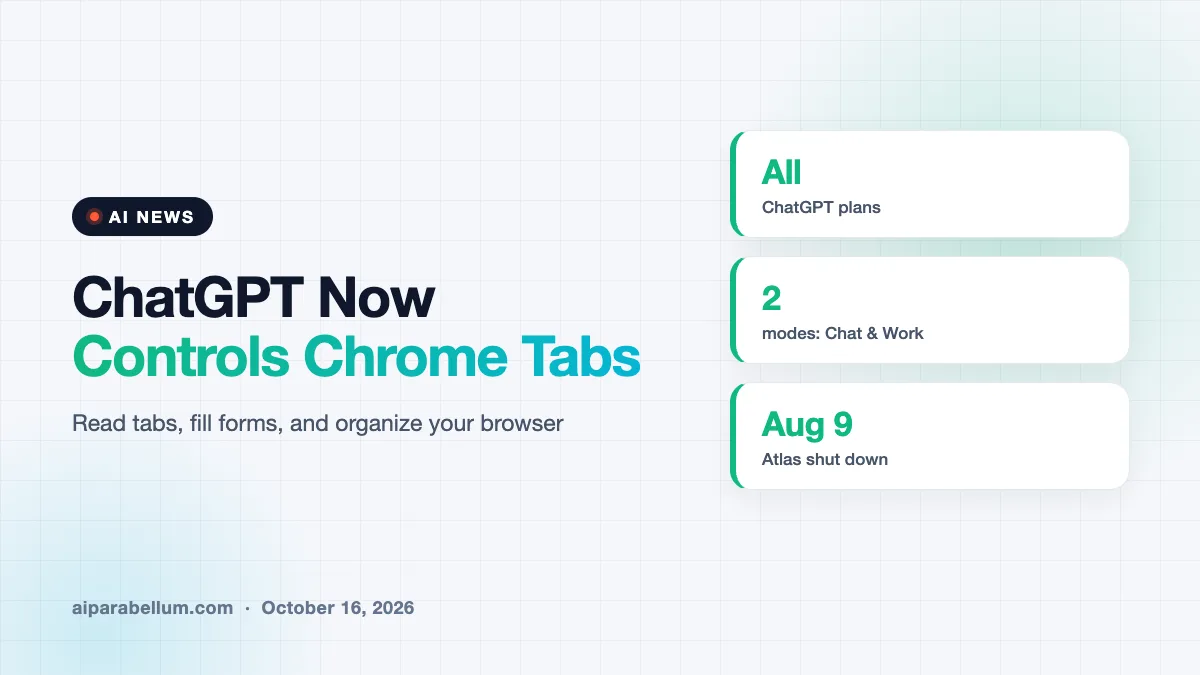
OpenAI has given its ChatGPT Chrome extension a major upgrade that lets the assistant look across the tabs you already have open and act inside them. You can tag Chrome in a chat, ask ChatGPT to compare what is on those pages, and even have it fill out forms or send messages for you. The update arrived on October 15 and is available on all ChatGPT plans.
What the ChatGPT Chrome Extension Can Do Now
The upgrade splits into two modes. In Chat, ChatGPT can pull information from your open tabs to give better answers. In Work, OpenAI’s agent for longer tasks, ChatGPT can take control of tabs to get things done.
OpenAI shared a demo where someone asks ChatGPT to compare three sofas sitting in three separate tabs. That kind of side-by-side shopping research used to mean a lot of copying and pasting.
Sample Tasks OpenAI Suggests
OpenAI posted several example prompts to show what the extension can handle. Here are a few of the ideas, in plain terms:
- Compare products, like couches or pricing pages, across several open tabs.
- Copy vendor details from your tabs into a comparison sheet with links.
- Fill out an event registration form from a brief, stopping before you submit.
- Compare contractor services and draft an email to the best fit.
- Complete a new-patient form and add the visit to your calendars.
A Better Sidebar Too
The sidebar inside Chrome also got a refresh. It now brings your full ChatGPT conversation history into the browser, so you can ask questions in Chat or run tasks in Work right next to the page you are reading. ChatGPT can also group and organize messy tabs for you.
How the ChatGPT Chrome Extension Stacks Up
This move puts OpenAI head to head with Google, which already offers a Gemini-powered auto browse feature inside Chrome. It also follows OpenAI’s decision to shut down its own Atlas browser earlier this year.
| Feature | Chat mode | Work mode |
|---|---|---|
| Read open tabs | Yes | Yes |
| Fill out forms | No | Yes |
| Send messages or download files | No | Yes |
| Organize and group tabs | No | Yes |
| Full chat history in sidebar | Yes | Yes |
According to OpenAI’s release notes, Atlas stopped working on August 9, and users were pointed to the extension instead. The extension later expanded to Microsoft Edge, Brave, Opera, and Vivaldi as well.
Privacy and Permission Controls
Letting an AI click around your browser raises fair questions. OpenAI’s documentation says ChatGPT asks before it interacts with each new website by default.
You can allow a site once, allow it always, allow all sites, or decline. OpenAI labels the “allow for all sites” option and browser history access as elevated risk, and it says history access only applies to a single request.
The extension can work on sites where you are already signed in. That is powerful, but it also means the agent could act inside accounts like email or work tools, so the permission prompts matter. If you want a refresher on safe habits, our guide to AI protection tools is a good start.
What This Means for You
If you live in Chrome all day, this could save you real time on research, shopping, and paperwork. It turns ChatGPT from a separate chat window into a helper that sees what you see.
- Install or update the extension from the Chrome Web Store, then tag Chrome in the ChatGPT app.
- Start with low-risk jobs, like comparing products or summarizing a few tabs.
- Keep site permissions narrow and avoid “allow for all sites” unless you truly need it.
- Always review forms and messages before anything gets submitted or sent.
You can also explore other Chrome extension tools and broader AI agent tools. For a look at how rival agents handle shopping, see Google’s Universal Cart, or catch up on more stories on our AI news page.
Sources
This article is based on reporting from The Verge and Unite.AI.
Conclusion
OpenAI’s upgraded Chrome extension lets ChatGPT read your open tabs, take actions inside them, and keep your full chat history in a sidebar. It fills the gap left by the retired Atlas browser and puts ChatGPT in direct competition with Gemini inside Chrome. The convenience is real, but so is the need to manage permissions carefully. Start small, keep a close eye on what the agent does, and you can get a lot of busywork off your plate.