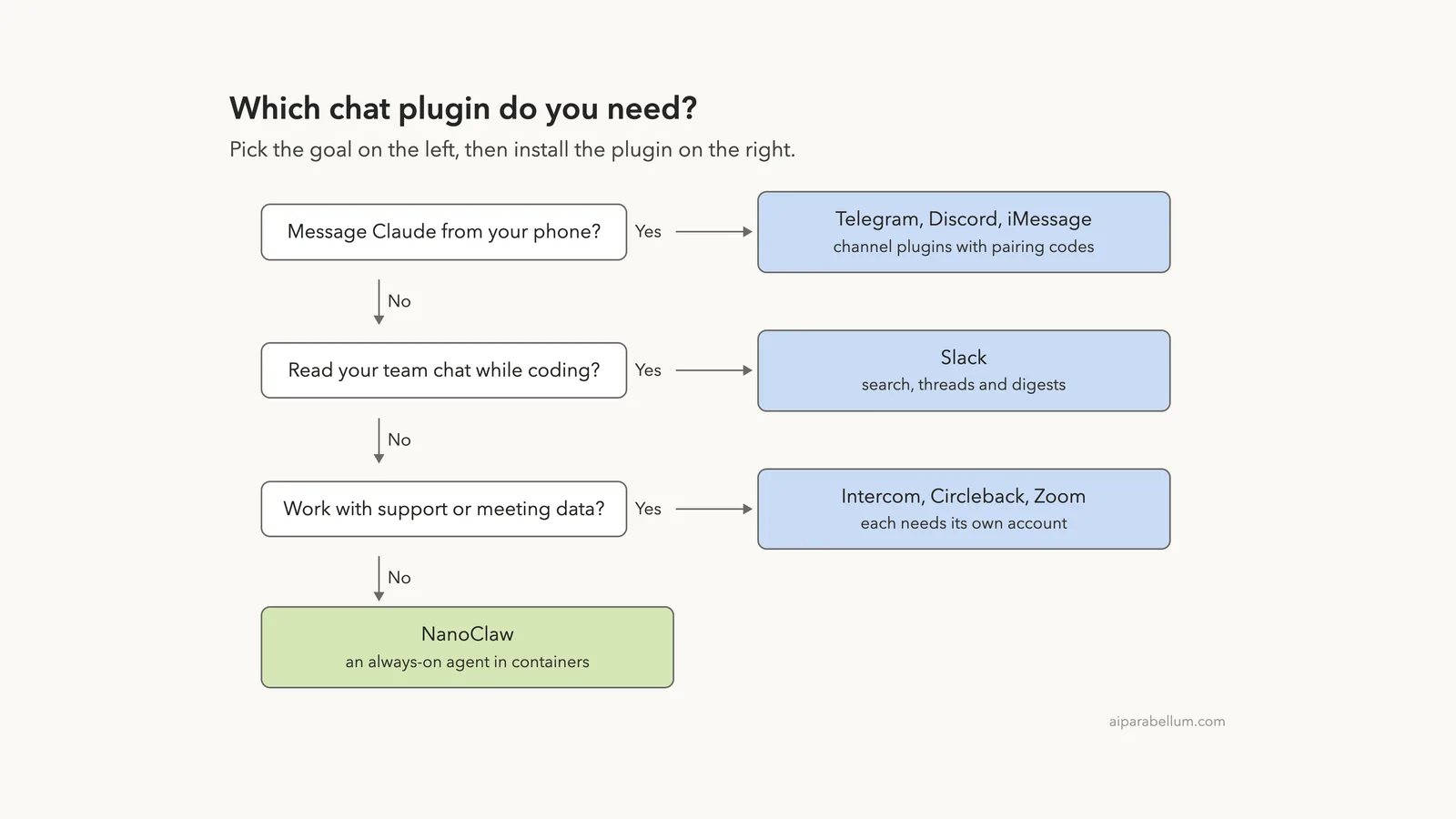
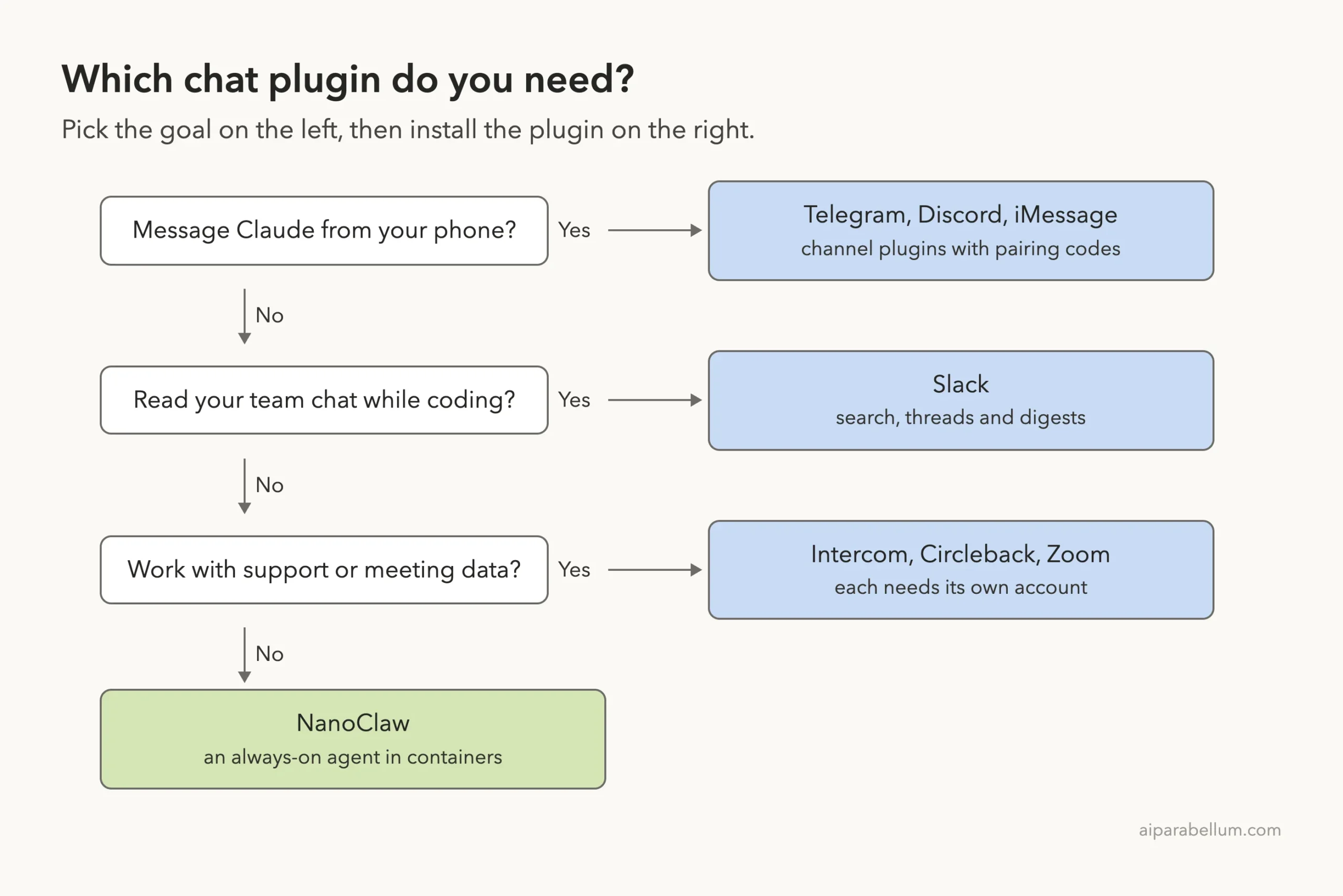
If you search for a Claude Code Slack plugin, you will find more than one chat add-on in Anthropic’s official marketplace. Some let you message Claude from your phone. Others let Claude read your team chat while you code.
A few more connect it to support and meeting tools.
We loaded nine of them in one real Claude Code session and checked what each one adds. This guide shows what we ran, what needs an account, and which plugin fits which job.
This guide is part of our Claude Code tutorials. Find more add-ons in our Skills Directory.
Tested with Claude Code v2.1.319 on 2026-11-09 (macOS). We used the official marketplace at commit 0412be7, plus the Slack plugin v1.7.0, Intercom v0.2.1, Zoom v1.2.0, Circleback v1.0.0, Discord v0.0.4, Telegram v0.0.7 and iMessage v0.2.0.
What We Ran and What Came From the Docs
Every one of these plugins needs an outside account, a bot token or a sign-in. We never created accounts, signed in or entered a key. So this is a roundup, not a full hands-on test.
We cloned each plugin into a throwaway sandbox, read its files for hooks and scripts (none of them ship hooks), and loaded them with --plugin-dir. Your own ~/.claude folder stays untouched this way.
| Plugin | Maker | What it does | Account needed | We ran it |
|---|---|---|---|---|
| Discord | Anthropic (official marketplace) | Chat with your session from a Discord bot | Yes (Discord bot token) | Loaded, skills listed |
| Telegram | Anthropic (official marketplace) | Chat with your session from a Telegram bot | Yes (Telegram bot token) | Loaded, skills listed |
| iMessage | Anthropic (official marketplace) | Chat from Messages on a Mac | Messages on this Mac | Loaded, skills listed |
| Slack | Slack | Search messages, digests, standups, Slack app skills | Yes (Slack workspace) | Loaded, skills listed |
| Intercom | Intercom | Support analysis and customer profiles | Yes (US-hosted workspace) | Loaded, skills listed |
| Zoom | Zoom | Plan and debug Zoom integrations | Yes for the MCP servers | Loaded, skills listed |
| Circleback | Circleback | Search meetings, emails and calendar | Yes (Circleback) | Loaded, sign-in prompt seen |
| Fakechat | Anthropic (official marketplace) | Local web chat to test channels | No | Docs only |
| NanoClaw | nanocoai (community) | Always-on agent in containers | Chat app accounts | Docs only |
The install commands follow the same pattern for the official ones: /plugin install discord@claude-plugins-official, and the same with telegram, imessage, slack, intercom, zoom-plugin, circleback and fakechat. Our plugins guide explains installing and managing them.
Two Kinds of Chat Plugins
These plugins do two very different jobs, and mixing them up causes most of the confusion.
The first kind is a channel. Discord, Telegram and iMessage let you send a message from a chat app into a running Claude Code session, and Claude replies in the same chat. Think of it as a remote control for the session on your computer.
The second kind is a connector. Slack, Intercom and Circleback give Claude access to another service through an MCP server.
You stay in the terminal and Claude reaches out. If MCP is new to you, read our MCP guide first.
Claude Code Slack Plugin: Search and Digests
The Slack plugin is two things in one: chat commands for you, and developer skills for building Slack apps.
The Slack plugin comes from Slack itself. Its manifest describes it as Slack AI tools for users and developers: you talk to your workspace through the Slack MCP server, and you get skills for building Slack apps.
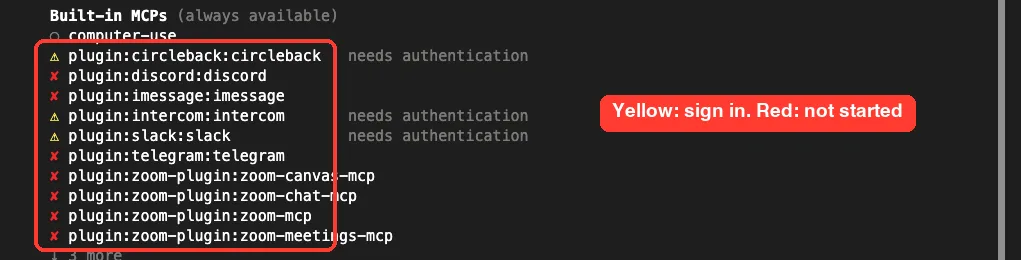
Under the hood it points at Slack’s hosted MCP server at mcp.slack.com and uses OAuth. That is why /mcp shows it as needing authentication until you sign in.
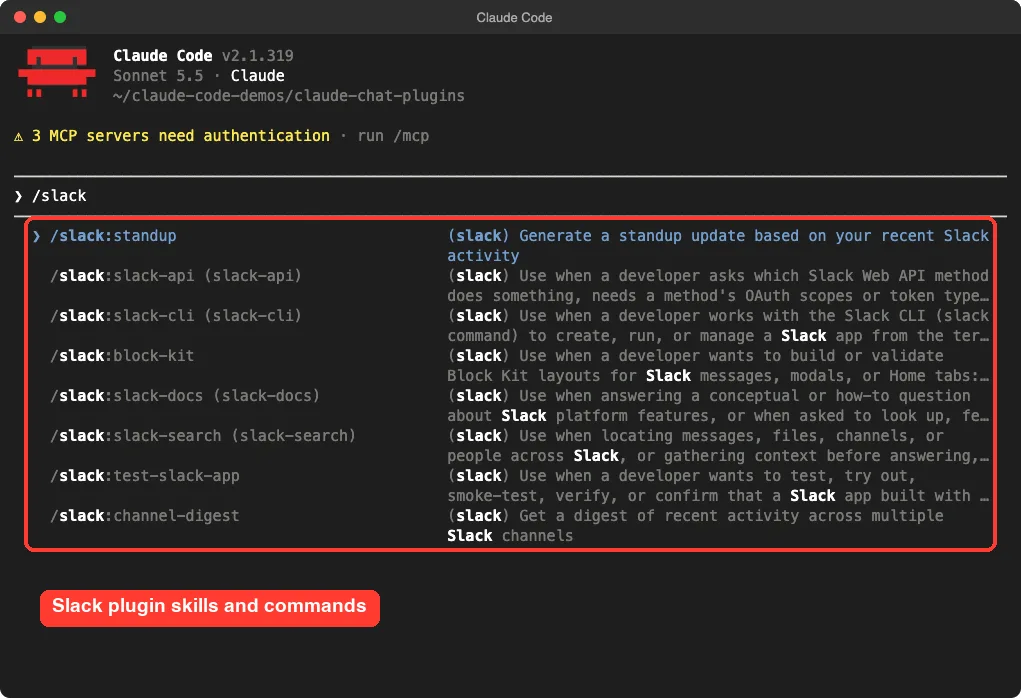
The repo holds five command files and nine skill folders. The ones for everyday use are /slack:standup (a standup update from your recent Slack activity) and /slack:channel-digest (a digest across several channels). The repo also ships summarize-channel, find-discussions and draft-announcement commands.
The rest are developer skills: Block Kit layouts, the Slack Web API, the Slack CLI, Slack docs, and testing a Slack app. If you build Slack apps, those are the reason to install it. If you only want chat summaries, the commands are enough.
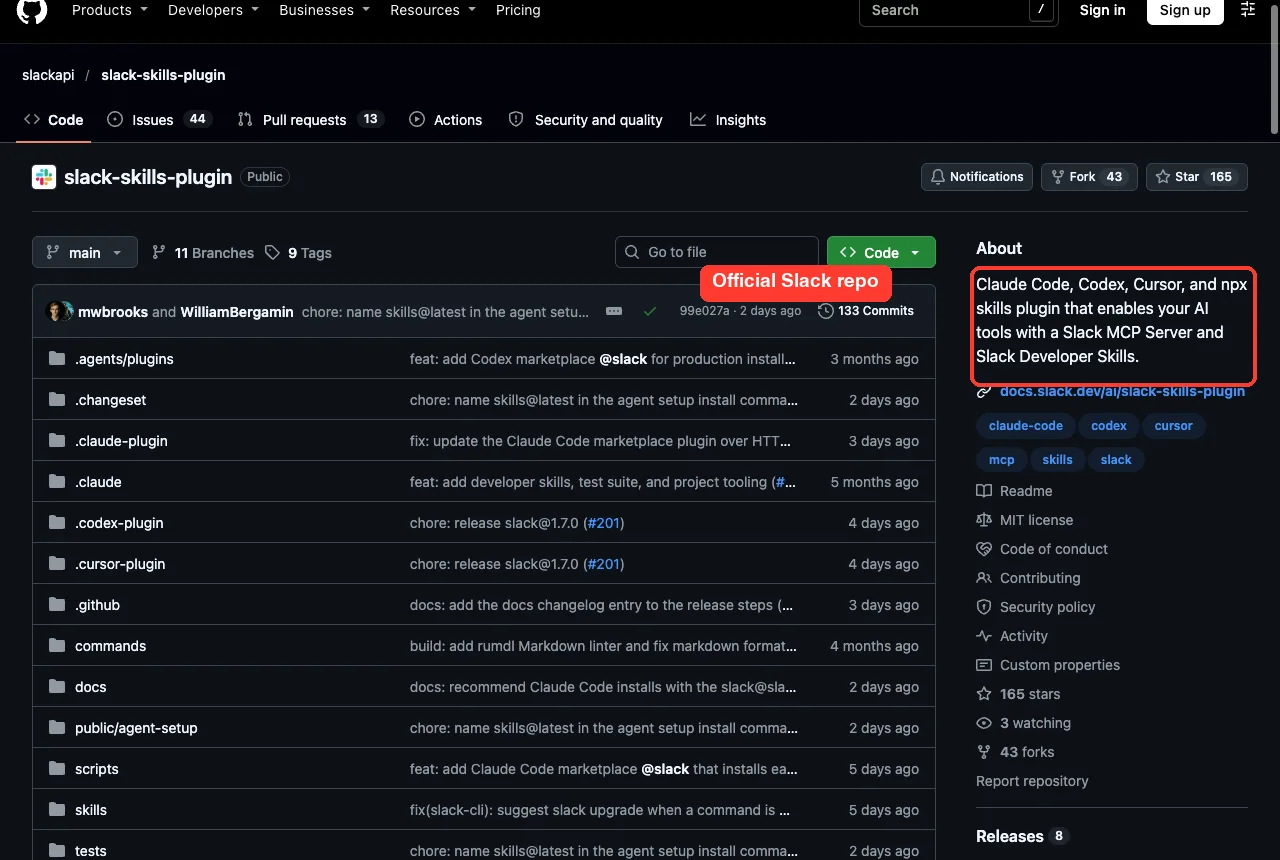
What we did not test: searching or summarizing real messages. That needs a Slack sign-in, and we did not create one. Everything about live results comes from the plugin’s own description.
Discord, Telegram and iMessage: Chat With Claude From Your Phone
These three plugins are official channels. Each one runs a small server that bridges the chat app and your session, with built-in access control.
How the setup works
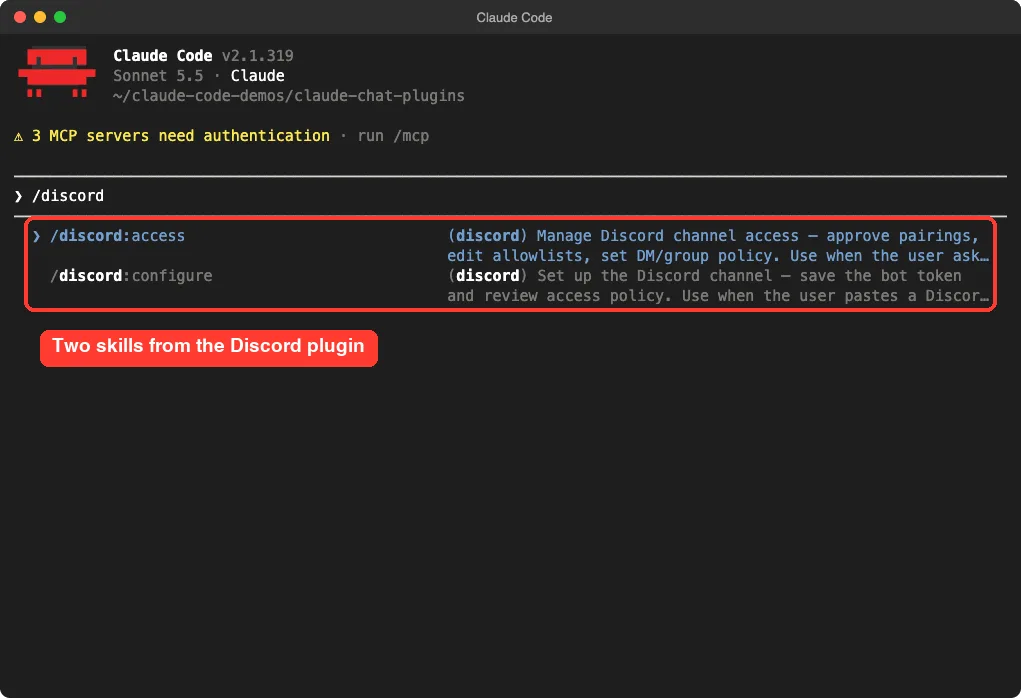
The Discord README walks through five steps. You create a Discord application, turn on the Message Content Intent, reset the bot token, invite the bot to a server you share, then install the plugin.
After that you run /discord:configure with your token, which saves it to a private file under ~/.claude/channels/discord/. The Telegram plugin works the same way with a Telegram bot token and /telegram:configure.
You then start Claude Code with a channels flag, for example claude --channels plugin:telegram@claude-plugins-official. Without the flag the bridge does not connect.
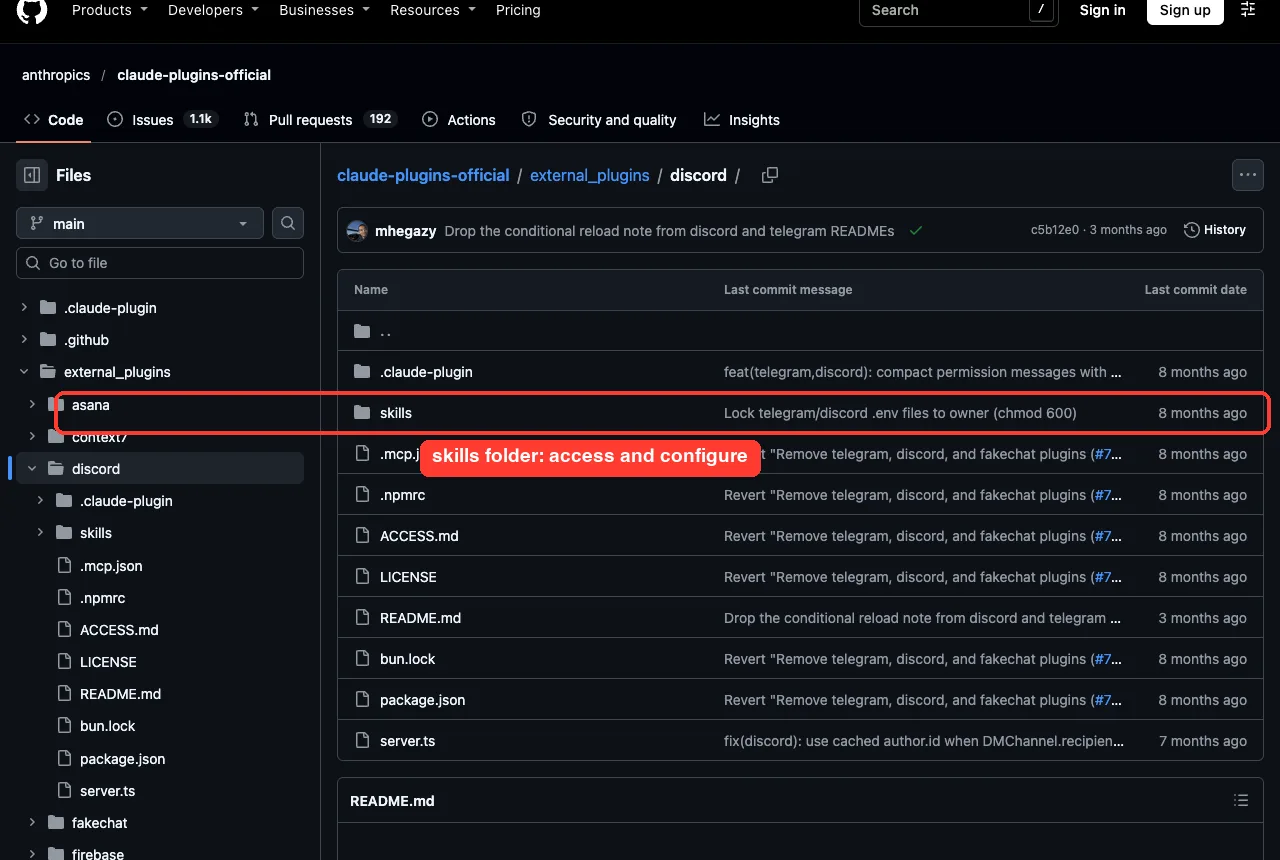
Pairing and allowlists
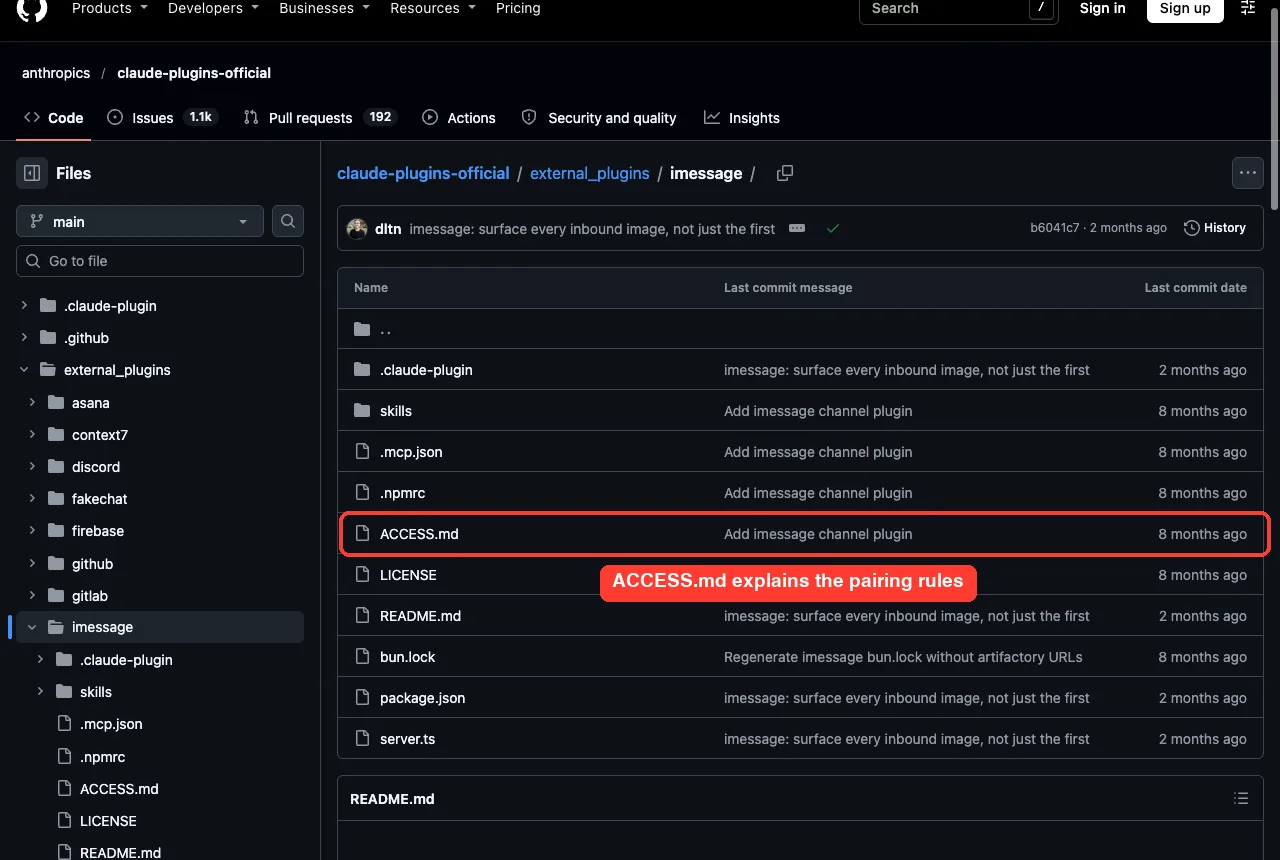
When you first message the Telegram bot, it replies with a short pairing code. You approve it inside your session with the /telegram:access skill. From then on, only approved senders reach Claude.
The access skills include a safety rule that we liked. They only act on requests you type in your own terminal. If a request to approve someone arrives through a chat message, the skill must refuse, because chat messages can carry prompt injection.
iMessage is different
The iMessage plugin has no outside server. Its source says it reads the Messages database on your Mac directly and sends replies through AppleScript. It needs Full Disk Access for your terminal, because without it the database cannot be read.
That makes it the most private option and also the one with the most access to your personal data. Use the allowlist from /imessage:access and read ACCESS.md before you turn it on.
Why they showed a red mark for us
All three launch their server with Bun. Bun is not installed on our test Mac, so each one showed a red mark in /mcp. That is a limit of our setup, not a verdict on the plugins, and it is why we did not pair a real bot.
Fakechat: Test Channels Without a Real App
Fakechat is a localhost web chat. Its README says it is a simple way to test the channel contract without an external service: you open a browser tab, type, and your messages go to the session while replies come back.
It needs no token and no account, and you start it with claude --channels plugin:fakechat@claude-plugins-official. It prints a local address on startup (port 8787 unless you set FAKECHAT_PORT).
We did not run it. Its README says inbound files are saved under ~/.claude/channels/fakechat/, which is inside the user’s real Claude folder, and our sandbox rules keep that folder unchanged. If you want to try channels first, this is the safest plugin to start with.
Intercom, Circleback and Zoom
These three are about work data rather than chat messaging, but people often look for them next to the Slack plugin.
Intercom
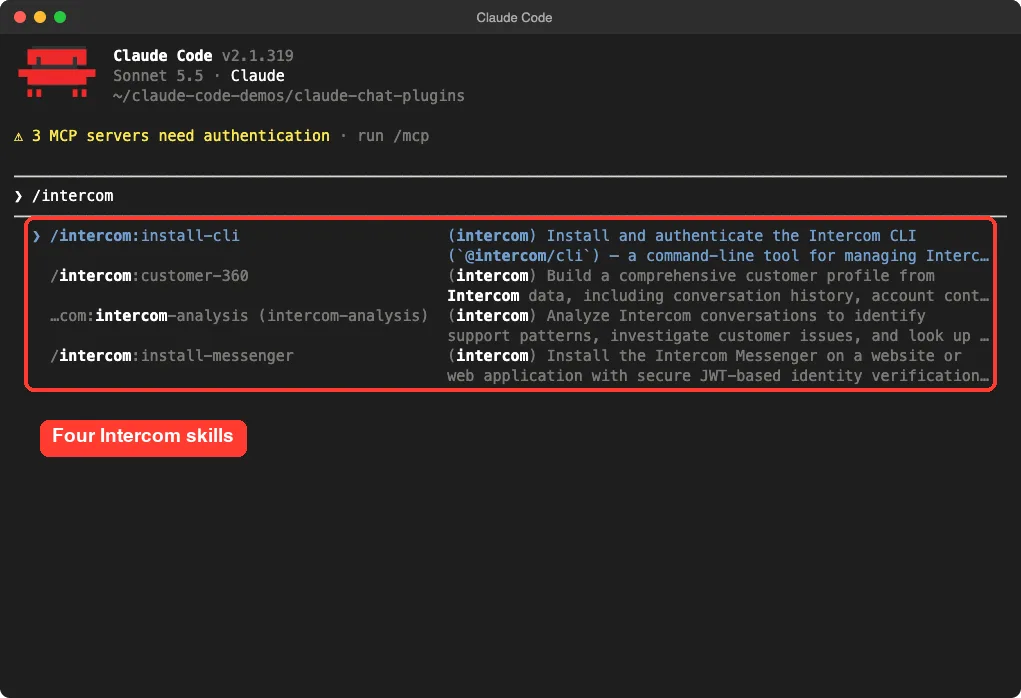
Per its README, the plugin lets you search conversations, analyze support patterns and look up contacts. The skills are /intercom:customer-360, /intercom:install-messenger, /intercom:install-cli and an analysis skill that triggers on its own when you ask about your Intercom data.
It requires an Intercom workspace, and the README says the workspace must be US-hosted for now. We saw it as needing authentication, and went no further.
Circleback
Circleback’s plugin is a very small package that points Claude at its hosted MCP server. The description says it searches meetings, emails and calendar events. Setup instructions live in Circleback’s own documentation.
In our session it showed the same yellow needs-authentication mark, so we stopped there.
Zoom
The Zoom plugin is aimed at developers who build Zoom apps. It has more than thirty skill folders covering REST APIs, webhooks, Team Chat, Meeting SDK, bots, OAuth and debugging, plus a start skill that helps you choose the right Zoom surface.
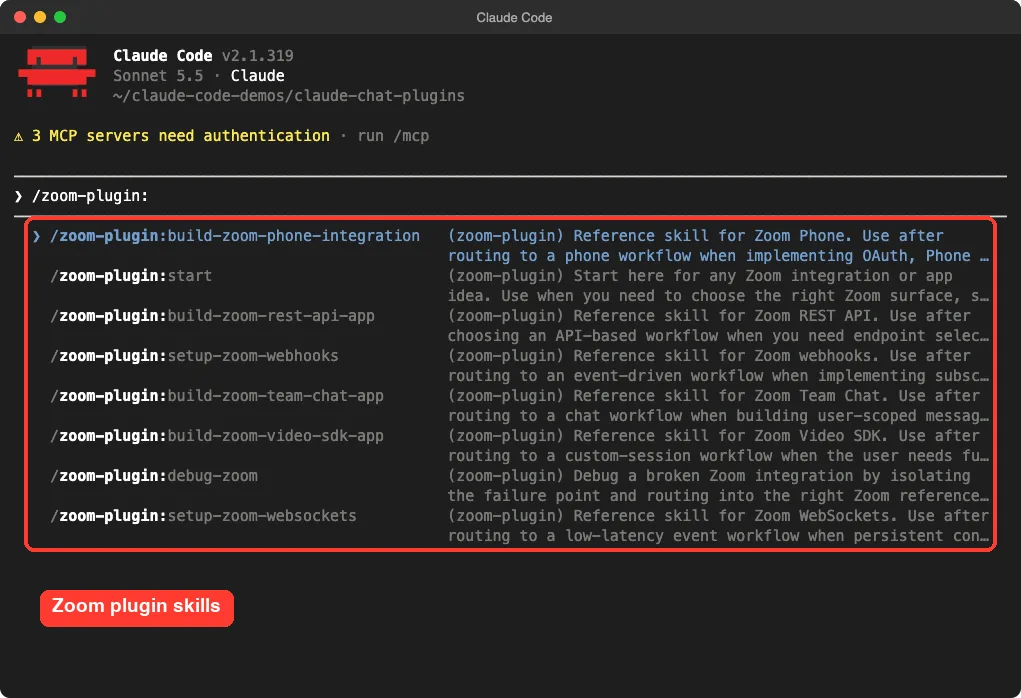
Its MCP servers expect access tokens in environment variables, so they stayed red for us. The skills themselves are reference guides and loaded fine without any account.
NanoClaw: A Different Approach
NanoClaw is not a Claude Code plugin. It is a community project that runs an assistant in its own containers and connects to chat apps such as Telegram, Slack, Discord, WhatsApp and iMessage. We include it because people often look for it next to the channel plugins.
The project page describes memory, scheduled jobs and a build on Anthropic’s Agent SDK. The repo is MIT licensed and had about 31,000 stars when we looked, with a very recent commit (bb6a355).
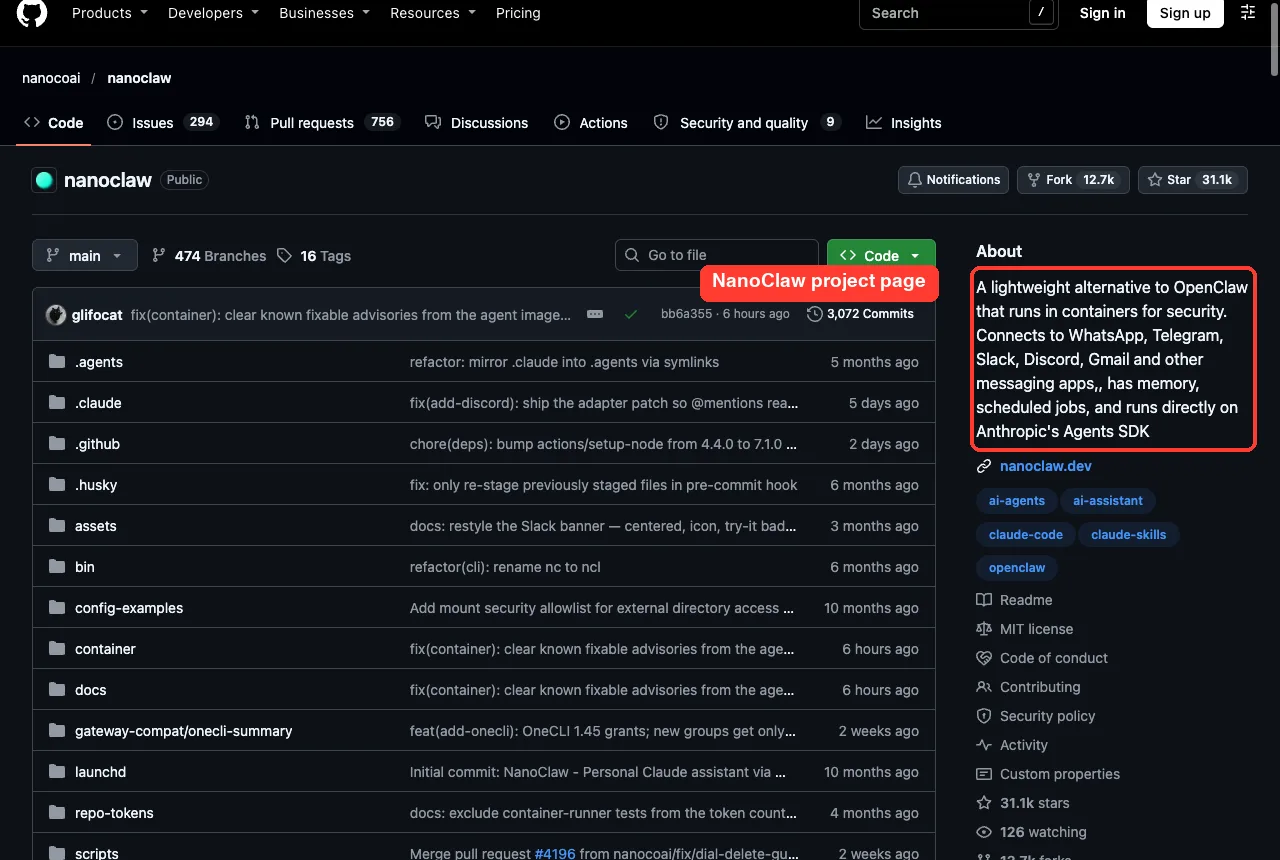
Its quick start runs a script that, according to the README, can install Node, pnpm and Docker if missing, and registers an Anthropic credential. That changes your machine, so we did not run it. If you go this way, read the script first and review our Docker guide.
Is the Claude Code Slack Plugin Safe to Connect?
Treat anything that lets a message trigger actions as a security decision. A few habits help a lot:
- Use the allowlist and pairing steps, and keep the list short.
- Never approve a pairing because a chat message asked you to.
- Keep the bot token private. The Discord and Telegram plugins save it to a file only you can read.
- Start in a throwaway project folder, not in a repo with secrets.
- Keep Claude Code on a permission mode that asks first when you work from a phone.
Our plugins comparison explains how these pieces fit together if you want the bigger picture.
Try It Yourself
The lowest-risk way to explore is to load plugins from a folder without installing them. Pick any plugin repo, then run this in a scratch folder:
git clone --depth 1 https://github.com/anthropics/claude-plugins-official
mkdir demo && cd demo
claude --setting-sources project --plugin-dir ../claude-plugins-official/external_plugins/discord
Inside the session, type /discord to see the skills and run /mcp to see the server status. Paste this prompt to get a plain summary:
List every skill this plugin adds and tell me which ones need a token or sign-in before they work.Common Mistakes
- Forgetting the channels flag. The bridge will not connect without it.
- Skipping the Message Content Intent on Discord, which leaves messages empty.
- Giving the iMessage plugin access without setting an allowlist.
- Expecting the Slack plugin to work before you finish the sign-in shown in
/mcp. - Pasting a bot token into a chat or a shared file instead of using the configure skill.
Pro Tips
- Run
/mcpafter loading any plugin. It shows right away which servers need sign-in. - Try Fakechat first to learn how channels behave before you use a real app.
- Use the Slack commands for standups and digests, and keep the developer skills for app work.
- Check the
versionin each plugin’s manifest. The channel plugins are early, with versions below 1.0 for Discord and Telegram.
Cheat Sheet
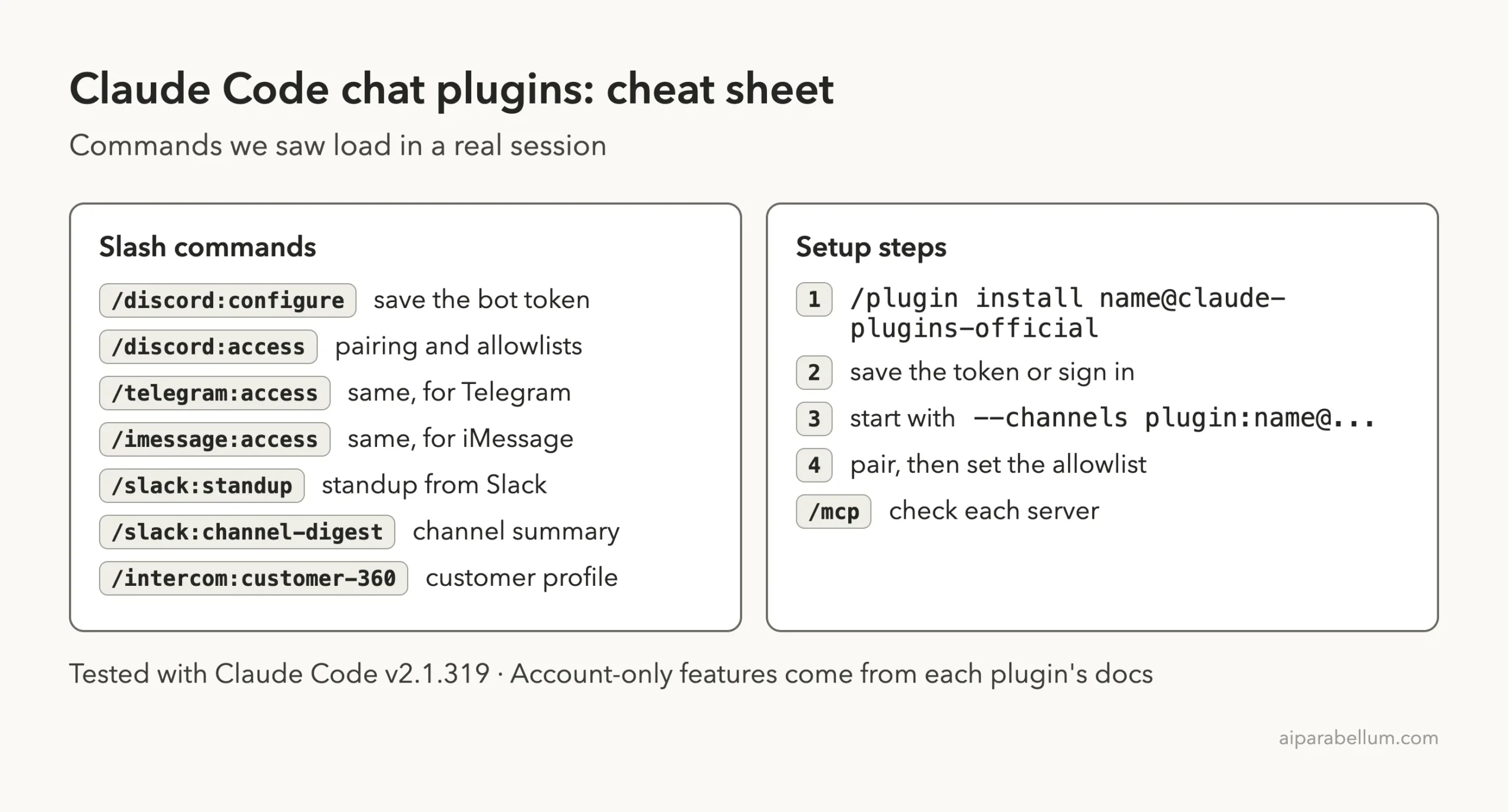
Frequently Asked Questions
Is there an official Claude Code Slack plugin?
Yes. The Slack plugin is listed in Anthropic’s official marketplace and comes from Slack’s own repo. Install it with /plugin install slack@claude-plugins-official and sign in through /mcp.
Can I message Claude Code from my phone?
The Discord, Telegram and iMessage channel plugins are built for that. You pair your account, then chat with the session running on your computer. The computer must stay on and the session must be running.
Do these plugins cost money?
The plugins themselves are free to install. The services behind them, such as Slack, Intercom, Zoom or Circleback, have their own plans, and we did not check those prices.
Which plugin should I try first?
Try Fakechat if you want channels without any account. If you already live in Slack, try the Slack plugin and its digest command.
Will these plugins change my Claude Code setup?
Installing a plugin does add it to your setup. We loaded ours with --plugin-dir in a sandbox so nothing in our own setup changed.
Conclusion
Chat plugins come in two flavors: channels that let you reach Claude from Discord, Telegram or iMessage, and connectors like Slack, Intercom and Circleback that let Claude reach your tools. We confirmed that all of them load and list their skills, but every live feature needs an account or token we did not use, so use the plugin docs for those parts. Start with Fakechat or the Slack digest commands (our Claude guide covers the basics), keep your allowlists tight, and add more only when you have a real need.