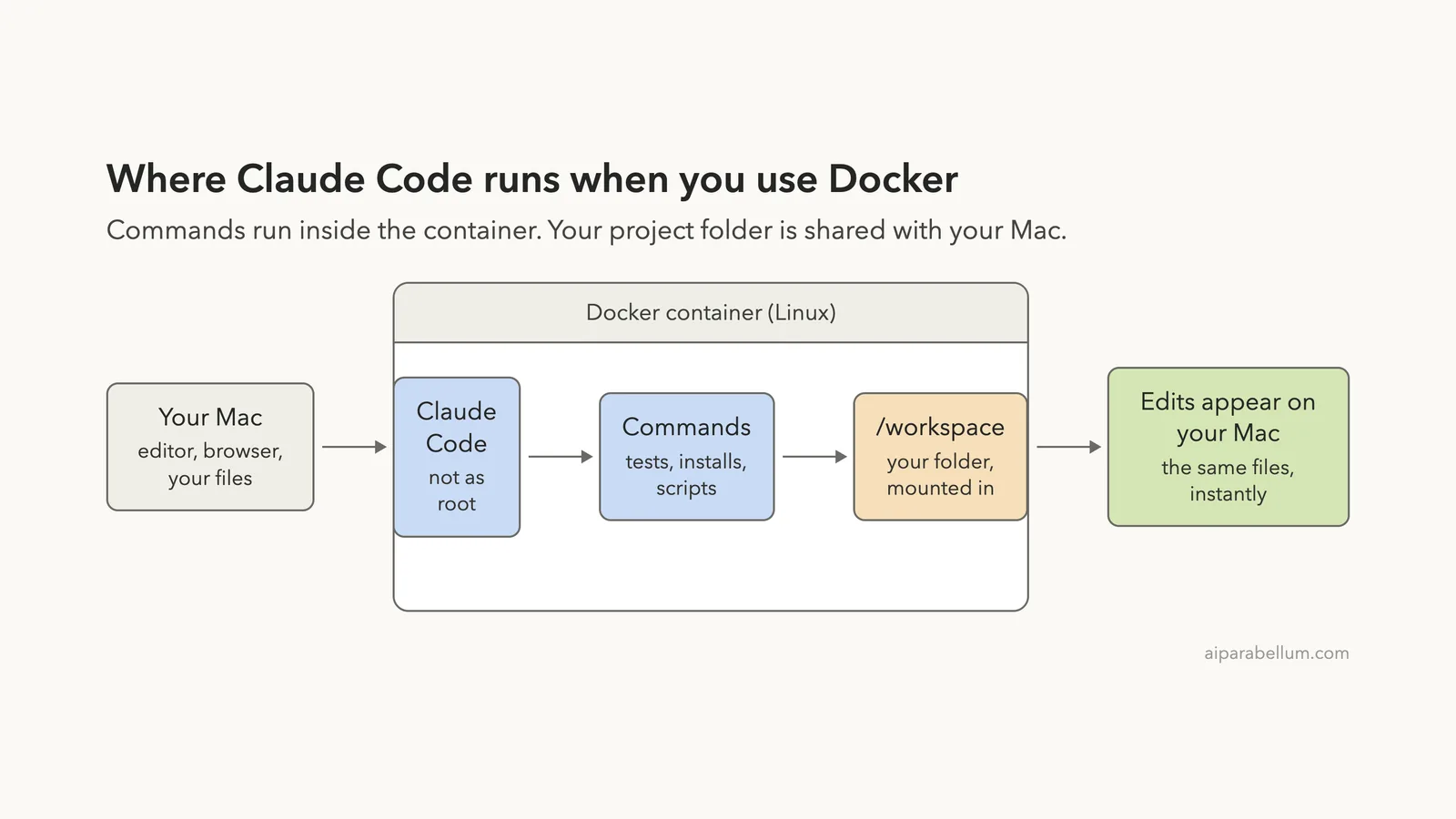
You can use Claude Code with Docker by installing it inside a container, mounting your project folder into that container, and running claude there. Every command Claude runs then happens inside the container, while your file edits show up on your computer.
That gives you a clean, throwaway Linux environment for risky or unfamiliar code. It also gives a whole team the same setup. In this guide you will build a container, run Claude Code in it, and see what stays inside and what reaches your Mac.
This post answers one of the most common Claude Code questions. It is part of our Claude Code tutorials collection. Browse them all for more guides like this.
Tested with Claude Code v2.1.316 on 2026-11-02.
Quick Answer: How to Run Claude Code in Docker
| Step | What to do | Command or setting |
|---|---|---|
| 1 | Start from a Linux image | Any image with curl, such as Debian or Ubuntu |
| 2 | Create a non-root user | useradd -m dev |
| 3 | Install Claude Code as that user | curl -fsSL https://claude.ai/install.sh | bash |
| 4 | Share your project folder | -v "$PWD":/workspace |
| 5 | Start Claude Code and sign in | claude |
| 6 | Keep your login across rebuilds | Named volume plus CLAUDE_CONFIG_DIR |
If you use VS Code, GitHub Codespaces or another editor that supports dev containers, there is a shorter path. You add one feature to .devcontainer/devcontainer.json and rebuild. We cover both routes below.
Why Run Claude Code in a Container?
Claude Code can read files, edit them and run shell commands on your behalf. On your own laptop, those commands run with your own account. A container puts a wall around them.
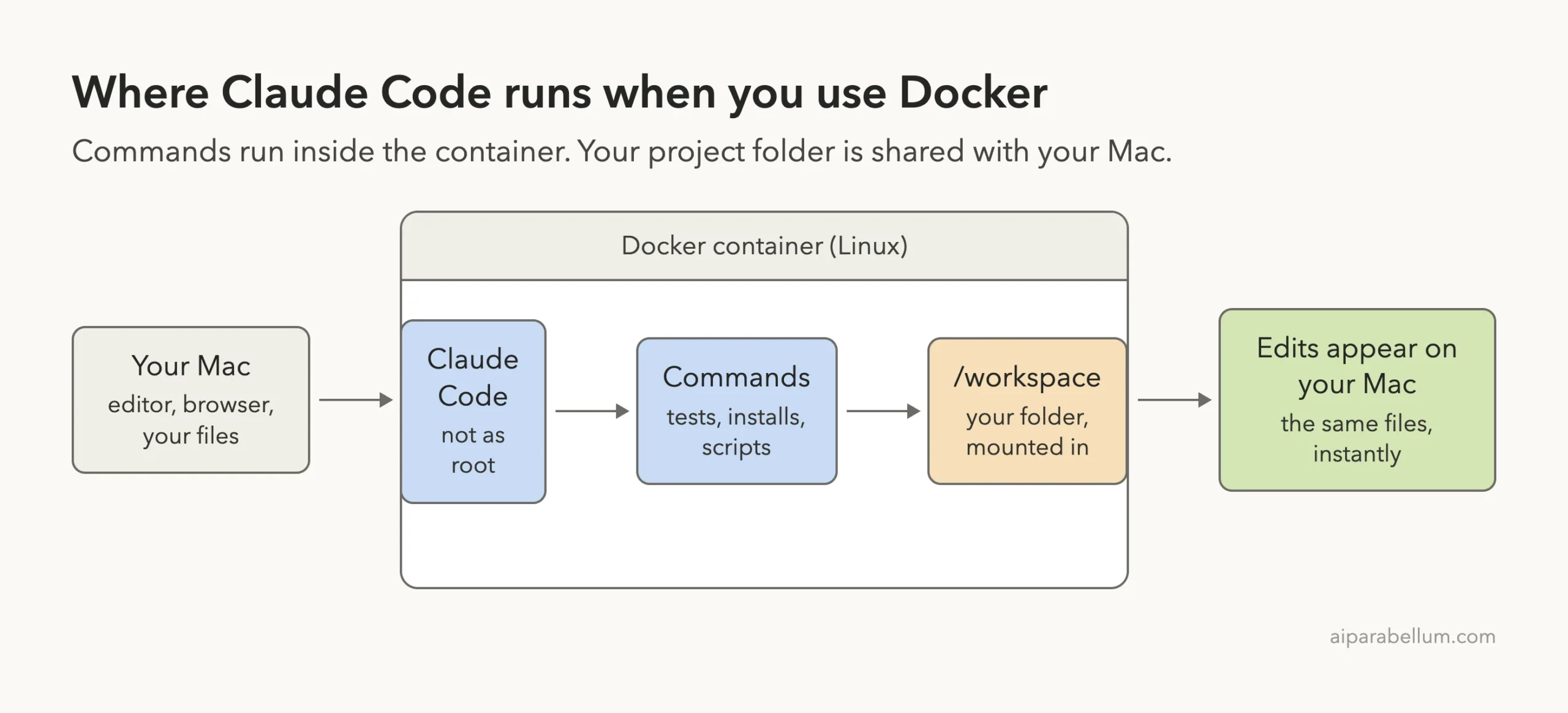
Anthropic’s development containers guide says it plainly: with Claude Code installed in the container, commands Claude runs execute inside it rather than on the host machine, while edits to your project files appear in your local repository as you work.
People usually reach for a container for three reasons:
- Trying out code you do not fully trust, such as a project you just downloaded.
- Letting Claude work for a long time without stopping to ask for permission.
- Giving every teammate the same tools, versions and settings.
The picture below shows the idea. Claude Code and its commands live inside the container. The only door to your real files is the folder you choose to mount.
What You Need Before You Start
You need Docker installed and running. On a Mac or Windows PC that usually means Docker Desktop. We tested with Docker 29.1.3 on macOS.
You also need a way to sign in to Claude Code, which means an Anthropic account, or access through Amazon Bedrock, Google Cloud’s Agent Platform or Microsoft Foundry. We did not sign in during our test, because the sign-in step needs your own browser and account. Everything else in this guide we ran for real.
Make a small practice folder first. Ours held one tiny file, hello.py, so nothing important was at risk.
Step 1: Build a Container With Claude Code Installed
The simplest route is a Dockerfile. You pick a Linux image, add a normal user, and run the official installer as that user. Here is the file we based our test on:
FROM debian:stable-slim
RUN apt-get update && apt-get install -y curl ca-certificates
RUN useradd -m -s /bin/bash dev && mkdir /workspace && chown dev /workspace
USER dev
RUN curl -fsSL https://claude.ai/install.sh | bash
ENV PATH="/home/dev/.local/bin:${PATH}"
WORKDIR /workspace
Our own run started from a PHP image that already had curl, because our Docker Hub downloads were stalling that day. The steps inside were the same: create the dev user, then install Claude Code as that user. The installer finished with a plain “Installation complete” message.
Build it with docker build -t claude-demo .. The image name is up to you.
Why a non-root user matters
Notice the USER dev line. Running as a normal user is not just tidy. Claude Code refuses its riskiest flag when it runs as root, as you will see in a moment.
Step 2: Run the Container and Mount Your Project
Now start the container with your project folder mounted at /workspace:
docker run --rm -it -v "$PWD":/workspace claude-demo bashHere is what each part does. --rm deletes the container when you leave, and -it gives you an interactive terminal.
The -v "$PWD":/workspace part shares your current folder with the container.
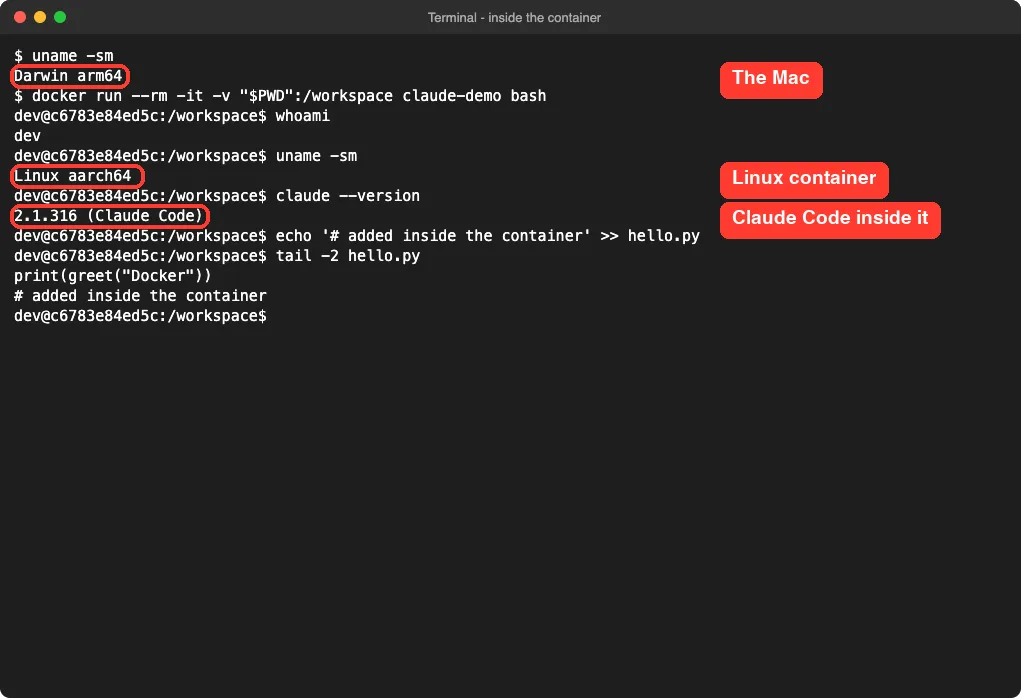
Inside, we ran four small commands. The screenshot shows the answers.
The user is dev, not you. The system is Linux, while our Mac reports Darwin. And claude --version works, printing 2.1.316.
Step 3: Check That Your Files Stay in Sync
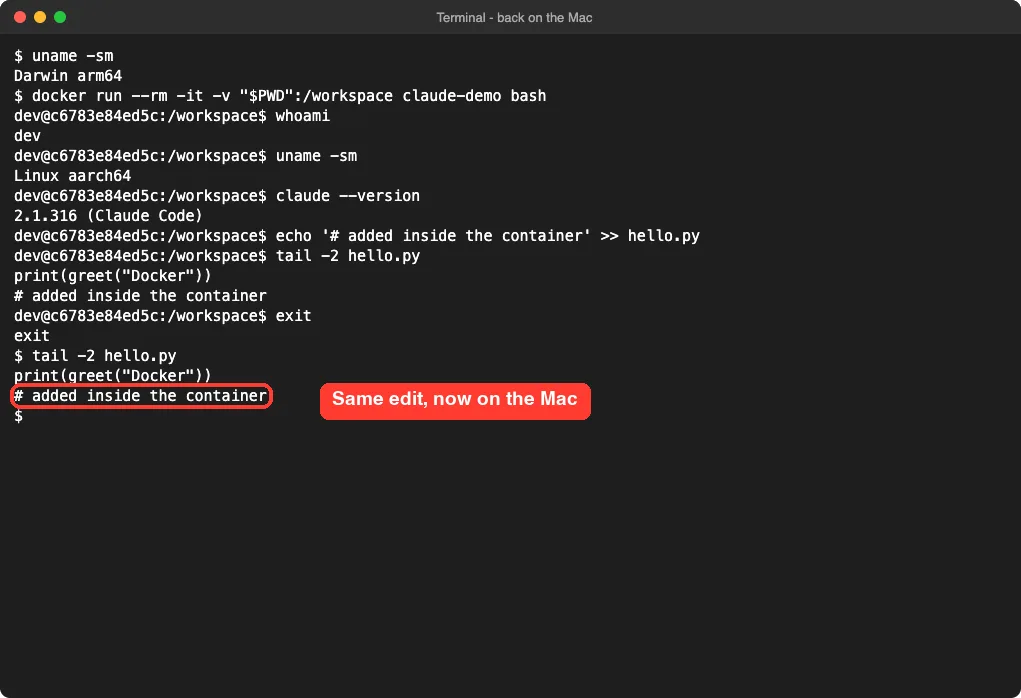
This is the part that makes Docker practical. Inside the container we appended one comment line to hello.py. Then we left the container and read the file on the Mac.
The new line was already there. Nothing was copied or synced. The container and the Mac were looking at the same file.
The reverse is also true, and it is the catch. Claude can change any file in the mounted folder, and those changes land on your real disk. The docs make the same point: the bind-mounted workspace appears directly on your host.
So a container protects everything outside the folder you mount. It does not protect the folder itself. Keep a Git commit or a backup before you let Claude loose, and see our Claude Code basics to learn what it does with those files.
Step 4: Launch Claude Code and Sign In
To start Claude Code itself, replace bash with claude:
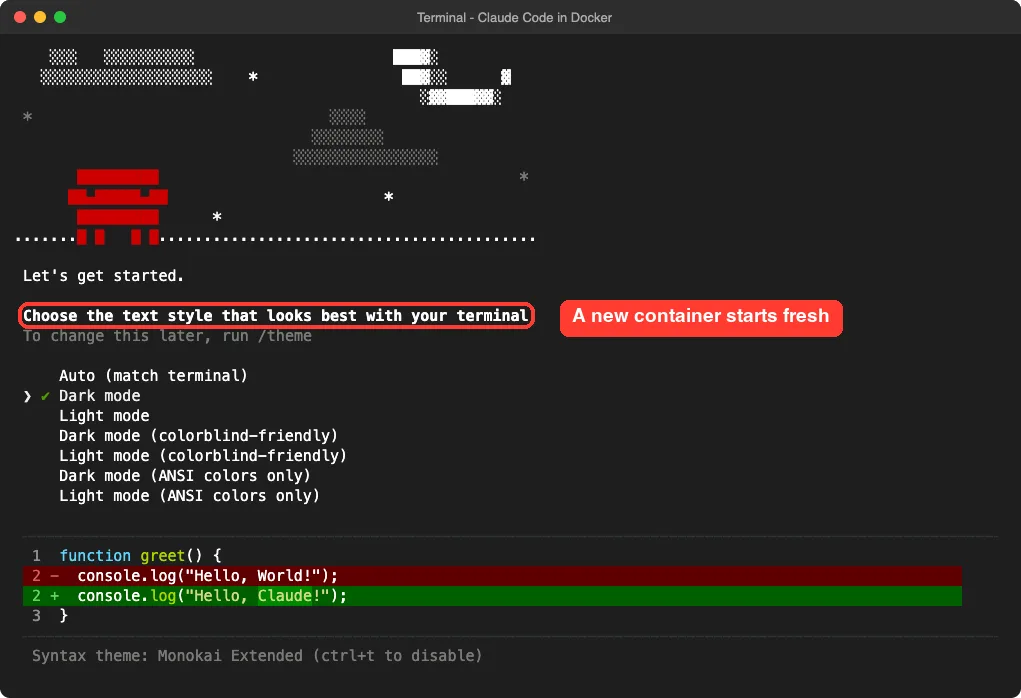
docker run --rm -it -v "$PWD":/workspace claude-demo claudeA brand-new container is a brand-new computer, so Claude Code starts its first-run setup. In our test it asked us to choose a text style. After that comes the sign-in prompt.
What you see at sign-in depends on your provider, according to the docs. With an Anthropic account, you sign in through a browser. With Amazon Bedrock, Google Cloud’s Agent Platform or Microsoft Foundry, Claude Code uses your cloud credentials with no browser prompt.
If no browser opens, or you get a localhost error after signing in, the docs say to copy the login URL shown above the paste prompt into your own browser. Sign in there, then paste the code back into the terminal.
The Faster Way: Add Claude Code to a Dev Container
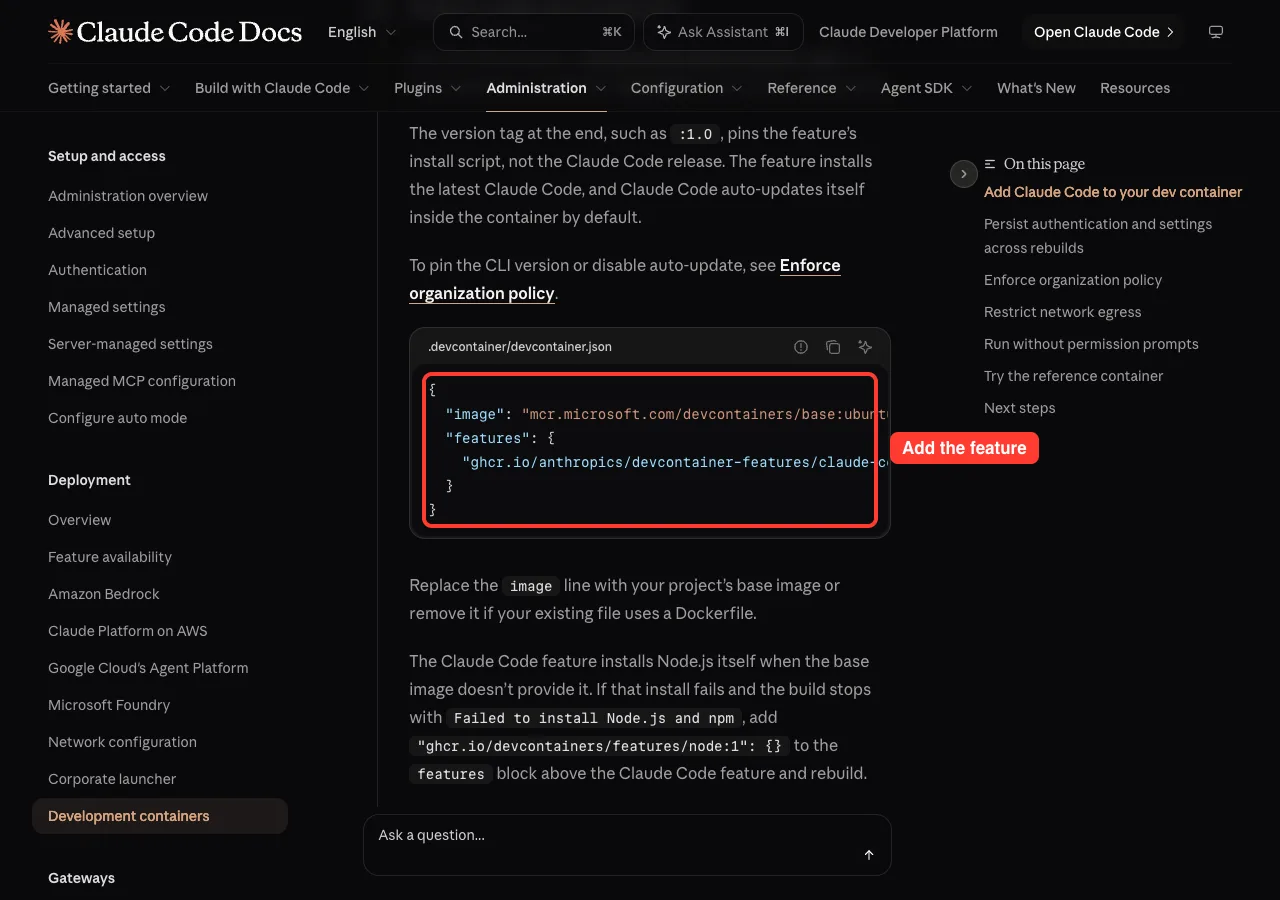
A dev container is a container described by a file in your repository. Editors such as VS Code, GitHub Codespaces and JetBrains read that file and build the environment for you. You can skip the Dockerfile and add Claude Code with a ready-made feature.
Save this as .devcontainer/devcontainer.json in your project:
{
  "image": "mcr.microsoft.com/devcontainers/base:ubuntu",
  "features": {
    "ghcr.io/anthropics/devcontainer-features/claude-code:1.0": {}
  }
}
Then run the Dev Containers: Rebuild Container command from the VS Code Command Palette. Open a terminal in the rebuilt container, type claude, and follow the sign-in prompt.
We tested on macOS with plain Docker, not through an editor, so we did not run this file ourselves. The steps here follow Anthropic’s official instructions. The same goes for Windows and Linux: we tested on macOS, and the Windows and Linux steps follow Anthropic’s official instructions.
What the version tag means
The :1.0 at the end pins the feature’s install script, not Claude Code itself. The feature installs the latest release, and Claude Code updates itself inside the container by default. If the build stops with Failed to install Node.js and npm, the docs say to add the Node feature, ghcr.io/devcontainers/features/node:1, above it and rebuild.
Keep Your Login When the Container Is Rebuilt
By default, a container’s home folder is thrown away on rebuild. That means you sign in again every time. Claude Code keeps its login, settings and session history in ~/.claude, plus an account file named ~/.claude.json.
To keep both, the docs have you mount a named volume at ~/.claude and point CLAUDE_CONFIG_DIR at the same path. For a user named node, it looks like this:
"mounts": [
  "source=claude-code-config,target=/home/node/.claude,type=volume"
],
"containerEnv": {
  "CLAUDE_CONFIG_DIR": "/home/node/.claude"
}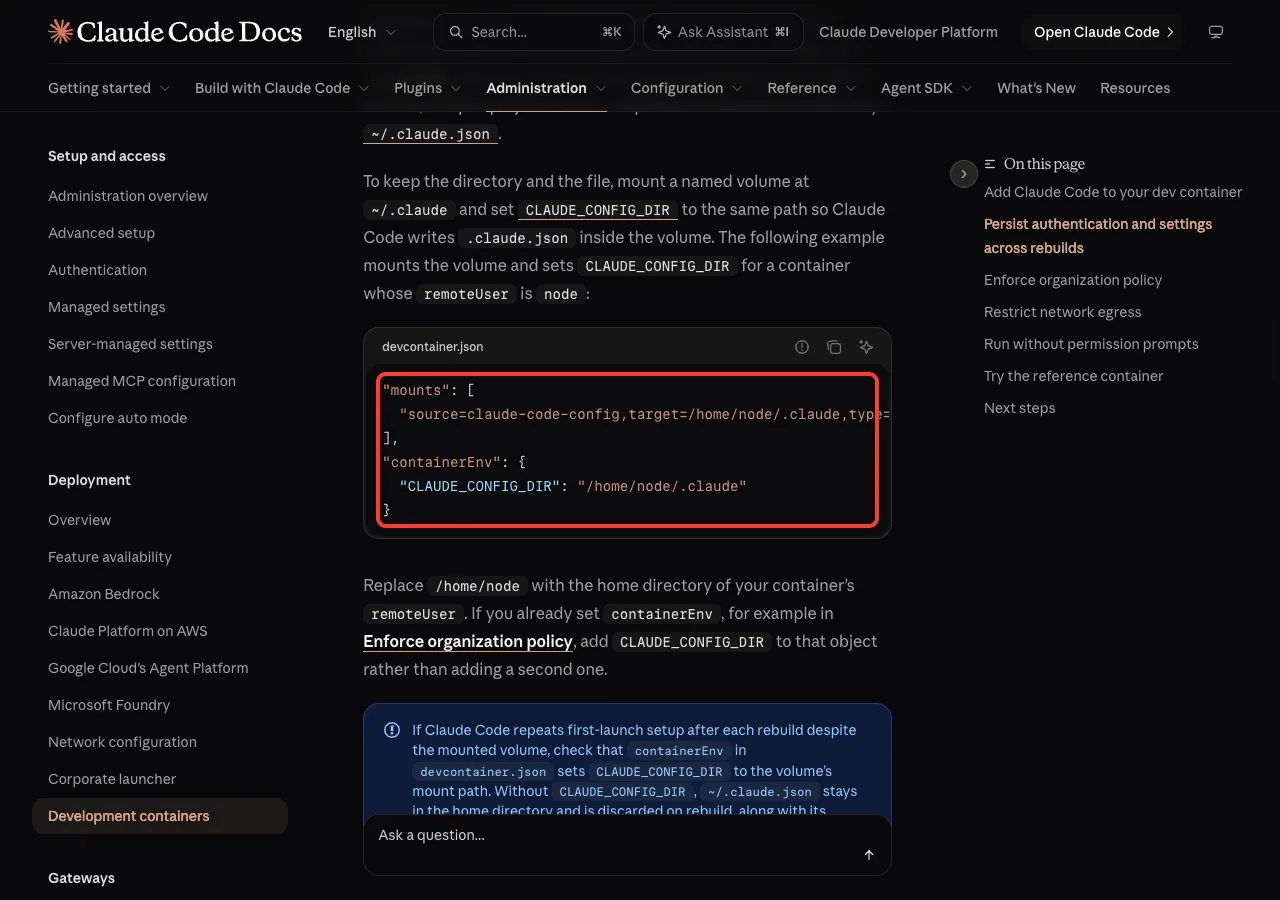
Change /home/node to the home folder of your own container user. If Claude Code repeats first-run setup after every rebuild, check that CLAUDE_CONFIG_DIR is set. Without it, ~/.claude.json stays in the home folder and is discarded.
In GitHub Codespaces, the docs add a tip. To carry sign-in across codespaces, store ANTHROPIC_API_KEY or a token from claude setup-token as a Codespaces secret.
Run Without Permission Prompts: The Docker Superpower
Normally Claude Code asks before it edits files or runs commands. In a container, many people switch that off with --dangerously-skip-permissions so Claude can work unattended. The docs say this is reasonable because the container runs Claude Code as a non-root user and confines command execution to the container.
There is a safety catch built in. We tried to pass the flag while running the container as root, and Claude Code refused to start.
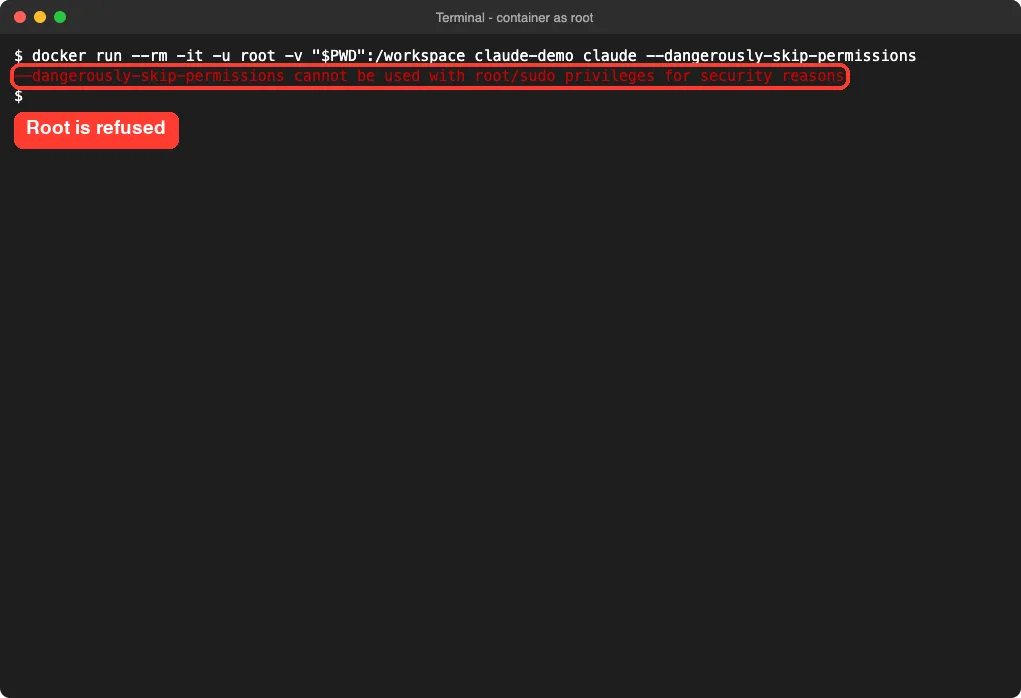
The message said the flag cannot be used with root or sudo privileges for security reasons. So set a non-root user, as we did with USER dev, or remoteUser in a dev container.
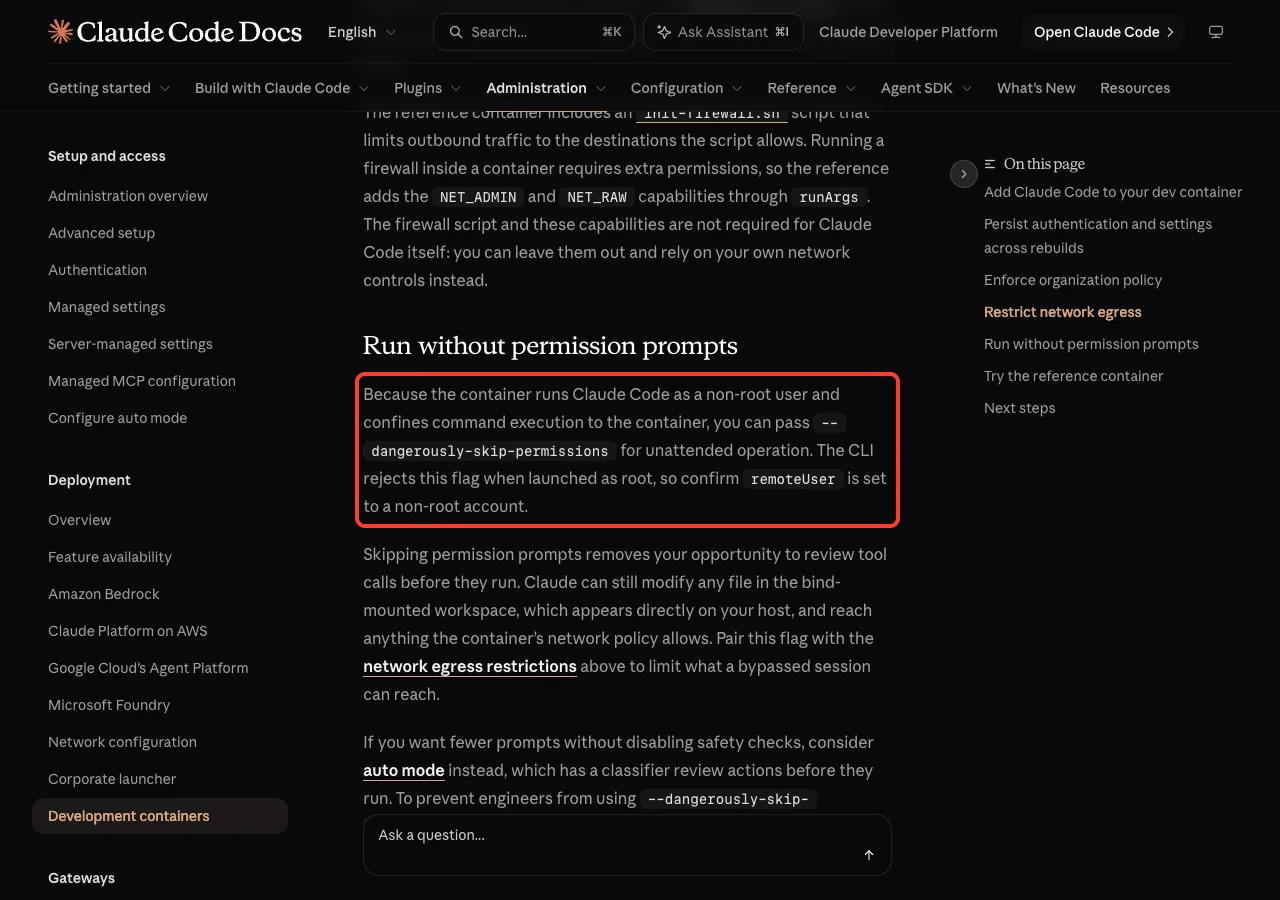
Skipping prompts is still a risk
The docs are blunt about the limits. Skipping prompts removes your chance to review tool calls. Claude can still change any file in the mounted workspace and reach anything the container’s network policy allows.
Dev containers also do not stop a malicious project from sending out anything reachable inside the container, including the Claude Code login stored in ~/.claude. Use this only with repositories you trust, and avoid mounting folders like ~/.ssh or cloud credential files. If you just want fewer prompts, auto mode is a gentler option, and our guide on stopping permission prompts compares the choices.
Lock Down the Container: Policy and Network Limits
A container is a handy place to apply company rules, because the same image runs on every machine. Claude Code reads /etc/claude-code/managed-settings.json on Linux and gives it the highest priority. You can copy it in from your Dockerfile:
RUN mkdir -p /etc/claude-code
COPY managed-settings.json /etc/claude-code/managed-settings.json
Remember that anyone who can edit the repository can edit that Dockerfile. For rules people must not bypass, the docs point to server-managed settings or your device management tool instead.
You can also set environment variables for every session with containerEnv. The docs give two examples: CLAUDE_CODE_DISABLE_NONESSENTIAL_TRAFFIC set to 1 turns off telemetry and error reporting, and DISABLE_AUTOUPDATER set to 1 stops auto-updates. The first one also turns off features that need feature-flag fetching, such as Remote Control.
To pin an exact version, install it from your Dockerfile with npm install -g @anthropic-ai/[email protected] and set DISABLE_AUTOUPDATER to 1.
Limit what the container can reach
You can also limit outbound traffic to only the domains Claude Code needs. Anthropic’s reference container includes an init-firewall.sh script for this. It needs the NET_ADMIN and NET_RAW capabilities, which the docs say Claude Code itself does not require, so you can rely on your own network controls instead.
The reference container lives in the anthropics/claude-code repository. The docs call it a working example, not a maintained base image, so copy ideas from it rather than depending on it.
Docker or the Built-In Sandbox: Which Should You Use?
Docker is not your only isolation choice. Claude Code has a built-in sandboxed Bash tool, and Anthropic’s sandbox environments page compares it with dev containers, custom containers and virtual machines.
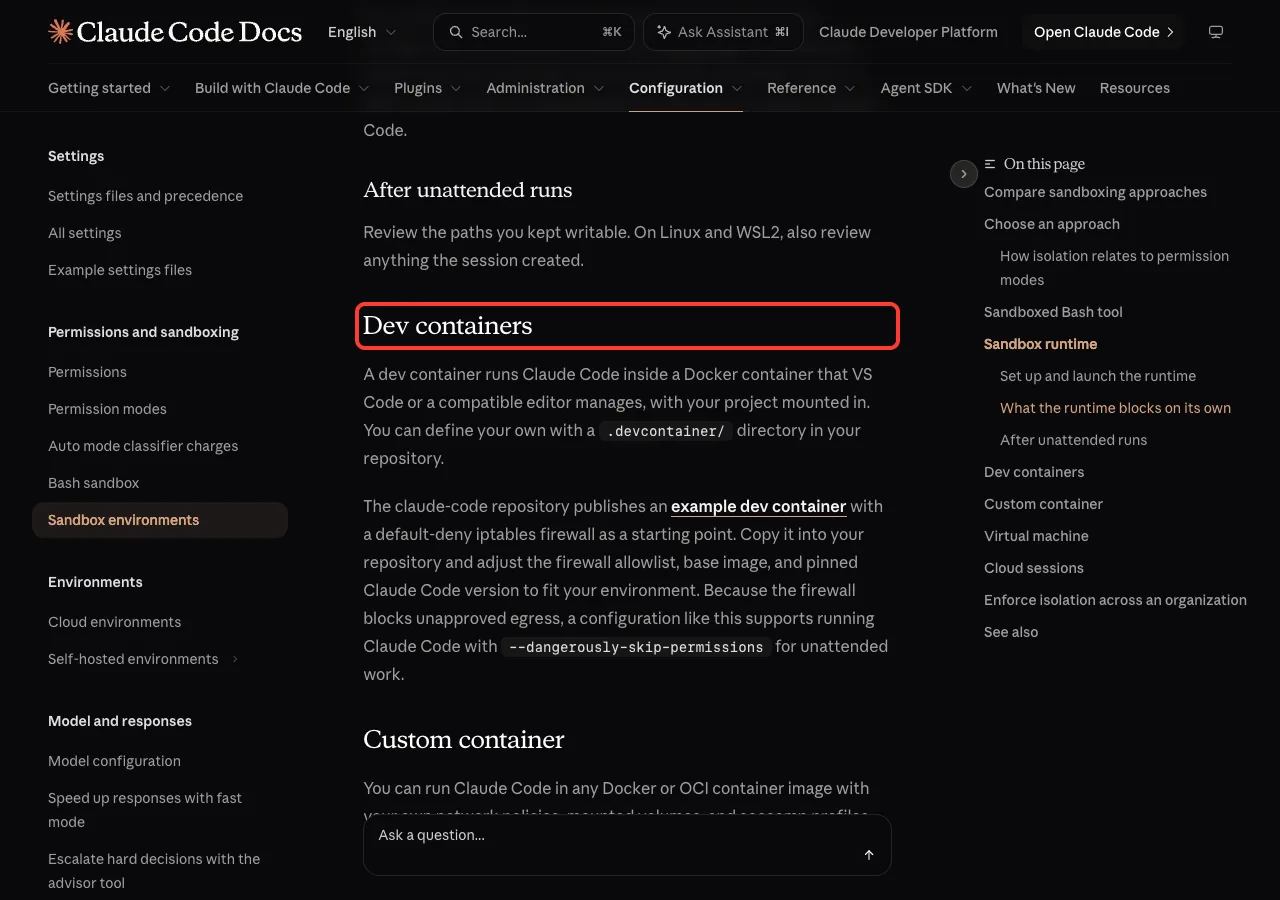
The ladder below is our own simple way to choose. It follows the options the docs describe.
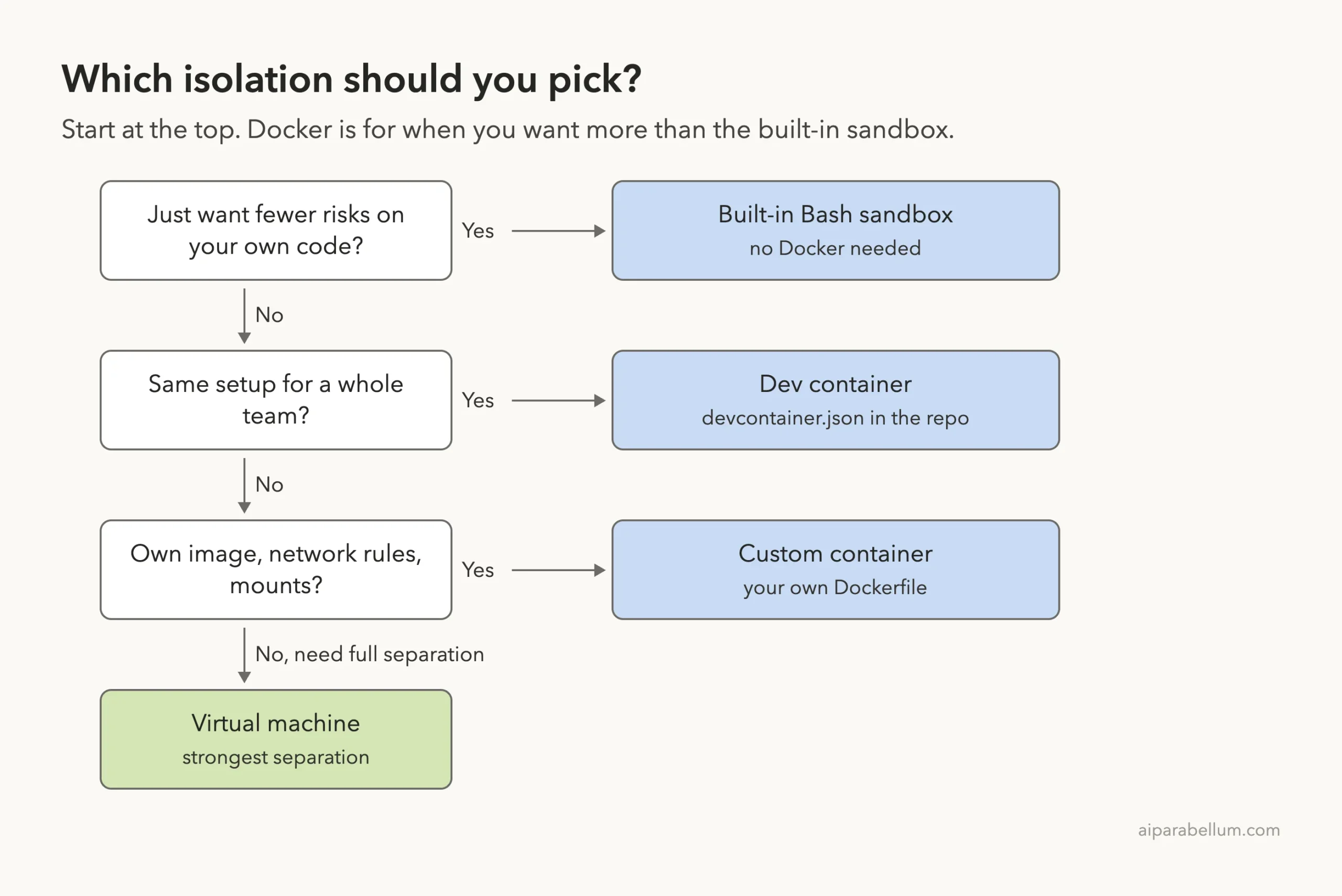
One more note from the docs: a dev container is a convention, not an enforcement boundary, because Claude Code does not require a container. A team that needs a hard rule should enforce it with device management or software allowlisting.
A container protects everything outside the folder you mount, but not the folder itself.
Try It Yourself
Practice with a throwaway folder so nothing real is at risk. Create a folder with one small file, build the image from the Dockerfile above, and run it. Then use this prompt once you are signed in inside the container:
Read hello.py, add a function that says goodbye, and call it at the end of the file.Open the file on your Mac afterward and confirm the change appeared.
Then exit the container and run it again. Notice that the sign-in is gone unless you added the named volume. That is the whole lesson in one experiment.
Common Mistakes
- Running the container as root, which blocks
--dangerously-skip-permissions. - Forgetting
CLAUDE_CONFIG_DIR, so you sign in again after every rebuild. - Mounting your whole home folder, which hands Claude far more than it needs.
- Mounting
~/.sshor cloud credential files into the container. - Assuming the container protects the mounted project folder. It does not.
- Skipping permission prompts on a repository you do not trust.
Pro Tips
- Mount only the project folder you are working on, nothing wider.
- Commit to Git before an unattended run, so you can undo anything.
- Use
${devcontainerId}in the volume name if you want separate settings per project. - Pass cloud credentials as environment variables through
containerEnv, not as mounted files. - Prefer short-lived or repository-scoped tokens over long-lived keys.
- Check the install with
claude --versionbefore you start real work.
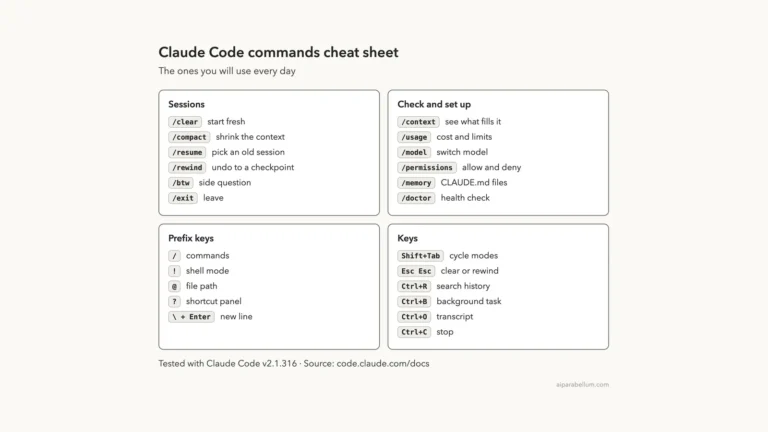
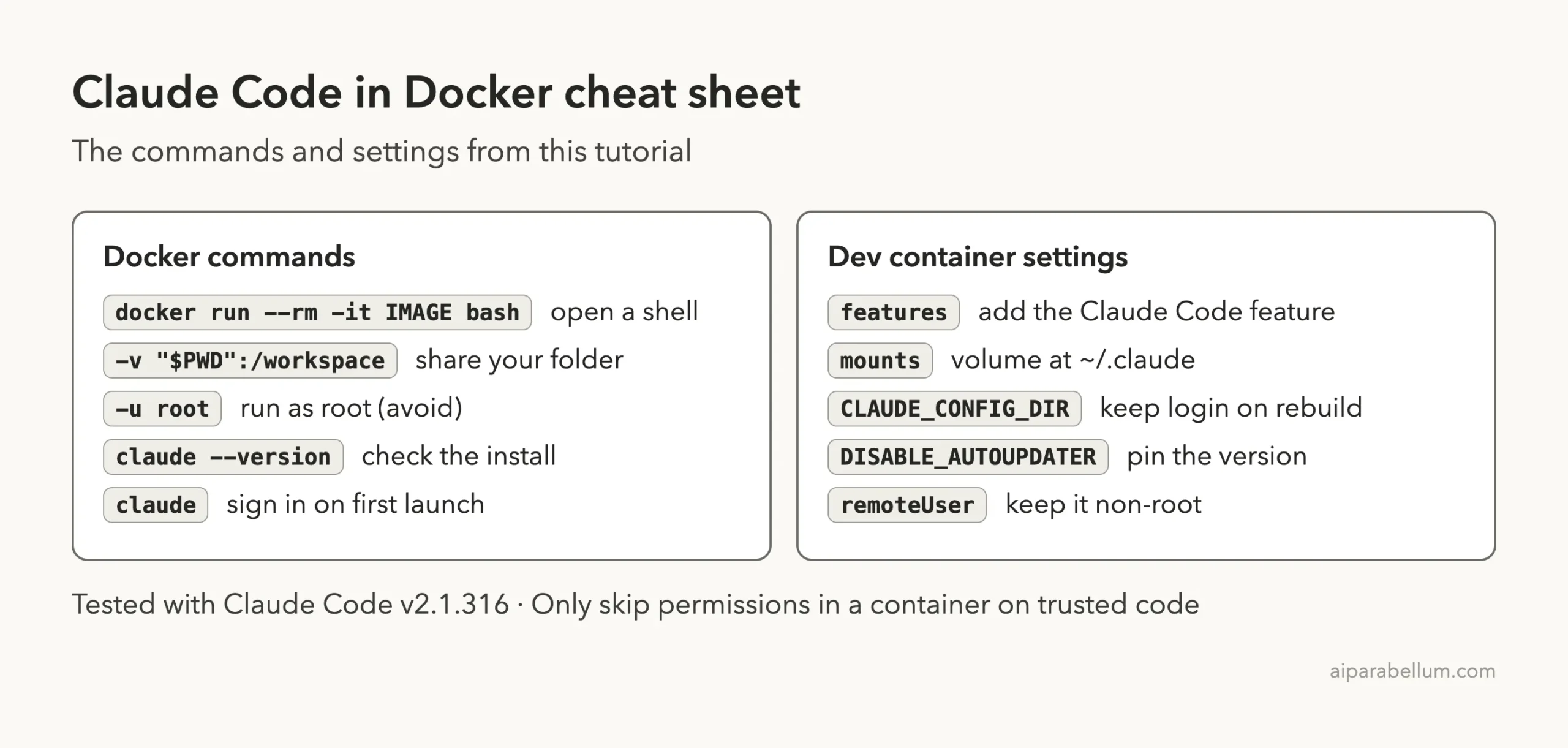
Claude Code in Docker Cheat Sheet
Frequently Asked Questions
Is there an official Claude Code Docker image?
The docs describe a Dev Container Feature and a reference container in the anthropics/claude-code repository. They call the reference a working example rather than a maintained base image. We did not find an official ready-to-pull image in the pages we read.
Does Claude Code work in a Docker container on a Mac?
Yes. We installed it with the official installer inside a Linux container on macOS, and claude --version printed 2.1.316. The container ran Linux, even though the host was a Mac.
Why does –dangerously-skip-permissions fail in my container?
You are probably running as root. Claude Code rejects the flag for root or sudo users. Switch to a non-root user with USER in a Dockerfile or remoteUser in a dev container.
How do I keep Claude Code signed in after a rebuild?
Mount a named volume at ~/.claude and set CLAUDE_CONFIG_DIR to that same path. Without the variable, the account file stays in the home folder and is lost.
Does Docker make Claude Code completely safe?
No. The docs say no system is immune to all attacks.
Claude can still edit your mounted files, and a malicious project could still send out what the container can reach. Use trusted repositories and keep secrets out of the container.
Conclusion
To use Claude Code with Docker, install it as a non-root user inside a container, mount your project folder, and sign in when you launch claude. In our test the container reported Linux while the Mac reported Darwin, a file edited inside the container appeared on the Mac, and Claude Code refused to skip permissions as root. Add the named volume to keep your login, and treat the mounted folder as fully exposed. For the model behind the tool, see our Claude guide, and browse the install guide if you have not set up Claude Code yet.